<!DOCTYPE html>
    <html lang="vi" xmlns="http://www.w3.org/1999/xhtml" prefix="og: http://ogp.me/ns#">
    <head>
<title>Cách thiết lập iPhone Mirroring để chiếu màn hình iPhone lên máy Mac</title>
<meta name="description" content="Cách thiết lập iPhone Mirroring để chiếu màn hình iPhone lên máy Mac - Savefile - Tin Tức -...">
<meta name="author" content=".: Nguoicodonvn2008.info - Cõi lòng người cô đơn :.">
<meta name="copyright" content=".: Nguoicodonvn2008.info - Cõi lòng người cô đơn :. [admin@nguoicodonvn2008.info]">
<meta name="robots" content="index, archive, follow, noodp">
<meta name="googlebot" content="index,archive,follow,noodp">
<meta name="msnbot" content="all,index,follow">
<meta name="generator" content="NukeViet v4.5">
<meta http-equiv="Content-Type" content="text/html; charset=utf-8">
<meta property="og:title" content="Cách thiết lập iPhone Mirroring để chiếu màn hình iPhone lên máy Mac">
<meta property="og:type" content="website">
<meta property="og:description" content="Savefile - Tin Tức - https&#x3A;&#x002F;&#x002F;www.nguoicodonvn2008.info&#x002F;vi&#x002F;news&#x002F;savefile&#x002F;kien-thuc-may-tinh&#x002F;cach-thiet-lap-iphone-mirroring-de-chieu-man-hinh-iphone-len-may-mac-9045.html">
<meta property="og:site_name" content=".&#x3A; Nguoicodonvn2008.info - Cõi lòng người cô đơn &#x3A;.">
<meta property="og:url" content="https://www.nguoicodonvn2008.info/vi/news/savefile/kien-thuc-may-tinh/cach-thiet-lap-iphone-mirroring-de-chieu-man-hinh-iphone-len-may-mac-9045.html">
<link rel="shortcut icon" href="https://nguoicodonvn2008.info/favicon.ico">
<link rel="canonical" href="https://www.nguoicodonvn2008.info/vi/news/savefile/kien-thuc-may-tinh/cach-thiet-lap-iphone-mirroring-de-chieu-man-hinh-iphone-len-may-mac-9045.html">
<link rel="alternate" href="https://nguoicodonvn2008.info/vi/news/rss/" title="Tin Tức" type="application/rss+xml">
<link rel="alternate" href="https://nguoicodonvn2008.info/vi/news/rss/karaoke-dual/" title="Tin Tức - Karaoke Dual" type="application/rss+xml">
<link rel="alternate" href="https://nguoicodonvn2008.info/vi/news/rss/nhac-tre/" title="Tin Tức - Nhạc trẻ" type="application/rss+xml">
<link rel="alternate" href="https://nguoicodonvn2008.info/vi/news/rss/tru-tinh/" title="Tin Tức - Trữ tình" type="application/rss+xml">
<link rel="alternate" href="https://nguoicodonvn2008.info/vi/news/rss/nuoc-ngoai/" title="Tin Tức - Nước ngoài" type="application/rss+xml">
<link rel="alternate" href="https://nguoicodonvn2008.info/vi/news/rss/remix/" title="Tin Tức - Remix" type="application/rss+xml">
<link rel="alternate" href="https://nguoicodonvn2008.info/vi/news/rss/tam-su-tinh-yeu/" title="Tin Tức - Tâm sự tình yêu" type="application/rss+xml">
<link rel="alternate" href="https://nguoicodonvn2008.info/vi/news/rss/tho-suu-tam/" title="Tin Tức - Thơ sưu tầm" type="application/rss+xml">
<link rel="alternate" href="https://nguoicodonvn2008.info/vi/news/rss/cuoc-song/" title="Tin Tức - Cuộc sống" type="application/rss+xml">
<link rel="alternate" href="https://nguoicodonvn2008.info/vi/news/rss/phan-mem/" title="Tin Tức - Phần mềm" type="application/rss+xml">
<link rel="alternate" href="https://nguoicodonvn2008.info/vi/news/rss/kien-thuc-may-tinh/" title="Tin Tức - Kiến thức máy tính" type="application/rss+xml">
<link rel="alternate" href="https://nguoicodonvn2008.info/vi/news/rss/hoc-tap/" title="Tin Tức - Học tập" type="application/rss+xml">
<link rel="alternate" href="https://nguoicodonvn2008.info/vi/news/rss/tai-lieu/" title="Tin Tức - Tài liệu" type="application/rss+xml">
<link rel="alternate" href="https://nguoicodonvn2008.info/vi/news/rss/de-thi/" title="Tin Tức - Đề thi" type="application/rss+xml">
<link rel="preload" as="style" href="https://nguoicodonvn2008.info/assets/css/font-awesome.min.css" type="text/css">
<link rel="preload" as="style" href="https://nguoicodonvn2008.info/themes/default/css/bootstrap.non-responsive.css" type="text/css">
<link rel="preload" as="style" href="https://nguoicodonvn2008.info/themes/default/css/style.css" type="text/css">
<link rel="preload" as="style" href="https://nguoicodonvn2008.info/themes/default/css/style.non-responsive.css" type="text/css">
<link rel="preload" as="style" href="https://nguoicodonvn2008.info/themes/default/css/news.css" type="text/css">
<link rel="preload" as="style" href="https://nguoicodonvn2008.info/themes/default/css/custom.css" type="text/css">
<link rel="preload" as="script" href="https://nguoicodonvn2008.info/assets/js/jquery/jquery.min.js" type="text/javascript">
<link rel="preload" as="script" href="https://nguoicodonvn2008.info/assets/js/language/vi.js" type="text/javascript">
<link rel="preload" as="script" href="https://nguoicodonvn2008.info/assets/js/DOMPurify/purify3.js" type="text/javascript">
<link rel="preload" as="script" href="https://nguoicodonvn2008.info/assets/js/global.js" type="text/javascript">
<link rel="preload" as="script" href="https://nguoicodonvn2008.info/assets/js/site.js" type="text/javascript">
<link rel="preload" as="script" href="https://nguoicodonvn2008.info/themes/default/js/news.js" type="text/javascript">
<link rel="preload" as="script" href="https://nguoicodonvn2008.info/themes/default/js/main.js" type="text/javascript">
<link rel="preload" as="script" href="https://nguoicodonvn2008.info/themes/default/js/custom.js" type="text/javascript">
<link rel="preload" as="script" href="https://nguoicodonvn2008.info/themes/default/js/bootstrap.min.js" type="text/javascript">
<link rel="stylesheet" href="https://nguoicodonvn2008.info/assets/css/font-awesome.min.css">
<link rel="stylesheet" href="https://nguoicodonvn2008.info/themes/default/css/bootstrap.non-responsive.css">
<link rel="stylesheet" href="https://nguoicodonvn2008.info/themes/default/css/style.css">
<link rel="stylesheet" href="https://nguoicodonvn2008.info/themes/default/css/style.non-responsive.css">
<link rel="StyleSheet" href="https://nguoicodonvn2008.info/themes/default/css/news.css">
<link rel="stylesheet" href="https://nguoicodonvn2008.info/themes/default/css/custom.css">
<style type="text/css">
	body{background: #fff;}
</style>
    </head>
    <body>
<div id="print">
	<div id="hd_print">
		<h2 class="pull-left">.&#x3A; Nguoicodonvn2008.info - Cõi lòng người cô đơn &#x3A;.</h2>
		<p class="pull-right"><a title=".&#x3A; Nguoicodonvn2008.info - Cõi lòng người cô đơn &#x3A;." href="https://nguoicodonvn2008.info/">https://nguoicodonvn2008.info</a></p>
	</div>
	<div class="clear"></div>
	<hr />
	<div id="content">
		<h1>Cách thiết lập iPhone Mirroring để chiếu màn hình iPhone lên máy Mac</h1>
		<ul class="list-inline">
			<li>Thứ hai - 23/09/2024 23:18</li>
			<li class="hidden-print txtrequired"><em class="fa fa-print">&nbsp;</em><a title="In ra" href="javascript:;" onclick="window.print()">In ra</a></li>
			<li class="hidden-print txtrequired"><em class="fa fa-power-off">&nbsp;</em><a title="Đóng cửa sổ này" href="javascript:;" onclick="window.close()">Đóng cửa sổ này</a></li>
		</ul>
		<div class="clear"></div>
		<div id="hometext">
		</div>
				<div class="imghome">
			<img alt="Cách thiết lập iPhone Mirroring để chiếu màn hình iPhone lên máy Mac" src="https://st.quantrimang.com/photos/image/2024/09/24/thiet-lap-iphone-mirroring-1.jpg" width="460" class="img-thumbnail" />
		</div>
		<div class="clear"></div>
		<div id="bodytext" class="clearfix">
			<p style="text-align: justify;">iPhone Mirroring là một trong&nbsp;những tính năng nổi bật của macOS Sequoia&nbsp;và cho phép bạn truy cập iPhone và thông báo của iPhone từ máy Mac. Sau đây là cách thiết lập iPhone Mirroring để chiếu màn hình iPhone lên máy Mac!</p>

<h2 style="text-align: justify;">Yêu cầu đối với iPhone Mirroring</h2>

<p style="text-align: justify;">May mắn thay, iPhone Mirroring hoạt động trên tất cả các iPhone hỗ trợ iOS 18. Tuy nhiên, không phải tất cả các máy Mac có thể chạy macOS Sequoia đều hỗ trợ iPhone Mirroring. iMac 2019 không có chip bảo mật T2 nên không có chức năng này.</p>

<p style="text-align: justify;">Nếu có bất kỳ máy Mac nào khác, bạn có thể cập nhật thiết bị của mình. Ngoài ra, hãy đảm bảo rằng bạn đã đăng nhập vào cả hai thiết bị bằng cùng một tài khoản Apple.</p>

<h2 style="text-align: justify;">Thiết lập iPhone Mirroring</h2>

<p style="text-align: justify;">Để thiết lập iPhone Mirroring, bạn chỉ cần nhấp vào biểu tượng iPhone trong Dock của máy Mac. Nếu bạn không thấy biểu tượng đó ở đó, hãy sử dụng tìm kiếm Spotlight (<strong>Command + Space</strong>) để tìm và mở ứng dụng iPhone Mirroring. Nhưng có một số điều bạn nên đảm bảo trước khi có thể sử dụng iPhone Mirroring.</p>

<p style="text-align: justify;">Đầu tiên, iPhone của bạn phải ở gần máy Mac và được khóa để bạn có thể sử dụng iPhone Mirroring. Nếu vẫn không hoạt động, hãy đảm bảo rằng bạn không bật VPN và iPhone hoặc máy Mac không chia sẻ kết nối di động hoặc Internet (điểm phát sóng) hoặc&nbsp;<a data-type="internal" href="https://quantrimang.com/cong-nghe/cach-su-dung-airplay-chieu-man-hinh-tren-may-mac-180500" title="Cách sử dụng Airplay (chiếu màn hình) trên máy Mac">sử dụng AirPlay</a>, Sidecar hoặc Continuity Camera.</p>

<figure>
<div style="text-align: justify;"><img alt="Biểu tượng iPhone Mirroring trong Dock" data-i="0" data-src="https://st.quantrimang.com/photos/image/2024/09/24/thiet-lap-iphone-mirroring-1.jpg" data-was-processed="true" height="189" src="https://st.quantrimang.com/photos/image/2024/09/24/thiet-lap-iphone-mirroring-1.jpg" width="969" /></div>

<figcaption>
<div style="text-align: justify;">Biểu tượng iPhone Mirroring trong Dock</div>
</figcaption>
</figure>

<div style="text-align: justify;">&nbsp;</div>

<p style="text-align: justify;"><strong>Lưu ý</strong>: Bạn không thể sử dụng iPhone với máy Mac theo bất kỳ cách nào khác khi dùng iPhone Mirroring. Nó sẽ không tiếp tục hoạt động như một webcam hoặc micro và sẽ ngừng phát nhạc nếu bạn đang phát nhạc từ loa iPhone.</p>

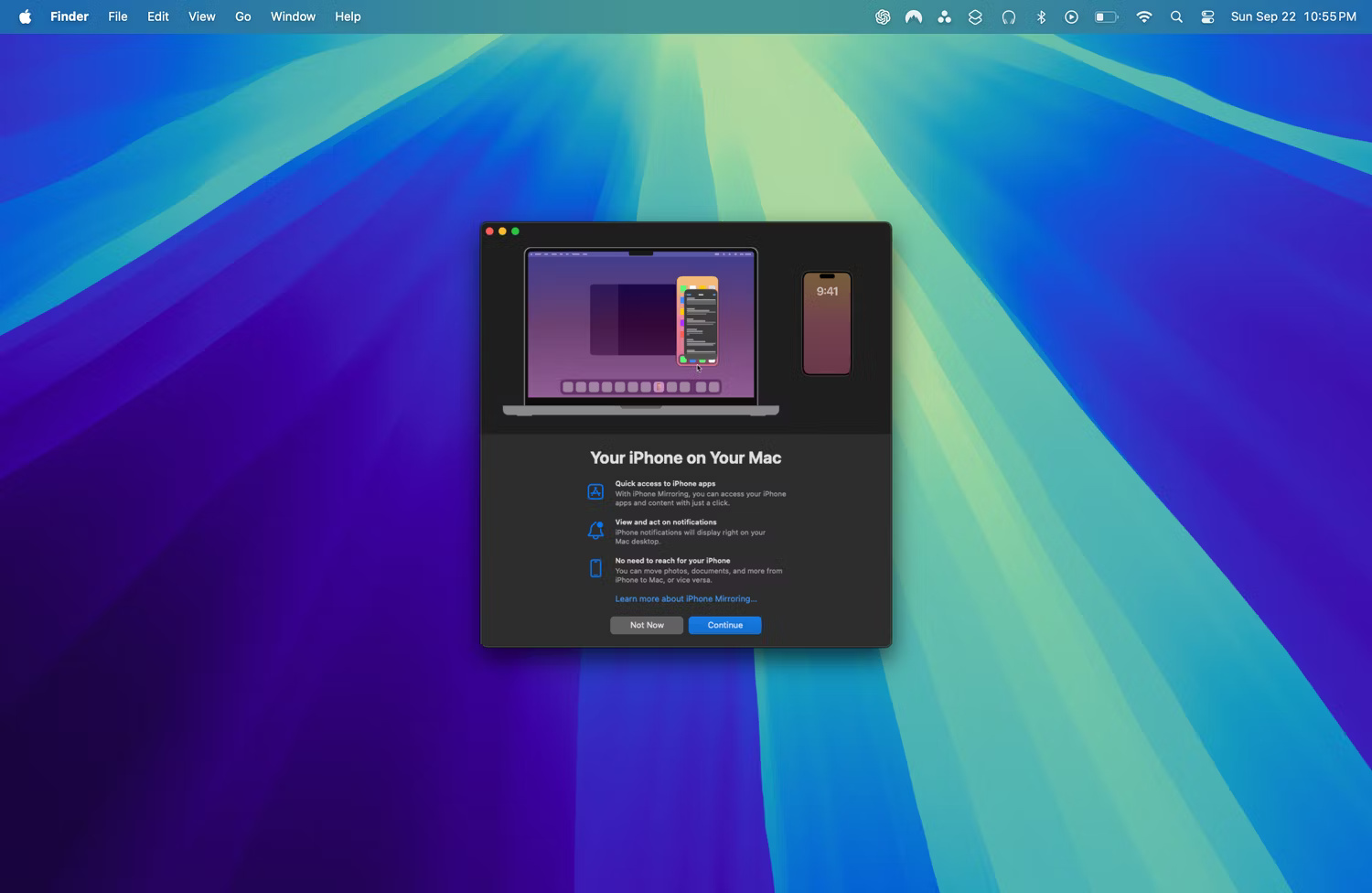
<p style="text-align: justify;">Lần đầu tiên mở iPhone Mirroring, bạn sẽ thấy cửa sổ thông tin giới thiệu của Apple. Đọc thông tin đó, nhấp vào&nbsp;<strong>Continue</strong>&nbsp;và bạn sẽ được nhắc mở khóa điện thoại.</p>

<figure>
<div style="text-align: justify;"><img alt="Màn hình chào mừng giới thiệu iPhone Mirroring" data-i="1" data-src="https://st.quantrimang.com/photos/image/2024/09/24/thiet-lap-iphone-mirroring-2.jpg" data-was-processed="true" height="976" src="https://st.quantrimang.com/photos/image/2024/09/24/thiet-lap-iphone-mirroring-2.jpg" width="1500" /></div>

<figcaption>
<div style="text-align: justify;">Màn hình chào mừng giới thiệu iPhone Mirroring</div>
</figcaption>
</figure>

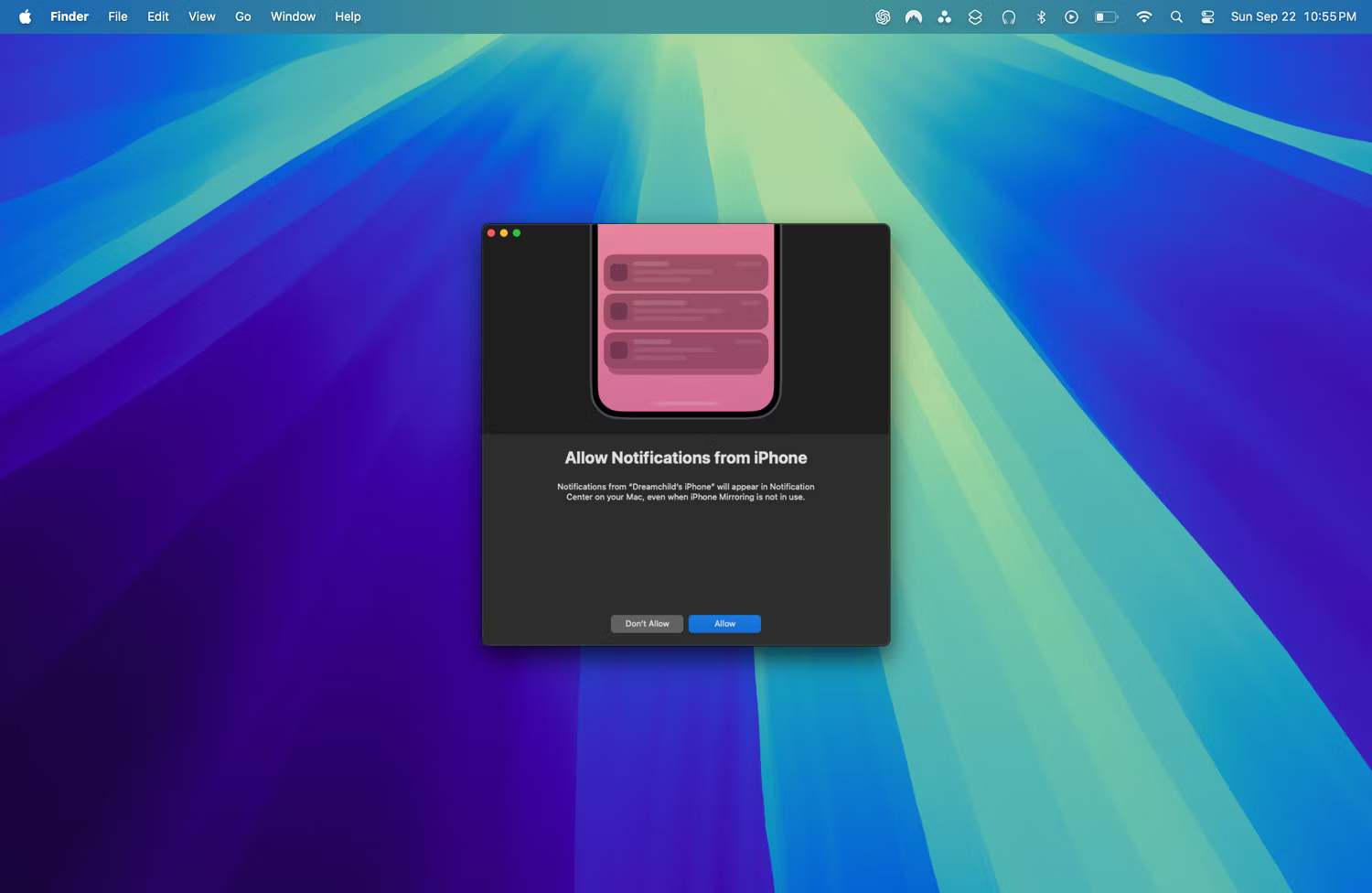
<p style="text-align: justify;">Sau khi mở khóa điện thoại, bạn sẽ được hỏi xem bạn có muốn cho phép thông báo từ iPhone của mình không. Bạn có thể chọn&nbsp;<strong>Don&#039;t Allow</strong>&nbsp;hoặc&nbsp;<strong>Allow</strong>, tùy theo sở thích của mình.</p>

<div style="text-align: justify;">&nbsp;</div>

<figure>
<div style="text-align: justify;"><br />
<img alt="Màn hình thông báo iPhone Mirroring" data-adbro-processed="true" data-i="2" data-src="https://st.quantrimang.com/photos/image/2024/09/24/thiet-lap-iphone-mirroring-3.jpg" data-was-processed="true" height="976" src="https://st.quantrimang.com/photos/image/2024/09/24/thiet-lap-iphone-mirroring-3.jpg" width="1500" /><br />
</div>

<figcaption>
<div style="text-align: justify;">Màn hình thông báo iPhone Mirroring</div>
</figcaption>
</figure>

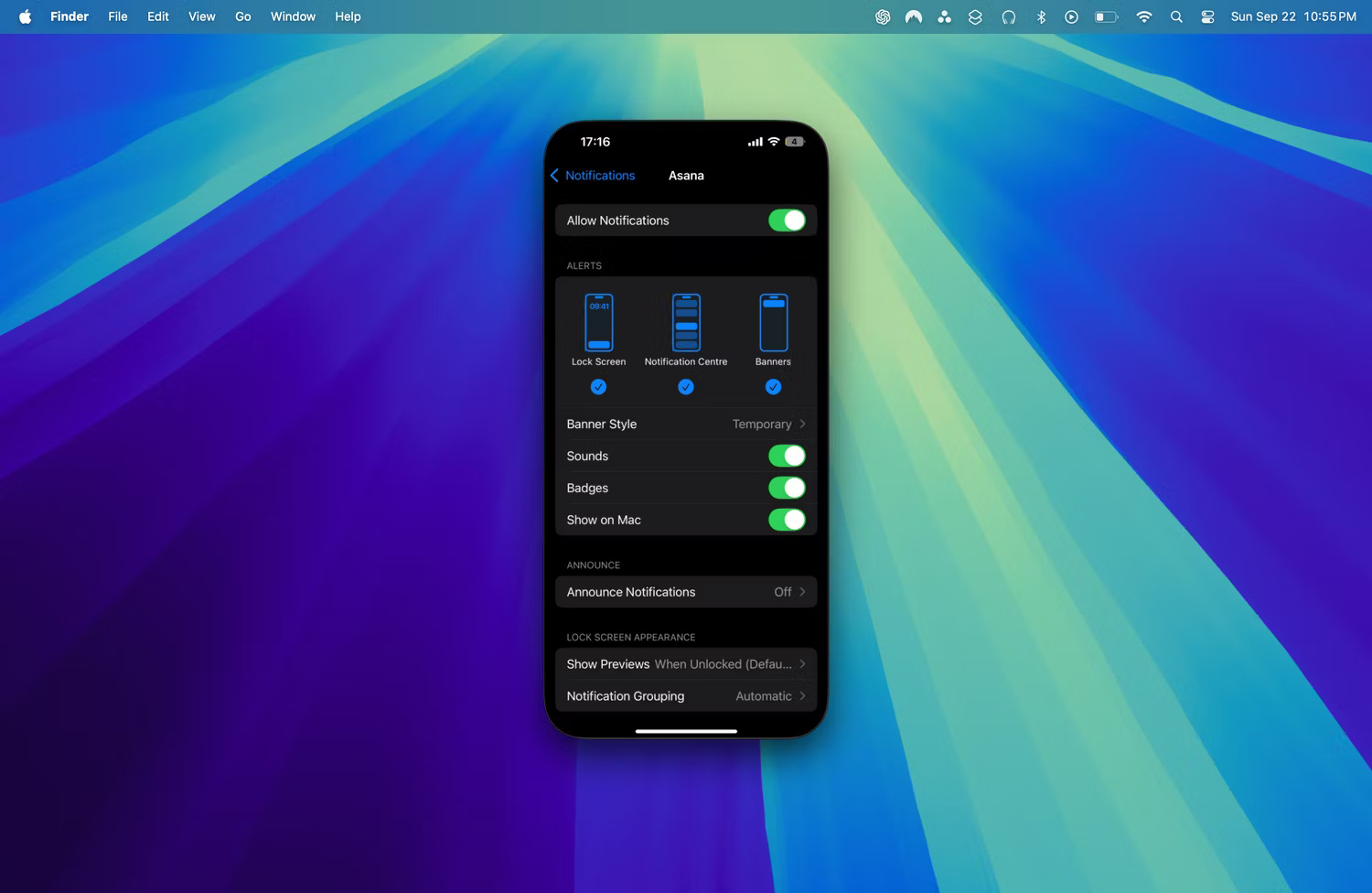
<p style="text-align: justify;">Bạn có thể thay đổi tùy chọn này sau từ máy Mac của mình bằng cách vào&nbsp;<strong>System Settings &gt; Notifications &gt; Allow notifications from iPhone</strong>&nbsp;và tắt tùy chọn này. Ngoài ra, bạn có thể vào ứng dụng&nbsp;<strong>Settings</strong>&nbsp;của iPhone, nhấn vào&nbsp;<strong>Notifications</strong>, chọn ứng dụng riêng lẻ và tắt&nbsp;<strong>Show on Mac</strong>.</p>

<figure>
<div style="text-align: justify;"><img alt="Tùy chọn thông báo Asana trong iPhone Mirroring" data-i="3" data-src="https://st.quantrimang.com/photos/image/2024/09/24/thiet-lap-iphone-mirroring-4.jpg" data-was-processed="true" height="976" src="https://st.quantrimang.com/photos/image/2024/09/24/thiet-lap-iphone-mirroring-4.jpg" width="1500" /></div>

<figcaption>
<div style="text-align: justify;">Tùy chọn thông báo Asana trong iPhone Mirroring</div>
</figcaption>
</figure>

<div style="text-align: justify;">&nbsp;</div>

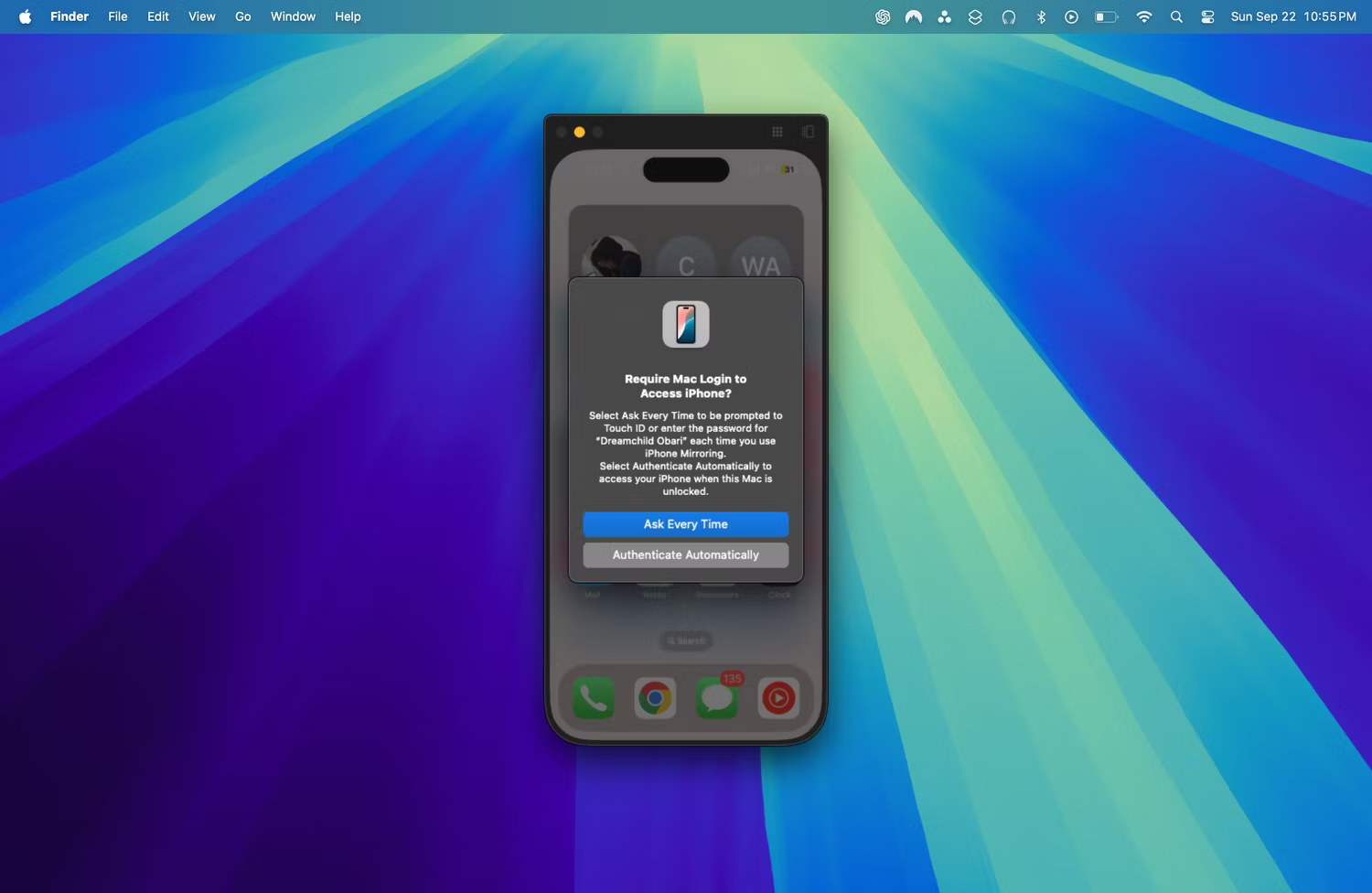
<p style="text-align: justify;">Tiếp theo, nhấp vào&nbsp;<strong>Get Started</strong>&nbsp;và nhập mật khẩu máy Mac hoặc sử dụng Touch ID. Sau màn hình load, bạn sẽ được hỏi có muốn nhập mật khẩu người dùng hoặc Touch ID mỗi khi sử dụng iPhone Mirroring hay muốn tự động xác thực.</p>

<figure>
<div style="text-align: justify;"><img alt="Lời nhắc truy cập iPhone Mirroring" data-i="4" data-src="https://st.quantrimang.com/photos/image/2024/09/24/thiet-lap-iphone-mirroring-5.jpg" data-was-processed="true" height="976" src="https://st.quantrimang.com/photos/image/2024/09/24/thiet-lap-iphone-mirroring-5.jpg" width="1500" /></div>

<figcaption>
<div style="text-align: justify;">Lời nhắc truy cập iPhone Mirroring</div>
</figcaption>
</figure>

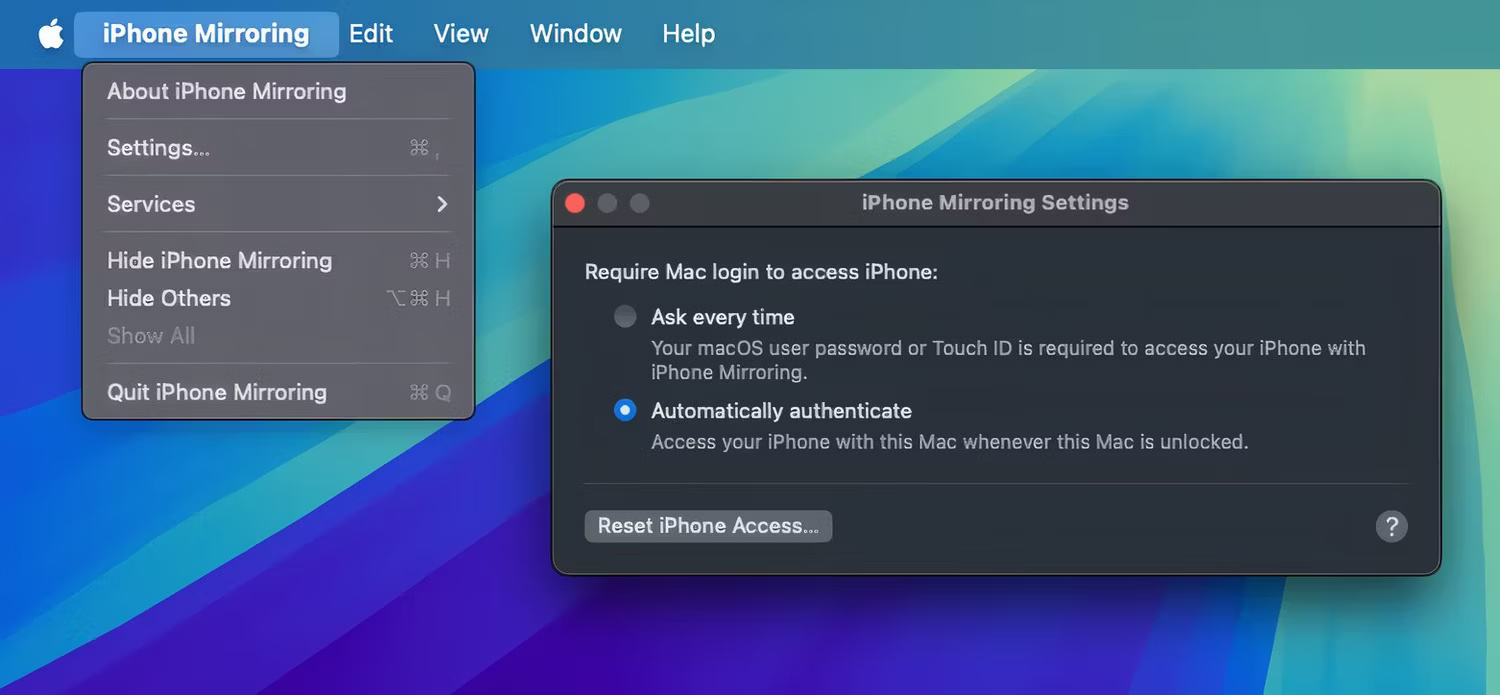
<p style="text-align: justify;">Điều này có thể giúp bạn tiết kiệm thêm một bước nếu định sử dụng iPhone Mirroring thường xuyên nhưng phải trả giá bằng mức độ bảo mật thấp hơn. Bạn có thể thay đổi cài đặt này sau bằng cách nhấp vào&nbsp;<strong>iPhone Mirroring</strong>&nbsp;trên thanh menu (khi đang ở trong cửa sổ iPhone Mirroring) và chọn&nbsp;<strong>Settings</strong>.</p>

<figure>
<div style="text-align: justify;"><img alt="Menu cài đặt iPhone Mirroring trong macOS Sequoia" data-i="5" data-src="https://st.quantrimang.com/photos/image/2024/09/24/thiet-lap-iphone-mirroring-6.jpg" data-was-processed="true" height="695" src="https://st.quantrimang.com/photos/image/2024/09/24/thiet-lap-iphone-mirroring-6.jpg" width="1500" /></div>

<figcaption>
<div style="text-align: justify;">Menu cài đặt iPhone Mirroring trong macOS Sequoia</div>
</figcaption>
</figure>

<p style="text-align: justify;">Cuối cùng, bạn nên đặt cửa sổ ở kích thước phù hợp với mình. Trong khi cửa sổ iPhone Mirroring đang mở, hãy nhấp vào&nbsp;<strong>View</strong>&nbsp;trên thanh menu và chọn giữa 3 cài đặt preset:&nbsp;<strong>Larger</strong>,&nbsp;<strong>Actual Size</strong>&nbsp;và&nbsp;<strong>Smaller</strong>.</p>

<div style="text-align: justify;">&nbsp;</div>

<h2 style="text-align: justify;">Điều hướng iPhone trên máy Mac</h2>

<p style="text-align: justify;">Bây giờ, bạn đã thiết lập xong mọi thứ và sẵn sàng sử dụng, bạn có thể tương tác trực quan với cửa sổ iPhone trên máy Mac. Nếu đang sử dụng chuột của bên thứ ba, bạn sẽ phải thay thế bằng Magic Mouse hoặc Magic Trackpad vì hầu hết các cử chỉ đều được thiết kế để hoạt động với chúng.</p>

<ul>
	<li style="text-align: justify;">Vuốt giữa các trang Màn hình chính bằng cách vuốt bằng hai ngón tay trên trackpad.</li>
	<li style="text-align: justify;">Vuốt lên bằng hai ngón tay trên Màn hình chính để truy cập tìm kiếm Spotlight - hoặc nhấn&nbsp;<strong>Command + 3</strong>&nbsp;trên bàn phím.</li>
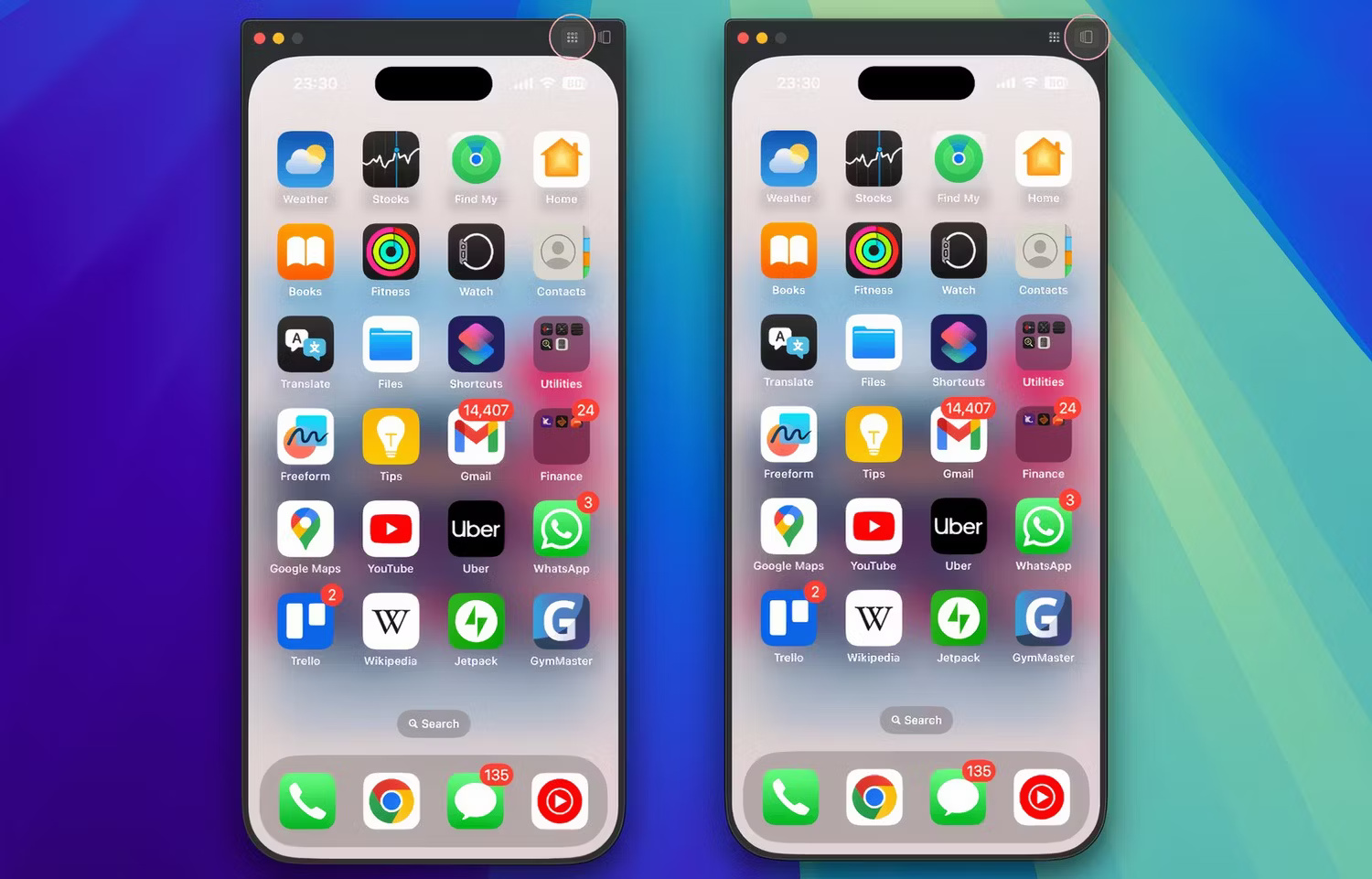
	<li style="text-align: justify;">Nhấp vào biểu tượng lưới ở góc trên bên phải của cửa sổ iPhone Mirroring để trở về trang chủ từ bất kỳ ứng dụng nào - hoặc nhấp vào Home Bar ở cuối - hoặc nhấn&nbsp;<strong>Command + 1</strong>&nbsp;trên bàn phím.</li>
	<li style="text-align: justify;">Nhấp vào biểu tượng&nbsp;<strong>App Switcher</strong>&nbsp;ở góc trên bên phải của cửa sổ để truy cập App Switcher. Ngoài ra, bạn có thể nhấn&nbsp;<strong>Command + 2</strong>&nbsp;trên bàn phím.</li>
	<li style="text-align: justify;">Bạn cũng có thể nhập bằng bàn phím máy Mac; không có cách nào để mở bàn phím iOS.</li>
	<li style="text-align: justify;">Nhấp chuột bằng phím Control (hoặc nhấp chuột phải) sẽ hiển thị menu ngữ cảnh khi đang ở chế độ iPhone Mirroring theo cùng cách như khi bạn nhấn và giữ điện thoại.</li>
	<li style="text-align: justify;">Một số shortcut trên máy Mac như&nbsp;<strong>Command + C&nbsp;</strong>(sao chép) và&nbsp;<strong>Command + V</strong>&nbsp;(dán) hoạt động khi đang chiếu iPhone.</li>
</ul>

<figure>
<div style="text-align: justify;"><img alt="Hai cửa sổ chiếu iPhone trong macOS Sequoia" data-i="6" data-src="https://st.quantrimang.com/photos/image/2024/09/24/thiet-lap-iphone-mirroring-7.jpg" data-was-processed="true" height="961" src="https://st.quantrimang.com/photos/image/2024/09/24/thiet-lap-iphone-mirroring-7.jpg" width="1500" /></div>

<figcaption>
<div style="text-align: justify;">Hai cửa sổ chiếu iPhone trong macOS Sequoia</div>
</figcaption>
</figure>

<p style="text-align: justify;"><strong>Lưu ý</strong>: Mặc dù bạn có thể tương tác tốt với video và media, nhưng bạn không thể truy cập micro hoặc camera của iPhone khi đang ở chế độ iPhone Mirroring.</p>

<div style="text-align: justify;">&nbsp;</div>
		</div>
				<div id="author">
						<p>
				<strong>Nguồn tin:</strong>
				Quantrimang.com:
			</p>
		</div>
	</div>
	<div id="footer" class="clearfix">
		<div id="url">
			<strong>URL của bản tin này: </strong><a href="https://www.nguoicodonvn2008.info/vi/news/savefile/kien-thuc-may-tinh/cach-thiet-lap-iphone-mirroring-de-chieu-man-hinh-iphone-len-may-mac-9045.html" title="Cách thiết lập iPhone Mirroring để chiếu màn hình iPhone lên máy Mac">https://www.nguoicodonvn2008.info/vi/news/savefile/kien-thuc-may-tinh/cach-thiet-lap-iphone-mirroring-de-chieu-man-hinh-iphone-len-may-mac-9045.html</a>

		</div>
		<div class="clear"></div>
		<div class="copyright">
			&copy; .&#x3A; Nguoicodonvn2008.info - Cõi lòng người cô đơn &#x3A;.
		</div>
		<div id="contact">
			<a href="mailto:admin@nguoicodonvn2008.info">admin@nguoicodonvn2008.info</a>
		</div>
	</div>
</div>
        <div id="timeoutsess" class="chromeframe">
            Bạn đã không sử dụng Site, <a onclick="timeoutsesscancel();" href="https://nguoicodonvn2008.info/#">Bấm vào đây để duy trì trạng thái đăng nhập</a>. Thời gian chờ: <span id="secField"> 60 </span> giây
        </div>
        <div id="openidResult" class="nv-alert" style="display:none"></div>
        <div id="openidBt" data-result="" data-redirect=""></div>
		</script>
		<div class="car-top">
  <span><img src="https://nguoicodonvn2008.info/themes/default/images/car.png" alt=""></span>
</div>
<script src="https://nguoicodonvn2008.info/assets/js/jquery/jquery.min.js"></script>
<script>var nv_base_siteurl="/",nv_lang_data="vi",nv_lang_interface="vi",nv_name_variable="nv",nv_fc_variable="op",nv_lang_variable="language",nv_module_name="news",nv_func_name="savefile",nv_is_user=0, nv_my_ofs=-4,nv_my_abbr="EDT",nv_cookie_prefix="nv4c_e856T",nv_check_pass_mstime=1738000,nv_area_admin=0,nv_safemode=0,theme_responsive=0,nv_recaptcha_ver=2,nv_recaptcha_sitekey="",nv_recaptcha_type="image",XSSsanitize=1;</script>
<script src="https://nguoicodonvn2008.info/assets/js/language/vi.js"></script>
<script src="https://nguoicodonvn2008.info/assets/js/DOMPurify/purify3.js"></script>
<script src="https://nguoicodonvn2008.info/assets/js/global.js"></script>
<script src="https://nguoicodonvn2008.info/assets/js/site.js"></script>
<script src="https://nguoicodonvn2008.info/themes/default/js/news.js"></script>
<script src="https://nguoicodonvn2008.info/themes/default/js/main.js"></script>
<script src="https://nguoicodonvn2008.info/themes/default/js/custom.js"></script>
<script type="application/ld+json">
        {
            "@context": "https://schema.org",
            "@type": "Organization",
            "url": "https://nguoicodonvn2008.info",
            "logo": "https://nguoicodonvn2008.info/uploads/angel.gif"
        }
        </script>
<script src="https://nguoicodonvn2008.info/themes/default/js/bootstrap.min.js"></script>
<script type="text/javascript">
var $scrolltop = $('.car-top');
$scrolltop.on('click', function () {
    $('html,body').animate({
        scrollTop: 0
    }, 800);
    $(this).addClass("car-run");
    setTimeout(function(){ $scrolltop.removeClass('car-run');}, 1000);
    return false;
});
$(window).on('scroll', function ()
{ 
    if($(window).scrollTop() >= 200)
    {
        $scrolltop.addClass("show");
        $scrolltop.addClass("car-down");
    }
    else
    {
       $scrolltop.removeClass("show");
       setTimeout(function(){ $scrolltop.removeClass('car-down');}, 300);
    }
});
</script>
</body>
</html>