<!DOCTYPE html>
    <html lang="vi" xmlns="http://www.w3.org/1999/xhtml" prefix="og: http://ogp.me/ns#">
    <head>
<title>Cách thiết lập hotkey tải hình ảnh trang web trong Windows 10&#x002F;11</title>
<meta name="description" content="Cách thiết lập hotkey tải hình ảnh trang web trong Windows 10&#x002F;11 - Savefile - Tin Tức -...">
<meta name="author" content=".: Nguoicodonvn2008.info - Cõi lòng người cô đơn :.">
<meta name="copyright" content=".: Nguoicodonvn2008.info - Cõi lòng người cô đơn :. [admin@nguoicodonvn2008.info]">
<meta name="robots" content="index, archive, follow, noodp">
<meta name="googlebot" content="index,archive,follow,noodp">
<meta name="msnbot" content="all,index,follow">
<meta name="generator" content="NukeViet v4.5">
<meta http-equiv="Content-Type" content="text/html; charset=utf-8">
<meta property="og:title" content="Cách thiết lập hotkey tải hình ảnh trang web trong Windows 10&#x002F;11">
<meta property="og:type" content="website">
<meta property="og:description" content="Savefile - Tin Tức - https&#x3A;&#x002F;&#x002F;www.nguoicodonvn2008.info&#x002F;vi&#x002F;news&#x002F;savefile&#x002F;kien-thuc-may-tinh&#x002F;cach-thiet-lap-hotkey-tai-hinh-anh-trang-web-trong-windows-10-11-6888.html">
<meta property="og:site_name" content=".&#x3A; Nguoicodonvn2008.info - Cõi lòng người cô đơn &#x3A;.">
<meta property="og:url" content="https://www.nguoicodonvn2008.info/vi/news/savefile/kien-thuc-may-tinh/cach-thiet-lap-hotkey-tai-hinh-anh-trang-web-trong-windows-10-11-6888.html">
<link rel="shortcut icon" href="https://nguoicodonvn2008.info/favicon.ico">
<link rel="canonical" href="https://www.nguoicodonvn2008.info/vi/news/savefile/kien-thuc-may-tinh/cach-thiet-lap-hotkey-tai-hinh-anh-trang-web-trong-windows-10-11-6888.html">
<link rel="alternate" href="https://nguoicodonvn2008.info/vi/news/rss/" title="Tin Tức" type="application/rss+xml">
<link rel="alternate" href="https://nguoicodonvn2008.info/vi/news/rss/karaoke-dual/" title="Tin Tức - Karaoke Dual" type="application/rss+xml">
<link rel="alternate" href="https://nguoicodonvn2008.info/vi/news/rss/nhac-tre/" title="Tin Tức - Nhạc trẻ" type="application/rss+xml">
<link rel="alternate" href="https://nguoicodonvn2008.info/vi/news/rss/tru-tinh/" title="Tin Tức - Trữ tình" type="application/rss+xml">
<link rel="alternate" href="https://nguoicodonvn2008.info/vi/news/rss/nuoc-ngoai/" title="Tin Tức - Nước ngoài" type="application/rss+xml">
<link rel="alternate" href="https://nguoicodonvn2008.info/vi/news/rss/remix/" title="Tin Tức - Remix" type="application/rss+xml">
<link rel="alternate" href="https://nguoicodonvn2008.info/vi/news/rss/tam-su-tinh-yeu/" title="Tin Tức - Tâm sự tình yêu" type="application/rss+xml">
<link rel="alternate" href="https://nguoicodonvn2008.info/vi/news/rss/tho-suu-tam/" title="Tin Tức - Thơ sưu tầm" type="application/rss+xml">
<link rel="alternate" href="https://nguoicodonvn2008.info/vi/news/rss/cuoc-song/" title="Tin Tức - Cuộc sống" type="application/rss+xml">
<link rel="alternate" href="https://nguoicodonvn2008.info/vi/news/rss/phan-mem/" title="Tin Tức - Phần mềm" type="application/rss+xml">
<link rel="alternate" href="https://nguoicodonvn2008.info/vi/news/rss/kien-thuc-may-tinh/" title="Tin Tức - Kiến thức máy tính" type="application/rss+xml">
<link rel="alternate" href="https://nguoicodonvn2008.info/vi/news/rss/hoc-tap/" title="Tin Tức - Học tập" type="application/rss+xml">
<link rel="alternate" href="https://nguoicodonvn2008.info/vi/news/rss/tai-lieu/" title="Tin Tức - Tài liệu" type="application/rss+xml">
<link rel="alternate" href="https://nguoicodonvn2008.info/vi/news/rss/de-thi/" title="Tin Tức - Đề thi" type="application/rss+xml">
<link rel="preload" as="style" href="https://nguoicodonvn2008.info/assets/css/font-awesome.min.css" type="text/css">
<link rel="preload" as="style" href="https://nguoicodonvn2008.info/themes/default/css/bootstrap.non-responsive.css" type="text/css">
<link rel="preload" as="style" href="https://nguoicodonvn2008.info/themes/default/css/style.css" type="text/css">
<link rel="preload" as="style" href="https://nguoicodonvn2008.info/themes/default/css/style.non-responsive.css" type="text/css">
<link rel="preload" as="style" href="https://nguoicodonvn2008.info/themes/default/css/news.css" type="text/css">
<link rel="preload" as="style" href="https://nguoicodonvn2008.info/themes/default/css/custom.css" type="text/css">
<link rel="preload" as="script" href="https://nguoicodonvn2008.info/assets/js/jquery/jquery.min.js" type="text/javascript">
<link rel="preload" as="script" href="https://nguoicodonvn2008.info/assets/js/language/vi.js" type="text/javascript">
<link rel="preload" as="script" href="https://nguoicodonvn2008.info/assets/js/DOMPurify/purify3.js" type="text/javascript">
<link rel="preload" as="script" href="https://nguoicodonvn2008.info/assets/js/global.js" type="text/javascript">
<link rel="preload" as="script" href="https://nguoicodonvn2008.info/assets/js/site.js" type="text/javascript">
<link rel="preload" as="script" href="https://nguoicodonvn2008.info/themes/default/js/news.js" type="text/javascript">
<link rel="preload" as="script" href="https://nguoicodonvn2008.info/themes/default/js/main.js" type="text/javascript">
<link rel="preload" as="script" href="https://nguoicodonvn2008.info/themes/default/js/custom.js" type="text/javascript">
<link rel="preload" as="script" href="https://nguoicodonvn2008.info/themes/default/js/bootstrap.min.js" type="text/javascript">
<link rel="stylesheet" href="https://nguoicodonvn2008.info/assets/css/font-awesome.min.css">
<link rel="stylesheet" href="https://nguoicodonvn2008.info/themes/default/css/bootstrap.non-responsive.css">
<link rel="stylesheet" href="https://nguoicodonvn2008.info/themes/default/css/style.css">
<link rel="stylesheet" href="https://nguoicodonvn2008.info/themes/default/css/style.non-responsive.css">
<link rel="StyleSheet" href="https://nguoicodonvn2008.info/themes/default/css/news.css">
<link rel="stylesheet" href="https://nguoicodonvn2008.info/themes/default/css/custom.css">
<style type="text/css">
	body{background: #fff;}
</style>
    </head>
    <body>
<div id="print">
	<div id="hd_print">
		<h2 class="pull-left">.&#x3A; Nguoicodonvn2008.info - Cõi lòng người cô đơn &#x3A;.</h2>
		<p class="pull-right"><a title=".&#x3A; Nguoicodonvn2008.info - Cõi lòng người cô đơn &#x3A;." href="https://nguoicodonvn2008.info/">https://nguoicodonvn2008.info</a></p>
	</div>
	<div class="clear"></div>
	<hr />
	<div id="content">
		<h1>Cách thiết lập hotkey tải hình ảnh trang web trong Windows 10&#x002F;11</h1>
		<ul class="list-inline">
			<li>Thứ tư - 15/03/2023 01:01</li>
			<li class="hidden-print txtrequired"><em class="fa fa-print">&nbsp;</em><a title="In ra" href="javascript:;" onclick="window.print()">In ra</a></li>
			<li class="hidden-print txtrequired"><em class="fa fa-power-off">&nbsp;</em><a title="Đóng cửa sổ này" href="javascript:;" onclick="window.close()">Đóng cửa sổ này</a></li>
		</ul>
		<div class="clear"></div>
		<div id="hometext">
		</div>
				<div class="imghome">
			<img alt="Cách thiết lập hotkey tải hình ảnh trang web trong Windows 10&#x002F;11" src="https://st.quantrimang.com/photos/image/2023/03/15/thiet-lap-hotkey-tai-anh-trang-web-10.jpg" width="460" class="img-thumbnail" />
		</div>
		<div class="clear"></div>
		<div id="bodytext" class="clearfix">
			<p style="text-align: justify;">Để tải xuống hình ảnh trang web trong hầu hết các trình duyệt Windows, bạn thường cần nhấp chuột phải vào hình ảnh để chọn tùy chọn menu ngữ cảnh&nbsp;<strong>Save</strong>. Sau đó, bạn phải chọn một thư mục để tải xuống hình ảnh trong cửa sổ chọn thư mục và nhấp vào&nbsp;<strong>Save</strong>.</p>

<p style="text-align: justify;">Sẽ không tuyệt sao nếu Windows có một hotkey tùy chỉnh chung mà bạn có thể nhấn trong trình duyệt để nhanh chóng tải hình ảnh xuống một thư mục đã định? Một hotkey như vậy sẽ là phím tắt hữu ích để tải xuống các hình ảnh trên web. Bạn có thể thiết lập phím tắt để tải xuống hình ảnh bằng phần mềm SavePictureAs và tiện ích mở rộng I’m a Gentleman.</p>

<h2 style="text-align: justify;">Cách thiết lập hotkey tải hình ảnh web bằng SavePictureAs</h2>

<p style="text-align: justify;">SavePictureAs là một ứng dụng Windows tiện dụng cho phép bạn tạo các phím chụp màn hình tùy chỉnh trong&nbsp;Windows 10&nbsp;và 11. Phần mềm đó có một hotkey&nbsp;<strong>Ctrl</strong>&nbsp;+&nbsp;<strong>Space&nbsp;</strong>thư mục mặc định mà bạn có thể nhấn để tải xuống hình ảnh khi di con trỏ qua trong trình duyệt. Đây là cách bạn có thể thiết lập hotkey Windows để tải hình ảnh trang web bằng SavePictureAs:</p>

<p style="text-align: justify;">1.&nbsp;Mở trang SavePictureAs Softpedia.:<br />
<span style="color:rgb(192, 57, 43);"><strong>https://www.softpedia.com/get/System/File-Management/SavePictureAs.shtml</strong></span></p>

<p style="text-align: justify;">2. Nhấp vào&nbsp;<strong>Download</strong>&nbsp;để truy cập một số tùy chọn vị trí và tải xuống file.</p>

<p style="text-align: justify;">3. Nhấp đúp vào&nbsp;<strong>SavePictureAs.exe</strong>&nbsp;để mở trình cài đặt của phần mềm.</p>

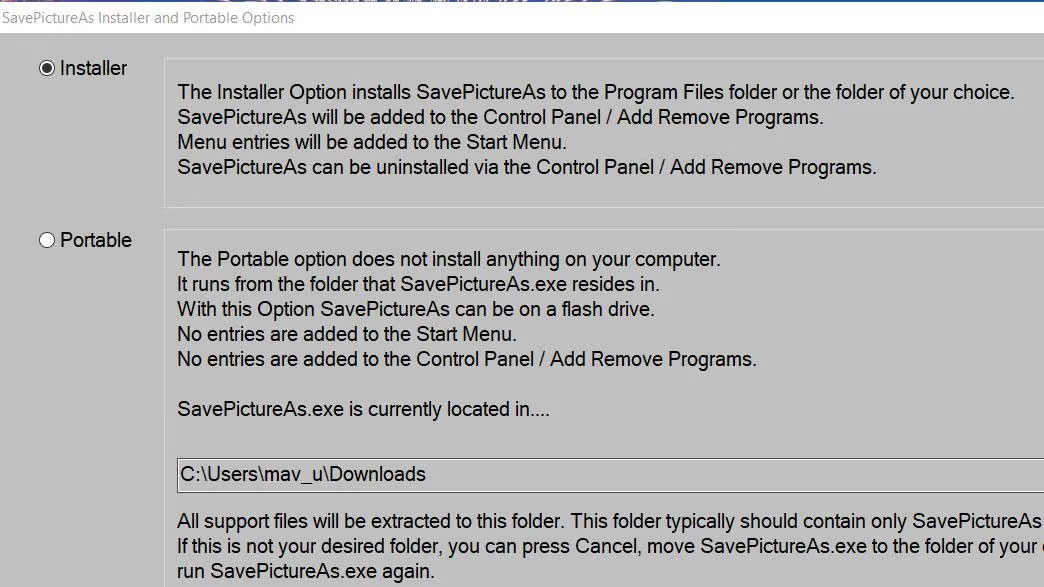
<p style="text-align: justify;">4. Nhấp vào nút&nbsp;<strong>Installer</strong>&nbsp;cho phiên bản không phải portable và chọn&nbsp;<strong>Continue</strong>.</p>

<figure>
<div style="text-align: justify;"><img alt="Các nút Installer và Portable" data-i="0" data-src="https://st.quantrimang.com/photos/image/2023/03/15/thiet-lap-hotkey-tai-anh-trang-web-1.jpg" data-was-processed="true" height="587" src="https://st.quantrimang.com/photos/image/2023/03/15/thiet-lap-hotkey-tai-anh-trang-web-1.jpg" width="1044" /></div>

<figcaption>
<div style="text-align: justify;">Các nút Installer và Portable</div>
</figcaption>
</figure>

<p style="text-align: justify;">5. Chọn&nbsp;<strong>Next</strong>&nbsp;hai lần trên cửa sổ&nbsp;<strong>Setup</strong>&nbsp;mở ra để cài đặt SavePictureAs tại vị trí thư mục mặc định đã đặt.</p>

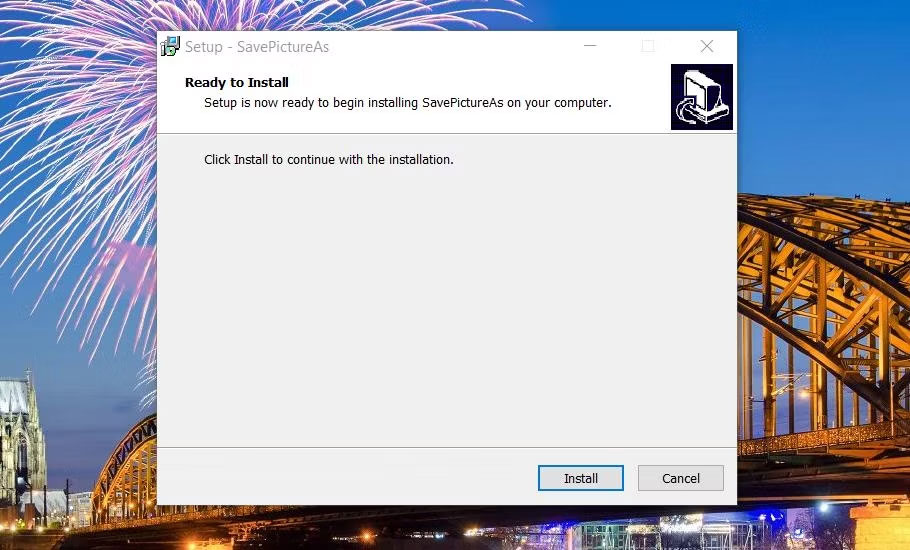
<p style="text-align: justify;">6. Nhấp vào&nbsp;<strong>Install</strong>&nbsp;trong cửa sổ Setup – SavePictureAs.</p>

<figure>
<div style="text-align: justify;"><img alt="Tùy chọn Install cho SavePictureAs" data-i="1" data-src="https://st.quantrimang.com/photos/image/2023/03/15/thiet-lap-hotkey-tai-anh-trang-web-2.jpg" data-was-processed="true" height="550" src="https://st.quantrimang.com/photos/image/2023/03/15/thiet-lap-hotkey-tai-anh-trang-web-2.jpg" width="910" /></div>

<figcaption>
<div style="text-align: justify;">Tùy chọn Install cho SavePictureAs</div>
</figcaption>
</figure>

<p style="text-align: justify;">7. Sau đó, khởi chạy phần mềm bằng cách nhấp vào&nbsp;<strong>Finish</strong>&nbsp;với hộp kiểm&nbsp;<strong>Start SavePictureAs</strong>&nbsp;được chọn.</p>

<p style="text-align: justify;">Khi SavePictureAs đã khởi động:</p>

<p style="text-align: justify;">1. Chọn&nbsp;<strong>Accept</strong>&nbsp;trên cửa sổ thỏa thuận người dùng cuối xuất hiện.</p>

<p style="text-align: justify;">2. Nhấp vào&nbsp;<strong>Next</strong>&nbsp;trên cửa sổ UAC Information and (SplashScreen).</p>

<p style="text-align: justify;">3. Cửa sổ&nbsp;<strong>SavePictureAs</strong>&nbsp;mà từ đó bạn có thể đặt các hotkey sẽ mở ra. Để nguyên các cài đặt mặc định ở đó và nhấp vào&nbsp;<strong>Next</strong>&nbsp;để hiển thị cửa sổ nhỏ với một vài tùy chọn khác.</p>

<p style="text-align: justify;">4. Chọn&nbsp;<strong>Next</strong>&nbsp;lần nữa để thiết lập desktop shortcut cho phần mềm và thiết lập khởi động cùng Windows. Hoặc thay đổi cài đặt&nbsp;<strong>Create SavePictureAs Desktop Shortcut</strong>&nbsp;và&nbsp;<strong>Start SavePictureAs when Windows Starts</strong>&nbsp;đã chọn theo sở thích.</p>

<figure>
<div style="text-align: justify;"><img alt="Các tùy chọn thiết lập khởi động và desktop shortcut cho SavePictureAs" data-i="2" data-src="https://st.quantrimang.com/photos/image/2023/03/15/thiet-lap-hotkey-tai-anh-trang-web-3.jpg" data-was-processed="true" height="553" src="https://st.quantrimang.com/photos/image/2023/03/15/thiet-lap-hotkey-tai-anh-trang-web-3.jpg" width="876" /></div>

<figcaption>
<div style="text-align: justify;">Các tùy chọn thiết lập khởi động và desktop shortcut cho SavePictureAs</div>
</figcaption>
</figure>

<p style="text-align: justify;">5. Sau đó, cửa sổ&nbsp;<strong>SavePictureAs (Change System Tray Icon)</strong>&nbsp;sẽ mở ra. Vì đó là một cửa sổ khác mà bạn có thể mở sau, hãy nhấp vào&nbsp;<strong>Next</strong>&nbsp;để đóng cửa sổ đó.</p>

<p style="text-align: justify;">6. Thông báo&nbsp;<strong>&quot;Setup is complete&quot;</strong>&nbsp;sẽ xuất hiện. Nhấp vào bất cứ đâu để đóng thông báo đó.</p>

<p style="text-align: justify;">Giờ đây, cuối cùng bạn cũng có thể dùng thử hotkey&nbsp;<strong>Ctrl + Space</strong>&nbsp;mặc định để tải xuống hình ảnh trên web. Mở một trang web có một số hình ảnh trên đó trong trình duyệt của bạn. Di chuyển con trỏ qua một hình ảnh để tải xuống và nhấn hotkey&nbsp;<strong>Ctrl + Space</strong>. Bạn sẽ thấy cửa sổ Save As nhanh chóng sáng lên và hình ảnh sẽ tự động tải xuống thư mục&nbsp;<strong>Pictures</strong>&nbsp;của bạn.</p>

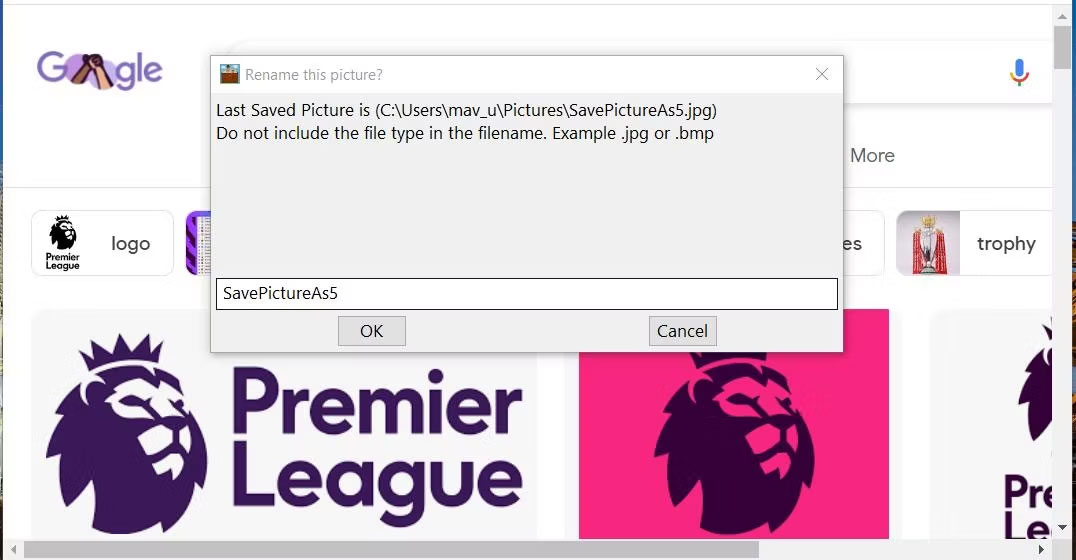
<p style="text-align: justify;">Mở thư mục&nbsp;<strong>Pictures</strong>&nbsp;để tìm những hình ảnh đã tải xuống. Chúng sẽ được lưu với tên file SavePictureAs và bao gồm các số. Nếu bạn muốn chỉnh sửa tiêu đề của chúng, hãy nhấp chuột phải vào hình ảnh và chọn&nbsp;<strong>Rename</strong>. Hoặc bạn có thể nhấn tổ hợp phím&nbsp;<strong>Ctrl + /</strong>&nbsp;để hiển thị cửa sổ&nbsp;<strong>&quot;Rename this picture&quot;</strong>&nbsp;cho file ảnh được tải xuống gần đây nhất.</p>

<figure>
<div style="text-align: justify;"><img alt="Hộp thoại Rename this picture" data-i="3" data-src="https://st.quantrimang.com/photos/image/2023/03/15/thiet-lap-hotkey-tai-anh-trang-web-4.jpg" data-was-processed="true" height="560" src="https://st.quantrimang.com/photos/image/2023/03/15/thiet-lap-hotkey-tai-anh-trang-web-4.jpg" width="1076" /></div>

<figcaption>
<div style="text-align: justify;">Hộp thoại Rename this picture</div>
</figcaption>
</figure>

<h3 style="text-align: justify;">Điều chỉnh cài đặt cho các hotkey trong SavePictureAs</h3>

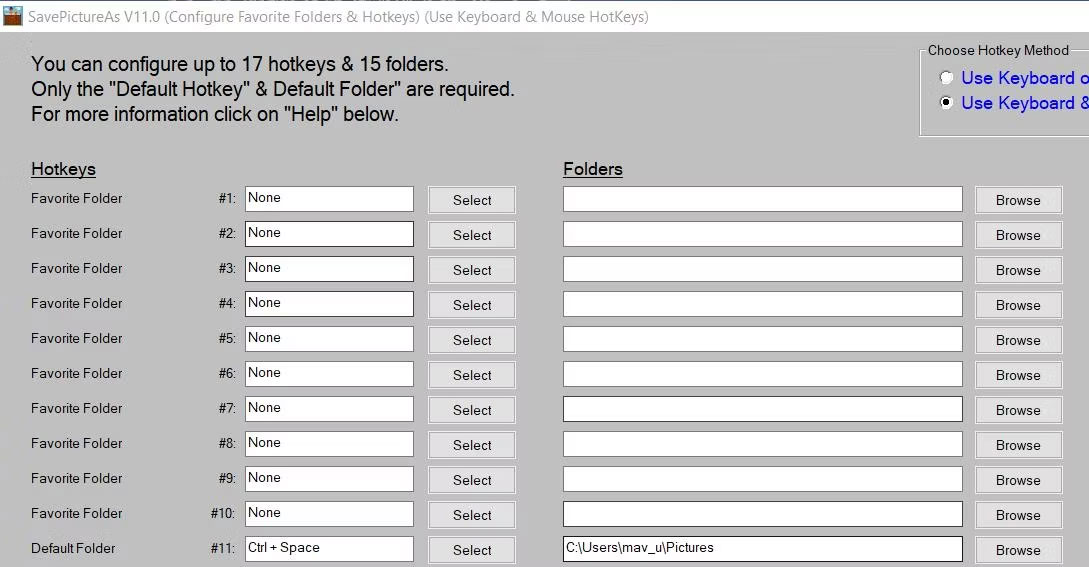
<p style="text-align: justify;">Nếu bạn muốn cấu hình lại hotkey Windows để tải xuống hình ảnh trang web, hãy nhấp chuột phải vào biểu tượng SavePictureAs trên khay hệ thống và chọn&nbsp;<strong>Settings</strong>&nbsp;&gt;&nbsp;<strong>Configure Hotkeys and Folders</strong>. Cửa sổ cấu hình hotkey mà từ đó bạn có thể thiết lập các phím tắt tùy chỉnh sẽ mở ra. Các hotkey để tải xuống hình ảnh trang web và đổi tên hình ảnh đã lưu cuối cùng là những phím duy nhất được đặt theo mặc định.</p>

<figure>
<div style="text-align: justify;"><img alt="Cửa sổ SavePictureAs" data-i="4" data-src="https://st.quantrimang.com/photos/image/2023/03/15/thiet-lap-hotkey-tai-anh-trang-web-5.jpg" data-was-processed="true" height="567" src="https://st.quantrimang.com/photos/image/2023/03/15/thiet-lap-hotkey-tai-anh-trang-web-5.jpg" width="1089" /></div>

<figcaption>
<div style="text-align: justify;">Cửa sổ SavePictureAs</div>
</figcaption>
</figure>

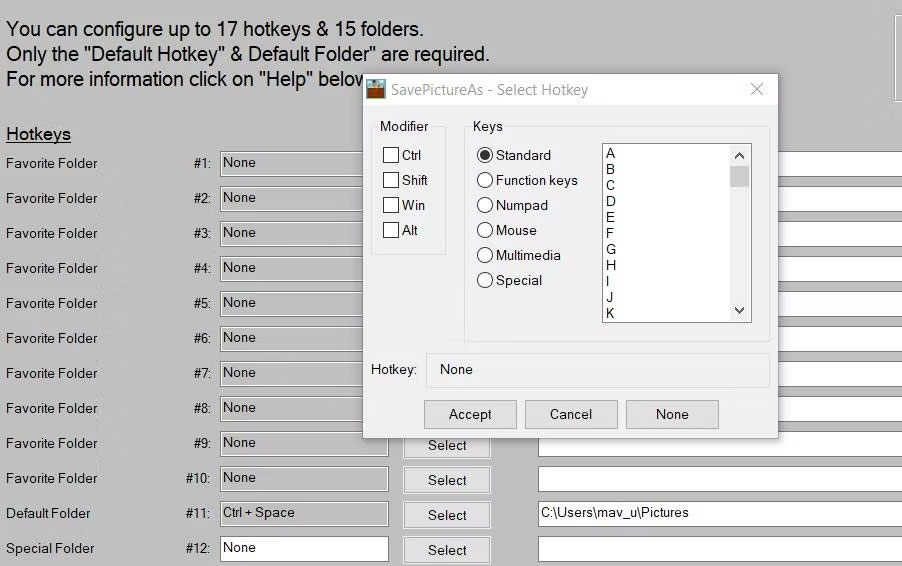
<p style="text-align: justify;">Nhấp vào nút&nbsp;<strong>Select</strong>&nbsp;cho hotkey thư mục mặc định tải xuống hình ảnh web. Sau đó, bạn có thể thay đổi phím tắt bằng cách chọn các tùy chọn phím sửa đổi, tiêu chuẩn, chức năng và phím số, rồi nhấp vào&nbsp;<strong>Accept</strong>&nbsp;trong cửa sổ&nbsp;<strong>Select Hotkey</strong>.</p>

<p style="text-align: justify;">Để thay đổi nơi hotkey đó lưu hình ảnh, nhấn&nbsp;<strong>Browse</strong>&nbsp;cho phím tắt thư mục mặc định, chọn một thư mục khác trong cửa sổ&nbsp;<strong>Please select valid folder</strong>&nbsp;và nhấn&nbsp;<strong>Apply</strong>.</p>

<figure>
<div style="text-align: justify;"><img alt="Cửa sổ Select Hotkey" data-i="5" data-src="https://st.quantrimang.com/photos/image/2023/03/15/thiet-lap-hotkey-tai-anh-trang-web-6.jpg" data-was-processed="true" height="566" src="https://st.quantrimang.com/photos/image/2023/03/15/thiet-lap-hotkey-tai-anh-trang-web-6.jpg" width="902" /></div>

<figcaption>
<div style="text-align: justify;">Cửa sổ Select Hotkey</div>
</figcaption>
</figure>

<p style="text-align: justify;">Bạn sẽ nhận thấy có 10 hộp&nbsp;<strong>Favorite Folder</strong>&nbsp;trên cửa sổ. Các tùy chọn đó có sẵn cho phép bạn chọn các đường dẫn thay thế để lưu hình ảnh đã tải xuống bằng hotkey mặc định. Nhấp vào&nbsp;<strong>Browse</strong>&nbsp;cho các folder yêu thích đó để đặt thư mục cho chúng.</p>

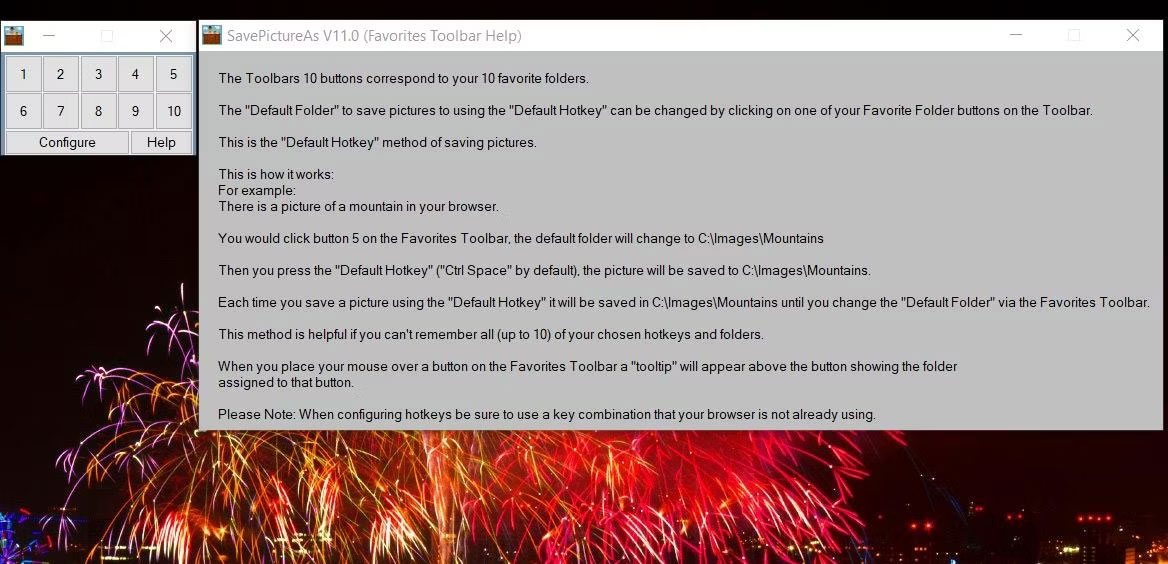
<p style="text-align: justify;">Giờ đây, bạn có thể nhấp chuột phải vào biểu tượng SavePictureAs trên khay hệ thống, chọn&nbsp;<strong>Favorites Tool Bar</strong>&nbsp;và nhấp vào nút số thư mục yêu thích ở đó để tải hình ảnh web xuống thư mục bạn đã đặt cho nó.</p>

<figure>
<div style="text-align: justify;"><img alt="Favorites Tool Bar" data-i="6" data-src="https://st.quantrimang.com/photos/image/2023/03/15/thiet-lap-hotkey-tai-anh-trang-web-7.jpg" data-was-processed="true" height="564" src="https://st.quantrimang.com/photos/image/2023/03/15/thiet-lap-hotkey-tai-anh-trang-web-7.jpg" width="1168" /></div>

<figcaption>
<div style="text-align: justify;">Favorites Tool Bar</div>
</figcaption>
</figure>

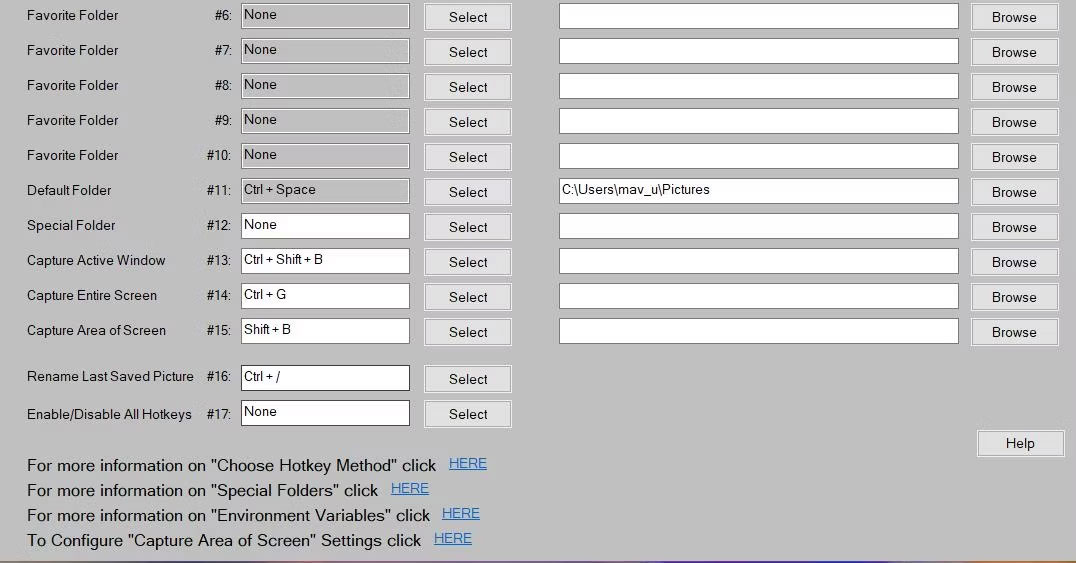
<p style="text-align: justify;">Bạn cũng có thể tạo các hotkey Windows tùy chỉnh để chụp toàn màn hình, cửa sổ đang hoạt động và ảnh chụp màn hình khu vực từ cùng một cửa sổ. Để làm như vậy, hãy nhấp vào các nút&nbsp;<strong>Select</strong>&nbsp;cho các hộp&nbsp;<strong>Capture Active Window</strong>&nbsp;,&nbsp;<strong>Capture Entire Screen</strong>&nbsp;hoặc&nbsp;<strong>Capture Area of Screen</strong>&nbsp;và chọn một tổ hợp phím. Sau đó, nhấp vào tùy chọn&nbsp;<strong>Browse</strong>&nbsp;để chọn thư mục cho các hotkey chụp ảnh màn hình để lưu snapshot vào. Chọn&nbsp;<strong>Done</strong>&nbsp;để áp dụng tất cả các cài đặt hotkey mới khi bạn hoàn tất.</p>

<figure>
<div style="text-align: justify;"><img alt="Cài đặt hotkey ảnh chụp màn hình trong SavePictureAs" data-i="7" data-src="https://st.quantrimang.com/photos/image/2023/03/15/thiet-lap-hotkey-tai-anh-trang-web-8.jpg" data-was-processed="true" height="563" src="https://st.quantrimang.com/photos/image/2023/03/15/thiet-lap-hotkey-tai-anh-trang-web-8.jpg" width="1076" /></div>

<figcaption>
<div style="text-align: justify;">Cài đặt hotkey ảnh chụp màn hình trong SavePictureAs</div>
</figcaption>
</figure>

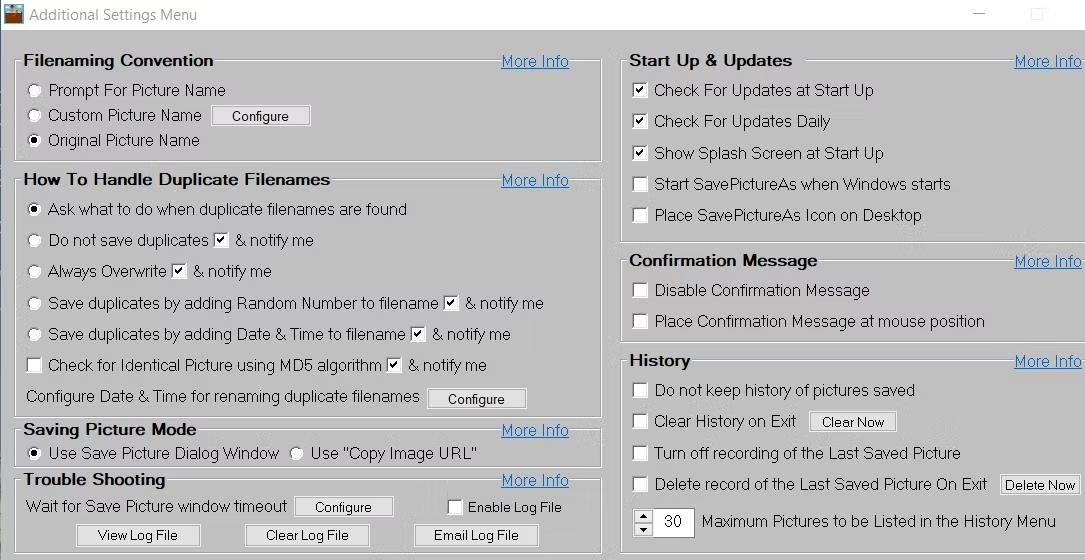
<p style="text-align: justify;">Nhấp chuột phải vào biểu tượng SavePictureAs trên khay hệ thống và chọn&nbsp;<strong>Settings</strong>&nbsp;&gt;&nbsp;<strong>Additional Settings</strong>. Sau đó, bạn có thể điều chỉnh cách đặt tên file, tên file trùng lặp, lịch sử và các tùy chọn khác từ menu Additional Settings.</p>

<p style="text-align: justify;">Bạn có thể ngăn cửa sổ hộp thoại&nbsp;<strong>Save</strong>&nbsp;xuất hiện khi tải xuống hình ảnh bằng cách chọn tùy chọn&nbsp;<strong>Use “Copy Image URL”</strong>. Chọn&nbsp;<strong>Prompt for Picture Name</strong>&nbsp;sẽ cho phép bạn nhập tên file trước khi tải xuống một hình ảnh.</p>

<figure>
<div style="text-align: justify;"><img alt="Cửa sổ menu Additional Settings" data-i="8" data-src="https://st.quantrimang.com/photos/image/2023/03/15/thiet-lap-hotkey-tai-anh-trang-web-9.jpg" data-was-processed="true" height="560" src="https://st.quantrimang.com/photos/image/2023/03/15/thiet-lap-hotkey-tai-anh-trang-web-9.jpg" width="1085" /></div>

<figcaption>
<div style="text-align: justify;">Cửa sổ menu Additional Settings</div>
</figcaption>
</figure>

<h2 style="text-align: justify;">Cách thiết lập hotkey tải xuống hình ảnh trang web với I’m a Gentleman</h2>

<p style="text-align: justify;">Nếu sử dụng Chrome hoặc Edge, bạn có thể thêm một hotkey để tải xuống hình ảnh trang web trong các trình duyệt Windows đó với I’m a Gentleman. I’m a Gentleman là một tiện ích mở rộng cho phép bạn nhanh chóng tải xuống/lưu hình ảnh trên web bằng phím tắt Alt + nhấp chuột. Tiện ích mở rộng này hầu như không có bất kỳ cài đặt tùy chỉnh nào, nhưng không thể phủ nhận phím tắt của nó rất hữu ích.</p>

<p style="text-align: justify;">Để thêm I’m a Gentleman vào trình duyệt của bạn, hãy&nbsp;<a href="https://quantrimang.com/url?q=aHR0cHM6Ly9jaHJvbWUuZ29vZ2xlLmNvbS93ZWJzdG9yZS9kZXRhaWwvaW0tYS1nZW50bGVtYW4vYWZqYWljY2NhbGJiaWNraWtnZGVnYWlobWFqYWlkcGQ%3D" rel="nofollow noopener" target="_blank" title="I’m a Gentleman cho Chrome">mở trang tiện ích bổ sung của nó cho Google Chrome</a>&nbsp;hoặc&nbsp;<a href="https://quantrimang.com/url?q=aHR0cHM6Ly9taWNyb3NvZnRlZGdlLm1pY3Jvc29mdC5jb20vYWRkb25zL2RldGFpbC9pbS1hLWdlbnRsZW1hbi9pbGRrYm9oZ2FpcGRjbm9pbWFwZWlqb3BscGtsamtpaQ%3D%3D" rel="nofollow noopener" target="_blank" title="I’m a Gentleman cho Edge">Microsoft Edge</a>. Sau đó nhấp vào nút&nbsp;<strong>Add to Chrome</strong>&nbsp;hoặc&nbsp;<strong>Get</strong>; chọn&nbsp;<strong>Add extension</strong>&nbsp;để xác nhận.</p>

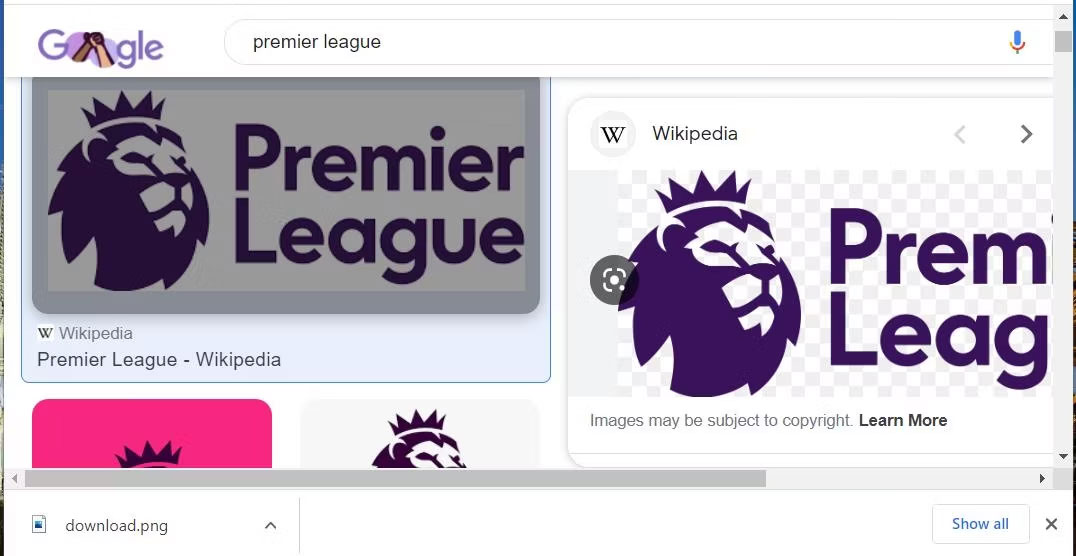
<p style="text-align: justify;">Sau đó, hãy thử hotkey của tiện ích mở rộng bằng cách mở Google và nhập cụm từ tìm kiếm. Nhấp vào&nbsp;<strong>Images</strong>&nbsp;để xem hình ảnh phù hợp với cụm từ tìm kiếm. Giữ phím&nbsp;<strong>Alt</strong>&nbsp;và nhấp vào bất kỳ hình ảnh nào để tải xuống từ web.</p>

<figure>
<div style="text-align: justify;"><img alt="Tìm kiếm hình ảnh trên Google và hình ảnh đã tải xuống" data-i="9" data-src="https://st.quantrimang.com/photos/image/2023/03/15/thiet-lap-hotkey-tai-anh-trang-web-10.jpg" data-was-processed="true" height="556" src="https://st.quantrimang.com/photos/image/2023/03/15/thiet-lap-hotkey-tai-anh-trang-web-10.jpg" width="1076" /></div>

<figcaption>
<div style="text-align: justify;">Tìm kiếm hình ảnh trên Google và hình ảnh đã tải xuống</div>
</figcaption>
</figure>

<p style="text-align: justify;">Hình ảnh sẽ lưu trong bất kỳ thư mục tải xuống nào mà bạn đã đặt trong Google Chrome hoặc Edge. Nếu bạn không chắc vị trí của file, hãy nhấn hotkey&nbsp;<strong>Ctrl + J</strong>&nbsp;trong các trình duyệt đó. Sau đó, nhấp vào tùy chọn&nbsp;<strong>Show in folder</strong>&nbsp;cho hình ảnh trong tab&nbsp;<strong>Downloads.</strong>&nbsp;Bạn cũng có thể thử một trong những tiện ích mở rộng tốt nhất của Chrome cho việc quản lý tải xuống.</p>

<p style="text-align: justify;">Tiện ích mở rộng này cũng cho phép bạn tải xuống hình ảnh chỉ bằng cách kéo chúng. Nhấp chuột trái vào một hình ảnh trong kết quả tìm kiếm Chrome, sau đó kéo hình ảnh đó một chút. Hình ảnh sẽ tải xuống khi bạn nhả nút chuột trái.</p>

<div style="text-align: justify;">&nbsp;</div>
		</div>
				<div id="author">
						<p>
				<strong>Nguồn tin:</strong>
				Quantrimang.com
			</p>
		</div>
	</div>
	<div id="footer" class="clearfix">
		<div id="url">
			<strong>URL của bản tin này: </strong><a href="https://www.nguoicodonvn2008.info/vi/news/savefile/kien-thuc-may-tinh/cach-thiet-lap-hotkey-tai-hinh-anh-trang-web-trong-windows-10-11-6888.html" title="Cách thiết lập hotkey tải hình ảnh trang web trong Windows 10&#x002F;11">https://www.nguoicodonvn2008.info/vi/news/savefile/kien-thuc-may-tinh/cach-thiet-lap-hotkey-tai-hinh-anh-trang-web-trong-windows-10-11-6888.html</a>

		</div>
		<div class="clear"></div>
		<div class="copyright">
			&copy; .&#x3A; Nguoicodonvn2008.info - Cõi lòng người cô đơn &#x3A;.
		</div>
		<div id="contact">
			<a href="mailto:admin@nguoicodonvn2008.info">admin@nguoicodonvn2008.info</a>
		</div>
	</div>
</div>
        <div id="timeoutsess" class="chromeframe">
            Bạn đã không sử dụng Site, <a onclick="timeoutsesscancel();" href="https://nguoicodonvn2008.info/#">Bấm vào đây để duy trì trạng thái đăng nhập</a>. Thời gian chờ: <span id="secField"> 60 </span> giây
        </div>
        <div id="openidResult" class="nv-alert" style="display:none"></div>
        <div id="openidBt" data-result="" data-redirect=""></div>
		</script>
		<div class="car-top">
  <span><img src="https://nguoicodonvn2008.info/themes/default/images/car.png" alt=""></span>
</div>
<script src="https://nguoicodonvn2008.info/assets/js/jquery/jquery.min.js"></script>
<script>var nv_base_siteurl="/",nv_lang_data="vi",nv_lang_interface="vi",nv_name_variable="nv",nv_fc_variable="op",nv_lang_variable="language",nv_module_name="news",nv_func_name="savefile",nv_is_user=0, nv_my_ofs=-4,nv_my_abbr="EDT",nv_cookie_prefix="nv4c_e856T",nv_check_pass_mstime=1738000,nv_area_admin=0,nv_safemode=0,theme_responsive=0,nv_recaptcha_ver=2,nv_recaptcha_sitekey="",nv_recaptcha_type="image",XSSsanitize=1;</script>
<script src="https://nguoicodonvn2008.info/assets/js/language/vi.js"></script>
<script src="https://nguoicodonvn2008.info/assets/js/DOMPurify/purify3.js"></script>
<script src="https://nguoicodonvn2008.info/assets/js/global.js"></script>
<script src="https://nguoicodonvn2008.info/assets/js/site.js"></script>
<script src="https://nguoicodonvn2008.info/themes/default/js/news.js"></script>
<script src="https://nguoicodonvn2008.info/themes/default/js/main.js"></script>
<script src="https://nguoicodonvn2008.info/themes/default/js/custom.js"></script>
<script type="application/ld+json">
        {
            "@context": "https://schema.org",
            "@type": "Organization",
            "url": "https://nguoicodonvn2008.info",
            "logo": "https://nguoicodonvn2008.info/uploads/angel.gif"
        }
        </script>
<script src="https://nguoicodonvn2008.info/themes/default/js/bootstrap.min.js"></script>
<script type="text/javascript">
var $scrolltop = $('.car-top');
$scrolltop.on('click', function () {
    $('html,body').animate({
        scrollTop: 0
    }, 800);
    $(this).addClass("car-run");
    setTimeout(function(){ $scrolltop.removeClass('car-run');}, 1000);
    return false;
});
$(window).on('scroll', function ()
{ 
    if($(window).scrollTop() >= 200)
    {
        $scrolltop.addClass("show");
        $scrolltop.addClass("car-down");
    }
    else
    {
       $scrolltop.removeClass("show");
       setTimeout(function(){ $scrolltop.removeClass('car-down');}, 300);
    }
});
</script>
</body>
</html>