<!DOCTYPE html>
    <html lang="vi" xmlns="http://www.w3.org/1999/xhtml" prefix="og: http://ogp.me/ns#">
    <head>
<title>Cách thiết lập hiển thị từng trang văn bản một trong Microsoft Word ở mọi độ phân giải</title>
<meta name="description" content="Cách thiết lập hiển thị từng trang văn bản một trong Microsoft Word ở mọi độ phân giải - Savefile - Tin Tức -...">
<meta name="author" content=".: Nguoicodonvn2008.info - Cõi lòng người cô đơn :.">
<meta name="copyright" content=".: Nguoicodonvn2008.info - Cõi lòng người cô đơn :. [admin@nguoicodonvn2008.info]">
<meta name="robots" content="index, archive, follow, noodp">
<meta name="googlebot" content="index,archive,follow,noodp">
<meta name="msnbot" content="all,index,follow">
<meta name="generator" content="NukeViet v4.5">
<meta http-equiv="Content-Type" content="text/html; charset=utf-8">
<meta property="og:title" content="Cách thiết lập hiển thị từng trang văn bản một trong Microsoft Word ở mọi độ phân giải">
<meta property="og:type" content="website">
<meta property="og:description" content="Savefile - Tin Tức -...">
<meta property="og:site_name" content=".&#x3A; Nguoicodonvn2008.info - Cõi lòng người cô đơn &#x3A;.">
<meta property="og:url" content="https://www.nguoicodonvn2008.info/vi/news/savefile/kien-thuc-may-tinh/cach-thiet-lap-hien-thi-tung-trang-van-ban-mot-trong-microsoft-word-o-moi-do-phan-giai-4278.html">
<link rel="shortcut icon" href="https://nguoicodonvn2008.info/favicon.ico">
<link rel="canonical" href="https://www.nguoicodonvn2008.info/vi/news/savefile/kien-thuc-may-tinh/cach-thiet-lap-hien-thi-tung-trang-van-ban-mot-trong-microsoft-word-o-moi-do-phan-giai-4278.html">
<link rel="alternate" href="https://nguoicodonvn2008.info/vi/news/rss/" title="Tin Tức" type="application/rss+xml">
<link rel="alternate" href="https://nguoicodonvn2008.info/vi/news/rss/karaoke-dual/" title="Tin Tức - Karaoke Dual" type="application/rss+xml">
<link rel="alternate" href="https://nguoicodonvn2008.info/vi/news/rss/nhac-tre/" title="Tin Tức - Nhạc trẻ" type="application/rss+xml">
<link rel="alternate" href="https://nguoicodonvn2008.info/vi/news/rss/tru-tinh/" title="Tin Tức - Trữ tình" type="application/rss+xml">
<link rel="alternate" href="https://nguoicodonvn2008.info/vi/news/rss/nuoc-ngoai/" title="Tin Tức - Nước ngoài" type="application/rss+xml">
<link rel="alternate" href="https://nguoicodonvn2008.info/vi/news/rss/remix/" title="Tin Tức - Remix" type="application/rss+xml">
<link rel="alternate" href="https://nguoicodonvn2008.info/vi/news/rss/tam-su-tinh-yeu/" title="Tin Tức - Tâm sự tình yêu" type="application/rss+xml">
<link rel="alternate" href="https://nguoicodonvn2008.info/vi/news/rss/tho-suu-tam/" title="Tin Tức - Thơ sưu tầm" type="application/rss+xml">
<link rel="alternate" href="https://nguoicodonvn2008.info/vi/news/rss/cuoc-song/" title="Tin Tức - Cuộc sống" type="application/rss+xml">
<link rel="alternate" href="https://nguoicodonvn2008.info/vi/news/rss/phan-mem/" title="Tin Tức - Phần mềm" type="application/rss+xml">
<link rel="alternate" href="https://nguoicodonvn2008.info/vi/news/rss/kien-thuc-may-tinh/" title="Tin Tức - Kiến thức máy tính" type="application/rss+xml">
<link rel="alternate" href="https://nguoicodonvn2008.info/vi/news/rss/hoc-tap/" title="Tin Tức - Học tập" type="application/rss+xml">
<link rel="alternate" href="https://nguoicodonvn2008.info/vi/news/rss/tai-lieu/" title="Tin Tức - Tài liệu" type="application/rss+xml">
<link rel="alternate" href="https://nguoicodonvn2008.info/vi/news/rss/de-thi/" title="Tin Tức - Đề thi" type="application/rss+xml">
<link rel="preload" as="style" href="https://nguoicodonvn2008.info/assets/css/font-awesome.min.css" type="text/css">
<link rel="preload" as="style" href="https://nguoicodonvn2008.info/themes/default/css/bootstrap.non-responsive.css" type="text/css">
<link rel="preload" as="style" href="https://nguoicodonvn2008.info/themes/default/css/style.css" type="text/css">
<link rel="preload" as="style" href="https://nguoicodonvn2008.info/themes/default/css/style.non-responsive.css" type="text/css">
<link rel="preload" as="style" href="https://nguoicodonvn2008.info/themes/default/css/news.css" type="text/css">
<link rel="preload" as="style" href="https://nguoicodonvn2008.info/themes/default/css/custom.css" type="text/css">
<link rel="preload" as="script" href="https://nguoicodonvn2008.info/assets/js/jquery/jquery.min.js" type="text/javascript">
<link rel="preload" as="script" href="https://nguoicodonvn2008.info/assets/js/language/vi.js" type="text/javascript">
<link rel="preload" as="script" href="https://nguoicodonvn2008.info/assets/js/DOMPurify/purify3.js" type="text/javascript">
<link rel="preload" as="script" href="https://nguoicodonvn2008.info/assets/js/global.js" type="text/javascript">
<link rel="preload" as="script" href="https://nguoicodonvn2008.info/assets/js/site.js" type="text/javascript">
<link rel="preload" as="script" href="https://nguoicodonvn2008.info/themes/default/js/news.js" type="text/javascript">
<link rel="preload" as="script" href="https://nguoicodonvn2008.info/themes/default/js/main.js" type="text/javascript">
<link rel="preload" as="script" href="https://nguoicodonvn2008.info/themes/default/js/custom.js" type="text/javascript">
<link rel="preload" as="script" href="https://nguoicodonvn2008.info/themes/default/js/bootstrap.min.js" type="text/javascript">
<link rel="stylesheet" href="https://nguoicodonvn2008.info/assets/css/font-awesome.min.css">
<link rel="stylesheet" href="https://nguoicodonvn2008.info/themes/default/css/bootstrap.non-responsive.css">
<link rel="stylesheet" href="https://nguoicodonvn2008.info/themes/default/css/style.css">
<link rel="stylesheet" href="https://nguoicodonvn2008.info/themes/default/css/style.non-responsive.css">
<link rel="StyleSheet" href="https://nguoicodonvn2008.info/themes/default/css/news.css">
<link rel="stylesheet" href="https://nguoicodonvn2008.info/themes/default/css/custom.css">
<style type="text/css">
	body{background: #fff;}
</style>
    </head>
    <body>
<div id="print">
	<div id="hd_print">
		<h2 class="pull-left">.&#x3A; Nguoicodonvn2008.info - Cõi lòng người cô đơn &#x3A;.</h2>
		<p class="pull-right"><a title=".&#x3A; Nguoicodonvn2008.info - Cõi lòng người cô đơn &#x3A;." href="https://nguoicodonvn2008.info/">https://nguoicodonvn2008.info</a></p>
	</div>
	<div class="clear"></div>
	<hr />
	<div id="content">
		<h1>Cách thiết lập hiển thị từng trang văn bản một trong Microsoft Word ở mọi độ phân giải</h1>
		<ul class="list-inline">
			<li>Thứ hai - 21/06/2021 00:59</li>
			<li class="hidden-print txtrequired"><em class="fa fa-print">&nbsp;</em><a title="In ra" href="javascript:;" onclick="window.print()">In ra</a></li>
			<li class="hidden-print txtrequired"><em class="fa fa-power-off">&nbsp;</em><a title="Đóng cửa sổ này" href="javascript:;" onclick="window.close()">Đóng cửa sổ này</a></li>
		</ul>
		<div class="clear"></div>
		<div id="hometext">
		</div>
				<div class="imghome">
			<img alt="Cách thiết lập hiển thị từng trang văn bản một trong Microsoft Word ở mọi độ phân giải" src="https://st.quantrimang.com/photos/image/2021/06/10/hien-thi-tung-trang-van-ban-trong-microsoft-word1.jpg" width="460" class="img-thumbnail" />
		</div>
		<div class="clear"></div>
		<div id="bodytext" class="clearfix">
			<p style="text-align: justify;">Cũng giống như kế hoạch thay đổi sang giao diện người dùng Ribbon, việc các phiên bản Microsoft Word gần đây thường tự động hiển thị hai trang văn bản cùng một lúc trên màn hình có độ phân giải cao cũng là “tính năng” gây nhiều tranh cãi.</p>

<p style="text-align: justify;">Nếu bạn muốn Microsoft Word của mình chỉ hiển thị từng trang văn bản một trên màn hình, có hai cách thiết lập mà bạn có thể tham khảo như sau.</p>

<h2 style="text-align: justify;">Cách 1: Thay đổi cài đặt View Layout</h2>

<p style="text-align: justify;">1. Đầu tiên, bạn điều hướng trên giao diện Ribbon và nhấp chuột vào tab “View”.</p>

<p style="text-align: justify;"><img alt="Nhấp chuột vào tab “View”" data-i="0" data-src="https://st.quantrimang.com/photos/image/2021/06/10/hien-thi-tung-trang-van-ban-trong-microsoft-word1.jpg" data-was-processed="true" height="116" src="https://st.quantrimang.com/photos/image/2021/06/10/hien-thi-tung-trang-van-ban-trong-microsoft-word1.jpg" width="640" /></p>

<p style="text-align: justify;">2. Trong tab View, bạn sẽ thấy ba tùy chọn đầu tiên ở bên trái bao gồm “Read Layout”, “Print Layout” và “Web Layout”, với dạng mặc định là Print Layout, hiển thị tài liệu trên các trang A4 ảo. Bạn bấm chọn Web Layout.</p>

<p style="text-align: justify;"><img alt="Bạn bấm chọn Web Layout." data-i="1" data-src="https://st.quantrimang.com/photos/image/2021/06/10/hien-thi-tung-trang-van-ban-trong-microsoft-word2.jpg" data-was-processed="true" height="117" src="https://st.quantrimang.com/photos/image/2021/06/10/hien-thi-tung-trang-van-ban-trong-microsoft-word2.jpg" width="640" /></p>

<div style="text-align: justify;">&nbsp;</div>

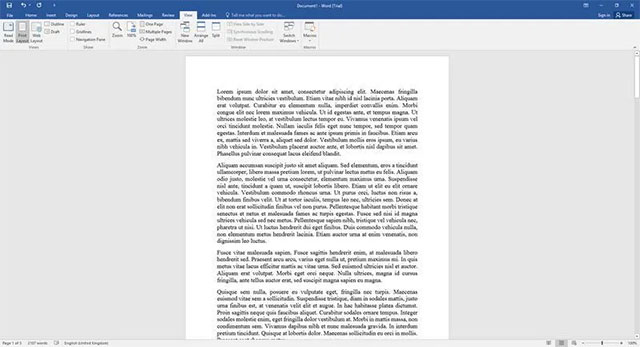
<p style="text-align: justify;">3. Lập tức bạn sẽ thấy có thay đổi xuất hiện trên trang hiển thị. Tài liệu đang mở hiện không còn được phân tách thành các trang ảo nữa, do đó văn bản sẽ được hiển thị vừa trong toàn bộ chiều rộng của cửa sổ Word.</p>

<p style="text-align: justify;"><img alt="Thay đổi trở lại “Print Layout”" data-i="2" data-src="https://st.quantrimang.com/photos/image/2021/06/10/hien-thi-tung-trang-van-ban-trong-microsoft-word3.jpg" data-was-processed="true" height="347" src="https://st.quantrimang.com/photos/image/2021/06/10/hien-thi-tung-trang-van-ban-trong-microsoft-word3.jpg" width="640" /></p>

<p style="text-align: justify;">4. Thay đổi trở lại “Print Layout”. Điều này sẽ khiến Microsoft Word chỉ hiển thị một trang tài liệu tại một thời điểm. Đây là mẹo đơn giản nhưng hiệu quả để nếu bạn muốn hiển thị từng trang văn bản một trong Microsoft Word.</p>

<h2 style="text-align: justify;">Cách 2. Thay đổi mức thu phóng</h2>

<p style="text-align: justify;">1. Quan sát mức thu phóng hiện tại ở góc dưới cùng bên phải của cửa sổ Word. Nhấp vào tỷ lệ phần trăm thu phóng và bạn sẽ thấy một cửa sổ khác sẽ xuất hiện cung cấp thêm một vài tùy chọn bổ sung.</p>

<p style="text-align: justify;">&nbsp;</p>

<div style="text-align: justify;"><br />
<img alt="Nhấp vào tỷ lệ phần trăm thu phóng" data-i="3" data-src="https://st.quantrimang.com/photos/image/2021/06/10/hien-thi-tung-trang-van-ban-trong-microsoft-word4.jpg" data-was-processed="true" height="22" src="https://st.quantrimang.com/photos/image/2021/06/10/hien-thi-tung-trang-van-ban-trong-microsoft-word4.jpg" width="285" /></div>

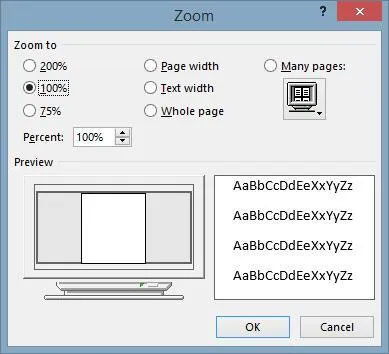
<p style="text-align: justify;">2. Bây giờ, bạn có thể thấy nhiều tùy chọn thu phóng khác nhau. Tuy nhiên, hãy quan tâm chủ yếu đến tùy chọn &quot;Many Pages&quot; ở bên phải và nút bên dưới nó (hình chiếc màn hình máy tính).</p>

<p style="text-align: justify;"><img alt="Tùy chọn &#039;Many Pages&#039; ở bên phải và nút bên dưới nó" data-i="4" data-src="https://st.quantrimang.com/photos/image/2021/06/10/hien-thi-tung-trang-van-ban-trong-microsoft-word5.jpg" data-was-processed="true" height="354" src="https://st.quantrimang.com/photos/image/2021/06/10/hien-thi-tung-trang-van-ban-trong-microsoft-word5.jpg" width="389" /></p>

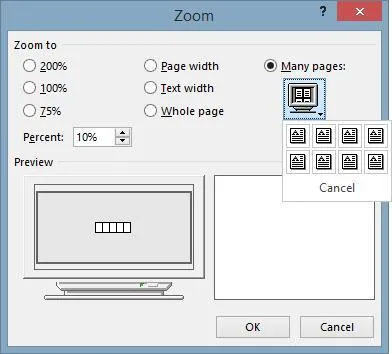
<p style="text-align: justify;">3. Bấm chọn &quot;Many Pages&quot;, sau đó nhấp vào nút biểu tượng chiếc màn hình máy tính bên dưới. Bạn sẽ thấy có thêm nhiều tùy chọn bổ sung; Các tùy chọn 1×1 và 1×2 sẽ lần lượt hiển thị một trang hoặc hai trang cùng lúc.</p>

<p style="text-align: justify;"><img alt="Nhấp vào nút biểu tượng chiếc màn hình máy tính bên dưới" data-i="5" data-src="https://st.quantrimang.com/photos/image/2021/06/10/hien-thi-tung-trang-van-ban-trong-microsoft-word6.jpg" data-was-processed="true" height="354" src="https://st.quantrimang.com/photos/image/2021/06/10/hien-thi-tung-trang-van-ban-trong-microsoft-word6.jpg" width="392" /></p>

<p style="text-align: justify;">4. Sau khi thực hiện xong việc này, bạn sẽ thấy rằng mức thu phóng của Word đã thay đổi. Quay lại bên trái và chuyển nó thành 100%. Xác nhận thay đổi này.</p>

<p style="text-align: justify;">Nếu bạn đang sử dụng phiên bản trực tuyến của Microsoft Word, thì đây là cách tốt nhất để hiển thị từng trang một trong Microsoft Word. Phiên bản web không có các tùy chọn chế độ xem giống như phiên bản desktop.</p>
		</div>
				<div id="author">
						<p>
				<strong>Nguồn tin:</strong>
				Quantrimang.com
			</p>
		</div>
	</div>
	<div id="footer" class="clearfix">
		<div id="url">
			<strong>URL của bản tin này: </strong><a href="https://www.nguoicodonvn2008.info/vi/news/savefile/kien-thuc-may-tinh/cach-thiet-lap-hien-thi-tung-trang-van-ban-mot-trong-microsoft-word-o-moi-do-phan-giai-4278.html" title="Cách thiết lập hiển thị từng trang văn bản một trong Microsoft Word ở mọi độ phân giải">https://www.nguoicodonvn2008.info/vi/news/savefile/kien-thuc-may-tinh/cach-thiet-lap-hien-thi-tung-trang-van-ban-mot-trong-microsoft-word-o-moi-do-phan-giai-4278.html</a>

		</div>
		<div class="clear"></div>
		<div class="copyright">
			&copy; .&#x3A; Nguoicodonvn2008.info - Cõi lòng người cô đơn &#x3A;.
		</div>
		<div id="contact">
			<a href="mailto:admin@nguoicodonvn2008.info">admin@nguoicodonvn2008.info</a>
		</div>
	</div>
</div>
        <div id="timeoutsess" class="chromeframe">
            Bạn đã không sử dụng Site, <a onclick="timeoutsesscancel();" href="https://nguoicodonvn2008.info/#">Bấm vào đây để duy trì trạng thái đăng nhập</a>. Thời gian chờ: <span id="secField"> 60 </span> giây
        </div>
        <div id="openidResult" class="nv-alert" style="display:none"></div>
        <div id="openidBt" data-result="" data-redirect=""></div>
		</script>
		<div class="car-top">
  <span><img src="https://nguoicodonvn2008.info/themes/default/images/car.png" alt=""></span>
</div>
<div id="run_cronjobs" style="visibility:hidden;display:none;"><img alt="cron" src="/index.php?second=cronjobs&amp;p=l45Z3ts6" width="1" height="1" /></div>
<script src="https://nguoicodonvn2008.info/assets/js/jquery/jquery.min.js"></script>
<script>var nv_base_siteurl="/",nv_lang_data="vi",nv_lang_interface="vi",nv_name_variable="nv",nv_fc_variable="op",nv_lang_variable="language",nv_module_name="news",nv_func_name="savefile",nv_is_user=0, nv_my_ofs=-4,nv_my_abbr="EDT",nv_cookie_prefix="nv4c_e856T",nv_check_pass_mstime=1738000,nv_area_admin=0,nv_safemode=0,theme_responsive=0,nv_recaptcha_ver=2,nv_recaptcha_sitekey="",nv_recaptcha_type="image",XSSsanitize=1;</script>
<script src="https://nguoicodonvn2008.info/assets/js/language/vi.js"></script>
<script src="https://nguoicodonvn2008.info/assets/js/DOMPurify/purify3.js"></script>
<script src="https://nguoicodonvn2008.info/assets/js/global.js"></script>
<script src="https://nguoicodonvn2008.info/assets/js/site.js"></script>
<script src="https://nguoicodonvn2008.info/themes/default/js/news.js"></script>
<script src="https://nguoicodonvn2008.info/themes/default/js/main.js"></script>
<script src="https://nguoicodonvn2008.info/themes/default/js/custom.js"></script>
<script type="application/ld+json">
        {
            "@context": "https://schema.org",
            "@type": "Organization",
            "url": "https://nguoicodonvn2008.info",
            "logo": "https://nguoicodonvn2008.info/uploads/angel.gif"
        }
        </script>
<script src="https://nguoicodonvn2008.info/themes/default/js/bootstrap.min.js"></script>
<script type="text/javascript">
var $scrolltop = $('.car-top');
$scrolltop.on('click', function () {
    $('html,body').animate({
        scrollTop: 0
    }, 800);
    $(this).addClass("car-run");
    setTimeout(function(){ $scrolltop.removeClass('car-run');}, 1000);
    return false;
});
$(window).on('scroll', function ()
{ 
    if($(window).scrollTop() >= 200)
    {
        $scrolltop.addClass("show");
        $scrolltop.addClass("car-down");
    }
    else
    {
       $scrolltop.removeClass("show");
       setTimeout(function(){ $scrolltop.removeClass('car-down');}, 300);
    }
});
</script>
</body>
</html>