<!DOCTYPE html>
    <html lang="vi" xmlns="http://www.w3.org/1999/xhtml" prefix="og: http://ogp.me/ns#">
    <head>
<title>Cách thiết lập bộ lọc email trong Gmail, Yahoo Mail và Outlook</title>
<meta name="description" content="Cách thiết lập bộ lọc email trong Gmail, Yahoo Mail và Outlook - Savefile - Tin Tức -...">
<meta name="author" content=".: Nguoicodonvn2008.info - Cõi lòng người cô đơn :.">
<meta name="copyright" content=".: Nguoicodonvn2008.info - Cõi lòng người cô đơn :. [admin@nguoicodonvn2008.info]">
<meta name="robots" content="index, archive, follow, noodp">
<meta name="googlebot" content="index,archive,follow,noodp">
<meta name="msnbot" content="all,index,follow">
<meta name="generator" content="NukeViet v4.5">
<meta http-equiv="Content-Type" content="text/html; charset=utf-8">
<meta property="og:title" content="Cách thiết lập bộ lọc email trong Gmail, Yahoo Mail và Outlook">
<meta property="og:type" content="website">
<meta property="og:description" content="Savefile - Tin Tức - https&#x3A;&#x002F;&#x002F;www.nguoicodonvn2008.info&#x002F;vi&#x002F;news&#x002F;savefile&#x002F;kien-thuc-may-tinh&#x002F;cach-thiet-lap-bo-loc-email-trong-gmail-yahoo-mail-va-outlook-9562.html">
<meta property="og:site_name" content=".&#x3A; Nguoicodonvn2008.info - Cõi lòng người cô đơn &#x3A;.">
<meta property="og:url" content="https://www.nguoicodonvn2008.info/vi/news/savefile/kien-thuc-may-tinh/cach-thiet-lap-bo-loc-email-trong-gmail-yahoo-mail-va-outlook-9562.html">
<link rel="shortcut icon" href="https://nguoicodonvn2008.info/favicon.ico">
<link rel="canonical" href="https://www.nguoicodonvn2008.info/vi/news/savefile/kien-thuc-may-tinh/cach-thiet-lap-bo-loc-email-trong-gmail-yahoo-mail-va-outlook-9562.html">
<link rel="alternate" href="https://nguoicodonvn2008.info/vi/news/rss/" title="Tin Tức" type="application/rss+xml">
<link rel="alternate" href="https://nguoicodonvn2008.info/vi/news/rss/karaoke-dual/" title="Tin Tức - Karaoke Dual" type="application/rss+xml">
<link rel="alternate" href="https://nguoicodonvn2008.info/vi/news/rss/nhac-tre/" title="Tin Tức - Nhạc trẻ" type="application/rss+xml">
<link rel="alternate" href="https://nguoicodonvn2008.info/vi/news/rss/tru-tinh/" title="Tin Tức - Trữ tình" type="application/rss+xml">
<link rel="alternate" href="https://nguoicodonvn2008.info/vi/news/rss/nuoc-ngoai/" title="Tin Tức - Nước ngoài" type="application/rss+xml">
<link rel="alternate" href="https://nguoicodonvn2008.info/vi/news/rss/remix/" title="Tin Tức - Remix" type="application/rss+xml">
<link rel="alternate" href="https://nguoicodonvn2008.info/vi/news/rss/tam-su-tinh-yeu/" title="Tin Tức - Tâm sự tình yêu" type="application/rss+xml">
<link rel="alternate" href="https://nguoicodonvn2008.info/vi/news/rss/tho-suu-tam/" title="Tin Tức - Thơ sưu tầm" type="application/rss+xml">
<link rel="alternate" href="https://nguoicodonvn2008.info/vi/news/rss/cuoc-song/" title="Tin Tức - Cuộc sống" type="application/rss+xml">
<link rel="alternate" href="https://nguoicodonvn2008.info/vi/news/rss/phan-mem/" title="Tin Tức - Phần mềm" type="application/rss+xml">
<link rel="alternate" href="https://nguoicodonvn2008.info/vi/news/rss/kien-thuc-may-tinh/" title="Tin Tức - Kiến thức máy tính" type="application/rss+xml">
<link rel="alternate" href="https://nguoicodonvn2008.info/vi/news/rss/hoc-tap/" title="Tin Tức - Học tập" type="application/rss+xml">
<link rel="alternate" href="https://nguoicodonvn2008.info/vi/news/rss/tai-lieu/" title="Tin Tức - Tài liệu" type="application/rss+xml">
<link rel="alternate" href="https://nguoicodonvn2008.info/vi/news/rss/de-thi/" title="Tin Tức - Đề thi" type="application/rss+xml">
<link rel="preload" as="style" href="https://nguoicodonvn2008.info/assets/css/font-awesome.min.css" type="text/css">
<link rel="preload" as="style" href="https://nguoicodonvn2008.info/themes/default/css/bootstrap.non-responsive.css" type="text/css">
<link rel="preload" as="style" href="https://nguoicodonvn2008.info/themes/default/css/style.css" type="text/css">
<link rel="preload" as="style" href="https://nguoicodonvn2008.info/themes/default/css/style.non-responsive.css" type="text/css">
<link rel="preload" as="style" href="https://nguoicodonvn2008.info/themes/default/css/news.css" type="text/css">
<link rel="preload" as="style" href="https://nguoicodonvn2008.info/themes/default/css/custom.css" type="text/css">
<link rel="preload" as="script" href="https://nguoicodonvn2008.info/assets/js/jquery/jquery.min.js" type="text/javascript">
<link rel="preload" as="script" href="https://nguoicodonvn2008.info/assets/js/language/vi.js" type="text/javascript">
<link rel="preload" as="script" href="https://nguoicodonvn2008.info/assets/js/DOMPurify/purify3.js" type="text/javascript">
<link rel="preload" as="script" href="https://nguoicodonvn2008.info/assets/js/global.js" type="text/javascript">
<link rel="preload" as="script" href="https://nguoicodonvn2008.info/assets/js/site.js" type="text/javascript">
<link rel="preload" as="script" href="https://nguoicodonvn2008.info/themes/default/js/news.js" type="text/javascript">
<link rel="preload" as="script" href="https://nguoicodonvn2008.info/themes/default/js/main.js" type="text/javascript">
<link rel="preload" as="script" href="https://nguoicodonvn2008.info/themes/default/js/custom.js" type="text/javascript">
<link rel="preload" as="script" href="https://nguoicodonvn2008.info/themes/default/js/bootstrap.min.js" type="text/javascript">
<link rel="stylesheet" href="https://nguoicodonvn2008.info/assets/css/font-awesome.min.css">
<link rel="stylesheet" href="https://nguoicodonvn2008.info/themes/default/css/bootstrap.non-responsive.css">
<link rel="stylesheet" href="https://nguoicodonvn2008.info/themes/default/css/style.css">
<link rel="stylesheet" href="https://nguoicodonvn2008.info/themes/default/css/style.non-responsive.css">
<link rel="StyleSheet" href="https://nguoicodonvn2008.info/themes/default/css/news.css">
<link rel="stylesheet" href="https://nguoicodonvn2008.info/themes/default/css/custom.css">
<style type="text/css">
	body{background: #fff;}
</style>
    </head>
    <body>
<div id="print">
	<div id="hd_print">
		<h2 class="pull-left">.&#x3A; Nguoicodonvn2008.info - Cõi lòng người cô đơn &#x3A;.</h2>
		<p class="pull-right"><a title=".&#x3A; Nguoicodonvn2008.info - Cõi lòng người cô đơn &#x3A;." href="https://nguoicodonvn2008.info/">https://nguoicodonvn2008.info</a></p>
	</div>
	<div class="clear"></div>
	<hr />
	<div id="content">
		<h1>Cách thiết lập bộ lọc email trong Gmail, Yahoo Mail và Outlook</h1>
		<ul class="list-inline">
			<li>Chủ nhật - 22/12/2024 23:21</li>
			<li class="hidden-print txtrequired"><em class="fa fa-print">&nbsp;</em><a title="In ra" href="javascript:;" onclick="window.print()">In ra</a></li>
			<li class="hidden-print txtrequired"><em class="fa fa-power-off">&nbsp;</em><a title="Đóng cửa sổ này" href="javascript:;" onclick="window.close()">Đóng cửa sổ này</a></li>
		</ul>
		<div class="clear"></div>
		<div id="hometext">
		</div>
				<div class="imghome">
			<img alt="Cách thiết lập bộ lọc email trong Gmail, Yahoo Mail và Outlook" src="https://st.quantrimang.com/photos/image/2024/12/23/thiet-lap-bo-loc-email-trong-gmail-yahoo-mail-outlook-1.png" width="460" class="img-thumbnail" />
		</div>
		<div class="clear"></div>
		<div id="bodytext" class="clearfix">
			<p style="text-align: justify;">Quản lý hộp thư đến email thường có thể khiến bạn cảm thấy quá sức. Với lượng email công việc, ưu đãi khuyến mại và bản tin liên tục đổ về, rất dễ để các tin nhắn quan trọng bị chôn vùi. May mắn thay, Gmail, Yahoo và Outlook cung cấp các công cụ lọc mạnh mẽ cho phép bạn kiểm soát mọi thứ.</p>

<h2 style="text-align: justify;">Cách lọc email trong Gmail</h2>

<p style="text-align: justify;">Gmail&nbsp;cung cấp hệ thống lọc mạnh mẽ giúp bạn sắp xếp hộp thư đến. Bạn có thể tự động sắp xếp, gắn nhãn, lưu trữ, xóa hoặc đánh dấu email dựa trên nhiều tiêu chí khác nhau.</p>

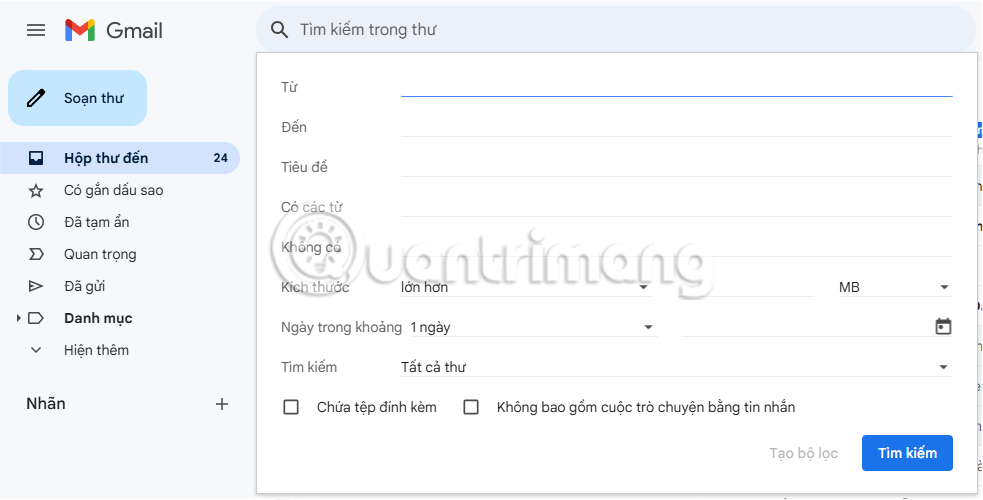
<p style="text-align: justify;">Để tạo bộ lọc, hãy mở hộp thư đến Gmail và nhấp vào biểu tượng bộ lọc bên cạnh thanh tìm kiếm ở trên cùng. Thao tác này sẽ mở hộp tìm kiếm nâng cao với nhiều tùy chọn khác nhau. Sau đây là những gì chúng thực hiện:</p>

<ul>
	<li style="text-align: justify;">Nhập địa chỉ email vào trường&nbsp;<strong>Từ</strong>&nbsp;để lọc tin nhắn từ địa chỉ đó. Sử dụng ký tự đại diện&nbsp;<strong>*</strong>&nbsp;(ví dụ:&nbsp;<strong>*@domain.com</strong>) để lọc tất cả email từ một domain cụ thể.</li>
	<li style="text-align: justify;">Trường&nbsp;<strong>Đến</strong>&nbsp;kết hợp tốt với các alias Gmail. Ví dụ, nếu đã đăng ký LinkedIn bằng John+LinkedIn@gmail.com, bạn có thể dễ dàng lọc tin nhắn từ LinkedIn.</li>
	<li style="text-align: justify;">Trường&nbsp;<strong>Tiêu đề</strong>&nbsp;cho phép bạn lọc tin nhắn có các từ cụ thể trong dòng tiêu đề.</li>
	<li style="text-align: justify;"><strong>Có các từ</strong>&nbsp;và&nbsp;<strong>Không có</strong>&nbsp;cho phép bạn quét email để tìm các từ cụ thể. Bạn cũng có thể sử dụng toán tử tìm kiếm của Gmail tại đây để tìm nhiều từ.</li>
	<li style="text-align: justify;">Menu drop-down&nbsp;<strong>Kích thước</strong>&nbsp;và&nbsp;<strong>Ngày trong khoảng</strong>&nbsp;cho phép bạn lọc email dựa trên kích thước hoặc ngày nhận email.</li>
	<li style="text-align: justify;">Sử dụng hộp&nbsp;<strong>Chứa tệp đính kèm</strong>&nbsp;nếu bạn chỉ muốn tìm email có file đính kèm.</li>
	<li style="text-align: justify;">Đánh dấu vào&nbsp;<strong>Không bao gồm cuộc trò chuyện bằng tin nhắn</strong>&nbsp;để loại trừ tin nhắn khỏi Google Chat của bạn.</li>
	<li style="text-align: justify;">Sử dụng menu drop-down&nbsp;<strong>Tìm kiếm</strong>&nbsp;để lọc từ một nhãn hiện có nhất định.</li>
</ul>

<figure>
<div style="text-align: justify;"><img alt="Các tùy chọn và tiêu chí lọc của Gmail" data-i="0" data-src="https://st.quantrimang.com/photos/image/2024/12/23/thiet-lap-bo-loc-email-trong-gmail-yahoo-mail-outlook-1.png" data-was-processed="true" height="500" src="https://st.quantrimang.com/photos/image/2024/12/23/thiet-lap-bo-loc-email-trong-gmail-yahoo-mail-outlook-1.png" width="983" /></div>

<figcaption>
<div style="text-align: justify;">Các tùy chọn và tiêu chí lọc của Gmail</div>
</figcaption>
</figure>

<p style="text-align: justify;">Khi hoàn tất, hãy nhấp vào nút&nbsp;<strong>Tạo bộ lọc</strong>. Bạn cũng có thể nhấp vào nút&nbsp;<strong>Tìm kiếm</strong>&nbsp;để kiểm tra bộ lọc và đảm bảo nó hiển thị các email khớp.</p>

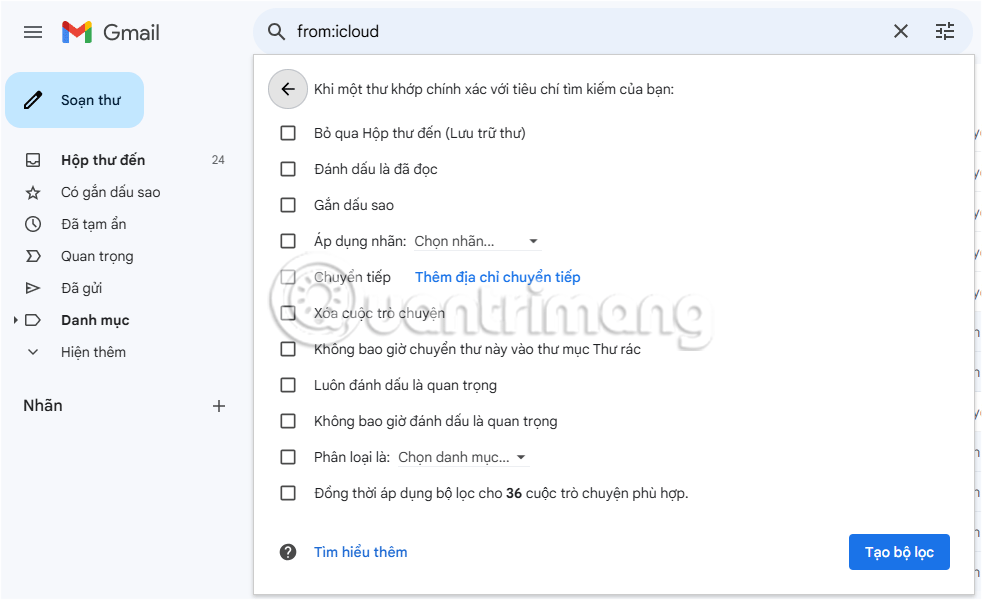
<p style="text-align: justify;">Tiếp theo, bạn sẽ cần quyết định điều gì sẽ xảy ra với các email khớp với bộ lọc này bằng cách chọn các hộp kiểm thích hợp. Ví dụ, bạn có thể đánh dấu chúng là đã đọc, lưu trữ chúng, chuyển tiếp chúng đến một địa chỉ khác hoặc áp dụng nhãn. Nếu bạn muốn bộ lọc cũng áp dụng cho các email hiện có, hãy đánh dấu vào tùy chọn&nbsp;<strong>Đồng thời áp dụng bộ lọc cho X cuộc trò chuyện phù hợp</strong>.</p>

<p style="text-align: justify;">Khi hoàn tất, hãy nhấp vào&nbsp;<strong>Tạo bộ lọc&nbsp;</strong>để hoàn tất quy trình. Bạn có thể xem lại, chỉnh sửa hoặc xóa bộ lọc Gmail của mình bất kỳ lúc nào.</p>

<figure>
<div style="text-align: justify;"><img alt="Tạo tùy chọn bộ lọc trong Gmail" data-adbro-processed="true" data-i="1" data-src="https://st.quantrimang.com/photos/image/2024/12/23/thiet-lap-bo-loc-email-trong-gmail-yahoo-mail-outlook-2.png" data-was-processed="true" height="600" src="https://st.quantrimang.com/photos/image/2024/12/23/thiet-lap-bo-loc-email-trong-gmail-yahoo-mail-outlook-2.png" width="982" /></div>

<figcaption>
<div style="text-align: justify;">Tạo tùy chọn bộ lọc trong Gmail</div>
</figcaption>
</figure>

<div style="text-align: justify;">&nbsp;</div>

<p style="text-align: justify;"><strong>Mẹo</strong>: Nếu việc tạo bộ lọc nghe có vẻ quá phức tạp hoặc nếu bạn không chắc chắn nên tạo bộ lọc nào, Gmail có thể giúp bạn. Chỉ cần chọn một thư hiện có trong hộp thư đến, sau đó nhấp vào menu ba chấm và chọn&nbsp;<strong>Lọc thư giống thư này</strong>. Thao tác này sẽ mở cửa sổ bộ lọc với một số trường được điền sẵn dựa trên thư bạn đã chọn.</p>

<h2 style="text-align: justify;">Cách thiết lập bộ lọc Yahoo Mail</h2>

<p style="text-align: justify;">Yahoo Mail cung cấp một số tính năng lọc email tiện dụng có thể giúp bạn quản lý hộp thư đến hiệu quả. Mặc dù không cung cấp nhiều tùy chọn nâng cao như Gmail, nhưng các bộ lọc của Yahoo vẫn hữu ích để giữ cho hộp thư đến được ngăn nắp.</p>

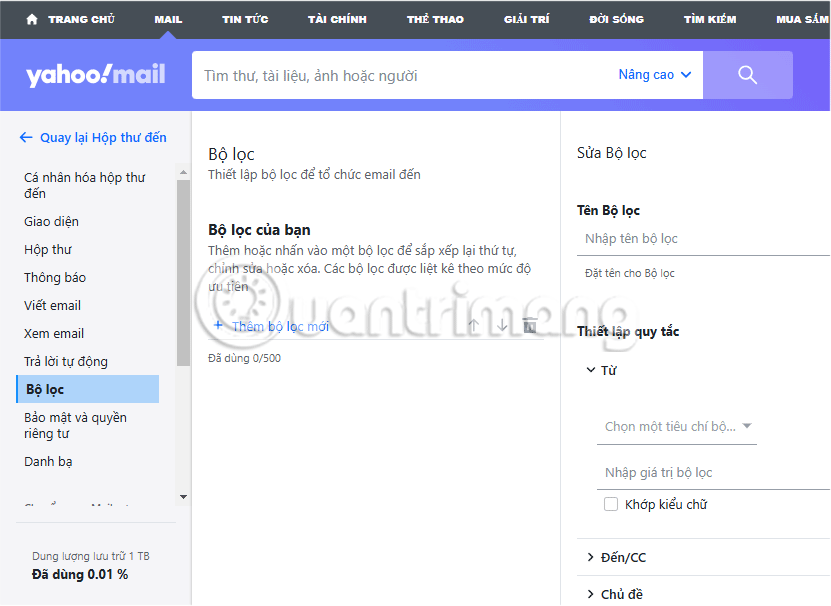
<p style="text-align: justify;">Để thiết lập bộ lọc trong Yahoo Mail, hãy mở hộp thư đến, nhấp vào&nbsp;<strong>Cài đặt</strong>, rồi chọn&nbsp;<strong>Cài đặt khác</strong>&nbsp;(biểu tượng 3 chấm). Đi tới tab&nbsp;<strong>Bộ lọc</strong>&nbsp;ở bên trái và nhấp vào tùy chọn&nbsp;<strong>Thêm bộ lọc mới</strong>&nbsp;để bắt đầu và sử dụng các tùy chọn sau:</p>

<ul>
	<li style="text-align: justify;"><strong>Từ</strong>: Lọc tin nhắn từ những người gửi hoặc domain cụ thể.</li>
	<li style="text-align: justify;"><strong>Đến</strong>: Lọc email được gửi đến một địa chỉ cụ thể.</li>
	<li style="text-align: justify;"><strong>Chủ đề</strong>: Lọc theo các từ khóa cụ thể trong dòng chủ đề.</li>
	<li style="text-align: justify;"><strong>Nội dung</strong>: Lọc email có chứa một số từ hoặc cụm từ nhất định trong nội dung văn bản.</li>
</ul>

<p style="text-align: justify;">Đối với mỗi danh mục bộ lọc (Từ, Đến, Chủ đề và Nội dung), bạn có thể chọn các điều kiện khác nhau như&nbsp;<strong>Chứa, Không chứa, Bắt đầu bằng</strong>&nbsp;hoặc&nbsp;<strong>Kết thúc bằng</strong>, cho phép bạn tạo bộ lọc tùy chỉnh dựa trên các từ khóa cụ thể. Ngoài ra, Yahoo Mail cho phép bạn khớp các trường hợp khi lọc, điều này hữu ích nếu bạn đang tìm kiếm các cụm từ cụ thể viết hoa toàn bộ, chẳng hạn như từ viết tắt hoặc từ khóa quan trọng.</p>

<p style="text-align: justify;">Sau khi hoàn tất tiêu chí lọc theo ý muốn, bạn có thể chọn thư mục để di chuyển các thư khớp đến. Sau đó, nhấn&nbsp;<strong>Lưu</strong>.</p>

<figure>
<div style="text-align: justify;"><img alt="Tùy chọn bộ lọc thư Yahoo Mail" data-i="2" data-src="https://st.quantrimang.com/photos/image/2024/12/23/thiet-lap-bo-loc-email-trong-gmail-yahoo-mail-outlook-3.png" data-was-processed="true" height="606" src="https://st.quantrimang.com/photos/image/2024/12/23/thiet-lap-bo-loc-email-trong-gmail-yahoo-mail-outlook-3.png" width="831" /></div>

<figcaption>
<div style="text-align: justify;">Tùy chọn bộ lọc thư Yahoo Mail</div>
</figcaption>
</figure>

<p style="text-align: justify;">Lưu ý rằng Yahoo áp dụng các bộ lọc của bạn theo thứ tự từ trên xuống dưới. Vì vậy, khi xem lại danh sách bộ lọc, hãy đảm bảo rằng bộ lọc quan trọng nhất nằm ở trên cùng, vì nó sẽ được ưu tiên nếu một thư khớp với nhiều bộ lọc. Bạn cũng có thể chỉnh sửa hoặc xóa các bộ lọc hiện có khỏi trang này.</p>

<div style="text-align: justify;"><iframe allow="autoplay" allowtransparency="true" aria-label="Advertisement" data-google-container-id="a!4" data-google-query-id="CNzcwZ-FvYoDFXNIwgUd5_kPkg" data-load-complete="true" frameborder="0" height="174" hspace="0" id="aswift_3" marginheight="0" marginwidth="0" name="aswift_3" sandbox="allow-scripts allow-same-origin allow-forms allow-presentation allow-popups" scrolling="no" tabindex="0" title="Advertisement" vspace="0" width="694"></iframe></div>

<h2 style="text-align: justify;">Cách lọc email trong Outlook</h2>

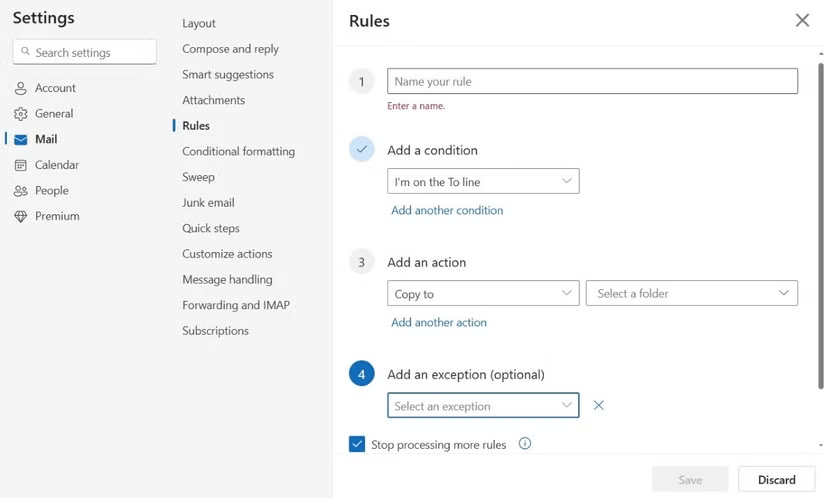
<p style="text-align: justify;">Cuối cùng, nếu sử dụng&nbsp;<a data-type="internal" href="https://quantrimang.com/cong-nghe/microsoft-outlook" title="Microsoft Outlook">Microsoft Outlook</a>&nbsp;làm ứng dụng email, bạn có thể lọc thư bằng Outlook Rules. Mở ứng dụng Outlook hoặc truy cập&nbsp;<strong>Outlook.com</strong>&nbsp;và nhấp vào biểu tượng hình bánh răng ở góc trên bên phải. Sau đó, vào&nbsp;<strong>Mail &gt; Rules</strong>&nbsp;và nhấp vào nút&nbsp;<strong>Add new rule</strong>.</p>

<p style="text-align: justify;"><strong>Lưu ý</strong>: Vì Outlook cho Windows mới giống với phiên bản web nên các bước sau đây có thể áp dụng cho cả phiên bản Outlook trên desktop và web.</p>

<p style="text-align: justify;">Tiếp theo, nhập tên cho bộ lọc của bạn rồi sử dụng menu drop-down&nbsp;<strong>Add a condition</strong>&nbsp;để đặt điều kiện. Bạn sẽ thấy một số tùy chọn được nhóm thành các danh mục. Ví dụ, một danh mục là&nbsp;<strong>My name is</strong>, tại đây bạn có thể chọn các tùy chọn như&nbsp;<strong>I&#039;m on the To line, I&#039;m on the CC line, I&#039;m not on the To line</strong>&nbsp;và những lựa chọn tương tự. Nếu bạn muốn thêm nhiều điều kiện hơn, hãy nhấp vào&nbsp;<strong>Add another condition</strong>&nbsp;bên dưới hộp đầu tiên.</p>

<p style="text-align: justify;">Sau khi thiết lập các điều kiện, hãy sử dụng menu drop-down&nbsp;<strong>Add a condition</strong>&nbsp;để chỉ định Outlook sẽ làm gì với email. Ví dụ, bạn có thể di chuyển hoặc sao chép thư vào một thư mục, xóa hoặc thậm chí ghim tin nhắn để giữ ở đầu hộp thư đến để dễ xem lại. Các hành động hữu ích khác bao gồm đánh dấu tin nhắn ở mức độ quan trọng nhất định hoặc chuyển tiếp tin nhắn đến một địa chỉ khác.</p>

<p style="text-align: justify;">Đánh dấu vào hộp kiểm&nbsp;<strong>Add an action</strong>&nbsp;nếu bạn không muốn chạy thêm bất kỳ quy tắc nào sau khi quy tắc này được thực hiện. Bạn cũng có thể đánh dấu vào tùy chọn&nbsp;<strong>Run rule now</strong>&nbsp;để áp dụng cho các email hiện có của mình. Cuối cùng, nhấp vào&nbsp;<strong>Save</strong>&nbsp;để hoàn tất quy trình.</p>

<p style="text-align: justify;">Bộ lọc Outlook của bạn đã sẵn sàng. Bạn có thể lặp lại các bước trên nếu cần tạo thêm bộ lọc.</p>

<figure>
<div style="text-align: justify;"><img alt="" data-i="3" data-src="https://st.quantrimang.com/photos/image/2024/12/23/thiet-lap-bo-loc-email-trong-gmail-yahoo-mail-outlook-4.png" data-was-processed="true" height="498" src="https://st.quantrimang.com/photos/image/2024/12/23/thiet-lap-bo-loc-email-trong-gmail-yahoo-mail-outlook-4.png" width="825" /></div>
</figure>

<p style="text-align: justify;">Vậy là xong! Bây giờ bạn đã biết cách thiết lập và sử dụng bộ lọc để sắp xếp hộp thư đến của mình một cách hiệu quả. Hãy dành thời gian để khám phá các tùy chọn lọc do nhà cung cấp email của bạn cung cấp và tùy chỉnh chúng sao cho phù hợp với nhu cầu cá nhân - hộp thư đến của bạn sẽ cảm ơn bạn vì điều đó!</p>

<div style="text-align: justify;">&nbsp;</div>
		</div>
				<div id="author">
						<p>
				<strong>Nguồn tin:</strong>
				Quantrimang.com:
			</p>
		</div>
	</div>
	<div id="footer" class="clearfix">
		<div id="url">
			<strong>URL của bản tin này: </strong><a href="https://www.nguoicodonvn2008.info/vi/news/savefile/kien-thuc-may-tinh/cach-thiet-lap-bo-loc-email-trong-gmail-yahoo-mail-va-outlook-9562.html" title="Cách thiết lập bộ lọc email trong Gmail, Yahoo Mail và Outlook">https://www.nguoicodonvn2008.info/vi/news/savefile/kien-thuc-may-tinh/cach-thiet-lap-bo-loc-email-trong-gmail-yahoo-mail-va-outlook-9562.html</a>

		</div>
		<div class="clear"></div>
		<div class="copyright">
			&copy; .&#x3A; Nguoicodonvn2008.info - Cõi lòng người cô đơn &#x3A;.
		</div>
		<div id="contact">
			<a href="mailto:admin@nguoicodonvn2008.info">admin@nguoicodonvn2008.info</a>
		</div>
	</div>
</div>
        <div id="timeoutsess" class="chromeframe">
            Bạn đã không sử dụng Site, <a onclick="timeoutsesscancel();" href="https://nguoicodonvn2008.info/#">Bấm vào đây để duy trì trạng thái đăng nhập</a>. Thời gian chờ: <span id="secField"> 60 </span> giây
        </div>
        <div id="openidResult" class="nv-alert" style="display:none"></div>
        <div id="openidBt" data-result="" data-redirect=""></div>
		</script>
		<div class="car-top">
  <span><img src="https://nguoicodonvn2008.info/themes/default/images/car.png" alt=""></span>
</div>
<script src="https://nguoicodonvn2008.info/assets/js/jquery/jquery.min.js"></script>
<script>var nv_base_siteurl="/",nv_lang_data="vi",nv_lang_interface="vi",nv_name_variable="nv",nv_fc_variable="op",nv_lang_variable="language",nv_module_name="news",nv_func_name="savefile",nv_is_user=0, nv_my_ofs=-4,nv_my_abbr="EDT",nv_cookie_prefix="nv4c_e856T",nv_check_pass_mstime=1738000,nv_area_admin=0,nv_safemode=0,theme_responsive=0,nv_recaptcha_ver=2,nv_recaptcha_sitekey="",nv_recaptcha_type="image",XSSsanitize=1;</script>
<script src="https://nguoicodonvn2008.info/assets/js/language/vi.js"></script>
<script src="https://nguoicodonvn2008.info/assets/js/DOMPurify/purify3.js"></script>
<script src="https://nguoicodonvn2008.info/assets/js/global.js"></script>
<script src="https://nguoicodonvn2008.info/assets/js/site.js"></script>
<script src="https://nguoicodonvn2008.info/themes/default/js/news.js"></script>
<script src="https://nguoicodonvn2008.info/themes/default/js/main.js"></script>
<script src="https://nguoicodonvn2008.info/themes/default/js/custom.js"></script>
<script type="application/ld+json">
        {
            "@context": "https://schema.org",
            "@type": "Organization",
            "url": "https://nguoicodonvn2008.info",
            "logo": "https://nguoicodonvn2008.info/uploads/angel.gif"
        }
        </script>
<script src="https://nguoicodonvn2008.info/themes/default/js/bootstrap.min.js"></script>
<script type="text/javascript">
var $scrolltop = $('.car-top');
$scrolltop.on('click', function () {
    $('html,body').animate({
        scrollTop: 0
    }, 800);
    $(this).addClass("car-run");
    setTimeout(function(){ $scrolltop.removeClass('car-run');}, 1000);
    return false;
});
$(window).on('scroll', function ()
{ 
    if($(window).scrollTop() >= 200)
    {
        $scrolltop.addClass("show");
        $scrolltop.addClass("car-down");
    }
    else
    {
       $scrolltop.removeClass("show");
       setTimeout(function(){ $scrolltop.removeClass('car-down');}, 300);
    }
});
</script>
</body>
</html>