<!DOCTYPE html>
    <html lang="vi" xmlns="http://www.w3.org/1999/xhtml" prefix="og: http://ogp.me/ns#">
    <head>
<title>Cách thêm watermark cho file PDF bằng Quick Actions trong macOS</title>
<meta name="description" content="Cách thêm watermark cho file PDF bằng Quick Actions trong macOS - Savefile - Tin Tức -...">
<meta name="author" content=".: Nguoicodonvn2008.info - Cõi lòng người cô đơn :.">
<meta name="copyright" content=".: Nguoicodonvn2008.info - Cõi lòng người cô đơn :. [admin@nguoicodonvn2008.info]">
<meta name="robots" content="index, archive, follow, noodp">
<meta name="googlebot" content="index,archive,follow,noodp">
<meta name="msnbot" content="all,index,follow">
<meta name="generator" content="NukeViet v4.5">
<meta http-equiv="Content-Type" content="text/html; charset=utf-8">
<meta property="og:title" content="Cách thêm watermark cho file PDF bằng Quick Actions trong macOS">
<meta property="og:type" content="website">
<meta property="og:description" content="Savefile - Tin Tức - https&#x3A;&#x002F;&#x002F;www.nguoicodonvn2008.info&#x002F;vi&#x002F;news&#x002F;savefile&#x002F;kien-thuc-may-tinh&#x002F;cach-them-watermark-cho-file-pdf-bang-quick-actions-trong-macos-549.html">
<meta property="og:site_name" content=".&#x3A; Nguoicodonvn2008.info - Cõi lòng người cô đơn &#x3A;.">
<meta property="og:url" content="https://www.nguoicodonvn2008.info/vi/news/savefile/kien-thuc-may-tinh/cach-them-watermark-cho-file-pdf-bang-quick-actions-trong-macos-549.html">
<link rel="shortcut icon" href="https://nguoicodonvn2008.info/favicon.ico">
<link rel="canonical" href="https://www.nguoicodonvn2008.info/vi/news/savefile/kien-thuc-may-tinh/cach-them-watermark-cho-file-pdf-bang-quick-actions-trong-macos-549.html">
<link rel="alternate" href="https://nguoicodonvn2008.info/vi/news/rss/" title="Tin Tức" type="application/rss+xml">
<link rel="alternate" href="https://nguoicodonvn2008.info/vi/news/rss/karaoke-dual/" title="Tin Tức - Karaoke Dual" type="application/rss+xml">
<link rel="alternate" href="https://nguoicodonvn2008.info/vi/news/rss/nhac-tre/" title="Tin Tức - Nhạc trẻ" type="application/rss+xml">
<link rel="alternate" href="https://nguoicodonvn2008.info/vi/news/rss/tru-tinh/" title="Tin Tức - Trữ tình" type="application/rss+xml">
<link rel="alternate" href="https://nguoicodonvn2008.info/vi/news/rss/nuoc-ngoai/" title="Tin Tức - Nước ngoài" type="application/rss+xml">
<link rel="alternate" href="https://nguoicodonvn2008.info/vi/news/rss/remix/" title="Tin Tức - Remix" type="application/rss+xml">
<link rel="alternate" href="https://nguoicodonvn2008.info/vi/news/rss/tam-su-tinh-yeu/" title="Tin Tức - Tâm sự tình yêu" type="application/rss+xml">
<link rel="alternate" href="https://nguoicodonvn2008.info/vi/news/rss/tho-suu-tam/" title="Tin Tức - Thơ sưu tầm" type="application/rss+xml">
<link rel="alternate" href="https://nguoicodonvn2008.info/vi/news/rss/cuoc-song/" title="Tin Tức - Cuộc sống" type="application/rss+xml">
<link rel="alternate" href="https://nguoicodonvn2008.info/vi/news/rss/phan-mem/" title="Tin Tức - Phần mềm" type="application/rss+xml">
<link rel="alternate" href="https://nguoicodonvn2008.info/vi/news/rss/kien-thuc-may-tinh/" title="Tin Tức - Kiến thức máy tính" type="application/rss+xml">
<link rel="alternate" href="https://nguoicodonvn2008.info/vi/news/rss/hoc-tap/" title="Tin Tức - Học tập" type="application/rss+xml">
<link rel="alternate" href="https://nguoicodonvn2008.info/vi/news/rss/tai-lieu/" title="Tin Tức - Tài liệu" type="application/rss+xml">
<link rel="alternate" href="https://nguoicodonvn2008.info/vi/news/rss/de-thi/" title="Tin Tức - Đề thi" type="application/rss+xml">
<link rel="preload" as="style" href="https://nguoicodonvn2008.info/assets/css/font-awesome.min.css" type="text/css">
<link rel="preload" as="style" href="https://nguoicodonvn2008.info/themes/default/css/bootstrap.non-responsive.css" type="text/css">
<link rel="preload" as="style" href="https://nguoicodonvn2008.info/themes/default/css/style.css" type="text/css">
<link rel="preload" as="style" href="https://nguoicodonvn2008.info/themes/default/css/style.non-responsive.css" type="text/css">
<link rel="preload" as="style" href="https://nguoicodonvn2008.info/themes/default/css/news.css" type="text/css">
<link rel="preload" as="style" href="https://nguoicodonvn2008.info/themes/default/css/custom.css" type="text/css">
<link rel="preload" as="script" href="https://nguoicodonvn2008.info/assets/js/jquery/jquery.min.js" type="text/javascript">
<link rel="preload" as="script" href="https://nguoicodonvn2008.info/assets/js/language/vi.js" type="text/javascript">
<link rel="preload" as="script" href="https://nguoicodonvn2008.info/assets/js/DOMPurify/purify3.js" type="text/javascript">
<link rel="preload" as="script" href="https://nguoicodonvn2008.info/assets/js/global.js" type="text/javascript">
<link rel="preload" as="script" href="https://nguoicodonvn2008.info/assets/js/site.js" type="text/javascript">
<link rel="preload" as="script" href="https://nguoicodonvn2008.info/themes/default/js/news.js" type="text/javascript">
<link rel="preload" as="script" href="https://nguoicodonvn2008.info/themes/default/js/main.js" type="text/javascript">
<link rel="preload" as="script" href="https://nguoicodonvn2008.info/themes/default/js/custom.js" type="text/javascript">
<link rel="preload" as="script" href="https://nguoicodonvn2008.info/themes/default/js/bootstrap.min.js" type="text/javascript">
<link rel="stylesheet" href="https://nguoicodonvn2008.info/assets/css/font-awesome.min.css">
<link rel="stylesheet" href="https://nguoicodonvn2008.info/themes/default/css/bootstrap.non-responsive.css">
<link rel="stylesheet" href="https://nguoicodonvn2008.info/themes/default/css/style.css">
<link rel="stylesheet" href="https://nguoicodonvn2008.info/themes/default/css/style.non-responsive.css">
<link rel="StyleSheet" href="https://nguoicodonvn2008.info/themes/default/css/news.css">
<link rel="stylesheet" href="https://nguoicodonvn2008.info/themes/default/css/custom.css">
<style type="text/css">
	body{background: #fff;}
</style>
    </head>
    <body>
<div id="print">
	<div id="hd_print">
		<h2 class="pull-left">.&#x3A; Nguoicodonvn2008.info - Cõi lòng người cô đơn &#x3A;.</h2>
		<p class="pull-right"><a title=".&#x3A; Nguoicodonvn2008.info - Cõi lòng người cô đơn &#x3A;." href="https://nguoicodonvn2008.info/">https://nguoicodonvn2008.info</a></p>
	</div>
	<div class="clear"></div>
	<hr />
	<div id="content">
		<h1>Cách thêm watermark cho file PDF bằng Quick Actions trong macOS</h1>
		<ul class="list-inline">
			<li>Thứ ba - 23/07/2019 00:42</li>
			<li class="hidden-print txtrequired"><em class="fa fa-print">&nbsp;</em><a title="In ra" href="javascript:;" onclick="window.print()">In ra</a></li>
			<li class="hidden-print txtrequired"><em class="fa fa-power-off">&nbsp;</em><a title="Đóng cửa sổ này" href="javascript:;" onclick="window.close()">Đóng cửa sổ này</a></li>
		</ul>
		<div class="clear"></div>
		<div id="hometext">
		</div>
				<div class="imghome">
			<img alt="Cách thêm watermark cho file PDF bằng Quick Actions trong macOS" src="https://st.quantrimang.com/photos/image/2019/07/22/them-watermark-bang-quick-actions-6.jpg" width="460" class="img-thumbnail" />
		</div>
		<div class="clear"></div>
		<div id="bodytext" class="clearfix">
			<p style="text-align: justify;">Apple đã giới thiệu Quick Actions khi phát hành&nbsp;macOS Mojave. Đây là một tính năng mới giúp người dùng nâng cao năng suất làm việc. Quick Actions cho phép Finder dễ dàng truy cập vào các tác vụ thông thường, chẳng hạn như xoay hình ảnh hoặc kết hợp vô số hình ảnh thành một&nbsp;file PDF. Về cơ bản, nó sử dụng quy trình công việc của Automator để xử lý các file.</p>

<p style="text-align: justify;">Tùy chọn để thêm watermark (đóng dấu) cho các file PDF không xuất hiện theo mặc định trong Quick Actions, nhưng có thể được thêm bằng cách sử dụng một vài tùy chỉnh của Automator. Người dùng sẽ có khả năng thêm watermark cho file PDF một cách dễ dàng bằng Finder mà không cần bất kỳ phần mềm bên thứ ba bổ sung nào.</p>

<p style="text-align: justify;">Việc thêm watermark vào file PDF có thể rất hữu ích. Ví dụ, nếu bạn làm báo cáo công việc và muốn có logo công ty trên mỗi trang, thay vì sử dụng phần mềm chỉnh sửa để thêm logo thủ công vào mỗi trang, bạn chỉ cần tạo watermark cho file PDF trong bước cuối cùng.</p>

<h2 id="mcetoc_1dgbn0drs0" style="text-align: justify;">Lựa chọn hình ảnh làm watermark và chọn vị trí lưu file</h2>

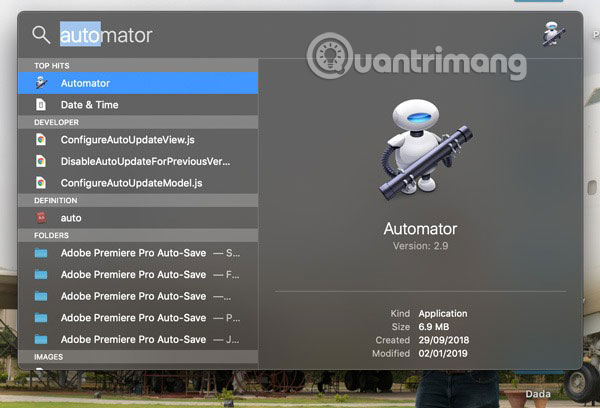
<p style="text-align: justify;">1. Mở&nbsp;<strong>Automator</strong>&nbsp;trên máy Mac. Bạn có thể làm điều này một cách dễ dàng bằng cách tìm kiếm nó trong Spotlight.</p>

<p style="text-align: justify;"><img alt="Mở Automator" data-i="0" data-src="https://st.quantrimang.com/photos/image/2019/07/22/them-watermark-bang-quick-actions-1.jpg" data-was-processed="true" height="408" src="https://st.quantrimang.com/photos/image/2019/07/22/them-watermark-bang-quick-actions-1.jpg" width="600" /></p>

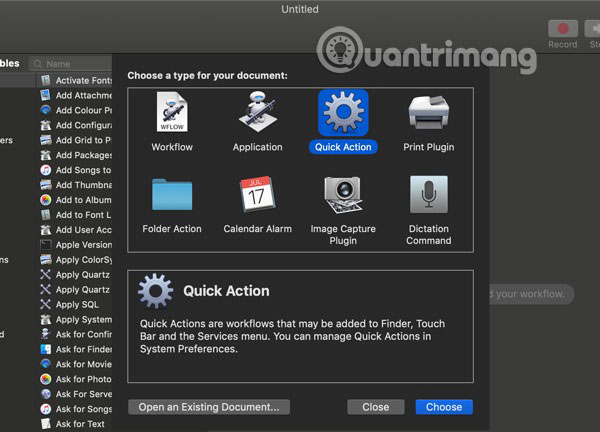
<p style="text-align: justify;">2. Nhấp vào&nbsp;<strong>New Document</strong>&nbsp;ở phía dưới bên trái. Chọn&nbsp;<strong>Quick Action</strong>&nbsp;và nhấp vào&nbsp;<strong>Choose.</strong></p>

<p style="text-align: justify;"><img alt="Chọn Quick Action và nhấp vào Choose" data-i="1" data-src="https://st.quantrimang.com/photos/image/2019/07/22/them-watermark-bang-quick-actions-2.jpg" data-was-processed="true" height="432" src="https://st.quantrimang.com/photos/image/2019/07/22/them-watermark-bang-quick-actions-2.jpg" width="600" /></p>

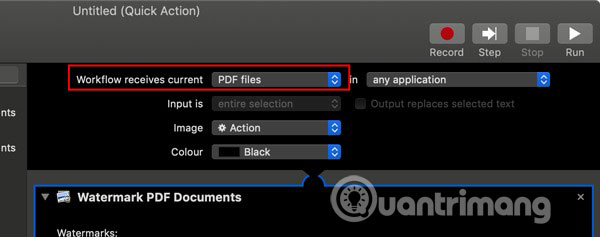
<p style="text-align: justify;">3. Ở trên cùng của cửa sổ&nbsp;<strong>Automator</strong>&nbsp;trong trường&nbsp;<strong>Workflow receives current,</strong>&nbsp;hãy chọn&nbsp;<strong>PDF files</strong>&nbsp;trong danh sách drop-down.</p>

<p style="text-align: justify;"><img alt="Chọn PDF files trong danh sách drop-down" data-i="2" data-src="https://st.quantrimang.com/photos/image/2019/07/22/them-watermark-bang-quick-actions-3.jpg" data-was-processed="true" height="237" src="https://st.quantrimang.com/photos/image/2019/07/22/them-watermark-bang-quick-actions-3.jpg" width="600" /></p>

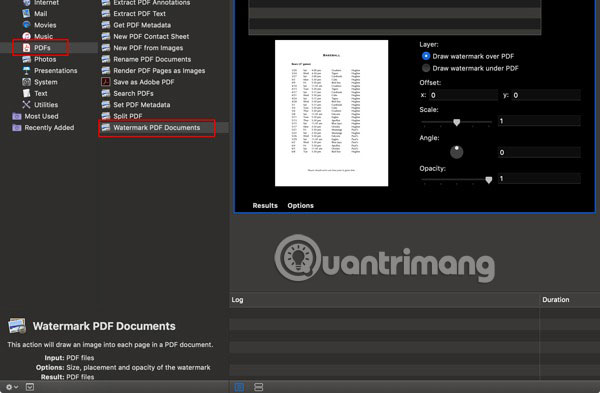
<p style="text-align: justify;">4. Từ thanh bên thứ nhất, chọn&nbsp;<strong>PDFs.</strong>&nbsp;Từ thanh bên thứ hai, chọn (nhấp đúp vào)&nbsp;<strong>Watermark PDF Documents</strong>.</p>

<p style="text-align: justify;"><img alt="Từ thanh bên thứ nhất, chọn PDFs. Từ thanh bên thứ hai, chọn (nhấp đúp vào) Watermark PDF Documents" data-i="3" data-src="https://st.quantrimang.com/photos/image/2019/07/22/them-watermark-bang-quick-actions-4.jpg" data-was-processed="true" height="393" src="https://st.quantrimang.com/photos/image/2019/07/22/them-watermark-bang-quick-actions-4.jpg" width="600" /></p>

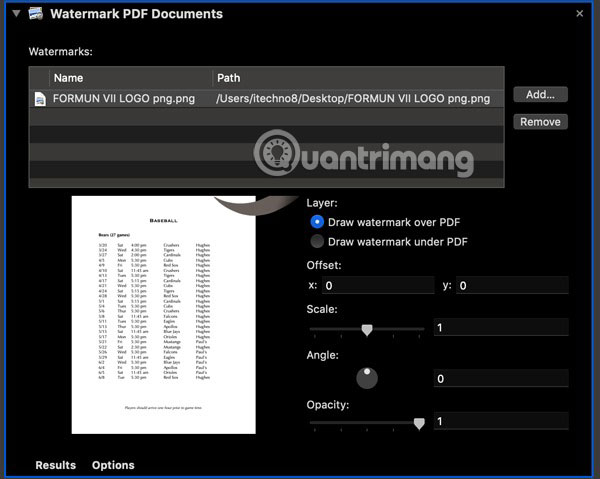
<p style="text-align: justify;">5. Nhấp vào&nbsp;<strong>Add</strong>&nbsp;ở góc trên bên phải và chọn hình ảnh bạn muốn sử dụng làm watermark.</p>

<p style="text-align: justify;">Bạn nên sử dụng file .png với nền trong suốt làm watermark.</p>

<p style="text-align: justify;">Khi file được thêm vào, bạn sẽ thấy nó được liệt kê bên trong phần&nbsp;<strong>Watermarks.</strong></p>

<p style="text-align: justify;"><strong><img alt="Nhấp vào Add ở góc trên bên phải" data-i="4" data-src="https://st.quantrimang.com/photos/image/2019/07/22/them-watermark-bang-quick-actions-5.jpg" data-was-processed="true" height="479" src="https://st.quantrimang.com/photos/image/2019/07/22/them-watermark-bang-quick-actions-5.jpg" width="600" /></strong></p>

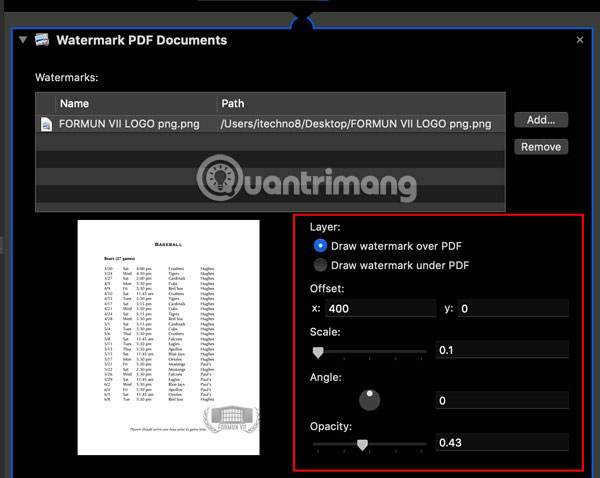
<p style="text-align: justify;">6. Bạn sẽ thấy tùy chọn điều chỉnh watermark của mình và có thể thay đổi vị trí, kích thước, góc, cũng như độ mờ của nó. Để điều chỉnh vị trí (offset) cho watermark, chỉ cần nhập một giá trị vào hộp&nbsp;<strong>x</strong>&nbsp;hoặc&nbsp;<strong>y</strong>.</p>

<p style="text-align: justify;"><img alt="Thay đổi vị trí, kích thước, góc, cũng như độ mờ của watermark" data-i="5" data-src="https://st.quantrimang.com/photos/image/2019/07/22/them-watermark-bang-quick-actions-6.jpg" data-was-processed="true" height="478" src="https://st.quantrimang.com/photos/image/2019/07/22/them-watermark-bang-quick-actions-6.jpg" width="600" /></p>

<p style="text-align: justify;">Bạn cũng có thể chọn xem bạn muốn đặt watermark trên hay dưới trang PDF của mình. Trong hầu hết các trường hợp, bạn cần đặt watermark lên trên trang PDF. Trừ khi trang PDF của bạn trong suốt, nếu không việc đặt watermark dưới trang PDF sẽ khiến nó bị ẩn.</p>

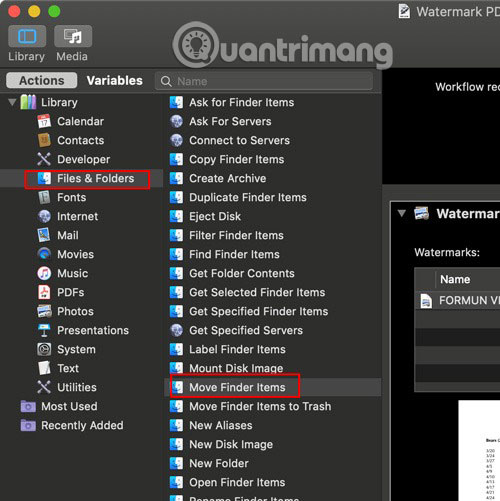
<p style="text-align: justify;">7. Từ thanh bên thứ nhất, hãy chọn&nbsp;<strong>Files and Folders</strong>, và từ thanh bên thứ hai, chọn&nbsp;<strong>Move Finder Items</strong>.</p>

<p style="text-align: justify;"><img alt="Từ thanh bên thứ nhất, hãy chọn Files and Folders, và từ thanh bên thứ hai, chọn Move Finder Items" data-i="6" data-src="https://st.quantrimang.com/photos/image/2019/07/22/them-watermark-bang-quick-actions-7.jpg" data-was-processed="true" height="501" src="https://st.quantrimang.com/photos/image/2019/07/22/them-watermark-bang-quick-actions-7.jpg" width="500" /></p>

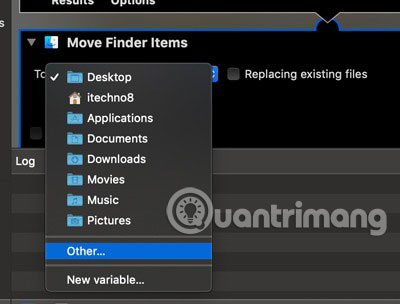
<p style="text-align: justify;">8. Trong&nbsp;<strong>Move Finder Items</strong>, bây giờ bạn cần chỉ định vị trí mà bạn muốn lưu các file PDF đã thêm watermark trên máy Mac của mình. Bằng cách nhấp vào vị trí được chỉ định mặc định (<strong>Desktop</strong>) và chọn&nbsp;<strong>Other,</strong>&nbsp;bạn có thể chọn một vị trí như mong muốn.</p>

<p style="text-align: justify;"><img alt="Chọn vị trí lưu file trong Move Finder Items" data-i="7" data-src="https://st.quantrimang.com/photos/image/2019/07/22/them-watermark-bang-quick-actions-8.jpg" data-was-processed="true" height="304" src="https://st.quantrimang.com/photos/image/2019/07/22/them-watermark-bang-quick-actions-8.jpg" width="400" /></p>

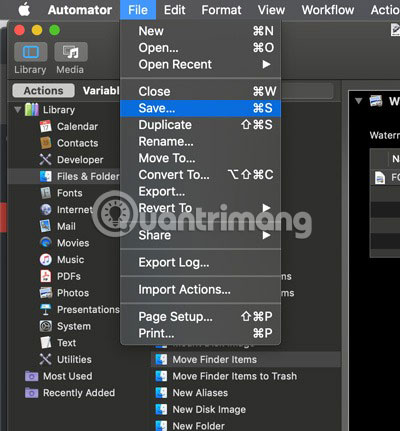
<p style="text-align: justify;">9. Khi đã hoàn tất, hãy nhấp vào&nbsp;<strong>File &gt; Save</strong>&nbsp;và lưu quy trình công việc bằng cách sử dụng tên có thể dễ dàng xác định trong Quick Actions, ví dụ như&nbsp;<strong>Watermark PDF</strong>.</p>

<p style="text-align: justify;"><img alt="Nhấp vào File &gt; Save" data-i="8" data-src="https://st.quantrimang.com/photos/image/2019/07/22/them-watermark-bang-quick-actions-9.jpg" data-was-processed="true" height="431" src="https://st.quantrimang.com/photos/image/2019/07/22/them-watermark-bang-quick-actions-9.jpg" width="400" /></p>

<div style="text-align: justify;">&nbsp;</div>

<h2 id="mcetoc_1dgbn0drs1" style="text-align: justify;">Cách thêm watermark cho một file PDF trong Finder</h2>

<p style="text-align: justify;">Bây giờ, bạn đã thiết lập xong Quick Actions, việc tạo watermark cho các file PDF trực tiếp trong Finder rất dễ dàng.</p>

<p style="text-align: justify;">1. Mở&nbsp;<strong>Finder</strong>&nbsp;và chọn file bạn muốn thêm watermark.</p>

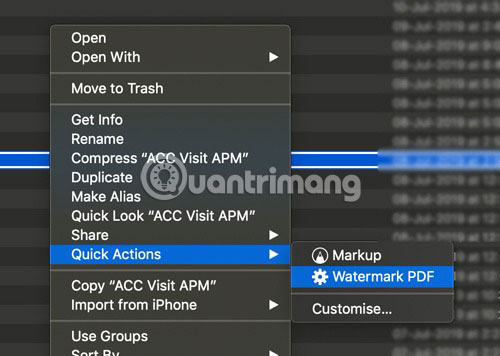
<p style="text-align: justify;">2. Nhấp chuột phải vào file và chọn&nbsp;<strong>Quick Actions</strong>.</p>

<p style="text-align: justify;">3. Từ danh sách, hãy chọn&nbsp;<strong>Watermark PDF</strong>&nbsp;(hoặc tên bạn đã chỉ định cho Quick Actions ở trên).</p>

<p style="text-align: justify;"><img alt="Hãy chọn Watermark PDF" data-i="9" data-src="https://st.quantrimang.com/photos/image/2019/07/22/them-watermark-bang-quick-actions-10.jpg" data-was-processed="true" height="356" src="https://st.quantrimang.com/photos/image/2019/07/22/them-watermark-bang-quick-actions-10.jpg" width="500" /></p>

<p style="text-align: justify;">4. Finder bây giờ sẽ tự động thêm watermark vào file PDF của bạn và lưu nó vào vị trí bạn đã chỉ định.</p>

<p style="text-align: justify;">Quick Actions là một công cụ rất hữu ích trên macOS! Bạn có thấy hướng dẫn này hữu ích không? Chia sẻ ý kiến với mọi người trong phần bình luận ​​dưới đây nhé!</p>

<p style="text-align: justify;">Chúc bạn thực hiện thành công!</p>
		</div>
				<div id="author">
						<p>
				<strong>Nguồn tin:</strong>
				Quantrimang.com
			</p>
		</div>
	</div>
	<div id="footer" class="clearfix">
		<div id="url">
			<strong>URL của bản tin này: </strong><a href="https://www.nguoicodonvn2008.info/vi/news/savefile/kien-thuc-may-tinh/cach-them-watermark-cho-file-pdf-bang-quick-actions-trong-macos-549.html" title="Cách thêm watermark cho file PDF bằng Quick Actions trong macOS">https://www.nguoicodonvn2008.info/vi/news/savefile/kien-thuc-may-tinh/cach-them-watermark-cho-file-pdf-bang-quick-actions-trong-macos-549.html</a>

		</div>
		<div class="clear"></div>
		<div class="copyright">
			&copy; .&#x3A; Nguoicodonvn2008.info - Cõi lòng người cô đơn &#x3A;.
		</div>
		<div id="contact">
			<a href="mailto:admin@nguoicodonvn2008.info">admin@nguoicodonvn2008.info</a>
		</div>
	</div>
</div>
        <div id="timeoutsess" class="chromeframe">
            Bạn đã không sử dụng Site, <a onclick="timeoutsesscancel();" href="https://nguoicodonvn2008.info/#">Bấm vào đây để duy trì trạng thái đăng nhập</a>. Thời gian chờ: <span id="secField"> 60 </span> giây
        </div>
        <div id="openidResult" class="nv-alert" style="display:none"></div>
        <div id="openidBt" data-result="" data-redirect=""></div>
		</script>
		<div class="car-top">
  <span><img src="https://nguoicodonvn2008.info/themes/default/images/car.png" alt=""></span>
</div>
<script src="https://nguoicodonvn2008.info/assets/js/jquery/jquery.min.js"></script>
<script>var nv_base_siteurl="/",nv_lang_data="vi",nv_lang_interface="vi",nv_name_variable="nv",nv_fc_variable="op",nv_lang_variable="language",nv_module_name="news",nv_func_name="savefile",nv_is_user=0, nv_my_ofs=-4,nv_my_abbr="EDT",nv_cookie_prefix="nv4c_e856T",nv_check_pass_mstime=1738000,nv_area_admin=0,nv_safemode=0,theme_responsive=0,nv_recaptcha_ver=2,nv_recaptcha_sitekey="",nv_recaptcha_type="image",XSSsanitize=1;</script>
<script src="https://nguoicodonvn2008.info/assets/js/language/vi.js"></script>
<script src="https://nguoicodonvn2008.info/assets/js/DOMPurify/purify3.js"></script>
<script src="https://nguoicodonvn2008.info/assets/js/global.js"></script>
<script src="https://nguoicodonvn2008.info/assets/js/site.js"></script>
<script src="https://nguoicodonvn2008.info/themes/default/js/news.js"></script>
<script src="https://nguoicodonvn2008.info/themes/default/js/main.js"></script>
<script src="https://nguoicodonvn2008.info/themes/default/js/custom.js"></script>
<script type="application/ld+json">
        {
            "@context": "https://schema.org",
            "@type": "Organization",
            "url": "https://nguoicodonvn2008.info",
            "logo": "https://nguoicodonvn2008.info/uploads/angel.gif"
        }
        </script>
<script src="https://nguoicodonvn2008.info/themes/default/js/bootstrap.min.js"></script>
<script type="text/javascript">
var $scrolltop = $('.car-top');
$scrolltop.on('click', function () {
    $('html,body').animate({
        scrollTop: 0
    }, 800);
    $(this).addClass("car-run");
    setTimeout(function(){ $scrolltop.removeClass('car-run');}, 1000);
    return false;
});
$(window).on('scroll', function ()
{ 
    if($(window).scrollTop() >= 200)
    {
        $scrolltop.addClass("show");
        $scrolltop.addClass("car-down");
    }
    else
    {
       $scrolltop.removeClass("show");
       setTimeout(function(){ $scrolltop.removeClass('car-down');}, 300);
    }
});
</script>
</body>
</html>