<!DOCTYPE html>
    <html lang="vi" xmlns="http://www.w3.org/1999/xhtml" prefix="og: http://ogp.me/ns#">
    <head>
<title>Cách thêm thùng rác xóa file vĩnh viễn trên Windows 10&#x002F;11</title>
<meta name="description" content="Cách thêm thùng rác xóa file vĩnh viễn trên Windows 10&#x002F;11 - Savefile - Tin Tức -...">
<meta name="author" content=".: Nguoicodonvn2008.info - Cõi lòng người cô đơn :.">
<meta name="copyright" content=".: Nguoicodonvn2008.info - Cõi lòng người cô đơn :. [admin@nguoicodonvn2008.info]">
<meta name="robots" content="index, archive, follow, noodp">
<meta name="googlebot" content="index,archive,follow,noodp">
<meta name="msnbot" content="all,index,follow">
<meta name="generator" content="NukeViet v4.5">
<meta http-equiv="Content-Type" content="text/html; charset=utf-8">
<meta property="og:title" content="Cách thêm thùng rác xóa file vĩnh viễn trên Windows 10&#x002F;11">
<meta property="og:type" content="website">
<meta property="og:description" content="Savefile - Tin Tức - https&#x3A;&#x002F;&#x002F;www.nguoicodonvn2008.info&#x002F;vi&#x002F;news&#x002F;savefile&#x002F;kien-thuc-may-tinh&#x002F;cach-them-thung-rac-xoa-file-vinh-vien-tren-windows-10-11-6715.html">
<meta property="og:site_name" content=".&#x3A; Nguoicodonvn2008.info - Cõi lòng người cô đơn &#x3A;.">
<meta property="og:url" content="https://www.nguoicodonvn2008.info/vi/news/savefile/kien-thuc-may-tinh/cach-them-thung-rac-xoa-file-vinh-vien-tren-windows-10-11-6715.html">
<link rel="shortcut icon" href="https://nguoicodonvn2008.info/favicon.ico">
<link rel="canonical" href="https://www.nguoicodonvn2008.info/vi/news/savefile/kien-thuc-may-tinh/cach-them-thung-rac-xoa-file-vinh-vien-tren-windows-10-11-6715.html">
<link rel="alternate" href="https://nguoicodonvn2008.info/vi/news/rss/" title="Tin Tức" type="application/rss+xml">
<link rel="alternate" href="https://nguoicodonvn2008.info/vi/news/rss/karaoke-dual/" title="Tin Tức - Karaoke Dual" type="application/rss+xml">
<link rel="alternate" href="https://nguoicodonvn2008.info/vi/news/rss/nhac-tre/" title="Tin Tức - Nhạc trẻ" type="application/rss+xml">
<link rel="alternate" href="https://nguoicodonvn2008.info/vi/news/rss/tru-tinh/" title="Tin Tức - Trữ tình" type="application/rss+xml">
<link rel="alternate" href="https://nguoicodonvn2008.info/vi/news/rss/nuoc-ngoai/" title="Tin Tức - Nước ngoài" type="application/rss+xml">
<link rel="alternate" href="https://nguoicodonvn2008.info/vi/news/rss/remix/" title="Tin Tức - Remix" type="application/rss+xml">
<link rel="alternate" href="https://nguoicodonvn2008.info/vi/news/rss/tam-su-tinh-yeu/" title="Tin Tức - Tâm sự tình yêu" type="application/rss+xml">
<link rel="alternate" href="https://nguoicodonvn2008.info/vi/news/rss/tho-suu-tam/" title="Tin Tức - Thơ sưu tầm" type="application/rss+xml">
<link rel="alternate" href="https://nguoicodonvn2008.info/vi/news/rss/cuoc-song/" title="Tin Tức - Cuộc sống" type="application/rss+xml">
<link rel="alternate" href="https://nguoicodonvn2008.info/vi/news/rss/phan-mem/" title="Tin Tức - Phần mềm" type="application/rss+xml">
<link rel="alternate" href="https://nguoicodonvn2008.info/vi/news/rss/kien-thuc-may-tinh/" title="Tin Tức - Kiến thức máy tính" type="application/rss+xml">
<link rel="alternate" href="https://nguoicodonvn2008.info/vi/news/rss/hoc-tap/" title="Tin Tức - Học tập" type="application/rss+xml">
<link rel="alternate" href="https://nguoicodonvn2008.info/vi/news/rss/tai-lieu/" title="Tin Tức - Tài liệu" type="application/rss+xml">
<link rel="alternate" href="https://nguoicodonvn2008.info/vi/news/rss/de-thi/" title="Tin Tức - Đề thi" type="application/rss+xml">
<link rel="preload" as="style" href="https://nguoicodonvn2008.info/assets/css/font-awesome.min.css" type="text/css">
<link rel="preload" as="style" href="https://nguoicodonvn2008.info/themes/default/css/bootstrap.non-responsive.css" type="text/css">
<link rel="preload" as="style" href="https://nguoicodonvn2008.info/themes/default/css/style.css" type="text/css">
<link rel="preload" as="style" href="https://nguoicodonvn2008.info/themes/default/css/style.non-responsive.css" type="text/css">
<link rel="preload" as="style" href="https://nguoicodonvn2008.info/themes/default/css/news.css" type="text/css">
<link rel="preload" as="style" href="https://nguoicodonvn2008.info/themes/default/css/custom.css" type="text/css">
<link rel="preload" as="script" href="https://nguoicodonvn2008.info/assets/js/jquery/jquery.min.js" type="text/javascript">
<link rel="preload" as="script" href="https://nguoicodonvn2008.info/assets/js/language/vi.js" type="text/javascript">
<link rel="preload" as="script" href="https://nguoicodonvn2008.info/assets/js/DOMPurify/purify3.js" type="text/javascript">
<link rel="preload" as="script" href="https://nguoicodonvn2008.info/assets/js/global.js" type="text/javascript">
<link rel="preload" as="script" href="https://nguoicodonvn2008.info/assets/js/site.js" type="text/javascript">
<link rel="preload" as="script" href="https://nguoicodonvn2008.info/themes/default/js/news.js" type="text/javascript">
<link rel="preload" as="script" href="https://nguoicodonvn2008.info/themes/default/js/main.js" type="text/javascript">
<link rel="preload" as="script" href="https://nguoicodonvn2008.info/themes/default/js/custom.js" type="text/javascript">
<link rel="preload" as="script" href="https://nguoicodonvn2008.info/themes/default/js/bootstrap.min.js" type="text/javascript">
<link rel="stylesheet" href="https://nguoicodonvn2008.info/assets/css/font-awesome.min.css">
<link rel="stylesheet" href="https://nguoicodonvn2008.info/themes/default/css/bootstrap.non-responsive.css">
<link rel="stylesheet" href="https://nguoicodonvn2008.info/themes/default/css/style.css">
<link rel="stylesheet" href="https://nguoicodonvn2008.info/themes/default/css/style.non-responsive.css">
<link rel="StyleSheet" href="https://nguoicodonvn2008.info/themes/default/css/news.css">
<link rel="stylesheet" href="https://nguoicodonvn2008.info/themes/default/css/custom.css">
<style type="text/css">
	body{background: #fff;}
</style>
    </head>
    <body>
<div id="print">
	<div id="hd_print">
		<h2 class="pull-left">.&#x3A; Nguoicodonvn2008.info - Cõi lòng người cô đơn &#x3A;.</h2>
		<p class="pull-right"><a title=".&#x3A; Nguoicodonvn2008.info - Cõi lòng người cô đơn &#x3A;." href="https://nguoicodonvn2008.info/">https://nguoicodonvn2008.info</a></p>
	</div>
	<div class="clear"></div>
	<hr />
	<div id="content">
		<h1>Cách thêm thùng rác xóa file vĩnh viễn trên Windows 10&#x002F;11</h1>
		<ul class="list-inline">
			<li>Chủ nhật - 12/02/2023 23:59</li>
			<li class="hidden-print txtrequired"><em class="fa fa-print">&nbsp;</em><a title="In ra" href="javascript:;" onclick="window.print()">In ra</a></li>
			<li class="hidden-print txtrequired"><em class="fa fa-power-off">&nbsp;</em><a title="Đóng cửa sổ này" href="javascript:;" onclick="window.close()">Đóng cửa sổ này</a></li>
		</ul>
		<div class="clear"></div>
		<div id="hometext">
		</div>
				<div class="imghome">
			<img alt="Cách thêm thùng rác xóa file vĩnh viễn trên Windows 10&#x002F;11" src="https://st.quantrimang.com/photos/image/2023/02/13/them-thung-rac-xoa-file-vinh-vien-tren-windows-1.jpg" width="460" class="img-thumbnail" />
		</div>
		<div class="clear"></div>
		<div id="bodytext" class="clearfix">
			<p style="text-align: justify;">Windows desktop bao gồm kho lưu trữ Recycle Bin cho các file &quot;đã xóa&quot;. Tuy nhiên, thao tác kéo và thả file vào biểu tượng thùng rác này không thực sự xóa chúng. Các file được kéo vào Recycle Bin được lưu trữ cho đến khi thùng rác được dọn sạch và thậm chí sau đó, chúng vẫn có thể phục hồi được.</p>

<p style="text-align: justify;">Bạn có muốn có một thùng rác trên desktop Windows 10 hoặc 11 thực sự xóa các file được kéo vào đó và không thể khôi phục được không? Tin vui là bạn có thể thực hiện việc này bằng Free File Wiper và Multi Trash. Đây là cách bạn có thể thêm thùng rác xóa file vĩnh viễn vào Windows desktop.</p>

<h2 style="text-align: justify;">Cách thêm thùng rác xóa file vào desktop bằng Free File Wiper</h2>

<p style="text-align: justify;">Free File Wiper, đúng như tên gọi của nó, là phần mềm có sẵn miễn phí dành cho nền tảng Windows. Đó cũng là một ứng dụng portable không cần cài đặt. Phần mềm này có 4 tùy chọn để xóa (ghi đè) dữ liệu triệt để. Bạn có thể thêm biểu tượng thùng rác Free File Wiper vào desktop Windows 10 và 11 như sau:</p>

<p style="text-align: justify;">1. Mở trang tải xuống Free File Wiper.</p>

<p style="text-align: justify;">2. Nhấp vào tùy chọn <strong>Download Now</strong> và <strong>External Mirror 1</strong>.</p>

<p style="text-align: justify;">3. Kích hoạt File Explorer bằng cách nhấn nút thanh tác vụ thư viện thư mục của nó.</p>

<p style="text-align: justify;">4. Hiển thị thư mục chứa file <strong>free_file_wiper.zip</strong> được tải xuống.</p>

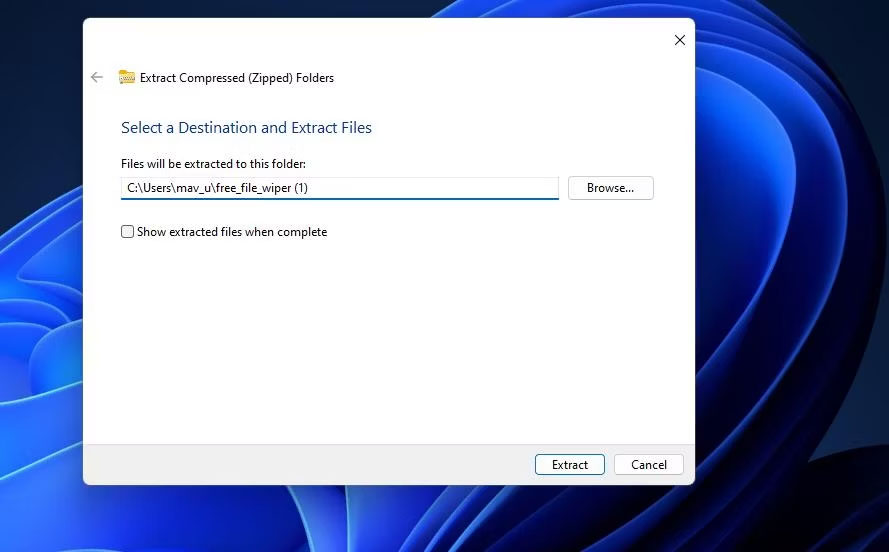
<p style="text-align: justify;">5. Giải nén file lưu trữ <strong>free_file_wiper.zip</strong> theo hướng dẫn giải nén file ZIP trên Windows của Quantrimang.com.</p>

<figure>
<div style="text-align: justify;"><img alt="Công cụ Extract Compressed (Zipped) Folders" class="lazy lightbox loaded" data-i="0" data-src="https://st.quantrimang.com/photos/image/2023/02/13/them-thung-rac-xoa-file-vinh-vien-tren-windows-1.jpg" data-was-processed="true" height="552" src="https://st.quantrimang.com/photos/image/2023/02/13/them-thung-rac-xoa-file-vinh-vien-tren-windows-1.jpg" style="height: 432px; width: 696px;" width="889" /></div>

<figcaption>
<div style="text-align: justify;">Công cụ Extract Compressed (Zipped) Folders</div>
</figcaption>
</figure>

<p style="text-align: justify;">6. Nhấp đúp vào <strong>Free_File_Wiper.exe</strong> trong thư mục được giải nén để chạy ứng dụng.</p>

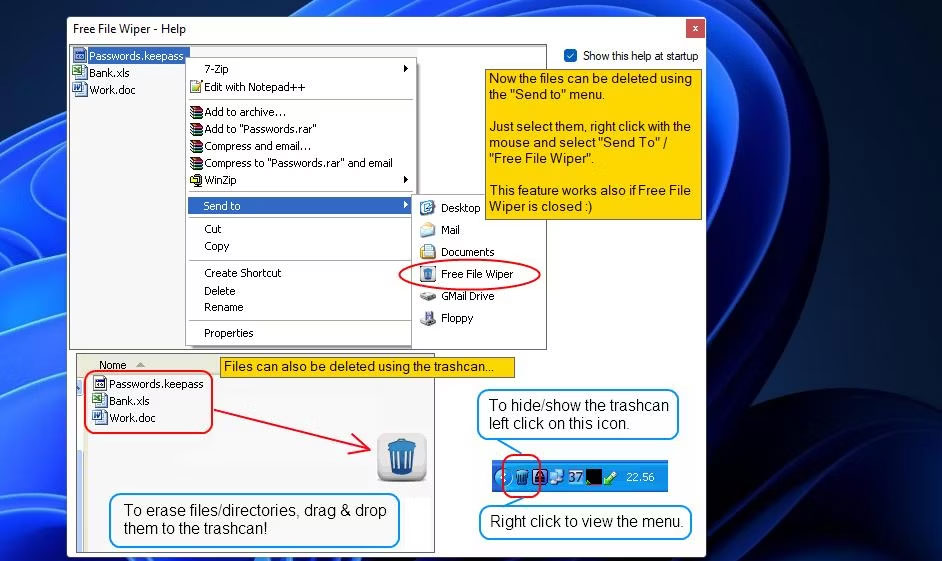
<p style="text-align: justify;">7. Bạn sẽ thấy một cửa sổ trợ giúp khi khởi động ứng dụng lần đầu tiên. Bỏ chọn hộp kiểm <strong>Show this help at startup</strong> nếu bạn không muốn thông tin xuất hiện lại.</p>

<figure>
<div style="text-align: justify;"><img alt="Cửa sổ Free File Wiper" class="lazy lightbox loaded" data-adbro-processed="true" data-i="1" data-src="https://st.quantrimang.com/photos/image/2023/02/13/them-thung-rac-xoa-file-vinh-vien-tren-windows-2.jpg" data-was-processed="true" height="561" src="https://st.quantrimang.com/photos/image/2023/02/13/them-thung-rac-xoa-file-vinh-vien-tren-windows-2.jpg" style="height: 414px; width: 696px;" width="942" /></div>

<div class="adbro-animated adbro-md" id="adbro" style="position: relative; display: block; overflow: hidden; width: 696px; height: 414px; top: -414px; margin-bottom: -414px; margin-right: auto; margin-left: auto;">
<div class="adbro-fpt">
<div class="adbro-fpt__container">
<div class="adbro-fpt__bg" style="text-align: justify;">&nbsp;</div>

<div class="adbro-fpt__logo" style="text-align: justify;">&nbsp;</div>

<div class="adbro-fpt__img">
<div class="adbro-fpt__img-light" style="text-align: justify;">&nbsp;</div>
</div>

<div class="adbro-fpt__text adbro-fpt__text--1" style="text-align: justify;">&nbsp;</div>

<div class="adbro-fpt__text adbro-fpt__text--2" style="text-align: justify;">&nbsp;</div>

<div class="adbro-fpt__decor adbro-fpt__decor--1" style="text-align: justify;">&nbsp;</div>

<div class="adbro-fpt__decor adbro-fpt__decor--2" style="text-align: justify;">&nbsp;</div>

<div class="adbro-fpt__decor adbro-fpt__decor--3" style="text-align: justify;">&nbsp;</div>

<div class="adbro-fpt__decor adbro-fpt__decor--4" style="text-align: justify;">&nbsp;</div>

<div class="adbro-fpt__decor adbro-fpt__decor--5" style="text-align: justify;">&nbsp;</div>
</div>
</div>

<div class="adbro-icon" id="adbro-info-handler" style="text-align: justify;">&nbsp;</div>

<div class="adbro-close" data-block="false" data-block-reason="0" style="text-align: justify;">&nbsp;</div>

<div class="adbro-link adbro-moat-beacon" style="text-align: justify;">&nbsp;</div>

<ul class="adbro-feedback" style="opacity: 0;visibility: hidden;">
	<li class="adbro-feedback__item" data-block-reason="4" data-trans-vn="Che nội dung" style="text-align: justify;">&nbsp;</li>
	<li class="adbro-feedback__item" data-block-reason="2" data-trans-vn="Không quan tâm" style="text-align: justify;">&nbsp;</li>
	<li class="adbro-feedback__item" data-block-reason="3" data-trans-vn="Không phù hợp" style="text-align: justify;">&nbsp;</li>
	<li class="adbro-feedback__item" data-block-reason="1" data-trans-vn="Thấy quá nhiều" style="text-align: justify;">&nbsp;</li>
</ul>
</div>

<figcaption>
<div style="text-align: justify;">Cửa sổ Free File Wiper</div>
</figcaption>
</figure>

<p style="text-align: justify;">8. Nhấp vào nút đóng <strong>X </strong>trên cửa sổ <strong>&quot;Free File Wiper – Help&quot;</strong>.</p>

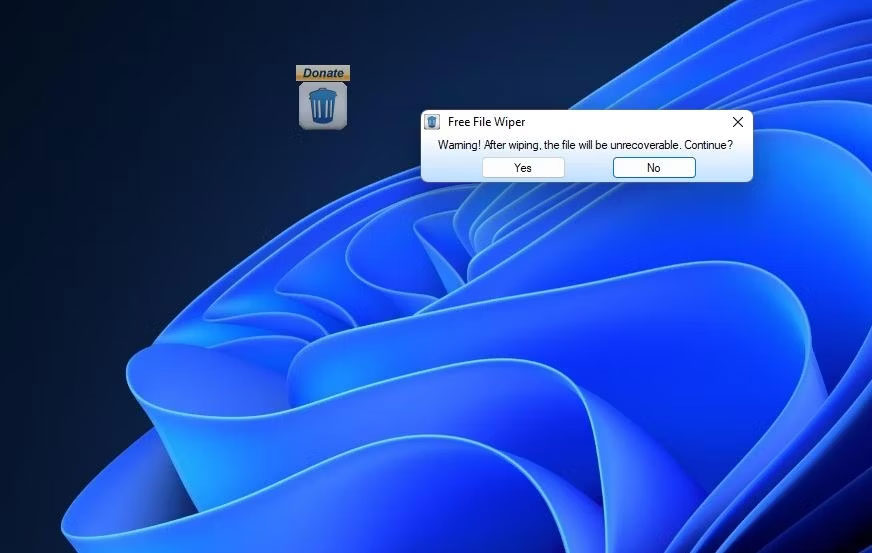
<p style="text-align: justify;">9. Bây giờ, bạn sẽ thấy biểu tượng thùng rác Free File Wiper ở đâu đó trên desktop Windows. Nhấp chuột trái và kéo biểu tượng đó để định vị lại nếu cần.<br />
<br />
Để xóa vĩnh viễn một thứ gì đó bằng ứng dụng file shredder: <span style="color:rgb(192, 57, 43);"><strong>quantrimang.com/cong-nghe/11-bo-cat-file-mien-phi-cho-bao-mat-may-tinh-46982</strong></span> hãy mở Explorer, nhấp chuột trái vào một file, sau đó kéo file đó vào biểu tượng thùng rác Free File Wiper trên màn hình. Một lời nhắc cảnh báo sẽ xuất hiện cho biết bạn sẽ không thể khôi phục file sau khi xóa. Chọn <strong>Yes</strong> nếu bạn chắc chắn về việc xóa file vĩnh viễn.</p>

<figure>
<div style="text-align: justify;"><img alt="Biểu tượng thùng rác Free File Wiper trên desktop" class="lazy lightbox loaded" data-i="2" data-src="https://st.quantrimang.com/photos/image/2023/02/13/them-thung-rac-xoa-file-vinh-vien-tren-windows-3.jpg" data-was-processed="true" height="553" src="https://st.quantrimang.com/photos/image/2023/02/13/them-thung-rac-xoa-file-vinh-vien-tren-windows-3.jpg" style="height: 441px; width: 696px;" width="872" /></div>

<figcaption>
<div style="text-align: justify;">Biểu tượng thùng rác Free File Wiper trên desktop</div>
</figcaption>
</figure>

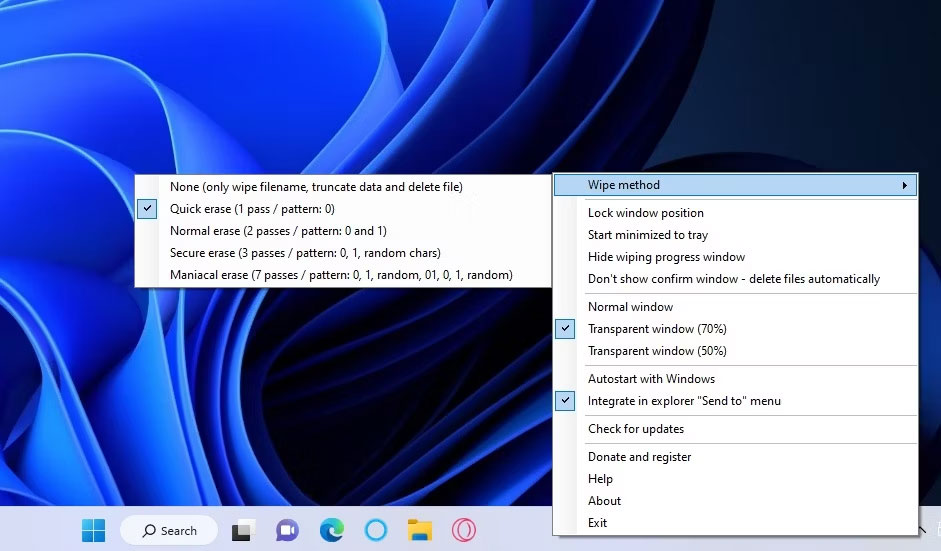
<p style="text-align: justify;">Bạn có thể thay đổi phương thức xóa cho thùng rác đó thông qua menu ngữ cảnh của nó. Nhấp chuột phải vào biểu tượng khay hệ thống Free File Wiper và chọn menu con <strong>Wipe method.</strong> Sau đó chọn 1 trong 5 tùy chọn có sẵn. <strong>Maniacal erase</strong> là tùy chọn xóa kỹ lưỡng nhất với nhiều lần ghi đè.</p>

<p style="text-align: justify;">Menu ngữ cảnh của Free File Wiper cũng bao gồm các tùy chọn khác. Ở đó, bạn có thể chọn các mức độ trong suốt thay thế cho biểu tượng thùng rác. Nhấp vào <strong>Autostart with Windows</strong> để thêm Free File Wiper vào các mục khởi động.</p>

<figure>
<div style="text-align: justify;"><img alt="Tùy chọn Wipe method" class="lazy lightbox loaded" data-i="3" data-src="https://st.quantrimang.com/photos/image/2023/02/13/them-thung-rac-xoa-file-vinh-vien-tren-windows-4.jpg" data-was-processed="true" height="551" src="https://st.quantrimang.com/photos/image/2023/02/13/them-thung-rac-xoa-file-vinh-vien-tren-windows-4.jpg" style="height: 407px; width: 696px;" width="941" /></div>

<figcaption>
<div style="text-align: justify;">Tùy chọn Wipe method</div>
</figcaption>
</figure>

<p style="text-align: justify;">Bạn cũng sẽ nhận thấy rằng menu bao gồm <strong>Integrate in explorer “Send to” menu</strong> được chọn theo mặc định. Tùy chọn đó thêm menu Free File Wiper vào menu con <strong>Send to</strong> trên menu ngữ cảnh cổ điển khi được chọn. Nó cho phép bạn nhấp chuột phải vào một file và chọn <strong>Show more options &gt; Send to &gt; Free File Wiper</strong>.</p>

<h2 style="text-align: justify;">Cách thêm thùng rác xóa file vào desktop với Multi Trash</h2>

<p style="text-align: justify;">Multi Trash là một tiện ích mà bạn có thể thêm vào desktop bằng phần mềm 8GadgetPack. Tiện ích này là thùng rác 3 trong 1 để tái chế, xóa và shred (xóa vĩnh viễn) file. Khi được đặt thành shred file, nó sẽ xóa chúng vĩnh viễn. Đây là cách bạn có thể thêm Multi Trash vào desktop Windows.</p>

<p style="text-align: justify;">1. Đầu tiên, hãy <a href="https://quantrimang.com/url?q=aHR0cHM6Ly84Z2FkZ2V0cGFjay5uZXQv" rel="nofollow noopener" target="_blank" title="Trang tải xuống 8GadgetPack">mở trang tải xuống 8GadgetPack</a>.</p>

<p style="text-align: justify;">2. Nhấp vào <strong>Download</strong> trên trang 8GadgetPack đó.</p>

<p style="text-align: justify;">3. Làm theo hướng dẫn trên trang tải xuống được liên kết để cài đặt phần mềm 8GadgetPack.</p>

<p style="text-align: justify;">4. Tiếp theo, hãy <a data-error="true" href="https://quantrimang.com/url?q=aHR0cHM6Ly93d3cuc29mdHBlZGlhLmNvbS9nZXQvV2luZG93cy1XaWRnZXRzL1N5c3RlbS1VdGlsaXRpZXMvTXVsdGktVHJhc2guc2h0bWw%3D" rel="nofollow noopener" target="_blank" title="Tải Multi Trash">mở trang tải xuống tiện ích Multi Trash</a>.</p>

<div class="google-auto-placed ap_container" style="width: 100%; height: auto; clear: both; text-align: center;">
<div aria-label="Advertisement" id="aswift_8_host" style="border: medium none; height: 280px; width: 696px; margin: 0px; padding: 0px; position: relative; visibility: visible; background-color: transparent; display: inline-block; overflow: visible; text-align: justify;" tabindex="0" title="Advertisement"><iframe allowtransparency="true" data-google-container-id="a!9" data-google-query-id="CLiuvbDbkf0CFYdVKgodYrwDbw" data-load-complete="true" frameborder="0" height="280" hspace="0" id="aswift_8" marginheight="0" marginwidth="0" name="aswift_8" sandbox="allow-forms allow-popups allow-popups-to-escape-sandbox allow-same-origin allow-scripts allow-top-navigation-by-user-activation" scrolling="no" style="left:0;position:absolute;top:0;border:0;width:696px;height:280px;" vspace="0" width="696"></iframe></div>
</div>

<p style="text-align: justify;">5. Nhấp vào tùy chọn <strong>Download Now &gt; Secure Download (US)</strong> của Multi Trash.</p>

<p style="text-align: justify;">6. Bây giờ, hãy mở phần mềm 8GadgetPack lên.</p>

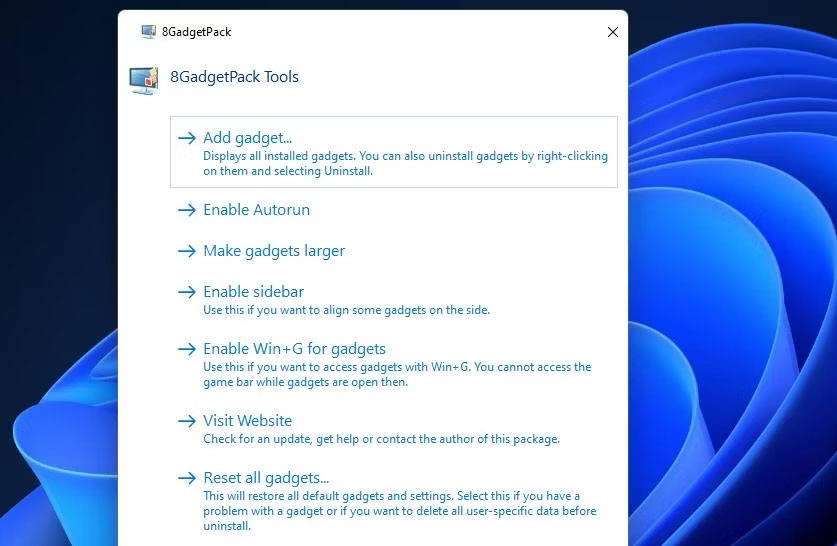
<p style="text-align: justify;">7. Nhấp vào tùy chọn <strong>Add gadget</strong> để xem cửa sổ lựa chọn tiện ích trên màn hình.</p>

<figure>
<div style="text-align: justify;"><img alt="Tùy chọn Add gadget" class="lazy lightbox loaded" data-i="4" data-src="https://st.quantrimang.com/photos/image/2023/02/13/them-thung-rac-xoa-file-vinh-vien-tren-windows-5.jpg" data-was-processed="true" height="546" src="https://st.quantrimang.com/photos/image/2023/02/13/them-thung-rac-xoa-file-vinh-vien-tren-windows-5.jpg" style="height: 454px; width: 696px;" width="837" /></div>

<figcaption>
<div style="text-align: justify;">Tùy chọn Add gadget</div>
</figcaption>
</figure>

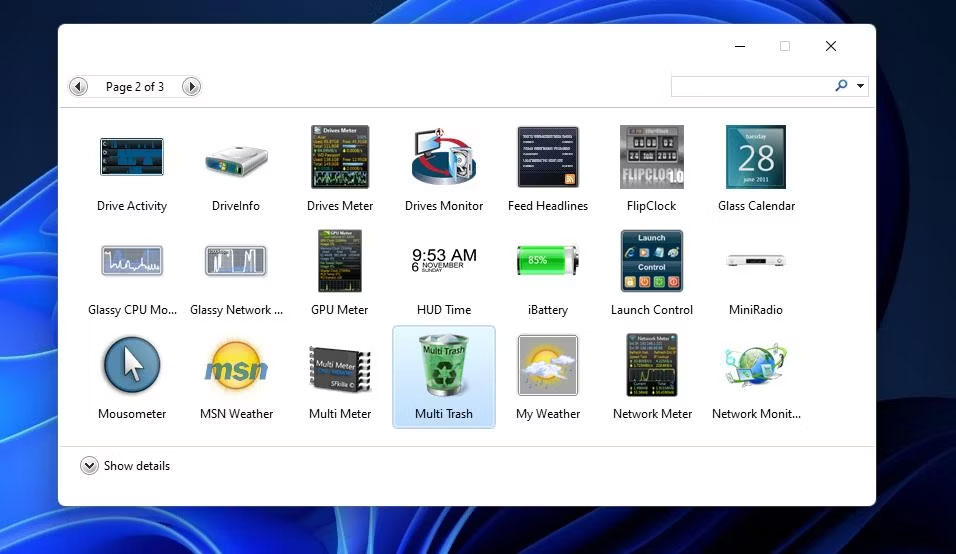
<p style="text-align: justify;">8. Nhấp đúp vào tiện ích Multi Trash, tiện ích này có thể nằm trên trang hai của cửa sổ đó, để thêm tiện ích này vào desktop.</p>

<figure>
<div style="text-align: justify;"><img alt="Tiện ích Multi Trash" class="lazy lightbox loaded" data-i="5" data-src="https://st.quantrimang.com/photos/image/2023/02/13/them-thung-rac-xoa-file-vinh-vien-tren-windows-6.jpg" data-was-processed="true" height="554" src="https://st.quantrimang.com/photos/image/2023/02/13/them-thung-rac-xoa-file-vinh-vien-tren-windows-6.jpg" style="height: 403px; width: 696px;" width="956" /></div>

<figcaption>
<div style="text-align: justify;">Tiện ích Multi Trash</div>
</figcaption>
</figure>

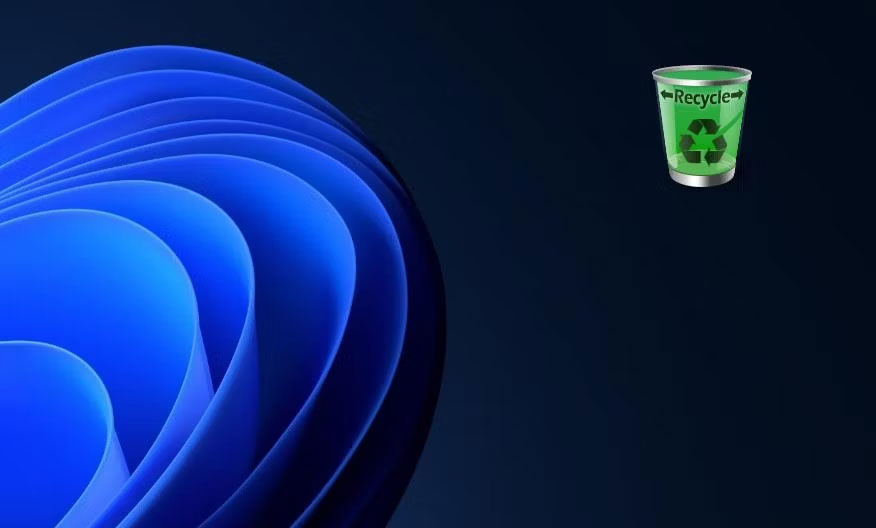
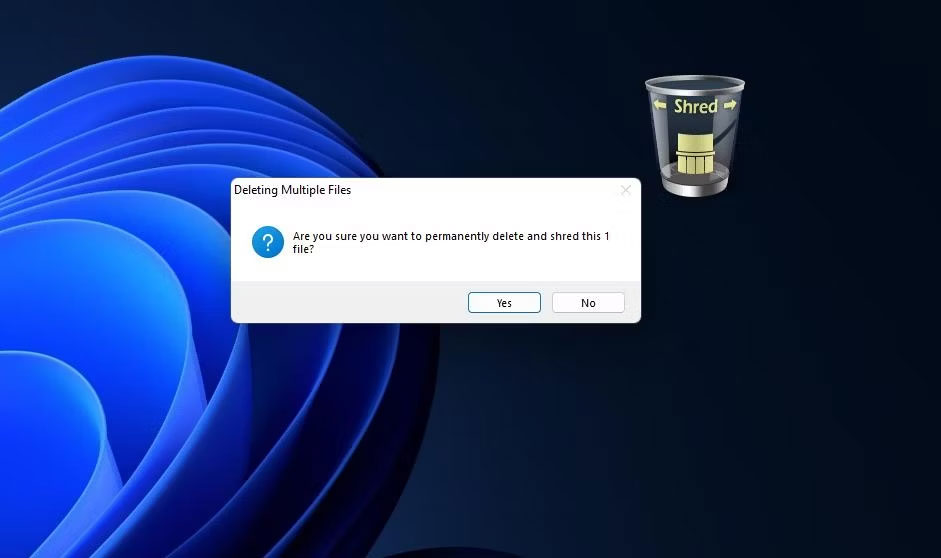
<p style="text-align: justify;">Theo mặc định, Multi Trash được đặt thành Recycle Bin. Tuy nhiên, bạn có thể thay đổi chức năng của nó bằng cách nhấp vào các mũi tên trên tiện ích đó. Nhấp vào mũi tên bên trái của tiện ích đó để biến nó thành Shred bin.</p>

<figure>
<div style="text-align: justify;"><img alt="Multi Trash Recycle bin" class="lazy lightbox loaded" data-i="6" data-src="https://st.quantrimang.com/photos/image/2023/02/13/them-thung-rac-xoa-file-vinh-vien-tren-windows-7.jpg" data-was-processed="true" height="528" src="https://st.quantrimang.com/photos/image/2023/02/13/them-thung-rac-xoa-file-vinh-vien-tren-windows-7.jpg" style="height: 419px; width: 696px;" width="876" /></div>

<figcaption>
<div style="text-align: justify;">Multi Trash Recycle bin</div>
</figcaption>
</figure>

<p style="text-align: justify;">Shred bin sẽ xóa vĩnh viễn các file được kéo vào đó. Vì vậy, hãy tiếp tục và kéo một số file từ cửa sổ của Explorer vào Shred bin. Một lời nhắc xác nhận sẽ mở ra để hỏi bạn có chắc chắn về việc xóa file vĩnh viễn không. Nhấp vào <strong>Yes</strong> để xác nhận việc này.</p>

<figure>
<div style="text-align: justify;"><img alt="Shred bin" class="lazy lightbox loaded" data-i="7" data-src="https://st.quantrimang.com/photos/image/2023/02/13/them-thung-rac-xoa-file-vinh-vien-tren-windows-8.jpg" data-was-processed="true" height="558" src="https://st.quantrimang.com/photos/image/2023/02/13/them-thung-rac-xoa-file-vinh-vien-tren-windows-8.jpg" style="height: 412px; width: 696px;" width="941" /></div>

<figcaption>
<div style="text-align: justify;">Shred bin</div>
</figcaption>
</figure>

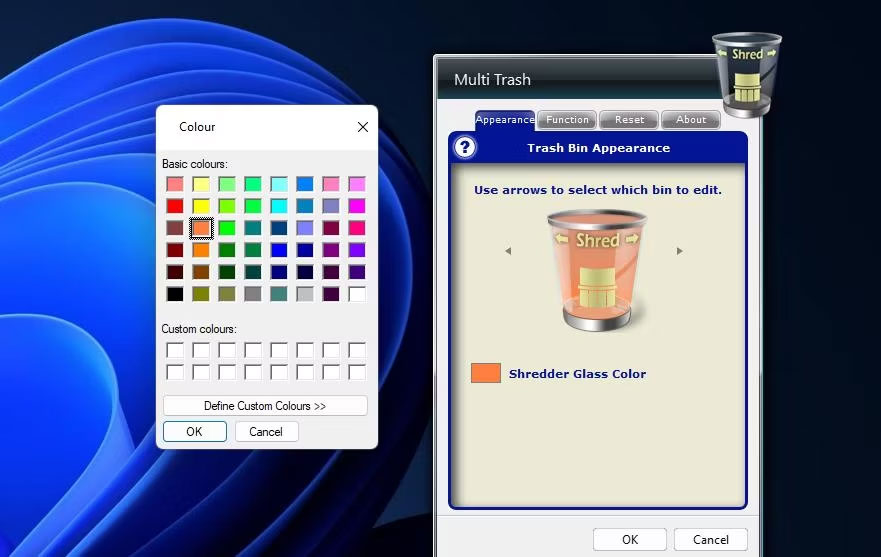
<p style="text-align: justify;">Tiện ích này có một số cài đặt tùy chỉnh. Nhấp vào nút <strong>Options</strong> của nó để xem chúng trên cửa sổ Multi Trash. Bạn có thể thay đổi màu của thùng rác bằng cách nhấp vào tùy chọn <strong>Shredder Glass Color</strong> trên tab <strong>Appearance</strong> và chọn một màu thay thế trên bảng màu. Để thay đổi kích thước của thùng, hãy chọn tùy chọn <strong>Large</strong> hoặc <strong>Small</strong> trên menu drop-down <strong>Size of bin</strong> trong tab <strong>Function.</strong> Nhấp vào <strong>OK</strong> để áp dụng cài đặt tiện ích mới.</p>

<figure>
<div style="text-align: justify;"><img alt="Cửa sổ Multi Trash" class="lazy lightbox loaded" data-i="8" data-src="https://st.quantrimang.com/photos/image/2023/02/13/them-thung-rac-xoa-file-vinh-vien-tren-windows-9.jpg" data-was-processed="true" height="557" src="https://st.quantrimang.com/photos/image/2023/02/13/them-thung-rac-xoa-file-vinh-vien-tren-windows-9.jpg" style="height: 440px; width: 696px;" width="881" /></div>

<figcaption>
<div style="text-align: justify;">Cửa sổ Multi Trash</div>
</figcaption>
</figure>

<p style="text-align: justify;">Tất nhiên, điểm hay nhất của Multi Trash là nó là công cụ xóa file 3 trong 1. Bạn cũng có thể đặt nó thành thùng rác xóa tiêu chuẩn cho các file khác nhau. Tuy nhiên, chỉ có Shred bin mới xóa các file không thể khôi phục một cách an toàn. Vì vậy, hãy sử dụng Shred bin để xóa các file chứa nhiều thông tin bí mật hơn.</p>
		</div>
				<div id="author">
						<p>
				<strong>Nguồn tin:</strong>
				Quantrimang.com
			</p>
		</div>
	</div>
	<div id="footer" class="clearfix">
		<div id="url">
			<strong>URL của bản tin này: </strong><a href="https://www.nguoicodonvn2008.info/vi/news/savefile/kien-thuc-may-tinh/cach-them-thung-rac-xoa-file-vinh-vien-tren-windows-10-11-6715.html" title="Cách thêm thùng rác xóa file vĩnh viễn trên Windows 10&#x002F;11">https://www.nguoicodonvn2008.info/vi/news/savefile/kien-thuc-may-tinh/cach-them-thung-rac-xoa-file-vinh-vien-tren-windows-10-11-6715.html</a>

		</div>
		<div class="clear"></div>
		<div class="copyright">
			&copy; .&#x3A; Nguoicodonvn2008.info - Cõi lòng người cô đơn &#x3A;.
		</div>
		<div id="contact">
			<a href="mailto:admin@nguoicodonvn2008.info">admin@nguoicodonvn2008.info</a>
		</div>
	</div>
</div>
        <div id="timeoutsess" class="chromeframe">
            Bạn đã không sử dụng Site, <a onclick="timeoutsesscancel();" href="https://nguoicodonvn2008.info/#">Bấm vào đây để duy trì trạng thái đăng nhập</a>. Thời gian chờ: <span id="secField"> 60 </span> giây
        </div>
        <div id="openidResult" class="nv-alert" style="display:none"></div>
        <div id="openidBt" data-result="" data-redirect=""></div>
		</script>
		<div class="car-top">
  <span><img src="https://nguoicodonvn2008.info/themes/default/images/car.png" alt=""></span>
</div>
<script src="https://nguoicodonvn2008.info/assets/js/jquery/jquery.min.js"></script>
<script>var nv_base_siteurl="/",nv_lang_data="vi",nv_lang_interface="vi",nv_name_variable="nv",nv_fc_variable="op",nv_lang_variable="language",nv_module_name="news",nv_func_name="savefile",nv_is_user=0, nv_my_ofs=-4,nv_my_abbr="EDT",nv_cookie_prefix="nv4c_e856T",nv_check_pass_mstime=1738000,nv_area_admin=0,nv_safemode=0,theme_responsive=0,nv_recaptcha_ver=2,nv_recaptcha_sitekey="",nv_recaptcha_type="image",XSSsanitize=1;</script>
<script src="https://nguoicodonvn2008.info/assets/js/language/vi.js"></script>
<script src="https://nguoicodonvn2008.info/assets/js/DOMPurify/purify3.js"></script>
<script src="https://nguoicodonvn2008.info/assets/js/global.js"></script>
<script src="https://nguoicodonvn2008.info/assets/js/site.js"></script>
<script src="https://nguoicodonvn2008.info/themes/default/js/news.js"></script>
<script src="https://nguoicodonvn2008.info/themes/default/js/main.js"></script>
<script src="https://nguoicodonvn2008.info/themes/default/js/custom.js"></script>
<script type="application/ld+json">
        {
            "@context": "https://schema.org",
            "@type": "Organization",
            "url": "https://nguoicodonvn2008.info",
            "logo": "https://nguoicodonvn2008.info/uploads/angel.gif"
        }
        </script>
<script src="https://nguoicodonvn2008.info/themes/default/js/bootstrap.min.js"></script>
<script type="text/javascript">
var $scrolltop = $('.car-top');
$scrolltop.on('click', function () {
    $('html,body').animate({
        scrollTop: 0
    }, 800);
    $(this).addClass("car-run");
    setTimeout(function(){ $scrolltop.removeClass('car-run');}, 1000);
    return false;
});
$(window).on('scroll', function ()
{ 
    if($(window).scrollTop() >= 200)
    {
        $scrolltop.addClass("show");
        $scrolltop.addClass("car-down");
    }
    else
    {
       $scrolltop.removeClass("show");
       setTimeout(function(){ $scrolltop.removeClass('car-down');}, 300);
    }
});
</script>
</body>
</html>