<!DOCTYPE html>
    <html lang="vi" xmlns="http://www.w3.org/1999/xhtml" prefix="og: http://ogp.me/ns#">
    <head>
<title>Cách thêm thanh Dock kiểu Mac vào Windows 10&#x002F;11 bằng Winstep Nexus</title>
<meta name="description" content="Cách thêm thanh Dock kiểu Mac vào Windows 10&#x002F;11 bằng Winstep Nexus - Savefile - Tin Tức -...">
<meta name="author" content=".: Nguoicodonvn2008.info - Cõi lòng người cô đơn :.">
<meta name="copyright" content=".: Nguoicodonvn2008.info - Cõi lòng người cô đơn :. [admin@nguoicodonvn2008.info]">
<meta name="robots" content="index, archive, follow, noodp">
<meta name="googlebot" content="index,archive,follow,noodp">
<meta name="msnbot" content="all,index,follow">
<meta name="generator" content="NukeViet v4.5">
<meta http-equiv="Content-Type" content="text/html; charset=utf-8">
<meta property="og:title" content="Cách thêm thanh Dock kiểu Mac vào Windows 10&#x002F;11 bằng Winstep Nexus">
<meta property="og:type" content="website">
<meta property="og:description" content="Savefile - Tin Tức - https&#x3A;&#x002F;&#x002F;www.nguoicodonvn2008.info&#x002F;vi&#x002F;news&#x002F;savefile&#x002F;kien-thuc-may-tinh&#x002F;cach-them-thanh-dock-kieu-mac-vao-windows-10-11-bang-winstep-nexus-4901.html">
<meta property="og:site_name" content=".&#x3A; Nguoicodonvn2008.info - Cõi lòng người cô đơn &#x3A;.">
<meta property="og:url" content="https://www.nguoicodonvn2008.info/vi/news/savefile/kien-thuc-may-tinh/cach-them-thanh-dock-kieu-mac-vao-windows-10-11-bang-winstep-nexus-4901.html">
<link rel="shortcut icon" href="https://nguoicodonvn2008.info/favicon.ico">
<link rel="canonical" href="https://www.nguoicodonvn2008.info/vi/news/savefile/kien-thuc-may-tinh/cach-them-thanh-dock-kieu-mac-vao-windows-10-11-bang-winstep-nexus-4901.html">
<link rel="alternate" href="https://nguoicodonvn2008.info/vi/news/rss/" title="Tin Tức" type="application/rss+xml">
<link rel="alternate" href="https://nguoicodonvn2008.info/vi/news/rss/karaoke-dual/" title="Tin Tức - Karaoke Dual" type="application/rss+xml">
<link rel="alternate" href="https://nguoicodonvn2008.info/vi/news/rss/nhac-tre/" title="Tin Tức - Nhạc trẻ" type="application/rss+xml">
<link rel="alternate" href="https://nguoicodonvn2008.info/vi/news/rss/tru-tinh/" title="Tin Tức - Trữ tình" type="application/rss+xml">
<link rel="alternate" href="https://nguoicodonvn2008.info/vi/news/rss/nuoc-ngoai/" title="Tin Tức - Nước ngoài" type="application/rss+xml">
<link rel="alternate" href="https://nguoicodonvn2008.info/vi/news/rss/remix/" title="Tin Tức - Remix" type="application/rss+xml">
<link rel="alternate" href="https://nguoicodonvn2008.info/vi/news/rss/tam-su-tinh-yeu/" title="Tin Tức - Tâm sự tình yêu" type="application/rss+xml">
<link rel="alternate" href="https://nguoicodonvn2008.info/vi/news/rss/tho-suu-tam/" title="Tin Tức - Thơ sưu tầm" type="application/rss+xml">
<link rel="alternate" href="https://nguoicodonvn2008.info/vi/news/rss/cuoc-song/" title="Tin Tức - Cuộc sống" type="application/rss+xml">
<link rel="alternate" href="https://nguoicodonvn2008.info/vi/news/rss/phan-mem/" title="Tin Tức - Phần mềm" type="application/rss+xml">
<link rel="alternate" href="https://nguoicodonvn2008.info/vi/news/rss/kien-thuc-may-tinh/" title="Tin Tức - Kiến thức máy tính" type="application/rss+xml">
<link rel="alternate" href="https://nguoicodonvn2008.info/vi/news/rss/hoc-tap/" title="Tin Tức - Học tập" type="application/rss+xml">
<link rel="alternate" href="https://nguoicodonvn2008.info/vi/news/rss/tai-lieu/" title="Tin Tức - Tài liệu" type="application/rss+xml">
<link rel="alternate" href="https://nguoicodonvn2008.info/vi/news/rss/de-thi/" title="Tin Tức - Đề thi" type="application/rss+xml">
<link rel="preload" as="style" href="https://nguoicodonvn2008.info/assets/css/font-awesome.min.css" type="text/css">
<link rel="preload" as="style" href="https://nguoicodonvn2008.info/themes/default/css/bootstrap.non-responsive.css" type="text/css">
<link rel="preload" as="style" href="https://nguoicodonvn2008.info/themes/default/css/style.css" type="text/css">
<link rel="preload" as="style" href="https://nguoicodonvn2008.info/themes/default/css/style.non-responsive.css" type="text/css">
<link rel="preload" as="style" href="https://nguoicodonvn2008.info/themes/default/css/news.css" type="text/css">
<link rel="preload" as="style" href="https://nguoicodonvn2008.info/themes/default/css/custom.css" type="text/css">
<link rel="preload" as="script" href="https://nguoicodonvn2008.info/assets/js/jquery/jquery.min.js" type="text/javascript">
<link rel="preload" as="script" href="https://nguoicodonvn2008.info/assets/js/language/vi.js" type="text/javascript">
<link rel="preload" as="script" href="https://nguoicodonvn2008.info/assets/js/DOMPurify/purify3.js" type="text/javascript">
<link rel="preload" as="script" href="https://nguoicodonvn2008.info/assets/js/global.js" type="text/javascript">
<link rel="preload" as="script" href="https://nguoicodonvn2008.info/assets/js/site.js" type="text/javascript">
<link rel="preload" as="script" href="https://nguoicodonvn2008.info/themes/default/js/news.js" type="text/javascript">
<link rel="preload" as="script" href="https://nguoicodonvn2008.info/themes/default/js/main.js" type="text/javascript">
<link rel="preload" as="script" href="https://nguoicodonvn2008.info/themes/default/js/custom.js" type="text/javascript">
<link rel="preload" as="script" href="https://nguoicodonvn2008.info/themes/default/js/bootstrap.min.js" type="text/javascript">
<link rel="stylesheet" href="https://nguoicodonvn2008.info/assets/css/font-awesome.min.css">
<link rel="stylesheet" href="https://nguoicodonvn2008.info/themes/default/css/bootstrap.non-responsive.css">
<link rel="stylesheet" href="https://nguoicodonvn2008.info/themes/default/css/style.css">
<link rel="stylesheet" href="https://nguoicodonvn2008.info/themes/default/css/style.non-responsive.css">
<link rel="StyleSheet" href="https://nguoicodonvn2008.info/themes/default/css/news.css">
<link rel="stylesheet" href="https://nguoicodonvn2008.info/themes/default/css/custom.css">
<style type="text/css">
	body{background: #fff;}
</style>
    </head>
    <body>
<div id="print">
	<div id="hd_print">
		<h2 class="pull-left">.&#x3A; Nguoicodonvn2008.info - Cõi lòng người cô đơn &#x3A;.</h2>
		<p class="pull-right"><a title=".&#x3A; Nguoicodonvn2008.info - Cõi lòng người cô đơn &#x3A;." href="https://nguoicodonvn2008.info/">https://nguoicodonvn2008.info</a></p>
	</div>
	<div class="clear"></div>
	<hr />
	<div id="content">
		<h1>Cách thêm thanh Dock kiểu Mac vào Windows 10&#x002F;11 bằng Winstep Nexus</h1>
		<ul class="list-inline">
			<li>Thứ năm - 16/12/2021 23:52</li>
			<li class="hidden-print txtrequired"><em class="fa fa-print">&nbsp;</em><a title="In ra" href="javascript:;" onclick="window.print()">In ra</a></li>
			<li class="hidden-print txtrequired"><em class="fa fa-power-off">&nbsp;</em><a title="Đóng cửa sổ này" href="javascript:;" onclick="window.close()">Đóng cửa sổ này</a></li>
		</ul>
		<div class="clear"></div>
		<div id="hometext">
		</div>
				<div class="imghome">
			<img alt="Cách thêm thanh Dock kiểu Mac vào Windows 10&#x002F;11 bằng Winstep Nexus" src="https://st.quantrimang.com/photos/image/2021/12/17/them-thanh-dock-kieu-mac-vao-windows-2.jpg" width="460" class="img-thumbnail" />
		</div>
		<div class="clear"></div>
		<div id="bodytext" class="clearfix">
			<p style="text-align: justify;">Microsoft đã thiết kế lại thanh tác vụ trong Windows 11, với thay đổi đáng chú ý nhất trên thanh tác vụ là các biểu tượng tập trung. Các biểu tượng tập trung đó làm cho thanh tác vụ của Windows 11 có thể so sánh được với thanh Dock của macOS.</p>

<p style="text-align: justify;">Tuy nhiên, thanh tác vụ được cải tiến vẫn không giống với Mac Dock tập trung, không chạy trên toàn bộ màn hình. Nếu muốn có một Dock kiểu Mac thực sự trên Windows, bạn có thể thêm một Dock Apple Macintosh chính hãng hơn bằng phần mềm Winstep Nexus.</p>

<h2 style="text-align: justify;">Thêm thanh Dock kiểu Mac vào Windows 10 và 11 bằng Winstep Nexus</h2>

<p style="text-align: justify;">Winstep Nexus là một gói phần mềm rất thú vị giúp bạn có thể thêm Dock kiểu Mac vào Windows, từ Windows XP đến Windows 11. Phần mềm có cả phiên bản miễn phí và trả phí. Gói phần mềm miễn phí có tất cả các hiệu ứng chuột hoạt ảnh và biểu tượng live giống như Nexus Ultimate. Đây là cách bạn có thể cài đặt phần mềm miễn phí Winstep Nexus:</p>

<p style="text-align: justify;">1. Đầu tiên, hãy mở trang web WinStep Nexus.</p>

<pre id="pre0">
<code>http://www.winstep.net/nexus.asp</code></pre>

<p style="text-align: justify;">2. Nhấp vào nút&nbsp;<strong>Download</strong>&nbsp;màu xanh lam trong phần WinStep Nexus để lưu file nén ZIP.</p>

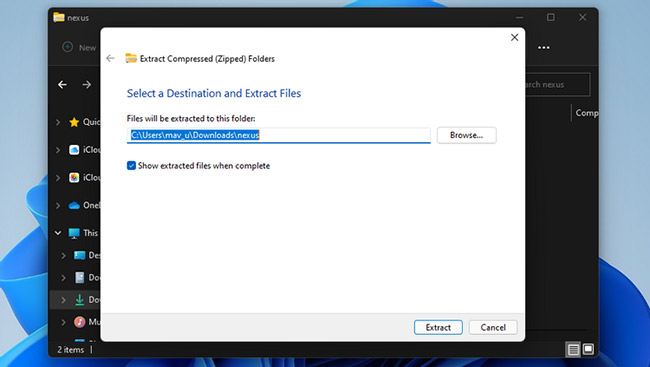
<p style="text-align: justify;">3. Chọn file ZIP Nexus và nhấp vào nút&nbsp;<strong>Extract all</strong>.</p>

<p style="text-align: justify;">4. Nhấp vào&nbsp;<strong>Browse</strong>&nbsp;để chọn một đường dẫn đến vị trí trích xuất file cho Nexus.</p>

<p style="text-align: justify;">5. Chọn tùy chọn&nbsp;<strong>Show extracted files</strong>.</p>

<p style="text-align: justify;">6. Nhấn nút&nbsp;<strong>Extract.</strong></p>

<figure>
<div style="text-align: justify;"><img alt="Nhấn nút Extract" data-i="0" data-src="https://st.quantrimang.com/photos/image/2021/12/17/them-thanh-dock-kieu-mac-vao-windows-2.jpg" data-was-processed="true" height="367" src="https://st.quantrimang.com/photos/image/2021/12/17/them-thanh-dock-kieu-mac-vao-windows-2.jpg" width="650" /></div>

<figcaption>
<div style="text-align: justify;">Nhấn nút Extract</div>
</figcaption>
</figure>

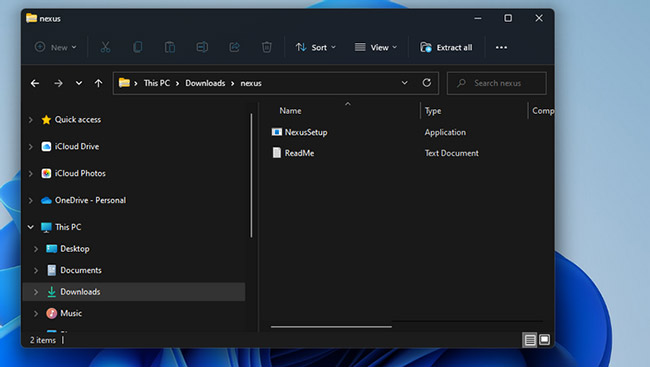
<p style="text-align: justify;">7. Sau đó, nhấp đúp vào&nbsp;<strong>NexusSetup</strong>&nbsp;để mở trình cài đặt.</p>

<figure>
<div style="text-align: justify;"><img alt="Nhấp đúp vào NexusSetup" data-i="1" data-src="https://st.quantrimang.com/photos/image/2021/12/17/them-thanh-dock-kieu-mac-vao-windows-1.jpg" data-was-processed="true" height="367" src="https://st.quantrimang.com/photos/image/2021/12/17/them-thanh-dock-kieu-mac-vao-windows-1.jpg" width="650" /></div>

<figcaption>
<div style="text-align: justify;">Nhấp đúp vào NexusSetup</div>
</figcaption>
</figure>

<p style="text-align: justify;">8. Sau đó, chọn tùy chọn&nbsp;<strong>I accept the agreement&nbsp;</strong>và chọn một thư mục cài đặt trong trình hướng dẫn để cài đặt phần mềm.</p>

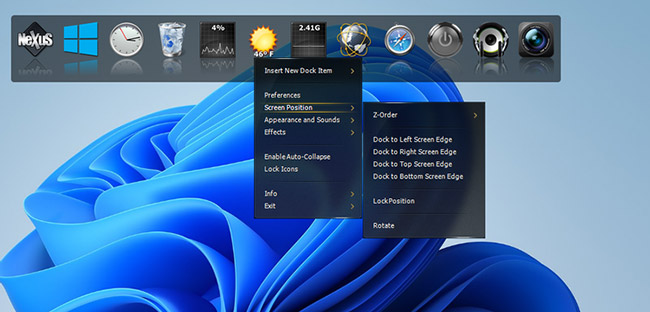
<p style="text-align: justify;">Sau khi cài đặt, Winstep Nexus Dock sẽ tự động xuất hiện ở đầu màn hình của bạn như trong ảnh chụp màn hình ngay bên dưới. Đó là một nơi tốt để đặt thanh dock, nhưng bạn có thể thay đổi vị trí của Nexus Dock bằng cách nhấp chuột phải vào nó và chọn&nbsp;<strong>Screen position.</strong>&nbsp;Chọn một tùy chọn trái, phải, trên cùng hoặc dưới cùng trên menu.</p>

<figure>
<div style="text-align: justify;"><img alt="Điều chỉnh vị trí của Winstep Nexus Dock" data-i="2" data-src="https://st.quantrimang.com/photos/image/2021/12/17/them-thanh-dock-kieu-mac-vao-windows-3.jpg" data-was-processed="true" height="312" src="https://st.quantrimang.com/photos/image/2021/12/17/them-thanh-dock-kieu-mac-vao-windows-3.jpg" width="650" /></div>

<figcaption>
<div style="text-align: justify;">Điều chỉnh vị trí của Winstep Nexus Dock</div>
</figcaption>
</figure>

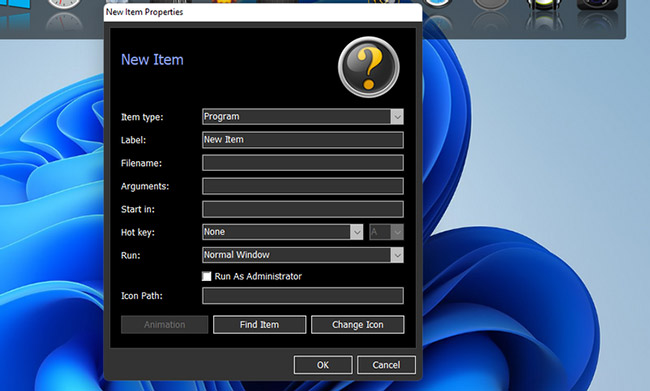
<p style="text-align: justify;">Để thêm các shortcut phần mềm vào Nexus Dock, hãy nhấp chuột phải vào nó và chọn&nbsp;<strong>Insert New Dock Item &gt; Item</strong>. Chọn chương trình trên menu drop-down&nbsp;<strong>Item type.</strong></p>

<p style="text-align: justify;">Nhấp vào&nbsp;<strong>Find Item</strong>&nbsp;để chọn một chương trình đưa vào Dock. Bạn cũng có thể chọn một tùy chọn hotkey ở đó để gán shortcut cho chương trình. Bấm&nbsp;<strong>OK</strong>&nbsp;để thêm shortcut phần mềm.</p>

<figure>
<div style="text-align: justify;"><img alt="Thêm shortcut phần mềm" data-i="3" data-src="https://st.quantrimang.com/photos/image/2021/12/17/them-thanh-dock-kieu-mac-vao-windows-4.jpg" data-was-processed="true" height="391" src="https://st.quantrimang.com/photos/image/2021/12/17/them-thanh-dock-kieu-mac-vao-windows-4.jpg" width="650" /></div>

<figcaption>
<div style="text-align: justify;">Thêm shortcut phần mềm</div>
</figcaption>
</figure>

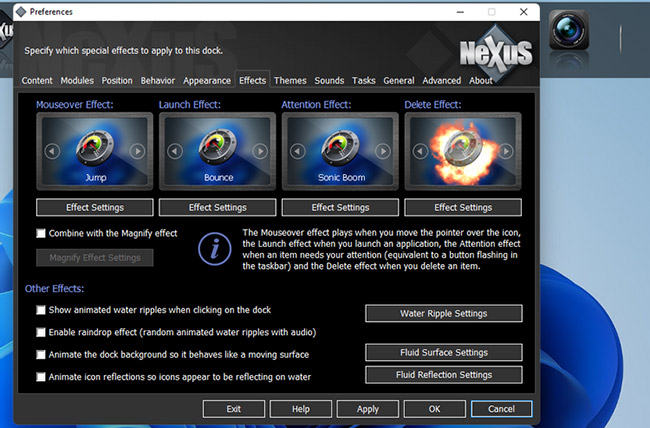
<p style="text-align: justify;">Winstep Nexus Dock có một số hiệu ứng thực sự hào nhoáng khiến thanh tác vụ của Windows 11 không thể sánh bằng. Để thay đổi các hiệu ứng đó, hãy nhấp vào nút&nbsp;<strong>Nexus</strong>&nbsp;trên Dock. Sau đó chọn tab&nbsp;<strong>Effects</strong>&nbsp;hiển thị ngay bên dưới.</p>

<figure>
<div style="text-align: justify;"><img alt="Tab Effects" data-i="4" data-src="https://st.quantrimang.com/photos/image/2021/12/17/them-thanh-dock-kieu-mac-vao-windows-5.jpg" data-was-processed="true" height="428" src="https://st.quantrimang.com/photos/image/2021/12/17/them-thanh-dock-kieu-mac-vao-windows-5.jpg" width="650" /></div>

<figcaption>
<div style="text-align: justify;">Tab Effects</div>
</figcaption>
</figure>

<p style="text-align: justify;">Tab đó bao gồm các tùy chọn cho những hiệu ứng di chuột, khởi chạy, chú ý và xóa. Nhấp vào một hiệu ứng ở đó để chọn từ nhiều hiệu ứng thay thế khác nhau. Bạn có thể cấu hình thêm các hiệu ứng đã chọn bằng cách nhấp vào nút&nbsp;<strong>Effect settings.</strong></p>

<p style="text-align: justify;">Nhấn nút&nbsp;<strong>OK</strong>&nbsp;trên cửa sổ lựa chọn và chọn&nbsp;<strong>Apply</strong>&nbsp;để thay đổi nó.</p>

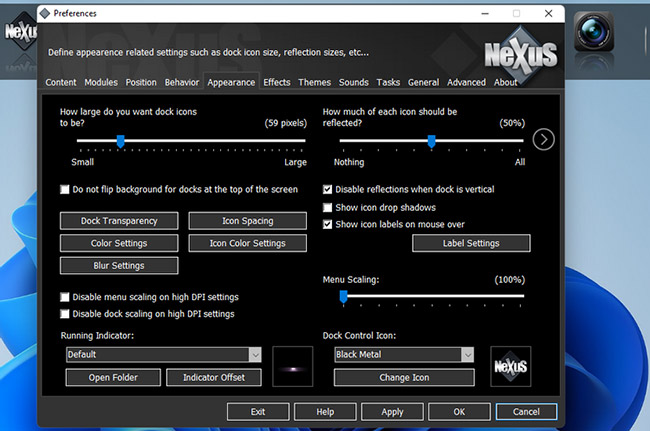
<p style="text-align: justify;">Bạn có thể cấu hình kích thước và độ trong suốt của biểu tượng cho WinStep Nexus Dock trên tab&nbsp;<strong>Appearance.</strong>&nbsp;Kéo thanh trượt trên tab đó sang trái hoặc phải để giảm hoặc tăng kích thước biểu tượng.</p>

<p style="text-align: justify;">Nhấn nút&nbsp;<strong>Dock Transparency</strong>&nbsp;để hiển thị một cửa sổ với các thanh trong suốt. Sau đó, bạn có thể kéo các thanh trượt sang phải để tăng thêm độ trong suốt.</p>

<figure>
<div style="text-align: justify;"><img alt="Điều chỉnh độ trong suốt của Dock" data-i="5" data-src="https://st.quantrimang.com/photos/image/2021/12/17/them-thanh-dock-kieu-mac-vao-windows-6.jpg" data-was-processed="true" height="431" src="https://st.quantrimang.com/photos/image/2021/12/17/them-thanh-dock-kieu-mac-vao-windows-6.jpg" width="650" /></div>

<figcaption>
<div style="text-align: justify;">Điều chỉnh độ trong suốt của Dock</div>
</figcaption>
</figure>

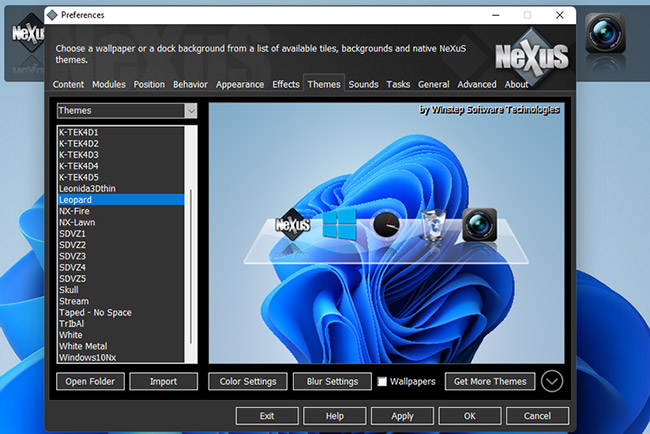
<p style="text-align: justify;">WinStep Nexus Dock cũng bao gồm nhiều theme khác nhau. Để chọn một theme thay thế, hãy nhấp vào tab&nbsp;<strong>Themes.</strong>&nbsp;Chọn một theme khác trên tab đó và nhấp vào&nbsp;<strong>Apply</strong>&nbsp;để lưu cài đặt mới.</p>

<figure>
<div style="text-align: justify;"><img alt="Chọn một theme phù hợp cho WinStep Nexus Dock" data-i="6" data-src="https://st.quantrimang.com/photos/image/2021/12/17/them-thanh-dock-kieu-mac-vao-windows-7.jpg" data-was-processed="true" height="434" src="https://st.quantrimang.com/photos/image/2021/12/17/them-thanh-dock-kieu-mac-vao-windows-7.jpg" width="650" /></div>

<figcaption>
<div style="text-align: justify;">Chọn một theme phù hợp cho WinStep Nexus Dock</div>
</figcaption>
</figure>

<p style="text-align: justify;">Nếu bạn muốn bao gồm các cửa sổ thu nhỏ trên Winstep Nexus Dock, hãy chọn tab&nbsp;<strong>Content</strong>&nbsp;trong cửa sổ&nbsp;<strong>Preferences.</strong>&nbsp;Nhấp vào hộp kiểm&nbsp;<strong>Show running applications in this dock</strong>&nbsp;ở đó, hộp kiểm này cũng sẽ chọn tùy chọn&nbsp;<strong>Minimize windows to the dock</strong>. Chọn&nbsp;<strong>Apply</strong>&nbsp;để xác nhận các tùy chọn mới.</p>

<p style="text-align: justify;">Ngoài Winstep Nexus, còn một phần mềm khác cũng thực hiện nhiệm vụ tương tự, đó là RocketDock.</p>

<p style="text-align: justify;">Winstep Nexus và RocketDock là hai trong số các gói phần mềm phần mềm miễn phí tốt nhất để thêm Dock kiểu Mac vào Windows. Cả hai đều bao gồm một loạt các cài đặt cấu hình và nhiều hiệu ứng đẹp mắt mà bạn không có được trên thanh tác vụ Windows.</p>

<p style="text-align: justify;">Chúng là những tiện ích mở rộng tuyệt vời cho thanh tác vụ, cung cấp nhiều không gian hơn cho các shortcut phần mềm. Vì vậy, hãy dùng thử chúng nếu bạn muốn làm cho Windows giống với nền tảng Mac của Apple hơn hay đơn giản là bạn cần một nơi nào đó để gắn nhiều shortcut hơn.</p>
		</div>
				<div id="author">
						<p>
				<strong>Nguồn tin:</strong>
				Quantrimang.com
			</p>
		</div>
	</div>
	<div id="footer" class="clearfix">
		<div id="url">
			<strong>URL của bản tin này: </strong><a href="https://www.nguoicodonvn2008.info/vi/news/savefile/kien-thuc-may-tinh/cach-them-thanh-dock-kieu-mac-vao-windows-10-11-bang-winstep-nexus-4901.html" title="Cách thêm thanh Dock kiểu Mac vào Windows 10&#x002F;11 bằng Winstep Nexus">https://www.nguoicodonvn2008.info/vi/news/savefile/kien-thuc-may-tinh/cach-them-thanh-dock-kieu-mac-vao-windows-10-11-bang-winstep-nexus-4901.html</a>

		</div>
		<div class="clear"></div>
		<div class="copyright">
			&copy; .&#x3A; Nguoicodonvn2008.info - Cõi lòng người cô đơn &#x3A;.
		</div>
		<div id="contact">
			<a href="mailto:admin@nguoicodonvn2008.info">admin@nguoicodonvn2008.info</a>
		</div>
	</div>
</div>
        <div id="timeoutsess" class="chromeframe">
            Bạn đã không sử dụng Site, <a onclick="timeoutsesscancel();" href="https://nguoicodonvn2008.info/#">Bấm vào đây để duy trì trạng thái đăng nhập</a>. Thời gian chờ: <span id="secField"> 60 </span> giây
        </div>
        <div id="openidResult" class="nv-alert" style="display:none"></div>
        <div id="openidBt" data-result="" data-redirect=""></div>
		</script>
		<div class="car-top">
  <span><img src="https://nguoicodonvn2008.info/themes/default/images/car.png" alt=""></span>
</div>
<script src="https://nguoicodonvn2008.info/assets/js/jquery/jquery.min.js"></script>
<script>var nv_base_siteurl="/",nv_lang_data="vi",nv_lang_interface="vi",nv_name_variable="nv",nv_fc_variable="op",nv_lang_variable="language",nv_module_name="news",nv_func_name="savefile",nv_is_user=0, nv_my_ofs=-4,nv_my_abbr="EDT",nv_cookie_prefix="nv4c_e856T",nv_check_pass_mstime=1738000,nv_area_admin=0,nv_safemode=0,theme_responsive=0,nv_recaptcha_ver=2,nv_recaptcha_sitekey="",nv_recaptcha_type="image",XSSsanitize=1;</script>
<script src="https://nguoicodonvn2008.info/assets/js/language/vi.js"></script>
<script src="https://nguoicodonvn2008.info/assets/js/DOMPurify/purify3.js"></script>
<script src="https://nguoicodonvn2008.info/assets/js/global.js"></script>
<script src="https://nguoicodonvn2008.info/assets/js/site.js"></script>
<script src="https://nguoicodonvn2008.info/themes/default/js/news.js"></script>
<script src="https://nguoicodonvn2008.info/themes/default/js/main.js"></script>
<script src="https://nguoicodonvn2008.info/themes/default/js/custom.js"></script>
<script type="application/ld+json">
        {
            "@context": "https://schema.org",
            "@type": "Organization",
            "url": "https://nguoicodonvn2008.info",
            "logo": "https://nguoicodonvn2008.info/uploads/angel.gif"
        }
        </script>
<script src="https://nguoicodonvn2008.info/themes/default/js/bootstrap.min.js"></script>
<script type="text/javascript">
var $scrolltop = $('.car-top');
$scrolltop.on('click', function () {
    $('html,body').animate({
        scrollTop: 0
    }, 800);
    $(this).addClass("car-run");
    setTimeout(function(){ $scrolltop.removeClass('car-run');}, 1000);
    return false;
});
$(window).on('scroll', function ()
{ 
    if($(window).scrollTop() >= 200)
    {
        $scrolltop.addClass("show");
        $scrolltop.addClass("car-down");
    }
    else
    {
       $scrolltop.removeClass("show");
       setTimeout(function(){ $scrolltop.removeClass('car-down');}, 300);
    }
});
</script>
</body>
</html>