<!DOCTYPE html>
    <html lang="vi" xmlns="http://www.w3.org/1999/xhtml" prefix="og: http://ogp.me/ns#">
    <head>
<title>Cách thêm ngoại lệ trong Windows Defender trên Windows 10</title>
<meta name="description" content="Cách thêm ngoại lệ trong Windows Defender trên Windows 10 - Savefile - Tin Tức -...">
<meta name="author" content=".: Nguoicodonvn2008.info - Cõi lòng người cô đơn :.">
<meta name="copyright" content=".: Nguoicodonvn2008.info - Cõi lòng người cô đơn :. [admin@nguoicodonvn2008.info]">
<meta name="robots" content="index, archive, follow, noodp">
<meta name="googlebot" content="index,archive,follow,noodp">
<meta name="msnbot" content="all,index,follow">
<meta name="generator" content="NukeViet v4.5">
<meta http-equiv="Content-Type" content="text/html; charset=utf-8">
<meta property="og:title" content="Cách thêm ngoại lệ trong Windows Defender trên Windows 10">
<meta property="og:type" content="website">
<meta property="og:description" content="Savefile - Tin Tức - https&#x3A;&#x002F;&#x002F;www.nguoicodonvn2008.info&#x002F;vi&#x002F;news&#x002F;savefile&#x002F;kien-thuc-may-tinh&#x002F;cach-them-ngoai-le-trong-windows-defender-tren-windows-10-8901.html">
<meta property="og:site_name" content=".&#x3A; Nguoicodonvn2008.info - Cõi lòng người cô đơn &#x3A;.">
<meta property="og:url" content="https://www.nguoicodonvn2008.info/vi/news/savefile/kien-thuc-may-tinh/cach-them-ngoai-le-trong-windows-defender-tren-windows-10-8901.html">
<link rel="shortcut icon" href="https://nguoicodonvn2008.info/favicon.ico">
<link rel="canonical" href="https://www.nguoicodonvn2008.info/vi/news/savefile/kien-thuc-may-tinh/cach-them-ngoai-le-trong-windows-defender-tren-windows-10-8901.html">
<link rel="alternate" href="https://nguoicodonvn2008.info/vi/news/rss/" title="Tin Tức" type="application/rss+xml">
<link rel="alternate" href="https://nguoicodonvn2008.info/vi/news/rss/karaoke-dual/" title="Tin Tức - Karaoke Dual" type="application/rss+xml">
<link rel="alternate" href="https://nguoicodonvn2008.info/vi/news/rss/nhac-tre/" title="Tin Tức - Nhạc trẻ" type="application/rss+xml">
<link rel="alternate" href="https://nguoicodonvn2008.info/vi/news/rss/tru-tinh/" title="Tin Tức - Trữ tình" type="application/rss+xml">
<link rel="alternate" href="https://nguoicodonvn2008.info/vi/news/rss/nuoc-ngoai/" title="Tin Tức - Nước ngoài" type="application/rss+xml">
<link rel="alternate" href="https://nguoicodonvn2008.info/vi/news/rss/remix/" title="Tin Tức - Remix" type="application/rss+xml">
<link rel="alternate" href="https://nguoicodonvn2008.info/vi/news/rss/tam-su-tinh-yeu/" title="Tin Tức - Tâm sự tình yêu" type="application/rss+xml">
<link rel="alternate" href="https://nguoicodonvn2008.info/vi/news/rss/tho-suu-tam/" title="Tin Tức - Thơ sưu tầm" type="application/rss+xml">
<link rel="alternate" href="https://nguoicodonvn2008.info/vi/news/rss/cuoc-song/" title="Tin Tức - Cuộc sống" type="application/rss+xml">
<link rel="alternate" href="https://nguoicodonvn2008.info/vi/news/rss/phan-mem/" title="Tin Tức - Phần mềm" type="application/rss+xml">
<link rel="alternate" href="https://nguoicodonvn2008.info/vi/news/rss/kien-thuc-may-tinh/" title="Tin Tức - Kiến thức máy tính" type="application/rss+xml">
<link rel="alternate" href="https://nguoicodonvn2008.info/vi/news/rss/hoc-tap/" title="Tin Tức - Học tập" type="application/rss+xml">
<link rel="alternate" href="https://nguoicodonvn2008.info/vi/news/rss/tai-lieu/" title="Tin Tức - Tài liệu" type="application/rss+xml">
<link rel="alternate" href="https://nguoicodonvn2008.info/vi/news/rss/de-thi/" title="Tin Tức - Đề thi" type="application/rss+xml">
<link rel="preload" as="style" href="https://nguoicodonvn2008.info/assets/css/font-awesome.min.css" type="text/css">
<link rel="preload" as="style" href="https://nguoicodonvn2008.info/themes/default/css/bootstrap.non-responsive.css" type="text/css">
<link rel="preload" as="style" href="https://nguoicodonvn2008.info/themes/default/css/style.css" type="text/css">
<link rel="preload" as="style" href="https://nguoicodonvn2008.info/themes/default/css/style.non-responsive.css" type="text/css">
<link rel="preload" as="style" href="https://nguoicodonvn2008.info/themes/default/css/news.css" type="text/css">
<link rel="preload" as="style" href="https://nguoicodonvn2008.info/themes/default/css/custom.css" type="text/css">
<link rel="preload" as="script" href="https://nguoicodonvn2008.info/assets/js/jquery/jquery.min.js" type="text/javascript">
<link rel="preload" as="script" href="https://nguoicodonvn2008.info/assets/js/language/vi.js" type="text/javascript">
<link rel="preload" as="script" href="https://nguoicodonvn2008.info/assets/js/DOMPurify/purify3.js" type="text/javascript">
<link rel="preload" as="script" href="https://nguoicodonvn2008.info/assets/js/global.js" type="text/javascript">
<link rel="preload" as="script" href="https://nguoicodonvn2008.info/assets/js/site.js" type="text/javascript">
<link rel="preload" as="script" href="https://nguoicodonvn2008.info/themes/default/js/news.js" type="text/javascript">
<link rel="preload" as="script" href="https://nguoicodonvn2008.info/themes/default/js/main.js" type="text/javascript">
<link rel="preload" as="script" href="https://nguoicodonvn2008.info/themes/default/js/custom.js" type="text/javascript">
<link rel="preload" as="script" href="https://nguoicodonvn2008.info/themes/default/js/bootstrap.min.js" type="text/javascript">
<link rel="stylesheet" href="https://nguoicodonvn2008.info/assets/css/font-awesome.min.css">
<link rel="stylesheet" href="https://nguoicodonvn2008.info/themes/default/css/bootstrap.non-responsive.css">
<link rel="stylesheet" href="https://nguoicodonvn2008.info/themes/default/css/style.css">
<link rel="stylesheet" href="https://nguoicodonvn2008.info/themes/default/css/style.non-responsive.css">
<link rel="StyleSheet" href="https://nguoicodonvn2008.info/themes/default/css/news.css">
<link rel="stylesheet" href="https://nguoicodonvn2008.info/themes/default/css/custom.css">
<style type="text/css">
	body{background: #fff;}
</style>
    </head>
    <body>
<div id="print">
	<div id="hd_print">
		<h2 class="pull-left">.&#x3A; Nguoicodonvn2008.info - Cõi lòng người cô đơn &#x3A;.</h2>
		<p class="pull-right"><a title=".&#x3A; Nguoicodonvn2008.info - Cõi lòng người cô đơn &#x3A;." href="https://nguoicodonvn2008.info/">https://nguoicodonvn2008.info</a></p>
	</div>
	<div class="clear"></div>
	<hr />
	<div id="content">
		<h1>Cách thêm ngoại lệ trong Windows Defender trên Windows 10</h1>
		<ul class="list-inline">
			<li>Thứ sáu - 23/08/2024 23:30</li>
			<li class="hidden-print txtrequired"><em class="fa fa-print">&nbsp;</em><a title="In ra" href="javascript:;" onclick="window.print()">In ra</a></li>
			<li class="hidden-print txtrequired"><em class="fa fa-power-off">&nbsp;</em><a title="Đóng cửa sổ này" href="javascript:;" onclick="window.close()">Đóng cửa sổ này</a></li>
		</ul>
		<div class="clear"></div>
		<div id="hometext">
		</div>
				<div class="imghome">
			<img alt="Cách thêm ngoại lệ trong Windows Defender trên Windows 10" src="https://st.quantrimang.com/photos/image/2020/05/27/them-ngoai-le-trong-windows-defender-1.jpg" width="460" class="img-thumbnail" />
		</div>
		<div class="clear"></div>
		<div id="bodytext" class="clearfix">
			<p style="text-align: justify;">Windows Defender, được tích hợp vào Windows 10, chạy trong nền và quét các file để tìm phần mềm độc hại. Để cải thiện hiệu suất cho các tác vụ như biên dịch code hoặc chạy máy ảo, bạn có thể thêm ngoại lệ và Windows Defender sẽ không bao giờ quét các file đó.</p>

<p style="text-align: justify;"><strong>Cảnh báo</strong>: Hãy cẩn thận về những gì bạn loại trừ. Windows Defender sẽ không quét các file và thư mục được loại trừ để tìm phần mềm độc hại.</p>

<h2 style="text-align: justify;">Cách thêm ngoại lệ cho Windows Defender trong Windows Security</h2>

<h3 style="text-align: justify;">Bước 1:</h3>

<p style="text-align: justify;">Trước tiên, bạn cần khởi chạy&nbsp;<strong>Windows Security</strong>&nbsp;để thay đổi một số cài đặt. Mở menu Start và nhập&nbsp;<strong>Windows Security</strong>. Sau đó, chọn ứng dụng&nbsp;<strong>Windows Security.</strong></p>

<h3 style="text-align: justify;">Bước 2:</h3>

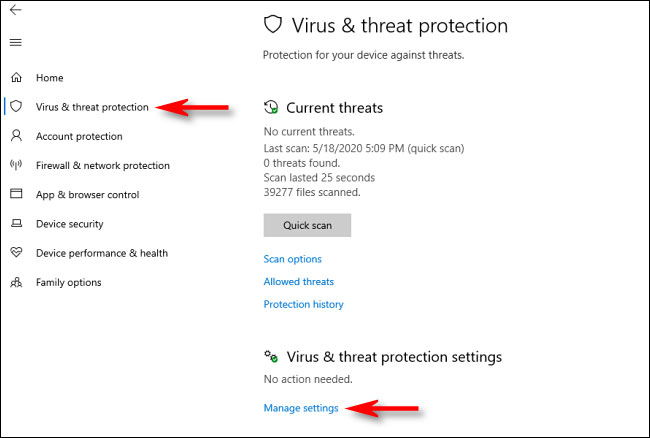
<p style="text-align: justify;">Trong&nbsp;<strong>Windows Security</strong>, điều hướng đến&nbsp;<strong>Virus &amp; Threat Protection</strong>. Sau đó, nhấp vào&nbsp;<strong>Manage Settings.</strong></p>

<figure>
<div style="text-align: justify;"><img alt="Trong Windows Security, điều hướng đến Virus &amp; Threat Protection" data-i="0" data-src="https://st.quantrimang.com/photos/image/2020/05/27/them-ngoai-le-trong-windows-defender-1.jpg" data-was-processed="true" height="438" src="https://st.quantrimang.com/photos/image/2020/05/27/them-ngoai-le-trong-windows-defender-1.jpg" width="650" /></div>

<figcaption>
<div style="text-align: justify;">Trong Windows Security, điều hướng đến Virus &amp; Threat Protection</div>
</figcaption>
</figure>

<h3 style="text-align: justify;">Bước 3:</h3>

<p style="text-align: justify;">Trong&nbsp;<strong>Virus &amp; Threat Protection Settings</strong>, hãy cuộn xuống dưới cùng của trang và nhấp vào&nbsp;<strong>Add or Remove Exclusions</strong>.</p>

<div style="text-align: justify;">&nbsp;</div>

<h3 style="text-align: justify;">Bước 4:</h3>

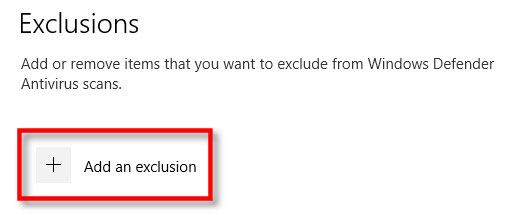
<p style="text-align: justify;">Trên trang&nbsp;<strong>Exclusions</strong>, bạn có thể thêm hoặc xóa các file mà mình muốn loại trừ khỏi quá trình quét của Windows Defender. Để thêm một ngoại lệ, nhấp vào nút&nbsp;<strong>Add An Exclusion</strong>&nbsp;bên cạnh biểu tượng dấu cộng lớn (<strong>+</strong>).</p>

<figure>
<div style="text-align: justify;"><img alt="Nhấp vào nút Add An Exclusion" data-i="1" data-src="https://st.quantrimang.com/photos/image/2020/05/27/them-ngoai-le-trong-windows-defender-2.jpg" data-was-processed="true" height="215" src="https://st.quantrimang.com/photos/image/2020/05/27/them-ngoai-le-trong-windows-defender-2.jpg" width="505" /></div>

<figcaption>
<div style="text-align: justify;">Nhấp vào nút Add An Exclusion</div>
</figcaption>
</figure>

<h3 style="text-align: justify;">Bước 5:</h3>

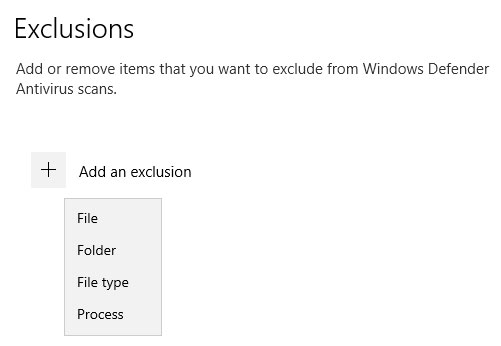
<p style="text-align: justify;">Một menu nhỏ sẽ xuất hiện cho phép bạn xác định ngoại lệ theo&nbsp;<strong>File, Folder, File type</strong>&nbsp;hoặc<strong>&nbsp;Process</strong>&nbsp;(file, thư mục, loại file hoặc tiến trình).</p>

<figure>
<div style="text-align: justify;"><br />
<img alt="Một menu nhỏ sẽ xuất hiện cho phép bạn xác định ngoại lệ" data-adbro-processed="true" data-i="2" data-src="https://st.quantrimang.com/photos/image/2020/05/27/them-ngoai-le-trong-windows-defender-3.jpg" data-was-processed="true" height="346" src="https://st.quantrimang.com/photos/image/2020/05/27/them-ngoai-le-trong-windows-defender-3.jpg" width="501" /></div>

<figcaption>
<div style="text-align: justify;">Một menu nhỏ sẽ xuất hiện cho phép bạn xác định ngoại lệ</div>
</figcaption>
</figure>

<p style="text-align: justify;">Những gì bạn chọn phụ thuộc vào loại ngoại lệ bạn đang cố gắng thực hiện. Đây là những gì mỗi tùy chọn sẽ thực hiện.</p>

<ul>
	<li style="text-align: justify;"><strong>File:</strong>&nbsp;Nếu bạn chọn mục này, một hộp sẽ xuất hiện cho phép bạn duyệt qua máy tính để chọn một file sẽ được loại ra khỏi các lần quét trong tương lai. Chọn file bạn thích, sau đó nhấp vào&nbsp;<strong>Open.</strong></li>
	<li style="text-align: justify;"><strong>Folder:</strong>&nbsp;Giống như tùy chọn&nbsp;<strong>File</strong>, điều này sẽ cho phép duyệt máy tính để tìm một thư mục cụ thể và loại trừ khỏi quá trình quét. Nội dung và thư mục con trong thư mục này cũng sẽ bị loại trừ.</li>
	<li style="text-align: justify;"><strong>File type</strong>: Một hộp sẽ xuất hiện yêu cầu bạn nhập phần mở rộng file (ví dụ&nbsp;<strong>.MID</strong>) đại diện cho loại file mà bạn có thể loại trừ. Tất cả những file thuộc loại đó sẽ được loại trừ khỏi các lần quét trong tương lai. Điều này rất nguy hiểm, vì bạn có thể vô tình loại trừ một nhóm lớn các file độc hại tiềm tàng, chẳng hạn như những file PDF hoặc DOC.</li>
	<li style="text-align: justify;"><strong>Process</strong>: Một cửa sổ xuất hiện sẽ yêu cầu bạn nhập tên của một tiến trình (một chương trình đang chạy, chẳng hạn như&nbsp;<strong>explorer.exe</strong>) để loại trừ khỏi quá trình quét. Nếu một chương trình nào đó mà bạn biết chắc là an toàn, nhưng sẽ bị Defender gắn cờ, bạn có thể nhập nó vào đây.</li>
</ul>

<div style="text-align: justify;"><iframe allow="autoplay" allowtransparency="true" aria-label="Advertisement" data-google-container-id="a!3" data-google-query-id="CLPWlY3YjIgDFTGH6QUdJM8qaA" data-load-complete="true" frameborder="0" height="0" hspace="0" id="aswift_2" marginheight="0" marginwidth="0" name="aswift_2" sandbox="allow-scripts allow-same-origin allow-forms allow-presentation allow-popups" scrolling="no" tabindex="0" title="Advertisement" vspace="0" width="694"></iframe></div>

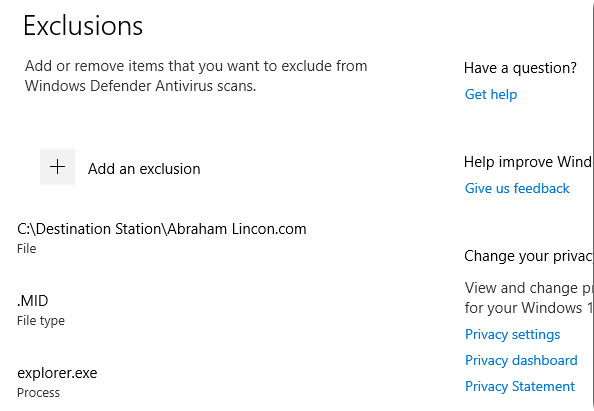
<p style="text-align: justify;">Chọn một trong các tùy chọn này và thực hiện các lựa chọn cần thiết trong hộp thoại pop-up theo sau. Khi bạn thêm một ngoại lệ, nó sẽ hiển thị trong một danh sách trên trang&nbsp;<strong>Exclusions.</strong></p>

<figure>
<div style="text-align: justify;"><img alt="Ngoại lệ sẽ hiển thị trong một danh sách trên trang Exclusions" data-i="3" data-src="https://st.quantrimang.com/photos/image/2020/05/27/them-ngoai-le-trong-windows-defender-4.jpg" data-was-processed="true" height="411" src="https://st.quantrimang.com/photos/image/2020/05/27/them-ngoai-le-trong-windows-defender-4.jpg" width="594" /></div>

<figcaption>
<div style="text-align: justify;">Ngoại lệ sẽ hiển thị trong một danh sách trên trang Exclusions</div>
</figcaption>
</figure>

<h3 style="text-align: justify;">Bước 6:</h3>

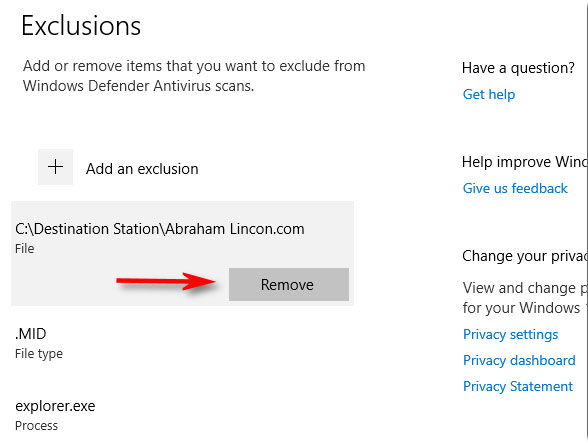
<p style="text-align: justify;">Nếu bạn muốn xóa một ngoại lệ đã xác định, hãy di con trỏ chuột lên trên mục đó cho đến khi mũi tên hướng xuống xuất hiện, sau đó nhấp vào nút&nbsp;<strong>Remove</strong>.</p>

<figure>
<div style="text-align: justify;"><img alt="Nhấp vào nút Remove để xóa ngoại lệ" data-i="4" data-src="https://st.quantrimang.com/photos/image/2020/05/27/them-ngoai-le-trong-windows-defender-5.jpg" data-was-processed="true" height="443" src="https://st.quantrimang.com/photos/image/2020/05/27/them-ngoai-le-trong-windows-defender-5.jpg" width="588" /></div>

<figcaption>
<div style="text-align: justify;">Nhấp vào nút Remove để xóa ngoại lệ</div>
</figcaption>
</figure>

<h3 style="text-align: justify;">Bước 7:</h3>

<p style="text-align: justify;">Khi đã hoàn tất, hãy đóng Windows Security và cài đặt của bạn sẽ được lưu lại. Lần sau khi hệ thống thực hiện quét Defender, các mục bạn đã thêm vào danh sách loại trừ sẽ không còn gây rắc rối nữa.</p>

<h2 style="text-align: justify;">Cách thêm ngoại lệ trong Windows Defender bằng PowerShell</h2>

<h3 style="text-align: justify;">Thêm file ngoại lệ cho Microsoft Defender Antivirus trong PowerShell</h3>

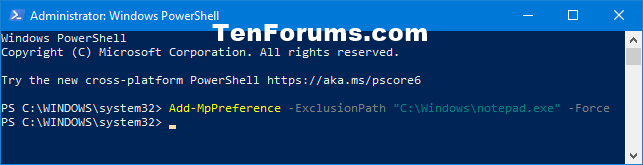
<p style="text-align: justify;">Tùy chọn này dùng để thêm một file ngoại lệ cụ thể, khiến nó không còn bị quét bởi Microsoft Defender Antivirus nữa.</p>

<p style="text-align: justify;">1.&nbsp;Mở PowerShell với quyền admin.</p>

<p style="text-align: justify;">2. Nhập lệnh bên dưới vào&nbsp;PowerShell&nbsp;và nhấn&nbsp;<strong>Enter.</strong></p>

<pre id="pre0" style="text-align: justify;">
Add-MpPreference -ExclusionPath &quot;&lt;đường dẫn đầy đủ của file&gt;&quot; -Force</pre>

<p style="text-align: justify;">3. Bây giờ, bạn có thể đóng PowerShell nếu muốn.</p>

<figure>
<div style="text-align: justify;"><img alt="Thêm file ngoại lệ cho Microsoft Defender Antivirus trong PowerShell" data-i="5" data-src="https://st.quantrimang.com/photos/image/2020/10/13/them-ngoai-le-trong-windows-defender-1.png" data-was-processed="true" height="165" src="https://st.quantrimang.com/photos/image/2020/10/13/them-ngoai-le-trong-windows-defender-1.png" width="643" /></div>

<figcaption>
<div style="text-align: justify;">Thêm file ngoại lệ cho Microsoft Defender Antivirus trong PowerShell</div>
</figcaption>
</figure>

<div style="text-align: justify;"><iframe allow="autoplay" allowtransparency="true" aria-label="Advertisement" data-google-container-id="a!4" data-google-query-id="CPWJ35jYjIgDFeKH6QUd11cLaQ" data-load-complete="true" frameborder="0" height="0" hspace="0" id="aswift_3" marginheight="0" marginwidth="0" name="aswift_3" sandbox="allow-scripts allow-same-origin allow-forms allow-presentation allow-popups" scrolling="no" tabindex="0" title="Advertisement" vspace="0" width="694"></iframe></div>

<h3 style="text-align: justify;">Thêm thư mục ngoại lệ cho Microsoft Defender Antivirus trong PowerShell</h3>

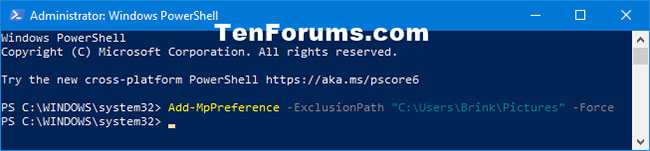
<p style="text-align: justify;">Tùy chọn này dùng để thêm một thư mục ngoại lệ cụ thể, khiến nó không còn bị quét bởi Microsoft Defender Antivirus nữa.</p>

<p style="text-align: justify;">1. Mở PowerShell với quyền admin.</p>

<p style="text-align: justify;">2. Nhập lệnh bên dưới vào PowerShell và nhấn&nbsp;<strong>Enter.</strong></p>

<pre id="pre1" style="text-align: justify;">
Add-MpPreference -ExclusionPath &quot;&lt;đường dẫn đầy đủ của file&gt;&quot; -Force</pre>

<p style="text-align: justify;">3. Bây giờ, bạn có thể đóng PowerShell nếu muốn.</p>

<figure>
<div style="text-align: justify;"><img alt="Thêm thư mục ngoại lệ cho Microsoft Defender Antivirus trong PowerShell" data-i="6" data-src="https://st.quantrimang.com/photos/image/2020/10/13/them-ngoai-le-trong-windows-defender-2.jpg" data-was-processed="true" height="151" src="https://st.quantrimang.com/photos/image/2020/10/13/them-ngoai-le-trong-windows-defender-2.jpg" width="650" /></div>

<figcaption>
<div style="text-align: justify;">Thêm thư mục ngoại lệ cho Microsoft Defender Antivirus trong PowerShell</div>
</figcaption>
</figure>

<h3 style="text-align: justify;">Thêm loại file ngoại lệ cho Microsoft Defender Antivirus trong PowerShell</h3>

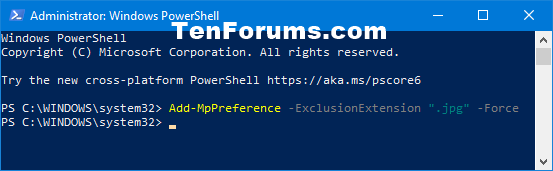
<p style="text-align: justify;">Tùy chọn này là để thêm một phần mở rộng file vào ngoại lệ, khiến tất cả các file thuộc loại đó không bị quét bởi Microsoft Defender Antivirus nữa.</p>

<p style="text-align: justify;">1. Mở PowerShell với quyền admin.</p>

<p style="text-align: justify;">2. Nhập lệnh bên dưới vào PowerShell và nhấn&nbsp;<strong>Enter.</strong></p>

<pre id="pre2" style="text-align: justify;">
Add-MpPreference -ExclusionExtension &quot;&lt;Phần mở rộng của loại file&gt;&quot; -Force</pre>

<p style="text-align: justify;">3. Bây giờ, bạn có thể đóng PowerShell nếu muốn.</p>

<figure>
<div style="text-align: justify;"><img alt="Thêm loại file ngoại lệ cho Microsoft Defender Antivirus trong PowerShell" data-i="7" data-src="https://st.quantrimang.com/photos/image/2020/10/13/them-ngoai-le-trong-windows-defender-3.png" data-was-processed="true" height="171" src="https://st.quantrimang.com/photos/image/2020/10/13/them-ngoai-le-trong-windows-defender-3.png" width="553" /></div>

<figcaption>
<div style="text-align: justify;">Thêm loại file ngoại lệ cho Microsoft Defender Antivirus trong PowerShell</div>
</figcaption>
</figure>

<h3 style="text-align: justify;">Thêm tiến trình ngoại lệ cho Microsoft Defender Antivirus trong PowerShell</h3>

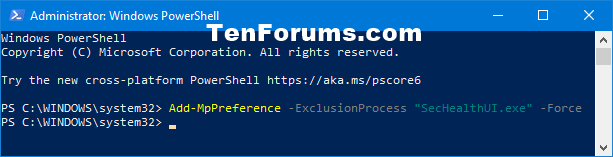
<p style="text-align: justify;">Tùy chọn này dùng để thêm một tiến trình ngoại lệ, khiến không còn có bất kỳ file nào được liên kết với nó bị quét bởi Microsoft Defender Antivirus nữa.</p>

<p style="text-align: justify;">1. Mở PowerShell với quyền admin.</p>

<p style="text-align: justify;">2. Nhập lệnh bên dưới vào PowerShell và nhấn&nbsp;<strong>Enter.</strong></p>

<pre id="pre3" style="text-align: justify;">
Add-MpPreference -ExclusionProcess &quot;&lt;tên tiến trình&gt;&quot; -Force</pre>

<p style="text-align: justify;">3. Bây giờ, bạn có thể đóng PowerShell nếu muốn.</p>

<figure>
<div style="text-align: justify;"><img alt="Thêm tiến trình ngoại lệ cho Microsoft Defender Antivirus trong PowerShell" data-i="8" data-src="https://st.quantrimang.com/photos/image/2020/10/13/them-ngoai-le-trong-windows-defender-4.png" data-was-processed="true" height="157" src="https://st.quantrimang.com/photos/image/2020/10/13/them-ngoai-le-trong-windows-defender-4.png" width="613" /></div>

<figcaption>
<div style="text-align: justify;">Thêm tiến trình ngoại lệ cho Microsoft Defender Antivirus trong PowerShell</div>
</figcaption>
</figure>

<div style="text-align: justify;">&nbsp;</div>
		</div>
				<div id="author">
						<p>
				<strong>Nguồn tin:</strong>
				Quantrimang.com:
			</p>
		</div>
	</div>
	<div id="footer" class="clearfix">
		<div id="url">
			<strong>URL của bản tin này: </strong><a href="https://www.nguoicodonvn2008.info/vi/news/savefile/kien-thuc-may-tinh/cach-them-ngoai-le-trong-windows-defender-tren-windows-10-8901.html" title="Cách thêm ngoại lệ trong Windows Defender trên Windows 10">https://www.nguoicodonvn2008.info/vi/news/savefile/kien-thuc-may-tinh/cach-them-ngoai-le-trong-windows-defender-tren-windows-10-8901.html</a>

		</div>
		<div class="clear"></div>
		<div class="copyright">
			&copy; .&#x3A; Nguoicodonvn2008.info - Cõi lòng người cô đơn &#x3A;.
		</div>
		<div id="contact">
			<a href="mailto:admin@nguoicodonvn2008.info">admin@nguoicodonvn2008.info</a>
		</div>
	</div>
</div>
        <div id="timeoutsess" class="chromeframe">
            Bạn đã không sử dụng Site, <a onclick="timeoutsesscancel();" href="https://nguoicodonvn2008.info/#">Bấm vào đây để duy trì trạng thái đăng nhập</a>. Thời gian chờ: <span id="secField"> 60 </span> giây
        </div>
        <div id="openidResult" class="nv-alert" style="display:none"></div>
        <div id="openidBt" data-result="" data-redirect=""></div>
		</script>
		<div class="car-top">
  <span><img src="https://nguoicodonvn2008.info/themes/default/images/car.png" alt=""></span>
</div>
<script src="https://nguoicodonvn2008.info/assets/js/jquery/jquery.min.js"></script>
<script>var nv_base_siteurl="/",nv_lang_data="vi",nv_lang_interface="vi",nv_name_variable="nv",nv_fc_variable="op",nv_lang_variable="language",nv_module_name="news",nv_func_name="savefile",nv_is_user=0, nv_my_ofs=-4,nv_my_abbr="EDT",nv_cookie_prefix="nv4c_e856T",nv_check_pass_mstime=1738000,nv_area_admin=0,nv_safemode=0,theme_responsive=0,nv_recaptcha_ver=2,nv_recaptcha_sitekey="",nv_recaptcha_type="image",XSSsanitize=1;</script>
<script src="https://nguoicodonvn2008.info/assets/js/language/vi.js"></script>
<script src="https://nguoicodonvn2008.info/assets/js/DOMPurify/purify3.js"></script>
<script src="https://nguoicodonvn2008.info/assets/js/global.js"></script>
<script src="https://nguoicodonvn2008.info/assets/js/site.js"></script>
<script src="https://nguoicodonvn2008.info/themes/default/js/news.js"></script>
<script src="https://nguoicodonvn2008.info/themes/default/js/main.js"></script>
<script src="https://nguoicodonvn2008.info/themes/default/js/custom.js"></script>
<script type="application/ld+json">
        {
            "@context": "https://schema.org",
            "@type": "Organization",
            "url": "https://nguoicodonvn2008.info",
            "logo": "https://nguoicodonvn2008.info/uploads/angel.gif"
        }
        </script>
<script src="https://nguoicodonvn2008.info/themes/default/js/bootstrap.min.js"></script>
<script type="text/javascript">
var $scrolltop = $('.car-top');
$scrolltop.on('click', function () {
    $('html,body').animate({
        scrollTop: 0
    }, 800);
    $(this).addClass("car-run");
    setTimeout(function(){ $scrolltop.removeClass('car-run');}, 1000);
    return false;
});
$(window).on('scroll', function ()
{ 
    if($(window).scrollTop() >= 200)
    {
        $scrolltop.addClass("show");
        $scrolltop.addClass("car-down");
    }
    else
    {
       $scrolltop.removeClass("show");
       setTimeout(function(){ $scrolltop.removeClass('car-down');}, 300);
    }
});
</script>
</body>
</html>