<!DOCTYPE html>
    <html lang="vi" xmlns="http://www.w3.org/1999/xhtml" prefix="og: http://ogp.me/ns#">
    <head>
<title>Cách thêm biến môi trường trong Windows 10</title>
<meta name="description" content="Cách thêm biến môi trường trong Windows 10 - Savefile - Tin Tức -...">
<meta name="author" content=".: Nguoicodonvn2008.info - Cõi lòng người cô đơn :.">
<meta name="copyright" content=".: Nguoicodonvn2008.info - Cõi lòng người cô đơn :. [admin@nguoicodonvn2008.info]">
<meta name="robots" content="index, archive, follow, noodp">
<meta name="googlebot" content="index,archive,follow,noodp">
<meta name="msnbot" content="all,index,follow">
<meta name="generator" content="NukeViet v4.5">
<meta http-equiv="Content-Type" content="text/html; charset=utf-8">
<meta property="og:title" content="Cách thêm biến môi trường trong Windows 10">
<meta property="og:type" content="website">
<meta property="og:description" content="Savefile - Tin Tức - https&#x3A;&#x002F;&#x002F;www.nguoicodonvn2008.info&#x002F;vi&#x002F;news&#x002F;savefile&#x002F;kien-thuc-may-tinh&#x002F;cach-them-bien-moi-truong-trong-windows-10-2664.html">
<meta property="og:site_name" content=".&#x3A; Nguoicodonvn2008.info - Cõi lòng người cô đơn &#x3A;.">
<meta property="og:url" content="https://www.nguoicodonvn2008.info/vi/news/savefile/kien-thuc-may-tinh/cach-them-bien-moi-truong-trong-windows-10-2664.html">
<link rel="shortcut icon" href="https://nguoicodonvn2008.info/favicon.ico">
<link rel="canonical" href="https://www.nguoicodonvn2008.info/vi/news/savefile/kien-thuc-may-tinh/cach-them-bien-moi-truong-trong-windows-10-2664.html">
<link rel="alternate" href="https://nguoicodonvn2008.info/vi/news/rss/" title="Tin Tức" type="application/rss+xml">
<link rel="alternate" href="https://nguoicodonvn2008.info/vi/news/rss/karaoke-dual/" title="Tin Tức - Karaoke Dual" type="application/rss+xml">
<link rel="alternate" href="https://nguoicodonvn2008.info/vi/news/rss/nhac-tre/" title="Tin Tức - Nhạc trẻ" type="application/rss+xml">
<link rel="alternate" href="https://nguoicodonvn2008.info/vi/news/rss/tru-tinh/" title="Tin Tức - Trữ tình" type="application/rss+xml">
<link rel="alternate" href="https://nguoicodonvn2008.info/vi/news/rss/nuoc-ngoai/" title="Tin Tức - Nước ngoài" type="application/rss+xml">
<link rel="alternate" href="https://nguoicodonvn2008.info/vi/news/rss/remix/" title="Tin Tức - Remix" type="application/rss+xml">
<link rel="alternate" href="https://nguoicodonvn2008.info/vi/news/rss/tam-su-tinh-yeu/" title="Tin Tức - Tâm sự tình yêu" type="application/rss+xml">
<link rel="alternate" href="https://nguoicodonvn2008.info/vi/news/rss/tho-suu-tam/" title="Tin Tức - Thơ sưu tầm" type="application/rss+xml">
<link rel="alternate" href="https://nguoicodonvn2008.info/vi/news/rss/cuoc-song/" title="Tin Tức - Cuộc sống" type="application/rss+xml">
<link rel="alternate" href="https://nguoicodonvn2008.info/vi/news/rss/phan-mem/" title="Tin Tức - Phần mềm" type="application/rss+xml">
<link rel="alternate" href="https://nguoicodonvn2008.info/vi/news/rss/kien-thuc-may-tinh/" title="Tin Tức - Kiến thức máy tính" type="application/rss+xml">
<link rel="alternate" href="https://nguoicodonvn2008.info/vi/news/rss/hoc-tap/" title="Tin Tức - Học tập" type="application/rss+xml">
<link rel="alternate" href="https://nguoicodonvn2008.info/vi/news/rss/tai-lieu/" title="Tin Tức - Tài liệu" type="application/rss+xml">
<link rel="alternate" href="https://nguoicodonvn2008.info/vi/news/rss/de-thi/" title="Tin Tức - Đề thi" type="application/rss+xml">
<link rel="preload" as="style" href="https://nguoicodonvn2008.info/assets/css/font-awesome.min.css" type="text/css">
<link rel="preload" as="style" href="https://nguoicodonvn2008.info/themes/default/css/bootstrap.non-responsive.css" type="text/css">
<link rel="preload" as="style" href="https://nguoicodonvn2008.info/themes/default/css/style.css" type="text/css">
<link rel="preload" as="style" href="https://nguoicodonvn2008.info/themes/default/css/style.non-responsive.css" type="text/css">
<link rel="preload" as="style" href="https://nguoicodonvn2008.info/themes/default/css/news.css" type="text/css">
<link rel="preload" as="style" href="https://nguoicodonvn2008.info/themes/default/css/custom.css" type="text/css">
<link rel="preload" as="script" href="https://nguoicodonvn2008.info/assets/js/jquery/jquery.min.js" type="text/javascript">
<link rel="preload" as="script" href="https://nguoicodonvn2008.info/assets/js/language/vi.js" type="text/javascript">
<link rel="preload" as="script" href="https://nguoicodonvn2008.info/assets/js/DOMPurify/purify3.js" type="text/javascript">
<link rel="preload" as="script" href="https://nguoicodonvn2008.info/assets/js/global.js" type="text/javascript">
<link rel="preload" as="script" href="https://nguoicodonvn2008.info/assets/js/site.js" type="text/javascript">
<link rel="preload" as="script" href="https://nguoicodonvn2008.info/themes/default/js/news.js" type="text/javascript">
<link rel="preload" as="script" href="https://nguoicodonvn2008.info/themes/default/js/main.js" type="text/javascript">
<link rel="preload" as="script" href="https://nguoicodonvn2008.info/themes/default/js/custom.js" type="text/javascript">
<link rel="preload" as="script" href="https://nguoicodonvn2008.info/themes/default/js/bootstrap.min.js" type="text/javascript">
<link rel="stylesheet" href="https://nguoicodonvn2008.info/assets/css/font-awesome.min.css">
<link rel="stylesheet" href="https://nguoicodonvn2008.info/themes/default/css/bootstrap.non-responsive.css">
<link rel="stylesheet" href="https://nguoicodonvn2008.info/themes/default/css/style.css">
<link rel="stylesheet" href="https://nguoicodonvn2008.info/themes/default/css/style.non-responsive.css">
<link rel="StyleSheet" href="https://nguoicodonvn2008.info/themes/default/css/news.css">
<link rel="stylesheet" href="https://nguoicodonvn2008.info/themes/default/css/custom.css">
<style type="text/css">
	body{background: #fff;}
</style>
    </head>
    <body>
<div id="print">
	<div id="hd_print">
		<h2 class="pull-left">.&#x3A; Nguoicodonvn2008.info - Cõi lòng người cô đơn &#x3A;.</h2>
		<p class="pull-right"><a title=".&#x3A; Nguoicodonvn2008.info - Cõi lòng người cô đơn &#x3A;." href="https://nguoicodonvn2008.info/">https://nguoicodonvn2008.info</a></p>
	</div>
	<div class="clear"></div>
	<hr />
	<div id="content">
		<h1>Cách thêm biến môi trường trong Windows 10</h1>
		<ul class="list-inline">
			<li>Thứ ba - 08/09/2020 00:53</li>
			<li class="hidden-print txtrequired"><em class="fa fa-print">&nbsp;</em><a title="In ra" href="javascript:;" onclick="window.print()">In ra</a></li>
			<li class="hidden-print txtrequired"><em class="fa fa-power-off">&nbsp;</em><a title="Đóng cửa sổ này" href="javascript:;" onclick="window.close()">Đóng cửa sổ này</a></li>
		</ul>
		<div class="clear"></div>
		<div id="hometext">
		</div>
				<div class="imghome">
			<img alt="Cách thêm biến môi trường trong Windows 10" src="https://st.quantrimang.com/photos/image/2020/09/07/them-bien-moi-truong-trong-windows-4.jpg" width="460" class="img-thumbnail" />
		</div>
		<div class="clear"></div>
		<div id="bodytext" class="clearfix">
			<p style="text-align: justify;">Windows 10 cho phép bạn thay đổi hoặc thêm các biến môi trường tùy chỉnh. Dưới đây là các bước để thêm biến môi trường trong Windows 10.</p>

<h2 style="text-align: justify;">Biến môi trường trong Windows</h2>

<p style="text-align: justify;">Windows có một số biến môi trường tích hợp sẵn khác nhau để mở các folder, thư mục và những tiến trình đang chạy. Một số biến tích hợp bao gồm&nbsp;<strong>TEMP, userprofile, windir, prefetch</strong>, v.v... Trên thực tế, Windows thậm chí còn tạo ra một số biến môi trường tùy chỉnh cho các ứng dụng của riêng nó. Ví dụ, để mở thư mục OneDrive, bạn có thể chỉ cần thực hiện lệnh&nbsp;<strong>&quot;OneDrive&quot;</strong>&nbsp;trong cửa sổ&nbsp;<strong>Run.</strong>&nbsp;Điều này xảy ra vì&nbsp;OneDrive&nbsp;đã tạo một biến môi trường mới trong nền.</p>

<p style="text-align: justify;">Nếu bạn có một thư mục hoặc tiến trình mà bạn muốn mở bằng một giá trị động, bạn có thể thêm một biến môi trường cho giá trị đó. Ví dụ, bạn có một biến tùy chỉnh để mở thư mục&nbsp;<strong>Downloads.</strong>&nbsp;Điều này giúp bạn dễ dàng truy cập thư mục trong các script tùy chỉnh và những ứng dụng khác. Bạn không phải lo lắng về vị trí thư mục thực tế miễn là nó được cấu hình đúng trong biến môi trường.</p>

<p style="text-align: justify;">Trong hướng dẫn nhanh chóng và đơn giản này,&nbsp;<strong>Quantrimang.com</strong>&nbsp;sẽ chỉ cho bạn các bước để thêm biến môi trường trong Windows 10.</p>

<div style="text-align: justify;">&nbsp;</div>

<h2 style="text-align: justify;">Các bước để thêm biến môi trường trong Windows 10</h2>

<p style="text-align: justify;">Để thêm một biến môi trường mới, hãy làm theo các bước được liệt kê bên dưới.</p>

<p style="text-align: justify;">1. Mở menu&nbsp;<strong>Start</strong>&nbsp;bằng cách nhấn phím&nbsp;<strong>Windows.</strong></p>

<p style="text-align: justify;">2. Gõ&nbsp;<strong>Environment variables</strong>&nbsp;và nhấp vào kết quả&nbsp;<strong>Edit the system environment variables</strong>.</p>

<p style="text-align: justify;">3. Nhấp vào nút&nbsp;<strong>Environment variables</strong>&nbsp;trong tab&nbsp;<strong>Advanced.</strong></p>

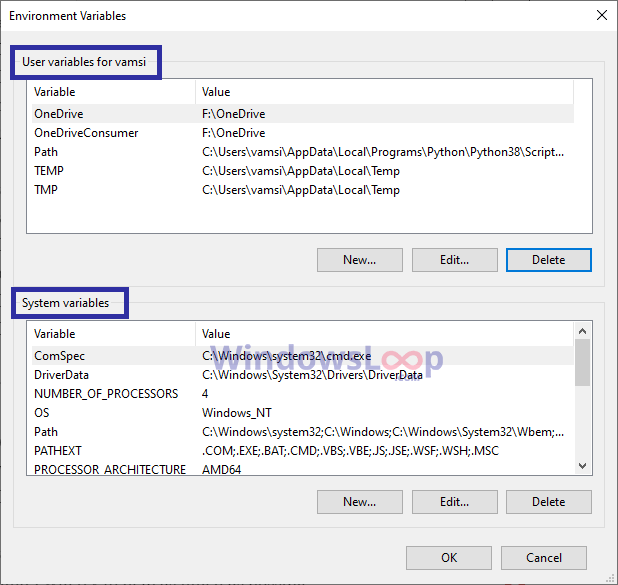
<p style="text-align: justify;">4. Bạn có thể tạo&nbsp;<strong>User Variable</strong>&nbsp;(biến người dùng) hoặc&nbsp;<strong>System Variable</strong>&nbsp;(biến hệ thống).</p>

<ul>
	<li style="text-align: justify;"><strong>User variable</strong>: Chỉ khả dụng cho người dùng cụ thể đó.</li>
	<li style="text-align: justify;"><strong>System variable</strong>: Có sẵn cho tất cả người dùng bao gồm những chương trình hệ thống.</li>
</ul>

<figure data-inimage-loaded="true">
<div style="text-align: justify;"><a href="https://stats.adrealclick.com/url?q=aHR0cHM6Ly9tZXRhLnZuL21heS1sYW0tbWF0LWMxMDkxP3V0bV9zb3VyY2U9aW4taW1hZ2UmdXRtX21lZGl1bT1RVE0mcmVmPWluLWltYWdlLVFUTQ%3D%3D&amp;bid=9712&amp;zid=421" rel="nofollow" target="_blank"><img alt="" data-i="0" height="100" loading="lazy" src="https://as.gamevui.com/data/image/2020/07/02/may-lam-mat-640x100.png" width="640" /></a><br />
<img alt="Bạn có thể tạo User Variable (biến người dùng) hoặc System Variable (biến hệ thống)" data-i="1" data-src="https://st.quantrimang.com/photos/image/2020/09/07/them-bien-moi-truong-trong-windows-1.png" data-was-processed="true" height="585" src="https://st.quantrimang.com/photos/image/2020/09/07/them-bien-moi-truong-trong-windows-1.png" width="618" /></div>

<figcaption>
<div style="text-align: justify;">Bạn có thể tạo User Variable (biến người dùng) hoặc System Variable (biến hệ thống)</div>
</figcaption>
</figure>

<p style="text-align: justify;">5. Để tạo biến người dùng, hãy nhấp vào&nbsp;<strong>New</strong>&nbsp;trong phần&nbsp;<strong>User Variables.</strong></p>

<p style="text-align: justify;">6. Để tạo biến hệ thống, hãy nhấp vào&nbsp;<strong>New</strong>&nbsp;trong phần&nbsp;<strong>System Variables.</strong></p>

<div style="text-align: justify;">&nbsp;</div>

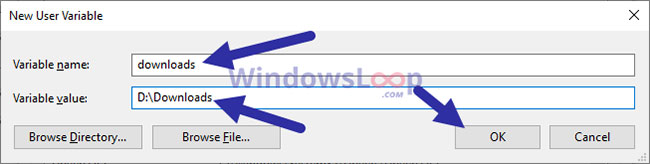
<p style="text-align: justify;">7. Bây giờ, hãy nhập tên biến vào trường đầu tiên. Đảm bảo tên không có khoảng trắng hoặc ký tự đặc biệt.</p>

<p style="text-align: justify;">8. Tiếp theo, nhập giá trị biến vào trường thứ hai. Ví dụ, để mở một thư mục, bạn phải nhập đường dẫn của nó vào trường&nbsp;<strong>Value.</strong></p>

<figure>
<div style="text-align: justify;"><img alt="Nhập tên và giá trị biến" data-i="2" data-src="https://st.quantrimang.com/photos/image/2020/09/07/them-bien-moi-truong-trong-windows-2.jpg" data-was-processed="true" height="164" src="https://st.quantrimang.com/photos/image/2020/09/07/them-bien-moi-truong-trong-windows-2.jpg" width="650" /></div>

<figcaption>
<div style="text-align: justify;">Nhập tên và giá trị biến</div>
</figcaption>
</figure>

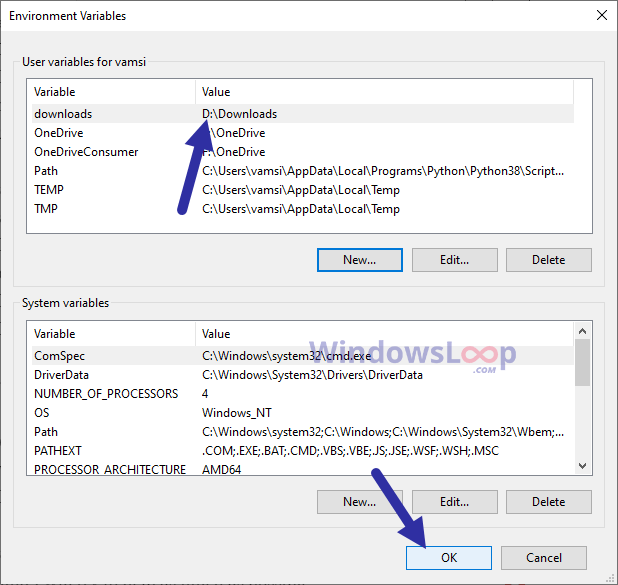
<p style="text-align: justify;">9. Nhấp vào&nbsp;<strong>OK</strong>&nbsp;để thêm biến môi trường.</p>

<p style="text-align: justify;">10. Nhấp vào&nbsp;<strong>OK</strong>&nbsp;trong cửa sổ biến môi trường.</p>

<figure>
<div style="text-align: justify;"><img alt="Nhấp vào OK trong cửa sổ biến môi trường" data-i="3" data-src="https://st.quantrimang.com/photos/image/2020/09/07/them-bien-moi-truong-trong-windows-3.png" data-was-processed="true" height="585" src="https://st.quantrimang.com/photos/image/2020/09/07/them-bien-moi-truong-trong-windows-3.png" width="618" /></div>

<figcaption>
<div style="text-align: justify;">Nhấp vào OK trong cửa sổ biến môi trường</div>
</figcaption>
</figure>

<p style="text-align: justify;">11. Trong cửa sổ chính, nhấp vào nút&nbsp;<strong>Apply &gt; OK</strong>.</p>

<p style="text-align: justify;">12.&nbsp;Khởi động lại Windows 10&nbsp;để áp dụng biến môi trường mới.</p>

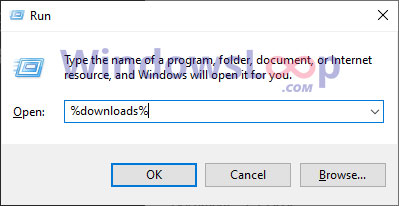
<p style="text-align: justify;">Từ bây giờ, bạn có thể sử dụng biến tùy chỉnh từ cửa sổ&nbsp;Command Prompt&nbsp;hoặc cửa sổ&nbsp;<strong>Run.</strong>&nbsp;Để sử dụng biến môi trường, hãy thêm&nbsp;<strong>&quot;%&quot;</strong>&nbsp;vào đầu và cuối của tên biến. Ví dụ: nếu muốn mở thư mục Downloads, bạn cần thực hiện lệnh&nbsp;<strong>&quot;%download%&quot;.</strong>&nbsp;Nếu bạn không thêm dấu &quot;%&quot;, Windows sẽ không nhận ra giá trị biến.</p>

<figure>
<div style="text-align: justify;"><img alt="Nếu muốn mở thư mục Downloads, bạn cần thực hiện lệnh &#039;%download%&#039;" data-i="4" data-src="https://st.quantrimang.com/photos/image/2020/09/07/them-bien-moi-truong-trong-windows-4.jpg" data-was-processed="true" height="206" src="https://st.quantrimang.com/photos/image/2020/09/07/them-bien-moi-truong-trong-windows-4.jpg" width="399" /></div>

<figcaption>
<div style="text-align: justify;">Nếu muốn mở thư mục Downloads, bạn cần thực hiện lệnh &quot;%download%&quot;</div>
</figcaption>
</figure>
		</div>
				<div id="author">
						<p>
				<strong>Nguồn tin:</strong>
				Quantrimang.com
			</p>
		</div>
	</div>
	<div id="footer" class="clearfix">
		<div id="url">
			<strong>URL của bản tin này: </strong><a href="https://www.nguoicodonvn2008.info/vi/news/savefile/kien-thuc-may-tinh/cach-them-bien-moi-truong-trong-windows-10-2664.html" title="Cách thêm biến môi trường trong Windows 10">https://www.nguoicodonvn2008.info/vi/news/savefile/kien-thuc-may-tinh/cach-them-bien-moi-truong-trong-windows-10-2664.html</a>

		</div>
		<div class="clear"></div>
		<div class="copyright">
			&copy; .&#x3A; Nguoicodonvn2008.info - Cõi lòng người cô đơn &#x3A;.
		</div>
		<div id="contact">
			<a href="mailto:admin@nguoicodonvn2008.info">admin@nguoicodonvn2008.info</a>
		</div>
	</div>
</div>
        <div id="timeoutsess" class="chromeframe">
            Bạn đã không sử dụng Site, <a onclick="timeoutsesscancel();" href="https://nguoicodonvn2008.info/#">Bấm vào đây để duy trì trạng thái đăng nhập</a>. Thời gian chờ: <span id="secField"> 60 </span> giây
        </div>
        <div id="openidResult" class="nv-alert" style="display:none"></div>
        <div id="openidBt" data-result="" data-redirect=""></div>
		</script>
		<div class="car-top">
  <span><img src="https://nguoicodonvn2008.info/themes/default/images/car.png" alt=""></span>
</div>
<div id="run_cronjobs" style="visibility:hidden;display:none;"><img alt="cron" src="/index.php?second=cronjobs&amp;p=f72w1Ak0" width="1" height="1" /></div>
<script src="https://nguoicodonvn2008.info/assets/js/jquery/jquery.min.js"></script>
<script>var nv_base_siteurl="/",nv_lang_data="vi",nv_lang_interface="vi",nv_name_variable="nv",nv_fc_variable="op",nv_lang_variable="language",nv_module_name="news",nv_func_name="savefile",nv_is_user=0, nv_my_ofs=-4,nv_my_abbr="EDT",nv_cookie_prefix="nv4c_e856T",nv_check_pass_mstime=1738000,nv_area_admin=0,nv_safemode=0,theme_responsive=0,nv_recaptcha_ver=2,nv_recaptcha_sitekey="",nv_recaptcha_type="image",XSSsanitize=1;</script>
<script src="https://nguoicodonvn2008.info/assets/js/language/vi.js"></script>
<script src="https://nguoicodonvn2008.info/assets/js/DOMPurify/purify3.js"></script>
<script src="https://nguoicodonvn2008.info/assets/js/global.js"></script>
<script src="https://nguoicodonvn2008.info/assets/js/site.js"></script>
<script src="https://nguoicodonvn2008.info/themes/default/js/news.js"></script>
<script src="https://nguoicodonvn2008.info/themes/default/js/main.js"></script>
<script src="https://nguoicodonvn2008.info/themes/default/js/custom.js"></script>
<script type="application/ld+json">
        {
            "@context": "https://schema.org",
            "@type": "Organization",
            "url": "https://nguoicodonvn2008.info",
            "logo": "https://nguoicodonvn2008.info/uploads/angel.gif"
        }
        </script>
<script src="https://nguoicodonvn2008.info/themes/default/js/bootstrap.min.js"></script>
<script type="text/javascript">
var $scrolltop = $('.car-top');
$scrolltop.on('click', function () {
    $('html,body').animate({
        scrollTop: 0
    }, 800);
    $(this).addClass("car-run");
    setTimeout(function(){ $scrolltop.removeClass('car-run');}, 1000);
    return false;
});
$(window).on('scroll', function ()
{ 
    if($(window).scrollTop() >= 200)
    {
        $scrolltop.addClass("show");
        $scrolltop.addClass("car-down");
    }
    else
    {
       $scrolltop.removeClass("show");
       setTimeout(function(){ $scrolltop.removeClass('car-down');}, 300);
    }
});
</script>
</body>
</html>