<!DOCTYPE html>
    <html lang="vi" xmlns="http://www.w3.org/1999/xhtml" prefix="og: http://ogp.me/ns#">
    <head>
<title>Cách thay đổi theme desktop trên Linux Mint</title>
<meta name="description" content="Cách thay đổi theme desktop trên Linux Mint - Savefile - Tin Tức -...">
<meta name="author" content=".: Nguoicodonvn2008.info - Cõi lòng người cô đơn :.">
<meta name="copyright" content=".: Nguoicodonvn2008.info - Cõi lòng người cô đơn :. [admin@nguoicodonvn2008.info]">
<meta name="robots" content="index, archive, follow, noodp">
<meta name="googlebot" content="index,archive,follow,noodp">
<meta name="msnbot" content="all,index,follow">
<meta name="generator" content="NukeViet v4.5">
<meta http-equiv="Content-Type" content="text/html; charset=utf-8">
<meta property="og:title" content="Cách thay đổi theme desktop trên Linux Mint">
<meta property="og:type" content="website">
<meta property="og:description" content="Savefile - Tin Tức - https&#x3A;&#x002F;&#x002F;www.nguoicodonvn2008.info&#x002F;vi&#x002F;news&#x002F;savefile&#x002F;kien-thuc-may-tinh&#x002F;cach-thay-doi-theme-desktop-tren-linux-mint-5080.html">
<meta property="og:site_name" content=".&#x3A; Nguoicodonvn2008.info - Cõi lòng người cô đơn &#x3A;.">
<meta property="og:url" content="https://www.nguoicodonvn2008.info/vi/news/savefile/kien-thuc-may-tinh/cach-thay-doi-theme-desktop-tren-linux-mint-5080.html">
<link rel="shortcut icon" href="https://nguoicodonvn2008.info/favicon.ico">
<link rel="canonical" href="https://www.nguoicodonvn2008.info/vi/news/savefile/kien-thuc-may-tinh/cach-thay-doi-theme-desktop-tren-linux-mint-5080.html">
<link rel="alternate" href="https://nguoicodonvn2008.info/vi/news/rss/" title="Tin Tức" type="application/rss+xml">
<link rel="alternate" href="https://nguoicodonvn2008.info/vi/news/rss/karaoke-dual/" title="Tin Tức - Karaoke Dual" type="application/rss+xml">
<link rel="alternate" href="https://nguoicodonvn2008.info/vi/news/rss/nhac-tre/" title="Tin Tức - Nhạc trẻ" type="application/rss+xml">
<link rel="alternate" href="https://nguoicodonvn2008.info/vi/news/rss/tru-tinh/" title="Tin Tức - Trữ tình" type="application/rss+xml">
<link rel="alternate" href="https://nguoicodonvn2008.info/vi/news/rss/nuoc-ngoai/" title="Tin Tức - Nước ngoài" type="application/rss+xml">
<link rel="alternate" href="https://nguoicodonvn2008.info/vi/news/rss/remix/" title="Tin Tức - Remix" type="application/rss+xml">
<link rel="alternate" href="https://nguoicodonvn2008.info/vi/news/rss/tam-su-tinh-yeu/" title="Tin Tức - Tâm sự tình yêu" type="application/rss+xml">
<link rel="alternate" href="https://nguoicodonvn2008.info/vi/news/rss/tho-suu-tam/" title="Tin Tức - Thơ sưu tầm" type="application/rss+xml">
<link rel="alternate" href="https://nguoicodonvn2008.info/vi/news/rss/cuoc-song/" title="Tin Tức - Cuộc sống" type="application/rss+xml">
<link rel="alternate" href="https://nguoicodonvn2008.info/vi/news/rss/phan-mem/" title="Tin Tức - Phần mềm" type="application/rss+xml">
<link rel="alternate" href="https://nguoicodonvn2008.info/vi/news/rss/kien-thuc-may-tinh/" title="Tin Tức - Kiến thức máy tính" type="application/rss+xml">
<link rel="alternate" href="https://nguoicodonvn2008.info/vi/news/rss/hoc-tap/" title="Tin Tức - Học tập" type="application/rss+xml">
<link rel="alternate" href="https://nguoicodonvn2008.info/vi/news/rss/tai-lieu/" title="Tin Tức - Tài liệu" type="application/rss+xml">
<link rel="alternate" href="https://nguoicodonvn2008.info/vi/news/rss/de-thi/" title="Tin Tức - Đề thi" type="application/rss+xml">
<link rel="preload" as="style" href="https://nguoicodonvn2008.info/assets/css/font-awesome.min.css" type="text/css">
<link rel="preload" as="style" href="https://nguoicodonvn2008.info/themes/default/css/bootstrap.non-responsive.css" type="text/css">
<link rel="preload" as="style" href="https://nguoicodonvn2008.info/themes/default/css/style.css" type="text/css">
<link rel="preload" as="style" href="https://nguoicodonvn2008.info/themes/default/css/style.non-responsive.css" type="text/css">
<link rel="preload" as="style" href="https://nguoicodonvn2008.info/themes/default/css/news.css" type="text/css">
<link rel="preload" as="style" href="https://nguoicodonvn2008.info/themes/default/css/custom.css" type="text/css">
<link rel="preload" as="script" href="https://nguoicodonvn2008.info/assets/js/jquery/jquery.min.js" type="text/javascript">
<link rel="preload" as="script" href="https://nguoicodonvn2008.info/assets/js/language/vi.js" type="text/javascript">
<link rel="preload" as="script" href="https://nguoicodonvn2008.info/assets/js/DOMPurify/purify3.js" type="text/javascript">
<link rel="preload" as="script" href="https://nguoicodonvn2008.info/assets/js/global.js" type="text/javascript">
<link rel="preload" as="script" href="https://nguoicodonvn2008.info/assets/js/site.js" type="text/javascript">
<link rel="preload" as="script" href="https://nguoicodonvn2008.info/themes/default/js/news.js" type="text/javascript">
<link rel="preload" as="script" href="https://nguoicodonvn2008.info/themes/default/js/main.js" type="text/javascript">
<link rel="preload" as="script" href="https://nguoicodonvn2008.info/themes/default/js/custom.js" type="text/javascript">
<link rel="preload" as="script" href="https://nguoicodonvn2008.info/themes/default/js/bootstrap.min.js" type="text/javascript">
<link rel="stylesheet" href="https://nguoicodonvn2008.info/assets/css/font-awesome.min.css">
<link rel="stylesheet" href="https://nguoicodonvn2008.info/themes/default/css/bootstrap.non-responsive.css">
<link rel="stylesheet" href="https://nguoicodonvn2008.info/themes/default/css/style.css">
<link rel="stylesheet" href="https://nguoicodonvn2008.info/themes/default/css/style.non-responsive.css">
<link rel="StyleSheet" href="https://nguoicodonvn2008.info/themes/default/css/news.css">
<link rel="stylesheet" href="https://nguoicodonvn2008.info/themes/default/css/custom.css">
<style type="text/css">
	body{background: #fff;}
</style>
    </head>
    <body>
<div id="print">
	<div id="hd_print">
		<h2 class="pull-left">.&#x3A; Nguoicodonvn2008.info - Cõi lòng người cô đơn &#x3A;.</h2>
		<p class="pull-right"><a title=".&#x3A; Nguoicodonvn2008.info - Cõi lòng người cô đơn &#x3A;." href="https://nguoicodonvn2008.info/">https://nguoicodonvn2008.info</a></p>
	</div>
	<div class="clear"></div>
	<hr />
	<div id="content">
		<h1>Cách thay đổi theme desktop trên Linux Mint</h1>
		<ul class="list-inline">
			<li>Thứ hai - 24/01/2022 22:54</li>
			<li class="hidden-print txtrequired"><em class="fa fa-print">&nbsp;</em><a title="In ra" href="javascript:;" onclick="window.print()">In ra</a></li>
			<li class="hidden-print txtrequired"><em class="fa fa-power-off">&nbsp;</em><a title="Đóng cửa sổ này" href="javascript:;" onclick="window.close()">Đóng cửa sổ này</a></li>
		</ul>
		<div class="clear"></div>
		<div id="hometext">
		</div>
				<div class="imghome">
			<img alt="Cách thay đổi theme desktop trên Linux Mint" src="https://st.quantrimang.com/photos/image/2022/01/18/doi-theme-desktop-tren-linux-mint-1.jpg" width="460" class="img-thumbnail" />
		</div>
		<div class="clear"></div>
		<div id="bodytext" class="clearfix">
			<p style="text-align: justify;">Linux Mint&nbsp;là một bản phân phối Linux tuyệt vời cho bất kỳ ai bắt đầu sử dụng Linux. Nó có 3 phiên bản khác nhau: Cinnamon, MATE và Xfce, mỗi loại phục vụ cho một đối tượng khác nhau.</p>

<p style="text-align: justify;">Trong những năm qua, Linux Mint đã trải qua một số thay đổi, bao gồm một số thay đổi về mặt thẩm mỹ khác với hình thức trực quan ban đầu. Là một phần của thay đổi này, Mint giờ đây cho phép bạn chọn từ nhiều theme để tùy chỉnh desktop theo sở thích.</p>

<p style="text-align: justify;">Nếu bạn mới bắt đầu với Mint, đây là tất cả các cách khác nhau để thay đổi theme.</p>

<h2 style="text-align: justify;">Các cách khác nhau để thay đổi theme trên Linux Mint</h2>

<p style="text-align: justify;">Trên Linux Mint, bạn có thể thay đổi theme theo 3 cách. Một, bạn có thể chọn một theme từ các tùy chọn mặc định trên hệ thống (và tùy chỉnh nó). Hai, bạn có thể tìm và cài đặt các theme mới từ thư viện chính thức của Mint. Ba, bạn có thể tải xuống các theme từ những nguồn tài nguyên trực tuyến khác và cài đặt chúng trên hệ thống của mình.</p>

<p style="text-align: justify;">Dưới đây là các hướng dẫn để thay đổi theme bằng cách sử dụng từng phương pháp này.</p>

<h3 style="text-align: justify;">1. Cài đặt một theme mới từ Preferences</h3>

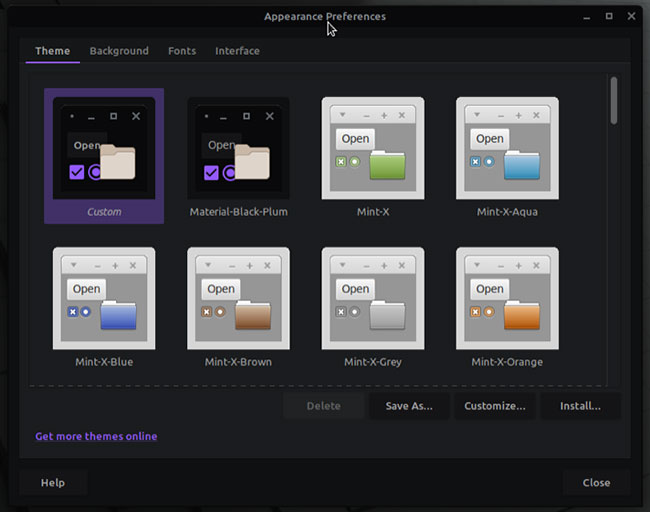
<p style="text-align: justify;">Tùy thuộc vào môi trường desktop bạn đang sử dụng trên hệ thống của mình, bạn sẽ có một loạt các theme được cài đặt sẵn để lựa chọn.</p>

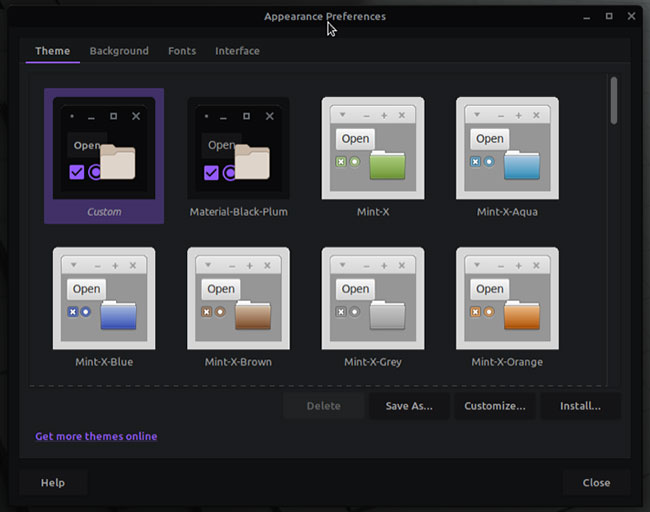
<p style="text-align: justify;">Để truy cập các theme này, hãy nhấn phím&nbsp;<strong>Super</strong>&nbsp;để hiển thị menu&nbsp;<strong>Applications.</strong>&nbsp;Tìm kiếm&nbsp;<strong>&quot;appearance&quot;</strong>&nbsp;và nhấp vào kết quả thích hợp để khởi chạy&nbsp;<strong>Appearance Preferences.</strong></p>

<p style="text-align: justify;">Nhấp vào&nbsp;<strong>Theme</strong>&nbsp;và nó sẽ hiển thị cho bạn tất cả các theme hệ thống mà bạn có thể sử dụng. Chọn một theme để xem cách nó hoạt động và đặt làm theme hiện tại của bạn.</p>

<figure>
<div style="text-align: justify;"><img alt="Tất cả các theme hệ thống" data-i="0" data-src="https://st.quantrimang.com/photos/image/2022/01/18/doi-theme-desktop-tren-linux-mint-1.jpg" data-was-processed="true" height="512" src="https://st.quantrimang.com/photos/image/2022/01/18/doi-theme-desktop-tren-linux-mint-1.jpg" width="650" /></div>

<figcaption>
<div style="text-align: justify;">Tất cả các theme hệ thống</div>
</figcaption>
</figure>

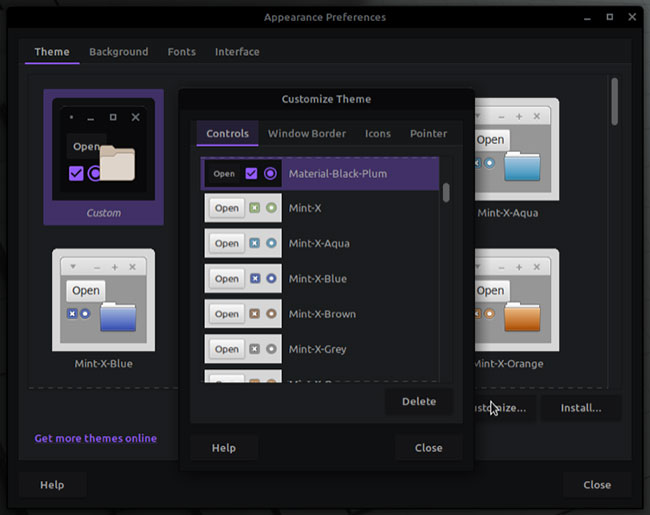
<p style="text-align: justify;">Nếu bạn thích một trong những theme này nhưng vẫn muốn thay đổi một số yếu tố, hãy nhấp vào nút&nbsp;<strong>Customize</strong>&nbsp;để làm như vậy. Các tùy chọn tùy chỉnh bao gồm&nbsp;<strong>Controls, Window Border, Icons</strong>&nbsp;và&nbsp;<strong>Pointer</strong>.</p>

<figure>
<div style="text-align: justify;"><img alt="Các tùy chọn tùy chỉnh" data-i="1" data-src="https://st.quantrimang.com/photos/image/2022/01/18/doi-theme-desktop-tren-linux-mint-2.jpg" data-was-processed="true" height="515" src="https://st.quantrimang.com/photos/image/2022/01/18/doi-theme-desktop-tren-linux-mint-2.jpg" width="650" /></div>

<figcaption>
<div style="text-align: justify;">Các tùy chọn tùy chỉnh</div>
</figcaption>
</figure>

<p style="text-align: justify;">Nhấp vào bất kỳ phần tử nào trong số các phần tử này trong cửa sổ&nbsp;<strong>Customize Theme</strong>&nbsp;để xem tất cả các tùy chọn của nó và nhấn vào phần bạn muốn xem trước.</p>

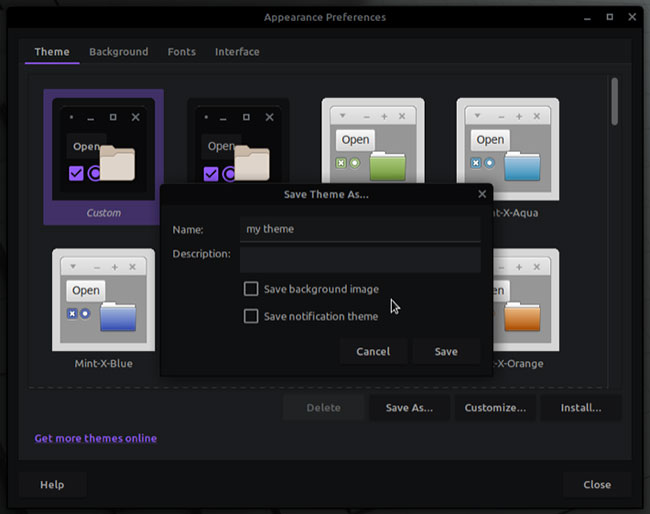
<p style="text-align: justify;">Sau khi bạn đã tùy chỉnh theme, hãy nhấn&nbsp;<strong>Close</strong>&nbsp;để lưu các thay đổi. Nếu bạn muốn sử dụng theme này trong tương lai, hãy nhớ lưu nó. Để làm điều này, hãy nhấp vào nút&nbsp;<strong>Save As</strong>. Sau đó, trên cửa sổ&nbsp;<strong>Save Theme As</strong>, điền vào các trường&nbsp;<strong>Name</strong>&nbsp;và&nbsp;<strong>Description</strong>, rồi nhấp vào nút&nbsp;<strong>Save.</strong></p>

<figure>
<div style="text-align: justify;"><img alt="Lưu theme tùy chỉnh" data-i="2" data-src="https://st.quantrimang.com/photos/image/2022/01/18/doi-theme-desktop-tren-linux-mint-3.jpg" data-was-processed="true" height="514" src="https://st.quantrimang.com/photos/image/2022/01/18/doi-theme-desktop-tren-linux-mint-3.jpg" width="650" /></div>

<figcaption>
<div style="text-align: justify;">Lưu theme tùy chỉnh</div>
</figcaption>
</figure>

<p style="text-align: justify;">Điều này mở ra khả năng mang lại trải nghiệm được cá nhân hóa hơn, vì giờ đây bạn có thể kết hợp các phong cách cho tất cả mọi phần tử hệ thống khác nhau trên những theme khác nhau để tạo ra một tùy chọn hoàn toàn tùy chỉnh cho Linux Mint, phù hợp với phong cách của bạn.</p>

<h3 style="text-align: justify;">2. Từ cửa hàng theme trực tuyến của Linux Mint</h3>

<p style="text-align: justify;">Nếu bộ sưu tập theme giới hạn không gây ấn tượng với bạn, Linux Mint cũng có nhiều loại theme trên cửa hàng trực tuyến. Chúng được lưu trữ trên Pling và bạn có thể truy cập chúng ngay từ cài đặt theme.</p>

<p style="text-align: justify;">Tuy nhiên, trước khi tải xuống các theme này, bạn cần cài đặt&nbsp;<strong>ocs-url</strong>, đây là một chương trình trợ giúp cho phép bạn cài đặt các file theme trực tiếp từ Pling.</p>

<p style="text-align: justify;">Đối với điều này, hãy truy cập&nbsp;<em>opendesktop.org,</em>&nbsp;nơi host ocs-url. Tại đây, hãy nhấp vào nút&nbsp;<strong>Download</strong>&nbsp;ở phía bên tay phải của màn hình và chọn file ocs-url kết thúc bằng phần mở rộng .deb từ menu drop-down.</p>

<p style="text-align: justify;">Nhấp vào nút&nbsp;<strong>Download</strong>&nbsp;trên màn hình sau để bắt đầu tải xuống. Sau khi tải file xuống, hãy chuyển đến thư mục&nbsp;<strong>Downloads.</strong>&nbsp;Nhấp chuột phải vào file và chọn&nbsp;<strong>Open With GDebi Package Installer</strong>&nbsp;để cài đặt.</p>

<p style="text-align: justify;">Ngoài ra, bạn cũng có thể cài đặt&nbsp;file DEB&nbsp;từ Terminal. Để thực hiện việc này, hãy&nbsp;mở Terminal, nhập lệnh sau và nhấn Enter:</p>

<pre id="pre0">
<code>sudo dpkg -i ocs-url_x.x.x-ubuntu1_amd64.deb</code></pre>

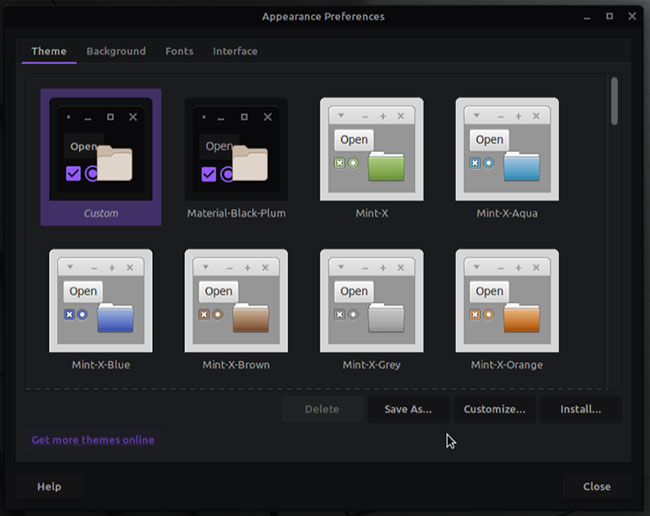
<p style="text-align: justify;">Với ocs-url được cài đặt, bây giờ bạn đã sẵn sàng để sử dụng các theme từ Pling. Để làm điều này, hãy khởi chạy&nbsp;<strong>Appearance</strong>&nbsp;từ menu ứng dụng. Trong&nbsp;<strong>Appearance Preferences</strong>, chuyển sang tab&nbsp;<strong>Theme</strong>&nbsp;và nhấp vào&nbsp;<strong>Get more themes online&nbsp;</strong>ở dưới cùng để truy cập kho theme thích hợp cho môi trường desktop của bạn.</p>

<figure>
<div style="text-align: justify;"><img alt="Truy cập kho theme" data-i="3" data-src="https://st.quantrimang.com/photos/image/2022/01/18/doi-theme-desktop-tren-linux-mint-4.jpg" data-was-processed="true" height="516" src="https://st.quantrimang.com/photos/image/2022/01/18/doi-theme-desktop-tren-linux-mint-4.jpg" width="650" /></div>

<figcaption>
<div style="text-align: justify;">Truy cập kho theme</div>
</figcaption>
</figure>

<p style="text-align: justify;">Tùy thuộc vào những gì bạn thích, hãy chọn theme GTK 2.x hoặc GTK 3.x trên trang chủ. Bây giờ, bạn sẽ được đưa đến toàn bộ thư viện theme cho desktop. Tại đây, bạn có thể lọc các theme theo tiêu chí mới nhất, điểm xếp hạng hoặc ping. Hơn nữa, hãy nhấp vào các tùy chọn theme trên ngăn bên trái để khám phá thêm các tùy chọn.</p>

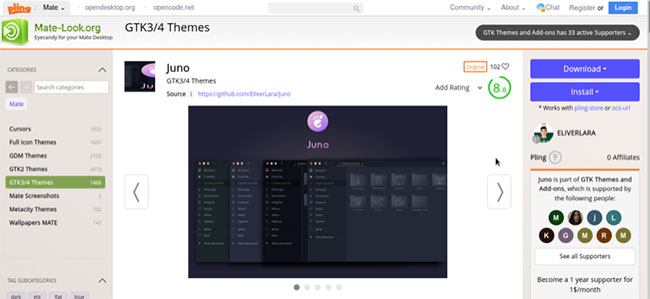
<p style="text-align: justify;">Khi bạn thích một theme, hãy nhấp vào nó để mở rộng thông tin chi tiết, cũng như các tùy chọn tải xuống/cài đặt. Nhấp vào nút&nbsp;<strong>Install</strong>&nbsp;và chọn một file từ menu drop-down.</p>

<figure>
<div style="text-align: justify;"><img alt="Chọn một file từ menu drop-down" data-i="4" data-src="https://st.quantrimang.com/photos/image/2022/01/18/doi-theme-desktop-tren-linux-mint-5.jpg" data-was-processed="true" height="299" src="https://st.quantrimang.com/photos/image/2022/01/18/doi-theme-desktop-tren-linux-mint-5.jpg" width="650" /></div>

<figcaption>
<div style="text-align: justify;">Chọn một file từ menu drop-down</div>
</figcaption>
</figure>

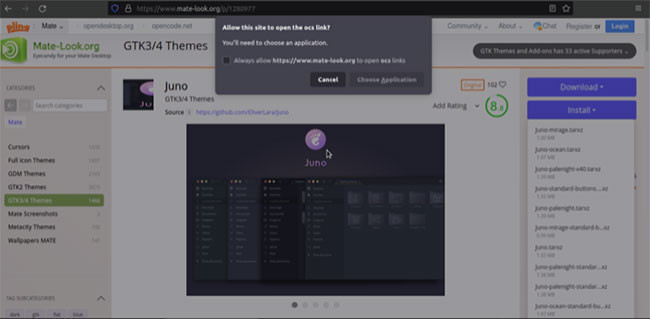
<p style="text-align: justify;">Khi lời nhắc cài đặt xuất hiện, hãy nhấn vào nút&nbsp;<strong>Install.</strong>&nbsp;Trong cửa sổ xuất hiện hỏi cách bạn muốn mở liên kết ocs, hãy nhấp vào&nbsp;<strong>Choose Application.</strong></p>

<figure>
<div style="text-align: justify;"><img alt="Nhấp vào Choose Application" data-i="5" data-src="https://st.quantrimang.com/photos/image/2022/01/18/doi-theme-desktop-tren-linux-mint-6.jpg" data-was-processed="true" height="319" src="https://st.quantrimang.com/photos/image/2022/01/18/doi-theme-desktop-tren-linux-mint-6.jpg" width="650" /></div>

<figcaption>
<div style="text-align: justify;">Nhấp vào Choose Application</div>
</figcaption>
</figure>

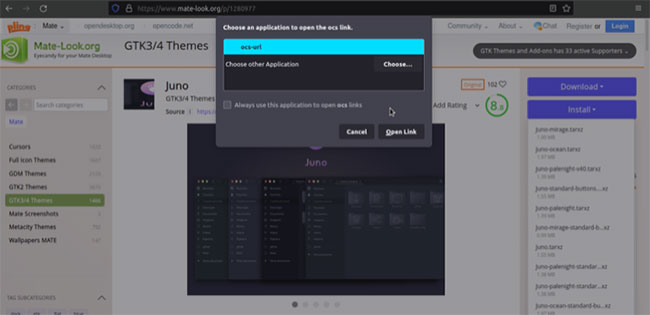
<p style="text-align: justify;">Tiếp theo, chọn&nbsp;<strong>ocs-url</strong>&nbsp;từ danh sách và nhấp vào&nbsp;<strong>Open Link.</strong></p>

<figure>
<div style="text-align: justify;"><img alt="Nhấp vào Open Link" data-i="6" data-src="https://st.quantrimang.com/photos/image/2022/01/18/doi-theme-desktop-tren-linux-mint-7.jpg" data-was-processed="true" height="315" src="https://st.quantrimang.com/photos/image/2022/01/18/doi-theme-desktop-tren-linux-mint-7.jpg" width="650" /></div>

<figcaption>
<div style="text-align: justify;">Nhấp vào Open Link</div>
</figcaption>
</figure>

<p style="text-align: justify;">Nhấn&nbsp;<strong>OK</strong>&nbsp;trên hộp thoại xác nhận để bắt đầu tải xuống và cài đặt theme.</p>

<p style="text-align: justify;">Để áp dụng theme này, hãy mở&nbsp;<strong>Appearance</strong>&nbsp;và chọn tab&nbsp;<strong>Theme.</strong>&nbsp;Theme bạn vừa cài đặt sẽ hiển thị trên màn hình này. Nhấp vào nó để áp dụng cho desktop của bạn.</p>

<p style="text-align: justify;">Nếu theme hỗ trợ desktop của bạn, nó sẽ hoạt động mà không có vấn đề gì. Nếu không, bạn sẽ thấy thông báo lỗi cho biết rằng theme không được hỗ trợ. Trong một số trường hợp, theme thậm chí có thể không hiển thị trong&nbsp;<strong>Appearance Preferences.</strong></p>

<p style="text-align: justify;">Bên cạnh đó, nếu muốn, bạn cũng có thể nhấp vào&nbsp;<strong>Customize</strong>&nbsp;để tùy chỉnh một số yếu tố của theme này.</p>

<h3 style="text-align: justify;">3. Thay đổi theme bằng cách sử dụng file theme</h3>

<p style="text-align: justify;">Cuối cùng nhưng chắc chắn không kém phần quan trọng, Linux Mint cũng cung cấp cho bạn tùy chọn để đặt các theme hệ thống bằng cách sử dụng một file theme. Vì vậy, nếu bạn đã tải xuống theme Mint từ GitHub hoặc một số nguồn khác, bạn có thể cài đặt trực tiếp vào desktop của mình.</p>

<p style="text-align: justify;">Đối với điều này, trước tiên, hãy chuyển đến thư mục mà bạn đã lưu/tải xuống theme và giải nén kho lưu trữ. Sao chép thư mục theme có bên trong thư mục này.</p>

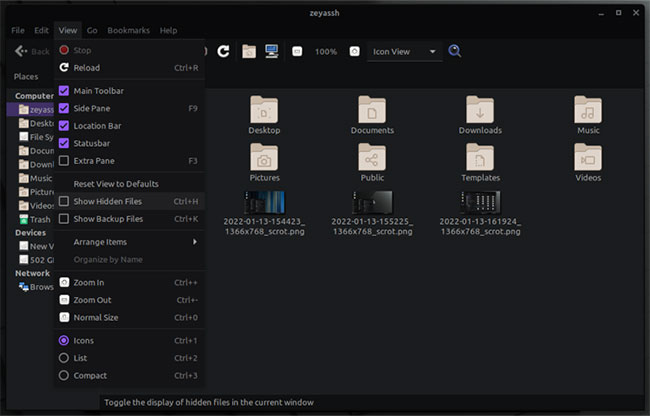
<p style="text-align: justify;">Truy cập thư mục&nbsp;<strong>Home</strong>&nbsp;trên máy tính, nhấp vào&nbsp;<strong>View</strong>&nbsp;và chọn hộp bên cạnh&nbsp;<strong>Show Hidden Files</strong>.</p>

<figure>
<div style="text-align: justify;"><img alt="Chọn Show Hidden Files" data-i="7" data-src="https://st.quantrimang.com/photos/image/2022/01/18/doi-theme-desktop-tren-linux-mint-8.jpg" data-was-processed="true" height="416" src="https://st.quantrimang.com/photos/image/2022/01/18/doi-theme-desktop-tren-linux-mint-8.jpg" width="650" /></div>

<figcaption>
<div style="text-align: justify;">Chọn Show Hidden Files</div>
</figcaption>
</figure>

<p style="text-align: justify;">Thao tác này sẽ hiển thị tất cả các file và thư mục ẩn bên trong thư mục&nbsp;<strong>Home.</strong></p>

<p style="text-align: justify;">Tìm thư mục .themes và dán thư mục&nbsp;<strong>Themes</strong>&nbsp;đã sao chép trước đó vào thư mục này. Tương tự, nếu theme của bạn có các icon, hãy quay lại thư mục theme, sao chép thư mục icon và dán vào thư mục&nbsp;<strong>.icons</strong>&nbsp;bên trong&nbsp;<strong>Home.</strong></p>

<p style="text-align: justify;">Cuối cùng, mở&nbsp;<strong>Appearance</strong>&nbsp;và chuyển sang&nbsp;<strong>Theme</strong>&nbsp;trên&nbsp;<strong>Appearance Preferences.</strong>&nbsp;Tại đây, bạn sẽ thấy theme mình vừa chuyển đến thư mục&nbsp;<strong>.themes.</strong>&nbsp;Chỉ cần nhấp vào nó để áp dụng làm theme mặc định cho hệ thống. Nếu theme không xuất hiện, có thể là do nó không tương thích với môi trường desktop của bạn.</p>

<p style="text-align: justify;">Ngoài ra, nếu cảm thấy khó khăn khi tìm thư mục&nbsp;<strong>Themes</strong>&nbsp;ẩn, bạn có thể cài đặt theme ngay từ cửa sổ&nbsp;<strong>Appearance Preferences.</strong>&nbsp;Để thực hiện việc này, với tab&nbsp;<strong>Theme</strong>&nbsp;được chọn trên cửa sổ<strong>&nbsp;Appearance Preferences</strong>, hãy nhấp vào nút&nbsp;<strong>Install.</strong></p>

<figure>
<div style="text-align: justify;"><img alt="Nhấp vào nút Install" data-i="8" data-src="https://st.quantrimang.com/photos/image/2022/01/18/doi-theme-desktop-tren-linux-mint-9.jpg" data-was-processed="true" height="512" src="https://st.quantrimang.com/photos/image/2022/01/18/doi-theme-desktop-tren-linux-mint-9.jpg" width="650" /></div>

<figcaption>
<div style="text-align: justify;">Nhấp vào nút Install</div>
</figcaption>
</figure>

<p style="text-align: justify;">Sử dụng trình quản lý file để điều hướng đến thư mục bạn đã tải xuống theme. Chọn theme và nhấp vào&nbsp;<strong>Open.</strong>&nbsp;Chờ trong vài giây và hệ thống sẽ cài đặt theme bạn đã chọn.</p>

<p style="text-align: justify;">Tương tự như hai phương pháp còn lại, bạn có thể nhấn&nbsp;<strong>Customize</strong>&nbsp;trên cửa sổ&nbsp;<strong>Appearance Preferences</strong>&nbsp;để tùy chỉnh một số yếu tố của theme này, tùy theo sở thích.</p>
		</div>
				<div id="author">
						<p>
				<strong>Nguồn tin:</strong>
				Quantrimang.com
			</p>
		</div>
	</div>
	<div id="footer" class="clearfix">
		<div id="url">
			<strong>URL của bản tin này: </strong><a href="https://www.nguoicodonvn2008.info/vi/news/savefile/kien-thuc-may-tinh/cach-thay-doi-theme-desktop-tren-linux-mint-5080.html" title="Cách thay đổi theme desktop trên Linux Mint">https://www.nguoicodonvn2008.info/vi/news/savefile/kien-thuc-may-tinh/cach-thay-doi-theme-desktop-tren-linux-mint-5080.html</a>

		</div>
		<div class="clear"></div>
		<div class="copyright">
			&copy; .&#x3A; Nguoicodonvn2008.info - Cõi lòng người cô đơn &#x3A;.
		</div>
		<div id="contact">
			<a href="mailto:admin@nguoicodonvn2008.info">admin@nguoicodonvn2008.info</a>
		</div>
	</div>
</div>
        <div id="timeoutsess" class="chromeframe">
            Bạn đã không sử dụng Site, <a onclick="timeoutsesscancel();" href="https://nguoicodonvn2008.info/#">Bấm vào đây để duy trì trạng thái đăng nhập</a>. Thời gian chờ: <span id="secField"> 60 </span> giây
        </div>
        <div id="openidResult" class="nv-alert" style="display:none"></div>
        <div id="openidBt" data-result="" data-redirect=""></div>
		</script>
		<div class="car-top">
  <span><img src="https://nguoicodonvn2008.info/themes/default/images/car.png" alt=""></span>
</div>
<div id="run_cronjobs" style="visibility:hidden;display:none;"><img alt="cron" src="/index.php?second=cronjobs&amp;p=u3AihaG8" width="1" height="1" /></div>
<script src="https://nguoicodonvn2008.info/assets/js/jquery/jquery.min.js"></script>
<script>var nv_base_siteurl="/",nv_lang_data="vi",nv_lang_interface="vi",nv_name_variable="nv",nv_fc_variable="op",nv_lang_variable="language",nv_module_name="news",nv_func_name="savefile",nv_is_user=0, nv_my_ofs=-4,nv_my_abbr="EDT",nv_cookie_prefix="nv4c_e856T",nv_check_pass_mstime=1738000,nv_area_admin=0,nv_safemode=0,theme_responsive=0,nv_recaptcha_ver=2,nv_recaptcha_sitekey="",nv_recaptcha_type="image",XSSsanitize=1;</script>
<script src="https://nguoicodonvn2008.info/assets/js/language/vi.js"></script>
<script src="https://nguoicodonvn2008.info/assets/js/DOMPurify/purify3.js"></script>
<script src="https://nguoicodonvn2008.info/assets/js/global.js"></script>
<script src="https://nguoicodonvn2008.info/assets/js/site.js"></script>
<script src="https://nguoicodonvn2008.info/themes/default/js/news.js"></script>
<script src="https://nguoicodonvn2008.info/themes/default/js/main.js"></script>
<script src="https://nguoicodonvn2008.info/themes/default/js/custom.js"></script>
<script type="application/ld+json">
        {
            "@context": "https://schema.org",
            "@type": "Organization",
            "url": "https://nguoicodonvn2008.info",
            "logo": "https://nguoicodonvn2008.info/uploads/angel.gif"
        }
        </script>
<script src="https://nguoicodonvn2008.info/themes/default/js/bootstrap.min.js"></script>
<script type="text/javascript">
var $scrolltop = $('.car-top');
$scrolltop.on('click', function () {
    $('html,body').animate({
        scrollTop: 0
    }, 800);
    $(this).addClass("car-run");
    setTimeout(function(){ $scrolltop.removeClass('car-run');}, 1000);
    return false;
});
$(window).on('scroll', function ()
{ 
    if($(window).scrollTop() >= 200)
    {
        $scrolltop.addClass("show");
        $scrolltop.addClass("car-down");
    }
    else
    {
       $scrolltop.removeClass("show");
       setTimeout(function(){ $scrolltop.removeClass('car-down');}, 300);
    }
});
</script>
</body>
</html>