<!DOCTYPE html>
    <html lang="vi" xmlns="http://www.w3.org/1999/xhtml" prefix="og: http://ogp.me/ns#">
    <head>
<title>Cách thay đổi chiều cao hoặc chiều rộng của Taskbar trên Windows 10</title>
<meta name="description" content="Cách thay đổi chiều cao hoặc chiều rộng của Taskbar trên Windows 10 - Savefile - Tin Tức -...">
<meta name="author" content=".: Nguoicodonvn2008.info - Cõi lòng người cô đơn :.">
<meta name="copyright" content=".: Nguoicodonvn2008.info - Cõi lòng người cô đơn :. [admin@nguoicodonvn2008.info]">
<meta name="robots" content="index, archive, follow, noodp">
<meta name="googlebot" content="index,archive,follow,noodp">
<meta name="msnbot" content="all,index,follow">
<meta name="generator" content="NukeViet v4.5">
<meta http-equiv="Content-Type" content="text/html; charset=utf-8">
<meta property="og:title" content="Cách thay đổi chiều cao hoặc chiều rộng của Taskbar trên Windows 10">
<meta property="og:type" content="website">
<meta property="og:description" content="Savefile - Tin Tức - https&#x3A;&#x002F;&#x002F;www.nguoicodonvn2008.info&#x002F;vi&#x002F;news&#x002F;savefile&#x002F;kien-thuc-may-tinh&#x002F;cach-thay-doi-chieu-cao-hoac-chieu-rong-cua-taskbar-tren-windows-10-2076.html">
<meta property="og:site_name" content=".&#x3A; Nguoicodonvn2008.info - Cõi lòng người cô đơn &#x3A;.">
<meta property="og:url" content="https://www.nguoicodonvn2008.info/vi/news/savefile/kien-thuc-may-tinh/cach-thay-doi-chieu-cao-hoac-chieu-rong-cua-taskbar-tren-windows-10-2076.html">
<link rel="shortcut icon" href="https://nguoicodonvn2008.info/favicon.ico">
<link rel="canonical" href="https://www.nguoicodonvn2008.info/vi/news/savefile/kien-thuc-may-tinh/cach-thay-doi-chieu-cao-hoac-chieu-rong-cua-taskbar-tren-windows-10-2076.html">
<link rel="alternate" href="https://nguoicodonvn2008.info/vi/news/rss/" title="Tin Tức" type="application/rss+xml">
<link rel="alternate" href="https://nguoicodonvn2008.info/vi/news/rss/karaoke-dual/" title="Tin Tức - Karaoke Dual" type="application/rss+xml">
<link rel="alternate" href="https://nguoicodonvn2008.info/vi/news/rss/nhac-tre/" title="Tin Tức - Nhạc trẻ" type="application/rss+xml">
<link rel="alternate" href="https://nguoicodonvn2008.info/vi/news/rss/tru-tinh/" title="Tin Tức - Trữ tình" type="application/rss+xml">
<link rel="alternate" href="https://nguoicodonvn2008.info/vi/news/rss/nuoc-ngoai/" title="Tin Tức - Nước ngoài" type="application/rss+xml">
<link rel="alternate" href="https://nguoicodonvn2008.info/vi/news/rss/remix/" title="Tin Tức - Remix" type="application/rss+xml">
<link rel="alternate" href="https://nguoicodonvn2008.info/vi/news/rss/tam-su-tinh-yeu/" title="Tin Tức - Tâm sự tình yêu" type="application/rss+xml">
<link rel="alternate" href="https://nguoicodonvn2008.info/vi/news/rss/tho-suu-tam/" title="Tin Tức - Thơ sưu tầm" type="application/rss+xml">
<link rel="alternate" href="https://nguoicodonvn2008.info/vi/news/rss/cuoc-song/" title="Tin Tức - Cuộc sống" type="application/rss+xml">
<link rel="alternate" href="https://nguoicodonvn2008.info/vi/news/rss/phan-mem/" title="Tin Tức - Phần mềm" type="application/rss+xml">
<link rel="alternate" href="https://nguoicodonvn2008.info/vi/news/rss/kien-thuc-may-tinh/" title="Tin Tức - Kiến thức máy tính" type="application/rss+xml">
<link rel="alternate" href="https://nguoicodonvn2008.info/vi/news/rss/hoc-tap/" title="Tin Tức - Học tập" type="application/rss+xml">
<link rel="alternate" href="https://nguoicodonvn2008.info/vi/news/rss/tai-lieu/" title="Tin Tức - Tài liệu" type="application/rss+xml">
<link rel="alternate" href="https://nguoicodonvn2008.info/vi/news/rss/de-thi/" title="Tin Tức - Đề thi" type="application/rss+xml">
<link rel="preload" as="style" href="https://nguoicodonvn2008.info/assets/css/font-awesome.min.css" type="text/css">
<link rel="preload" as="style" href="https://nguoicodonvn2008.info/themes/default/css/bootstrap.non-responsive.css" type="text/css">
<link rel="preload" as="style" href="https://nguoicodonvn2008.info/themes/default/css/style.css" type="text/css">
<link rel="preload" as="style" href="https://nguoicodonvn2008.info/themes/default/css/style.non-responsive.css" type="text/css">
<link rel="preload" as="style" href="https://nguoicodonvn2008.info/themes/default/css/news.css" type="text/css">
<link rel="preload" as="style" href="https://nguoicodonvn2008.info/themes/default/css/custom.css" type="text/css">
<link rel="preload" as="script" href="https://nguoicodonvn2008.info/assets/js/jquery/jquery.min.js" type="text/javascript">
<link rel="preload" as="script" href="https://nguoicodonvn2008.info/assets/js/language/vi.js" type="text/javascript">
<link rel="preload" as="script" href="https://nguoicodonvn2008.info/assets/js/DOMPurify/purify3.js" type="text/javascript">
<link rel="preload" as="script" href="https://nguoicodonvn2008.info/assets/js/global.js" type="text/javascript">
<link rel="preload" as="script" href="https://nguoicodonvn2008.info/assets/js/site.js" type="text/javascript">
<link rel="preload" as="script" href="https://nguoicodonvn2008.info/themes/default/js/news.js" type="text/javascript">
<link rel="preload" as="script" href="https://nguoicodonvn2008.info/themes/default/js/main.js" type="text/javascript">
<link rel="preload" as="script" href="https://nguoicodonvn2008.info/themes/default/js/custom.js" type="text/javascript">
<link rel="preload" as="script" href="https://nguoicodonvn2008.info/themes/default/js/bootstrap.min.js" type="text/javascript">
<link rel="stylesheet" href="https://nguoicodonvn2008.info/assets/css/font-awesome.min.css">
<link rel="stylesheet" href="https://nguoicodonvn2008.info/themes/default/css/bootstrap.non-responsive.css">
<link rel="stylesheet" href="https://nguoicodonvn2008.info/themes/default/css/style.css">
<link rel="stylesheet" href="https://nguoicodonvn2008.info/themes/default/css/style.non-responsive.css">
<link rel="StyleSheet" href="https://nguoicodonvn2008.info/themes/default/css/news.css">
<link rel="stylesheet" href="https://nguoicodonvn2008.info/themes/default/css/custom.css">
<style type="text/css">
	body{background: #fff;}
</style>
    </head>
    <body>
<div id="print">
	<div id="hd_print">
		<h2 class="pull-left">.&#x3A; Nguoicodonvn2008.info - Cõi lòng người cô đơn &#x3A;.</h2>
		<p class="pull-right"><a title=".&#x3A; Nguoicodonvn2008.info - Cõi lòng người cô đơn &#x3A;." href="https://nguoicodonvn2008.info/">https://nguoicodonvn2008.info</a></p>
	</div>
	<div class="clear"></div>
	<hr />
	<div id="content">
		<h1>Cách thay đổi chiều cao hoặc chiều rộng của Taskbar trên Windows 10</h1>
		<ul class="list-inline">
			<li>Thứ sáu - 22/05/2020 00:55</li>
			<li class="hidden-print txtrequired"><em class="fa fa-print">&nbsp;</em><a title="In ra" href="javascript:;" onclick="window.print()">In ra</a></li>
			<li class="hidden-print txtrequired"><em class="fa fa-power-off">&nbsp;</em><a title="Đóng cửa sổ này" href="javascript:;" onclick="window.close()">Đóng cửa sổ này</a></li>
		</ul>
		<div class="clear"></div>
		<div id="hometext">
		</div>
				<div class="imghome">
			<img alt="Cách thay đổi chiều cao hoặc chiều rộng của Taskbar trên Windows 10" src="https://st.quantrimang.com/photos/image/2020/05/21/thay-doi-chieu-cao-hoac-chieu-rong-cua-taskbar-9.jpg" width="460" class="img-thumbnail" />
		</div>
		<div class="clear"></div>
		<div id="bodytext" class="clearfix">
			<p style="text-align: justify;">Bạn có biết Taskbar trong Windows 10 có thể thay đổi kích thước không? Với một vài cú nhấp chuột, bạn có thể làm cho nó cao hơn, để có thêm chỗ hơn cho các shortcut ứng dụng. Nếu sử dụng một Taskbar dọc, bạn có thể làm cho nó rộng hơn.</p>

<h2 style="text-align: justify;">Đầu tiên, hãy mở khóa Taskbar!</h2>

<p style="text-align: justify;">Để thay đổi kích thước Taskbar, bạn cần mở khóa nó. Nhấp chuột phải vào&nbsp;<strong>Taskbar</strong>&nbsp;và xác định tùy chọn có tên là&nbsp;<strong>Lock The Taskbar</strong>&nbsp;trong danh sách. Nếu tùy chọn đó có một dấu kiểm bên cạnh, hãy nhấp vào nó. Nếu không có dấu kiểm, thì bạn cứ để nguyên như vậy.</p>

<figure>
<div style="text-align: justify;"><img alt="Mở khóa Taskbar" data-i="0" data-src="https://st.quantrimang.com/photos/image/2020/05/21/thay-doi-chieu-cao-hoac-chieu-rong-cua-taskbar-1.png" data-was-processed="true" height="556" src="https://st.quantrimang.com/photos/image/2020/05/21/thay-doi-chieu-cao-hoac-chieu-rong-cua-taskbar-1.png" width="650" /></div>

<figcaption>
<div style="text-align: justify;">Mở khóa Taskbar</div>
</figcaption>
</figure>

<p style="text-align: justify;">Khi Taskbar được mở khóa, giờ đây bạn có thể tự do thay đổi kích thước hoặc thậm chí di chuyển nó sang cạnh trái, phải hoặc trên cùng của màn hình.</p>

<div style="text-align: justify;">&nbsp;</div>

<h2 style="text-align: justify;">Cách thay đổi chiều cao của Taskbar</h2>

<p style="text-align: justify;">Thật dễ dàng để làm cho Taskbar cao hơn trong Windows 10 bằng cách thay đổi kích thước nó, miễn là Taskbar đã được mở khóa.</p>

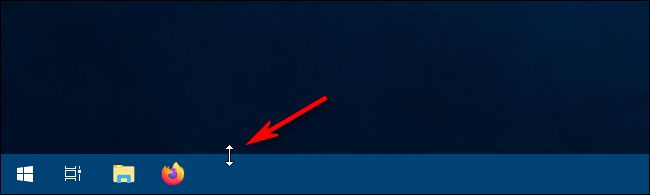
<p style="text-align: justify;">Đầu tiên, định vị con trỏ chuột trên cạnh của Taskbar. Con trỏ chuột sẽ thay đổi sang con trỏ thay đổi kích thước, trông giống như một đường thẳng đứng ngắn với mũi tên ở 2 đầu.</p>

<figure>
<div style="text-align: justify;"><img alt="Con trỏ chuột sẽ thay đổi sang con trỏ thay đổi kích thước" data-i="1" data-src="https://st.quantrimang.com/photos/image/2020/05/21/thay-doi-chieu-cao-hoac-chieu-rong-cua-taskbar-2.png" data-was-processed="true" height="195" src="https://st.quantrimang.com/photos/image/2020/05/21/thay-doi-chieu-cao-hoac-chieu-rong-cua-taskbar-2.png" width="650" /></div>

<figcaption>
<div style="text-align: justify;">Con trỏ chuột sẽ thay đổi sang con trỏ thay đổi kích thước</div>
</figcaption>
</figure>

<p style="text-align: justify;">Khi bạn thấy con trỏ thay đổi kích thước, nhấp và kéo chuột lên hoặc xuống để thay đổi chiều cao của Taskbar.</p>

<figure>
<div style="text-align: justify;"><img alt="Nhấp và kéo chuột lên hoặc xuống để thay đổi chiều cao của Taskbar" data-i="2" data-src="https://st.quantrimang.com/photos/image/2020/05/21/thay-doi-chieu-cao-hoac-chieu-rong-cua-taskbar-3.jpg" data-was-processed="true" height="338" src="https://st.quantrimang.com/photos/image/2020/05/21/thay-doi-chieu-cao-hoac-chieu-rong-cua-taskbar-3.jpg" width="600" /></div>

<figcaption>
<div style="text-align: justify;">Nhấp và kéo chuột lên hoặc xuống để thay đổi chiều cao của Taskbar</div>
</figcaption>
</figure>

<p style="text-align: justify;">Sau khi thay đổi sang chiều cao mong muốn, hãy nhả nút chuột và Taskbar sẽ giữ nguyên kích thước đó.</p>

<figure>
<div style="text-align: justify;"><img alt="Nhả nút chuột và Taskbar sẽ giữ nguyên kích thước" data-i="3" data-src="https://st.quantrimang.com/photos/image/2020/05/21/thay-doi-chieu-cao-hoac-chieu-rong-cua-taskbar-4.jpg" data-was-processed="true" height="338" src="https://st.quantrimang.com/photos/image/2020/05/21/thay-doi-chieu-cao-hoac-chieu-rong-cua-taskbar-4.jpg" width="600" /></div>

<figcaption>
<div style="text-align: justify;">Nhả nút chuột và Taskbar sẽ giữ nguyên kích thước</div>
</figcaption>
</figure>

<p style="text-align: justify;">Nếu thích, bạn có thể nhấp chuột phải vào Taskbar và khóa lại bằng cách sử dụng tùy chọn&nbsp;<strong>Lock The Taskbar</strong>&nbsp;để không vô tình thay đổi kích thước sau đó.</p>

<h2 style="text-align: justify;">Cách thay đổi độ rộng của Taskbar</h2>

<p style="text-align: justify;">Để thay đổi độ rộng của Taskbar trong Windows 10, Taskbar phải đặt theo chiều dọc và đã được mở khóa.</p>

<div style="text-align: justify;">&nbsp;</div>

<p style="text-align: justify;">Nếu Taskbar của bạn chưa được đặt theo chiều dọc, hãy nhấp vào nó và kéo con trỏ chuột sang cạnh trái hoặc phải của màn hình.</p>

<figure>
<div style="text-align: justify;"><img alt="Nhấp và kéo con trỏ chuột sang cạnh trái hoặc phải của màn hình" data-i="4" data-src="https://st.quantrimang.com/photos/image/2020/05/21/thay-doi-chieu-cao-hoac-chieu-rong-cua-taskbar-5.jpg" data-was-processed="true" height="338" src="https://st.quantrimang.com/photos/image/2020/05/21/thay-doi-chieu-cao-hoac-chieu-rong-cua-taskbar-5.jpg" width="600" /></div>

<figcaption>
<div style="text-align: justify;">Nhấp và kéo con trỏ chuột sang cạnh trái hoặc phải của màn hình</div>
</figcaption>
</figure>

<p style="text-align: justify;">Khi con trỏ đặt đủ gần với cạnh, Taskbar sẽ chuyển sang vị trí thẳng đứng.</p>

<figure>
<div style="text-align: justify;"><img alt="Taskbar sẽ chuyển sang vị trí thẳng đứng" data-i="5" data-src="https://st.quantrimang.com/photos/image/2020/05/21/thay-doi-chieu-cao-hoac-chieu-rong-cua-taskbar-6.jpg" data-was-processed="true" height="338" src="https://st.quantrimang.com/photos/image/2020/05/21/thay-doi-chieu-cao-hoac-chieu-rong-cua-taskbar-6.jpg" width="600" /></div>

<figcaption>
<div style="text-align: justify;">Taskbar sẽ chuyển sang vị trí thẳng đứng</div>
</figcaption>
</figure>

<p style="text-align: justify;">Bây giờ, bạn có thể thay đổi chiều rộng của nó. Định vị con trỏ chuột trên cạnh của Taskbar. Con trỏ chuột sẽ chuyển thành con trỏ thay đổi kích thước, trông giống như một đường kẻ ngang ngắn với mũi tên ở 2 đầu.</p>

<figure>
<div style="text-align: justify;"><img alt="Định vị con trỏ chuột trên cạnh của Taskbar" data-i="6" data-src="https://st.quantrimang.com/photos/image/2020/05/21/thay-doi-chieu-cao-hoac-chieu-rong-cua-taskbar-7.png" data-was-processed="true" height="266" src="https://st.quantrimang.com/photos/image/2020/05/21/thay-doi-chieu-cao-hoac-chieu-rong-cua-taskbar-7.png" width="650" /></div>

<figcaption>
<div style="text-align: justify;">Định vị con trỏ chuột trên cạnh của Taskbar</div>
</figcaption>
</figure>

<p style="text-align: justify;">Khi bạn thấy con trỏ thay đổi kích thước, hãy nhấp và kéo chuột sang trái hoặc phải để thay đổi độ rộng của Taskbar.</p>

<figure>
<div style="text-align: justify;"><img alt="Nhấp và kéo chuột sang trái hoặc phải để thay đổi độ rộng của Taskbar" data-i="7" data-src="https://st.quantrimang.com/photos/image/2020/05/21/thay-doi-chieu-cao-hoac-chieu-rong-cua-taskbar-8.jpg" data-was-processed="true" height="338" src="https://st.quantrimang.com/photos/image/2020/05/21/thay-doi-chieu-cao-hoac-chieu-rong-cua-taskbar-8.jpg" width="600" /></div>

<figcaption>
<div style="text-align: justify;">Nhấp và kéo chuột sang trái hoặc phải để thay đổi độ rộng của Taskbar</div>
</figcaption>
</figure>

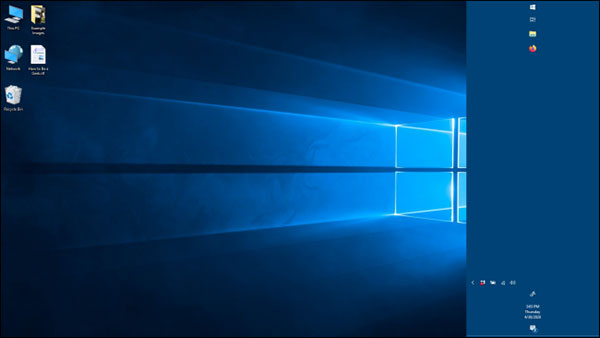
<p style="text-align: justify;">Khi đạt được chiều rộng mong muốn, nhả nút chuột và Taskbar sẽ giữ nguyên kích thước đó.</p>

<figure>
<div style="text-align: justify;"><img alt="Khi đạt được chiều rộng mong muốn, nhả nút chuột ra" data-i="8" data-src="https://st.quantrimang.com/photos/image/2020/05/21/thay-doi-chieu-cao-hoac-chieu-rong-cua-taskbar-9.jpg" data-was-processed="true" height="338" src="https://st.quantrimang.com/photos/image/2020/05/21/thay-doi-chieu-cao-hoac-chieu-rong-cua-taskbar-9.jpg" width="600" /></div>

<figcaption>
<div style="text-align: justify;">Khi đạt được chiều rộng mong muốn, nhả nút chuột ra</div>
</figcaption>
</figure>

<p style="text-align: justify;">Khi có được chiều rộng mong muốn, thông thường tốt nhất là nhấp chuột phải vào Taskbar và khóa nó lại bằng cách sử dụng tùy chọn&nbsp;<strong>Lock The Taskbar</strong>&nbsp;để không vô tình thay đổi kích thước sau đó. Bây giờ, bạn có thể sử dụng Taskbar như bình thường.</p>

<p style="text-align: justify;">Sau khi điều chỉnh chiều cao hoặc chiều rộng, bạn có thể muốn khám phá các cách khác để&nbsp;tùy chỉnh Taskbar trong Windows 10, chẳng hạn như ghim ứng dụng vào nó hoặc xóa hộp tìm kiếm Cortana.</p>

<p style="text-align: justify;">Chúc bạn thực hiện thành công</p>
		</div>
				<div id="author">
						<p>
				<strong>Nguồn tin:</strong>
				Quantrimang.com
			</p>
		</div>
	</div>
	<div id="footer" class="clearfix">
		<div id="url">
			<strong>URL của bản tin này: </strong><a href="https://www.nguoicodonvn2008.info/vi/news/savefile/kien-thuc-may-tinh/cach-thay-doi-chieu-cao-hoac-chieu-rong-cua-taskbar-tren-windows-10-2076.html" title="Cách thay đổi chiều cao hoặc chiều rộng của Taskbar trên Windows 10">https://www.nguoicodonvn2008.info/vi/news/savefile/kien-thuc-may-tinh/cach-thay-doi-chieu-cao-hoac-chieu-rong-cua-taskbar-tren-windows-10-2076.html</a>

		</div>
		<div class="clear"></div>
		<div class="copyright">
			&copy; .&#x3A; Nguoicodonvn2008.info - Cõi lòng người cô đơn &#x3A;.
		</div>
		<div id="contact">
			<a href="mailto:admin@nguoicodonvn2008.info">admin@nguoicodonvn2008.info</a>
		</div>
	</div>
</div>
        <div id="timeoutsess" class="chromeframe">
            Bạn đã không sử dụng Site, <a onclick="timeoutsesscancel();" href="https://nguoicodonvn2008.info/#">Bấm vào đây để duy trì trạng thái đăng nhập</a>. Thời gian chờ: <span id="secField"> 60 </span> giây
        </div>
        <div id="openidResult" class="nv-alert" style="display:none"></div>
        <div id="openidBt" data-result="" data-redirect=""></div>
		</script>
		<div class="car-top">
  <span><img src="https://nguoicodonvn2008.info/themes/default/images/car.png" alt=""></span>
</div>
<script src="https://nguoicodonvn2008.info/assets/js/jquery/jquery.min.js"></script>
<script>var nv_base_siteurl="/",nv_lang_data="vi",nv_lang_interface="vi",nv_name_variable="nv",nv_fc_variable="op",nv_lang_variable="language",nv_module_name="news",nv_func_name="savefile",nv_is_user=0, nv_my_ofs=-4,nv_my_abbr="EDT",nv_cookie_prefix="nv4c_e856T",nv_check_pass_mstime=1738000,nv_area_admin=0,nv_safemode=0,theme_responsive=0,nv_recaptcha_ver=2,nv_recaptcha_sitekey="",nv_recaptcha_type="image",XSSsanitize=1;</script>
<script src="https://nguoicodonvn2008.info/assets/js/language/vi.js"></script>
<script src="https://nguoicodonvn2008.info/assets/js/DOMPurify/purify3.js"></script>
<script src="https://nguoicodonvn2008.info/assets/js/global.js"></script>
<script src="https://nguoicodonvn2008.info/assets/js/site.js"></script>
<script src="https://nguoicodonvn2008.info/themes/default/js/news.js"></script>
<script src="https://nguoicodonvn2008.info/themes/default/js/main.js"></script>
<script src="https://nguoicodonvn2008.info/themes/default/js/custom.js"></script>
<script type="application/ld+json">
        {
            "@context": "https://schema.org",
            "@type": "Organization",
            "url": "https://nguoicodonvn2008.info",
            "logo": "https://nguoicodonvn2008.info/uploads/angel.gif"
        }
        </script>
<script src="https://nguoicodonvn2008.info/themes/default/js/bootstrap.min.js"></script>
<script type="text/javascript">
var $scrolltop = $('.car-top');
$scrolltop.on('click', function () {
    $('html,body').animate({
        scrollTop: 0
    }, 800);
    $(this).addClass("car-run");
    setTimeout(function(){ $scrolltop.removeClass('car-run');}, 1000);
    return false;
});
$(window).on('scroll', function ()
{ 
    if($(window).scrollTop() >= 200)
    {
        $scrolltop.addClass("show");
        $scrolltop.addClass("car-down");
    }
    else
    {
       $scrolltop.removeClass("show");
       setTimeout(function(){ $scrolltop.removeClass('car-down');}, 300);
    }
});
</script>
</body>
</html>