<!DOCTYPE html>
    <html lang="vi" xmlns="http://www.w3.org/1999/xhtml" prefix="og: http://ogp.me/ns#">
    <head>
<title>Cách thay đổi cài đặt vùng trên Windows 10</title>
<meta name="description" content="Cách thay đổi cài đặt vùng trên Windows 10 - Savefile - Tin Tức -...">
<meta name="author" content=".: Nguoicodonvn2008.info - Cõi lòng người cô đơn :.">
<meta name="copyright" content=".: Nguoicodonvn2008.info - Cõi lòng người cô đơn :. [admin@nguoicodonvn2008.info]">
<meta name="robots" content="index, archive, follow, noodp">
<meta name="googlebot" content="index,archive,follow,noodp">
<meta name="msnbot" content="all,index,follow">
<meta name="generator" content="NukeViet v4.5">
<meta http-equiv="Content-Type" content="text/html; charset=utf-8">
<meta property="og:title" content="Cách thay đổi cài đặt vùng trên Windows 10">
<meta property="og:type" content="website">
<meta property="og:description" content="Savefile - Tin Tức - https&#x3A;&#x002F;&#x002F;www.nguoicodonvn2008.info&#x002F;vi&#x002F;news&#x002F;savefile&#x002F;kien-thuc-may-tinh&#x002F;cach-thay-doi-cai-dat-vung-tren-windows-10-2514.html">
<meta property="og:site_name" content=".&#x3A; Nguoicodonvn2008.info - Cõi lòng người cô đơn &#x3A;.">
<meta property="og:url" content="https://www.nguoicodonvn2008.info/vi/news/savefile/kien-thuc-may-tinh/cach-thay-doi-cai-dat-vung-tren-windows-10-2514.html">
<link rel="shortcut icon" href="https://nguoicodonvn2008.info/favicon.ico">
<link rel="canonical" href="https://www.nguoicodonvn2008.info/vi/news/savefile/kien-thuc-may-tinh/cach-thay-doi-cai-dat-vung-tren-windows-10-2514.html">
<link rel="alternate" href="https://nguoicodonvn2008.info/vi/news/rss/" title="Tin Tức" type="application/rss+xml">
<link rel="alternate" href="https://nguoicodonvn2008.info/vi/news/rss/karaoke-dual/" title="Tin Tức - Karaoke Dual" type="application/rss+xml">
<link rel="alternate" href="https://nguoicodonvn2008.info/vi/news/rss/nhac-tre/" title="Tin Tức - Nhạc trẻ" type="application/rss+xml">
<link rel="alternate" href="https://nguoicodonvn2008.info/vi/news/rss/tru-tinh/" title="Tin Tức - Trữ tình" type="application/rss+xml">
<link rel="alternate" href="https://nguoicodonvn2008.info/vi/news/rss/nuoc-ngoai/" title="Tin Tức - Nước ngoài" type="application/rss+xml">
<link rel="alternate" href="https://nguoicodonvn2008.info/vi/news/rss/remix/" title="Tin Tức - Remix" type="application/rss+xml">
<link rel="alternate" href="https://nguoicodonvn2008.info/vi/news/rss/tam-su-tinh-yeu/" title="Tin Tức - Tâm sự tình yêu" type="application/rss+xml">
<link rel="alternate" href="https://nguoicodonvn2008.info/vi/news/rss/tho-suu-tam/" title="Tin Tức - Thơ sưu tầm" type="application/rss+xml">
<link rel="alternate" href="https://nguoicodonvn2008.info/vi/news/rss/cuoc-song/" title="Tin Tức - Cuộc sống" type="application/rss+xml">
<link rel="alternate" href="https://nguoicodonvn2008.info/vi/news/rss/phan-mem/" title="Tin Tức - Phần mềm" type="application/rss+xml">
<link rel="alternate" href="https://nguoicodonvn2008.info/vi/news/rss/kien-thuc-may-tinh/" title="Tin Tức - Kiến thức máy tính" type="application/rss+xml">
<link rel="alternate" href="https://nguoicodonvn2008.info/vi/news/rss/hoc-tap/" title="Tin Tức - Học tập" type="application/rss+xml">
<link rel="alternate" href="https://nguoicodonvn2008.info/vi/news/rss/tai-lieu/" title="Tin Tức - Tài liệu" type="application/rss+xml">
<link rel="alternate" href="https://nguoicodonvn2008.info/vi/news/rss/de-thi/" title="Tin Tức - Đề thi" type="application/rss+xml">
<link rel="preload" as="style" href="https://nguoicodonvn2008.info/assets/css/font-awesome.min.css" type="text/css">
<link rel="preload" as="style" href="https://nguoicodonvn2008.info/themes/default/css/bootstrap.non-responsive.css" type="text/css">
<link rel="preload" as="style" href="https://nguoicodonvn2008.info/themes/default/css/style.css" type="text/css">
<link rel="preload" as="style" href="https://nguoicodonvn2008.info/themes/default/css/style.non-responsive.css" type="text/css">
<link rel="preload" as="style" href="https://nguoicodonvn2008.info/themes/default/css/news.css" type="text/css">
<link rel="preload" as="style" href="https://nguoicodonvn2008.info/themes/default/css/custom.css" type="text/css">
<link rel="preload" as="script" href="https://nguoicodonvn2008.info/assets/js/jquery/jquery.min.js" type="text/javascript">
<link rel="preload" as="script" href="https://nguoicodonvn2008.info/assets/js/language/vi.js" type="text/javascript">
<link rel="preload" as="script" href="https://nguoicodonvn2008.info/assets/js/DOMPurify/purify3.js" type="text/javascript">
<link rel="preload" as="script" href="https://nguoicodonvn2008.info/assets/js/global.js" type="text/javascript">
<link rel="preload" as="script" href="https://nguoicodonvn2008.info/assets/js/site.js" type="text/javascript">
<link rel="preload" as="script" href="https://nguoicodonvn2008.info/themes/default/js/news.js" type="text/javascript">
<link rel="preload" as="script" href="https://nguoicodonvn2008.info/themes/default/js/main.js" type="text/javascript">
<link rel="preload" as="script" href="https://nguoicodonvn2008.info/themes/default/js/custom.js" type="text/javascript">
<link rel="preload" as="script" href="https://nguoicodonvn2008.info/themes/default/js/bootstrap.min.js" type="text/javascript">
<link rel="stylesheet" href="https://nguoicodonvn2008.info/assets/css/font-awesome.min.css">
<link rel="stylesheet" href="https://nguoicodonvn2008.info/themes/default/css/bootstrap.non-responsive.css">
<link rel="stylesheet" href="https://nguoicodonvn2008.info/themes/default/css/style.css">
<link rel="stylesheet" href="https://nguoicodonvn2008.info/themes/default/css/style.non-responsive.css">
<link rel="StyleSheet" href="https://nguoicodonvn2008.info/themes/default/css/news.css">
<link rel="stylesheet" href="https://nguoicodonvn2008.info/themes/default/css/custom.css">
<style type="text/css">
	body{background: #fff;}
</style>
    </head>
    <body>
<div id="print">
	<div id="hd_print">
		<h2 class="pull-left">.&#x3A; Nguoicodonvn2008.info - Cõi lòng người cô đơn &#x3A;.</h2>
		<p class="pull-right"><a title=".&#x3A; Nguoicodonvn2008.info - Cõi lòng người cô đơn &#x3A;." href="https://nguoicodonvn2008.info/">https://nguoicodonvn2008.info</a></p>
	</div>
	<div class="clear"></div>
	<hr />
	<div id="content">
		<h1>Cách thay đổi cài đặt vùng trên Windows 10</h1>
		<ul class="list-inline">
			<li>Thứ năm - 13/08/2020 00:47</li>
			<li class="hidden-print txtrequired"><em class="fa fa-print">&nbsp;</em><a title="In ra" href="javascript:;" onclick="window.print()">In ra</a></li>
			<li class="hidden-print txtrequired"><em class="fa fa-power-off">&nbsp;</em><a title="Đóng cửa sổ này" href="javascript:;" onclick="window.close()">Đóng cửa sổ này</a></li>
		</ul>
		<div class="clear"></div>
		<div id="hometext">
		</div>
				<div class="imghome">
			<img alt="Cách thay đổi cài đặt vùng trên Windows 10" src="https://st.quantrimang.com/photos/image/2020/08/12/thay-doi-cai-dat-vung-2.jpg" width="460" class="img-thumbnail" />
		</div>
		<div class="clear"></div>
		<div id="bodytext" class="clearfix">
			<p style="text-align: justify;">Trên Windows 10, cài đặt khu vực cho phép hệ điều hành và ứng dụng (ví dụ: Microsoft Store) cá nhân hóa trải nghiệm hiển thị nội dung cho người dùng dựa trên vị trí. Ngoài ra, dựa trên vị trí, Windows 10 cũng có thể&nbsp;tự động hiển thị định dạng chính xác cho ngày, giờ,&nbsp;ngôn ngữ&nbsp;và&nbsp;đơn vị tiền tệ.</p>

<h2 style="text-align: justify;">Thay đổi cài đặt khu vực theo cách cũ</h2>

<p style="text-align: justify;">Trước đây, bạn cần&nbsp;sử dụng Control Panel&nbsp;để thay đổi cài đặt khu vực, chẳng hạn như&nbsp;ngày đầu tuần, đơn vị tiền tệ và định dạng ngày giờ. Tuy nhiên, bây giờ bạn có thể điều chỉnh các tùy chọn này bằng cách sử dụng trang cài đặt&nbsp;<strong>&quot;Region&quot;</strong>&nbsp;với ứng dụng&nbsp;<strong>Settings.</strong></p>

<p style="text-align: justify;">Trong hướng dẫn này, bạn sẽ tìm hiểu các bước để thay đổi vị trí trên Windows 10 và thiết lập các định dạng khu vực chính xác.</p>

<div style="text-align: justify;">&nbsp;</div>

<h2 style="text-align: justify;">Thay đổi cài đặt định dạng khu vực và vị trí trên Windows 10</h2>

<p style="text-align: justify;">Để điều chỉnh cài đặt khu vực, hãy làm theo các bước sau:</p>

<p style="text-align: justify;">1.&nbsp;Mở Settings trên Windows 10.</p>

<p style="text-align: justify;">2. Nhấp vào&nbsp;<strong>Time &amp; Language</strong>.</p>

<p style="text-align: justify;">3. Nhấp vào&nbsp;<strong>Region.</strong></p>

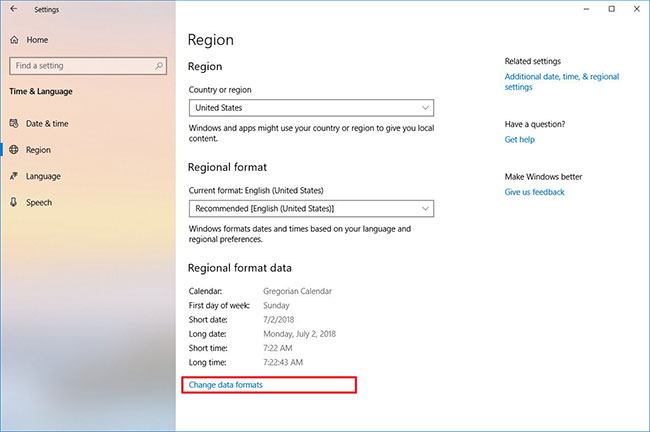
<p style="text-align: justify;">4. Trong phần&nbsp;<strong>Region</strong>, sử dụng menu drop-down để đặt vị trí chính xác của bạn.</p>

<p style="text-align: justify;">5. Trong phần&nbsp;<strong>Regional format</strong>, hãy sử dụng menu drop-down để quyết định xem Windows 10 có nên cấu hình các định dạng ngày giờ dựa trên cài đặt ngôn ngữ và khu vực của bạn hay không.</p>

<p style="text-align: justify;">6. Trong phần&nbsp;<strong>Regional format data</strong>, nhấp vào tùy chọn&nbsp;<strong>Change data formats</strong>.</p>

<figure>
<div style="text-align: justify;"><img alt="Nhấp vào tùy chọn Change data formats" data-i="0" data-src="https://st.quantrimang.com/photos/image/2020/08/12/thay-doi-cai-dat-vung-1.jpg" data-was-processed="true" height="432" src="https://st.quantrimang.com/photos/image/2020/08/12/thay-doi-cai-dat-vung-1.jpg" width="650" /></div>

<figcaption>
<div style="text-align: justify;">Nhấp vào tùy chọn Change data formats</div>
</figcaption>
</figure>

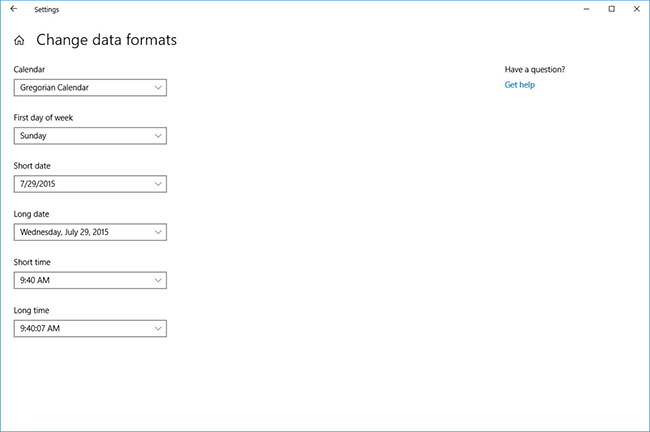
<p style="text-align: justify;">7. Chọn các tùy chọn ngôn ngữ:</p>

<ul>
	<li style="text-align: justify;">Calendar.</li>
	<li style="text-align: justify;">First day of the week.</li>
	<li style="text-align: justify;">Short date.</li>
	<li style="text-align: justify;">Long date.</li>
	<li style="text-align: justify;">Short time.</li>
	<li style="text-align: justify;">Long time.</li>
	<li style="text-align: justify;">Currency.</li>
</ul>

<figure>
<div style="text-align: justify;"><img alt="Chọn các tùy chọn ngôn ngữ" data-i="1" data-src="https://st.quantrimang.com/photos/image/2020/08/12/thay-doi-cai-dat-vung-2.jpg" data-was-processed="true" height="432" src="https://st.quantrimang.com/photos/image/2020/08/12/thay-doi-cai-dat-vung-2.jpg" width="650" /></div>

<figcaption>
<div style="text-align: justify;">Chọn các tùy chọn ngôn ngữ</div>
</figcaption>
</figure>

<p style="text-align: justify;">Khi bạn hoàn thành các bước, cài đặt khu vực sẽ phản ánh tùy chọn của bạn. Tuy nhiên, bạn có thể cần phải đóng và mở lại một số ứng dụng để cài đặt có hiệu lực.</p>

<p style="text-align: justify;">Mặc dù trang này bao gồm hầu hết các cài đặt khu vực, nhưng nếu bạn cần điều chỉnh ngôn ngữ cho các chương trình không phải Unicode hoặc tạo một bản sao cài đặt, ở phía bên phải của trang&nbsp;<strong>Region</strong>, trong&nbsp;<strong>Related settings</strong>, hãy nhấp vào tùy chọn&nbsp;<strong>Additional date, time, &amp; regional settings</strong>. Liên kết sẽ mở cài đặt&nbsp;<strong>Clock and Region</strong>&nbsp;trong&nbsp;<strong>Control</strong>&nbsp;<strong>Panel</strong>, nơi bạn có thể truy cập cài đặt&nbsp;<strong>Region</strong>&nbsp;để thay đổi tùy chọn&nbsp;<strong>Administrative.</strong></p>
		</div>
				<div id="author">
						<p>
				<strong>Nguồn tin:</strong>
				Quantrimang.com
			</p>
		</div>
	</div>
	<div id="footer" class="clearfix">
		<div id="url">
			<strong>URL của bản tin này: </strong><a href="https://www.nguoicodonvn2008.info/vi/news/savefile/kien-thuc-may-tinh/cach-thay-doi-cai-dat-vung-tren-windows-10-2514.html" title="Cách thay đổi cài đặt vùng trên Windows 10">https://www.nguoicodonvn2008.info/vi/news/savefile/kien-thuc-may-tinh/cach-thay-doi-cai-dat-vung-tren-windows-10-2514.html</a>

		</div>
		<div class="clear"></div>
		<div class="copyright">
			&copy; .&#x3A; Nguoicodonvn2008.info - Cõi lòng người cô đơn &#x3A;.
		</div>
		<div id="contact">
			<a href="mailto:admin@nguoicodonvn2008.info">admin@nguoicodonvn2008.info</a>
		</div>
	</div>
</div>
        <div id="timeoutsess" class="chromeframe">
            Bạn đã không sử dụng Site, <a onclick="timeoutsesscancel();" href="https://nguoicodonvn2008.info/#">Bấm vào đây để duy trì trạng thái đăng nhập</a>. Thời gian chờ: <span id="secField"> 60 </span> giây
        </div>
        <div id="openidResult" class="nv-alert" style="display:none"></div>
        <div id="openidBt" data-result="" data-redirect=""></div>
		</script>
		<div class="car-top">
  <span><img src="https://nguoicodonvn2008.info/themes/default/images/car.png" alt=""></span>
</div>
<script src="https://nguoicodonvn2008.info/assets/js/jquery/jquery.min.js"></script>
<script>var nv_base_siteurl="/",nv_lang_data="vi",nv_lang_interface="vi",nv_name_variable="nv",nv_fc_variable="op",nv_lang_variable="language",nv_module_name="news",nv_func_name="savefile",nv_is_user=0, nv_my_ofs=-4,nv_my_abbr="EDT",nv_cookie_prefix="nv4c_e856T",nv_check_pass_mstime=1738000,nv_area_admin=0,nv_safemode=0,theme_responsive=0,nv_recaptcha_ver=2,nv_recaptcha_sitekey="",nv_recaptcha_type="image",XSSsanitize=1;</script>
<script src="https://nguoicodonvn2008.info/assets/js/language/vi.js"></script>
<script src="https://nguoicodonvn2008.info/assets/js/DOMPurify/purify3.js"></script>
<script src="https://nguoicodonvn2008.info/assets/js/global.js"></script>
<script src="https://nguoicodonvn2008.info/assets/js/site.js"></script>
<script src="https://nguoicodonvn2008.info/themes/default/js/news.js"></script>
<script src="https://nguoicodonvn2008.info/themes/default/js/main.js"></script>
<script src="https://nguoicodonvn2008.info/themes/default/js/custom.js"></script>
<script type="application/ld+json">
        {
            "@context": "https://schema.org",
            "@type": "Organization",
            "url": "https://nguoicodonvn2008.info",
            "logo": "https://nguoicodonvn2008.info/uploads/angel.gif"
        }
        </script>
<script src="https://nguoicodonvn2008.info/themes/default/js/bootstrap.min.js"></script>
<script type="text/javascript">
var $scrolltop = $('.car-top');
$scrolltop.on('click', function () {
    $('html,body').animate({
        scrollTop: 0
    }, 800);
    $(this).addClass("car-run");
    setTimeout(function(){ $scrolltop.removeClass('car-run');}, 1000);
    return false;
});
$(window).on('scroll', function ()
{ 
    if($(window).scrollTop() >= 200)
    {
        $scrolltop.addClass("show");
        $scrolltop.addClass("car-down");
    }
    else
    {
       $scrolltop.removeClass("show");
       setTimeout(function(){ $scrolltop.removeClass('car-down');}, 300);
    }
});
</script>
</body>
</html>