<!DOCTYPE html>
    <html lang="vi" xmlns="http://www.w3.org/1999/xhtml" prefix="og: http://ogp.me/ns#">
    <head>
<title>Cách thay đổi cài đặt lịch trình cho Optimize Drives trong Windows 10</title>
<meta name="description" content="Cách thay đổi cài đặt lịch trình cho Optimize Drives trong Windows 10 - Savefile - Tin Tức -...">
<meta name="author" content=".: Nguoicodonvn2008.info - Cõi lòng người cô đơn :.">
<meta name="copyright" content=".: Nguoicodonvn2008.info - Cõi lòng người cô đơn :. [admin@nguoicodonvn2008.info]">
<meta name="robots" content="index, archive, follow, noodp">
<meta name="googlebot" content="index,archive,follow,noodp">
<meta name="msnbot" content="all,index,follow">
<meta name="generator" content="NukeViet v4.5">
<meta http-equiv="Content-Type" content="text/html; charset=utf-8">
<meta property="og:title" content="Cách thay đổi cài đặt lịch trình cho Optimize Drives trong Windows 10">
<meta property="og:type" content="website">
<meta property="og:description" content="Savefile - Tin Tức - https&#x3A;&#x002F;&#x002F;www.nguoicodonvn2008.info&#x002F;vi&#x002F;news&#x002F;savefile&#x002F;kien-thuc-may-tinh&#x002F;cach-thay-doi-cai-dat-lich-trinh-cho-optimize-drives-trong-windows-10-2965.html">
<meta property="og:site_name" content=".&#x3A; Nguoicodonvn2008.info - Cõi lòng người cô đơn &#x3A;.">
<meta property="og:url" content="https://www.nguoicodonvn2008.info/vi/news/savefile/kien-thuc-may-tinh/cach-thay-doi-cai-dat-lich-trinh-cho-optimize-drives-trong-windows-10-2965.html">
<link rel="shortcut icon" href="https://nguoicodonvn2008.info/favicon.ico">
<link rel="canonical" href="https://www.nguoicodonvn2008.info/vi/news/savefile/kien-thuc-may-tinh/cach-thay-doi-cai-dat-lich-trinh-cho-optimize-drives-trong-windows-10-2965.html">
<link rel="alternate" href="https://nguoicodonvn2008.info/vi/news/rss/" title="Tin Tức" type="application/rss+xml">
<link rel="alternate" href="https://nguoicodonvn2008.info/vi/news/rss/karaoke-dual/" title="Tin Tức - Karaoke Dual" type="application/rss+xml">
<link rel="alternate" href="https://nguoicodonvn2008.info/vi/news/rss/nhac-tre/" title="Tin Tức - Nhạc trẻ" type="application/rss+xml">
<link rel="alternate" href="https://nguoicodonvn2008.info/vi/news/rss/tru-tinh/" title="Tin Tức - Trữ tình" type="application/rss+xml">
<link rel="alternate" href="https://nguoicodonvn2008.info/vi/news/rss/nuoc-ngoai/" title="Tin Tức - Nước ngoài" type="application/rss+xml">
<link rel="alternate" href="https://nguoicodonvn2008.info/vi/news/rss/remix/" title="Tin Tức - Remix" type="application/rss+xml">
<link rel="alternate" href="https://nguoicodonvn2008.info/vi/news/rss/tam-su-tinh-yeu/" title="Tin Tức - Tâm sự tình yêu" type="application/rss+xml">
<link rel="alternate" href="https://nguoicodonvn2008.info/vi/news/rss/tho-suu-tam/" title="Tin Tức - Thơ sưu tầm" type="application/rss+xml">
<link rel="alternate" href="https://nguoicodonvn2008.info/vi/news/rss/cuoc-song/" title="Tin Tức - Cuộc sống" type="application/rss+xml">
<link rel="alternate" href="https://nguoicodonvn2008.info/vi/news/rss/phan-mem/" title="Tin Tức - Phần mềm" type="application/rss+xml">
<link rel="alternate" href="https://nguoicodonvn2008.info/vi/news/rss/kien-thuc-may-tinh/" title="Tin Tức - Kiến thức máy tính" type="application/rss+xml">
<link rel="alternate" href="https://nguoicodonvn2008.info/vi/news/rss/hoc-tap/" title="Tin Tức - Học tập" type="application/rss+xml">
<link rel="alternate" href="https://nguoicodonvn2008.info/vi/news/rss/tai-lieu/" title="Tin Tức - Tài liệu" type="application/rss+xml">
<link rel="alternate" href="https://nguoicodonvn2008.info/vi/news/rss/de-thi/" title="Tin Tức - Đề thi" type="application/rss+xml">
<link rel="preload" as="style" href="https://nguoicodonvn2008.info/assets/css/font-awesome.min.css" type="text/css">
<link rel="preload" as="style" href="https://nguoicodonvn2008.info/themes/default/css/bootstrap.non-responsive.css" type="text/css">
<link rel="preload" as="style" href="https://nguoicodonvn2008.info/themes/default/css/style.css" type="text/css">
<link rel="preload" as="style" href="https://nguoicodonvn2008.info/themes/default/css/style.non-responsive.css" type="text/css">
<link rel="preload" as="style" href="https://nguoicodonvn2008.info/themes/default/css/news.css" type="text/css">
<link rel="preload" as="style" href="https://nguoicodonvn2008.info/themes/default/css/custom.css" type="text/css">
<link rel="preload" as="script" href="https://nguoicodonvn2008.info/assets/js/jquery/jquery.min.js" type="text/javascript">
<link rel="preload" as="script" href="https://nguoicodonvn2008.info/assets/js/language/vi.js" type="text/javascript">
<link rel="preload" as="script" href="https://nguoicodonvn2008.info/assets/js/DOMPurify/purify3.js" type="text/javascript">
<link rel="preload" as="script" href="https://nguoicodonvn2008.info/assets/js/global.js" type="text/javascript">
<link rel="preload" as="script" href="https://nguoicodonvn2008.info/assets/js/site.js" type="text/javascript">
<link rel="preload" as="script" href="https://nguoicodonvn2008.info/themes/default/js/news.js" type="text/javascript">
<link rel="preload" as="script" href="https://nguoicodonvn2008.info/themes/default/js/main.js" type="text/javascript">
<link rel="preload" as="script" href="https://nguoicodonvn2008.info/themes/default/js/custom.js" type="text/javascript">
<link rel="preload" as="script" href="https://nguoicodonvn2008.info/themes/default/js/bootstrap.min.js" type="text/javascript">
<link rel="stylesheet" href="https://nguoicodonvn2008.info/assets/css/font-awesome.min.css">
<link rel="stylesheet" href="https://nguoicodonvn2008.info/themes/default/css/bootstrap.non-responsive.css">
<link rel="stylesheet" href="https://nguoicodonvn2008.info/themes/default/css/style.css">
<link rel="stylesheet" href="https://nguoicodonvn2008.info/themes/default/css/style.non-responsive.css">
<link rel="StyleSheet" href="https://nguoicodonvn2008.info/themes/default/css/news.css">
<link rel="stylesheet" href="https://nguoicodonvn2008.info/themes/default/css/custom.css">
<style type="text/css">
	body{background: #fff;}
</style>
    </head>
    <body>
<div id="print">
	<div id="hd_print">
		<h2 class="pull-left">.&#x3A; Nguoicodonvn2008.info - Cõi lòng người cô đơn &#x3A;.</h2>
		<p class="pull-right"><a title=".&#x3A; Nguoicodonvn2008.info - Cõi lòng người cô đơn &#x3A;." href="https://nguoicodonvn2008.info/">https://nguoicodonvn2008.info</a></p>
	</div>
	<div class="clear"></div>
	<hr />
	<div id="content">
		<h1>Cách thay đổi cài đặt lịch trình cho Optimize Drives trong Windows 10</h1>
		<ul class="list-inline">
			<li>Thứ ba - 27/10/2020 00:55</li>
			<li class="hidden-print txtrequired"><em class="fa fa-print">&nbsp;</em><a title="In ra" href="javascript:;" onclick="window.print()">In ra</a></li>
			<li class="hidden-print txtrequired"><em class="fa fa-power-off">&nbsp;</em><a title="Đóng cửa sổ này" href="javascript:;" onclick="window.close()">Đóng cửa sổ này</a></li>
		</ul>
		<div class="clear"></div>
		<div id="hometext">
		</div>
				<div class="imghome">
			<img alt="Cách thay đổi cài đặt lịch trình cho Optimize Drives trong Windows 10" src="https://st.quantrimang.com/photos/image/2020/10/26/doi-cai-dat-lich-bieu-cho-optimize-drives-1.jpg" width="460" class="img-thumbnail" />
		</div>
		<div class="clear"></div>
		<div id="bodytext" class="clearfix">
			<p style="text-align: justify;">Một trong những cách tốt nhất bạn có thể cải thiện hiệu suất của PC là tối ưu hóa ổ. Windows bao gồm các tính năng giúp tối ưu hóa các loại ổ khác nhau mà PC sử dụng hiện nay. Bất kể PC của bạn sử dụng loại ổ nào, Windows sẽ tự động chọn cách tối ưu hóa phù hợp với ổ của bạn.</p>

<p style="text-align: justify;">Theo mặc định, Optimize Drives, trước đây được gọi là&nbsp;Disk Defragmenter, chạy tự động theo lịch trình hàng tuần tại thời điểm được đặt trong chế độ bảo trì tự động. Nhưng bạn cũng có thể tối ưu hóa các ổ đĩa trên PC theo cách thủ công.</p>

<p style="text-align: justify;">Bạn có thể bật hoặc tắt việc chạy tối ưu hóa theo lịch trình, chọn tần suất chạy và ổ bạn muốn tối ưu hóa theo lịch trình thông thường.</p>

<p style="text-align: justify;">Trong hướng dẫn này,&nbsp;<strong>Quantrimang</strong>&nbsp;sẽ chỉ cho bạn cách thay đổi cài đặt lịch trình cho Optimize Drives theo cách bạn muốn trong Windows 10.</p>

<p style="text-align: justify;"><strong>Lưu ý:</strong></p>

<p style="text-align: justify;">Bạn phải đăng nhập với tư cách admin để có thể thay đổi cài đặt cho Optimize Drives.</p>

<h2 style="text-align: justify;">Cách thay đổi cài đặt lịch trình cho Optimize Drives trong Windows 10</h2>

<p style="text-align: justify;">Đây là cách thực hiện:</p>

<p style="text-align: justify;">1. Thực hiện bước 2 hoặc bước 3 bên dưới tùy theo cách bạn muốn mở Optimize Drives.</p>

<p style="text-align: justify;">2. Mở Optimize Drives từ ribbon File Explorer</p>

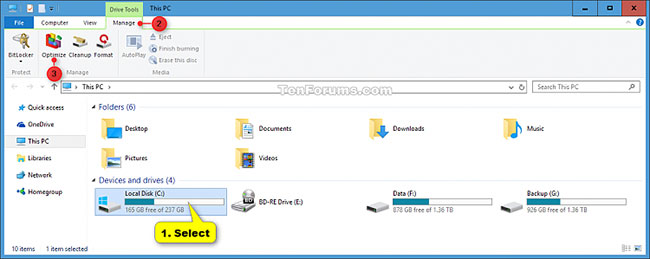
<p style="text-align: justify;">A) Mở&nbsp;<strong>This PC</strong>&nbsp;trong File Explorer (Win + E).</p>

<p style="text-align: justify;">B) Chọn bất kỳ ổ cứng nào, nhấp vào tab&nbsp;<strong>Drive Tools Manage</strong>, nhấn vào nút&nbsp;<strong>Optimize</strong>&nbsp;trong ribbon và chuyển đến bước 4 bên dưới.</p>

<figure>
<div style="text-align: justify;"><img alt="Chọn bất kỳ ổ cứng nào" data-i="0" data-src="https://st.quantrimang.com/photos/image/2020/10/26/doi-cai-dat-lich-bieu-cho-optimize-drives-1.jpg" data-was-processed="true" height="259" src="https://st.quantrimang.com/photos/image/2020/10/26/doi-cai-dat-lich-bieu-cho-optimize-drives-1.jpg" width="650" /></div>

<figcaption>
<div style="text-align: justify;">Chọn bất kỳ ổ cứng nào</div>
</figcaption>
</figure>

<p style="text-align: justify;">3. Mở Optimize Drives từ Drive Properties</p>

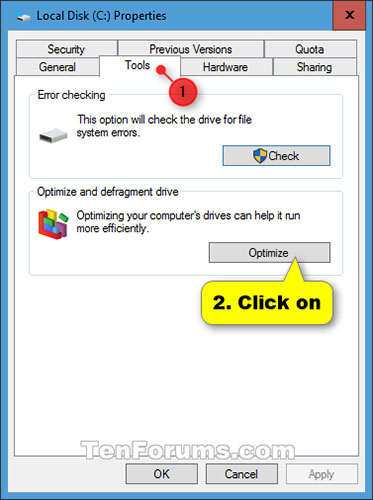
<p style="text-align: justify;">A) Mở&nbsp;<strong>This PC</strong>&nbsp;trong File Explorer.</p>

<p style="text-align: justify;">B) Nhấp chuột phải hoặc nhấn và giữ trên bất kỳ ổ cứng nào, rồi chọn&nbsp;<strong>Properties.</strong></p>

<p style="text-align: justify;">C) Nhấp vào tab&nbsp;<strong>Tools</strong>, chọn&nbsp;<strong>Optimize</strong>&nbsp;và chuyển sang bước 4 bên dưới.</p>

<figure>
<div style="text-align: justify;"><img alt="Nhấp vào tab Tools, chọn Optimize" data-i="1" data-src="https://st.quantrimang.com/photos/image/2020/10/26/doi-cai-dat-lich-bieu-cho-optimize-drives-2.jpg" data-was-processed="true" height="500" src="https://st.quantrimang.com/photos/image/2020/10/26/doi-cai-dat-lich-bieu-cho-optimize-drives-2.jpg" width="373" /></div>

<figcaption>
<div style="text-align: justify;">Nhấp vào tab Tools, chọn Optimize</div>
</figcaption>
</figure>

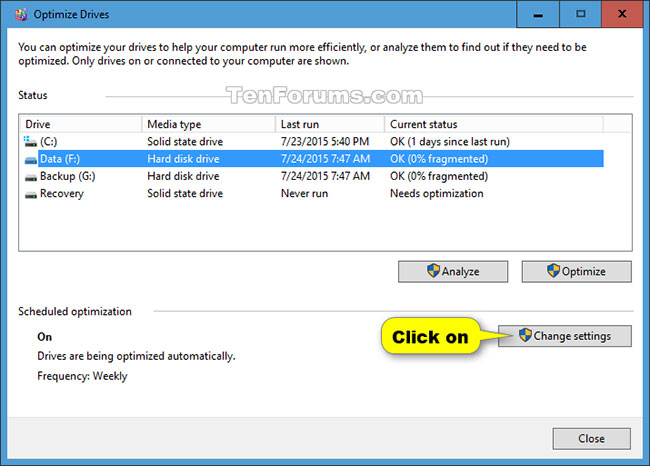
<p style="text-align: justify;">4. Nhấp vào nút&nbsp;<strong>Change settings.</strong></p>

<figure>
<div style="text-align: justify;"><img alt="Nhấp vào nút Change settings" data-i="2" data-src="https://st.quantrimang.com/photos/image/2020/10/26/doi-cai-dat-lich-bieu-cho-optimize-drives-3.jpg" data-was-processed="true" height="466" src="https://st.quantrimang.com/photos/image/2020/10/26/doi-cai-dat-lich-bieu-cho-optimize-drives-3.jpg" width="650" /></div>

<figcaption>
<div style="text-align: justify;">Nhấp vào nút Change settings</div>
</figcaption>
</figure>

<p style="text-align: justify;">5. Thực hiện bước 6 (tắt) hoặc bước 7 (bật) bên dưới để bật hoặc tắt tính năng chạy tối ưu hóa theo lịch trình thường xuyên.</p>

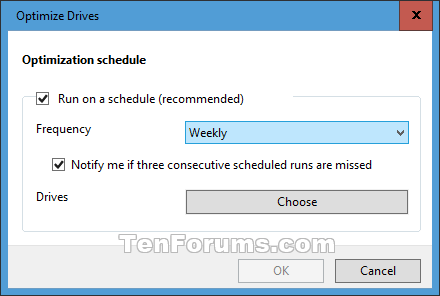
<p style="text-align: justify;">6. Để tắt tính năng chạy tối ưu hóa ổ theo lịch trình, bỏ chọn hộp&nbsp;<strong>Run on a schedule</strong>&nbsp;và chuyển sang bước 8 bên dưới.</p>

<p style="text-align: justify;">7. Để bật tính năng chạy tối ưu hóa ổ theo lịch:</p>

<p style="text-align: justify;">A) Chọn hộp&nbsp;<strong>Run on a schedule</strong>.</p>

<p style="text-align: justify;">B) Chọn tần suất hàng ngày, hàng tuần (mặc định) hoặc hàng tháng (tương ứng với&nbsp;<strong>Daily, Weekly</strong>&nbsp;hoặc<strong>&nbsp;Monthly</strong>) mà bạn muốn.</p>

<p style="text-align: justify;">C) Chọn (mặc định) hoặc bỏ chọn&nbsp;<strong>Notify if three consecutive scheduled runs are missed</strong>.</p>

<p style="text-align: justify;">D) Nhấp vào nút&nbsp;<strong>Choose.</strong></p>

<figure>
<div style="text-align: justify;"><img alt="Nhấp vào nút Choose" data-i="3" data-src="https://st.quantrimang.com/photos/image/2020/10/26/doi-cai-dat-lich-bieu-cho-optimize-drives-4.png" data-was-processed="true" height="296" src="https://st.quantrimang.com/photos/image/2020/10/26/doi-cai-dat-lich-bieu-cho-optimize-drives-4.png" width="440" /></div>

<figcaption>
<div style="text-align: justify;">Nhấp vào nút Choose</div>
</figcaption>
</figure>

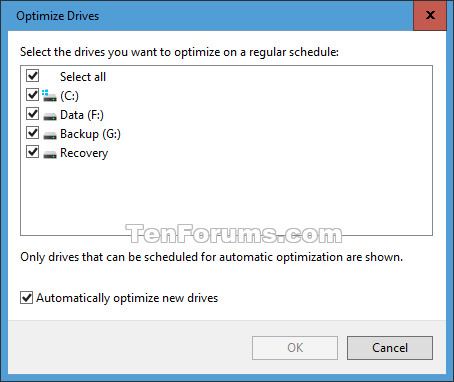
<p style="text-align: justify;">E) Chọn ổ bạn muốn tối ưu hóa theo lịch trình thường xuyên.&nbsp;<strong>Select all</strong>&nbsp;là cài đặt mặc định.</p>

<p style="text-align: justify;">F) Chọn (mặc định) hoặc bỏ chọn&nbsp;<strong>Automatically optimize new drives</strong>, nhấp vào&nbsp;<strong>OK</strong>&nbsp;và chuyển sang bước 8 bên dưới.</p>

<figure>
<div style="text-align: justify;"><img alt="Chọn hoặc bỏ chọn Automatically optimize new drives" data-i="4" data-src="https://st.quantrimang.com/photos/image/2020/10/26/doi-cai-dat-lich-bieu-cho-optimize-drives-5.png" data-was-processed="true" height="382" src="https://st.quantrimang.com/photos/image/2020/10/26/doi-cai-dat-lich-bieu-cho-optimize-drives-5.png" width="454" /></div>

<figcaption>
<div style="text-align: justify;">Chọn hoặc bỏ chọn Automatically optimize new drives</div>
</figcaption>
</figure>

<p style="text-align: justify;">8. Nhấn&nbsp;<strong>OK.</strong></p>

<p style="text-align: justify;">9. Bây giờ bạn có thể đóng&nbsp;<strong>Optimize Drives</strong>&nbsp;nếu muốn.</p>
		</div>
				<div id="author">
						<p>
				<strong>Nguồn tin:</strong>
				Quantrimang.com
			</p>
		</div>
	</div>
	<div id="footer" class="clearfix">
		<div id="url">
			<strong>URL của bản tin này: </strong><a href="https://www.nguoicodonvn2008.info/vi/news/savefile/kien-thuc-may-tinh/cach-thay-doi-cai-dat-lich-trinh-cho-optimize-drives-trong-windows-10-2965.html" title="Cách thay đổi cài đặt lịch trình cho Optimize Drives trong Windows 10">https://www.nguoicodonvn2008.info/vi/news/savefile/kien-thuc-may-tinh/cach-thay-doi-cai-dat-lich-trinh-cho-optimize-drives-trong-windows-10-2965.html</a>

		</div>
		<div class="clear"></div>
		<div class="copyright">
			&copy; .&#x3A; Nguoicodonvn2008.info - Cõi lòng người cô đơn &#x3A;.
		</div>
		<div id="contact">
			<a href="mailto:admin@nguoicodonvn2008.info">admin@nguoicodonvn2008.info</a>
		</div>
	</div>
</div>
        <div id="timeoutsess" class="chromeframe">
            Bạn đã không sử dụng Site, <a onclick="timeoutsesscancel();" href="https://nguoicodonvn2008.info/#">Bấm vào đây để duy trì trạng thái đăng nhập</a>. Thời gian chờ: <span id="secField"> 60 </span> giây
        </div>
        <div id="openidResult" class="nv-alert" style="display:none"></div>
        <div id="openidBt" data-result="" data-redirect=""></div>
		</script>
		<div class="car-top">
  <span><img src="https://nguoicodonvn2008.info/themes/default/images/car.png" alt=""></span>
</div>
<script src="https://nguoicodonvn2008.info/assets/js/jquery/jquery.min.js"></script>
<script>var nv_base_siteurl="/",nv_lang_data="vi",nv_lang_interface="vi",nv_name_variable="nv",nv_fc_variable="op",nv_lang_variable="language",nv_module_name="news",nv_func_name="savefile",nv_is_user=0, nv_my_ofs=-4,nv_my_abbr="EDT",nv_cookie_prefix="nv4c_e856T",nv_check_pass_mstime=1738000,nv_area_admin=0,nv_safemode=0,theme_responsive=0,nv_recaptcha_ver=2,nv_recaptcha_sitekey="",nv_recaptcha_type="image",XSSsanitize=1;</script>
<script src="https://nguoicodonvn2008.info/assets/js/language/vi.js"></script>
<script src="https://nguoicodonvn2008.info/assets/js/DOMPurify/purify3.js"></script>
<script src="https://nguoicodonvn2008.info/assets/js/global.js"></script>
<script src="https://nguoicodonvn2008.info/assets/js/site.js"></script>
<script src="https://nguoicodonvn2008.info/themes/default/js/news.js"></script>
<script src="https://nguoicodonvn2008.info/themes/default/js/main.js"></script>
<script src="https://nguoicodonvn2008.info/themes/default/js/custom.js"></script>
<script type="application/ld+json">
        {
            "@context": "https://schema.org",
            "@type": "Organization",
            "url": "https://nguoicodonvn2008.info",
            "logo": "https://nguoicodonvn2008.info/uploads/angel.gif"
        }
        </script>
<script src="https://nguoicodonvn2008.info/themes/default/js/bootstrap.min.js"></script>
<script type="text/javascript">
var $scrolltop = $('.car-top');
$scrolltop.on('click', function () {
    $('html,body').animate({
        scrollTop: 0
    }, 800);
    $(this).addClass("car-run");
    setTimeout(function(){ $scrolltop.removeClass('car-run');}, 1000);
    return false;
});
$(window).on('scroll', function ()
{ 
    if($(window).scrollTop() >= 200)
    {
        $scrolltop.addClass("show");
        $scrolltop.addClass("car-down");
    }
    else
    {
       $scrolltop.removeClass("show");
       setTimeout(function(){ $scrolltop.removeClass('car-down');}, 300);
    }
});
</script>
</body>
</html>