<!DOCTYPE html>
    <html lang="vi" xmlns="http://www.w3.org/1999/xhtml" prefix="og: http://ogp.me/ns#">
    <head>
<title>Cách thay đổi biểu tượng cho định dạng file cụ thể trong Windows</title>
<meta name="description" content="Cách thay đổi biểu tượng cho định dạng file cụ thể trong Windows - Savefile - Tin Tức -...">
<meta name="author" content=".: Nguoicodonvn2008.info - Cõi lòng người cô đơn :.">
<meta name="copyright" content=".: Nguoicodonvn2008.info - Cõi lòng người cô đơn :. [admin@nguoicodonvn2008.info]">
<meta name="robots" content="index, archive, follow, noodp">
<meta name="googlebot" content="index,archive,follow,noodp">
<meta name="msnbot" content="all,index,follow">
<meta name="generator" content="NukeViet v4.5">
<meta http-equiv="Content-Type" content="text/html; charset=utf-8">
<meta property="og:title" content="Cách thay đổi biểu tượng cho định dạng file cụ thể trong Windows">
<meta property="og:type" content="website">
<meta property="og:description" content="Savefile - Tin Tức - https&#x3A;&#x002F;&#x002F;www.nguoicodonvn2008.info&#x002F;vi&#x002F;news&#x002F;savefile&#x002F;kien-thuc-may-tinh&#x002F;cach-thay-doi-bieu-tuong-cho-dinh-dang-file-cu-the-trong-windows-5136.html">
<meta property="og:site_name" content=".&#x3A; Nguoicodonvn2008.info - Cõi lòng người cô đơn &#x3A;.">
<meta property="og:url" content="https://www.nguoicodonvn2008.info/vi/news/savefile/kien-thuc-may-tinh/cach-thay-doi-bieu-tuong-cho-dinh-dang-file-cu-the-trong-windows-5136.html">
<link rel="shortcut icon" href="https://nguoicodonvn2008.info/favicon.ico">
<link rel="canonical" href="https://www.nguoicodonvn2008.info/vi/news/savefile/kien-thuc-may-tinh/cach-thay-doi-bieu-tuong-cho-dinh-dang-file-cu-the-trong-windows-5136.html">
<link rel="alternate" href="https://nguoicodonvn2008.info/vi/news/rss/" title="Tin Tức" type="application/rss+xml">
<link rel="alternate" href="https://nguoicodonvn2008.info/vi/news/rss/karaoke-dual/" title="Tin Tức - Karaoke Dual" type="application/rss+xml">
<link rel="alternate" href="https://nguoicodonvn2008.info/vi/news/rss/nhac-tre/" title="Tin Tức - Nhạc trẻ" type="application/rss+xml">
<link rel="alternate" href="https://nguoicodonvn2008.info/vi/news/rss/tru-tinh/" title="Tin Tức - Trữ tình" type="application/rss+xml">
<link rel="alternate" href="https://nguoicodonvn2008.info/vi/news/rss/nuoc-ngoai/" title="Tin Tức - Nước ngoài" type="application/rss+xml">
<link rel="alternate" href="https://nguoicodonvn2008.info/vi/news/rss/remix/" title="Tin Tức - Remix" type="application/rss+xml">
<link rel="alternate" href="https://nguoicodonvn2008.info/vi/news/rss/tam-su-tinh-yeu/" title="Tin Tức - Tâm sự tình yêu" type="application/rss+xml">
<link rel="alternate" href="https://nguoicodonvn2008.info/vi/news/rss/tho-suu-tam/" title="Tin Tức - Thơ sưu tầm" type="application/rss+xml">
<link rel="alternate" href="https://nguoicodonvn2008.info/vi/news/rss/cuoc-song/" title="Tin Tức - Cuộc sống" type="application/rss+xml">
<link rel="alternate" href="https://nguoicodonvn2008.info/vi/news/rss/phan-mem/" title="Tin Tức - Phần mềm" type="application/rss+xml">
<link rel="alternate" href="https://nguoicodonvn2008.info/vi/news/rss/kien-thuc-may-tinh/" title="Tin Tức - Kiến thức máy tính" type="application/rss+xml">
<link rel="alternate" href="https://nguoicodonvn2008.info/vi/news/rss/hoc-tap/" title="Tin Tức - Học tập" type="application/rss+xml">
<link rel="alternate" href="https://nguoicodonvn2008.info/vi/news/rss/tai-lieu/" title="Tin Tức - Tài liệu" type="application/rss+xml">
<link rel="alternate" href="https://nguoicodonvn2008.info/vi/news/rss/de-thi/" title="Tin Tức - Đề thi" type="application/rss+xml">
<link rel="preload" as="style" href="https://nguoicodonvn2008.info/assets/css/font-awesome.min.css" type="text/css">
<link rel="preload" as="style" href="https://nguoicodonvn2008.info/themes/default/css/bootstrap.non-responsive.css" type="text/css">
<link rel="preload" as="style" href="https://nguoicodonvn2008.info/themes/default/css/style.css" type="text/css">
<link rel="preload" as="style" href="https://nguoicodonvn2008.info/themes/default/css/style.non-responsive.css" type="text/css">
<link rel="preload" as="style" href="https://nguoicodonvn2008.info/themes/default/css/news.css" type="text/css">
<link rel="preload" as="style" href="https://nguoicodonvn2008.info/themes/default/css/custom.css" type="text/css">
<link rel="preload" as="script" href="https://nguoicodonvn2008.info/assets/js/jquery/jquery.min.js" type="text/javascript">
<link rel="preload" as="script" href="https://nguoicodonvn2008.info/assets/js/language/vi.js" type="text/javascript">
<link rel="preload" as="script" href="https://nguoicodonvn2008.info/assets/js/DOMPurify/purify3.js" type="text/javascript">
<link rel="preload" as="script" href="https://nguoicodonvn2008.info/assets/js/global.js" type="text/javascript">
<link rel="preload" as="script" href="https://nguoicodonvn2008.info/assets/js/site.js" type="text/javascript">
<link rel="preload" as="script" href="https://nguoicodonvn2008.info/themes/default/js/news.js" type="text/javascript">
<link rel="preload" as="script" href="https://nguoicodonvn2008.info/themes/default/js/main.js" type="text/javascript">
<link rel="preload" as="script" href="https://nguoicodonvn2008.info/themes/default/js/custom.js" type="text/javascript">
<link rel="preload" as="script" href="https://nguoicodonvn2008.info/themes/default/js/bootstrap.min.js" type="text/javascript">
<link rel="stylesheet" href="https://nguoicodonvn2008.info/assets/css/font-awesome.min.css">
<link rel="stylesheet" href="https://nguoicodonvn2008.info/themes/default/css/bootstrap.non-responsive.css">
<link rel="stylesheet" href="https://nguoicodonvn2008.info/themes/default/css/style.css">
<link rel="stylesheet" href="https://nguoicodonvn2008.info/themes/default/css/style.non-responsive.css">
<link rel="StyleSheet" href="https://nguoicodonvn2008.info/themes/default/css/news.css">
<link rel="stylesheet" href="https://nguoicodonvn2008.info/themes/default/css/custom.css">
<style type="text/css">
	body{background: #fff;}
</style>
    </head>
    <body>
<div id="print">
	<div id="hd_print">
		<h2 class="pull-left">.&#x3A; Nguoicodonvn2008.info - Cõi lòng người cô đơn &#x3A;.</h2>
		<p class="pull-right"><a title=".&#x3A; Nguoicodonvn2008.info - Cõi lòng người cô đơn &#x3A;." href="https://nguoicodonvn2008.info/">https://nguoicodonvn2008.info</a></p>
	</div>
	<div class="clear"></div>
	<hr />
	<div id="content">
		<h1>Cách thay đổi biểu tượng cho định dạng file cụ thể trong Windows</h1>
		<ul class="list-inline">
			<li>Thứ tư - 16/02/2022 07:32</li>
			<li class="hidden-print txtrequired"><em class="fa fa-print">&nbsp;</em><a title="In ra" href="javascript:;" onclick="window.print()">In ra</a></li>
			<li class="hidden-print txtrequired"><em class="fa fa-power-off">&nbsp;</em><a title="Đóng cửa sổ này" href="javascript:;" onclick="window.close()">Đóng cửa sổ này</a></li>
		</ul>
		<div class="clear"></div>
		<div id="hometext">
		</div>
				<div class="imghome">
			<img alt="Cách thay đổi biểu tượng cho định dạng file cụ thể trong Windows" src="https://st.quantrimang.com/photos/image/2022/02/16/thay-doi-bieu-tuong-cho-dinh-dang-file-windows-1.jpg" width="460" class="img-thumbnail" />
		</div>
		<div class="clear"></div>
		<div id="bodytext" class="clearfix">
			<p style="text-align: justify;">Những biểu tượng (icon) giúp các gói phần mềm, thư mục và định dạng file khác nhau có thể dễ nhận dạng trực quan. Bạn có thể thay đổi biểu tượng cho các phím tắt và thư mục trong Windows 11. Tuy nhiên, Windows không bao gồm bất kỳ tùy chọn tích hợp nào để tùy chỉnh các biểu tượng cho những định dạng file khác nhau, chẳng hạn như PDF, PNG, JPG, MP3, TXT, v.v…</p>

<p style="text-align: justify;">Tuy nhiên, bạn vẫn có thể thay đổi biểu tượng cho các định dạng file bằng một số phần mềm của bên thứ ba. <strong>Types</strong> và <strong>Default Programs Editor</strong> là hai ứng dụng dành cho desktop bao gồm các tùy chọn để thay đổi những biểu tượng cho định dạng file trong Windows. Dưới đây chúng tôi xem xét cách bạn có thể thay đổi các biểu tượng định dạng file với các gói phần mềm đó.</p>

<h2 style="text-align: justify;">Cách thay đổi biểu tượng cho các định dạng file với Types</h2>

<p style="text-align: justify;">Types là một ứng dụng desktop miễn phí (cụ thể hơn là donationware) chạy trên tất cả các nền tảng Windows có từ thời XP. Đây là một chương trình rất nhẹ, hầu như không chiếm bất kỳ dung lượng lưu trữ ổ cứng nào (66KB). Bạn có thể thay đổi các biểu tượng với Types như thế này.</p>

<p style="text-align: justify;">1. Tải phần mềm Types.: <span style="color:rgb(192, 57, 43);"><strong>https://www.softpedia.com/get/System/System-Miscellaneous/Types.shtml</strong></span></p>

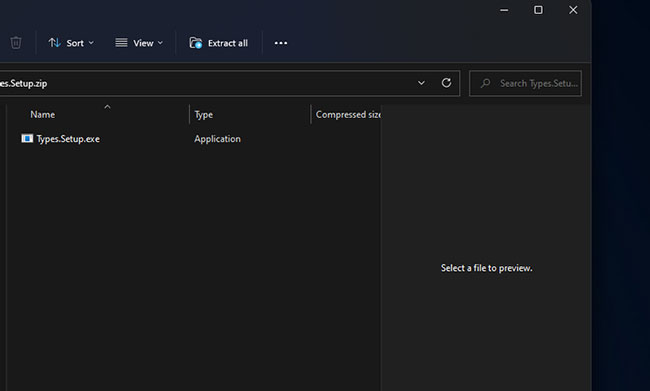
<p style="text-align: justify;">2. Nhấn phím nóng <strong>Win + E</strong> và mở thư mục bao gồm file ZIP <strong>Types</strong> trong <strong>File Explorer.</strong></p>

<p style="text-align: justify;">3. Nhấp đúp vào kho lưu trữ ZIP Types đã nén.</p>

<p style="text-align: justify;">4. Nhấp vào <strong>Extract all</strong> trên thanh lệnh của <strong>File Explorer.</strong></p>

<figure>
<div style="text-align: justify;"><img alt="Nhấp vào Extract all" class="lazy lightbox loaded" data-i="1" data-inimage-loaded="true" data-src="https://st.quantrimang.com/photos/image/2022/02/16/thay-doi-bieu-tuong-cho-dinh-dang-file-windows-1.jpg" data-was-processed="true" height="391" src="https://st.quantrimang.com/photos/image/2022/02/16/thay-doi-bieu-tuong-cho-dinh-dang-file-windows-1.jpg" style="height: 391px; width: 650px;" width="650" /></div>

<figcaption>
<div style="text-align: justify;">Nhấp vào Extract all</div>
</figcaption>
</figure>

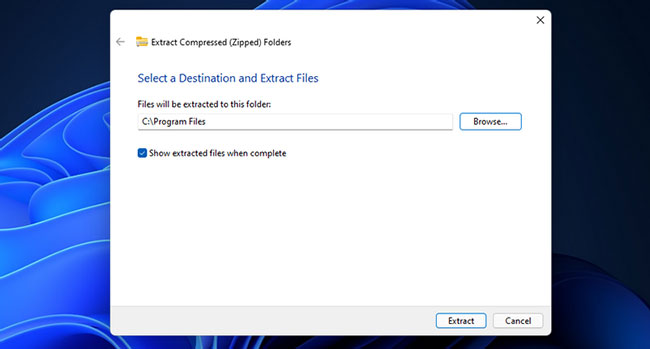
<p style="text-align: justify;">5. Chọn tùy chọn <strong>Show extracted files</strong> và nhấn nút <strong>Extract.</strong></p>

<figure>
<div style="text-align: justify;"><img alt="Chọn tùy chọn Show extracted files" class="lazy lightbox loaded" data-i="2" data-src="https://st.quantrimang.com/photos/image/2022/02/16/thay-doi-bieu-tuong-cho-dinh-dang-file-windows-2.jpg" data-was-processed="true" height="349" src="https://st.quantrimang.com/photos/image/2022/02/16/thay-doi-bieu-tuong-cho-dinh-dang-file-windows-2.jpg" style="height: 349px; width: 650px;" width="650" /></div>

<figcaption>
<div style="text-align: justify;">Chọn tùy chọn Show extracted files</div>
</figcaption>
</figure>

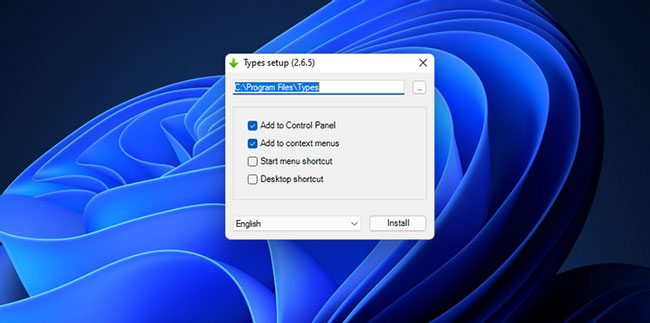
<p style="text-align: justify;">6. Nhấp đúp vào <strong>Types.Setup.exe</strong> để mở cửa sổ trong ảnh chụp nhanh ngay bên dưới.</p>

<figure>
<div style="text-align: justify;"><img alt="Nhấp đúp vào Types.Setup.exe" class="lazy lightbox loaded" data-i="3" data-src="https://st.quantrimang.com/photos/image/2022/02/16/thay-doi-bieu-tuong-cho-dinh-dang-file-windows-3.jpg" data-was-processed="true" height="323" src="https://st.quantrimang.com/photos/image/2022/02/16/thay-doi-bieu-tuong-cho-dinh-dang-file-windows-3.jpg" style="height: 323px; width: 650px;" width="650" /></div>

<figcaption>
<div style="text-align: justify;">Nhấp đúp vào Types.Setup.exe</div>
</figcaption>
</figure>

<p style="text-align: justify;">7. Chọn hộp kiểm <strong>Desktop shortcut.</strong></p>

<p style="text-align: justify;">8. Nhấp vào nút <strong>…</strong> để thay đổi thư mục cài đặt nếu bạn muốn.</p>

<p style="text-align: justify;">9. Nhấn nút <strong>Install.</strong></p>

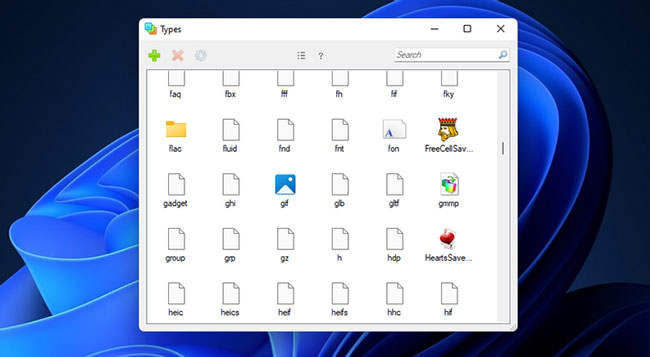
<p style="text-align: justify;">10. Sau đó nhấp đúp vào shortcut <strong>Types</strong> trên desktop.</p>

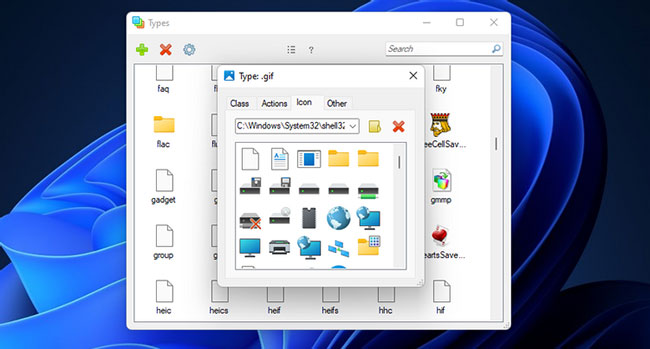
<p style="text-align: justify;">11. Nhấp đúp vào định dạng file để thay đổi biểu tượng. Bạn có thể tìm một định dạng cụ thể bằng cách nhập phần mở rộng file vào hộp tìm kiếm.</p>

<figure>
<div style="text-align: justify;"><img alt="Nhấp đúp vào định dạng file" class="lazy lightbox loaded" data-i="4" data-src="https://st.quantrimang.com/photos/image/2022/02/16/thay-doi-bieu-tuong-cho-dinh-dang-file-windows-4.jpg" data-was-processed="true" height="357" src="https://st.quantrimang.com/photos/image/2022/02/16/thay-doi-bieu-tuong-cho-dinh-dang-file-windows-4.jpg" style="height: 357px; width: 650px;" width="650" /></div>

<figcaption>
<div style="text-align: justify;">Nhấp đúp vào định dạng file</div>
</figcaption>
</figure>

<p style="text-align: justify;">12. Chọn tab <strong>Icon</strong> trên cửa sổ <strong>Types.</strong></p>

<figure>
<div style="text-align: justify;"><img alt=" Chọn tab Icon " class="lazy lightbox loaded" data-i="5" data-src="https://st.quantrimang.com/photos/image/2022/02/16/thay-doi-bieu-tuong-cho-dinh-dang-file-windows-5.jpg" data-was-processed="true" height="349" src="https://st.quantrimang.com/photos/image/2022/02/16/thay-doi-bieu-tuong-cho-dinh-dang-file-windows-5.jpg" style="height: 349px; width: 650px;" width="650" /></div>

<figcaption>
<div style="text-align: justify;">Chọn tab Icon</div>
</figcaption>
</figure>

<p style="text-align: justify;">13. Chọn một biểu tượng thay thế từ thư mục <strong>System32.</strong> Ngoài ra, bạn có thể nhấp vào nút <strong>Select Icon file</strong> để chọn file trong một thư mục khác.</p>

<p style="text-align: justify;">Nếu Types không bao gồm định dạng bạn muốn thay đổi biểu tượng, hãy nhấp vào nút <strong>+</strong>. Nhập định dạng vào hộp văn bản. Sau đó nhấp vào tùy chọn <strong>Add</strong> và chọn định dạng đã thêm trong cửa sổ.</p>

<h2 style="text-align: justify;">Cách thay đổi biểu tượng cho định dạng file bằng Default Programs Editor</h2>

<p style="text-align: justify;">Default Programs Editor là một chương trình có sẵn miễn phí khác mà bạn có thể thay đổi các biểu tượng định dạng file. Nó tương thích với các nền tảng Windows từ XP đến Windows 11. Default Programs Editor cũng là một ứng dụng portable mà bạn có thể thêm vào USB. Đây là cách thay đổi các biểu tượng định dạng file bằng phần mềm này.</p>

<p style="text-align: justify;">1. Tải Default Programs Editor: <span style="color:rgb(192, 57, 43);"><strong>https://defaultprogramseditor.com/</strong></span></p>

<p style="text-align: justify;">2. Nhấp đúp vào kho lưu trữ ZIP của <strong>Default Programs Editor</strong> trong File Explorer.</p>

<p style="text-align: justify;">3. Giải nén file ZIP của Default Programs Editor như đã nêu trong phương pháp trước.</p>

<p style="text-align: justify;">4. Sau đó bấm đúp vào <strong>Default Programs Editor.exe</strong> trong thư mục giải nén để mở phần mềm.</p>

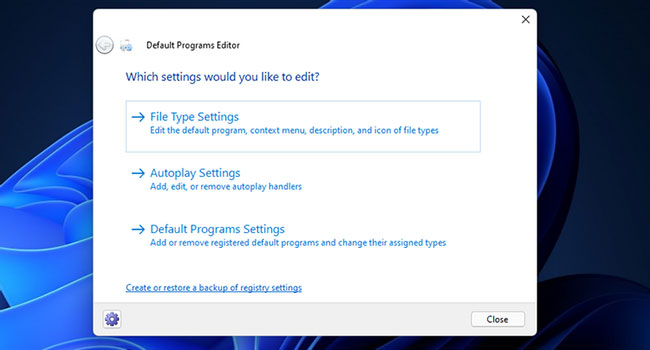
<p style="text-align: justify;">5. Nhấp vào <strong>File Type Settings</strong> trong cửa sổ của Default Program Editor.</p>

<figure>
<div style="text-align: justify;"><img alt="Nhấp vào File Type Settings" class="lazy lightbox loaded" data-i="6" data-src="https://st.quantrimang.com/photos/image/2022/02/16/thay-doi-bieu-tuong-cho-dinh-dang-file-windows-6.jpg" data-was-processed="true" height="350" src="https://st.quantrimang.com/photos/image/2022/02/16/thay-doi-bieu-tuong-cho-dinh-dang-file-windows-6.jpg" style="height: 350px; width: 650px;" width="650" /></div>

<figcaption>
<div style="text-align: justify;">Nhấp vào File Type Settings</div>
</figcaption>
</figure>

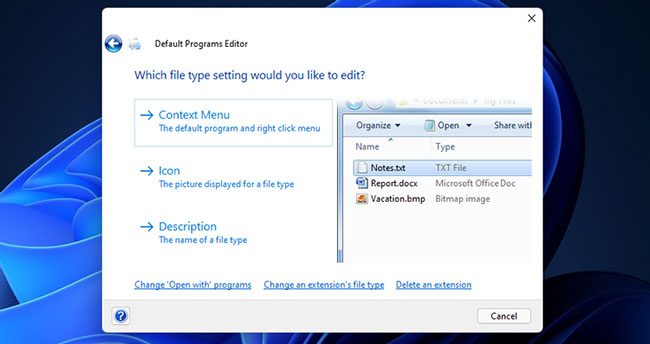
<p style="text-align: justify;">6. Chọn tùy chọn <strong>Icon.</strong></p>

<figure>
<div style="text-align: justify;"><img alt="Chọn tùy chọn Icon" class="lazy lightbox loaded" data-i="7" data-src="https://st.quantrimang.com/photos/image/2022/02/16/thay-doi-bieu-tuong-cho-dinh-dang-file-windows-7.jpg" data-was-processed="true" height="344" src="https://st.quantrimang.com/photos/image/2022/02/16/thay-doi-bieu-tuong-cho-dinh-dang-file-windows-7.jpg" style="height: 344px; width: 650px;" width="650" /></div>

<figcaption>
<div style="text-align: justify;">Chọn tùy chọn Icon</div>
</figcaption>
</figure>

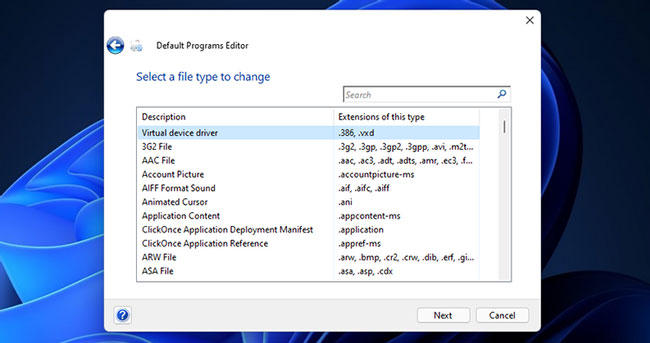
<p style="text-align: justify;">7. Chọn một định dạng file để tùy chỉnh biểu tượng trong danh sách và nhấn nút <strong>Next.</strong></p>

<figure>
<div style="text-align: justify;"><img alt="Chọn một định dạng file" class="lazy lightbox loaded" data-i="8" data-src="https://st.quantrimang.com/photos/image/2022/02/16/thay-doi-bieu-tuong-cho-dinh-dang-file-windows-8.jpg" data-was-processed="true" height="343" src="https://st.quantrimang.com/photos/image/2022/02/16/thay-doi-bieu-tuong-cho-dinh-dang-file-windows-8.jpg" style="height: 343px; width: 650px;" width="650" /></div>

<figcaption>
<div style="text-align: justify;">Chọn một định dạng file</div>
</figcaption>
</figure>

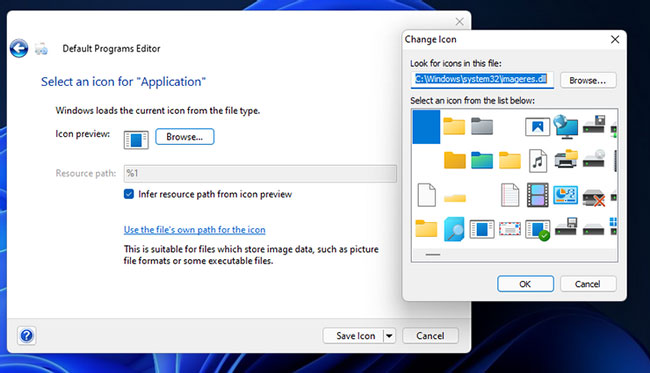
<p style="text-align: justify;">8. Nhấp vào <strong>Browse</strong> để mở cửa sổ <strong>Change Icon.</strong></p>

<figure>
<div style="text-align: justify;"><img alt="Mở cửa sổ Change Icon" class="lazy lightbox loaded" data-i="9" data-src="https://st.quantrimang.com/photos/image/2022/02/16/thay-doi-bieu-tuong-cho-dinh-dang-file-windows-9.jpg" data-was-processed="true" height="373" src="https://st.quantrimang.com/photos/image/2022/02/16/thay-doi-bieu-tuong-cho-dinh-dang-file-windows-9.jpg" style="height: 373px; width: 650px;" width="650" /></div>

<figcaption>
<div style="text-align: justify;">Mở cửa sổ Change Icon</div>
</figcaption>
</figure>

<p style="text-align: justify;">9. Bạn có thể chọn một biểu tượng khác trong thư mục <strong>System32</strong> mặc định. Hoặc nhấp vào <strong>Browse</strong> để chọn một biểu tượng trong thư mục khác.</p>

<p style="text-align: justify;">10. Bấm <strong>OK</strong> trên cửa sổ <strong>Change Icon.</strong></p>

<p style="text-align: justify;">11. Nhấn nút <strong>Save Icon.</strong></p>

<p style="text-align: justify;">12. Trình soạn thảo chương trình mặc định cũng có các tùy chọn khác. Bạn có thể chọn <strong>Context Menu</strong> để tùy chỉnh các tùy chọn menu ngữ cảnh cho các định dạng file. Chọn <strong>Autoplay Settings</strong> để cấu hình các lựa chọn tự động phát cho những loại file media khác nhau. Tùy chọn <strong>Default Programs Setting</strong> cho phép bạn sửa đổi các phần mở rộng file được liên kết với những gói phần mềm.</p>

<p style="text-align: justify;">Thật nhanh chóng và đơn giản để thay đổi các biểu tượng định dạng file bằng cả Types và Default Programs Editor. Vì Default Programs Editor có nhiều tùy chọn mở rộng hơn, nên một số người dùng có thể thích phần mềm này hơn. Cho dù bạn chọn công cụ nào, chúng đều sẽ cho phép bạn tạo các file trong Windows 11 với những biểu tượng hấp dẫn hơn từ IconArchive và nhiều nguồn khác. Bạn thậm chí có thể thiết kế các biểu tượng của riêng mình cho những định dạng file bằng phần mềm chỉnh sửa ảnh nếu thích.</p>
		</div>
				<div id="author">
						<p>
				<strong>Nguồn tin:</strong>
				Quantrimang.com
			</p>
		</div>
	</div>
	<div id="footer" class="clearfix">
		<div id="url">
			<strong>URL của bản tin này: </strong><a href="https://www.nguoicodonvn2008.info/vi/news/savefile/kien-thuc-may-tinh/cach-thay-doi-bieu-tuong-cho-dinh-dang-file-cu-the-trong-windows-5136.html" title="Cách thay đổi biểu tượng cho định dạng file cụ thể trong Windows">https://www.nguoicodonvn2008.info/vi/news/savefile/kien-thuc-may-tinh/cach-thay-doi-bieu-tuong-cho-dinh-dang-file-cu-the-trong-windows-5136.html</a>

		</div>
		<div class="clear"></div>
		<div class="copyright">
			&copy; .&#x3A; Nguoicodonvn2008.info - Cõi lòng người cô đơn &#x3A;.
		</div>
		<div id="contact">
			<a href="mailto:admin@nguoicodonvn2008.info">admin@nguoicodonvn2008.info</a>
		</div>
	</div>
</div>
        <div id="timeoutsess" class="chromeframe">
            Bạn đã không sử dụng Site, <a onclick="timeoutsesscancel();" href="https://nguoicodonvn2008.info/#">Bấm vào đây để duy trì trạng thái đăng nhập</a>. Thời gian chờ: <span id="secField"> 60 </span> giây
        </div>
        <div id="openidResult" class="nv-alert" style="display:none"></div>
        <div id="openidBt" data-result="" data-redirect=""></div>
		</script>
		<div class="car-top">
  <span><img src="https://nguoicodonvn2008.info/themes/default/images/car.png" alt=""></span>
</div>
<script src="https://nguoicodonvn2008.info/assets/js/jquery/jquery.min.js"></script>
<script>var nv_base_siteurl="/",nv_lang_data="vi",nv_lang_interface="vi",nv_name_variable="nv",nv_fc_variable="op",nv_lang_variable="language",nv_module_name="news",nv_func_name="savefile",nv_is_user=0, nv_my_ofs=-4,nv_my_abbr="EDT",nv_cookie_prefix="nv4c_e856T",nv_check_pass_mstime=1738000,nv_area_admin=0,nv_safemode=0,theme_responsive=0,nv_recaptcha_ver=2,nv_recaptcha_sitekey="",nv_recaptcha_type="image",XSSsanitize=1;</script>
<script src="https://nguoicodonvn2008.info/assets/js/language/vi.js"></script>
<script src="https://nguoicodonvn2008.info/assets/js/DOMPurify/purify3.js"></script>
<script src="https://nguoicodonvn2008.info/assets/js/global.js"></script>
<script src="https://nguoicodonvn2008.info/assets/js/site.js"></script>
<script src="https://nguoicodonvn2008.info/themes/default/js/news.js"></script>
<script src="https://nguoicodonvn2008.info/themes/default/js/main.js"></script>
<script src="https://nguoicodonvn2008.info/themes/default/js/custom.js"></script>
<script type="application/ld+json">
        {
            "@context": "https://schema.org",
            "@type": "Organization",
            "url": "https://nguoicodonvn2008.info",
            "logo": "https://nguoicodonvn2008.info/uploads/angel.gif"
        }
        </script>
<script src="https://nguoicodonvn2008.info/themes/default/js/bootstrap.min.js"></script>
<script type="text/javascript">
var $scrolltop = $('.car-top');
$scrolltop.on('click', function () {
    $('html,body').animate({
        scrollTop: 0
    }, 800);
    $(this).addClass("car-run");
    setTimeout(function(){ $scrolltop.removeClass('car-run');}, 1000);
    return false;
});
$(window).on('scroll', function ()
{ 
    if($(window).scrollTop() >= 200)
    {
        $scrolltop.addClass("show");
        $scrolltop.addClass("car-down");
    }
    else
    {
       $scrolltop.removeClass("show");
       setTimeout(function(){ $scrolltop.removeClass('car-down');}, 300);
    }
});
</script>
</body>
</html>