<!DOCTYPE html>
    <html lang="vi" xmlns="http://www.w3.org/1999/xhtml" prefix="og: http://ogp.me/ns#">
    <head>
<title>Cách tắt toàn bộ quảng cáo trên Windows 11 để hệ thống sạch và mượt hơn</title>
<meta name="description" content="Cách tắt toàn bộ quảng cáo trên Windows 11 để hệ thống sạch và mượt hơn - Savefile - Tin Tức -...">
<meta name="author" content=".: Nguoicodonvn2008.info - Cõi lòng người cô đơn :.">
<meta name="copyright" content=".: Nguoicodonvn2008.info - Cõi lòng người cô đơn :. [admin@nguoicodonvn2008.info]">
<meta name="robots" content="index, archive, follow, noodp">
<meta name="googlebot" content="index,archive,follow,noodp">
<meta name="msnbot" content="all,index,follow">
<meta name="generator" content="NukeViet v4.5">
<meta http-equiv="Content-Type" content="text/html; charset=utf-8">
<meta property="og:title" content="Cách tắt toàn bộ quảng cáo trên Windows 11 để hệ thống sạch và mượt hơn">
<meta property="og:type" content="website">
<meta property="og:description" content="Savefile - Tin Tức -...">
<meta property="og:site_name" content=".&#x3A; Nguoicodonvn2008.info - Cõi lòng người cô đơn &#x3A;.">
<meta property="og:url" content="https://www.nguoicodonvn2008.info/vi/news/savefile/kien-thuc-may-tinh/cach-tat-toan-bo-quang-cao-tren-windows-11-de-he-thong-sach-va-muot-hon-11553.html">
<link rel="shortcut icon" href="https://nguoicodonvn2008.info/favicon.ico">
<link rel="canonical" href="https://www.nguoicodonvn2008.info/vi/news/savefile/kien-thuc-may-tinh/cach-tat-toan-bo-quang-cao-tren-windows-11-de-he-thong-sach-va-muot-hon-11553.html">
<link rel="alternate" href="https://nguoicodonvn2008.info/vi/news/rss/" title="Tin Tức" type="application/rss+xml">
<link rel="alternate" href="https://nguoicodonvn2008.info/vi/news/rss/karaoke-dual/" title="Tin Tức - Karaoke Dual" type="application/rss+xml">
<link rel="alternate" href="https://nguoicodonvn2008.info/vi/news/rss/nhac-tre/" title="Tin Tức - Nhạc trẻ" type="application/rss+xml">
<link rel="alternate" href="https://nguoicodonvn2008.info/vi/news/rss/tru-tinh/" title="Tin Tức - Trữ tình" type="application/rss+xml">
<link rel="alternate" href="https://nguoicodonvn2008.info/vi/news/rss/nuoc-ngoai/" title="Tin Tức - Nước ngoài" type="application/rss+xml">
<link rel="alternate" href="https://nguoicodonvn2008.info/vi/news/rss/remix/" title="Tin Tức - Remix" type="application/rss+xml">
<link rel="alternate" href="https://nguoicodonvn2008.info/vi/news/rss/tam-su-tinh-yeu/" title="Tin Tức - Tâm sự tình yêu" type="application/rss+xml">
<link rel="alternate" href="https://nguoicodonvn2008.info/vi/news/rss/tho-suu-tam/" title="Tin Tức - Thơ sưu tầm" type="application/rss+xml">
<link rel="alternate" href="https://nguoicodonvn2008.info/vi/news/rss/cuoc-song/" title="Tin Tức - Cuộc sống" type="application/rss+xml">
<link rel="alternate" href="https://nguoicodonvn2008.info/vi/news/rss/phan-mem/" title="Tin Tức - Phần mềm" type="application/rss+xml">
<link rel="alternate" href="https://nguoicodonvn2008.info/vi/news/rss/kien-thuc-may-tinh/" title="Tin Tức - Kiến thức máy tính" type="application/rss+xml">
<link rel="alternate" href="https://nguoicodonvn2008.info/vi/news/rss/hoc-tap/" title="Tin Tức - Học tập" type="application/rss+xml">
<link rel="alternate" href="https://nguoicodonvn2008.info/vi/news/rss/tai-lieu/" title="Tin Tức - Tài liệu" type="application/rss+xml">
<link rel="alternate" href="https://nguoicodonvn2008.info/vi/news/rss/de-thi/" title="Tin Tức - Đề thi" type="application/rss+xml">
<link rel="preload" as="style" href="https://nguoicodonvn2008.info/assets/css/font-awesome.min.css" type="text/css">
<link rel="preload" as="style" href="https://nguoicodonvn2008.info/themes/default/css/bootstrap.non-responsive.css" type="text/css">
<link rel="preload" as="style" href="https://nguoicodonvn2008.info/themes/default/css/style.css" type="text/css">
<link rel="preload" as="style" href="https://nguoicodonvn2008.info/themes/default/css/style.non-responsive.css" type="text/css">
<link rel="preload" as="style" href="https://nguoicodonvn2008.info/themes/default/css/news.css" type="text/css">
<link rel="preload" as="style" href="https://nguoicodonvn2008.info/themes/default/css/custom.css" type="text/css">
<link rel="preload" as="script" href="https://nguoicodonvn2008.info/assets/js/jquery/jquery.min.js" type="text/javascript">
<link rel="preload" as="script" href="https://nguoicodonvn2008.info/assets/js/language/vi.js" type="text/javascript">
<link rel="preload" as="script" href="https://nguoicodonvn2008.info/assets/js/DOMPurify/purify3.js" type="text/javascript">
<link rel="preload" as="script" href="https://nguoicodonvn2008.info/assets/js/global.js" type="text/javascript">
<link rel="preload" as="script" href="https://nguoicodonvn2008.info/assets/js/site.js" type="text/javascript">
<link rel="preload" as="script" href="https://nguoicodonvn2008.info/themes/default/js/news.js" type="text/javascript">
<link rel="preload" as="script" href="https://nguoicodonvn2008.info/themes/default/js/main.js" type="text/javascript">
<link rel="preload" as="script" href="https://nguoicodonvn2008.info/themes/default/js/custom.js" type="text/javascript">
<link rel="preload" as="script" href="https://nguoicodonvn2008.info/themes/default/js/bootstrap.min.js" type="text/javascript">
<link rel="stylesheet" href="https://nguoicodonvn2008.info/assets/css/font-awesome.min.css">
<link rel="stylesheet" href="https://nguoicodonvn2008.info/themes/default/css/bootstrap.non-responsive.css">
<link rel="stylesheet" href="https://nguoicodonvn2008.info/themes/default/css/style.css">
<link rel="stylesheet" href="https://nguoicodonvn2008.info/themes/default/css/style.non-responsive.css">
<link rel="StyleSheet" href="https://nguoicodonvn2008.info/themes/default/css/news.css">
<link rel="stylesheet" href="https://nguoicodonvn2008.info/themes/default/css/custom.css">
<style type="text/css">
	body{background: #fff;}
</style>
    </head>
    <body>
<div id="print">
	<div id="hd_print">
		<h2 class="pull-left">.&#x3A; Nguoicodonvn2008.info - Cõi lòng người cô đơn &#x3A;.</h2>
		<p class="pull-right"><a title=".&#x3A; Nguoicodonvn2008.info - Cõi lòng người cô đơn &#x3A;." href="https://nguoicodonvn2008.info/">https://nguoicodonvn2008.info</a></p>
	</div>
	<div class="clear"></div>
	<hr />
	<div id="content">
		<h1>Cách tắt toàn bộ quảng cáo trên Windows 11 để hệ thống sạch và mượt hơn</h1>
		<ul class="list-inline">
			<li>Thứ sáu - 07/11/2025 22:18</li>
			<li class="hidden-print txtrequired"><em class="fa fa-print">&nbsp;</em><a title="In ra" href="javascript:;" onclick="window.print()">In ra</a></li>
			<li class="hidden-print txtrequired"><em class="fa fa-power-off">&nbsp;</em><a title="Đóng cửa sổ này" href="javascript:;" onclick="window.close()">Đóng cửa sổ này</a></li>
		</ul>
		<div class="clear"></div>
		<div id="hometext">
		</div>
				<div class="imghome">
			<img alt="Cách tắt toàn bộ quảng cáo trên Windows 11 để hệ thống sạch và mượt hơn" src="https://st.quantrimang.com/photos/image/2025/11/04/tat-toan-bo-quang-cao-tren-windows-117.jpg" width="460" class="img-thumbnail" />
		</div>
		<div class="clear"></div>
		<div id="bodytext" class="clearfix">
			<p style="text-align: justify;"><strong>Cách tắt toàn bộ quảng cáo trên Windows 11 để hệ thống sạch và mượt hơn</strong></p>

<div style="text-align: justify;">&nbsp;</div>

<p style="text-align: justify;">Không quan trọng bạn đang dùng Windows 11 Home hay Windows 11 Pro — hệ điều hành này vẫn chứa rất nhiều quảng cáo ở khắp nơi. Từ File Explorer đến menu Start, đâu đâu cũng có “quảng cáo gợi ý”. Nếu bạn muốn có một trải nghiệm Windows 11 thật sạch sẽ, không còn chút quảng cáo nào, chỉ cần tắt các tùy chọn dưới đây.</p>

<h3 style="text-align: justify;">1. Tắt quảng cáo trong menu Start</h3>

<p style="text-align: justify;">Menu Start là thứ hầu như ai cũng mở đầu tiên sau khi khởi động máy. Microsoft cũng biết rõ điều đó, nên từ bản cập nhật&nbsp;<strong>KB5036980 (tháng 4/2024)</strong>, hãng đã thêm quảng cáo vào khu vực&nbsp;<strong>“Recommended”</strong>&nbsp;của menu Start — nơi thường hiển thị gợi ý ứng dụng hoặc dịch vụ.</p>

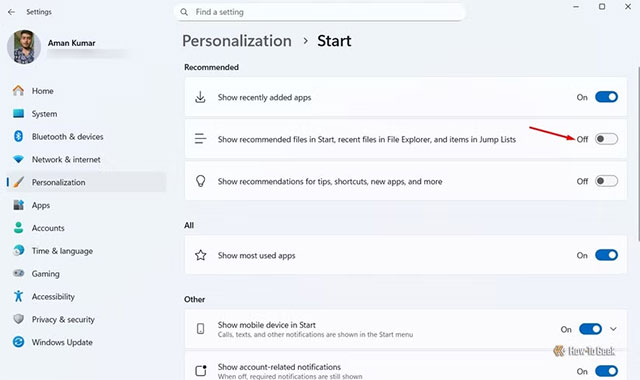
<p style="text-align: justify;">Để loại bỏ phần quảng cáo này, bạn hãy làm theo các bước sau:</p>

<ul>
	<li aria-level="1" style="text-align: justify;">Nhấn&nbsp;<strong>Win + I</strong>&nbsp;để mở&nbsp;<strong>Cài đặt (Settings)</strong>.</li>
	<li aria-level="1" style="text-align: justify;">Chọn&nbsp;<strong>Cá nhân hóa (Personalization)</strong>&nbsp;→&nbsp;<strong>Start</strong>.</li>
	<li aria-level="1" style="text-align: justify;">Tắt mục&nbsp;<strong>“Show recommended files in Start, recent files in File Explorer, and items in Jump Lists.”</strong></li>
</ul>

<p style="text-align: justify;"><img alt="" data-adbro-processed="true" data-i="0" data-src="https://st.quantrimang.com/photos/image/2025/11/04/tat-toan-bo-quang-cao-tren-windows-111.jpg" data-was-processed="true" height="380" src="https://st.quantrimang.com/photos/image/2025/11/04/tat-toan-bo-quang-cao-tren-windows-111.jpg" width="640" /></p>

<p style="text-align: justify;">Khởi động lại máy, bạn sẽ thấy mục “<strong>Recommended</strong>” hoàn toàn biến mất khỏi menu Start.</p>

<h3 style="text-align: justify;">2. Gỡ quảng cáo trong File Explorer</h3>

<p style="text-align: justify;">Từ năm 2017, Microsoft từng thử nghiệm chèn quảng cáo OneDrive vào File Explorer trên Windows 10, và đến Windows 11 thì ý tưởng này quay trở lại. Quảng cáo giờ có thể xuất hiện ở thanh trên cùng, quảng bá cho các dịch vụ như OneDrive hay Microsoft 365.</p>

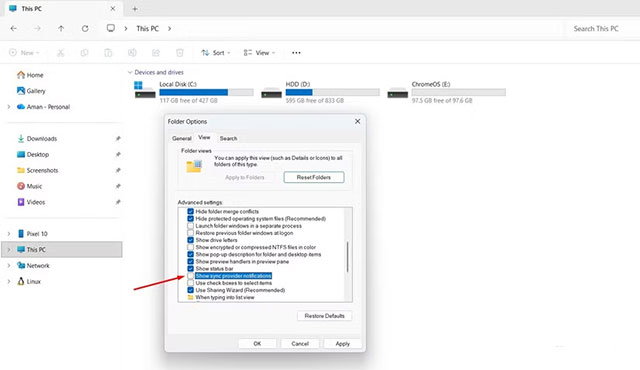
<p style="text-align: justify;">Để chặn hoàn toàn, bạn mở&nbsp;<strong>File Explorer</strong>, nhấn biểu tượng&nbsp;<strong>dấu ba chấm (⋯)</strong>&nbsp;trên thanh công cụ → chọn&nbsp;<strong>Options</strong>&nbsp;→ tab&nbsp;<strong>View</strong>.</p>

<p style="text-align: justify;">Bỏ chọn mục&nbsp;<strong>“Show sync provider notifications”</strong>&nbsp;, rồi nhấn&nbsp;<strong>Apply</strong>&nbsp;→&nbsp;<strong>OK</strong>.</p>

<h3 style="text-align: justify;"><img alt="" data-i="1" data-src="https://st.quantrimang.com/photos/image/2025/11/04/tat-toan-bo-quang-cao-tren-windows-112.jpg" data-was-processed="true" height="370" src="https://st.quantrimang.com/photos/image/2025/11/04/tat-toan-bo-quang-cao-tren-windows-112.jpg" width="640" /></h3>

<h3 style="text-align: justify;">3. Tắt các gợi ý và mẹo từ Windows</h3>

<p style="text-align: justify;">Ngoài quảng cáo, Windows còn thường xuyên hiển thị “mẹo” và “gợi ý” để “cải thiện trải nghiệm người dùng”. Nếu bạn đã quen dùng máy, những thông báo này thực ra chỉ gây phiền.</p>

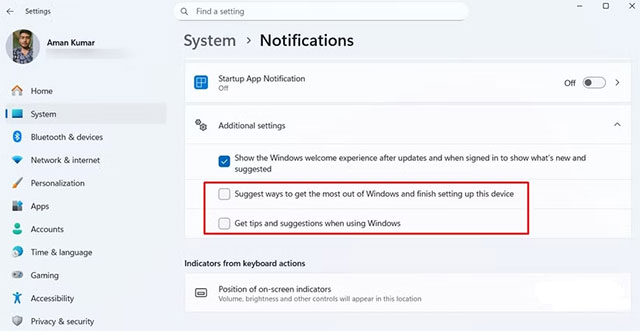
<p style="text-align: justify;">Vào&nbsp;<strong>Settings → System → Notifications</strong>&nbsp;, cuộn xuống phần&nbsp;<strong>Additional settings</strong>, rồi tắt hai tùy chọn:</p>

<ul>
	<li aria-level="1" style="text-align: justify;"><strong>Get tips and suggestions when using Windows</strong></li>
	<li aria-level="1" style="text-align: justify;"><strong>Suggest ways to get the most out of Windows and finish setting up this device</strong></li>
</ul>

<p style="text-align: justify;"><img alt="" data-i="2" data-src="https://st.quantrimang.com/photos/image/2025/11/04/tat-toan-bo-quang-cao-tren-windows-113.jpg" data-was-processed="true" height="331" src="https://st.quantrimang.com/photos/image/2025/11/04/tat-toan-bo-quang-cao-tren-windows-113.jpg" width="640" /></p>

<p style="text-align: justify;">Sau khi tắt, bạn sẽ không còn thấy pop-up kiểu “dùng Edge sẽ tiết kiệm pin hơn” hay “thử Microsoft Rewards” nữa.</p>

<h3 style="text-align: justify;">4. Loại bỏ quảng cáo trên màn hình khóa</h3>

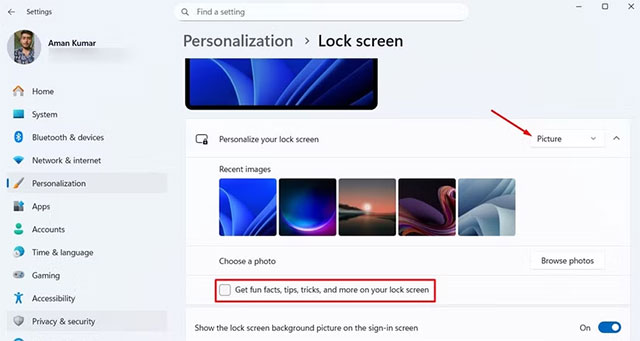
<p style="text-align: justify;">Tính năng&nbsp;<strong>Windows Spotlight</strong>&nbsp;giúp màn hình khóa thay đổi hình nền tự động — nhưng kèm theo đó là các quảng cáo và gợi ý trò chơi.</p>

<p style="text-align: justify;">Để chặn hoàn toàn, bạn mở&nbsp;<strong>Settings → Personalization → Lock Screen</strong>, sau đó:</p>

<ul>
	<li aria-level="1" style="text-align: justify;">Ở mục&nbsp;<strong>“Personalize your lock screen”</strong>, chọn&nbsp;<strong>Picture</strong>&nbsp;hoặc&nbsp;<strong>Slideshow</strong>&nbsp;thay vì&nbsp;<strong>Windows Spotlight</strong>.</li>
	<li aria-level="1" style="text-align: justify;">Nếu chọn&nbsp;<strong>Picture</strong>, nhớ tắt tùy chọn&nbsp;<strong>“Get fun facts, tips, tricks, and more on your lock screen.”</strong></li>
</ul>

<h3 style="text-align: justify;"><img alt="" data-i="3" data-src="https://st.quantrimang.com/photos/image/2025/11/04/tat-toan-bo-quang-cao-tren-windows-114.jpg" data-was-processed="true" height="341" src="https://st.quantrimang.com/photos/image/2025/11/04/tat-toan-bo-quang-cao-tren-windows-114.jpg" width="640" /></h3>

<h3 style="text-align: justify;">5. Xóa quảng cáo trong ứng dụng Settings</h3>

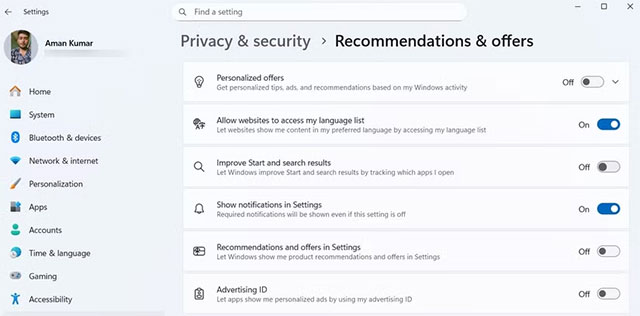
<p style="text-align: justify;">Ngay cả ứng dụng&nbsp;<strong>Settings</strong>&nbsp;cũng có quảng cáo, thường xuất hiện ở đầu trang với nội dung khuyến khích dùng Microsoft 365, OneDrive hoặc các dịch vụ khác.</p>

<p style="text-align: justify;">Để tắt hết, vào&nbsp;<strong>Settings → Privacy &amp; Security → Recommendations &amp; Offers</strong>, rồi tắt toàn bộ các tùy chọn sau:</p>

<ul>
	<li aria-level="1" style="text-align: justify;"><strong>Personalized Offers</strong></li>
	<li aria-level="1" style="text-align: justify;"><strong>Improve Start and Search Results</strong></li>
	<li aria-level="1" style="text-align: justify;"><strong>Recommendations and Offers in Settings</strong></li>
	<li aria-level="1" style="text-align: justify;"><strong>Advertising ID</strong>&nbsp;(tắt mục này cũng giúp ngăn ứng dụng bên thứ ba hiển thị quảng cáo cá nhân hóa).</li>
</ul>

<h3 style="text-align: justify;"><img alt="" data-i="4" data-src="https://st.quantrimang.com/photos/image/2025/11/04/tat-toan-bo-quang-cao-tren-windows-115.jpg" data-was-processed="true" height="316" src="https://st.quantrimang.com/photos/image/2025/11/04/tat-toan-bo-quang-cao-tren-windows-115.jpg" width="640" /></h3>

<h3 style="text-align: justify;">6. Tắt quảng cáo cá nhân hóa trong Microsoft Store</h3>

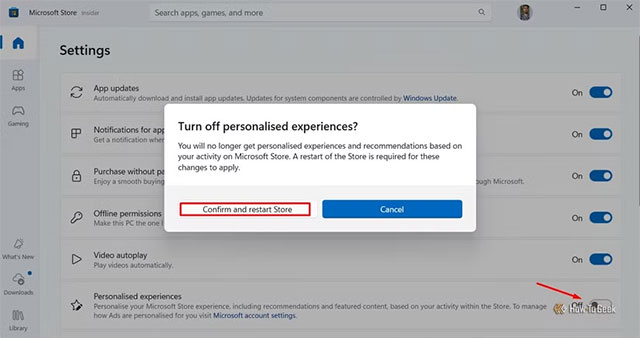
<p style="text-align: justify;">Khi tìm ứng dụng trong Microsoft Store, bạn có thể thấy phần “&nbsp;<strong>Personalized Experiences</strong>&nbsp;” — đây thực ra là quảng cáo dựa trên hoạt động của bạn.</p>

<p style="text-align: justify;">Để vô hiệu hóa:</p>

<ul>
	<li aria-level="1" style="text-align: justify;">Mở&nbsp;<strong>Microsoft Store</strong>, nhấn biểu tượng&nbsp;<strong>hồ sơ cá nhân</strong>&nbsp;→&nbsp;<strong>Store Settings</strong>.</li>
	<li aria-level="1" style="text-align: justify;">Tắt tùy chọn&nbsp;<strong>“Personalized Experiences”</strong>, sau đó chọn&nbsp;<strong>Confirm and Restart Store</strong>.</li>
</ul>

<h3 style="text-align: justify;"><img alt="" data-i="5" data-src="https://st.quantrimang.com/photos/image/2025/11/04/tat-toan-bo-quang-cao-tren-windows-116.jpg" data-was-processed="true" height="338" src="https://st.quantrimang.com/photos/image/2025/11/04/tat-toan-bo-quang-cao-tren-windows-116.jpg" width="640" /></h3>

<h3 style="text-align: justify;">7. Xóa quảng cáo trong thanh tìm kiếm Windows</h3>

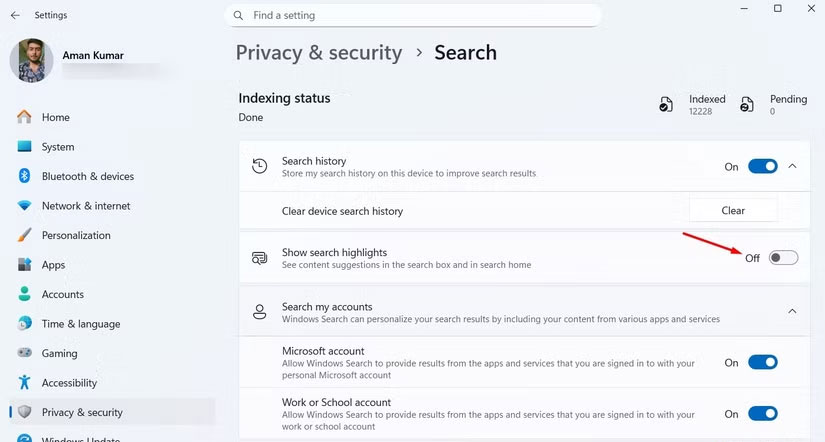
<p style="text-align: justify;">Nếu bạn hay dùng thanh tìm kiếm của Windows, có thể thấy các quảng cáo game, mục “tìm kiếm thịnh hành” hoặc thông tin trong ngày. Để tắt, hãy làm theo các bước sau:</p>

<ul>
	<li aria-level="1" style="text-align: justify;">Mở&nbsp;<strong>Search</strong>&nbsp;→ nhấn&nbsp;<strong>dấu ba chấm (⋯)</strong>&nbsp;→ chọn&nbsp;<strong>Search Settings</strong>.</li>
	<li aria-level="1" style="text-align: justify;">Tắt mục&nbsp;<strong>“Show search highlights”</strong>, rồi khởi động lại máy.</li>
</ul>

<figure>
<div style="text-align: justify;"><img alt="" data-i="6" data-src="https://st.quantrimang.com/photos/image/2025/11/04/tat-toan-bo-quang-cao-tren-windows-117.jpg" data-was-processed="true" height="442" src="https://st.quantrimang.com/photos/image/2025/11/04/tat-toan-bo-quang-cao-tren-windows-117.jpg" width="825" /></div>
</figure>

<h3 style="text-align: justify;">8. Dọn sạch bảng Widget</h3>

<p style="text-align: justify;">Phần&nbsp;<strong>Widget</strong>&nbsp;trên Windows 11 không có quảng cáo, nhưng chứa rất nhiều tin tức, chỉ số chứng khoán và nội dung không cần thiết. Bạn có thể tắt nguồn cấp tin (Feed) để bảng này gọn gàng hơn.</p>

<p style="text-align: justify;">Nhấn&nbsp;<strong>biểu tượng bánh răng</strong>&nbsp;ở góc trên cùng bên phải của bảng Widget → chọn&nbsp;<strong>Show or Hide Feeds</strong>&nbsp;→ tắt mục&nbsp;<strong>Feeds</strong>.</p>

<p data-end="4926" data-start="4490" style="text-align: justify;">Đôi khi quảng cáo không hẳn xấu — vì doanh nghiệp nào cũng cần doanh thu để phát triển. Tuy nhiên, việc người dùng vẫn phải nhìn thấy quảng cáo dù đã bỏ tiền ra mua Windows bản quyền là điều khó chấp nhận.</p>

<p data-end="4926" data-start="4490" style="text-align: justify;">Có lẽ Microsoft nên cân nhắc tung ra một phiên bản Windows miễn phí kèm quảng cáo, và để những bản trả phí như Home, Pro, Education hay Enterprise được hoàn toàn “sạch” quảng cáo — đúng với giá trị mà người dùng bỏ ra.</p>

<div style="text-align: justify;">&nbsp;</div>
		</div>
				<div id="author">
						<p>
				<strong>Nguồn tin:</strong>
				Quantrimang.com:
			</p>
		</div>
	</div>
	<div id="footer" class="clearfix">
		<div id="url">
			<strong>URL của bản tin này: </strong><a href="https://www.nguoicodonvn2008.info/vi/news/savefile/kien-thuc-may-tinh/cach-tat-toan-bo-quang-cao-tren-windows-11-de-he-thong-sach-va-muot-hon-11553.html" title="Cách tắt toàn bộ quảng cáo trên Windows 11 để hệ thống sạch và mượt hơn">https://www.nguoicodonvn2008.info/vi/news/savefile/kien-thuc-may-tinh/cach-tat-toan-bo-quang-cao-tren-windows-11-de-he-thong-sach-va-muot-hon-11553.html</a>

		</div>
		<div class="clear"></div>
		<div class="copyright">
			&copy; .&#x3A; Nguoicodonvn2008.info - Cõi lòng người cô đơn &#x3A;.
		</div>
		<div id="contact">
			<a href="mailto:admin@nguoicodonvn2008.info">admin@nguoicodonvn2008.info</a>
		</div>
	</div>
</div>
        <div id="timeoutsess" class="chromeframe">
            Bạn đã không sử dụng Site, <a onclick="timeoutsesscancel();" href="https://nguoicodonvn2008.info/#">Bấm vào đây để duy trì trạng thái đăng nhập</a>. Thời gian chờ: <span id="secField"> 60 </span> giây
        </div>
        <div id="openidResult" class="nv-alert" style="display:none"></div>
        <div id="openidBt" data-result="" data-redirect=""></div>
		</script>
		<div class="car-top">
  <span><img src="https://nguoicodonvn2008.info/themes/default/images/car.png" alt=""></span>
</div>
<script src="https://nguoicodonvn2008.info/assets/js/jquery/jquery.min.js"></script>
<script>var nv_base_siteurl="/",nv_lang_data="vi",nv_lang_interface="vi",nv_name_variable="nv",nv_fc_variable="op",nv_lang_variable="language",nv_module_name="news",nv_func_name="savefile",nv_is_user=0, nv_my_ofs=-4,nv_my_abbr="EDT",nv_cookie_prefix="nv4c_e856T",nv_check_pass_mstime=1738000,nv_area_admin=0,nv_safemode=0,theme_responsive=0,nv_recaptcha_ver=2,nv_recaptcha_sitekey="",nv_recaptcha_type="image",XSSsanitize=1;</script>
<script src="https://nguoicodonvn2008.info/assets/js/language/vi.js"></script>
<script src="https://nguoicodonvn2008.info/assets/js/DOMPurify/purify3.js"></script>
<script src="https://nguoicodonvn2008.info/assets/js/global.js"></script>
<script src="https://nguoicodonvn2008.info/assets/js/site.js"></script>
<script src="https://nguoicodonvn2008.info/themes/default/js/news.js"></script>
<script src="https://nguoicodonvn2008.info/themes/default/js/main.js"></script>
<script src="https://nguoicodonvn2008.info/themes/default/js/custom.js"></script>
<script type="application/ld+json">
        {
            "@context": "https://schema.org",
            "@type": "Organization",
            "url": "https://nguoicodonvn2008.info",
            "logo": "https://nguoicodonvn2008.info/uploads/angel.gif"
        }
        </script>
<script src="https://nguoicodonvn2008.info/themes/default/js/bootstrap.min.js"></script>
<script type="text/javascript">
var $scrolltop = $('.car-top');
$scrolltop.on('click', function () {
    $('html,body').animate({
        scrollTop: 0
    }, 800);
    $(this).addClass("car-run");
    setTimeout(function(){ $scrolltop.removeClass('car-run');}, 1000);
    return false;
});
$(window).on('scroll', function ()
{ 
    if($(window).scrollTop() >= 200)
    {
        $scrolltop.addClass("show");
        $scrolltop.addClass("car-down");
    }
    else
    {
       $scrolltop.removeClass("show");
       setTimeout(function(){ $scrolltop.removeClass('car-down');}, 300);
    }
});
</script>
</body>
</html>