<!DOCTYPE html>
    <html lang="vi" xmlns="http://www.w3.org/1999/xhtml" prefix="og: http://ogp.me/ns#">
    <head>
<title>Cách tắt khởi động Spotify khi mở máy trên Windows 10</title>
<meta name="description" content="Cách tắt khởi động Spotify khi mở máy trên Windows 10 - Savefile - Tin Tức -...">
<meta name="author" content=".: Nguoicodonvn2008.info - Cõi lòng người cô đơn :.">
<meta name="copyright" content=".: Nguoicodonvn2008.info - Cõi lòng người cô đơn :. [admin@nguoicodonvn2008.info]">
<meta name="robots" content="index, archive, follow, noodp">
<meta name="googlebot" content="index,archive,follow,noodp">
<meta name="msnbot" content="all,index,follow">
<meta name="generator" content="NukeViet v4.5">
<meta http-equiv="Content-Type" content="text/html; charset=utf-8">
<meta property="og:title" content="Cách tắt khởi động Spotify khi mở máy trên Windows 10">
<meta property="og:type" content="website">
<meta property="og:description" content="Savefile - Tin Tức - https&#x3A;&#x002F;&#x002F;www.nguoicodonvn2008.info&#x002F;vi&#x002F;news&#x002F;savefile&#x002F;kien-thuc-may-tinh&#x002F;cach-tat-khoi-dong-spotify-khi-mo-may-tren-windows-10-2881.html">
<meta property="og:site_name" content=".&#x3A; Nguoicodonvn2008.info - Cõi lòng người cô đơn &#x3A;.">
<meta property="og:url" content="https://www.nguoicodonvn2008.info/vi/news/savefile/kien-thuc-may-tinh/cach-tat-khoi-dong-spotify-khi-mo-may-tren-windows-10-2881.html">
<link rel="shortcut icon" href="https://nguoicodonvn2008.info/favicon.ico">
<link rel="canonical" href="https://www.nguoicodonvn2008.info/vi/news/savefile/kien-thuc-may-tinh/cach-tat-khoi-dong-spotify-khi-mo-may-tren-windows-10-2881.html">
<link rel="alternate" href="https://nguoicodonvn2008.info/vi/news/rss/" title="Tin Tức" type="application/rss+xml">
<link rel="alternate" href="https://nguoicodonvn2008.info/vi/news/rss/karaoke-dual/" title="Tin Tức - Karaoke Dual" type="application/rss+xml">
<link rel="alternate" href="https://nguoicodonvn2008.info/vi/news/rss/nhac-tre/" title="Tin Tức - Nhạc trẻ" type="application/rss+xml">
<link rel="alternate" href="https://nguoicodonvn2008.info/vi/news/rss/tru-tinh/" title="Tin Tức - Trữ tình" type="application/rss+xml">
<link rel="alternate" href="https://nguoicodonvn2008.info/vi/news/rss/nuoc-ngoai/" title="Tin Tức - Nước ngoài" type="application/rss+xml">
<link rel="alternate" href="https://nguoicodonvn2008.info/vi/news/rss/remix/" title="Tin Tức - Remix" type="application/rss+xml">
<link rel="alternate" href="https://nguoicodonvn2008.info/vi/news/rss/tam-su-tinh-yeu/" title="Tin Tức - Tâm sự tình yêu" type="application/rss+xml">
<link rel="alternate" href="https://nguoicodonvn2008.info/vi/news/rss/tho-suu-tam/" title="Tin Tức - Thơ sưu tầm" type="application/rss+xml">
<link rel="alternate" href="https://nguoicodonvn2008.info/vi/news/rss/cuoc-song/" title="Tin Tức - Cuộc sống" type="application/rss+xml">
<link rel="alternate" href="https://nguoicodonvn2008.info/vi/news/rss/phan-mem/" title="Tin Tức - Phần mềm" type="application/rss+xml">
<link rel="alternate" href="https://nguoicodonvn2008.info/vi/news/rss/kien-thuc-may-tinh/" title="Tin Tức - Kiến thức máy tính" type="application/rss+xml">
<link rel="alternate" href="https://nguoicodonvn2008.info/vi/news/rss/hoc-tap/" title="Tin Tức - Học tập" type="application/rss+xml">
<link rel="alternate" href="https://nguoicodonvn2008.info/vi/news/rss/tai-lieu/" title="Tin Tức - Tài liệu" type="application/rss+xml">
<link rel="alternate" href="https://nguoicodonvn2008.info/vi/news/rss/de-thi/" title="Tin Tức - Đề thi" type="application/rss+xml">
<link rel="preload" as="style" href="https://nguoicodonvn2008.info/assets/css/font-awesome.min.css" type="text/css">
<link rel="preload" as="style" href="https://nguoicodonvn2008.info/themes/default/css/bootstrap.non-responsive.css" type="text/css">
<link rel="preload" as="style" href="https://nguoicodonvn2008.info/themes/default/css/style.css" type="text/css">
<link rel="preload" as="style" href="https://nguoicodonvn2008.info/themes/default/css/style.non-responsive.css" type="text/css">
<link rel="preload" as="style" href="https://nguoicodonvn2008.info/themes/default/css/news.css" type="text/css">
<link rel="preload" as="style" href="https://nguoicodonvn2008.info/themes/default/css/custom.css" type="text/css">
<link rel="preload" as="script" href="https://nguoicodonvn2008.info/assets/js/jquery/jquery.min.js" type="text/javascript">
<link rel="preload" as="script" href="https://nguoicodonvn2008.info/assets/js/language/vi.js" type="text/javascript">
<link rel="preload" as="script" href="https://nguoicodonvn2008.info/assets/js/DOMPurify/purify3.js" type="text/javascript">
<link rel="preload" as="script" href="https://nguoicodonvn2008.info/assets/js/global.js" type="text/javascript">
<link rel="preload" as="script" href="https://nguoicodonvn2008.info/assets/js/site.js" type="text/javascript">
<link rel="preload" as="script" href="https://nguoicodonvn2008.info/themes/default/js/news.js" type="text/javascript">
<link rel="preload" as="script" href="https://nguoicodonvn2008.info/themes/default/js/main.js" type="text/javascript">
<link rel="preload" as="script" href="https://nguoicodonvn2008.info/themes/default/js/custom.js" type="text/javascript">
<link rel="preload" as="script" href="https://nguoicodonvn2008.info/themes/default/js/bootstrap.min.js" type="text/javascript">
<link rel="stylesheet" href="https://nguoicodonvn2008.info/assets/css/font-awesome.min.css">
<link rel="stylesheet" href="https://nguoicodonvn2008.info/themes/default/css/bootstrap.non-responsive.css">
<link rel="stylesheet" href="https://nguoicodonvn2008.info/themes/default/css/style.css">
<link rel="stylesheet" href="https://nguoicodonvn2008.info/themes/default/css/style.non-responsive.css">
<link rel="StyleSheet" href="https://nguoicodonvn2008.info/themes/default/css/news.css">
<link rel="stylesheet" href="https://nguoicodonvn2008.info/themes/default/css/custom.css">
<style type="text/css">
	body{background: #fff;}
</style>
    </head>
    <body>
<div id="print">
	<div id="hd_print">
		<h2 class="pull-left">.&#x3A; Nguoicodonvn2008.info - Cõi lòng người cô đơn &#x3A;.</h2>
		<p class="pull-right"><a title=".&#x3A; Nguoicodonvn2008.info - Cõi lòng người cô đơn &#x3A;." href="https://nguoicodonvn2008.info/">https://nguoicodonvn2008.info</a></p>
	</div>
	<div class="clear"></div>
	<hr />
	<div id="content">
		<h1>Cách tắt khởi động Spotify khi mở máy trên Windows 10</h1>
		<ul class="list-inline">
			<li>Chủ nhật - 11/10/2020 22:11</li>
			<li class="hidden-print txtrequired"><em class="fa fa-print">&nbsp;</em><a title="In ra" href="javascript:;" onclick="window.print()">In ra</a></li>
			<li class="hidden-print txtrequired"><em class="fa fa-power-off">&nbsp;</em><a title="Đóng cửa sổ này" href="javascript:;" onclick="window.close()">Đóng cửa sổ này</a></li>
		</ul>
		<div class="clear"></div>
		<div id="hometext">
		</div>
				<div class="imghome">
			<img alt="Cách tắt khởi động Spotify khi mở máy trên Windows 10" src="https://st.quantrimang.com/photos/image/2020/10/11/ta-t-spotify-win-10-4.jpg" width="460" class="img-thumbnail" />
		</div>
		<div class="clear"></div>
		<div id="bodytext" class="clearfix">
			<p style="text-align: justify;">Theo mặc định, Spotify sẽ tự động bật mỗi khi đăng nhập vào Windows 10. Nếu bạn không muốn chương trình này chạy ngầm và làm chậm hệ thống, bạn có thể tắt chế độ tự động bật của Spotify.</p>

<div style="text-align: justify;">&nbsp;</div>

<h2 style="text-align: justify;">Tắt tự động khởi động trên Spotify</h2>

<p style="text-align: justify;">Để tìm lựa chọn này, mở ứng dụng Spotify. Bạn có thể mở từ menu&nbsp;<strong>Start</strong>&nbsp;hoặc click đúp vào biểu tượng Spotify trong khu vực thông báo nếu ứng dụng đang chạy trên hệ thống.</p>

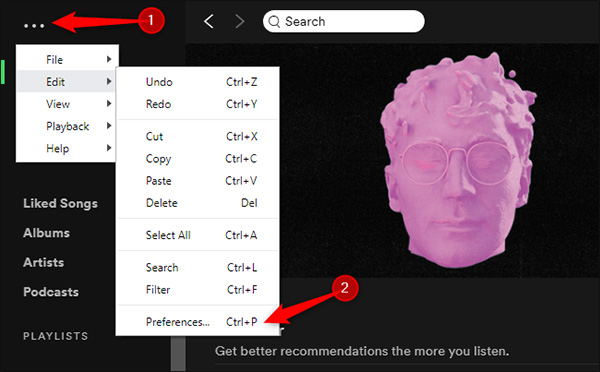
<p style="text-align: justify;">Ở góc trái bên trên cửa sổ của Spotify, bấm&nbsp;<strong>menu (...) &gt; Edit &gt; Preferences.</strong></p>

<figure>
<div style="text-align: justify;"><img alt="" data-i="0" data-src="https://st.quantrimang.com/photos/image/2020/10/11/ta-t-spotify-win-10-1.jpg" data-was-processed="true" height="372" src="https://st.quantrimang.com/photos/image/2020/10/11/ta-t-spotify-win-10-1.jpg" width="600" /></div>
</figure>

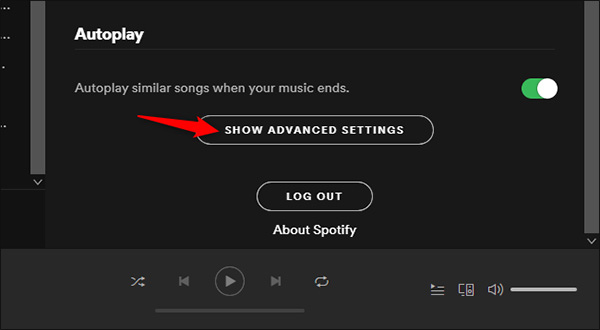
<p style="text-align: justify;">Kéo xuống bên dưới trang&nbsp;<strong>Settings</strong>&nbsp;và bấm vào&nbsp;<strong>Show Advanced Settings</strong>.</p>

<figure>
<div style="text-align: justify;"><img alt="" data-i="1" data-src="https://st.quantrimang.com/photos/image/2020/10/11/ta-t-spotify-win-10-2.jpg" data-was-processed="true" height="330" src="https://st.quantrimang.com/photos/image/2020/10/11/ta-t-spotify-win-10-2.jpg" width="600" /></div>
</figure>

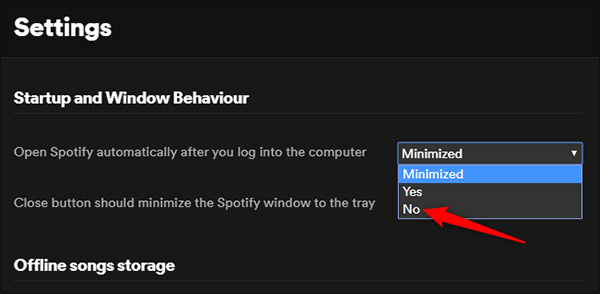
<p style="text-align: justify;">Tìm lựa chọn&nbsp;<strong>Startup and Window Behavior</strong>.</p>

<p style="text-align: justify;">Chọn&nbsp;<strong>No</strong>&nbsp;ở bên phải phần&nbsp;<strong>Open Spotify automatically after you log into the computer</strong>.</p>

<figure>
<div style="text-align: justify;"><img alt="" data-i="2" data-src="https://st.quantrimang.com/photos/image/2020/10/11/ta-t-spotify-win-10-3.jpg" data-was-processed="true" height="294" src="https://st.quantrimang.com/photos/image/2020/10/11/ta-t-spotify-win-10-3.jpg" width="600" /></div>
</figure>

<p style="text-align: justify;">Bây giờ, Spotify sẽ không tự động bật khi bạn đăng nhập vào Windows 10 nữa.</p>

<div style="text-align: justify;">&nbsp;</div>

<h2 style="text-align: justify;">Tắt tự động bật Spotify thông qua Task Manager</h2>

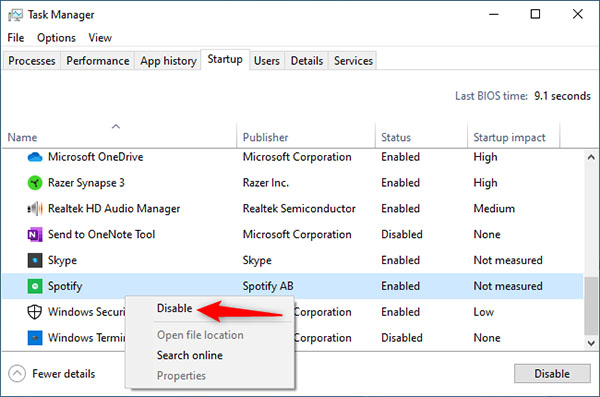
<p style="text-align: justify;">Nếu không muốn cài đặt thông qua Spotify, bạn có thể chỉnh qua Windows Task Manager. Task Manager có một tab Startup được tích hợp sẵn, cho phép kiểm soát các chương trình khởi động cùng PC.</p>

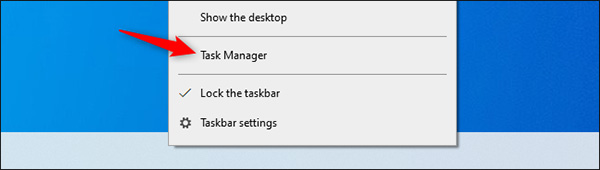
<p style="text-align: justify;">Để mở Task Manager, ấn tổ hợp phím&nbsp;<strong>Ctrl + Shift + Esc</strong>&nbsp;hoặc click chuột phải vào taskbar Windows và chọn&nbsp;<strong>Task Manager.</strong></p>

<figure>
<div style="text-align: justify;"><img alt="" data-i="3" data-src="https://st.quantrimang.com/photos/image/2020/10/11/ta-t-spotify-win-10-4.jpg" data-was-processed="true" height="170" src="https://st.quantrimang.com/photos/image/2020/10/11/ta-t-spotify-win-10-4.jpg" width="600" /></div>
</figure>

<p style="text-align: justify;">Bấm vào tab&nbsp;<strong>Startup</strong>. Nếu không nhìn thấy, chọn&nbsp;<strong>More Details</strong>&nbsp;ở dưới cuối cửa sổ.</p>

<p style="text-align: justify;">Chọn&nbsp;<strong>Spotify</strong>&nbsp;trong danh sách. Bấm chuột phải và chọn&nbsp;<strong>Disable</strong>.</p>

<p style="text-align: justify;">Tình trạng tự động bật của Spotify sẽ hiển thị ở cột&nbsp;<strong>Status</strong>, bây giờ sẽ đã chuyển sang chế độ&nbsp;<strong>Disabled</strong>. Ứng dụng sẽ không còn bị bật lên khi khởi động máy nữa.</p>

<figure>
<div style="text-align: justify;"><img alt="" data-i="4" data-src="https://st.quantrimang.com/photos/image/2020/10/11/ta-t-spotify-win-10-5.jpg" data-was-processed="true" height="397" src="https://st.quantrimang.com/photos/image/2020/10/11/ta-t-spotify-win-10-5.jpg" width="600" /></div>
</figure>

<p style="text-align: justify;">Bạn có thể chọn một trong hai phương pháp trên để ngăn Spotify khởi động khi mở máy</p>
		</div>
				<div id="author">
						<p>
				<strong>Nguồn tin:</strong>
				Quantrimang.com
			</p>
		</div>
	</div>
	<div id="footer" class="clearfix">
		<div id="url">
			<strong>URL của bản tin này: </strong><a href="https://www.nguoicodonvn2008.info/vi/news/savefile/kien-thuc-may-tinh/cach-tat-khoi-dong-spotify-khi-mo-may-tren-windows-10-2881.html" title="Cách tắt khởi động Spotify khi mở máy trên Windows 10">https://www.nguoicodonvn2008.info/vi/news/savefile/kien-thuc-may-tinh/cach-tat-khoi-dong-spotify-khi-mo-may-tren-windows-10-2881.html</a>

		</div>
		<div class="clear"></div>
		<div class="copyright">
			&copy; .&#x3A; Nguoicodonvn2008.info - Cõi lòng người cô đơn &#x3A;.
		</div>
		<div id="contact">
			<a href="mailto:admin@nguoicodonvn2008.info">admin@nguoicodonvn2008.info</a>
		</div>
	</div>
</div>
        <div id="timeoutsess" class="chromeframe">
            Bạn đã không sử dụng Site, <a onclick="timeoutsesscancel();" href="https://nguoicodonvn2008.info/#">Bấm vào đây để duy trì trạng thái đăng nhập</a>. Thời gian chờ: <span id="secField"> 60 </span> giây
        </div>
        <div id="openidResult" class="nv-alert" style="display:none"></div>
        <div id="openidBt" data-result="" data-redirect=""></div>
		</script>
		<div class="car-top">
  <span><img src="https://nguoicodonvn2008.info/themes/default/images/car.png" alt=""></span>
</div>
<script src="https://nguoicodonvn2008.info/assets/js/jquery/jquery.min.js"></script>
<script>var nv_base_siteurl="/",nv_lang_data="vi",nv_lang_interface="vi",nv_name_variable="nv",nv_fc_variable="op",nv_lang_variable="language",nv_module_name="news",nv_func_name="savefile",nv_is_user=0, nv_my_ofs=-4,nv_my_abbr="EDT",nv_cookie_prefix="nv4c_e856T",nv_check_pass_mstime=1738000,nv_area_admin=0,nv_safemode=0,theme_responsive=0,nv_recaptcha_ver=2,nv_recaptcha_sitekey="",nv_recaptcha_type="image",XSSsanitize=1;</script>
<script src="https://nguoicodonvn2008.info/assets/js/language/vi.js"></script>
<script src="https://nguoicodonvn2008.info/assets/js/DOMPurify/purify3.js"></script>
<script src="https://nguoicodonvn2008.info/assets/js/global.js"></script>
<script src="https://nguoicodonvn2008.info/assets/js/site.js"></script>
<script src="https://nguoicodonvn2008.info/themes/default/js/news.js"></script>
<script src="https://nguoicodonvn2008.info/themes/default/js/main.js"></script>
<script src="https://nguoicodonvn2008.info/themes/default/js/custom.js"></script>
<script type="application/ld+json">
        {
            "@context": "https://schema.org",
            "@type": "Organization",
            "url": "https://nguoicodonvn2008.info",
            "logo": "https://nguoicodonvn2008.info/uploads/angel.gif"
        }
        </script>
<script src="https://nguoicodonvn2008.info/themes/default/js/bootstrap.min.js"></script>
<script type="text/javascript">
var $scrolltop = $('.car-top');
$scrolltop.on('click', function () {
    $('html,body').animate({
        scrollTop: 0
    }, 800);
    $(this).addClass("car-run");
    setTimeout(function(){ $scrolltop.removeClass('car-run');}, 1000);
    return false;
});
$(window).on('scroll', function ()
{ 
    if($(window).scrollTop() >= 200)
    {
        $scrolltop.addClass("show");
        $scrolltop.addClass("car-down");
    }
    else
    {
       $scrolltop.removeClass("show");
       setTimeout(function(){ $scrolltop.removeClass('car-down');}, 300);
    }
});
</script>
</body>
</html>