<!DOCTYPE html>
    <html lang="vi" xmlns="http://www.w3.org/1999/xhtml" prefix="og: http://ogp.me/ns#">
    <head>
<title>Cách tắt Bitlocker trên Windows 11</title>
<meta name="description" content="Cách tắt Bitlocker trên Windows 11 - Savefile - Tin Tức -...">
<meta name="author" content=".: Nguoicodonvn2008.info - Cõi lòng người cô đơn :.">
<meta name="copyright" content=".: Nguoicodonvn2008.info - Cõi lòng người cô đơn :. [admin@nguoicodonvn2008.info]">
<meta name="robots" content="index, archive, follow, noodp">
<meta name="googlebot" content="index,archive,follow,noodp">
<meta name="msnbot" content="all,index,follow">
<meta name="generator" content="NukeViet v4.5">
<meta http-equiv="Content-Type" content="text/html; charset=utf-8">
<meta property="og:title" content="Cách tắt Bitlocker trên Windows 11">
<meta property="og:type" content="website">
<meta property="og:description" content="Savefile - Tin Tức - https&#x3A;&#x002F;&#x002F;www.nguoicodonvn2008.info&#x002F;vi&#x002F;news&#x002F;savefile&#x002F;kien-thuc-may-tinh&#x002F;cach-tat-bitlocker-tren-windows-11-6697.html">
<meta property="og:site_name" content=".&#x3A; Nguoicodonvn2008.info - Cõi lòng người cô đơn &#x3A;.">
<meta property="og:url" content="https://www.nguoicodonvn2008.info/vi/news/savefile/kien-thuc-may-tinh/cach-tat-bitlocker-tren-windows-11-6697.html">
<link rel="shortcut icon" href="https://nguoicodonvn2008.info/favicon.ico">
<link rel="canonical" href="https://www.nguoicodonvn2008.info/vi/news/savefile/kien-thuc-may-tinh/cach-tat-bitlocker-tren-windows-11-6697.html">
<link rel="alternate" href="https://nguoicodonvn2008.info/vi/news/rss/" title="Tin Tức" type="application/rss+xml">
<link rel="alternate" href="https://nguoicodonvn2008.info/vi/news/rss/karaoke-dual/" title="Tin Tức - Karaoke Dual" type="application/rss+xml">
<link rel="alternate" href="https://nguoicodonvn2008.info/vi/news/rss/nhac-tre/" title="Tin Tức - Nhạc trẻ" type="application/rss+xml">
<link rel="alternate" href="https://nguoicodonvn2008.info/vi/news/rss/tru-tinh/" title="Tin Tức - Trữ tình" type="application/rss+xml">
<link rel="alternate" href="https://nguoicodonvn2008.info/vi/news/rss/nuoc-ngoai/" title="Tin Tức - Nước ngoài" type="application/rss+xml">
<link rel="alternate" href="https://nguoicodonvn2008.info/vi/news/rss/remix/" title="Tin Tức - Remix" type="application/rss+xml">
<link rel="alternate" href="https://nguoicodonvn2008.info/vi/news/rss/tam-su-tinh-yeu/" title="Tin Tức - Tâm sự tình yêu" type="application/rss+xml">
<link rel="alternate" href="https://nguoicodonvn2008.info/vi/news/rss/tho-suu-tam/" title="Tin Tức - Thơ sưu tầm" type="application/rss+xml">
<link rel="alternate" href="https://nguoicodonvn2008.info/vi/news/rss/cuoc-song/" title="Tin Tức - Cuộc sống" type="application/rss+xml">
<link rel="alternate" href="https://nguoicodonvn2008.info/vi/news/rss/phan-mem/" title="Tin Tức - Phần mềm" type="application/rss+xml">
<link rel="alternate" href="https://nguoicodonvn2008.info/vi/news/rss/kien-thuc-may-tinh/" title="Tin Tức - Kiến thức máy tính" type="application/rss+xml">
<link rel="alternate" href="https://nguoicodonvn2008.info/vi/news/rss/hoc-tap/" title="Tin Tức - Học tập" type="application/rss+xml">
<link rel="alternate" href="https://nguoicodonvn2008.info/vi/news/rss/tai-lieu/" title="Tin Tức - Tài liệu" type="application/rss+xml">
<link rel="alternate" href="https://nguoicodonvn2008.info/vi/news/rss/de-thi/" title="Tin Tức - Đề thi" type="application/rss+xml">
<link rel="preload" as="style" href="https://nguoicodonvn2008.info/assets/css/font-awesome.min.css" type="text/css">
<link rel="preload" as="style" href="https://nguoicodonvn2008.info/themes/default/css/bootstrap.non-responsive.css" type="text/css">
<link rel="preload" as="style" href="https://nguoicodonvn2008.info/themes/default/css/style.css" type="text/css">
<link rel="preload" as="style" href="https://nguoicodonvn2008.info/themes/default/css/style.non-responsive.css" type="text/css">
<link rel="preload" as="style" href="https://nguoicodonvn2008.info/themes/default/css/news.css" type="text/css">
<link rel="preload" as="style" href="https://nguoicodonvn2008.info/themes/default/css/custom.css" type="text/css">
<link rel="preload" as="script" href="https://nguoicodonvn2008.info/assets/js/jquery/jquery.min.js" type="text/javascript">
<link rel="preload" as="script" href="https://nguoicodonvn2008.info/assets/js/language/vi.js" type="text/javascript">
<link rel="preload" as="script" href="https://nguoicodonvn2008.info/assets/js/DOMPurify/purify3.js" type="text/javascript">
<link rel="preload" as="script" href="https://nguoicodonvn2008.info/assets/js/global.js" type="text/javascript">
<link rel="preload" as="script" href="https://nguoicodonvn2008.info/assets/js/site.js" type="text/javascript">
<link rel="preload" as="script" href="https://nguoicodonvn2008.info/themes/default/js/news.js" type="text/javascript">
<link rel="preload" as="script" href="https://nguoicodonvn2008.info/themes/default/js/main.js" type="text/javascript">
<link rel="preload" as="script" href="https://nguoicodonvn2008.info/themes/default/js/custom.js" type="text/javascript">
<link rel="preload" as="script" href="https://nguoicodonvn2008.info/themes/default/js/bootstrap.min.js" type="text/javascript">
<link rel="stylesheet" href="https://nguoicodonvn2008.info/assets/css/font-awesome.min.css">
<link rel="stylesheet" href="https://nguoicodonvn2008.info/themes/default/css/bootstrap.non-responsive.css">
<link rel="stylesheet" href="https://nguoicodonvn2008.info/themes/default/css/style.css">
<link rel="stylesheet" href="https://nguoicodonvn2008.info/themes/default/css/style.non-responsive.css">
<link rel="StyleSheet" href="https://nguoicodonvn2008.info/themes/default/css/news.css">
<link rel="stylesheet" href="https://nguoicodonvn2008.info/themes/default/css/custom.css">
<style type="text/css">
	body{background: #fff;}
</style>
    </head>
    <body>
<div id="print">
	<div id="hd_print">
		<h2 class="pull-left">.&#x3A; Nguoicodonvn2008.info - Cõi lòng người cô đơn &#x3A;.</h2>
		<p class="pull-right"><a title=".&#x3A; Nguoicodonvn2008.info - Cõi lòng người cô đơn &#x3A;." href="https://nguoicodonvn2008.info/">https://nguoicodonvn2008.info</a></p>
	</div>
	<div class="clear"></div>
	<hr />
	<div id="content">
		<h1>Cách tắt Bitlocker trên Windows 11</h1>
		<ul class="list-inline">
			<li>Thứ năm - 09/02/2023 23:07</li>
			<li class="hidden-print txtrequired"><em class="fa fa-print">&nbsp;</em><a title="In ra" href="javascript:;" onclick="window.print()">In ra</a></li>
			<li class="hidden-print txtrequired"><em class="fa fa-power-off">&nbsp;</em><a title="Đóng cửa sổ này" href="javascript:;" onclick="window.close()">Đóng cửa sổ này</a></li>
		</ul>
		<div class="clear"></div>
		<div id="hometext">
		</div>
				<div class="imghome">
			<img alt="Cách tắt Bitlocker trên Windows 11" src="https://st.quantrimang.com/photos/image/2023/02/10/tat-bitlocker-tren-windows-11-17.jpg" width="460" class="img-thumbnail" />
		</div>
		<div class="clear"></div>
		<div id="bodytext" class="clearfix">
			<p style="text-align: justify;">Windows 11&nbsp;mang đến nhiều thay đổi, bao gồm hai hình thức mã hóa BitLocker mới: Drive Encryption (mã hóa ổ) và Device Encryption (mã hóa thiết bị). Các tùy chọn này cung cấp bảo mật nâng cao cho thiết bị và file của bạn, nhưng điều gì xảy ra nếu bạn cần tắt chúng? Sau đây, bài viết sẽ hướng dẫn bạn cách tắt mã hóa BitLocker trên Windows 11. Hãy nhớ rằng việc tắt BitLocker trên Windows 11 có thể khiến thiết bị và dữ liệu của bạn kém an toàn hơn, vì vậy hãy thận trọng khi đưa ra quyết định này.</p>

<h2 style="text-align: justify;">1. Tắt BitLocker qua Control Panel</h2>

<p style="text-align: justify;">Bước 1:&nbsp;Mở Control Panel&nbsp;từ menu Start và nhấp vào tùy chọn&nbsp;<strong>System and Security</strong>.</p>

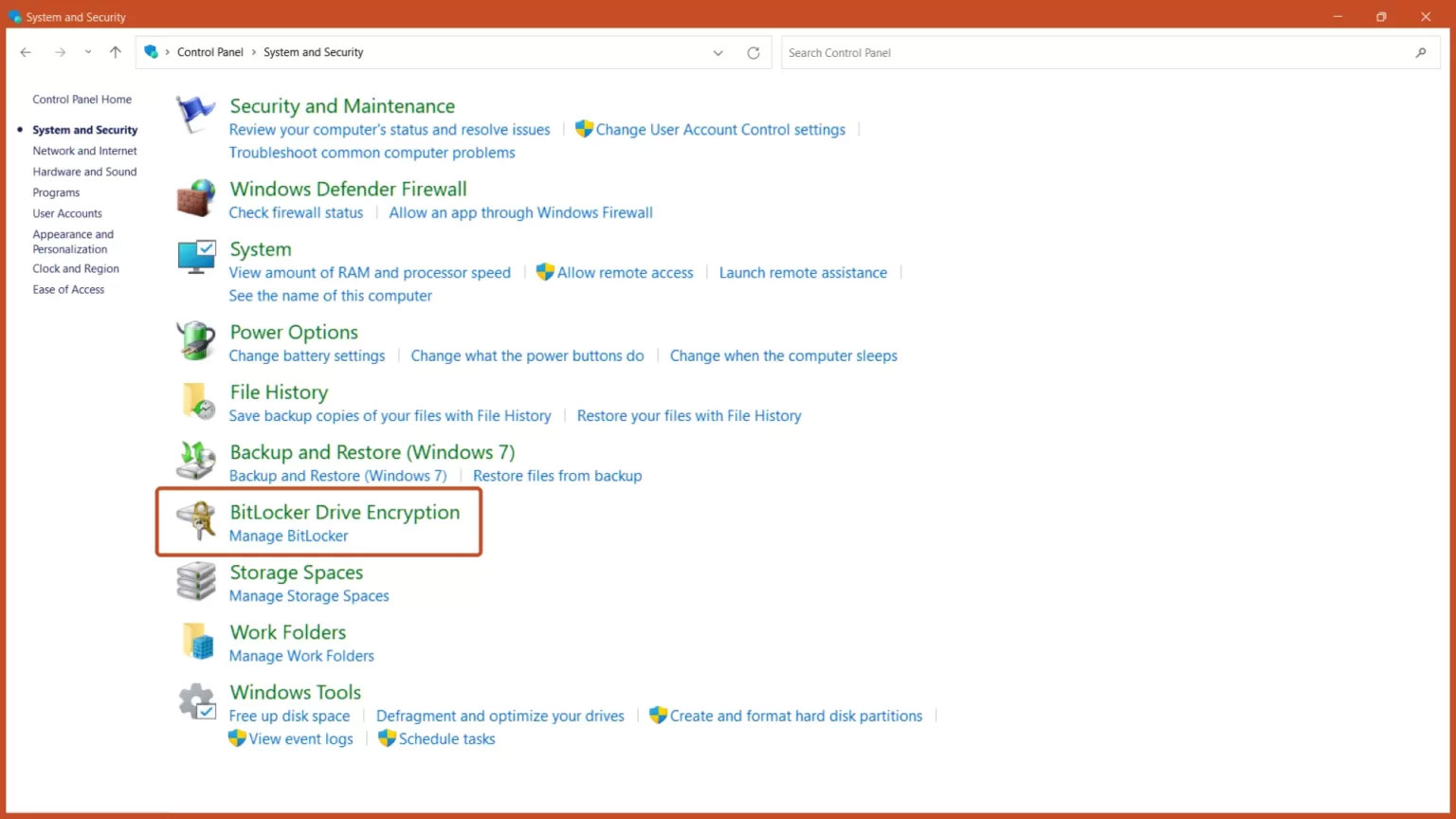
<p style="text-align: justify;">Bước 2: Nhấp vào nút&nbsp;<strong>BitLocker Drive Encryption</strong>.</p>

<figure>
<div style="text-align: justify;"><img alt="Nút BitLocker Drive Encryption" data-i="0" data-src="https://st.quantrimang.com/photos/image/2023/02/10/tat-bitlocker-tren-windows-11-1.jpg" data-was-processed="true" height="864" src="https://st.quantrimang.com/photos/image/2023/02/10/tat-bitlocker-tren-windows-11-1.jpg" width="1536" /></div>

<figcaption>
<div style="text-align: justify;">Nút BitLocker Drive Encryption</div>
</figcaption>
</figure>

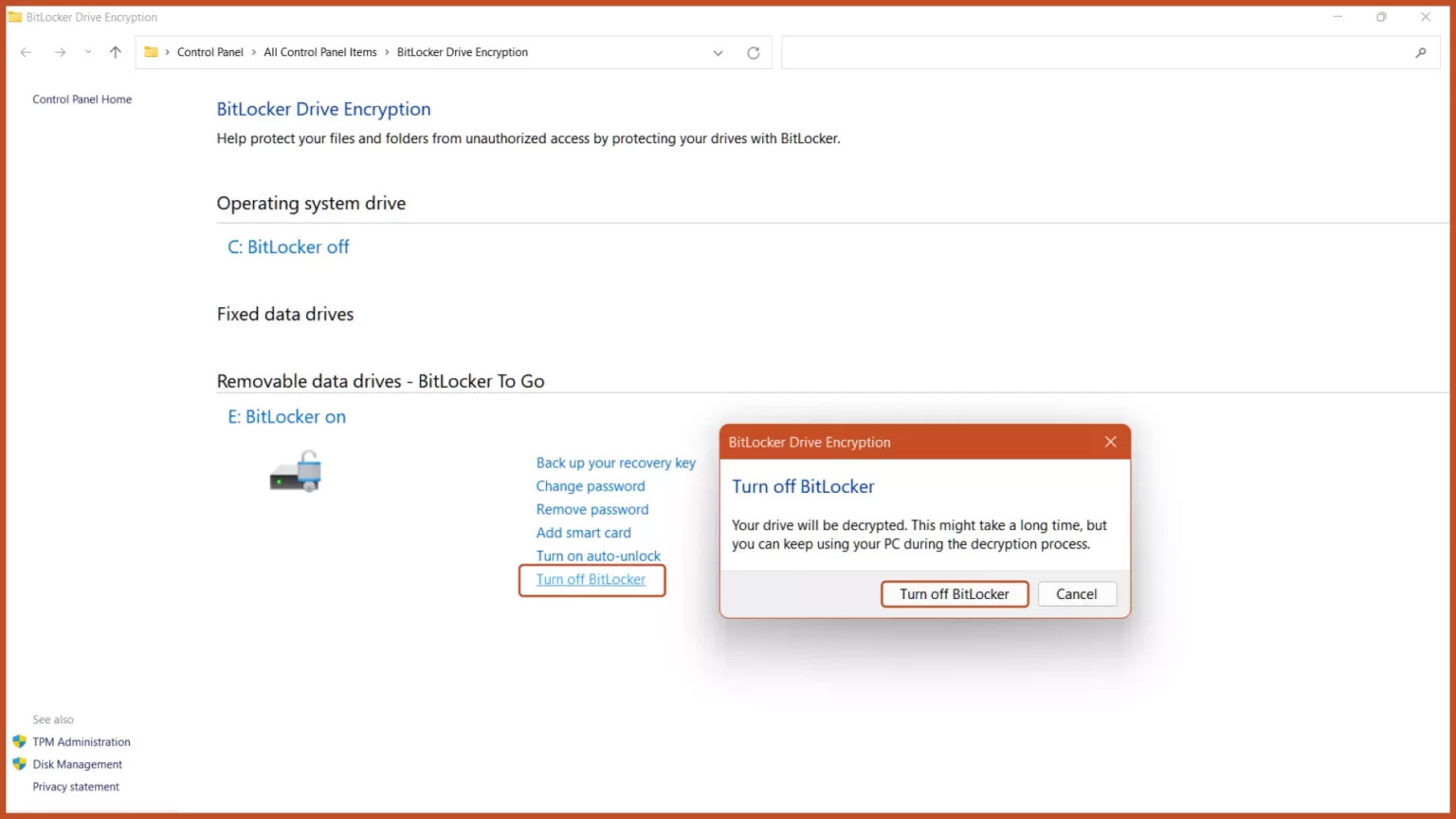
<p style="text-align: justify;">Bước 3: Nhấp vào nút&nbsp;<strong>Turn off BitLocker</strong>.</p>

<figure>
<div style="text-align: justify;"><img alt="Tùy chọn Turn off BitLocker" data-i="1" data-src="https://st.quantrimang.com/photos/image/2023/02/10/tat-bitlocker-tren-windows-11-2.jpg" data-was-processed="true" height="864" src="https://st.quantrimang.com/photos/image/2023/02/10/tat-bitlocker-tren-windows-11-2.jpg" width="1536" /></div>

<figcaption>
<div style="text-align: justify;">Tùy chọn Turn off BitLocker</div>
</figcaption>
</figure>

<h2 style="text-align: justify;">2. Vô hiệu hóa BitLocker qua Windows Services</h2>

<p style="text-align: justify;">Bước 1: Nhấn tổ hợp phím&nbsp;<strong>Windows + R</strong>&nbsp;trên bàn phím để&nbsp;<a href="https://quantrimang.com/cong-nghe/cach-mo-hop-thoai-run-trong-windows-187019" title="7 cách mở hộp thoại Run trong Windows">mở Windows Run</a>, gõ&nbsp;<strong>services.msc</strong>&nbsp;và nhấn nút&nbsp;<strong>OK.</strong></p>

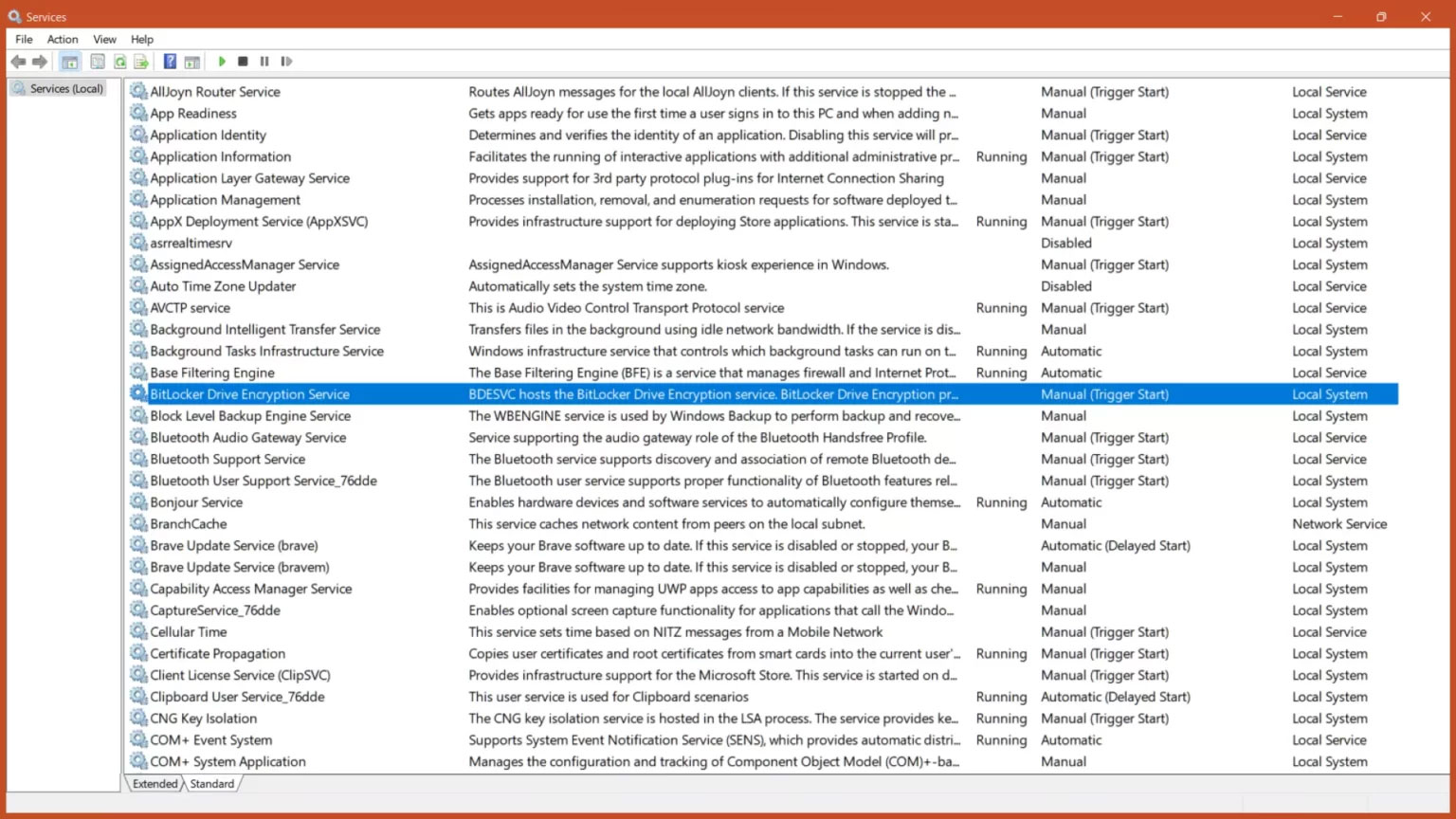
<p style="text-align: justify;">Bước 2: Cuộn và nhấp đúp vào tùy chọn&nbsp;<strong>BitLocker Drive Encryption Service.</strong></p>

<figure>
<div style="text-align: justify;"><img alt="BitLocker Drive Encryption Service" data-i="2" data-src="https://st.quantrimang.com/photos/image/2023/02/10/tat-bitlocker-tren-windows-11-3.jpg" data-was-processed="true" height="864" src="https://st.quantrimang.com/photos/image/2023/02/10/tat-bitlocker-tren-windows-11-3.jpg" width="1536" /></div>

<figcaption>
<div style="text-align: justify;">BitLocker Drive Encryption Service</div>
</figcaption>
</figure>

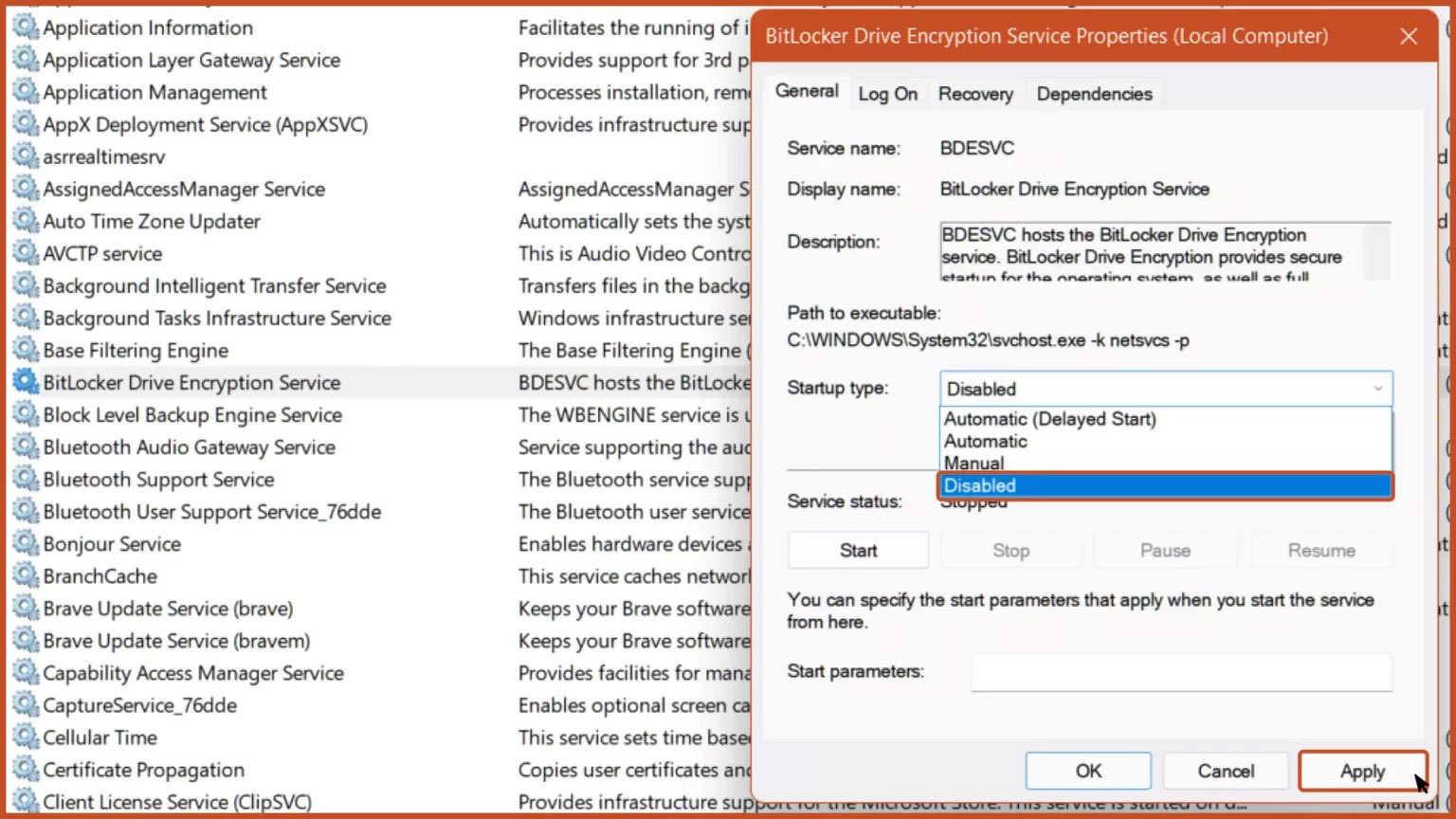
<p style="text-align: justify;">Bước 3: Để tắt mã hóa BitLocker, hãy đặt loại khởi động thành&nbsp;<strong>Disabled</strong>&nbsp;và nhấn nút&nbsp;<strong>Apply.</strong></p>

<figure>
<div style="text-align: justify;"><img alt="Đặt loại khởi động thành Disabled" data-i="3" data-src="https://st.quantrimang.com/photos/image/2023/02/10/tat-bitlocker-tren-windows-11-4.jpg" data-was-processed="true" height="864" src="https://st.quantrimang.com/photos/image/2023/02/10/tat-bitlocker-tren-windows-11-4.jpg" width="1536" /></div>

<figcaption>
<div style="text-align: justify;">Đặt loại khởi động thành Disabled</div>
</figcaption>
</figure>

<p style="text-align: justify;">Bước 4: Khởi động lại máy tính để thay đổi có hiệu lực.</p>

<figure>
<div style="text-align: justify;"><img alt="Khởi động lại thiết bị" data-i="4" data-src="https://st.quantrimang.com/photos/image/2023/02/10/tat-bitlocker-tren-windows-11-5.jpg" data-was-processed="true" height="864" src="https://st.quantrimang.com/photos/image/2023/02/10/tat-bitlocker-tren-windows-11-5.jpg" width="1536" /></div>

<figcaption>
<div style="text-align: justify;">Khởi động lại thiết bị</div>
</figcaption>
</figure>

<h2 style="text-align: justify;">3. Tắt BitLocker qua This PC</h2>

<p style="text-align: justify;">Bước 1: Mở ứng dụng&nbsp;<strong>This PC</strong>&nbsp;trên máy tính của bạn.</p>

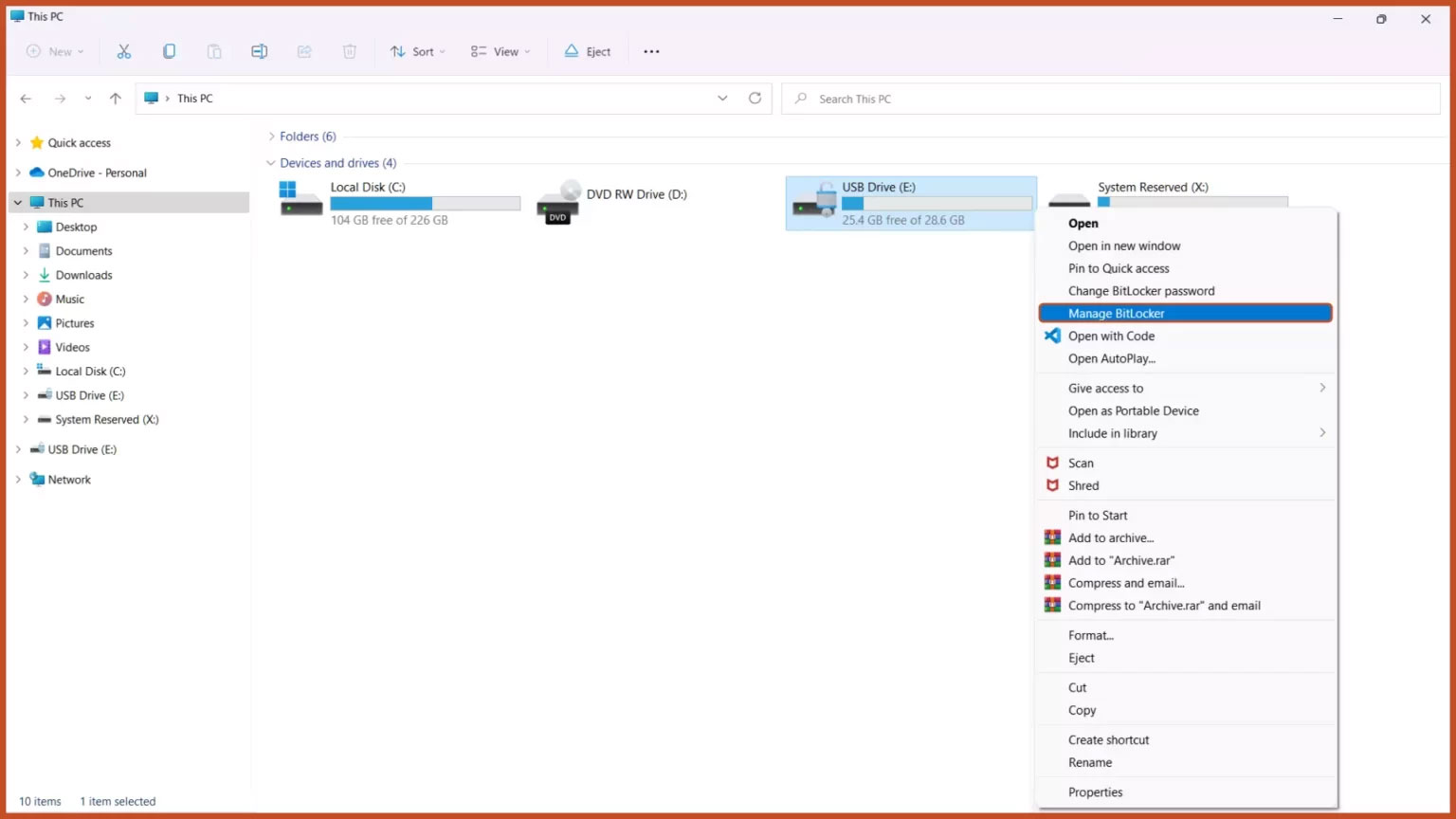
<p style="text-align: justify;">Bước 2: Nhấp chuột phải vào ổ mà bạn muốn tắt BitLocker và chọn tùy chọn&nbsp;<strong>Manage BitLocker.</strong></p>

<figure>
<div style="text-align: justify;"><img alt="Tùy chọn Manage BitLocker" data-i="5" data-src="https://st.quantrimang.com/photos/image/2023/02/10/tat-bitlocker-tren-windows-11-6.jpg" data-was-processed="true" height="864" src="https://st.quantrimang.com/photos/image/2023/02/10/tat-bitlocker-tren-windows-11-6.jpg" width="1536" /></div>

<figcaption>
<div style="text-align: justify;">Tùy chọn Manage BitLocker</div>
</figcaption>
</figure>

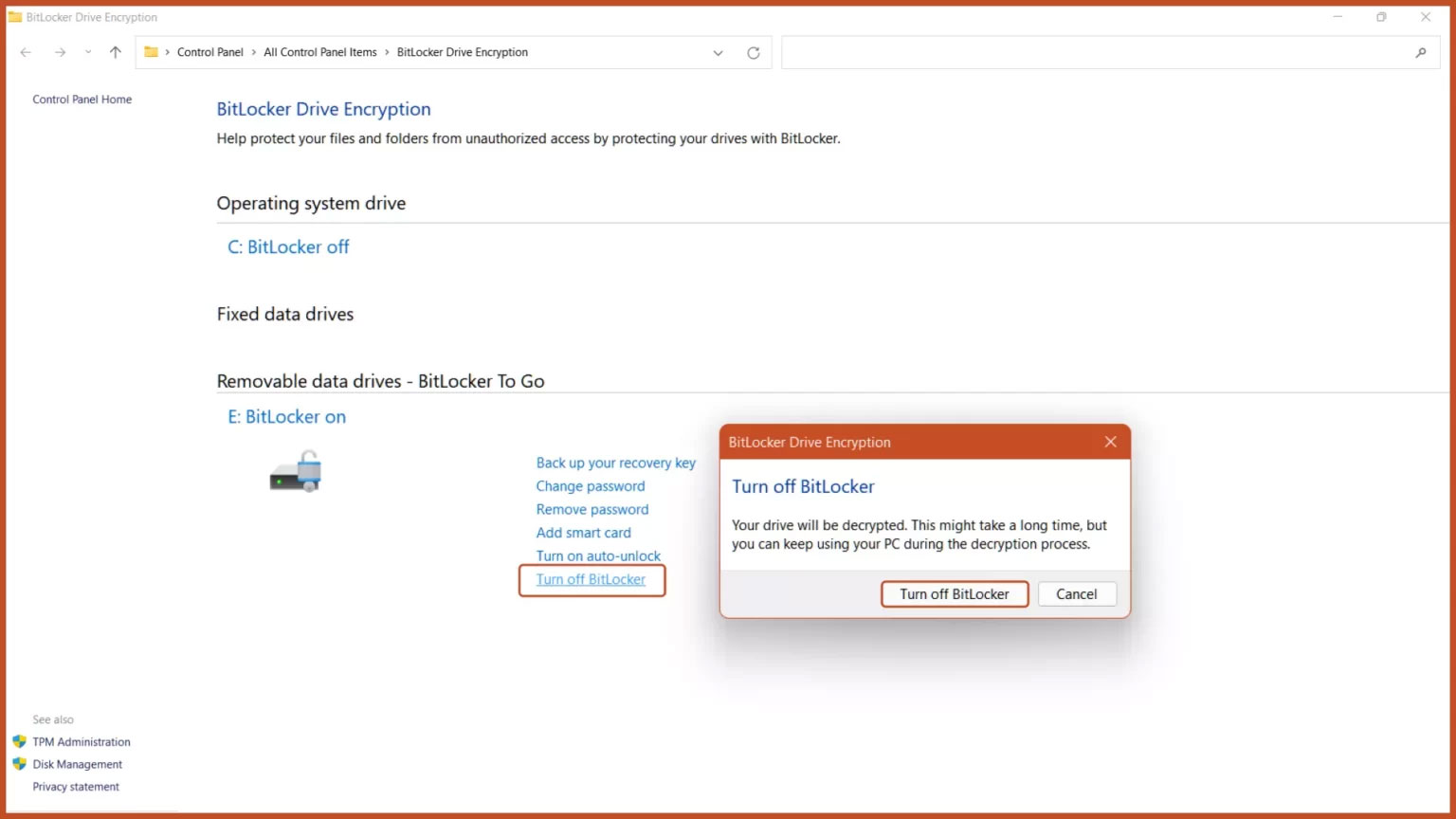
<p style="text-align: justify;">Bước 3: Nhấp vào nút Turn off BitLocker.</p>

<figure>
<div style="text-align: justify;"><img alt="Tùy chọn Turn off BitLocker" data-i="6" data-src="https://st.quantrimang.com/photos/image/2023/02/10/tat-bitlocker-tren-windows-11-7.jpg" data-was-processed="true" height="864" src="https://st.quantrimang.com/photos/image/2023/02/10/tat-bitlocker-tren-windows-11-7.jpg" width="1536" /></div>

<figcaption>
<div style="text-align: justify;">Tùy chọn Turn off BitLocker</div>
</figcaption>
</figure>

<h2 style="text-align: justify;">4. Vô hiệu hóa BitLocker thông qua System Configuration</h2>

<p style="text-align: justify;">Bước 1: Mở Windows RUN bằng cách nhấn tổ hợp phím<strong>&nbsp;Windows + R</strong>, gõ&nbsp;<strong>msconfig</strong>&nbsp;và nhấn phím&nbsp;<strong>Enter.</strong></p>

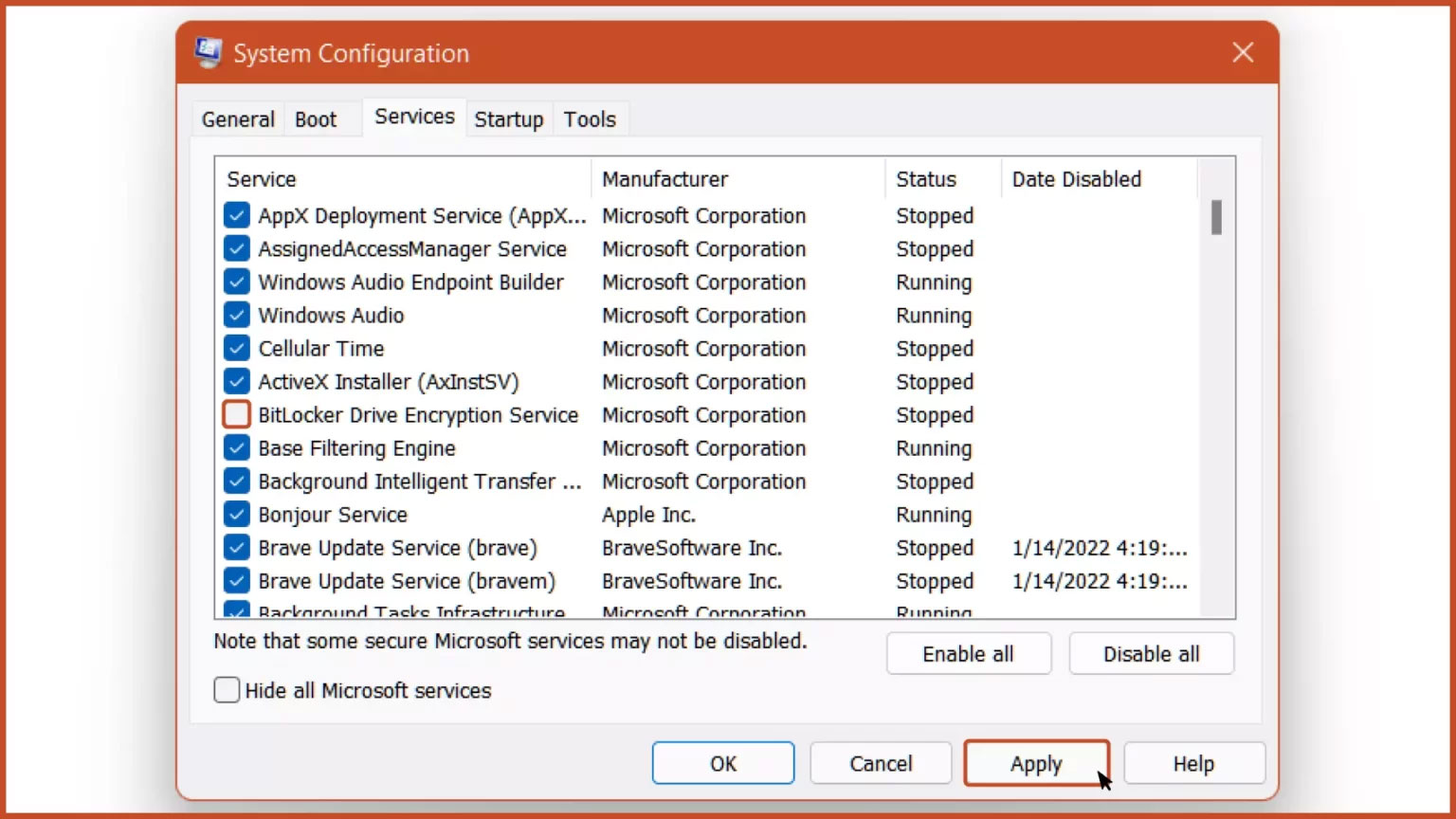
<p style="text-align: justify;">Bước 2: Chọn tab&nbsp;<strong>Services</strong>&nbsp;từ thanh trên cùng, bỏ chọn&nbsp;<strong>BitLocker Drive Encryption Service</strong>&nbsp;và nhấp vào nút&nbsp;<strong>Apply.</strong></p>

<figure>
<div style="text-align: justify;"><img alt="Vô hiệu hóa service BitLocker" data-i="7" data-src="https://st.quantrimang.com/photos/image/2023/02/10/tat-bitlocker-tren-windows-11-8.jpg" data-was-processed="true" height="864" src="https://st.quantrimang.com/photos/image/2023/02/10/tat-bitlocker-tren-windows-11-8.jpg" width="1536" /></div>

<figcaption>
<div style="text-align: justify;">Vô hiệu hóa service BitLocker</div>
</figcaption>
</figure>

<p style="text-align: justify;">Bước 3:&nbsp;<a href="https://quantrimang.com/cong-nghe/6-cach-khoi-dong-lai-windows-that-pro-116819" title="6 cách khởi động lại máy tính Windows từ đơn giản đến &#039;Pro&#039;">Khởi động lại máy tính</a>&nbsp;và sau đó, BitLocker Encryption Service sẽ bị tắt.</p>

<figure>
<div style="text-align: justify;"><img alt="Khởi động lại thiết bị" data-i="8" data-src="https://st.quantrimang.com/photos/image/2023/02/10/tat-bitlocker-tren-windows-11-9.jpg" data-was-processed="true" height="864" src="https://st.quantrimang.com/photos/image/2023/02/10/tat-bitlocker-tren-windows-11-9.jpg" width="1536" /></div>

<figcaption>
<div style="text-align: justify;">Khởi động lại thiết bị</div>
</figcaption>
</figure>

<h2 style="text-align: justify;">5. Tắt BitLocker qua Command Prompt</h2>

<p style="text-align: justify;">Bước 1:&nbsp;<a href="https://quantrimang.com/cong-nghe/huong-dan-mo-command-prompt-duoi-quyen-admin-tren-windows-8-va-10-119884" title="Cách mở và chạy cmd với quyền Admin trên Windows">Chạy Command Prompt với quyền admin</a>&nbsp;từ menu Start.</p>

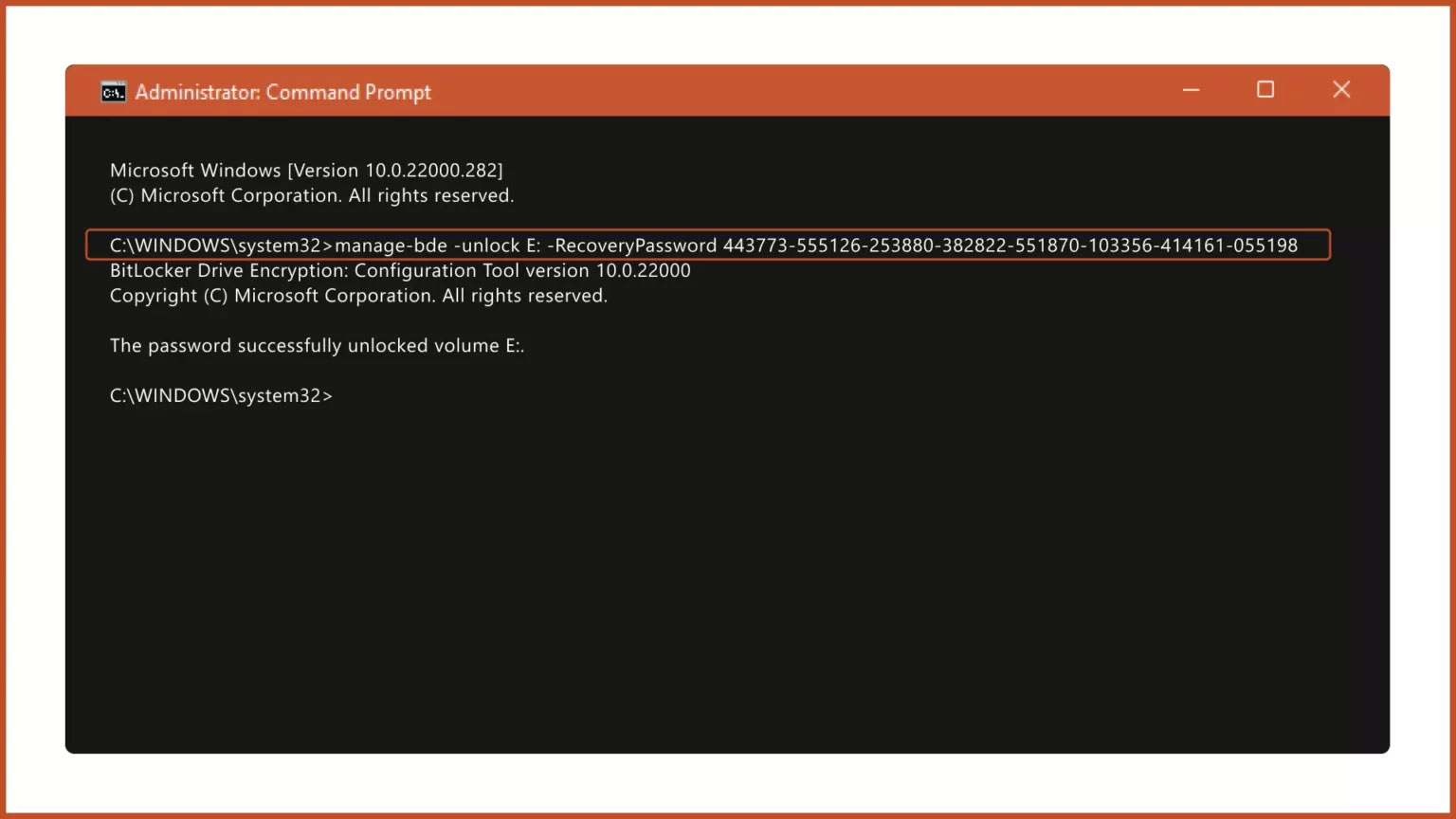
<p style="text-align: justify;">Bước 2: Để mở khóa BitLocker Encrypted Drive, gõ lệnh:</p>

<pre id="pre0">
<code>manage-bde -unlock Drive-Name: -RecoveryPassword Recovery-Code</code></pre>

<figure>
<div style="text-align: justify;"><img alt="Mở khóa BitLocker Encrypted Drive" data-i="9" data-src="https://st.quantrimang.com/photos/image/2023/02/10/tat-bitlocker-tren-windows-11-10.jpg" data-was-processed="true" height="864" src="https://st.quantrimang.com/photos/image/2023/02/10/tat-bitlocker-tren-windows-11-10.jpg" width="1536" /></div>

<figcaption>
<div style="text-align: justify;">Mở khóa BitLocker Encrypted Drive</div>
</figcaption>
</figure>

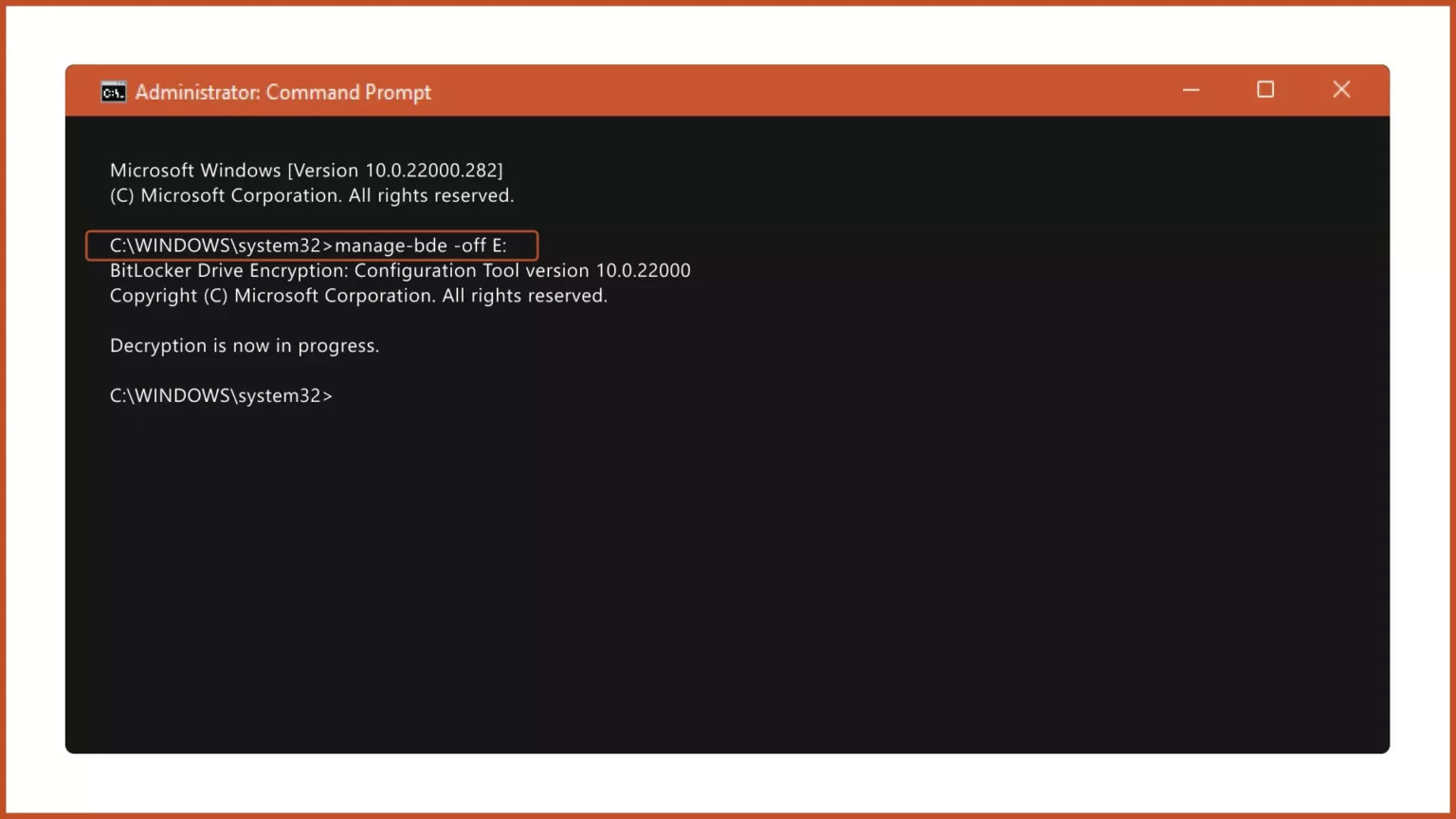
<p style="text-align: justify;">Bước 3: Để tắt BitLocker bằng CMD, gõ lệnh:</p>

<pre id="pre1">
<code>manage-bde -off Drive-Name:</code></pre>

<figure>
<div style="text-align: justify;"><img alt="Tắt BitLocker" data-i="10" data-src="https://st.quantrimang.com/photos/image/2023/02/10/tat-bitlocker-tren-windows-11-11.jpg" data-was-processed="true" height="864" src="https://st.quantrimang.com/photos/image/2023/02/10/tat-bitlocker-tren-windows-11-11.jpg" width="1536" /></div>

<figcaption>
<div style="text-align: justify;">Tắt BitLocker</div>
</figcaption>
</figure>

<p style="text-align: justify;"><strong>Lưu ý</strong>: Thay thế&nbsp;<strong>Drive-Name</strong>&nbsp;bằng ký tự ổ của BitLocker Encrypted Drive và&nbsp;<strong>Recovery-Code</strong>&nbsp;bằng khóa khôi phục thực tế được phân bổ trong khi mã hóa ổ.</p>

<h2 style="text-align: justify;">6. Vô hiệu hóa BitLocker thông qua Registry Editor</h2>

<p style="text-align: justify;">Bước 1:&nbsp;<a href="https://quantrimang.com/cong-nghe/cach-mo-registry-editor-tren-windows-143522" title="Cách mở Registry Editor trên Windows">Mở Registry Editor</a>&nbsp;từ menu Start.</p>

<p style="text-align: justify;">Bước 2: Trong Registry Editor, điều hướng đến đường dẫn sau:</p>

<pre id="pre2">
<code>Computer\HKEY_LOCAL_MACHINE\SYSTEM\CurrentControlSet\Control\BitLocker</code></pre>

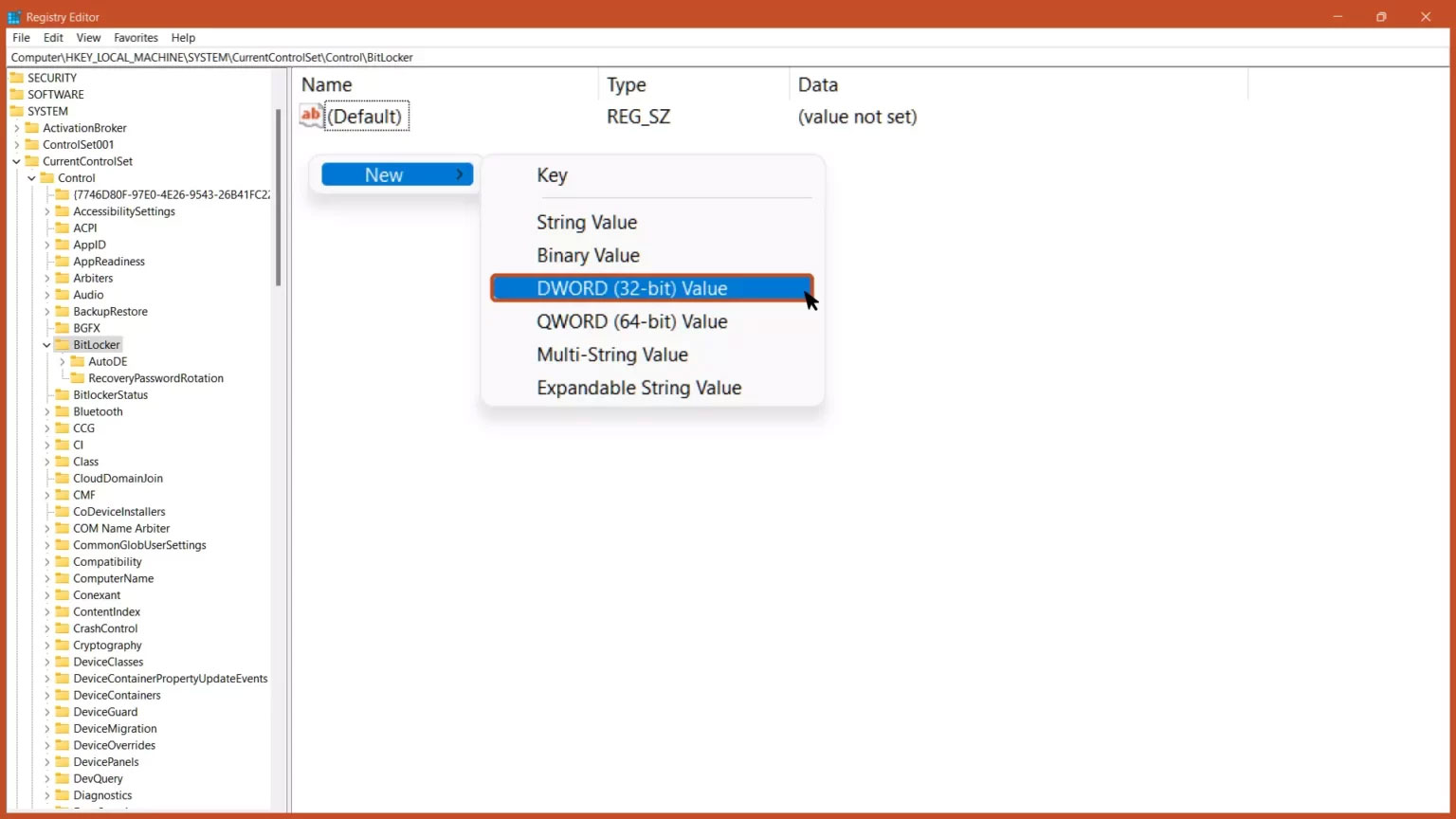
<p style="text-align: justify;">Bước 3: Nhấp chuột phải vào vùng trống trên khung bên phải, thêm giá trị DWORD (32-bit) mới và đặt tên là&nbsp;<strong>PreventDeviceEncryption.</strong></p>

<figure>
<div style="text-align: justify;"><img alt="Đặt tên giá trị là PreventDeviceEncryption" data-i="11" data-src="https://st.quantrimang.com/photos/image/2023/02/10/tat-bitlocker-tren-windows-11-12.jpg" data-was-processed="true" height="864" src="https://st.quantrimang.com/photos/image/2023/02/10/tat-bitlocker-tren-windows-11-12.jpg" width="1536" /></div>

<figcaption>
<div style="text-align: justify;">Đặt tên giá trị là PreventDeviceEncryption</div>
</figcaption>
</figure>

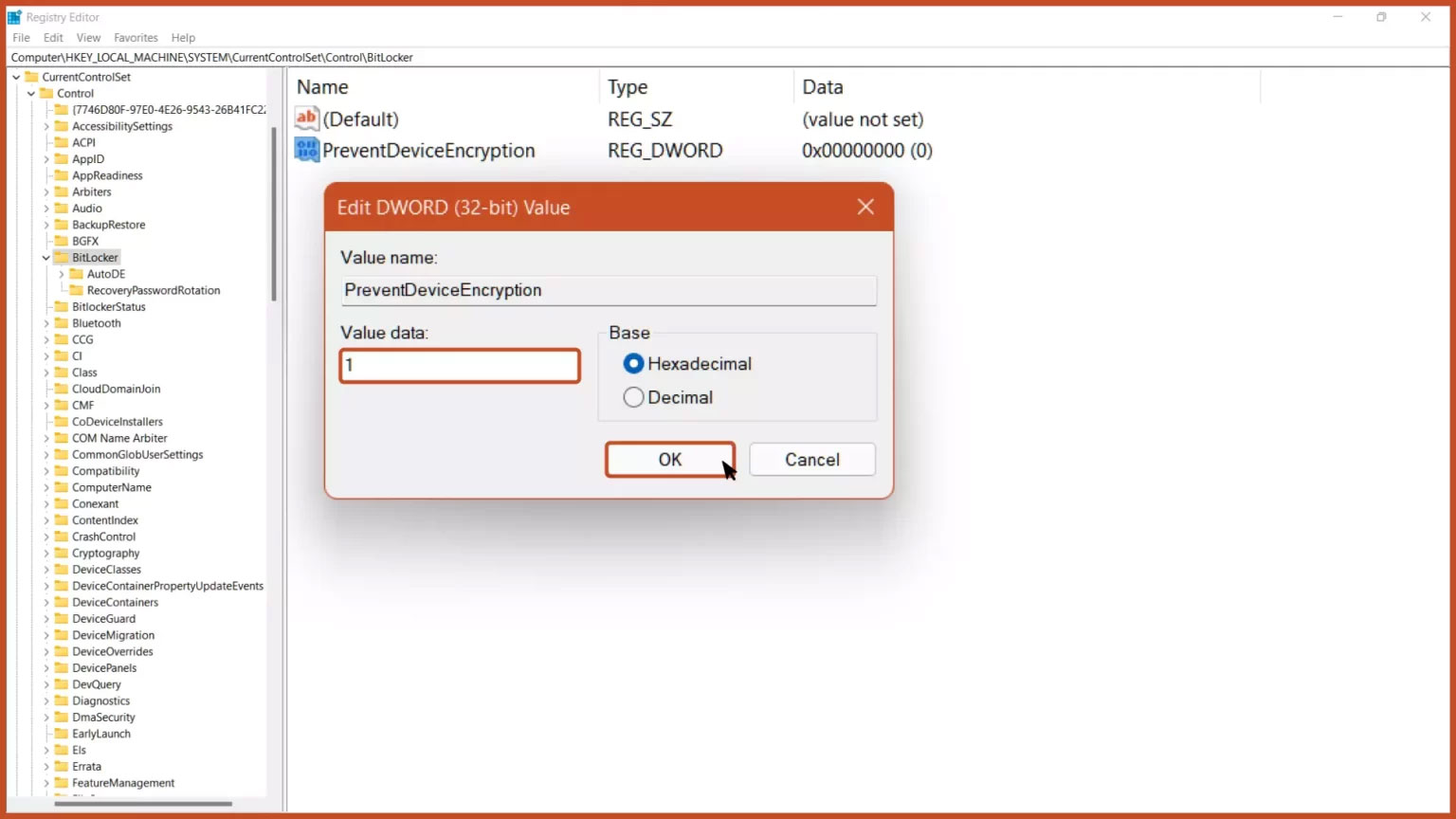
<p style="text-align: justify;">Bước 4: Mở giá trị DWORD và đặt dữ liệu giá trị từ 0 thành 1 ở định dạng thập lục phân và nhấp vào nút&nbsp;<strong>OK.</strong></p>

<figure>
<div style="text-align: justify;"><img alt="Thay đổi dữ liệu giá trị là 1" data-i="12" data-src="https://st.quantrimang.com/photos/image/2023/02/10/tat-bitlocker-tren-windows-11-13.jpg" data-was-processed="true" height="864" src="https://st.quantrimang.com/photos/image/2023/02/10/tat-bitlocker-tren-windows-11-13.jpg" width="1536" /></div>

<figcaption>
<div style="text-align: justify;">Thay đổi dữ liệu giá trị là 1</div>
</figcaption>
</figure>

<p style="text-align: justify;">Bước 5: Khởi động lại máy tính để thay đổi có hiệu lực.</p>

<figure>
<div style="text-align: justify;"><img alt="Khởi động lại thiết bị" data-i="13" data-src="https://st.quantrimang.com/photos/image/2023/02/10/tat-bitlocker-tren-windows-11-14.jpg" data-was-processed="true" height="864" src="https://st.quantrimang.com/photos/image/2023/02/10/tat-bitlocker-tren-windows-11-14.jpg" width="1536" /></div>

<figcaption>
<div style="text-align: justify;">Khởi động lại thiết bị</div>
</figcaption>
</figure>

<h2 style="text-align: justify;">7. Tắt BitLocker qua PowerShell</h2>

<p style="text-align: justify;">Bước 1:&nbsp;Chạy PowerShell với quyền admin&nbsp;từ menu Start.</p>

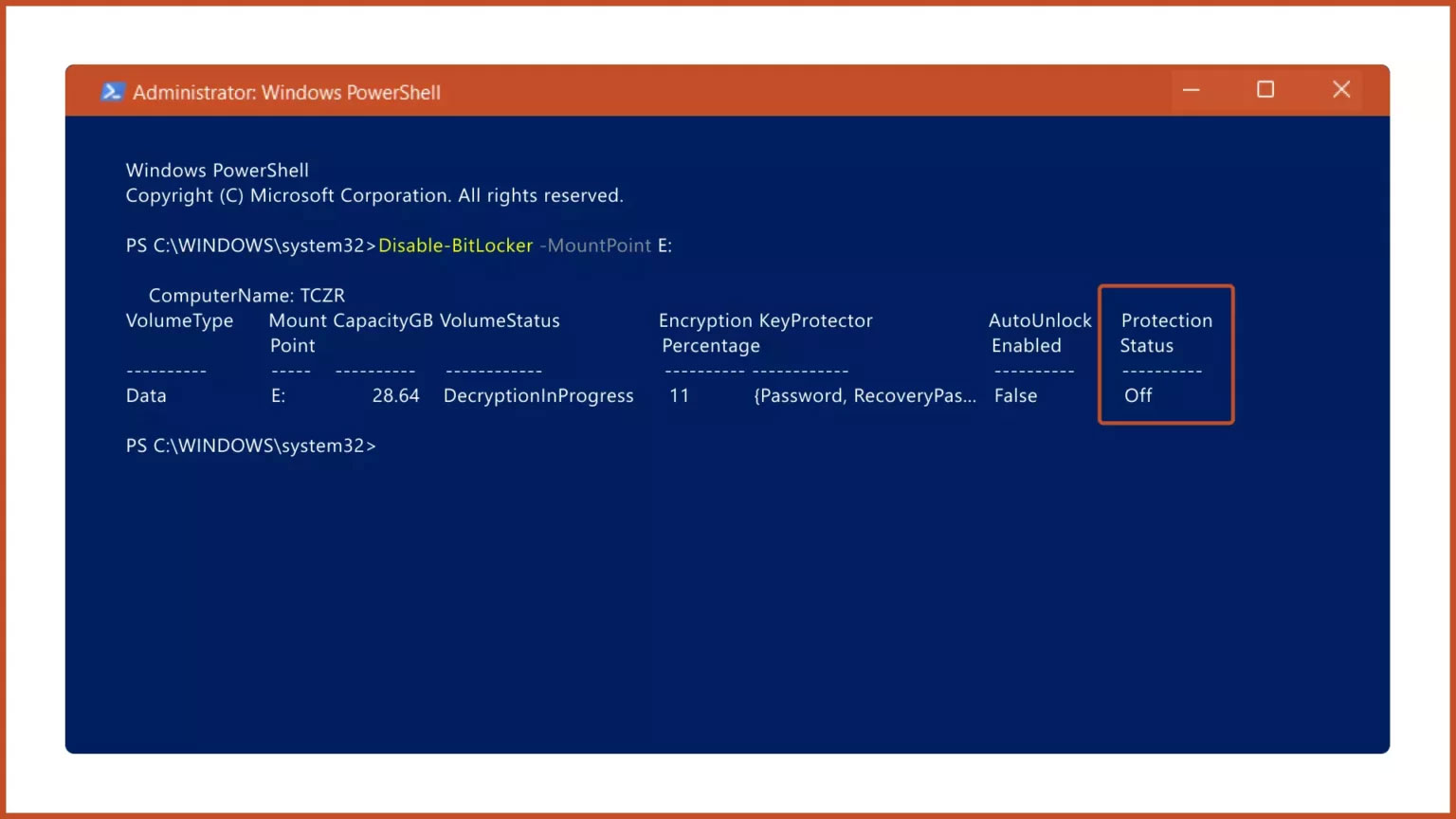
<p style="text-align: justify;">Bước 2: Để tắt BitLocker bằng PowerShell, gõ lệnh:</p>

<pre id="pre3">
<code>Disable-BitLocker -MountPoint Drive_Name:</code></pre>

<figure>
<div style="text-align: justify;"><img alt="Lệnh tắt BitLocker" data-i="14" data-src="https://st.quantrimang.com/photos/image/2023/02/10/tat-bitlocker-tren-windows-11-15.jpg" data-was-processed="true" height="864" src="https://st.quantrimang.com/photos/image/2023/02/10/tat-bitlocker-tren-windows-11-15.jpg" width="1536" /></div>

<figcaption>
<div style="text-align: justify;">Lệnh tắt BitLocker</div>
</figcaption>
</figure>

<p style="text-align: justify;">Lưu ý: Thay thế&nbsp;<strong>Drive_Name</strong>&nbsp;bằng ký tự của ổ được mã hóa BitLocker.</p>

<h2 style="text-align: justify;">8. Tắt BitLocker qua Group Policy Editor</h2>

<p style="text-align: justify;">Bước 1: Trong menu Start, gõ&nbsp;<strong>Group Policy Editor</strong>&nbsp;và nhấn phím&nbsp;<strong>Enter.</strong></p>

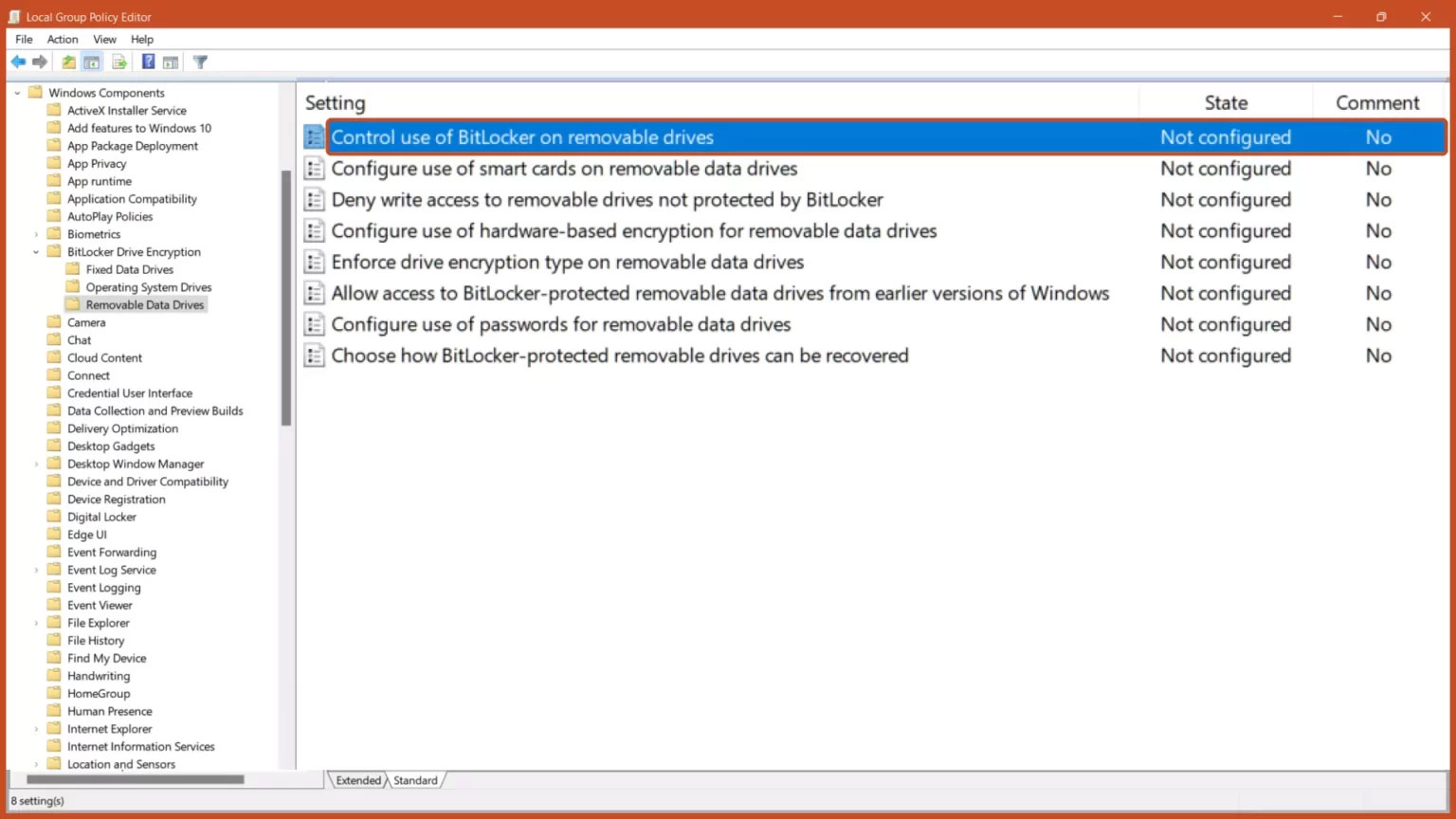
<p style="text-align: justify;">Bước 2: Điều hướng đến đường dẫn sau:</p>

<pre id="pre4">
<code>Computer Configuration &gt; Administrative Templates &gt; Windows Components &gt; BitLocker Drive Encryption &gt; Removable Data Drives</code></pre>

<p style="text-align: justify;">&nbsp;</p>

<p style="text-align: justify;">... rồi nhấp vào tùy chọn&nbsp;<strong>Control use of BitLocker on removable drives</strong>.</p>

<figure>
<div style="text-align: justify;"><img alt="Key mã hóa ổ BitLocker" data-i="15" data-src="https://st.quantrimang.com/photos/image/2023/02/10/tat-bitlocker-tren-windows-11-16.jpg" data-was-processed="true" height="864" src="https://st.quantrimang.com/photos/image/2023/02/10/tat-bitlocker-tren-windows-11-16.jpg" width="1536" /></div>

<figcaption>
<div style="text-align: justify;">Key mã hóa ổ BitLocker</div>
</figcaption>
</figure>

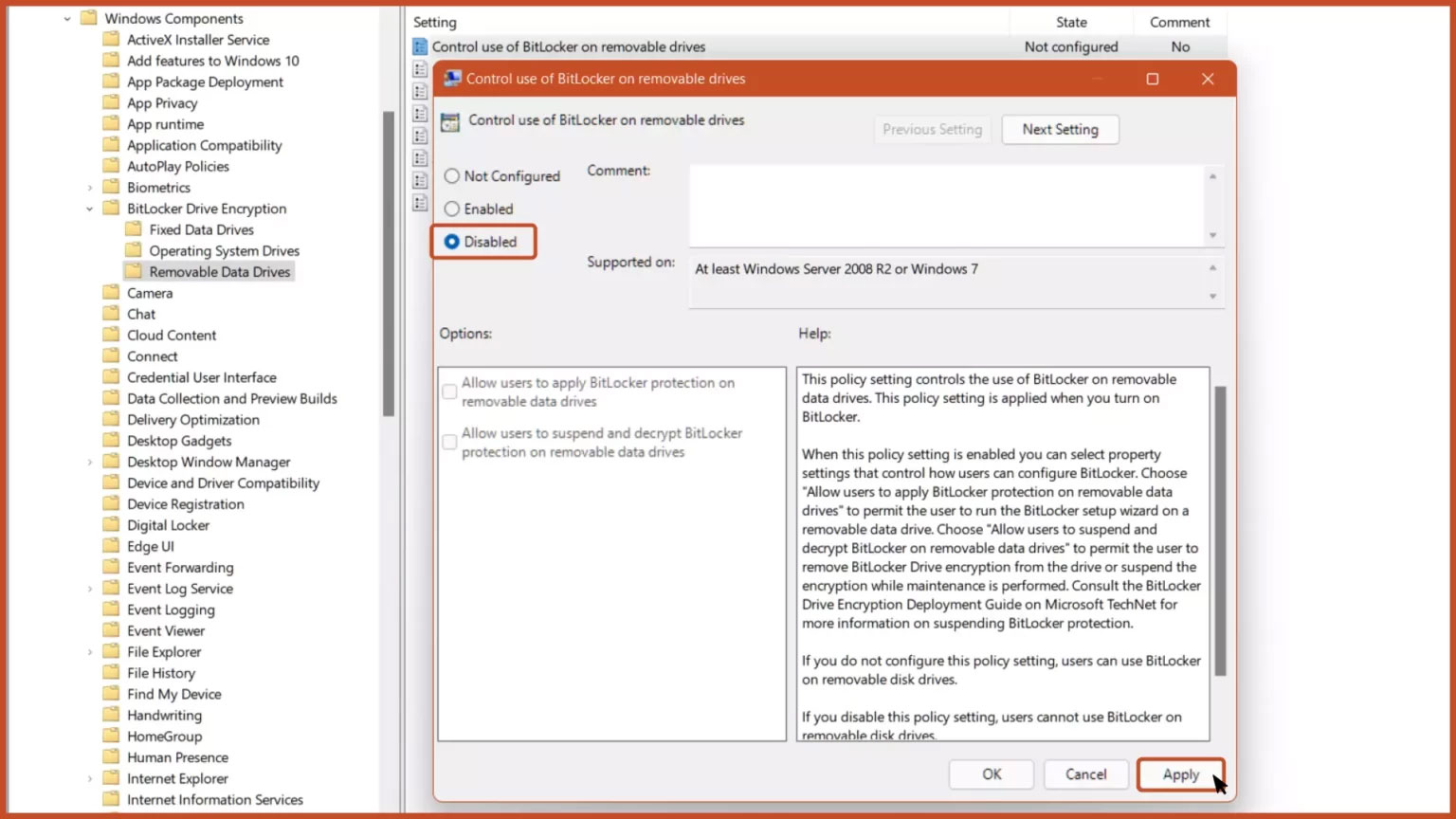
<p style="text-align: justify;">Bước 3: Chọn tùy chọn&nbsp;<strong>Disabled</strong>&nbsp;và nhấp vào nút&nbsp;<strong>OK.</strong></p>

<figure>
<div style="text-align: justify;"><img alt="Tùy chọn Disabled" data-i="16" data-src="https://st.quantrimang.com/photos/image/2023/02/10/tat-bitlocker-tren-windows-11-17.jpg" data-was-processed="true" height="864" src="https://st.quantrimang.com/photos/image/2023/02/10/tat-bitlocker-tren-windows-11-17.jpg" width="1536" /></div>

<figcaption>
<div style="text-align: justify;">Tùy chọn Disabled</div>
</figcaption>
</figure>

<p style="text-align: justify;">Cài đặt policy này kiểm soát việc sử dụng BitLocker trên ổ dữ liệu di động. Cài đặt policy này được áp dụng khi bạn bật BitLocker.</p>

<p style="text-align: justify;">Nếu bạn không cấu hình cài đặt policy này, người dùng có thể sử dụng BitLocker trên các ổ di động. Nếu bạn tắt cài đặt policy này, người dùng không thể sử dụng BitLocker trên ổ di động</p>
		</div>
				<div id="author">
						<p>
				<strong>Nguồn tin:</strong>
				Quantrimang.com
			</p>
		</div>
	</div>
	<div id="footer" class="clearfix">
		<div id="url">
			<strong>URL của bản tin này: </strong><a href="https://www.nguoicodonvn2008.info/vi/news/savefile/kien-thuc-may-tinh/cach-tat-bitlocker-tren-windows-11-6697.html" title="Cách tắt Bitlocker trên Windows 11">https://www.nguoicodonvn2008.info/vi/news/savefile/kien-thuc-may-tinh/cach-tat-bitlocker-tren-windows-11-6697.html</a>

		</div>
		<div class="clear"></div>
		<div class="copyright">
			&copy; .&#x3A; Nguoicodonvn2008.info - Cõi lòng người cô đơn &#x3A;.
		</div>
		<div id="contact">
			<a href="mailto:admin@nguoicodonvn2008.info">admin@nguoicodonvn2008.info</a>
		</div>
	</div>
</div>
        <div id="timeoutsess" class="chromeframe">
            Bạn đã không sử dụng Site, <a onclick="timeoutsesscancel();" href="https://nguoicodonvn2008.info/#">Bấm vào đây để duy trì trạng thái đăng nhập</a>. Thời gian chờ: <span id="secField"> 60 </span> giây
        </div>
        <div id="openidResult" class="nv-alert" style="display:none"></div>
        <div id="openidBt" data-result="" data-redirect=""></div>
		</script>
		<div class="car-top">
  <span><img src="https://nguoicodonvn2008.info/themes/default/images/car.png" alt=""></span>
</div>
<script src="https://nguoicodonvn2008.info/assets/js/jquery/jquery.min.js"></script>
<script>var nv_base_siteurl="/",nv_lang_data="vi",nv_lang_interface="vi",nv_name_variable="nv",nv_fc_variable="op",nv_lang_variable="language",nv_module_name="news",nv_func_name="savefile",nv_is_user=0, nv_my_ofs=-4,nv_my_abbr="EDT",nv_cookie_prefix="nv4c_e856T",nv_check_pass_mstime=1738000,nv_area_admin=0,nv_safemode=0,theme_responsive=0,nv_recaptcha_ver=2,nv_recaptcha_sitekey="",nv_recaptcha_type="image",XSSsanitize=1;</script>
<script src="https://nguoicodonvn2008.info/assets/js/language/vi.js"></script>
<script src="https://nguoicodonvn2008.info/assets/js/DOMPurify/purify3.js"></script>
<script src="https://nguoicodonvn2008.info/assets/js/global.js"></script>
<script src="https://nguoicodonvn2008.info/assets/js/site.js"></script>
<script src="https://nguoicodonvn2008.info/themes/default/js/news.js"></script>
<script src="https://nguoicodonvn2008.info/themes/default/js/main.js"></script>
<script src="https://nguoicodonvn2008.info/themes/default/js/custom.js"></script>
<script type="application/ld+json">
        {
            "@context": "https://schema.org",
            "@type": "Organization",
            "url": "https://nguoicodonvn2008.info",
            "logo": "https://nguoicodonvn2008.info/uploads/angel.gif"
        }
        </script>
<script src="https://nguoicodonvn2008.info/themes/default/js/bootstrap.min.js"></script>
<script type="text/javascript">
var $scrolltop = $('.car-top');
$scrolltop.on('click', function () {
    $('html,body').animate({
        scrollTop: 0
    }, 800);
    $(this).addClass("car-run");
    setTimeout(function(){ $scrolltop.removeClass('car-run');}, 1000);
    return false;
});
$(window).on('scroll', function ()
{ 
    if($(window).scrollTop() >= 200)
    {
        $scrolltop.addClass("show");
        $scrolltop.addClass("car-down");
    }
    else
    {
       $scrolltop.removeClass("show");
       setTimeout(function(){ $scrolltop.removeClass('car-down');}, 300);
    }
});
</script>
</body>
</html>