<!DOCTYPE html>
    <html lang="vi" xmlns="http://www.w3.org/1999/xhtml" prefix="og: http://ogp.me/ns#">
    <head>
<title>Cách tạo video bằng ứng dụng Photos trên Windows 11</title>
<meta name="description" content="Cách tạo video bằng ứng dụng Photos trên Windows 11 - Savefile - Tin Tức -...">
<meta name="author" content=".: Nguoicodonvn2008.info - Cõi lòng người cô đơn :.">
<meta name="copyright" content=".: Nguoicodonvn2008.info - Cõi lòng người cô đơn :. [admin@nguoicodonvn2008.info]">
<meta name="robots" content="index, archive, follow, noodp">
<meta name="googlebot" content="index,archive,follow,noodp">
<meta name="msnbot" content="all,index,follow">
<meta name="generator" content="NukeViet v4.5">
<meta http-equiv="Content-Type" content="text/html; charset=utf-8">
<meta property="og:title" content="Cách tạo video bằng ứng dụng Photos trên Windows 11">
<meta property="og:type" content="website">
<meta property="og:description" content="Savefile - Tin Tức - https&#x3A;&#x002F;&#x002F;www.nguoicodonvn2008.info&#x002F;vi&#x002F;news&#x002F;savefile&#x002F;kien-thuc-may-tinh&#x002F;cach-tao-video-bang-ung-dung-photos-tren-windows-11-4894.html">
<meta property="og:site_name" content=".&#x3A; Nguoicodonvn2008.info - Cõi lòng người cô đơn &#x3A;.">
<meta property="og:url" content="https://www.nguoicodonvn2008.info/vi/news/savefile/kien-thuc-may-tinh/cach-tao-video-bang-ung-dung-photos-tren-windows-11-4894.html">
<link rel="shortcut icon" href="https://nguoicodonvn2008.info/favicon.ico">
<link rel="canonical" href="https://www.nguoicodonvn2008.info/vi/news/savefile/kien-thuc-may-tinh/cach-tao-video-bang-ung-dung-photos-tren-windows-11-4894.html">
<link rel="alternate" href="https://nguoicodonvn2008.info/vi/news/rss/" title="Tin Tức" type="application/rss+xml">
<link rel="alternate" href="https://nguoicodonvn2008.info/vi/news/rss/karaoke-dual/" title="Tin Tức - Karaoke Dual" type="application/rss+xml">
<link rel="alternate" href="https://nguoicodonvn2008.info/vi/news/rss/nhac-tre/" title="Tin Tức - Nhạc trẻ" type="application/rss+xml">
<link rel="alternate" href="https://nguoicodonvn2008.info/vi/news/rss/tru-tinh/" title="Tin Tức - Trữ tình" type="application/rss+xml">
<link rel="alternate" href="https://nguoicodonvn2008.info/vi/news/rss/nuoc-ngoai/" title="Tin Tức - Nước ngoài" type="application/rss+xml">
<link rel="alternate" href="https://nguoicodonvn2008.info/vi/news/rss/remix/" title="Tin Tức - Remix" type="application/rss+xml">
<link rel="alternate" href="https://nguoicodonvn2008.info/vi/news/rss/tam-su-tinh-yeu/" title="Tin Tức - Tâm sự tình yêu" type="application/rss+xml">
<link rel="alternate" href="https://nguoicodonvn2008.info/vi/news/rss/tho-suu-tam/" title="Tin Tức - Thơ sưu tầm" type="application/rss+xml">
<link rel="alternate" href="https://nguoicodonvn2008.info/vi/news/rss/cuoc-song/" title="Tin Tức - Cuộc sống" type="application/rss+xml">
<link rel="alternate" href="https://nguoicodonvn2008.info/vi/news/rss/phan-mem/" title="Tin Tức - Phần mềm" type="application/rss+xml">
<link rel="alternate" href="https://nguoicodonvn2008.info/vi/news/rss/kien-thuc-may-tinh/" title="Tin Tức - Kiến thức máy tính" type="application/rss+xml">
<link rel="alternate" href="https://nguoicodonvn2008.info/vi/news/rss/hoc-tap/" title="Tin Tức - Học tập" type="application/rss+xml">
<link rel="alternate" href="https://nguoicodonvn2008.info/vi/news/rss/tai-lieu/" title="Tin Tức - Tài liệu" type="application/rss+xml">
<link rel="alternate" href="https://nguoicodonvn2008.info/vi/news/rss/de-thi/" title="Tin Tức - Đề thi" type="application/rss+xml">
<link rel="preload" as="style" href="https://nguoicodonvn2008.info/assets/css/font-awesome.min.css" type="text/css">
<link rel="preload" as="style" href="https://nguoicodonvn2008.info/themes/default/css/bootstrap.non-responsive.css" type="text/css">
<link rel="preload" as="style" href="https://nguoicodonvn2008.info/themes/default/css/style.css" type="text/css">
<link rel="preload" as="style" href="https://nguoicodonvn2008.info/themes/default/css/style.non-responsive.css" type="text/css">
<link rel="preload" as="style" href="https://nguoicodonvn2008.info/themes/default/css/news.css" type="text/css">
<link rel="preload" as="style" href="https://nguoicodonvn2008.info/themes/default/css/custom.css" type="text/css">
<link rel="preload" as="script" href="https://nguoicodonvn2008.info/assets/js/jquery/jquery.min.js" type="text/javascript">
<link rel="preload" as="script" href="https://nguoicodonvn2008.info/assets/js/language/vi.js" type="text/javascript">
<link rel="preload" as="script" href="https://nguoicodonvn2008.info/assets/js/DOMPurify/purify3.js" type="text/javascript">
<link rel="preload" as="script" href="https://nguoicodonvn2008.info/assets/js/global.js" type="text/javascript">
<link rel="preload" as="script" href="https://nguoicodonvn2008.info/assets/js/site.js" type="text/javascript">
<link rel="preload" as="script" href="https://nguoicodonvn2008.info/themes/default/js/news.js" type="text/javascript">
<link rel="preload" as="script" href="https://nguoicodonvn2008.info/themes/default/js/main.js" type="text/javascript">
<link rel="preload" as="script" href="https://nguoicodonvn2008.info/themes/default/js/custom.js" type="text/javascript">
<link rel="preload" as="script" href="https://nguoicodonvn2008.info/themes/default/js/bootstrap.min.js" type="text/javascript">
<link rel="stylesheet" href="https://nguoicodonvn2008.info/assets/css/font-awesome.min.css">
<link rel="stylesheet" href="https://nguoicodonvn2008.info/themes/default/css/bootstrap.non-responsive.css">
<link rel="stylesheet" href="https://nguoicodonvn2008.info/themes/default/css/style.css">
<link rel="stylesheet" href="https://nguoicodonvn2008.info/themes/default/css/style.non-responsive.css">
<link rel="StyleSheet" href="https://nguoicodonvn2008.info/themes/default/css/news.css">
<link rel="stylesheet" href="https://nguoicodonvn2008.info/themes/default/css/custom.css">
<style type="text/css">
	body{background: #fff;}
</style>
    </head>
    <body>
<div id="print">
	<div id="hd_print">
		<h2 class="pull-left">.&#x3A; Nguoicodonvn2008.info - Cõi lòng người cô đơn &#x3A;.</h2>
		<p class="pull-right"><a title=".&#x3A; Nguoicodonvn2008.info - Cõi lòng người cô đơn &#x3A;." href="https://nguoicodonvn2008.info/">https://nguoicodonvn2008.info</a></p>
	</div>
	<div class="clear"></div>
	<hr />
	<div id="content">
		<h1>Cách tạo video bằng ứng dụng Photos trên Windows 11</h1>
		<ul class="list-inline">
			<li>Thứ tư - 15/12/2021 23:46</li>
			<li class="hidden-print txtrequired"><em class="fa fa-print">&nbsp;</em><a title="In ra" href="javascript:;" onclick="window.print()">In ra</a></li>
			<li class="hidden-print txtrequired"><em class="fa fa-power-off">&nbsp;</em><a title="Đóng cửa sổ này" href="javascript:;" onclick="window.close()">Đóng cửa sổ này</a></li>
		</ul>
		<div class="clear"></div>
		<div id="hometext">
		</div>
				<div class="imghome">
			<img alt="Cách tạo video bằng ứng dụng Photos trên Windows 11" src="https://st.quantrimang.com/photos/image/2021/12/16/tao-video-bang-ung-dung-photos-15.jpg" width="460" class="img-thumbnail" />
		</div>
		<div class="clear"></div>
		<div id="bodytext" class="clearfix">
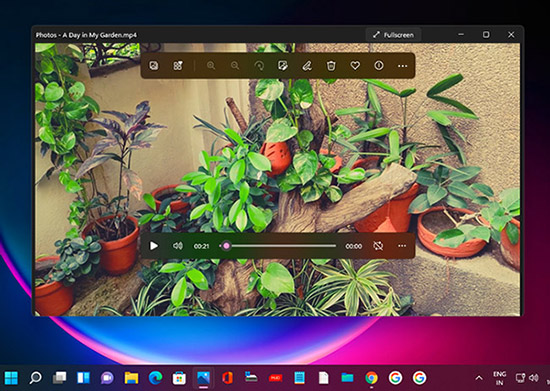
			<p style="text-align: justify;">Một trong số các tính năng thú vị nhất của&nbsp;Windows 11&nbsp;là ứng dụng Photos, ứng dụng tuyệt vời để tạo album ảnh. Nhưng bạn có biết rằng bạn cũng có thể dễ dàng tạo video bằng công cụ này không?</p>

<p style="text-align: justify;">Ứng dụng Photos không chỉ có thể tự động tạo video cho bạn mà thậm chí còn có trình chỉnh sửa video cho phép bạn tạo video tùy chỉnh với chuyển động, hiệu ứng 3D, âm nhạc, v.v… Hãy cùng Quantrimang.com tìm hiểu cách thực hiện qua bài viết sau đây!</p>

<h2 style="text-align: justify;">Cách tạo video thú vị bằng ứng dụng Photos trong Windows 11</h2>

<p style="text-align: justify;">Bạn có thể tạo video nhanh như lời chúc mừng sinh nhật hoặc kỳ nghỉ gia đình trong ứng dụng Photos.</p>

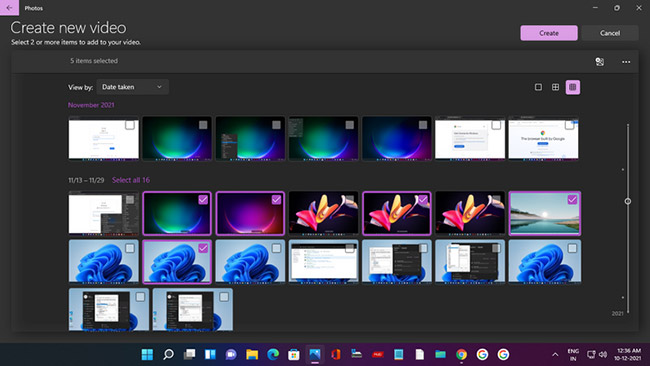
<p style="text-align: justify;">Trên màn hình chính của ứng dụng Photos, hãy nhấp vào biểu tượng&nbsp;<strong>New double Image</strong>. Chọn&nbsp;<strong>Automatic Video</strong>&nbsp;và sau đó chọn ảnh bằng cách đánh dấu vào hộp kiểm tương ứng của chúng. Sau đó nhấp vào&nbsp;<strong>Create.</strong></p>

<figure>
<div style="text-align: justify;"><img alt="Chọn ảnh cho video tự động trong ứng dụng Photos" data-i="0" data-src="https://st.quantrimang.com/photos/image/2021/12/16/tao-video-bang-ung-dung-photos-1.jpg" data-was-processed="true" height="366" src="https://st.quantrimang.com/photos/image/2021/12/16/tao-video-bang-ung-dung-photos-1.jpg" width="650" /></div>

<figcaption>
<div style="text-align: justify;">Chọn ảnh cho video tự động trong ứng dụng Photos</div>
</figcaption>
</figure>

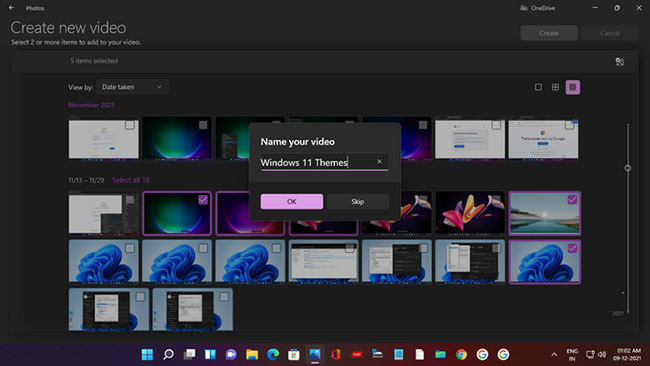
<p style="text-align: justify;">Trong lời nhắc xuất hiện, hãy thêm một tên phù hợp, chẳng hạn Windows 11 Themes như trong ví dụ. Sau đó, nhấp vào&nbsp;<strong>OK.</strong></p>

<figure>
<div style="text-align: justify;"><img alt="Đặt tên để tạo video tự động trong ứng dụng Photos" data-i="1" data-src="https://st.quantrimang.com/photos/image/2021/12/16/tao-video-bang-ung-dung-photos-2.jpg" data-was-processed="true" height="366" src="https://st.quantrimang.com/photos/image/2021/12/16/tao-video-bang-ung-dung-photos-2.jpg" width="650" /></div>

<figcaption>
<div style="text-align: justify;">Đặt tên để tạo video tự động trong ứng dụng Photos</div>
</figcaption>
</figure>

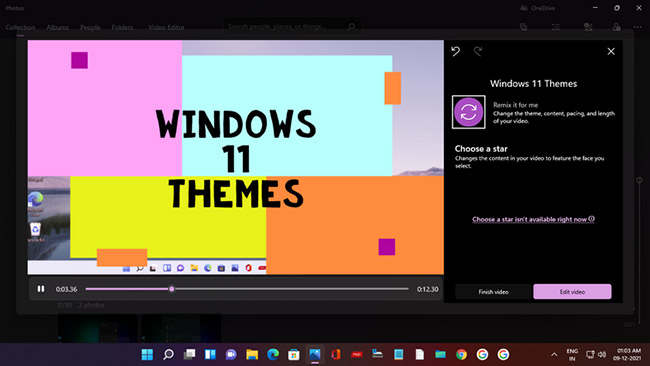
<p style="text-align: justify;">Video tự động sẽ được tạo và bạn sẽ thấy bản xem trước của video đó trên cửa sổ - hoàn chỉnh với hoạt ảnh, nhạc nền và chữ cách điệu cho phần tiêu đề video.</p>

<figure>
<div style="text-align: justify;"><img alt="Video tự động được tạo với theme và nhạc" data-i="2" data-src="https://st.quantrimang.com/photos/image/2021/12/16/tao-video-bang-ung-dung-photos-3.jpg" data-was-processed="true" height="366" src="https://st.quantrimang.com/photos/image/2021/12/16/tao-video-bang-ung-dung-photos-3.jpg" width="650" /></div>

<figcaption>
<div style="text-align: justify;">Video tự động được tạo với theme và nhạc</div>
</figcaption>
</figure>

<p style="text-align: justify;">Và nếu bạn không thích video đã tạo, chỉ cần nhấp vào&nbsp;<strong>Remix it for me</strong>&nbsp;và AI trong ứng dụng Photos sẽ ngay lập tức tạo một phiên bản khác với cả theme và nhạc mới. Bạn có thể tiếp tục phối lại cho đến khi thấy hài lòng mới thôi.</p>

<p style="text-align: justify;">Sau đó nhấp vào&nbsp;<strong>Finish video</strong>&nbsp;và chọn độ phân giải (khuyến nghị 1080p), rồi nhấp vào&nbsp;<strong>Export</strong>&nbsp;để lưu và thưởng thức video.</p>

<h2 style="text-align: justify;">Tạo video mới với Video Editor của Windows 11</h2>

<p style="text-align: justify;">Bây giờ, hãy xem cách tạo một video tùy chỉnh, sử dụng video và hình ảnh. Bạn có thể bắt đầu một video mới theo hai cách:</p>

<p style="text-align: justify;">1. Trên trang chủ của ứng dụng Photos, chỉ cần nhấp vào biểu tượng&nbsp;<strong>New Double Image</strong>&nbsp;và chọn&nbsp;<strong>New video project</strong>.</p>

<p style="text-align: justify;">2. Tìm kiếm&nbsp;<strong>Video Editor</strong>&nbsp;và nhấp vào&nbsp;<strong>Best match</strong>. Trên trang chủ của&nbsp;<strong>Best match</strong>, nhấp vào&nbsp;<strong>New video project</strong>.</p>

<p style="text-align: justify;">Cả hai thao tác này sẽ mở ra trang&nbsp;<strong>New Video</strong>&nbsp;với lời nhắc đặt tên cho video. Đặt tên cho video và sau đó nhấp vào&nbsp;<strong>OK.</strong></p>

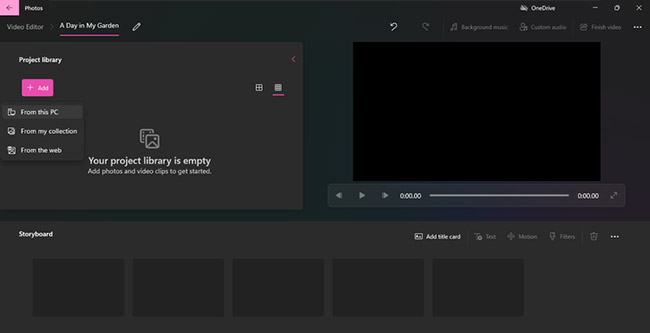
<p style="text-align: justify;">Bây giờ bạn cần thêm video và hình ảnh, vì vậy hãy nhấp vào nút&nbsp;<strong>+ Add</strong>&nbsp;trong&nbsp;<strong>Project Library.</strong>&nbsp;Bạn có thể chọn&nbsp;<strong>From this PC, From my collection</strong>&nbsp;(từ ứng dụng Photos) và&nbsp;<strong>From the web</strong>&nbsp;(điều này sẽ mở ra tìm kiếm Bing để tìm nội dung media trực tuyến).</p>

<figure>
<div style="text-align: justify;"><img alt="Thêm ảnh và video vào thư viện dự án" data-i="3" data-src="https://st.quantrimang.com/photos/image/2021/12/16/tao-video-bang-ung-dung-photos-4.jpg" data-was-processed="true" height="333" src="https://st.quantrimang.com/photos/image/2021/12/16/tao-video-bang-ung-dung-photos-4.jpg" width="650" /></div>

<figcaption>
<div style="text-align: justify;">Thêm ảnh và video vào thư viện dự án</div>
</figcaption>
</figure>

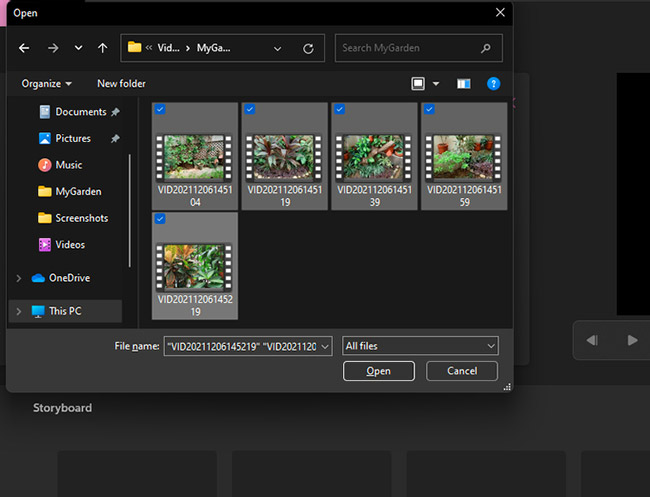
<p style="text-align: justify;">Đối với hướng dẫn này, tác giả bài viết đã chọn thêm nội dung media từ PC. Nhấp vào&nbsp;<strong>From this PC</strong>&nbsp;và File Explorer sẽ mở ra. Để thêm video trước tiên, hãy nhấp vào thư mục&nbsp;<strong>Videos system.</strong>&nbsp;Ngoài ra còn một thư mục tên là&nbsp;<strong>MyGarden</strong>&nbsp;chứa các video mà tác giả đã quay từ điện thoại.</p>

<figure>
<div style="text-align: justify;"><img alt="Thêm video từ thư mục vào Project Library" data-i="4" data-src="https://st.quantrimang.com/photos/image/2021/12/16/tao-video-bang-ung-dung-photos-5.jpg" data-was-processed="true" height="497" src="https://st.quantrimang.com/photos/image/2021/12/16/tao-video-bang-ung-dung-photos-5.jpg" width="650" /></div>

<figcaption>
<div style="text-align: justify;">Thêm video từ thư mục vào Project Library</div>
</figcaption>
</figure>

<p style="text-align: justify;">Mở thư mục và chọn video bạn muốn, sau đó nhấp vào&nbsp;<strong>Open.</strong></p>

<figure>
<div style="text-align: justify;"><img alt="Video đã thêm vào Project Library trong Video Editor của Windows 11" data-i="5" data-src="https://st.quantrimang.com/photos/image/2021/12/16/tao-video-bang-ung-dung-photos-6.jpg" data-was-processed="true" height="326" src="https://st.quantrimang.com/photos/image/2021/12/16/tao-video-bang-ung-dung-photos-6.jpg" width="650" /></div>

<figcaption>
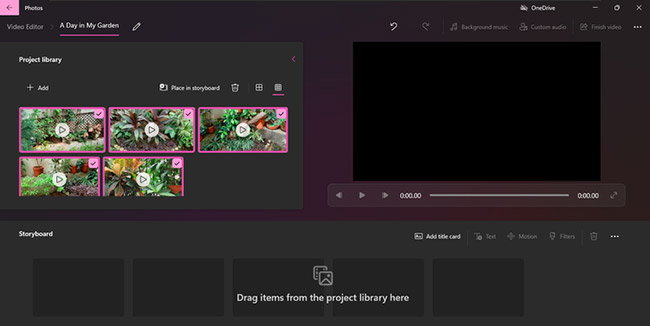
<div style="text-align: justify;">Video đã thêm vào Project Library trong Video Editor của Windows 11</div>
</figcaption>
</figure>

<p style="text-align: justify;">Các video được thêm vào sẽ hiển thị trong&nbsp;<strong>Project Library</strong>. Bạn có thể thêm ảnh từ PC của mình theo cách tương tự.</p>

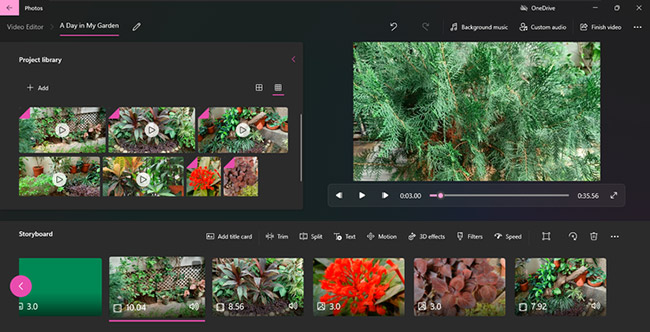
<p style="text-align: justify;">Bước tiếp theo là thêm thẻ tiêu đề vào video. Vì vậy, hãy chuyển đến menu Storyboard có các tùy chọn&nbsp;<strong>Add title card, Trim, Split, Text, Motion, 3D effects, Filters, Speed</strong>&nbsp;và&nbsp;<strong>Remove or Add Black Bars</strong>.</p>

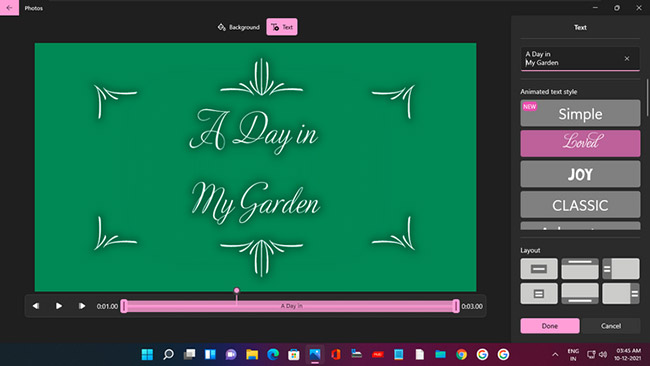
<p style="text-align: justify;">Nhấp vào&nbsp;<strong>Add title card</strong>&nbsp;và thẻ tiêu đề dài ba giây sẽ xuất hiện Bây giờ, hãy nhấp vào Text và trên trang mở ra, bạn có thể nhập tiêu đề video của mình, chọn kiểu chữ, bố cục và màu nền.</p>

<figure>
<div style="text-align: justify;"><img alt="Thêm và tùy chỉnh thẻ tiêu đề trong Video Editor của Windows 11" data-i="6" data-src="https://st.quantrimang.com/photos/image/2021/12/16/tao-video-bang-ung-dung-photos-7.jpg" data-was-processed="true" height="366" src="https://st.quantrimang.com/photos/image/2021/12/16/tao-video-bang-ung-dung-photos-7.jpg" width="650" /></div>

<figcaption>
<div style="text-align: justify;">Thêm và tùy chỉnh thẻ tiêu đề trong Video Editor của Windows 11</div>
</figcaption>
</figure>

<p style="text-align: justify;">Bạn cũng có thể thay đổi thời lượng của thẻ tiêu đề bằng cách nhấp chuột phải vào thẻ và chọn một trong các tùy chọn thời lượng.</p>

<p style="text-align: justify;">Giờ đây, bạn có thể thêm video và ảnh vào Storyboard. Bạn có thể nhấp chuột phải vào từng clip trong&nbsp;<strong>Project Library</strong>&nbsp;và chọn&nbsp;<strong>Add to Storyboard</strong>, hoặc kéo và thả chúng vào Storyboard.</p>

<p style="text-align: justify;">Hãy nhớ rằng, video và hình ảnh sẽ xuất hiện theo thứ tự thêm vào - cái đầu tiên được thêm vào sẽ xuất hiện trước tiên trong video. Nhưng bạn luôn có thể thay đổi thứ tự của chúng bằng cách kéo và thả trên Storyboard.</p>

<figure>
<div style="text-align: justify;"><img alt="Video và ảnh đã thêm vào Storyboard" data-i="7" data-src="https://st.quantrimang.com/photos/image/2021/12/16/tao-video-bang-ung-dung-photos-8.jpg" data-was-processed="true" height="332" src="https://st.quantrimang.com/photos/image/2021/12/16/tao-video-bang-ung-dung-photos-8.jpg" width="650" /></div>

<figcaption>
<div style="text-align: justify;">Video và ảnh đã thêm vào Storyboard</div>
</figcaption>
</figure>

<h2 style="text-align: justify;">Cách cắt và chia nhỏ video clip</h2>

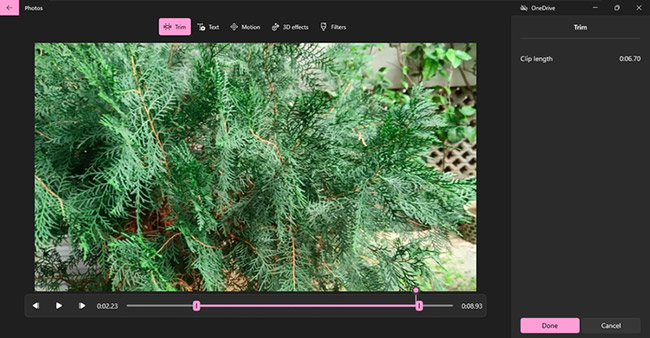
<p style="text-align: justify;">Bạn có thể cắt video, nếu bạn muốn tạo ra một sản phẩm có độ dài cụ thể hoặc cảm thấy rằng một clip dài có thể gây nhàm chán khi xem.</p>

<p style="text-align: justify;">Nhấp vào tùy chọn&nbsp;<strong>Trim</strong>&nbsp;và trang&nbsp;<strong>Trim</strong>&nbsp;với cửa sổ xem trước video sẽ mở ra. Chỉ cần kéo thanh trượt trái và phải trên timeline để cắt clip từ đầu, từ cuối và giữ lại phần bạn muốn.</p>

<figure>
<div style="text-align: justify;"><img alt="Cắt video trong Windows 11 Video Editor" data-i="8" data-src="https://st.quantrimang.com/photos/image/2021/12/16/tao-video-bang-ung-dung-photos-9.jpg" data-was-processed="true" height="338" src="https://st.quantrimang.com/photos/image/2021/12/16/tao-video-bang-ung-dung-photos-9.jpg" width="650" /></div>

<figcaption>
<div style="text-align: justify;">Cắt video trong Windows 11 Video Editor</div>
</figcaption>
</figure>

<p style="text-align: justify;">Sau đó xem trước clip đã cắt và nếu bạn thấy hài lòng, hãy nhấp vào&nbsp;<strong>Done.</strong></p>

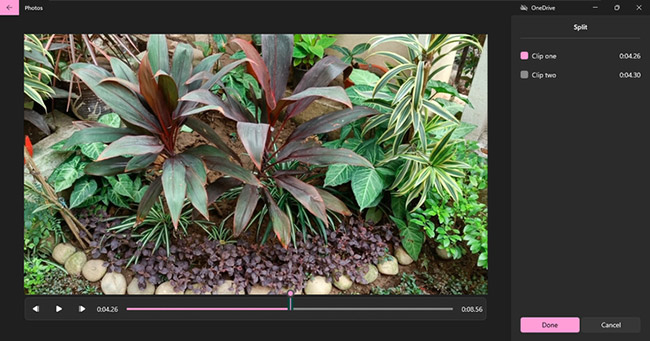
<p style="text-align: justify;">Bạn cũng có thể chia một clip làm hai để sử dụng chúng vào những thời điểm khác nhau trong video của mình. Chỉ cần nhấp vào tùy chọn&nbsp;<strong>Split</strong>&nbsp;và kéo thanh trượt trên timeline preview. Thời lượng của cả hai clip sẽ hiển thị ở khung bên phải.</p>

<figure>
<div style="text-align: justify;"><img alt="Bạn cũng có thể chia một clip làm hai" data-i="9" data-src="https://st.quantrimang.com/photos/image/2021/12/16/tao-video-bang-ung-dung-photos-10.jpg" data-was-processed="true" height="341" src="https://st.quantrimang.com/photos/image/2021/12/16/tao-video-bang-ung-dung-photos-10.jpg" width="650" /></div>

<figcaption>
<div style="text-align: justify;">Bạn cũng có thể chia một clip làm hai</div>
</figcaption>
</figure>

<p style="text-align: justify;">Sau đó, chỉ cần nhấp vào&nbsp;<strong>Done</strong>&nbsp;và cả hai clip sẽ xuất hiện trên Storyboard.</p>

<h2 style="text-align: justify;">Cách thêm văn bản vào video clip</h2>

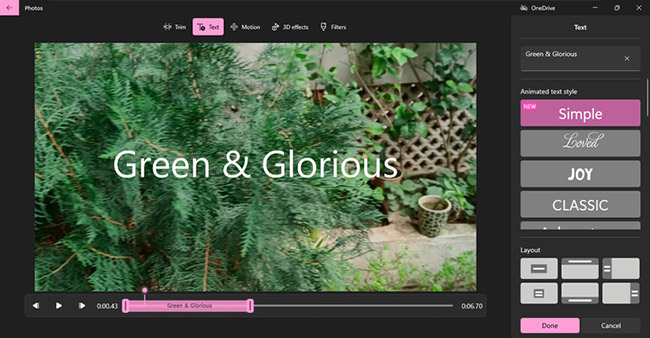
<p style="text-align: justify;">Để tăng thêm ý nghĩa cho video, bạn có thể thêm phụ đề. Nhấp vào tùy chọn&nbsp;<strong>Text</strong>&nbsp;và sau đó chọn kiểu phông chữ và bố cục như đã làm trong phần&nbsp;<strong>Add title card</strong>&nbsp;ở trên.</p>

<p style="text-align: justify;">Bạn cũng có thể chọn thời lượng văn bản sẽ xuất hiện trong video bằng cách kéo thanh trượt trong timeline preview.</p>

<figure>
<div style="text-align: justify;"><img alt="Thêm văn bản vào video clip" data-i="10" data-src="https://st.quantrimang.com/photos/image/2021/12/16/tao-video-bang-ung-dung-photos-11.jpg" data-was-processed="true" height="338" src="https://st.quantrimang.com/photos/image/2021/12/16/tao-video-bang-ung-dung-photos-11.jpg" width="650" /></div>

<figcaption>
<div style="text-align: justify;">Thêm văn bản vào video clip</div>
</figcaption>
</figure>

<p style="text-align: justify;">Xem trước các thay đổi và sau đó nhấp vào&nbsp;<strong>Done.</strong></p>

<h2 style="text-align: justify;">Cách thêm chuyển động vào ảnh</h2>

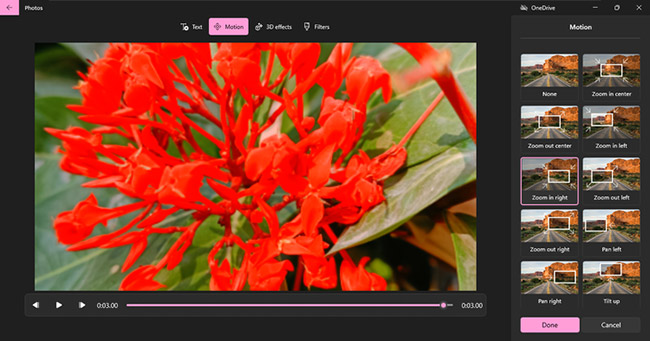
<p style="text-align: justify;">Nếu có sử dụng cả hình ảnh trong video của mình, bạn có thể thêm chuyển động cho chúng để tạo hiệu ứng nâng cao. Nhấp vào tùy chọn&nbsp;<strong>Motion</strong>&nbsp;và chọn từ nhiều tùy chọn như&nbsp;<strong>Zoom In, Zoom Out, Pan Left, Tilt Up</strong>, v.v…</p>

<figure>
<div style="text-align: justify;"><img alt="Thêm chuyển động vào ảnh" data-i="11" data-src="https://st.quantrimang.com/photos/image/2021/12/16/tao-video-bang-ung-dung-photos-12.jpg" data-was-processed="true" height="341" src="https://st.quantrimang.com/photos/image/2021/12/16/tao-video-bang-ung-dung-photos-12.jpg" width="650" /></div>

<figcaption>
<div style="text-align: justify;">Thêm chuyển động vào ảnh</div>
</figcaption>
</figure>

<p style="text-align: justify;">Sau đó xem trước chuyển động đã thêm và nhấp vào&nbsp;<strong>Done.</strong></p>

<h2 style="text-align: justify;">Cách thêm bộ lọc và hiệu ứng 3D vào ảnh hoặc video</h2>

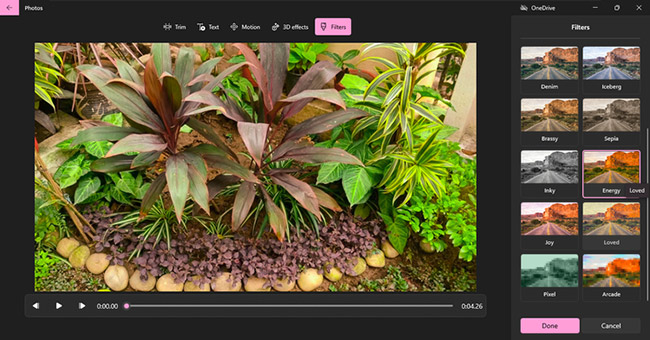
<p style="text-align: justify;">Thêm bộ lọc rất dễ dàng và thú vị. Nhấp vào tùy chọn&nbsp;<strong>Filters</strong>&nbsp;và chọn một trong số các tùy chọn như&nbsp;<strong>Classic, Adventure, Sepia</strong>&nbsp;và&nbsp;<strong>Energy.</strong>&nbsp;Sau đó xem trước và nhấp vào&nbsp;<strong>Done.</strong></p>

<figure>
<div style="text-align: justify;"><img alt="Thêm bộ lọc" data-i="12" data-src="https://st.quantrimang.com/photos/image/2021/12/16/tao-video-bang-ung-dung-photos-13.jpg" data-was-processed="true" height="340" src="https://st.quantrimang.com/photos/image/2021/12/16/tao-video-bang-ung-dung-photos-13.jpg" width="650" /></div>

<figcaption>
<div style="text-align: justify;">Thêm bộ lọc</div>
</figcaption>
</figure>

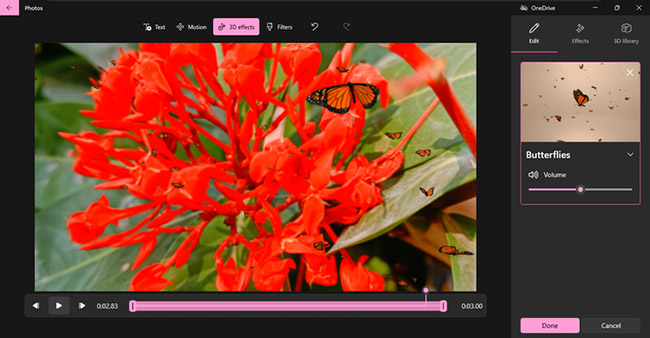
<p style="text-align: justify;">Bạn cũng có thể thêm các hiệu ứng 3D thú vị. Nhấp vào tùy chọn hiệu ứng 3D và chọn từ một số hiệu ứng sáng tạo đi kèm với nhạc như&nbsp;<strong>Atomic motion, Birthday balloons, Laser well</strong>&nbsp;và&nbsp;<strong>Confetti fountain</strong>.</p>

<figure>
<div style="text-align: justify;"><img alt="Các hiệu ứng 3D thú vị" data-i="13" data-src="https://st.quantrimang.com/photos/image/2021/12/16/tao-video-bang-ung-dung-photos-14.jpg" data-was-processed="true" height="338" src="https://st.quantrimang.com/photos/image/2021/12/16/tao-video-bang-ung-dung-photos-14.jpg" width="650" /></div>

<figcaption>
<div style="text-align: justify;">Các hiệu ứng 3D thú vị</div>
</figcaption>
</figure>

<p style="text-align: justify;">Bạn cũng có thể thêm các hiệu ứng 3D thú vị để làm cho video thú vị hơn. Sau đó xem trước chúng và nhấp vào&nbsp;<strong>Done.</strong></p>

<h2 style="text-align: justify;">Cách thêm nhạc nền và âm thanh tùy chỉnh vào video</h2>

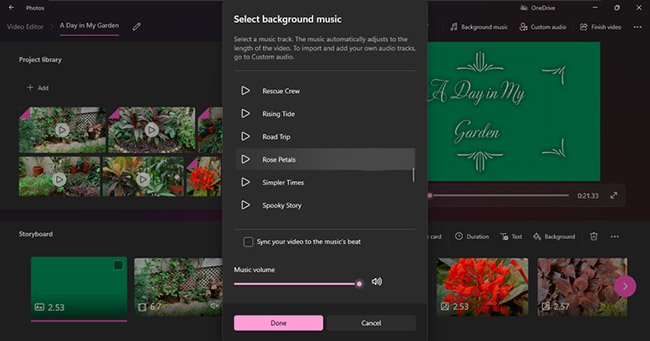
<p style="text-align: justify;">Một video thú vị cần có âm nhạc và hiệu ứng âm thanh ly kỳ. Trên trang chủ video, bạn có các tùy chọn để thêm&nbsp;<strong>Background music</strong>&nbsp;và&nbsp;<strong>Custom audio</strong>.</p>

<p style="text-align: justify;">Như bạn có thể thấy trong hình ảnh bên dưới, nhấp vào&nbsp;<strong>Background music</strong>&nbsp;sẽ mở ra danh sách các tùy chọn nhạc tích hợp mà bạn có thể chọn và thêm vào video của mình. Chỉ cần chọn một bản nhạc và nhạc sẽ tự động điều chỉnh theo thời lượng video. Sau đó bấm vào&nbsp;<strong>Done.</strong></p>

<figure>
<div style="text-align: justify;"><img alt="Thêm nhạc nền" data-i="14" data-src="https://st.quantrimang.com/photos/image/2021/12/16/tao-video-bang-ung-dung-photos-15.jpg" data-was-processed="true" height="341" src="https://st.quantrimang.com/photos/image/2021/12/16/tao-video-bang-ung-dung-photos-15.jpg" width="650" /></div>

<figcaption>
<div style="text-align: justify;">Thêm nhạc nền</div>
</figcaption>
</figure>

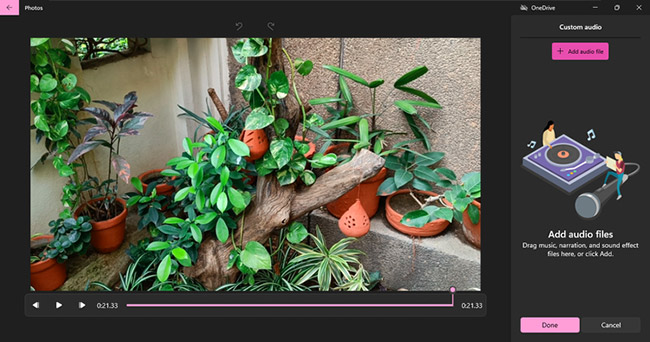
<p style="text-align: justify;">Tùy chọn&nbsp;<strong>Custom audio</strong>&nbsp;cho phép bạn chọn nhạc yêu thích và thậm chí cả hiệu ứng âm thanh. Chỉ cần nhấp vào&nbsp;<strong>Add</strong>&nbsp;hoặc kéo và thả các file âm thanh vào ngăn bên phải. Sau đó bấm vào&nbsp;<strong>Done.</strong></p>

<figure>
<div style="text-align: justify;"><img alt="Thêm tùy chọn yêu thích" data-i="15" data-src="https://st.quantrimang.com/photos/image/2021/12/16/tao-video-bang-ung-dung-photos-16.jpg" data-was-processed="true" height="342" src="https://st.quantrimang.com/photos/image/2021/12/16/tao-video-bang-ung-dung-photos-16.jpg" width="650" /></div>

<figcaption>
<div style="text-align: justify;">Thêm tùy chọn yêu thích</div>
</figcaption>
</figure>

<p style="text-align: justify;">Đây là một tùy chọn tuyệt vời vì bạn cũng có thể ghi lại mô tả video bằng giọng nói của mình và thêm nó vào video.</p>

<p style="text-align: justify;">Hơn nữa, bạn thậm chí có thể thay đổi phong cách và âm nhạc của video bằng các theme được tích hợp sẵn. Và cũng làm chậm hoặc tăng tốc độ video để có thêm hiệu ứng.</p>

<p style="text-align: justify;">Vậy là xong, bạn có thể nhấp vào&nbsp;<strong>Finish video</strong>&nbsp;và chọn độ phân giải cho nó. Sau đó nhấp vào&nbsp;<strong>Export.</strong></p>

<figure>
<div style="text-align: justify;"><img alt="Video đã hoàn thành" data-i="16" data-src="https://st.quantrimang.com/photos/image/2021/12/16/tao-video-bang-ung-dung-photos-17.jpg" data-was-processed="true" height="391" src="https://st.quantrimang.com/photos/image/2021/12/16/tao-video-bang-ung-dung-photos-17.jpg" width="550" /></div>

<figcaption>
<div style="text-align: justify;">Video đã hoàn thành</div>
</figcaption>
</figure>
		</div>
				<div id="author">
						<p>
				<strong>Nguồn tin:</strong>
				Quantrimang.com
			</p>
		</div>
	</div>
	<div id="footer" class="clearfix">
		<div id="url">
			<strong>URL của bản tin này: </strong><a href="https://www.nguoicodonvn2008.info/vi/news/savefile/kien-thuc-may-tinh/cach-tao-video-bang-ung-dung-photos-tren-windows-11-4894.html" title="Cách tạo video bằng ứng dụng Photos trên Windows 11">https://www.nguoicodonvn2008.info/vi/news/savefile/kien-thuc-may-tinh/cach-tao-video-bang-ung-dung-photos-tren-windows-11-4894.html</a>

		</div>
		<div class="clear"></div>
		<div class="copyright">
			&copy; .&#x3A; Nguoicodonvn2008.info - Cõi lòng người cô đơn &#x3A;.
		</div>
		<div id="contact">
			<a href="mailto:admin@nguoicodonvn2008.info">admin@nguoicodonvn2008.info</a>
		</div>
	</div>
</div>
        <div id="timeoutsess" class="chromeframe">
            Bạn đã không sử dụng Site, <a onclick="timeoutsesscancel();" href="https://nguoicodonvn2008.info/#">Bấm vào đây để duy trì trạng thái đăng nhập</a>. Thời gian chờ: <span id="secField"> 60 </span> giây
        </div>
        <div id="openidResult" class="nv-alert" style="display:none"></div>
        <div id="openidBt" data-result="" data-redirect=""></div>
		</script>
		<div class="car-top">
  <span><img src="https://nguoicodonvn2008.info/themes/default/images/car.png" alt=""></span>
</div>
<script src="https://nguoicodonvn2008.info/assets/js/jquery/jquery.min.js"></script>
<script>var nv_base_siteurl="/",nv_lang_data="vi",nv_lang_interface="vi",nv_name_variable="nv",nv_fc_variable="op",nv_lang_variable="language",nv_module_name="news",nv_func_name="savefile",nv_is_user=0, nv_my_ofs=-4,nv_my_abbr="EDT",nv_cookie_prefix="nv4c_e856T",nv_check_pass_mstime=1738000,nv_area_admin=0,nv_safemode=0,theme_responsive=0,nv_recaptcha_ver=2,nv_recaptcha_sitekey="",nv_recaptcha_type="image",XSSsanitize=1;</script>
<script src="https://nguoicodonvn2008.info/assets/js/language/vi.js"></script>
<script src="https://nguoicodonvn2008.info/assets/js/DOMPurify/purify3.js"></script>
<script src="https://nguoicodonvn2008.info/assets/js/global.js"></script>
<script src="https://nguoicodonvn2008.info/assets/js/site.js"></script>
<script src="https://nguoicodonvn2008.info/themes/default/js/news.js"></script>
<script src="https://nguoicodonvn2008.info/themes/default/js/main.js"></script>
<script src="https://nguoicodonvn2008.info/themes/default/js/custom.js"></script>
<script type="application/ld+json">
        {
            "@context": "https://schema.org",
            "@type": "Organization",
            "url": "https://nguoicodonvn2008.info",
            "logo": "https://nguoicodonvn2008.info/uploads/angel.gif"
        }
        </script>
<script src="https://nguoicodonvn2008.info/themes/default/js/bootstrap.min.js"></script>
<script type="text/javascript">
var $scrolltop = $('.car-top');
$scrolltop.on('click', function () {
    $('html,body').animate({
        scrollTop: 0
    }, 800);
    $(this).addClass("car-run");
    setTimeout(function(){ $scrolltop.removeClass('car-run');}, 1000);
    return false;
});
$(window).on('scroll', function ()
{ 
    if($(window).scrollTop() >= 200)
    {
        $scrolltop.addClass("show");
        $scrolltop.addClass("car-down");
    }
    else
    {
       $scrolltop.removeClass("show");
       setTimeout(function(){ $scrolltop.removeClass('car-down');}, 300);
    }
});
</script>
</body>
</html>