<!DOCTYPE html>
    <html lang="vi" xmlns="http://www.w3.org/1999/xhtml" prefix="og: http://ogp.me/ns#">
    <head>
<title>Cách tạo trường tùy chỉnh WordPress để thêm siêu dữ liệu</title>
<meta name="description" content="Cách tạo trường tùy chỉnh WordPress để thêm siêu dữ liệu - Savefile - Tin Tức -...">
<meta name="author" content=".: Nguoicodonvn2008.info - Cõi lòng người cô đơn :.">
<meta name="copyright" content=".: Nguoicodonvn2008.info - Cõi lòng người cô đơn :. [admin@nguoicodonvn2008.info]">
<meta name="robots" content="index, archive, follow, noodp">
<meta name="googlebot" content="index,archive,follow,noodp">
<meta name="msnbot" content="all,index,follow">
<meta name="generator" content="NukeViet v4.5">
<meta http-equiv="Content-Type" content="text/html; charset=utf-8">
<meta property="og:title" content="Cách tạo trường tùy chỉnh WordPress để thêm siêu dữ liệu">
<meta property="og:type" content="website">
<meta property="og:description" content="Savefile - Tin Tức - https&#x3A;&#x002F;&#x002F;www.nguoicodonvn2008.info&#x002F;vi&#x002F;news&#x002F;savefile&#x002F;kien-thuc-may-tinh&#x002F;cach-tao-truong-tuy-chinh-wordpress-de-them-sieu-du-lieu-8304.html">
<meta property="og:site_name" content=".&#x3A; Nguoicodonvn2008.info - Cõi lòng người cô đơn &#x3A;.">
<meta property="og:url" content="https://www.nguoicodonvn2008.info/vi/news/savefile/kien-thuc-may-tinh/cach-tao-truong-tuy-chinh-wordpress-de-them-sieu-du-lieu-8304.html">
<link rel="shortcut icon" href="https://nguoicodonvn2008.info/favicon.ico">
<link rel="canonical" href="https://www.nguoicodonvn2008.info/vi/news/savefile/kien-thuc-may-tinh/cach-tao-truong-tuy-chinh-wordpress-de-them-sieu-du-lieu-8304.html">
<link rel="alternate" href="https://nguoicodonvn2008.info/vi/news/rss/" title="Tin Tức" type="application/rss+xml">
<link rel="alternate" href="https://nguoicodonvn2008.info/vi/news/rss/karaoke-dual/" title="Tin Tức - Karaoke Dual" type="application/rss+xml">
<link rel="alternate" href="https://nguoicodonvn2008.info/vi/news/rss/nhac-tre/" title="Tin Tức - Nhạc trẻ" type="application/rss+xml">
<link rel="alternate" href="https://nguoicodonvn2008.info/vi/news/rss/tru-tinh/" title="Tin Tức - Trữ tình" type="application/rss+xml">
<link rel="alternate" href="https://nguoicodonvn2008.info/vi/news/rss/nuoc-ngoai/" title="Tin Tức - Nước ngoài" type="application/rss+xml">
<link rel="alternate" href="https://nguoicodonvn2008.info/vi/news/rss/remix/" title="Tin Tức - Remix" type="application/rss+xml">
<link rel="alternate" href="https://nguoicodonvn2008.info/vi/news/rss/tam-su-tinh-yeu/" title="Tin Tức - Tâm sự tình yêu" type="application/rss+xml">
<link rel="alternate" href="https://nguoicodonvn2008.info/vi/news/rss/tho-suu-tam/" title="Tin Tức - Thơ sưu tầm" type="application/rss+xml">
<link rel="alternate" href="https://nguoicodonvn2008.info/vi/news/rss/cuoc-song/" title="Tin Tức - Cuộc sống" type="application/rss+xml">
<link rel="alternate" href="https://nguoicodonvn2008.info/vi/news/rss/phan-mem/" title="Tin Tức - Phần mềm" type="application/rss+xml">
<link rel="alternate" href="https://nguoicodonvn2008.info/vi/news/rss/kien-thuc-may-tinh/" title="Tin Tức - Kiến thức máy tính" type="application/rss+xml">
<link rel="alternate" href="https://nguoicodonvn2008.info/vi/news/rss/hoc-tap/" title="Tin Tức - Học tập" type="application/rss+xml">
<link rel="alternate" href="https://nguoicodonvn2008.info/vi/news/rss/tai-lieu/" title="Tin Tức - Tài liệu" type="application/rss+xml">
<link rel="alternate" href="https://nguoicodonvn2008.info/vi/news/rss/de-thi/" title="Tin Tức - Đề thi" type="application/rss+xml">
<link rel="preload" as="style" href="https://nguoicodonvn2008.info/assets/css/font-awesome.min.css" type="text/css">
<link rel="preload" as="style" href="https://nguoicodonvn2008.info/themes/default/css/bootstrap.non-responsive.css" type="text/css">
<link rel="preload" as="style" href="https://nguoicodonvn2008.info/themes/default/css/style.css" type="text/css">
<link rel="preload" as="style" href="https://nguoicodonvn2008.info/themes/default/css/style.non-responsive.css" type="text/css">
<link rel="preload" as="style" href="https://nguoicodonvn2008.info/themes/default/css/news.css" type="text/css">
<link rel="preload" as="style" href="https://nguoicodonvn2008.info/themes/default/css/custom.css" type="text/css">
<link rel="preload" as="script" href="https://nguoicodonvn2008.info/assets/js/jquery/jquery.min.js" type="text/javascript">
<link rel="preload" as="script" href="https://nguoicodonvn2008.info/assets/js/language/vi.js" type="text/javascript">
<link rel="preload" as="script" href="https://nguoicodonvn2008.info/assets/js/DOMPurify/purify3.js" type="text/javascript">
<link rel="preload" as="script" href="https://nguoicodonvn2008.info/assets/js/global.js" type="text/javascript">
<link rel="preload" as="script" href="https://nguoicodonvn2008.info/assets/js/site.js" type="text/javascript">
<link rel="preload" as="script" href="https://nguoicodonvn2008.info/themes/default/js/news.js" type="text/javascript">
<link rel="preload" as="script" href="https://nguoicodonvn2008.info/themes/default/js/main.js" type="text/javascript">
<link rel="preload" as="script" href="https://nguoicodonvn2008.info/themes/default/js/custom.js" type="text/javascript">
<link rel="preload" as="script" href="https://nguoicodonvn2008.info/themes/default/js/bootstrap.min.js" type="text/javascript">
<link rel="stylesheet" href="https://nguoicodonvn2008.info/assets/css/font-awesome.min.css">
<link rel="stylesheet" href="https://nguoicodonvn2008.info/themes/default/css/bootstrap.non-responsive.css">
<link rel="stylesheet" href="https://nguoicodonvn2008.info/themes/default/css/style.css">
<link rel="stylesheet" href="https://nguoicodonvn2008.info/themes/default/css/style.non-responsive.css">
<link rel="StyleSheet" href="https://nguoicodonvn2008.info/themes/default/css/news.css">
<link rel="stylesheet" href="https://nguoicodonvn2008.info/themes/default/css/custom.css">
<style type="text/css">
	body{background: #fff;}
</style>
    </head>
    <body>
<div id="print">
	<div id="hd_print">
		<h2 class="pull-left">.&#x3A; Nguoicodonvn2008.info - Cõi lòng người cô đơn &#x3A;.</h2>
		<p class="pull-right"><a title=".&#x3A; Nguoicodonvn2008.info - Cõi lòng người cô đơn &#x3A;." href="https://nguoicodonvn2008.info/">https://nguoicodonvn2008.info</a></p>
	</div>
	<div class="clear"></div>
	<hr />
	<div id="content">
		<h1>Cách tạo trường tùy chỉnh WordPress để thêm siêu dữ liệu</h1>
		<ul class="list-inline">
			<li>Thứ sáu - 12/04/2024 23:07</li>
			<li class="hidden-print txtrequired"><em class="fa fa-print">&nbsp;</em><a title="In ra" href="javascript:;" onclick="window.print()">In ra</a></li>
			<li class="hidden-print txtrequired"><em class="fa fa-power-off">&nbsp;</em><a title="Đóng cửa sổ này" href="javascript:;" onclick="window.close()">Đóng cửa sổ này</a></li>
		</ul>
		<div class="clear"></div>
		<div id="hometext">
		</div>
				<div class="imghome">
			<img alt="Cách tạo trường tùy chỉnh WordPress để thêm siêu dữ liệu" src="https://st.quantrimang.com/photos/image/2024/04/12/tao-truong-tuy-chinh-wordpress-3.jpg" width="460" class="img-thumbnail" />
		</div>
		<div class="clear"></div>
		<div id="bodytext" class="clearfix">
			<p style="text-align: justify;">Wordpress&nbsp;đi kèm với tính năng trường tùy chỉnh để bạn thêm bất kỳ siêu dữ liệu nào vào bài đăng của mình. Đây có thể là thông tin như ngày hết hạn hoặc đơn giản là thời tiết của ngày hôm đó. Bài viết hôm nay sẽ chỉ cho bạn cách sử dụng tốt các trường tùy chỉnh để cải thiện chức năng bài đăng của bạn.</p>

<h2 style="text-align: justify;">Kích hoạt trường tùy chỉnh trong trình chỉnh sửa block</h2>

<p style="text-align: justify;">Nếu bạn vẫn đang sử dụng trình chỉnh sửa cổ điển, phần trường tùy chỉnh sẽ được bật theo mặc định. Bạn sẽ có thể tìm thấy nó bên dưới phần soạn thảo văn bản.</p>

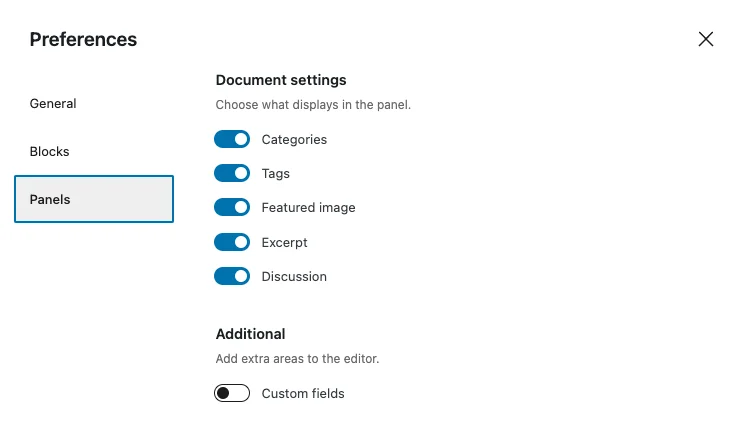
<p style="text-align: justify;">Đối với trình chỉnh sửa block (Gutenberg), phần trường tùy chỉnh bị tắt theo mặc định, nhưng bạn có thể dễ dàng kích hoạt nó. Chỉ cần đi đến ba dấu chấm ở góc trên bên phải màn hình và nhấp vào nó.</p>

<figure>
<div style="text-align: justify;"><img alt="Kích hoạt trường tùy chỉnh WordPress" data-i="0" data-src="https://st.quantrimang.com/photos/image/2024/04/12/tao-truong-tuy-chinh-wordpress-1.jpg" data-was-processed="true" height="243" src="https://st.quantrimang.com/photos/image/2024/04/12/tao-truong-tuy-chinh-wordpress-1.jpg" width="313" /></div>

<figcaption>
<div style="text-align: justify;">Kích hoạt trường tùy chỉnh WordPress</div>
</figcaption>
</figure>

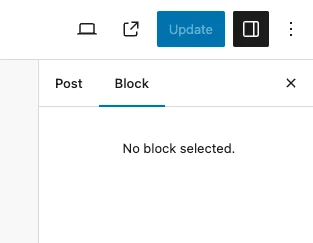
<p style="text-align: justify;">Trong menu drop-down xuất hiện, chọn&nbsp;<strong>Preferences</strong>&nbsp;ở dưới cùng. Tùy thuộc vào ngôn ngữ WordPress bạn đặt, thay vào đó có thể có dòng chữ&nbsp;<strong>Options</strong>.</p>

<figure>
<div style="text-align: justify;"><img alt="Menu tùy chọn bài đăng WordPress" data-i="1" data-src="https://st.quantrimang.com/photos/image/2024/04/12/tao-truong-tuy-chinh-wordpress-2.jpg" data-was-processed="true" height="347" src="https://st.quantrimang.com/photos/image/2024/04/12/tao-truong-tuy-chinh-wordpress-2.jpg" width="353" /></div>

<figcaption>
<div style="text-align: justify;">Menu tùy chọn bài đăng WordPress</div>
</figcaption>
</figure>

<div style="text-align: justify;"><iframe allowtransparency="true" aria-label="Advertisement" data-google-container-id="a!2" data-google-query-id="COa9jIabvoUDFblAwgUduScBIQ" data-load-complete="true" frameborder="0" height="0" hspace="0" id="aswift_1" marginheight="0" marginwidth="0" name="aswift_1" sandbox="" scrolling="no" tabindex="0" title="Advertisement" vspace="0" width="694"></iframe></div>

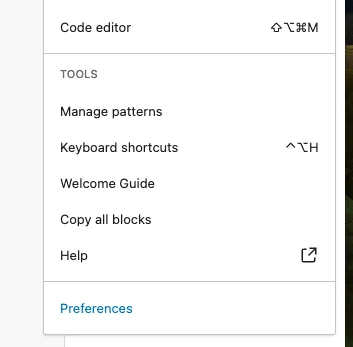
<p style="text-align: justify;">Trong phần&nbsp;<strong>Panels</strong>, bật tùy chọn&nbsp;<strong>Custom fields</strong>. Sau đó, nó sẽ yêu cầu bạn load lại trang, vì vậy hãy đảm bảo rằng mọi tác phẩm chưa được lưu sẽ được lưu trước, nếu không bạn sẽ mất chúng.</p>

<figure>
<div style="text-align: justify;"><img alt="Kích hoạt menu trường tùy chỉnh WordPress" data-adbro-processed="true" data-i="2" data-src="https://st.quantrimang.com/photos/image/2024/04/12/tao-truong-tuy-chinh-wordpress-3.jpg" data-was-processed="true" height="422" src="https://st.quantrimang.com/photos/image/2024/04/12/tao-truong-tuy-chinh-wordpress-3.jpg" width="745" /></div>

<figcaption>
<div style="text-align: justify;">Kích hoạt menu trường tùy chỉnh WordPress</div>
</figcaption>
</figure>

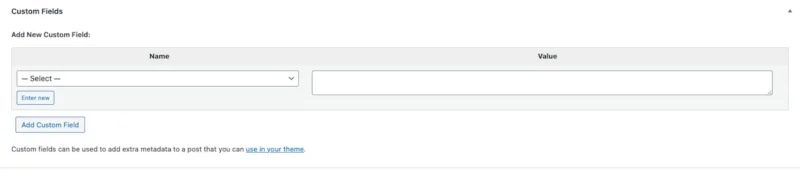
<p style="text-align: justify;">Phần&nbsp;<strong>Custom Fields</strong>&nbsp;mới bây giờ sẽ xuất hiện bên dưới bài đăng.</p>

<figure>
<div style="text-align: justify;"><img alt="Thêm trường tùy chỉnh WordPress mới" data-i="3" data-src="https://st.quantrimang.com/photos/image/2024/04/12/tao-truong-tuy-chinh-wordpress-4.jpg" data-was-processed="true" height="172" src="https://st.quantrimang.com/photos/image/2024/04/12/tao-truong-tuy-chinh-wordpress-4.jpg" width="800" /></div>

<figcaption>
<div style="text-align: justify;">Thêm trường tùy chỉnh WordPress mới</div>
</figcaption>
</figure>

<p style="text-align: justify;">Khi bạn bắt đầu thêm các trường tùy chỉnh, nó sẽ chỉ hiển thị tối đa 30 trường. Bạn có thể tiếp tục thêm nhiều hơn nhưng chúng sẽ không xuất hiện trong danh sách drop-down.</p>

<p style="text-align: justify;">Damien đã chỉ ra cách hiển thị nhiều trường tùy chỉnh WordPress hơn theo mặc định. Tinh chỉnh này tăng danh sách menu lên tối đa 120. Bạn có thể nhấp qua bài viết hoặc đây là bản tóm tắt.</p>

<p style="text-align: justify;">Đi tới&nbsp;<strong>Appearance -&gt; Editor</strong>&nbsp;trong backend WordPress của bạn và tìm file&nbsp;<strong>functions.php</strong>. Thêm phần sau vào cuối.</p>

<pre id="pre0">
<code>function increase_postmeta_form_limit() {
	return 120;
}
add_filter(&#039;postmeta_form_limit&#039;, &#039;increase_postmeta_form_limit&#039;);</code></pre>

<p style="text-align: justify;">Sau khi lưu các thay đổi, hãy refresh trang backend WordPress của bạn và số lượng trường tùy chỉnh trong menu sẽ tăng lên 120.</p>

<h2 style="text-align: justify;">Cấu hình tên và giá trị cho trường tùy chỉnh</h2>

<div style="text-align: justify;"><iframe allowtransparency="true" aria-label="Advertisement" data-google-container-id="a!3" data-google-query-id="CNz6kIabvoUDFY5DwgUd2IAI7Q" data-load-complete="true" frameborder="0" height="0" hspace="0" id="aswift_2" marginheight="0" marginwidth="0" name="aswift_2" sandbox="" scrolling="no" tabindex="0" title="Advertisement" vspace="0" width="694"></iframe></div>

<p style="text-align: justify;">Bạn có thể thêm bất cứ điều gì bạn muốn làm trường tùy chỉnh. Cho dù đó là cuốn sách mới nhất bạn đang đọc hay thời tiết ngày hôm đó thế nào, bạn có thể thêm bất cứ điều gì bạn muốn vào bài đăng của mình. Hãy nhấp vào&nbsp;<strong>Enter new</strong>&nbsp;để bắt đầu.</p>

<figure>
<div style="text-align: justify;"><img alt="Thêm trường tùy chỉnh WordPress hoàn toàn mới" data-i="4" data-src="https://st.quantrimang.com/photos/image/2024/04/12/tao-truong-tuy-chinh-wordpress-5.jpg" data-was-processed="true" height="109" src="https://st.quantrimang.com/photos/image/2024/04/12/tao-truong-tuy-chinh-wordpress-5.jpg" width="800" /></div>

<figcaption>
<div style="text-align: justify;">Thêm trường tùy chỉnh WordPress hoàn toàn mới</div>
</figcaption>
</figure>

<p style="text-align: justify;">Trong phần&nbsp;<strong>Name</strong>, hãy thêm tiêu đề của nội dung bạn muốn thêm. Đây có thể là những thứ như:</p>

<ul>
	<li style="text-align: justify;">Hôm nay tôi cảm thấy thế nào?</li>
	<li style="text-align: justify;">Cuốn sách tôi đang đọc hôm nay.</li>
	<li style="text-align: justify;">Hôm nay tôi nghe gì?</li>
	<li style="text-align: justify;">V.v....</li>
</ul>

<p style="text-align: justify;">Trong phần&nbsp;<strong>Value</strong>, bây giờ bạn đặt câu trả lời. Hãy nhớ rằng, các trường tùy chỉnh dựa trên từng bài đăng, vì vậy những gì bạn nhập trên một bài đăng sẽ không xuất hiện trên một bài đăng khác.</p>

<p style="text-align: justify;">Cũng cần làm rõ rằng đó không nhất thiết phải là một câu hỏi trong phần&nbsp;<strong>Name</strong>. Nó cũng có thể là văn bản tiêu chuẩn mà bạn muốn ở đầu hoặc cuối bài đăng của mình. Ví dụ, có thể bạn muốn mỗi bài đăng có thông báo từ chối trách nhiệm liên kết? Hay đó là một bài viết được tài trợ? Khả năng là vô tận.</p>

<p style="text-align: justify;"><strong>Lưu ý</strong>: Để truy xuất trường tùy chỉnh thông qua code dễ dàng hơn, tốt nhất bạn nên giữ Name ngắn gọn, toàn chữ thường và tránh mọi khoảng trắng. Liên kết bằng dấu gạch dưới (_). Ví dụ: sử dụng “posts_to_redirect” thay vì “Posts to Redirect”.</p>

<p style="text-align: justify;">Sau khi nhập đầy đủ thông tin bạn nhấn&nbsp;<strong>Add Custom Field</strong>&nbsp;để lưu lại. Dường như không có số lượng ký tự tối thiểu hoặc tối đa cho một trường, nhưng vì mục đích hiển thị của nó trên trang của bạn, hãy cố gắng đừng quá lo lắng.</p>

<h2 style="text-align: justify;">Hiển thị trường tùy chỉnh trong theme WordPress</h2>

<p style="text-align: justify;">Cuộc sống sẽ trở nên quá dễ dàng nếu đó là tất cả những gì cần thiết để trường tùy chỉnh WordPress hoạt động. Bây giờ, chúng ta phải làm cho nó hiển thị trên trang.</p>

<p style="text-align: justify;">Không có cách nào dễ dàng để hiển thị trường tùy chỉnh trong theme WordPress của bạn. Bạn phải dùng đến cách chèn một số code PHP vào theme của mình.</p>

<p style="text-align: justify;">Trong file mà bạn muốn hiển thị trường tùy chỉnh, hãy sử dụng code sau:</p>

<pre id="pre1">
<code>$custom_field = get_post_meta($post_id, &#039;custom-field-name&#039;, true)
echo $custom_field;</code></pre>

<p style="text-align: justify;">Một số điều cần lưu ý:</p>

<ul>
	<li style="text-align: justify;"><strong>$post_id</strong>&nbsp;là ID của bài đăng mà bạn muốn truy xuất trường tùy chỉnh của nó.</li>
	<li style="text-align: justify;"><strong>custom-field-name</strong>&nbsp;là tên bạn đã sử dụng cho trường tùy chỉnh cụ thể của mình.</li>
</ul>

<p style="text-align: justify;">Bạn có thể biết thêm thông tin&nbsp;ở đây:<br />
<span style="color:rgb(192, 57, 43);"><strong>https://developer.wordpress.org/reference/functions/get_post_meta/</strong></span></p>

<p style="text-align: justify;"><strong>Mẹo</strong>: Thay vào đó hãy thử sử dụng shortcode nếu bạn muốn sử dụng phương pháp dễ dàng hơn để thêm siêu dữ liệu vào theme của mình.</p>

<div style="text-align: justify;">&nbsp;</div>
		</div>
				<div id="author">
						<p>
				<strong>Nguồn tin:</strong>
				Quantrimang.com
			</p>
		</div>
	</div>
	<div id="footer" class="clearfix">
		<div id="url">
			<strong>URL của bản tin này: </strong><a href="https://www.nguoicodonvn2008.info/vi/news/savefile/kien-thuc-may-tinh/cach-tao-truong-tuy-chinh-wordpress-de-them-sieu-du-lieu-8304.html" title="Cách tạo trường tùy chỉnh WordPress để thêm siêu dữ liệu">https://www.nguoicodonvn2008.info/vi/news/savefile/kien-thuc-may-tinh/cach-tao-truong-tuy-chinh-wordpress-de-them-sieu-du-lieu-8304.html</a>

		</div>
		<div class="clear"></div>
		<div class="copyright">
			&copy; .&#x3A; Nguoicodonvn2008.info - Cõi lòng người cô đơn &#x3A;.
		</div>
		<div id="contact">
			<a href="mailto:admin@nguoicodonvn2008.info">admin@nguoicodonvn2008.info</a>
		</div>
	</div>
</div>
        <div id="timeoutsess" class="chromeframe">
            Bạn đã không sử dụng Site, <a onclick="timeoutsesscancel();" href="https://nguoicodonvn2008.info/#">Bấm vào đây để duy trì trạng thái đăng nhập</a>. Thời gian chờ: <span id="secField"> 60 </span> giây
        </div>
        <div id="openidResult" class="nv-alert" style="display:none"></div>
        <div id="openidBt" data-result="" data-redirect=""></div>
		</script>
		<div class="car-top">
  <span><img src="https://nguoicodonvn2008.info/themes/default/images/car.png" alt=""></span>
</div>
<script src="https://nguoicodonvn2008.info/assets/js/jquery/jquery.min.js"></script>
<script>var nv_base_siteurl="/",nv_lang_data="vi",nv_lang_interface="vi",nv_name_variable="nv",nv_fc_variable="op",nv_lang_variable="language",nv_module_name="news",nv_func_name="savefile",nv_is_user=0, nv_my_ofs=-4,nv_my_abbr="EDT",nv_cookie_prefix="nv4c_e856T",nv_check_pass_mstime=1738000,nv_area_admin=0,nv_safemode=0,theme_responsive=0,nv_recaptcha_ver=2,nv_recaptcha_sitekey="",nv_recaptcha_type="image",XSSsanitize=1;</script>
<script src="https://nguoicodonvn2008.info/assets/js/language/vi.js"></script>
<script src="https://nguoicodonvn2008.info/assets/js/DOMPurify/purify3.js"></script>
<script src="https://nguoicodonvn2008.info/assets/js/global.js"></script>
<script src="https://nguoicodonvn2008.info/assets/js/site.js"></script>
<script src="https://nguoicodonvn2008.info/themes/default/js/news.js"></script>
<script src="https://nguoicodonvn2008.info/themes/default/js/main.js"></script>
<script src="https://nguoicodonvn2008.info/themes/default/js/custom.js"></script>
<script type="application/ld+json">
        {
            "@context": "https://schema.org",
            "@type": "Organization",
            "url": "https://nguoicodonvn2008.info",
            "logo": "https://nguoicodonvn2008.info/uploads/angel.gif"
        }
        </script>
<script src="https://nguoicodonvn2008.info/themes/default/js/bootstrap.min.js"></script>
<script type="text/javascript">
var $scrolltop = $('.car-top');
$scrolltop.on('click', function () {
    $('html,body').animate({
        scrollTop: 0
    }, 800);
    $(this).addClass("car-run");
    setTimeout(function(){ $scrolltop.removeClass('car-run');}, 1000);
    return false;
});
$(window).on('scroll', function ()
{ 
    if($(window).scrollTop() >= 200)
    {
        $scrolltop.addClass("show");
        $scrolltop.addClass("car-down");
    }
    else
    {
       $scrolltop.removeClass("show");
       setTimeout(function(){ $scrolltop.removeClass('car-down');}, 300);
    }
});
</script>
</body>
</html>