<!DOCTYPE html>
    <html lang="vi" xmlns="http://www.w3.org/1999/xhtml" prefix="og: http://ogp.me/ns#">
    <head>
<title>Cách tạo sự kiện trực tiếp trên Microsoft Teams</title>
<meta name="description" content="Cách tạo sự kiện trực tiếp trên Microsoft Teams - Savefile - Tin Tức -...">
<meta name="author" content=".: Nguoicodonvn2008.info - Cõi lòng người cô đơn :.">
<meta name="copyright" content=".: Nguoicodonvn2008.info - Cõi lòng người cô đơn :. [admin@nguoicodonvn2008.info]">
<meta name="robots" content="index, archive, follow, noodp">
<meta name="googlebot" content="index,archive,follow,noodp">
<meta name="msnbot" content="all,index,follow">
<meta name="generator" content="NukeViet v4.5">
<meta http-equiv="Content-Type" content="text/html; charset=utf-8">
<meta property="og:title" content="Cách tạo sự kiện trực tiếp trên Microsoft Teams">
<meta property="og:type" content="website">
<meta property="og:description" content="Savefile - Tin Tức - https&#x3A;&#x002F;&#x002F;www.nguoicodonvn2008.info&#x002F;vi&#x002F;news&#x002F;savefile&#x002F;kien-thuc-may-tinh&#x002F;cach-tao-su-kien-truc-tiep-tren-microsoft-teams-1970.html">
<meta property="og:site_name" content=".&#x3A; Nguoicodonvn2008.info - Cõi lòng người cô đơn &#x3A;.">
<meta property="og:url" content="https://www.nguoicodonvn2008.info/vi/news/savefile/kien-thuc-may-tinh/cach-tao-su-kien-truc-tiep-tren-microsoft-teams-1970.html">
<link rel="shortcut icon" href="https://nguoicodonvn2008.info/favicon.ico">
<link rel="canonical" href="https://www.nguoicodonvn2008.info/vi/news/savefile/kien-thuc-may-tinh/cach-tao-su-kien-truc-tiep-tren-microsoft-teams-1970.html">
<link rel="alternate" href="https://nguoicodonvn2008.info/vi/news/rss/" title="Tin Tức" type="application/rss+xml">
<link rel="alternate" href="https://nguoicodonvn2008.info/vi/news/rss/karaoke-dual/" title="Tin Tức - Karaoke Dual" type="application/rss+xml">
<link rel="alternate" href="https://nguoicodonvn2008.info/vi/news/rss/nhac-tre/" title="Tin Tức - Nhạc trẻ" type="application/rss+xml">
<link rel="alternate" href="https://nguoicodonvn2008.info/vi/news/rss/tru-tinh/" title="Tin Tức - Trữ tình" type="application/rss+xml">
<link rel="alternate" href="https://nguoicodonvn2008.info/vi/news/rss/nuoc-ngoai/" title="Tin Tức - Nước ngoài" type="application/rss+xml">
<link rel="alternate" href="https://nguoicodonvn2008.info/vi/news/rss/remix/" title="Tin Tức - Remix" type="application/rss+xml">
<link rel="alternate" href="https://nguoicodonvn2008.info/vi/news/rss/tam-su-tinh-yeu/" title="Tin Tức - Tâm sự tình yêu" type="application/rss+xml">
<link rel="alternate" href="https://nguoicodonvn2008.info/vi/news/rss/tho-suu-tam/" title="Tin Tức - Thơ sưu tầm" type="application/rss+xml">
<link rel="alternate" href="https://nguoicodonvn2008.info/vi/news/rss/cuoc-song/" title="Tin Tức - Cuộc sống" type="application/rss+xml">
<link rel="alternate" href="https://nguoicodonvn2008.info/vi/news/rss/phan-mem/" title="Tin Tức - Phần mềm" type="application/rss+xml">
<link rel="alternate" href="https://nguoicodonvn2008.info/vi/news/rss/kien-thuc-may-tinh/" title="Tin Tức - Kiến thức máy tính" type="application/rss+xml">
<link rel="alternate" href="https://nguoicodonvn2008.info/vi/news/rss/hoc-tap/" title="Tin Tức - Học tập" type="application/rss+xml">
<link rel="alternate" href="https://nguoicodonvn2008.info/vi/news/rss/tai-lieu/" title="Tin Tức - Tài liệu" type="application/rss+xml">
<link rel="alternate" href="https://nguoicodonvn2008.info/vi/news/rss/de-thi/" title="Tin Tức - Đề thi" type="application/rss+xml">
<link rel="preload" as="style" href="https://nguoicodonvn2008.info/assets/css/font-awesome.min.css" type="text/css">
<link rel="preload" as="style" href="https://nguoicodonvn2008.info/themes/default/css/bootstrap.non-responsive.css" type="text/css">
<link rel="preload" as="style" href="https://nguoicodonvn2008.info/themes/default/css/style.css" type="text/css">
<link rel="preload" as="style" href="https://nguoicodonvn2008.info/themes/default/css/style.non-responsive.css" type="text/css">
<link rel="preload" as="style" href="https://nguoicodonvn2008.info/themes/default/css/news.css" type="text/css">
<link rel="preload" as="style" href="https://nguoicodonvn2008.info/themes/default/css/custom.css" type="text/css">
<link rel="preload" as="script" href="https://nguoicodonvn2008.info/assets/js/jquery/jquery.min.js" type="text/javascript">
<link rel="preload" as="script" href="https://nguoicodonvn2008.info/assets/js/language/vi.js" type="text/javascript">
<link rel="preload" as="script" href="https://nguoicodonvn2008.info/assets/js/DOMPurify/purify3.js" type="text/javascript">
<link rel="preload" as="script" href="https://nguoicodonvn2008.info/assets/js/global.js" type="text/javascript">
<link rel="preload" as="script" href="https://nguoicodonvn2008.info/assets/js/site.js" type="text/javascript">
<link rel="preload" as="script" href="https://nguoicodonvn2008.info/themes/default/js/news.js" type="text/javascript">
<link rel="preload" as="script" href="https://nguoicodonvn2008.info/themes/default/js/main.js" type="text/javascript">
<link rel="preload" as="script" href="https://nguoicodonvn2008.info/themes/default/js/custom.js" type="text/javascript">
<link rel="preload" as="script" href="https://nguoicodonvn2008.info/themes/default/js/bootstrap.min.js" type="text/javascript">
<link rel="stylesheet" href="https://nguoicodonvn2008.info/assets/css/font-awesome.min.css">
<link rel="stylesheet" href="https://nguoicodonvn2008.info/themes/default/css/bootstrap.non-responsive.css">
<link rel="stylesheet" href="https://nguoicodonvn2008.info/themes/default/css/style.css">
<link rel="stylesheet" href="https://nguoicodonvn2008.info/themes/default/css/style.non-responsive.css">
<link rel="StyleSheet" href="https://nguoicodonvn2008.info/themes/default/css/news.css">
<link rel="stylesheet" href="https://nguoicodonvn2008.info/themes/default/css/custom.css">
<style type="text/css">
	body{background: #fff;}
</style>
    </head>
    <body>
<div id="print">
	<div id="hd_print">
		<h2 class="pull-left">.&#x3A; Nguoicodonvn2008.info - Cõi lòng người cô đơn &#x3A;.</h2>
		<p class="pull-right"><a title=".&#x3A; Nguoicodonvn2008.info - Cõi lòng người cô đơn &#x3A;." href="https://nguoicodonvn2008.info/">https://nguoicodonvn2008.info</a></p>
	</div>
	<div class="clear"></div>
	<hr />
	<div id="content">
		<h1>Cách tạo sự kiện trực tiếp trên Microsoft Teams</h1>
		<ul class="list-inline">
			<li>Thứ tư - 22/04/2020 07:01</li>
			<li class="hidden-print txtrequired"><em class="fa fa-print">&nbsp;</em><a title="In ra" href="javascript:;" onclick="window.print()">In ra</a></li>
			<li class="hidden-print txtrequired"><em class="fa fa-power-off">&nbsp;</em><a title="Đóng cửa sổ này" href="javascript:;" onclick="window.close()">Đóng cửa sổ này</a></li>
		</ul>
		<div class="clear"></div>
		<div id="hometext">
		</div>
				<div class="imghome">
			<img alt="Cách tạo sự kiện trực tiếp trên Microsoft Teams" src="https://st.quantrimang.com/photos/image/2020/04/22/tao-su-kien-truc-tiep-tren-microsoft-teams-4.jpg" width="460" class="img-thumbnail" />
		</div>
		<div class="clear"></div>
		<div id="bodytext" class="clearfix">
			<p style="text-align: justify;">Trên&nbsp;Microsoft Teams, ngoài việc lên lịch các cuộc họp, bạn cũng có thể tạo các sự kiện trực tiếp (live event), tương tự như các cuộc họp thông thường, nhưng với nhiều tùy chọn hơn, cho phép bạn phát video và nội dung cho một nhóm lớn người tham dự.</p>

<p style="text-align: justify;">Tính năng&nbsp;<strong>“Live Events”</strong>&nbsp;chỉ có sẵn cho các thuê bao trả phí và được thiết kế để giao tiếp với một lượng lớn khán giả, nơi host sẽ dẫn dắt các tương tác và những người tham dự còn lại chỉ xem nội dung.</p>

<p style="text-align: justify;">Trong hướng dẫn này, bạn sẽ tìm hiểu các bước để tạo sự kiện trực tiếp trên Microsoft Teams, cho dù bạn có chạy Windows 10, macOS hay Linux hay không.</p>

<h2 style="text-align: justify;">Cách thiết lập sự kiện trực tiếp trên Microsoft Teams</h2>

<p style="text-align: justify;">Để tạo và lên lịch sự kiện trực tiếp bằng Microsoft Teams, hãy làm theo các bước sau:</p>

<p style="text-align: justify;">1. Mở&nbsp;<strong>Microsoft Teams.</strong></p>

<p style="text-align: justify;">2. Bấm vào&nbsp;<strong>Calendar.</strong></p>

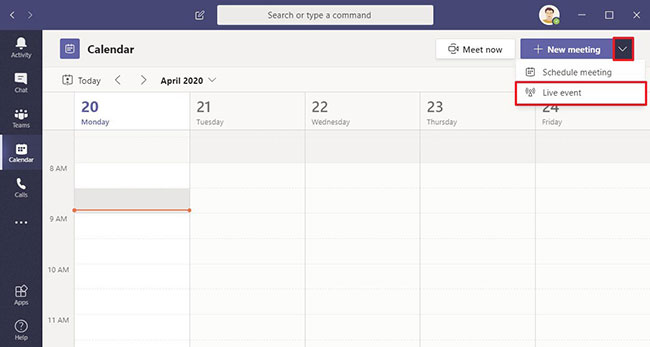
<p style="text-align: justify;">3. Nhấp vào nút mũi tên xuống, bên cạnh nút&nbsp;<strong>New meeting</strong>, từ phía trên bên phải và chọn tùy chọn&nbsp;<strong>Live event.</strong></p>

<figure>
<div style="text-align: justify;"><img alt="Chọn tùy chọn Live event" data-i="0" data-src="https://st.quantrimang.com/photos/image/2020/04/22/tao-su-kien-truc-tiep-tren-microsoft-teams-1.jpg" data-was-processed="true" height="347" src="https://st.quantrimang.com/photos/image/2020/04/22/tao-su-kien-truc-tiep-tren-microsoft-teams-1.jpg" width="650" /></div>

<figcaption>
<div style="text-align: justify;">Chọn tùy chọn Live event</div>
</figcaption>
</figure>

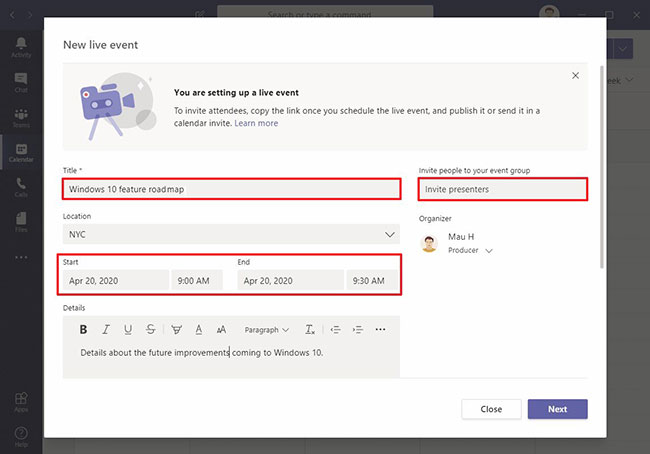
<p style="text-align: justify;">4. Xác nhận tên của sự kiện trực tiếp trên Microsoft Teams.</p>

<figure>
<div style="text-align: justify;"><img alt="Xác nhận tên của sự kiện trực tiếp trên Microsoft Teams" data-i="1" data-src="https://st.quantrimang.com/photos/image/2020/04/22/tao-su-kien-truc-tiep-tren-microsoft-teams-2.jpg" data-was-processed="true" height="454" src="https://st.quantrimang.com/photos/image/2020/04/22/tao-su-kien-truc-tiep-tren-microsoft-teams-2.jpg" width="650" /></div>

<figcaption>
<div style="text-align: justify;">Xác nhận tên của sự kiện trực tiếp trên Microsoft Teams</div>
</figcaption>
</figure>

<p style="text-align: justify;">5. Chọn vị trí thực tế nơi sự kiện sẽ diễn ra (nếu có).</p>

<p style="text-align: justify;">6. Sử dụng cài đặt ngày, giờ bắt đầu và kết thúc (<strong>Start</strong>&nbsp;và&nbsp;<strong>End</strong>) để lên lịch sự kiện trực tiếp.</p>

<p style="text-align: justify;">7. Bên trong hộp&nbsp;<strong>Details</strong>, hãy thêm thông tin cần thiết về sự kiện.</p>

<p style="text-align: justify;">8. Sử dụng tùy chọn&nbsp;<strong>Invite people to your event group</strong>&nbsp;để chỉ định địa chỉ email cho một hoặc nhiều người sẽ có mặt trong sự kiện trực tiếp trong Microsoft Teams.</p>

<p style="text-align: justify;"><strong>Mẹo nhanh</strong>: Trong phần&nbsp;<strong>Organizer</strong>, bạn có thể sử dụng menu drop-down để chuyển từ&nbsp;<strong>Producer</strong>&nbsp;sang<strong>Presenter.</strong>&nbsp;Ngoài ra, trong phần&nbsp;<strong>Event</strong>&nbsp;<strong>group</strong>, bạn có thể chỉ định một người khác làm&nbsp;<strong>Producer.</strong></p>

<p style="text-align: justify;">9. Nhấp vào nút&nbsp;<strong>Next.</strong></p>

<div style="text-align: justify;">&nbsp;</div>

<h2 style="text-align: justify;">Thêm các quyền cho sự kiện trực tiếp</h2>

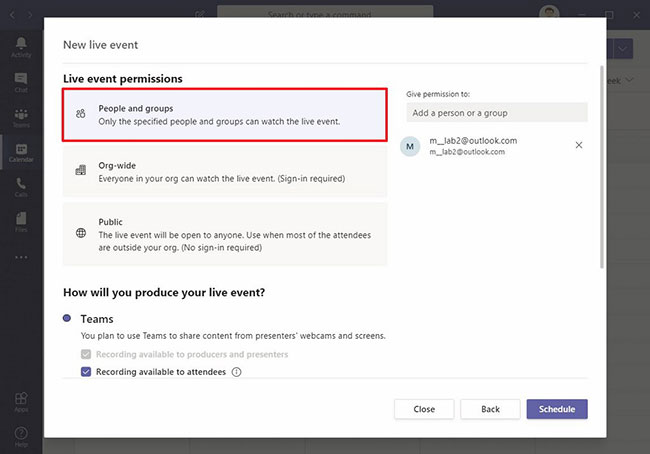
<p style="text-align: justify;">10. Chọn quyền cho sự kiện trực tiếp trong Teams:</p>

<ul>
	<li style="text-align: justify;"><strong>People and groups</strong>: Cho phép bạn chỉ định một người hoặc nhóm người được phép tham gia sự kiện.</li>
	<li style="text-align: justify;"><strong>Org-wide:</strong>&nbsp;Cho phép mọi người trong tổ chức tham gia sự kiện trực tiếp.</li>
	<li style="text-align: justify;"><strong>Public:</strong>&nbsp;Tùy chọn này không yêu cầu bất kỳ ai đăng nhập, điều đó có nghĩa là bất kỳ ai có liên kết đều có thể tham gia sự kiện trực tiếp trong Microsoft Teams.</li>
</ul>

<figure>
<div style="text-align: justify;"><img alt="Chọn quyền cho sự kiện trực tiếp trong Teams" data-i="2" data-src="https://st.quantrimang.com/photos/image/2020/04/22/tao-su-kien-truc-tiep-tren-microsoft-teams-3.jpg" data-was-processed="true" height="454" src="https://st.quantrimang.com/photos/image/2020/04/22/tao-su-kien-truc-tiep-tren-microsoft-teams-3.jpg" width="650" /></div>

<figcaption>
<div style="text-align: justify;">Chọn quyền cho sự kiện trực tiếp trong Teams</div>
</figcaption>
</figure>

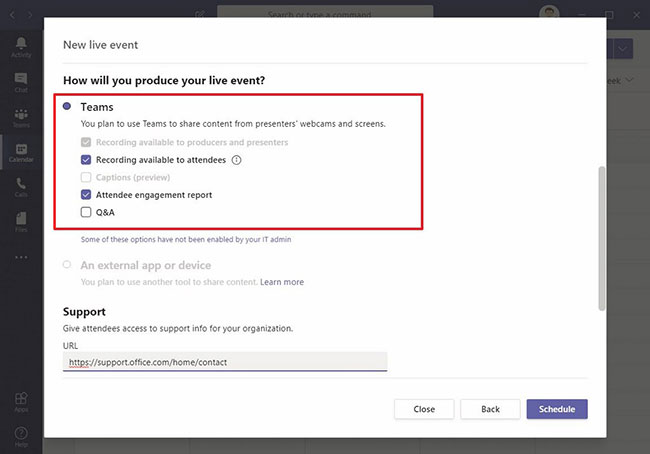
<p style="text-align: justify;">11. Trong phần&nbsp;<strong>How will you produce your live event</strong>, hãy chọn và cấu hình tùy chọn:</p>

<ul>
	<li style="text-align: justify;"><strong>Teams</strong>&nbsp;(được khuyến nghị): Tùy chọn này cho phép bạn sử dụng Teams để chia sẻ nội dung từ màn hình và camera của người thuyết trình. Nếu chọn tùy chọn này, bạn cũng có thể chỉ định các tính năng khác, chẳng hạn như:

	<ul>
		<li><strong>Recording available to attendees</strong>&nbsp;để cho phép người tham gia xem và tải xuống sự kiện đã ghi.</li>
		<li>Nếu được bật,&nbsp;<strong>Captions</strong>&nbsp;cho phép người tham dự dịch sự kiện.</li>
		<li><strong>Attendee engagement report</strong>&nbsp;cung cấp một báo cáo có thể tải xuống cho nhà sản xuất và người thuyết trình để xem ai đã tham dự sự kiện này.</li>
		<li>Và tùy chọn&nbsp;<strong>Q&amp;A</strong>&nbsp;cho phép bạn tạo một phiên hỏi đáp trong sự kiện trực tiếp. Nếu một hoặc nhiều tùy chọn được kích hoạt, bạn sẽ cần liên hệ với admin để đặt các quyền cần thiết.</li>
	</ul>
	</li>
	<li style="text-align: justify;"><strong>An external app or device</strong>&nbsp;(Ứng dụng hoặc thiết bị bên ngoài): Tùy chọn này cho phép bạn sử dụng các ứng dụng hoặc thiết bị khác, chẳng hạn như camera chuyên nghiệp, với Microsoft Teams.</li>
</ul>

<figure>
<div style="text-align: justify;"><img alt="Trong phần How will you produce your live event, hãy chọn và cấu hình tùy chọn" data-i="3" data-src="https://st.quantrimang.com/photos/image/2020/04/22/tao-su-kien-truc-tiep-tren-microsoft-teams-4.jpg" data-was-processed="true" height="454" src="https://st.quantrimang.com/photos/image/2020/04/22/tao-su-kien-truc-tiep-tren-microsoft-teams-4.jpg" width="650" /></div>

<figcaption>
<div style="text-align: justify;">Trong phần How will you produce your live event, hãy chọn và cấu hình tùy chọn</div>
</figcaption>
</figure>

<p style="text-align: justify;">12. (Tùy chọn) Trong phần&nbsp;<strong>Support</strong>, hãy chỉ định một liên kết mà người tham dự có thể sử dụng để nhận trợ giúp, nếu họ bị mắc kẹt và cần hỗ trợ trong cuộc họp.</p>

<p style="text-align: justify;">13. Nhấp vào nút&nbsp;<strong>Schedule.</strong></p>

<p style="text-align: justify;">14. Nhấp vào nút&nbsp;<strong>Close.</strong></p>

<p style="text-align: justify;">Khi bạn hoàn thành các bước, sự kiện trực tiếp của Microsoft Teams sẽ được tạo và trình bày với tất cả các chi tiết.</p>

<p style="text-align: justify;">Nếu bạn thiết lập một sự kiện trực tiếp riêng tư, những người tham dự sẽ nhận được email có thông tin sự kiện và liên kết để tham gia. Nếu lên lịch một sự kiện công khai, bạn nhấp vào&nbsp;<strong>Get attendee link</strong>&nbsp;để nhận liên kết có thể chia sẻ với những người khác tham gia sự kiện Teams.</p>
		</div>
				<div id="author">
						<p>
				<strong>Nguồn tin:</strong>
				Quantrimang.com
			</p>
		</div>
	</div>
	<div id="footer" class="clearfix">
		<div id="url">
			<strong>URL của bản tin này: </strong><a href="https://www.nguoicodonvn2008.info/vi/news/savefile/kien-thuc-may-tinh/cach-tao-su-kien-truc-tiep-tren-microsoft-teams-1970.html" title="Cách tạo sự kiện trực tiếp trên Microsoft Teams">https://www.nguoicodonvn2008.info/vi/news/savefile/kien-thuc-may-tinh/cach-tao-su-kien-truc-tiep-tren-microsoft-teams-1970.html</a>

		</div>
		<div class="clear"></div>
		<div class="copyright">
			&copy; .&#x3A; Nguoicodonvn2008.info - Cõi lòng người cô đơn &#x3A;.
		</div>
		<div id="contact">
			<a href="mailto:admin@nguoicodonvn2008.info">admin@nguoicodonvn2008.info</a>
		</div>
	</div>
</div>
        <div id="timeoutsess" class="chromeframe">
            Bạn đã không sử dụng Site, <a onclick="timeoutsesscancel();" href="https://nguoicodonvn2008.info/#">Bấm vào đây để duy trì trạng thái đăng nhập</a>. Thời gian chờ: <span id="secField"> 60 </span> giây
        </div>
        <div id="openidResult" class="nv-alert" style="display:none"></div>
        <div id="openidBt" data-result="" data-redirect=""></div>
		</script>
		<div class="car-top">
  <span><img src="https://nguoicodonvn2008.info/themes/default/images/car.png" alt=""></span>
</div>
<div id="run_cronjobs" style="visibility:hidden;display:none;"><img alt="cron" src="/index.php?second=cronjobs&amp;p=e1v8N7v7" width="1" height="1" /></div>
<script src="https://nguoicodonvn2008.info/assets/js/jquery/jquery.min.js"></script>
<script>var nv_base_siteurl="/",nv_lang_data="vi",nv_lang_interface="vi",nv_name_variable="nv",nv_fc_variable="op",nv_lang_variable="language",nv_module_name="news",nv_func_name="savefile",nv_is_user=0, nv_my_ofs=-4,nv_my_abbr="EDT",nv_cookie_prefix="nv4c_e856T",nv_check_pass_mstime=1738000,nv_area_admin=0,nv_safemode=0,theme_responsive=0,nv_recaptcha_ver=2,nv_recaptcha_sitekey="",nv_recaptcha_type="image",XSSsanitize=1;</script>
<script src="https://nguoicodonvn2008.info/assets/js/language/vi.js"></script>
<script src="https://nguoicodonvn2008.info/assets/js/DOMPurify/purify3.js"></script>
<script src="https://nguoicodonvn2008.info/assets/js/global.js"></script>
<script src="https://nguoicodonvn2008.info/assets/js/site.js"></script>
<script src="https://nguoicodonvn2008.info/themes/default/js/news.js"></script>
<script src="https://nguoicodonvn2008.info/themes/default/js/main.js"></script>
<script src="https://nguoicodonvn2008.info/themes/default/js/custom.js"></script>
<script type="application/ld+json">
        {
            "@context": "https://schema.org",
            "@type": "Organization",
            "url": "https://nguoicodonvn2008.info",
            "logo": "https://nguoicodonvn2008.info/uploads/angel.gif"
        }
        </script>
<script src="https://nguoicodonvn2008.info/themes/default/js/bootstrap.min.js"></script>
<script type="text/javascript">
var $scrolltop = $('.car-top');
$scrolltop.on('click', function () {
    $('html,body').animate({
        scrollTop: 0
    }, 800);
    $(this).addClass("car-run");
    setTimeout(function(){ $scrolltop.removeClass('car-run');}, 1000);
    return false;
});
$(window).on('scroll', function ()
{ 
    if($(window).scrollTop() >= 200)
    {
        $scrolltop.addClass("show");
        $scrolltop.addClass("car-down");
    }
    else
    {
       $scrolltop.removeClass("show");
       setTimeout(function(){ $scrolltop.removeClass('car-down');}, 300);
    }
});
</script>
</body>
</html>