<!DOCTYPE html>
    <html lang="vi" xmlns="http://www.w3.org/1999/xhtml" prefix="og: http://ogp.me/ns#">
    <head>
<title>Cách tạo shortcut Hyper-V Manager trong Windows 10</title>
<meta name="description" content="Cách tạo shortcut Hyper-V Manager trong Windows 10 - Savefile - Tin Tức -...">
<meta name="author" content=".: Nguoicodonvn2008.info - Cõi lòng người cô đơn :.">
<meta name="copyright" content=".: Nguoicodonvn2008.info - Cõi lòng người cô đơn :. [admin@nguoicodonvn2008.info]">
<meta name="robots" content="index, archive, follow, noodp">
<meta name="googlebot" content="index,archive,follow,noodp">
<meta name="msnbot" content="all,index,follow">
<meta name="generator" content="NukeViet v4.5">
<meta http-equiv="Content-Type" content="text/html; charset=utf-8">
<meta property="og:title" content="Cách tạo shortcut Hyper-V Manager trong Windows 10">
<meta property="og:type" content="website">
<meta property="og:description" content="Savefile - Tin Tức - https&#x3A;&#x002F;&#x002F;www.nguoicodonvn2008.info&#x002F;vi&#x002F;news&#x002F;savefile&#x002F;kien-thuc-may-tinh&#x002F;cach-tao-shortcut-hyper-v-manager-trong-windows-10-3069.html">
<meta property="og:site_name" content=".&#x3A; Nguoicodonvn2008.info - Cõi lòng người cô đơn &#x3A;.">
<meta property="og:url" content="https://www.nguoicodonvn2008.info/vi/news/savefile/kien-thuc-may-tinh/cach-tao-shortcut-hyper-v-manager-trong-windows-10-3069.html">
<link rel="shortcut icon" href="https://nguoicodonvn2008.info/favicon.ico">
<link rel="canonical" href="https://www.nguoicodonvn2008.info/vi/news/savefile/kien-thuc-may-tinh/cach-tao-shortcut-hyper-v-manager-trong-windows-10-3069.html">
<link rel="alternate" href="https://nguoicodonvn2008.info/vi/news/rss/" title="Tin Tức" type="application/rss+xml">
<link rel="alternate" href="https://nguoicodonvn2008.info/vi/news/rss/karaoke-dual/" title="Tin Tức - Karaoke Dual" type="application/rss+xml">
<link rel="alternate" href="https://nguoicodonvn2008.info/vi/news/rss/nhac-tre/" title="Tin Tức - Nhạc trẻ" type="application/rss+xml">
<link rel="alternate" href="https://nguoicodonvn2008.info/vi/news/rss/tru-tinh/" title="Tin Tức - Trữ tình" type="application/rss+xml">
<link rel="alternate" href="https://nguoicodonvn2008.info/vi/news/rss/nuoc-ngoai/" title="Tin Tức - Nước ngoài" type="application/rss+xml">
<link rel="alternate" href="https://nguoicodonvn2008.info/vi/news/rss/remix/" title="Tin Tức - Remix" type="application/rss+xml">
<link rel="alternate" href="https://nguoicodonvn2008.info/vi/news/rss/tam-su-tinh-yeu/" title="Tin Tức - Tâm sự tình yêu" type="application/rss+xml">
<link rel="alternate" href="https://nguoicodonvn2008.info/vi/news/rss/tho-suu-tam/" title="Tin Tức - Thơ sưu tầm" type="application/rss+xml">
<link rel="alternate" href="https://nguoicodonvn2008.info/vi/news/rss/cuoc-song/" title="Tin Tức - Cuộc sống" type="application/rss+xml">
<link rel="alternate" href="https://nguoicodonvn2008.info/vi/news/rss/phan-mem/" title="Tin Tức - Phần mềm" type="application/rss+xml">
<link rel="alternate" href="https://nguoicodonvn2008.info/vi/news/rss/kien-thuc-may-tinh/" title="Tin Tức - Kiến thức máy tính" type="application/rss+xml">
<link rel="alternate" href="https://nguoicodonvn2008.info/vi/news/rss/hoc-tap/" title="Tin Tức - Học tập" type="application/rss+xml">
<link rel="alternate" href="https://nguoicodonvn2008.info/vi/news/rss/tai-lieu/" title="Tin Tức - Tài liệu" type="application/rss+xml">
<link rel="alternate" href="https://nguoicodonvn2008.info/vi/news/rss/de-thi/" title="Tin Tức - Đề thi" type="application/rss+xml">
<link rel="preload" as="style" href="https://nguoicodonvn2008.info/assets/css/font-awesome.min.css" type="text/css">
<link rel="preload" as="style" href="https://nguoicodonvn2008.info/themes/default/css/bootstrap.non-responsive.css" type="text/css">
<link rel="preload" as="style" href="https://nguoicodonvn2008.info/themes/default/css/style.css" type="text/css">
<link rel="preload" as="style" href="https://nguoicodonvn2008.info/themes/default/css/style.non-responsive.css" type="text/css">
<link rel="preload" as="style" href="https://nguoicodonvn2008.info/themes/default/css/news.css" type="text/css">
<link rel="preload" as="style" href="https://nguoicodonvn2008.info/themes/default/css/custom.css" type="text/css">
<link rel="preload" as="script" href="https://nguoicodonvn2008.info/assets/js/jquery/jquery.min.js" type="text/javascript">
<link rel="preload" as="script" href="https://nguoicodonvn2008.info/assets/js/language/vi.js" type="text/javascript">
<link rel="preload" as="script" href="https://nguoicodonvn2008.info/assets/js/DOMPurify/purify3.js" type="text/javascript">
<link rel="preload" as="script" href="https://nguoicodonvn2008.info/assets/js/global.js" type="text/javascript">
<link rel="preload" as="script" href="https://nguoicodonvn2008.info/assets/js/site.js" type="text/javascript">
<link rel="preload" as="script" href="https://nguoicodonvn2008.info/themes/default/js/news.js" type="text/javascript">
<link rel="preload" as="script" href="https://nguoicodonvn2008.info/themes/default/js/main.js" type="text/javascript">
<link rel="preload" as="script" href="https://nguoicodonvn2008.info/themes/default/js/custom.js" type="text/javascript">
<link rel="preload" as="script" href="https://nguoicodonvn2008.info/themes/default/js/bootstrap.min.js" type="text/javascript">
<link rel="stylesheet" href="https://nguoicodonvn2008.info/assets/css/font-awesome.min.css">
<link rel="stylesheet" href="https://nguoicodonvn2008.info/themes/default/css/bootstrap.non-responsive.css">
<link rel="stylesheet" href="https://nguoicodonvn2008.info/themes/default/css/style.css">
<link rel="stylesheet" href="https://nguoicodonvn2008.info/themes/default/css/style.non-responsive.css">
<link rel="StyleSheet" href="https://nguoicodonvn2008.info/themes/default/css/news.css">
<link rel="stylesheet" href="https://nguoicodonvn2008.info/themes/default/css/custom.css">
<style type="text/css">
	body{background: #fff;}
</style>
    </head>
    <body>
<div id="print">
	<div id="hd_print">
		<h2 class="pull-left">.&#x3A; Nguoicodonvn2008.info - Cõi lòng người cô đơn &#x3A;.</h2>
		<p class="pull-right"><a title=".&#x3A; Nguoicodonvn2008.info - Cõi lòng người cô đơn &#x3A;." href="https://nguoicodonvn2008.info/">https://nguoicodonvn2008.info</a></p>
	</div>
	<div class="clear"></div>
	<hr />
	<div id="content">
		<h1>Cách tạo shortcut Hyper-V Manager trong Windows 10</h1>
		<ul class="list-inline">
			<li>Thứ tư - 11/11/2020 23:58</li>
			<li class="hidden-print txtrequired"><em class="fa fa-print">&nbsp;</em><a title="In ra" href="javascript:;" onclick="window.print()">In ra</a></li>
			<li class="hidden-print txtrequired"><em class="fa fa-power-off">&nbsp;</em><a title="Đóng cửa sổ này" href="javascript:;" onclick="window.close()">Đóng cửa sổ này</a></li>
		</ul>
		<div class="clear"></div>
		<div id="hometext">
		</div>
				<div class="imghome">
			<img alt="Cách tạo shortcut Hyper-V Manager trong Windows 10" src="https://st.quantrimang.com/photos/image/2020/11/11/tao-shortcut-hyper-v-manager-1.jpg" width="460" class="img-thumbnail" />
		</div>
		<div class="clear"></div>
		<div id="bodytext" class="clearfix">
			<p style="text-align: justify;">Các phiên bản Windows 10 Pro, Enterprise và Education bao gồm công nghệ ảo hóa Hyper-V. Hyper-V, cho phép chạy các hệ thống máy tính ảo hóa trên máy chủ vật lý.</p>

<h2 style="text-align: justify;">Tính năng ảo hóa Hyper-V trên Windows 10</h2>

<p style="text-align: justify;">Các hệ thống ảo hóa này có thể được sử dụng và quản lý như thể chúng là các hệ thống máy tính vật lý, tuy nhiên chúng tồn tại trong môi trường ảo hóa và cô lập. Phần mềm đặc biệt được gọi là Hypervisor quản lý quyền truy cập giữa hệ thống ảo và tài nguyên phần cứng vật lý.</p>

<p style="text-align: justify;">Ảo hóa&nbsp;cho phép triển khai nhanh chóng các hệ thống máy tính, khôi phục nhanh hệ thống về trạng thái bình thường trước đó và khả năng di chuyển hệ thống giữa các máy chủ vật lý.</p>

<p style="text-align: justify;">Hyper-V Manager là một công cụ để chẩn đoán và quản lý Hyper-V host cục bộ và một số lượng nhỏ host từ xa. Hyper-V Manager có sẵn thông qua&nbsp;<strong>Programs and Features</strong>&nbsp;dưới dạng&nbsp;<strong>Hyper-V Management Tools</strong>&nbsp;trên bất kỳ hệ điều hành Windows nào có Hyper-V đi kèm. Nền tảng Hyper-V không cần phải được bật để quản lý host từ xa.</p>

<p style="text-align: justify;">Hướng dẫn này sẽ chỉ cho bạn cách tạo shortcut Hyper-V Manager trong Windows 10.</p>

<div style="text-align: justify;">&nbsp;</div>

<h2 style="text-align: justify;">Cách tạo thủ công shortcut Hyper-V Manager</h2>

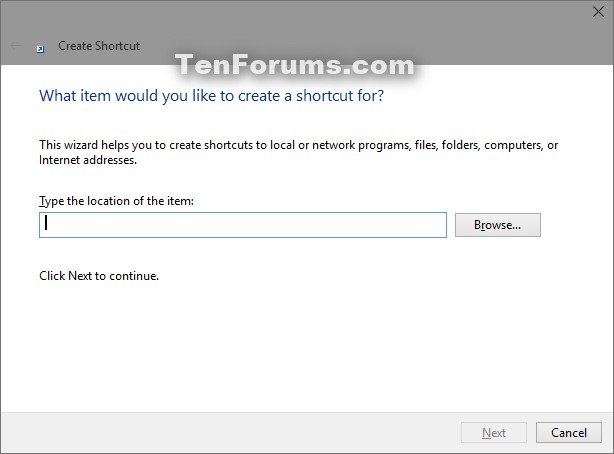
<p style="text-align: justify;">1. Nhấp chuột phải hoặc nhấn và giữ vào một vùng trống trên desktop và nhấn vào&nbsp;<strong>New &gt; Shortcut</strong>.</p>

<p style="text-align: justify;">2. Sao chép và dán vị trí bên dưới vào khu vực vị trí và nhấn vào&nbsp;<strong>Next.</strong></p>

<pre id="pre0">
<code>%windir%\System32\mmc.exe virtmgmt.msc</code></pre>

<figure>
<div style="text-align: justify;"><img alt="Dán vào chỗ vị trí" data-i="0" data-src="https://st.quantrimang.com/photos/image/2020/11/11/tao-shortcut-hyper-v-manager-1.jpg" data-was-processed="true" height="454" src="https://st.quantrimang.com/photos/image/2020/11/11/tao-shortcut-hyper-v-manager-1.jpg" width="614" /></div>

<figcaption>
<div style="text-align: justify;">Dán vào chỗ vị trí</div>
</figcaption>
</figure>

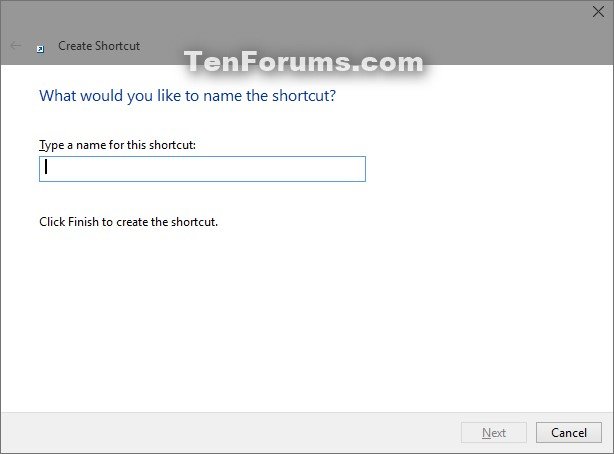
<p style="text-align: justify;">3. Nhập&nbsp;<strong>Hyper-V Manager</strong>&nbsp;làm tên và nhấp vào nút&nbsp;<strong>Finish.</strong></p>

<p style="text-align: justify;"><strong>Lưu ý</strong>: Bạn có thể đặt tên cho shortcut này thành bất cứ thứ gì bạn muốn.</p>

<figure>
<div style="text-align: justify;"><img alt="Nhập Hyper-V Manager làm tên shortcut" data-i="1" data-src="https://st.quantrimang.com/photos/image/2020/11/11/tao-shortcut-hyper-v-manager-2.jpg" data-was-processed="true" height="454" src="https://st.quantrimang.com/photos/image/2020/11/11/tao-shortcut-hyper-v-manager-2.jpg" width="614" /></div>

<figcaption>
<div style="text-align: justify;">Nhập Hyper-V Manager làm tên shortcut</div>
</figcaption>
</figure>

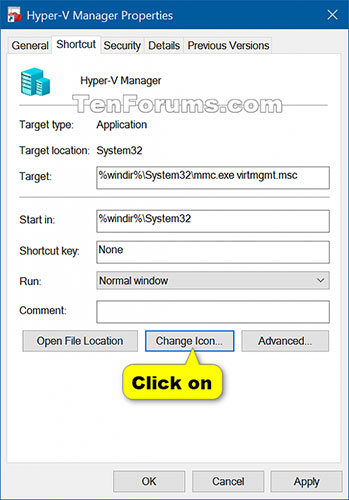
<p style="text-align: justify;">4. Nhấp chuột phải hoặc nhấn và giữ vào shortcut&nbsp;<strong>Hyper-V Manager</strong>&nbsp;mới và nhấn vào&nbsp;<strong>Properties.</strong></p>

<p style="text-align: justify;">5. Nhấp vào tab&nbsp;<strong>Shortcut</strong>, sau đó nhấp vào nút&nbsp;<strong>Change Icon.</strong></p>

<figure>
<div style="text-align: justify;"><img alt="Nhấp vào nút Change Icon để chọn biểu tượng cho shortcut" data-i="2" data-src="https://st.quantrimang.com/photos/image/2020/11/11/tao-shortcut-hyper-v-manager-3.jpg" data-was-processed="true" height="500" src="https://st.quantrimang.com/photos/image/2020/11/11/tao-shortcut-hyper-v-manager-3.jpg" width="349" /></div>

<figcaption>
<div style="text-align: justify;">Nhấp vào nút Change Icon để chọn biểu tượng cho shortcut</div>
</figcaption>
</figure>

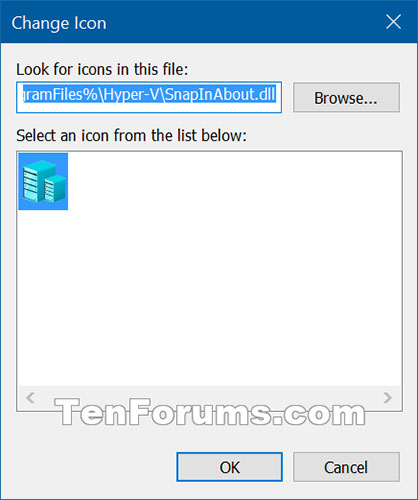
<p style="text-align: justify;">6. Trong dòng bên dưới&nbsp;<strong>&quot;Look for icons in this file&quot;</strong>, sao chép và dán vị trí bên dưới rồi nhấn&nbsp;<strong>Enter.</strong></p>

<pre id="pre1">
<code>%ProgramFiles%\Hyper-V\SnapInAbout.dll</code></pre>

<figure>
<div style="text-align: justify;"><img alt="Dán vị trí vào &#039;Look for icons in this file&#039;" data-i="3" data-src="https://st.quantrimang.com/photos/image/2020/11/11/tao-shortcut-hyper-v-manager-4.jpg" data-was-processed="true" height="500" src="https://st.quantrimang.com/photos/image/2020/11/11/tao-shortcut-hyper-v-manager-4.jpg" width="418" /></div>

<figcaption>
<div style="text-align: justify;">Dán vị trí vào &quot;Look for icons in this file&quot;</div>
</figcaption>
</figure>

<p style="text-align: justify;">7. Chọn biểu tượng được highlight màu xanh lam ở trên và nhấn vào&nbsp;<strong>OK.</strong>&nbsp;Tuy nhiên, bạn có thể sử dụng bất kỳ biểu tượng nào mà bạn muốn.</p>

<p style="text-align: justify;">8. Nhấp vào&nbsp;<strong>OK.</strong></p>

<p style="text-align: justify;">9. Bạn có thể ghim vào thanh tác vụ, menu Start, thêm vào&nbsp;<strong>All apps, Quick Launch</strong>, gán phím tắt hoặc di chuyển shortcut này đến nơi bạn muốn để dễ sử dụng.</p>
		</div>
				<div id="author">
						<p>
				<strong>Nguồn tin:</strong>
				Quantrimang.com
			</p>
		</div>
	</div>
	<div id="footer" class="clearfix">
		<div id="url">
			<strong>URL của bản tin này: </strong><a href="https://www.nguoicodonvn2008.info/vi/news/savefile/kien-thuc-may-tinh/cach-tao-shortcut-hyper-v-manager-trong-windows-10-3069.html" title="Cách tạo shortcut Hyper-V Manager trong Windows 10">https://www.nguoicodonvn2008.info/vi/news/savefile/kien-thuc-may-tinh/cach-tao-shortcut-hyper-v-manager-trong-windows-10-3069.html</a>

		</div>
		<div class="clear"></div>
		<div class="copyright">
			&copy; .&#x3A; Nguoicodonvn2008.info - Cõi lòng người cô đơn &#x3A;.
		</div>
		<div id="contact">
			<a href="mailto:admin@nguoicodonvn2008.info">admin@nguoicodonvn2008.info</a>
		</div>
	</div>
</div>
        <div id="timeoutsess" class="chromeframe">
            Bạn đã không sử dụng Site, <a onclick="timeoutsesscancel();" href="https://nguoicodonvn2008.info/#">Bấm vào đây để duy trì trạng thái đăng nhập</a>. Thời gian chờ: <span id="secField"> 60 </span> giây
        </div>
        <div id="openidResult" class="nv-alert" style="display:none"></div>
        <div id="openidBt" data-result="" data-redirect=""></div>
		</script>
		<div class="car-top">
  <span><img src="https://nguoicodonvn2008.info/themes/default/images/car.png" alt=""></span>
</div>
<script src="https://nguoicodonvn2008.info/assets/js/jquery/jquery.min.js"></script>
<script>var nv_base_siteurl="/",nv_lang_data="vi",nv_lang_interface="vi",nv_name_variable="nv",nv_fc_variable="op",nv_lang_variable="language",nv_module_name="news",nv_func_name="savefile",nv_is_user=0, nv_my_ofs=-4,nv_my_abbr="EDT",nv_cookie_prefix="nv4c_e856T",nv_check_pass_mstime=1738000,nv_area_admin=0,nv_safemode=0,theme_responsive=0,nv_recaptcha_ver=2,nv_recaptcha_sitekey="",nv_recaptcha_type="image",XSSsanitize=1;</script>
<script src="https://nguoicodonvn2008.info/assets/js/language/vi.js"></script>
<script src="https://nguoicodonvn2008.info/assets/js/DOMPurify/purify3.js"></script>
<script src="https://nguoicodonvn2008.info/assets/js/global.js"></script>
<script src="https://nguoicodonvn2008.info/assets/js/site.js"></script>
<script src="https://nguoicodonvn2008.info/themes/default/js/news.js"></script>
<script src="https://nguoicodonvn2008.info/themes/default/js/main.js"></script>
<script src="https://nguoicodonvn2008.info/themes/default/js/custom.js"></script>
<script type="application/ld+json">
        {
            "@context": "https://schema.org",
            "@type": "Organization",
            "url": "https://nguoicodonvn2008.info",
            "logo": "https://nguoicodonvn2008.info/uploads/angel.gif"
        }
        </script>
<script src="https://nguoicodonvn2008.info/themes/default/js/bootstrap.min.js"></script>
<script type="text/javascript">
var $scrolltop = $('.car-top');
$scrolltop.on('click', function () {
    $('html,body').animate({
        scrollTop: 0
    }, 800);
    $(this).addClass("car-run");
    setTimeout(function(){ $scrolltop.removeClass('car-run');}, 1000);
    return false;
});
$(window).on('scroll', function ()
{ 
    if($(window).scrollTop() >= 200)
    {
        $scrolltop.addClass("show");
        $scrolltop.addClass("car-down");
    }
    else
    {
       $scrolltop.removeClass("show");
       setTimeout(function(){ $scrolltop.removeClass('car-down');}, 300);
    }
});
</script>
</body>
</html>