<!DOCTYPE html>
    <html lang="vi" xmlns="http://www.w3.org/1999/xhtml" prefix="og: http://ogp.me/ns#">
    <head>
<title>Cách tạo nhiều thư mục cùng lúc trên Windows 10</title>
<meta name="description" content="Cách tạo nhiều thư mục cùng lúc trên Windows 10 - Savefile - Tin Tức -...">
<meta name="author" content=".: Nguoicodonvn2008.info - Cõi lòng người cô đơn :.">
<meta name="copyright" content=".: Nguoicodonvn2008.info - Cõi lòng người cô đơn :. [admin@nguoicodonvn2008.info]">
<meta name="robots" content="index, archive, follow, noodp">
<meta name="googlebot" content="index,archive,follow,noodp">
<meta name="msnbot" content="all,index,follow">
<meta name="generator" content="NukeViet v4.5">
<meta http-equiv="Content-Type" content="text/html; charset=utf-8">
<meta property="og:title" content="Cách tạo nhiều thư mục cùng lúc trên Windows 10">
<meta property="og:type" content="website">
<meta property="og:description" content="Savefile - Tin Tức - https&#x3A;&#x002F;&#x002F;www.nguoicodonvn2008.info&#x002F;vi&#x002F;news&#x002F;savefile&#x002F;kien-thuc-may-tinh&#x002F;cach-tao-nhieu-thu-muc-cung-luc-tren-windows-10-4195.html">
<meta property="og:site_name" content=".&#x3A; Nguoicodonvn2008.info - Cõi lòng người cô đơn &#x3A;.">
<meta property="og:url" content="https://www.nguoicodonvn2008.info/vi/news/savefile/kien-thuc-may-tinh/cach-tao-nhieu-thu-muc-cung-luc-tren-windows-10-4195.html">
<link rel="shortcut icon" href="https://nguoicodonvn2008.info/favicon.ico">
<link rel="canonical" href="https://www.nguoicodonvn2008.info/vi/news/savefile/kien-thuc-may-tinh/cach-tao-nhieu-thu-muc-cung-luc-tren-windows-10-4195.html">
<link rel="alternate" href="https://nguoicodonvn2008.info/vi/news/rss/" title="Tin Tức" type="application/rss+xml">
<link rel="alternate" href="https://nguoicodonvn2008.info/vi/news/rss/karaoke-dual/" title="Tin Tức - Karaoke Dual" type="application/rss+xml">
<link rel="alternate" href="https://nguoicodonvn2008.info/vi/news/rss/nhac-tre/" title="Tin Tức - Nhạc trẻ" type="application/rss+xml">
<link rel="alternate" href="https://nguoicodonvn2008.info/vi/news/rss/tru-tinh/" title="Tin Tức - Trữ tình" type="application/rss+xml">
<link rel="alternate" href="https://nguoicodonvn2008.info/vi/news/rss/nuoc-ngoai/" title="Tin Tức - Nước ngoài" type="application/rss+xml">
<link rel="alternate" href="https://nguoicodonvn2008.info/vi/news/rss/remix/" title="Tin Tức - Remix" type="application/rss+xml">
<link rel="alternate" href="https://nguoicodonvn2008.info/vi/news/rss/tam-su-tinh-yeu/" title="Tin Tức - Tâm sự tình yêu" type="application/rss+xml">
<link rel="alternate" href="https://nguoicodonvn2008.info/vi/news/rss/tho-suu-tam/" title="Tin Tức - Thơ sưu tầm" type="application/rss+xml">
<link rel="alternate" href="https://nguoicodonvn2008.info/vi/news/rss/cuoc-song/" title="Tin Tức - Cuộc sống" type="application/rss+xml">
<link rel="alternate" href="https://nguoicodonvn2008.info/vi/news/rss/phan-mem/" title="Tin Tức - Phần mềm" type="application/rss+xml">
<link rel="alternate" href="https://nguoicodonvn2008.info/vi/news/rss/kien-thuc-may-tinh/" title="Tin Tức - Kiến thức máy tính" type="application/rss+xml">
<link rel="alternate" href="https://nguoicodonvn2008.info/vi/news/rss/hoc-tap/" title="Tin Tức - Học tập" type="application/rss+xml">
<link rel="alternate" href="https://nguoicodonvn2008.info/vi/news/rss/tai-lieu/" title="Tin Tức - Tài liệu" type="application/rss+xml">
<link rel="alternate" href="https://nguoicodonvn2008.info/vi/news/rss/de-thi/" title="Tin Tức - Đề thi" type="application/rss+xml">
<link rel="preload" as="style" href="https://nguoicodonvn2008.info/assets/css/font-awesome.min.css" type="text/css">
<link rel="preload" as="style" href="https://nguoicodonvn2008.info/themes/default/css/bootstrap.non-responsive.css" type="text/css">
<link rel="preload" as="style" href="https://nguoicodonvn2008.info/themes/default/css/style.css" type="text/css">
<link rel="preload" as="style" href="https://nguoicodonvn2008.info/themes/default/css/style.non-responsive.css" type="text/css">
<link rel="preload" as="style" href="https://nguoicodonvn2008.info/themes/default/css/news.css" type="text/css">
<link rel="preload" as="style" href="https://nguoicodonvn2008.info/themes/default/css/custom.css" type="text/css">
<link rel="preload" as="script" href="https://nguoicodonvn2008.info/assets/js/jquery/jquery.min.js" type="text/javascript">
<link rel="preload" as="script" href="https://nguoicodonvn2008.info/assets/js/language/vi.js" type="text/javascript">
<link rel="preload" as="script" href="https://nguoicodonvn2008.info/assets/js/DOMPurify/purify3.js" type="text/javascript">
<link rel="preload" as="script" href="https://nguoicodonvn2008.info/assets/js/global.js" type="text/javascript">
<link rel="preload" as="script" href="https://nguoicodonvn2008.info/assets/js/site.js" type="text/javascript">
<link rel="preload" as="script" href="https://nguoicodonvn2008.info/themes/default/js/news.js" type="text/javascript">
<link rel="preload" as="script" href="https://nguoicodonvn2008.info/themes/default/js/main.js" type="text/javascript">
<link rel="preload" as="script" href="https://nguoicodonvn2008.info/themes/default/js/custom.js" type="text/javascript">
<link rel="preload" as="script" href="https://nguoicodonvn2008.info/themes/default/js/bootstrap.min.js" type="text/javascript">
<link rel="stylesheet" href="https://nguoicodonvn2008.info/assets/css/font-awesome.min.css">
<link rel="stylesheet" href="https://nguoicodonvn2008.info/themes/default/css/bootstrap.non-responsive.css">
<link rel="stylesheet" href="https://nguoicodonvn2008.info/themes/default/css/style.css">
<link rel="stylesheet" href="https://nguoicodonvn2008.info/themes/default/css/style.non-responsive.css">
<link rel="StyleSheet" href="https://nguoicodonvn2008.info/themes/default/css/news.css">
<link rel="stylesheet" href="https://nguoicodonvn2008.info/themes/default/css/custom.css">
<style type="text/css">
	body{background: #fff;}
</style>
    </head>
    <body>
<div id="print">
	<div id="hd_print">
		<h2 class="pull-left">.&#x3A; Nguoicodonvn2008.info - Cõi lòng người cô đơn &#x3A;.</h2>
		<p class="pull-right"><a title=".&#x3A; Nguoicodonvn2008.info - Cõi lòng người cô đơn &#x3A;." href="https://nguoicodonvn2008.info/">https://nguoicodonvn2008.info</a></p>
	</div>
	<div class="clear"></div>
	<hr />
	<div id="content">
		<h1>Cách tạo nhiều thư mục cùng lúc trên Windows 10</h1>
		<ul class="list-inline">
			<li>Thứ hai - 07/06/2021 00:46</li>
			<li class="hidden-print txtrequired"><em class="fa fa-print">&nbsp;</em><a title="In ra" href="javascript:;" onclick="window.print()">In ra</a></li>
			<li class="hidden-print txtrequired"><em class="fa fa-power-off">&nbsp;</em><a title="Đóng cửa sổ này" href="javascript:;" onclick="window.close()">Đóng cửa sổ này</a></li>
		</ul>
		<div class="clear"></div>
		<div id="hometext">
		</div>
				<div class="imghome">
			<img alt="Cách tạo nhiều thư mục cùng lúc trên Windows 10" src="https://st.quantrimang.com/photos/image/2021/05/14/tao-nhieu-thu-muc-cung-luc-tren-windows-108.png" width="460" class="img-thumbnail" />
		</div>
		<div class="clear"></div>
		<div id="bodytext" class="clearfix">
			<p style="text-align: justify;">Yêu cầu công việc khiến bạn phải tạo đồng loạt nhiều thư mục cùng lúc trên PC Windows 10 của mình. Khi đó, việc tạo thư mục theo các cách thủ công như nhấp chuột phải chọn New Folder hoặc sử dụng tổ hợp phím Ctrl + Shift + N đều rất mất thời gian. Thay vào đó, bạn có thể tạo nhiều thư mục cùng một lúc bằng Command Prompt, PowerShell hoặc một tệp batch.</p>

<h2 style="text-align: justify;">Tạo nhiều thư mục Windows 10 cùng lúc bằng Command Prompt</h2>

<div style="text-align: justify;">&nbsp;</div>

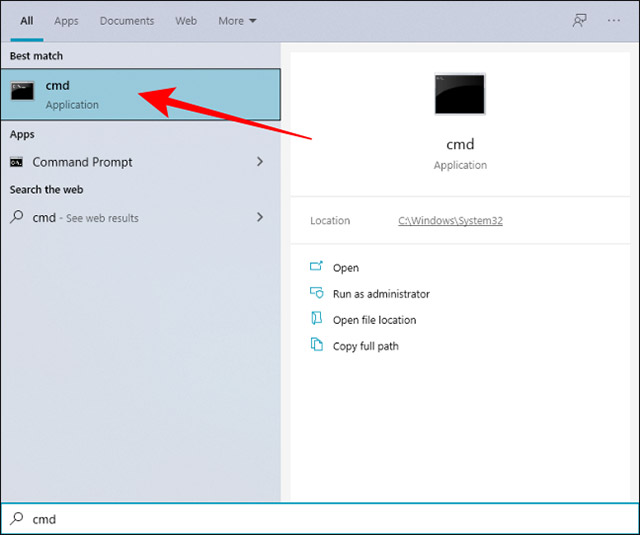
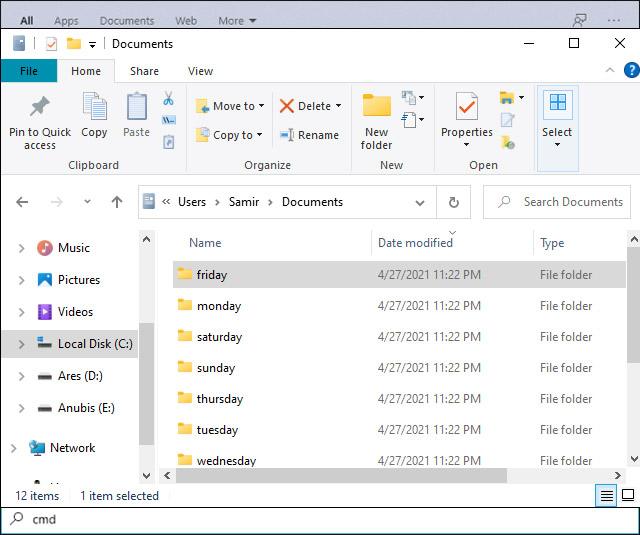
<p style="text-align: justify;">Trước tiên, hãy mở menu Start và nhập từ khóa “cmd” vào thanh tìm kiếm của Windows Search. Sau đó, bấm chọn “Command Prompt” từ kết quả tìm kiếm trả về tương ứng.</p>

<p style="text-align: justify;"><img alt="Bấm chọn “Command Prompt”" data-i="0" data-src="https://st.quantrimang.com/photos/image/2021/05/14/tao-nhieu-thu-muc-cung-luc-tren-windows-101.jpg" data-was-processed="true" height="535" src="https://st.quantrimang.com/photos/image/2021/05/14/tao-nhieu-thu-muc-cung-luc-tren-windows-101.jpg" width="640" /></p>

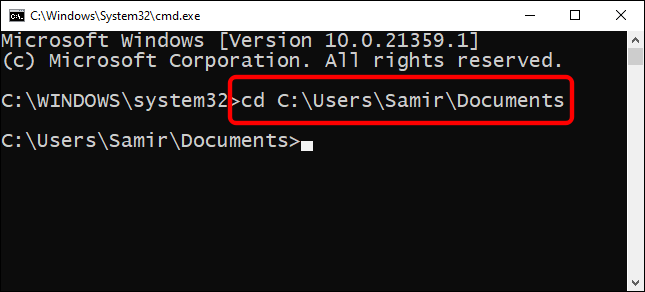
<p style="text-align: justify;">Bạn có thể thay đổi thư mục trong Command Prompt&nbsp;bằng lệnh cd, và chuyển sang vị trí khác trên Windows mà mình muốn tạo nhiều thư mục đồng thời.</p>

<p style="text-align: justify;"><img alt="Đổi thư mục trong Command Prompt bằng lệnh cd" data-i="1" data-src="https://st.quantrimang.com/photos/image/2021/05/14/tao-nhieu-thu-muc-cung-luc-tren-windows-102.png" data-was-processed="true" height="292" src="https://st.quantrimang.com/photos/image/2021/05/14/tao-nhieu-thu-muc-cung-luc-tren-windows-102.png" width="645" /></p>

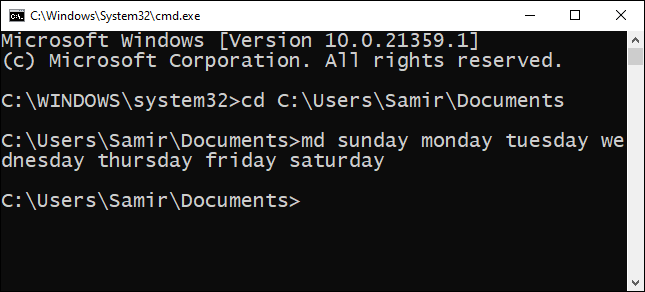
<p style="text-align: justify;">Bây giờ, hãy giả định rằng muốn tạo cùng lúc 7 thư mục tương ứng với mỗi ngày trong một tuần. Trong trường hợp này, bạn có thể sử dụng lệnh sau:</p>

<pre id="pre0">
<code>md sunday monday tuesday wednesday thursday friday saturday</code></pre>

<p style="text-align: justify;"><img alt="Nhập lệnh" data-i="2" data-src="https://st.quantrimang.com/photos/image/2021/05/14/tao-nhieu-thu-muc-cung-luc-tren-windows-103.png" data-was-processed="true" height="292" src="https://st.quantrimang.com/photos/image/2021/05/14/tao-nhieu-thu-muc-cung-luc-tren-windows-103.png" width="645" /></p>

<p style="text-align: justify;">Tất nhiên bạn hoàn toàn có thể thay thế các tên thư mục viết sau lệnh md bằng những tên thực tế mà mình muốn đặt.</p>

<p style="text-align: justify;">Sau đó, có thể đóng Command Prompt và điều hướng đến vị trí đích mà mình đã chọn bằng lệnh cd phía trên, bạn sẽ thấy hàng loạt các thư mục mới với tên tương ứng đã được tạo.</p>

<p style="text-align: justify;"><img alt="Thư mục đã được tạo" data-i="3" data-src="https://st.quantrimang.com/photos/image/2021/05/14/tao-nhieu-thu-muc-cung-luc-tren-windows-104.jpg" data-was-processed="true" height="535" src="https://st.quantrimang.com/photos/image/2021/05/14/tao-nhieu-thu-muc-cung-luc-tren-windows-104.jpg" width="640" /></p>

<h2 style="text-align: justify;">Tạo nhiều thư mục Windows 10 cùng lúc bằng PowerShell</h2>

<p style="text-align: justify;">Một phương pháp khác cho phép bạn tạo hàng loạt thư mục cùng lúc là sử dụng Windows PowerShell. Chúng ta sẽ tiếp tục sử dụng các tên thư mục giống như được liệt kê ở trên làm ví dụ.</p>

<div style="text-align: justify;">&nbsp;</div>

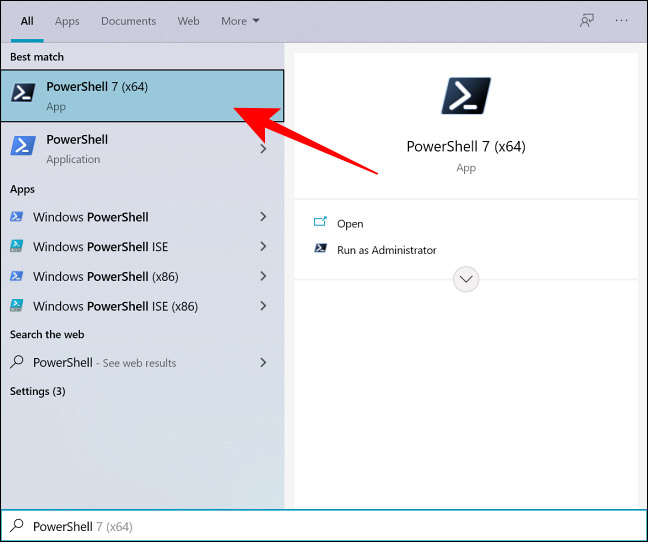
<p style="text-align: justify;">Để bắt đầu, hãy mở menu Start và nhập từ khóa “PowerShell” vào thanh tìm kiếm của Windows Search. Sau đó, bấm chuột phải “PowerShell” từ kết quả tìm kiếm trả về tương ứng và chọn tùy chọn “Run as administrator”.</p>

<p style="text-align: justify;"><img alt="Chọn “PowerShell”" data-i="4" data-src="https://st.quantrimang.com/photos/image/2021/05/14/tao-nhieu-thu-muc-cung-luc-tren-windows-105.jpg" data-was-processed="true" height="542" src="https://st.quantrimang.com/photos/image/2021/05/14/tao-nhieu-thu-muc-cung-luc-tren-windows-105.jpg" width="648" /></p>

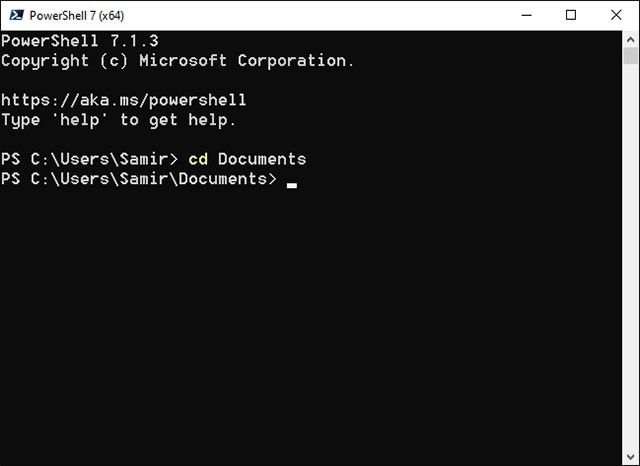
<p style="text-align: justify;">Cửa sổ PowerShell sẽ lập tức mở ra cùng thư mục người dùng theo mặc định. Giả sử bạn muốn tạo các thư mục mới trong thư mục đích &quot;Documents&quot;, có thể làm điều đó với lệnh cd. Chẳng hạn như sau:</p>

<pre id="pre1">
<code>cd Documents</code></pre>

<p style="text-align: justify;"><img alt="Chọn vị trí đích" data-i="5" data-src="https://st.quantrimang.com/photos/image/2021/05/14/tao-nhieu-thu-muc-cung-luc-tren-windows-106.jpg" data-was-processed="true" height="466" src="https://st.quantrimang.com/photos/image/2021/05/14/tao-nhieu-thu-muc-cung-luc-tren-windows-106.jpg" width="640" /></p>

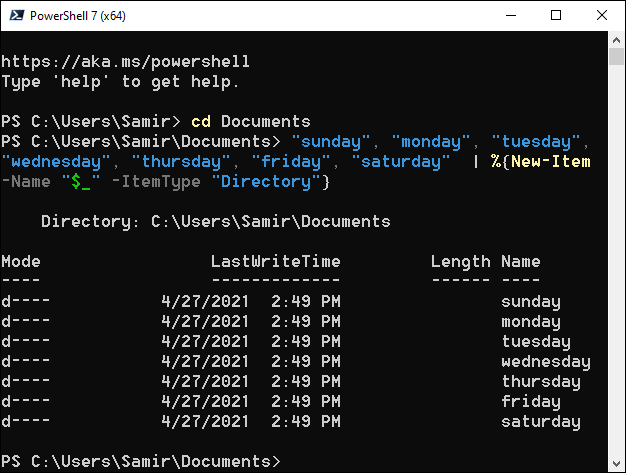
<p style="text-align: justify;">Việc tạo thư mục hàng loạt sẽ yêu cầu bạn thu thập tên tệp trước rồi mới chạy một lệnh cụ thể trong cửa sổ PowerShell. Lại giả sử bạn muốn tạo các thư mục tương ứng với mỗi ngày trong, tuần, ta có lệnh sau:</p>

<pre id="pre2">
<code>&quot;sunday&quot;, &quot;monday&quot;, &quot;tuesday&quot;, &quot;wednesday&quot;, &quot;thursday&quot;, &quot;friday&quot;, &quot;saturday&quot;  | %{New-Item -Name &quot;$_&quot; -ItemType &quot;Directory&quot;}</code></pre>

<p style="text-align: justify;"><img alt="Nhập lệnh" data-i="6" data-src="https://st.quantrimang.com/photos/image/2021/05/14/tao-nhieu-thu-muc-cung-luc-tren-windows-107.png" data-was-processed="true" height="473" src="https://st.quantrimang.com/photos/image/2021/05/14/tao-nhieu-thu-muc-cung-luc-tren-windows-107.png" width="626" /></p>

<p style="text-align: justify;">Tất nhiên, bạn vẫn có thể thay thế tên thư mục bên trong dấu ngoặc kép bằng tên khác mà mình muốn.</p>

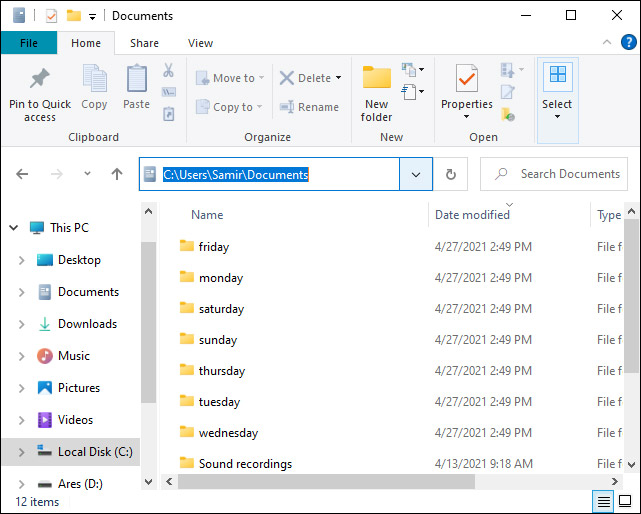
<p style="text-align: justify;">Sau khi chạy lệnh, hãy đóng PowerShell và mở Windows Explorer để tìm thư mục “Documents” hoặc vị trí đích đã chọn. Bạn sẽ thấy các thư mục mới tương ứng đã được tạo.</p>

<p style="text-align: justify;"><img alt="Thư mục đã được tạo" data-i="7" data-src="https://st.quantrimang.com/photos/image/2021/05/14/tao-nhieu-thu-muc-cung-luc-tren-windows-108.png" data-was-processed="true" height="514" src="https://st.quantrimang.com/photos/image/2021/05/14/tao-nhieu-thu-muc-cung-luc-tren-windows-108.png" width="641" /></p>
		</div>
				<div id="author">
						<p>
				<strong>Nguồn tin:</strong>
				Quantrimang.com
			</p>
		</div>
	</div>
	<div id="footer" class="clearfix">
		<div id="url">
			<strong>URL của bản tin này: </strong><a href="https://www.nguoicodonvn2008.info/vi/news/savefile/kien-thuc-may-tinh/cach-tao-nhieu-thu-muc-cung-luc-tren-windows-10-4195.html" title="Cách tạo nhiều thư mục cùng lúc trên Windows 10">https://www.nguoicodonvn2008.info/vi/news/savefile/kien-thuc-may-tinh/cach-tao-nhieu-thu-muc-cung-luc-tren-windows-10-4195.html</a>

		</div>
		<div class="clear"></div>
		<div class="copyright">
			&copy; .&#x3A; Nguoicodonvn2008.info - Cõi lòng người cô đơn &#x3A;.
		</div>
		<div id="contact">
			<a href="mailto:admin@nguoicodonvn2008.info">admin@nguoicodonvn2008.info</a>
		</div>
	</div>
</div>
        <div id="timeoutsess" class="chromeframe">
            Bạn đã không sử dụng Site, <a onclick="timeoutsesscancel();" href="https://nguoicodonvn2008.info/#">Bấm vào đây để duy trì trạng thái đăng nhập</a>. Thời gian chờ: <span id="secField"> 60 </span> giây
        </div>
        <div id="openidResult" class="nv-alert" style="display:none"></div>
        <div id="openidBt" data-result="" data-redirect=""></div>
		</script>
		<div class="car-top">
  <span><img src="https://nguoicodonvn2008.info/themes/default/images/car.png" alt=""></span>
</div>
<div id="run_cronjobs" style="visibility:hidden;display:none;"><img alt="cron" src="/index.php?second=cronjobs&amp;p=c9rtuHs8" width="1" height="1" /></div>
<script src="https://nguoicodonvn2008.info/assets/js/jquery/jquery.min.js"></script>
<script>var nv_base_siteurl="/",nv_lang_data="vi",nv_lang_interface="vi",nv_name_variable="nv",nv_fc_variable="op",nv_lang_variable="language",nv_module_name="news",nv_func_name="savefile",nv_is_user=0, nv_my_ofs=-4,nv_my_abbr="EDT",nv_cookie_prefix="nv4c_e856T",nv_check_pass_mstime=1738000,nv_area_admin=0,nv_safemode=0,theme_responsive=0,nv_recaptcha_ver=2,nv_recaptcha_sitekey="",nv_recaptcha_type="image",XSSsanitize=1;</script>
<script src="https://nguoicodonvn2008.info/assets/js/language/vi.js"></script>
<script src="https://nguoicodonvn2008.info/assets/js/DOMPurify/purify3.js"></script>
<script src="https://nguoicodonvn2008.info/assets/js/global.js"></script>
<script src="https://nguoicodonvn2008.info/assets/js/site.js"></script>
<script src="https://nguoicodonvn2008.info/themes/default/js/news.js"></script>
<script src="https://nguoicodonvn2008.info/themes/default/js/main.js"></script>
<script src="https://nguoicodonvn2008.info/themes/default/js/custom.js"></script>
<script type="application/ld+json">
        {
            "@context": "https://schema.org",
            "@type": "Organization",
            "url": "https://nguoicodonvn2008.info",
            "logo": "https://nguoicodonvn2008.info/uploads/angel.gif"
        }
        </script>
<script src="https://nguoicodonvn2008.info/themes/default/js/bootstrap.min.js"></script>
<script type="text/javascript">
var $scrolltop = $('.car-top');
$scrolltop.on('click', function () {
    $('html,body').animate({
        scrollTop: 0
    }, 800);
    $(this).addClass("car-run");
    setTimeout(function(){ $scrolltop.removeClass('car-run');}, 1000);
    return false;
});
$(window).on('scroll', function ()
{ 
    if($(window).scrollTop() >= 200)
    {
        $scrolltop.addClass("show");
        $scrolltop.addClass("car-down");
    }
    else
    {
       $scrolltop.removeClass("show");
       setTimeout(function(){ $scrolltop.removeClass('car-down');}, 300);
    }
});
</script>
</body>
</html>