<!DOCTYPE html>
    <html lang="vi" xmlns="http://www.w3.org/1999/xhtml" prefix="og: http://ogp.me/ns#">
    <head>
<title>Cách tạo ảnh bo tròn góc trên Photoshop</title>
<meta name="description" content="Cách tạo ảnh bo tròn góc trên Photoshop - Savefile - Tin Tức -...">
<meta name="author" content=".: Nguoicodonvn2008.info - Cõi lòng người cô đơn :.">
<meta name="copyright" content=".: Nguoicodonvn2008.info - Cõi lòng người cô đơn :. [admin@nguoicodonvn2008.info]">
<meta name="robots" content="index, archive, follow, noodp">
<meta name="googlebot" content="index,archive,follow,noodp">
<meta name="msnbot" content="all,index,follow">
<meta name="generator" content="NukeViet v4.5">
<meta http-equiv="Content-Type" content="text/html; charset=utf-8">
<meta property="og:title" content="Cách tạo ảnh bo tròn góc trên Photoshop">
<meta property="og:type" content="website">
<meta property="og:description" content="Savefile - Tin Tức - https&#x3A;&#x002F;&#x002F;www.nguoicodonvn2008.info&#x002F;vi&#x002F;news&#x002F;savefile&#x002F;kien-thuc-may-tinh&#x002F;cach-tao-anh-bo-tron-goc-tren-photoshop-9108.html">
<meta property="og:site_name" content=".&#x3A; Nguoicodonvn2008.info - Cõi lòng người cô đơn &#x3A;.">
<meta property="og:url" content="https://www.nguoicodonvn2008.info/vi/news/savefile/kien-thuc-may-tinh/cach-tao-anh-bo-tron-goc-tren-photoshop-9108.html">
<link rel="shortcut icon" href="https://nguoicodonvn2008.info/favicon.ico">
<link rel="canonical" href="https://www.nguoicodonvn2008.info/vi/news/savefile/kien-thuc-may-tinh/cach-tao-anh-bo-tron-goc-tren-photoshop-9108.html">
<link rel="alternate" href="https://nguoicodonvn2008.info/vi/news/rss/" title="Tin Tức" type="application/rss+xml">
<link rel="alternate" href="https://nguoicodonvn2008.info/vi/news/rss/karaoke-dual/" title="Tin Tức - Karaoke Dual" type="application/rss+xml">
<link rel="alternate" href="https://nguoicodonvn2008.info/vi/news/rss/nhac-tre/" title="Tin Tức - Nhạc trẻ" type="application/rss+xml">
<link rel="alternate" href="https://nguoicodonvn2008.info/vi/news/rss/tru-tinh/" title="Tin Tức - Trữ tình" type="application/rss+xml">
<link rel="alternate" href="https://nguoicodonvn2008.info/vi/news/rss/nuoc-ngoai/" title="Tin Tức - Nước ngoài" type="application/rss+xml">
<link rel="alternate" href="https://nguoicodonvn2008.info/vi/news/rss/remix/" title="Tin Tức - Remix" type="application/rss+xml">
<link rel="alternate" href="https://nguoicodonvn2008.info/vi/news/rss/tam-su-tinh-yeu/" title="Tin Tức - Tâm sự tình yêu" type="application/rss+xml">
<link rel="alternate" href="https://nguoicodonvn2008.info/vi/news/rss/tho-suu-tam/" title="Tin Tức - Thơ sưu tầm" type="application/rss+xml">
<link rel="alternate" href="https://nguoicodonvn2008.info/vi/news/rss/cuoc-song/" title="Tin Tức - Cuộc sống" type="application/rss+xml">
<link rel="alternate" href="https://nguoicodonvn2008.info/vi/news/rss/phan-mem/" title="Tin Tức - Phần mềm" type="application/rss+xml">
<link rel="alternate" href="https://nguoicodonvn2008.info/vi/news/rss/kien-thuc-may-tinh/" title="Tin Tức - Kiến thức máy tính" type="application/rss+xml">
<link rel="alternate" href="https://nguoicodonvn2008.info/vi/news/rss/hoc-tap/" title="Tin Tức - Học tập" type="application/rss+xml">
<link rel="alternate" href="https://nguoicodonvn2008.info/vi/news/rss/tai-lieu/" title="Tin Tức - Tài liệu" type="application/rss+xml">
<link rel="alternate" href="https://nguoicodonvn2008.info/vi/news/rss/de-thi/" title="Tin Tức - Đề thi" type="application/rss+xml">
<link rel="preload" as="style" href="https://nguoicodonvn2008.info/assets/css/font-awesome.min.css" type="text/css">
<link rel="preload" as="style" href="https://nguoicodonvn2008.info/themes/default/css/bootstrap.non-responsive.css" type="text/css">
<link rel="preload" as="style" href="https://nguoicodonvn2008.info/themes/default/css/style.css" type="text/css">
<link rel="preload" as="style" href="https://nguoicodonvn2008.info/themes/default/css/style.non-responsive.css" type="text/css">
<link rel="preload" as="style" href="https://nguoicodonvn2008.info/themes/default/css/news.css" type="text/css">
<link rel="preload" as="style" href="https://nguoicodonvn2008.info/themes/default/css/custom.css" type="text/css">
<link rel="preload" as="script" href="https://nguoicodonvn2008.info/assets/js/jquery/jquery.min.js" type="text/javascript">
<link rel="preload" as="script" href="https://nguoicodonvn2008.info/assets/js/language/vi.js" type="text/javascript">
<link rel="preload" as="script" href="https://nguoicodonvn2008.info/assets/js/DOMPurify/purify3.js" type="text/javascript">
<link rel="preload" as="script" href="https://nguoicodonvn2008.info/assets/js/global.js" type="text/javascript">
<link rel="preload" as="script" href="https://nguoicodonvn2008.info/assets/js/site.js" type="text/javascript">
<link rel="preload" as="script" href="https://nguoicodonvn2008.info/themes/default/js/news.js" type="text/javascript">
<link rel="preload" as="script" href="https://nguoicodonvn2008.info/themes/default/js/main.js" type="text/javascript">
<link rel="preload" as="script" href="https://nguoicodonvn2008.info/themes/default/js/custom.js" type="text/javascript">
<link rel="preload" as="script" href="https://nguoicodonvn2008.info/themes/default/js/bootstrap.min.js" type="text/javascript">
<link rel="stylesheet" href="https://nguoicodonvn2008.info/assets/css/font-awesome.min.css">
<link rel="stylesheet" href="https://nguoicodonvn2008.info/themes/default/css/bootstrap.non-responsive.css">
<link rel="stylesheet" href="https://nguoicodonvn2008.info/themes/default/css/style.css">
<link rel="stylesheet" href="https://nguoicodonvn2008.info/themes/default/css/style.non-responsive.css">
<link rel="StyleSheet" href="https://nguoicodonvn2008.info/themes/default/css/news.css">
<link rel="stylesheet" href="https://nguoicodonvn2008.info/themes/default/css/custom.css">
<style type="text/css">
	body{background: #fff;}
</style>
    </head>
    <body>
<div id="print">
	<div id="hd_print">
		<h2 class="pull-left">.&#x3A; Nguoicodonvn2008.info - Cõi lòng người cô đơn &#x3A;.</h2>
		<p class="pull-right"><a title=".&#x3A; Nguoicodonvn2008.info - Cõi lòng người cô đơn &#x3A;." href="https://nguoicodonvn2008.info/">https://nguoicodonvn2008.info</a></p>
	</div>
	<div class="clear"></div>
	<hr />
	<div id="content">
		<h1>Cách tạo ảnh bo tròn góc trên Photoshop</h1>
		<ul class="list-inline">
			<li>Thứ ba - 01/10/2024 23:18</li>
			<li class="hidden-print txtrequired"><em class="fa fa-print">&nbsp;</em><a title="In ra" href="javascript:;" onclick="window.print()">In ra</a></li>
			<li class="hidden-print txtrequired"><em class="fa fa-power-off">&nbsp;</em><a title="Đóng cửa sổ này" href="javascript:;" onclick="window.close()">Đóng cửa sổ này</a></li>
		</ul>
		<div class="clear"></div>
		<div id="hometext">
		</div>
				<div class="imghome">
			<img alt="Cách tạo ảnh bo tròn góc trên Photoshop" src="https://st.quantrimang.com/photos/image/2024/10/01/tao-anh-bo-tron-tren-photoshop-4.png" width="460" class="img-thumbnail" />
		</div>
		<div class="clear"></div>
		<div id="bodytext" class="clearfix">
			<p style="text-align: justify;">Hướng dẫn này sẽ chỉ cho bạn cách tốt nhất để bo tròn góc ảnh bằng Photoshop. Bài viết cũng chỉ cho bạn cách thêm đường viền vào ảnh sau khi bo tròn các góc. Và cuối cùng sẽ là bước quan trọng nhất, đó là cách lưu kết quả với độ trong suốt được giữ nguyên ở các góc.</p>

<div style="text-align: justify;">&nbsp;</div>

<h2 style="text-align: justify;">Bước 1: Mở khóa layer Background</h2>

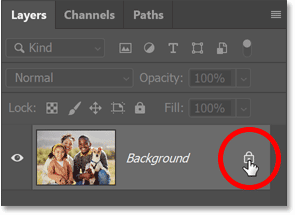
<p style="text-align: justify;">Với hình ảnh được mở trong Photoshop, hãy bắt đầu bằng cách đi đến bảng Layers nơi hình ảnh nằm trên layer Background.</p>

<p style="text-align: justify;">Nhấp vào biểu tượng khóa của layer để mở khóa. Photoshop sẽ đổi tên layer thành Layer 0 và biểu tượng khóa sẽ biến mất.</p>

<figure>
<div style="text-align: justify;"><img alt="Mở khóa layer Background." data-i="0" data-src="https://st.quantrimang.com/photos/image/2024/10/01/tao-anh-bo-tron-tren-photoshop-1.png" data-was-processed="true" height="215" src="https://st.quantrimang.com/photos/image/2024/10/01/tao-anh-bo-tron-tren-photoshop-1.png" width="295" /></div>

<figcaption>
<div style="text-align: justify;">Mở khóa layer Background.</div>
</figcaption>
</figure>

<h2 style="text-align: justify;">Bước 2: Chọn Rectangle Tool</h2>

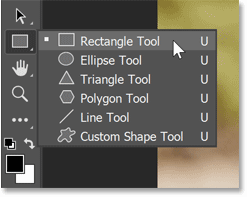
<p style="text-align: justify;">Trong thanh công cụ, hãy chọn Rectangle Tool.</p>

<p style="text-align: justify;">Nếu có công cụ hình dạng khác, hãy nhấp và giữ vào biểu tượng của công cụ đó và chọn Rectangle Tool từ danh sách.</p>

<figure>
<div style="text-align: justify;"><img alt="Chọn Rectangle Tool từ thanh công cụ trong Photoshop" data-i="1" data-src="https://st.quantrimang.com/photos/image/2024/10/01/tao-anh-bo-tron-tren-photoshop-2.png" data-was-processed="true" height="197" src="https://st.quantrimang.com/photos/image/2024/10/01/tao-anh-bo-tron-tren-photoshop-2.png" width="247" /></div>

<figcaption>
<div style="text-align: justify;">Chọn Rectangle Tool từ thanh công cụ trong Photoshop</div>
</figcaption>
</figure>

<div style="text-align: justify;">&nbsp;</div>

<h2 style="text-align: justify;">Bước 3: Thiết lập tùy chọn hình dạng</h2>

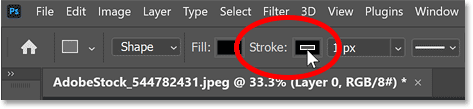
<p style="text-align: justify;">Trong Options Bar, hãy nhấp vào swatch Stroke Color.</p>

<figure>
<div style="text-align: justify;"><img alt="Swatch Stroke Color trong Options Bar trong Photoshop" data-i="2" data-src="https://st.quantrimang.com/photos/image/2024/10/01/tao-anh-bo-tron-tren-photoshop-3.png" data-was-processed="true" height="109" src="https://st.quantrimang.com/photos/image/2024/10/01/tao-anh-bo-tron-tren-photoshop-3.png" width="473" /></div>

<figcaption>
<div style="text-align: justify;">Swatch Stroke Color trong Options Bar trong Photoshop</div>
</figcaption>
</figure>

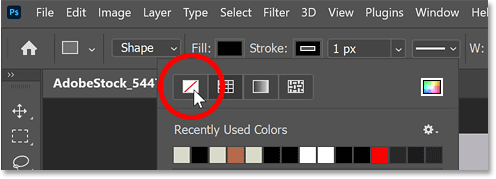
<p style="text-align: justify;">Đặt màu thành&nbsp;<strong>None</strong>&nbsp;để không hiển thị nét.</p>

<p style="text-align: justify;">Sau đó nhấn&nbsp;<strong>Enter</strong>&nbsp;(<strong>Return</strong>&nbsp;trên máy Mac) để đóng tùy chọn màu.</p>

<figure>
<div style="text-align: justify;"><img alt="Tùy chọn None cho màu nét." data-i="3" data-src="https://st.quantrimang.com/photos/image/2024/10/01/tao-anh-bo-tron-tren-photoshop-4.png" data-was-processed="true" height="179" src="https://st.quantrimang.com/photos/image/2024/10/01/tao-anh-bo-tron-tren-photoshop-4.png" width="496" /></div>

<figcaption>
<div style="text-align: justify;">Tùy chọn None cho màu nét.</div>
</figcaption>
</figure>

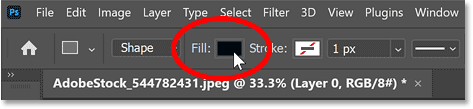
<p style="text-align: justify;">Bên trái màu nét là swatch&nbsp;<strong>Fill Color</strong>.</p>

<p style="text-align: justify;">Bất kỳ màu nào cho hình dạng cũng được, vì vậy ví dụ sẽ để màu đen (màu hình dạng mặc định).</p>

<figure>
<div style="text-align: justify;"><img alt="Swatch Fill Color." data-i="4" data-src="https://st.quantrimang.com/photos/image/2024/10/01/tao-anh-bo-tron-tren-photoshop-5.png" data-was-processed="true" height="109" src="https://st.quantrimang.com/photos/image/2024/10/01/tao-anh-bo-tron-tren-photoshop-5.png" width="473" /></div>

<figcaption>
<div style="text-align: justify;">Swatch Fill Color.</div>
</figcaption>
</figure>

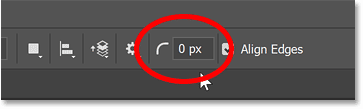
<p style="text-align: justify;">Ngoài ra trong Options Bar là tùy chọn Corner Radius, nơi bạn có thể nhập kích thước cho các góc trước khi vẽ hình dạng.</p>

<p style="text-align: justify;">Tạm thời giữ nguyên ở mức 0 vì chúng ta sẽ bo tròn các góc sau khi vẽ hình dạng.</p>

<figure>
<div style="text-align: justify;"><img alt="Tùy chọn Corner Radius cho Rectangle Tool trong Photoshop" data-i="5" data-src="https://st.quantrimang.com/photos/image/2024/10/01/tao-anh-bo-tron-tren-photoshop-6.png" data-was-processed="true" height="109" src="https://st.quantrimang.com/photos/image/2024/10/01/tao-anh-bo-tron-tren-photoshop-6.png" width="363" /></div>

<figcaption>
<div style="text-align: justify;">Tùy chọn Corner Radius cho Rectangle Tool trong Photoshop</div>
</figcaption>
</figure>

<h2 style="text-align: justify;">Bước 4: Vẽ hình chữ nhật</h2>

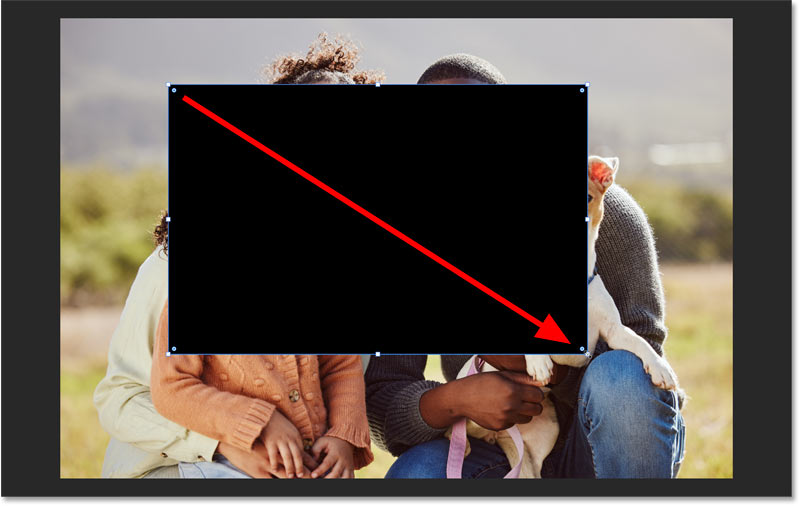
<p style="text-align: justify;">Nhấp và giữ trong tài liệu rồi kéo hình dạng ra. Đừng lo lắng về kích thước hoặc vị trí của hình dạng vì chúng ta sẽ thay đổi sau.</p>

<figure>
<div style="text-align: justify;"><img alt="Vẽ hình dạng ban đầu." data-i="6" data-src="https://st.quantrimang.com/photos/image/2024/10/01/tao-anh-bo-tron-tren-photoshop-7.jpg" data-was-processed="true" height="506" src="https://st.quantrimang.com/photos/image/2024/10/01/tao-anh-bo-tron-tren-photoshop-7.jpg" width="800" /></div>

<figcaption>
<div style="text-align: justify;">Vẽ hình dạng ban đầu.</div>
</figcaption>
</figure>

<div style="text-align: justify;">&nbsp;</div>

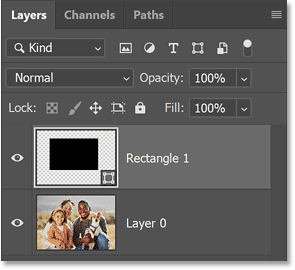
<p style="text-align: justify;">Trong bảng Layers, hình dạng sẽ xuất hiện trên layer hình dạng riêng của nó phía trên hình ảnh.</p>

<figure>
<div style="text-align: justify;"><img alt="Layer hình dạng mới trong bảng Layers." data-i="7" data-src="https://st.quantrimang.com/photos/image/2024/10/01/tao-anh-bo-tron-tren-photoshop-8.png" data-was-processed="true" height="270" src="https://st.quantrimang.com/photos/image/2024/10/01/tao-anh-bo-tron-tren-photoshop-8.png" width="295" /></div>

<figcaption>
<div style="text-align: justify;">Layer hình dạng mới trong bảng Layers.</div>
</figcaption>
</figure>

<h2 style="text-align: justify;">Bước 5: Căn giữa và thay đổi kích thước hình dạng</h2>

<p style="text-align: justify;">Trước khi thay đổi kích thước hình dạng, hãy căn giữa hình dạng trên canvas.</p>

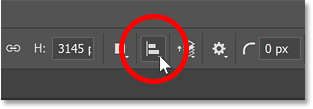
<p style="text-align: justify;">Trong Options Bar, hãy nhấp vào biểu tượng&nbsp;<strong>Path Alignment</strong>.</p>

<figure>
<div style="text-align: justify;"><img alt="Biểu tượng Path Alignment trong Options Bar." data-i="8" data-src="https://st.quantrimang.com/photos/image/2024/10/01/tao-anh-bo-tron-tren-photoshop-9.png" data-was-processed="true" height="109" src="https://st.quantrimang.com/photos/image/2024/10/01/tao-anh-bo-tron-tren-photoshop-9.png" width="313" /></div>

<figcaption>
<div style="text-align: justify;">Biểu tượng Path Alignment trong Options Bar.</div>
</figcaption>
</figure>

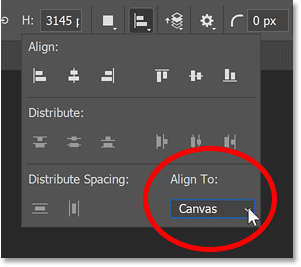
<p style="text-align: justify;">Thay đổi tùy chọn&nbsp;<strong>Align To</strong>&nbsp;từ&nbsp;<strong>Selection</strong>&nbsp;thành&nbsp;<strong>Canvas</strong>.</p>

<figure>
<div style="text-align: justify;"><img alt="Tùy chọn Align To được đặt thành Canvas." data-i="9" data-src="https://st.quantrimang.com/photos/image/2024/10/01/tao-anh-bo-tron-tren-photoshop-10.png" data-was-processed="true" height="267" src="https://st.quantrimang.com/photos/image/2024/10/01/tao-anh-bo-tron-tren-photoshop-10.png" width="301" /></div>

<figcaption>
<div style="text-align: justify;">Tùy chọn Align To được đặt thành Canvas.</div>
</figcaption>
</figure>

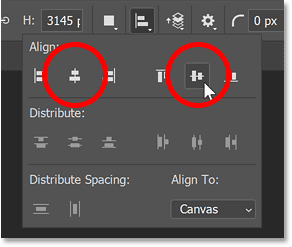
<p style="text-align: justify;">Nhấp vào biểu tượng&nbsp;<strong>Align Horizontal Centers</strong>&nbsp;và&nbsp;<strong>Align Vertical Centers</strong>.</p>

<p style="text-align: justify;">Sau đó, nhấp vào bất kỳ đâu trên Options Bar để đóng hộp.</p>

<figure>
<div style="text-align: justify;"><img alt="Biểu tượng Align Horizontal Centers và Align Vertical Centers." data-i="10" data-src="https://st.quantrimang.com/photos/image/2024/10/01/tao-anh-bo-tron-tren-photoshop-11.png" data-was-processed="true" height="247" src="https://st.quantrimang.com/photos/image/2024/10/01/tao-anh-bo-tron-tren-photoshop-11.png" width="292" /></div>

<figcaption>
<div style="text-align: justify;">Biểu tượng Align Horizontal Centers và Align Vertical Centers.</div>
</figcaption>
</figure>

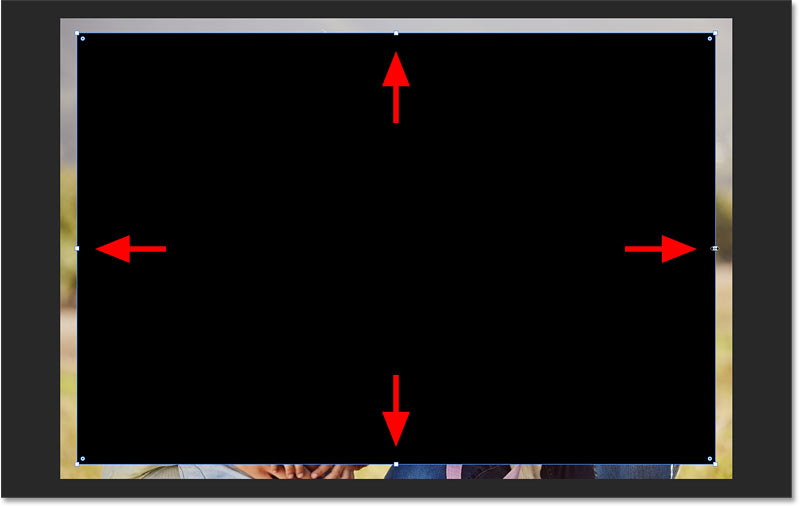
<p style="text-align: justify;">Bây giờ, hình dạng đã được căn giữa. Bạn có thể thay đổi kích thước từ tâm của nó bằng cách giữ phím&nbsp;<strong>Alt</strong>&nbsp;trên PC chạy Windows hoặc phím&nbsp;<strong>Option</strong>&nbsp;trên máy Mac và kéo bất kỳ handle chuyển đổi nào.</p>

<figure>
<div style="text-align: justify;"><img alt="Thay đổi kích thước hình dạng từ tâm của nó." data-adbro-processed="true" data-i="11" data-src="https://st.quantrimang.com/photos/image/2024/10/01/tao-anh-bo-tron-tren-photoshop-12.jpg" data-was-processed="true" height="507" src="https://st.quantrimang.com/photos/image/2024/10/01/tao-anh-bo-tron-tren-photoshop-12.jpg" width="800" /></div>

<figcaption>
<div style="text-align: justify;">Thay đổi kích thước hình dạng từ tâm của nó.</div>
</figcaption>
</figure>

<div style="text-align: justify;">&nbsp;</div>

<h2 style="text-align: justify;">Bước 6: Bo tròn các góc của hình dạng</h2>

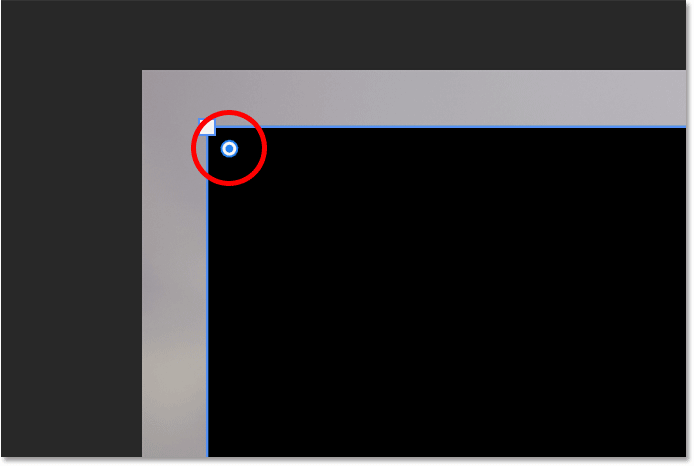
<p style="text-align: justify;">Lưu ý vòng tròn nhỏ ở mỗi góc của hình dạng. Đây là các điều khiển&nbsp;<strong>Corner Radius</strong>.</p>

<figure>
<div style="text-align: justify;"><img alt="Điều khiển Corner Radius ở góc trên bên trái của hình dạng" data-i="12" data-src="https://st.quantrimang.com/photos/image/2024/10/01/tao-anh-bo-tron-tren-photoshop-13.png" data-was-processed="true" height="466" src="https://st.quantrimang.com/photos/image/2024/10/01/tao-anh-bo-tron-tren-photoshop-13.png" width="694" /></div>

<figcaption>
<div style="text-align: justify;">Điều khiển Corner Radius ở góc trên bên trái của hình dạng</div>
</figcaption>
</figure>

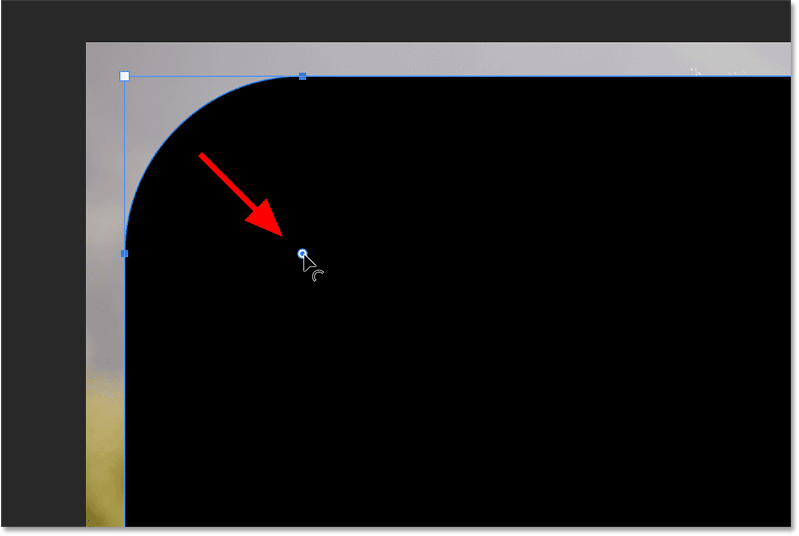
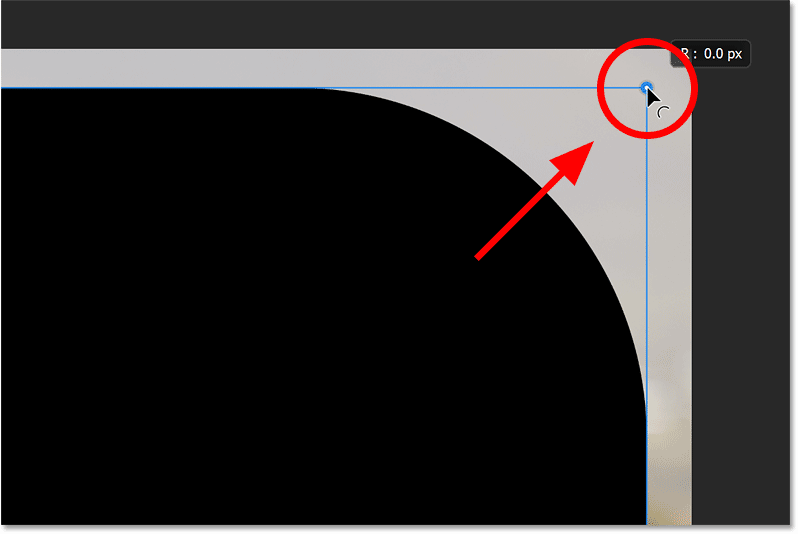
<p style="text-align: justify;">Để bo tròn các góc, chỉ cần kéo một trong các hình tròn.</p>

<figure>
<div style="text-align: justify;"><img alt="Kéo hình tròn để bo tròn góc." data-i="13" data-src="https://st.quantrimang.com/photos/image/2024/10/01/tao-anh-bo-tron-tren-photoshop-14.png" data-was-processed="true" height="536" src="https://st.quantrimang.com/photos/image/2024/10/01/tao-anh-bo-tron-tren-photoshop-14.png" width="799" /></div>

<figcaption>
<div style="text-align: justify;">Kéo hình tròn để bo tròn góc.</div>
</figcaption>
</figure>

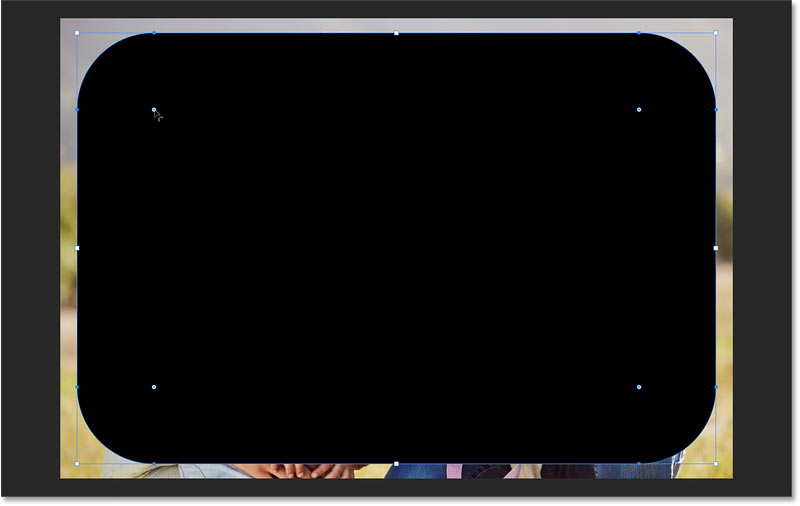
<p style="text-align: justify;">Cả 4 góc của hình dạng đều được bo tròn theo cùng một mức.</p>

<figure>
<div style="text-align: justify;"><img alt="Kéo một hình tròn sẽ bo tròn tất cả các góc cùng một lúc." data-i="14" data-src="https://st.quantrimang.com/photos/image/2024/10/01/tao-anh-bo-tron-tren-photoshop-15.jpg" data-was-processed="true" height="506" src="https://st.quantrimang.com/photos/image/2024/10/01/tao-anh-bo-tron-tren-photoshop-15.jpg" width="800" /></div>

<figcaption>
<div style="text-align: justify;">Kéo một hình tròn sẽ bo tròn tất cả các góc cùng một lúc.</div>
</figcaption>
</figure>

<h3 style="text-align: justify;">Bo tròn các góc từ bảng Properties</h3>

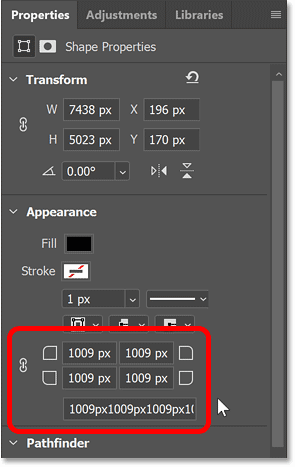
<p style="text-align: justify;">Một cách khác để bo tròn các góc là trong bảng Properties. Cách thứ hai này hữu ích khi bạn biết giá trị bán kính chính xác mà mình cần.</p>

<p style="text-align: justify;">Trong bảng&nbsp;<strong>Properties</strong>, hãy đi tới các tùy chọn&nbsp;<strong>Corner Radius</strong>. Bạn có thể cần cuộn xuống để tìm chúng.</p>

<p style="text-align: justify;">Tại đây, bạn có thể nhập các giá trị cho góc ở góc trên bên trái, góc trên bên phải, góc dưới bên phải và góc dưới bên trái của hình dạng.</p>

<figure>
<div style="text-align: justify;"><img alt="Các tùy chọn Corner Radius trong bảng Properties." data-i="15" data-src="https://st.quantrimang.com/photos/image/2024/10/01/tao-anh-bo-tron-tren-photoshop-16.png" data-was-processed="true" height="467" src="https://st.quantrimang.com/photos/image/2024/10/01/tao-anh-bo-tron-tren-photoshop-16.png" width="295" /></div>

<figcaption>
<div style="text-align: justify;">Các tùy chọn Corner Radius trong bảng Properties.</div>
</figcaption>
</figure>

<div style="text-align: justify;">&nbsp;</div>

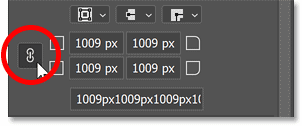
<p style="text-align: justify;">Để đặt bán kính cho cả 4 góc cùng một lúc, trước tiên hãy đảm bảo rằng biểu tượng liên kết được chọn.</p>

<figure>
<div style="text-align: justify;"><img alt="Biểu tượng liên kết." data-i="16" data-src="https://st.quantrimang.com/photos/image/2024/10/01/tao-anh-bo-tron-tren-photoshop-17.png" data-was-processed="true" height="126" src="https://st.quantrimang.com/photos/image/2024/10/01/tao-anh-bo-tron-tren-photoshop-17.png" width="302" /></div>

<figcaption>
<div style="text-align: justify;">Biểu tượng liên kết.</div>
</figcaption>
</figure>

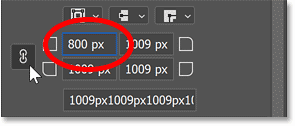
<p style="text-align: justify;">Sau đó nhập giá trị vào bất kỳ ô nào. Ví đụ sẽ nhập 800 px cho góc trên bên trái.</p>

<figure>
<div style="text-align: justify;"><img alt="Nhập giá trị bán kính cho một trong các góc." data-i="17" data-src="https://st.quantrimang.com/photos/image/2024/10/01/tao-anh-bo-tron-tren-photoshop-18.png" data-was-processed="true" height="126" src="https://st.quantrimang.com/photos/image/2024/10/01/tao-anh-bo-tron-tren-photoshop-18.png" width="295" /></div>

<figcaption>
<div style="text-align: justify;">Nhập giá trị bán kính cho một trong các góc.</div>
</figcaption>
</figure>

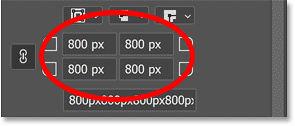
<p style="text-align: justify;">Nhấn&nbsp;<strong>Enter</strong>&nbsp;(<strong>Return</strong>&nbsp;trên máy Mac) để chấp nhận và đặt giá trị đó cho cả 4 góc.</p>

<figure>
<div style="text-align: justify;"><img alt="Bây giờ, cả 4 góc đều có cùng giá trị bán kính." data-i="18" data-src="https://st.quantrimang.com/photos/image/2024/10/01/tao-anh-bo-tron-tren-photoshop-19.png" data-was-processed="true" height="126" src="https://st.quantrimang.com/photos/image/2024/10/01/tao-anh-bo-tron-tren-photoshop-19.png" width="295" /></div>

<figcaption>
<div style="text-align: justify;">Bây giờ, cả 4 góc đều có cùng giá trị bán kính.</div>
</figcaption>
</figure>

<h3 style="text-align: justify;">Cách bo tròn một góc riêng biệt với các góc khác</h3>

<p style="text-align: justify;">Ngoài việc bo tròn cả 4 góc cùng nhau, bạn có thể bo tròn từng góc riêng lẻ.</p>

<p style="text-align: justify;">Cách dễ nhất là giữ phím&nbsp;<strong>Alt</strong>&nbsp;trên PC chạy Windows hoặc phím&nbsp;<strong>Option</strong>&nbsp;trên máy Mac, sau đó kéo hình tròn cho góc bạn muốn điều chỉnh.</p>

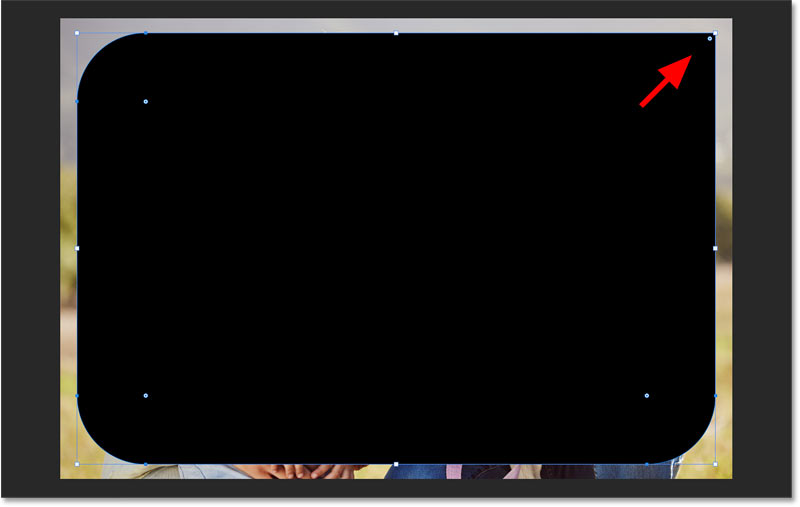
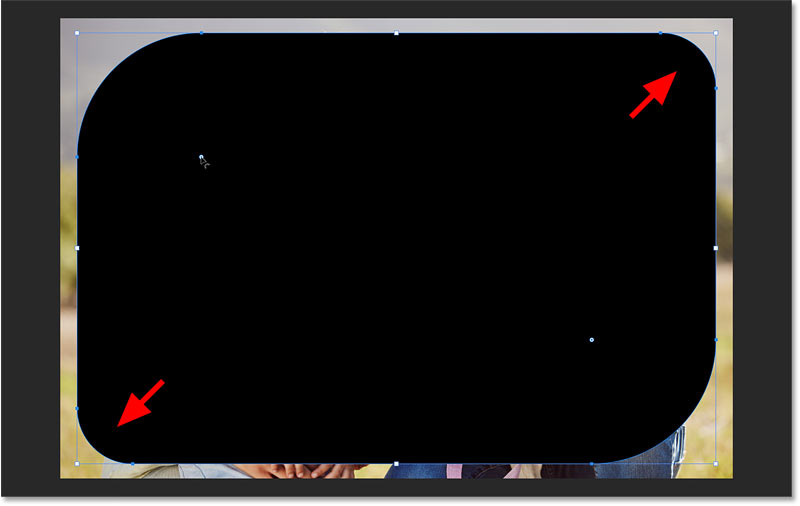
<p style="text-align: justify;">Vì vậy, nếu muốn góc trên bên phải nhọn trong khi các góc khác vẫn bo tròn, bạn có thể giữ phím&nbsp;<strong>Alt</strong>&nbsp;(Win) /&nbsp;<strong>Option</strong>&nbsp;(Mac) rồi kéo hình tròn của góc đó trở lại vị trí ban đầu.</p>

<figure>
<div style="text-align: justify;"><img alt="Bo tròn một góc của hình dạng riêng biệt với các góc khác." data-i="19" data-src="https://st.quantrimang.com/photos/image/2024/10/01/tao-anh-bo-tron-tren-photoshop-20.png" data-was-processed="true" height="534" src="https://st.quantrimang.com/photos/image/2024/10/01/tao-anh-bo-tron-tren-photoshop-20.png" width="798" /></div>

<figcaption>
<div style="text-align: justify;">Bo tròn một góc của hình dạng riêng biệt với các góc khác.</div>
</figcaption>
</figure>

<p style="text-align: justify;">Giữ phím&nbsp;<strong>Alt</strong>&nbsp;(Win) /&nbsp;<strong>Option</strong>&nbsp;(Mac) để kéo hình tròn mà không ảnh hưởng đến các góc khác.<br />
Và bây giờ, ta có một góc nhọn (ở góc trên bên phải) và ba góc tròn.</p>

<figure>
<div style="text-align: justify;"><img alt="Kết quả sau khi điều chỉnh riêng một góc." data-i="20" data-src="https://st.quantrimang.com/photos/image/2024/10/01/tao-anh-bo-tron-tren-photoshop-21.jpg" data-was-processed="true" height="507" src="https://st.quantrimang.com/photos/image/2024/10/01/tao-anh-bo-tron-tren-photoshop-21.jpg" width="800" /></div>

<figcaption>
<div style="text-align: justify;">Kết quả sau khi điều chỉnh riêng một góc.</div>
</figcaption>
</figure>

<p style="text-align: justify;">Một cách khác để điều chỉnh riêng một góc là từ tùy chọn Corner Radius trong bảng Properties.</p>

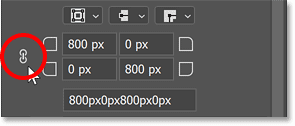
<p style="text-align: justify;">Đầu tiên, hủy liên kết các góc bằng cách bỏ chọn biểu tượng liên kết.</p>

<figure>
<div style="text-align: justify;"><img alt="Hủy liên kết các góc." data-i="21" data-src="https://st.quantrimang.com/photos/image/2024/10/01/tao-anh-bo-tron-tren-photoshop-22.png" data-was-processed="true" height="126" src="https://st.quantrimang.com/photos/image/2024/10/01/tao-anh-bo-tron-tren-photoshop-22.png" width="295" /></div>

<figcaption>
<div style="text-align: justify;">Hủy liên kết các góc.</div>
</figcaption>
</figure>

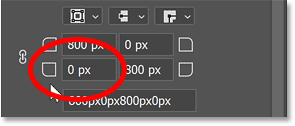
<p style="text-align: justify;">Sau đó, nhập giá trị bán kính cho góc. Vì vậy, nếu muốn góc dưới bên trái cũng nhọn, bạn có thể nhập giá trị 0 px.</p>

<p style="text-align: justify;">Nhấn&nbsp;<strong>Enter</strong>&nbsp;(<strong>Return</strong>&nbsp;trên máy Mac) để chấp nhận.</p>

<figure>
<div style="text-align: justify;"><img alt="Đặt bán kính dưới bên trái thành 0." data-i="22" data-src="https://st.quantrimang.com/photos/image/2024/10/01/tao-anh-bo-tron-tren-photoshop-23.png" data-was-processed="true" height="126" src="https://st.quantrimang.com/photos/image/2024/10/01/tao-anh-bo-tron-tren-photoshop-23.png" width="295" /></div>

<figcaption>
<div style="text-align: justify;">Đặt bán kính dưới bên trái thành 0.</div>
</figcaption>
</figure>

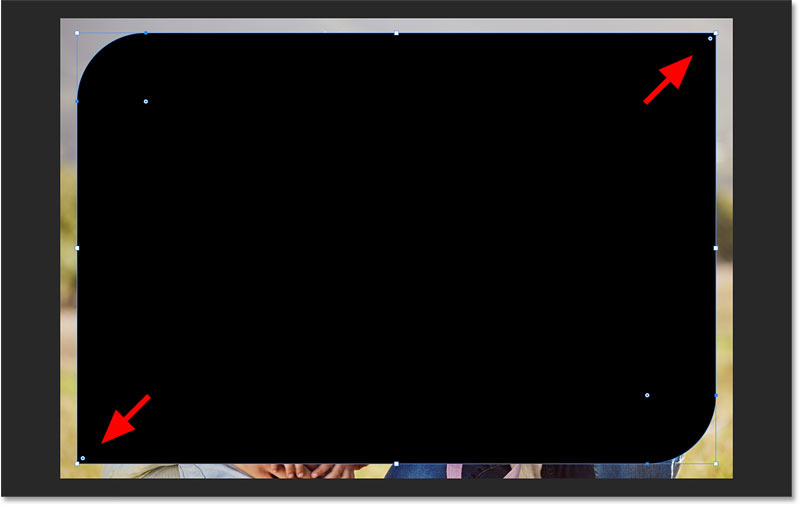
<p style="text-align: justify;">Bây giờ, ta có hai góc bo tròn và hai góc nhọn.</p>

<p style="text-align: justify;">Đặt bán kính dưới bên trái thành 0.</p>

<figure>
<div style="text-align: justify;"><img alt="Kết quả sau khi điều chỉnh riêng góc dưới bên trái." data-i="23" data-src="https://st.quantrimang.com/photos/image/2024/10/01/tao-anh-bo-tron-tren-photoshop-24.jpg" data-was-processed="true" height="506" src="https://st.quantrimang.com/photos/image/2024/10/01/tao-anh-bo-tron-tren-photoshop-24.jpg" width="800" /></div>

<figcaption>
<div style="text-align: justify;">Kết quả sau khi điều chỉnh riêng góc dưới bên trái.</div>
</figcaption>
</figure>

<div style="text-align: justify;">&nbsp;</div>

<p style="text-align: justify;">Nhưng lưu ý rằng nếu bây giờ, bạn kéo một vòng tròn (không giữ phím&nbsp;<strong>Alt&nbsp;</strong>hoặc&nbsp;<strong>Option</strong>) để điều chỉnh cả 4 góc cùng với nhau, các góc ở góc trên bên phải và góc dưới bên trái vẫn ít bo tròn hơn các góc khác.</p>

<figure>
<div style="text-align: justify;"><img alt="Các góc được bo tròn theo các mức khác nhau." data-i="24" data-src="https://st.quantrimang.com/photos/image/2024/10/01/tao-anh-bo-tron-tren-photoshop-25.jpg" data-was-processed="true" height="506" src="https://st.quantrimang.com/photos/image/2024/10/01/tao-anh-bo-tron-tren-photoshop-25.jpg" width="800" /></div>

<figcaption>
<div style="text-align: justify;">Các góc được bo tròn theo các mức khác nhau.</div>
</figcaption>
</figure>

<h3 style="text-align: justify;">Reset các góc</h3>

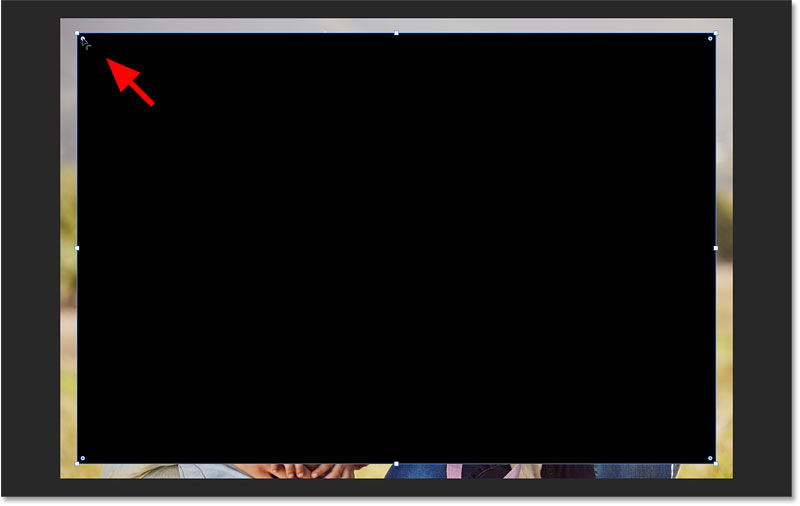
<p style="text-align: justify;">Kéo những vòng tròn trở lại các góc để reset chúng về góc nhọn ban đầu.</p>

<figure>
<div style="text-align: justify;"><img alt="Kéo các vòng tròn để làm sắc nét các góc." data-i="25" data-src="https://st.quantrimang.com/photos/image/2024/10/01/tao-anh-bo-tron-tren-photoshop-26.jpg" data-was-processed="true" height="506" src="https://st.quantrimang.com/photos/image/2024/10/01/tao-anh-bo-tron-tren-photoshop-26.jpg" width="800" /></div>

<figcaption>
<div style="text-align: justify;">Kéo các vòng tròn để làm sắc nét các góc.</div>
</figcaption>
</figure>

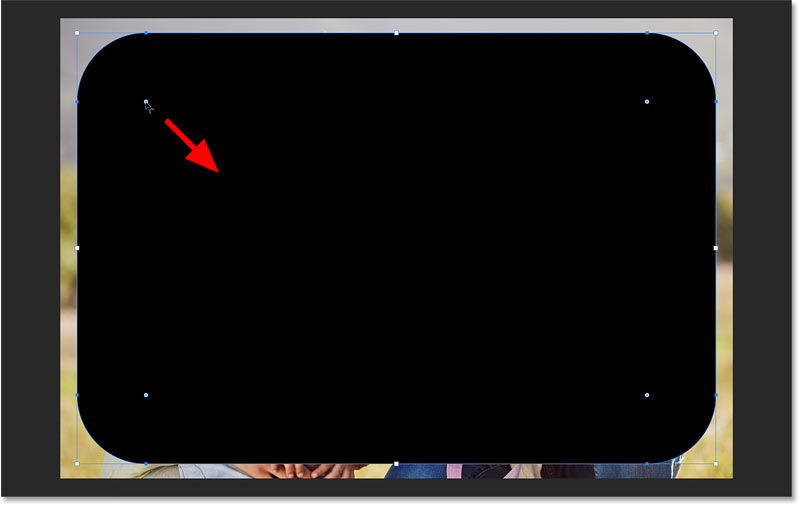
<p style="text-align: justify;">Sau đó, kéo một trong các vòng tròn để làm tròn tất cả chúng theo cùng một mức như bạn muốn.</p>

<figure>
<div style="text-align: justify;"><img alt="Làm tròn cả 4 góc cùng nhau." data-i="26" data-src="https://st.quantrimang.com/photos/image/2024/10/01/tao-anh-bo-tron-tren-photoshop-27.jpg" data-was-processed="true" height="506" src="https://st.quantrimang.com/photos/image/2024/10/01/tao-anh-bo-tron-tren-photoshop-27.jpg" width="800" /></div>

<figcaption>
<div style="text-align: justify;">Làm tròn cả 4 góc cùng nhau.</div>
</figcaption>
</figure>

<h2 style="text-align: justify;">Bước 7: Tạo clipping mask</h2>

<p style="text-align: justify;">Bây giờ, bạn đã làm tròn các góc của hình dạng và cần di chuyển hình ảnh vào hình dạng. Để thực hiện việc đó, hãy sử dụng clipping mask.</p>

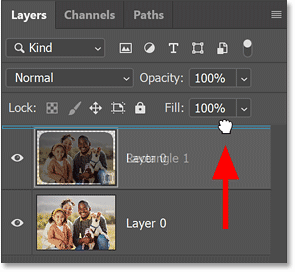
<p style="text-align: justify;">Trong bảng Layers, kéo layer hình ảnh lên trên layer hình dạng.</p>

<figure>
<div style="text-align: justify;"><img alt="Kéo hình ảnh lên trên layer hình dạng trong bảng Layers" data-i="27" data-src="https://st.quantrimang.com/photos/image/2024/10/01/tao-anh-bo-tron-tren-photoshop-28.png" data-was-processed="true" height="272" src="https://st.quantrimang.com/photos/image/2024/10/01/tao-anh-bo-tron-tren-photoshop-28.png" width="295" /></div>

<figcaption>
<div style="text-align: justify;">Kéo hình ảnh lên trên layer hình dạng trong bảng Layers</div>
</figcaption>
</figure>

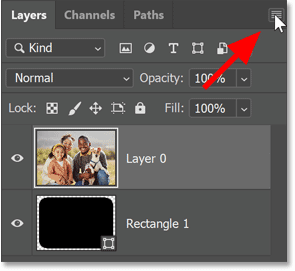
<p style="text-align: justify;">Sau đó, khi layer hình ảnh đang hoạt động, hãy nhấp vào biểu tượng menu của bảng Layers.</p>

<figure>
<div style="text-align: justify;"><img alt="Biểu tượng menu của bảng Layers." data-i="28" data-src="https://st.quantrimang.com/photos/image/2024/10/01/tao-anh-bo-tron-tren-photoshop-29.png" data-was-processed="true" height="271" src="https://st.quantrimang.com/photos/image/2024/10/01/tao-anh-bo-tron-tren-photoshop-29.png" width="295" /></div>

<figcaption>
<div style="text-align: justify;">Biểu tượng menu của bảng Layers.</div>
</figcaption>
</figure>

<p style="text-align: justify;">Nhấp vào biểu tượng menu.</p>

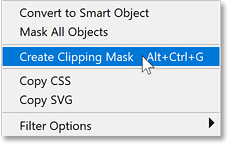
<p style="text-align: justify;">Chọn&nbsp;<strong>Create Clipping Mask</strong>.</p>

<figure>
<div style="text-align: justify;"><img alt="Chọn lệnh Create Clipping Mask trong Photoshop." data-i="29" data-src="https://st.quantrimang.com/photos/image/2024/10/01/tao-anh-bo-tron-tren-photoshop-30.png" data-was-processed="true" height="145" src="https://st.quantrimang.com/photos/image/2024/10/01/tao-anh-bo-tron-tren-photoshop-30.png" width="229" /></div>

<figcaption>
<div style="text-align: justify;">Chọn lệnh Create Clipping Mask trong Photoshop.</div>
</figcaption>
</figure>

<p style="text-align: justify;">Lệnh này đặt ảnh bên trong hình dạng, khiến ảnh trông giống như có các góc bo tròn.</p>

<p style="text-align: justify;">Và mọi thứ bên ngoài hình dạng giờ đây đều trong suốt, được biểu thị bằng họa tiết bàn cờ.</p>

<figure>
<div style="text-align: justify;"><img alt="Ảnh giờ đây có các góc bo tròn." data-i="30" data-src="https://st.quantrimang.com/photos/image/2024/10/01/tao-anh-bo-tron-tren-photoshop-31.jpg" data-was-processed="true" height="506" src="https://st.quantrimang.com/photos/image/2024/10/01/tao-anh-bo-tron-tren-photoshop-31.jpg" width="800" /></div>

<figcaption>
<div style="text-align: justify;">Ảnh giờ đây có các góc bo tròn.</div>
</figcaption>
</figure>

<h2 style="text-align: justify;">Bước 8: Thực hiện các điều chỉnh cuối cùng cho các góc</h2>

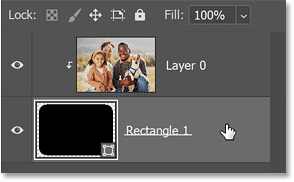
<p style="text-align: justify;">Bạn vẫn có thể điều chỉnh các góc nếu cần, ngay cả khi ảnh nằm bên trong hình dạng.</p>

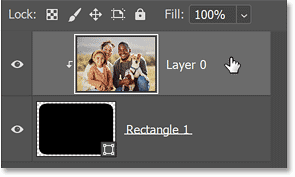
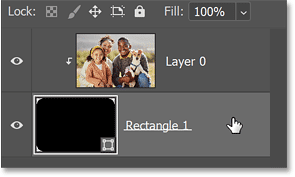
<p style="text-align: justify;">Chỉ cần chọn lại layer hình dạng trong bảng Layers.</p>

<figure>
<div style="text-align: justify;"><img alt="Chọn layer hình dạng." data-i="31" data-src="https://st.quantrimang.com/photos/image/2024/10/01/tao-anh-bo-tron-tren-photoshop-32.png" data-was-processed="true" height="182" src="https://st.quantrimang.com/photos/image/2024/10/01/tao-anh-bo-tron-tren-photoshop-32.png" width="294" /></div>

<figcaption>
<div style="text-align: justify;">Chọn layer hình dạng.</div>
</figcaption>
</figure>

<div style="text-align: justify;">&nbsp;</div>

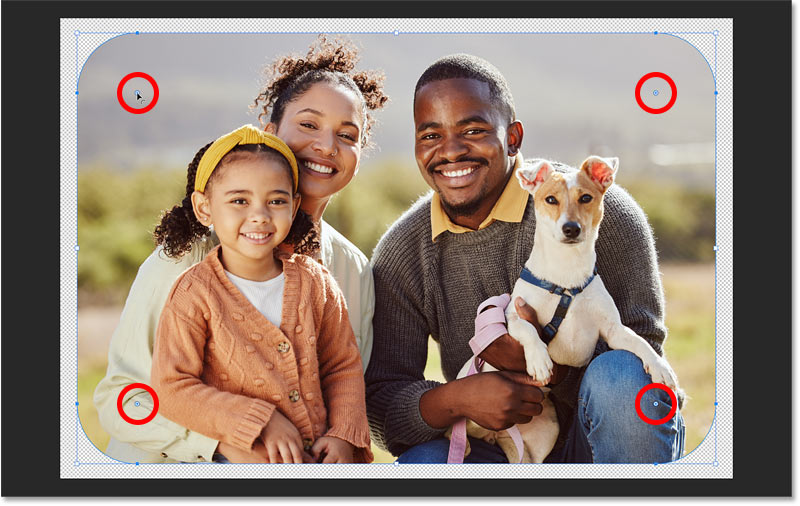
<p style="text-align: justify;">Miễn là bạn vẫn chọn Rectangle Tool (hoặc bất kỳ công cụ hình dạng nào) trên thanh công cụ, những vòng tròn ở các góc sẽ xuất hiện lại.</p>

<p style="text-align: justify;">Kéo một vòng tròn để điều chỉnh độ tròn cho đến khi bạn hài lòng với kết quả.</p>

<figure>
<div style="text-align: justify;"><img alt="Các vòng tròn Corner Radius xuất hiện lại khi layer hình dạng được chọn." data-i="32" data-src="https://st.quantrimang.com/photos/image/2024/10/01/tao-anh-bo-tron-tren-photoshop-33.jpg" data-was-processed="true" height="506" src="https://st.quantrimang.com/photos/image/2024/10/01/tao-anh-bo-tron-tren-photoshop-33.jpg" width="800" /></div>

<figcaption>
<div style="text-align: justify;">Các vòng tròn Corner Radius xuất hiện lại khi layer hình dạng được chọn.</div>
</figcaption>
</figure>

<p style="text-align: justify;">Để xem ảnh mà không có các điều khiển hình dạng cản trở, hãy chọn layer hình ảnh trong bảng Layers.</p>

<p style="text-align: justify;">Và để đưa các điều khiển trở lại, hãy chọn layer hình dạng.</p>

<figure>
<div style="text-align: justify;"><img alt="Chuyển đổi giữa các layer hình dạng và hình ảnh để hiển thị/ẩn các điều khiển hình dạng." data-i="33" data-src="https://st.quantrimang.com/photos/image/2024/10/01/tao-anh-bo-tron-tren-photoshop-34.png" data-was-processed="true" height="177" src="https://st.quantrimang.com/photos/image/2024/10/01/tao-anh-bo-tron-tren-photoshop-34.png" width="295" /></div>

<figcaption>
<div style="text-align: justify;">Chuyển đổi giữa các layer hình dạng và hình ảnh để hiển thị/ẩn các điều khiển hình dạng.</div>
</figcaption>
</figure>

<h2 style="text-align: justify;">Bước 9: Cắt bỏ các vùng trong suốt</h2>

<p style="text-align: justify;">Trước khi đi sâu hơn, hãy cắt bỏ các vùng trong suốt xung quanh hình ảnh không cần thiết, vì tất cả những gì chúng ta thực sự cần là độ trong suốt ở các góc.</p>

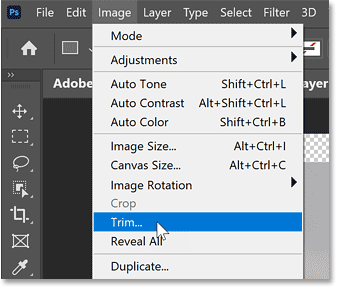
<p style="text-align: justify;">Vào menu&nbsp;<strong>Image</strong>&nbsp;và chọn&nbsp;<strong>Trim</strong>.</p>

<figure>
<div style="text-align: justify;"><img alt="Chọn lệnh Trim từ menu Image trong Photoshop" data-i="34" data-src="https://st.quantrimang.com/photos/image/2024/10/01/tao-anh-bo-tron-tren-photoshop-35.png" data-was-processed="true" height="288" src="https://st.quantrimang.com/photos/image/2024/10/01/tao-anh-bo-tron-tren-photoshop-35.png" width="337" /></div>

<figcaption>
<div style="text-align: justify;">Chọn lệnh Trim từ menu Image trong Photoshop</div>
</figcaption>
</figure>

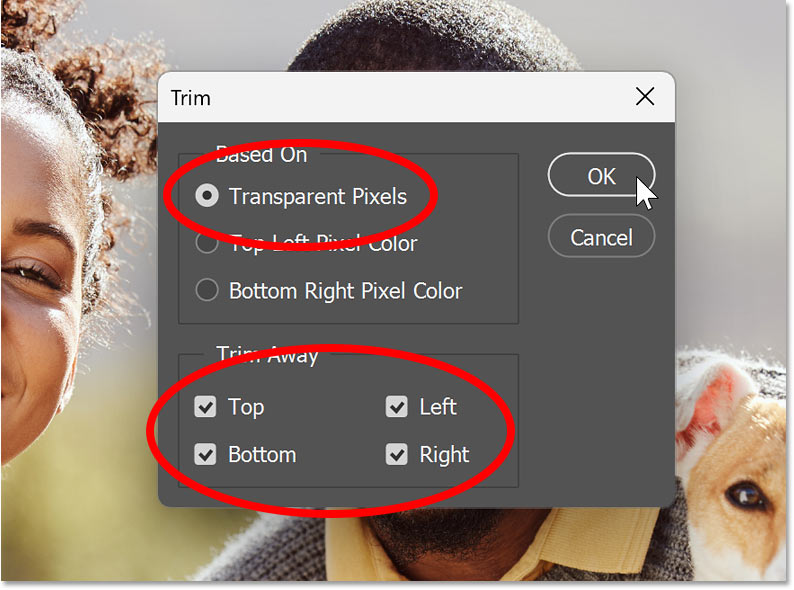
<p style="text-align: justify;">Trong hộp thoại&nbsp;<strong>Trim</strong>, chọn&nbsp;<strong>Transparent Pixels</strong>&nbsp;ở trên cùng và đảm bảo&nbsp;<strong>Top, Bottom, Left</strong>&nbsp;và&nbsp;<strong>Right</strong>&nbsp;đều được chọn ở dưới cùng.</p>

<p style="text-align: justify;">Sau đó nhấp vào&nbsp;<strong>OK.</strong></p>

<figure>
<div style="text-align: justify;"><img alt="Hộp thoại Trim trong Photoshop" data-i="35" data-src="https://st.quantrimang.com/photos/image/2024/10/01/tao-anh-bo-tron-tren-photoshop-36.jpg" data-was-processed="true" height="590" src="https://st.quantrimang.com/photos/image/2024/10/01/tao-anh-bo-tron-tren-photoshop-36.jpg" width="794" /></div>

<figcaption>
<div style="text-align: justify;">Hộp thoại Trim trong Photoshop</div>
</figcaption>
</figure>

<p style="text-align: justify;">Photoshop cắt bỏ toàn bộ phần trong suốt ngoại trừ những gì còn lại ở các góc.</p>

<figure>
<div style="text-align: justify;"><img alt="Kết quả sau khi cắt bỏ hầu hết phần trong suốt." data-i="36" data-src="https://st.quantrimang.com/photos/image/2024/10/01/tao-anh-bo-tron-tren-photoshop-37.jpg" data-was-processed="true" height="506" src="https://st.quantrimang.com/photos/image/2024/10/01/tao-anh-bo-tron-tren-photoshop-37.jpg" width="800" /></div>

<figcaption>
<div style="text-align: justify;">Kết quả sau khi cắt bỏ hầu hết phần trong suốt.</div>
</figcaption>
</figure>

<h2 style="text-align: justify;">Bước 10: Thêm đường viền xung quanh ảnh (tùy chọn)</h2>

<p style="text-align: justify;">Nếu bạn muốn thêm đường viền xung quanh ảnh, hãy đảm bảo layer hình dạng trong bảng Layers được chọn.</p>

<figure>
<div style="text-align: justify;"><img alt="Chọn layer hình dạng." data-i="37" data-src="https://st.quantrimang.com/photos/image/2024/10/01/tao-anh-bo-tron-tren-photoshop-38.png" data-was-processed="true" height="177" src="https://st.quantrimang.com/photos/image/2024/10/01/tao-anh-bo-tron-tren-photoshop-38.png" width="295" /></div>

<figcaption>
<div style="text-align: justify;">Chọn layer hình dạng.</div>
</figcaption>
</figure>

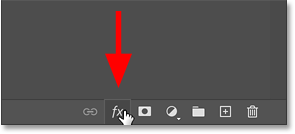
<p style="text-align: justify;">Nhấp vào biểu tượng hiệu ứng layer (fx) ở cuối bảng Layers.</p>

<figure>
<div style="text-align: justify;"><img alt="Biểu tượng hiệu ứng layer." data-i="38" data-src="https://st.quantrimang.com/photos/image/2024/10/01/tao-anh-bo-tron-tren-photoshop-39.png" data-was-processed="true" height="134" src="https://st.quantrimang.com/photos/image/2024/10/01/tao-anh-bo-tron-tren-photoshop-39.png" width="295" /></div>

<figcaption>
<div style="text-align: justify;">Biểu tượng hiệu ứng layer.</div>
</figcaption>
</figure>

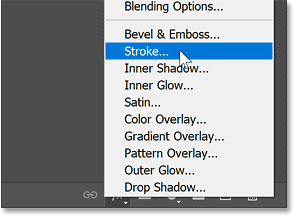
<p style="text-align: justify;">Chọn&nbsp;<strong>Stroke</strong>&nbsp;từ danh sách.</p>

<figure>
<div style="text-align: justify;"><img alt="Thêm hiệu ứng layer Stroke vào hình dạng." data-i="39" data-src="https://st.quantrimang.com/photos/image/2024/10/01/tao-anh-bo-tron-tren-photoshop-40.png" data-was-processed="true" height="217" src="https://st.quantrimang.com/photos/image/2024/10/01/tao-anh-bo-tron-tren-photoshop-40.png" width="295" /></div>

<figcaption>
<div style="text-align: justify;">Thêm hiệu ứng layer Stroke vào hình dạng.</div>
</figcaption>
</figure>

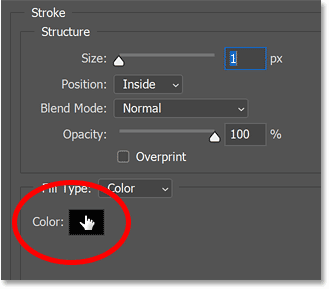
<p style="text-align: justify;">Trong hộp thoại Layer Style, nhấp vào&nbsp;<strong>color swatch</strong>&nbsp;để chọn màu cho nét.</p>

<figure>
<div style="text-align: justify;"><img alt="Chọn màu nét." data-i="40" data-src="https://st.quantrimang.com/photos/image/2024/10/01/tao-anh-bo-tron-tren-photoshop-41.png" data-was-processed="true" height="289" src="https://st.quantrimang.com/photos/image/2024/10/01/tao-anh-bo-tron-tren-photoshop-41.png" width="329" /></div>

<figcaption>
<div style="text-align: justify;">Chọn màu nét.</div>
</figcaption>
</figure>

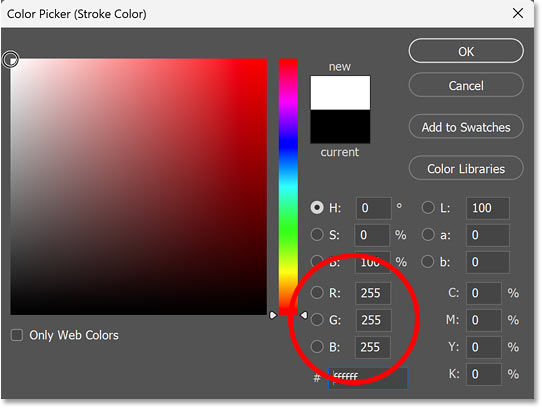
<p style="text-align: justify;">Sau đó, chọn một màu từ Color Picker. Ví dụ sẽ chọn màu trắng (với các giá trị R, G và B là 255).</p>

<p style="text-align: justify;">Nhấp vào&nbsp;<strong>OK</strong>&nbsp;để đóng Color Picker khi hoàn tất.</p>

<figure>
<div style="text-align: justify;"><img alt="Chọn màu trắng từ Color Picker." data-i="41" data-src="https://st.quantrimang.com/photos/image/2024/10/01/tao-anh-bo-tron-tren-photoshop-42.jpg" data-was-processed="true" height="408" src="https://st.quantrimang.com/photos/image/2024/10/01/tao-anh-bo-tron-tren-photoshop-42.jpg" width="542" /></div>

<figcaption>
<div style="text-align: justify;">Chọn màu trắng từ Color Picker.</div>
</figcaption>
</figure>

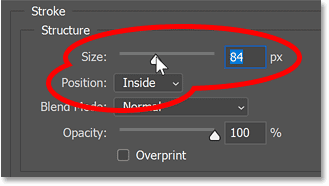
<p style="text-align: justify;">Quay lại hộp thoại Layer Style, hãy đảm bảo rằng&nbsp;<strong>Stroke Position</strong>&nbsp;được đặt thành&nbsp;<strong>Inside.</strong></p>

<p style="text-align: justify;">Sau đó, kéo thanh trượt&nbsp;<strong>Size</strong>&nbsp;để đặt chiều rộng của nét. Kích thước bạn cần sẽ phụ thuộc vào kích thước hình ảnh.</p>

<p style="text-align: justify;">Nhấp vào&nbsp;<strong>OK</strong>&nbsp;để đóng hộp thoại&nbsp;<strong>Layer Style</strong>&nbsp;khi bạn hoàn tất.</p>

<figure>
<div style="text-align: justify;"><img alt="Các tùy chọn Stroke Position và Size." data-i="42" data-src="https://st.quantrimang.com/photos/image/2024/10/01/tao-anh-bo-tron-tren-photoshop-43.png" data-was-processed="true" height="186" src="https://st.quantrimang.com/photos/image/2024/10/01/tao-anh-bo-tron-tren-photoshop-43.png" width="329" /></div>

<figcaption>
<div style="text-align: justify;">Các tùy chọn Stroke Position và Size.</div>
</figcaption>
</figure>

<p style="text-align: justify;">Đây là hình ảnh với nét vẽ (đường viền) được thêm vào.</p>

<figure>
<div style="text-align: justify;"><img alt="Đường viền được thêm vào xung quanh hình ảnh." data-i="43" data-src="https://st.quantrimang.com/photos/image/2024/10/01/tao-anh-bo-tron-tren-photoshop-44.jpg" data-was-processed="true" height="506" src="https://st.quantrimang.com/photos/image/2024/10/01/tao-anh-bo-tron-tren-photoshop-44.jpg" width="800" /></div>

<figcaption>
<div style="text-align: justify;">Đường viền được thêm vào xung quanh hình ảnh.</div>
</figcaption>
</figure>

<h2 style="text-align: justify;">Bước 11: Lưu hình ảnh</h2>

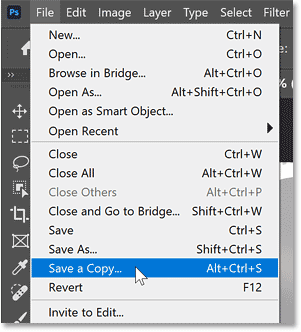
<p style="text-align: justify;">Cuối cùng, để lưu hình ảnh và giữ cho các góc được bo tròn, bạn cần lưu hình ảnh ở định dạng hỗ trợ độ trong suốt.&nbsp;<a data-type="internal" href="https://quantrimang.com/cong-nghe/file-jpg-jpeg-la-gi-181784" title="File JPG (JPEG) là gì?">JPEG</a>&nbsp;sẽ không hoạt động. Thay vào đó, cần lưu hình ảnh dưới dạng&nbsp;<a data-type="internal" href="https://quantrimang.com/cong-nghe/file-png-la-gi-181935" title="File PNG là gì?">PNG</a>.</p>

<p style="text-align: justify;">Vào menu&nbsp;<strong>File</strong>&nbsp;và chọn&nbsp;<strong>Save a Copy</strong>&nbsp;(không phải Save As).</p>

<figure>
<div style="text-align: justify;"><img alt="Vào File &gt; Save a Copy " data-i="44" data-src="https://st.quantrimang.com/photos/image/2024/10/01/tao-anh-bo-tron-tren-photoshop-45.png" data-was-processed="true" height="332" src="https://st.quantrimang.com/photos/image/2024/10/01/tao-anh-bo-tron-tren-photoshop-45.png" width="301" /></div>

<figcaption>
<div style="text-align: justify;">Vào File &gt; Save a Copy</div>
</figcaption>
</figure>

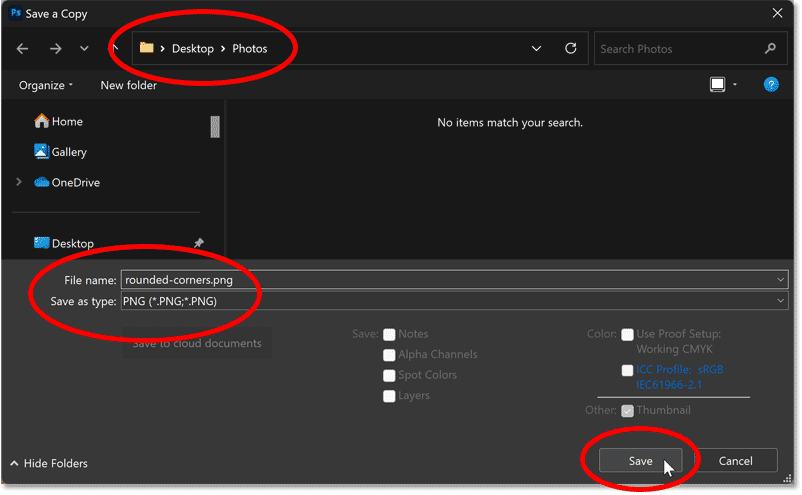
<p style="text-align: justify;">Trong hộp thoại Save a Copy:</p>

<ul>
	<li style="text-align: justify;">Điều hướng đến nơi bạn muốn lưu file trên máy tính của mình.</li>
	<li style="text-align: justify;">Đổi loại file thành&nbsp;<strong>PNG</strong>.</li>
	<li style="text-align: justify;">Đặt tên cho file. Ví dụ sẽ đặt tên là &quot;rounded-corners&quot;.</li>
	<li style="text-align: justify;">Nhấp vào&nbsp;<strong>Save</strong>.</li>
</ul>

<figure>
<div style="text-align: justify;"><img alt="Lưu file dưới dạng PNG." data-i="45" data-src="https://st.quantrimang.com/photos/image/2024/10/01/tao-anh-bo-tron-tren-photoshop-46.png" data-was-processed="true" height="495" src="https://st.quantrimang.com/photos/image/2024/10/01/tao-anh-bo-tron-tren-photoshop-46.png" width="802" /></div>

<figcaption>
<div style="text-align: justify;">Lưu file dưới dạng PNG.</div>
</figcaption>
</figure>

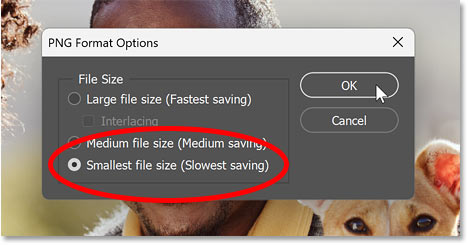
<p style="text-align: justify;">Trong PNG Format Options, chọn&nbsp;<strong>Smallest file size</strong>&nbsp;và nhấp vào&nbsp;<strong>OK</strong>.</p>

<p style="text-align: justify;">Bây giờ, hình ảnh của bạn đã được lưu với các góc được bo tròn.</p>

<figure>
<div style="text-align: justify;"><img alt="Tùy chọn định dạng PNG." data-i="46" data-src="https://st.quantrimang.com/photos/image/2024/10/01/tao-anh-bo-tron-tren-photoshop-47.jpg" data-was-processed="true" height="245" src="https://st.quantrimang.com/photos/image/2024/10/01/tao-anh-bo-tron-tren-photoshop-47.jpg" width="468" /></div>

<figcaption>
<div style="text-align: justify;">Tùy chọn định dạng PNG.</div>
</figcaption>
</figure>

<p style="text-align: justify;">Và thế là xong! Đó là cách bo tròn các góc ảnh bằng Photoshop.</p>

<p style="text-align: justify;"><iframe allow="autoplay" allowfullscreen="" data-src="https://www.youtube.com/embed/q34kz4HuwTo" data-was-processed="true" frameborder="0" height="366" sandbox="allow-scripts allow-same-origin allow-forms allow-presentation allow-popups" src="https://www.youtube.com/embed/q34kz4HuwTo" title="How to Round Corners in Photoshop" width="650"></iframe></p>

<div style="text-align: justify;">&nbsp;</div>
		</div>
				<div id="author">
						<p>
				<strong>Nguồn tin:</strong>
				Quantrimang.com::
			</p>
		</div>
	</div>
	<div id="footer" class="clearfix">
		<div id="url">
			<strong>URL của bản tin này: </strong><a href="https://www.nguoicodonvn2008.info/vi/news/savefile/kien-thuc-may-tinh/cach-tao-anh-bo-tron-goc-tren-photoshop-9108.html" title="Cách tạo ảnh bo tròn góc trên Photoshop">https://www.nguoicodonvn2008.info/vi/news/savefile/kien-thuc-may-tinh/cach-tao-anh-bo-tron-goc-tren-photoshop-9108.html</a>

		</div>
		<div class="clear"></div>
		<div class="copyright">
			&copy; .&#x3A; Nguoicodonvn2008.info - Cõi lòng người cô đơn &#x3A;.
		</div>
		<div id="contact">
			<a href="mailto:admin@nguoicodonvn2008.info">admin@nguoicodonvn2008.info</a>
		</div>
	</div>
</div>
        <div id="timeoutsess" class="chromeframe">
            Bạn đã không sử dụng Site, <a onclick="timeoutsesscancel();" href="https://nguoicodonvn2008.info/#">Bấm vào đây để duy trì trạng thái đăng nhập</a>. Thời gian chờ: <span id="secField"> 60 </span> giây
        </div>
        <div id="openidResult" class="nv-alert" style="display:none"></div>
        <div id="openidBt" data-result="" data-redirect=""></div>
		</script>
		<div class="car-top">
  <span><img src="https://nguoicodonvn2008.info/themes/default/images/car.png" alt=""></span>
</div>
<script src="https://nguoicodonvn2008.info/assets/js/jquery/jquery.min.js"></script>
<script>var nv_base_siteurl="/",nv_lang_data="vi",nv_lang_interface="vi",nv_name_variable="nv",nv_fc_variable="op",nv_lang_variable="language",nv_module_name="news",nv_func_name="savefile",nv_is_user=0, nv_my_ofs=-4,nv_my_abbr="EDT",nv_cookie_prefix="nv4c_e856T",nv_check_pass_mstime=1738000,nv_area_admin=0,nv_safemode=0,theme_responsive=0,nv_recaptcha_ver=2,nv_recaptcha_sitekey="",nv_recaptcha_type="image",XSSsanitize=1;</script>
<script src="https://nguoicodonvn2008.info/assets/js/language/vi.js"></script>
<script src="https://nguoicodonvn2008.info/assets/js/DOMPurify/purify3.js"></script>
<script src="https://nguoicodonvn2008.info/assets/js/global.js"></script>
<script src="https://nguoicodonvn2008.info/assets/js/site.js"></script>
<script src="https://nguoicodonvn2008.info/themes/default/js/news.js"></script>
<script src="https://nguoicodonvn2008.info/themes/default/js/main.js"></script>
<script src="https://nguoicodonvn2008.info/themes/default/js/custom.js"></script>
<script type="application/ld+json">
        {
            "@context": "https://schema.org",
            "@type": "Organization",
            "url": "https://nguoicodonvn2008.info",
            "logo": "https://nguoicodonvn2008.info/uploads/angel.gif"
        }
        </script>
<script src="https://nguoicodonvn2008.info/themes/default/js/bootstrap.min.js"></script>
<script type="text/javascript">
var $scrolltop = $('.car-top');
$scrolltop.on('click', function () {
    $('html,body').animate({
        scrollTop: 0
    }, 800);
    $(this).addClass("car-run");
    setTimeout(function(){ $scrolltop.removeClass('car-run');}, 1000);
    return false;
});
$(window).on('scroll', function ()
{ 
    if($(window).scrollTop() >= 200)
    {
        $scrolltop.addClass("show");
        $scrolltop.addClass("car-down");
    }
    else
    {
       $scrolltop.removeClass("show");
       setTimeout(function(){ $scrolltop.removeClass('car-down');}, 300);
    }
});
</script>
</body>
</html>