<!DOCTYPE html>
    <html lang="vi" xmlns="http://www.w3.org/1999/xhtml" prefix="og: http://ogp.me/ns#">
    <head>
<title>Cách tải và cập nhật driver Bluetooth cho Windows 10</title>
<meta name="description" content="Cách tải và cập nhật driver Bluetooth cho Windows 10 - Savefile - Tin Tức -...">
<meta name="author" content=".: Nguoicodonvn2008.info - Cõi lòng người cô đơn :.">
<meta name="copyright" content=".: Nguoicodonvn2008.info - Cõi lòng người cô đơn :. [admin@nguoicodonvn2008.info]">
<meta name="robots" content="index, archive, follow, noodp">
<meta name="googlebot" content="index,archive,follow,noodp">
<meta name="msnbot" content="all,index,follow">
<meta name="generator" content="NukeViet v4.5">
<meta http-equiv="Content-Type" content="text/html; charset=utf-8">
<meta property="og:title" content="Cách tải và cập nhật driver Bluetooth cho Windows 10">
<meta property="og:type" content="website">
<meta property="og:description" content="Savefile - Tin Tức - https&#x3A;&#x002F;&#x002F;www.nguoicodonvn2008.info&#x002F;vi&#x002F;news&#x002F;savefile&#x002F;kien-thuc-may-tinh&#x002F;cach-tai-va-cap-nhat-driver-bluetooth-cho-windows-10-9141.html">
<meta property="og:site_name" content=".&#x3A; Nguoicodonvn2008.info - Cõi lòng người cô đơn &#x3A;.">
<meta property="og:url" content="https://www.nguoicodonvn2008.info/vi/news/savefile/kien-thuc-may-tinh/cach-tai-va-cap-nhat-driver-bluetooth-cho-windows-10-9141.html">
<link rel="shortcut icon" href="https://nguoicodonvn2008.info/favicon.ico">
<link rel="canonical" href="https://www.nguoicodonvn2008.info/vi/news/savefile/kien-thuc-may-tinh/cach-tai-va-cap-nhat-driver-bluetooth-cho-windows-10-9141.html">
<link rel="alternate" href="https://nguoicodonvn2008.info/vi/news/rss/" title="Tin Tức" type="application/rss+xml">
<link rel="alternate" href="https://nguoicodonvn2008.info/vi/news/rss/karaoke-dual/" title="Tin Tức - Karaoke Dual" type="application/rss+xml">
<link rel="alternate" href="https://nguoicodonvn2008.info/vi/news/rss/nhac-tre/" title="Tin Tức - Nhạc trẻ" type="application/rss+xml">
<link rel="alternate" href="https://nguoicodonvn2008.info/vi/news/rss/tru-tinh/" title="Tin Tức - Trữ tình" type="application/rss+xml">
<link rel="alternate" href="https://nguoicodonvn2008.info/vi/news/rss/nuoc-ngoai/" title="Tin Tức - Nước ngoài" type="application/rss+xml">
<link rel="alternate" href="https://nguoicodonvn2008.info/vi/news/rss/remix/" title="Tin Tức - Remix" type="application/rss+xml">
<link rel="alternate" href="https://nguoicodonvn2008.info/vi/news/rss/tam-su-tinh-yeu/" title="Tin Tức - Tâm sự tình yêu" type="application/rss+xml">
<link rel="alternate" href="https://nguoicodonvn2008.info/vi/news/rss/tho-suu-tam/" title="Tin Tức - Thơ sưu tầm" type="application/rss+xml">
<link rel="alternate" href="https://nguoicodonvn2008.info/vi/news/rss/cuoc-song/" title="Tin Tức - Cuộc sống" type="application/rss+xml">
<link rel="alternate" href="https://nguoicodonvn2008.info/vi/news/rss/phan-mem/" title="Tin Tức - Phần mềm" type="application/rss+xml">
<link rel="alternate" href="https://nguoicodonvn2008.info/vi/news/rss/kien-thuc-may-tinh/" title="Tin Tức - Kiến thức máy tính" type="application/rss+xml">
<link rel="alternate" href="https://nguoicodonvn2008.info/vi/news/rss/hoc-tap/" title="Tin Tức - Học tập" type="application/rss+xml">
<link rel="alternate" href="https://nguoicodonvn2008.info/vi/news/rss/tai-lieu/" title="Tin Tức - Tài liệu" type="application/rss+xml">
<link rel="alternate" href="https://nguoicodonvn2008.info/vi/news/rss/de-thi/" title="Tin Tức - Đề thi" type="application/rss+xml">
<link rel="preload" as="style" href="https://nguoicodonvn2008.info/assets/css/font-awesome.min.css" type="text/css">
<link rel="preload" as="style" href="https://nguoicodonvn2008.info/themes/default/css/bootstrap.non-responsive.css" type="text/css">
<link rel="preload" as="style" href="https://nguoicodonvn2008.info/themes/default/css/style.css" type="text/css">
<link rel="preload" as="style" href="https://nguoicodonvn2008.info/themes/default/css/style.non-responsive.css" type="text/css">
<link rel="preload" as="style" href="https://nguoicodonvn2008.info/themes/default/css/news.css" type="text/css">
<link rel="preload" as="style" href="https://nguoicodonvn2008.info/themes/default/css/custom.css" type="text/css">
<link rel="preload" as="script" href="https://nguoicodonvn2008.info/assets/js/jquery/jquery.min.js" type="text/javascript">
<link rel="preload" as="script" href="https://nguoicodonvn2008.info/assets/js/language/vi.js" type="text/javascript">
<link rel="preload" as="script" href="https://nguoicodonvn2008.info/assets/js/DOMPurify/purify3.js" type="text/javascript">
<link rel="preload" as="script" href="https://nguoicodonvn2008.info/assets/js/global.js" type="text/javascript">
<link rel="preload" as="script" href="https://nguoicodonvn2008.info/assets/js/site.js" type="text/javascript">
<link rel="preload" as="script" href="https://nguoicodonvn2008.info/themes/default/js/news.js" type="text/javascript">
<link rel="preload" as="script" href="https://nguoicodonvn2008.info/themes/default/js/main.js" type="text/javascript">
<link rel="preload" as="script" href="https://nguoicodonvn2008.info/themes/default/js/custom.js" type="text/javascript">
<link rel="preload" as="script" href="https://nguoicodonvn2008.info/themes/default/js/bootstrap.min.js" type="text/javascript">
<link rel="stylesheet" href="https://nguoicodonvn2008.info/assets/css/font-awesome.min.css">
<link rel="stylesheet" href="https://nguoicodonvn2008.info/themes/default/css/bootstrap.non-responsive.css">
<link rel="stylesheet" href="https://nguoicodonvn2008.info/themes/default/css/style.css">
<link rel="stylesheet" href="https://nguoicodonvn2008.info/themes/default/css/style.non-responsive.css">
<link rel="StyleSheet" href="https://nguoicodonvn2008.info/themes/default/css/news.css">
<link rel="stylesheet" href="https://nguoicodonvn2008.info/themes/default/css/custom.css">
<style type="text/css">
	body{background: #fff;}
</style>
    </head>
    <body>
<div id="print">
	<div id="hd_print">
		<h2 class="pull-left">.&#x3A; Nguoicodonvn2008.info - Cõi lòng người cô đơn &#x3A;.</h2>
		<p class="pull-right"><a title=".&#x3A; Nguoicodonvn2008.info - Cõi lòng người cô đơn &#x3A;." href="https://nguoicodonvn2008.info/">https://nguoicodonvn2008.info</a></p>
	</div>
	<div class="clear"></div>
	<hr />
	<div id="content">
		<h1>Cách tải và cập nhật driver Bluetooth cho Windows 10</h1>
		<ul class="list-inline">
			<li>Thứ ba - 08/10/2024 00:01</li>
			<li class="hidden-print txtrequired"><em class="fa fa-print">&nbsp;</em><a title="In ra" href="javascript:;" onclick="window.print()">In ra</a></li>
			<li class="hidden-print txtrequired"><em class="fa fa-power-off">&nbsp;</em><a title="Đóng cửa sổ này" href="javascript:;" onclick="window.close()">Đóng cửa sổ này</a></li>
		</ul>
		<div class="clear"></div>
		<div id="hometext">
		</div>
				<div class="imghome">
			<img alt="Cách tải và cập nhật driver Bluetooth cho Windows 10" src="https://st.quantrimang.com/photos/image/2020/08/10/driver-bluetooth-2.png" width="460" class="img-thumbnail" />
		</div>
		<div class="clear"></div>
		<div id="bodytext" class="clearfix">
			<p style="text-align: justify;">Bluetooth&nbsp;làm cho cuộc sống của chúng ta thông minh hơn và thuận tiện hơn, có thể nghe nhạc thông qua tai nghe Bluetooth hoặc&nbsp;chia sẻ tệp dễ dàng qua Bluetooth với điện thoại, máy tính bảng hoặc máy tính cá nhân khác. Để tránh các sự cố Bluetooth có thể xảy ra trong Windows 10, chẳng hạn như&nbsp;Bluetooth không khả dụng, người dùng nên tải và cập nhật driver Bluetooth cho Windows 10 thường xuyên.</p>

<div style="text-align: justify;">&nbsp;</div>

<h2 style="text-align: justify;">1. Update driver Bluetooth cho Windows 10 thủ công qua Device Manager</h2>

<p style="text-align: justify;">Người dùng Windows 10 có thể truy cập trang web của nhà sản xuất thiết bị để tải driver Bluetooth Windows 10. Ngoài ra, có thể sử dụng Device Manager để tải và cập nhật driver Bluetooth cho Windows 10 theo các bước dưới đây.</p>

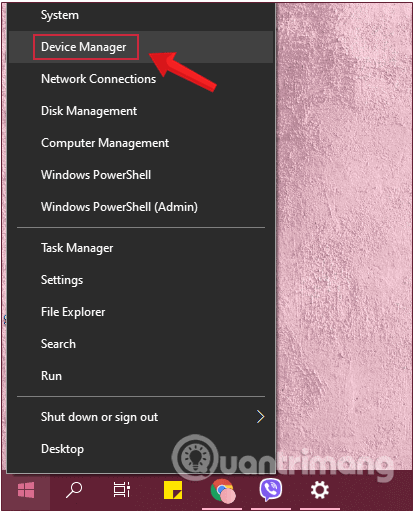
<p style="text-align: justify;"><strong>Bước 1:</strong>&nbsp;Click chuột phải vào biểu tượng&nbsp;<strong>Start</strong>&nbsp;hoặc nhấn tổ hợp phím&nbsp;<code>Windows</code>+<code>X</code>&nbsp;và chọn&nbsp;<strong>Device Manager</strong>.</p>

<figure>
<div style="text-align: justify;"><img alt="Tìm và chọn Device Manager từ menu chuột phải của Start" data-i="0" data-src="https://st.quantrimang.com/photos/image/2019/10/08/sua-loi-mat-bluetooth-win-10-1.png" data-was-processed="true" height="511" src="https://st.quantrimang.com/photos/image/2019/10/08/sua-loi-mat-bluetooth-win-10-1.png" width="414" /></div>

<figcaption>
<div style="text-align: justify;">Tìm và chọn Device Manager từ menu chuột phải của Start</div>
</figcaption>
</figure>

<div style="text-align: justify;">&nbsp;</div>

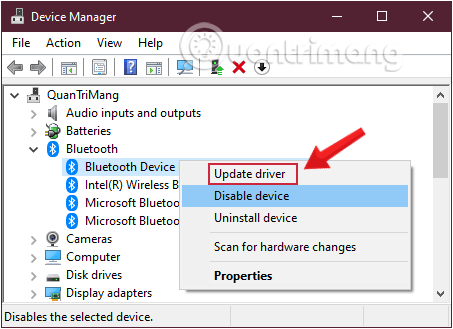
<p style="text-align: justify;"><strong>Bước 2:</strong>&nbsp;Trên màn hình xuất hiện cửa sổ&nbsp;<strong>Device Manager</strong>. Tại đây bạn tìm tùy chọn có tên&nbsp;<strong>Bluetooth&nbsp;</strong>và mở rộng&nbsp;<strong>Bluetooth&nbsp;</strong>bằng cách click vào mũi tên hướng xuống dưới.</p>

<p style="text-align: justify;">Kích chuột phải vào Bluetooth mà bạn sử dụng, chọn tùy chọn&nbsp;<strong>Update Driver.&nbsp;</strong>Nhấp chọn&nbsp;<strong>Yes</strong>&nbsp;nếu có lời nhắc hiện ra.</p>

<figure>
<div style="text-align: justify;"><img alt="Chọn Update device trong Bluetooth driver" data-adbro-processed="true" data-i="1" data-src="https://st.quantrimang.com/photos/image/2020/02/06/ket-noi-bluetooth-win-10-2.png" data-was-processed="true" height="329" src="https://st.quantrimang.com/photos/image/2020/02/06/ket-noi-bluetooth-win-10-2.png" width="453" /></div>

<figcaption>
<div style="text-align: justify;">Chọn Update device trong Bluetooth driver</div>
</figcaption>
</figure>

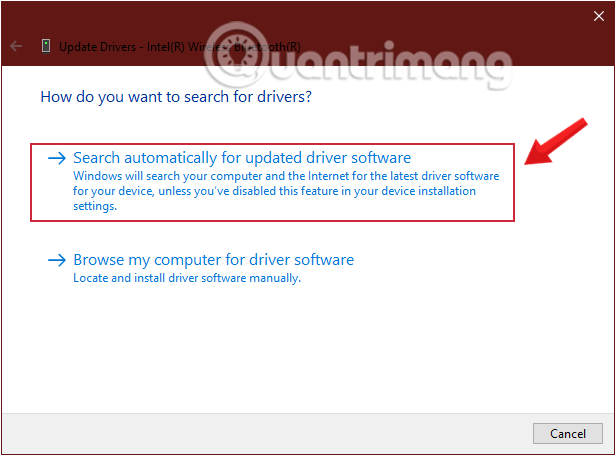
<p style="text-align: justify;"><strong>Bước 3:</strong>&nbsp;Nếu driver đã sẵn sàng cài đặt, bạn có thể tìm và lựa chọn update luôn, hoặc nếu không có sẵn, bạn có thể yêu cầu Windows tìm driver cho mình bằng cách click chọn tùy chọn&nbsp;<strong>Search automatically for updated driver software&nbsp;</strong>và hoàn tất quy trình cập nhật&nbsp;<strong>.</strong></p>

<figure>
<div style="text-align: justify;"><img alt="Yêu cầu Windows tìm driver bằng cách click chọn Search automatically for updated driver software" data-i="2" data-src="https://st.quantrimang.com/photos/image/2020/02/06/ket-noi-bluetooth-win-10-3.png" data-was-processed="true" height="456" src="https://st.quantrimang.com/photos/image/2020/02/06/ket-noi-bluetooth-win-10-3.png" width="616" /></div>

<figcaption>
<div style="text-align: justify;">Yêu cầu Windows tìm driver bằng cách click chọn Search automatically for updated driver software</div>
</figcaption>
</figure>

<p style="text-align: justify;">Khi quá trình kết thúc, hãy đóng cửa sổ device manager và khởi động lại PC của bạn.</p>

<p style="text-align: justify;">Nếu vẫn không sửa được, bạn làm tiếp các bước sau:</p>

<div style="text-align: justify;">&nbsp;</div>

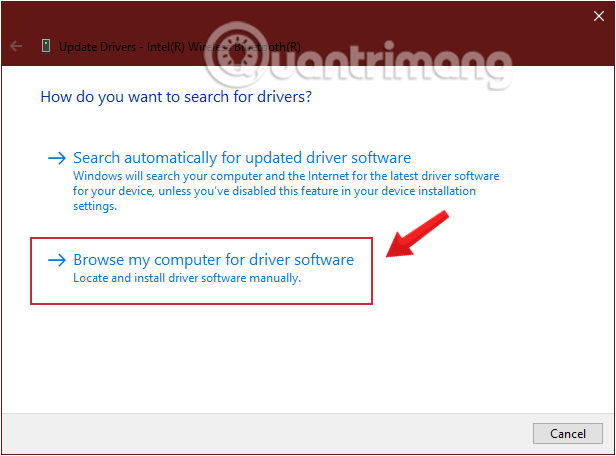
<p style="text-align: justify;"><strong>Bước 4:</strong>&nbsp;Chọn tùy chọn thứ hai&nbsp;<strong>Browse my computer for driver software</strong>.</p>

<figure>
<div style="text-align: justify;"><img alt="Update driver bằng tùy chọn Browse my computer for driver software" data-i="3" data-src="https://st.quantrimang.com/photos/image/2020/02/06/ket-noi-bluetooth-win-10-4.png" data-was-processed="true" height="456" src="https://st.quantrimang.com/photos/image/2020/02/06/ket-noi-bluetooth-win-10-4.png" width="616" /></div>

<figcaption>
<div style="text-align: justify;">Update driver bằng tùy chọn Browse my computer for driver software</div>
</figcaption>
</figure>

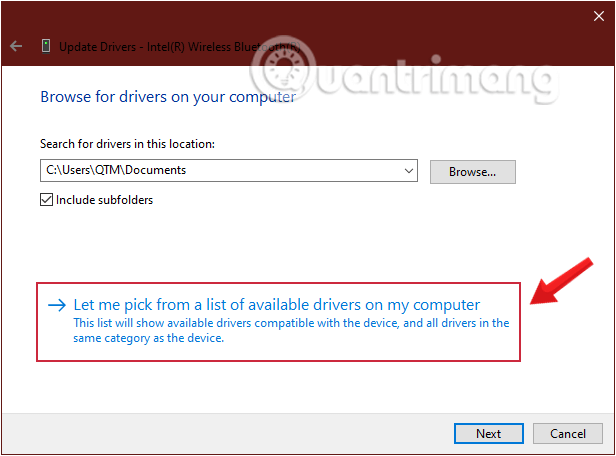
<p style="text-align: justify;"><strong>Bước 5:</strong>&nbsp;Click chọn&nbsp;<strong>Let me pick from a list of device drivers on my computer</strong></p>

<figure>
<div style="text-align: justify;"><img alt="Click chọn Let me pick from a list of device drivers on my computer." data-i="4" data-src="https://st.quantrimang.com/photos/image/2020/02/06/ket-noi-bluetooth-win-10-5.png" data-was-processed="true" height="456" src="https://st.quantrimang.com/photos/image/2020/02/06/ket-noi-bluetooth-win-10-5.png" width="616" /></div>

<figcaption>
<div style="text-align: justify;">Click chọn Let me pick from a list of device drivers on my computer.</div>
</figcaption>
</figure>

<p style="text-align: justify;"><strong>Bước 6:&nbsp;</strong>Chọn driver thích hợp từ danh sách và nhấp vào Next.</p>

<p style="text-align: justify;"><strong>Bước 7:</strong>&nbsp;Khi quá trình kết thúc, hãy đóng cửa sổ device manager và khởi động lại PC của bạn.</p>

<h2 style="text-align: justify;">2. Tải và cập nhật driver Bluetooth trên Windows 10 tự động với Driver Talent</h2>

<p style="text-align: justify;">Nếu không muốn dành nhiều thời gian để chờ tải driver Bluetooth cho Windows 10, người dùng có thể thử tiện ích tải driver Bluetooth tự động như&nbsp;<a href="https://quantrimang.com/url?u=aHR0cHM6Ly93d3cuZHJpdmV0aGVsaWZlLmNvbS90aGFua3NwYWdlL0RyaXZlciUyMFRhbGVudC5odG1sP2Q9aHR0cHM6Ly93d3cuZHJpdmV0aGVsaWZlLmNvbS9kb3dubG9hZC9kcml2ZXItdGFsZW50LmV4ZQ%3D%3D" rel="nofollow noopener" target="_blank" title="Tải Driver Talent">Driver Talent</a>. Công cụ này sẽ tìm kiếm và tải driver Bluetooth thích hợp. Nó hoàn toàn miễn phí và không có quảng cáo.</p>

<p style="text-align: justify;">Driver Talent cung cấp nhiều driver Bluetooth như driver Bluetooth Asus, driver Bluetooth Intel, driver Bluetooth Dell, driver Bluetooth Atheros cho Windows 10, v.v... Nó hỗ trợ cả phiên bản&nbsp;<a href="https://quantrimang.com/cong-nghe/khac-biet-giua-windows-32bit-va-64bit-67517" title="Khác biệt giữa Windows 32-bit và 64-bit?">32-bit và 64-bit</a>&nbsp;của Windows 10.</p>

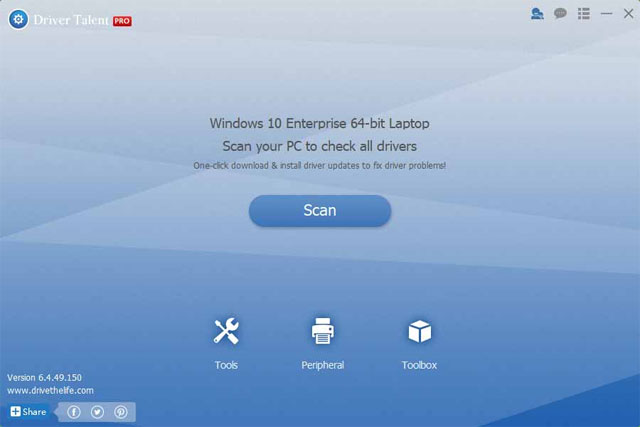
<p style="text-align: justify;"><strong>Bước 1.</strong>&nbsp;Quét máy tính.</p>

<p style="text-align: justify;">Khởi chạy Driver Talent, nhấp vào &quot;<strong>Scan</strong>&quot; để thực hiện quét toàn bộ máy tính. Tất cả driver Bluetooth đã lỗi thời, hỏng, hư hỏng hoặc bị thiếu sẽ hiển thị.</p>

<p style="text-align: justify;"><img alt="Quét máy tính" data-i="5" data-src="https://st.quantrimang.com/photos/image/2017/11/22/cap-nhat-driver-bluetooth-1.jpg" data-was-processed="true" height="427" src="https://st.quantrimang.com/photos/image/2017/11/22/cap-nhat-driver-bluetooth-1.jpg" width="640" /></p>

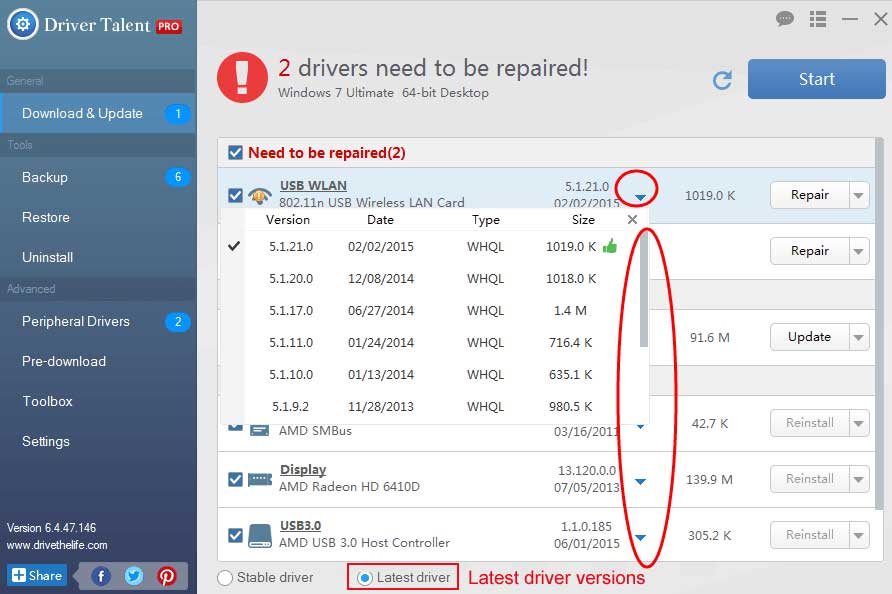
<p style="text-align: justify;"><strong>Bước 2.</strong>&nbsp;Tải và cập nhật driver Bluetooth trên Windows 10</p>

<p style="text-align: justify;">Nếu có driver Bluetooth lỗi, nhấp vào &quot;<strong>Repair</strong>&quot; để tải và cài đặt driver Bluetooth Windows 10 tương thích nhất để khắc phục sự cố hoặc nhấp vào &quot;<strong>Update</strong>&quot; để cập nhật tất cả driver Bluetooth cho Windows 10 lên phiên bản mới nhất, nhưng không cập nhật những driver hỏng.</p>

<p style="text-align: justify;"><img alt="Sửa và cập nhật driver " data-i="6" data-src="https://st.quantrimang.com/photos/image/2017/11/22/cap-nhat-driver-bluetooth-2.jpg" data-was-processed="true" height="426" src="https://st.quantrimang.com/photos/image/2017/11/22/cap-nhat-driver-bluetooth-2.jpg" width="640" /></p>

<p style="text-align: justify;"><strong>Bước 3.</strong>&nbsp;Khởi động lại máy tính</p>

<p style="text-align: justify;">Khởi động lại máy tính để cập nhật driver Bluetooth có hiệu lực.</p>

<h2 style="text-align: justify;">3. Cách cài đặt lại driver Bluetooth đúng cách trong Windows 10</h2>

<p style="text-align: justify;">Nếu driver Bluetooth không tương thích hoặc gặp sự cố, bạn sẽ không thể kết nối với các thiết bị Bluetooth của mình với Windows 10. Ngay cả khi bạn có thể kết nối chúng với tín hiệu Bluetooth của Windows 10, bạn có thể gặp phải các vấn đề khác như kết nối bị ngắt và giảm chất lượng.</p>

<p style="text-align: justify;">Nếu điều này xảy ra, việc cài đặt lại driver Bluetooth sẽ khắc phục được những vấn đề đó. Sau đây là cách cài đặt lại driver Bluetooth trong Windows 10 một cách nhanh chóng và đúng cách.</p>

<p style="text-align: justify;">Bạn có thể cài đặt lại driver Bluetooth trực tiếp từ&nbsp;<a href="https://quantrimang.com/cong-nghe/windows-device-manager-la-gi-cach-su-dung-the-nao-97114" title="Windows Device Manager là gì? Cách sử dụng thế nào?">Device Manager</a>. Trên thực tế, Windows sẽ tự động thực hiện mọi công việc khó khăn giúp bạn. Làm theo các bước được liệt kê dưới đây để thực hiện điều này.</p>

<p style="text-align: justify;"><strong>Bước 1</strong>: Mở cửa sổ&nbsp;<strong>Run</strong>&nbsp;với tổ hợp phím&nbsp;<code>Win</code>+<code>R</code>.</p>

<p style="text-align: justify;"><strong>Bước 2</strong>: Nhập&nbsp;<strong>devmgmt.msc</strong>&nbsp;vào trường trống và nhấp&nbsp;<strong>OK.</strong></p>

<p style="text-align: justify;"><strong>Bước 3</strong>: Sau khi&nbsp;<a href="https://quantrimang.com/cong-nghe/mo-device-manager-174198" title="9 cách mở Device Manager trong Windows 10">mở Device Manager</a>, hãy mở rộng menu con&nbsp;<strong>Bluetooth</strong>&nbsp;trong bảng điều khiển chính.</p>

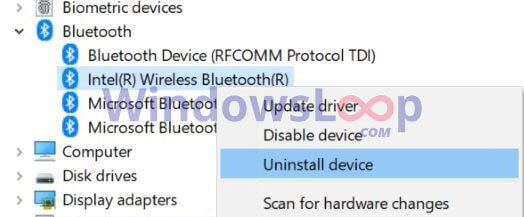
<p style="text-align: justify;"><strong>Bước 4</strong>: Bây giờ, nhấp chuột phải vào mục&nbsp;<strong>Bluetooth adapter</strong>&nbsp;và chọn tùy chọn&nbsp;<strong>Uninstall device.</strong></p>

<figure>
<div style="text-align: justify;"><img alt="Nhấp chuột phải vào mục Bluetooth adapter và chọn tùy chọn Uninstall device" data-i="7" data-src="https://st.quantrimang.com/photos/image/2020/08/10/driver-bluetooth-1.jpg" data-was-processed="true" height="217" src="https://st.quantrimang.com/photos/image/2020/08/10/driver-bluetooth-1.jpg" width="524" /></div>

<figcaption>
<div style="text-align: justify;">Nhấp chuột phải vào mục Bluetooth adapter và chọn tùy chọn Uninstall device</div>
</figcaption>
</figure>

<p style="text-align: justify;"><strong>Bước 5</strong>: Tùy thuộc vào nhà sản xuất thiết bị Bluetooth, tên của Bluetooth adapter sẽ khác nhau. Ví dụ, nếu bạn đang sử dụng phần cứng Bluetooth của Intel thì bạn sẽ thấy&nbsp;<strong>Intel wireless Bluetooth</strong>. Nếu là Realtek thì bạn sẽ thấy&nbsp;<strong>Realtek.</strong></p>

<div style="text-align: justify;">&nbsp;</div>

<p style="text-align: justify;"><strong>Bước 6</strong>: Bây giờ, hãy chọn hộp kiểm&nbsp;<strong>Delete the driver software for this device</strong>.</p>

<p style="text-align: justify;"><strong>Bước 7</strong>: Nhấp vào nút&nbsp;<strong>Uninstall.</strong></p>

<p style="text-align: justify;"><strong>Bước 8</strong>: Sau khi quá trình gỡ cài đặt hoàn tất, hãy đóng&nbsp;<strong>Device Manager.</strong></p>

<p style="text-align: justify;"><strong>Bước 9</strong>: Khởi động lại hệ thống.</p>

<p style="text-align: justify;"><strong>Bước 10</strong>: Sau khi khởi động lại, hãy mở Device Manager.</p>

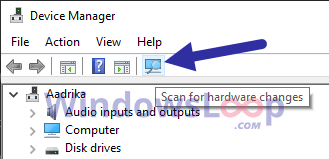
<p style="text-align: justify;"><strong>Bước 11</strong>: Tiếp theo, nhấp vào biểu tượng&nbsp;<strong>Scan for hardware changes</strong>&nbsp;trên thanh điều hướng trên cùng.</p>

<figure>
<div style="text-align: justify;"><img alt="Nhấp vào biểu tượng Scan for hardware changes" data-i="8" data-src="https://st.quantrimang.com/photos/image/2020/08/10/driver-bluetooth-2.png" data-was-processed="true" height="159" src="https://st.quantrimang.com/photos/image/2020/08/10/driver-bluetooth-2.png" width="329" /></div>

<figcaption>
<div style="text-align: justify;">Nhấp vào biểu tượng Scan for hardware changes</div>
</figcaption>
</figure>

<p style="text-align: justify;"><strong>Bước 12</strong>: Thao tác này sẽ kích hoạt các cửa sổ cài đặt lại driver Bluetooth.</p>

<p style="text-align: justify;"><strong>Bước 13</strong>: Sau khi hoàn tất, hãy đóng Device Manager.</p>

<p style="text-align: justify;">Như vậy, bạn đã cài đặt lại thành công driver Bluetooth trong Windows 10 rồi đấy.</p>

<h2 style="text-align: justify;">Sao lưu và phục hồi driver Bluetooth</h2>

<p style="text-align: justify;">Người dùng nên sao lưu driver trước khi cài đặt bất cứ driver Bluetooth Windows 10 mới nào trong trường hợp xảy ra sự cố không mong muốn. Ngoài ra, Driver Talent có thể cho phép khôi phục driver để quay trở lại phiên bản driver trước đó.</p>

<p style="text-align: justify;"><strong>Lưu ý:</strong>&nbsp;Ngoài việc tải và cập nhật driver, Drive Talent cung cấp các tính năng cao cấp khác, chẳng hạn như khôi phục hệ thống, tải driver trước đó cho các máy tính khác, sửa chữa máy tính, phát hiện phần cứng, kiểm tra hỗ trợ VR và&nbsp;tốc độ máy tính, v.v…</p>
		</div>
				<div id="author">
						<p>
				<strong>Nguồn tin:</strong>
				Quantrimang.com:
			</p>
		</div>
	</div>
	<div id="footer" class="clearfix">
		<div id="url">
			<strong>URL của bản tin này: </strong><a href="https://www.nguoicodonvn2008.info/vi/news/savefile/kien-thuc-may-tinh/cach-tai-va-cap-nhat-driver-bluetooth-cho-windows-10-9141.html" title="Cách tải và cập nhật driver Bluetooth cho Windows 10">https://www.nguoicodonvn2008.info/vi/news/savefile/kien-thuc-may-tinh/cach-tai-va-cap-nhat-driver-bluetooth-cho-windows-10-9141.html</a>

		</div>
		<div class="clear"></div>
		<div class="copyright">
			&copy; .&#x3A; Nguoicodonvn2008.info - Cõi lòng người cô đơn &#x3A;.
		</div>
		<div id="contact">
			<a href="mailto:admin@nguoicodonvn2008.info">admin@nguoicodonvn2008.info</a>
		</div>
	</div>
</div>
        <div id="timeoutsess" class="chromeframe">
            Bạn đã không sử dụng Site, <a onclick="timeoutsesscancel();" href="https://nguoicodonvn2008.info/#">Bấm vào đây để duy trì trạng thái đăng nhập</a>. Thời gian chờ: <span id="secField"> 60 </span> giây
        </div>
        <div id="openidResult" class="nv-alert" style="display:none"></div>
        <div id="openidBt" data-result="" data-redirect=""></div>
		</script>
		<div class="car-top">
  <span><img src="https://nguoicodonvn2008.info/themes/default/images/car.png" alt=""></span>
</div>
<div id="run_cronjobs" style="visibility:hidden;display:none;"><img alt="cron" src="/index.php?second=cronjobs&amp;p=q25cgG87" width="1" height="1" /></div>
<script src="https://nguoicodonvn2008.info/assets/js/jquery/jquery.min.js"></script>
<script>var nv_base_siteurl="/",nv_lang_data="vi",nv_lang_interface="vi",nv_name_variable="nv",nv_fc_variable="op",nv_lang_variable="language",nv_module_name="news",nv_func_name="savefile",nv_is_user=0, nv_my_ofs=-4,nv_my_abbr="EDT",nv_cookie_prefix="nv4c_e856T",nv_check_pass_mstime=1738000,nv_area_admin=0,nv_safemode=0,theme_responsive=0,nv_recaptcha_ver=2,nv_recaptcha_sitekey="",nv_recaptcha_type="image",XSSsanitize=1;</script>
<script src="https://nguoicodonvn2008.info/assets/js/language/vi.js"></script>
<script src="https://nguoicodonvn2008.info/assets/js/DOMPurify/purify3.js"></script>
<script src="https://nguoicodonvn2008.info/assets/js/global.js"></script>
<script src="https://nguoicodonvn2008.info/assets/js/site.js"></script>
<script src="https://nguoicodonvn2008.info/themes/default/js/news.js"></script>
<script src="https://nguoicodonvn2008.info/themes/default/js/main.js"></script>
<script src="https://nguoicodonvn2008.info/themes/default/js/custom.js"></script>
<script type="application/ld+json">
        {
            "@context": "https://schema.org",
            "@type": "Organization",
            "url": "https://nguoicodonvn2008.info",
            "logo": "https://nguoicodonvn2008.info/uploads/angel.gif"
        }
        </script>
<script src="https://nguoicodonvn2008.info/themes/default/js/bootstrap.min.js"></script>
<script type="text/javascript">
var $scrolltop = $('.car-top');
$scrolltop.on('click', function () {
    $('html,body').animate({
        scrollTop: 0
    }, 800);
    $(this).addClass("car-run");
    setTimeout(function(){ $scrolltop.removeClass('car-run');}, 1000);
    return false;
});
$(window).on('scroll', function ()
{ 
    if($(window).scrollTop() >= 200)
    {
        $scrolltop.addClass("show");
        $scrolltop.addClass("car-down");
    }
    else
    {
       $scrolltop.removeClass("show");
       setTimeout(function(){ $scrolltop.removeClass('car-down');}, 300);
    }
});
</script>
</body>
</html>