<!DOCTYPE html>
    <html lang="vi" xmlns="http://www.w3.org/1999/xhtml" prefix="og: http://ogp.me/ns#">
    <head>
<title>Cách sửa lỗi &quot;Shell Infrastructure Host Has Stopped Working&quot; trong Windows</title>
<meta name="description" content="Cách sửa lỗi &quot;Shell Infrastructure Host Has Stopped Working&quot; trong Windows - Savefile - Tin Tức -...">
<meta name="author" content=".: Nguoicodonvn2008.info - Cõi lòng người cô đơn :.">
<meta name="copyright" content=".: Nguoicodonvn2008.info - Cõi lòng người cô đơn :. [admin@nguoicodonvn2008.info]">
<meta name="robots" content="index, archive, follow, noodp">
<meta name="googlebot" content="index,archive,follow,noodp">
<meta name="msnbot" content="all,index,follow">
<meta name="generator" content="NukeViet v4.5">
<meta http-equiv="Content-Type" content="text/html; charset=utf-8">
<meta property="og:title" content="Cách sửa lỗi &quot;Shell Infrastructure Host Has Stopped Working&quot; trong Windows">
<meta property="og:type" content="website">
<meta property="og:description" content="Savefile - Tin Tức -...">
<meta property="og:site_name" content=".&#x3A; Nguoicodonvn2008.info - Cõi lòng người cô đơn &#x3A;.">
<meta property="og:url" content="https://www.nguoicodonvn2008.info/vi/news/savefile/kien-thuc-may-tinh/cach-sua-loi-shell-infrastructure-host-has-stopped-working-trong-windows-4672.html">
<link rel="shortcut icon" href="https://nguoicodonvn2008.info/favicon.ico">
<link rel="canonical" href="https://www.nguoicodonvn2008.info/vi/news/savefile/kien-thuc-may-tinh/cach-sua-loi-shell-infrastructure-host-has-stopped-working-trong-windows-4672.html">
<link rel="alternate" href="https://nguoicodonvn2008.info/vi/news/rss/" title="Tin Tức" type="application/rss+xml">
<link rel="alternate" href="https://nguoicodonvn2008.info/vi/news/rss/karaoke-dual/" title="Tin Tức - Karaoke Dual" type="application/rss+xml">
<link rel="alternate" href="https://nguoicodonvn2008.info/vi/news/rss/nhac-tre/" title="Tin Tức - Nhạc trẻ" type="application/rss+xml">
<link rel="alternate" href="https://nguoicodonvn2008.info/vi/news/rss/tru-tinh/" title="Tin Tức - Trữ tình" type="application/rss+xml">
<link rel="alternate" href="https://nguoicodonvn2008.info/vi/news/rss/nuoc-ngoai/" title="Tin Tức - Nước ngoài" type="application/rss+xml">
<link rel="alternate" href="https://nguoicodonvn2008.info/vi/news/rss/remix/" title="Tin Tức - Remix" type="application/rss+xml">
<link rel="alternate" href="https://nguoicodonvn2008.info/vi/news/rss/tam-su-tinh-yeu/" title="Tin Tức - Tâm sự tình yêu" type="application/rss+xml">
<link rel="alternate" href="https://nguoicodonvn2008.info/vi/news/rss/tho-suu-tam/" title="Tin Tức - Thơ sưu tầm" type="application/rss+xml">
<link rel="alternate" href="https://nguoicodonvn2008.info/vi/news/rss/cuoc-song/" title="Tin Tức - Cuộc sống" type="application/rss+xml">
<link rel="alternate" href="https://nguoicodonvn2008.info/vi/news/rss/phan-mem/" title="Tin Tức - Phần mềm" type="application/rss+xml">
<link rel="alternate" href="https://nguoicodonvn2008.info/vi/news/rss/kien-thuc-may-tinh/" title="Tin Tức - Kiến thức máy tính" type="application/rss+xml">
<link rel="alternate" href="https://nguoicodonvn2008.info/vi/news/rss/hoc-tap/" title="Tin Tức - Học tập" type="application/rss+xml">
<link rel="alternate" href="https://nguoicodonvn2008.info/vi/news/rss/tai-lieu/" title="Tin Tức - Tài liệu" type="application/rss+xml">
<link rel="alternate" href="https://nguoicodonvn2008.info/vi/news/rss/de-thi/" title="Tin Tức - Đề thi" type="application/rss+xml">
<link rel="preload" as="style" href="https://nguoicodonvn2008.info/assets/css/font-awesome.min.css" type="text/css">
<link rel="preload" as="style" href="https://nguoicodonvn2008.info/themes/default/css/bootstrap.non-responsive.css" type="text/css">
<link rel="preload" as="style" href="https://nguoicodonvn2008.info/themes/default/css/style.css" type="text/css">
<link rel="preload" as="style" href="https://nguoicodonvn2008.info/themes/default/css/style.non-responsive.css" type="text/css">
<link rel="preload" as="style" href="https://nguoicodonvn2008.info/themes/default/css/news.css" type="text/css">
<link rel="preload" as="style" href="https://nguoicodonvn2008.info/themes/default/css/custom.css" type="text/css">
<link rel="preload" as="script" href="https://nguoicodonvn2008.info/assets/js/jquery/jquery.min.js" type="text/javascript">
<link rel="preload" as="script" href="https://nguoicodonvn2008.info/assets/js/language/vi.js" type="text/javascript">
<link rel="preload" as="script" href="https://nguoicodonvn2008.info/assets/js/DOMPurify/purify3.js" type="text/javascript">
<link rel="preload" as="script" href="https://nguoicodonvn2008.info/assets/js/global.js" type="text/javascript">
<link rel="preload" as="script" href="https://nguoicodonvn2008.info/assets/js/site.js" type="text/javascript">
<link rel="preload" as="script" href="https://nguoicodonvn2008.info/themes/default/js/news.js" type="text/javascript">
<link rel="preload" as="script" href="https://nguoicodonvn2008.info/themes/default/js/main.js" type="text/javascript">
<link rel="preload" as="script" href="https://nguoicodonvn2008.info/themes/default/js/custom.js" type="text/javascript">
<link rel="preload" as="script" href="https://nguoicodonvn2008.info/themes/default/js/bootstrap.min.js" type="text/javascript">
<link rel="stylesheet" href="https://nguoicodonvn2008.info/assets/css/font-awesome.min.css">
<link rel="stylesheet" href="https://nguoicodonvn2008.info/themes/default/css/bootstrap.non-responsive.css">
<link rel="stylesheet" href="https://nguoicodonvn2008.info/themes/default/css/style.css">
<link rel="stylesheet" href="https://nguoicodonvn2008.info/themes/default/css/style.non-responsive.css">
<link rel="StyleSheet" href="https://nguoicodonvn2008.info/themes/default/css/news.css">
<link rel="stylesheet" href="https://nguoicodonvn2008.info/themes/default/css/custom.css">
<style type="text/css">
	body{background: #fff;}
</style>
    </head>
    <body>
<div id="print">
	<div id="hd_print">
		<h2 class="pull-left">.&#x3A; Nguoicodonvn2008.info - Cõi lòng người cô đơn &#x3A;.</h2>
		<p class="pull-right"><a title=".&#x3A; Nguoicodonvn2008.info - Cõi lòng người cô đơn &#x3A;." href="https://nguoicodonvn2008.info/">https://nguoicodonvn2008.info</a></p>
	</div>
	<div class="clear"></div>
	<hr />
	<div id="content">
		<h1>Cách sửa lỗi &quot;Shell Infrastructure Host Has Stopped Working&quot; trong Windows</h1>
		<ul class="list-inline">
			<li>Thứ hai - 01/11/2021 00:45</li>
			<li class="hidden-print txtrequired"><em class="fa fa-print">&nbsp;</em><a title="In ra" href="javascript:;" onclick="window.print()">In ra</a></li>
			<li class="hidden-print txtrequired"><em class="fa fa-power-off">&nbsp;</em><a title="Đóng cửa sổ này" href="javascript:;" onclick="window.close()">Đóng cửa sổ này</a></li>
		</ul>
		<div class="clear"></div>
		<div id="hometext">
		</div>
				<div class="imghome">
			<img alt="Cách sửa lỗi &quot;Shell Infrastructure Host Has Stopped Working&quot; trong Windows" src="https://st.quantrimang.com/photos/image/2021/10/26/sua-loi-shell-infrastructure-host-has-stopped-working-4.jpg" width="460" class="img-thumbnail" />
		</div>
		<div class="clear"></div>
		<div id="bodytext" class="clearfix">
			<p style="text-align: justify;">Thiết bị Windows của bạn có hiển thị lỗi&nbsp;<em>“Shell Infrastructure Host has stopped working”</em>&nbsp;không? Trong hầu hết các trường hợp, sự cố này xảy ra khi chạy ứng dụng trên tài khoản khách Windows. Nhưng tại sao bạn lại gặp phải lỗi này và làm thế nào để giải quyết nó? Cùng Quantrimang.com tìm câu trả lời qua bài viết sau đây nhé!</p>

<h2 style="text-align: justify;">1. Đăng nhập vào Windows với quyền admin</h2>

<figure>
<div style="text-align: justify;"><img alt="Đăng nhập vào Windows với quyền admin" data-i="0" data-src="https://st.quantrimang.com/photos/image/2021/10/26/sua-loi-shell-infrastructure-host-has-stopped-working-1.jpg" data-was-processed="true" height="398" src="https://st.quantrimang.com/photos/image/2021/10/26/sua-loi-shell-infrastructure-host-has-stopped-working-1.jpg" width="650" /></div>

<figcaption>
<div style="text-align: justify;">Đăng nhập vào Windows với quyền admin</div>
</figcaption>
</figure>

<p style="text-align: justify;">Đối với hầu hết người dùng, lỗi này thường xuất hiện khi sử dụng tài khoản khách. Vì vậy, một cách khắc phục nhanh chóng là thử và đăng nhập vào hệ thống với tư cách là admin.</p>

<p style="text-align: justify;">Nếu bạn đã đăng nhập vào tài khoản khách, đây là cách bạn có thể chuyển sang tài khoản admin:</p>

<p style="text-align: justify;"><strong>Bước 1</strong>: Nhấn&nbsp;<strong>Ctrl + Alt + Delete</strong>&nbsp;để mở cửa sổ&nbsp;<strong>Security Options.</strong></p>

<p style="text-align: justify;"><strong>Bước 2</strong>: Chọn&nbsp;<strong>Switch User</strong>&nbsp;và sau đó làm theo hướng dẫn trên màn hình để đăng nhập vào tài khoản Administrator.</p>

<p style="text-align: justify;">Nếu đang sử dụng PC của người khác, bạn có thể yêu cầu họ cấp cho bạn quyền truy cập admin.</p>

<h2 style="text-align: justify;">2. Tạo tài khoản khách mới</h2>

<p style="text-align: justify;">Bạn không muốn đăng nhập vào hệ thống với tư cách là admin? Nếu vậy, bạn có thể tạo một tài khoản khách mới. Và nếu bạn quyết định xóa tài khoản khách có vấn đề, trước tiên hãy đảm bảo sao chép hoặc sao lưu các file quan trọng.</p>

<p style="text-align: justify;">Nếu không, đây là cách bạn có thể tạo tài khoản khách mới trên Windows:</p>

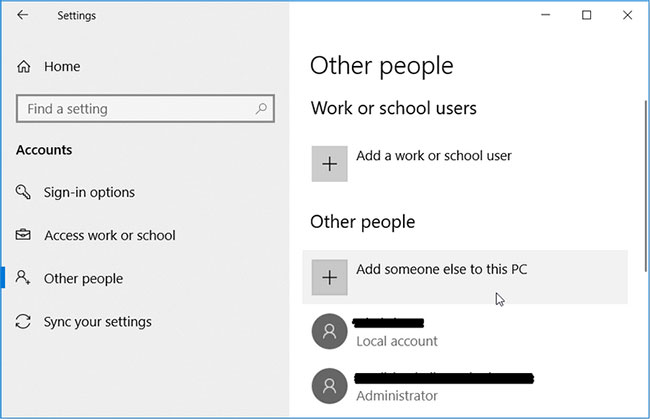
<p style="text-align: justify;"><strong>Bước 1</strong>: Điều hướng đến&nbsp;<strong>menu Start &gt; PC Settings &gt; Accounts</strong>.</p>

<p style="text-align: justify;"><strong>Bước 2</strong>: Nhấp vào&nbsp;<strong>Other people</strong>&nbsp;ở bên trái.</p>

<p style="text-align: justify;"><strong>Bước 3</strong>: Tiếp theo, nhấp vào&nbsp;<strong>Add someone else to this PC</strong>&nbsp;ở bên phải.</p>

<figure>
<div style="text-align: justify;"><img alt="Tạo tài khoản khách mới" data-i="1" data-src="https://st.quantrimang.com/photos/image/2021/10/26/sua-loi-shell-infrastructure-host-has-stopped-working-2.jpg" data-was-processed="true" height="419" src="https://st.quantrimang.com/photos/image/2021/10/26/sua-loi-shell-infrastructure-host-has-stopped-working-2.jpg" width="650" /></div>

<figcaption>
<div style="text-align: justify;">Tạo tài khoản khách mới</div>
</figcaption>
</figure>

<p style="text-align: justify;">Trong cửa sổ tiếp theo, nhấp vào<strong>&nbsp;I don’t have this person’s sign-in information</strong>. Tiếp theo, hãy làm theo các bước sau để hoàn tất việc thiết lập tài khoản:</p>

<p style="text-align: justify;"><strong>Bước 1</strong>: Nhấp vào&nbsp;<strong>Get a new email address&nbsp;</strong>và nhập thông tin chi tiết.</p>

<p style="text-align: justify;"><strong>Bước 2</strong>: Tạo mật khẩu, điền ngày tháng năm sinh của bạn và chọn quốc gia cư trú.</p>

<p style="text-align: justify;"><strong>Bước 3</strong>: Nhấp vào&nbsp;<strong>Next</strong>&nbsp;khi bạn hoàn tất và làm theo hướng dẫn trên màn hình để hoàn tất quá trình.</p>

<h2 style="text-align: justify;">3. Cài đặt lại hoặc sửa chữa các chương trình Microsoft Visual C++</h2>

<p style="text-align: justify;">PC phụ thuộc vào gói thư viện runtime&nbsp;Microsoft Visual C++&nbsp;để hoạt động bình thường. Khi các gói này bị thiếu hoặc bị hỏng, bạn có thể gặp phải nhiều vấn đề khác nhau liên quan đến hệ thống. Trong trường hợp này, sửa chữa hoặc cài đặt lại các chương trình Microsoft Visual C++ có thể giải quyết sự cố này.</p>

<p style="text-align: justify;">Hãy xem cách bạn có thể sửa chữa các chương trình Microsoft Visual C++:</p>

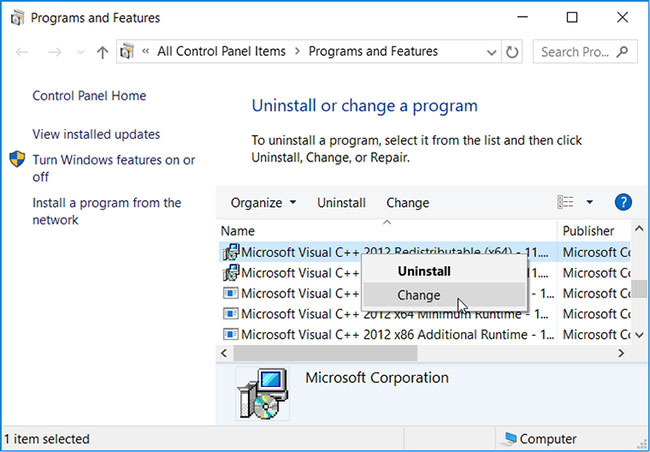
<p style="text-align: justify;"><strong>Bước 1</strong>: Nhấn&nbsp;<strong>Win + R</strong>&nbsp;để mở hộp thoại&nbsp;<strong>Run.</strong></p>

<p style="text-align: justify;"><strong>Bước 2</strong>: Nhập&nbsp;<strong>appwiz.cpl</strong>&nbsp;và nhấn&nbsp;<strong>Enter</strong>&nbsp;để mở cửa sổ&nbsp;<strong>Programs and Features</strong>.</p>

<p style="text-align: justify;"><strong>Bước 3</strong>: Bấm chuột phải vào từng chương trình&nbsp;<strong>Microsoft Visual C++</strong>&nbsp;rồi chọn&nbsp;<strong>Change.</strong></p>

<figure>
<div style="text-align: justify;"><img alt="Sửa chữa các chương trình Microsoft Visual C++" data-i="2" data-src="https://st.quantrimang.com/photos/image/2021/10/26/sua-loi-shell-infrastructure-host-has-stopped-working-3.jpg" data-was-processed="true" height="452" src="https://st.quantrimang.com/photos/image/2021/10/26/sua-loi-shell-infrastructure-host-has-stopped-working-3.jpg" width="650" /></div>

<figcaption>
<div style="text-align: justify;">Sửa chữa các chương trình Microsoft Visual C++</div>
</figcaption>
</figure>

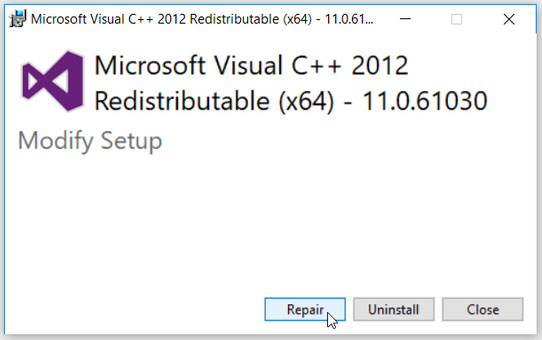
<p style="text-align: justify;">Trong cửa sổ tiếp theo, nhấp vào nút&nbsp;<strong>Repair.</strong>&nbsp;Từ đó, hãy làm theo hướng dẫn trên màn hình và&nbsp;<a href="https://quantrimang.com/6-cach-khoi-dong-lai-windows-that-pro-116819" title="6 cách khởi động lại máy tính Windows từ đơn giản đến &#039;Pro&#039;">khởi động lại PC</a>&nbsp;khi bạn hoàn tất.</p>

<figure>
<div style="text-align: justify;"><img alt="Nhấp vào nút Repair" data-i="3" data-src="https://st.quantrimang.com/photos/image/2021/10/26/sua-loi-shell-infrastructure-host-has-stopped-working-4.jpg" data-was-processed="true" height="340" src="https://st.quantrimang.com/photos/image/2021/10/26/sua-loi-shell-infrastructure-host-has-stopped-working-4.jpg" width="542" /></div>

<figcaption>
<div style="text-align: justify;">Nhấp vào nút Repair</div>
</figcaption>
</figure>

<p style="text-align: justify;">Nếu sự cố vẫn tiếp diễn, hãy cài đặt lại chương trình Microsoft Visual C++ bằng cách làm theo các bước sau:</p>

<p style="text-align: justify;"><strong>Bước 1</strong>: Mở cửa sổ&nbsp;<strong>Programs and Features</strong>&nbsp;theo các bước trước đó.</p>

<p style="text-align: justify;"><strong>Bước 2</strong>: Nhấp chuột phải vào từng chương trình Microsoft Visual C++ và nhấn vào nút&nbsp;<strong>Uninstall.</strong></p>

<p style="text-align: justify;"><strong>Bước 3</strong>: Khi bạn hoàn tất, hãy cài đặt lại các chương trình Microsoft Visual C++.</p>

<p style="text-align: justify;">Làm theo hướng dẫn trên màn hình để hoàn tất quá trình.</p>

<h2 style="text-align: justify;">4. Cấu hình cài đặt khởi động cho PC</h2>

<p style="text-align: justify;">Lỗi Shell Infrastructure có thể xuất hiện tùy thuộc vào cách bạn đã cấu hình cài đặt khởi động của PC. Trong trường hợp này, hãy xem xét cài đặt Normal Startup và Selective Startup có thể giúp ích như thế nào.</p>

<p style="text-align: justify;">Trước tiên, hãy cấu hình cài đặt Normal Startup. Thao tác này sẽ load tất cả các driver và service của thiết bị bất cứ khi nào bạn khởi động lại PC.</p>

<p style="text-align: justify;">Bây giờ, đây là cách bạn có thể cấu hình cài đặt Normal Startup:</p>

<p style="text-align: justify;"><strong>Bước 1</strong>: Nhấn&nbsp;<strong>Win + R</strong>&nbsp;để mở hộp thoại&nbsp;<strong>Run.</strong></p>

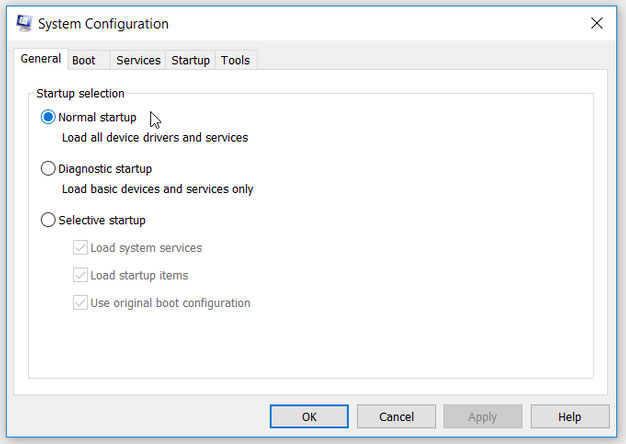
<p style="text-align: justify;"><strong>Bước 2</strong>: Nhập&nbsp;<strong>msconfig</strong>&nbsp;và nhấn&nbsp;<strong>Enter</strong>&nbsp;để&nbsp;mở cửa sổ System Configuration.</p>

<p style="text-align: justify;"><strong>Bước 3</strong>: Điều hướng đến tab&nbsp;<strong>General</strong>&nbsp;và chọn tùy chọn&nbsp;<strong>Normal Startup.</strong></p>

<p style="text-align: justify;"><strong>Bước 4</strong>: Nhấn&nbsp;<strong>Apply &gt; OK</strong>.</p>

<figure>
<div style="text-align: justify;"><img alt="Cấu hình cài đặt Normal Startup" data-i="4" data-src="https://st.quantrimang.com/photos/image/2021/10/26/sua-loi-shell-infrastructure-host-has-stopped-working-5.jpg" data-was-processed="true" height="444" src="https://st.quantrimang.com/photos/image/2021/10/26/sua-loi-shell-infrastructure-host-has-stopped-working-5.jpg" width="626" /></div>

<figcaption>
<div style="text-align: justify;">Cấu hình cài đặt Normal Startup</div>
</figcaption>
</figure>

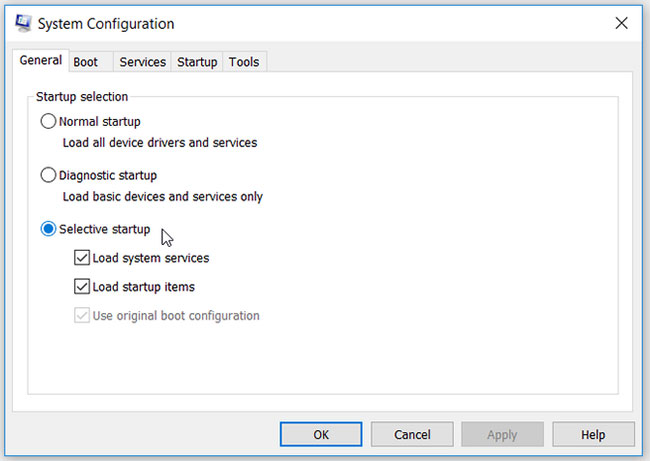
<p style="text-align: justify;">Nếu không, bạn có thể cấu hình cài đặt Selective Startup. Điều này sẽ cho phép bạn chọn các service mà bạn muốn hệ thống load bất cứ khi nào PC của bạn khởi động.</p>

<p style="text-align: justify;">Dưới đây là cách bạn có thể cấu hình cài đặt Selective Startup:</p>

<p style="text-align: justify;"><strong>Bước 1</strong>: Mở cửa sổ&nbsp;<strong>System Configuration</strong>&nbsp;theo các bước trước đó.</p>

<p style="text-align: justify;"><strong>Bước 2</strong>: Điều hướng đến tab&nbsp;<strong>General</strong>&nbsp;và chọn tùy chọn&nbsp;<strong>Selective Startup.</strong></p>

<p style="text-align: justify;"><strong>Bước 3</strong>: Tiếp theo, tích vào các hộp&nbsp;<strong>Load system services</strong>&nbsp;và&nbsp;<strong>Load startup items</strong>&nbsp;bên dưới tùy chọn này.</p>

<p style="text-align: justify;"><strong>Bước 4</strong>: Nhấp vào&nbsp;<strong>Apply &gt; OK&nbsp;</strong>để lưu các thay đổi này. Khởi động lại PC khi bạn hoàn tất.</p>

<p style="text-align: justify;">Nếu sự cố vẫn tiếp diễn, đây là những gì bạn có thể làm:</p>

<p style="text-align: justify;"><strong>Bước 1</strong>: Mở cửa sổ&nbsp;<strong>System Configuration</strong>&nbsp;theo các bước trước đó.</p>

<p style="text-align: justify;"><strong>Bước 2</strong>: Chọn tùy chọn&nbsp;<strong>Selective Startup</strong>&nbsp;và sau đó chọn tất cả các hộp bên dưới tùy chọn này.</p>

<p style="text-align: justify;"><strong>Bước 3</strong>: Nhấp vào&nbsp;<strong>Apply &gt; OK</strong>.</p>

<figure>
<div style="text-align: justify;"><img alt="Cấu hình cài đặt Selective Startup" data-i="5" data-src="https://st.quantrimang.com/photos/image/2021/10/26/sua-loi-shell-infrastructure-host-has-stopped-working-6.jpg" data-was-processed="true" height="461" src="https://st.quantrimang.com/photos/image/2021/10/26/sua-loi-shell-infrastructure-host-has-stopped-working-6.jpg" width="650" /></div>

<figcaption>
<div style="text-align: justify;">Cấu hình cài đặt Selective Startup</div>
</figcaption>
</figure>

<h2 style="text-align: justify;">5. Chạy các trình gỡ rối Windows</h2>

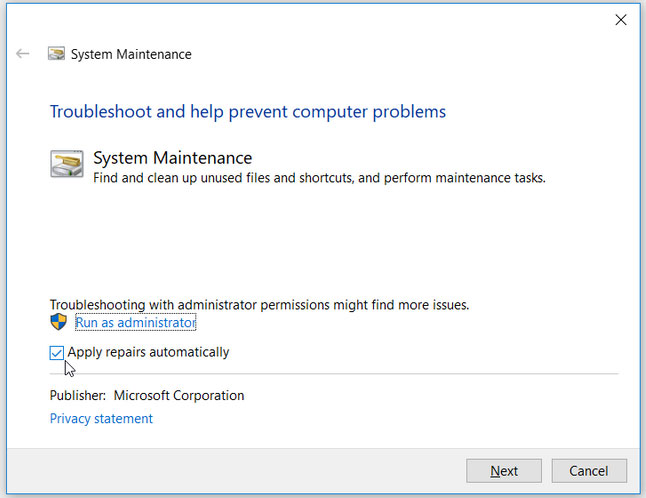
<p style="text-align: justify;">Trình gỡ rối tích hợp sẵn của Windows cũng có thể giúp bạn giải quyết vấn đề này. Nếu lỗi này là do sự cố bảo trì hệ thống, thì trình khắc phục sự cố&nbsp;<strong>System Maintenance</strong>&nbsp;có thể giúp ích. Nhưng nếu sự cố là do các vấn đề liên quan đến phần cứng, thì bạn có thể sử dụng trình khắc phục sự cố&nbsp;<strong>Hardware and Devices</strong>.</p>

<p style="text-align: justify;">Để bắt đầu, hãy xem cách bạn có thể chạy trình khắc phục sự cố System Maintenance:</p>

<p style="text-align: justify;"><strong>Bước 1</strong>: Nhấn&nbsp;<strong>Win + R</strong>&nbsp;để mở hộp thoại&nbsp;<strong>Run.</strong></p>

<p style="text-align: justify;"><strong>Bước 2</strong>: Nhập&nbsp;<em>msdt.exe -id MaintenanceDiagnostic</em>&nbsp;và nhấn&nbsp;<strong>Enter</strong>&nbsp;để mở trình khắc phục sự cố&nbsp;<strong>System Maintenance.</strong></p>

<p style="text-align: justify;"><strong>Bước 3</strong>: Bấm vào tùy chọn&nbsp;<strong>Advanced</strong>&nbsp;và sau đó chọn hộp&nbsp;<strong>Apply repairs automatically</strong>.</p>

<p style="text-align: justify;"><strong>Bước 4</strong>: Nhấp vào&nbsp;<strong>Next</strong>&nbsp;và làm theo hướng dẫn trên màn hình để hoàn tất quá trình.</p>

<figure>
<div style="text-align: justify;"><img alt="Chạy trình khắc phục sự cố System Maintenance" data-i="6" data-src="https://st.quantrimang.com/photos/image/2021/10/26/sua-loi-shell-infrastructure-host-has-stopped-working-7.jpg" data-was-processed="true" height="498" src="https://st.quantrimang.com/photos/image/2021/10/26/sua-loi-shell-infrastructure-host-has-stopped-working-7.jpg" width="646" /></div>

<figcaption>
<div style="text-align: justify;">Chạy trình khắc phục sự cố System Maintenance</div>
</figcaption>
</figure>

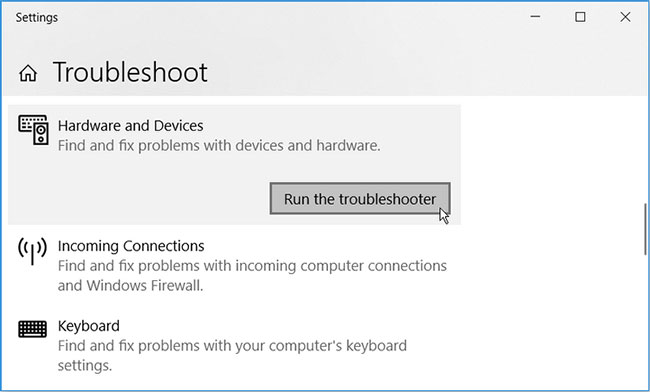
<p style="text-align: justify;">Nếu sự cố vẫn tiếp diễn, hãy chạy trình khắc phục sự cố Hardware and Devices bằng cách làm theo các bước sau:</p>

<p style="text-align: justify;"><strong>Bước 1</strong>: Điều hướng đến&nbsp;<strong>menu Start &gt; PC Settings &gt; Update &amp; Security</strong>, sau đó chọn tùy chọn&nbsp;<strong>Troubleshoot.</strong></p>

<p style="text-align: justify;"><strong>Bước 2</strong>: Nhấp vào trình khắc phục sự cố&nbsp;<strong>Hardware and Devices&nbsp;</strong>ở bên phải và nhấn nút&nbsp;<strong>Run the troubleshooter</strong>.</p>

<figure>
<div style="text-align: justify;"><img alt="Chạy trình khắc phục sự cố Hardware and Devices" data-i="7" data-src="https://st.quantrimang.com/photos/image/2021/10/26/sua-loi-shell-infrastructure-host-has-stopped-working-8.jpg" data-was-processed="true" height="392" src="https://st.quantrimang.com/photos/image/2021/10/26/sua-loi-shell-infrastructure-host-has-stopped-working-8.jpg" width="650" /></div>

<figcaption>
<div style="text-align: justify;">Chạy trình khắc phục sự cố Hardware and Devices</div>
</figcaption>
</figure>

<p style="text-align: justify;">Làm theo hướng dẫn trên màn hình, sau đó khởi động lại PC.</p>

<h2 style="text-align: justify;">6.&nbsp;Sử dụng công cụ SFC</h2>

<p style="text-align: justify;">Trong trường hợp sự cố này là do file hệ thống bị hỏng, thì công cụ System File Scanner (SFC) có thể giúp ích. Công cụ này cho phép bạn tìm và sửa chữa tất cả các file bị hỏng trên PC của mình với một vài bước nhanh chóng.</p>

<p style="text-align: justify;">Chúc bạn khắc phục lỗi thành công!</p>
		</div>
				<div id="author">
						<p>
				<strong>Nguồn tin:</strong>
				Quantrimang.com
			</p>
		</div>
	</div>
	<div id="footer" class="clearfix">
		<div id="url">
			<strong>URL của bản tin này: </strong><a href="https://www.nguoicodonvn2008.info/vi/news/savefile/kien-thuc-may-tinh/cach-sua-loi-shell-infrastructure-host-has-stopped-working-trong-windows-4672.html" title="Cách sửa lỗi &quot;Shell Infrastructure Host Has Stopped Working&quot; trong Windows">https://www.nguoicodonvn2008.info/vi/news/savefile/kien-thuc-may-tinh/cach-sua-loi-shell-infrastructure-host-has-stopped-working-trong-windows-4672.html</a>

		</div>
		<div class="clear"></div>
		<div class="copyright">
			&copy; .&#x3A; Nguoicodonvn2008.info - Cõi lòng người cô đơn &#x3A;.
		</div>
		<div id="contact">
			<a href="mailto:admin@nguoicodonvn2008.info">admin@nguoicodonvn2008.info</a>
		</div>
	</div>
</div>
        <div id="timeoutsess" class="chromeframe">
            Bạn đã không sử dụng Site, <a onclick="timeoutsesscancel();" href="https://nguoicodonvn2008.info/#">Bấm vào đây để duy trì trạng thái đăng nhập</a>. Thời gian chờ: <span id="secField"> 60 </span> giây
        </div>
        <div id="openidResult" class="nv-alert" style="display:none"></div>
        <div id="openidBt" data-result="" data-redirect=""></div>
		</script>
		<div class="car-top">
  <span><img src="https://nguoicodonvn2008.info/themes/default/images/car.png" alt=""></span>
</div>
<script src="https://nguoicodonvn2008.info/assets/js/jquery/jquery.min.js"></script>
<script>var nv_base_siteurl="/",nv_lang_data="vi",nv_lang_interface="vi",nv_name_variable="nv",nv_fc_variable="op",nv_lang_variable="language",nv_module_name="news",nv_func_name="savefile",nv_is_user=0, nv_my_ofs=-4,nv_my_abbr="EDT",nv_cookie_prefix="nv4c_e856T",nv_check_pass_mstime=1738000,nv_area_admin=0,nv_safemode=0,theme_responsive=0,nv_recaptcha_ver=2,nv_recaptcha_sitekey="",nv_recaptcha_type="image",XSSsanitize=1;</script>
<script src="https://nguoicodonvn2008.info/assets/js/language/vi.js"></script>
<script src="https://nguoicodonvn2008.info/assets/js/DOMPurify/purify3.js"></script>
<script src="https://nguoicodonvn2008.info/assets/js/global.js"></script>
<script src="https://nguoicodonvn2008.info/assets/js/site.js"></script>
<script src="https://nguoicodonvn2008.info/themes/default/js/news.js"></script>
<script src="https://nguoicodonvn2008.info/themes/default/js/main.js"></script>
<script src="https://nguoicodonvn2008.info/themes/default/js/custom.js"></script>
<script type="application/ld+json">
        {
            "@context": "https://schema.org",
            "@type": "Organization",
            "url": "https://nguoicodonvn2008.info",
            "logo": "https://nguoicodonvn2008.info/uploads/angel.gif"
        }
        </script>
<script src="https://nguoicodonvn2008.info/themes/default/js/bootstrap.min.js"></script>
<script type="text/javascript">
var $scrolltop = $('.car-top');
$scrolltop.on('click', function () {
    $('html,body').animate({
        scrollTop: 0
    }, 800);
    $(this).addClass("car-run");
    setTimeout(function(){ $scrolltop.removeClass('car-run');}, 1000);
    return false;
});
$(window).on('scroll', function ()
{ 
    if($(window).scrollTop() >= 200)
    {
        $scrolltop.addClass("show");
        $scrolltop.addClass("car-down");
    }
    else
    {
       $scrolltop.removeClass("show");
       setTimeout(function(){ $scrolltop.removeClass('car-down');}, 300);
    }
});
</script>
</body>
</html>