<!DOCTYPE html>
    <html lang="vi" xmlns="http://www.w3.org/1999/xhtml" prefix="og: http://ogp.me/ns#">
    <head>
<title>Cách sửa lỗi “No Boot Device Found Press Any Key to Reboot the Machine“ trên Windows</title>
<meta name="description" content="Cách sửa lỗi “No Boot Device Found Press Any Key to Reboot the Machine“ trên Windows - Savefile - Tin Tức -...">
<meta name="author" content=".: Nguoicodonvn2008.info - Cõi lòng người cô đơn :.">
<meta name="copyright" content=".: Nguoicodonvn2008.info - Cõi lòng người cô đơn :. [admin@nguoicodonvn2008.info]">
<meta name="robots" content="index, archive, follow, noodp">
<meta name="googlebot" content="index,archive,follow,noodp">
<meta name="msnbot" content="all,index,follow">
<meta name="generator" content="NukeViet v4.5">
<meta http-equiv="Content-Type" content="text/html; charset=utf-8">
<meta property="og:title" content="Cách sửa lỗi “No Boot Device Found Press Any Key to Reboot the Machine“ trên Windows">
<meta property="og:type" content="website">
<meta property="og:description" content="Savefile - Tin Tức -...">
<meta property="og:site_name" content=".&#x3A; Nguoicodonvn2008.info - Cõi lòng người cô đơn &#x3A;.">
<meta property="og:url" content="https://www.nguoicodonvn2008.info/vi/news/savefile/kien-thuc-may-tinh/cach-sua-loi-no-boot-device-found-press-any-key-to-reboot-the-machine-tren-windows-8701.html">
<link rel="shortcut icon" href="https://nguoicodonvn2008.info/favicon.ico">
<link rel="canonical" href="https://www.nguoicodonvn2008.info/vi/news/savefile/kien-thuc-may-tinh/cach-sua-loi-no-boot-device-found-press-any-key-to-reboot-the-machine-tren-windows-8701.html">
<link rel="alternate" href="https://nguoicodonvn2008.info/vi/news/rss/" title="Tin Tức" type="application/rss+xml">
<link rel="alternate" href="https://nguoicodonvn2008.info/vi/news/rss/karaoke-dual/" title="Tin Tức - Karaoke Dual" type="application/rss+xml">
<link rel="alternate" href="https://nguoicodonvn2008.info/vi/news/rss/nhac-tre/" title="Tin Tức - Nhạc trẻ" type="application/rss+xml">
<link rel="alternate" href="https://nguoicodonvn2008.info/vi/news/rss/tru-tinh/" title="Tin Tức - Trữ tình" type="application/rss+xml">
<link rel="alternate" href="https://nguoicodonvn2008.info/vi/news/rss/nuoc-ngoai/" title="Tin Tức - Nước ngoài" type="application/rss+xml">
<link rel="alternate" href="https://nguoicodonvn2008.info/vi/news/rss/remix/" title="Tin Tức - Remix" type="application/rss+xml">
<link rel="alternate" href="https://nguoicodonvn2008.info/vi/news/rss/tam-su-tinh-yeu/" title="Tin Tức - Tâm sự tình yêu" type="application/rss+xml">
<link rel="alternate" href="https://nguoicodonvn2008.info/vi/news/rss/tho-suu-tam/" title="Tin Tức - Thơ sưu tầm" type="application/rss+xml">
<link rel="alternate" href="https://nguoicodonvn2008.info/vi/news/rss/cuoc-song/" title="Tin Tức - Cuộc sống" type="application/rss+xml">
<link rel="alternate" href="https://nguoicodonvn2008.info/vi/news/rss/phan-mem/" title="Tin Tức - Phần mềm" type="application/rss+xml">
<link rel="alternate" href="https://nguoicodonvn2008.info/vi/news/rss/kien-thuc-may-tinh/" title="Tin Tức - Kiến thức máy tính" type="application/rss+xml">
<link rel="alternate" href="https://nguoicodonvn2008.info/vi/news/rss/hoc-tap/" title="Tin Tức - Học tập" type="application/rss+xml">
<link rel="alternate" href="https://nguoicodonvn2008.info/vi/news/rss/tai-lieu/" title="Tin Tức - Tài liệu" type="application/rss+xml">
<link rel="alternate" href="https://nguoicodonvn2008.info/vi/news/rss/de-thi/" title="Tin Tức - Đề thi" type="application/rss+xml">
<link rel="preload" as="style" href="https://nguoicodonvn2008.info/assets/css/font-awesome.min.css" type="text/css">
<link rel="preload" as="style" href="https://nguoicodonvn2008.info/themes/default/css/bootstrap.non-responsive.css" type="text/css">
<link rel="preload" as="style" href="https://nguoicodonvn2008.info/themes/default/css/style.css" type="text/css">
<link rel="preload" as="style" href="https://nguoicodonvn2008.info/themes/default/css/style.non-responsive.css" type="text/css">
<link rel="preload" as="style" href="https://nguoicodonvn2008.info/themes/default/css/news.css" type="text/css">
<link rel="preload" as="style" href="https://nguoicodonvn2008.info/themes/default/css/custom.css" type="text/css">
<link rel="preload" as="script" href="https://nguoicodonvn2008.info/assets/js/jquery/jquery.min.js" type="text/javascript">
<link rel="preload" as="script" href="https://nguoicodonvn2008.info/assets/js/language/vi.js" type="text/javascript">
<link rel="preload" as="script" href="https://nguoicodonvn2008.info/assets/js/DOMPurify/purify3.js" type="text/javascript">
<link rel="preload" as="script" href="https://nguoicodonvn2008.info/assets/js/global.js" type="text/javascript">
<link rel="preload" as="script" href="https://nguoicodonvn2008.info/assets/js/site.js" type="text/javascript">
<link rel="preload" as="script" href="https://nguoicodonvn2008.info/themes/default/js/news.js" type="text/javascript">
<link rel="preload" as="script" href="https://nguoicodonvn2008.info/themes/default/js/main.js" type="text/javascript">
<link rel="preload" as="script" href="https://nguoicodonvn2008.info/themes/default/js/custom.js" type="text/javascript">
<link rel="preload" as="script" href="https://nguoicodonvn2008.info/themes/default/js/bootstrap.min.js" type="text/javascript">
<link rel="stylesheet" href="https://nguoicodonvn2008.info/assets/css/font-awesome.min.css">
<link rel="stylesheet" href="https://nguoicodonvn2008.info/themes/default/css/bootstrap.non-responsive.css">
<link rel="stylesheet" href="https://nguoicodonvn2008.info/themes/default/css/style.css">
<link rel="stylesheet" href="https://nguoicodonvn2008.info/themes/default/css/style.non-responsive.css">
<link rel="StyleSheet" href="https://nguoicodonvn2008.info/themes/default/css/news.css">
<link rel="stylesheet" href="https://nguoicodonvn2008.info/themes/default/css/custom.css">
<style type="text/css">
	body{background: #fff;}
</style>
    </head>
    <body>
<div id="print">
	<div id="hd_print">
		<h2 class="pull-left">.&#x3A; Nguoicodonvn2008.info - Cõi lòng người cô đơn &#x3A;.</h2>
		<p class="pull-right"><a title=".&#x3A; Nguoicodonvn2008.info - Cõi lòng người cô đơn &#x3A;." href="https://nguoicodonvn2008.info/">https://nguoicodonvn2008.info</a></p>
	</div>
	<div class="clear"></div>
	<hr />
	<div id="content">
		<h1>Cách sửa lỗi “No Boot Device Found Press Any Key to Reboot the Machine“ trên Windows</h1>
		<ul class="list-inline">
			<li>Thứ năm - 18/07/2024 23:29</li>
			<li class="hidden-print txtrequired"><em class="fa fa-print">&nbsp;</em><a title="In ra" href="javascript:;" onclick="window.print()">In ra</a></li>
			<li class="hidden-print txtrequired"><em class="fa fa-power-off">&nbsp;</em><a title="Đóng cửa sổ này" href="javascript:;" onclick="window.close()">Đóng cửa sổ này</a></li>
		</ul>
		<div class="clear"></div>
		<div id="hometext">
		</div>
				<div class="imghome">
			<img alt="Cách sửa lỗi “No Boot Device Found Press Any Key to Reboot the Machine“ trên Windows" src="https://st.quantrimang.com/photos/image/2023/05/23/sua-loi-no-boot-device-found-tren-windows-6.jpg" width="460" class="img-thumbnail" />
		</div>
		<div class="clear"></div>
		<div id="bodytext" class="clearfix">
			<p style="text-align: justify;">Khi bật laptop hoặc máy tính Windows của mình lên, bạn có thấy màn hình đen thông báo &quot;No Boot Device Found Press Any Key to Reboot the Machine&quot; không? Sự cố này chủ yếu ảnh hưởng đến PC và laptop của Dell nhưng cũng có thể xảy ra trên các thiết bị của các nhà sản xuất khác. Điều gì gây ra sự cố, và làm thế nào bạn có thể khắc phục nó? Chúng ta sẽ thảo luận về điều đó trong bài viết này.</p>

<h2 style="text-align: justify;">1. Đảm bảo rằng ổ cứng có thể được phát hiện và cắm đúng cách</h2>

<p style="text-align: justify;">Vì thiết bị của bạn không thể truy cập vào ổ lưu trữ chứa hệ điều hành, hãy kiểm tra xem ổ cài đặt Windows đã được cắm đúng cách và có sẵn để truy cập hay chưa. Thực hiện theo các bước sau để tìm hiểu:</p>

<ol>
	<li style="text-align: justify;">Giữ nút nguồn trong vài giây để tắt thiết bị.</li>
	<li style="text-align: justify;">Khởi động lại máy tính&nbsp;bằng cách nhấn nút nguồn và tiếp tục nhấn&nbsp;<strong>F2</strong>&nbsp;cho đến khi cài đặt BIOS của bạn xuất hiện. (Xem hướng dẫn về&nbsp;cách vào BIOS&nbsp;để biết các phím bạn cần nhấn để truy cập BIOS trên các thiết bị của những nhà sản xuất khác ngoài Dell)</li>
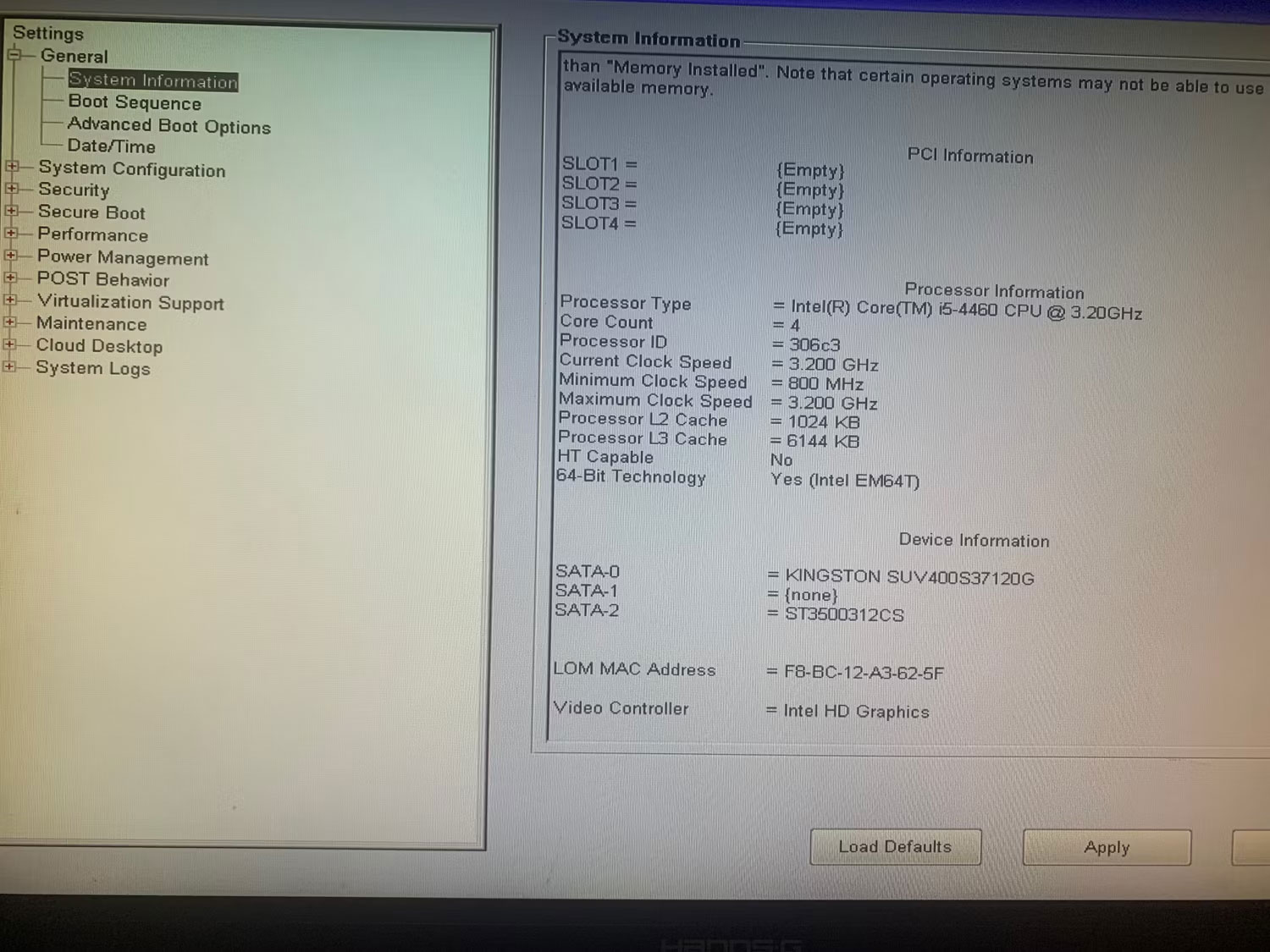
	<li style="text-align: justify;">Chuyển đến&nbsp;<strong>System Information</strong>&nbsp;ở bên trái.</li>
	<li style="text-align: justify;">Tìm phần&nbsp;<strong>Device Information</strong>&nbsp;ở bên phải và kiểm tra xem ổ cứng chính của bạn có được liệt kê ở đó không.</li>
</ol>

<figure>
<div style="text-align: justify;"><img alt="Kiểm tra thông tin thiết bị trong BIOS" data-i="0" data-src="https://st.quantrimang.com/photos/image/2023/05/23/sua-loi-no-boot-device-found-tren-windows-1.jpg" data-was-processed="true" height="1125" src="https://st.quantrimang.com/photos/image/2023/05/23/sua-loi-no-boot-device-found-tren-windows-1.jpg" width="1500" /></div>

<figcaption>
<div style="text-align: justify;">Kiểm tra thông tin thiết bị trong BIOS</div>
</figcaption>
</figure>

<div style="text-align: justify;"><iframe allow="autoplay" allowtransparency="true" aria-label="Advertisement" data-google-container-id="a!2" data-google-query-id="CLKZsvaUsocDFfkA-QAdQTUUxQ" data-load-complete="true" frameborder="0" height="0" hspace="0" id="aswift_1" marginheight="0" marginwidth="0" name="aswift_1" sandbox="allow-scripts allow-same-origin allow-forms allow-presentation" scrolling="no" tabindex="0" title="Advertisement" vspace="0" width="694"></iframe></div>

<p style="text-align: justify;">Nếu máy tính của bạn được cài đặt nhiều ổ, hãy kiểm tra xem hệ thống của bạn có thể truy cập ổ chứa hệ điều hành hay không, nghĩa là chi tiết ổ sẽ xuất hiện trong phần thông tin thiết bị.</p>

<p style="text-align: justify;">Nếu thiết bị của bạn có thể truy cập ổ lưu trữ nơi Windows được cài đặt, bạn có thể tiến hành cách sửa lỗi thứ ba. Tuy nhiên, nếu ổ đĩa không xuất hiện trong phần thông tin thiết bị, thì nó không thể phát hiện được. Trong trường hợp đó, hãy chạy tiến trình chẩn đoán.</p>

<h2 style="text-align: justify;">2. Chạy tiến trình chẩn đoán</h2>

<p style="text-align: justify;">Chẩn đoán giúp chúng ta xác định phần cứng có vấn đề trên thiết bị của mình. Vì ổ lưu trữ có thể gặp vấn đề trong tình huống này, bạn nên chạy chẩn đoán để xác nhận những nghi ngờ của mình. Thực hiện theo các bước sau để chạy tiến trình chẩn đoán:</p>

<p style="text-align: justify;">1. Giữ nút nguồn trong vài giây để tắt thiết bị.</p>

<p style="text-align: justify;">2. Khởi động lại máy tính bằng cách nhấn nút nguồn và tiếp tục nhấn&nbsp;<strong>F12.</strong></p>

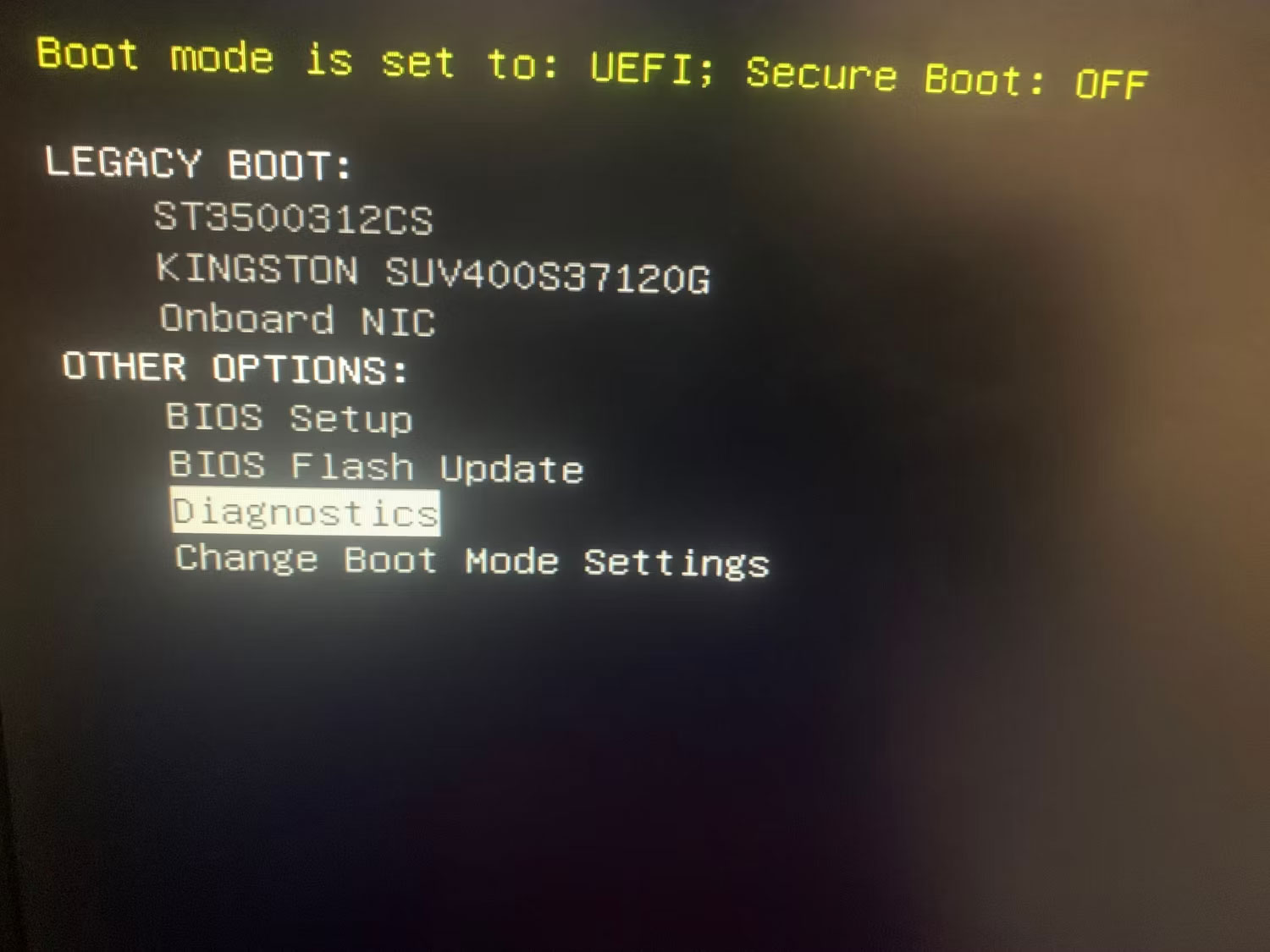
<p style="text-align: justify;">3. Chọn&nbsp;<strong>Diagnostics</strong>&nbsp;và nhấn&nbsp;<strong>Enter.</strong></p>

<figure>
<div style="text-align: justify;"><img alt="Chọn tùy chọn Diagnostics trong BIOS" data-adbro-processed="true" data-i="1" data-src="https://st.quantrimang.com/photos/image/2023/05/23/sua-loi-no-boot-device-found-tren-windows-2.jpg" data-was-processed="true" height="1125" src="https://st.quantrimang.com/photos/image/2023/05/23/sua-loi-no-boot-device-found-tren-windows-2.jpg" width="1500" /></div>

<figcaption>
<div style="text-align: justify;">Chọn tùy chọn Diagnostics trong BIOS</div>
</figcaption>
</figure>

<div style="text-align: justify;"><iframe allow="autoplay" allowtransparency="true" aria-label="Advertisement" data-google-container-id="a!3" data-google-query-id="COSks_aUsocDFVMT-QAd3ZQOYw" data-load-complete="true" frameborder="0" height="0" hspace="0" id="aswift_2" marginheight="0" marginwidth="0" name="aswift_2" sandbox="allow-scripts allow-same-origin allow-forms allow-presentation" scrolling="no" tabindex="0" title="Advertisement" vspace="0" width="694"></iframe></div>

<p style="text-align: justify;">4. Nhấp vào&nbsp;<strong>Yes</strong>&nbsp;trong cửa sổ tiếp theo.</p>

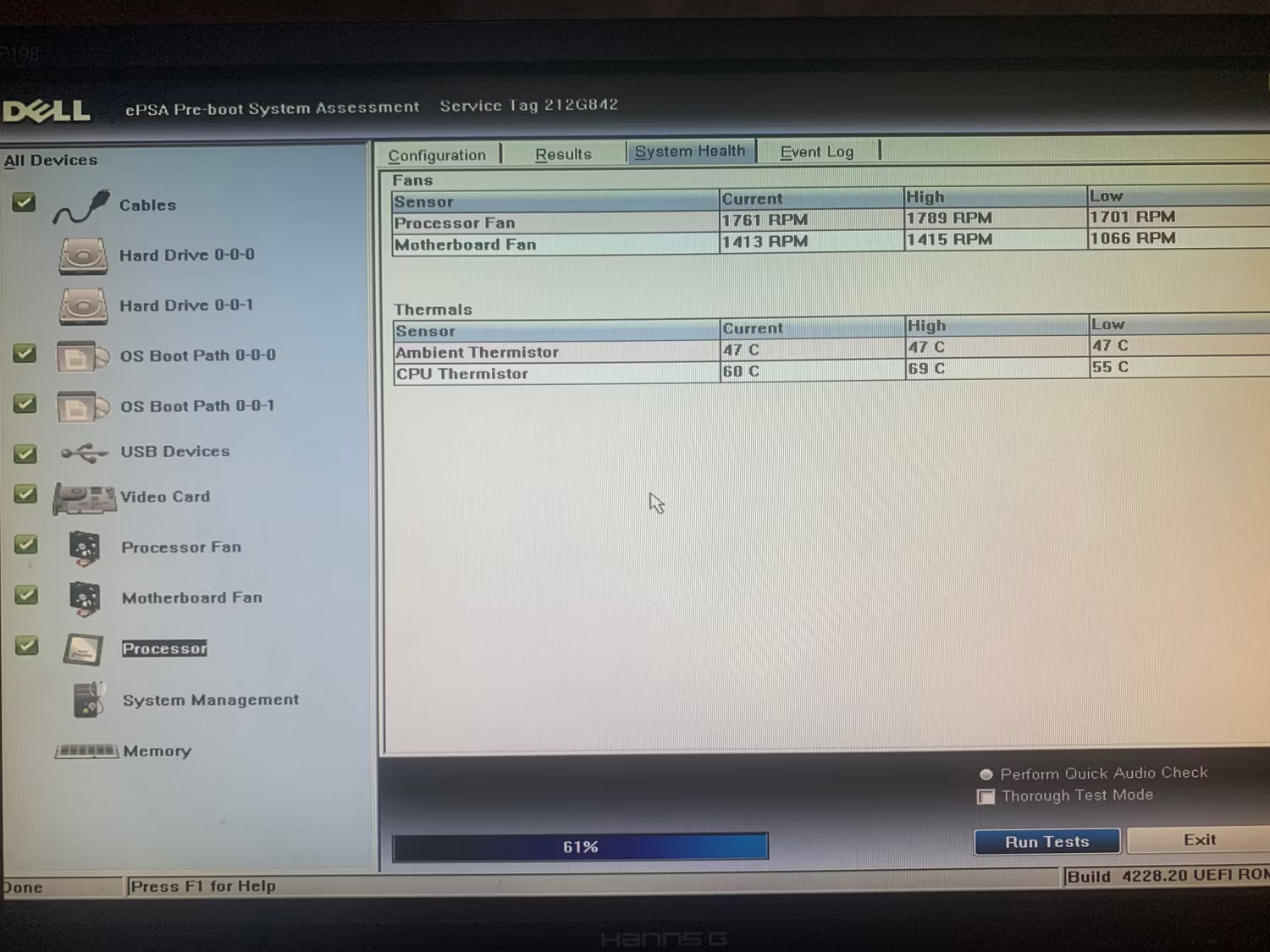
<p style="text-align: justify;">5. Sau khi kiểm tra chẩn đoán kết thúc, nó sẽ cho bạn biết nếu có vấn đề với ổ cứng của bạn hoặc bất kỳ thành phần nào khác không.</p>

<figure>
<div style="text-align: justify;"><img alt="Chạy kiểm tra chẩn đoán trong BIOS trên laptop Windows" data-i="2" data-src="https://st.quantrimang.com/photos/image/2023/05/23/sua-loi-no-boot-device-found-tren-windows-3.jpg" data-was-processed="true" height="1125" src="https://st.quantrimang.com/photos/image/2023/05/23/sua-loi-no-boot-device-found-tren-windows-3.jpg" width="1500" /></div>

<figcaption>
<div style="text-align: justify;">Chạy kiểm tra chẩn đoán trong BIOS trên laptop Windows</div>
</figcaption>
</figure>

<p style="text-align: justify;">Nếu kiểm tra chẩn đoán chỉ ra rằng ổ lưu trữ của bạn không được cắm đúng cách, hãy kiểm tra xem dây của nó có được kết nối đúng cách chưa. Nếu ổ được cắm đúng cách, hãy ngắt kết nối và kết nối lại vì việc này có thể khắc phục sự cố.</p>

<p style="text-align: justify;">Nếu bạn không tìm ra sự cố hoặc nếu sự cố xảy ra trên laptop mà bạn không thể nhanh chóng kiểm tra các sự cố kết nối ổ cứng, hãy nhờ kỹ thuật viên kiểm tra thiết bị của bạn.</p>

<h2 style="text-align: justify;">3. Thay đổi trình tự khởi động</h2>

<p style="text-align: justify;">Trình tự khởi động đề cập đến thứ tự thiết bị mà máy tính tìm kiếm dữ liệu có thể khởi động. Nếu máy của bạn được cài đặt nhiều thiết bị lưu trữ thì việc đặt ổ, nơi cài đặt hệ điều hành, lên đầu sẽ giúp máy tính của bạn truy cập dữ liệu khởi động nhanh hơn. Làm như vậy có thể khắc phục lỗi &quot; No boot device found&quot;.</p>

<div style="text-align: justify;"><iframe allow="autoplay" allowtransparency="true" aria-label="Advertisement" data-google-container-id="a!4" data-google-query-id="CO7I3f6UsocDFZsR-QAdl3QqPQ" data-load-complete="true" frameborder="0" height="0" hspace="0" id="aswift_3" marginheight="0" marginwidth="0" name="aswift_3" sandbox="allow-scripts allow-same-origin allow-forms allow-presentation" scrolling="no" tabindex="0" title="Advertisement" vspace="0" width="694"></iframe></div>

<p style="text-align: justify;">Làm theo các bước sau để thay đổi trình tự khởi động:</p>

<p style="text-align: justify;">1. Giữ nút nguồn trong vài giây để tắt thiết bị.</p>

<p style="text-align: justify;">2. Khởi động lại máy tính bằng cách nhấn nút nguồn và tiếp tục nhấn&nbsp;<strong>F2</strong>&nbsp;cho đến khi cài đặt BIOS của bạn xuất hiện.</p>

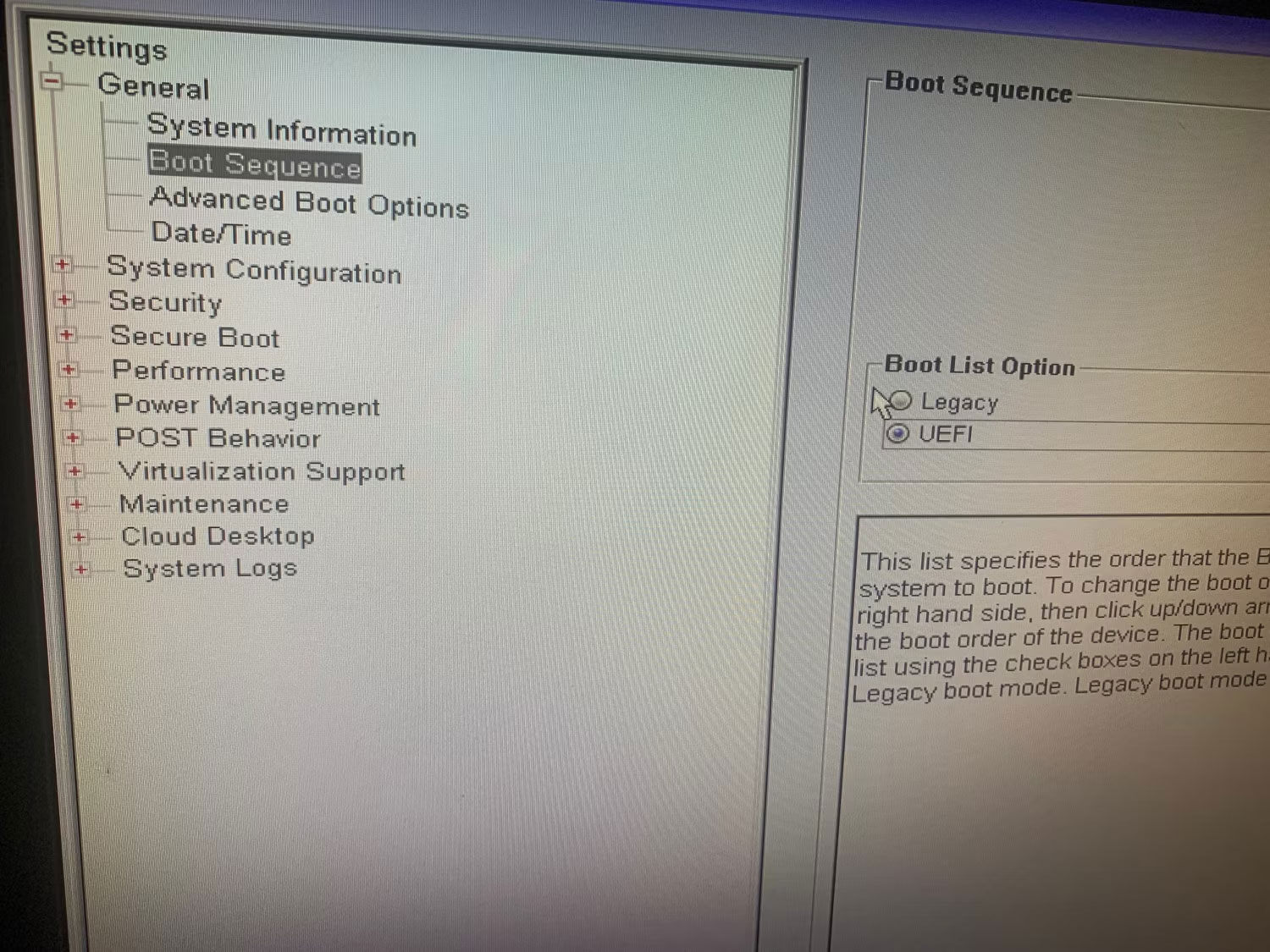
<p style="text-align: justify;">3. Chuyển đến&nbsp;<strong>Boot Sequence</strong>&nbsp;từ menu bên trái.</p>

<p style="text-align: justify;">4. Chọn&nbsp;<strong>Legacy</strong>&nbsp;trong&nbsp;<strong>Boot List</strong>&nbsp;<strong>Option</strong>&nbsp;nếu nó chưa được chọn. Thay đổi tùy chọn khởi động sẽ hiển thị cài đặt&nbsp;<strong>Boot Sequence</strong>.</p>

<figure>
<div style="text-align: justify;"><img alt="Thay đổi chế độ khởi động trong BIOS" data-i="3" data-src="https://st.quantrimang.com/photos/image/2023/05/23/sua-loi-no-boot-device-found-tren-windows-4.jpg" data-was-processed="true" height="1125" src="https://st.quantrimang.com/photos/image/2023/05/23/sua-loi-no-boot-device-found-tren-windows-4.jpg" width="1500" /></div>

<figcaption>
<div style="text-align: justify;">Thay đổi chế độ khởi động trong BIOS</div>
</figcaption>
</figure>

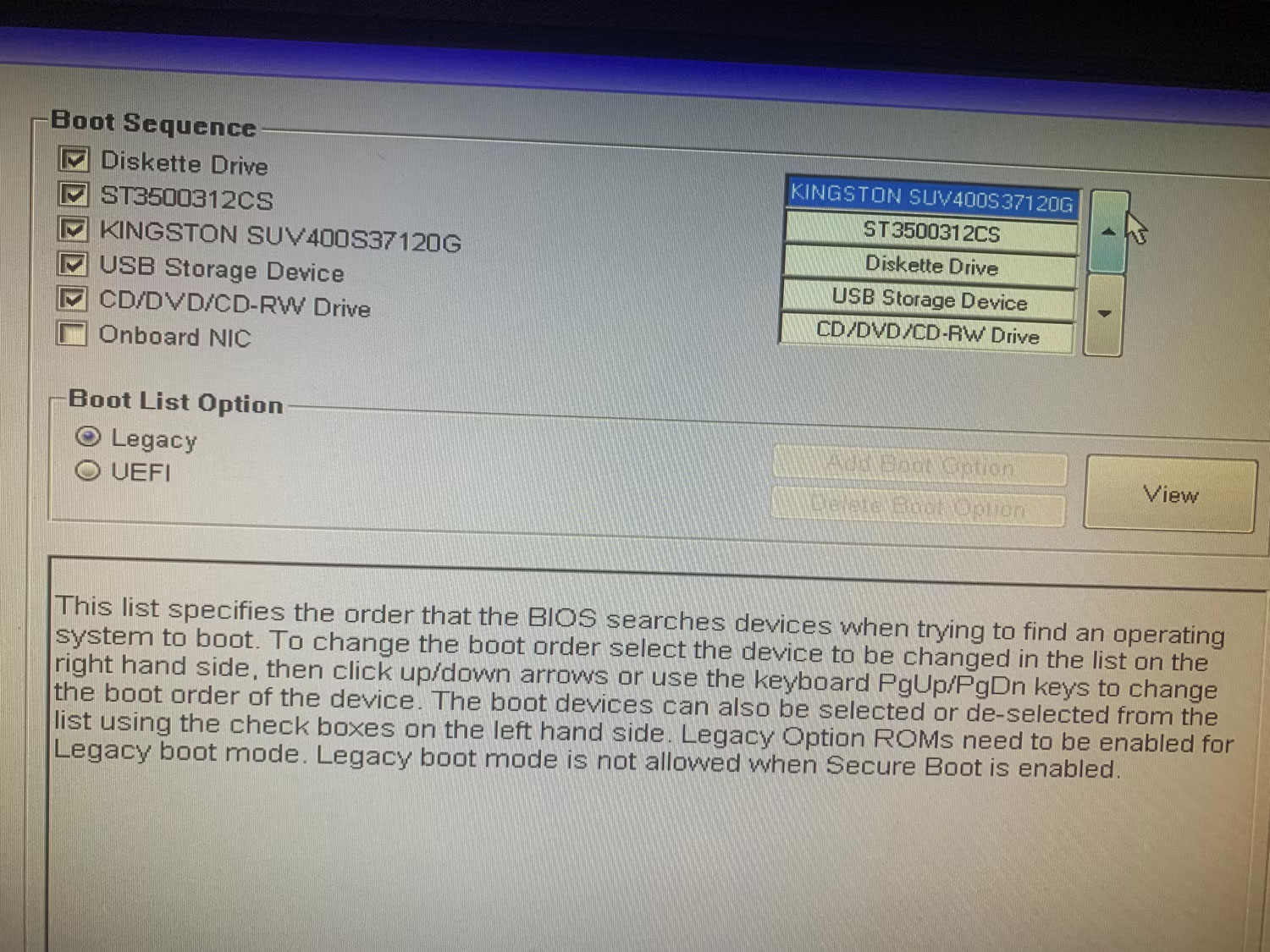
<p style="text-align: justify;">5. Trong&nbsp;<strong>Boot Sequence</strong>, hãy đảm bảo rằng hộp bên cạnh thiết bị lưu trữ mà bạn đang sử dụng để khởi động hệ điều hành, rất có thể là ổ HDD hoặc SSD, đã được chọn.</p>

<p style="text-align: justify;">6. Sau đó, xác định vị trí của thiết bị lưu trữ chứa hệ điều hành trong chuỗi. Nếu nó không ở trên cùng, hãy chọn nó và bấm vào mũi tên hướng lên để di chuyển nó lên trên cùng.</p>

<figure>
<div style="text-align: justify;"><img alt="Đặt ổ chứa hệ điều hành ở trên cùng trong BIOS Boot Sequence" data-i="4" data-src="https://st.quantrimang.com/photos/image/2023/05/23/sua-loi-no-boot-device-found-tren-windows-5.jpg" data-was-processed="true" height="1125" src="https://st.quantrimang.com/photos/image/2023/05/23/sua-loi-no-boot-device-found-tren-windows-5.jpg" width="1500" /></div>

<figcaption>
<div style="text-align: justify;">Đặt ổ chứa hệ điều hành ở trên cùng trong BIOS Boot Sequence</div>
</figcaption>
</figure>

<div style="text-align: justify;"><iframe allow="autoplay" allowtransparency="true" aria-label="Advertisement" data-google-container-id="a!5" data-google-query-id="COygg_-UsocDFagQ-QAdPTYImg" data-load-complete="true" frameborder="0" height="0" hspace="0" id="aswift_4" marginheight="0" marginwidth="0" name="aswift_4" sandbox="allow-scripts allow-same-origin allow-forms allow-presentation" scrolling="no" tabindex="0" title="Advertisement" vspace="0" width="694"></iframe></div>

<p style="text-align: justify;">7. Để lưu các thay đổi, nhấp vào&nbsp;<strong>Apply.</strong></p>

<p style="text-align: justify;">8. Sau đó nhấp vào&nbsp;<strong>Exit</strong>&nbsp;và máy tính của bạn sẽ khởi động lại.</p>

<p style="text-align: justify;">Hy vọng rằng việc thay đổi trình tự khởi động sẽ giải quyết được sự cố. Nhưng bạn nên làm gì nếu BIOS của bạn thiếu Legacy Boot hoặc tùy chọn khởi động chuyển sang màu xám? Bạn có thể dễ dàng sửa tùy chọn Legacy Boot chuyển sang màu xám trên Windows. Tuy nhiên, nếu nó không khả dụng, hãy thử cách khắc phục tiếp theo.</p>

<h2 style="text-align: justify;">4. Reset cài đặt về mặc định</h2>

<p style="text-align: justify;">Nếu tùy chọn Legacy Boot không khả dụng trong BIOS của bạn, bạn có thể khôi phục cài đặt mặc định bằng cách thực hiện theo các bước sau:</p>

<p style="text-align: justify;">1. Giữ nút nguồn trong vài giây để tắt thiết bị.</p>

<p style="text-align: justify;">2. Khởi động lại máy tính bằng cách nhấn nút nguồn và tiếp tục nhấn&nbsp;<strong>F2</strong>&nbsp;cho đến khi cài đặt BIOS của bạn xuất hiện.</p>

<p style="text-align: justify;">3. Chọn&nbsp;<strong>General</strong>&nbsp;ở bên trái.</p>

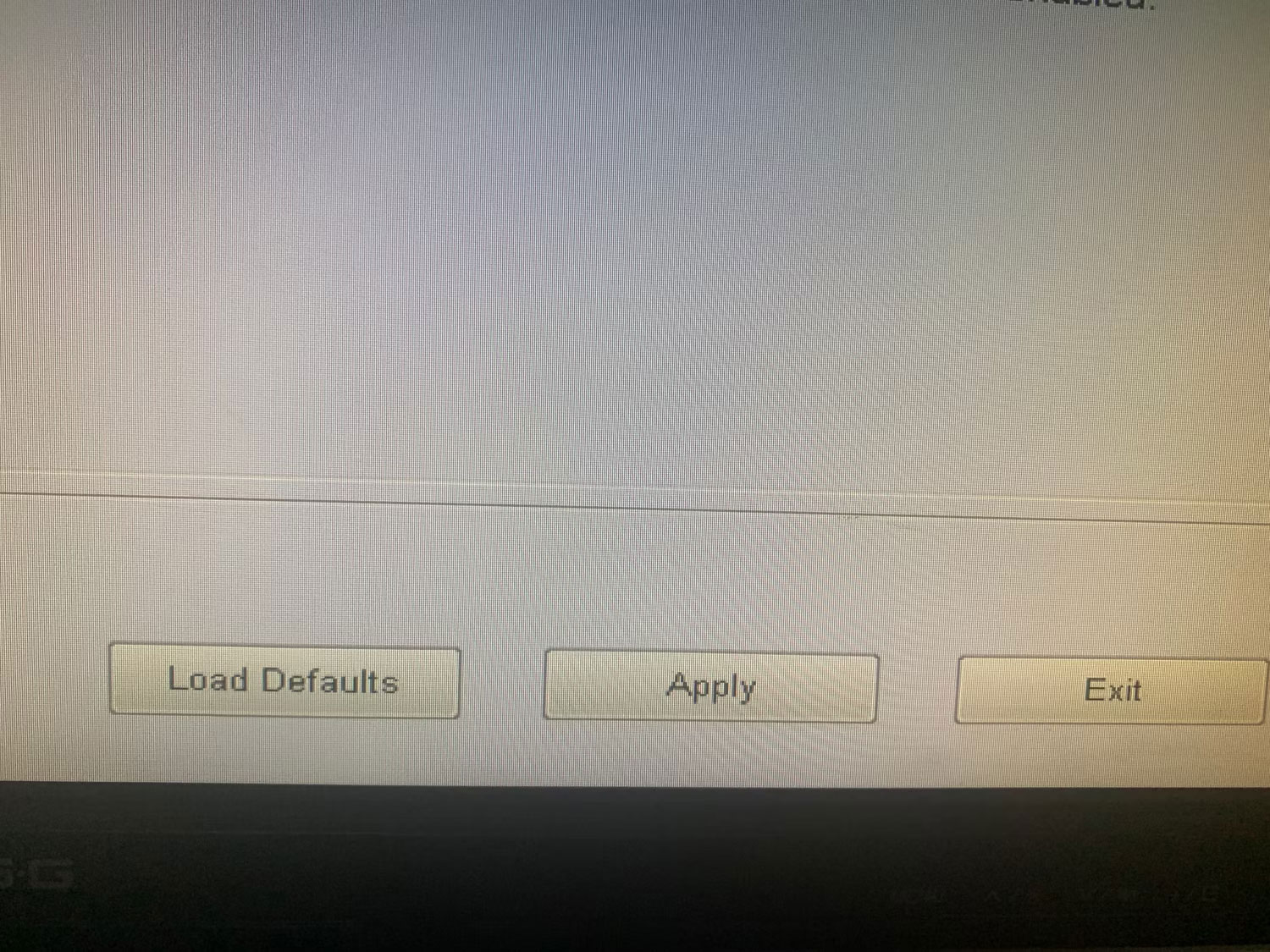
<p style="text-align: justify;">4. Sau đó nhấp vào&nbsp;<strong>Load Defaults</strong>.</p>

<figure>
<div style="text-align: justify;"><img alt="Nhấp vào Load Defaults để reset cài đặt BIOS" data-i="5" data-src="https://st.quantrimang.com/photos/image/2023/05/23/sua-loi-no-boot-device-found-tren-windows-6.jpg" data-was-processed="true" height="1125" src="https://st.quantrimang.com/photos/image/2023/05/23/sua-loi-no-boot-device-found-tren-windows-6.jpg" width="1500" /></div>

<figcaption>
<div style="text-align: justify;">Nhấp vào Load Defaults để reset cài đặt BIOS</div>
</figcaption>
</figure>

<p style="text-align: justify;">5. Nhấp vào&nbsp;<strong>OK</strong>&nbsp;trong cửa sổ pop-up cảnh báo.</p>

<p style="text-align: justify;">6. Nhấp vào&nbsp;<strong>Exit</strong>.</p>

<p style="text-align: justify;"><strong>Cảnh báo</strong>: Thực hiện bước này sẽ khôi phục cài đặt BIOS về mặc định, vì vậy bạn có thể mất các tùy chỉnh mà mình đã thực hiện.</p>
		</div>
				<div id="author">
						<p>
				<strong>Nguồn tin:</strong>
				Quantrimang.com:
			</p>
		</div>
	</div>
	<div id="footer" class="clearfix">
		<div id="url">
			<strong>URL của bản tin này: </strong><a href="https://www.nguoicodonvn2008.info/vi/news/savefile/kien-thuc-may-tinh/cach-sua-loi-no-boot-device-found-press-any-key-to-reboot-the-machine-tren-windows-8701.html" title="Cách sửa lỗi “No Boot Device Found Press Any Key to Reboot the Machine“ trên Windows">https://www.nguoicodonvn2008.info/vi/news/savefile/kien-thuc-may-tinh/cach-sua-loi-no-boot-device-found-press-any-key-to-reboot-the-machine-tren-windows-8701.html</a>

		</div>
		<div class="clear"></div>
		<div class="copyright">
			&copy; .&#x3A; Nguoicodonvn2008.info - Cõi lòng người cô đơn &#x3A;.
		</div>
		<div id="contact">
			<a href="mailto:admin@nguoicodonvn2008.info">admin@nguoicodonvn2008.info</a>
		</div>
	</div>
</div>
        <div id="timeoutsess" class="chromeframe">
            Bạn đã không sử dụng Site, <a onclick="timeoutsesscancel();" href="https://nguoicodonvn2008.info/#">Bấm vào đây để duy trì trạng thái đăng nhập</a>. Thời gian chờ: <span id="secField"> 60 </span> giây
        </div>
        <div id="openidResult" class="nv-alert" style="display:none"></div>
        <div id="openidBt" data-result="" data-redirect=""></div>
		</script>
		<div class="car-top">
  <span><img src="https://nguoicodonvn2008.info/themes/default/images/car.png" alt=""></span>
</div>
<script src="https://nguoicodonvn2008.info/assets/js/jquery/jquery.min.js"></script>
<script>var nv_base_siteurl="/",nv_lang_data="vi",nv_lang_interface="vi",nv_name_variable="nv",nv_fc_variable="op",nv_lang_variable="language",nv_module_name="news",nv_func_name="savefile",nv_is_user=0, nv_my_ofs=-4,nv_my_abbr="EDT",nv_cookie_prefix="nv4c_e856T",nv_check_pass_mstime=1738000,nv_area_admin=0,nv_safemode=0,theme_responsive=0,nv_recaptcha_ver=2,nv_recaptcha_sitekey="",nv_recaptcha_type="image",XSSsanitize=1;</script>
<script src="https://nguoicodonvn2008.info/assets/js/language/vi.js"></script>
<script src="https://nguoicodonvn2008.info/assets/js/DOMPurify/purify3.js"></script>
<script src="https://nguoicodonvn2008.info/assets/js/global.js"></script>
<script src="https://nguoicodonvn2008.info/assets/js/site.js"></script>
<script src="https://nguoicodonvn2008.info/themes/default/js/news.js"></script>
<script src="https://nguoicodonvn2008.info/themes/default/js/main.js"></script>
<script src="https://nguoicodonvn2008.info/themes/default/js/custom.js"></script>
<script type="application/ld+json">
        {
            "@context": "https://schema.org",
            "@type": "Organization",
            "url": "https://nguoicodonvn2008.info",
            "logo": "https://nguoicodonvn2008.info/uploads/angel.gif"
        }
        </script>
<script src="https://nguoicodonvn2008.info/themes/default/js/bootstrap.min.js"></script>
<script type="text/javascript">
var $scrolltop = $('.car-top');
$scrolltop.on('click', function () {
    $('html,body').animate({
        scrollTop: 0
    }, 800);
    $(this).addClass("car-run");
    setTimeout(function(){ $scrolltop.removeClass('car-run');}, 1000);
    return false;
});
$(window).on('scroll', function ()
{ 
    if($(window).scrollTop() >= 200)
    {
        $scrolltop.addClass("show");
        $scrolltop.addClass("car-down");
    }
    else
    {
       $scrolltop.removeClass("show");
       setTimeout(function(){ $scrolltop.removeClass('car-down');}, 300);
    }
});
</script>
</body>
</html>