<!DOCTYPE html>
    <html lang="vi" xmlns="http://www.w3.org/1999/xhtml" prefix="og: http://ogp.me/ns#">
    <head>
<title>Cách sửa lỗi BackgroundTaskHost.exe trên Windows 11</title>
<meta name="description" content="Cách sửa lỗi BackgroundTaskHost.exe trên Windows 11 - Savefile - Tin Tức -...">
<meta name="author" content=".: Nguoicodonvn2008.info - Cõi lòng người cô đơn :.">
<meta name="copyright" content=".: Nguoicodonvn2008.info - Cõi lòng người cô đơn :. [admin@nguoicodonvn2008.info]">
<meta name="robots" content="index, archive, follow, noodp">
<meta name="googlebot" content="index,archive,follow,noodp">
<meta name="msnbot" content="all,index,follow">
<meta name="generator" content="NukeViet v4.5">
<meta http-equiv="Content-Type" content="text/html; charset=utf-8">
<meta property="og:title" content="Cách sửa lỗi BackgroundTaskHost.exe trên Windows 11">
<meta property="og:type" content="website">
<meta property="og:description" content="Savefile - Tin Tức - https&#x3A;&#x002F;&#x002F;www.nguoicodonvn2008.info&#x002F;vi&#x002F;news&#x002F;savefile&#x002F;kien-thuc-may-tinh&#x002F;cach-sua-loi-backgroundtaskhost-exe-tren-windows-11-5152.html">
<meta property="og:site_name" content=".&#x3A; Nguoicodonvn2008.info - Cõi lòng người cô đơn &#x3A;.">
<meta property="og:url" content="https://www.nguoicodonvn2008.info/vi/news/savefile/kien-thuc-may-tinh/cach-sua-loi-backgroundtaskhost-exe-tren-windows-11-5152.html">
<link rel="shortcut icon" href="https://nguoicodonvn2008.info/favicon.ico">
<link rel="canonical" href="https://www.nguoicodonvn2008.info/vi/news/savefile/kien-thuc-may-tinh/cach-sua-loi-backgroundtaskhost-exe-tren-windows-11-5152.html">
<link rel="alternate" href="https://nguoicodonvn2008.info/vi/news/rss/" title="Tin Tức" type="application/rss+xml">
<link rel="alternate" href="https://nguoicodonvn2008.info/vi/news/rss/karaoke-dual/" title="Tin Tức - Karaoke Dual" type="application/rss+xml">
<link rel="alternate" href="https://nguoicodonvn2008.info/vi/news/rss/nhac-tre/" title="Tin Tức - Nhạc trẻ" type="application/rss+xml">
<link rel="alternate" href="https://nguoicodonvn2008.info/vi/news/rss/tru-tinh/" title="Tin Tức - Trữ tình" type="application/rss+xml">
<link rel="alternate" href="https://nguoicodonvn2008.info/vi/news/rss/nuoc-ngoai/" title="Tin Tức - Nước ngoài" type="application/rss+xml">
<link rel="alternate" href="https://nguoicodonvn2008.info/vi/news/rss/remix/" title="Tin Tức - Remix" type="application/rss+xml">
<link rel="alternate" href="https://nguoicodonvn2008.info/vi/news/rss/tam-su-tinh-yeu/" title="Tin Tức - Tâm sự tình yêu" type="application/rss+xml">
<link rel="alternate" href="https://nguoicodonvn2008.info/vi/news/rss/tho-suu-tam/" title="Tin Tức - Thơ sưu tầm" type="application/rss+xml">
<link rel="alternate" href="https://nguoicodonvn2008.info/vi/news/rss/cuoc-song/" title="Tin Tức - Cuộc sống" type="application/rss+xml">
<link rel="alternate" href="https://nguoicodonvn2008.info/vi/news/rss/phan-mem/" title="Tin Tức - Phần mềm" type="application/rss+xml">
<link rel="alternate" href="https://nguoicodonvn2008.info/vi/news/rss/kien-thuc-may-tinh/" title="Tin Tức - Kiến thức máy tính" type="application/rss+xml">
<link rel="alternate" href="https://nguoicodonvn2008.info/vi/news/rss/hoc-tap/" title="Tin Tức - Học tập" type="application/rss+xml">
<link rel="alternate" href="https://nguoicodonvn2008.info/vi/news/rss/tai-lieu/" title="Tin Tức - Tài liệu" type="application/rss+xml">
<link rel="alternate" href="https://nguoicodonvn2008.info/vi/news/rss/de-thi/" title="Tin Tức - Đề thi" type="application/rss+xml">
<link rel="preload" as="style" href="https://nguoicodonvn2008.info/assets/css/font-awesome.min.css" type="text/css">
<link rel="preload" as="style" href="https://nguoicodonvn2008.info/themes/default/css/bootstrap.non-responsive.css" type="text/css">
<link rel="preload" as="style" href="https://nguoicodonvn2008.info/themes/default/css/style.css" type="text/css">
<link rel="preload" as="style" href="https://nguoicodonvn2008.info/themes/default/css/style.non-responsive.css" type="text/css">
<link rel="preload" as="style" href="https://nguoicodonvn2008.info/themes/default/css/news.css" type="text/css">
<link rel="preload" as="style" href="https://nguoicodonvn2008.info/themes/default/css/custom.css" type="text/css">
<link rel="preload" as="script" href="https://nguoicodonvn2008.info/assets/js/jquery/jquery.min.js" type="text/javascript">
<link rel="preload" as="script" href="https://nguoicodonvn2008.info/assets/js/language/vi.js" type="text/javascript">
<link rel="preload" as="script" href="https://nguoicodonvn2008.info/assets/js/DOMPurify/purify3.js" type="text/javascript">
<link rel="preload" as="script" href="https://nguoicodonvn2008.info/assets/js/global.js" type="text/javascript">
<link rel="preload" as="script" href="https://nguoicodonvn2008.info/assets/js/site.js" type="text/javascript">
<link rel="preload" as="script" href="https://nguoicodonvn2008.info/themes/default/js/news.js" type="text/javascript">
<link rel="preload" as="script" href="https://nguoicodonvn2008.info/themes/default/js/main.js" type="text/javascript">
<link rel="preload" as="script" href="https://nguoicodonvn2008.info/themes/default/js/custom.js" type="text/javascript">
<link rel="preload" as="script" href="https://nguoicodonvn2008.info/themes/default/js/bootstrap.min.js" type="text/javascript">
<link rel="stylesheet" href="https://nguoicodonvn2008.info/assets/css/font-awesome.min.css">
<link rel="stylesheet" href="https://nguoicodonvn2008.info/themes/default/css/bootstrap.non-responsive.css">
<link rel="stylesheet" href="https://nguoicodonvn2008.info/themes/default/css/style.css">
<link rel="stylesheet" href="https://nguoicodonvn2008.info/themes/default/css/style.non-responsive.css">
<link rel="StyleSheet" href="https://nguoicodonvn2008.info/themes/default/css/news.css">
<link rel="stylesheet" href="https://nguoicodonvn2008.info/themes/default/css/custom.css">
<style type="text/css">
	body{background: #fff;}
</style>
    </head>
    <body>
<div id="print">
	<div id="hd_print">
		<h2 class="pull-left">.&#x3A; Nguoicodonvn2008.info - Cõi lòng người cô đơn &#x3A;.</h2>
		<p class="pull-right"><a title=".&#x3A; Nguoicodonvn2008.info - Cõi lòng người cô đơn &#x3A;." href="https://nguoicodonvn2008.info/">https://nguoicodonvn2008.info</a></p>
	</div>
	<div class="clear"></div>
	<hr />
	<div id="content">
		<h1>Cách sửa lỗi BackgroundTaskHost.exe trên Windows 11</h1>
		<ul class="list-inline">
			<li>Thứ năm - 17/02/2022 23:57</li>
			<li class="hidden-print txtrequired"><em class="fa fa-print">&nbsp;</em><a title="In ra" href="javascript:;" onclick="window.print()">In ra</a></li>
			<li class="hidden-print txtrequired"><em class="fa fa-power-off">&nbsp;</em><a title="Đóng cửa sổ này" href="javascript:;" onclick="window.close()">Đóng cửa sổ này</a></li>
		</ul>
		<div class="clear"></div>
		<div id="hometext">
		</div>
				<div class="imghome">
			<img alt="Cách sửa lỗi BackgroundTaskHost.exe trên Windows 11" src="https://st.quantrimang.com/photos/image/2022/02/17/sua-loi-backgroundtaskhost-exe-1.jpg" width="460" class="img-thumbnail" />
		</div>
		<div class="clear"></div>
		<div id="bodytext" class="clearfix">
			<p style="text-align: justify;">Backgroundtaskhost.exe là một tiến trình hợp lệ và là một phần của hệ điều hành Microsoft Windows. Tuy nhiên, khi làm việc trên máy tính hoặc khởi chạy ứng dụng, bạn có thể gặp lỗi BackgroundTaskHost.exe.</p>

<p style="text-align: justify;">Đây là lỗi hệ thống và thông báo lỗi có thể khác nhau tùy thuộc vào người dùng. Do đó, rất khó để xác định nguyên nhân gây ra lỗi. Sau đây, Quantrimang.com sẽ chỉ cho bạn một số bước khắc phục sự cố này trong Windows 11.</p>

<h2 style="text-align: justify;">Nguyên nhân nào gây ra lỗi BackgroundTaskHost.exe?</h2>

<p style="text-align: justify;">Khi lỗi này xuất hiện, bạn có thể thấy một trong các thông báo lỗi sau:</p>

<ul>
	<li style="text-align: justify;">BackgroundTaskHost.exe - System Failure</li>
	<li style="text-align: justify;">BackgroundTaskHost.exe – Application Error</li>
</ul>

<p style="text-align: justify;">Những lỗi này có thể xảy ra do sửa đổi registry không chính xác, xung đột ứng dụng của bên thứ ba và lỗi file hệ thống. Thật không may, không có giải pháp toàn diện để khắc phục sự cố này.</p>

<h2 style="text-align: justify;">Cách sửa lỗi BackgroundTaskHost.exe trên Windows 11</h2>

<p style="text-align: justify;">Bài viết đã liệt kê một số bước khắc phục sự cố hệ thống để giúp bạn giải quyết lỗi này trên máy tính Windows 11 của mình.</p>

<h3 style="text-align: justify;">1. Thực hiện Clean Boot</h3>

<figure>
<div style="text-align: justify;"><img alt="Thực hiện Clean Boot" data-i="0" data-src="https://st.quantrimang.com/photos/image/2022/02/17/sua-loi-backgroundtaskhost-exe-1.jpg" data-was-processed="true" height="335" src="https://st.quantrimang.com/photos/image/2022/02/17/sua-loi-backgroundtaskhost-exe-1.jpg" width="650" /></div>

<figcaption>
<div style="text-align: justify;">Thực hiện Clean Boot</div>
</figcaption>
</figure>

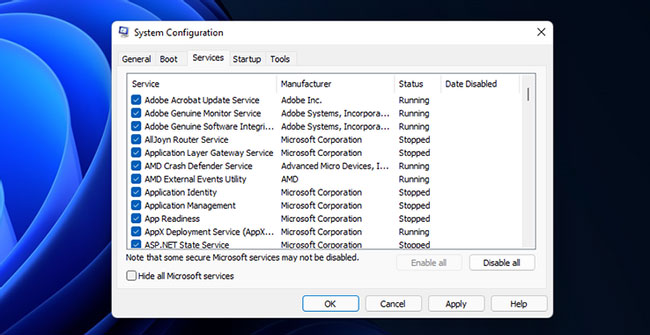
<p style="text-align: justify;">Trong chế độ Clean Boot, Windows khởi động với một bộ driver và chương trình khởi động tối thiểu để xác định xem xung đột ứng dụng của bên thứ ba có đang gây ra lỗi BackgroundTaskHost.exe trong Windows 11 hay không.</p>

<p style="text-align: justify;">Bạn có thể thực hiện Clean Boot Windows 11 từ&nbsp;<strong>System Configuration.</strong>&nbsp;Sau khi khởi động lại, Windows sẽ khởi chạy trong môi trường Clean Boot. Tiếp tục sử dụng hệ thống và kiểm tra xem lỗi có xảy ra không. Nếu có, hãy tiến hành phương pháp khắc phục sự cố tiếp theo.</p>

<p style="text-align: justify;">Nếu không, hãy kiểm tra hệ thống của bạn để tìm các ứng dụng được cài đặt gần đây. Để thực hiện việc này, hãy đi tới&nbsp;<strong>Settings &gt; Apps &gt; Apps &amp; features</strong>. Nhấp vào menu drop-down&nbsp;<strong>Sort by</strong>&nbsp;và chọn&nbsp;<strong>Install date</strong>. Gỡ cài đặt các ứng dụng được cài đặt gần đây nhất, chẳng hạn như&nbsp;<strong>Dell Assistant</strong>, có thể gây ra sự cố này và&nbsp;khởi động lại PC.</p>

<p style="text-align: justify;">Ngoài ra, hãy kiểm tra lịch sử cập nhật trong Windows 11 trên máy tính của bạn. Các bản cập nhật Windows không hợp lệ thường có thể khiến hệ thống hoạt động không chính xác. Nếu xác định được một bản cập nhật đã gây ra sự cố, bạn có thể gỡ cài đặt các bản cập nhật Windows để khắc phục lỗi.</p>

<h3 style="text-align: justify;">2. Chạy công cụ System File Checker và DISM</h3>

<figure>
<div style="text-align: justify;"><img alt="Chạy công cụ System File Checker và DISM" data-i="1" data-src="https://st.quantrimang.com/photos/image/2022/02/17/sua-loi-backgroundtaskhost-exe-2.jpg" data-was-processed="true" height="341" src="https://st.quantrimang.com/photos/image/2022/02/17/sua-loi-backgroundtaskhost-exe-2.jpg" width="650" /></div>

<figcaption>
<div style="text-align: justify;">Chạy công cụ System File Checker và DISM</div>
</figcaption>
</figure>

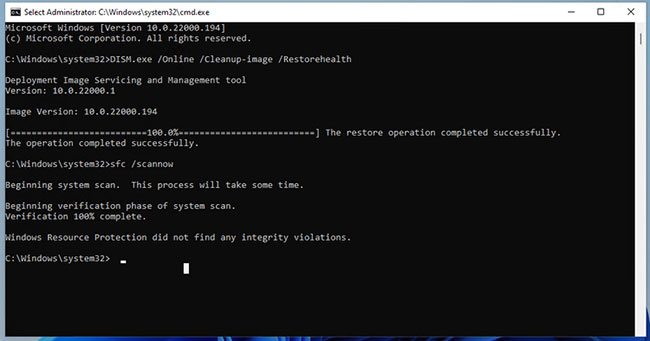
<p style="text-align: justify;">Công cụ&nbsp;System File Checker&nbsp;là một tiện ích Command Prompt được tích hợp sẵn. Nó cho phép bạn quét Windows để tìm lỗi file hệ thống và thay thế nó bằng các file mới được lưu trữ trên hệ thống.</p>

<p style="text-align: justify;">Deployment Image Servicing and Management (DISM)&nbsp;là một tiện ích dòng lệnh khác mà bạn có thể chạy để sửa chữa Windows Image.</p>

<h3 style="text-align: justify;">3. Thực hiện khôi phục hệ thống</h3>

<p style="text-align: justify;">Windows 11, giống như phiên bản tiền nhiệm, tạo ra một điểm khôi phục mới bất cứ khi nào bạn thực hiện một thay đổi quan trọng đối với hệ thống của mình. Điểm khôi phục cho phép bạn hoàn tác các thay đổi gần đây nhất và khôi phục PC về thời điểm mà nó hoạt động không gặp lỗi trước đó.</p>

<p style="text-align: justify;">Đây là một tùy chọn khôi phục tuyệt vời khi bạn gặp lỗi sau khi thực hiện các sửa đổi hệ thống có thể đã làm hỏng những file hệ thống.</p>

<p style="text-align: justify;">Lưu ý rằng điểm khôi phục không được kích hoạt theo mặc định trên tất cả các hệ thống. Do đó, nếu bạn chưa kích hoạt nó theo cách thủ công, khả năng bạn có điểm khôi phục là rất ít.</p>

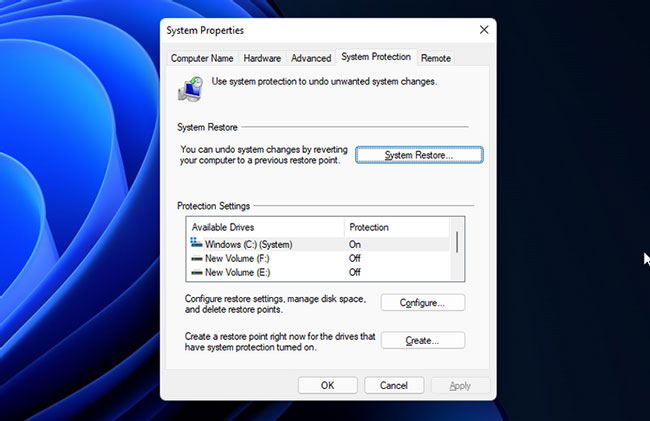
<p style="text-align: justify;"><strong>B1:</strong>&nbsp;Nhấn phím&nbsp;<strong>Win</strong>, nhập&nbsp;<strong>system restore</strong>&nbsp;trong tìm kiếm của Windows và nhấp vào&nbsp;<strong>Create a Restore Point</strong>.</p>

<p style="text-align: justify;"><strong>B2:</strong>&nbsp;Trong cửa sổ&nbsp;<strong>System Properties</strong>, nhấp vào nút&nbsp;<strong>System Restore.</strong></p>

<figure>
<div style="text-align: justify;"><img alt="Nhấp vào nút System Restore" data-i="2" data-src="https://st.quantrimang.com/photos/image/2022/02/17/sua-loi-backgroundtaskhost-exe-3.jpg" data-was-processed="true" height="421" src="https://st.quantrimang.com/photos/image/2022/02/17/sua-loi-backgroundtaskhost-exe-3.jpg" width="650" /></div>

<figcaption>
<div style="text-align: justify;">Nhấp vào nút System Restore</div>
</figcaption>
</figure>

<p style="text-align: justify;"><strong>B3:</strong>&nbsp;Nếu có một điểm khôi phục được đề xuất, hãy chọn nó và nhấp vào&nbsp;<strong>Next.</strong>&nbsp;Nếu không, hãy chọn&nbsp;<strong>Choose a different restore point</strong>&nbsp;và nhấn vào&nbsp;<strong>Next.</strong></p>

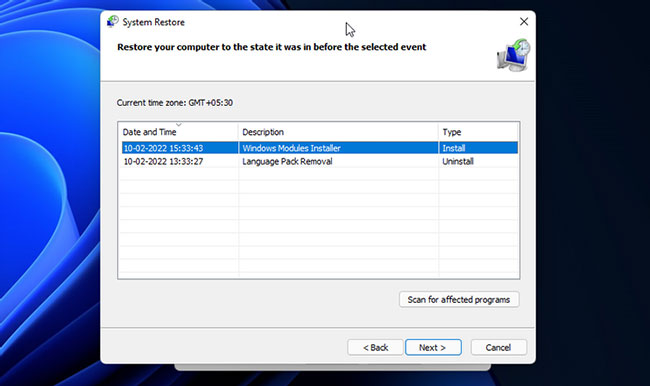
<p style="text-align: justify;"><strong>B4:</strong>&nbsp;System Restore sẽ hiển thị tất cả các điểm khôi phục có sẵn. Chọn cái gần đây và nhấp vào&nbsp;<strong>Next.</strong></p>

<figure>
<div style="text-align: justify;"><img alt="System Restore sẽ hiển thị tất cả các điểm khôi phục có sẵn" data-i="3" data-src="https://st.quantrimang.com/photos/image/2022/02/17/sua-loi-backgroundtaskhost-exe-4.jpg" data-was-processed="true" height="386" src="https://st.quantrimang.com/photos/image/2022/02/17/sua-loi-backgroundtaskhost-exe-4.jpg" width="650" /></div>

<figcaption>
<div style="text-align: justify;">System Restore sẽ hiển thị tất cả các điểm khôi phục có sẵn</div>
</figcaption>
</figure>

<p style="text-align: justify;"><strong>B5:</strong>&nbsp;Nhấp vào&nbsp;<strong>Scan for affected programs</strong>&nbsp;để xem các chương trình và driver có thể bị xóa và khôi phục trong quá trình này.</p>

<p style="text-align: justify;"><strong>B6:</strong>&nbsp;Đọc mô tả hiển thị trạng thái nó sẽ khôi phục máy tính của bạn. Nhấp vào&nbsp;<strong>Finish</strong>&nbsp;để bắt đầu quá trình khôi phục hệ thống.</p>

<p style="text-align: justify;">Quá trình này sẽ mất một chút thời gian, vì vậy hãy đợi cho đến khi nó hoàn tất. PC của bạn sẽ khởi động lại sau khi quá trình hoàn tất.</p>

<p style="text-align: justify;">Sau khi hoàn tất, bạn sẽ được chào đón bằng một thông báo thành công, xác nhận việc khôi phục hệ thống đã diễn ra tốt đẹp. Nếu lỗi vẫn tiếp diễn, hãy thử các điểm khôi phục khác có sẵn để khắc phục sự cố.</p>

<h3 style="text-align: justify;">4. Thực hiện In-place Repair Upgrade</h3>

<p style="text-align: justify;">Các lỗi hệ thống nghiêm trọng thường yêu cầu cài đặt sạch để khắc phục sự cố. Tuy nhiên, việc thực hiện cài đặt mới rất phức tạp vì nó sẽ xóa tất cả các file và ứng dụng, buộc bạn phải bắt đầu lại từ đầu.</p>

<p style="text-align: justify;">Đây là nơi&nbsp;Windows Repair&nbsp;phát huy tác dụng. Bạn có thể thực hiện In-place Repair Upgrade để cài đặt lại Windows 11 mà không cần xóa ứng dụng. Đây là một giải pháp tiện dụng để khắc phục nhiều sự cố Windows nghiêm trọng yêu cầu cài đặt lại.</p>

<h3 style="text-align: justify;">5.&nbsp;Reset máy tính Windows 11</h3>

<p style="text-align: justify;">Nếu quá trình cài đặt lại không có tác dụng, bạn có thể reset lại máy tính Windows 11 của mình về cài đặt mặc định ban đầu để khắc phục lỗi.</p>

<p style="text-align: justify;"><strong>Reset This PC</strong>&nbsp;này là một tùy chọn khôi phục có sẵn trong hệ điều hành Windows. Nó cho phép bạn reset PC về mặc định ban đầu bằng cách xóa các ứng dụng của bên thứ ba mà không ảnh hưởng đến những file và thư mục cá nhân của bạn.</p>

<p style="text-align: justify;">PC có thể khởi động lại một vài lần trong quá trình này, vì vậy hãy để nó ở chế độ chờ. Sau phần còn lại, bạn có thể thiết lập PC Windows 11 của mình bằng tài khoản người dùng cục bộ hoặc tài khoản Microsoft.</p>
		</div>
				<div id="author">
						<p>
				<strong>Nguồn tin:</strong>
				Quantrimang.com
			</p>
		</div>
	</div>
	<div id="footer" class="clearfix">
		<div id="url">
			<strong>URL của bản tin này: </strong><a href="https://www.nguoicodonvn2008.info/vi/news/savefile/kien-thuc-may-tinh/cach-sua-loi-backgroundtaskhost-exe-tren-windows-11-5152.html" title="Cách sửa lỗi BackgroundTaskHost.exe trên Windows 11">https://www.nguoicodonvn2008.info/vi/news/savefile/kien-thuc-may-tinh/cach-sua-loi-backgroundtaskhost-exe-tren-windows-11-5152.html</a>

		</div>
		<div class="clear"></div>
		<div class="copyright">
			&copy; .&#x3A; Nguoicodonvn2008.info - Cõi lòng người cô đơn &#x3A;.
		</div>
		<div id="contact">
			<a href="mailto:admin@nguoicodonvn2008.info">admin@nguoicodonvn2008.info</a>
		</div>
	</div>
</div>
        <div id="timeoutsess" class="chromeframe">
            Bạn đã không sử dụng Site, <a onclick="timeoutsesscancel();" href="https://nguoicodonvn2008.info/#">Bấm vào đây để duy trì trạng thái đăng nhập</a>. Thời gian chờ: <span id="secField"> 60 </span> giây
        </div>
        <div id="openidResult" class="nv-alert" style="display:none"></div>
        <div id="openidBt" data-result="" data-redirect=""></div>
		</script>
		<div class="car-top">
  <span><img src="https://nguoicodonvn2008.info/themes/default/images/car.png" alt=""></span>
</div>
<script src="https://nguoicodonvn2008.info/assets/js/jquery/jquery.min.js"></script>
<script>var nv_base_siteurl="/",nv_lang_data="vi",nv_lang_interface="vi",nv_name_variable="nv",nv_fc_variable="op",nv_lang_variable="language",nv_module_name="news",nv_func_name="savefile",nv_is_user=0, nv_my_ofs=-4,nv_my_abbr="EDT",nv_cookie_prefix="nv4c_e856T",nv_check_pass_mstime=1738000,nv_area_admin=0,nv_safemode=0,theme_responsive=0,nv_recaptcha_ver=2,nv_recaptcha_sitekey="",nv_recaptcha_type="image",XSSsanitize=1;</script>
<script src="https://nguoicodonvn2008.info/assets/js/language/vi.js"></script>
<script src="https://nguoicodonvn2008.info/assets/js/DOMPurify/purify3.js"></script>
<script src="https://nguoicodonvn2008.info/assets/js/global.js"></script>
<script src="https://nguoicodonvn2008.info/assets/js/site.js"></script>
<script src="https://nguoicodonvn2008.info/themes/default/js/news.js"></script>
<script src="https://nguoicodonvn2008.info/themes/default/js/main.js"></script>
<script src="https://nguoicodonvn2008.info/themes/default/js/custom.js"></script>
<script type="application/ld+json">
        {
            "@context": "https://schema.org",
            "@type": "Organization",
            "url": "https://nguoicodonvn2008.info",
            "logo": "https://nguoicodonvn2008.info/uploads/angel.gif"
        }
        </script>
<script src="https://nguoicodonvn2008.info/themes/default/js/bootstrap.min.js"></script>
<script type="text/javascript">
var $scrolltop = $('.car-top');
$scrolltop.on('click', function () {
    $('html,body').animate({
        scrollTop: 0
    }, 800);
    $(this).addClass("car-run");
    setTimeout(function(){ $scrolltop.removeClass('car-run');}, 1000);
    return false;
});
$(window).on('scroll', function ()
{ 
    if($(window).scrollTop() >= 200)
    {
        $scrolltop.addClass("show");
        $scrolltop.addClass("car-down");
    }
    else
    {
       $scrolltop.removeClass("show");
       setTimeout(function(){ $scrolltop.removeClass('car-down');}, 300);
    }
});
</script>
</body>
</html>