<!DOCTYPE html>
    <html lang="vi" xmlns="http://www.w3.org/1999/xhtml" prefix="og: http://ogp.me/ns#">
    <head>
<title>Cách sử dụng Wget để tải file trên Linux</title>
<meta name="description" content="Cách sử dụng Wget để tải file trên Linux - Savefile - Tin Tức -...">
<meta name="author" content=".: Nguoicodonvn2008.info - Cõi lòng người cô đơn :.">
<meta name="copyright" content=".: Nguoicodonvn2008.info - Cõi lòng người cô đơn :. [admin@nguoicodonvn2008.info]">
<meta name="robots" content="index, archive, follow, noodp">
<meta name="googlebot" content="index,archive,follow,noodp">
<meta name="msnbot" content="all,index,follow">
<meta name="generator" content="NukeViet v4.5">
<meta http-equiv="Content-Type" content="text/html; charset=utf-8">
<meta property="og:title" content="Cách sử dụng Wget để tải file trên Linux">
<meta property="og:type" content="website">
<meta property="og:description" content="Savefile - Tin Tức - https&#x3A;&#x002F;&#x002F;www.nguoicodonvn2008.info&#x002F;vi&#x002F;news&#x002F;savefile&#x002F;kien-thuc-may-tinh&#x002F;cach-su-dung-wget-de-tai-file-tren-linux-5756.html">
<meta property="og:site_name" content=".&#x3A; Nguoicodonvn2008.info - Cõi lòng người cô đơn &#x3A;.">
<meta property="og:url" content="https://www.nguoicodonvn2008.info/vi/news/savefile/kien-thuc-may-tinh/cach-su-dung-wget-de-tai-file-tren-linux-5756.html">
<link rel="shortcut icon" href="https://nguoicodonvn2008.info/favicon.ico">
<link rel="canonical" href="https://www.nguoicodonvn2008.info/vi/news/savefile/kien-thuc-may-tinh/cach-su-dung-wget-de-tai-file-tren-linux-5756.html">
<link rel="alternate" href="https://nguoicodonvn2008.info/vi/news/rss/" title="Tin Tức" type="application/rss+xml">
<link rel="alternate" href="https://nguoicodonvn2008.info/vi/news/rss/karaoke-dual/" title="Tin Tức - Karaoke Dual" type="application/rss+xml">
<link rel="alternate" href="https://nguoicodonvn2008.info/vi/news/rss/nhac-tre/" title="Tin Tức - Nhạc trẻ" type="application/rss+xml">
<link rel="alternate" href="https://nguoicodonvn2008.info/vi/news/rss/tru-tinh/" title="Tin Tức - Trữ tình" type="application/rss+xml">
<link rel="alternate" href="https://nguoicodonvn2008.info/vi/news/rss/nuoc-ngoai/" title="Tin Tức - Nước ngoài" type="application/rss+xml">
<link rel="alternate" href="https://nguoicodonvn2008.info/vi/news/rss/remix/" title="Tin Tức - Remix" type="application/rss+xml">
<link rel="alternate" href="https://nguoicodonvn2008.info/vi/news/rss/tam-su-tinh-yeu/" title="Tin Tức - Tâm sự tình yêu" type="application/rss+xml">
<link rel="alternate" href="https://nguoicodonvn2008.info/vi/news/rss/tho-suu-tam/" title="Tin Tức - Thơ sưu tầm" type="application/rss+xml">
<link rel="alternate" href="https://nguoicodonvn2008.info/vi/news/rss/cuoc-song/" title="Tin Tức - Cuộc sống" type="application/rss+xml">
<link rel="alternate" href="https://nguoicodonvn2008.info/vi/news/rss/phan-mem/" title="Tin Tức - Phần mềm" type="application/rss+xml">
<link rel="alternate" href="https://nguoicodonvn2008.info/vi/news/rss/kien-thuc-may-tinh/" title="Tin Tức - Kiến thức máy tính" type="application/rss+xml">
<link rel="alternate" href="https://nguoicodonvn2008.info/vi/news/rss/hoc-tap/" title="Tin Tức - Học tập" type="application/rss+xml">
<link rel="alternate" href="https://nguoicodonvn2008.info/vi/news/rss/tai-lieu/" title="Tin Tức - Tài liệu" type="application/rss+xml">
<link rel="alternate" href="https://nguoicodonvn2008.info/vi/news/rss/de-thi/" title="Tin Tức - Đề thi" type="application/rss+xml">
<link rel="preload" as="style" href="https://nguoicodonvn2008.info/assets/css/font-awesome.min.css" type="text/css">
<link rel="preload" as="style" href="https://nguoicodonvn2008.info/themes/default/css/bootstrap.non-responsive.css" type="text/css">
<link rel="preload" as="style" href="https://nguoicodonvn2008.info/themes/default/css/style.css" type="text/css">
<link rel="preload" as="style" href="https://nguoicodonvn2008.info/themes/default/css/style.non-responsive.css" type="text/css">
<link rel="preload" as="style" href="https://nguoicodonvn2008.info/themes/default/css/news.css" type="text/css">
<link rel="preload" as="style" href="https://nguoicodonvn2008.info/themes/default/css/custom.css" type="text/css">
<link rel="preload" as="script" href="https://nguoicodonvn2008.info/assets/js/jquery/jquery.min.js" type="text/javascript">
<link rel="preload" as="script" href="https://nguoicodonvn2008.info/assets/js/language/vi.js" type="text/javascript">
<link rel="preload" as="script" href="https://nguoicodonvn2008.info/assets/js/DOMPurify/purify3.js" type="text/javascript">
<link rel="preload" as="script" href="https://nguoicodonvn2008.info/assets/js/global.js" type="text/javascript">
<link rel="preload" as="script" href="https://nguoicodonvn2008.info/assets/js/site.js" type="text/javascript">
<link rel="preload" as="script" href="https://nguoicodonvn2008.info/themes/default/js/news.js" type="text/javascript">
<link rel="preload" as="script" href="https://nguoicodonvn2008.info/themes/default/js/main.js" type="text/javascript">
<link rel="preload" as="script" href="https://nguoicodonvn2008.info/themes/default/js/custom.js" type="text/javascript">
<link rel="preload" as="script" href="https://nguoicodonvn2008.info/themes/default/js/bootstrap.min.js" type="text/javascript">
<link rel="stylesheet" href="https://nguoicodonvn2008.info/assets/css/font-awesome.min.css">
<link rel="stylesheet" href="https://nguoicodonvn2008.info/themes/default/css/bootstrap.non-responsive.css">
<link rel="stylesheet" href="https://nguoicodonvn2008.info/themes/default/css/style.css">
<link rel="stylesheet" href="https://nguoicodonvn2008.info/themes/default/css/style.non-responsive.css">
<link rel="StyleSheet" href="https://nguoicodonvn2008.info/themes/default/css/news.css">
<link rel="stylesheet" href="https://nguoicodonvn2008.info/themes/default/css/custom.css">
<style type="text/css">
	body{background: #fff;}
</style>
    </head>
    <body>
<div id="print">
	<div id="hd_print">
		<h2 class="pull-left">.&#x3A; Nguoicodonvn2008.info - Cõi lòng người cô đơn &#x3A;.</h2>
		<p class="pull-right"><a title=".&#x3A; Nguoicodonvn2008.info - Cõi lòng người cô đơn &#x3A;." href="https://nguoicodonvn2008.info/">https://nguoicodonvn2008.info</a></p>
	</div>
	<div class="clear"></div>
	<hr />
	<div id="content">
		<h1>Cách sử dụng Wget để tải file trên Linux</h1>
		<ul class="list-inline">
			<li>Thứ bảy - 18/06/2022 01:03</li>
			<li class="hidden-print txtrequired"><em class="fa fa-print">&nbsp;</em><a title="In ra" href="javascript:;" onclick="window.print()">In ra</a></li>
			<li class="hidden-print txtrequired"><em class="fa fa-power-off">&nbsp;</em><a title="Đóng cửa sổ này" href="javascript:;" onclick="window.close()">Đóng cửa sổ này</a></li>
		</ul>
		<div class="clear"></div>
		<div id="hometext">
		</div>
				<div class="imghome">
			<img alt="Cách sử dụng Wget để tải file trên Linux" src="https://st.quantrimang.com/photos/image/2022/06/17/dung-wget-tai-file-tren-linux-1.jpg" width="460" class="img-thumbnail" />
		</div>
		<div class="clear"></div>
		<div id="bodytext" class="clearfix">
			<p style="text-align: justify;">GNU/Linux có nhiều công dụng thiết thực. Bạn có thể dễ dàng xử lý tất cả các giao dịch của mình thông qua Terminal. Nếu bạn đã đọc hoặc xem các video hướng dẫn liên quan đến Linux, bạn hẳn đã bắt gặp lệnh wget. Nó rất dễ sử dụng và hoạt động bằng cách lấy các tham số.</p>

<p style="text-align: justify;">Ví dụ, nếu biết liên kết tải xuống trực tiếp của file mình muốn tải xuống, bạn có thể tải file này xuống từ console với sự trợ giúp của lệnh wget mà không cần sử dụng bất kỳ chương trình bổ sung nào hay trình duyệt.</p>

<p style="text-align: justify;">Đây là mọi thứ bạn cần biết về lệnh wget bao gồm một số ví dụ thực tế.</p>

<h2 style="text-align: justify;">&nbsp;</h2>

<h2 id="mcetoc_1g5nqbt5571" style="text-align: justify;">Hướng dẫn nhanh</h2>

<ul>
	<li style="text-align: justify;">Để tải một file duy nhất, tìm liên kết file &gt; áp dụng lệnh wget link_tải.</li>
	<li style="text-align: justify;">Để tải hàng loạt file, lưu các liên kết muốn tải trong 1 file, rồi sử dụng tham số -i với lệnh wget.</li>
	<li style="text-align: justify;">Để tải file xuống một vị trí tùy chỉnh, tạo thư mục muốn lưu file, sau đó sử dụng flag -P với lệnh wget và chỉ định đường dẫn đầy đủ đến vị trí mong muốn.</li>
	<li style="text-align: justify;">Để chỉ định tên file tùy chỉnh, tạo một thư mục mới, tải file với tên tùy chỉnh với tham số wget -O.</li>
	<li style="text-align: justify;">Để tiếp tục tải xuống bị gián đoạn với Wget, sử dụng wget -c link_tải.</li>
	<li style="text-align: justify;">Giới hạn tốc độ tải xuống của Wget với wget --limit-rate tốc_độ link_tải.</li>
	<li style="text-align: justify;">Để tải file trong nền, sử dụng tham số -b.</li>
</ul>

<h2 id="mcetoc_1g5nqbt5572" style="text-align: justify;">Hướng dẫn chi tiết</h2>

<h3 id="mcetoc_1g5nqbt5573" style="text-align: justify;">Tải một file duy nhất</h3>

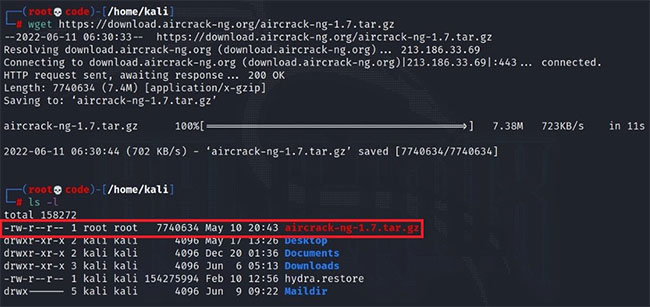
<p style="text-align: justify;">Đây là một trong những cách sử dụng cơ bản nhất của lệnh wget. Mục đích ở đây là tải xuống một file duy nhất vào hệ thống bằng liên kết đích đã biết. Lệnh wget được sử dụng cho việc này là:</p>

<pre id="pre0">
<code>wget https://download.aircrack-ng.org/aircrack-ng-1.7.tar.gz</code></pre>

<figure>
<div style="text-align: justify;"><img alt="Tải xuống một file duy nhất với wget" data-i="0" data-src="https://st.quantrimang.com/photos/image/2022/06/17/dung-wget-tai-file-tren-linux-1.jpg" data-was-processed="true" height="307" src="https://st.quantrimang.com/photos/image/2022/06/17/dung-wget-tai-file-tren-linux-1.jpg" width="650" /></div>

<figcaption>
<div style="text-align: justify;">Tải xuống một file duy nhất với wget</div>
</figcaption>
</figure>

<p style="text-align: justify;">Như thể hiện rõ trong hình ảnh, bạn có thể tải xuống file bằng lệnh wget và tìm nơi tải file đó bằng&nbsp;<strong>ls -l</strong>.</p>

<h3 id="mcetoc_1g5nqbt5574" style="text-align: justify;">Tải hàng loạt file</h3>

<p style="text-align: justify;">Có thể tải xuống nhiều file từ các liên kết được lưu trong tài liệu văn bản cùng một lúc bằng cách sử dụng tham số&nbsp;<strong>-i</strong>&nbsp;với lệnh wget.</p>

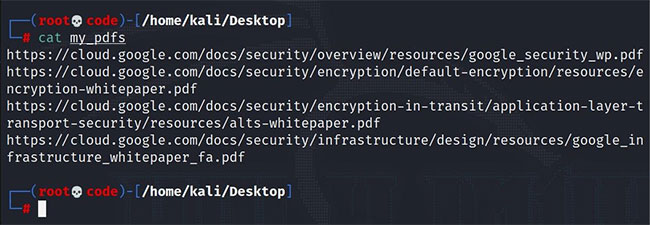
<p style="text-align: justify;">Ví dụ, bạn muốn tải xuống tất cả các&nbsp;file PDF&nbsp;tại một địa chỉ nhất định cùng một lúc. Để làm điều này, bạn cần lưu các liên kết tải xuống của các file PDF này trong một tài liệu văn bản. Bạn có thể thực hiện việc này bằng cách tạo một file có tên&nbsp;<strong>my_pdfs</strong>&nbsp;bằng lệnh&nbsp;<strong>vim my_pdfs</strong>&nbsp;và thêm các liên kết cần thiết vào file đó.</p>

<figure>
<div style="text-align: justify;"><img alt="Chuẩn bị các file PDF bạn muốn tải xuống" data-i="1" data-src="https://st.quantrimang.com/photos/image/2022/06/17/dung-wget-tai-file-tren-linux-2.jpg" data-was-processed="true" height="225" src="https://st.quantrimang.com/photos/image/2022/06/17/dung-wget-tai-file-tren-linux-2.jpg" width="650" /></div>

<figcaption>
<div style="text-align: justify;">Chuẩn bị các file PDF bạn muốn tải xuống</div>
</figcaption>
</figure>

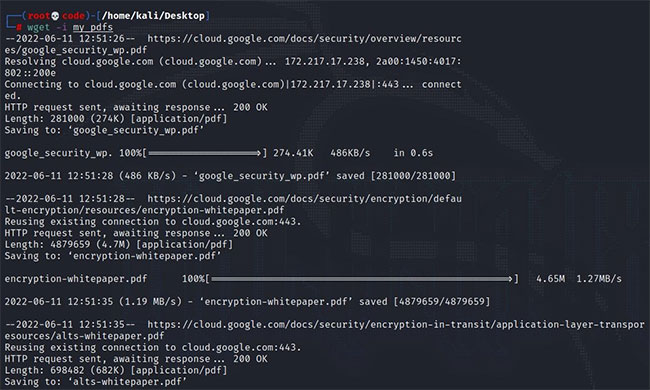
<p style="text-align: justify;">Hãy tải xuống các định dạng PDF của tài liệu Google Cloud làm ví dụ. Lưu các liên kết đến những file PDF trong một file và sử dụng lệnh sau để tải chúng xuống:</p>

<pre id="pre1">
<code>wget -i my_pdfs</code></pre>

<figure>
<div style="text-align: justify;"><img alt="Tải xuống hàng loạt với wget" data-i="2" data-src="https://st.quantrimang.com/photos/image/2022/06/17/dung-wget-tai-file-tren-linux-3.jpg" data-was-processed="true" height="390" src="https://st.quantrimang.com/photos/image/2022/06/17/dung-wget-tai-file-tren-linux-3.jpg" width="650" /></div>

<figcaption>
<div style="text-align: justify;">Tải xuống hàng loạt với wget</div>
</figcaption>
</figure>

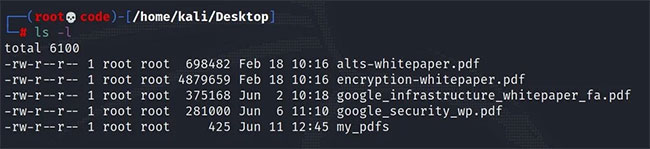
<p style="text-align: justify;">Sau bước này, bạn có thể xem các file đã tải xuống bằng cách chạy:</p>

<pre id="pre2">
<code>ls -l</code></pre>

<figure>
<div style="text-align: justify;"><img alt="Vị trí của các file được tải xuống bằng wget" data-i="3" data-src="https://st.quantrimang.com/photos/image/2022/06/17/dung-wget-tai-file-tren-linux-4.jpg" data-was-processed="true" height="149" src="https://st.quantrimang.com/photos/image/2022/06/17/dung-wget-tai-file-tren-linux-4.jpg" width="650" /></div>

<figcaption>
<div style="text-align: justify;">Vị trí của các file được tải xuống bằng wget</div>
</figcaption>
</figure>

<h3 id="mcetoc_1g5nqbt5575" style="text-align: justify;">Tải xuống bằng cách chỉ định một vị trí tùy chỉnh</h3>

<p style="text-align: justify;">Nếu bạn muốn file tải xuống một vị trí đặc biệt trên hệ thống của mình, bạn cần sử dụng flag&nbsp;<strong>-P</strong>&nbsp;với lệnh:</p>

<pre id="pre3">
<code>wget -P /path/to/dir filelink</code></pre>

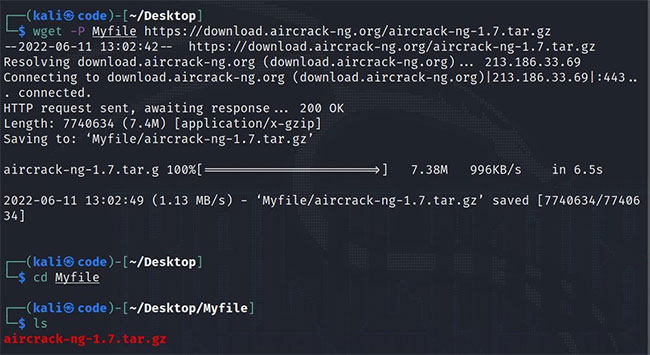
<p style="text-align: justify;">Bạn có thể thấy điều này trong ví dụ dưới đây. Tương tự như vậy, hãy thử tải xuống file&nbsp;<strong>aircrack-ng</strong>&nbsp;và lần này chỉ định một địa chỉ. Ví dụ, bạn có thể tạo thư mục&nbsp;<strong>Myfile</strong>&nbsp;để lưu trữ file đã tải xuống.</p>

<pre id="pre4">
<code>wget -P Myfile https://download.aircrack-ng.org/aircrack-ng-1.7.tar.gz</code></pre>

<figure>
<div style="text-align: justify;"><img alt="Tải file bằng cách chỉ định địa chỉ với wget" data-i="4" data-src="https://st.quantrimang.com/photos/image/2022/06/17/dung-wget-tai-file-tren-linux-5.jpg" data-was-processed="true" height="355" src="https://st.quantrimang.com/photos/image/2022/06/17/dung-wget-tai-file-tren-linux-5.jpg" width="650" /></div>

<figcaption>
<div style="text-align: justify;">Tải file bằng cách chỉ định địa chỉ với wget</div>
</figcaption>
</figure>

<p style="text-align: justify;">Để tải file xuống vị trí mong muốn, bạn phải chỉ định đường dẫn đầy đủ đến thư mục. Bạn cũng có thể chạy lệnh<strong>&nbsp;ls -l&nbsp;</strong>sau để đảm bảo rằng file thực sự ở nơi bạn muốn.</p>

<h3 id="mcetoc_1g5nqbt5576" style="text-align: justify;">Tải xuống bằng cách chỉ định tên file tùy chỉnh</h3>

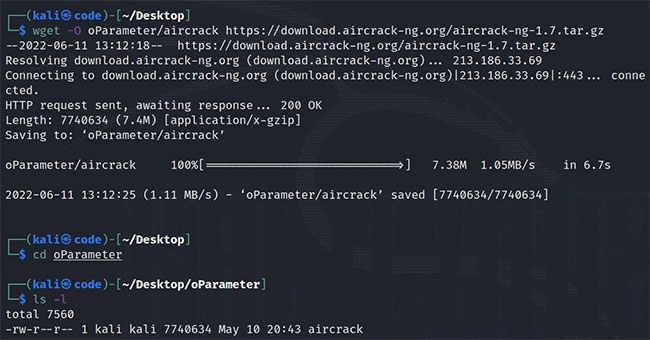
<p style="text-align: justify;">Với tham số wget&nbsp;<strong>-O</strong>, bạn có thể đặt tên cho file bạn muốn tải và tải file đó xuống bất kỳ vị trí nào bạn muốn. Để tránh nhầm lẫn, hãy tạo một thư mục&nbsp;<strong>oParameter</strong>&nbsp;mới và cố gắng tải file&nbsp;<strong>aircrack-ng</strong>&nbsp;của bạn xuống thư mục này bằng cách đặt tên bạn muốn, trong trường hợp này là&nbsp;<strong>aircrack.</strong></p>

<pre id="pre5">
<code>wget -O oParameter/aircrack https://download.aircrack-ng.org/aircrack-ng-1.7.tar.gz</code></pre>

<figure>
<div style="text-align: justify;"><img alt="Bạn có thể đặt tên cho file đã tải xuống bằng wget" data-i="5" data-src="https://st.quantrimang.com/photos/image/2022/06/17/dung-wget-tai-file-tren-linux-6.jpg" data-was-processed="true" height="340" src="https://st.quantrimang.com/photos/image/2022/06/17/dung-wget-tai-file-tren-linux-6.jpg" width="650" /></div>

<figcaption>
<div style="text-align: justify;">Bạn có thể đặt tên cho file đã tải xuống bằng wget</div>
</figcaption>
</figure>

<p style="text-align: justify;">Sau khi Wget tải xong file có tên&nbsp;<strong>&quot;aircrack&quot;</strong>&nbsp;và lưu vào thư mục&nbsp;<strong>/oParameter</strong>, bạn có thể xác nhận điều này bằng lệnh&nbsp;<strong>ls -l</strong>.</p>

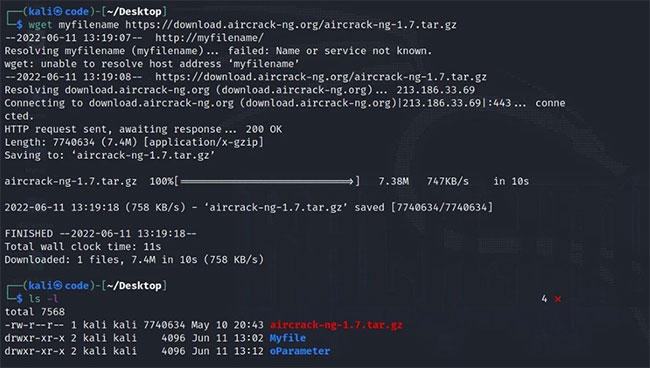
<p style="text-align: justify;">Ngoài ra, nếu bạn muốn thay đổi tên của file đã tải xuống mà không thay đổi vị trí của nó, thì chỉ cần chỉ định tên file mới mà không chỉ định bất kỳ vị trí nào. Ví dụ, bạn có thể thay đổi tên của file để tải xuống bằng cách sử dụng lệnh&nbsp;<strong>wget new_name file_link</strong>. Vì bạn không chỉ định bất kỳ vị trí nào, nó sẽ tự động tải xuống tại thư mục làm việc hiện tại của bạn.</p>

<pre id="pre6">
<code>wget myfilename https://download.aircrack-ng.org/aircrack-ng-1.7.tar.gz</code></pre>

<figure>
<div style="text-align: justify;"><img alt="Đổi tên file để tải xuống bằng wget" data-i="6" data-src="https://st.quantrimang.com/photos/image/2022/06/17/dung-wget-tai-file-tren-linux-7.jpg" data-was-processed="true" height="368" src="https://st.quantrimang.com/photos/image/2022/06/17/dung-wget-tai-file-tren-linux-7.jpg" width="650" /></div>

<figcaption>
<div style="text-align: justify;">Đổi tên file để tải xuống bằng wget</div>
</figcaption>
</figure>

<h3 id="mcetoc_1g5nqbt5577" style="text-align: justify;">Tiếp tục tải xuống bị gián đoạn với Wget</h3>

<p style="text-align: justify;">Tải xuống không thành công là một trong những sự cố phổ biến nhất khi tải xuống các file lớn. Trong những trường hợp như vậy, bạn có thể tiếp tục tải xuống và nhận được phần còn lại của file.</p>

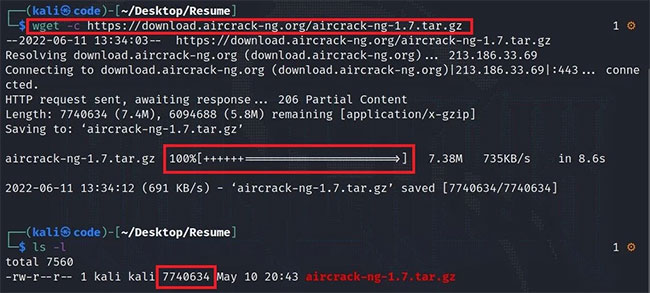
<p style="text-align: justify;">Bạn có thể sử dụng tham số&nbsp;<strong>-c</strong>&nbsp;với lệnh wget để tải xuống lại file bị gián đoạn. Do đó, do sử dụng&nbsp;<strong>wget -c download_link</strong>, nếu file không được tải xuống hoàn toàn, bạn có cơ hội tiếp tục từ nơi nó đã dừng thay vì tải xuống lại từ đầu. Điều này rất thực tế, đặc biệt là đối với các file lớn.</p>

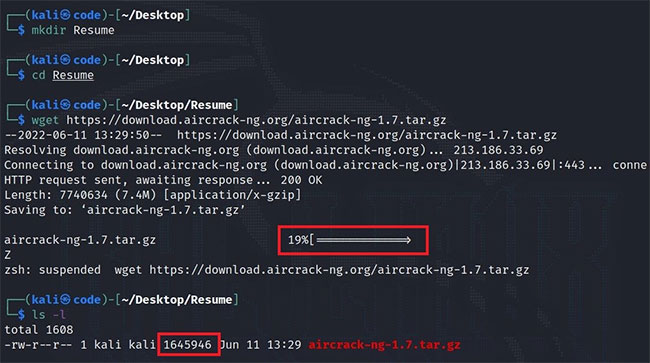
<p style="text-align: justify;">Để hiểu rõ hơn điều này, trước tiên hãy tạo một thư mục có tên là&nbsp;<strong>Resume</strong>&nbsp;trên desktop. Truy cập thư mục này bằng Terminal với lệnh cd và thử tải xuống file&nbsp;<strong>aircrack</strong>&nbsp;mà bạn đã sử dụng trong các ví dụ khác tại đây. Sau đó, ngắt quá trình tải xuống này bằng tổ hợp bàn phím&nbsp;<strong>Ctrl + Z</strong>.</p>

<figure>
<div style="text-align: justify;"><img alt="Tiếp tục tải xuống bị gián đoạn với wget" data-i="7" data-src="https://st.quantrimang.com/photos/image/2022/06/17/dung-wget-tai-file-tren-linux-8.jpg" data-was-processed="true" height="363" src="https://st.quantrimang.com/photos/image/2022/06/17/dung-wget-tai-file-tren-linux-8.jpg" width="650" /></div>

<figcaption>
<div style="text-align: justify;">Tiếp tục tải xuống bị gián đoạn với wget</div>
</figcaption>
</figure>

<p style="text-align: justify;">Như bạn có thể thấy, 19% file đã được tải xuống, chiếm 1645946 byte. Bây giờ sử dụng tham số&nbsp;<strong>-c</strong>&nbsp;theo cách tương tự và cố gắng tiếp tục tải xuống.</p>

<figure>
<div style="text-align: justify;"><img alt="Hoàn thành quá trình tải xuống bị gián đoạn với wget" data-i="8" data-src="https://st.quantrimang.com/photos/image/2022/06/17/dung-wget-tai-file-tren-linux-9.jpg" data-was-processed="true" height="293" src="https://st.quantrimang.com/photos/image/2022/06/17/dung-wget-tai-file-tren-linux-9.jpg" width="650" /></div>

<figcaption>
<div style="text-align: justify;">Hoàn thành quá trình tải xuống bị gián đoạn với wget</div>
</figcaption>
</figure>

<p style="text-align: justify;">Như bạn có thể thấy, quá trình tải xuống đã hoàn tất. Như vậy, không cần xóa file và tải lại từ đầu. Đây chỉ là một file nhỏ để làm ví dụ. Nhưng đối với các file có dung lượng rất lớn, bạn có thể tiết kiệm thời gian bằng cách sử dụng Wget.</p>

<h3 id="mcetoc_1g5nqbt5578" style="text-align: justify;">Giới hạn tốc độ tải xuống của Wget</h3>

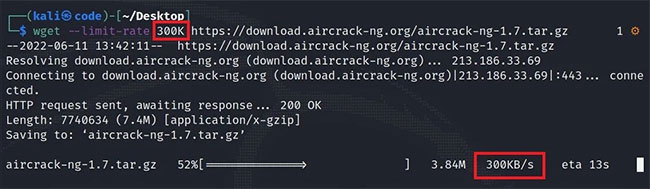
<p style="text-align: justify;">Nếu muốn, bạn có thể giới hạn tốc độ tải xuống cho file. Để đặt giới hạn này, bạn có thể sử dụng lệnh sau:</p>

<pre id="pre7">
<code>wget --limit-rate 300K https://download.aircrack-ng.org/aircrack-ng-1.7.tar.gz</code></pre>

<p style="text-align: justify;">Lệnh này sẽ giới hạn tốc độ tải xuống 300KB mỗi giây.</p>

<figure>
<div style="text-align: justify;"><img alt="Giới hạn tốc độ tải xuống của Wget" data-i="9" data-src="https://st.quantrimang.com/photos/image/2022/06/17/dung-wget-tai-file-tren-linux-10.jpg" data-was-processed="true" height="189" src="https://st.quantrimang.com/photos/image/2022/06/17/dung-wget-tai-file-tren-linux-10.jpg" width="650" /></div>

<figcaption>
<div style="text-align: justify;">Giới hạn tốc độ tải xuống của Wget</div>
</figcaption>
</figure>

<p style="text-align: justify;">Bạn có thể thử các tốc độ khác nhau bằng cách thay đổi giá trị 300K.</p>

<h3 id="mcetoc_1g5nqbt5579" style="text-align: justify;">Tải xuống file trong nền</h3>

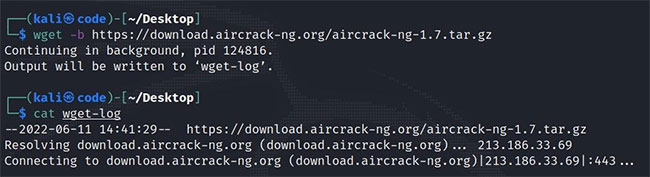
<p style="text-align: justify;">Bạn có thể tải xuống file ở chế độ nền với tham số&nbsp;<strong>-b.</strong>&nbsp;Điều này hữu ích hầu hết khi bạn đang bận rộn với nhiều công việc. Ngoài ra, nếu bạn muốn tìm hiểu kết quả của quá trình tải xuống, bạn chỉ cần kiểm tra file wget-log nằm ở cùng vị trí với file đã tải xuống.</p>

<figure>
<div style="text-align: justify;"><img alt="Tải xuống file trong nền" data-i="10" data-src="https://st.quantrimang.com/photos/image/2022/06/17/dung-wget-tai-file-tren-linux-11.jpg" data-was-processed="true" height="177" src="https://st.quantrimang.com/photos/image/2022/06/17/dung-wget-tai-file-tren-linux-11.jpg" width="650" /></div>

<figcaption>
<div style="text-align: justify;">Tải xuống file trong nền</div>
</figcaption>
</figure>
		</div>
				<div id="author">
						<p>
				<strong>Nguồn tin:</strong>
				Quantrimang.com
			</p>
		</div>
	</div>
	<div id="footer" class="clearfix">
		<div id="url">
			<strong>URL của bản tin này: </strong><a href="https://www.nguoicodonvn2008.info/vi/news/savefile/kien-thuc-may-tinh/cach-su-dung-wget-de-tai-file-tren-linux-5756.html" title="Cách sử dụng Wget để tải file trên Linux">https://www.nguoicodonvn2008.info/vi/news/savefile/kien-thuc-may-tinh/cach-su-dung-wget-de-tai-file-tren-linux-5756.html</a>

		</div>
		<div class="clear"></div>
		<div class="copyright">
			&copy; .&#x3A; Nguoicodonvn2008.info - Cõi lòng người cô đơn &#x3A;.
		</div>
		<div id="contact">
			<a href="mailto:admin@nguoicodonvn2008.info">admin@nguoicodonvn2008.info</a>
		</div>
	</div>
</div>
        <div id="timeoutsess" class="chromeframe">
            Bạn đã không sử dụng Site, <a onclick="timeoutsesscancel();" href="https://nguoicodonvn2008.info/#">Bấm vào đây để duy trì trạng thái đăng nhập</a>. Thời gian chờ: <span id="secField"> 60 </span> giây
        </div>
        <div id="openidResult" class="nv-alert" style="display:none"></div>
        <div id="openidBt" data-result="" data-redirect=""></div>
		</script>
		<div class="car-top">
  <span><img src="https://nguoicodonvn2008.info/themes/default/images/car.png" alt=""></span>
</div>
<script src="https://nguoicodonvn2008.info/assets/js/jquery/jquery.min.js"></script>
<script>var nv_base_siteurl="/",nv_lang_data="vi",nv_lang_interface="vi",nv_name_variable="nv",nv_fc_variable="op",nv_lang_variable="language",nv_module_name="news",nv_func_name="savefile",nv_is_user=0, nv_my_ofs=-4,nv_my_abbr="EDT",nv_cookie_prefix="nv4c_e856T",nv_check_pass_mstime=1738000,nv_area_admin=0,nv_safemode=0,theme_responsive=0,nv_recaptcha_ver=2,nv_recaptcha_sitekey="",nv_recaptcha_type="image",XSSsanitize=1;</script>
<script src="https://nguoicodonvn2008.info/assets/js/language/vi.js"></script>
<script src="https://nguoicodonvn2008.info/assets/js/DOMPurify/purify3.js"></script>
<script src="https://nguoicodonvn2008.info/assets/js/global.js"></script>
<script src="https://nguoicodonvn2008.info/assets/js/site.js"></script>
<script src="https://nguoicodonvn2008.info/themes/default/js/news.js"></script>
<script src="https://nguoicodonvn2008.info/themes/default/js/main.js"></script>
<script src="https://nguoicodonvn2008.info/themes/default/js/custom.js"></script>
<script type="application/ld+json">
        {
            "@context": "https://schema.org",
            "@type": "Organization",
            "url": "https://nguoicodonvn2008.info",
            "logo": "https://nguoicodonvn2008.info/uploads/angel.gif"
        }
        </script>
<script src="https://nguoicodonvn2008.info/themes/default/js/bootstrap.min.js"></script>
<script type="text/javascript">
var $scrolltop = $('.car-top');
$scrolltop.on('click', function () {
    $('html,body').animate({
        scrollTop: 0
    }, 800);
    $(this).addClass("car-run");
    setTimeout(function(){ $scrolltop.removeClass('car-run');}, 1000);
    return false;
});
$(window).on('scroll', function ()
{ 
    if($(window).scrollTop() >= 200)
    {
        $scrolltop.addClass("show");
        $scrolltop.addClass("car-down");
    }
    else
    {
       $scrolltop.removeClass("show");
       setTimeout(function(){ $scrolltop.removeClass('car-down');}, 300);
    }
});
</script>
</body>
</html>