<!DOCTYPE html>
    <html lang="vi" xmlns="http://www.w3.org/1999/xhtml" prefix="og: http://ogp.me/ns#">
    <head>
<title>Cách sử dụng Toolbox trong Microsoft PC Manager trên Windows 11</title>
<meta name="description" content="Cách sử dụng Toolbox trong Microsoft PC Manager trên Windows 11 - Savefile - Tin Tức -...">
<meta name="author" content=".: Nguoicodonvn2008.info - Cõi lòng người cô đơn :.">
<meta name="copyright" content=".: Nguoicodonvn2008.info - Cõi lòng người cô đơn :. [admin@nguoicodonvn2008.info]">
<meta name="robots" content="index, archive, follow, noodp">
<meta name="googlebot" content="index,archive,follow,noodp">
<meta name="msnbot" content="all,index,follow">
<meta name="generator" content="NukeViet v4.5">
<meta http-equiv="Content-Type" content="text/html; charset=utf-8">
<meta property="og:title" content="Cách sử dụng Toolbox trong Microsoft PC Manager trên Windows 11">
<meta property="og:type" content="website">
<meta property="og:description" content="Savefile - Tin Tức - https&#x3A;&#x002F;&#x002F;www.nguoicodonvn2008.info&#x002F;vi&#x002F;news&#x002F;savefile&#x002F;kien-thuc-may-tinh&#x002F;cach-su-dung-toolbox-trong-microsoft-pc-manager-tren-windows-11-7775.html">
<meta property="og:site_name" content=".&#x3A; Nguoicodonvn2008.info - Cõi lòng người cô đơn &#x3A;.">
<meta property="og:url" content="https://www.nguoicodonvn2008.info/vi/news/savefile/kien-thuc-may-tinh/cach-su-dung-toolbox-trong-microsoft-pc-manager-tren-windows-11-7775.html">
<link rel="shortcut icon" href="https://nguoicodonvn2008.info/favicon.ico">
<link rel="canonical" href="https://www.nguoicodonvn2008.info/vi/news/savefile/kien-thuc-may-tinh/cach-su-dung-toolbox-trong-microsoft-pc-manager-tren-windows-11-7775.html">
<link rel="alternate" href="https://nguoicodonvn2008.info/vi/news/rss/" title="Tin Tức" type="application/rss+xml">
<link rel="alternate" href="https://nguoicodonvn2008.info/vi/news/rss/karaoke-dual/" title="Tin Tức - Karaoke Dual" type="application/rss+xml">
<link rel="alternate" href="https://nguoicodonvn2008.info/vi/news/rss/nhac-tre/" title="Tin Tức - Nhạc trẻ" type="application/rss+xml">
<link rel="alternate" href="https://nguoicodonvn2008.info/vi/news/rss/tru-tinh/" title="Tin Tức - Trữ tình" type="application/rss+xml">
<link rel="alternate" href="https://nguoicodonvn2008.info/vi/news/rss/nuoc-ngoai/" title="Tin Tức - Nước ngoài" type="application/rss+xml">
<link rel="alternate" href="https://nguoicodonvn2008.info/vi/news/rss/remix/" title="Tin Tức - Remix" type="application/rss+xml">
<link rel="alternate" href="https://nguoicodonvn2008.info/vi/news/rss/tam-su-tinh-yeu/" title="Tin Tức - Tâm sự tình yêu" type="application/rss+xml">
<link rel="alternate" href="https://nguoicodonvn2008.info/vi/news/rss/tho-suu-tam/" title="Tin Tức - Thơ sưu tầm" type="application/rss+xml">
<link rel="alternate" href="https://nguoicodonvn2008.info/vi/news/rss/cuoc-song/" title="Tin Tức - Cuộc sống" type="application/rss+xml">
<link rel="alternate" href="https://nguoicodonvn2008.info/vi/news/rss/phan-mem/" title="Tin Tức - Phần mềm" type="application/rss+xml">
<link rel="alternate" href="https://nguoicodonvn2008.info/vi/news/rss/kien-thuc-may-tinh/" title="Tin Tức - Kiến thức máy tính" type="application/rss+xml">
<link rel="alternate" href="https://nguoicodonvn2008.info/vi/news/rss/hoc-tap/" title="Tin Tức - Học tập" type="application/rss+xml">
<link rel="alternate" href="https://nguoicodonvn2008.info/vi/news/rss/tai-lieu/" title="Tin Tức - Tài liệu" type="application/rss+xml">
<link rel="alternate" href="https://nguoicodonvn2008.info/vi/news/rss/de-thi/" title="Tin Tức - Đề thi" type="application/rss+xml">
<link rel="preload" as="style" href="https://nguoicodonvn2008.info/assets/css/font-awesome.min.css" type="text/css">
<link rel="preload" as="style" href="https://nguoicodonvn2008.info/themes/default/css/bootstrap.non-responsive.css" type="text/css">
<link rel="preload" as="style" href="https://nguoicodonvn2008.info/themes/default/css/style.css" type="text/css">
<link rel="preload" as="style" href="https://nguoicodonvn2008.info/themes/default/css/style.non-responsive.css" type="text/css">
<link rel="preload" as="style" href="https://nguoicodonvn2008.info/themes/default/css/news.css" type="text/css">
<link rel="preload" as="style" href="https://nguoicodonvn2008.info/themes/default/css/custom.css" type="text/css">
<link rel="preload" as="script" href="https://nguoicodonvn2008.info/assets/js/jquery/jquery.min.js" type="text/javascript">
<link rel="preload" as="script" href="https://nguoicodonvn2008.info/assets/js/language/vi.js" type="text/javascript">
<link rel="preload" as="script" href="https://nguoicodonvn2008.info/assets/js/DOMPurify/purify3.js" type="text/javascript">
<link rel="preload" as="script" href="https://nguoicodonvn2008.info/assets/js/global.js" type="text/javascript">
<link rel="preload" as="script" href="https://nguoicodonvn2008.info/assets/js/site.js" type="text/javascript">
<link rel="preload" as="script" href="https://nguoicodonvn2008.info/themes/default/js/news.js" type="text/javascript">
<link rel="preload" as="script" href="https://nguoicodonvn2008.info/themes/default/js/main.js" type="text/javascript">
<link rel="preload" as="script" href="https://nguoicodonvn2008.info/themes/default/js/custom.js" type="text/javascript">
<link rel="preload" as="script" href="https://nguoicodonvn2008.info/themes/default/js/bootstrap.min.js" type="text/javascript">
<link rel="stylesheet" href="https://nguoicodonvn2008.info/assets/css/font-awesome.min.css">
<link rel="stylesheet" href="https://nguoicodonvn2008.info/themes/default/css/bootstrap.non-responsive.css">
<link rel="stylesheet" href="https://nguoicodonvn2008.info/themes/default/css/style.css">
<link rel="stylesheet" href="https://nguoicodonvn2008.info/themes/default/css/style.non-responsive.css">
<link rel="StyleSheet" href="https://nguoicodonvn2008.info/themes/default/css/news.css">
<link rel="stylesheet" href="https://nguoicodonvn2008.info/themes/default/css/custom.css">
<style type="text/css">
	body{background: #fff;}
</style>
    </head>
    <body>
<div id="print">
	<div id="hd_print">
		<h2 class="pull-left">.&#x3A; Nguoicodonvn2008.info - Cõi lòng người cô đơn &#x3A;.</h2>
		<p class="pull-right"><a title=".&#x3A; Nguoicodonvn2008.info - Cõi lòng người cô đơn &#x3A;." href="https://nguoicodonvn2008.info/">https://nguoicodonvn2008.info</a></p>
	</div>
	<div class="clear"></div>
	<hr />
	<div id="content">
		<h1>Cách sử dụng Toolbox trong Microsoft PC Manager trên Windows 11</h1>
		<ul class="list-inline">
			<li>Thứ năm - 16/11/2023 09:03</li>
			<li class="hidden-print txtrequired"><em class="fa fa-print">&nbsp;</em><a title="In ra" href="javascript:;" onclick="window.print()">In ra</a></li>
			<li class="hidden-print txtrequired"><em class="fa fa-power-off">&nbsp;</em><a title="Đóng cửa sổ này" href="javascript:;" onclick="window.close()">Đóng cửa sổ này</a></li>
		</ul>
		<div class="clear"></div>
		<div id="hometext">
		</div>
				<div class="imghome">
			<img alt="Cách sử dụng Toolbox trong Microsoft PC Manager trên Windows 11" src="https://www.techspot.com/downloads/7506-microsoft-pc-manager.html" width="460" class="img-thumbnail" />
		</div>
		<div class="clear"></div>
		<div id="bodytext" class="clearfix">
			<p style="text-align: justify;">Microsoft PC Manager&nbsp;mạnh hơn trước và đã giới thiệu nhiều tính năng mới, bao gồm cả thanh công cụ nổi. Ứng dụng này là sự đáp trả của Microsoft cho tất cả các ứng dụng dọn dẹp/quản lý PC của bên thứ ba, hiện có vẻ ít hữu ích hơn.</p>

<p style="text-align: justify;">Bạn sẽ có được thiết kế tổng thể tốt hơn, với menu dọc và nhiều phần phụ, bao gồm phần Toolbox mới. Hãy cùng khám phá những tính năng này một cách chi tiết.</p>

<h2 style="text-align: justify;">Có gì mới trong ứng dụng Microsoft PC Manager?</h2>

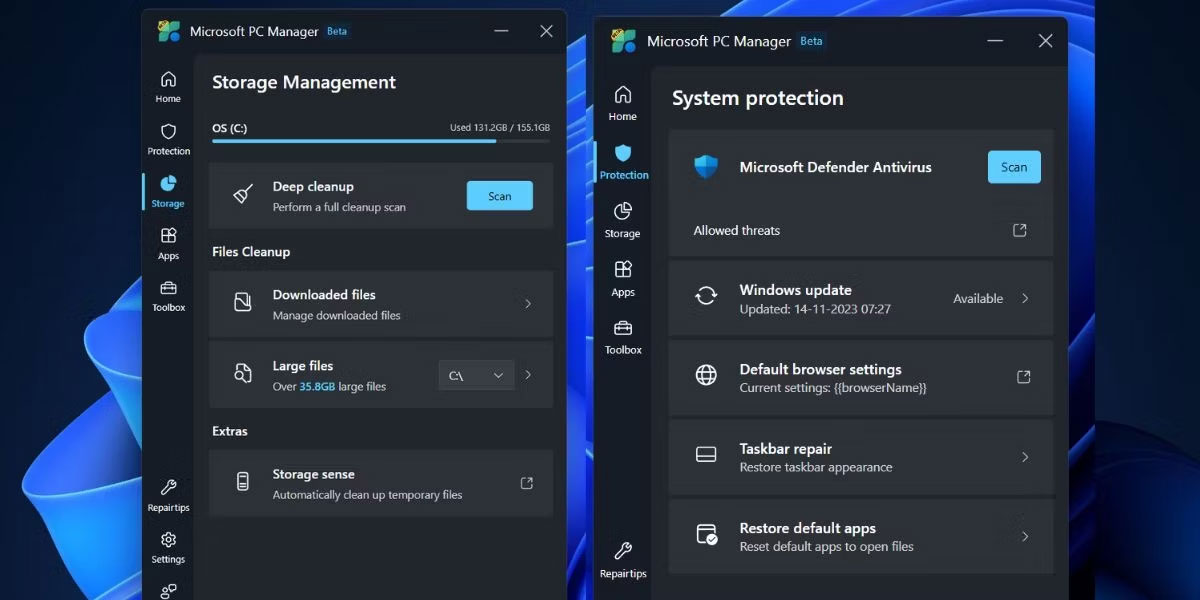
<p style="text-align: justify;">Ứng dụng Microsoft PC Manager vẫn đang trong giai đoạn thử nghiệm. Các phiên bản ứng dụng trước có hai phần chính:&nbsp;<strong>Cleanup</strong>&nbsp;và&nbsp;<strong>Security</strong>. Tuy nhiên, bản cập nhật mang đến phần&nbsp;<strong>Home</strong>&nbsp;mới trong ứng dụng, sắp xếp gọn gàng tất cả các cài đặt hữu ích trong những tile. Nó hỗ trợ các chế độ sáng, tối và thích ứng với theme hệ thống mặc định.</p>

<p style="text-align: justify;">Ngoài những cải tiến về mặt thẩm mỹ, bạn còn có 4 phần riêng biệt:&nbsp;<strong>Protection, Storage, Apps</strong>&nbsp;và&nbsp;<strong>Toolbox.</strong>&nbsp;Bạn có thể khôi phục giao diện thanh tác vụ và các ứng dụng mặc định trong phần&nbsp;<strong>Protection</strong>.</p>

<figure>
<div style="text-align: justify;"><img alt="Công cụ mới trong Microsoft PC Manager" data-i="0" data-src="https://st.quantrimang.com/photos/image/2023/11/16/toolbox-trong-ms-pc-manager-1.jpg" data-was-processed="true" height="600" src="https://st.quantrimang.com/photos/image/2023/11/16/toolbox-trong-ms-pc-manager-1.jpg" width="1200" /></div>

<figcaption>
<div style="text-align: justify;">Công cụ mới trong Microsoft PC Manager</div>
</figcaption>
</figure>

<div style="text-align: justify;"><iframe allowtransparency="true" data-google-container-id="a!2" data-google-query-id="CILi4enXyIIDFdUFgwMdU-IJhw" data-load-complete="true" frameborder="0" height="0" hspace="0" id="aswift_1" marginheight="0" marginwidth="0" name="aswift_1" sandbox="" scrolling="no" vspace="0" width="694"></iframe></div>

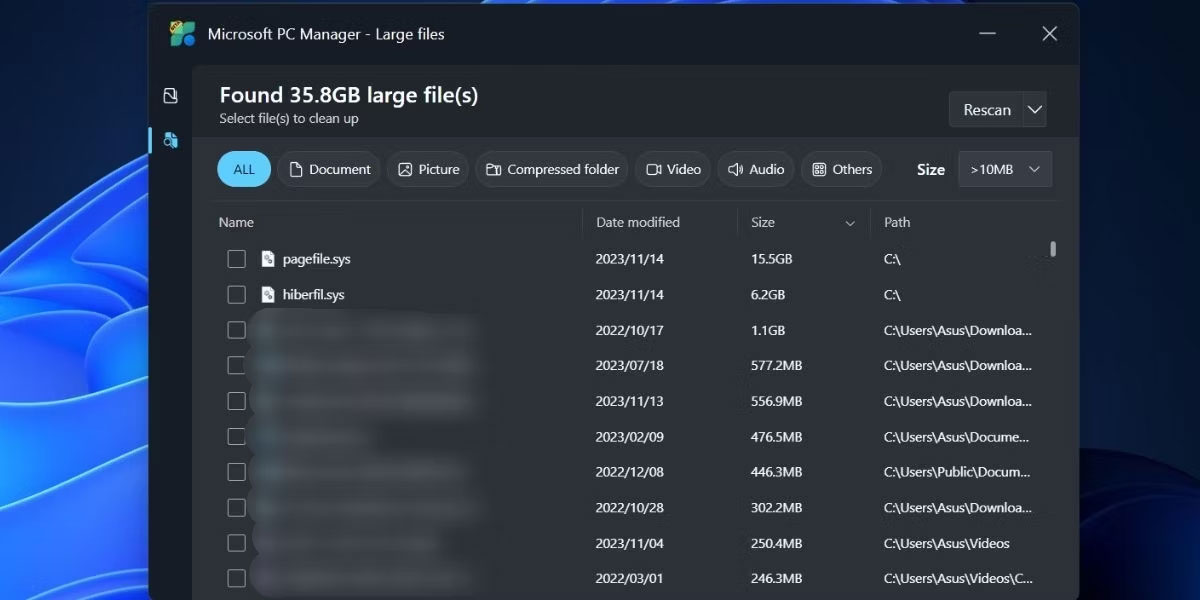
<p style="text-align: justify;">Phần&nbsp;<strong>Storage</strong>&nbsp;có các công cụ Files Cleanup được cải tiến, bao gồm công cụ nhận dạng file lớn được cải tiến. Trước đó, bạn chỉ có thể xem trước các file trong Files Explorer nhưng giờ đây ứng dụng sẽ mở một trang phụ mới cho phần file lớn với nhiều bộ lọc và tùy chọn quét.</p>

<figure>
<div style="text-align: justify;"><img alt="Công cụ nhận dạng file lớn trong Microsoft PC Manager" data-adbro-processed="true" data-i="1" data-src="https://st.quantrimang.com/photos/image/2023/11/16/toolbox-trong-ms-pc-manager-2.jpg" data-was-processed="true" height="600" src="https://st.quantrimang.com/photos/image/2023/11/16/toolbox-trong-ms-pc-manager-2.jpg" width="1200" /></div>

<figcaption>
<div style="text-align: justify;">Công cụ nhận dạng file lớn trong Microsoft PC Manager</div>
</figcaption>
</figure>

<p style="text-align: justify;">Bạn có thể di chuyển hoặc xóa vĩnh viễn một hoặc nhiều file trực tiếp từ cửa sổ này mà không cần&nbsp;mở File Explorer. Tùy chọn&nbsp;<strong>Deep Scan</strong>&nbsp;vẫn còn đó và thậm chí bạn có thể truy cập&nbsp;Storage Sense&nbsp;từ ứng dụng Microsoft PC Manager. Phần&nbsp;<strong>App Management</strong>&nbsp;không có gì mới. Bạn có thể kết thúc các tiến trình, quản lý các ứng dụng khởi động và truy cập trực tiếp vào Microsoft Store.</p>

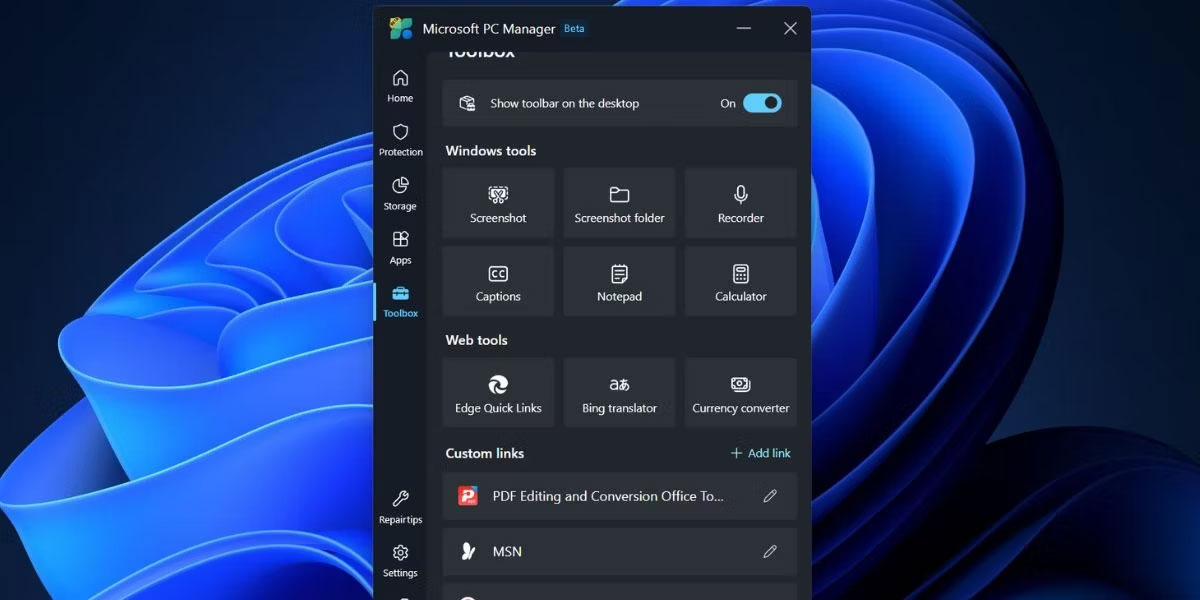
<p style="text-align: justify;">Phần cuối cùng là phần&nbsp;<strong>Toolbox</strong>, sử dụng phần này bạn có thể truy cập nhiều công cụ Windows, hiển thị thanh công cụ nổi trên màn hình và thêm các liên kết tùy chỉnh.</p>

<h2 style="text-align: justify;">Cách kích hoạt Toolbox trên desktop</h2>

<p style="text-align: justify;">Bạn phải cài đặt phiên bản mới nhất của ứng dụng Microsoft PC Manager (3.8.2.0) từ&nbsp;trang web chính thức của Microsoft PC Manager. Nhưng nếu gặp khó khăn khi tải xuống hoặc cài đặt ứng dụng, bạn cũng có thể tải xuống từ&nbsp;Techspot: <span style="color:rgb(192, 57, 43);"><strong>https://www.techspot.com/downloads/7506-microsoft-pc-manager.html</strong></span> , một trang web đáng tin cậy.</p>

<div style="text-align: justify;"><iframe allowtransparency="true" data-google-container-id="a!3" data-google-query-id="CM7a4enXyIIDFZUXgwMdLKQI0A" data-load-complete="true" frameborder="0" height="0" hspace="0" id="aswift_2" marginheight="0" marginwidth="0" name="aswift_2" sandbox="" scrolling="no" vspace="0" width="694"></iframe></div>

<p style="text-align: justify;">Sau khi cài đặt ứng dụng Microsoft PC Manager, hãy nhấp vào biểu tượng&nbsp;<strong>Toolbox</strong>&nbsp;ở menu dọc bên trái. Sau đó, nhấp vào nút bật tắt bên cạnh tùy chọn&nbsp;<strong>Show toolbar on the desktop</strong>&nbsp;để kích hoạt thanh công cụ.</p>

<figure>
<div style="text-align: justify;"><img alt="Kích hoạt Toolbox trong Microsoft PC Manager" data-i="2" data-src="https://st.quantrimang.com/photos/image/2023/11/16/toolbox-trong-ms-pc-manager-3.jpg" data-was-processed="true" height="600" src="https://st.quantrimang.com/photos/image/2023/11/16/toolbox-trong-ms-pc-manager-3.jpg" width="1200" /></div>

<figcaption>
<div style="text-align: justify;">Kích hoạt Toolbox trong Microsoft PC Manager</div>
</figcaption>
</figure>

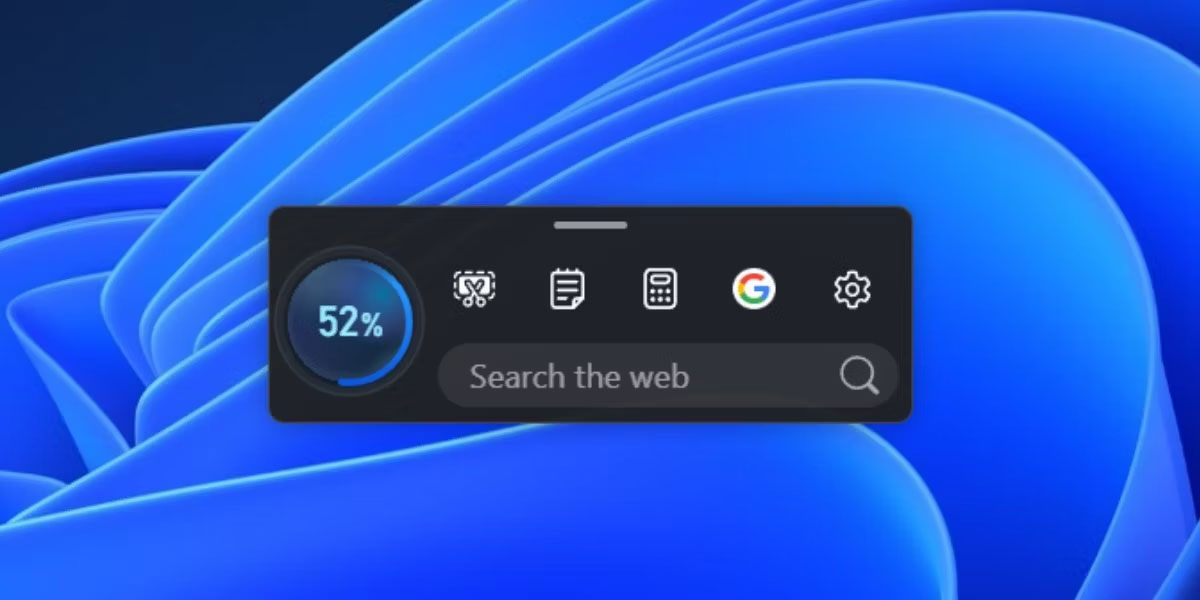
<p style="text-align: justify;">Với thanh công cụ nổi trên màn hình, giờ đây bạn có thể thu nhỏ ứng dụng Microsoft PC Manager. Nhấp và kéo thanh công cụ sang bất kỳ phía nào của màn hình để ghim nó vào vị trí đó. Nếu bạn không làm điều đó, nó sẽ xuất hiện trên đầu tất cả các ứng dụng đang mở.</p>

<figure>
<div style="text-align: justify;"><img alt="Thanh công cụ trong Microsoft PC Manager" data-i="3" data-src="https://st.quantrimang.com/photos/image/2023/11/16/toolbox-trong-ms-pc-manager-4.jpg" data-was-processed="true" height="600" src="https://st.quantrimang.com/photos/image/2023/11/16/toolbox-trong-ms-pc-manager-4.jpg" width="1200" /></div>

<figcaption>
<div style="text-align: justify;">Thanh công cụ trong Microsoft PC Manager</div>
</figcaption>
</figure>

<p style="text-align: justify;">Khi bạn di chuột qua vị trí thanh công cụ sẽ tự động xuất hiện. Nhấp vào nút&nbsp;<strong>Boost</strong>&nbsp;để xóa bộ nhớ hoặc khởi chạy bất kỳ công cụ nào. Bạn thậm chí có thể thêm các liên kết tùy chỉnh tới những trang web trên thanh công cụ và sau đó khởi chạy chúng trực tiếp trong Edge.</p>

<div style="text-align: justify;"><iframe allowtransparency="true" data-google-container-id="a!4" data-google-query-id="CPDyp_DXyIIDFX4lgwMdHUEG3w" data-load-complete="true" frameborder="0" height="0" hspace="0" id="aswift_3" marginheight="0" marginwidth="0" name="aswift_3" sandbox="" scrolling="no" vspace="0" width="694"></iframe></div>

<h2 style="text-align: justify;">Cách tùy chỉnh&nbsp;Toolbar</h2>

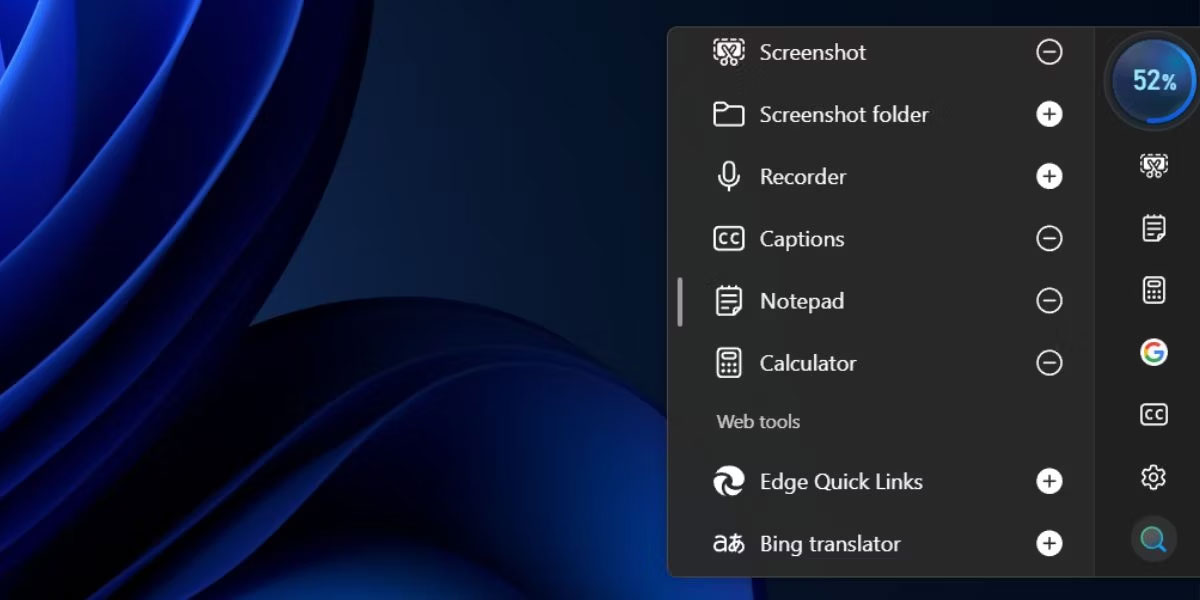
<p style="text-align: justify;">Danh sách công cụ mặc định trên thanh công cụ có thể không phù hợp với nhiều người. Bạn có thể không cần tùy chọn tìm kiếm Edge hoặc muốn thêm nhiều công cụ hơn hoặc xóa một số công cụ trong số chúng. Đây là cách tùy chỉnh nó:</p>

<p style="text-align: justify;">1. Di chuột qua Toolbox trên desktop để mở nó.</p>

<p style="text-align: justify;">2. Nhấp vào&nbsp;<strong>Settings</strong>.</p>

<p style="text-align: justify;">3. Bây giờ, hãy nhấp vào&nbsp;<strong>Add tools</strong>.</p>

<figure>
<div style="text-align: justify;"><img alt="Tùy chỉnh Toolbox trong Microsoft PC Manager" data-i="4" data-src="https://st.quantrimang.com/photos/image/2023/11/16/toolbox-trong-ms-pc-manager-5.jpg" data-was-processed="true" height="600" src="https://st.quantrimang.com/photos/image/2023/11/16/toolbox-trong-ms-pc-manager-5.jpg" width="1200" /></div>

<figcaption>
<div style="text-align: justify;">Tùy chỉnh Toolbox trong Microsoft PC Manager</div>
</figcaption>
</figure>

<p style="text-align: justify;">4. Nhấn vào dấu cộng (+) để thêm công cụ vào thanh công cụ.</p>

<p style="text-align: justify;">5. Nếu bạn muốn xóa biểu tượng của công cụ khỏi toolbox, hãy nhấp vào biểu tượng dấu trừ (-).</p>

<figure>
<div style="text-align: justify;"><img alt="Thêm hoặc xóa các công cụ trên Toolbox trong Microsoft PC Manager" data-i="5" data-src="https://st.quantrimang.com/photos/image/2023/11/16/toolbox-trong-ms-pc-manager-6.jpg" data-was-processed="true" height="600" src="https://st.quantrimang.com/photos/image/2023/11/16/toolbox-trong-ms-pc-manager-6.jpg" width="1200" /></div>

<figcaption>
<div style="text-align: justify;">Thêm hoặc xóa các công cụ trên Toolbox trong Microsoft PC Manager</div>
</figcaption>
</figure>

<p style="text-align: justify;">6. Cuối cùng, nhấp vào desktop để đóng thanh công cụ.</p>

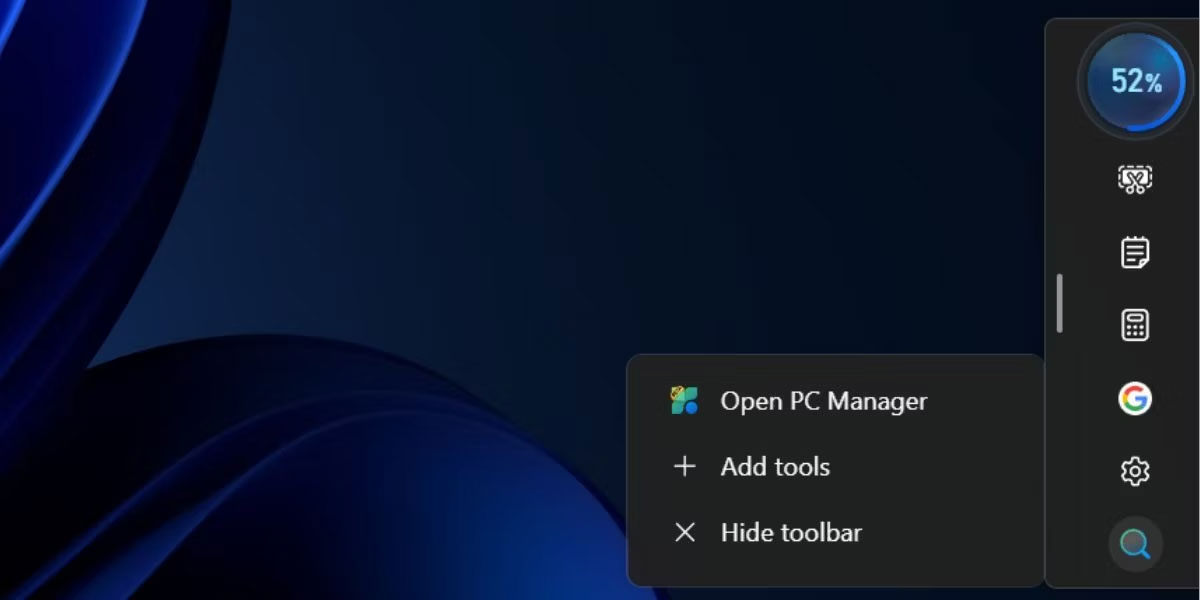
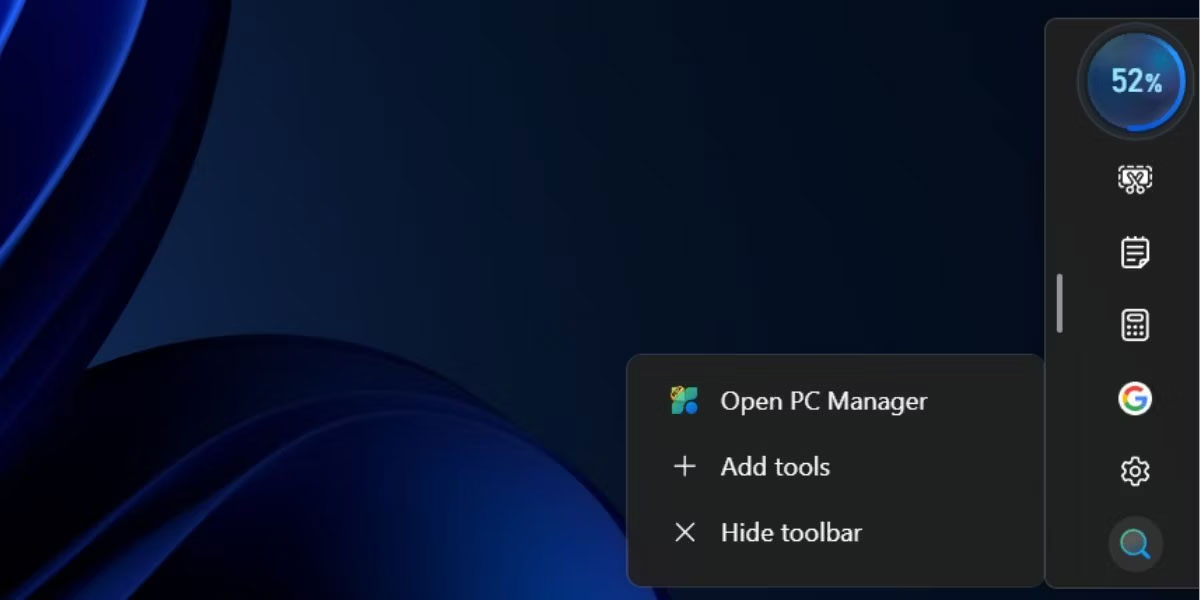
<p style="text-align: justify;">Bạn có thể ẩn thanh công cụ mà không cần đóng ứng dụng Microsoft PC Manager ở chế độ nền. Di chuột qua thanh công cụ để mở nó và nhấp vào&nbsp;<strong>Settings</strong>. Sau đó bấm vào&nbsp;<strong>Hide toolbar</strong>&nbsp;để ẩn nó trên desktop của bạn. Tuy nhiên, bạn sẽ phải truy cập vào phần&nbsp;<strong>Toolbox</strong>&nbsp;trong ứng dụng Microsoft PC Manager để hiện thanh công cụ.</p>

<figure>
<div style="text-align: justify;"><img alt="Tùy chỉnh Toolbox trong Microsoft PC Manager" data-i="6" data-src="https://st.quantrimang.com/photos/image/2023/11/16/toolbox-trong-ms-pc-manager-7.jpg" data-was-processed="true" height="600" src="https://st.quantrimang.com/photos/image/2023/11/16/toolbox-trong-ms-pc-manager-7.jpg" width="1200" /></div>

<figcaption>
<div style="text-align: justify;">Tùy chỉnh Toolbox trong Microsoft PC Manager</div>
</figcaption>
</figure>

<div style="text-align: justify;"><iframe allowtransparency="true" data-google-container-id="a!5" data-google-query-id="CKW59_DXyIIDFXUagwMdkRkE0w" data-load-complete="true" frameborder="0" height="0" hspace="0" id="aswift_4" marginheight="0" marginwidth="0" name="aswift_4" sandbox="" scrolling="no" vspace="0" width="694"></iframe></div>

<p style="text-align: justify;">Ứng dụng Microsoft PC Manager mới có khả năng quản lý Windows tốt hơn và có nhiều tính năng đến mức có thể cạnh tranh với bất kỳ ứng dụng quản lý PC hoặc ứng dụng dọn dẹp nào. Giờ đây, bạn có thể xác định các file lớn hơn, quản lý ứng dụng và hoạt động của thanh tác vụ cũng như truy cập nhiều ứng dụng Windows sẵn có thông qua thanh công cụ với giao diện người dùng được cải tiến nhiều. Tuy nhiên, vẫn chưa rõ khi nào ứng dụng sẽ bước ra khỏi giai đoạn Beta và xuất hiện trên Microsoft Store dành cho người dùng phổ thông.</p>
		</div>
				<div id="author">
						<p>
				<strong>Nguồn tin:</strong>
				Quantrimang.com
			</p>
		</div>
	</div>
	<div id="footer" class="clearfix">
		<div id="url">
			<strong>URL của bản tin này: </strong><a href="https://www.nguoicodonvn2008.info/vi/news/savefile/kien-thuc-may-tinh/cach-su-dung-toolbox-trong-microsoft-pc-manager-tren-windows-11-7775.html" title="Cách sử dụng Toolbox trong Microsoft PC Manager trên Windows 11">https://www.nguoicodonvn2008.info/vi/news/savefile/kien-thuc-may-tinh/cach-su-dung-toolbox-trong-microsoft-pc-manager-tren-windows-11-7775.html</a>

		</div>
		<div class="clear"></div>
		<div class="copyright">
			&copy; .&#x3A; Nguoicodonvn2008.info - Cõi lòng người cô đơn &#x3A;.
		</div>
		<div id="contact">
			<a href="mailto:admin@nguoicodonvn2008.info">admin@nguoicodonvn2008.info</a>
		</div>
	</div>
</div>
        <div id="timeoutsess" class="chromeframe">
            Bạn đã không sử dụng Site, <a onclick="timeoutsesscancel();" href="https://nguoicodonvn2008.info/#">Bấm vào đây để duy trì trạng thái đăng nhập</a>. Thời gian chờ: <span id="secField"> 60 </span> giây
        </div>
        <div id="openidResult" class="nv-alert" style="display:none"></div>
        <div id="openidBt" data-result="" data-redirect=""></div>
		</script>
		<div class="car-top">
  <span><img src="https://nguoicodonvn2008.info/themes/default/images/car.png" alt=""></span>
</div>
<script src="https://nguoicodonvn2008.info/assets/js/jquery/jquery.min.js"></script>
<script>var nv_base_siteurl="/",nv_lang_data="vi",nv_lang_interface="vi",nv_name_variable="nv",nv_fc_variable="op",nv_lang_variable="language",nv_module_name="news",nv_func_name="savefile",nv_is_user=0, nv_my_ofs=-4,nv_my_abbr="EDT",nv_cookie_prefix="nv4c_e856T",nv_check_pass_mstime=1738000,nv_area_admin=0,nv_safemode=0,theme_responsive=0,nv_recaptcha_ver=2,nv_recaptcha_sitekey="",nv_recaptcha_type="image",XSSsanitize=1;</script>
<script src="https://nguoicodonvn2008.info/assets/js/language/vi.js"></script>
<script src="https://nguoicodonvn2008.info/assets/js/DOMPurify/purify3.js"></script>
<script src="https://nguoicodonvn2008.info/assets/js/global.js"></script>
<script src="https://nguoicodonvn2008.info/assets/js/site.js"></script>
<script src="https://nguoicodonvn2008.info/themes/default/js/news.js"></script>
<script src="https://nguoicodonvn2008.info/themes/default/js/main.js"></script>
<script src="https://nguoicodonvn2008.info/themes/default/js/custom.js"></script>
<script type="application/ld+json">
        {
            "@context": "https://schema.org",
            "@type": "Organization",
            "url": "https://nguoicodonvn2008.info",
            "logo": "https://nguoicodonvn2008.info/uploads/angel.gif"
        }
        </script>
<script src="https://nguoicodonvn2008.info/themes/default/js/bootstrap.min.js"></script>
<script type="text/javascript">
var $scrolltop = $('.car-top');
$scrolltop.on('click', function () {
    $('html,body').animate({
        scrollTop: 0
    }, 800);
    $(this).addClass("car-run");
    setTimeout(function(){ $scrolltop.removeClass('car-run');}, 1000);
    return false;
});
$(window).on('scroll', function ()
{ 
    if($(window).scrollTop() >= 200)
    {
        $scrolltop.addClass("show");
        $scrolltop.addClass("car-down");
    }
    else
    {
       $scrolltop.removeClass("show");
       setTimeout(function(){ $scrolltop.removeClass('car-down');}, 300);
    }
});
</script>
</body>
</html>