<!DOCTYPE html>
    <html lang="vi" xmlns="http://www.w3.org/1999/xhtml" prefix="og: http://ogp.me/ns#">
    <head>
<title>Cách sử dụng theme trong Excel</title>
<meta name="description" content="Cách sử dụng theme trong Excel - Savefile - Tin Tức - https&#x3A;&#x002F;&#x002F;www.nguoicodonvn2008.info&#x002F;vi&#x002F;news&#x002F;savefile&#x002F;kien-thuc-may-tinh&#x002F;cach-su-dung-theme-trong-excel-341.html">
<meta name="author" content=".: Nguoicodonvn2008.info - Cõi lòng người cô đơn :.">
<meta name="copyright" content=".: Nguoicodonvn2008.info - Cõi lòng người cô đơn :. [admin@nguoicodonvn2008.info]">
<meta name="robots" content="index, archive, follow, noodp">
<meta name="googlebot" content="index,archive,follow,noodp">
<meta name="msnbot" content="all,index,follow">
<meta name="generator" content="NukeViet v4.5">
<meta http-equiv="Content-Type" content="text/html; charset=utf-8">
<meta property="og:title" content="Cách sử dụng theme trong Excel">
<meta property="og:type" content="website">
<meta property="og:description" content="Savefile - Tin Tức - https&#x3A;&#x002F;&#x002F;www.nguoicodonvn2008.info&#x002F;vi&#x002F;news&#x002F;savefile&#x002F;kien-thuc-may-tinh&#x002F;cach-su-dung-theme-trong-excel-341.html">
<meta property="og:site_name" content=".&#x3A; Nguoicodonvn2008.info - Cõi lòng người cô đơn &#x3A;.">
<meta property="og:url" content="https://www.nguoicodonvn2008.info/vi/news/savefile/kien-thuc-may-tinh/cach-su-dung-theme-trong-excel-341.html">
<link rel="shortcut icon" href="https://nguoicodonvn2008.info/favicon.ico">
<link rel="canonical" href="https://www.nguoicodonvn2008.info/vi/news/savefile/kien-thuc-may-tinh/cach-su-dung-theme-trong-excel-341.html">
<link rel="alternate" href="https://nguoicodonvn2008.info/vi/news/rss/" title="Tin Tức" type="application/rss+xml">
<link rel="alternate" href="https://nguoicodonvn2008.info/vi/news/rss/karaoke-dual/" title="Tin Tức - Karaoke Dual" type="application/rss+xml">
<link rel="alternate" href="https://nguoicodonvn2008.info/vi/news/rss/nhac-tre/" title="Tin Tức - Nhạc trẻ" type="application/rss+xml">
<link rel="alternate" href="https://nguoicodonvn2008.info/vi/news/rss/tru-tinh/" title="Tin Tức - Trữ tình" type="application/rss+xml">
<link rel="alternate" href="https://nguoicodonvn2008.info/vi/news/rss/nuoc-ngoai/" title="Tin Tức - Nước ngoài" type="application/rss+xml">
<link rel="alternate" href="https://nguoicodonvn2008.info/vi/news/rss/remix/" title="Tin Tức - Remix" type="application/rss+xml">
<link rel="alternate" href="https://nguoicodonvn2008.info/vi/news/rss/tam-su-tinh-yeu/" title="Tin Tức - Tâm sự tình yêu" type="application/rss+xml">
<link rel="alternate" href="https://nguoicodonvn2008.info/vi/news/rss/tho-suu-tam/" title="Tin Tức - Thơ sưu tầm" type="application/rss+xml">
<link rel="alternate" href="https://nguoicodonvn2008.info/vi/news/rss/cuoc-song/" title="Tin Tức - Cuộc sống" type="application/rss+xml">
<link rel="alternate" href="https://nguoicodonvn2008.info/vi/news/rss/phan-mem/" title="Tin Tức - Phần mềm" type="application/rss+xml">
<link rel="alternate" href="https://nguoicodonvn2008.info/vi/news/rss/kien-thuc-may-tinh/" title="Tin Tức - Kiến thức máy tính" type="application/rss+xml">
<link rel="alternate" href="https://nguoicodonvn2008.info/vi/news/rss/hoc-tap/" title="Tin Tức - Học tập" type="application/rss+xml">
<link rel="alternate" href="https://nguoicodonvn2008.info/vi/news/rss/tai-lieu/" title="Tin Tức - Tài liệu" type="application/rss+xml">
<link rel="alternate" href="https://nguoicodonvn2008.info/vi/news/rss/de-thi/" title="Tin Tức - Đề thi" type="application/rss+xml">
<link rel="preload" as="style" href="https://nguoicodonvn2008.info/assets/css/font-awesome.min.css" type="text/css">
<link rel="preload" as="style" href="https://nguoicodonvn2008.info/themes/default/css/bootstrap.non-responsive.css" type="text/css">
<link rel="preload" as="style" href="https://nguoicodonvn2008.info/themes/default/css/style.css" type="text/css">
<link rel="preload" as="style" href="https://nguoicodonvn2008.info/themes/default/css/style.non-responsive.css" type="text/css">
<link rel="preload" as="style" href="https://nguoicodonvn2008.info/themes/default/css/news.css" type="text/css">
<link rel="preload" as="style" href="https://nguoicodonvn2008.info/themes/default/css/custom.css" type="text/css">
<link rel="preload" as="script" href="https://nguoicodonvn2008.info/assets/js/jquery/jquery.min.js" type="text/javascript">
<link rel="preload" as="script" href="https://nguoicodonvn2008.info/assets/js/language/vi.js" type="text/javascript">
<link rel="preload" as="script" href="https://nguoicodonvn2008.info/assets/js/DOMPurify/purify3.js" type="text/javascript">
<link rel="preload" as="script" href="https://nguoicodonvn2008.info/assets/js/global.js" type="text/javascript">
<link rel="preload" as="script" href="https://nguoicodonvn2008.info/assets/js/site.js" type="text/javascript">
<link rel="preload" as="script" href="https://nguoicodonvn2008.info/themes/default/js/news.js" type="text/javascript">
<link rel="preload" as="script" href="https://nguoicodonvn2008.info/themes/default/js/main.js" type="text/javascript">
<link rel="preload" as="script" href="https://nguoicodonvn2008.info/themes/default/js/custom.js" type="text/javascript">
<link rel="preload" as="script" href="https://nguoicodonvn2008.info/themes/default/js/bootstrap.min.js" type="text/javascript">
<link rel="stylesheet" href="https://nguoicodonvn2008.info/assets/css/font-awesome.min.css">
<link rel="stylesheet" href="https://nguoicodonvn2008.info/themes/default/css/bootstrap.non-responsive.css">
<link rel="stylesheet" href="https://nguoicodonvn2008.info/themes/default/css/style.css">
<link rel="stylesheet" href="https://nguoicodonvn2008.info/themes/default/css/style.non-responsive.css">
<link rel="StyleSheet" href="https://nguoicodonvn2008.info/themes/default/css/news.css">
<link rel="stylesheet" href="https://nguoicodonvn2008.info/themes/default/css/custom.css">
<style type="text/css">
	body{background: #fff;}
</style>
    </head>
    <body>
<div id="print">
	<div id="hd_print">
		<h2 class="pull-left">.&#x3A; Nguoicodonvn2008.info - Cõi lòng người cô đơn &#x3A;.</h2>
		<p class="pull-right"><a title=".&#x3A; Nguoicodonvn2008.info - Cõi lòng người cô đơn &#x3A;." href="https://nguoicodonvn2008.info/">https://nguoicodonvn2008.info</a></p>
	</div>
	<div class="clear"></div>
	<hr />
	<div id="content">
		<h1>Cách sử dụng theme trong Excel</h1>
		<ul class="list-inline">
			<li>Thứ ba - 02/07/2019 01:20</li>
			<li class="hidden-print txtrequired"><em class="fa fa-print">&nbsp;</em><a title="In ra" href="javascript:;" onclick="window.print()">In ra</a></li>
			<li class="hidden-print txtrequired"><em class="fa fa-power-off">&nbsp;</em><a title="Đóng cửa sổ này" href="javascript:;" onclick="window.close()">Đóng cửa sổ này</a></li>
		</ul>
		<div class="clear"></div>
		<div id="hometext">
		</div>
				<div class="imghome">
			<img alt="Cách sử dụng theme trong Excel" src="https://st.quantrimang.com/photos/image/2019/07/01/su-dung-theme-excel-7.png" width="460" class="img-thumbnail" />
		</div>
		<div class="clear"></div>
		<div id="bodytext" class="clearfix">
			<p>Theme Excel là một tập hợp các màu sắc,&nbsp;<a href="https://quantrimang.com/5-trang-web-tim-va-tai-font-chu-mien-phi-140932" title="5 trang web tìm và tải font chữ miễn phí">font chữ</a>&nbsp;và hiệu ứng bạn có thể sử dụng cho workbook của mình chỉ với vài cú click chuột. Các theme này giúp đảm bảo bài Excel của bạn có diện mạo nhất quán và chuyên nghiệp, giúp bạn dễ dàng tuân thủ các nguyên tắc nhận diện và thương hiệu của công ty hơn.</p>

<h2>&nbsp;</h2>

<h2 id="mcetoc_1dem6gsem0">Cách sử dụng theme Excel mặc định</h2>

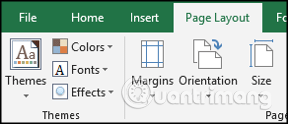
<p>Bạn sẽ tìm thấy theme trong tab&nbsp;<strong>Page Layout</strong>&nbsp;của Excel.&nbsp;</p>

<p><img alt="Chọn tab Page Layout" data-i="0" data-src="https://st.quantrimang.com/photos/image/2019/07/01/su-dung-theme-excel-1.png" data-was-processed="true" height="124" src="https://st.quantrimang.com/photos/image/2019/07/01/su-dung-theme-excel-1.png" width="288" /></p>

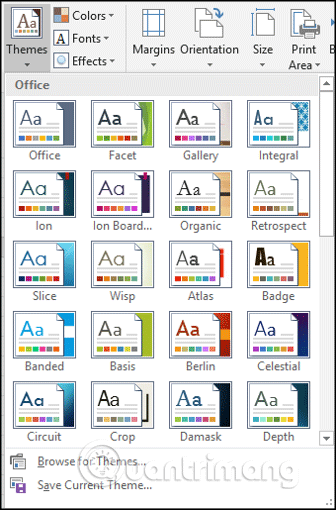
<p>Khi chọn một theme, nó sẽ áp dụng một bộ sưu tập màu sắc, font chữ và hình dạng cho workbook của bạn.</p>

<p><img alt="Danh sách theme của Excel " data-i="1" data-src="https://st.quantrimang.com/photos/image/2019/07/01/su-dung-theme-excel-2.png" data-was-processed="true" height="510" src="https://st.quantrimang.com/photos/image/2019/07/01/su-dung-theme-excel-2.png" width="336" /></p>

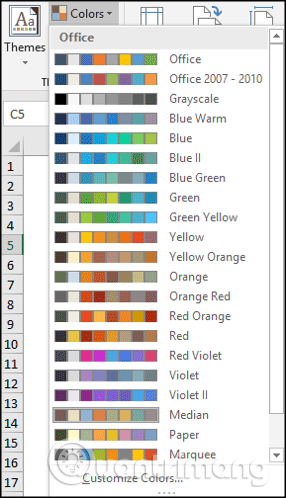
<p>Hoặc bạn có thể chọn màu hoặc font chữ cụ thể để áp dụng cho trang tính của mình.</p>

<p><img alt="Chọn màu và font chữ cụ thể " data-i="2" data-src="https://st.quantrimang.com/photos/image/2019/07/01/su-dung-theme-excel-3.png" data-was-processed="true" height="498" src="https://st.quantrimang.com/photos/image/2019/07/01/su-dung-theme-excel-3.png" width="286" /></p>

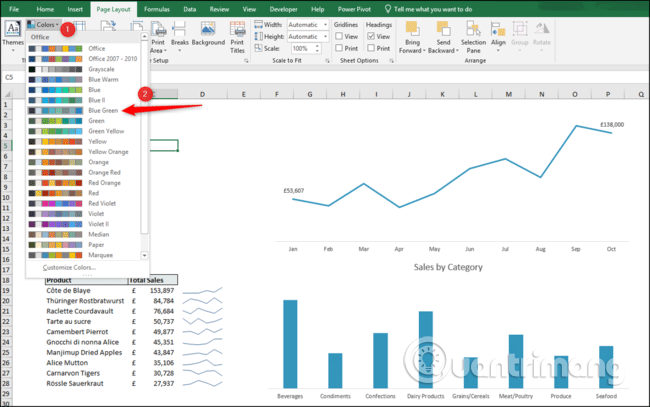
<p>Excel có nhiều theme tích hợp và nhiều theme font chữ và màu để bạn có thể sử dụng cho workbook, giúp tiết kiệm thời gian chọn màu và font chữ thủ công để phối với nhau.</p>

<p>Hình ảnh bên dưới hiển thị theme màu Blue Green, bạn thấy cả hai biểu đồ cùng áp dụng theme màu này, mang đến cái nhìn và cảm nhận nhất quán.</p>

<p><img alt="Sử dụng theme mặc định " data-i="3" data-src="https://st.quantrimang.com/photos/image/2019/07/01/su-dung-theme-excel-4.png" data-was-processed="true" height="401" src="https://st.quantrimang.com/photos/image/2019/07/01/su-dung-theme-excel-4.png" width="640" /></p>

<h2 id="mcetoc_1dem6gsem1">Cách tạo theme tùy chỉnh</h2>

<h3 id="mcetoc_1dem6gsem2">Tạo theme màu tùy chỉnh</h3>

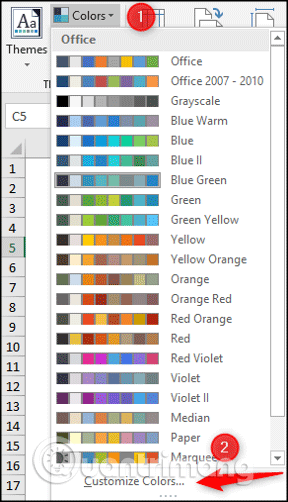
<p>Click vào danh sách&nbsp;<strong>Colors</strong>&nbsp;trong nhóm&nbsp;<strong>Themes</strong>&nbsp;và click vào&nbsp;<strong>Customize Colors</strong>&nbsp;ở dưới cùng danh sách.</p>

<p><img alt="Click vào Customize Colors" data-i="4" data-src="https://st.quantrimang.com/photos/image/2019/07/01/su-dung-theme-excel-5.png" data-was-processed="true" height="502" src="https://st.quantrimang.com/photos/image/2019/07/01/su-dung-theme-excel-5.png" width="288" /></p>

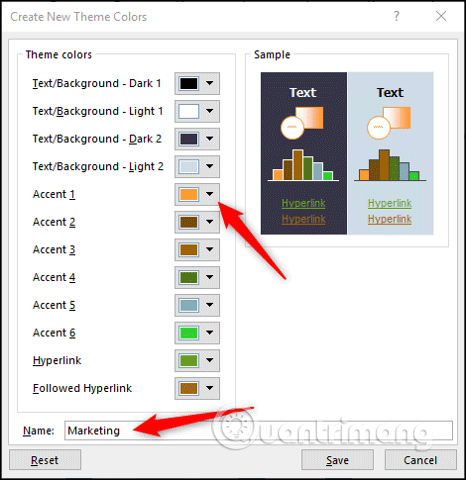
<p>Thao tác này sẽ mở cửa sổ&nbsp;<strong>Create New Theme Colors</strong>. Đặt tên cho theme màu mới của bạn. Trong ví dụ này, chúng ta sẽ tạo một theme màu cho nhóm marketing.</p>

<p>Sau đó, bạn chọn màu muốn sử dụng cho theme này từ danh sách và click vào&nbsp;<strong>Save</strong>.</p>

<p><img alt="Chọn màu cho theme" data-i="5" data-src="https://st.quantrimang.com/photos/image/2019/07/01/su-dung-theme-excel-6.png" data-was-processed="true" height="480" src="https://st.quantrimang.com/photos/image/2019/07/01/su-dung-theme-excel-6.png" width="466" /></p>

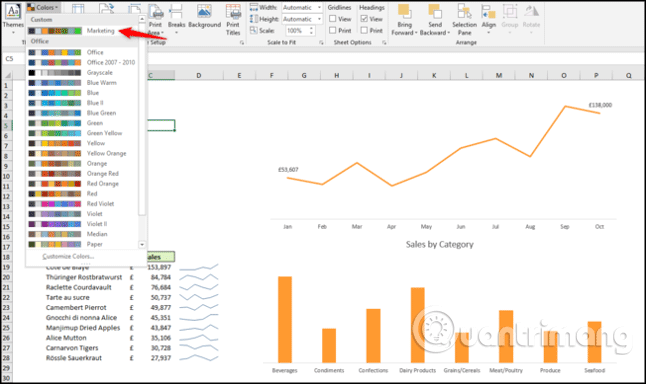
<p>Theme màu này sẽ có sẵn từ danh sách tùy chọn để bạn có thể sử dụng cho workbook sau này.</p>

<p>Hình ảnh bên dưới hiển thị theme được áp dụng cho biểu đồ cũng như cột bên dưới danh sách.</p>

<p><img alt="Áp dụng theme màu tùy chỉnh " data-i="6" data-src="https://st.quantrimang.com/photos/image/2019/07/01/su-dung-theme-excel-7.png" data-was-processed="true" height="380" src="https://st.quantrimang.com/photos/image/2019/07/01/su-dung-theme-excel-7.png" width="640" /></p>

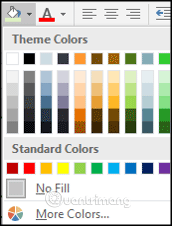
<p>Theme được áp dụng cũng ảnh hưởng đến các tùy chọn khi áp dụng màu trong các khu vực khác của Excel. Ví dụ, bạn có thể thấy lựa chọn màu hiện có sẵn khi sử dụng màu tô (fill color).&nbsp;</p>

<ul>
	<li><a href="https://quantrimang.com/lam-sao-de-to-mau-xen-ke-giua-cac-dong-trong-excel-2013-118508" title="4 bước cơ bản để tô màu xen kẽ các dòng trong Microsoft Excel">4 bước cơ bản để tô màu xen kẽ các dòng trong Microsoft Excel</a></li>
</ul>

<p><img alt="Màu có sẵn cho màu tô " data-i="7" data-src="https://st.quantrimang.com/photos/image/2019/07/01/su-dung-theme-excel-8.png" data-was-processed="true" height="226" src="https://st.quantrimang.com/photos/image/2019/07/01/su-dung-theme-excel-8.png" width="172" /></p>
&nbsp;

<h3 id="mcetoc_1dem6gsem3">Tạo theme font chữ tùy chỉnh</h3>

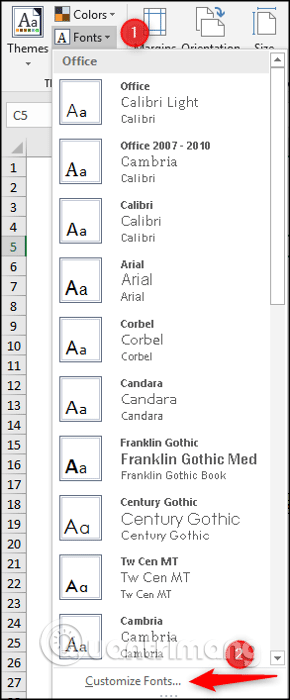
<p>Click vào nút&nbsp;<strong>Fonts</strong>&nbsp;và click vào&nbsp;<strong>Customize Fonts</strong>.</p>

<p><img alt="Click vào Customize Fonts" data-i="8" data-src="https://st.quantrimang.com/photos/image/2019/07/01/su-dung-theme-excel-9.png" data-was-processed="true" height="600" src="https://st.quantrimang.com/photos/image/2019/07/01/su-dung-theme-excel-9.png" width="249" /></p>

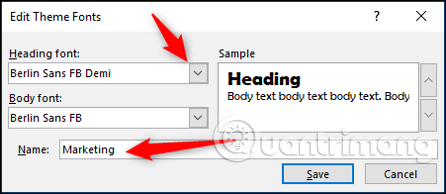
<p>Bạn sẽ thấy cửa sổ&nbsp;<strong>Edit Theme Fonts</strong>&nbsp;mở ra.&nbsp;Nhập tên cho theme font chữ của bạn và chọn font muốn sử dụng cho&nbsp;<strong>Heading font</strong>&nbsp;và&nbsp;<strong>Body font</strong>&nbsp;từ danh sách, click vào&nbsp;<strong>Save</strong>.</p>

<p><img alt="Chọn font chữ cho Heading font và Body font" data-i="9" data-src="https://st.quantrimang.com/photos/image/2019/07/01/su-dung-theme-excel-10.png" data-was-processed="true" height="194" src="https://st.quantrimang.com/photos/image/2019/07/01/su-dung-theme-excel-10.png" width="446" /></p>

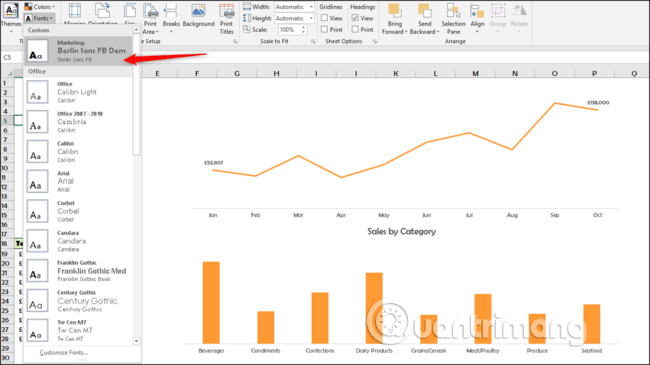
<p>Danh sách theme font chữ này sẽ có trong danh sách Fonts và được áp dụng cho workbook bên dưới.</p>

<p><img alt="Sử dụng theme font chữ tùy chỉnh " data-i="10" data-src="https://st.quantrimang.com/photos/image/2019/07/01/su-dung-theme-excel-11.png" data-was-processed="true" height="359" src="https://st.quantrimang.com/photos/image/2019/07/01/su-dung-theme-excel-11.png" width="640" /></p>

<h3 id="mcetoc_1dem6gsem4">Theme hiệu ứng</h3>

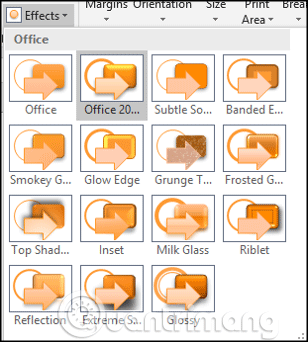
<p>Theme hiệu ứng là lựa chọn các hiệu ứng đổ bóng, phản xạ, đường và các hiệu ứng khác được sử dụng cho hình dạng.</p>

<p>Bạn không thể tùy chỉnh những theme này nhưng có thể chọn nó từ danh sách khi nhấn nút&nbsp;<strong>Effects</strong>.</p>

<p><img alt="Theme hiệu ứng " data-i="11" data-src="https://st.quantrimang.com/photos/image/2019/07/01/su-dung-theme-excel-12.png" data-was-processed="true" height="342" src="https://st.quantrimang.com/photos/image/2019/07/01/su-dung-theme-excel-12.png" width="308" /></p>

<h3 id="mcetoc_1dem6gsem5">Cách lưu theme tùy chỉnh</h3>

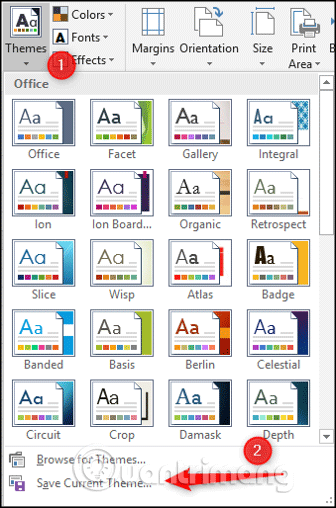
<p>Sau khi tùy chỉnh theme màu và font chữ, bạn có thể lưu chúng vào thành một theme bằng cách click vào nút&nbsp;<strong>Themes</strong>&nbsp;và click vào&nbsp;<strong>Save Current Theme</strong>.</p>

<p><img alt="Click vào Save Current Theme" data-i="12" data-src="https://st.quantrimang.com/photos/image/2019/07/01/su-dung-theme-excel-13.png" data-was-processed="true" height="508" src="https://st.quantrimang.com/photos/image/2019/07/01/su-dung-theme-excel-13.png" width="336" /></p>

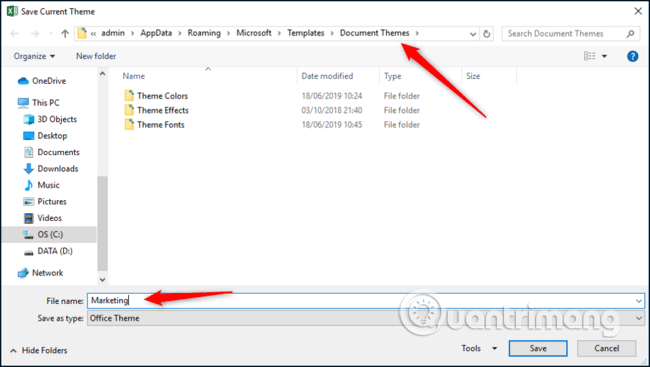
<p>Trên cửa sổ&nbsp;<strong>Save Current Theme</strong>&nbsp;hiện ra, nhập tên cho theme và lưu nó bằng cách click vào&nbsp;<strong>Save</strong>. Theme là một file THMX và được lưu như một Excel workbook.</p>

<p>Nó được lưu mặc định trong thư mục Templates. Excel sẽ tự động tìm kiếm theme, do đó bạn nên lưu nó ở đây. Tuy nhiên bạn cũng có thể lưu ở nơi khác nếu muốn.</p>

<p><img alt="Lưu theme tùy chỉnh" data-i="13" data-src="https://st.quantrimang.com/photos/image/2019/07/01/su-dung-theme-excel-14.png" data-was-processed="true" height="361" src="https://st.quantrimang.com/photos/image/2019/07/01/su-dung-theme-excel-14.png" width="640" /></p>

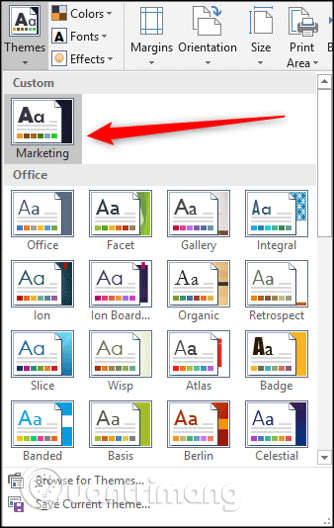
<p>Bây giờ, theme tùy chỉnh của bạn sẽ có trong danh sách theme khi nhấn nút&nbsp;<strong>Themes</strong>.</p>

<p><img alt="Theme tùy chỉnh trong Themes" data-i="14" data-src="https://st.quantrimang.com/photos/image/2019/07/01/su-dung-theme-excel-15.png" data-was-processed="true" height="528" src="https://st.quantrimang.com/photos/image/2019/07/01/su-dung-theme-excel-15.png" width="334" /></p>

<p>Nếu lưu theme ở nơi khác, không ở trong thư mục Templates, click vào&nbsp;<strong>Browse for Themes</strong>&nbsp;để mở nó.</p>

<p>Chúc các bạn thực hiện thành công!&nbsp;</p>
		</div>
				<div id="author">
						<p>
				<strong>Nguồn tin:</strong>
				Quantrimang.com
			</p>
		</div>
	</div>
	<div id="footer" class="clearfix">
		<div id="url">
			<strong>URL của bản tin này: </strong><a href="https://www.nguoicodonvn2008.info/vi/news/savefile/kien-thuc-may-tinh/cach-su-dung-theme-trong-excel-341.html" title="Cách sử dụng theme trong Excel">https://www.nguoicodonvn2008.info/vi/news/savefile/kien-thuc-may-tinh/cach-su-dung-theme-trong-excel-341.html</a>

		</div>
		<div class="clear"></div>
		<div class="copyright">
			&copy; .&#x3A; Nguoicodonvn2008.info - Cõi lòng người cô đơn &#x3A;.
		</div>
		<div id="contact">
			<a href="mailto:admin@nguoicodonvn2008.info">admin@nguoicodonvn2008.info</a>
		</div>
	</div>
</div>
        <div id="timeoutsess" class="chromeframe">
            Bạn đã không sử dụng Site, <a onclick="timeoutsesscancel();" href="https://nguoicodonvn2008.info/#">Bấm vào đây để duy trì trạng thái đăng nhập</a>. Thời gian chờ: <span id="secField"> 60 </span> giây
        </div>
        <div id="openidResult" class="nv-alert" style="display:none"></div>
        <div id="openidBt" data-result="" data-redirect=""></div>
		</script>
		<div class="car-top">
  <span><img src="https://nguoicodonvn2008.info/themes/default/images/car.png" alt=""></span>
</div>
<script src="https://nguoicodonvn2008.info/assets/js/jquery/jquery.min.js"></script>
<script>var nv_base_siteurl="/",nv_lang_data="vi",nv_lang_interface="vi",nv_name_variable="nv",nv_fc_variable="op",nv_lang_variable="language",nv_module_name="news",nv_func_name="savefile",nv_is_user=0, nv_my_ofs=-4,nv_my_abbr="EDT",nv_cookie_prefix="nv4c_e856T",nv_check_pass_mstime=1738000,nv_area_admin=0,nv_safemode=0,theme_responsive=0,nv_recaptcha_ver=2,nv_recaptcha_sitekey="",nv_recaptcha_type="image",XSSsanitize=1;</script>
<script src="https://nguoicodonvn2008.info/assets/js/language/vi.js"></script>
<script src="https://nguoicodonvn2008.info/assets/js/DOMPurify/purify3.js"></script>
<script src="https://nguoicodonvn2008.info/assets/js/global.js"></script>
<script src="https://nguoicodonvn2008.info/assets/js/site.js"></script>
<script src="https://nguoicodonvn2008.info/themes/default/js/news.js"></script>
<script src="https://nguoicodonvn2008.info/themes/default/js/main.js"></script>
<script src="https://nguoicodonvn2008.info/themes/default/js/custom.js"></script>
<script type="application/ld+json">
        {
            "@context": "https://schema.org",
            "@type": "Organization",
            "url": "https://nguoicodonvn2008.info",
            "logo": "https://nguoicodonvn2008.info/uploads/angel.gif"
        }
        </script>
<script src="https://nguoicodonvn2008.info/themes/default/js/bootstrap.min.js"></script>
<script type="text/javascript">
var $scrolltop = $('.car-top');
$scrolltop.on('click', function () {
    $('html,body').animate({
        scrollTop: 0
    }, 800);
    $(this).addClass("car-run");
    setTimeout(function(){ $scrolltop.removeClass('car-run');}, 1000);
    return false;
});
$(window).on('scroll', function ()
{ 
    if($(window).scrollTop() >= 200)
    {
        $scrolltop.addClass("show");
        $scrolltop.addClass("car-down");
    }
    else
    {
       $scrolltop.removeClass("show");
       setTimeout(function(){ $scrolltop.removeClass('car-down');}, 300);
    }
});
</script>
</body>
</html>