<!DOCTYPE html>
    <html lang="vi" xmlns="http://www.w3.org/1999/xhtml" prefix="og: http://ogp.me/ns#">
    <head>
<title>Cách sử dụng tab dọc &#40;vertical tabs&#41; trong Microsoft Edge</title>
<meta name="description" content="Cách sử dụng tab dọc &#40;vertical tabs&#41; trong Microsoft Edge - Savefile - Tin Tức -...">
<meta name="author" content=".: Nguoicodonvn2008.info - Cõi lòng người cô đơn :.">
<meta name="copyright" content=".: Nguoicodonvn2008.info - Cõi lòng người cô đơn :. [admin@nguoicodonvn2008.info]">
<meta name="robots" content="index, archive, follow, noodp">
<meta name="googlebot" content="index,archive,follow,noodp">
<meta name="msnbot" content="all,index,follow">
<meta name="generator" content="NukeViet v4.5">
<meta http-equiv="Content-Type" content="text/html; charset=utf-8">
<meta property="og:title" content="Cách sử dụng tab dọc &#40;vertical tabs&#41; trong Microsoft Edge">
<meta property="og:type" content="website">
<meta property="og:description" content="Savefile - Tin Tức - https&#x3A;&#x002F;&#x002F;www.nguoicodonvn2008.info&#x002F;vi&#x002F;news&#x002F;savefile&#x002F;kien-thuc-may-tinh&#x002F;cach-su-dung-tab-doc-vertical-tabs-trong-microsoft-edge-3774.html">
<meta property="og:site_name" content=".&#x3A; Nguoicodonvn2008.info - Cõi lòng người cô đơn &#x3A;.">
<meta property="og:url" content="https://www.nguoicodonvn2008.info/vi/news/savefile/kien-thuc-may-tinh/cach-su-dung-tab-doc-vertical-tabs-trong-microsoft-edge-3774.html">
<link rel="shortcut icon" href="https://nguoicodonvn2008.info/favicon.ico">
<link rel="canonical" href="https://www.nguoicodonvn2008.info/vi/news/savefile/kien-thuc-may-tinh/cach-su-dung-tab-doc-vertical-tabs-trong-microsoft-edge-3774.html">
<link rel="alternate" href="https://nguoicodonvn2008.info/vi/news/rss/" title="Tin Tức" type="application/rss+xml">
<link rel="alternate" href="https://nguoicodonvn2008.info/vi/news/rss/karaoke-dual/" title="Tin Tức - Karaoke Dual" type="application/rss+xml">
<link rel="alternate" href="https://nguoicodonvn2008.info/vi/news/rss/nhac-tre/" title="Tin Tức - Nhạc trẻ" type="application/rss+xml">
<link rel="alternate" href="https://nguoicodonvn2008.info/vi/news/rss/tru-tinh/" title="Tin Tức - Trữ tình" type="application/rss+xml">
<link rel="alternate" href="https://nguoicodonvn2008.info/vi/news/rss/nuoc-ngoai/" title="Tin Tức - Nước ngoài" type="application/rss+xml">
<link rel="alternate" href="https://nguoicodonvn2008.info/vi/news/rss/remix/" title="Tin Tức - Remix" type="application/rss+xml">
<link rel="alternate" href="https://nguoicodonvn2008.info/vi/news/rss/tam-su-tinh-yeu/" title="Tin Tức - Tâm sự tình yêu" type="application/rss+xml">
<link rel="alternate" href="https://nguoicodonvn2008.info/vi/news/rss/tho-suu-tam/" title="Tin Tức - Thơ sưu tầm" type="application/rss+xml">
<link rel="alternate" href="https://nguoicodonvn2008.info/vi/news/rss/cuoc-song/" title="Tin Tức - Cuộc sống" type="application/rss+xml">
<link rel="alternate" href="https://nguoicodonvn2008.info/vi/news/rss/phan-mem/" title="Tin Tức - Phần mềm" type="application/rss+xml">
<link rel="alternate" href="https://nguoicodonvn2008.info/vi/news/rss/kien-thuc-may-tinh/" title="Tin Tức - Kiến thức máy tính" type="application/rss+xml">
<link rel="alternate" href="https://nguoicodonvn2008.info/vi/news/rss/hoc-tap/" title="Tin Tức - Học tập" type="application/rss+xml">
<link rel="alternate" href="https://nguoicodonvn2008.info/vi/news/rss/tai-lieu/" title="Tin Tức - Tài liệu" type="application/rss+xml">
<link rel="alternate" href="https://nguoicodonvn2008.info/vi/news/rss/de-thi/" title="Tin Tức - Đề thi" type="application/rss+xml">
<link rel="preload" as="style" href="https://nguoicodonvn2008.info/assets/css/font-awesome.min.css" type="text/css">
<link rel="preload" as="style" href="https://nguoicodonvn2008.info/themes/default/css/bootstrap.non-responsive.css" type="text/css">
<link rel="preload" as="style" href="https://nguoicodonvn2008.info/themes/default/css/style.css" type="text/css">
<link rel="preload" as="style" href="https://nguoicodonvn2008.info/themes/default/css/style.non-responsive.css" type="text/css">
<link rel="preload" as="style" href="https://nguoicodonvn2008.info/themes/default/css/news.css" type="text/css">
<link rel="preload" as="style" href="https://nguoicodonvn2008.info/themes/default/css/custom.css" type="text/css">
<link rel="preload" as="script" href="https://nguoicodonvn2008.info/assets/js/jquery/jquery.min.js" type="text/javascript">
<link rel="preload" as="script" href="https://nguoicodonvn2008.info/assets/js/language/vi.js" type="text/javascript">
<link rel="preload" as="script" href="https://nguoicodonvn2008.info/assets/js/DOMPurify/purify3.js" type="text/javascript">
<link rel="preload" as="script" href="https://nguoicodonvn2008.info/assets/js/global.js" type="text/javascript">
<link rel="preload" as="script" href="https://nguoicodonvn2008.info/assets/js/site.js" type="text/javascript">
<link rel="preload" as="script" href="https://nguoicodonvn2008.info/themes/default/js/news.js" type="text/javascript">
<link rel="preload" as="script" href="https://nguoicodonvn2008.info/themes/default/js/main.js" type="text/javascript">
<link rel="preload" as="script" href="https://nguoicodonvn2008.info/themes/default/js/custom.js" type="text/javascript">
<link rel="preload" as="script" href="https://nguoicodonvn2008.info/themes/default/js/bootstrap.min.js" type="text/javascript">
<link rel="stylesheet" href="https://nguoicodonvn2008.info/assets/css/font-awesome.min.css">
<link rel="stylesheet" href="https://nguoicodonvn2008.info/themes/default/css/bootstrap.non-responsive.css">
<link rel="stylesheet" href="https://nguoicodonvn2008.info/themes/default/css/style.css">
<link rel="stylesheet" href="https://nguoicodonvn2008.info/themes/default/css/style.non-responsive.css">
<link rel="StyleSheet" href="https://nguoicodonvn2008.info/themes/default/css/news.css">
<link rel="stylesheet" href="https://nguoicodonvn2008.info/themes/default/css/custom.css">
<style type="text/css">
	body{background: #fff;}
</style>
    </head>
    <body>
<div id="print">
	<div id="hd_print">
		<h2 class="pull-left">.&#x3A; Nguoicodonvn2008.info - Cõi lòng người cô đơn &#x3A;.</h2>
		<p class="pull-right"><a title=".&#x3A; Nguoicodonvn2008.info - Cõi lòng người cô đơn &#x3A;." href="https://nguoicodonvn2008.info/">https://nguoicodonvn2008.info</a></p>
	</div>
	<div class="clear"></div>
	<hr />
	<div id="content">
		<h1>Cách sử dụng tab dọc &#40;vertical tabs&#41; trong Microsoft Edge</h1>
		<ul class="list-inline">
			<li>Thứ tư - 17/03/2021 00:54</li>
			<li class="hidden-print txtrequired"><em class="fa fa-print">&nbsp;</em><a title="In ra" href="javascript:;" onclick="window.print()">In ra</a></li>
			<li class="hidden-print txtrequired"><em class="fa fa-power-off">&nbsp;</em><a title="Đóng cửa sổ này" href="javascript:;" onclick="window.close()">Đóng cửa sổ này</a></li>
		</ul>
		<div class="clear"></div>
		<div id="hometext">
		</div>
				<div class="imghome">
			<img alt="Cách sử dụng tab dọc &#40;vertical tabs&#41; trong Microsoft Edge" src="https://st.quantrimang.com/photos/image/2021/03/17/tab-doc-edge8.jpg" width="460" class="img-thumbnail" />
		</div>
		<div class="clear"></div>
		<div id="bodytext" class="clearfix">
			<p style="text-align: justify;">Tab dọc (vertical Tabs) là một tính năng mới khá hữu ích của Microsoft Edge. Đúng như tên gọi, tính năng này sẽ liệt kê danh sách các tab đang mở trên trình duyệt theo danh sách dọc trong menu sidebar bên trái màn hình. Tất cả tab đang mở được liệt kê tại giao diện dọc này và nội dung ở từng tab cũng sẽ hiển thị trực quan theo danh sách thứ tự từ trên xuống dưới, cho phép người dùng quản lý hàng loạt các tab đang mở cùng lúc dễ dàng hơn.</p>

<p style="text-align: justify;">Dưới đây là cách sử dụng tính năng Tab dọc trong Edge trên Windows, macOS hoặc thậm chí Linux.</p>

<h2 style="text-align: justify;">Cách hiển thị và ẩn danh sách tab dọc</h2>

<p style="text-align: justify;">Trước khi bắt đầu, hãy đảm bảo rằng bạn đã cập nhật lên phiên bản mới nhất của Microsoft Edge. Tính năng tab dọc được chính thức giới thiệu trong Microsoft Edge phiên bản 89, phát hành vào ngày 4 tháng 3 năm 2021.</p>

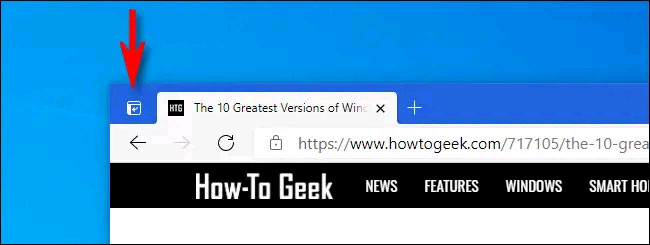
<p style="text-align: justify;">Tiếp theo, khởi chạy Edge và mở một cửa sổ mới. Theo mặc định, bạn sẽ thấy nút “turn on vertical tabs” (bật tab dọc) xuất hiện ở góc trên bên trái cửa sổ, trông giống như một hình vuông tròn nhỏ với một mũi tên cong hướng sang trái. Hãy nhấp vào nó.</p>

<p style="text-align: justify;"><img alt="Nút “turn on vertical tabs”" data-i="0" data-src="https://st.quantrimang.com/photos/image/2021/03/17/tab-doc-edge1.jpg" data-was-processed="true" height="245" src="https://st.quantrimang.com/photos/image/2021/03/17/tab-doc-edge1.jpg" width="650" /></p>

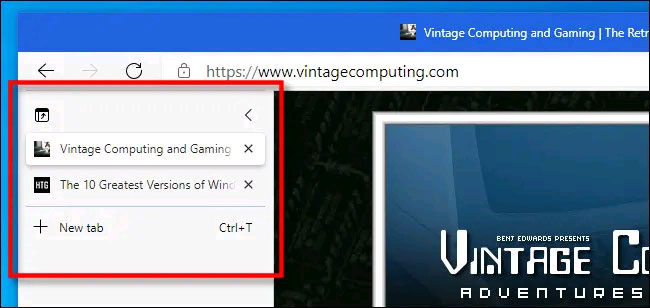
<p style="text-align: justify;">Lập tức, cột tab dọc sẽ mở ở bên trái cửa sổ trình duyệt của bạn và thanh tab ngang sẽ biến mất. Khi bạn nhấp vào bất kỳ mục nào trong danh sách, tab tương ứng sẽ ngay lập tức mở ra trong cửa sổ. Bên cạnh đó, bạn có thể nhấp vào nút “New tab” (Tab mới) để mở một tab mới hoặc kéo và thả các tab hiện có bằng con trỏ chuột để sắp xếp thứ tự của chúng.</p>

<p style="text-align: justify;"><img alt="Cột quản lý tab dọc" data-i="1" data-src="https://st.quantrimang.com/photos/image/2021/03/17/tab-doc-edge2.jpg" data-was-processed="true" height="308" src="https://st.quantrimang.com/photos/image/2021/03/17/tab-doc-edge2.jpg" width="650" /></p>

<p style="text-align: justify;">Để đóng cột tab dọc (và chuyển về tab ngang), bạn chỉ cần nhấp vào nút &quot;turn off vertical tabs” (tắt tab dọc). Nút này trông giống như một hình vuông với mũi tên hướng lên trên. Nó nằm ở góc trên bên trái của bảng liệt kê các tab dọc.</p>

<p style="text-align: justify;"><img alt="Nhấp vào nút &#039;turn off vertical tabs” " data-i="2" data-src="https://st.quantrimang.com/photos/image/2021/03/17/tab-doc-edge3.jpg" data-was-processed="true" height="256" src="https://st.quantrimang.com/photos/image/2021/03/17/tab-doc-edge3.jpg" width="650" /></p>

<h2 style="text-align: justify;">Cách tạo danh sách tab dọc tự động mở rộng hoặc thu gọn</h2>

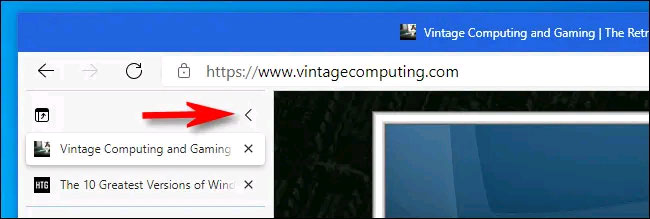
<p style="text-align: justify;">Theo mặc định, cột tab dọc trong Edge sẽ luôn ở trạng thái mở rộng, nghĩa là bạn có thể thấy đầy đủ cả tên trang web và biểu tượng của chúng. Nếu bạn muốn cột tab dọc tự động thu nhỏ nhằm tối ưu diện tích hiển thị, hãy nhấn vào biểu tượng dấu nhỏ hơn ở góc trên bên phải của cột tab dọc.</p>

<p style="text-align: justify;"><img alt="Thu nhỏ danh sách tab dọc" data-i="3" data-src="https://st.quantrimang.com/photos/image/2021/03/17/tab-doc-edge4.jpg" data-was-processed="true" height="219" src="https://st.quantrimang.com/photos/image/2021/03/17/tab-doc-edge4.jpg" width="650" /></p>

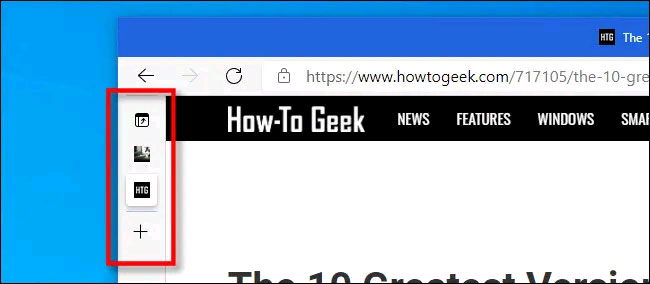
<p style="text-align: justify;">Lập tức, cột tab dọc sẽ được thu gọn tối đa, chỉ hiển thị biểu tượng của các trang web đang được mở dưới dạng tab. Trong chế độ xem này, hãy nhấn vào nút dấu cộng (“+”) để thêm tab mới bất kỳ lúc nào.</p>

<p style="text-align: justify;"><img alt="Danh sách tab đã được thu nhỏ" data-i="4" data-src="https://st.quantrimang.com/photos/image/2021/03/17/tab-doc-edge5.jpg" data-was-processed="true" height="284" src="https://st.quantrimang.com/photos/image/2021/03/17/tab-doc-edge5.jpg" width="650" /></p>

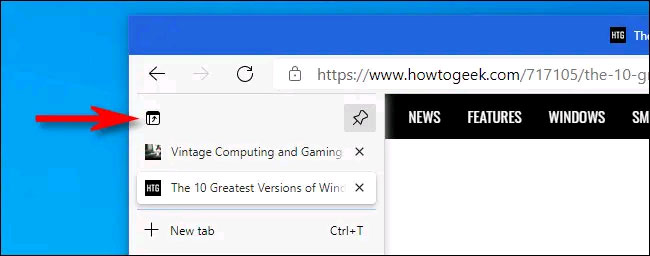
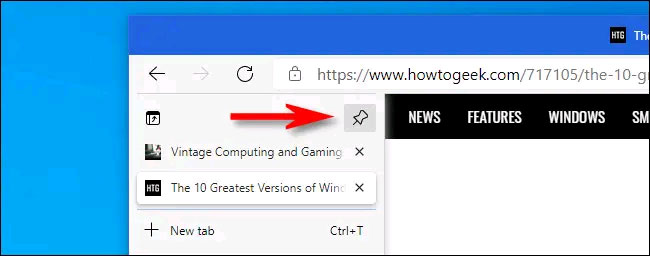
<p style="text-align: justify;">Nếu bạn muốn cột tab dọc luôn phải ở trạng thái mở rộng, hãy nhấp vào biểu tượng “ghim” ở góc trên bên phải của danh sách tab. Cột tab dọc bây giờ sẽ được “ghim” ở trạng thái mở rộng.</p>

<p style="text-align: justify;"><img alt="Ghim danh sách tab mở ở trạng thái mở rộng." data-i="5" data-src="https://st.quantrimang.com/photos/image/2021/03/17/tab-doc-edge6.jpg" data-was-processed="true" height="256" src="https://st.quantrimang.com/photos/image/2021/03/17/tab-doc-edge6.jpg" width="650" /></p>

<h2 style="text-align: justify;">Làm thế nào khi không thấy nút tab dọc?</h2>

<p style="text-align: justify;">Nếu không thấy nút tab dọc thì khả năng cao là bạn chưa cập nhật lên phiên bản Edge mới nhất hoặc trước đó bạn đã vô tình ẩn nút tab dọc này đi.</p>

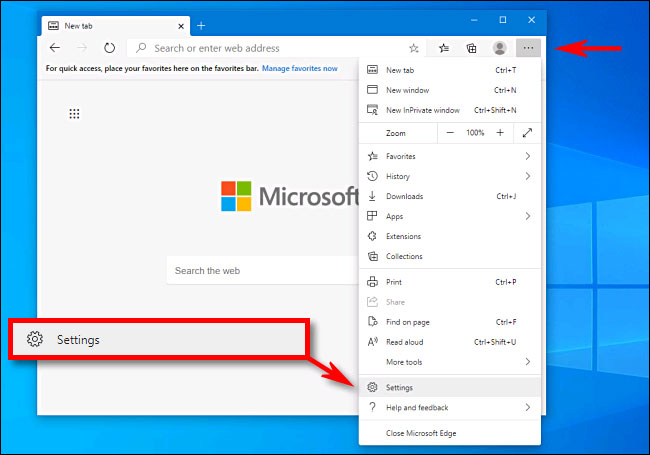
<p style="text-align: justify;">Để bật lại nút tab dọc, hãy nhấp vào nút menu ba chấm ở góc trên bên phải của bất kỳ cửa sổ Edge nào và bấm vào “Settings” (Cài đặt).</p>

<p style="text-align: justify;"><img alt="Bấm vào “Settings”" data-i="6" data-src="https://st.quantrimang.com/photos/image/2021/03/17/tab-doc-edge7.jpg" data-was-processed="true" height="455" src="https://st.quantrimang.com/photos/image/2021/03/17/tab-doc-edge7.jpg" width="650" /></p>

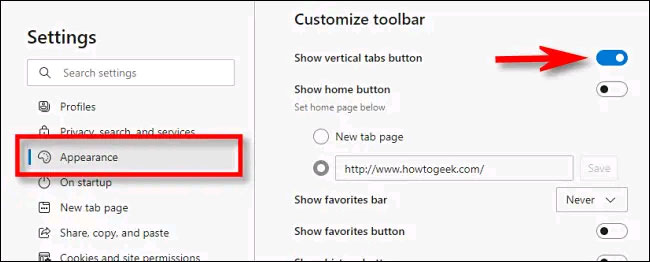
<p style="text-align: justify;">Trong menu Cài đặt, bạn nhấp vào “Appearance” (Giao diện), sau đó tìm phần “Customize toolbar” (Tùy chỉnh thanh công cụ). Nhấn vào công tắc bên cạnh “Show vertical tabs button” (Hiển thị nút tab dọc) để bật.</p>

<p style="text-align: justify;"><img alt="Bật “Show vertical tabs button”" data-i="7" data-src="https://st.quantrimang.com/photos/image/2021/03/17/tab-doc-edge8.jpg" data-was-processed="true" height="262" src="https://st.quantrimang.com/photos/image/2021/03/17/tab-doc-edge8.jpg" width="650" /></p>

<p style="text-align: justify;">Nút tab dọc sẽ xuất hiện ngay lập tức. Đóng tab Cài đặt và công việc đã hoàn tất.</p>
		</div>
				<div id="author">
						<p>
				<strong>Nguồn tin:</strong>
				Quantrimang.com
			</p>
		</div>
	</div>
	<div id="footer" class="clearfix">
		<div id="url">
			<strong>URL của bản tin này: </strong><a href="https://www.nguoicodonvn2008.info/vi/news/savefile/kien-thuc-may-tinh/cach-su-dung-tab-doc-vertical-tabs-trong-microsoft-edge-3774.html" title="Cách sử dụng tab dọc &#40;vertical tabs&#41; trong Microsoft Edge">https://www.nguoicodonvn2008.info/vi/news/savefile/kien-thuc-may-tinh/cach-su-dung-tab-doc-vertical-tabs-trong-microsoft-edge-3774.html</a>

		</div>
		<div class="clear"></div>
		<div class="copyright">
			&copy; .&#x3A; Nguoicodonvn2008.info - Cõi lòng người cô đơn &#x3A;.
		</div>
		<div id="contact">
			<a href="mailto:admin@nguoicodonvn2008.info">admin@nguoicodonvn2008.info</a>
		</div>
	</div>
</div>
        <div id="timeoutsess" class="chromeframe">
            Bạn đã không sử dụng Site, <a onclick="timeoutsesscancel();" href="https://nguoicodonvn2008.info/#">Bấm vào đây để duy trì trạng thái đăng nhập</a>. Thời gian chờ: <span id="secField"> 60 </span> giây
        </div>
        <div id="openidResult" class="nv-alert" style="display:none"></div>
        <div id="openidBt" data-result="" data-redirect=""></div>
		</script>
		<div class="car-top">
  <span><img src="https://nguoicodonvn2008.info/themes/default/images/car.png" alt=""></span>
</div>
<script src="https://nguoicodonvn2008.info/assets/js/jquery/jquery.min.js"></script>
<script>var nv_base_siteurl="/",nv_lang_data="vi",nv_lang_interface="vi",nv_name_variable="nv",nv_fc_variable="op",nv_lang_variable="language",nv_module_name="news",nv_func_name="savefile",nv_is_user=0, nv_my_ofs=-4,nv_my_abbr="EDT",nv_cookie_prefix="nv4c_e856T",nv_check_pass_mstime=1738000,nv_area_admin=0,nv_safemode=0,theme_responsive=0,nv_recaptcha_ver=2,nv_recaptcha_sitekey="",nv_recaptcha_type="image",XSSsanitize=1;</script>
<script src="https://nguoicodonvn2008.info/assets/js/language/vi.js"></script>
<script src="https://nguoicodonvn2008.info/assets/js/DOMPurify/purify3.js"></script>
<script src="https://nguoicodonvn2008.info/assets/js/global.js"></script>
<script src="https://nguoicodonvn2008.info/assets/js/site.js"></script>
<script src="https://nguoicodonvn2008.info/themes/default/js/news.js"></script>
<script src="https://nguoicodonvn2008.info/themes/default/js/main.js"></script>
<script src="https://nguoicodonvn2008.info/themes/default/js/custom.js"></script>
<script type="application/ld+json">
        {
            "@context": "https://schema.org",
            "@type": "Organization",
            "url": "https://nguoicodonvn2008.info",
            "logo": "https://nguoicodonvn2008.info/uploads/angel.gif"
        }
        </script>
<script src="https://nguoicodonvn2008.info/themes/default/js/bootstrap.min.js"></script>
<script type="text/javascript">
var $scrolltop = $('.car-top');
$scrolltop.on('click', function () {
    $('html,body').animate({
        scrollTop: 0
    }, 800);
    $(this).addClass("car-run");
    setTimeout(function(){ $scrolltop.removeClass('car-run');}, 1000);
    return false;
});
$(window).on('scroll', function ()
{ 
    if($(window).scrollTop() >= 200)
    {
        $scrolltop.addClass("show");
        $scrolltop.addClass("car-down");
    }
    else
    {
       $scrolltop.removeClass("show");
       setTimeout(function(){ $scrolltop.removeClass('car-down');}, 300);
    }
});
</script>
</body>
</html>