<!DOCTYPE html>
    <html lang="vi" xmlns="http://www.w3.org/1999/xhtml" prefix="og: http://ogp.me/ns#">
    <head>
<title>Cách sử dụng SSH Pipe trên Linux</title>
<meta name="description" content="Cách sử dụng SSH Pipe trên Linux - Savefile - Tin Tức - https&#x3A;&#x002F;&#x002F;www.nguoicodonvn2008.info&#x002F;vi&#x002F;news&#x002F;savefile&#x002F;kien-thuc-may-tinh&#x002F;cach-su-dung-ssh-pipe-tren-linux-8000.html">
<meta name="author" content=".: Nguoicodonvn2008.info - Cõi lòng người cô đơn :.">
<meta name="copyright" content=".: Nguoicodonvn2008.info - Cõi lòng người cô đơn :. [admin@nguoicodonvn2008.info]">
<meta name="robots" content="index, archive, follow, noodp">
<meta name="googlebot" content="index,archive,follow,noodp">
<meta name="msnbot" content="all,index,follow">
<meta name="generator" content="NukeViet v4.5">
<meta http-equiv="Content-Type" content="text/html; charset=utf-8">
<meta property="og:title" content="Cách sử dụng SSH Pipe trên Linux">
<meta property="og:type" content="website">
<meta property="og:description" content="Savefile - Tin Tức - https&#x3A;&#x002F;&#x002F;www.nguoicodonvn2008.info&#x002F;vi&#x002F;news&#x002F;savefile&#x002F;kien-thuc-may-tinh&#x002F;cach-su-dung-ssh-pipe-tren-linux-8000.html">
<meta property="og:site_name" content=".&#x3A; Nguoicodonvn2008.info - Cõi lòng người cô đơn &#x3A;.">
<meta property="og:url" content="https://www.nguoicodonvn2008.info/vi/news/savefile/kien-thuc-may-tinh/cach-su-dung-ssh-pipe-tren-linux-8000.html">
<link rel="shortcut icon" href="https://nguoicodonvn2008.info/favicon.ico">
<link rel="canonical" href="https://www.nguoicodonvn2008.info/vi/news/savefile/kien-thuc-may-tinh/cach-su-dung-ssh-pipe-tren-linux-8000.html">
<link rel="alternate" href="https://nguoicodonvn2008.info/vi/news/rss/" title="Tin Tức" type="application/rss+xml">
<link rel="alternate" href="https://nguoicodonvn2008.info/vi/news/rss/karaoke-dual/" title="Tin Tức - Karaoke Dual" type="application/rss+xml">
<link rel="alternate" href="https://nguoicodonvn2008.info/vi/news/rss/nhac-tre/" title="Tin Tức - Nhạc trẻ" type="application/rss+xml">
<link rel="alternate" href="https://nguoicodonvn2008.info/vi/news/rss/tru-tinh/" title="Tin Tức - Trữ tình" type="application/rss+xml">
<link rel="alternate" href="https://nguoicodonvn2008.info/vi/news/rss/nuoc-ngoai/" title="Tin Tức - Nước ngoài" type="application/rss+xml">
<link rel="alternate" href="https://nguoicodonvn2008.info/vi/news/rss/remix/" title="Tin Tức - Remix" type="application/rss+xml">
<link rel="alternate" href="https://nguoicodonvn2008.info/vi/news/rss/tam-su-tinh-yeu/" title="Tin Tức - Tâm sự tình yêu" type="application/rss+xml">
<link rel="alternate" href="https://nguoicodonvn2008.info/vi/news/rss/tho-suu-tam/" title="Tin Tức - Thơ sưu tầm" type="application/rss+xml">
<link rel="alternate" href="https://nguoicodonvn2008.info/vi/news/rss/cuoc-song/" title="Tin Tức - Cuộc sống" type="application/rss+xml">
<link rel="alternate" href="https://nguoicodonvn2008.info/vi/news/rss/phan-mem/" title="Tin Tức - Phần mềm" type="application/rss+xml">
<link rel="alternate" href="https://nguoicodonvn2008.info/vi/news/rss/kien-thuc-may-tinh/" title="Tin Tức - Kiến thức máy tính" type="application/rss+xml">
<link rel="alternate" href="https://nguoicodonvn2008.info/vi/news/rss/hoc-tap/" title="Tin Tức - Học tập" type="application/rss+xml">
<link rel="alternate" href="https://nguoicodonvn2008.info/vi/news/rss/tai-lieu/" title="Tin Tức - Tài liệu" type="application/rss+xml">
<link rel="alternate" href="https://nguoicodonvn2008.info/vi/news/rss/de-thi/" title="Tin Tức - Đề thi" type="application/rss+xml">
<link rel="preload" as="style" href="https://nguoicodonvn2008.info/assets/css/font-awesome.min.css" type="text/css">
<link rel="preload" as="style" href="https://nguoicodonvn2008.info/themes/default/css/bootstrap.non-responsive.css" type="text/css">
<link rel="preload" as="style" href="https://nguoicodonvn2008.info/themes/default/css/style.css" type="text/css">
<link rel="preload" as="style" href="https://nguoicodonvn2008.info/themes/default/css/style.non-responsive.css" type="text/css">
<link rel="preload" as="style" href="https://nguoicodonvn2008.info/themes/default/css/news.css" type="text/css">
<link rel="preload" as="style" href="https://nguoicodonvn2008.info/themes/default/css/custom.css" type="text/css">
<link rel="preload" as="script" href="https://nguoicodonvn2008.info/assets/js/jquery/jquery.min.js" type="text/javascript">
<link rel="preload" as="script" href="https://nguoicodonvn2008.info/assets/js/language/vi.js" type="text/javascript">
<link rel="preload" as="script" href="https://nguoicodonvn2008.info/assets/js/DOMPurify/purify3.js" type="text/javascript">
<link rel="preload" as="script" href="https://nguoicodonvn2008.info/assets/js/global.js" type="text/javascript">
<link rel="preload" as="script" href="https://nguoicodonvn2008.info/assets/js/site.js" type="text/javascript">
<link rel="preload" as="script" href="https://nguoicodonvn2008.info/themes/default/js/news.js" type="text/javascript">
<link rel="preload" as="script" href="https://nguoicodonvn2008.info/themes/default/js/main.js" type="text/javascript">
<link rel="preload" as="script" href="https://nguoicodonvn2008.info/themes/default/js/custom.js" type="text/javascript">
<link rel="preload" as="script" href="https://nguoicodonvn2008.info/themes/default/js/bootstrap.min.js" type="text/javascript">
<link rel="stylesheet" href="https://nguoicodonvn2008.info/assets/css/font-awesome.min.css">
<link rel="stylesheet" href="https://nguoicodonvn2008.info/themes/default/css/bootstrap.non-responsive.css">
<link rel="stylesheet" href="https://nguoicodonvn2008.info/themes/default/css/style.css">
<link rel="stylesheet" href="https://nguoicodonvn2008.info/themes/default/css/style.non-responsive.css">
<link rel="StyleSheet" href="https://nguoicodonvn2008.info/themes/default/css/news.css">
<link rel="stylesheet" href="https://nguoicodonvn2008.info/themes/default/css/custom.css">
<style type="text/css">
	body{background: #fff;}
</style>
    </head>
    <body>
<div id="print">
	<div id="hd_print">
		<h2 class="pull-left">.&#x3A; Nguoicodonvn2008.info - Cõi lòng người cô đơn &#x3A;.</h2>
		<p class="pull-right"><a title=".&#x3A; Nguoicodonvn2008.info - Cõi lòng người cô đơn &#x3A;." href="https://nguoicodonvn2008.info/">https://nguoicodonvn2008.info</a></p>
	</div>
	<div class="clear"></div>
	<hr />
	<div id="content">
		<h1>Cách sử dụng SSH Pipe trên Linux</h1>
		<ul class="list-inline">
			<li>Thứ sáu - 26/01/2024 02:20</li>
			<li class="hidden-print txtrequired"><em class="fa fa-print">&nbsp;</em><a title="In ra" href="javascript:;" onclick="window.print()">In ra</a></li>
			<li class="hidden-print txtrequired"><em class="fa fa-power-off">&nbsp;</em><a title="Đóng cửa sổ này" href="javascript:;" onclick="window.close()">Đóng cửa sổ này</a></li>
		</ul>
		<div class="clear"></div>
		<div id="hometext">
		</div>
				<div class="imghome">
			<img alt="Cách sử dụng SSH Pipe trên Linux" src="https://st.quantrimang.com/photos/image/2024/01/23/su-dung-ssh-pipe-tren-linux-6.jpg" width="460" class="img-thumbnail" />
		</div>
		<div class="clear"></div>
		<div id="bodytext" class="clearfix">
			<p style="text-align: justify;">UNIX pipe là một bước tiến lớn trong sự phát triển của hệ điều hành UNIX và giống UNIX. Nó cho phép người dùng thực hiện các tác vụ tính toán phức tạp bằng cách liên kết đầu vào và đầu ra của những chương trình cơ bản với nhau. Bài viết này mở rộng điều đó bằng cách chỉ cho bạn cách sử dụng UNIX pipe trong&nbsp;Linux&nbsp;qua mạng bằng giao thức&nbsp;SSH.</p>

<h2 style="text-align: justify;">Tìm hiểu về Unix Pipeline</h2>

<p style="text-align: justify;">Các pipe trên Unix (và mở rộng ra là Linux) được sử dụng để kết nối các chương trình và làm cho chúng hoạt động cùng nhau. Ví dụ, khi sử dụng cat, bạn có thể hiển thị nội dung của file, nhưng nếu bạn sử dụng dấu gạch đứng (|), bạn có thể xâu chuỗi&nbsp;lệnh cat&nbsp;với lệnh more để giúp đọc file dễ dàng hơn.</p>

<pre id="pre0">
<code>cat file1 | more</code></pre>

<p style="text-align: justify;">Ý tưởng cơ bản ở đây là:&nbsp;<strong>program1 fileX | program2</strong>. Tuy nhiên, nó không chỉ giới hạn ở một file và hai chương trình. Piping có thể trở nên tiên tiến hơn theo nhu cầu của bạn, với nhiều công cụ sửa đổi mà bạn có thể nghĩ ra.</p>

<p style="text-align: justify;">Dưới đây là một số cách để sử dụng tốt pipe (|) trong các tình huống SSH.</p>

<h2 style="text-align: justify;">Tự động chuyển thư mục nén</h2>

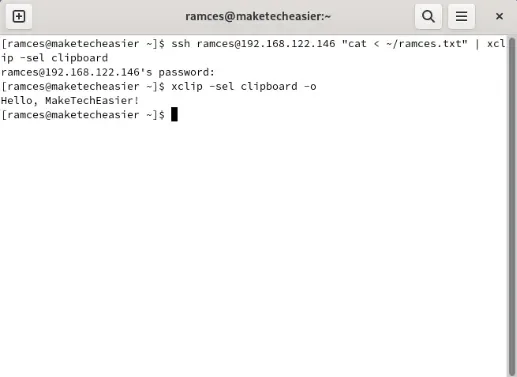
<p style="text-align: justify;">Một trong những cách phổ biến nhất khi sử dụng UNIX pipe là lưu trữ đầu ra của chương trình vào một file ở đâu đó trong hệ thống cục bộ. Ví dụ, chạy&nbsp;<strong>echo &quot;Hello, MakeTechEasier!&quot; | tee Hello</strong>&nbsp;sẽ chạy chương trình echo đồng thời lưu trữ chuỗi&nbsp;<strong>“Hello, MakeTechEasier!”</strong>&nbsp;bên trong file&nbsp;<strong>“Hello”.</strong></p>

<figure>
<div style="text-align: justify;"><img alt="Terminal hiển thị chuyển hướng UNIX pipeline cơ bản trong máy cục bộ." data-i="0" data-src="https://st.quantrimang.com/photos/image/2024/01/23/su-dung-ssh-pipe-tren-linux-1.jpg" data-was-processed="true" height="370" src="https://st.quantrimang.com/photos/image/2024/01/23/su-dung-ssh-pipe-tren-linux-1.jpg" width="580" /></div>

<figcaption>
<div style="text-align: justify;">Terminal hiển thị chuyển hướng UNIX pipeline cơ bản trong máy cục bộ.</div>
</figcaption>
</figure>

<div style="text-align: justify;"><iframe allowtransparency="true" data-google-container-id="a!2" data-google-query-id="CJ_Co4_C-oMDFf9HDwId4O4FpA" data-load-complete="true" frameborder="0" height="0" hspace="0" id="aswift_1" marginheight="0" marginwidth="0" name="aswift_1" sandbox="" scrolling="no" vspace="0" width="694"></iframe></div>

<p style="text-align: justify;">Điều đó có nghĩa là bạn có thể sử dụng ý tưởng này để chuyển các thư mục trên hai máy chủ Linux. Để làm điều đó, hãy đọc thư mục bạn muốn gửi bằng tar, sau đó chuyển thư mục đó tới SSH daemon:</p>

<pre id="pre1">
<code>tar czf - &quot;~/Documents/myfolder&quot; | ssh ramces@remote.host &quot;tar xzf - -C ~/Documents/&quot;</code></pre>

<p style="text-align: justify;">Lệnh này sẽ gói thư mục của bạn vào một kho lưu trữ tar và gửi nó đến đầu ra tiêu chuẩn của lệnh. Sau đó, UNIX pipe sẽ đọc dữ liệu đó và gửi nó đến máy chủ Linux từ xa của bạn bằng SSH.</p>

<p style="text-align: justify;">Bạn cũng có thể đảo ngược lệnh này để lấy file của mình ra khỏi máy chủ từ xa:</p>

<pre id="pre2">
<code>ssh ramces@remote.host &quot;tar czf - ~/Documents/myfolder&quot; | tar xzf - -C &quot;~/Documents/&quot;</code></pre>

<h2 style="text-align: justify;">Đẩy và truy xuất file từ máy chủ từ xa</h2>

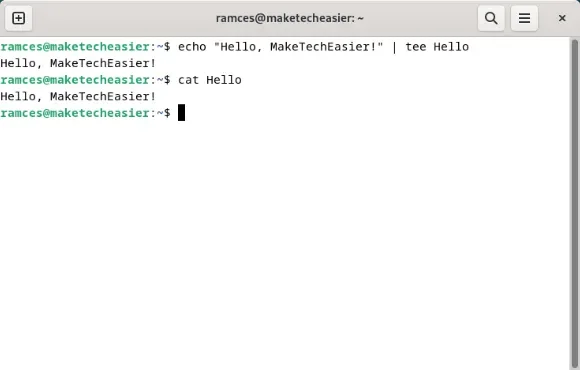
<p style="text-align: justify;">Bạn cũng có thể sử dụng pipe và SSH để gửi các file riêng lẻ qua mạng. Điều này hoạt động bằng cách sử dụng cat như một cách để tải nội dung của file và gửi file đó qua SSH:</p>

<pre id="pre3">
<code>cat &lt; my.local.file | ssh ramces@remote.host &quot;cat &gt; my.remote.file&quot;</code></pre>

<p style="text-align: justify;">Máy chủ từ xa sẽ nhận luồng đầu ra từ tiến trình cat cục bộ và xây dựng lại file như cũ.</p>

<p style="text-align: justify;">Để truy xuất file từ máy chủ từ xa, bạn cần đảo ngược thứ tự của lệnh và cung cấp đường dẫn cho file từ xa:</p>

<pre id="pre4">
<code>ssh ramces@remote.host &quot;cat &lt; my.remote.file&quot; | cat &gt; my.local.file</code></pre>

<figure>
<ul>
	<li data-block-reason="4" data-trans-vn="Che nội dung" style="text-align: justify;">&nbsp;</li>
	<li data-block-reason="2" data-trans-vn="Không quan tâm" style="text-align: justify;">&nbsp;</li>
	<li data-block-reason="3" data-trans-vn="Không phù hợp" style="text-align: justify;">&nbsp;</li>
	<li data-block-reason="1" data-trans-vn="Thấy quá nhiều" style="text-align: justify;">&nbsp;</li>
</ul>

<div style="text-align: justify;"><br />
<img alt="Terminal hiển thị quá trình truyền file riêng lẻ bằng SSH pipe trong Linux." data-adbro-processed="true" data-i="1" data-src="https://st.quantrimang.com/photos/image/2024/01/23/su-dung-ssh-pipe-tren-linux-2.jpg" data-was-processed="true" height="381" src="https://st.quantrimang.com/photos/image/2024/01/23/su-dung-ssh-pipe-tren-linux-2.jpg" width="519" /></div>

<figcaption>
<div style="text-align: justify;">Terminal hiển thị quá trình truyền file riêng lẻ bằng SSH pipe trong Linux.</div>
</figcaption>
</figure>

<h2 style="text-align: justify;">Sao lưu và khôi phục ổ từ xa</h2>

<p style="text-align: justify;">Tương tự như việc gửi file và thư mục, có thể sao lưu từ xa toàn bộ ổ trong Linux bằng UNIX pipe và SSH. Điều này có thể hữu ích nếu bạn muốn tạo bản sao lưu ngoại vi nhanh chóng và hiện tại bạn không có ổ vật lý dự phòng.</p>

<div style="text-align: justify;"><iframe allowtransparency="true" data-google-container-id="a!3" data-google-query-id="CLDNo4_C-oMDFVZ5DwIdKwQGsA" data-load-complete="true" frameborder="0" height="0" hspace="0" id="aswift_2" marginheight="0" marginwidth="0" name="aswift_2" sandbox="" scrolling="no" vspace="0" width="694"></iframe></div>

<p style="text-align: justify;">Để sao lưu toàn bộ ổ, hãy chạy&nbsp;<strong>dd</strong>&nbsp;với biến&nbsp;<strong>“if=”</strong>&nbsp;được đặt thành ổ bạn muốn sao lưu, sau đó chuyển nó sang SSH daemon của bạn:</p>

<pre id="pre5">
<code>sudo dd if=/dev/sda | ssh ramces@remote.host &quot;dd of=sda.img&quot;</code></pre>

<p style="text-align: justify;">Đảo ngược lệnh này cũng cho phép bạn khôi phục disk image từ máy từ xa sang ổ đĩa vật lý:</p>

<pre id="pre6">
<code>ssh ramces@remote.host &quot;dd if=sda.img&quot; | sudo dd of=/dev/sda</code></pre>

<p style="text-align: justify;">Hơn nữa, cú pháp SSH pipe này cũng sẽ hoạt động với các phân vùng ổ đĩa rời rạc. Ví dụ, nếu hệ thống của bạn có phân vùng&nbsp;<strong>/home</strong>&nbsp;trong&nbsp;<strong>“/dev/sda4”</strong>, bạn có thể chạy lệnh sau để tạo bản sao lưu của phân vùng đó:</p>

<pre id="pre7">
<code>sudo dd if=/dev/sda4 | ssh ramces@remote.host &quot;dd of=home.img&quot;</code></pre>

<h2 style="text-align: justify;">Chuyển hướng đầu vào âm thanh sang máy từ xa</h2>

<p style="text-align: justify;">Một trong những lợi ích của SSH pipe là chúng cho phép bạn tương tác với các máy từ xa như thể chúng là tài nguyên cục bộ. Điều này bao gồm khả năng khai thác các file thiết bị, chẳng hạn như đầu vào âm thanh của hệ thống.</p>

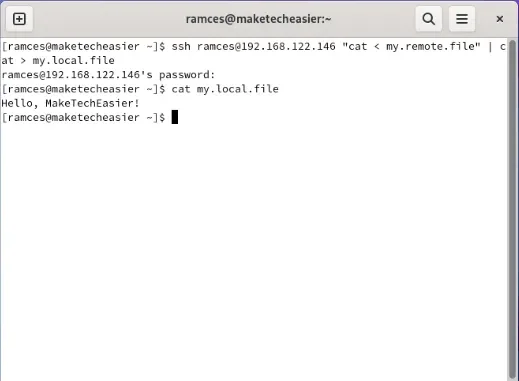
<p style="text-align: justify;">Để thực hiện việc này, hãy chạy một subshell ALSA từ xa bằng SSH và gửi đầu ra của nó tới daemon ALSA cục bộ của bạn:</p>

<pre id="pre8">
<code>ssh ramces@remote.host &quot;arecord -f cd&quot; | aplay</code></pre>

<p style="text-align: justify;">Điều này sẽ lắng nghe thiết bị đầu vào âm thanh mặc định trên máy từ xa và phát những gì nó nghe được trên hệ thống của bạn. Điều đó có nghĩa là, việc lật các lệnh xung quanh sẽ gửi đầu vào âm thanh của máy cục bộ đến đầu ra âm thanh của máy chủ từ xa:</p>

<figure>
<div style="text-align: justify;"><img alt="Terminal hiển thị luồng âm thanh đang hoạt động bằng SSH pipe." data-i="2" data-src="https://st.quantrimang.com/photos/image/2024/01/23/su-dung-ssh-pipe-tren-linux-3.jpg" data-was-processed="true" height="382" src="https://st.quantrimang.com/photos/image/2024/01/23/su-dung-ssh-pipe-tren-linux-3.jpg" width="520" /></div>

<figcaption>
<div style="text-align: justify;">Terminal hiển thị luồng âm thanh đang hoạt động bằng SSH pipe.</div>
</figcaption>
</figure>

<pre id="pre9">
<code>arecord -f cd | ssh ramces@remote.host &quot;aplay&quot;</code></pre>

<p style="text-align: justify;">ALSA SSH pipe cũng sẽ hoạt động khi bạn kết hợp nó với các công cụ phát âm thanh khác. Chẳng hạn, bạn có thể gửi đầu ra arecord từ SSH pipe tới ffmpeg:</p>

<pre id="pre10">
<code>ssh ramces@remote.host &quot;arecord -f cd&quot; | ffplay -nodisp -</code></pre>

<h2 style="text-align: justify;">Truyền phát video trực tiếp từ webcam từ xa</h2>

<p style="text-align: justify;">Một cách sử dụng tuyệt vời khác của các SSH pipe trong Linux là truyền phát các nguồn cấp dữ liệu webcam video trực tiếp. Cũng giống như âm thanh, điều này cho phép bạn tận dụng lợi thế thiết bị của máy chủ từ xa và hiển thị đầu ra của thiết bị đó trên máy cục bộ của bạn.</p>

<p style="text-align: justify;">Để truyền phát từ webcam của máy chủ từ xa, hãy chạy SSH với shell con ffmpeg, sau đó chuyển nó tới ứng dụng client phát video trên máy cục bộ của bạn:</p>
<iframe allowtransparency="true" data-google-container-id="a!4" data-google-query-id="CK-GxZTC-oMDFRF5DwIdQYIKCQ" data-load-complete="true" frameborder="0" height="0" hspace="0" id="aswift_3" marginheight="0" marginwidth="0" name="aswift_3" sandbox="" scrolling="no" vspace="0" width="694"></iframe>

<pre id="pre11">
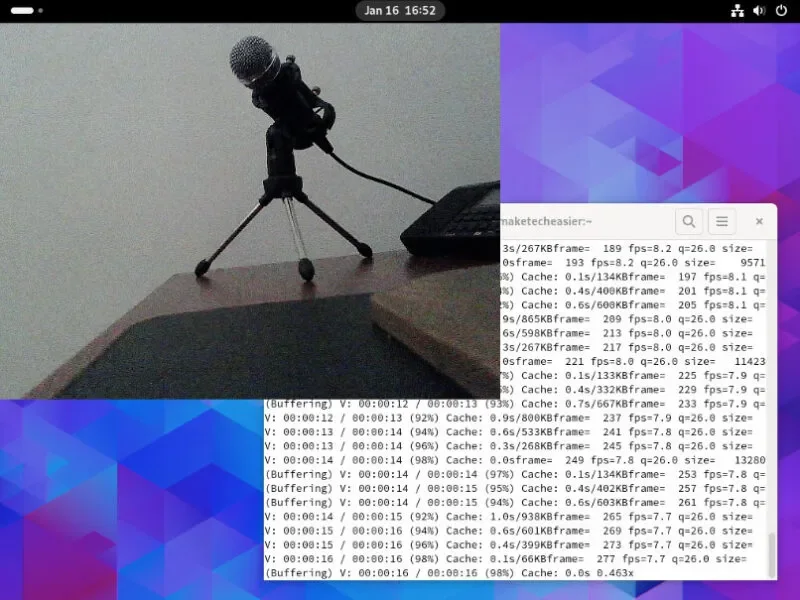
<code>ssh ramces@remote.host &quot;ffmpeg  -r 14 -s 640x480 -f video4linux2 -i /dev/video0 -f matroska -&quot; | mpv --demuxer=mkv /dev/stdin</code></pre>

<p style="text-align: justify;">Lệnh này sẽ truyền phát video thô từ webcam đầu tiên trên máy từ xa của bạn.</p>

<figure>
<div style="text-align: justify;"><img alt="Nguồn cấp dữ liệu video webcam đang hoạt động đi qua SSH pipe trong Linux." data-i="3" data-src="https://st.quantrimang.com/photos/image/2024/01/23/su-dung-ssh-pipe-tren-linux-4.jpg" data-was-processed="true" src="https://st.quantrimang.com/photos/image/2024/01/23/su-dung-ssh-pipe-tren-linux-4.jpg" /></div>

<figcaption>
<div style="text-align: justify;">Nguồn cấp dữ liệu video webcam đang hoạt động đi qua SSH pipe trong Linux.</div>
</figcaption>
</figure>

<p style="text-align: justify;">Bạn cũng có thể ghi lại cảnh quay từ webcam từ xa sang một file riêng. Bạn có thể thực hiện việc này bằng cách gửi dữ liệu từ SSH pipe tới tee trước khi chuyển hướng dữ liệu đó đến trình phát video của mình:</p>

<pre id="pre12">
<code>ssh ramces@remote.host &quot;ffmpeg  -r 14 -s 640x480 -f video4linux2 -i /dev/video0 -f matroska -&quot; | tee my_recording.mkv | mpv --demuxer=mkv /dev/stdin</code></pre>

<h2 style="text-align: justify;">In văn bản trên console từ xa</h2>

<p style="text-align: justify;">Ngoài âm thanh và video, bạn cũng có thể sử dụng SSH pipe để gửi văn bản thô trên TTY của máy từ xa. Điều này hữu ích nếu bạn muốn gửi thông báo trạng thái tới hệ thống không có GUI.</p>

<p style="text-align: justify;">Để bắt đầu, hãy tạo một FIFO pipe trên máy cục bộ của bạn:</p>

<pre id="pre13">
<code>mkfifo my-fifo</code></pre>

<p style="text-align: justify;">Chạy lệnh nghe tail bằng FIFO của bạn và gửi đầu ra của nó tới SSH daemon:</p>

<pre id="pre14">
<code>tail -f my-fifo | ssh root@remote.host &quot;cat &gt; /dev/tty0&quot;</code></pre>

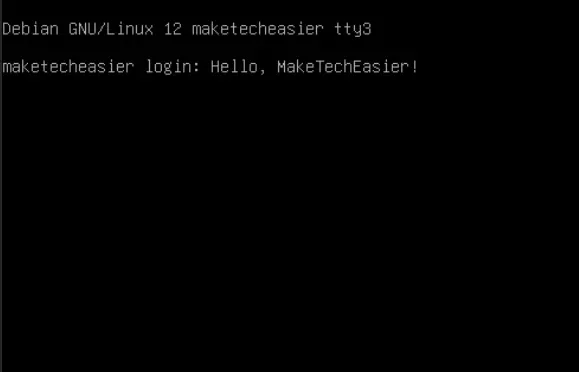
<p style="text-align: justify;">Kiểm tra xem FIFO pipe mới của bạn có hoạt động qua mạng hay không bằng cách gửi dữ liệu văn bản bằng lệnh echo:</p>

<pre id="pre15">
<code>echo &quot;Hello, MakeTechEasier!&quot; &gt; my-fifo</code></pre>

<figure>
<div style="text-align: justify;"><img alt="Terminal hiển thị văn bản tùy ý trong console TTY của máy." data-i="4" data-src="https://st.quantrimang.com/photos/image/2024/01/23/su-dung-ssh-pipe-tren-linux-5.jpg" data-was-processed="true" height="372" src="https://st.quantrimang.com/photos/image/2024/01/23/su-dung-ssh-pipe-tren-linux-5.jpg" width="579" /></div>

<figcaption>
<div style="text-align: justify;">Terminal hiển thị văn bản tùy ý trong console TTY của máy.</div>
</figcaption>
</figure>

<p style="text-align: justify;"><strong>Lưu ý</strong>: Việc gửi văn bản tới TTY của máy sẽ chỉ hoạt động nếu bạn đăng nhập bằng tài khoản root của máy đó.</p>

<h2 style="text-align: justify;">Đưa dữ liệu từ xa vào clipboard cục bộ</h2>

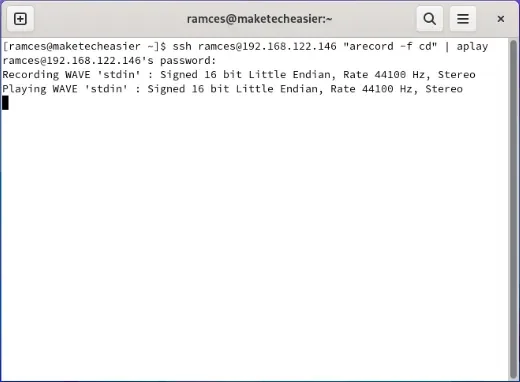
<p style="text-align: justify;">Nhược điểm lớn nhất của clipboard hệ thống là nó chỉ hoạt động với máy cục bộ. Đây là sự cố nếu bạn đang làm việc với nhiều máy tính và muốn truyền dữ liệu mà không tạo file tạm thời.</p>

<p style="text-align: justify;">Một cách để khắc phục điều này là tạo một SSH pipe có thể đọc và gửi file từ xa trực tiếp vào clipboard hệ thống cục bộ của bạn:</p>

<pre id="pre16">
<code>ssh ramces@remote.host &quot;cat &lt; ~/ramces.txt&quot; | xclip -sel clipboard</code></pre>

<p style="text-align: justify;">Lệnh này sẽ kết nối với máy từ xa của bạn, chạy tiện ích cat sau đó bắt đầu đọc file&nbsp;<strong>“ramces.txt”.</strong>&nbsp;Sau khi hoàn tất, nó sẽ gửi dữ liệu từ xa trở lại máy cục bộ của bạn và chuyển hướng dữ liệu đó đến clipboard hệ thống.</p>

<figure>
<div style="text-align: justify;"><img alt="Terminal hiển thị clipboard của máy cục bộ sau SSH pipe." data-i="5" data-src="https://st.quantrimang.com/photos/image/2024/01/23/su-dung-ssh-pipe-tren-linux-6.jpg" data-was-processed="true" height="377" src="https://st.quantrimang.com/photos/image/2024/01/23/su-dung-ssh-pipe-tren-linux-6.jpg" width="517" /></div>

<figcaption>
<div style="text-align: justify;">Terminal hiển thị clipboard của máy cục bộ sau SSH pipe.</div>
</figcaption>
</figure>

<p style="text-align: justify;">Bạn cũng có thể đẩy clipboard hiện tại của hệ thống dưới dạng file trên máy từ xa bằng cách sử dụng lệnh sau:</p>
<iframe allowtransparency="true" data-google-container-id="a!5" data-google-query-id="CL6mg5XC-oMDFfpHDwIdmU8KvA" data-load-complete="true" frameborder="0" height="0" hspace="0" id="aswift_4" marginheight="0" marginwidth="0" name="aswift_4" sandbox="" scrolling="no" vspace="0" width="694"></iframe>

<pre id="pre17">
<code>xclip -sel clipboard -o | ssh ramces@remote.host &quot;cat &gt; ~/clip.txt&quot;</code></pre>

<p style="text-align: justify;">Học cách gửi dữ liệu qua mạng bằng cách sử dụng UNIX pipe và SSH chỉ là bước đầu tiên để hiểu cách mạng máy tính hoạt động. Tìm hiểu thêm về mạng của bạn bằng cách theo dõi nơi các gói của bạn đi bằng&nbsp;Traceroute.</p>
		</div>
				<div id="author">
						<p>
				<strong>Nguồn tin:</strong>
				Quantrimang.com
			</p>
		</div>
	</div>
	<div id="footer" class="clearfix">
		<div id="url">
			<strong>URL của bản tin này: </strong><a href="https://www.nguoicodonvn2008.info/vi/news/savefile/kien-thuc-may-tinh/cach-su-dung-ssh-pipe-tren-linux-8000.html" title="Cách sử dụng SSH Pipe trên Linux">https://www.nguoicodonvn2008.info/vi/news/savefile/kien-thuc-may-tinh/cach-su-dung-ssh-pipe-tren-linux-8000.html</a>

		</div>
		<div class="clear"></div>
		<div class="copyright">
			&copy; .&#x3A; Nguoicodonvn2008.info - Cõi lòng người cô đơn &#x3A;.
		</div>
		<div id="contact">
			<a href="mailto:admin@nguoicodonvn2008.info">admin@nguoicodonvn2008.info</a>
		</div>
	</div>
</div>
        <div id="timeoutsess" class="chromeframe">
            Bạn đã không sử dụng Site, <a onclick="timeoutsesscancel();" href="https://nguoicodonvn2008.info/#">Bấm vào đây để duy trì trạng thái đăng nhập</a>. Thời gian chờ: <span id="secField"> 60 </span> giây
        </div>
        <div id="openidResult" class="nv-alert" style="display:none"></div>
        <div id="openidBt" data-result="" data-redirect=""></div>
		</script>
		<div class="car-top">
  <span><img src="https://nguoicodonvn2008.info/themes/default/images/car.png" alt=""></span>
</div>
<script src="https://nguoicodonvn2008.info/assets/js/jquery/jquery.min.js"></script>
<script>var nv_base_siteurl="/",nv_lang_data="vi",nv_lang_interface="vi",nv_name_variable="nv",nv_fc_variable="op",nv_lang_variable="language",nv_module_name="news",nv_func_name="savefile",nv_is_user=0, nv_my_ofs=-4,nv_my_abbr="EDT",nv_cookie_prefix="nv4c_e856T",nv_check_pass_mstime=1738000,nv_area_admin=0,nv_safemode=0,theme_responsive=0,nv_recaptcha_ver=2,nv_recaptcha_sitekey="",nv_recaptcha_type="image",XSSsanitize=1;</script>
<script src="https://nguoicodonvn2008.info/assets/js/language/vi.js"></script>
<script src="https://nguoicodonvn2008.info/assets/js/DOMPurify/purify3.js"></script>
<script src="https://nguoicodonvn2008.info/assets/js/global.js"></script>
<script src="https://nguoicodonvn2008.info/assets/js/site.js"></script>
<script src="https://nguoicodonvn2008.info/themes/default/js/news.js"></script>
<script src="https://nguoicodonvn2008.info/themes/default/js/main.js"></script>
<script src="https://nguoicodonvn2008.info/themes/default/js/custom.js"></script>
<script type="application/ld+json">
        {
            "@context": "https://schema.org",
            "@type": "Organization",
            "url": "https://nguoicodonvn2008.info",
            "logo": "https://nguoicodonvn2008.info/uploads/angel.gif"
        }
        </script>
<script src="https://nguoicodonvn2008.info/themes/default/js/bootstrap.min.js"></script>
<script type="text/javascript">
var $scrolltop = $('.car-top');
$scrolltop.on('click', function () {
    $('html,body').animate({
        scrollTop: 0
    }, 800);
    $(this).addClass("car-run");
    setTimeout(function(){ $scrolltop.removeClass('car-run');}, 1000);
    return false;
});
$(window).on('scroll', function ()
{ 
    if($(window).scrollTop() >= 200)
    {
        $scrolltop.addClass("show");
        $scrolltop.addClass("car-down");
    }
    else
    {
       $scrolltop.removeClass("show");
       setTimeout(function(){ $scrolltop.removeClass('car-down');}, 300);
    }
});
</script>
</body>
</html>