<!DOCTYPE html>
    <html lang="vi" xmlns="http://www.w3.org/1999/xhtml" prefix="og: http://ogp.me/ns#">
    <head>
<title>Cách sử dụng Snap Layout của Windows 11 trên Windows 10</title>
<meta name="description" content="Cách sử dụng Snap Layout của Windows 11 trên Windows 10 - Savefile - Tin Tức -...">
<meta name="author" content=".: Nguoicodonvn2008.info - Cõi lòng người cô đơn :.">
<meta name="copyright" content=".: Nguoicodonvn2008.info - Cõi lòng người cô đơn :. [admin@nguoicodonvn2008.info]">
<meta name="robots" content="index, archive, follow, noodp">
<meta name="googlebot" content="index,archive,follow,noodp">
<meta name="msnbot" content="all,index,follow">
<meta name="generator" content="NukeViet v4.5">
<meta http-equiv="Content-Type" content="text/html; charset=utf-8">
<meta property="og:title" content="Cách sử dụng Snap Layout của Windows 11 trên Windows 10">
<meta property="og:type" content="website">
<meta property="og:description" content="Savefile - Tin Tức - https&#x3A;&#x002F;&#x002F;www.nguoicodonvn2008.info&#x002F;vi&#x002F;news&#x002F;savefile&#x002F;kien-thuc-may-tinh&#x002F;cach-su-dung-snap-layout-cua-windows-11-tren-windows-10-4431.html">
<meta property="og:site_name" content=".&#x3A; Nguoicodonvn2008.info - Cõi lòng người cô đơn &#x3A;.">
<meta property="og:url" content="https://www.nguoicodonvn2008.info/vi/news/savefile/kien-thuc-may-tinh/cach-su-dung-snap-layout-cua-windows-11-tren-windows-10-4431.html">
<link rel="shortcut icon" href="https://nguoicodonvn2008.info/favicon.ico">
<link rel="canonical" href="https://www.nguoicodonvn2008.info/vi/news/savefile/kien-thuc-may-tinh/cach-su-dung-snap-layout-cua-windows-11-tren-windows-10-4431.html">
<link rel="alternate" href="https://nguoicodonvn2008.info/vi/news/rss/" title="Tin Tức" type="application/rss+xml">
<link rel="alternate" href="https://nguoicodonvn2008.info/vi/news/rss/karaoke-dual/" title="Tin Tức - Karaoke Dual" type="application/rss+xml">
<link rel="alternate" href="https://nguoicodonvn2008.info/vi/news/rss/nhac-tre/" title="Tin Tức - Nhạc trẻ" type="application/rss+xml">
<link rel="alternate" href="https://nguoicodonvn2008.info/vi/news/rss/tru-tinh/" title="Tin Tức - Trữ tình" type="application/rss+xml">
<link rel="alternate" href="https://nguoicodonvn2008.info/vi/news/rss/nuoc-ngoai/" title="Tin Tức - Nước ngoài" type="application/rss+xml">
<link rel="alternate" href="https://nguoicodonvn2008.info/vi/news/rss/remix/" title="Tin Tức - Remix" type="application/rss+xml">
<link rel="alternate" href="https://nguoicodonvn2008.info/vi/news/rss/tam-su-tinh-yeu/" title="Tin Tức - Tâm sự tình yêu" type="application/rss+xml">
<link rel="alternate" href="https://nguoicodonvn2008.info/vi/news/rss/tho-suu-tam/" title="Tin Tức - Thơ sưu tầm" type="application/rss+xml">
<link rel="alternate" href="https://nguoicodonvn2008.info/vi/news/rss/cuoc-song/" title="Tin Tức - Cuộc sống" type="application/rss+xml">
<link rel="alternate" href="https://nguoicodonvn2008.info/vi/news/rss/phan-mem/" title="Tin Tức - Phần mềm" type="application/rss+xml">
<link rel="alternate" href="https://nguoicodonvn2008.info/vi/news/rss/kien-thuc-may-tinh/" title="Tin Tức - Kiến thức máy tính" type="application/rss+xml">
<link rel="alternate" href="https://nguoicodonvn2008.info/vi/news/rss/hoc-tap/" title="Tin Tức - Học tập" type="application/rss+xml">
<link rel="alternate" href="https://nguoicodonvn2008.info/vi/news/rss/tai-lieu/" title="Tin Tức - Tài liệu" type="application/rss+xml">
<link rel="alternate" href="https://nguoicodonvn2008.info/vi/news/rss/de-thi/" title="Tin Tức - Đề thi" type="application/rss+xml">
<link rel="preload" as="style" href="https://nguoicodonvn2008.info/assets/css/font-awesome.min.css" type="text/css">
<link rel="preload" as="style" href="https://nguoicodonvn2008.info/themes/default/css/bootstrap.non-responsive.css" type="text/css">
<link rel="preload" as="style" href="https://nguoicodonvn2008.info/themes/default/css/style.css" type="text/css">
<link rel="preload" as="style" href="https://nguoicodonvn2008.info/themes/default/css/style.non-responsive.css" type="text/css">
<link rel="preload" as="style" href="https://nguoicodonvn2008.info/themes/default/css/news.css" type="text/css">
<link rel="preload" as="style" href="https://nguoicodonvn2008.info/themes/default/css/custom.css" type="text/css">
<link rel="preload" as="script" href="https://nguoicodonvn2008.info/assets/js/jquery/jquery.min.js" type="text/javascript">
<link rel="preload" as="script" href="https://nguoicodonvn2008.info/assets/js/language/vi.js" type="text/javascript">
<link rel="preload" as="script" href="https://nguoicodonvn2008.info/assets/js/DOMPurify/purify3.js" type="text/javascript">
<link rel="preload" as="script" href="https://nguoicodonvn2008.info/assets/js/global.js" type="text/javascript">
<link rel="preload" as="script" href="https://nguoicodonvn2008.info/assets/js/site.js" type="text/javascript">
<link rel="preload" as="script" href="https://nguoicodonvn2008.info/themes/default/js/news.js" type="text/javascript">
<link rel="preload" as="script" href="https://nguoicodonvn2008.info/themes/default/js/main.js" type="text/javascript">
<link rel="preload" as="script" href="https://nguoicodonvn2008.info/themes/default/js/custom.js" type="text/javascript">
<link rel="preload" as="script" href="https://nguoicodonvn2008.info/themes/default/js/bootstrap.min.js" type="text/javascript">
<link rel="stylesheet" href="https://nguoicodonvn2008.info/assets/css/font-awesome.min.css">
<link rel="stylesheet" href="https://nguoicodonvn2008.info/themes/default/css/bootstrap.non-responsive.css">
<link rel="stylesheet" href="https://nguoicodonvn2008.info/themes/default/css/style.css">
<link rel="stylesheet" href="https://nguoicodonvn2008.info/themes/default/css/style.non-responsive.css">
<link rel="StyleSheet" href="https://nguoicodonvn2008.info/themes/default/css/news.css">
<link rel="stylesheet" href="https://nguoicodonvn2008.info/themes/default/css/custom.css">
<style type="text/css">
	body{background: #fff;}
</style>
    </head>
    <body>
<div id="print">
	<div id="hd_print">
		<h2 class="pull-left">.&#x3A; Nguoicodonvn2008.info - Cõi lòng người cô đơn &#x3A;.</h2>
		<p class="pull-right"><a title=".&#x3A; Nguoicodonvn2008.info - Cõi lòng người cô đơn &#x3A;." href="https://nguoicodonvn2008.info/">https://nguoicodonvn2008.info</a></p>
	</div>
	<div class="clear"></div>
	<hr />
	<div id="content">
		<h1>Cách sử dụng Snap Layout của Windows 11 trên Windows 10</h1>
		<ul class="list-inline">
			<li>Thứ tư - 14/07/2021 00:48</li>
			<li class="hidden-print txtrequired"><em class="fa fa-print">&nbsp;</em><a title="In ra" href="javascript:;" onclick="window.print()">In ra</a></li>
			<li class="hidden-print txtrequired"><em class="fa fa-power-off">&nbsp;</em><a title="Đóng cửa sổ này" href="javascript:;" onclick="window.close()">Đóng cửa sổ này</a></li>
		</ul>
		<div class="clear"></div>
		<div id="hometext">
		</div>
				<div class="imghome">
			<img alt="Cách sử dụng Snap Layout của Windows 11 trên Windows 10" src="https://st.quantrimang.com/photos/image/2021/07/13/su-dung-snap-layout-cua-windows-1.jpg" width="460" class="img-thumbnail" />
		</div>
		<div class="clear"></div>
		<div id="bodytext" class="clearfix">
			<p style="text-align: justify;">Snap Layout là một trong những tính năng nổi bật của Windows 11. Khi bạn mở một loạt cửa sổ trên nhiều ứng dụng khác nhau,&nbsp;Windows 11&nbsp;cho phép bạn sắp xếp tất cả chúng trên màn hình dựa trên những bố cục khác nhau, sau đó được lưu theo một cách sắp xếp cụ thể. Bằng cách này, bạn có thêm không gian trống trên màn hình để tối đa hóa khả năng đa nhiệm của mình.</p>

<p style="text-align: justify;">Nếu muốn đạt được trải nghiệm Snap Layout như Windows 11 trong&nbsp;Windows 10, bạn có thể sử dụng các chức năng tích hợp sẵn của Windows 10 hỗ trợ khả năng điều hướng tương tự. Trong bài viết này,&nbsp;<strong>Quantrimang.com</strong>&nbsp;sẽ chỉ ra các phương pháp khác nhau để đạt được điều này.</p>

<h2 style="text-align: justify;">Cách sử dụng Snap Layout trong Windows 10</h2>

<p style="text-align: justify;">Có tính năng Snap Layout trong Windows 10, tính năng này có thể không dễ dàng và trực quan như Windows 11 nhưng cho kết quả tương tự. Có 3 cách để thực hiện việc sắp xếp nhanh các cửa sổ trong Windows 10: Dùng chuột, phím tắt trên bàn phím và Snap Assist.</p>

<h3 style="text-align: justify;">1. Sắp xếp bằng chuột</h3>

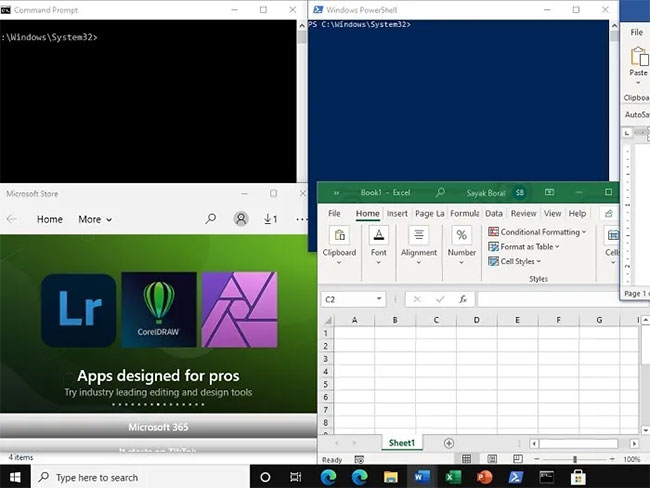
<p style="text-align: justify;">Việc sắp xếp bằng chuột rất dễ dàng trên Windows 10. Bạn chỉ cần chọn thanh tiêu đề của bất kỳ cửa sổ ứng dụng nào và kéo nó đến các góc của màn hình. Khi bạn nhả con trỏ, nó sẽ được gắn vào vị trí đó.</p>

<figure>
<div style="text-align: justify;"><img alt="Sắp xếp bằng chuột" data-i="0" data-src="https://st.quantrimang.com/photos/image/2021/07/13/su-dung-snap-layout-cua-windows-1.jpg" data-was-processed="true" height="488" src="https://st.quantrimang.com/photos/image/2021/07/13/su-dung-snap-layout-cua-windows-1.jpg" width="650" /></div>

<figcaption>
<div style="text-align: justify;">Sắp xếp bằng chuột</div>
</figcaption>
</figure>

<p style="text-align: justify;">Bạn có thể sắp xếp nhiều cửa sổ ứng dụng cạnh nhau và thay đổi kích thước chúng theo nhu cầu. Mặc dù phương pháp dùng chuột hơi thủ công và tốn thời gian hơn một chút, nhưng nó là một phương pháp khá hiệu quả cho những người muốn sử dụng nhiều không gian hơn trên màn hình có sẵn.</p>

<h3 style="text-align: justify;">2. Sắp xếp bằng các phím tắt</h3>

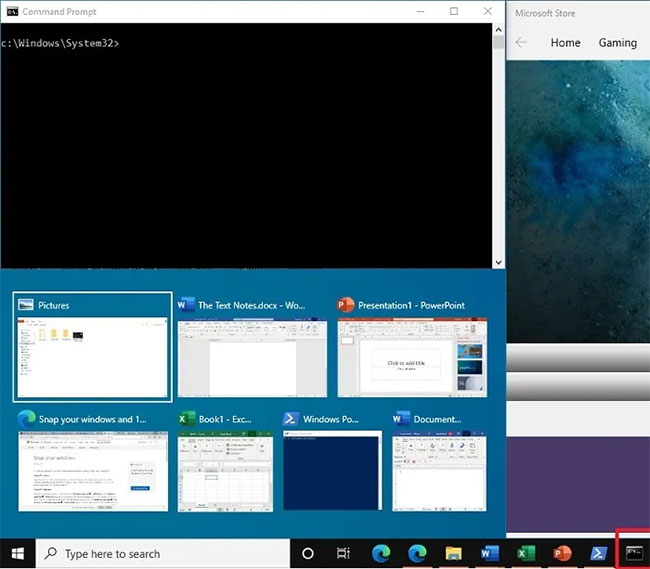
<p style="text-align: justify;">Nếu bạn muốn có cảm giác sắp xếp tự động các cửa sổ có kích thước bằng nhau trong Windows 10, tốt hơn là sử dụng tổ hợp phím tắt:&nbsp;<strong>Win + Phím mũi tên</strong>. Đi tới cửa sổ đang mở trước, sử dụng phím tắt và nó sẽ tự động sắp xếp các cửa sổ chương trình.</p>

<p style="text-align: justify;">Trong ví dụ sau cho cửa sổ Command Prompt, phím mũi tên “trái” đã được sử dụng cùng với phím&nbsp;<strong>Win</strong>. Điều này đã đưa&nbsp;Command Prompt&nbsp;vào góc trái, chiếm gần một phần tư màn hình.</p>

<figure>
<div style="text-align: justify;"><img alt="Command Prompt được đưa vào góc trái" data-i="1" data-src="https://st.quantrimang.com/photos/image/2021/07/13/su-dung-snap-layout-cua-windows-2.jpg" data-was-processed="true" height="569" src="https://st.quantrimang.com/photos/image/2021/07/13/su-dung-snap-layout-cua-windows-2.jpg" width="650" /></div>

<figcaption>
<div style="text-align: justify;">Command Prompt được đưa vào góc trái</div>
</figcaption>
</figure>

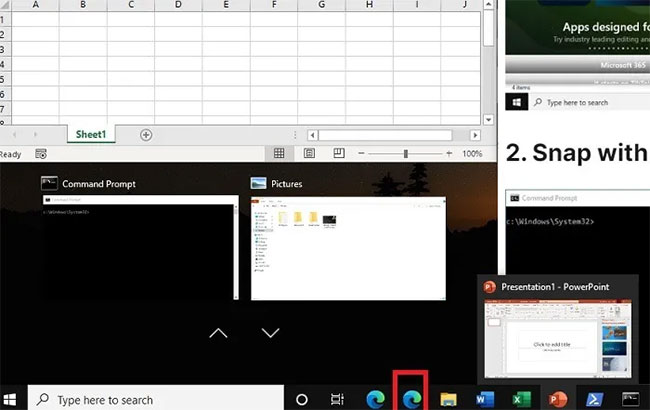
<p style="text-align: justify;">Một ví dụ khác bên dưới cho thấy việc sắp xếp cửa sổ trình duyệt Microsoft Edge vào góc bên phải của màn hình. Đối với điều này, phím mũi tên &quot;phải&quot; đã được sử dụng cùng với phím&nbsp;<strong>Win</strong>. Các cửa sổ ứng dụng khác được sắp xếp gọn gàng theo bố cục lưới có thể cuộn được.</p>

<figure>
<div style="text-align: justify;"><img alt="Sắp xếp cửa sổ trình duyệt Microsoft Edge" data-i="2" data-src="https://st.quantrimang.com/photos/image/2021/07/13/su-dung-snap-layout-cua-windows-3.jpg" data-was-processed="true" height="410" src="https://st.quantrimang.com/photos/image/2021/07/13/su-dung-snap-layout-cua-windows-3.jpg" width="650" /></div>

<figcaption>
<div style="text-align: justify;">Sắp xếp cửa sổ trình duyệt Microsoft Edge</div>
</figcaption>
</figure>

<div style="text-align: justify;">&nbsp;</div>

<h3 style="text-align: justify;">3. Sắp xếp với Snap Assist</h3>

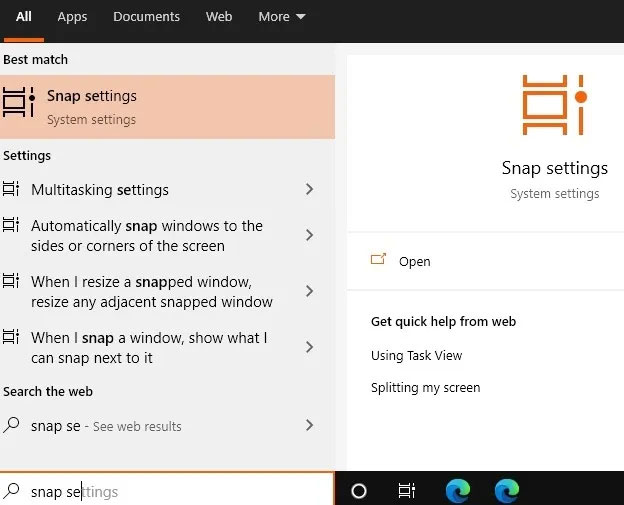
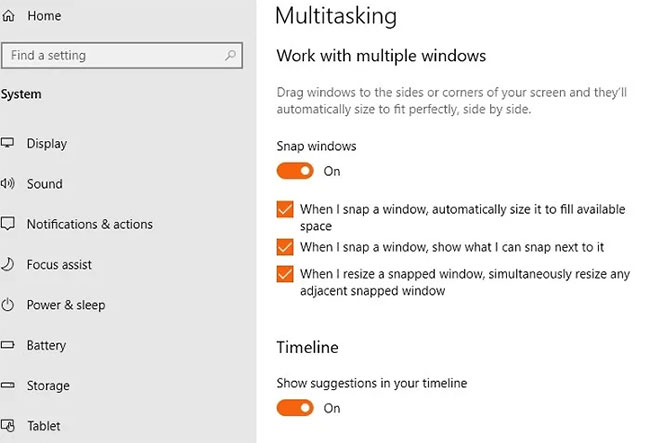
<p style="text-align: justify;">Windows 10 có một tính năng “Snap Assist” chuyên dụng, điều khiển cách bạn muốn các cửa sổ được phân chia. Nó có thể được truy cập từ cài đặt hệ thống&nbsp;<strong>&quot;Snap settings&quot;</strong>&nbsp;trong hộp tìm kiếm. Một tính năng tương tự tồn tại trong Windows 11 trong&nbsp;<strong>“Multitasking”</strong>, bạn có thể tìm kiếm theo cách tương tự.</p>

<figure>
<div style="text-align: justify;"><img alt="Truy cập cài đặt hệ thống &#039;Snap settings&#039;" data-i="3" data-src="https://st.quantrimang.com/photos/image/2021/07/13/su-dung-snap-layout-cua-windows-4.jpg" data-was-processed="true" height="505" src="https://st.quantrimang.com/photos/image/2021/07/13/su-dung-snap-layout-cua-windows-4.jpg" width="624" /></div>

<figcaption>
<div style="text-align: justify;">Truy cập cài đặt hệ thống &quot;Snap settings&quot;</div>
</figcaption>
</figure>

<p style="text-align: justify;">Bật&nbsp;<strong>“Snap windows”</strong>&nbsp;để kích hoạt chức năng sắp xếp trong Windows 10. Đồng thời bật các tùy chọn khác, chẳng hạn như tự động định kích thước của không gian có sẵn và thay đổi kích thước đồng thời của các cửa sổ liền kề.</p>

<figure>
<div style="text-align: justify;"><img alt="Bật “Snap windows” để kích hoạt chức năng sắp xếp trong Windows 10" data-i="4" data-src="https://st.quantrimang.com/photos/image/2021/07/13/su-dung-snap-layout-cua-windows-5.jpg" data-was-processed="true" height="443" src="https://st.quantrimang.com/photos/image/2021/07/13/su-dung-snap-layout-cua-windows-5.jpg" width="650" /></div>

<figcaption>
<div style="text-align: justify;">Bật “Snap windows” để kích hoạt chức năng sắp xếp trong Windows 10</div>
</figcaption>
</figure>

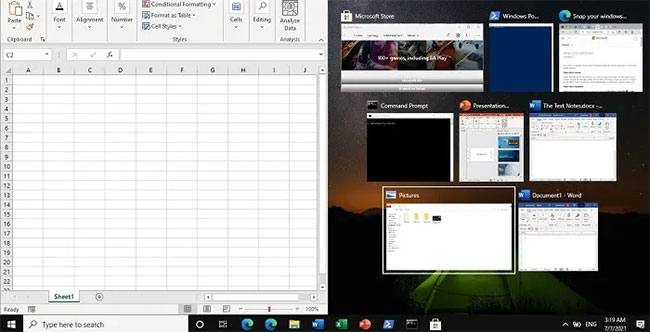
<p style="text-align: justify;">Bây giờ, bạn chỉ cần nhấp vào hình thu nhỏ của cửa sổ bạn muốn sắp xếp bằng Snap Assist. Nó sẽ được cố định ở một góc. Các cửa sổ khác sẽ được thay đổi kích thước gọn gàng bên cạnh cửa sổ đầu tiên để không còn không gian trống.</p>

<figure>
<div style="text-align: justify;"><img alt="Các cửa sổ khác sẽ được thay đổi kích thước gọn gàng" data-i="5" data-src="https://st.quantrimang.com/photos/image/2021/07/13/su-dung-snap-layout-cua-windows-6.jpg" data-was-processed="true" height="332" src="https://st.quantrimang.com/photos/image/2021/07/13/su-dung-snap-layout-cua-windows-6.jpg" width="650" /></div>

<figcaption>
<div style="text-align: justify;">Các cửa sổ khác sẽ được thay đổi kích thước gọn gàng</div>
</figcaption>
</figure>

<p style="text-align: justify;">Mặc dù Windows 11 cải thiện đáng kể tính năng này, nhưng thực ra chức năng &quot;Snapping&quot; đã có từ&nbsp;Windows 7. Mặc dù nó không hoàn toàn giống với Windows 11, nhưng có rất nhiều lợi ích khi sử dụng tính năng Snap Layout trong Windows 10.</p>
		</div>
				<div id="author">
						<p>
				<strong>Nguồn tin:</strong>
				Quantrimang.com
			</p>
		</div>
	</div>
	<div id="footer" class="clearfix">
		<div id="url">
			<strong>URL của bản tin này: </strong><a href="https://www.nguoicodonvn2008.info/vi/news/savefile/kien-thuc-may-tinh/cach-su-dung-snap-layout-cua-windows-11-tren-windows-10-4431.html" title="Cách sử dụng Snap Layout của Windows 11 trên Windows 10">https://www.nguoicodonvn2008.info/vi/news/savefile/kien-thuc-may-tinh/cach-su-dung-snap-layout-cua-windows-11-tren-windows-10-4431.html</a>

		</div>
		<div class="clear"></div>
		<div class="copyright">
			&copy; .&#x3A; Nguoicodonvn2008.info - Cõi lòng người cô đơn &#x3A;.
		</div>
		<div id="contact">
			<a href="mailto:admin@nguoicodonvn2008.info">admin@nguoicodonvn2008.info</a>
		</div>
	</div>
</div>
        <div id="timeoutsess" class="chromeframe">
            Bạn đã không sử dụng Site, <a onclick="timeoutsesscancel();" href="https://nguoicodonvn2008.info/#">Bấm vào đây để duy trì trạng thái đăng nhập</a>. Thời gian chờ: <span id="secField"> 60 </span> giây
        </div>
        <div id="openidResult" class="nv-alert" style="display:none"></div>
        <div id="openidBt" data-result="" data-redirect=""></div>
		</script>
		<div class="car-top">
  <span><img src="https://nguoicodonvn2008.info/themes/default/images/car.png" alt=""></span>
</div>
<script src="https://nguoicodonvn2008.info/assets/js/jquery/jquery.min.js"></script>
<script>var nv_base_siteurl="/",nv_lang_data="vi",nv_lang_interface="vi",nv_name_variable="nv",nv_fc_variable="op",nv_lang_variable="language",nv_module_name="news",nv_func_name="savefile",nv_is_user=0, nv_my_ofs=-4,nv_my_abbr="EDT",nv_cookie_prefix="nv4c_e856T",nv_check_pass_mstime=1738000,nv_area_admin=0,nv_safemode=0,theme_responsive=0,nv_recaptcha_ver=2,nv_recaptcha_sitekey="",nv_recaptcha_type="image",XSSsanitize=1;</script>
<script src="https://nguoicodonvn2008.info/assets/js/language/vi.js"></script>
<script src="https://nguoicodonvn2008.info/assets/js/DOMPurify/purify3.js"></script>
<script src="https://nguoicodonvn2008.info/assets/js/global.js"></script>
<script src="https://nguoicodonvn2008.info/assets/js/site.js"></script>
<script src="https://nguoicodonvn2008.info/themes/default/js/news.js"></script>
<script src="https://nguoicodonvn2008.info/themes/default/js/main.js"></script>
<script src="https://nguoicodonvn2008.info/themes/default/js/custom.js"></script>
<script type="application/ld+json">
        {
            "@context": "https://schema.org",
            "@type": "Organization",
            "url": "https://nguoicodonvn2008.info",
            "logo": "https://nguoicodonvn2008.info/uploads/angel.gif"
        }
        </script>
<script src="https://nguoicodonvn2008.info/themes/default/js/bootstrap.min.js"></script>
<script type="text/javascript">
var $scrolltop = $('.car-top');
$scrolltop.on('click', function () {
    $('html,body').animate({
        scrollTop: 0
    }, 800);
    $(this).addClass("car-run");
    setTimeout(function(){ $scrolltop.removeClass('car-run');}, 1000);
    return false;
});
$(window).on('scroll', function ()
{ 
    if($(window).scrollTop() >= 200)
    {
        $scrolltop.addClass("show");
        $scrolltop.addClass("car-down");
    }
    else
    {
       $scrolltop.removeClass("show");
       setTimeout(function(){ $scrolltop.removeClass('car-down');}, 300);
    }
});
</script>
</body>
</html>