<!DOCTYPE html>
    <html lang="vi" xmlns="http://www.w3.org/1999/xhtml" prefix="og: http://ogp.me/ns#">
    <head>
<title>Cách sử dụng Microsoft Designer thiết kế hình ảnh</title>
<meta name="description" content="Cách sử dụng Microsoft Designer thiết kế hình ảnh - Savefile - Tin Tức -...">
<meta name="author" content=".: Nguoicodonvn2008.info - Cõi lòng người cô đơn :.">
<meta name="copyright" content=".: Nguoicodonvn2008.info - Cõi lòng người cô đơn :. [admin@nguoicodonvn2008.info]">
<meta name="robots" content="index, archive, follow, noodp">
<meta name="googlebot" content="index,archive,follow,noodp">
<meta name="msnbot" content="all,index,follow">
<meta name="generator" content="NukeViet v4.5">
<meta http-equiv="Content-Type" content="text/html; charset=utf-8">
<meta property="og:title" content="Cách sử dụng Microsoft Designer thiết kế hình ảnh">
<meta property="og:type" content="website">
<meta property="og:description" content="Savefile - Tin Tức - https&#x3A;&#x002F;&#x002F;www.nguoicodonvn2008.info&#x002F;vi&#x002F;news&#x002F;savefile&#x002F;kien-thuc-may-tinh&#x002F;cach-su-dung-microsoft-designer-thiet-ke-hinh-anh-7061.html">
<meta property="og:site_name" content=".&#x3A; Nguoicodonvn2008.info - Cõi lòng người cô đơn &#x3A;.">
<meta property="og:url" content="https://www.nguoicodonvn2008.info/vi/news/savefile/kien-thuc-may-tinh/cach-su-dung-microsoft-designer-thiet-ke-hinh-anh-7061.html">
<link rel="shortcut icon" href="https://nguoicodonvn2008.info/favicon.ico">
<link rel="canonical" href="https://www.nguoicodonvn2008.info/vi/news/savefile/kien-thuc-may-tinh/cach-su-dung-microsoft-designer-thiet-ke-hinh-anh-7061.html">
<link rel="alternate" href="https://nguoicodonvn2008.info/vi/news/rss/" title="Tin Tức" type="application/rss+xml">
<link rel="alternate" href="https://nguoicodonvn2008.info/vi/news/rss/karaoke-dual/" title="Tin Tức - Karaoke Dual" type="application/rss+xml">
<link rel="alternate" href="https://nguoicodonvn2008.info/vi/news/rss/nhac-tre/" title="Tin Tức - Nhạc trẻ" type="application/rss+xml">
<link rel="alternate" href="https://nguoicodonvn2008.info/vi/news/rss/tru-tinh/" title="Tin Tức - Trữ tình" type="application/rss+xml">
<link rel="alternate" href="https://nguoicodonvn2008.info/vi/news/rss/nuoc-ngoai/" title="Tin Tức - Nước ngoài" type="application/rss+xml">
<link rel="alternate" href="https://nguoicodonvn2008.info/vi/news/rss/remix/" title="Tin Tức - Remix" type="application/rss+xml">
<link rel="alternate" href="https://nguoicodonvn2008.info/vi/news/rss/tam-su-tinh-yeu/" title="Tin Tức - Tâm sự tình yêu" type="application/rss+xml">
<link rel="alternate" href="https://nguoicodonvn2008.info/vi/news/rss/tho-suu-tam/" title="Tin Tức - Thơ sưu tầm" type="application/rss+xml">
<link rel="alternate" href="https://nguoicodonvn2008.info/vi/news/rss/cuoc-song/" title="Tin Tức - Cuộc sống" type="application/rss+xml">
<link rel="alternate" href="https://nguoicodonvn2008.info/vi/news/rss/phan-mem/" title="Tin Tức - Phần mềm" type="application/rss+xml">
<link rel="alternate" href="https://nguoicodonvn2008.info/vi/news/rss/kien-thuc-may-tinh/" title="Tin Tức - Kiến thức máy tính" type="application/rss+xml">
<link rel="alternate" href="https://nguoicodonvn2008.info/vi/news/rss/hoc-tap/" title="Tin Tức - Học tập" type="application/rss+xml">
<link rel="alternate" href="https://nguoicodonvn2008.info/vi/news/rss/tai-lieu/" title="Tin Tức - Tài liệu" type="application/rss+xml">
<link rel="alternate" href="https://nguoicodonvn2008.info/vi/news/rss/de-thi/" title="Tin Tức - Đề thi" type="application/rss+xml">
<link rel="preload" as="style" href="https://nguoicodonvn2008.info/assets/css/font-awesome.min.css" type="text/css">
<link rel="preload" as="style" href="https://nguoicodonvn2008.info/themes/default/css/bootstrap.non-responsive.css" type="text/css">
<link rel="preload" as="style" href="https://nguoicodonvn2008.info/themes/default/css/style.css" type="text/css">
<link rel="preload" as="style" href="https://nguoicodonvn2008.info/themes/default/css/style.non-responsive.css" type="text/css">
<link rel="preload" as="style" href="https://nguoicodonvn2008.info/themes/default/css/news.css" type="text/css">
<link rel="preload" as="style" href="https://nguoicodonvn2008.info/themes/default/css/custom.css" type="text/css">
<link rel="preload" as="script" href="https://nguoicodonvn2008.info/assets/js/jquery/jquery.min.js" type="text/javascript">
<link rel="preload" as="script" href="https://nguoicodonvn2008.info/assets/js/language/vi.js" type="text/javascript">
<link rel="preload" as="script" href="https://nguoicodonvn2008.info/assets/js/DOMPurify/purify3.js" type="text/javascript">
<link rel="preload" as="script" href="https://nguoicodonvn2008.info/assets/js/global.js" type="text/javascript">
<link rel="preload" as="script" href="https://nguoicodonvn2008.info/assets/js/site.js" type="text/javascript">
<link rel="preload" as="script" href="https://nguoicodonvn2008.info/themes/default/js/news.js" type="text/javascript">
<link rel="preload" as="script" href="https://nguoicodonvn2008.info/themes/default/js/main.js" type="text/javascript">
<link rel="preload" as="script" href="https://nguoicodonvn2008.info/themes/default/js/custom.js" type="text/javascript">
<link rel="preload" as="script" href="https://nguoicodonvn2008.info/themes/default/js/bootstrap.min.js" type="text/javascript">
<link rel="stylesheet" href="https://nguoicodonvn2008.info/assets/css/font-awesome.min.css">
<link rel="stylesheet" href="https://nguoicodonvn2008.info/themes/default/css/bootstrap.non-responsive.css">
<link rel="stylesheet" href="https://nguoicodonvn2008.info/themes/default/css/style.css">
<link rel="stylesheet" href="https://nguoicodonvn2008.info/themes/default/css/style.non-responsive.css">
<link rel="StyleSheet" href="https://nguoicodonvn2008.info/themes/default/css/news.css">
<link rel="stylesheet" href="https://nguoicodonvn2008.info/themes/default/css/custom.css">
<style type="text/css">
	body{background: #fff;}
</style>
    </head>
    <body>
<div id="print">
	<div id="hd_print">
		<h2 class="pull-left">.&#x3A; Nguoicodonvn2008.info - Cõi lòng người cô đơn &#x3A;.</h2>
		<p class="pull-right"><a title=".&#x3A; Nguoicodonvn2008.info - Cõi lòng người cô đơn &#x3A;." href="https://nguoicodonvn2008.info/">https://nguoicodonvn2008.info</a></p>
	</div>
	<div class="clear"></div>
	<hr />
	<div id="content">
		<h1>Cách sử dụng Microsoft Designer thiết kế hình ảnh</h1>
		<ul class="list-inline">
			<li>Thứ năm - 04/05/2023 00:54</li>
			<li class="hidden-print txtrequired"><em class="fa fa-print">&nbsp;</em><a title="In ra" href="javascript:;" onclick="window.print()">In ra</a></li>
			<li class="hidden-print txtrequired"><em class="fa fa-power-off">&nbsp;</em><a title="Đóng cửa sổ này" href="javascript:;" onclick="window.close()">Đóng cửa sổ này</a></li>
		</ul>
		<div class="clear"></div>
		<div id="hometext">
		</div>
				<div class="imghome">
			<img alt="Cách sử dụng Microsoft Designer thiết kế hình ảnh" src="https://st.quantrimang.com/photos/image/2023/04/28/Microsoft-Designer-thiet-ke-anh-1.jpg" width="460" class="img-thumbnail" />
		</div>
		<div class="clear"></div>
		<div id="bodytext" class="clearfix">
			<p style="text-align: justify;">Microsoft Designer là dịch vụ chỉnh sửa, thiết kế hình ảnh trực tuyến dựa trên công nghệ AI và hoàn toàn miễn phí cho người sử dụng, miễn là bạn đã&nbsp;đăng ký tài khoản Microsoft. Chúng ta có thể sử dụng Microsoft Designer thiết kế nhiều kiểu ảnh khác nhau, phục vụ cho các nội dung như thiệp mời, ảnh bìa,... Mỗi một thiết kế của Microsoft Designer đều được áp dụng công nghệ AI để mang lại những hình ảnh mới mẻ, độc đáo. Bài viết dưới đây sẽ hướng dẫn bạn sử dụng Microsoft Designer thiết kế ảnh.</p>

<h2 style="text-align: justify;">Hướng dẫn dùng Microsoft Designer tạo ảnh AI</h2>

<p style="text-align: justify;"><strong>Bước 1:</strong></p>

<p style="text-align: justify;">Sau khi bạn đã được duyệt sử dụng Microsoft Designer thì chúng ta truy cập vào link dưới đây để vào trang web.</p>

<ul>
	<li style="text-align: justify;">Truy cập trang web Microsoft Designer:</li>
</ul>

<div style="text-align: justify;"><span style="color:rgb(192, 57, 43);"><strong>https://designer.microsoft.com/</strong></span></div>

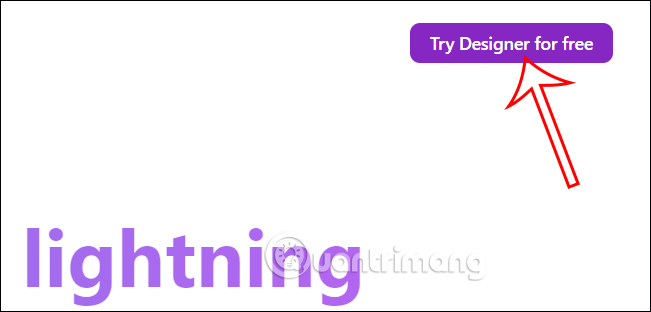
<p style="text-align: justify;">Tại giao diện trang web bạn<strong>&nbsp;nhấn vào nút Try Designer for free</strong>&nbsp;để sử dụng dịch vụ Microsoft Designer.</p>

<p style="text-align: justify;"><img alt="Microsoft Designer" data-i="0" data-src="https://st.quantrimang.com/photos/image/2023/04/28/Microsoft-Designer-thiet-ke-anh-1.jpg" data-was-processed="true" height="307" src="https://st.quantrimang.com/photos/image/2023/04/28/Microsoft-Designer-thiet-ke-anh-1.jpg" width="640" /></p>

<p style="text-align: justify;"><strong>Bước 2:</strong></p>

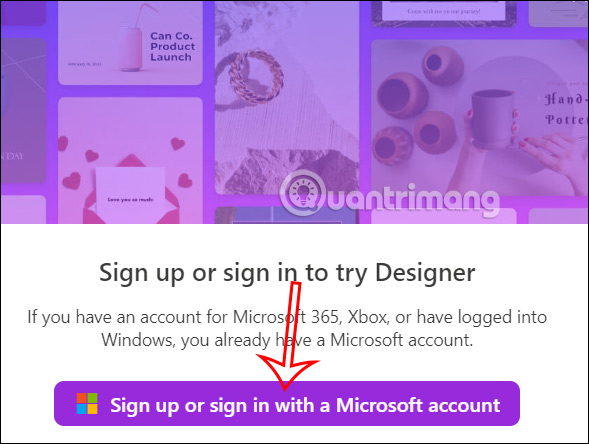
<p style="text-align: justify;">Lúc này người dùng được yêu cầu<strong>&nbsp;đăng nhập tài khoản Microsoft&nbsp;</strong>để sử dụng được dịch vụ. Bạn nhập tài khoản Microsoft để tiếp tục.</p>

<p style="text-align: justify;"><img alt="Đăng nhập tài khoản Microsoft " data-i="1" data-src="https://st.quantrimang.com/photos/image/2023/04/28/Microsoft-Designer-thiet-ke-anh-2.jpg" data-was-processed="true" height="415" src="https://st.quantrimang.com/photos/image/2023/04/28/Microsoft-Designer-thiet-ke-anh-2.jpg" width="550" /></p>

<p style="text-align: justify;"><strong>Bước 3:</strong></p>

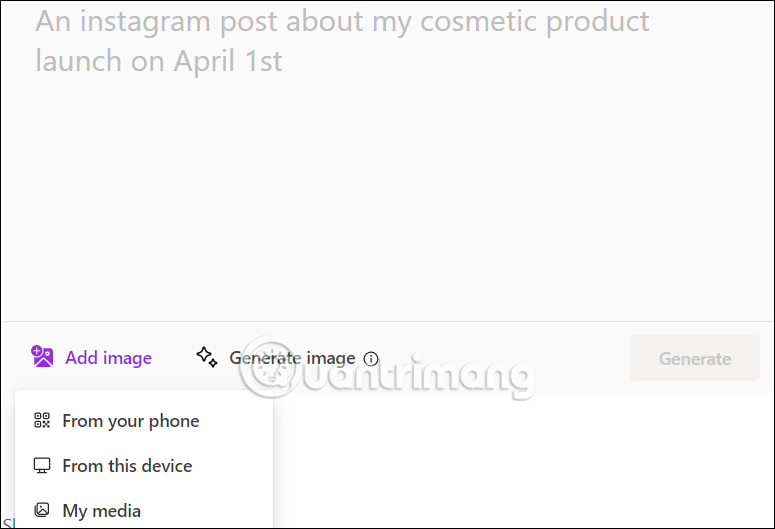
<p style="text-align: justify;">Sau khi đăng nhập thành công, bạn được chuyển vào giao diện chính của dịch vụ. Tại giao diện chính bạn sẽ nhìn thấy có&nbsp;<strong>2 tùy chọn gồm tạo hình ảnh từ Microsoft Designer&nbsp;</strong>bằng cách nhấn Add image để tiến hành thiết kế hình ảnh, hoặc nhập mô tả cho ảnh để tạo hình ảnh từ công nghệ AI tại Describe the design you’d like to create. Lưu ý từ mô tả phải nhập bằng tiếng Anh.</p>

<p style="text-align: justify;">Điền xong từ&nbsp;<strong>mô tả thì nhấn Generate</strong>&nbsp;để tạo.</p>

<p style="text-align: justify;"><img alt="Tạo ảnh trên Microsoft Designer" data-i="2" data-src="https://st.quantrimang.com/photos/image/2023/04/28/Microsoft-Designer-thiet-ke-anh-3.jpg" data-was-processed="true" height="375" src="https://st.quantrimang.com/photos/image/2023/04/28/Microsoft-Designer-thiet-ke-anh-3.jpg" width="550" /></p>

<p style="text-align: justify;"><strong>Bước 4:</strong></p>

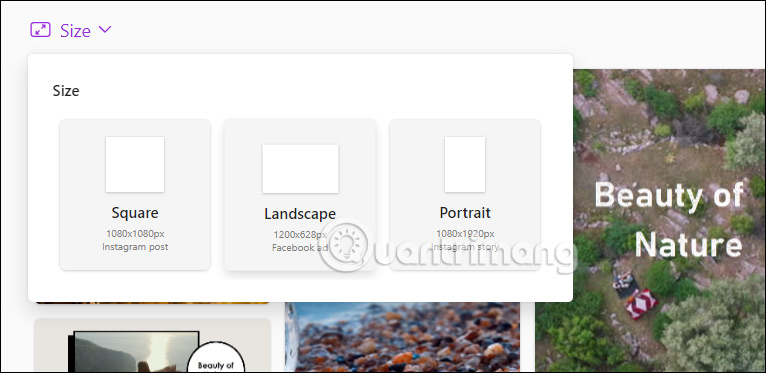
<p style="text-align: justify;">Lúc này hiển thị&nbsp;<strong>tùy chọn kích thước</strong>&nbsp;để bạn lựa chọn kiểu thiết kế cho hình ảnh của mình.</p>

<p style="text-align: justify;"><img alt="Chọn kích thước ảnh tạo từ Microsoft Designer" data-i="3" data-src="https://st.quantrimang.com/photos/image/2023/04/28/Microsoft-Designer-thiet-ke-anh-4.jpg" data-was-processed="true" height="268" src="https://st.quantrimang.com/photos/image/2023/04/28/Microsoft-Designer-thiet-ke-anh-4.jpg" width="550" /></p>

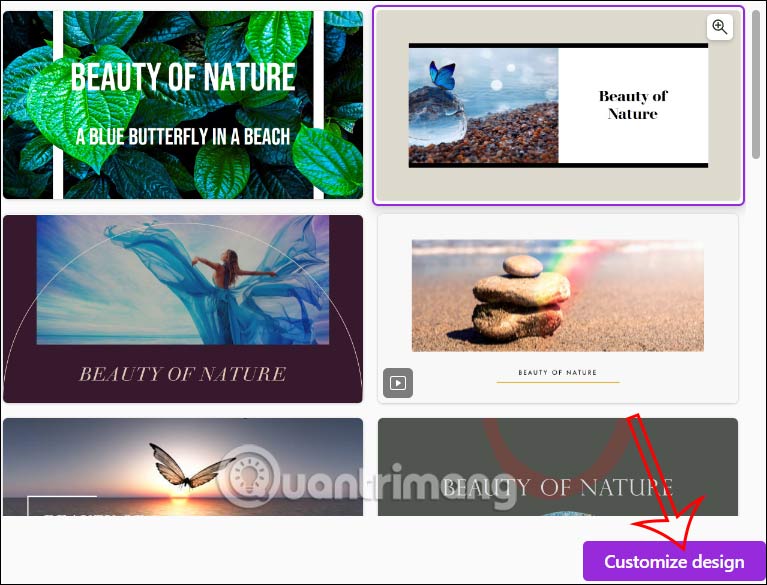
<p style="text-align: justify;">Kết quả chúng ta sẽ thấy các mẫu thiết kế do Microsoft Designer tạo ra như hình dưới đây. Nếu thích mẫu nào thì bạn&nbsp;<strong>nhấn vào Customize design&nbsp;</strong>để chỉnh sửa hình ảnh.</p>

<p style="text-align: justify;"><img alt="Chỉnh ảnh tạo từ Microsoft Designer" data-i="4" data-src="https://st.quantrimang.com/photos/image/2023/04/28/Microsoft-Designer-thiet-ke-anh-5.jpg" data-was-processed="true" height="458" src="https://st.quantrimang.com/photos/image/2023/04/28/Microsoft-Designer-thiet-ke-anh-5.jpg" width="600" /></p>

<h2 style="text-align: justify;">Cách dùng Microsoft Designer chỉnh sửa ảnh</h2>

<p style="text-align: justify;"><strong>Bước 1:</strong></p>

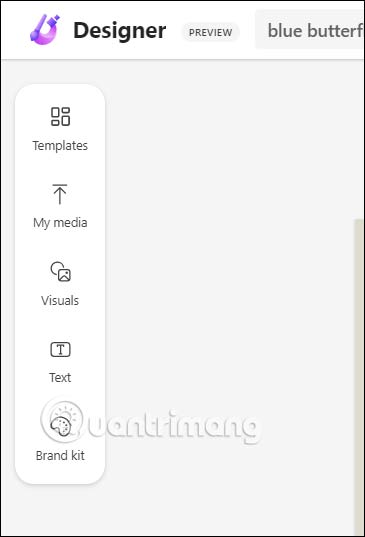
<p style="text-align: justify;">Trong giao diện chỉnh sửa ảnh trên Microsoft Designer, ở cạnh trái là các công cụ để chúng ta thay đổi lại hình ảnh.</p>

<p style="text-align: justify;"><img alt="Giao diện chỉnh ảnh trên Microsoft Designer" data-i="5" data-src="https://st.quantrimang.com/photos/image/2023/04/28/Microsoft-Designer-thiet-ke-anh-6.jpg" data-was-processed="true" height="441" src="https://st.quantrimang.com/photos/image/2023/04/28/Microsoft-Designer-thiet-ke-anh-6.jpg" width="300" /></p>

<p style="text-align: justify;"><strong>Bước 2:</strong></p>

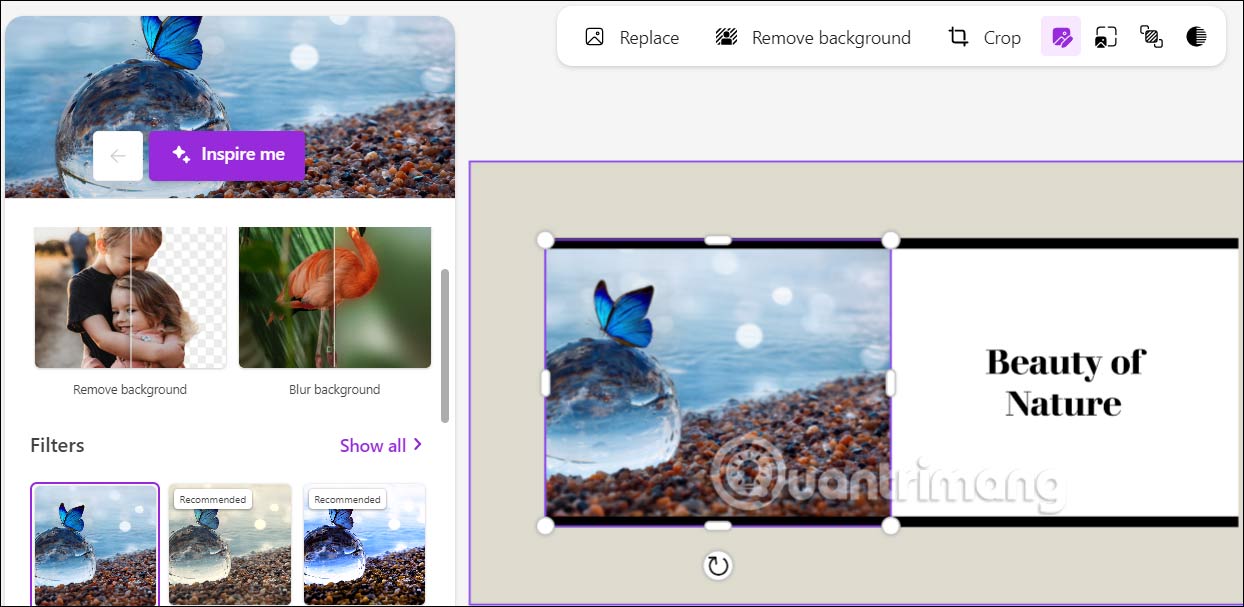
<p style="text-align: justify;">Chúng ta&nbsp;<strong>nhấn vào các chi tiết có trong mẫu thiết kế</strong>&nbsp;để thay đổi. Chẳng hạn khi bạn nhấn vào hình ảnh thì ở phần bên trái có khá nhiều công cụ thay đổi ảnh khác nhau, như xóa nền cho hình ảnh, làm mờ nền của ảnh hay chỉnh bộ lọc cho ảnh.</p>

<p style="text-align: justify;"><img alt="Thay đổi hình ảnh trên Microsoft Designer" data-i="6" data-src="https://st.quantrimang.com/photos/image/2023/04/28/Microsoft-Designer-thiet-ke-anh-7.jpg" data-was-processed="true" height="312" src="https://st.quantrimang.com/photos/image/2023/04/28/Microsoft-Designer-thiet-ke-anh-7.jpg" width="640" /></p>

<p style="text-align: justify;"><strong>Bước 3:</strong></p>

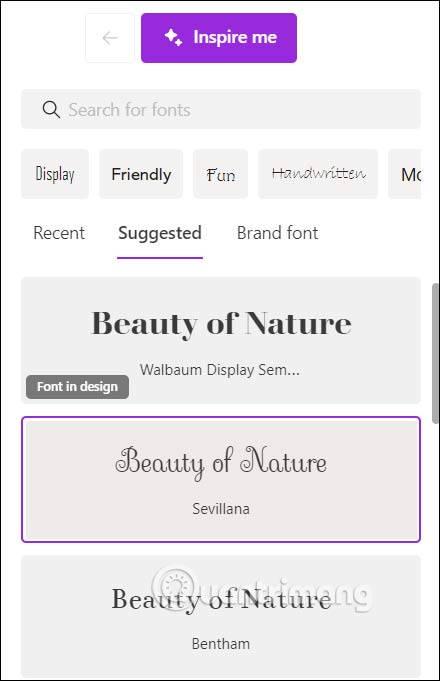
<p style="text-align: justify;">Nhấn vào&nbsp;<strong>phần chữ</strong>&nbsp;thì bạn cũng có tùy chọn thay đổi lại kiểu font chữ.</p>

<p style="text-align: justify;"><img alt="Đổi chữ trong ảnh trên Microsoft Designer" data-i="7" data-src="https://st.quantrimang.com/photos/image/2023/04/28/Microsoft-Designer-thiet-ke-anh-8.jpg" data-was-processed="true" height="619" src="https://st.quantrimang.com/photos/image/2023/04/28/Microsoft-Designer-thiet-ke-anh-8.jpg" width="400" /></p>

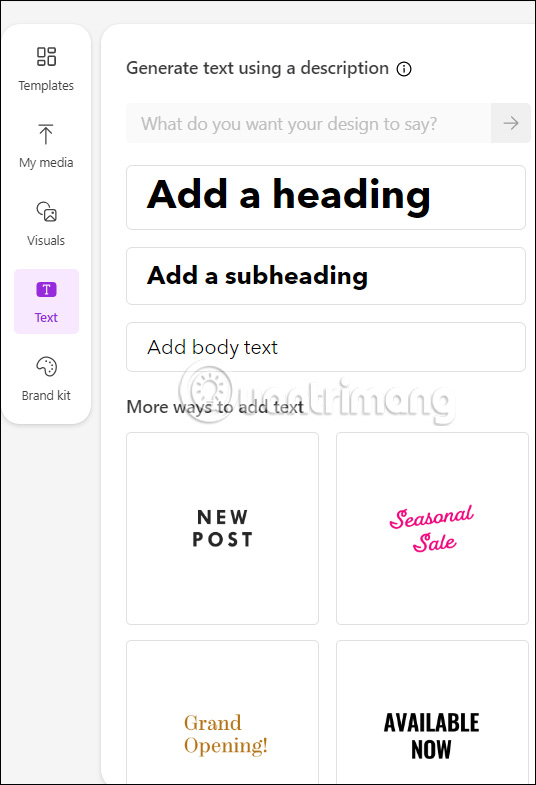
<p style="text-align: justify;">Nếu muốn&nbsp;<strong>thêm nội dung chữ vào ảnh</strong>&nbsp;thì nhấn vào&nbsp;<strong>mục Text</strong>, chọn kiểu chữ là gì rồi chọn mẫu chữ ở bên dưới để chèn vào hình ảnh.</p>

<p style="text-align: justify;"><img alt="Thêm chữ vào ảnh trên Microsoft Designer" data-i="8" data-src="https://st.quantrimang.com/photos/image/2023/04/28/Microsoft-Designer-thiet-ke-anh-9.jpg" data-was-processed="true" height="586" src="https://st.quantrimang.com/photos/image/2023/04/28/Microsoft-Designer-thiet-ke-anh-9.jpg" width="400" /></p>

<p style="text-align: justify;"><strong>Bước 4:</strong></p>

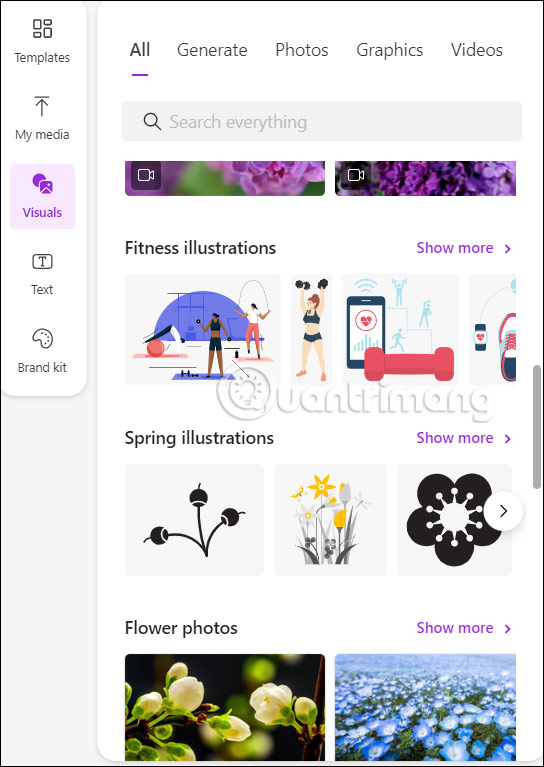
<p style="text-align: justify;">Nhấn vào&nbsp;<strong>mục Visual</strong>&nbsp;sẽ là các biểu tượng, sticker,... để chèn vào hình ảnh.</p>

<p style="text-align: justify;"><img alt="Chèn sticker vào ảnh trên Microsoft Designer" data-i="9" data-src="https://st.quantrimang.com/photos/image/2023/04/28/Microsoft-Designer-thiet-ke-anh-10.jpg" data-was-processed="true" height="635" src="https://st.quantrimang.com/photos/image/2023/04/28/Microsoft-Designer-thiet-ke-anh-10.jpg" width="450" /></p>

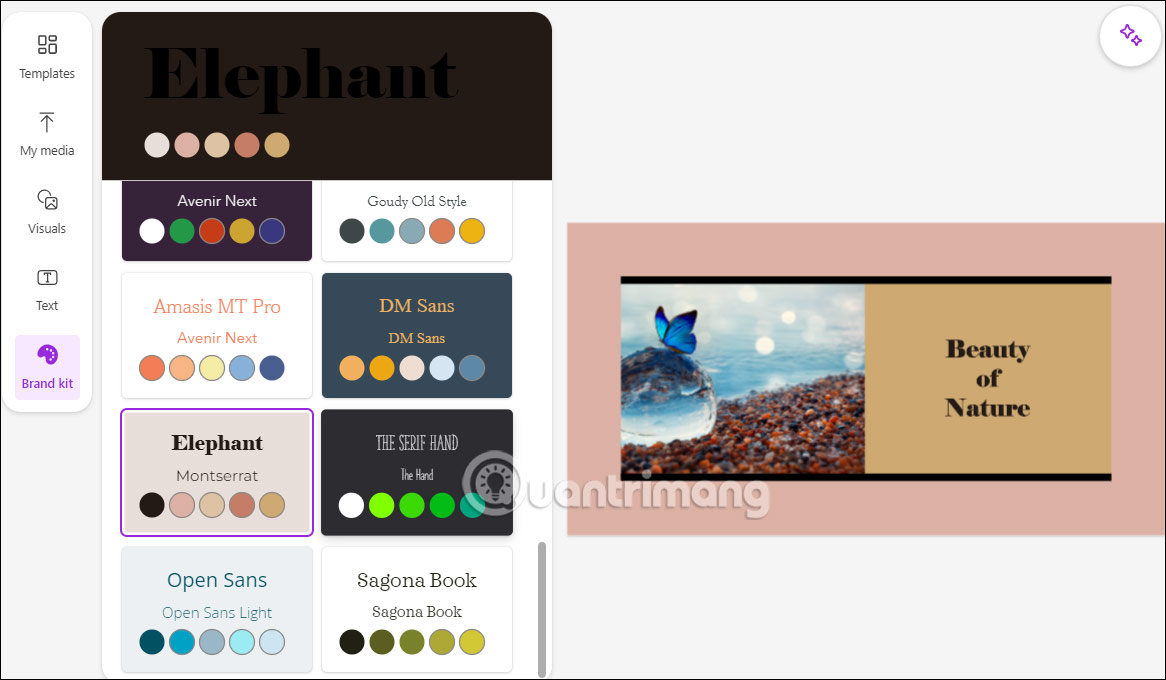
<p style="text-align: justify;"><strong>Phần Brand kit</strong>&nbsp;sẽ có sẵn một số gói thiết kế để bạn áp dụng cho hình ảnh, từ màu sắc, phông chữ, kiểu thiết kế.</p>

<p style="text-align: justify;"><img alt="Gói màu cho ảnh trên Microsoft Designer" data-i="10" data-src="https://st.quantrimang.com/photos/image/2023/04/28/Microsoft-Designer-thiet-ke-anh-11.jpg" data-was-processed="true" height="350" src="https://st.quantrimang.com/photos/image/2023/04/28/Microsoft-Designer-thiet-ke-anh-11.jpg" width="600" /></p>

<p style="text-align: justify;"><strong>Bước 5:</strong></p>

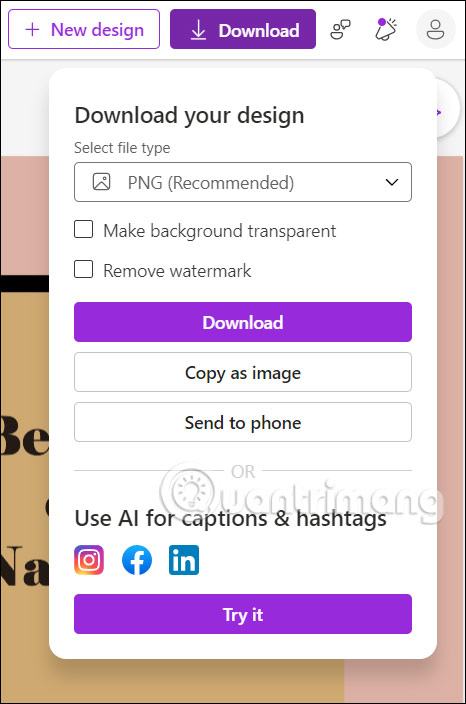
<p style="text-align: justify;">Cuối cùng khi đã ưng ý với hình ảnh của bạn,&nbsp;<strong>nhấn vào nút Download</strong>. Chúng ta có 3 tùy chọn gồm:</p>

<ul>
	<li style="text-align: justify;">Select file type: Bạn chọn định dạng ảnh tải xuống là PNG (khuyến nghị), JPEG, PDF.</li>
	<li style="text-align: justify;">Make background transparent: Tải xuống ảnh có nền được làm trong suốt.</li>
	<li style="text-align: justify;">Remove watermark: Bạn chọn vào để tải xuống hình ảnh không kèm watermark của Microsoft Designer.</li>
</ul>

<p style="text-align: justify;"><img alt="Tải ảnh trên Microsoft Designer" data-i="11" data-src="https://st.quantrimang.com/photos/image/2023/04/28/Microsoft-Designer-thiet-ke-anh-12.jpg" data-was-processed="true" height="529" src="https://st.quantrimang.com/photos/image/2023/04/28/Microsoft-Designer-thiet-ke-anh-12.jpg" width="350" /></p>

<p style="text-align: justify;">Nhìn chung giao diện và các công cụ trên Microsoft Designer rất đơn giản, không quá phức tạp khi sử dụng.</p>

<h2 style="text-align: justify;">Hướng dẫn đăng ký sử dụng Microsoft Designer</h2>

<p style="text-align: justify;"><strong>Bước 1:</strong></p>

<p style="text-align: justify;">Người dùng truy cập vào link Microsoft Designer dưới đây để truy cập vào trang web.</p>

<ul>
	<li style="text-align: justify;"><a href="https://quantrimang.com/url?q=aHR0cHM6Ly9kZXNpZ25lci5taWNyb3NvZnQuY29tLw%3D%3D" rel="nofollow noopener" target="_blank" title="Truy cập trang web Microsoft Designer">Truy cập trang web Microsoft Designer</a></li>
</ul>

<p style="text-align: justify;"><strong>Bước 2:</strong></p>

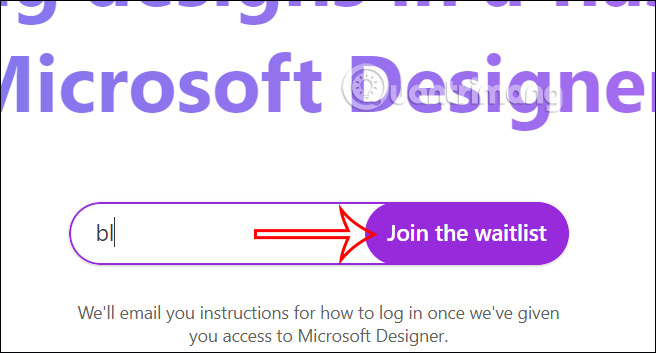
<p style="text-align: justify;">Tại giao diện trang web, trước hết bạn&nbsp;<strong>điền email tài khoản Microsoft</strong>&nbsp;để đăng ký tham gia sử dụng Microsoft Designer.</p>

<p style="text-align: justify;">Sau khi điền xong email đăng ký Microsoft Designer, bạn&nbsp;<strong>nhấn chọn vào Join the waitlist&nbsp;</strong>để tham gia vào danh sách chờ.</p>

<p style="text-align: justify;"><img alt="Nhập email đăng ký Microsoft Designer" data-i="12" data-src="https://st.quantrimang.com/photos/image/2023/03/31/Microsoft-Designer-dang-ky-su-dung-1.jpg" data-was-processed="true" height="323" src="https://st.quantrimang.com/photos/image/2023/03/31/Microsoft-Designer-dang-ky-su-dung-1.jpg" width="600" /></p>

<p style="text-align: justify;"><strong>Bước 3:</strong></p>

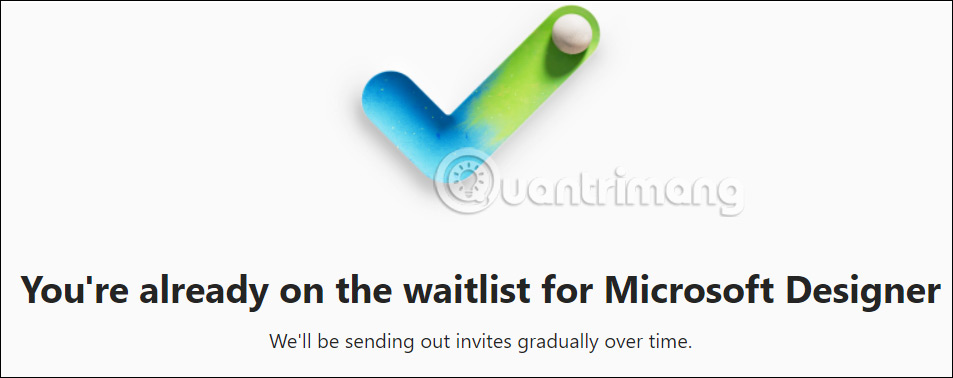
<p style="text-align: justify;">Sau đó bạn sẽ nhận được thông báo đã trong danh sách chờ sử dụng Microsoft Designer.</p>

<p style="text-align: justify;"><img alt="Thông báo đăng ký Microsoft Designer" data-i="13" data-src="https://st.quantrimang.com/photos/image/2023/03/31/Microsoft-Designer-dang-ky-su-dung-4.jpg" data-was-processed="true" height="254" src="https://st.quantrimang.com/photos/image/2023/03/31/Microsoft-Designer-dang-ky-su-dung-4.jpg" width="640" /></p>

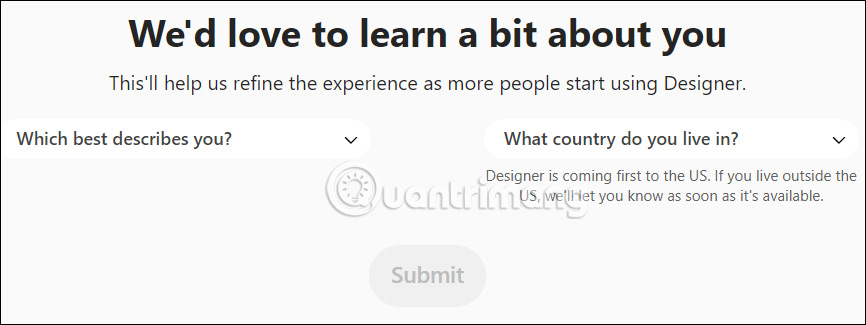
<p style="text-align: justify;">Tiếp tục, Microsoft Designer sẽ hỏi thêm thông tin về bạn. Chúng ta trả lời từng mục hiển thị trên trang web.</p>

<p style="text-align: justify;"><img alt="Thông tin sử dụng Microsoft Designer" data-i="14" data-src="https://st.quantrimang.com/photos/image/2023/03/31/Microsoft-Designer-dang-ky-su-dung-2.jpg" data-was-processed="true" height="240" src="https://st.quantrimang.com/photos/image/2023/03/31/Microsoft-Designer-dang-ky-su-dung-2.jpg" width="640" /></p>

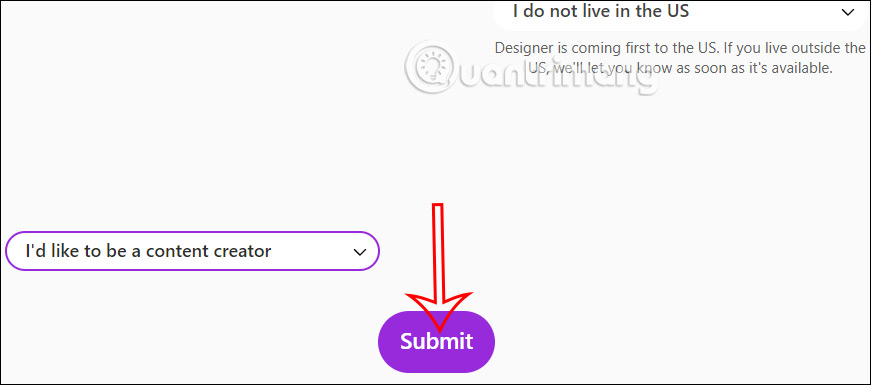
<p style="text-align: justify;">Cuối cùng khi bạn trả lời xong các thông tin thì&nbsp;<strong>nhấn vào mục Submit</strong>&nbsp;ở bên dưới. Chúng ta chờ thông báo email từ hãng gửi tới bạn.</p>

<p style="text-align: justify;"><img alt="Gửi thông tin đăng ký Microsoft Designer" data-i="15" data-src="https://st.quantrimang.com/photos/image/2023/03/31/Microsoft-Designer-dang-ky-su-dung-3.jpg" data-was-processed="true" height="265" src="https://st.quantrimang.com/photos/image/2023/03/31/Microsoft-Designer-dang-ky-su-dung-3.jpg" width="600" /></p>

<div style="text-align: justify;">&nbsp;</div>
		</div>
				<div id="author">
						<p>
				<strong>Nguồn tin:</strong>
				Quantrimang.com
			</p>
		</div>
	</div>
	<div id="footer" class="clearfix">
		<div id="url">
			<strong>URL của bản tin này: </strong><a href="https://www.nguoicodonvn2008.info/vi/news/savefile/kien-thuc-may-tinh/cach-su-dung-microsoft-designer-thiet-ke-hinh-anh-7061.html" title="Cách sử dụng Microsoft Designer thiết kế hình ảnh">https://www.nguoicodonvn2008.info/vi/news/savefile/kien-thuc-may-tinh/cach-su-dung-microsoft-designer-thiet-ke-hinh-anh-7061.html</a>

		</div>
		<div class="clear"></div>
		<div class="copyright">
			&copy; .&#x3A; Nguoicodonvn2008.info - Cõi lòng người cô đơn &#x3A;.
		</div>
		<div id="contact">
			<a href="mailto:admin@nguoicodonvn2008.info">admin@nguoicodonvn2008.info</a>
		</div>
	</div>
</div>
        <div id="timeoutsess" class="chromeframe">
            Bạn đã không sử dụng Site, <a onclick="timeoutsesscancel();" href="https://nguoicodonvn2008.info/#">Bấm vào đây để duy trì trạng thái đăng nhập</a>. Thời gian chờ: <span id="secField"> 60 </span> giây
        </div>
        <div id="openidResult" class="nv-alert" style="display:none"></div>
        <div id="openidBt" data-result="" data-redirect=""></div>
		</script>
		<div class="car-top">
  <span><img src="https://nguoicodonvn2008.info/themes/default/images/car.png" alt=""></span>
</div>
<script src="https://nguoicodonvn2008.info/assets/js/jquery/jquery.min.js"></script>
<script>var nv_base_siteurl="/",nv_lang_data="vi",nv_lang_interface="vi",nv_name_variable="nv",nv_fc_variable="op",nv_lang_variable="language",nv_module_name="news",nv_func_name="savefile",nv_is_user=0, nv_my_ofs=-4,nv_my_abbr="EDT",nv_cookie_prefix="nv4c_e856T",nv_check_pass_mstime=1738000,nv_area_admin=0,nv_safemode=0,theme_responsive=0,nv_recaptcha_ver=2,nv_recaptcha_sitekey="",nv_recaptcha_type="image",XSSsanitize=1;</script>
<script src="https://nguoicodonvn2008.info/assets/js/language/vi.js"></script>
<script src="https://nguoicodonvn2008.info/assets/js/DOMPurify/purify3.js"></script>
<script src="https://nguoicodonvn2008.info/assets/js/global.js"></script>
<script src="https://nguoicodonvn2008.info/assets/js/site.js"></script>
<script src="https://nguoicodonvn2008.info/themes/default/js/news.js"></script>
<script src="https://nguoicodonvn2008.info/themes/default/js/main.js"></script>
<script src="https://nguoicodonvn2008.info/themes/default/js/custom.js"></script>
<script type="application/ld+json">
        {
            "@context": "https://schema.org",
            "@type": "Organization",
            "url": "https://nguoicodonvn2008.info",
            "logo": "https://nguoicodonvn2008.info/uploads/angel.gif"
        }
        </script>
<script src="https://nguoicodonvn2008.info/themes/default/js/bootstrap.min.js"></script>
<script type="text/javascript">
var $scrolltop = $('.car-top');
$scrolltop.on('click', function () {
    $('html,body').animate({
        scrollTop: 0
    }, 800);
    $(this).addClass("car-run");
    setTimeout(function(){ $scrolltop.removeClass('car-run');}, 1000);
    return false;
});
$(window).on('scroll', function ()
{ 
    if($(window).scrollTop() >= 200)
    {
        $scrolltop.addClass("show");
        $scrolltop.addClass("car-down");
    }
    else
    {
       $scrolltop.removeClass("show");
       setTimeout(function(){ $scrolltop.removeClass('car-down');}, 300);
    }
});
</script>
</body>
</html>