<!DOCTYPE html>
    <html lang="vi" xmlns="http://www.w3.org/1999/xhtml" prefix="og: http://ogp.me/ns#">
    <head>
<title>Cách sử dụng lệnh Netstat trong Windows 11 để giám sát hoạt động mạng</title>
<meta name="description" content="Cách sử dụng lệnh Netstat trong Windows 11 để giám sát hoạt động mạng - Savefile - Tin Tức -...">
<meta name="author" content=".: Nguoicodonvn2008.info - Cõi lòng người cô đơn :.">
<meta name="copyright" content=".: Nguoicodonvn2008.info - Cõi lòng người cô đơn :. [admin@nguoicodonvn2008.info]">
<meta name="robots" content="index, archive, follow, noodp">
<meta name="googlebot" content="index,archive,follow,noodp">
<meta name="msnbot" content="all,index,follow">
<meta name="generator" content="NukeViet v4.5">
<meta http-equiv="Content-Type" content="text/html; charset=utf-8">
<meta property="og:title" content="Cách sử dụng lệnh Netstat trong Windows 11 để giám sát hoạt động mạng">
<meta property="og:type" content="website">
<meta property="og:description" content="Savefile - Tin Tức - https&#x3A;&#x002F;&#x002F;www.nguoicodonvn2008.info&#x002F;vi&#x002F;news&#x002F;savefile&#x002F;kien-thuc-may-tinh&#x002F;cach-su-dung-lenh-netstat-trong-windows-11-de-giam-sat-hoat-dong-mang-7602.html">
<meta property="og:site_name" content=".&#x3A; Nguoicodonvn2008.info - Cõi lòng người cô đơn &#x3A;.">
<meta property="og:url" content="https://www.nguoicodonvn2008.info/vi/news/savefile/kien-thuc-may-tinh/cach-su-dung-lenh-netstat-trong-windows-11-de-giam-sat-hoat-dong-mang-7602.html">
<link rel="shortcut icon" href="https://nguoicodonvn2008.info/favicon.ico">
<link rel="canonical" href="https://www.nguoicodonvn2008.info/vi/news/savefile/kien-thuc-may-tinh/cach-su-dung-lenh-netstat-trong-windows-11-de-giam-sat-hoat-dong-mang-7602.html">
<link rel="alternate" href="https://nguoicodonvn2008.info/vi/news/rss/" title="Tin Tức" type="application/rss+xml">
<link rel="alternate" href="https://nguoicodonvn2008.info/vi/news/rss/karaoke-dual/" title="Tin Tức - Karaoke Dual" type="application/rss+xml">
<link rel="alternate" href="https://nguoicodonvn2008.info/vi/news/rss/nhac-tre/" title="Tin Tức - Nhạc trẻ" type="application/rss+xml">
<link rel="alternate" href="https://nguoicodonvn2008.info/vi/news/rss/tru-tinh/" title="Tin Tức - Trữ tình" type="application/rss+xml">
<link rel="alternate" href="https://nguoicodonvn2008.info/vi/news/rss/nuoc-ngoai/" title="Tin Tức - Nước ngoài" type="application/rss+xml">
<link rel="alternate" href="https://nguoicodonvn2008.info/vi/news/rss/remix/" title="Tin Tức - Remix" type="application/rss+xml">
<link rel="alternate" href="https://nguoicodonvn2008.info/vi/news/rss/tam-su-tinh-yeu/" title="Tin Tức - Tâm sự tình yêu" type="application/rss+xml">
<link rel="alternate" href="https://nguoicodonvn2008.info/vi/news/rss/tho-suu-tam/" title="Tin Tức - Thơ sưu tầm" type="application/rss+xml">
<link rel="alternate" href="https://nguoicodonvn2008.info/vi/news/rss/cuoc-song/" title="Tin Tức - Cuộc sống" type="application/rss+xml">
<link rel="alternate" href="https://nguoicodonvn2008.info/vi/news/rss/phan-mem/" title="Tin Tức - Phần mềm" type="application/rss+xml">
<link rel="alternate" href="https://nguoicodonvn2008.info/vi/news/rss/kien-thuc-may-tinh/" title="Tin Tức - Kiến thức máy tính" type="application/rss+xml">
<link rel="alternate" href="https://nguoicodonvn2008.info/vi/news/rss/hoc-tap/" title="Tin Tức - Học tập" type="application/rss+xml">
<link rel="alternate" href="https://nguoicodonvn2008.info/vi/news/rss/tai-lieu/" title="Tin Tức - Tài liệu" type="application/rss+xml">
<link rel="alternate" href="https://nguoicodonvn2008.info/vi/news/rss/de-thi/" title="Tin Tức - Đề thi" type="application/rss+xml">
<link rel="preload" as="style" href="https://nguoicodonvn2008.info/assets/css/font-awesome.min.css" type="text/css">
<link rel="preload" as="style" href="https://nguoicodonvn2008.info/themes/default/css/bootstrap.non-responsive.css" type="text/css">
<link rel="preload" as="style" href="https://nguoicodonvn2008.info/themes/default/css/style.css" type="text/css">
<link rel="preload" as="style" href="https://nguoicodonvn2008.info/themes/default/css/style.non-responsive.css" type="text/css">
<link rel="preload" as="style" href="https://nguoicodonvn2008.info/themes/default/css/news.css" type="text/css">
<link rel="preload" as="style" href="https://nguoicodonvn2008.info/themes/default/css/custom.css" type="text/css">
<link rel="preload" as="script" href="https://nguoicodonvn2008.info/assets/js/jquery/jquery.min.js" type="text/javascript">
<link rel="preload" as="script" href="https://nguoicodonvn2008.info/assets/js/language/vi.js" type="text/javascript">
<link rel="preload" as="script" href="https://nguoicodonvn2008.info/assets/js/DOMPurify/purify3.js" type="text/javascript">
<link rel="preload" as="script" href="https://nguoicodonvn2008.info/assets/js/global.js" type="text/javascript">
<link rel="preload" as="script" href="https://nguoicodonvn2008.info/assets/js/site.js" type="text/javascript">
<link rel="preload" as="script" href="https://nguoicodonvn2008.info/themes/default/js/news.js" type="text/javascript">
<link rel="preload" as="script" href="https://nguoicodonvn2008.info/themes/default/js/main.js" type="text/javascript">
<link rel="preload" as="script" href="https://nguoicodonvn2008.info/themes/default/js/custom.js" type="text/javascript">
<link rel="preload" as="script" href="https://nguoicodonvn2008.info/themes/default/js/bootstrap.min.js" type="text/javascript">
<link rel="stylesheet" href="https://nguoicodonvn2008.info/assets/css/font-awesome.min.css">
<link rel="stylesheet" href="https://nguoicodonvn2008.info/themes/default/css/bootstrap.non-responsive.css">
<link rel="stylesheet" href="https://nguoicodonvn2008.info/themes/default/css/style.css">
<link rel="stylesheet" href="https://nguoicodonvn2008.info/themes/default/css/style.non-responsive.css">
<link rel="StyleSheet" href="https://nguoicodonvn2008.info/themes/default/css/news.css">
<link rel="stylesheet" href="https://nguoicodonvn2008.info/themes/default/css/custom.css">
<style type="text/css">
	body{background: #fff;}
</style>
    </head>
    <body>
<div id="print">
	<div id="hd_print">
		<h2 class="pull-left">.&#x3A; Nguoicodonvn2008.info - Cõi lòng người cô đơn &#x3A;.</h2>
		<p class="pull-right"><a title=".&#x3A; Nguoicodonvn2008.info - Cõi lòng người cô đơn &#x3A;." href="https://nguoicodonvn2008.info/">https://nguoicodonvn2008.info</a></p>
	</div>
	<div class="clear"></div>
	<hr />
	<div id="content">
		<h1>Cách sử dụng lệnh Netstat trong Windows 11 để giám sát hoạt động mạng</h1>
		<ul class="list-inline">
			<li>Thứ năm - 05/10/2023 09:52</li>
			<li class="hidden-print txtrequired"><em class="fa fa-print">&nbsp;</em><a title="In ra" href="javascript:;" onclick="window.print()">In ra</a></li>
			<li class="hidden-print txtrequired"><em class="fa fa-power-off">&nbsp;</em><a title="Đóng cửa sổ này" href="javascript:;" onclick="window.close()">Đóng cửa sổ này</a></li>
		</ul>
		<div class="clear"></div>
		<div id="hometext">
		</div>
				<div class="imghome">
			<img alt="Cách sử dụng lệnh Netstat trong Windows 11 để giám sát hoạt động mạng" src="https://st.quantrimang.com/photos/image/2023/10/05/lenh-netstat-trong-windows-8.jpg" width="460" class="img-thumbnail" />
		</div>
		<div class="clear"></div>
		<div id="bodytext" class="clearfix">
			<p style="text-align: justify;">Netstat là tiện ích dòng lệnh giúp bạn giám sát tất cả các đặc tính kỹ thuật của những kết nối mạng đang hoạt động của mình. Nó cung cấp một cách nhanh chóng để xem tất cả các cổng mở, kết nối đang hoạt động và dịch vụ mạng đang chạy trên hệ thống của bạn.</p>

<p style="text-align: justify;">Nếu tất cả điều này nghe có vẻ quá kỹ thuật đối với bạn, đừng lo lắng. Bài viết sẽ giải thích mọi thứ một cách đơn giản để thực hiện việc này. Trước tiên, hãy xem netstat là gì và cách sử dụng netstat trên Windows để giám sát mạng của bạn.</p>

<h2 style="text-align: justify;">Lệnh Netstat trên Windows&nbsp;là gì?</h2>

<p style="text-align: justify;">Lệnh netstat chủ yếu được sử dụng bởi các chuyên gia CNTT hoặc người khắc phục sự cố mạng trên hệ thống Windows và Linux. Lệnh, khi được thực thi, sẽ hiển thị danh sách các kết nối TCP đang hoạt động, các cổng đang lắng nghe, số liệu thống kê Ethernet, địa chỉ và cổng đang được hệ thống của bạn sử dụng, v.v...</p>

<p style="text-align: justify;">Nói một cách đơn giản, lệnh này cho phép bạn xem kết nối mạng nào đang hoạt động và ứng dụng nào đang sử dụng chúng ở chế độ nền tại bất kỳ thời điểm nào.</p>

<p style="text-align: justify;">Để giúp bạn hiểu rõ hơn, dưới đây là một số ví dụ về những gì netstat có thể hiển thị cho bạn:</p>

<ul>
	<li style="text-align: justify;">Tất cả các kết nối vào và ra có trên PC của bạn.</li>
	<li style="text-align: justify;">Thông tin về cổng nào đang mở hoặc đang lắng nghe kết nối.</li>
	<li style="text-align: justify;">Kết nối và quy trình sử dụng Internet.</li>
	<li style="text-align: justify;">Bất kỳ kết nối đáng ngờ nào từ các ứng dụng hoặc dịch vụ không xác định.</li>
</ul>

<h2 style="text-align: justify;">Cách sử dụng lệnh Netstat trên Windows</h2>

<p style="text-align: justify;">Như đã đề cập trước đó, lệnh netstat chỉ có thể truy cập được từ Command Prompt. Nếu bạn không biết các bước, hãy làm theo các bước dưới đây để chạy netstat từ Command Prompt:</p>

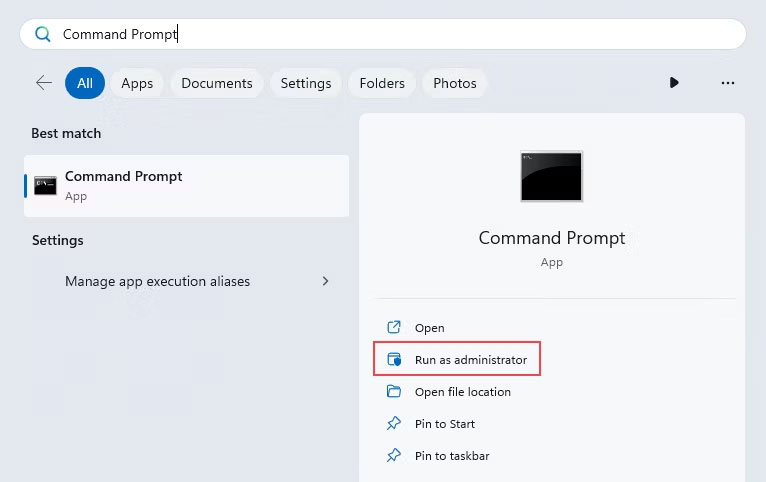
<p style="text-align: justify;">1. Nhấp vào nút&nbsp;<strong>Search</strong>&nbsp;trên thanh tác vụ của bạn và tìm kiếm ứng dụng Command Prompt.</p>

<p style="text-align: justify;">2. Bên cạnh kết quả tìm kiếm phù hợp, nhấp vào&nbsp;<strong>Run as administrator</strong>. Thao tác này sẽ&nbsp;khởi chạy Command Prompt với quyền admin.</p>

<figure>
<div style="text-align: justify;"><img alt="Command Prompt trong Windows Search" data-i="0" data-src="https://st.quantrimang.com/photos/image/2023/10/05/lenh-netstat-trong-windows-1.jpg" data-was-processed="true" height="482" src="https://st.quantrimang.com/photos/image/2023/10/05/lenh-netstat-trong-windows-1.jpg" width="766" /></div>

<figcaption>
<div style="text-align: justify;">Command Prompt trong Windows Search</div>
</figcaption>
</figure>

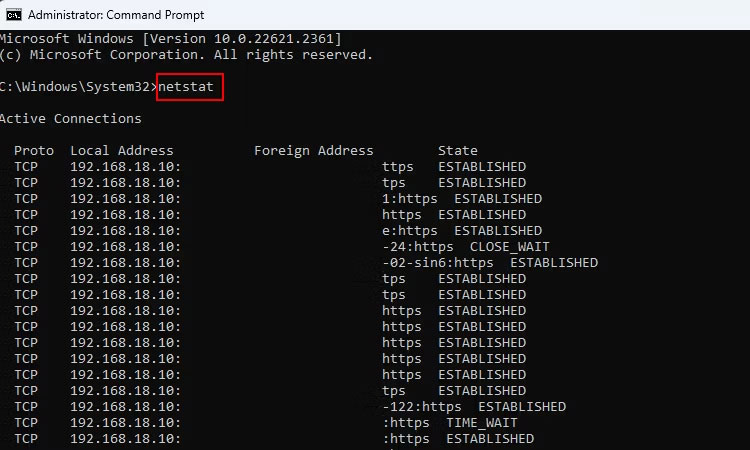
<p style="text-align: justify;">3. Trên Command Prompt, gõ&nbsp;<strong>netstat</strong>&nbsp;và nhấn&nbsp;<strong>Enter.</strong>&nbsp;Lệnh sau khi thực thi sẽ đưa ra danh sách các kết nối đang hoạt động cùng với trạng thái của chúng.</p>

<figure>
<div style="text-align: justify;"><img alt="Đầu ra lệnh netstat" data-i="1" data-src="https://st.quantrimang.com/photos/image/2023/10/05/lenh-netstat-trong-windows-2.jpg" data-was-processed="true" height="450" src="https://st.quantrimang.com/photos/image/2023/10/05/lenh-netstat-trong-windows-2.jpg" width="750" /></div>

<figcaption>
<div style="text-align: justify;">Đầu ra lệnh netstat</div>
</figcaption>
</figure>

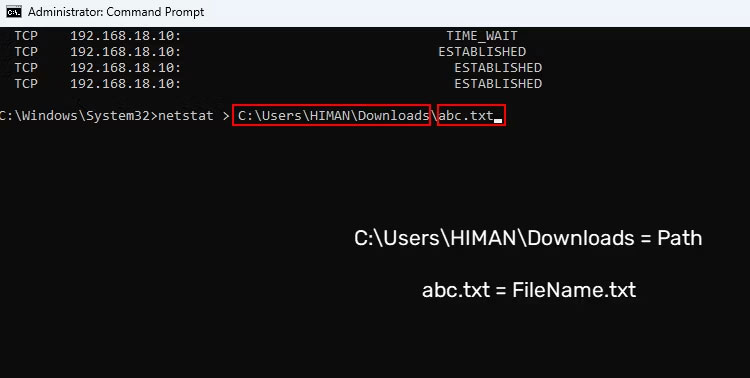
<p style="text-align: justify;">4. Ví dụ, nếu bạn cần chia sẻ kết quả đầu ra với nhóm hỗ trợ kỹ thuật, hãy sử dụng lệnh này để sao chép kết quả trong file văn bản:&nbsp;<strong>&quot;netstat &gt; Path\FileName.txt&quot;</strong>. Trong lệnh này,&nbsp;<strong>Path</strong>&nbsp;là vị trí của bất kỳ thư mục nào mà bạn muốn lưu file và&nbsp;<strong>FileName.txt</strong>&nbsp;là tên file đã xuất của bạn.</p>

<figure>
<div style="text-align: justify;"><img alt="Lệnh xuất đầu ra netstat" data-i="2" data-src="https://st.quantrimang.com/photos/image/2023/10/05/lenh-netstat-trong-windows-3.jpg" data-was-processed="true" height="378" src="https://st.quantrimang.com/photos/image/2023/10/05/lenh-netstat-trong-windows-3.jpg" width="750" /></div>

<figcaption>
<div style="text-align: justify;">Lệnh xuất đầu ra netstat</div>
</figcaption>
</figure>

<p style="text-align: justify;">Phần highlight của netstat là bạn có thể sử dụng thêm nó với một số tham số (hoặc cú pháp) để lọc đầu ra được tạo. Bài viết sẽ giới thiệu cho bạn một số tham số hữu ích mà bạn có thể sử dụng với định dạng&nbsp;<strong>&quot;netstat -parameter&quot;</strong>&nbsp;trong phần tiếp theo.</p>

<h2 style="text-align: justify;">Tham số Netstat hữu ích cho người dùng Windows</h2>

<p style="text-align: justify;">Theo thuật ngữ thông thường, tham số có nghĩa là một số ký hiệu hoặc chữ cái cho phép bạn sửa đổi những gì lệnh netstat hiển thị. Khi bạn sử dụng tham số có định dạng&nbsp;<strong>&quot;netstat -parameter&quot;</strong>, nó sẽ giúp bạn xem thông tin chi tiết về lưu lượng truy cập và các kết nối khác nhau trên mạng cục bộ.</p>

<p style="text-align: justify;">Hãy xem xét một số tham số netstat hữu ích để nhận thông tin cụ thể và được lọc từ netstat:</p>

<ul>
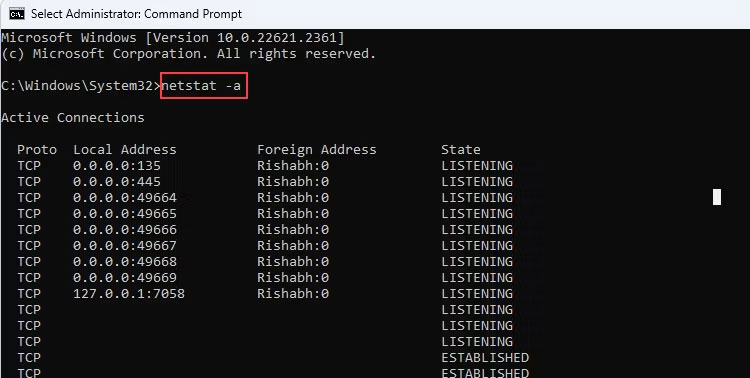
	<li style="text-align: justify;"><strong>netstat -a</strong>: Lệnh hiển thị tất cả các kết nối TCP và UDP đang chạy và các cổng nghe. Nếu có bất kỳ lần thử kết nối không thành công nào, chúng cũng sẽ được hiển thị ở đây. Ngoài tham số -a, hãy kiểm tra các cách thay thế khác để&nbsp;kiểm tra các cổng TCP đang mở.</li>
</ul>

<figure>
<div style="text-align: justify;"><img alt="Lệnh netstat -a " data-i="3" data-src="https://st.quantrimang.com/photos/image/2023/10/05/lenh-netstat-trong-windows-4.jpg" data-was-processed="true" height="378" src="https://st.quantrimang.com/photos/image/2023/10/05/lenh-netstat-trong-windows-4.jpg" width="750" /></div>

<figcaption>
<div style="text-align: justify;">Lệnh netstat -a</div>
</figcaption>
</figure>

<ul>
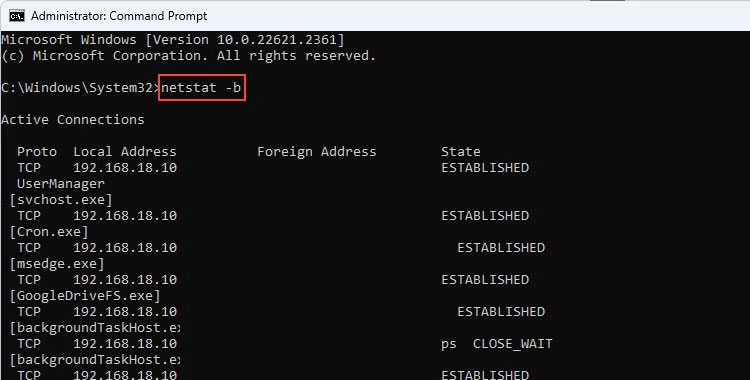
	<li style="text-align: justify;"><strong>netstat -b</strong>: Tham số -b hiển thị file thực thi (.EXE) liên quan đến việc tạo từng kết nối hoặc cổng nghe. Nó chủ yếu hữu ích cho những người xử lý sự cố mạng trong máy chủ Windows hoặc một phần máy tính của domain.</li>
</ul>

<figure>
<div style="text-align: justify;"><img alt="Lệnh netstat -b" data-i="4" data-src="https://st.quantrimang.com/photos/image/2023/10/05/lenh-netstat-trong-windows-5.jpg" data-was-processed="true" height="380" src="https://st.quantrimang.com/photos/image/2023/10/05/lenh-netstat-trong-windows-5.jpg" width="750" /></div>

<figcaption>
<div style="text-align: justify;">Lệnh netstat -b</div>
</figcaption>
</figure>

<ul>
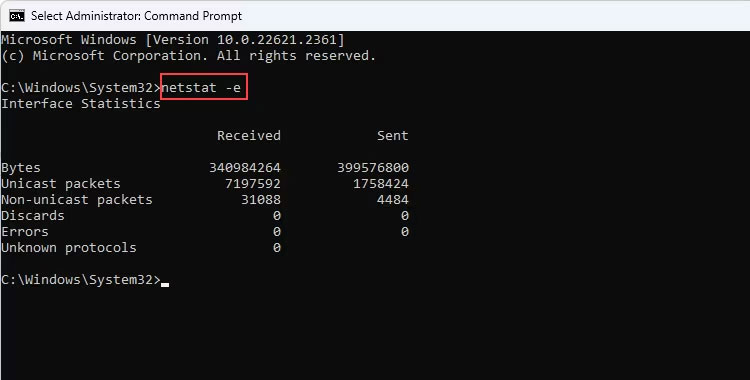
	<li style="text-align: justify;"><strong>netstat -e</strong>: Nếu bạn sử dụng kết nối Ethernet thay vì&nbsp;<a data-type="internal" href="https://quantrimang.com/cong-nghe/wifi-la-gi-120057" title="WiFi là gì? WiFi hoạt động như thế nào?">WiFi</a>, tham số -e có thể hiển thị cho bạn số liệu thống kê chi tiết về Ethernet, như tốc độ liên kết, tổng số byte gửi/nhận và một số thống kê kỹ thuật khác.</li>
</ul>

<figure>
<div style="text-align: justify;"><img alt="Lệnh netstat -e" data-i="5" data-src="https://st.quantrimang.com/photos/image/2023/10/05/lenh-netstat-trong-windows-6.jpg" data-was-processed="true" height="380" src="https://st.quantrimang.com/photos/image/2023/10/05/lenh-netstat-trong-windows-6.jpg" width="750" /></div>

<figcaption>
<div style="text-align: justify;">Lệnh netstat -e</div>
</figcaption>
</figure>

<ul>
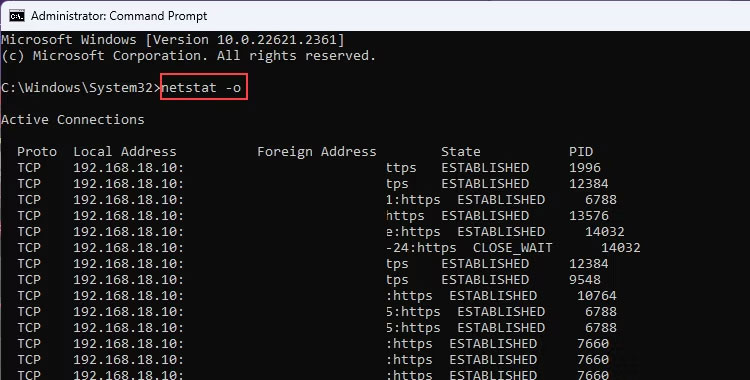
	<li style="text-align: justify;"><strong>netstat -o</strong>: Giả sử bạn đã cài đặt một ứng dụng (từ một trang web không đáng tin cậy), trong trường hợp đó, bạn có thể kiểm tra xem ứng dụng đó có đang làm điều gì đáng ngờ với kết nối hay không. Điều này là do tham số -o hiển thị ID tiến trình (PID) của mọi kết nối mà bạn có thể so khớp từ&nbsp;Task Manager.</li>
</ul>

<figure>
<div style="text-align: justify;"><img alt="Lệnh netstat -o " data-i="6" data-src="https://st.quantrimang.com/photos/image/2023/10/05/lenh-netstat-trong-windows-7.jpg" data-was-processed="true" height="380" src="https://st.quantrimang.com/photos/image/2023/10/05/lenh-netstat-trong-windows-7.jpg" width="750" /></div>

<figcaption>
<div style="text-align: justify;">Lệnh netstat -o</div>
</figcaption>
</figure>

<ul>
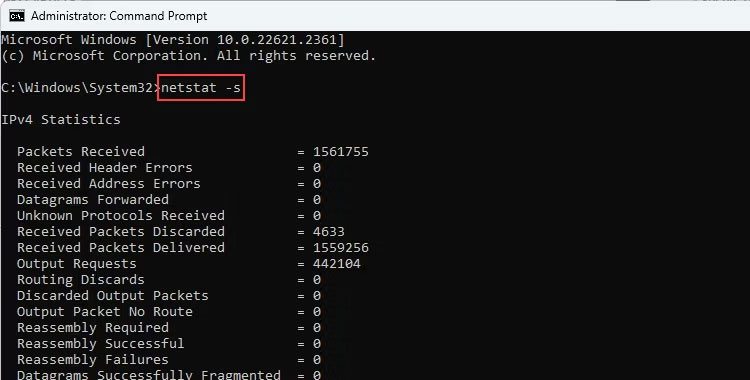
	<li style="text-align: justify;"><strong>netstat -s</strong>: Điều này hiển thị số liệu thống kê theo giao thức như các gói được gửi/nhận, lỗi, các gói bị loại bỏ, v.v... Điều này hữu ích nếu bạn muốn hiểu mức sử dụng băng thông dựa trên mỗi giao thức.</li>
</ul>

<figure>
<div style="text-align: justify;"><img alt="Lệnh netstat -s" data-i="7" data-src="https://st.quantrimang.com/photos/image/2023/10/05/lenh-netstat-trong-windows-8.jpg" data-was-processed="true" height="380" src="https://st.quantrimang.com/photos/image/2023/10/05/lenh-netstat-trong-windows-8.jpg" width="750" /></div>

<figcaption>
<div style="text-align: justify;">Lệnh netstat -s</div>
</figcaption>
</figure>

<p style="text-align: justify;">Bây giờ, bạn đã có ý tưởng về một số lệnh hữu ích, hãy thử chạy chúng trong Command Prompt. Lưu ý rằng bạn chỉ nên chạy Command Prompt với quyền admin vì một số kết nối chỉ hiển thị với đặc quyền quản trị.</p>

<p style="text-align: justify;"><strong>Lưu ý</strong>: Nếu bạn không thích nhập lệnh nhiều lần thì hãy kết hợp các tham số. Ví dụ, netstat -e -s sẽ hiển thị cho bạn chi tiết mạng Ethernet cùng với mức sử dụng băng thông dựa trên mỗi giao thức trong một chế độ xem.</p>
		</div>
				<div id="author">
						<p>
				<strong>Nguồn tin:</strong>
				Quantrimang.com
			</p>
		</div>
	</div>
	<div id="footer" class="clearfix">
		<div id="url">
			<strong>URL của bản tin này: </strong><a href="https://www.nguoicodonvn2008.info/vi/news/savefile/kien-thuc-may-tinh/cach-su-dung-lenh-netstat-trong-windows-11-de-giam-sat-hoat-dong-mang-7602.html" title="Cách sử dụng lệnh Netstat trong Windows 11 để giám sát hoạt động mạng">https://www.nguoicodonvn2008.info/vi/news/savefile/kien-thuc-may-tinh/cach-su-dung-lenh-netstat-trong-windows-11-de-giam-sat-hoat-dong-mang-7602.html</a>

		</div>
		<div class="clear"></div>
		<div class="copyright">
			&copy; .&#x3A; Nguoicodonvn2008.info - Cõi lòng người cô đơn &#x3A;.
		</div>
		<div id="contact">
			<a href="mailto:admin@nguoicodonvn2008.info">admin@nguoicodonvn2008.info</a>
		</div>
	</div>
</div>
        <div id="timeoutsess" class="chromeframe">
            Bạn đã không sử dụng Site, <a onclick="timeoutsesscancel();" href="https://nguoicodonvn2008.info/#">Bấm vào đây để duy trì trạng thái đăng nhập</a>. Thời gian chờ: <span id="secField"> 60 </span> giây
        </div>
        <div id="openidResult" class="nv-alert" style="display:none"></div>
        <div id="openidBt" data-result="" data-redirect=""></div>
		</script>
		<div class="car-top">
  <span><img src="https://nguoicodonvn2008.info/themes/default/images/car.png" alt=""></span>
</div>
<div id="run_cronjobs" style="visibility:hidden;display:none;"><img alt="cron" src="/index.php?second=cronjobs&amp;p=a57ZBb9L" width="1" height="1" /></div>
<script src="https://nguoicodonvn2008.info/assets/js/jquery/jquery.min.js"></script>
<script>var nv_base_siteurl="/",nv_lang_data="vi",nv_lang_interface="vi",nv_name_variable="nv",nv_fc_variable="op",nv_lang_variable="language",nv_module_name="news",nv_func_name="savefile",nv_is_user=0, nv_my_ofs=-4,nv_my_abbr="EDT",nv_cookie_prefix="nv4c_e856T",nv_check_pass_mstime=1738000,nv_area_admin=0,nv_safemode=0,theme_responsive=0,nv_recaptcha_ver=2,nv_recaptcha_sitekey="",nv_recaptcha_type="image",XSSsanitize=1;</script>
<script src="https://nguoicodonvn2008.info/assets/js/language/vi.js"></script>
<script src="https://nguoicodonvn2008.info/assets/js/DOMPurify/purify3.js"></script>
<script src="https://nguoicodonvn2008.info/assets/js/global.js"></script>
<script src="https://nguoicodonvn2008.info/assets/js/site.js"></script>
<script src="https://nguoicodonvn2008.info/themes/default/js/news.js"></script>
<script src="https://nguoicodonvn2008.info/themes/default/js/main.js"></script>
<script src="https://nguoicodonvn2008.info/themes/default/js/custom.js"></script>
<script type="application/ld+json">
        {
            "@context": "https://schema.org",
            "@type": "Organization",
            "url": "https://nguoicodonvn2008.info",
            "logo": "https://nguoicodonvn2008.info/uploads/angel.gif"
        }
        </script>
<script src="https://nguoicodonvn2008.info/themes/default/js/bootstrap.min.js"></script>
<script type="text/javascript">
var $scrolltop = $('.car-top');
$scrolltop.on('click', function () {
    $('html,body').animate({
        scrollTop: 0
    }, 800);
    $(this).addClass("car-run");
    setTimeout(function(){ $scrolltop.removeClass('car-run');}, 1000);
    return false;
});
$(window).on('scroll', function ()
{ 
    if($(window).scrollTop() >= 200)
    {
        $scrolltop.addClass("show");
        $scrolltop.addClass("car-down");
    }
    else
    {
       $scrolltop.removeClass("show");
       setTimeout(function(){ $scrolltop.removeClass('car-down');}, 300);
    }
});
</script>
</body>
</html>