<!DOCTYPE html>
    <html lang="vi" xmlns="http://www.w3.org/1999/xhtml" prefix="og: http://ogp.me/ns#">
    <head>
<title>Cách sử dụng Google Drive như FTP server hoặc Network Drive miễn phí</title>
<meta name="description" content="Cách sử dụng Google Drive như FTP server hoặc Network Drive miễn phí - Savefile - Tin Tức -...">
<meta name="author" content=".: Nguoicodonvn2008.info - Cõi lòng người cô đơn :.">
<meta name="copyright" content=".: Nguoicodonvn2008.info - Cõi lòng người cô đơn :. [admin@nguoicodonvn2008.info]">
<meta name="robots" content="index, archive, follow, noodp">
<meta name="googlebot" content="index,archive,follow,noodp">
<meta name="msnbot" content="all,index,follow">
<meta name="generator" content="NukeViet v4.5">
<meta http-equiv="Content-Type" content="text/html; charset=utf-8">
<meta property="og:title" content="Cách sử dụng Google Drive như FTP server hoặc Network Drive miễn phí">
<meta property="og:type" content="website">
<meta property="og:description" content="Savefile - Tin Tức - https&#x3A;&#x002F;&#x002F;www.nguoicodonvn2008.info&#x002F;vi&#x002F;news&#x002F;savefile&#x002F;kien-thuc-may-tinh&#x002F;cach-su-dung-google-drive-nhu-ftp-server-hoac-network-drive-mien-phi-818.html">
<meta property="og:site_name" content=".&#x3A; Nguoicodonvn2008.info - Cõi lòng người cô đơn &#x3A;.">
<meta property="og:url" content="https://www.nguoicodonvn2008.info/vi/news/savefile/kien-thuc-may-tinh/cach-su-dung-google-drive-nhu-ftp-server-hoac-network-drive-mien-phi-818.html">
<link rel="shortcut icon" href="https://nguoicodonvn2008.info/favicon.ico">
<link rel="canonical" href="https://www.nguoicodonvn2008.info/vi/news/savefile/kien-thuc-may-tinh/cach-su-dung-google-drive-nhu-ftp-server-hoac-network-drive-mien-phi-818.html">
<link rel="alternate" href="https://nguoicodonvn2008.info/vi/news/rss/" title="Tin Tức" type="application/rss+xml">
<link rel="alternate" href="https://nguoicodonvn2008.info/vi/news/rss/karaoke-dual/" title="Tin Tức - Karaoke Dual" type="application/rss+xml">
<link rel="alternate" href="https://nguoicodonvn2008.info/vi/news/rss/nhac-tre/" title="Tin Tức - Nhạc trẻ" type="application/rss+xml">
<link rel="alternate" href="https://nguoicodonvn2008.info/vi/news/rss/tru-tinh/" title="Tin Tức - Trữ tình" type="application/rss+xml">
<link rel="alternate" href="https://nguoicodonvn2008.info/vi/news/rss/nuoc-ngoai/" title="Tin Tức - Nước ngoài" type="application/rss+xml">
<link rel="alternate" href="https://nguoicodonvn2008.info/vi/news/rss/remix/" title="Tin Tức - Remix" type="application/rss+xml">
<link rel="alternate" href="https://nguoicodonvn2008.info/vi/news/rss/tam-su-tinh-yeu/" title="Tin Tức - Tâm sự tình yêu" type="application/rss+xml">
<link rel="alternate" href="https://nguoicodonvn2008.info/vi/news/rss/tho-suu-tam/" title="Tin Tức - Thơ sưu tầm" type="application/rss+xml">
<link rel="alternate" href="https://nguoicodonvn2008.info/vi/news/rss/cuoc-song/" title="Tin Tức - Cuộc sống" type="application/rss+xml">
<link rel="alternate" href="https://nguoicodonvn2008.info/vi/news/rss/phan-mem/" title="Tin Tức - Phần mềm" type="application/rss+xml">
<link rel="alternate" href="https://nguoicodonvn2008.info/vi/news/rss/kien-thuc-may-tinh/" title="Tin Tức - Kiến thức máy tính" type="application/rss+xml">
<link rel="alternate" href="https://nguoicodonvn2008.info/vi/news/rss/hoc-tap/" title="Tin Tức - Học tập" type="application/rss+xml">
<link rel="alternate" href="https://nguoicodonvn2008.info/vi/news/rss/tai-lieu/" title="Tin Tức - Tài liệu" type="application/rss+xml">
<link rel="alternate" href="https://nguoicodonvn2008.info/vi/news/rss/de-thi/" title="Tin Tức - Đề thi" type="application/rss+xml">
<link rel="preload" as="style" href="https://nguoicodonvn2008.info/assets/css/font-awesome.min.css" type="text/css">
<link rel="preload" as="style" href="https://nguoicodonvn2008.info/themes/default/css/bootstrap.non-responsive.css" type="text/css">
<link rel="preload" as="style" href="https://nguoicodonvn2008.info/themes/default/css/style.css" type="text/css">
<link rel="preload" as="style" href="https://nguoicodonvn2008.info/themes/default/css/style.non-responsive.css" type="text/css">
<link rel="preload" as="style" href="https://nguoicodonvn2008.info/themes/default/css/news.css" type="text/css">
<link rel="preload" as="style" href="https://nguoicodonvn2008.info/themes/default/css/custom.css" type="text/css">
<link rel="preload" as="script" href="https://nguoicodonvn2008.info/assets/js/jquery/jquery.min.js" type="text/javascript">
<link rel="preload" as="script" href="https://nguoicodonvn2008.info/assets/js/language/vi.js" type="text/javascript">
<link rel="preload" as="script" href="https://nguoicodonvn2008.info/assets/js/DOMPurify/purify3.js" type="text/javascript">
<link rel="preload" as="script" href="https://nguoicodonvn2008.info/assets/js/global.js" type="text/javascript">
<link rel="preload" as="script" href="https://nguoicodonvn2008.info/assets/js/site.js" type="text/javascript">
<link rel="preload" as="script" href="https://nguoicodonvn2008.info/themes/default/js/news.js" type="text/javascript">
<link rel="preload" as="script" href="https://nguoicodonvn2008.info/themes/default/js/main.js" type="text/javascript">
<link rel="preload" as="script" href="https://nguoicodonvn2008.info/themes/default/js/custom.js" type="text/javascript">
<link rel="preload" as="script" href="https://nguoicodonvn2008.info/themes/default/js/bootstrap.min.js" type="text/javascript">
<link rel="stylesheet" href="https://nguoicodonvn2008.info/assets/css/font-awesome.min.css">
<link rel="stylesheet" href="https://nguoicodonvn2008.info/themes/default/css/bootstrap.non-responsive.css">
<link rel="stylesheet" href="https://nguoicodonvn2008.info/themes/default/css/style.css">
<link rel="stylesheet" href="https://nguoicodonvn2008.info/themes/default/css/style.non-responsive.css">
<link rel="StyleSheet" href="https://nguoicodonvn2008.info/themes/default/css/news.css">
<link rel="stylesheet" href="https://nguoicodonvn2008.info/themes/default/css/custom.css">
<style type="text/css">
	body{background: #fff;}
</style>
    </head>
    <body>
<div id="print">
	<div id="hd_print">
		<h2 class="pull-left">.&#x3A; Nguoicodonvn2008.info - Cõi lòng người cô đơn &#x3A;.</h2>
		<p class="pull-right"><a title=".&#x3A; Nguoicodonvn2008.info - Cõi lòng người cô đơn &#x3A;." href="https://nguoicodonvn2008.info/">https://nguoicodonvn2008.info</a></p>
	</div>
	<div class="clear"></div>
	<hr />
	<div id="content">
		<h1>Cách sử dụng Google Drive như FTP server hoặc Network Drive miễn phí</h1>
		<ul class="list-inline">
			<li>Thứ bảy - 24/08/2019 01:53</li>
			<li class="hidden-print txtrequired"><em class="fa fa-print">&nbsp;</em><a title="In ra" href="javascript:;" onclick="window.print()">In ra</a></li>
			<li class="hidden-print txtrequired"><em class="fa fa-power-off">&nbsp;</em><a title="Đóng cửa sổ này" href="javascript:;" onclick="window.close()">Đóng cửa sổ này</a></li>
		</ul>
		<div class="clear"></div>
		<div id="hometext">
		</div>
				<div class="imghome">
			<img alt="Cách sử dụng Google Drive như FTP server hoặc Network Drive miễn phí" src="https://st.quantrimang.com/photos/image/2019/08/23/su-dung-google-drive-lam-ftp-server-2.png" width="460" class="img-thumbnail" />
		</div>
		<div class="clear"></div>
		<div id="bodytext" class="clearfix">
			<p style="text-align: justify;">Google Drive là một&nbsp;dịch vụ lưu trữ đám mây&nbsp;mạnh mẽ, có khả năng lưu trữ các file khác nhau như APK, XLS và CSV ngoài các định dạng file tiêu chuẩn. Và thực tế Drive có thể truy cập từ mọi nơi (thậm chí từ điện thoại di động).</p>

<p style="text-align: justify;">Mặc dù phương pháp sao lưu và đồng bộ thông thường của nó rất tuyệt vời nhưng có một vài hạn chế. Thứ nhất, bạn sẽ mất bộ lưu trữ cục bộ trên máy tính. Thứ hai, bạn không thể sử dụng nó như hệ thống sao lưu. Bởi vì khi xóa file từ hệ thống nó sẽ bị xóa tự động khởi bộ lưu trữ đám mây.</p>

<p style="text-align: justify;">Đó là lý do tại sao nên sử dụng Google Drive làm FTP Server hoặc Network Drive (ổ đĩa mạng). Khi được sử dụng như một FTP server, bạn sẽ nhận được giải pháp đồng bộ và sao lưu có thể kiểm soát. Bạn cũng không cần phải đồng thư mục ổ đĩa với máy tính và không cần lo lắng về dung lượng lưu trữ.</p>

<p style="text-align: justify;">Nếu sử dụng nó thư một Network Drive, bạn có thể truy cập tất cả các file và thư mục từ Windows Explorer. Và tiết kiệm được dung lượng lưu trữ cục bộ vì nó không đồng bộ toàn bộ thư mục với máy tính.</p>

<div style="text-align: justify;">&nbsp;</div>

<p style="text-align: justify;">Trong bài viết này sẽ sử dụng hai công cụ bên thứ ba là RaiDrive và Google Drive FTP Adapter. Công cụ đầu tiên dành cho Network Drive và công cụ thứ hai được sử dụng để thiết lập FTP server.</p>

<p style="text-align: justify;">RaiDrive là một công cụ nhẹ cho phép truy cập các file và thư mục Google Drive dưới dạng ổ đĩa mạng. Công cụ này nhẹ và có kích thước khoảng 16MB. Truy cập vào trang web Raidrive.com để tải RaiDrive.&nbsp;&nbsp;</p>

<p style="text-align: justify;">Mặt khác, Google Drive FTP Adapter là một&nbsp;file JAR&nbsp;đơn giản. Để chạy nó, bạn cần có Java Runtime Environment (JRE 8) trên PC. Nếu không có, bạn có thể tải nó theo liên kết bên dưới.</p>

<ul>
	<li style="text-align: justify;">Tải Java Runtime Environment cho Window</li>
</ul>

<div style="text-align: justify;"><span style="color:rgb(192, 57, 43);"><strong>download.com.vn/java-runtime-environment/download</strong></span></div>

<p style="text-align: justify;"><img alt="Chạy Java Runtime Environment (JRE 8) trên PC" data-i="0" data-src="https://st.quantrimang.com/photos/image/2019/08/23/su-dung-google-drive-lam-ftp-server-1.png" data-was-processed="true" height="295" src="https://st.quantrimang.com/photos/image/2019/08/23/su-dung-google-drive-lam-ftp-server-1.png" width="411" /></p>

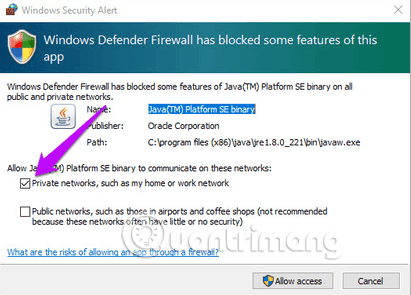
<p style="text-align: justify;">Và sau khi cài đặt nó, nhớ để kết nối thành&nbsp;<strong>Private</strong>.</p>

<p style="text-align: justify;">Tải Google Drive FTP Adapter theo liên kết bên dưới.</p>

<pre id="pre0">
<code>https://github.com/andresoviedo/google-drive-ftp-adapter</code></pre>

<h2 style="text-align: justify;">Cách cấu hình RaiDrive cho ổ đĩa mạng</h2>

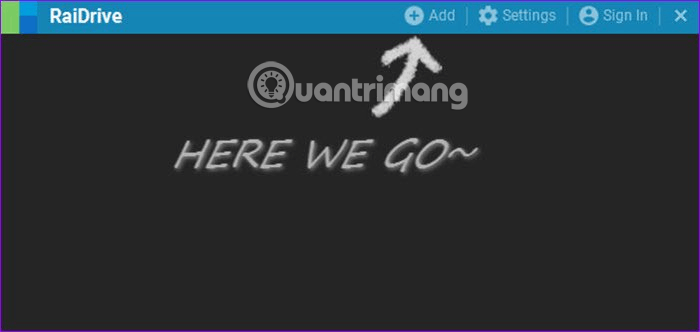
<p style="text-align: justify;"><strong>Bước 1.</strong>&nbsp;Sau khi cài đặt RaiDrive, hãy mở nó và ứng dụng sẽ hiển thị một màn hình chào mừng. Click vào nút&nbsp;<strong>Add</strong>&nbsp;ở trên cùng.</p>

<p style="text-align: justify;"><img alt="Click vào nút Add" data-i="1" data-src="https://st.quantrimang.com/photos/image/2019/08/23/su-dung-google-drive-lam-ftp-server-2.png" data-was-processed="true" height="304" src="https://st.quantrimang.com/photos/image/2019/08/23/su-dung-google-drive-lam-ftp-server-2.png" width="640" /></p>

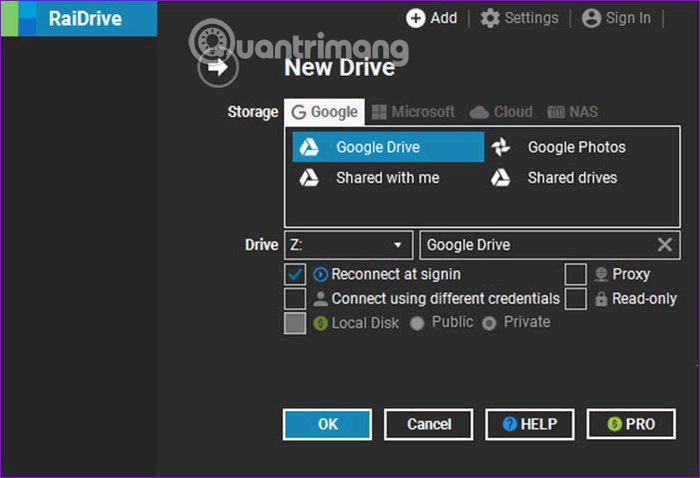
<p style="text-align: justify;"><strong>Lưu ý:</strong>&nbsp;Ngoài việc hỗ trợ Google Drive, RaiDrive còn tương thích với các dịch vụ lưu trữ đám mây khác như Dropbox, Google Photos, OneDrive, Dropbox và Yandex.</p>

<p style="text-align: justify;">Chọn&nbsp;<strong>Google Drive</strong>&nbsp;và nhấn nút&nbsp;<strong>OK</strong>.</p>

<p style="text-align: justify;"><img alt="Chọn Google Drive" data-i="2" data-src="https://st.quantrimang.com/photos/image/2019/08/23/su-dung-google-drive-lam-ftp-server-3.png" data-was-processed="true" height="437" src="https://st.quantrimang.com/photos/image/2019/08/23/su-dung-google-drive-lam-ftp-server-3.png" width="640" /></p>

<p style="text-align: justify;"><strong>Bước 2.</strong>&nbsp;Khi yêu cầu quyền, click vào&nbsp;<strong>Allow</strong>.</p>

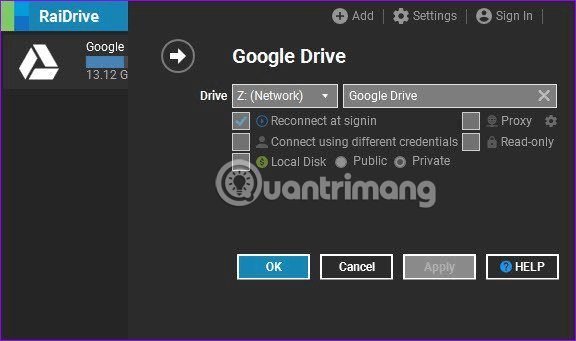
<p style="text-align: justify;">Sau khi xác minh thông tin đăng nhập và quyền, bạn sẽ thấy Network Drive. Chọn tên của ổ đĩa từ danh sách thả xuống. Theo mặc định, RaiDrive gắn nhãn là Drive Z.&nbsp;Bạn cũng có thể đặt tên cho ổ đĩa nếu muốn thêm nhiều ổ đĩa để dễ phân biệt.</p>

<p style="text-align: justify;"><img alt="Chọn tên của ổ đĩa từ danh sách thả xuống" data-i="3" data-src="https://st.quantrimang.com/photos/image/2019/08/23/su-dung-google-drive-lam-ftp-server-4.png" data-was-processed="true" height="341" src="https://st.quantrimang.com/photos/image/2019/08/23/su-dung-google-drive-lam-ftp-server-4.png" width="576" /></p>

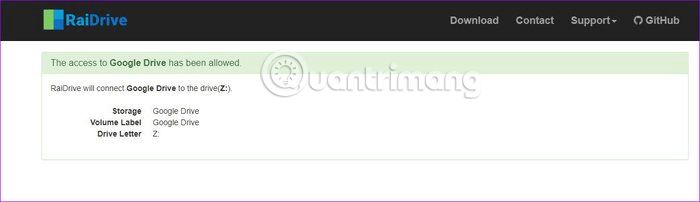
<p style="text-align: justify;">Ở đây, bạn có thể chỉnh sửa cài đặt như đăng nhập khi kết nối lại, chỉ đọc, kết nối công cộng hoặc riêng tư, v.v… Sau đó click vào&nbsp;<strong>Apply</strong>&nbsp;hoặc&nbsp;<strong>OK</strong>&nbsp;để chuyển đến vị trí mạng của máy tính.</p>

<p style="text-align: justify;"><img alt="Cho phép truy cập Goolge Drive" data-i="4" data-src="https://st.quantrimang.com/photos/image/2019/08/23/su-dung-google-drive-lam-ftp-server-5.png" data-was-processed="true" height="185" src="https://st.quantrimang.com/photos/image/2019/08/23/su-dung-google-drive-lam-ftp-server-5.png" width="640" /></p>

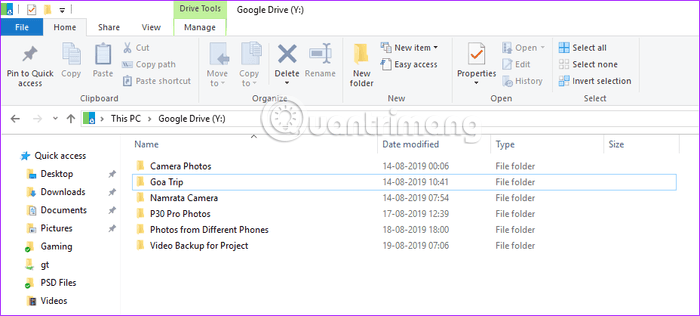
<p style="text-align: justify;">Như hình chụp bên dưới, bạn có thể thấy tất cả file và thư mục. Click vào một file để mở nó trong trình duyệt mặc định.</p>

<p style="text-align: justify;">Mọi thay đổi trên Network Drive sẽ diễn ra trong thời gian thực. Và tốc độ truyền file phụ thuộc vào tốc độ Internet.</p>

<p style="text-align: justify;"><img alt="Các file trong Goolgle Drive có trong ổ đĩa mạng" data-i="5" data-src="https://st.quantrimang.com/photos/image/2019/08/23/su-dung-google-drive-lam-ftp-server-6.png" data-was-processed="true" height="289" src="https://st.quantrimang.com/photos/image/2019/08/23/su-dung-google-drive-lam-ftp-server-6.png" width="640" /></p>

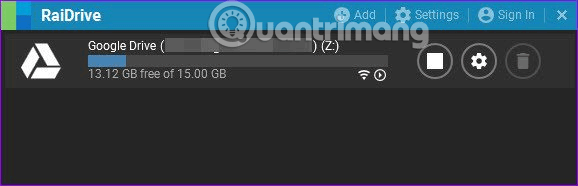
<p style="text-align: justify;">Ngoài ra, bạn có thể kiểm tra dung lượng trống của Drive.</p>

<p style="text-align: justify;"><img alt="Kiểm tra dung lượng trống của Drive" data-i="6" data-src="https://st.quantrimang.com/photos/image/2019/08/23/su-dung-google-drive-lam-ftp-server-7.png" data-was-processed="true" height="186" src="https://st.quantrimang.com/photos/image/2019/08/23/su-dung-google-drive-lam-ftp-server-7.png" width="578" /></p>

<p style="text-align: justify;">Để thay đổi cài đặt, click vào icon hình răng cưa và thực hiện thay đổi.</p>

<div style="text-align: justify;">&nbsp;</div>

<h2 style="text-align: justify;">Cách định cấu hình RaiDrive cho Google Drive FTP Adapter</h2>

<p style="text-align: justify;">Định cấu hình Google Drive FTP Adapter là một quy trình đơn giản, chỉ cần chạy file JAR. Tuy nhiên, như đã đề cập trước đó, bạn cần JAVA Runtime Environment trên hệ thống trước khi chạy.</p>

<p style="text-align: justify;"><strong>Bước 1.</strong>&nbsp;Sau khi thiết lập JRE, click đúp vào file FTP Adapter để điều hướng đến trình duyệt để chọn&nbsp;<a href="https://quantrimang.com/huong-dan-dang-ky-tai-khoan-gmail-116905" title="Cách đăng ký Gmail, tạo, lập tài khoản Google">tài khoản Google</a>.</p>

<p style="text-align: justify;"><img alt="Chọn tài khoản Google" data-i="7" data-src="https://st.quantrimang.com/photos/image/2019/08/23/su-dung-google-drive-lam-ftp-server-8.png" data-was-processed="true" height="404" src="https://st.quantrimang.com/photos/image/2019/08/23/su-dung-google-drive-lam-ftp-server-8.png" width="640" /></p>

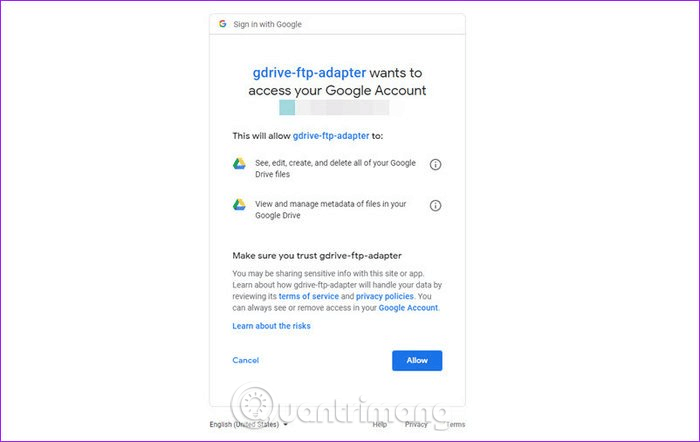
<p style="text-align: justify;">Chọn tài khoản để thiết lập FTP server, nhập mật khẩu và cấp quyền yêu cầu.&nbsp;Khi xác thực, bạn sẽ thấy thông báo xác nhận đơn giản trên trình duyệt.</p>

<p style="text-align: justify;"><strong>Bước 2.</strong>&nbsp;Tiếp theo, bạn cần ứng dụng khác FTP đóng vai trò như một chiếc cầu giữ cổng và Google Drive. Bạn có thể sử dụng bất cứ ứng dụng khách FTP nào. Ở đây chúng ta sẽ sử dụng FileZilla, đây là phần mềm nguồn mở.</p>

<ul>
	<li style="text-align: justify;">Tải FileZilla cho Windows</li>
</ul>

<div style="text-align: justify;"><span style="color:rgb(192, 57, 43);"><strong>download.com.vn/filezilla/download</strong></span></div>

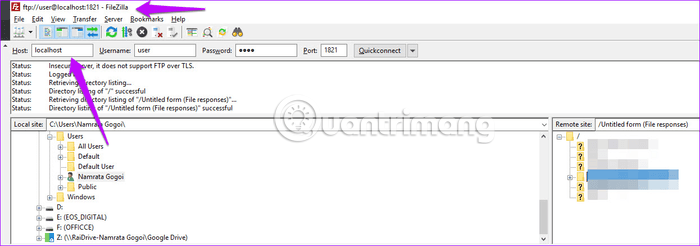
<p style="text-align: justify;">Sau khi tải và cài đặt FileZilla, nhập địa chỉ cổng sau vào địa chỉ máy chủ.</p>

<pre id="pre1">
<code>ftp://user:user@localhost:1821/</code></pre>

<p style="text-align: justify;">Ngoài ra, bạn có thể nhập giá trị sau:</p>

<ul>
	<li style="text-align: justify;"><strong>Host</strong>: Localhost<br  />
	<strong>Username</strong>: user<br  />
	<strong>Password</strong>: user<br  />
	<strong>Port</strong>: 1821</li>
</ul>

<p style="text-align: justify;"><img alt="Nhập địa chỉ cổng vào địa chỉ máy chủ" data-i="8" data-src="https://st.quantrimang.com/photos/image/2019/08/23/su-dung-google-drive-lam-ftp-server-9.png" data-was-processed="true" height="225" src="https://st.quantrimang.com/photos/image/2019/08/23/su-dung-google-drive-lam-ftp-server-9.png" width="640" /></p>

<p style="text-align: justify;">Bạn sẽ thấy tất cả thư mục trên bảng khung bên phải, chỉ cần chuyển file từ máy tính sang khung đó.</p>

<p style="text-align: justify;">Chúc các bạn thực hiện thành công!</p>
		</div>
				<div id="author">
						<p>
				<strong>Nguồn tin:</strong>
				Quantrimang.com
			</p>
		</div>
	</div>
	<div id="footer" class="clearfix">
		<div id="url">
			<strong>URL của bản tin này: </strong><a href="https://www.nguoicodonvn2008.info/vi/news/savefile/kien-thuc-may-tinh/cach-su-dung-google-drive-nhu-ftp-server-hoac-network-drive-mien-phi-818.html" title="Cách sử dụng Google Drive như FTP server hoặc Network Drive miễn phí">https://www.nguoicodonvn2008.info/vi/news/savefile/kien-thuc-may-tinh/cach-su-dung-google-drive-nhu-ftp-server-hoac-network-drive-mien-phi-818.html</a>

		</div>
		<div class="clear"></div>
		<div class="copyright">
			&copy; .&#x3A; Nguoicodonvn2008.info - Cõi lòng người cô đơn &#x3A;.
		</div>
		<div id="contact">
			<a href="mailto:admin@nguoicodonvn2008.info">admin@nguoicodonvn2008.info</a>
		</div>
	</div>
</div>
        <div id="timeoutsess" class="chromeframe">
            Bạn đã không sử dụng Site, <a onclick="timeoutsesscancel();" href="https://nguoicodonvn2008.info/#">Bấm vào đây để duy trì trạng thái đăng nhập</a>. Thời gian chờ: <span id="secField"> 60 </span> giây
        </div>
        <div id="openidResult" class="nv-alert" style="display:none"></div>
        <div id="openidBt" data-result="" data-redirect=""></div>
		</script>
		<div class="car-top">
  <span><img src="https://nguoicodonvn2008.info/themes/default/images/car.png" alt=""></span>
</div>
<div id="run_cronjobs" style="visibility:hidden;display:none;"><img alt="cron" src="/index.php?second=cronjobs&amp;p=p87DK2fw" width="1" height="1" /></div>
<script src="https://nguoicodonvn2008.info/assets/js/jquery/jquery.min.js"></script>
<script>var nv_base_siteurl="/",nv_lang_data="vi",nv_lang_interface="vi",nv_name_variable="nv",nv_fc_variable="op",nv_lang_variable="language",nv_module_name="news",nv_func_name="savefile",nv_is_user=0, nv_my_ofs=-4,nv_my_abbr="EDT",nv_cookie_prefix="nv4c_e856T",nv_check_pass_mstime=1738000,nv_area_admin=0,nv_safemode=0,theme_responsive=0,nv_recaptcha_ver=2,nv_recaptcha_sitekey="",nv_recaptcha_type="image",XSSsanitize=1;</script>
<script src="https://nguoicodonvn2008.info/assets/js/language/vi.js"></script>
<script src="https://nguoicodonvn2008.info/assets/js/DOMPurify/purify3.js"></script>
<script src="https://nguoicodonvn2008.info/assets/js/global.js"></script>
<script src="https://nguoicodonvn2008.info/assets/js/site.js"></script>
<script src="https://nguoicodonvn2008.info/themes/default/js/news.js"></script>
<script src="https://nguoicodonvn2008.info/themes/default/js/main.js"></script>
<script src="https://nguoicodonvn2008.info/themes/default/js/custom.js"></script>
<script type="application/ld+json">
        {
            "@context": "https://schema.org",
            "@type": "Organization",
            "url": "https://nguoicodonvn2008.info",
            "logo": "https://nguoicodonvn2008.info/uploads/angel.gif"
        }
        </script>
<script src="https://nguoicodonvn2008.info/themes/default/js/bootstrap.min.js"></script>
<script type="text/javascript">
var $scrolltop = $('.car-top');
$scrolltop.on('click', function () {
    $('html,body').animate({
        scrollTop: 0
    }, 800);
    $(this).addClass("car-run");
    setTimeout(function(){ $scrolltop.removeClass('car-run');}, 1000);
    return false;
});
$(window).on('scroll', function ()
{ 
    if($(window).scrollTop() >= 200)
    {
        $scrolltop.addClass("show");
        $scrolltop.addClass("car-down");
    }
    else
    {
       $scrolltop.removeClass("show");
       setTimeout(function(){ $scrolltop.removeClass('car-down');}, 300);
    }
});
</script>
</body>
</html>