<!DOCTYPE html>
    <html lang="vi" xmlns="http://www.w3.org/1999/xhtml" prefix="og: http://ogp.me/ns#">
    <head>
<title>Cách sử dụng Finder trên Mac cho người mới bắt đầu</title>
<meta name="description" content="Cách sử dụng Finder trên Mac cho người mới bắt đầu - Savefile - Tin Tức -...">
<meta name="author" content=".: Nguoicodonvn2008.info - Cõi lòng người cô đơn :.">
<meta name="copyright" content=".: Nguoicodonvn2008.info - Cõi lòng người cô đơn :. [admin@nguoicodonvn2008.info]">
<meta name="robots" content="index, archive, follow, noodp">
<meta name="googlebot" content="index,archive,follow,noodp">
<meta name="msnbot" content="all,index,follow">
<meta name="generator" content="NukeViet v4.5">
<meta http-equiv="Content-Type" content="text/html; charset=utf-8">
<meta property="og:title" content="Cách sử dụng Finder trên Mac cho người mới bắt đầu">
<meta property="og:type" content="website">
<meta property="og:description" content="Savefile - Tin Tức - https&#x3A;&#x002F;&#x002F;www.nguoicodonvn2008.info&#x002F;vi&#x002F;news&#x002F;savefile&#x002F;kien-thuc-may-tinh&#x002F;cach-su-dung-finder-tren-mac-cho-nguoi-moi-bat-dau-3455.html">
<meta property="og:site_name" content=".&#x3A; Nguoicodonvn2008.info - Cõi lòng người cô đơn &#x3A;.">
<meta property="og:url" content="https://www.nguoicodonvn2008.info/vi/news/savefile/kien-thuc-may-tinh/cach-su-dung-finder-tren-mac-cho-nguoi-moi-bat-dau-3455.html">
<link rel="shortcut icon" href="https://nguoicodonvn2008.info/favicon.ico">
<link rel="canonical" href="https://www.nguoicodonvn2008.info/vi/news/savefile/kien-thuc-may-tinh/cach-su-dung-finder-tren-mac-cho-nguoi-moi-bat-dau-3455.html">
<link rel="alternate" href="https://nguoicodonvn2008.info/vi/news/rss/" title="Tin Tức" type="application/rss+xml">
<link rel="alternate" href="https://nguoicodonvn2008.info/vi/news/rss/karaoke-dual/" title="Tin Tức - Karaoke Dual" type="application/rss+xml">
<link rel="alternate" href="https://nguoicodonvn2008.info/vi/news/rss/nhac-tre/" title="Tin Tức - Nhạc trẻ" type="application/rss+xml">
<link rel="alternate" href="https://nguoicodonvn2008.info/vi/news/rss/tru-tinh/" title="Tin Tức - Trữ tình" type="application/rss+xml">
<link rel="alternate" href="https://nguoicodonvn2008.info/vi/news/rss/nuoc-ngoai/" title="Tin Tức - Nước ngoài" type="application/rss+xml">
<link rel="alternate" href="https://nguoicodonvn2008.info/vi/news/rss/remix/" title="Tin Tức - Remix" type="application/rss+xml">
<link rel="alternate" href="https://nguoicodonvn2008.info/vi/news/rss/tam-su-tinh-yeu/" title="Tin Tức - Tâm sự tình yêu" type="application/rss+xml">
<link rel="alternate" href="https://nguoicodonvn2008.info/vi/news/rss/tho-suu-tam/" title="Tin Tức - Thơ sưu tầm" type="application/rss+xml">
<link rel="alternate" href="https://nguoicodonvn2008.info/vi/news/rss/cuoc-song/" title="Tin Tức - Cuộc sống" type="application/rss+xml">
<link rel="alternate" href="https://nguoicodonvn2008.info/vi/news/rss/phan-mem/" title="Tin Tức - Phần mềm" type="application/rss+xml">
<link rel="alternate" href="https://nguoicodonvn2008.info/vi/news/rss/kien-thuc-may-tinh/" title="Tin Tức - Kiến thức máy tính" type="application/rss+xml">
<link rel="alternate" href="https://nguoicodonvn2008.info/vi/news/rss/hoc-tap/" title="Tin Tức - Học tập" type="application/rss+xml">
<link rel="alternate" href="https://nguoicodonvn2008.info/vi/news/rss/tai-lieu/" title="Tin Tức - Tài liệu" type="application/rss+xml">
<link rel="alternate" href="https://nguoicodonvn2008.info/vi/news/rss/de-thi/" title="Tin Tức - Đề thi" type="application/rss+xml">
<link rel="preload" as="style" href="https://nguoicodonvn2008.info/assets/css/font-awesome.min.css" type="text/css">
<link rel="preload" as="style" href="https://nguoicodonvn2008.info/themes/default/css/bootstrap.non-responsive.css" type="text/css">
<link rel="preload" as="style" href="https://nguoicodonvn2008.info/themes/default/css/style.css" type="text/css">
<link rel="preload" as="style" href="https://nguoicodonvn2008.info/themes/default/css/style.non-responsive.css" type="text/css">
<link rel="preload" as="style" href="https://nguoicodonvn2008.info/themes/default/css/news.css" type="text/css">
<link rel="preload" as="style" href="https://nguoicodonvn2008.info/themes/default/css/custom.css" type="text/css">
<link rel="preload" as="script" href="https://nguoicodonvn2008.info/assets/js/jquery/jquery.min.js" type="text/javascript">
<link rel="preload" as="script" href="https://nguoicodonvn2008.info/assets/js/language/vi.js" type="text/javascript">
<link rel="preload" as="script" href="https://nguoicodonvn2008.info/assets/js/DOMPurify/purify3.js" type="text/javascript">
<link rel="preload" as="script" href="https://nguoicodonvn2008.info/assets/js/global.js" type="text/javascript">
<link rel="preload" as="script" href="https://nguoicodonvn2008.info/assets/js/site.js" type="text/javascript">
<link rel="preload" as="script" href="https://nguoicodonvn2008.info/themes/default/js/news.js" type="text/javascript">
<link rel="preload" as="script" href="https://nguoicodonvn2008.info/themes/default/js/main.js" type="text/javascript">
<link rel="preload" as="script" href="https://nguoicodonvn2008.info/themes/default/js/custom.js" type="text/javascript">
<link rel="preload" as="script" href="https://nguoicodonvn2008.info/themes/default/js/bootstrap.min.js" type="text/javascript">
<link rel="stylesheet" href="https://nguoicodonvn2008.info/assets/css/font-awesome.min.css">
<link rel="stylesheet" href="https://nguoicodonvn2008.info/themes/default/css/bootstrap.non-responsive.css">
<link rel="stylesheet" href="https://nguoicodonvn2008.info/themes/default/css/style.css">
<link rel="stylesheet" href="https://nguoicodonvn2008.info/themes/default/css/style.non-responsive.css">
<link rel="StyleSheet" href="https://nguoicodonvn2008.info/themes/default/css/news.css">
<link rel="stylesheet" href="https://nguoicodonvn2008.info/themes/default/css/custom.css">
<style type="text/css">
	body{background: #fff;}
</style>
    </head>
    <body>
<div id="print">
	<div id="hd_print">
		<h2 class="pull-left">.&#x3A; Nguoicodonvn2008.info - Cõi lòng người cô đơn &#x3A;.</h2>
		<p class="pull-right"><a title=".&#x3A; Nguoicodonvn2008.info - Cõi lòng người cô đơn &#x3A;." href="https://nguoicodonvn2008.info/">https://nguoicodonvn2008.info</a></p>
	</div>
	<div class="clear"></div>
	<hr />
	<div id="content">
		<h1>Cách sử dụng Finder trên Mac cho người mới bắt đầu</h1>
		<ul class="list-inline">
			<li>Thứ tư - 13/01/2021 22:24</li>
			<li class="hidden-print txtrequired"><em class="fa fa-print">&nbsp;</em><a title="In ra" href="javascript:;" onclick="window.print()">In ra</a></li>
			<li class="hidden-print txtrequired"><em class="fa fa-power-off">&nbsp;</em><a title="Đóng cửa sổ này" href="javascript:;" onclick="window.close()">Đóng cửa sổ này</a></li>
		</ul>
		<div class="clear"></div>
		<div id="hometext">
		</div>
				<div class="imghome">
			<img alt="Cách sử dụng Finder trên Mac cho người mới bắt đầu" src="https://st.quantrimang.com/photos/image/2021/01/13/finder-mac-2.jpg" width="460" class="img-thumbnail" />
		</div>
		<div class="clear"></div>
		<div id="bodytext" class="clearfix">
			<p style="text-align: justify;">Finder trong macOS chính là cánh cổng dẫn đến tất cả ứng dụng, file và các tệp tải xuống trên Mac. Mọi thứ, từ các thư mục trong Dropbox cho đến hình nền máy tính đều có thể tìm được trong Finder. Bạn có thể quản lý được rất nhiều thứ từ Finder. Trong bài viết dưới đây, Quantrimang sẽ hướng dẫn bạn sử dụng Finder nếu lần đầu dùng Mac.</p>

<div style="text-align: justify;">&nbsp;</div>

<h2 style="text-align: justify;">Cách mở cửa sổ Finder</h2>

<p style="text-align: justify;">Có một vài cách mở cửa sổ trong Finder để truy cập vào các file trong hệ thống.</p>

<ul>
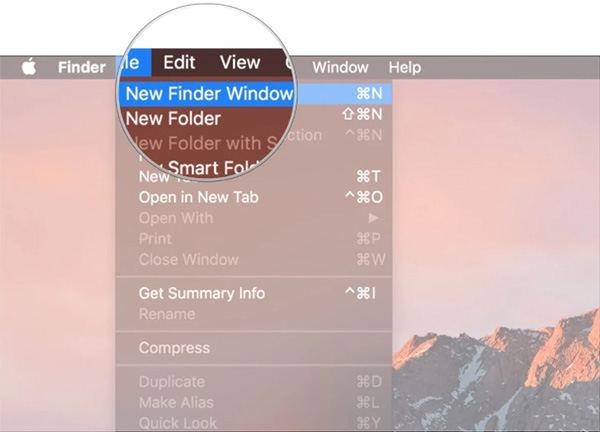
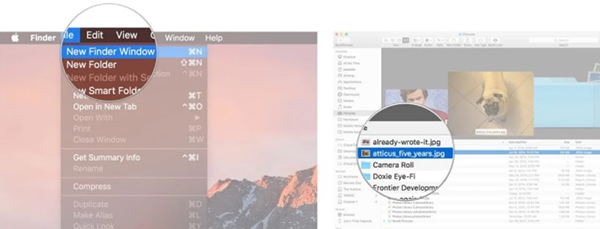
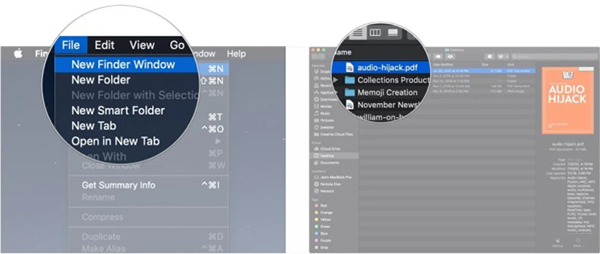
	<li style="text-align: justify;">Trên màn hình (không cần chọn ứng dụng hay chương trình nào cả), bấm vào File trên thanh menu và chọn&nbsp;<strong>New Finder Window</strong>.</li>
</ul>

<figure>
<div style="text-align: justify;"><img alt="" data-i="0" data-src="https://st.quantrimang.com/photos/image/2021/01/13/finder-mac-1.jpg" data-was-processed="true" height="432" src="https://st.quantrimang.com/photos/image/2021/01/13/finder-mac-1.jpg" width="600" /></div>
</figure>

<ul>
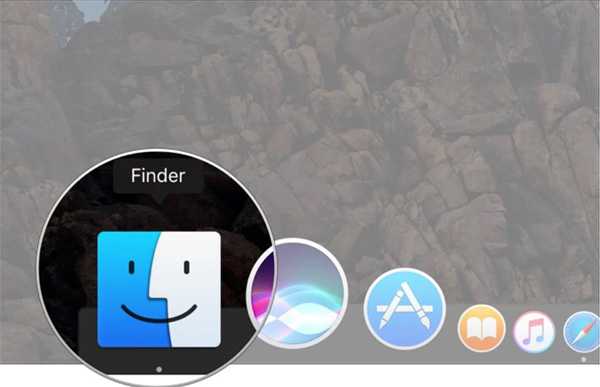
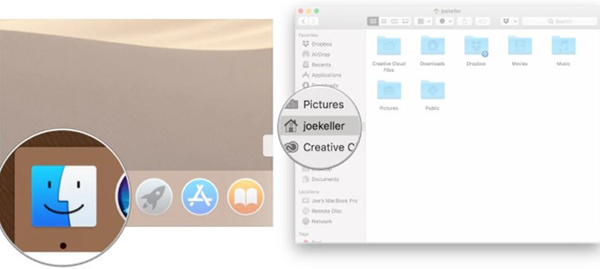
	<li style="text-align: justify;">Trên thanh&nbsp;<strong>Dock</strong>, bấm vào&nbsp;<strong>biểu tượng Finder (hình mặt cười)</strong>.</li>
</ul>

<figure>
<div style="text-align: justify;"><img alt="" data-i="1" data-src="https://st.quantrimang.com/photos/image/2021/01/13/finder-mac-2.jpg" data-was-processed="true" height="387" src="https://st.quantrimang.com/photos/image/2021/01/13/finder-mac-2.jpg" width="600" /></div>
</figure>

<ul>
	<li style="text-align: justify;">Trên bàn phím, nhấn tổ hợp phím&nbsp;<strong>Command + N</strong>.</li>
</ul>

<h2 style="text-align: justify;">Cách tùy chỉnh thanh công cụ Finder</h2>

<p style="text-align: justify;">Theo mặc định, thanh công cụ Finder có một vài nút bạn có thể sử dụng để thay đổi cách xem và thực hiện các thao tác, nhưng bạn có thể tùy chỉnh thanh công cụ này theo ý muốn của mình.</p>

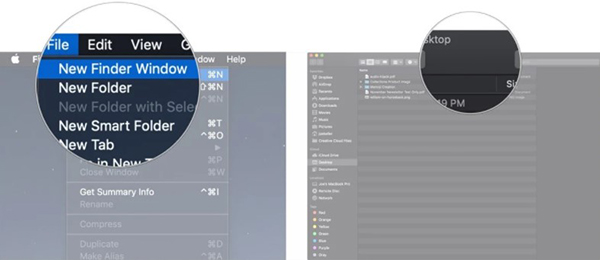
<p style="text-align: justify;">1. Mở cửa sổ&nbsp;<strong>Finder</strong>&nbsp;mới.</p>

<p style="text-align: justify;">2. Giữ phím&nbsp;<strong>Control</strong>&nbsp;trên bàn phím rồi bấm chuột hoặc bấm hai ngón trên thanh công cụ.</p>

<figure>
<div style="text-align: justify;"><img alt="" data-i="2" data-src="https://st.quantrimang.com/photos/image/2021/01/13/finder-mac-3.jpg" data-was-processed="true" height="260" src="https://st.quantrimang.com/photos/image/2021/01/13/finder-mac-3.jpg" width="600" /></div>
</figure>

<p style="text-align: justify;">3. Chọn&nbsp;<strong>Customize Toolbar...</strong></p>

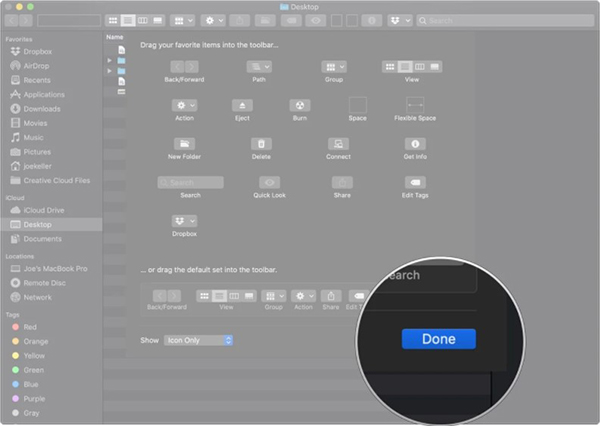
<p style="text-align: justify;">4. Bấm và thả các công cụ khác vào thanh công cụ. Dưới đây là một số công cụ bạn có thể chọn:</p>

<ul>
	<li style="text-align: justify;"><strong>Quick Look</strong>: Nút Quick Look là một công cụ rất hay để xem trước tài liệu hoặc ảnh trong Finder.</li>
	<li style="text-align: justify;"><strong>Delete</strong>: Xóa một file từ Finder sau khi chọn.</li>
	<li style="text-align: justify;"><strong>Connect</strong>: Kết nối với server ngoài nếu bạn biết địa chỉ. Bạn có thể lưu một vài server yêu thích và chuyển đổi giữa chúng bằng nút này.</li>
	<li style="text-align: justify;"><strong>Get Info</strong>: Chọn file trong Finder và ấn nút này để xem các thông tin của file.</li>
</ul>

<p style="text-align: justify;">5. Bấm&nbsp;<strong>Done</strong>&nbsp;khi tùy chỉnh xong thanh công cụ phù hợp với sở thích của mình.</p>

<figure>
<div style="text-align: justify;"><img alt="" data-i="3" data-src="https://st.quantrimang.com/photos/image/2021/01/13/finder-mac-4.jpg" data-was-processed="true" height="426" src="https://st.quantrimang.com/photos/image/2021/01/13/finder-mac-4.jpg" width="600" /></div>
</figure>

<h3 style="text-align: justify;">Cách sử dụng Quick Look</h3>

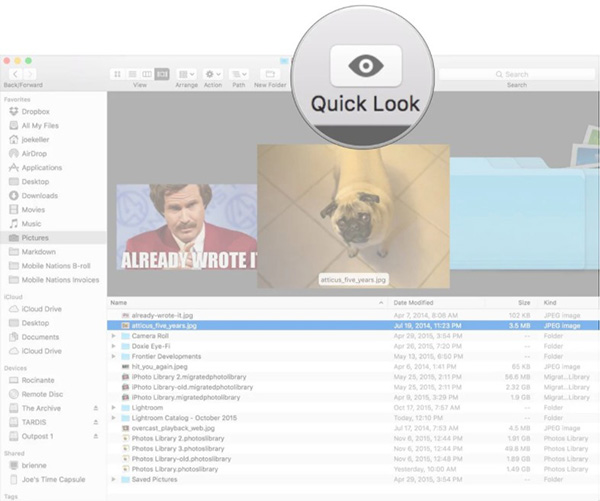
<p style="text-align: justify;">Sau khi thêm Quick Look vào thanh công cụ Finder, hãy dùng nút này để xem trước các tài liệu, ảnh hoặc các file khác trước khi sử dụng.</p>

<p style="text-align: justify;">1. Mở cửa sổ&nbsp;<strong>Finder</strong>.</p>

<p style="text-align: justify;">2. Tìm file bạn muốn sử dụng công cụ&nbsp;<strong>Quick Look</strong>&nbsp;và&nbsp;<strong>bấm một lần</strong>.</p>

<figure>
<div style="text-align: justify;"><img alt="" data-i="4" data-src="https://st.quantrimang.com/photos/image/2021/01/13/finder-mac-5.jpg" data-was-processed="true" height="229" src="https://st.quantrimang.com/photos/image/2021/01/13/finder-mac-5.jpg" width="600" /></div>
</figure>

<p style="text-align: justify;">3. Bấm vào nút&nbsp;<strong>Quick Look</strong>&nbsp;trên thanh công cụ&nbsp;<strong>Finder</strong>. Hoặc bấm vào phím&nbsp;<strong>Space</strong>&nbsp;trên bàn phím để thực hiện thao tác tương tự với Quick Look.</p>

<figure>
<div style="text-align: justify;"><img alt="" data-i="5" data-src="https://st.quantrimang.com/photos/image/2021/01/13/finder-mac-6.jpg" data-was-processed="true" height="501" src="https://st.quantrimang.com/photos/image/2021/01/13/finder-mac-6.jpg" width="600" /></div>
</figure>

<h3 style="text-align: justify;">Cách sử dụng nút Info</h3>

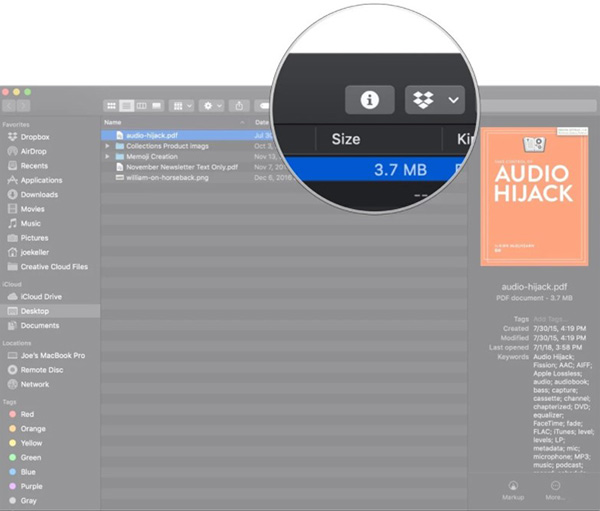
<p style="text-align: justify;">Sau khi thêm nút Info vào thanh công cụ Finder, bạn có thể sử dụng nó để xem các thông tin của file.</p>

<p style="text-align: justify;">1. Mở cửa sổ&nbsp;<strong>Finder</strong>&nbsp;mới.</p>

<p style="text-align: justify;">2. Bấm vào file bạn muốn lấy thông tin.</p>

<figure>
<div style="text-align: justify;"><img alt="" data-i="6" data-src="https://st.quantrimang.com/photos/image/2021/01/13/finder-mac-7.jpg" data-was-processed="true" height="254" src="https://st.quantrimang.com/photos/image/2021/01/13/finder-mac-7.jpg" width="600" /></div>
</figure>

<p style="text-align: justify;">3. Bấm chọn nút&nbsp;<strong>Info</strong>.</p>

<figure>
<div style="text-align: justify;"><img alt="" data-i="7" data-src="https://st.quantrimang.com/photos/image/2021/01/13/finder-mac-8.jpg" data-was-processed="true" height="511" src="https://st.quantrimang.com/photos/image/2021/01/13/finder-mac-8.jpg" width="600" /></div>
</figure>

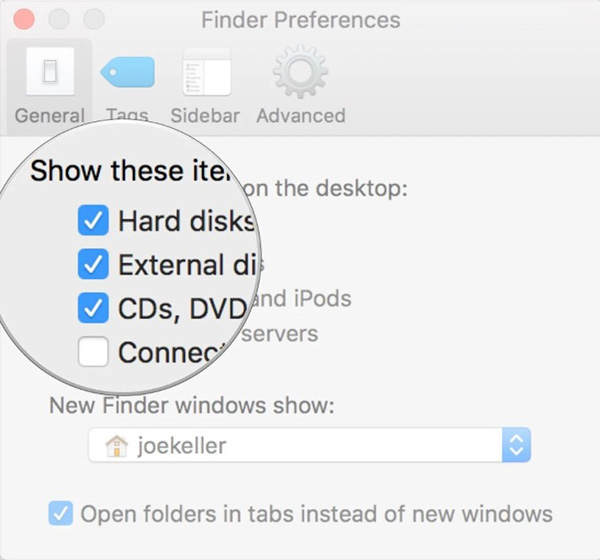
<h3 style="text-align: justify;">Cách ẩn ổ đĩa cứng, ổ đĩa ngoài, CD và kết nối với các server trên máy tính</h3>

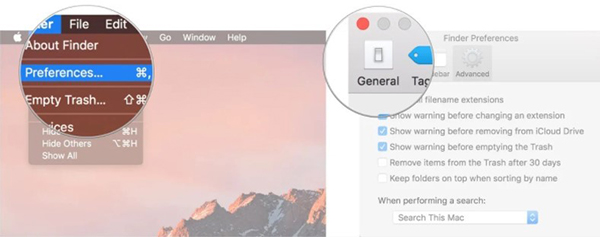
<p style="text-align: justify;">1. Vào Finder, bấm&nbsp;<strong>Finder</strong>&nbsp;trên thanh menu và chọn&nbsp;<strong>Preferences</strong>.</p>

<p style="text-align: justify;">2. Bấm&nbsp;<strong>General</strong>.</p>

<figure>
<div style="text-align: justify;"><img alt="" data-i="8" data-src="https://st.quantrimang.com/photos/image/2021/01/13/finder-mac-9.jpg" data-was-processed="true" height="237" src="https://st.quantrimang.com/photos/image/2021/01/13/finder-mac-9.jpg" width="600" /></div>
</figure>

<p style="text-align: justify;">3. Tích vào các ô bạn muốn thông tin hiển thị trên màn hình.</p>

<figure>
<div style="text-align: justify;"><img alt="" data-i="9" data-src="https://st.quantrimang.com/photos/image/2021/01/13/finder-mac-10.jpg" data-was-processed="true" height="560" src="https://st.quantrimang.com/photos/image/2021/01/13/finder-mac-10.jpg" width="600" /></div>
</figure>

<h3 style="text-align: justify;">Cài đặt cửa sổ mặc định mới trên Finder</h3>

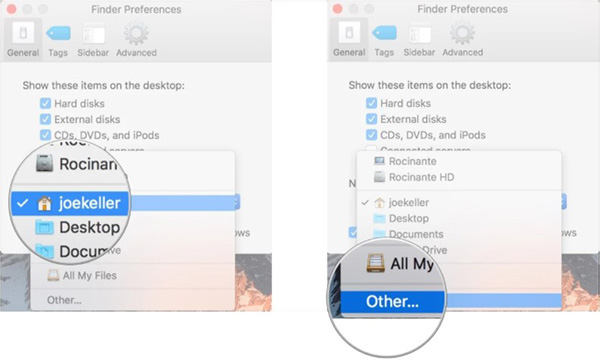
<p style="text-align: justify;">1. Vào Finder, chọn&nbsp;<strong>Finder</strong>&nbsp;từ thanh menu và bấm&nbsp;<strong>Preferences</strong>.</p>

<p style="text-align: justify;">2. Chọn&nbsp;<strong>General</strong>.</p>

<p style="text-align: justify;">3. Trong menu thả xuống, bấm vào thư mục hoặc thiết bị lưu trữ.</p>

<p style="text-align: justify;">4. Nếu mục mà bạn muốn chọn ko có sẵn, bấm&nbsp;<strong>Other</strong>.</p>

<figure>
<div style="text-align: justify;"><img alt="" data-i="10" data-src="https://st.quantrimang.com/photos/image/2021/01/13/finder-mac-11.jpg" data-was-processed="true" height="360" src="https://st.quantrimang.com/photos/image/2021/01/13/finder-mac-11.jpg" width="600" /></div>
</figure>

<h3 style="text-align: justify;">Cách sử dụng Tags</h3>

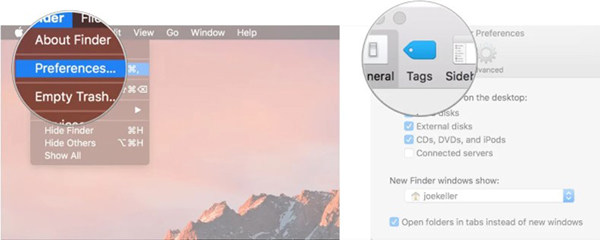
<p style="text-align: justify;">1. Trong Finder, bấm vào&nbsp;<strong>Finder</strong>&nbsp;trên thanh menu và chọn&nbsp;<strong>Preferences</strong>.</p>

<p style="text-align: justify;">2. Chọn&nbsp;<strong>Tags</strong>.</p>

<figure>
<div style="text-align: justify;"><img alt="" data-i="11" data-src="https://st.quantrimang.com/photos/image/2021/01/13/finder-mac-12.jpg" data-was-processed="true" height="240" src="https://st.quantrimang.com/photos/image/2021/01/13/finder-mac-12.jpg" width="600" /></div>
</figure>

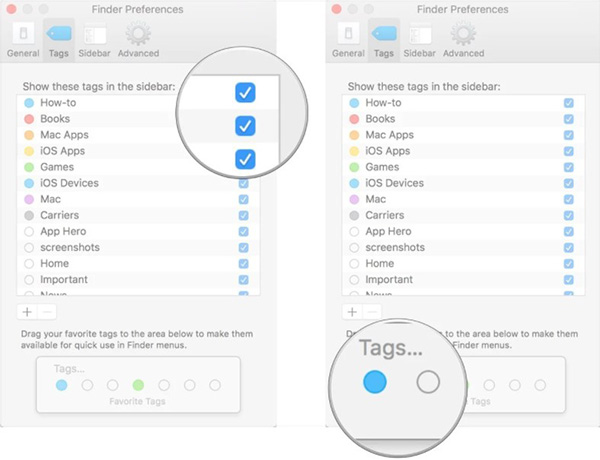
<p style="text-align: justify;">3. Tích vào ô cạnh những thẻ bạn muốn hiển thị trên sidebar của&nbsp;<strong>Finder</strong>.</p>

<p style="text-align: justify;">4. Kéo thẻ ưa thích xuống cuối tab&nbsp;<strong>Tags</strong>&nbsp;để có thể truy cập nhanh trong menu&nbsp;<strong>Finder</strong>.</p>

<figure>
<div style="text-align: justify;"><img alt="" data-i="12" data-src="https://st.quantrimang.com/photos/image/2021/01/13/finder-mac-13.jpg" data-was-processed="true" height="460" src="https://st.quantrimang.com/photos/image/2021/01/13/finder-mac-13.jpg" width="600" /></div>
</figure>

<h3 style="text-align: justify;">Cách tạo Tags tùy chỉnh</h3>

<p style="text-align: justify;">1. Trong Finder, bấm vào&nbsp;<strong>Finder</strong>&nbsp;trên thanh menu và chọn&nbsp;<strong>Preferences</strong>.</p>

<p style="text-align: justify;">2. Bấm&nbsp;<strong>Tags</strong>.</p>

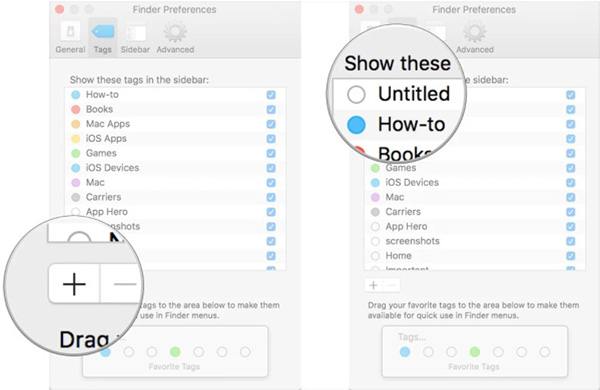
<p style="text-align: justify;">3. Dưới danh sách thẻ, bấm nút&nbsp;<strong>dấu “+”</strong>.</p>

<p style="text-align: justify;">4. Gắn tên cho thẻ.</p>

<figure>
<div style="text-align: justify;"><img alt="" data-i="13" data-src="https://st.quantrimang.com/photos/image/2021/01/13/finder-mac-14.jpg" data-was-processed="true" height="390" src="https://st.quantrimang.com/photos/image/2021/01/13/finder-mac-14.jpg" width="600" /></div>
</figure>

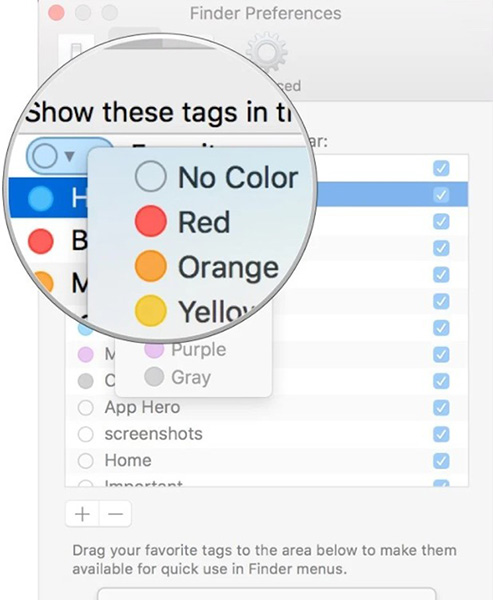
<p style="text-align: justify;">5. Bấm vào&nbsp;<strong>hình tròn</strong>&nbsp;cạnh thẻ để đặt màu.</p>

<figure>
<div style="text-align: justify;"><img alt="" data-i="14" data-src="https://st.quantrimang.com/photos/image/2021/01/13/finder-mac-15.jpg" data-was-processed="true" height="600" src="https://st.quantrimang.com/photos/image/2021/01/13/finder-mac-15.jpg" width="493" /></div>
</figure>

<h3 style="text-align: justify;">Tùy chỉnh sidebar Finder</h3>

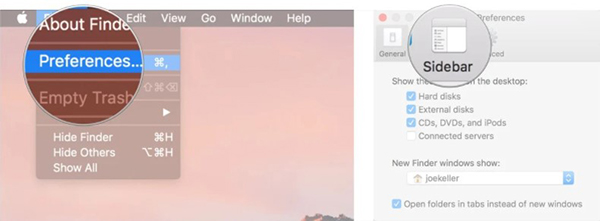
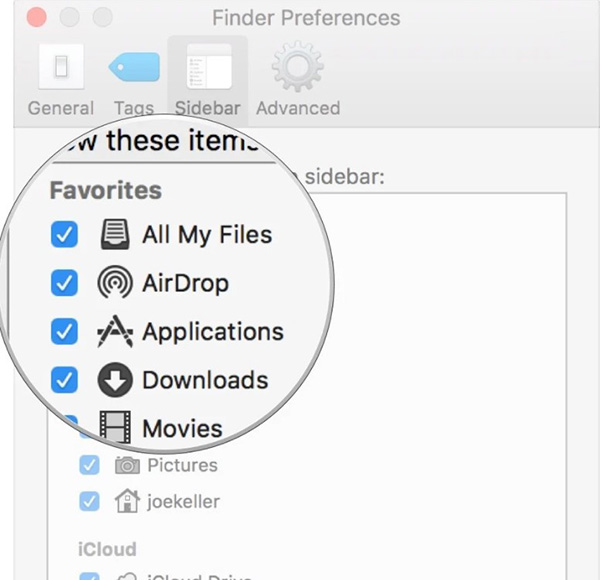
<p style="text-align: justify;">1. Trong Finder, chọn&nbsp;<strong>Finder</strong>&nbsp;từ thanh menu sau đó bấm&nbsp;<strong>Preferences</strong>.</p>

<p style="text-align: justify;">2. Chọn&nbsp;<strong>Sidebar</strong>.</p>

<figure>
<div style="text-align: justify;"><img alt="" data-i="15" data-src="https://st.quantrimang.com/photos/image/2021/01/13/finder-mac-16.jpg" data-was-processed="true" height="221" src="https://st.quantrimang.com/photos/image/2021/01/13/finder-mac-16.jpg" width="600" /></div>
</figure>

<p style="text-align: justify;">3. Đánh dấu vào những phần bạn muốn thấy trong sidebar của&nbsp;<strong>Finder</strong>.</p>

<figure>
<div style="text-align: justify;"><img alt="" data-i="16" data-src="https://st.quantrimang.com/photos/image/2021/01/13/finder-mac-17.jpg" data-was-processed="true" height="580" src="https://st.quantrimang.com/photos/image/2021/01/13/finder-mac-17.jpg" width="600" /></div>
</figure>

<h3 style="text-align: justify;">Cách sử dụng Stacks trong Finder</h3>

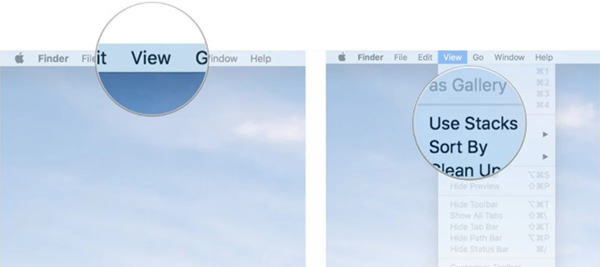
<p style="text-align: justify;">1. Bấm&nbsp;<strong>View</strong>&nbsp;trên thanh menu khi không có ứng dụng nào đang chạy trên máy.</p>

<p style="text-align: justify;">2. Bấm&nbsp;<strong>Use Stacks</strong>.</p>

<figure>
<div style="text-align: justify;"><img alt="" data-i="17" data-src="https://st.quantrimang.com/photos/image/2021/01/13/finder-mac-18.jpg" data-was-processed="true" height="267" src="https://st.quantrimang.com/photos/image/2021/01/13/finder-mac-18.jpg" width="600" /></div>
</figure>

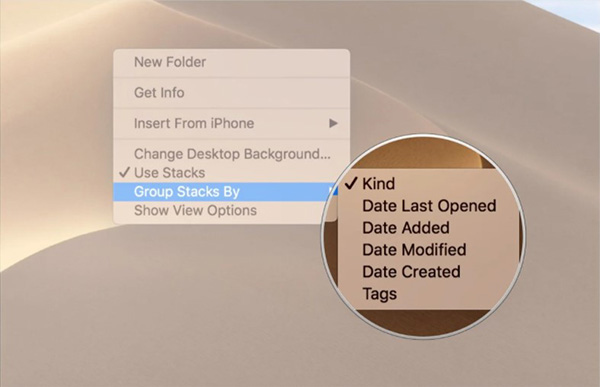
<p style="text-align: justify;">3. Giữ phím&nbsp;<strong>Control</strong>&nbsp;rồi bấm chuột hoặc bấm bằng hai ngón tay trên máy tính.</p>

<p style="text-align: justify;">4. Di chuột vào phần&nbsp;<strong>Group Stacks By</strong>. Chọn giữa&nbsp;<strong>Kind</strong>,&nbsp;<strong>Date</strong>,&nbsp;<strong>Last Opened</strong>,&nbsp;<strong>Date Added</strong>,&nbsp;<strong>Date Modified</strong>,&nbsp;<strong>Date Created</strong>&nbsp;và&nbsp;<strong>Tags</strong>.</p>

<figure>
<div style="text-align: justify;"><img alt="" data-i="18" data-src="https://st.quantrimang.com/photos/image/2021/01/13/finder-mac-19.jpg" data-was-processed="true" height="387" src="https://st.quantrimang.com/photos/image/2021/01/13/finder-mac-19.jpg" width="600" /></div>
</figure>

<h3 style="text-align: justify;">Cách sử dụng Gallery trong Finder</h3>

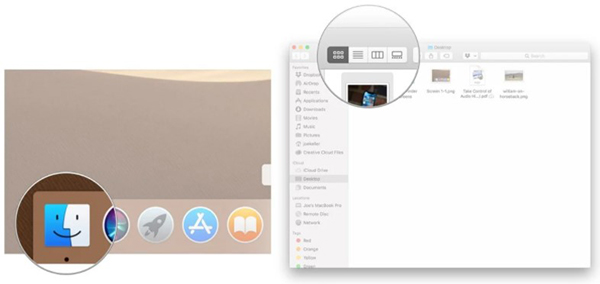
<p style="text-align: justify;">1. Bấm vào biểu tượng&nbsp;<strong>Finder</strong>&nbsp;trên&nbsp;<strong>Dock</strong>&nbsp;để mở cửa sổ Finder mới.</p>

<p style="text-align: justify;">2. Vào thư mục hoặc phần bạn muốn xem.</p>

<figure>
<div style="text-align: justify;"><img alt="" data-i="19" data-src="https://st.quantrimang.com/photos/image/2021/01/13/finder-mac-20.jpg" data-was-processed="true" height="269" src="https://st.quantrimang.com/photos/image/2021/01/13/finder-mac-20.jpg" width="600" /></div>
</figure>

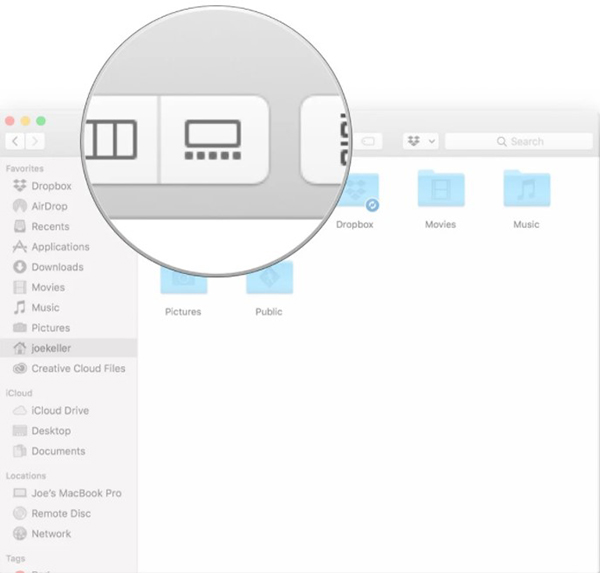
<p style="text-align: justify;">3. Bấm vào nút&nbsp;<strong>Gallery View</strong>&nbsp;ở phía bên phải trên cửa sổ&nbsp;<strong>Finder</strong>.</p>

<figure>
<div style="text-align: justify;"><img alt="" data-i="20" data-src="https://st.quantrimang.com/photos/image/2021/01/13/finder-mac-21.jpg" data-was-processed="true" height="573" src="https://st.quantrimang.com/photos/image/2021/01/13/finder-mac-21.jpg" width="600" /></div>
</figure>

<h3 style="text-align: justify;">Cách xem file siêu dữ liệu trong Finder</h3>

<p style="text-align: justify;">1. Bấm vào biểu tượng&nbsp;<strong>Finder</strong>&nbsp;trên&nbsp;<strong>Dock</strong>&nbsp;để mở cửa sổ Finder.</p>

<p style="text-align: justify;">2. Chọn phần kiểu xem.</p>

<figure>
<div style="text-align: justify;"><img alt="" data-i="21" data-src="https://st.quantrimang.com/photos/image/2021/01/13/finder-mac-22.jpg" data-was-processed="true" height="284" src="https://st.quantrimang.com/photos/image/2021/01/13/finder-mac-22.jpg" width="600" /></div>
</figure>

<p style="text-align: justify;">3. Chọn file có thông tin bạn muốn dùng.</p>

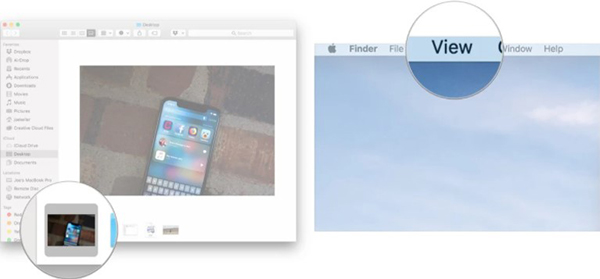
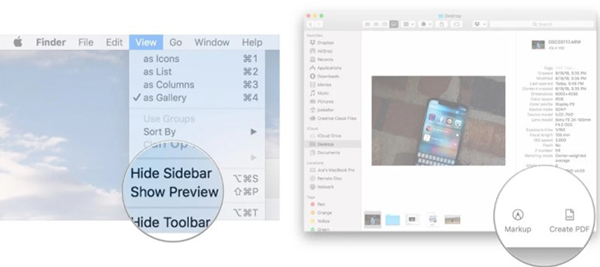
<p style="text-align: justify;">4. Bấm&nbsp;<strong>View</strong>&nbsp;trên thanh menu.</p>

<figure>
<div style="text-align: justify;"><img alt="" data-i="22" data-src="https://st.quantrimang.com/photos/image/2021/01/13/finder-mac-23.jpg" data-was-processed="true" height="279" src="https://st.quantrimang.com/photos/image/2021/01/13/finder-mac-23.jpg" width="600" /></div>
</figure>

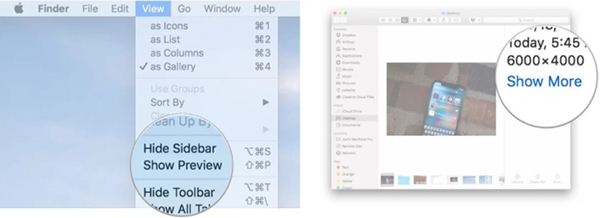
<p style="text-align: justify;">5. Chọn&nbsp;<strong>Show Preview</strong>.</p>

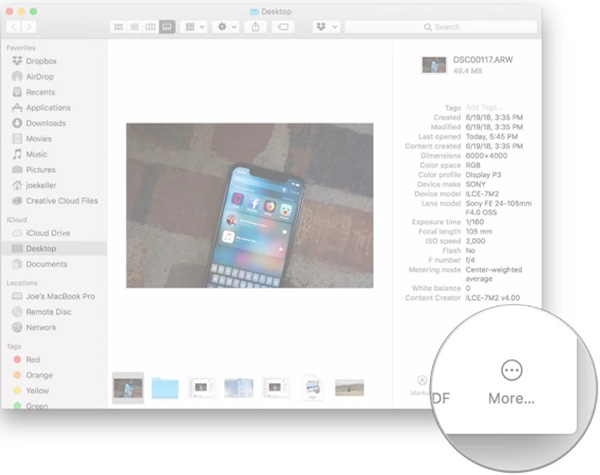
<p style="text-align: justify;">6 Bấm&nbsp;<strong>Show More</strong>&nbsp;trong trang Preview để xem các siêu dữ liệu liên quan.</p>

<figure>
<div style="text-align: justify;"><img alt="" data-i="23" data-src="https://st.quantrimang.com/photos/image/2021/01/13/finder-mac-24.jpg" data-was-processed="true" height="218" src="https://st.quantrimang.com/photos/image/2021/01/13/finder-mac-24.jpg" width="600" /></div>
</figure>

<h3 style="text-align: justify;">Cách sử dụng Quick Actions trong Finder</h3>

<p style="text-align: justify;">1. Bấm vào biểu tượng&nbsp;<strong>Finder</strong>&nbsp;trong&nbsp;<strong>Dock</strong>&nbsp;để mở cửa sổ mới.</p>

<p style="text-align: justify;">2. Chọn kiểu xem.&nbsp;</p>

<p style="text-align: justify;">3. Chọn một hoặc nhiều file muốn thực hiện thao tác nhanh.</p>

<p style="text-align: justify;">4. Bấm vào&nbsp;<strong>View</strong>&nbsp;trên thanh menu nếu trang&nbsp;<strong>View</strong>&nbsp;không hiển thị.</p>

<p style="text-align: justify;">5. Chọn&nbsp;<strong>Show Preview</strong>.</p>

<p style="text-align: justify;">6. Chọn một trong những thao tác có sẵn ở cuối trang để thực hiện trên những file đã chọn.</p>

<figure>
<div style="text-align: justify;"><img alt="" data-i="24" data-src="https://st.quantrimang.com/photos/image/2021/01/13/finder-mac-25.jpg" data-was-processed="true" height="267" src="https://st.quantrimang.com/photos/image/2021/01/13/finder-mac-25.jpg" width="600" /></div>
</figure>

<p style="text-align: justify;">7. Bấm&nbsp;<strong>More…</strong>&nbsp;để tìm các thao tác khác.</p>

<figure>
<div style="text-align: justify;"><img alt="" data-i="25" data-src="https://st.quantrimang.com/photos/image/2021/01/13/finder-mac-26.jpg" data-was-processed="true" height="475" src="https://st.quantrimang.com/photos/image/2021/01/13/finder-mac-26.jpg" width="600" /></div>
</figure>
		</div>
				<div id="author">
						<p>
				<strong>Nguồn tin:</strong>
				Quantrimang.com
			</p>
		</div>
	</div>
	<div id="footer" class="clearfix">
		<div id="url">
			<strong>URL của bản tin này: </strong><a href="https://www.nguoicodonvn2008.info/vi/news/savefile/kien-thuc-may-tinh/cach-su-dung-finder-tren-mac-cho-nguoi-moi-bat-dau-3455.html" title="Cách sử dụng Finder trên Mac cho người mới bắt đầu">https://www.nguoicodonvn2008.info/vi/news/savefile/kien-thuc-may-tinh/cach-su-dung-finder-tren-mac-cho-nguoi-moi-bat-dau-3455.html</a>

		</div>
		<div class="clear"></div>
		<div class="copyright">
			&copy; .&#x3A; Nguoicodonvn2008.info - Cõi lòng người cô đơn &#x3A;.
		</div>
		<div id="contact">
			<a href="mailto:admin@nguoicodonvn2008.info">admin@nguoicodonvn2008.info</a>
		</div>
	</div>
</div>
        <div id="timeoutsess" class="chromeframe">
            Bạn đã không sử dụng Site, <a onclick="timeoutsesscancel();" href="https://nguoicodonvn2008.info/#">Bấm vào đây để duy trì trạng thái đăng nhập</a>. Thời gian chờ: <span id="secField"> 60 </span> giây
        </div>
        <div id="openidResult" class="nv-alert" style="display:none"></div>
        <div id="openidBt" data-result="" data-redirect=""></div>
		</script>
		<div class="car-top">
  <span><img src="https://nguoicodonvn2008.info/themes/default/images/car.png" alt=""></span>
</div>
<script src="https://nguoicodonvn2008.info/assets/js/jquery/jquery.min.js"></script>
<script>var nv_base_siteurl="/",nv_lang_data="vi",nv_lang_interface="vi",nv_name_variable="nv",nv_fc_variable="op",nv_lang_variable="language",nv_module_name="news",nv_func_name="savefile",nv_is_user=0, nv_my_ofs=-4,nv_my_abbr="EDT",nv_cookie_prefix="nv4c_e856T",nv_check_pass_mstime=1738000,nv_area_admin=0,nv_safemode=0,theme_responsive=0,nv_recaptcha_ver=2,nv_recaptcha_sitekey="",nv_recaptcha_type="image",XSSsanitize=1;</script>
<script src="https://nguoicodonvn2008.info/assets/js/language/vi.js"></script>
<script src="https://nguoicodonvn2008.info/assets/js/DOMPurify/purify3.js"></script>
<script src="https://nguoicodonvn2008.info/assets/js/global.js"></script>
<script src="https://nguoicodonvn2008.info/assets/js/site.js"></script>
<script src="https://nguoicodonvn2008.info/themes/default/js/news.js"></script>
<script src="https://nguoicodonvn2008.info/themes/default/js/main.js"></script>
<script src="https://nguoicodonvn2008.info/themes/default/js/custom.js"></script>
<script type="application/ld+json">
        {
            "@context": "https://schema.org",
            "@type": "Organization",
            "url": "https://nguoicodonvn2008.info",
            "logo": "https://nguoicodonvn2008.info/uploads/angel.gif"
        }
        </script>
<script src="https://nguoicodonvn2008.info/themes/default/js/bootstrap.min.js"></script>
<script type="text/javascript">
var $scrolltop = $('.car-top');
$scrolltop.on('click', function () {
    $('html,body').animate({
        scrollTop: 0
    }, 800);
    $(this).addClass("car-run");
    setTimeout(function(){ $scrolltop.removeClass('car-run');}, 1000);
    return false;
});
$(window).on('scroll', function ()
{ 
    if($(window).scrollTop() >= 200)
    {
        $scrolltop.addClass("show");
        $scrolltop.addClass("car-down");
    }
    else
    {
       $scrolltop.removeClass("show");
       setTimeout(function(){ $scrolltop.removeClass('car-down');}, 300);
    }
});
</script>
</body>
</html>