<!DOCTYPE html>
    <html lang="vi" xmlns="http://www.w3.org/1999/xhtml" prefix="og: http://ogp.me/ns#">
    <head>
<title>Cách sử dụng BCC trong Outlook</title>
<meta name="description" content="Cách sử dụng BCC trong Outlook - Savefile - Tin Tức - https&#x3A;&#x002F;&#x002F;www.nguoicodonvn2008.info&#x002F;vi&#x002F;news&#x002F;savefile&#x002F;kien-thuc-may-tinh&#x002F;cach-su-dung-bcc-trong-outlook-8027.html">
<meta name="author" content=".: Nguoicodonvn2008.info - Cõi lòng người cô đơn :.">
<meta name="copyright" content=".: Nguoicodonvn2008.info - Cõi lòng người cô đơn :. [admin@nguoicodonvn2008.info]">
<meta name="robots" content="index, archive, follow, noodp">
<meta name="googlebot" content="index,archive,follow,noodp">
<meta name="msnbot" content="all,index,follow">
<meta name="generator" content="NukeViet v4.5">
<meta http-equiv="Content-Type" content="text/html; charset=utf-8">
<meta property="og:title" content="Cách sử dụng BCC trong Outlook">
<meta property="og:type" content="website">
<meta property="og:description" content="Savefile - Tin Tức - https&#x3A;&#x002F;&#x002F;www.nguoicodonvn2008.info&#x002F;vi&#x002F;news&#x002F;savefile&#x002F;kien-thuc-may-tinh&#x002F;cach-su-dung-bcc-trong-outlook-8027.html">
<meta property="og:site_name" content=".&#x3A; Nguoicodonvn2008.info - Cõi lòng người cô đơn &#x3A;.">
<meta property="og:url" content="https://www.nguoicodonvn2008.info/vi/news/savefile/kien-thuc-may-tinh/cach-su-dung-bcc-trong-outlook-8027.html">
<link rel="shortcut icon" href="https://nguoicodonvn2008.info/favicon.ico">
<link rel="canonical" href="https://www.nguoicodonvn2008.info/vi/news/savefile/kien-thuc-may-tinh/cach-su-dung-bcc-trong-outlook-8027.html">
<link rel="alternate" href="https://nguoicodonvn2008.info/vi/news/rss/" title="Tin Tức" type="application/rss+xml">
<link rel="alternate" href="https://nguoicodonvn2008.info/vi/news/rss/karaoke-dual/" title="Tin Tức - Karaoke Dual" type="application/rss+xml">
<link rel="alternate" href="https://nguoicodonvn2008.info/vi/news/rss/nhac-tre/" title="Tin Tức - Nhạc trẻ" type="application/rss+xml">
<link rel="alternate" href="https://nguoicodonvn2008.info/vi/news/rss/tru-tinh/" title="Tin Tức - Trữ tình" type="application/rss+xml">
<link rel="alternate" href="https://nguoicodonvn2008.info/vi/news/rss/nuoc-ngoai/" title="Tin Tức - Nước ngoài" type="application/rss+xml">
<link rel="alternate" href="https://nguoicodonvn2008.info/vi/news/rss/remix/" title="Tin Tức - Remix" type="application/rss+xml">
<link rel="alternate" href="https://nguoicodonvn2008.info/vi/news/rss/tam-su-tinh-yeu/" title="Tin Tức - Tâm sự tình yêu" type="application/rss+xml">
<link rel="alternate" href="https://nguoicodonvn2008.info/vi/news/rss/tho-suu-tam/" title="Tin Tức - Thơ sưu tầm" type="application/rss+xml">
<link rel="alternate" href="https://nguoicodonvn2008.info/vi/news/rss/cuoc-song/" title="Tin Tức - Cuộc sống" type="application/rss+xml">
<link rel="alternate" href="https://nguoicodonvn2008.info/vi/news/rss/phan-mem/" title="Tin Tức - Phần mềm" type="application/rss+xml">
<link rel="alternate" href="https://nguoicodonvn2008.info/vi/news/rss/kien-thuc-may-tinh/" title="Tin Tức - Kiến thức máy tính" type="application/rss+xml">
<link rel="alternate" href="https://nguoicodonvn2008.info/vi/news/rss/hoc-tap/" title="Tin Tức - Học tập" type="application/rss+xml">
<link rel="alternate" href="https://nguoicodonvn2008.info/vi/news/rss/tai-lieu/" title="Tin Tức - Tài liệu" type="application/rss+xml">
<link rel="alternate" href="https://nguoicodonvn2008.info/vi/news/rss/de-thi/" title="Tin Tức - Đề thi" type="application/rss+xml">
<link rel="preload" as="style" href="https://nguoicodonvn2008.info/assets/css/font-awesome.min.css" type="text/css">
<link rel="preload" as="style" href="https://nguoicodonvn2008.info/themes/default/css/bootstrap.non-responsive.css" type="text/css">
<link rel="preload" as="style" href="https://nguoicodonvn2008.info/themes/default/css/style.css" type="text/css">
<link rel="preload" as="style" href="https://nguoicodonvn2008.info/themes/default/css/style.non-responsive.css" type="text/css">
<link rel="preload" as="style" href="https://nguoicodonvn2008.info/themes/default/css/news.css" type="text/css">
<link rel="preload" as="style" href="https://nguoicodonvn2008.info/themes/default/css/custom.css" type="text/css">
<link rel="preload" as="script" href="https://nguoicodonvn2008.info/assets/js/jquery/jquery.min.js" type="text/javascript">
<link rel="preload" as="script" href="https://nguoicodonvn2008.info/assets/js/language/vi.js" type="text/javascript">
<link rel="preload" as="script" href="https://nguoicodonvn2008.info/assets/js/DOMPurify/purify3.js" type="text/javascript">
<link rel="preload" as="script" href="https://nguoicodonvn2008.info/assets/js/global.js" type="text/javascript">
<link rel="preload" as="script" href="https://nguoicodonvn2008.info/assets/js/site.js" type="text/javascript">
<link rel="preload" as="script" href="https://nguoicodonvn2008.info/themes/default/js/news.js" type="text/javascript">
<link rel="preload" as="script" href="https://nguoicodonvn2008.info/themes/default/js/main.js" type="text/javascript">
<link rel="preload" as="script" href="https://nguoicodonvn2008.info/themes/default/js/custom.js" type="text/javascript">
<link rel="preload" as="script" href="https://nguoicodonvn2008.info/themes/default/js/bootstrap.min.js" type="text/javascript">
<link rel="stylesheet" href="https://nguoicodonvn2008.info/assets/css/font-awesome.min.css">
<link rel="stylesheet" href="https://nguoicodonvn2008.info/themes/default/css/bootstrap.non-responsive.css">
<link rel="stylesheet" href="https://nguoicodonvn2008.info/themes/default/css/style.css">
<link rel="stylesheet" href="https://nguoicodonvn2008.info/themes/default/css/style.non-responsive.css">
<link rel="StyleSheet" href="https://nguoicodonvn2008.info/themes/default/css/news.css">
<link rel="stylesheet" href="https://nguoicodonvn2008.info/themes/default/css/custom.css">
<style type="text/css">
	body{background: #fff;}
</style>
    </head>
    <body>
<div id="print">
	<div id="hd_print">
		<h2 class="pull-left">.&#x3A; Nguoicodonvn2008.info - Cõi lòng người cô đơn &#x3A;.</h2>
		<p class="pull-right"><a title=".&#x3A; Nguoicodonvn2008.info - Cõi lòng người cô đơn &#x3A;." href="https://nguoicodonvn2008.info/">https://nguoicodonvn2008.info</a></p>
	</div>
	<div class="clear"></div>
	<hr />
	<div id="content">
		<h1>Cách sử dụng BCC trong Outlook</h1>
		<ul class="list-inline">
			<li>Thứ sáu - 02/02/2024 02:54</li>
			<li class="hidden-print txtrequired"><em class="fa fa-print">&nbsp;</em><a title="In ra" href="javascript:;" onclick="window.print()">In ra</a></li>
			<li class="hidden-print txtrequired"><em class="fa fa-power-off">&nbsp;</em><a title="Đóng cửa sổ này" href="javascript:;" onclick="window.close()">Đóng cửa sổ này</a></li>
		</ul>
		<div class="clear"></div>
		<div id="hometext">
		</div>
				<div class="imghome">
			<img alt="Cách sử dụng BCC trong Outlook" src="https://st.quantrimang.com/photos/image/2024/02/01/su-dung-bcc-trong-outlook-10.jpg" width="460" class="img-thumbnail" />
		</div>
		<div class="clear"></div>
		<div id="bodytext" class="clearfix">
			<p style="text-align: justify;">Trong bài viết này, hãy cùng tìm hiểu cách sử dụng tính năng BCC trong&nbsp;Microsoft Outlook. Quantrimang.com sẽ hướng dẫn bạn các bước để thêm BCC trong Outlook cho cả thiết bị di động và máy tính.</p>

<h2 style="text-align: justify;">Cách sử dụng BCC trong Outlook trên máy tính</h2>

<p style="text-align: justify;">Khi tìm hiểu cách thực hiện BCC trong Outlook trên máy tính, bạn nên xem cách thực hiện trên cả desktop và ứng dụng web. Trong các phần phụ sau đây, bạn có thể tìm thấy các bước cụ thể cần thiết cho từng tùy chọn này.</p>

<h3 style="text-align: justify;">Cách sử dụng BCC trong Outlook trên ứng dụng web</h3>

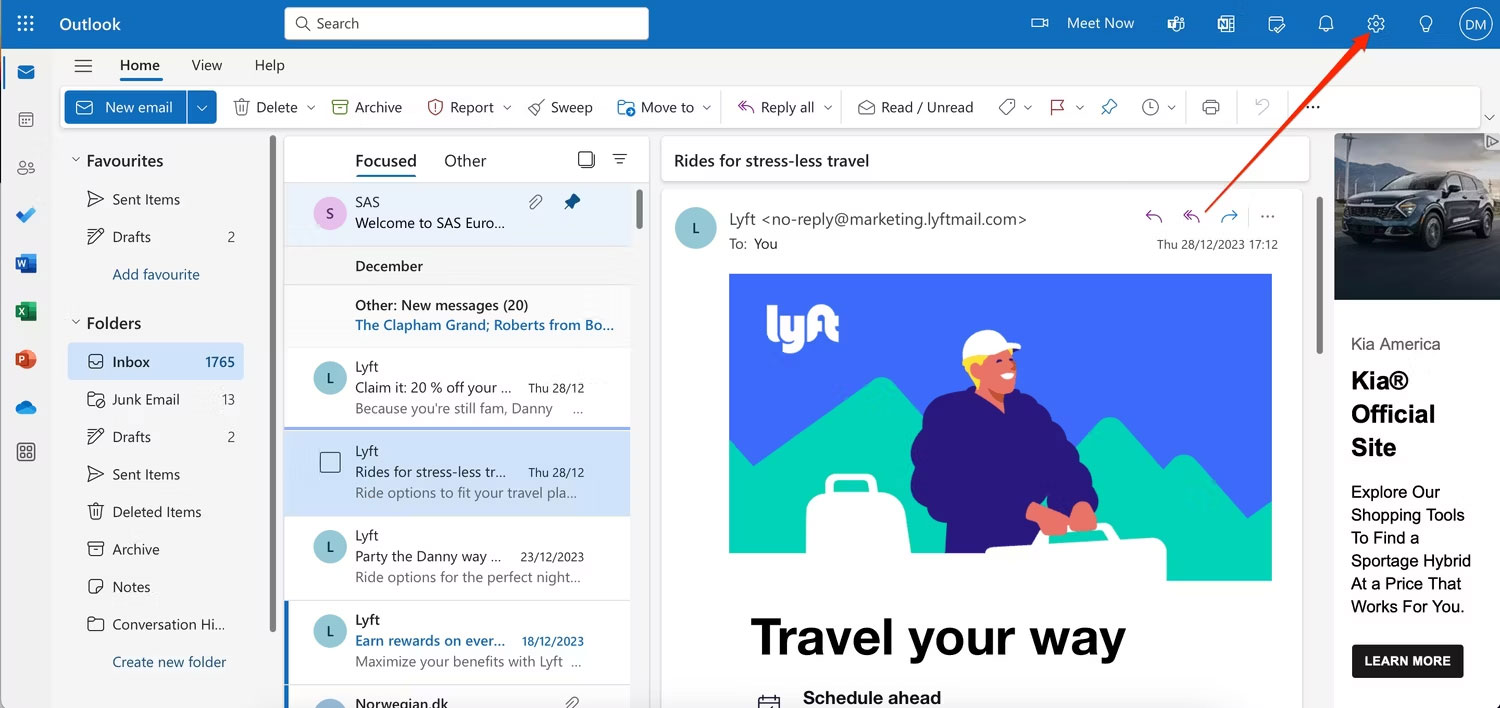
<p style="text-align: justify;">Trước khi sử dụng BCC trong Outlook, bạn nên đảm bảo rằng tính năng này luôn hiển thị. Bạn có thể thay đổi điều này trong cài đặt của mình:</p>

<p style="text-align: justify;">1. Nhấp vào biểu tượng cài đặt ở góc trên bên phải (biểu tượng bánh răng).</p>

<figure>
<div style="text-align: justify;"><img alt="Chọn biểu tượng răng cưa trong Outlook để bắt đầu hiển thị BCC" data-i="0" data-src="https://st.quantrimang.com/photos/image/2024/02/01/su-dung-bcc-trong-outlook-1.jpg" data-was-processed="true" height="708" src="https://st.quantrimang.com/photos/image/2024/02/01/su-dung-bcc-trong-outlook-1.jpg" width="1500" /></div>

<figcaption>
<div style="text-align: justify;">Chọn biểu tượng răng cưa trong Outlook để bắt đầu hiển thị BCC</div>
</figcaption>
</figure>

<div style="text-align: justify;"><iframe allowtransparency="true" data-google-container-id="a!2" data-google-query-id="CIbRodqWjIQDFeGc6QUd2pgDMQ" data-load-complete="true" frameborder="0" height="0" hspace="0" id="aswift_1" marginheight="0" marginwidth="0" name="aswift_1" sandbox="" scrolling="no" vspace="0" width="694"></iframe></div>

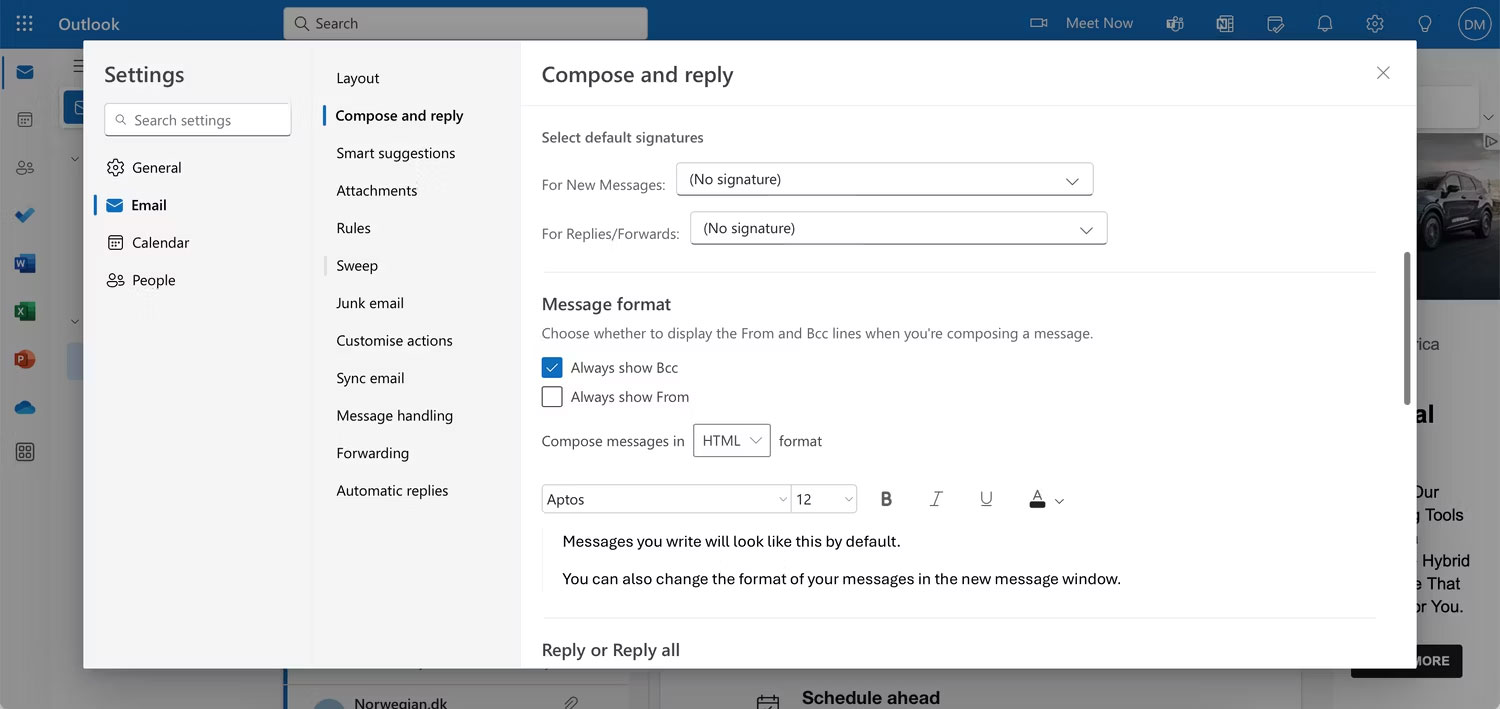
<p style="text-align: justify;">2. Chọn&nbsp;<strong>Email &gt; Compose and reply</strong>. Trong&nbsp;<strong>Message format</strong>, đánh dấu vào ô bên cạnh&nbsp;<strong>Always show Bcc</strong>.</p>

<figure>
<div style="text-align: justify;"><img alt="Chọn hộp Always show Bcc trong cài đặt ứng dụng web Outlook" data-adbro-processed="true" data-i="1" data-src="https://st.quantrimang.com/photos/image/2024/02/01/su-dung-bcc-trong-outlook-2.jpg" data-was-processed="true" height="709" src="https://st.quantrimang.com/photos/image/2024/02/01/su-dung-bcc-trong-outlook-2.jpg" width="1500" /></div>

<figcaption>
<div style="text-align: justify;">Chọn hộp Always show Bcc trong cài đặt ứng dụng web Outlook</div>
</figcaption>
</figure>

<p style="text-align: justify;">3. Nhấp vào nút&nbsp;<strong>X&nbsp;</strong>để đóng cửa sổ và lưu các thay đổi của bạn.</p>

<p style="text-align: justify;">Sau khi cài đặt của bạn đã được lưu, hãy làm theo các hướng dẫn sau để sử dụng tính năng BCC trong mail của bạn.</p>

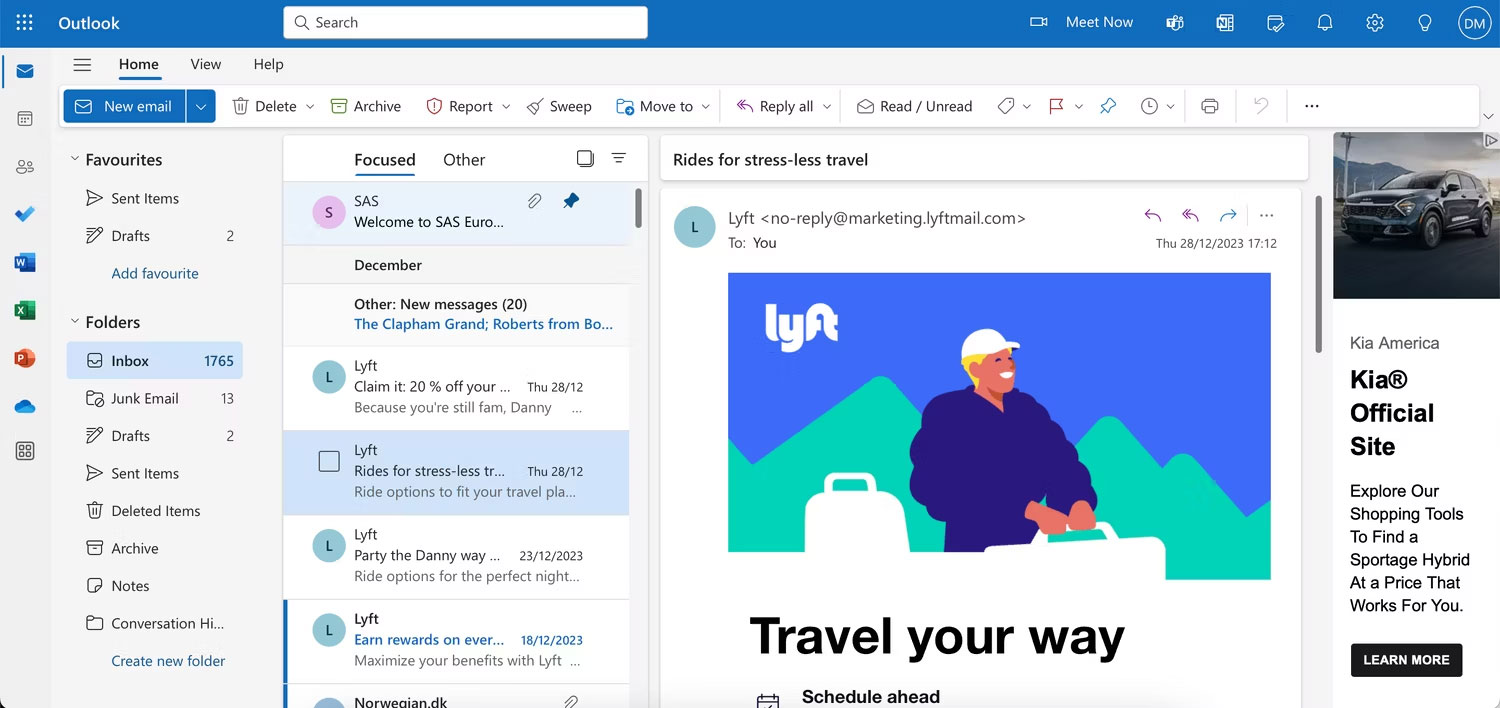
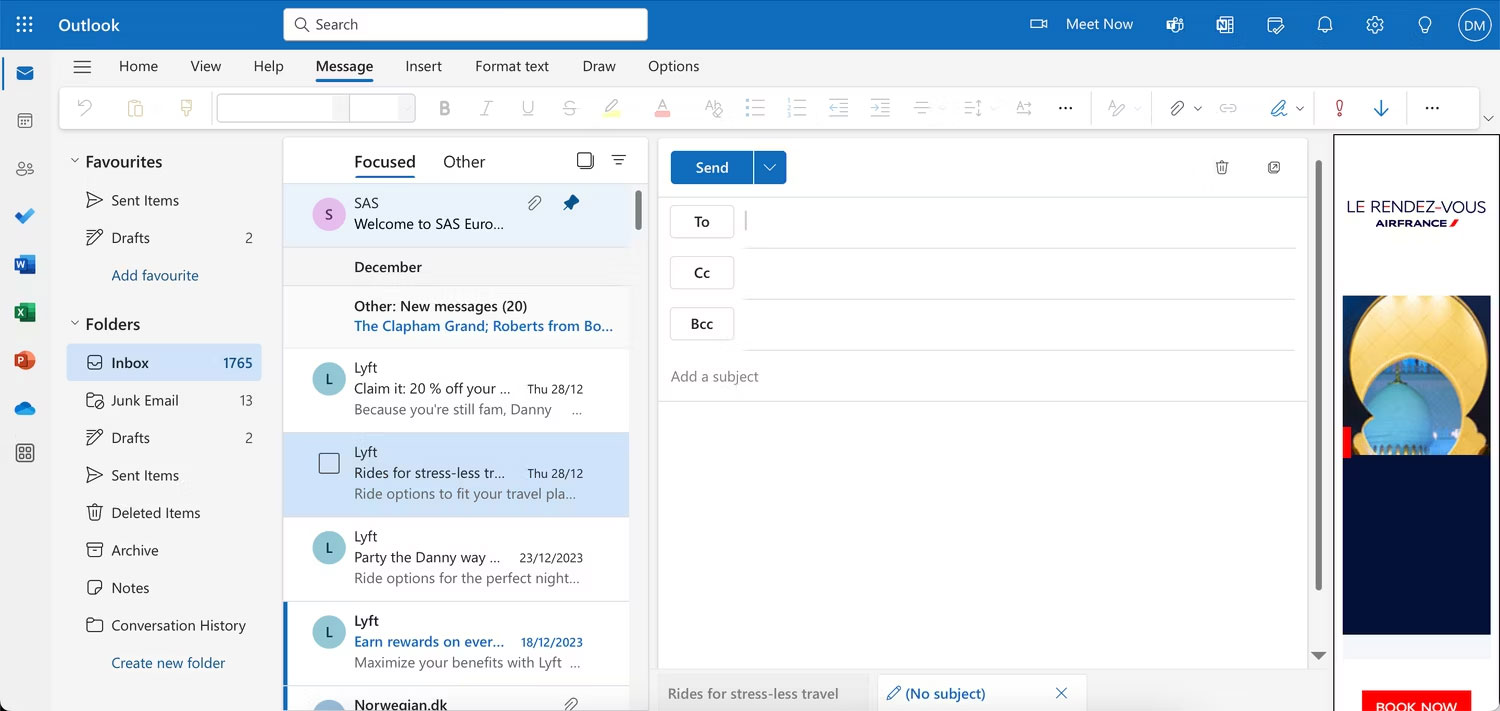
<p style="text-align: justify;">1. Chọn&nbsp;<strong>New email</strong>.</p>

<figure>
<div style="text-align: justify;"><img alt="Chọn tab New email trong Outlook Web App" data-i="2" data-src="https://st.quantrimang.com/photos/image/2024/02/01/su-dung-bcc-trong-outlook-3.jpg" data-was-processed="true" height="708" src="https://st.quantrimang.com/photos/image/2024/02/01/su-dung-bcc-trong-outlook-3.jpg" width="1500" /></div>

<figcaption>
<div style="text-align: justify;">Chọn tab New email trong Outlook Web App</div>
</figcaption>
</figure>

<div style="text-align: justify;"><iframe allowtransparency="true" data-google-container-id="a!3" data-google-query-id="CJrJodqWjIQDFe-R6QUdgeEJmQ" data-load-complete="true" frameborder="0" height="0" hspace="0" id="aswift_2" marginheight="0" marginwidth="0" name="aswift_2" sandbox="" scrolling="no" vspace="0" width="694"></iframe></div>

<p style="text-align: justify;">2. Thêm các liên hệ bạn muốn vào BCC trong phần&nbsp;<strong>Bcc</strong>, trước khi thêm những người nhận khác và nội dung/chủ đề email.</p>

<figure>
<div style="text-align: justify;"><img alt="Nhập BCC cho email và soạn phần còn lại của thư trong Outlook" data-i="3" data-src="https://st.quantrimang.com/photos/image/2024/02/01/su-dung-bcc-trong-outlook-4.jpg" data-was-processed="true" height="711" src="https://st.quantrimang.com/photos/image/2024/02/01/su-dung-bcc-trong-outlook-4.jpg" width="1500" /></div>

<figcaption>
<div style="text-align: justify;">Nhập BCC cho email và soạn phần còn lại của thư trong Outlook</div>
</figcaption>
</figure>

<p style="text-align: justify;">3. Khi bạn sẵn sàng chia sẻ email của mình với người khác, hãy nhấn&nbsp;<strong>Send</strong>.</p>

<h3 style="text-align: justify;">Cách sử dụng BCC trong ứng dụng desktop Outlook</h3>

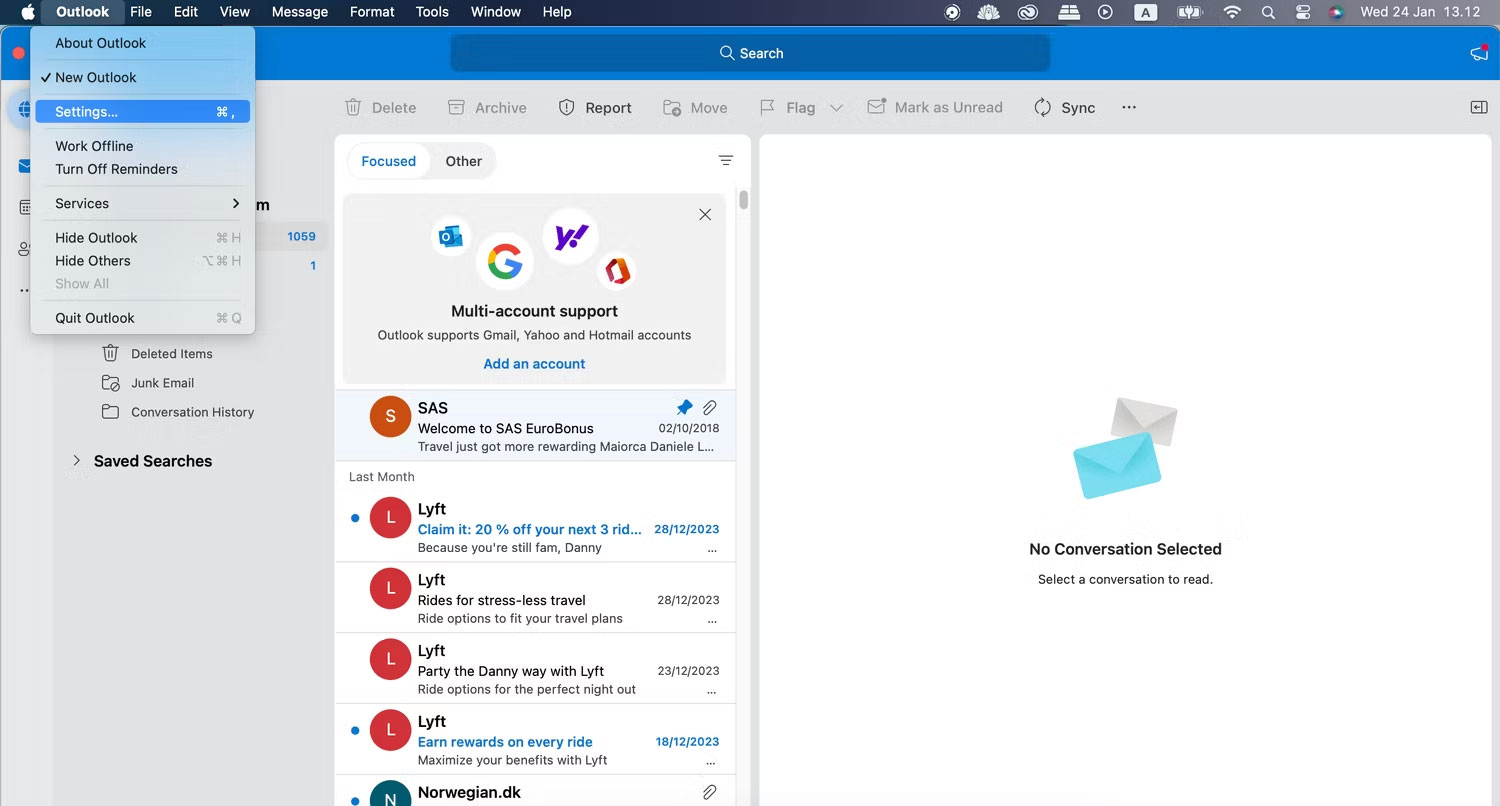
<p style="text-align: justify;">Để thêm BCC vào Outlook trên desktop của bạn, các bước hiển thị BCC hơi khác một chút trên Windows và macOS. Hãy bắt đầu với các bước dành cho máy Mac:</p>

<p style="text-align: justify;">1. Đi tới&nbsp;<strong>Outlook &gt; Settings</strong>.</p>

<figure>
<div style="text-align: justify;"><img alt="Vào cài đặt Outlook của bạn trên macOS bằng cách đi tới Outlook &gt; Settings" data-i="4" data-src="https://st.quantrimang.com/photos/image/2024/02/01/su-dung-bcc-trong-outlook-5.jpg" data-was-processed="true" height="806" src="https://st.quantrimang.com/photos/image/2024/02/01/su-dung-bcc-trong-outlook-5.jpg" width="1500" /></div>

<figcaption>
<div style="text-align: justify;">Vào cài đặt Outlook của bạn trên macOS bằng cách đi tới Outlook &gt; Settings</div>
</figcaption>
</figure>

<div style="text-align: justify;"><iframe allowtransparency="true" data-google-container-id="a!4" data-google-query-id="CLi7w9qWjIQDFWOE6QUdqEkGIQ" data-load-complete="true" frameborder="0" height="0" hspace="0" id="aswift_3" marginheight="0" marginwidth="0" name="aswift_3" sandbox="" scrolling="no" vspace="0" width="694"></iframe></div>

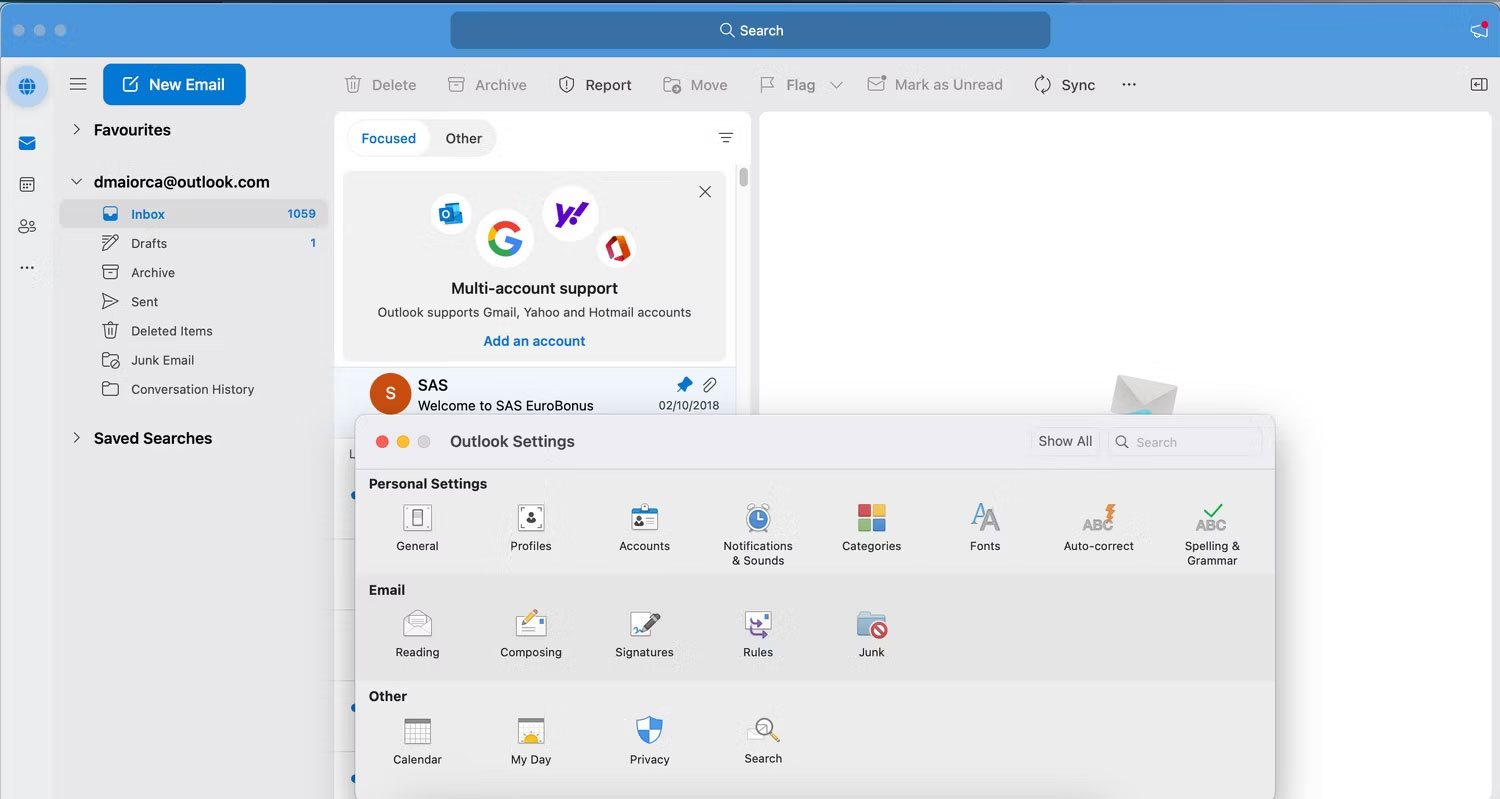
<p style="text-align: justify;">2. Chọn&nbsp;<strong>Composing</strong>&nbsp;trong phần&nbsp;<strong>Email</strong>.</p>

<figure>
<div style="text-align: justify;"><img alt="Phần email và biểu tượng soạn thảo trong Outlook" data-i="5" data-src="https://st.quantrimang.com/photos/image/2024/02/01/su-dung-bcc-trong-outlook-6.jpg" data-was-processed="true" height="799" src="https://st.quantrimang.com/photos/image/2024/02/01/su-dung-bcc-trong-outlook-6.jpg" width="1500" /></div>

<figcaption>
<div style="text-align: justify;">Phần email và biểu tượng soạn thảo trong Outlook</div>
</figcaption>
</figure>

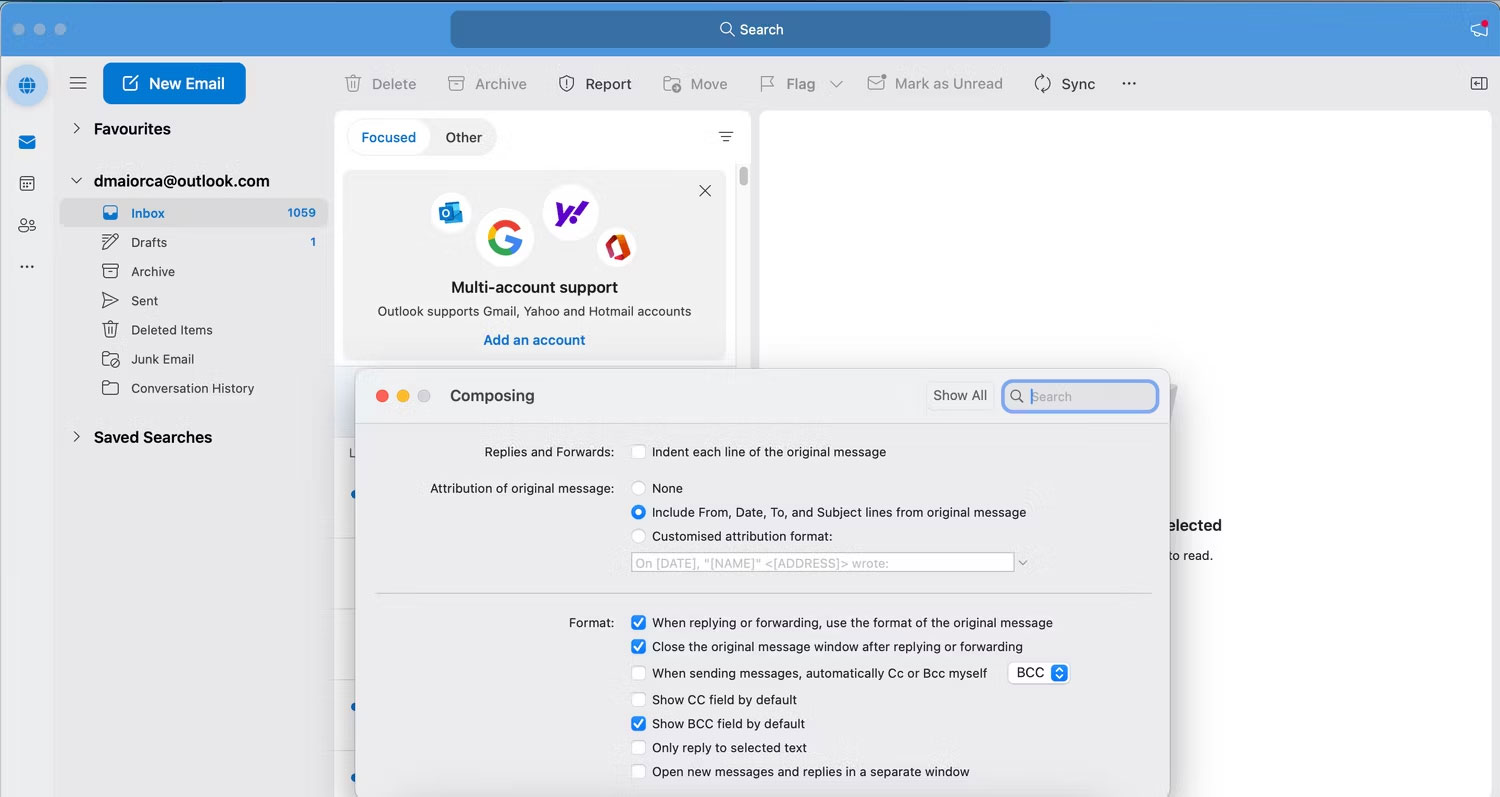
<p style="text-align: justify;">3. Đánh dấu vào ô bên cạnh&nbsp;<strong>Show BCC field by default</strong>.</p>

<figure>
<div style="text-align: justify;"><img alt="Tùy chọn hiển thị trường BCC của bạn theo mặc định trong Microsoft Outlook" data-i="6" data-src="https://st.quantrimang.com/photos/image/2024/02/01/su-dung-bcc-trong-outlook-7.jpg" data-was-processed="true" height="797" src="https://st.quantrimang.com/photos/image/2024/02/01/su-dung-bcc-trong-outlook-7.jpg" width="1500" /></div>

<figcaption>
<div style="text-align: justify;">Tùy chọn hiển thị trường BCC của bạn theo mặc định trong Microsoft Outlook</div>
</figcaption>
</figure>

<p style="text-align: justify;">4. Nhấn nút&nbsp;<strong>X</strong>&nbsp;khi bạn hoàn thành.</p>

<p style="text-align: justify;">Trên Windows:</p>

<ol>
	<li style="text-align: justify;">Đi tới&nbsp;<strong>Settings &gt; Mail &gt; Compose and reply</strong>.</li>
	<li style="text-align: justify;">Đánh dấu vào ô bên cạnh&nbsp;<strong>Always show Bcc</strong>.</li>
</ol>

<p style="text-align: justify;">Trong một số phiên bản Outlook trên Windows, thay vào đó, bạn có thể truy cập&nbsp;<strong>Options &gt; Bcc</strong>.</p>

<p style="text-align: justify;">Các bước để thêm địa chỉ email BCC đều giống nhau bất kể bạn sử dụng Windows hay macOS. Dưới đây là những hướng dẫn bạn nên làm theo.</p>

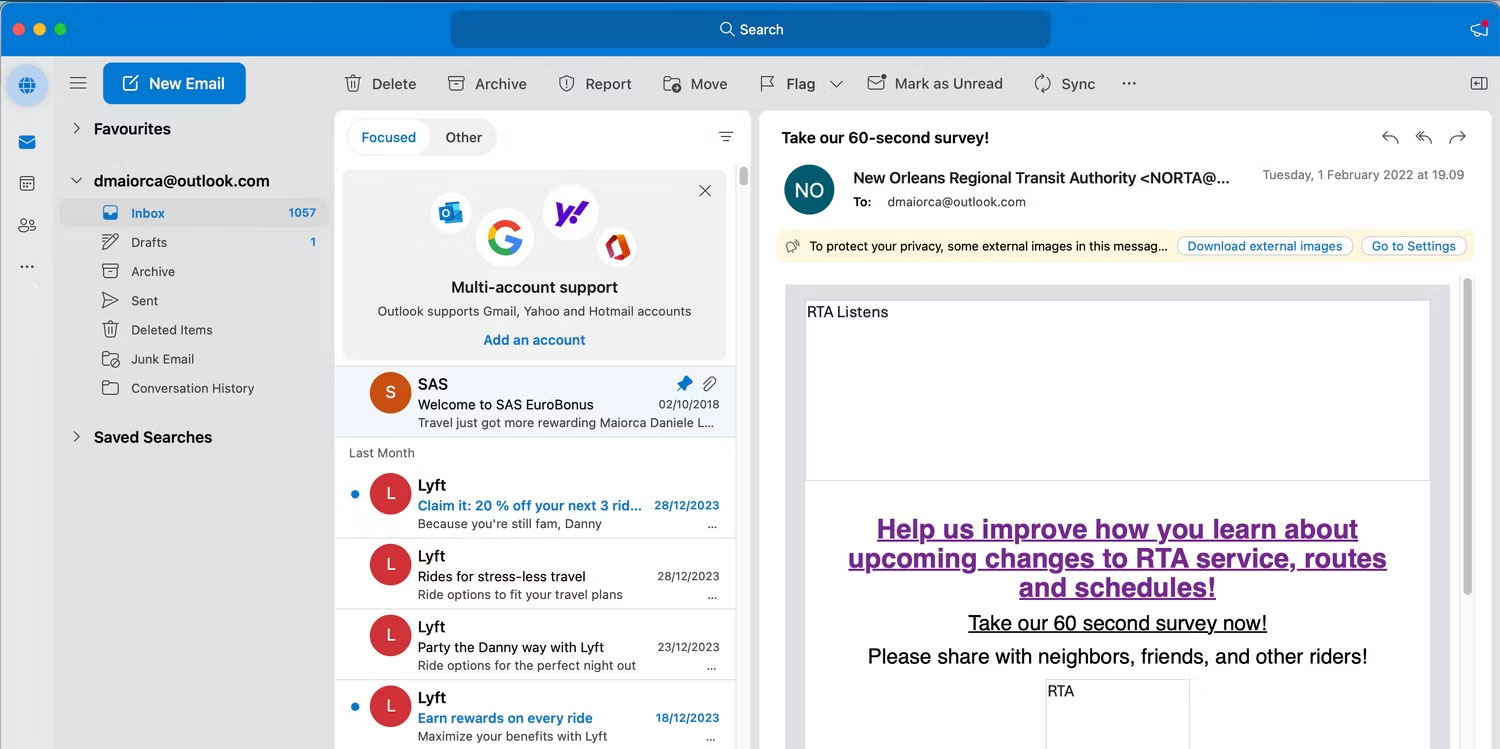
<p style="text-align: justify;">1. Chọn&nbsp;<strong>New Email</strong>.</p>

<figure>
<div style="text-align: justify;"><img alt="Chọn tab New Email trong Outlook" data-i="7" data-src="https://st.quantrimang.com/photos/image/2024/02/01/su-dung-bcc-trong-outlook-8.jpg" data-was-processed="true" height="749" src="https://st.quantrimang.com/photos/image/2024/02/01/su-dung-bcc-trong-outlook-8.jpg" width="1500" /></div>

<figcaption>
<div style="text-align: justify;">Chọn tab New Email trong Outlook</div>
</figcaption>
</figure>

<div style="text-align: justify;"><iframe allowtransparency="true" data-google-container-id="a!5" data-google-query-id="CMjK69qWjIQDFS6Q6QUdIkkL6A" data-load-complete="true" frameborder="0" height="0" hspace="0" id="aswift_4" marginheight="0" marginwidth="0" name="aswift_4" sandbox="" scrolling="no" vspace="0" width="694"></iframe></div>

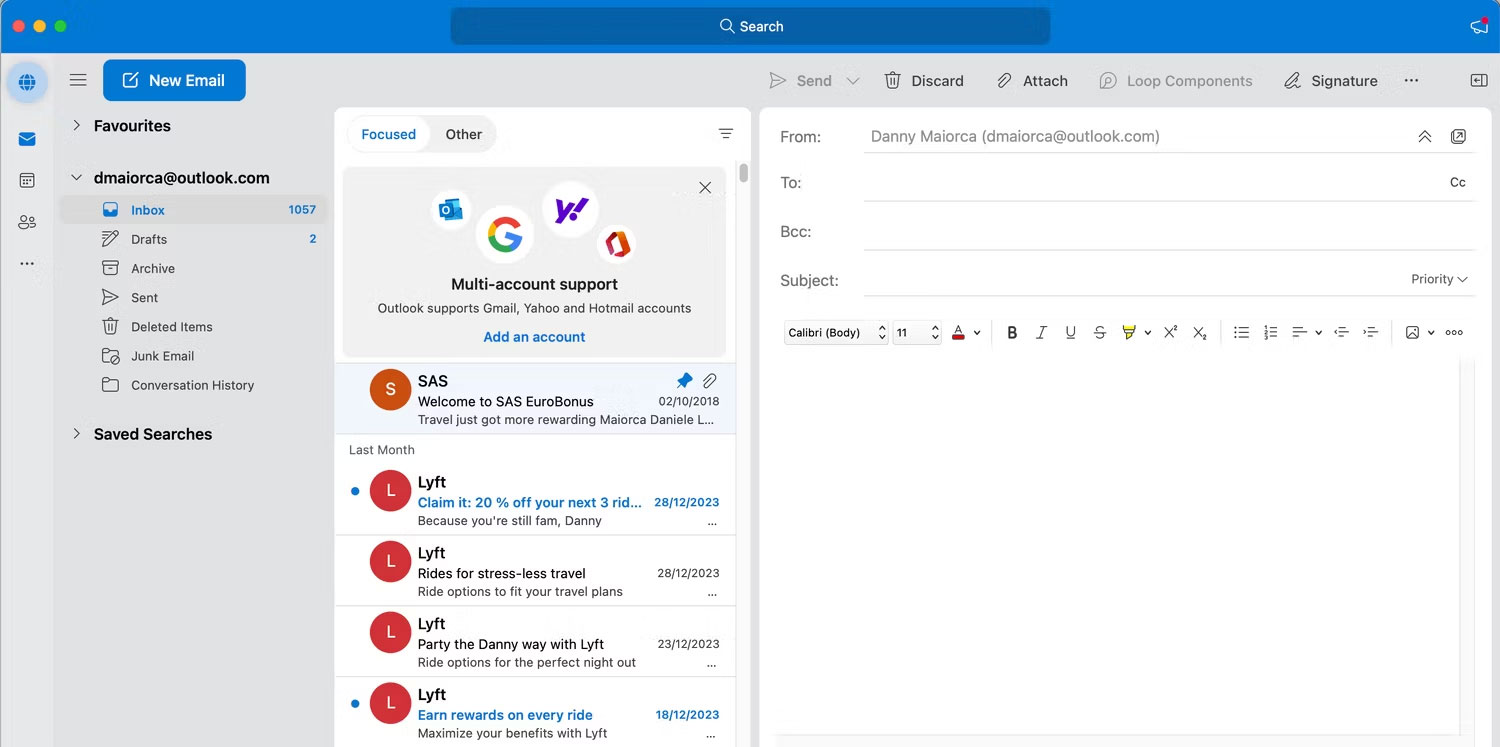
<p style="text-align: justify;">2. Trong tab&nbsp;<strong>Bcc</strong>, nhập địa chỉ email của bạn.</p>

<figure>
<div style="text-align: justify;"><img alt="Gửi email trong ứng dụng Microsoft Outlook dành cho máy Mac" data-i="8" data-src="https://st.quantrimang.com/photos/image/2024/02/01/su-dung-bcc-trong-outlook-9.jpg" data-was-processed="true" height="747" src="https://st.quantrimang.com/photos/image/2024/02/01/su-dung-bcc-trong-outlook-9.jpg" width="1500" /></div>

<figcaption>
<div style="text-align: justify;">Gửi email trong ứng dụng Microsoft Outlook dành cho máy Mac</div>
</figcaption>
</figure>

<p style="text-align: justify;">3. Điền phần còn lại của email và nhấn&nbsp;<strong>Send</strong>&nbsp;khi bạn hoàn tất.</p>

<h2 style="text-align: justify;">Cách sử dụng BCC trong Outlook trên thiết bị di động</h2>

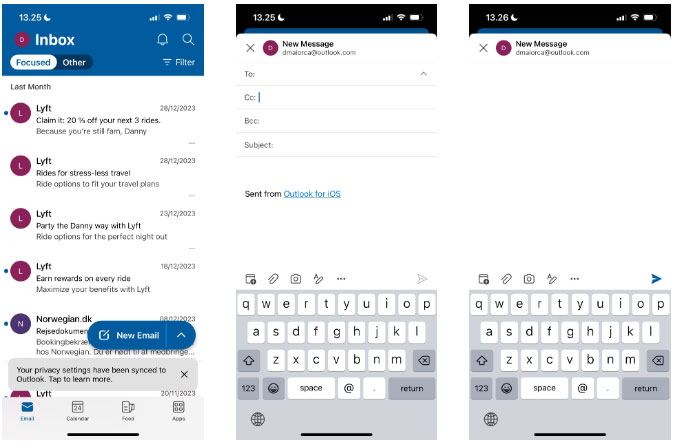
<p style="text-align: justify;">Bạn cũng có thể dễ dàng thêm BCC trong Outlook trên điện thoại thông minh hoặc máy tính bảng của mình. Thực hiện theo các hướng dẫn sau để làm điều đó.</p>

<ol>
	<li style="text-align: justify;">Nhấn vào&nbsp;<strong>New Email</strong>&nbsp;trên màn hình.</li>
	<li style="text-align: justify;">Mở rộng mũi tên bên cạnh tab&nbsp;<strong>To:</strong>.</li>
	<li style="text-align: justify;">Nhập người nhận bạn muốn BCC vào tab&nbsp;<strong>Bcc:</strong>&nbsp;trước khi điền vào các phần khác.</li>
	<li style="text-align: justify;">Nhấn vào nút&nbsp;<strong>Send&nbsp;</strong>(biểu tượng mũi tên) ở góc dưới bên phải khi bạn sẵn sàng gửi email.</li>
</ol>

<figure>
<div style="text-align: justify;"><img alt="Sử dụng BCC trong Outlook trên thiết bị di động" data-i="9" data-src="https://st.quantrimang.com/photos/image/2024/02/01/su-dung-bcc-trong-outlook-10.jpg" data-was-processed="true" height="448" src="https://st.quantrimang.com/photos/image/2024/02/01/su-dung-bcc-trong-outlook-10.jpg" width="676" /></div>

<figcaption>
<div style="text-align: justify;">Sử dụng BCC trong Outlook trên thiết bị di động</div>
</figcaption>
</figure>

<p style="text-align: justify;">Ngoài việc thêm địa chỉ email BCC theo cách thủ công, bạn cũng có thể tự động CC hoặc BCC trong Outlook.</p>
		</div>
				<div id="author">
						<p>
				<strong>Nguồn tin:</strong>
				Quantrimang.com
			</p>
		</div>
	</div>
	<div id="footer" class="clearfix">
		<div id="url">
			<strong>URL của bản tin này: </strong><a href="https://www.nguoicodonvn2008.info/vi/news/savefile/kien-thuc-may-tinh/cach-su-dung-bcc-trong-outlook-8027.html" title="Cách sử dụng BCC trong Outlook">https://www.nguoicodonvn2008.info/vi/news/savefile/kien-thuc-may-tinh/cach-su-dung-bcc-trong-outlook-8027.html</a>

		</div>
		<div class="clear"></div>
		<div class="copyright">
			&copy; .&#x3A; Nguoicodonvn2008.info - Cõi lòng người cô đơn &#x3A;.
		</div>
		<div id="contact">
			<a href="mailto:admin@nguoicodonvn2008.info">admin@nguoicodonvn2008.info</a>
		</div>
	</div>
</div>
        <div id="timeoutsess" class="chromeframe">
            Bạn đã không sử dụng Site, <a onclick="timeoutsesscancel();" href="https://nguoicodonvn2008.info/#">Bấm vào đây để duy trì trạng thái đăng nhập</a>. Thời gian chờ: <span id="secField"> 60 </span> giây
        </div>
        <div id="openidResult" class="nv-alert" style="display:none"></div>
        <div id="openidBt" data-result="" data-redirect=""></div>
		</script>
		<div class="car-top">
  <span><img src="https://nguoicodonvn2008.info/themes/default/images/car.png" alt=""></span>
</div>
<script src="https://nguoicodonvn2008.info/assets/js/jquery/jquery.min.js"></script>
<script>var nv_base_siteurl="/",nv_lang_data="vi",nv_lang_interface="vi",nv_name_variable="nv",nv_fc_variable="op",nv_lang_variable="language",nv_module_name="news",nv_func_name="savefile",nv_is_user=0, nv_my_ofs=-4,nv_my_abbr="EDT",nv_cookie_prefix="nv4c_e856T",nv_check_pass_mstime=1738000,nv_area_admin=0,nv_safemode=0,theme_responsive=0,nv_recaptcha_ver=2,nv_recaptcha_sitekey="",nv_recaptcha_type="image",XSSsanitize=1;</script>
<script src="https://nguoicodonvn2008.info/assets/js/language/vi.js"></script>
<script src="https://nguoicodonvn2008.info/assets/js/DOMPurify/purify3.js"></script>
<script src="https://nguoicodonvn2008.info/assets/js/global.js"></script>
<script src="https://nguoicodonvn2008.info/assets/js/site.js"></script>
<script src="https://nguoicodonvn2008.info/themes/default/js/news.js"></script>
<script src="https://nguoicodonvn2008.info/themes/default/js/main.js"></script>
<script src="https://nguoicodonvn2008.info/themes/default/js/custom.js"></script>
<script type="application/ld+json">
        {
            "@context": "https://schema.org",
            "@type": "Organization",
            "url": "https://nguoicodonvn2008.info",
            "logo": "https://nguoicodonvn2008.info/uploads/angel.gif"
        }
        </script>
<script src="https://nguoicodonvn2008.info/themes/default/js/bootstrap.min.js"></script>
<script type="text/javascript">
var $scrolltop = $('.car-top');
$scrolltop.on('click', function () {
    $('html,body').animate({
        scrollTop: 0
    }, 800);
    $(this).addClass("car-run");
    setTimeout(function(){ $scrolltop.removeClass('car-run');}, 1000);
    return false;
});
$(window).on('scroll', function ()
{ 
    if($(window).scrollTop() >= 200)
    {
        $scrolltop.addClass("show");
        $scrolltop.addClass("car-down");
    }
    else
    {
       $scrolltop.removeClass("show");
       setTimeout(function(){ $scrolltop.removeClass('car-down');}, 300);
    }
});
</script>
</body>
</html>