<!DOCTYPE html>
    <html lang="vi" xmlns="http://www.w3.org/1999/xhtml" prefix="og: http://ogp.me/ns#">
    <head>
<title>Cách so sánh hai thư mục trên Windows 11 và 10</title>
<meta name="description" content="Cách so sánh hai thư mục trên Windows 11 và 10 - Savefile - Tin Tức -...">
<meta name="author" content=".: Nguoicodonvn2008.info - Cõi lòng người cô đơn :.">
<meta name="copyright" content=".: Nguoicodonvn2008.info - Cõi lòng người cô đơn :. [admin@nguoicodonvn2008.info]">
<meta name="robots" content="index, archive, follow, noodp">
<meta name="googlebot" content="index,archive,follow,noodp">
<meta name="msnbot" content="all,index,follow">
<meta name="generator" content="NukeViet v4.5">
<meta http-equiv="Content-Type" content="text/html; charset=utf-8">
<meta property="og:title" content="Cách so sánh hai thư mục trên Windows 11 và 10">
<meta property="og:type" content="website">
<meta property="og:description" content="Savefile - Tin Tức - https&#x3A;&#x002F;&#x002F;www.nguoicodonvn2008.info&#x002F;vi&#x002F;news&#x002F;savefile&#x002F;kien-thuc-may-tinh&#x002F;cach-so-sanh-hai-thu-muc-tren-windows-11-va-10-8019.html">
<meta property="og:site_name" content=".&#x3A; Nguoicodonvn2008.info - Cõi lòng người cô đơn &#x3A;.">
<meta property="og:url" content="https://www.nguoicodonvn2008.info/vi/news/savefile/kien-thuc-may-tinh/cach-so-sanh-hai-thu-muc-tren-windows-11-va-10-8019.html">
<link rel="shortcut icon" href="https://nguoicodonvn2008.info/favicon.ico">
<link rel="canonical" href="https://www.nguoicodonvn2008.info/vi/news/savefile/kien-thuc-may-tinh/cach-so-sanh-hai-thu-muc-tren-windows-11-va-10-8019.html">
<link rel="alternate" href="https://nguoicodonvn2008.info/vi/news/rss/" title="Tin Tức" type="application/rss+xml">
<link rel="alternate" href="https://nguoicodonvn2008.info/vi/news/rss/karaoke-dual/" title="Tin Tức - Karaoke Dual" type="application/rss+xml">
<link rel="alternate" href="https://nguoicodonvn2008.info/vi/news/rss/nhac-tre/" title="Tin Tức - Nhạc trẻ" type="application/rss+xml">
<link rel="alternate" href="https://nguoicodonvn2008.info/vi/news/rss/tru-tinh/" title="Tin Tức - Trữ tình" type="application/rss+xml">
<link rel="alternate" href="https://nguoicodonvn2008.info/vi/news/rss/nuoc-ngoai/" title="Tin Tức - Nước ngoài" type="application/rss+xml">
<link rel="alternate" href="https://nguoicodonvn2008.info/vi/news/rss/remix/" title="Tin Tức - Remix" type="application/rss+xml">
<link rel="alternate" href="https://nguoicodonvn2008.info/vi/news/rss/tam-su-tinh-yeu/" title="Tin Tức - Tâm sự tình yêu" type="application/rss+xml">
<link rel="alternate" href="https://nguoicodonvn2008.info/vi/news/rss/tho-suu-tam/" title="Tin Tức - Thơ sưu tầm" type="application/rss+xml">
<link rel="alternate" href="https://nguoicodonvn2008.info/vi/news/rss/cuoc-song/" title="Tin Tức - Cuộc sống" type="application/rss+xml">
<link rel="alternate" href="https://nguoicodonvn2008.info/vi/news/rss/phan-mem/" title="Tin Tức - Phần mềm" type="application/rss+xml">
<link rel="alternate" href="https://nguoicodonvn2008.info/vi/news/rss/kien-thuc-may-tinh/" title="Tin Tức - Kiến thức máy tính" type="application/rss+xml">
<link rel="alternate" href="https://nguoicodonvn2008.info/vi/news/rss/hoc-tap/" title="Tin Tức - Học tập" type="application/rss+xml">
<link rel="alternate" href="https://nguoicodonvn2008.info/vi/news/rss/tai-lieu/" title="Tin Tức - Tài liệu" type="application/rss+xml">
<link rel="alternate" href="https://nguoicodonvn2008.info/vi/news/rss/de-thi/" title="Tin Tức - Đề thi" type="application/rss+xml">
<link rel="preload" as="style" href="https://nguoicodonvn2008.info/assets/css/font-awesome.min.css" type="text/css">
<link rel="preload" as="style" href="https://nguoicodonvn2008.info/themes/default/css/bootstrap.non-responsive.css" type="text/css">
<link rel="preload" as="style" href="https://nguoicodonvn2008.info/themes/default/css/style.css" type="text/css">
<link rel="preload" as="style" href="https://nguoicodonvn2008.info/themes/default/css/style.non-responsive.css" type="text/css">
<link rel="preload" as="style" href="https://nguoicodonvn2008.info/themes/default/css/news.css" type="text/css">
<link rel="preload" as="style" href="https://nguoicodonvn2008.info/themes/default/css/custom.css" type="text/css">
<link rel="preload" as="script" href="https://nguoicodonvn2008.info/assets/js/jquery/jquery.min.js" type="text/javascript">
<link rel="preload" as="script" href="https://nguoicodonvn2008.info/assets/js/language/vi.js" type="text/javascript">
<link rel="preload" as="script" href="https://nguoicodonvn2008.info/assets/js/DOMPurify/purify3.js" type="text/javascript">
<link rel="preload" as="script" href="https://nguoicodonvn2008.info/assets/js/global.js" type="text/javascript">
<link rel="preload" as="script" href="https://nguoicodonvn2008.info/assets/js/site.js" type="text/javascript">
<link rel="preload" as="script" href="https://nguoicodonvn2008.info/themes/default/js/news.js" type="text/javascript">
<link rel="preload" as="script" href="https://nguoicodonvn2008.info/themes/default/js/main.js" type="text/javascript">
<link rel="preload" as="script" href="https://nguoicodonvn2008.info/themes/default/js/custom.js" type="text/javascript">
<link rel="preload" as="script" href="https://nguoicodonvn2008.info/themes/default/js/bootstrap.min.js" type="text/javascript">
<link rel="stylesheet" href="https://nguoicodonvn2008.info/assets/css/font-awesome.min.css">
<link rel="stylesheet" href="https://nguoicodonvn2008.info/themes/default/css/bootstrap.non-responsive.css">
<link rel="stylesheet" href="https://nguoicodonvn2008.info/themes/default/css/style.css">
<link rel="stylesheet" href="https://nguoicodonvn2008.info/themes/default/css/style.non-responsive.css">
<link rel="StyleSheet" href="https://nguoicodonvn2008.info/themes/default/css/news.css">
<link rel="stylesheet" href="https://nguoicodonvn2008.info/themes/default/css/custom.css">
<style type="text/css">
	body{background: #fff;}
</style>
    </head>
    <body>
<div id="print">
	<div id="hd_print">
		<h2 class="pull-left">.&#x3A; Nguoicodonvn2008.info - Cõi lòng người cô đơn &#x3A;.</h2>
		<p class="pull-right"><a title=".&#x3A; Nguoicodonvn2008.info - Cõi lòng người cô đơn &#x3A;." href="https://nguoicodonvn2008.info/">https://nguoicodonvn2008.info</a></p>
	</div>
	<div class="clear"></div>
	<hr />
	<div id="content">
		<h1>Cách so sánh hai thư mục trên Windows 11 và 10</h1>
		<ul class="list-inline">
			<li>Thứ ba - 30/01/2024 23:09</li>
			<li class="hidden-print txtrequired"><em class="fa fa-print">&nbsp;</em><a title="In ra" href="javascript:;" onclick="window.print()">In ra</a></li>
			<li class="hidden-print txtrequired"><em class="fa fa-power-off">&nbsp;</em><a title="Đóng cửa sổ này" href="javascript:;" onclick="window.close()">Đóng cửa sổ này</a></li>
		</ul>
		<div class="clear"></div>
		<div id="hometext">
		</div>
				<div class="imghome">
			<img alt="Cách so sánh hai thư mục trên Windows 11 và 10" src="https://st.quantrimang.com/photos/image/2024/01/29/so-sanh-hai-thu-muc-tren-windows-11-va-103.jpg" width="460" class="img-thumbnail" />
		</div>
		<div class="clear"></div>
		<div id="bodytext" class="clearfix">
			<div class="ckeditor-html5-audio" style="text-align: center;">
<audio controls="controls" controlslist="nodownload" src="https://st.quantrimang.com/photos/media/2024/01/30/638422301271815813.mp3">&nbsp;</audio>
</div>

<p style="text-align: justify;">Bạn muốn so sánh số lượng tệp hoặc thư mục hay chỉ đơn giản là hình dung sự khác biệt giữa hai thư mục? Có hai phương thức đơn giản để thực hiện điều đó. Cùng tìm hiểu cách thực hiện tác vụ so sánh thư mục trên PC Windows 11 hoặc Windows 10 ngay sau đây.</p>

<h2 style="text-align: justify;">So sánh các thư mục từ Properties</h2>

<p style="text-align: justify;">Để so sánh số lượng tệp, thư mục con, kích thước và ngày tạo của hai thư mục, bạn có thể sử dụng tùy chọn Properties trong menu ngữ cảnh của File Explorer. Tùy chọn này cho phép bạn xem nhanh các thuộc tính chính của một thư mục.</p>

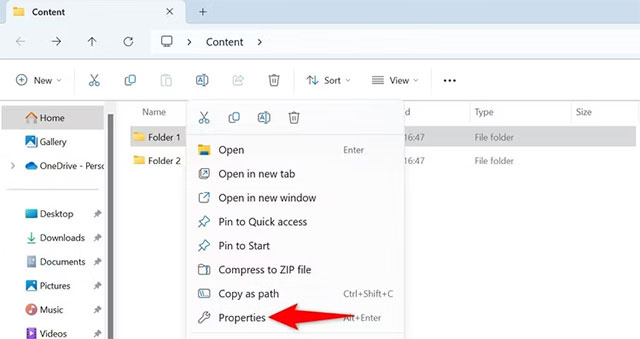
<p style="text-align: justify;">Để bắt đầu, hãy khởi chạy File Explorer bằng cách nhấn&nbsp;<strong>Windows + E</strong>. Tìm thư mục đầu tiên mà bạn muốn so sánh, nhấp chuột phải vào nó và chọn &quot;<strong>Properties</strong>&quot;.</p>

<p style="text-align: justify;"><img alt="Chọn &#039;Properties&#039;" data-i="0" data-src="https://st.quantrimang.com/photos/image/2024/01/29/so-sanh-hai-thu-muc-tren-windows-11-va-101.jpg" data-was-processed="true" height="339" src="https://st.quantrimang.com/photos/image/2024/01/29/so-sanh-hai-thu-muc-tren-windows-11-va-101.jpg" width="640" /></p>

<p style="text-align: justify;">Giữ cửa sổ &quot;<strong>Properties</strong>&quot; của thư mục đầu tiên mở. Sau đó, tìm thư mục thứ hai, cũng nhấp chuột phải vào nó và chọn &quot;<strong>Properties</strong>&quot;.</p>

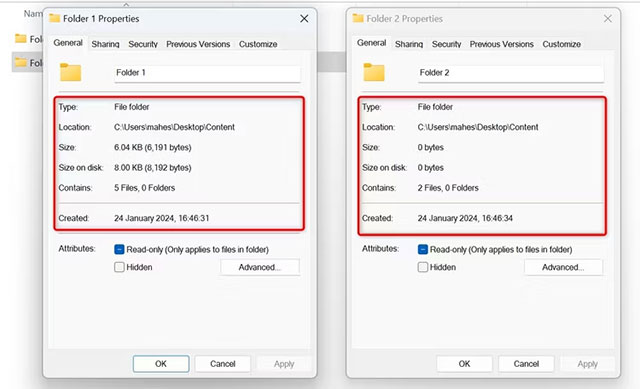
<p style="text-align: justify;">Bây giờ bạn đã mở cửa sổ &quot;<strong>Properties</strong>&quot; cho cả hai thư mục mà mình muốn so sánh. Đặt các cửa sổ này cạnh nhau bằng cách kéo chúng và bạn có thể thấy sự khác biệt trong nội dung của từng thư mục này. Ví dụ: bạn có thể xem cả hai thư mục có bao nhiêu tệp, kích thước của các thư mục, v.v.</p>

<p style="text-align: justify;"><img alt="So sánh hai thư mục" data-i="1" data-src="https://st.quantrimang.com/photos/image/2024/01/29/so-sanh-hai-thu-muc-tren-windows-11-va-102.jpg" data-was-processed="true" height="389" src="https://st.quantrimang.com/photos/image/2024/01/29/so-sanh-hai-thu-muc-tren-windows-11-va-102.jpg" width="640" /></p>

<p style="text-align: justify;">Điều giúp mang đến cho bạn cái nhìn tổng quan về sự khác biệt giữa các thư mục.</p>

<h2 style="text-align: justify;">So sánh các thư mục bằng Command Prompt</h2>

<p style="text-align: justify;">Bạn cũng có thể sử dụng lệnh robocopy trong Command Prompt để xem sự khác biệt giữa hai thư mục cụ thể. Lệnh này thực chất là để sao chép tệp từ thư mục này sang thư mục khác, nhưng bạn có thể “yêu cầu” nó hiển thị sự khác biệt giữa hai thư mục được chỉ định và không sao chép bất kỳ tệp nào.</p>

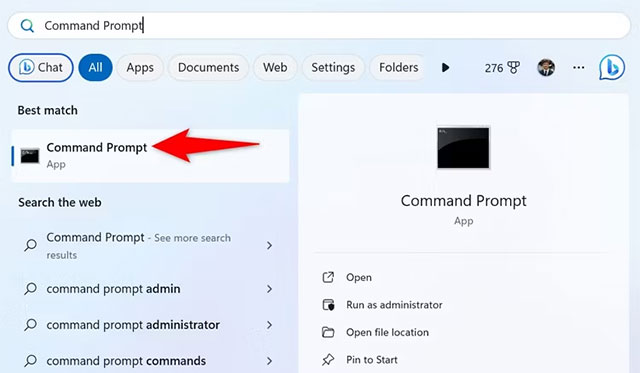
<p style="text-align: justify;">Để sử dụng lệnh&nbsp;<strong>robocopy</strong>, trước tiên hãy mở menu Start, tìm kiếm<strong>&nbsp;Command Prompt&nbsp;</strong>và khởi chạy nó.</p>

<p style="text-align: justify;"><img alt="Tìm kiếm Command Prompt" data-i="2" data-src="https://st.quantrimang.com/photos/image/2024/01/29/so-sanh-hai-thu-muc-tren-windows-11-va-103.jpg" data-was-processed="true" height="373" src="https://st.quantrimang.com/photos/image/2024/01/29/so-sanh-hai-thu-muc-tren-windows-11-va-103.jpg" width="640" /></p>

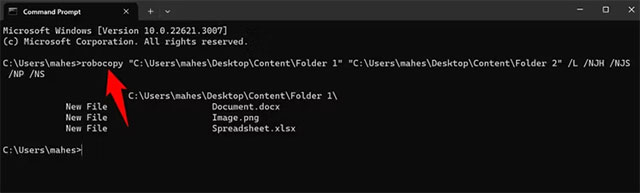
<p style="text-align: justify;">Trong giao diện Command Prompt, gõ lệnh sau. Thay thế &quot;<strong>Folder1</strong>&quot; bằng đường dẫn đến thư mục đầu tiên và &quot;<strong>Folder2</strong>&quot; bằng đường dẫn đến thư mục thứ hai mà bạn muốn so sánh. Đảm bảo cả hai đường dẫn thư mục đều được đặt trong dấu ngoặc kép.</p>

<pre id="pre0" style="text-align: justify;">
robocopy &quot;Folder1&quot; &quot;Folder2&quot; /L /NJH /NJS /NP /NS</pre>

<p style="text-align: justify;">Bạn sẽ thấy sự khác biệt giữa các thư mục của mình.</p>

<p style="text-align: justify;"><img alt="" data-i="3" data-src="https://st.quantrimang.com/photos/image/2024/01/29/so-sanh-hai-thu-muc-tren-windows-11-va-104.jpg" data-was-processed="true" height="193" src="https://st.quantrimang.com/photos/image/2024/01/29/so-sanh-hai-thu-muc-tren-windows-11-va-104.jpg" width="640" /></p>

<p style="text-align: justify;">Nếu bạn tò mò về chức năng của lệnh robocopy thì đây là ý nghĩa của từng tham số trong lệnh:</p>

<ul>
	<li style="text-align: justify;"><strong>L</strong>: Yêu cầu lệnh không sao chép tệp mà hiển thị nhật ký của các tệp trong thư mục đã chỉ định.</li>
	<li style="text-align: justify;"><strong>NJH</strong>: Loại trừ các điểm nối, liên kết cứng và các điểm phân tích lại khỏi việc xem xét. Bằng cách này, lệnh sẽ tập trung vào các tệp thông thường trong các thư mục được chỉ định.</li>
	<li style="text-align: justify;"><strong>NJS</strong>: Loại trừ các liên kết tượng trưng khỏi quy trình.</li>
	<li style="text-align: justify;"><strong>NP</strong>: Loại trừ dấu thời gian của thư mục.</li>
	<li style="text-align: justify;"><strong>NS</strong>: Loại trừ thông tin bảo mật tệp.</li>
</ul>

<p style="text-align: justify;">Tất cả chỉ đơn giản có vậy! Chúc bạn thực hiện thành công!</p>
		</div>
				<div id="author">
						<p>
				<strong>Nguồn tin:</strong>
				Quantrimang.com
			</p>
		</div>
	</div>
	<div id="footer" class="clearfix">
		<div id="url">
			<strong>URL của bản tin này: </strong><a href="https://www.nguoicodonvn2008.info/vi/news/savefile/kien-thuc-may-tinh/cach-so-sanh-hai-thu-muc-tren-windows-11-va-10-8019.html" title="Cách so sánh hai thư mục trên Windows 11 và 10">https://www.nguoicodonvn2008.info/vi/news/savefile/kien-thuc-may-tinh/cach-so-sanh-hai-thu-muc-tren-windows-11-va-10-8019.html</a>

		</div>
		<div class="clear"></div>
		<div class="copyright">
			&copy; .&#x3A; Nguoicodonvn2008.info - Cõi lòng người cô đơn &#x3A;.
		</div>
		<div id="contact">
			<a href="mailto:admin@nguoicodonvn2008.info">admin@nguoicodonvn2008.info</a>
		</div>
	</div>
</div>
        <div id="timeoutsess" class="chromeframe">
            Bạn đã không sử dụng Site, <a onclick="timeoutsesscancel();" href="https://nguoicodonvn2008.info/#">Bấm vào đây để duy trì trạng thái đăng nhập</a>. Thời gian chờ: <span id="secField"> 60 </span> giây
        </div>
        <div id="openidResult" class="nv-alert" style="display:none"></div>
        <div id="openidBt" data-result="" data-redirect=""></div>
		</script>
		<div class="car-top">
  <span><img src="https://nguoicodonvn2008.info/themes/default/images/car.png" alt=""></span>
</div>
<script src="https://nguoicodonvn2008.info/assets/js/jquery/jquery.min.js"></script>
<script>var nv_base_siteurl="/",nv_lang_data="vi",nv_lang_interface="vi",nv_name_variable="nv",nv_fc_variable="op",nv_lang_variable="language",nv_module_name="news",nv_func_name="savefile",nv_is_user=0, nv_my_ofs=-4,nv_my_abbr="EDT",nv_cookie_prefix="nv4c_e856T",nv_check_pass_mstime=1738000,nv_area_admin=0,nv_safemode=0,theme_responsive=0,nv_recaptcha_ver=2,nv_recaptcha_sitekey="",nv_recaptcha_type="image",XSSsanitize=1;</script>
<script src="https://nguoicodonvn2008.info/assets/js/language/vi.js"></script>
<script src="https://nguoicodonvn2008.info/assets/js/DOMPurify/purify3.js"></script>
<script src="https://nguoicodonvn2008.info/assets/js/global.js"></script>
<script src="https://nguoicodonvn2008.info/assets/js/site.js"></script>
<script src="https://nguoicodonvn2008.info/themes/default/js/news.js"></script>
<script src="https://nguoicodonvn2008.info/themes/default/js/main.js"></script>
<script src="https://nguoicodonvn2008.info/themes/default/js/custom.js"></script>
<script type="application/ld+json">
        {
            "@context": "https://schema.org",
            "@type": "Organization",
            "url": "https://nguoicodonvn2008.info",
            "logo": "https://nguoicodonvn2008.info/uploads/angel.gif"
        }
        </script>
<script src="https://nguoicodonvn2008.info/themes/default/js/bootstrap.min.js"></script>
<script type="text/javascript">
var $scrolltop = $('.car-top');
$scrolltop.on('click', function () {
    $('html,body').animate({
        scrollTop: 0
    }, 800);
    $(this).addClass("car-run");
    setTimeout(function(){ $scrolltop.removeClass('car-run');}, 1000);
    return false;
});
$(window).on('scroll', function ()
{ 
    if($(window).scrollTop() >= 200)
    {
        $scrolltop.addClass("show");
        $scrolltop.addClass("car-down");
    }
    else
    {
       $scrolltop.removeClass("show");
       setTimeout(function(){ $scrolltop.removeClass('car-down');}, 300);
    }
});
</script>
</body>
</html>