<!DOCTYPE html>
    <html lang="vi" xmlns="http://www.w3.org/1999/xhtml" prefix="og: http://ogp.me/ns#">
    <head>
<title>Cách sao lưu máy tính Windows 11 đúng cách</title>
<meta name="description" content="Cách sao lưu máy tính Windows 11 đúng cách - Savefile - Tin Tức -...">
<meta name="author" content=".: Nguoicodonvn2008.info - Cõi lòng người cô đơn :.">
<meta name="copyright" content=".: Nguoicodonvn2008.info - Cõi lòng người cô đơn :. [admin@nguoicodonvn2008.info]">
<meta name="robots" content="index, archive, follow, noodp">
<meta name="googlebot" content="index,archive,follow,noodp">
<meta name="msnbot" content="all,index,follow">
<meta name="generator" content="NukeViet v4.5">
<meta http-equiv="Content-Type" content="text/html; charset=utf-8">
<meta property="og:title" content="Cách sao lưu máy tính Windows 11 đúng cách">
<meta property="og:type" content="website">
<meta property="og:description" content="Savefile - Tin Tức - https&#x3A;&#x002F;&#x002F;www.nguoicodonvn2008.info&#x002F;vi&#x002F;news&#x002F;savefile&#x002F;kien-thuc-may-tinh&#x002F;cach-sao-luu-may-tinh-windows-11-dung-cach-9078.html">
<meta property="og:site_name" content=".&#x3A; Nguoicodonvn2008.info - Cõi lòng người cô đơn &#x3A;.">
<meta property="og:url" content="https://www.nguoicodonvn2008.info/vi/news/savefile/kien-thuc-may-tinh/cach-sao-luu-may-tinh-windows-11-dung-cach-9078.html">
<link rel="shortcut icon" href="https://nguoicodonvn2008.info/favicon.ico">
<link rel="canonical" href="https://www.nguoicodonvn2008.info/vi/news/savefile/kien-thuc-may-tinh/cach-sao-luu-may-tinh-windows-11-dung-cach-9078.html">
<link rel="alternate" href="https://nguoicodonvn2008.info/vi/news/rss/" title="Tin Tức" type="application/rss+xml">
<link rel="alternate" href="https://nguoicodonvn2008.info/vi/news/rss/karaoke-dual/" title="Tin Tức - Karaoke Dual" type="application/rss+xml">
<link rel="alternate" href="https://nguoicodonvn2008.info/vi/news/rss/nhac-tre/" title="Tin Tức - Nhạc trẻ" type="application/rss+xml">
<link rel="alternate" href="https://nguoicodonvn2008.info/vi/news/rss/tru-tinh/" title="Tin Tức - Trữ tình" type="application/rss+xml">
<link rel="alternate" href="https://nguoicodonvn2008.info/vi/news/rss/nuoc-ngoai/" title="Tin Tức - Nước ngoài" type="application/rss+xml">
<link rel="alternate" href="https://nguoicodonvn2008.info/vi/news/rss/remix/" title="Tin Tức - Remix" type="application/rss+xml">
<link rel="alternate" href="https://nguoicodonvn2008.info/vi/news/rss/tam-su-tinh-yeu/" title="Tin Tức - Tâm sự tình yêu" type="application/rss+xml">
<link rel="alternate" href="https://nguoicodonvn2008.info/vi/news/rss/tho-suu-tam/" title="Tin Tức - Thơ sưu tầm" type="application/rss+xml">
<link rel="alternate" href="https://nguoicodonvn2008.info/vi/news/rss/cuoc-song/" title="Tin Tức - Cuộc sống" type="application/rss+xml">
<link rel="alternate" href="https://nguoicodonvn2008.info/vi/news/rss/phan-mem/" title="Tin Tức - Phần mềm" type="application/rss+xml">
<link rel="alternate" href="https://nguoicodonvn2008.info/vi/news/rss/kien-thuc-may-tinh/" title="Tin Tức - Kiến thức máy tính" type="application/rss+xml">
<link rel="alternate" href="https://nguoicodonvn2008.info/vi/news/rss/hoc-tap/" title="Tin Tức - Học tập" type="application/rss+xml">
<link rel="alternate" href="https://nguoicodonvn2008.info/vi/news/rss/tai-lieu/" title="Tin Tức - Tài liệu" type="application/rss+xml">
<link rel="alternate" href="https://nguoicodonvn2008.info/vi/news/rss/de-thi/" title="Tin Tức - Đề thi" type="application/rss+xml">
<link rel="preload" as="style" href="https://nguoicodonvn2008.info/assets/css/font-awesome.min.css" type="text/css">
<link rel="preload" as="style" href="https://nguoicodonvn2008.info/themes/default/css/bootstrap.non-responsive.css" type="text/css">
<link rel="preload" as="style" href="https://nguoicodonvn2008.info/themes/default/css/style.css" type="text/css">
<link rel="preload" as="style" href="https://nguoicodonvn2008.info/themes/default/css/style.non-responsive.css" type="text/css">
<link rel="preload" as="style" href="https://nguoicodonvn2008.info/themes/default/css/news.css" type="text/css">
<link rel="preload" as="style" href="https://nguoicodonvn2008.info/themes/default/css/custom.css" type="text/css">
<link rel="preload" as="script" href="https://nguoicodonvn2008.info/assets/js/jquery/jquery.min.js" type="text/javascript">
<link rel="preload" as="script" href="https://nguoicodonvn2008.info/assets/js/language/vi.js" type="text/javascript">
<link rel="preload" as="script" href="https://nguoicodonvn2008.info/assets/js/DOMPurify/purify3.js" type="text/javascript">
<link rel="preload" as="script" href="https://nguoicodonvn2008.info/assets/js/global.js" type="text/javascript">
<link rel="preload" as="script" href="https://nguoicodonvn2008.info/assets/js/site.js" type="text/javascript">
<link rel="preload" as="script" href="https://nguoicodonvn2008.info/themes/default/js/news.js" type="text/javascript">
<link rel="preload" as="script" href="https://nguoicodonvn2008.info/themes/default/js/main.js" type="text/javascript">
<link rel="preload" as="script" href="https://nguoicodonvn2008.info/themes/default/js/custom.js" type="text/javascript">
<link rel="preload" as="script" href="https://nguoicodonvn2008.info/themes/default/js/bootstrap.min.js" type="text/javascript">
<link rel="stylesheet" href="https://nguoicodonvn2008.info/assets/css/font-awesome.min.css">
<link rel="stylesheet" href="https://nguoicodonvn2008.info/themes/default/css/bootstrap.non-responsive.css">
<link rel="stylesheet" href="https://nguoicodonvn2008.info/themes/default/css/style.css">
<link rel="stylesheet" href="https://nguoicodonvn2008.info/themes/default/css/style.non-responsive.css">
<link rel="StyleSheet" href="https://nguoicodonvn2008.info/themes/default/css/news.css">
<link rel="stylesheet" href="https://nguoicodonvn2008.info/themes/default/css/custom.css">
<style type="text/css">
	body{background: #fff;}
</style>
    </head>
    <body>
<div id="print">
	<div id="hd_print">
		<h2 class="pull-left">.&#x3A; Nguoicodonvn2008.info - Cõi lòng người cô đơn &#x3A;.</h2>
		<p class="pull-right"><a title=".&#x3A; Nguoicodonvn2008.info - Cõi lòng người cô đơn &#x3A;." href="https://nguoicodonvn2008.info/">https://nguoicodonvn2008.info</a></p>
	</div>
	<div class="clear"></div>
	<hr />
	<div id="content">
		<h1>Cách sao lưu máy tính Windows 11 đúng cách</h1>
		<ul class="list-inline">
			<li>Thứ sáu - 27/09/2024 23:35</li>
			<li class="hidden-print txtrequired"><em class="fa fa-print">&nbsp;</em><a title="In ra" href="javascript:;" onclick="window.print()">In ra</a></li>
			<li class="hidden-print txtrequired"><em class="fa fa-power-off">&nbsp;</em><a title="Đóng cửa sổ này" href="javascript:;" onclick="window.close()">Đóng cửa sổ này</a></li>
		</ul>
		<div class="clear"></div>
		<div id="hometext">
		</div>
				<div class="imghome">
			<img alt="Cách sao lưu máy tính Windows 11 đúng cách" src="https://st.quantrimang.com/photos/image/2024/09/27/sao-luu-may-tinh-windows-11-11.jpg" width="460" class="img-thumbnail" />
		</div>
		<div class="clear"></div>
		<div id="bodytext" class="clearfix">
			<p style="text-align: justify;">Mặc dù Windows Backup là giải pháp sao lưu tốt cho Windows 11, nhưng nó có những hạn chế. Đó là lý do tại sao bạn nên dựa vào quy trình 3 bước sau để sao lưu đúng cách PC Windows 11 của mình. Sau đây là cách thực hiện với Windows Backup, File History và giải pháp của bên thứ ba.</p>

<h2 style="text-align: justify;">1. Sử dụng Windows Backup</h2>

<p style="text-align: justify;">Windows Backup là tùy chọn sao lưu gốc có sẵn trong Windows 11. Theo mặc định, nó sao lưu tất cả các thư mục trong thư mục &quot;Users&quot;, chẳng hạn như Pictures, Documents, Music và Videos, cùng với cài đặt hệ thống, tùy chọn, danh sách ứng dụng và thông tin đăng nhập đã lưu vào OneDrive.</p>

<p style="text-align: justify;">Để cấu hình Windows Backup, hãy làm theo các bước sau:</p>

<ul>
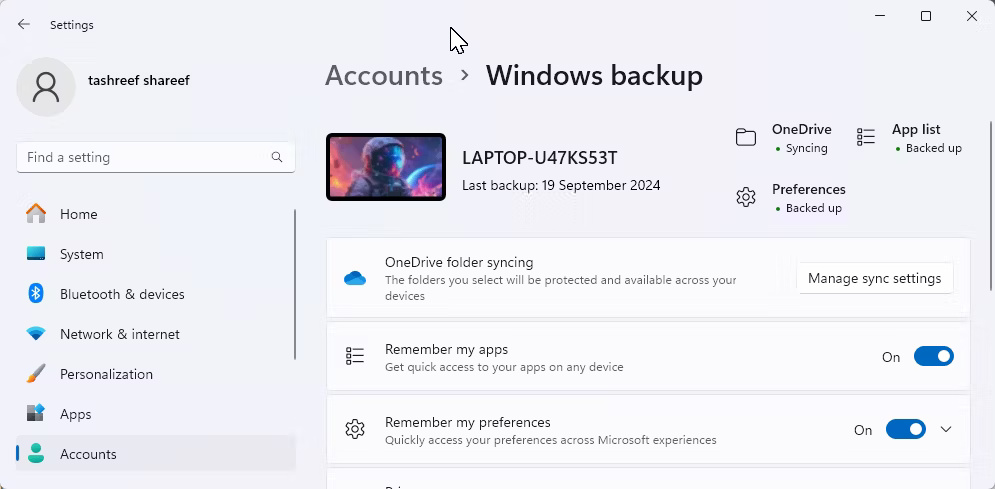
	<li style="text-align: justify;">Vào menu&nbsp;<strong>Start &gt; Settings &gt; Accounts</strong>. Sau đó, cuộn xuống bên phải và nhấp vào&nbsp;<strong>Windows backup</strong>. Đảm bảo bạn đã đăng nhập vào tài khoản OneDrive của mình.</li>
	<li style="text-align: justify;">Nhấp vào&nbsp;<strong>Manage sync settings</strong>&nbsp;bên cạnh&nbsp;<strong>OneDrive folder syncing</strong>. Sau đó, chọn các thư mục để sao lưu. Lưu ý rằng thao tác này cũng cập nhật tùy chọn sao lưu OneDrive của bạn.</li>
</ul>

<figure>
<div style="text-align: justify;"><img alt="Tùy chọn Manage sync settings trong ứng dụng Settings Windows 11" data-i="0" data-src="https://st.quantrimang.com/photos/image/2024/09/27/sao-luu-may-tinh-windows-11-1.jpg" data-was-processed="true" height="489" src="https://st.quantrimang.com/photos/image/2024/09/27/sao-luu-may-tinh-windows-11-1.jpg" width="995" /></div>

<figcaption>
<div style="text-align: justify;">Tùy chọn Manage sync settings trong ứng dụng Settings Windows 11</div>
</figcaption>
</figure>

<div style="text-align: justify;">&nbsp;</div>

<ul>
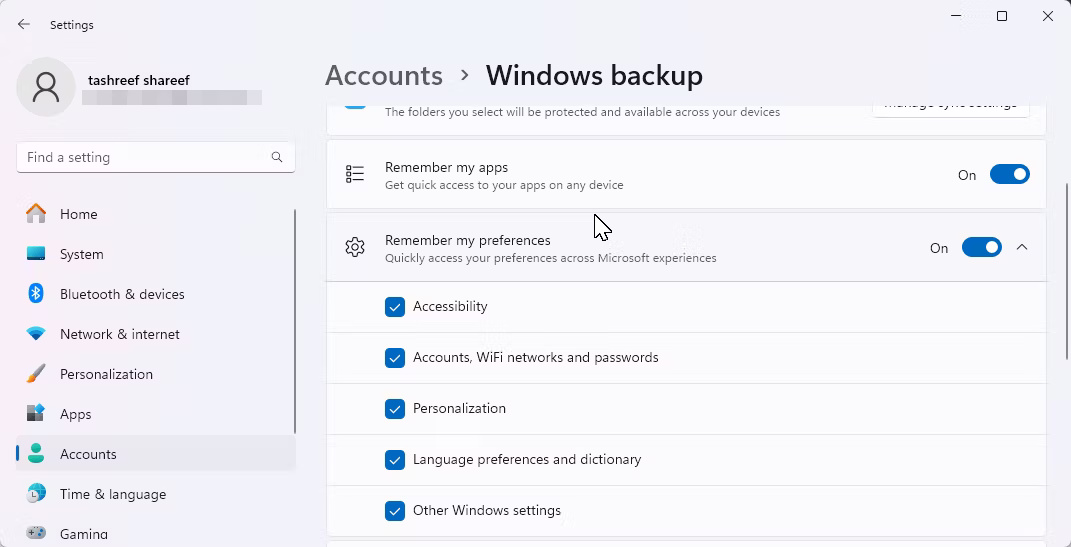
	<li style="text-align: justify;">Để sao lưu danh sách ứng dụng của bạn, hãy bật&nbsp;<strong>Remember my apps</strong>. Sau đó, bật công tắc&nbsp;<strong>Remember my preferences</strong>&nbsp;để sao lưu tùy chọn hệ thống. Bạn có thể mở rộng tùy chọn này để chọn các tùy chọn cụ thể mà bạn không muốn sao lưu.</li>
</ul>

<figure>
<div style="text-align: justify;"><br />
<img alt="Cài đặt sao lưu Windows trong Windows 11" data-adbro-processed="true" data-i="1" data-src="https://st.quantrimang.com/photos/image/2024/09/27/sao-luu-may-tinh-windows-11-2.jpg" data-was-processed="true" height="547" src="https://st.quantrimang.com/photos/image/2024/09/27/sao-luu-may-tinh-windows-11-2.jpg" width="1071" /><br />
<br />
Cài đặt sao lưu Windows trong Windows 11</div>
</figure>

<ul>
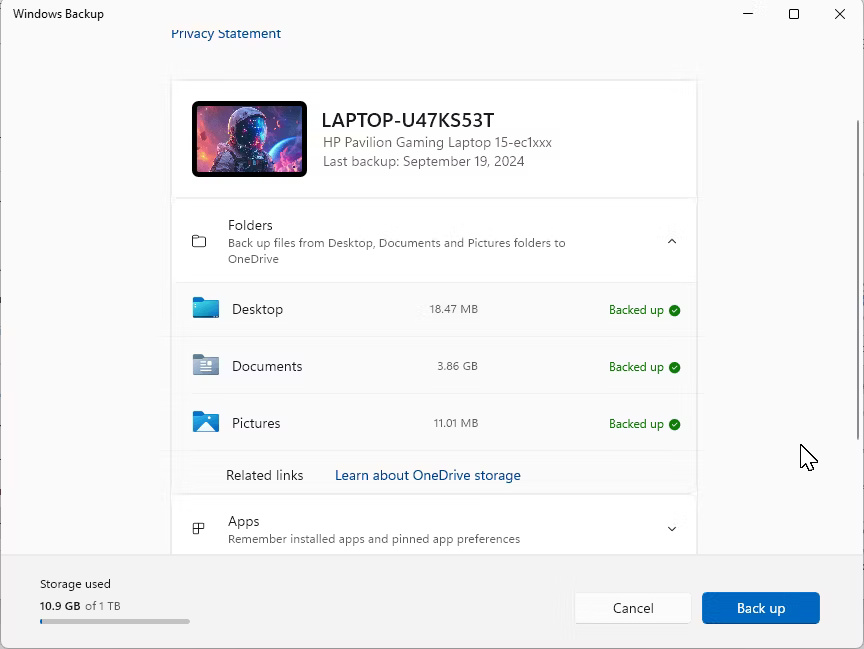
	<li style="text-align: justify;">Với cài đặt sao lưu Windows đã được cấu hình, hãy nhấp vào biểu tượng menu Start, nhập&nbsp;<strong>Windows Backup</strong>&nbsp;và mở từ kết quả tìm kiếm. Nếu được nhắc, hãy đăng nhập bằng tài khoản Microsoft của bạn. Nhấp vào&nbsp;<strong>Back up</strong>&nbsp;để bắt đầu quá trình sao lưu.</li>
</ul>

<figure>
<div style="text-align: justify;"><img alt="Màn hình chính Windows Backup trong Windows 11" data-i="2" data-src="https://st.quantrimang.com/photos/image/2024/09/27/sao-luu-may-tinh-windows-11-3.jpg" data-was-processed="true" height="649" src="https://st.quantrimang.com/photos/image/2024/09/27/sao-luu-may-tinh-windows-11-3.jpg" width="864" /></div>

<figcaption>
<div style="text-align: justify;">Màn hình chính Windows Backup trong Windows 11</div>
</figcaption>
</figure>

<div style="text-align: justify;">&nbsp;</div>

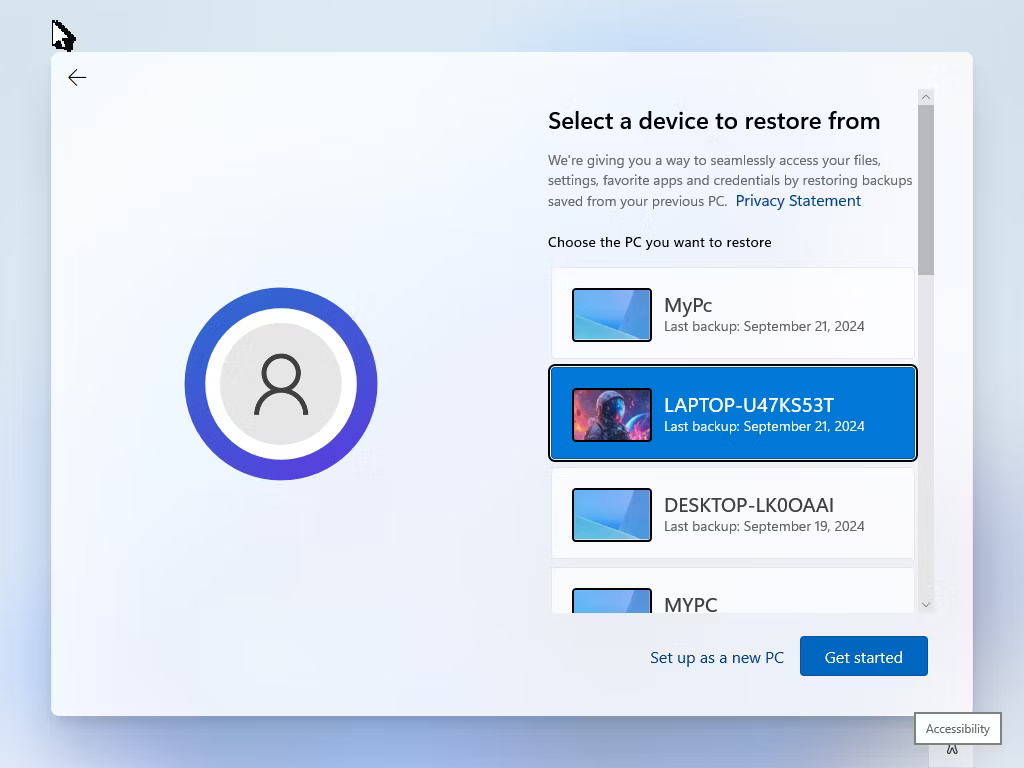
<p style="text-align: justify;">Sau khi hoàn tất, bạn có thể khôi phục bản sao lưu sau khi reset hoặc cài đặt sạch Windows. Trong trình hướng dẫn thiết lập Windows, hãy đăng nhập bằng Tài khoản Microsoft của bạn. Trên màn hình&nbsp;<strong>Restore from your PC backup</strong>, hãy chọn bản sao lưu PC mà bạn muốn khôi phục, sau đó nhấp vào&nbsp;<strong>Restore from this PC</strong>.</p>

<figure>
<div style="text-align: justify;"><img alt="Tùy chọn khôi phục Windows Backup trong quá trình thiết lập Windows 11" data-i="3" data-src="https://st.quantrimang.com/photos/image/2024/09/27/sao-luu-may-tinh-windows-11-4.jpg" data-was-processed="true" height="768" src="https://st.quantrimang.com/photos/image/2024/09/27/sao-luu-may-tinh-windows-11-4.jpg" width="1024" /></div>

<figcaption>
<div style="text-align: justify;">Tùy chọn khôi phục Windows Backup trong quá trình thiết lập Windows 11</div>
</figcaption>
</figure>

<h2 style="text-align: justify;">2. Sao lưu file vào thiết bị lưu trữ ngoài bằng File History</h2>

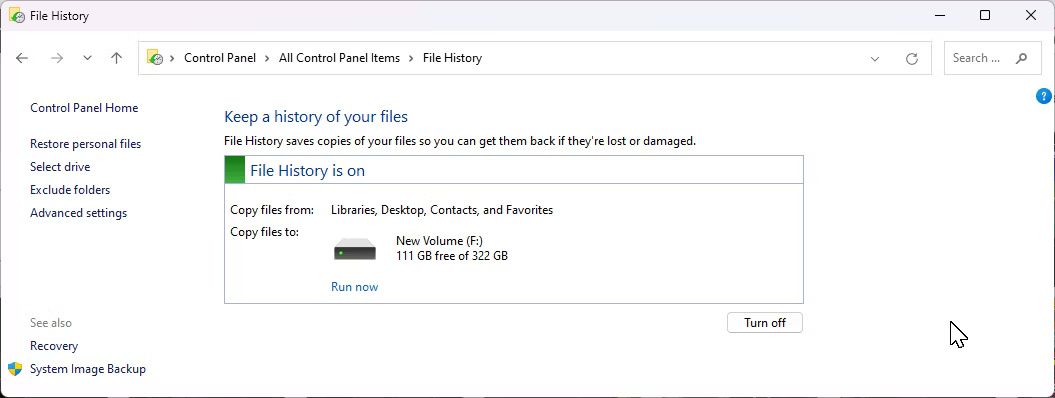
<p style="text-align: justify;">File History là một thành phần quan trọng khác trong chiến lược sao lưu của bạn. Khi được bật, nó sẽ phát hiện mọi thay đổi được thực hiện đối với các file trong thư mục người dùng và sao lưu chúng thường xuyên tùy ý. Theo cách này, bạn có thể khôi phục các phiên bản cũ của các file đã thay đổi nếu cần.</p>

<figure>
<div style="text-align: justify;"><img alt="File History trên Windows 11" data-i="4" data-src="https://st.quantrimang.com/photos/image/2024/09/27/sao-luu-may-tinh-windows-11-5.jpg" data-was-processed="true" height="398" src="https://st.quantrimang.com/photos/image/2024/09/27/sao-luu-may-tinh-windows-11-5.jpg" width="1055" /></div>

<figcaption>
<div style="text-align: justify;">File History trên Windows 11</div>
</figcaption>
</figure>

<p style="text-align: justify;">Vì không được cấu hình theo mặc định, bạn sẽ cần bật và thiết lập File History thông qua Control Panel trong Windows 11. Bạn có thể tùy chỉnh tần suất sao lưu - từ vài phút đến 24 giờ một lần - và quyết định thời điểm xóa các bản sao lưu cũ hơn để quản lý lưu trữ hiệu quả.</p>

<div style="text-align: justify;">&nbsp;</div>

<h2 style="text-align: justify;">3. Tạo bản sao lưu image toàn hệ thống</h2>

<p style="text-align: justify;">Bản sao lưu image sẽ sao lưu toàn bộ ổ đĩa của bạn vào ổ cứng ngoài. Trong trường hợp hiếm hoi khi ổ cứng trong của bạn bị lỗi, bạn có thể sử dụng ổ khôi phục để khôi phục tất cả dữ liệu, bao gồm cả cài đặt Windows, từ bản sao lưu image.</p>

<p style="text-align: justify;">Hãy sử dụng Macrium Reflect để tạo bản sao lưu image. Đây là ứng dụng cao cấp cung cấp bản dùng thử miễn phí 30 ngày. Sau khi thời gian dùng thử kết thúc, ứng dụng sẽ chuyển sang chế độ&nbsp;<strong>Restore Only</strong>, cho phép bạn khôi phục bất kỳ bản sao lưu nào đã tạo trước đó. Tuy nhiên, bạn sẽ không thể tạo bản sao lưu mới nếu không có giấy phép.</p>

<p style="text-align: justify;">Để bắt đầu, hãy truy cập trang chủ Macrium Reflect, nhấp vào&nbsp;<strong>Free Trial</strong>, sau đó chọn&nbsp;<strong>64 bit</strong>. Bạn có thể cần đăng ký và xác minh tài khoản của mình trước khi có thể tải xuống trình cài đặt. Chạy trình cài đặt và làm theo hướng dẫn trên màn hình để hoàn tất quá trình cài đặt.</p>

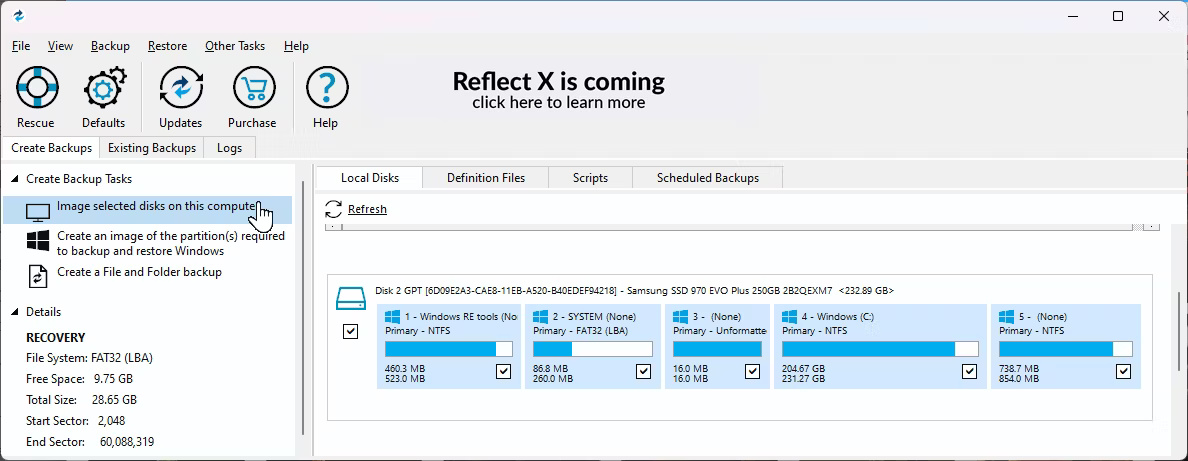
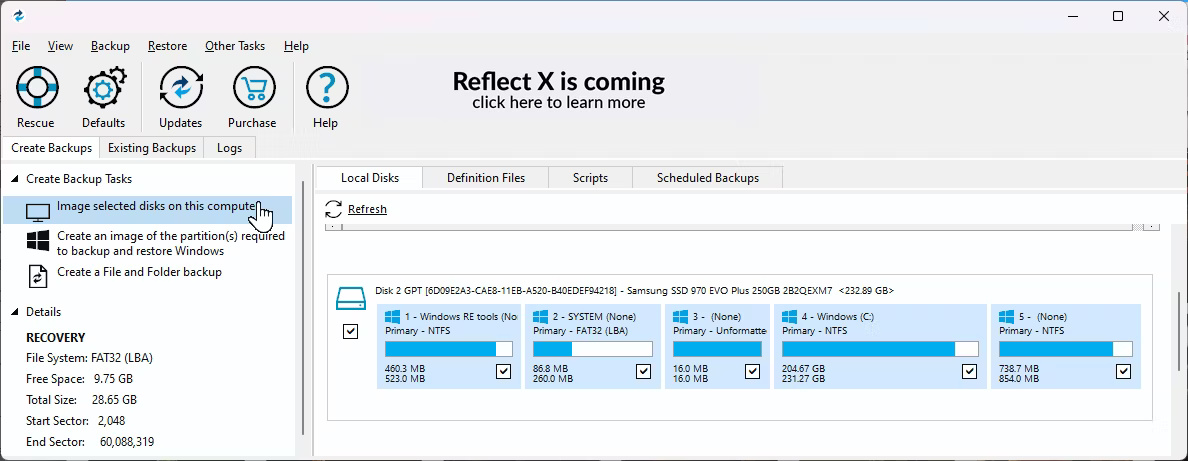
<p style="text-align: justify;">Để tạo bản sao lưu image, hãy kết nối thiết bị lưu trữ ngoài với máy tính của bạn. Khởi chạy Macrium Reflect và chọn tất cả các ổ bạn muốn sao lưu. Sau đó, nhấp vào tùy chọn&nbsp;<strong>Image selected disks on this computer</strong>&nbsp;ở bên trái.</p>

<figure>
<div style="text-align: justify;"><img alt="Tùy chọn Image selected disks on this computer được highlight trong Macrium Reflect" data-i="5" data-src="https://st.quantrimang.com/photos/image/2024/09/27/sao-luu-may-tinh-windows-11-6.jpg" data-was-processed="true" height="461" src="https://st.quantrimang.com/photos/image/2024/09/27/sao-luu-may-tinh-windows-11-6.jpg" width="1188" /></div>

<figcaption>
<div style="text-align: justify;">Tùy chọn Image selected disks on this computer được highlight trong Macrium Reflect</div>
</figcaption>
</figure>

<p style="text-align: justify;">Trong phần&nbsp;<strong>Destination</strong>, nhấp vào biểu tượng&nbsp;<strong>Folder</strong>&nbsp;và chọn ổ sao lưu của bạn. Đảm bảo rằng ổ lưu trữ chính xác được chọn. Bạn có tùy chọn đặt tên cho bản sao lưu của mình.</p>

<figure>
<div style="text-align: justify;"><img alt="Hộp thoại Disk Image trong Macrium Reflect trên Windows 11" data-i="6" data-src="https://st.quantrimang.com/photos/image/2024/09/27/sao-luu-may-tinh-windows-11-7.jpg" data-was-processed="true" height="461" src="https://st.quantrimang.com/photos/image/2024/09/27/sao-luu-may-tinh-windows-11-7.jpg" width="1188" /></div>

<figcaption>
<div style="text-align: justify;">Hộp thoại Disk Image trong Macrium Reflect trên Windows 11</div>
</figcaption>
</figure>

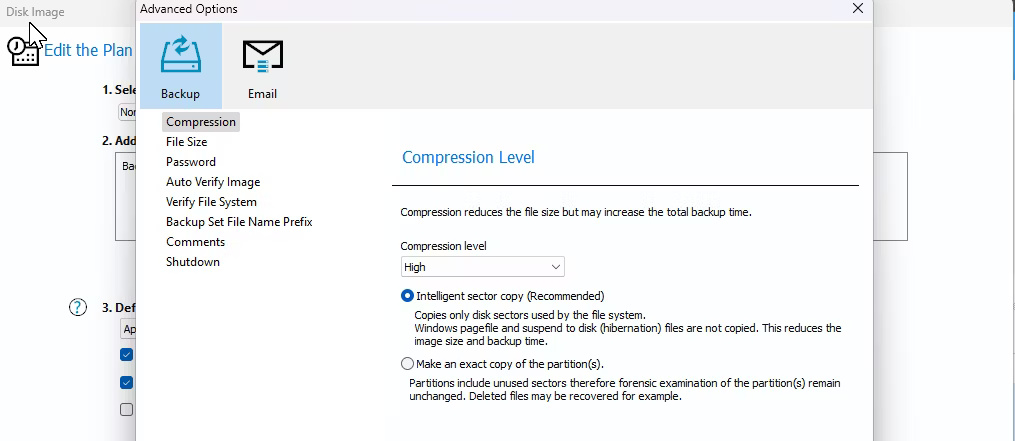
<p style="text-align: justify;">Nhấp vào&nbsp;<strong>Advanced Options</strong>&nbsp;để tùy chỉnh tùy chọn sao lưu của bạn. Đi tới tab&nbsp;<strong>Compression</strong>&nbsp;trong thanh bên, nhấp vào danh sách drop-down&nbsp;<strong>Compression level&nbsp;</strong>và chọn&nbsp;<strong>High</strong>&nbsp;để giảm kích thước file sao lưu. Bạn thậm chí có thể đặt mật khẩu cho bản sao lưu của mình từ tab&nbsp;<strong>Password</strong>.</p>

<figure>
<div style="text-align: justify;"><img alt="Màn hình tùy chọn nâng cao trong Macrium Reflect trên Windows 11" data-i="7" data-src="https://st.quantrimang.com/photos/image/2024/09/27/sao-luu-may-tinh-windows-11-8.jpg" data-was-processed="true" height="441" src="https://st.quantrimang.com/photos/image/2024/09/27/sao-luu-may-tinh-windows-11-8.jpg" width="1015" /></div>

<figcaption>
<div style="text-align: justify;">Màn hình tùy chọn nâng cao trong Macrium Reflect trên Windows 11</div>
</figcaption>
</figure>

<div style="text-align: justify;"><iframe allow="autoplay" allowtransparency="true" aria-label="Advertisement" data-google-container-id="a!5" data-google-query-id="CM-I1eLa5IgDFcxZDwIdwfMFoA" data-load-complete="true" frameborder="0" height="0" hspace="0" id="aswift_4" marginheight="0" marginwidth="0" name="aswift_4" sandbox="allow-scripts allow-same-origin allow-forms allow-presentation allow-popups" scrolling="no" tabindex="0" title="Advertisement" vspace="0" width="694"></iframe></div>

<p style="text-align: justify;">Nhấp vào&nbsp;<strong>Auto Verify Image</strong>&nbsp;ở thanh bên trái, sau đó chọn&nbsp;<strong>Verify image backup file directly after creation</strong>&nbsp;để xác minh tính toàn vẹn của image sau khi tạo. Trong tab&nbsp;<strong>Shutdown</strong>, bạn có thể chọn tắt máy tính sau khi sao lưu hoàn tất. Nhấp vào&nbsp;<strong>OK</strong>&nbsp;để lưu các thay đổi, sau đó nhấp vào&nbsp;<strong>Next</strong>.</p>

<p style="text-align: justify;">Macrium Reflect hỗ trợ các kế hoạch sao lưu (<strong>Incremental</strong>,&nbsp;<strong>Differential</strong>&nbsp;hoặc&nbsp;<strong>Full</strong>), cho phép bạn cấu hình các bản sao lưu tự động. Tuy nhiên, đây là tùy chọn. Nếu bạn muốn sao lưu thủ công, hãy chọn&nbsp;<strong>None</strong>.</p>

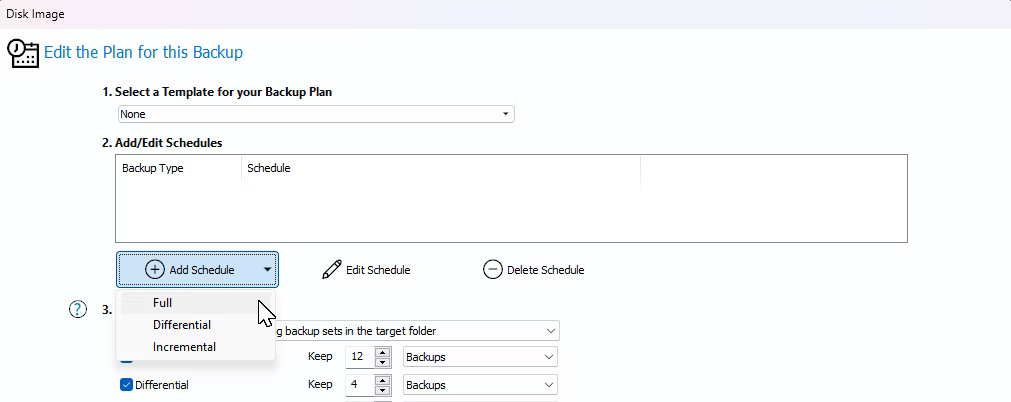
<p style="text-align: justify;">Tốt nhát nên tạo bản sao lưu đầy đủ một lần mỗi tháng và nếu muốn làm như vậy, bạn cần tạo một lịch trình. Trong mục&nbsp;<strong>Add/Edit Schedules</strong>, nhấp vào&nbsp;<strong>Add Schedule</strong>, sau đó chọn&nbsp;<strong>Full</strong>.</p>

<figure>
<div style="text-align: justify;"><img alt="Chỉnh sửa kế hoạch cho hộp thoại sao lưu này trong Macrium Reflect trên Windows 11" data-i="8" data-src="https://st.quantrimang.com/photos/image/2024/09/27/sao-luu-may-tinh-windows-11-9.jpg" data-was-processed="true" height="402" src="https://st.quantrimang.com/photos/image/2024/09/27/sao-luu-may-tinh-windows-11-9.jpg" width="1011" /></div>

<figcaption>
<div style="text-align: justify;">Chỉnh sửa kế hoạch cho hộp thoại sao lưu này trong Macrium Reflect trên Windows 11</div>
</figcaption>
</figure>

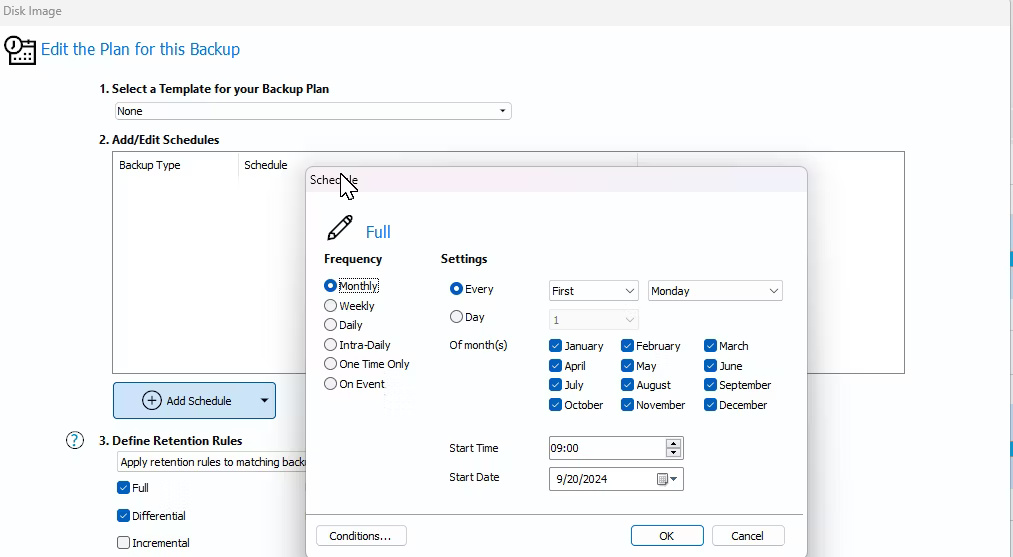
<p style="text-align: justify;">Đặt&nbsp;<strong>Frequency</strong>&nbsp;thành&nbsp;<strong>Monthly</strong>, sau đó để các tùy chọn khác theo mặc định. Bạn có thể thực hiện các thay đổi nhỏ tại đây tùy theo ý muốn. Khi hoàn tất, hãy nhấp vào&nbsp;<strong>OK</strong>.</p>

<figure>
<div style="text-align: justify;"><img alt="Hộp thoại Add/Edit Schedules trong Macrium Reflect trên Windows 11" data-i="9" data-src="https://st.quantrimang.com/photos/image/2024/09/27/sao-luu-may-tinh-windows-11-10.jpg" data-was-processed="true" height="557" src="https://st.quantrimang.com/photos/image/2024/09/27/sao-luu-may-tinh-windows-11-10.jpg" width="1013" /></div>

<figcaption>
<div style="text-align: justify;">Hộp thoại Add/Edit Schedules trong Macrium Reflect trên Windows 11</div>
</figcaption>
</figure>

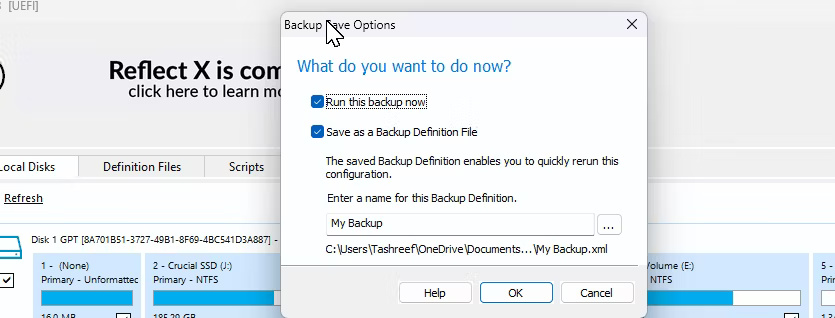
<p style="text-align: justify;">Lý tưởng nhất là bạn nên giữ ít nhất 3 bản sao lưu đầy đủ. Tuy nhiên, điều này có thể thay đổi tùy thuộc vào tần suất bạn thực hiện các thay đổi trên máy tính của mình. Nhấp vào&nbsp;<strong>Next</strong>, xem lại tóm tắt về kế hoạch sao lưu của bạn, sau đó nhấp vào&nbsp;<strong>Finish</strong>. Nhập tên cho định nghĩa sao lưu, sau đó nhấp vào&nbsp;<strong>OK</strong>.</p>

<figure>
<div style="text-align: justify;"><img alt="Tùy chọn lưu bản sao lưu Macrium Reflect" data-i="10" data-src="https://st.quantrimang.com/photos/image/2024/09/27/sao-luu-may-tinh-windows-11-11.jpg" data-was-processed="true" height="318" src="https://st.quantrimang.com/photos/image/2024/09/27/sao-luu-may-tinh-windows-11-11.jpg" width="835" /></div>

<figcaption>
<div style="text-align: justify;">Tùy chọn lưu bản sao lưu Macrium Reflect</div>
</figcaption>
</figure>

<p style="text-align: justify;">Tùy thuộc vào loại lưu trữ và kích thước bản sao lưu, quá trình này có thể mất một thời gian để hoàn tất. Khi cần thực hiện khôi phục, bạn sẽ cần một phương tiện cứu hộ để khởi động vào &nbsp;Macrium Reflect Recovery Environment&nbsp; rồi khôi phục từ disk image đã sao lưu.</p>

<p style="text-align: justify;">Việc dựa vào một nguồn sao lưu duy nhất có thể rất rủi ro. Chiến lược lý tưởng bao gồm công cụ Windows Backup tích hợp, tính năng File History và sao lưu image đầy đủ bằng Macrium Reflect. Có nhiều bản sao lưu ở nhiều nơi có thể là cứu cánh trong hầu hết các trường hợp.</p>
		</div>
				<div id="author">
						<p>
				<strong>Nguồn tin:</strong>
				Quantrimang.com:
			</p>
		</div>
	</div>
	<div id="footer" class="clearfix">
		<div id="url">
			<strong>URL của bản tin này: </strong><a href="https://www.nguoicodonvn2008.info/vi/news/savefile/kien-thuc-may-tinh/cach-sao-luu-may-tinh-windows-11-dung-cach-9078.html" title="Cách sao lưu máy tính Windows 11 đúng cách">https://www.nguoicodonvn2008.info/vi/news/savefile/kien-thuc-may-tinh/cach-sao-luu-may-tinh-windows-11-dung-cach-9078.html</a>

		</div>
		<div class="clear"></div>
		<div class="copyright">
			&copy; .&#x3A; Nguoicodonvn2008.info - Cõi lòng người cô đơn &#x3A;.
		</div>
		<div id="contact">
			<a href="mailto:admin@nguoicodonvn2008.info">admin@nguoicodonvn2008.info</a>
		</div>
	</div>
</div>
        <div id="timeoutsess" class="chromeframe">
            Bạn đã không sử dụng Site, <a onclick="timeoutsesscancel();" href="https://nguoicodonvn2008.info/#">Bấm vào đây để duy trì trạng thái đăng nhập</a>. Thời gian chờ: <span id="secField"> 60 </span> giây
        </div>
        <div id="openidResult" class="nv-alert" style="display:none"></div>
        <div id="openidBt" data-result="" data-redirect=""></div>
		</script>
		<div class="car-top">
  <span><img src="https://nguoicodonvn2008.info/themes/default/images/car.png" alt=""></span>
</div>
<div id="run_cronjobs" style="visibility:hidden;display:none;"><img alt="cron" src="/index.php?second=cronjobs&amp;p=r1Bi4A42" width="1" height="1" /></div>
<script src="https://nguoicodonvn2008.info/assets/js/jquery/jquery.min.js"></script>
<script>var nv_base_siteurl="/",nv_lang_data="vi",nv_lang_interface="vi",nv_name_variable="nv",nv_fc_variable="op",nv_lang_variable="language",nv_module_name="news",nv_func_name="savefile",nv_is_user=0, nv_my_ofs=-4,nv_my_abbr="EDT",nv_cookie_prefix="nv4c_e856T",nv_check_pass_mstime=1738000,nv_area_admin=0,nv_safemode=0,theme_responsive=0,nv_recaptcha_ver=2,nv_recaptcha_sitekey="",nv_recaptcha_type="image",XSSsanitize=1;</script>
<script src="https://nguoicodonvn2008.info/assets/js/language/vi.js"></script>
<script src="https://nguoicodonvn2008.info/assets/js/DOMPurify/purify3.js"></script>
<script src="https://nguoicodonvn2008.info/assets/js/global.js"></script>
<script src="https://nguoicodonvn2008.info/assets/js/site.js"></script>
<script src="https://nguoicodonvn2008.info/themes/default/js/news.js"></script>
<script src="https://nguoicodonvn2008.info/themes/default/js/main.js"></script>
<script src="https://nguoicodonvn2008.info/themes/default/js/custom.js"></script>
<script type="application/ld+json">
        {
            "@context": "https://schema.org",
            "@type": "Organization",
            "url": "https://nguoicodonvn2008.info",
            "logo": "https://nguoicodonvn2008.info/uploads/angel.gif"
        }
        </script>
<script src="https://nguoicodonvn2008.info/themes/default/js/bootstrap.min.js"></script>
<script type="text/javascript">
var $scrolltop = $('.car-top');
$scrolltop.on('click', function () {
    $('html,body').animate({
        scrollTop: 0
    }, 800);
    $(this).addClass("car-run");
    setTimeout(function(){ $scrolltop.removeClass('car-run');}, 1000);
    return false;
});
$(window).on('scroll', function ()
{ 
    if($(window).scrollTop() >= 200)
    {
        $scrolltop.addClass("show");
        $scrolltop.addClass("car-down");
    }
    else
    {
       $scrolltop.removeClass("show");
       setTimeout(function(){ $scrolltop.removeClass('car-down');}, 300);
    }
});
</script>
</body>
</html>