<!DOCTYPE html>
    <html lang="vi" xmlns="http://www.w3.org/1999/xhtml" prefix="og: http://ogp.me/ns#">
    <head>
<title>Cách sao lưu file trên Linux lên Google Drive</title>
<meta name="description" content="Cách sao lưu file trên Linux lên Google Drive - Savefile - Tin Tức -...">
<meta name="author" content=".: Nguoicodonvn2008.info - Cõi lòng người cô đơn :.">
<meta name="copyright" content=".: Nguoicodonvn2008.info - Cõi lòng người cô đơn :. [admin@nguoicodonvn2008.info]">
<meta name="robots" content="index, archive, follow, noodp">
<meta name="googlebot" content="index,archive,follow,noodp">
<meta name="msnbot" content="all,index,follow">
<meta name="generator" content="NukeViet v4.5">
<meta http-equiv="Content-Type" content="text/html; charset=utf-8">
<meta property="og:title" content="Cách sao lưu file trên Linux lên Google Drive">
<meta property="og:type" content="website">
<meta property="og:description" content="Savefile - Tin Tức - https&#x3A;&#x002F;&#x002F;www.nguoicodonvn2008.info&#x002F;vi&#x002F;news&#x002F;savefile&#x002F;kien-thuc-may-tinh&#x002F;cach-sao-luu-file-tren-linux-len-google-drive-3355.html">
<meta property="og:site_name" content=".&#x3A; Nguoicodonvn2008.info - Cõi lòng người cô đơn &#x3A;.">
<meta property="og:url" content="https://www.nguoicodonvn2008.info/vi/news/savefile/kien-thuc-may-tinh/cach-sao-luu-file-tren-linux-len-google-drive-3355.html">
<link rel="shortcut icon" href="https://nguoicodonvn2008.info/favicon.ico">
<link rel="canonical" href="https://www.nguoicodonvn2008.info/vi/news/savefile/kien-thuc-may-tinh/cach-sao-luu-file-tren-linux-len-google-drive-3355.html">
<link rel="alternate" href="https://nguoicodonvn2008.info/vi/news/rss/" title="Tin Tức" type="application/rss+xml">
<link rel="alternate" href="https://nguoicodonvn2008.info/vi/news/rss/karaoke-dual/" title="Tin Tức - Karaoke Dual" type="application/rss+xml">
<link rel="alternate" href="https://nguoicodonvn2008.info/vi/news/rss/nhac-tre/" title="Tin Tức - Nhạc trẻ" type="application/rss+xml">
<link rel="alternate" href="https://nguoicodonvn2008.info/vi/news/rss/tru-tinh/" title="Tin Tức - Trữ tình" type="application/rss+xml">
<link rel="alternate" href="https://nguoicodonvn2008.info/vi/news/rss/nuoc-ngoai/" title="Tin Tức - Nước ngoài" type="application/rss+xml">
<link rel="alternate" href="https://nguoicodonvn2008.info/vi/news/rss/remix/" title="Tin Tức - Remix" type="application/rss+xml">
<link rel="alternate" href="https://nguoicodonvn2008.info/vi/news/rss/tam-su-tinh-yeu/" title="Tin Tức - Tâm sự tình yêu" type="application/rss+xml">
<link rel="alternate" href="https://nguoicodonvn2008.info/vi/news/rss/tho-suu-tam/" title="Tin Tức - Thơ sưu tầm" type="application/rss+xml">
<link rel="alternate" href="https://nguoicodonvn2008.info/vi/news/rss/cuoc-song/" title="Tin Tức - Cuộc sống" type="application/rss+xml">
<link rel="alternate" href="https://nguoicodonvn2008.info/vi/news/rss/phan-mem/" title="Tin Tức - Phần mềm" type="application/rss+xml">
<link rel="alternate" href="https://nguoicodonvn2008.info/vi/news/rss/kien-thuc-may-tinh/" title="Tin Tức - Kiến thức máy tính" type="application/rss+xml">
<link rel="alternate" href="https://nguoicodonvn2008.info/vi/news/rss/hoc-tap/" title="Tin Tức - Học tập" type="application/rss+xml">
<link rel="alternate" href="https://nguoicodonvn2008.info/vi/news/rss/tai-lieu/" title="Tin Tức - Tài liệu" type="application/rss+xml">
<link rel="alternate" href="https://nguoicodonvn2008.info/vi/news/rss/de-thi/" title="Tin Tức - Đề thi" type="application/rss+xml">
<link rel="preload" as="style" href="https://nguoicodonvn2008.info/assets/css/font-awesome.min.css" type="text/css">
<link rel="preload" as="style" href="https://nguoicodonvn2008.info/themes/default/css/bootstrap.non-responsive.css" type="text/css">
<link rel="preload" as="style" href="https://nguoicodonvn2008.info/themes/default/css/style.css" type="text/css">
<link rel="preload" as="style" href="https://nguoicodonvn2008.info/themes/default/css/style.non-responsive.css" type="text/css">
<link rel="preload" as="style" href="https://nguoicodonvn2008.info/themes/default/css/news.css" type="text/css">
<link rel="preload" as="style" href="https://nguoicodonvn2008.info/themes/default/css/custom.css" type="text/css">
<link rel="preload" as="script" href="https://nguoicodonvn2008.info/assets/js/jquery/jquery.min.js" type="text/javascript">
<link rel="preload" as="script" href="https://nguoicodonvn2008.info/assets/js/language/vi.js" type="text/javascript">
<link rel="preload" as="script" href="https://nguoicodonvn2008.info/assets/js/DOMPurify/purify3.js" type="text/javascript">
<link rel="preload" as="script" href="https://nguoicodonvn2008.info/assets/js/global.js" type="text/javascript">
<link rel="preload" as="script" href="https://nguoicodonvn2008.info/assets/js/site.js" type="text/javascript">
<link rel="preload" as="script" href="https://nguoicodonvn2008.info/themes/default/js/news.js" type="text/javascript">
<link rel="preload" as="script" href="https://nguoicodonvn2008.info/themes/default/js/main.js" type="text/javascript">
<link rel="preload" as="script" href="https://nguoicodonvn2008.info/themes/default/js/custom.js" type="text/javascript">
<link rel="preload" as="script" href="https://nguoicodonvn2008.info/themes/default/js/bootstrap.min.js" type="text/javascript">
<link rel="stylesheet" href="https://nguoicodonvn2008.info/assets/css/font-awesome.min.css">
<link rel="stylesheet" href="https://nguoicodonvn2008.info/themes/default/css/bootstrap.non-responsive.css">
<link rel="stylesheet" href="https://nguoicodonvn2008.info/themes/default/css/style.css">
<link rel="stylesheet" href="https://nguoicodonvn2008.info/themes/default/css/style.non-responsive.css">
<link rel="StyleSheet" href="https://nguoicodonvn2008.info/themes/default/css/news.css">
<link rel="stylesheet" href="https://nguoicodonvn2008.info/themes/default/css/custom.css">
<style type="text/css">
	body{background: #fff;}
</style>
    </head>
    <body>
<div id="print">
	<div id="hd_print">
		<h2 class="pull-left">.&#x3A; Nguoicodonvn2008.info - Cõi lòng người cô đơn &#x3A;.</h2>
		<p class="pull-right"><a title=".&#x3A; Nguoicodonvn2008.info - Cõi lòng người cô đơn &#x3A;." href="https://nguoicodonvn2008.info/">https://nguoicodonvn2008.info</a></p>
	</div>
	<div class="clear"></div>
	<hr />
	<div id="content">
		<h1>Cách sao lưu file trên Linux lên Google Drive</h1>
		<ul class="list-inline">
			<li>Thứ tư - 30/12/2020 23:56</li>
			<li class="hidden-print txtrequired"><em class="fa fa-print">&nbsp;</em><a title="In ra" href="javascript:;" onclick="window.print()">In ra</a></li>
			<li class="hidden-print txtrequired"><em class="fa fa-power-off">&nbsp;</em><a title="Đóng cửa sổ này" href="javascript:;" onclick="window.close()">Đóng cửa sổ này</a></li>
		</ul>
		<div class="clear"></div>
		<div id="hometext">
		</div>
				<div class="imghome">
			<img alt="Cách sao lưu file trên Linux lên Google Drive" src="https://st.quantrimang.com/photos/image/2020/12/29/sao-luu-file-tren-linux-len-google-drive-4.jpg" width="460" class="img-thumbnail" />
		</div>
		<div class="clear"></div>
		<div id="bodytext" class="clearfix">
			<p style="text-align: justify;">Google Drive&nbsp;là một phương tiện tuyệt vời cho những người cần lưu trữ các bản sao trực tuyến của file. Người dùng Linux có thể tận dụng gói 15GB miễn phí của Google Drive để sao lưu các file cấu hình cần thiết. Hơn nữa, bạn có thể sao lưu một lượng lớn dữ liệu, bao gồm các file media, nếu bạn có gói Google Workspace (trước đây là G-Suite) đang hoạt động.</p>

<p style="text-align: justify;">Hướng dẫn này sẽ chỉ ra cách bạn có thể tự động sao lưu file trong Linux vào Google Drive bằng gói mã nguồn mở google-drive-ocamlfuse và CRON.</p>

<h2 style="text-align: justify;">Google-drive-ocamlfuse là gì?</h2>

<p style="text-align: justify;">Google-drive-ocamlfuse&nbsp;là một hệ thống file FUSE cho phép người dùng mount bộ nhớ Google Drive của họ trên máy cục bộ. Nó được viết bằng OCaml và được cung cấp miễn phí qua GitHub. Một số tính năng chính của google-drive-ocamlfuse bao gồm quyền truy cập đọc/ghi đầy đủ, hỗ trợ nhiều tài khoản, quyền Unix và hỗ trợ Team Drive.</p>

<h2 style="text-align: justify;">Cách sử dụng google-drive-ocamlfuse để sao lưu tự động</h2>

<p style="text-align: justify;">Bước đầu tiên là mount Google Drive từ xa vào hệ thống file cục bộ. Đây là lúc google-drive-ocamlfuse phát huy tác dụng. Sau đó, bạn có thể sử dụng một bộ lập lịch tự động để chuyển các file vào ổ theo định kỳ. Để đơn giản hóa mọi việc, hãy sử dụng tiện ích CRON của Linux để xử lý quá trình lập lịch. (Bạn cũng có thể&nbsp;sử dụng Zeit để lên lịch các cron job).</p>

<div style="text-align: justify;">&nbsp;</div>

<h2 style="text-align: justify;">Cài đặt và cấu hình google-drive-ocamlfuse</h2>

<p style="text-align: justify;">Đầu tiên, bạn cần cài đặt google-drive-ocamlfuse trên máy Linux của mình. May mắn thay, việc này rất đơn giản.&nbsp;Kích hoạt Terminal&nbsp;và nhập lệnh sau tại dấu nhắc.</p>

<pre id="pre0">
<code>sudo add-apt-repository ppa:alessandro-strada/ppa</code></pre>

<p style="text-align: justify;">Nó sẽ thêm gói bắt buộc vào danh sách kho lưu trữ của trình quản lý gói. Bạn có thể tiếp tục và cài đặt gói bằng cách sử dụng các lệnh sau.</p>

<p style="text-align: justify;"><strong># Debian/Ubuntu</strong></p>

<pre id="pre1">
<code>sudo apt update &amp;&amp; sudo apt install google-drive-ocamlfuse</code></pre>

<p style="text-align: justify;"><strong># Fedora</strong></p>

<pre id="pre2">
<code>sudo dnf copr enable sergiomb/google-drive-ocamlfuse
 sudo dnf install google-drive-ocamlfuse</code></pre>

<p style="text-align: justify;"><strong># Arch</strong></p>

<pre id="pre3">
<code>yay -S google-drive-ocamlfuse</code></pre>

<p style="text-align: justify;">Chờ cho đến khi quá trình cài đặt kết thúc. Khi hoàn thành, bạn cần phải cấu hình nó cho mục đích mount. Bước đầu tiên cho việc này là tạo một điểm mount cho Google Drive trong hệ thống file cục bộ. Bạn có thể thực hiện việc này bằng cách nhập lệnh dưới đây vào Terminal.</p>

<pre id="pre4">
<code>mkdir -p ~/mount/google-drive</code></pre>

<p style="text-align: justify;">Tiếp theo, mount bộ nhớ ổ bằng lệnh sau:</p>

<pre id="pre5">
<code>google-drive-ocamlfuse ~/mount/google-drive</code></pre>

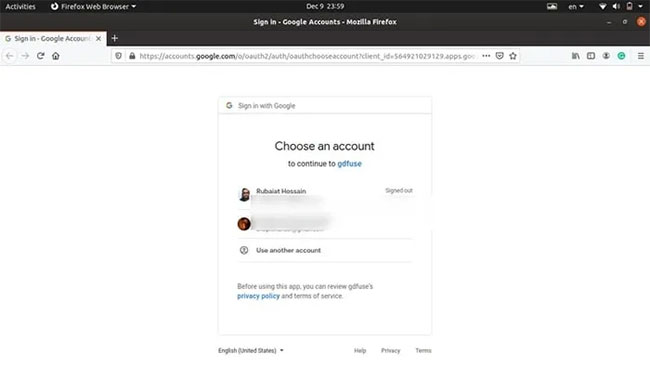
<p style="text-align: justify;">google-drive-ocamlfuse sẽ mở trình duyệt mặc định và chuyển hướng đến trang xác thực tài khoản cho Google Drive. Chọn tài khoản bạn muốn mount cục bộ.</p>

<figure>
<div style="text-align: justify;"><img alt="Chọn tài khoản bạn muốn mount cục bộ" data-i="0" data-src="https://st.quantrimang.com/photos/image/2020/12/29/sao-luu-file-tren-linux-len-google-drive-1.jpg" data-was-processed="true" height="366" src="https://st.quantrimang.com/photos/image/2020/12/29/sao-luu-file-tren-linux-len-google-drive-1.jpg" width="650" /></div>

<figcaption>
<div style="text-align: justify;">Chọn tài khoản bạn muốn mount cục bộ</div>
</figcaption>
</figure>

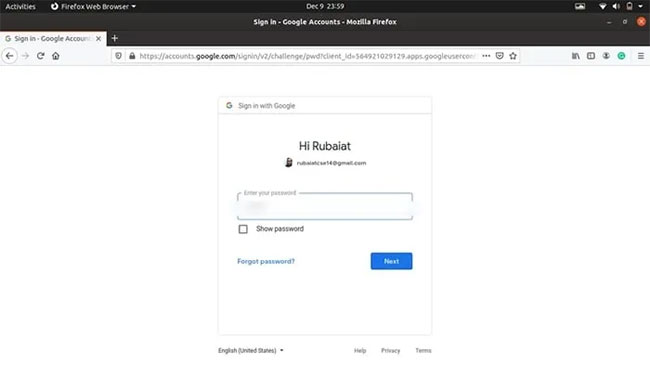
<p style="text-align: justify;">Nhập mật khẩu cho tài khoản đã chọn để xác thực.</p>

<figure>
<div style="text-align: justify;"><img alt="Nhập mật khẩu để xác thực" data-i="1" data-src="https://st.quantrimang.com/photos/image/2020/12/29/sao-luu-file-tren-linux-len-google-drive-2.jpg" data-was-processed="true" height="366" src="https://st.quantrimang.com/photos/image/2020/12/29/sao-luu-file-tren-linux-len-google-drive-2.jpg" width="650" /></div>

<figcaption>
<div style="text-align: justify;">Nhập mật khẩu để xác thực</div>
</figcaption>
</figure>

<p style="text-align: justify;">Tiếp theo, Google sẽ yêu cầu quyền cấp quyền truy cập vào google-drive-ocamlfuse. Nhấp vào&nbsp;<strong>“Allow”</strong>&nbsp;và chuyển sang trang tiếp theo.</p>

<p style="text-align: justify;">Bạn sẽ được yêu cầu cho phép truy cập vào tài khoản người dùng của mình một lần nữa.</p>

<div style="text-align: justify;">&nbsp;</div>

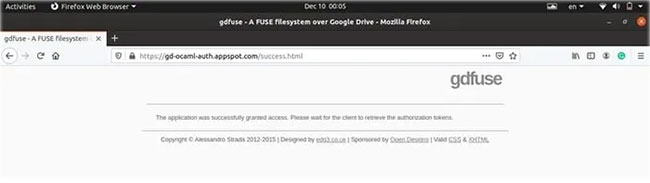
<p style="text-align: justify;">Sau khi bạn cho phép, nó sẽ chuyển hướng bạn đến trang web của google-drive-ocamlfuse. Xin chúc mừng, bạn đã mount thành công tài khoản Google Drive của mình với hệ thống file cục bộ.</p>

<figure>
<div style="text-align: justify;"><img alt="Tài khoản Google Drive đã được mount thành công với hệ thống file cục bộ" data-i="2" data-src="https://st.quantrimang.com/photos/image/2020/12/29/sao-luu-file-tren-linux-len-google-drive-3.jpg" data-was-processed="true" height="183" src="https://st.quantrimang.com/photos/image/2020/12/29/sao-luu-file-tren-linux-len-google-drive-3.jpg" width="650" /></div>

<figcaption>
<div style="text-align: justify;">Tài khoản Google Drive đã được mount thành công với hệ thống file cục bộ</div>
</figcaption>
</figure>

<p style="text-align: justify;">Bây giờ là thời điểm tốt để xác minh xem quá trình mount cho Google Drive có diễn ra suôn sẻ hay không. Nếu giai đoạn này xảy ra lỗi, bạn không thể sử dụng nó để sao lưu file vào Google Drive. Sử dụng lệnh dưới đây để xác minh điều này.</p>

<pre id="pre6">
<code>ls -l ~/mount/google-drive/</code></pre>

<p style="text-align: justify;">Đầu ra sẽ hiển thị danh sách các file và thư mục có trong bộ nhớ Google Drive. Nếu mọi thứ diễn ra như mong đợi, bạn có thể tiến hành cấu hình bộ lập lịch sao lưu.</p>

<h2 style="text-align: justify;">Sao lưu file lên Google Drive bằng CRON</h2>

<p style="text-align: justify;">Sao lưu hiểu đơn giản là hoạt động sao chép. Vì Google Drive đã được mount, nên bạn có thể sao chép file vào đó như một phần của hệ thống file cục bộ. Bạn có thể xác minh điều này bằng cách chạy lệnh sau:</p>

<pre id="pre7">
<code>touch test-file
 cp test-file ~/mount/google-drive/</code></pre>

<p style="text-align: justify;">Lệnh sẽ sao chép file test vào bộ nhớ. Sử dụng lệnh ls để xác minh xem nó đã được sao chép thành công vào Google Drive hay chưa.</p>

<pre id="pre8">
<code>ls ~/mount/google-drive/</code></pre>

<p style="text-align: justify;">Bây giờ mọi thứ đã sẵn sàng, hãy cấu hình cron để tự động hóa quá trình sao lưu. Nếu bạn chưa biết, cron là một bộ lập lịch cho phép người dùng chạy các lệnh nhất định theo định kỳ. Bạn có thể chỉ định các lệnh nào sẽ chạy và khi nào chạy chúng bằng&nbsp;cách sử dụng crontab.</p>

<p style="text-align: justify;">Bài viết đang sử dụng mục crontab sau đây để sao chép nội dung thư mục&nbsp;<strong>“/tmp”</strong>&nbsp;vào Google Drive lúc 00:00 hàng ngày.</p>

<pre id="pre9">
<code>0 0 * * * cp /tmp/ ~/mount/google-drive/</code></pre>

<p style="text-align: justify;">Nếu bạn muốn sao lưu các file của mình mỗi tuần một lần, hãy sử dụng mục crontab sau đây.</p>

<pre id="pre10">
<code>0 0 * * 0 cp /tmp/ ~/mount/google-drive/</code></pre>

<p style="text-align: justify;">Lệnh sẽ sao chép nội dung của “/tmp” vào bộ nhớ lúc 00:00 Chủ nhật hàng tuần. Thay thế “/tmp” bằng thư mục chứa các tệp cá nhân của bạn. Tuy nhiên, còn một bước cuối cùng. Không có mục crontab nào ở trên tự động mount Google Drive.</p>

<p style="text-align: justify;">Một giải pháp nhanh chóng cho việc này là mount bộ nhớ bằng một mục crontab khác, sau đó theo dõi nó với mục đó để sao lưu.</p>

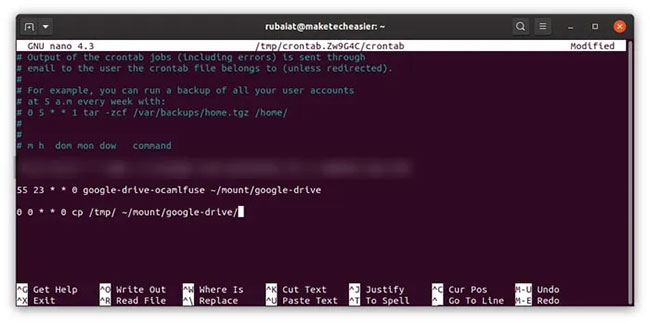
<pre id="pre11">
<code>55 23 * * 0 google-drive-ocamlfuse ~/mount/google-drive
 0 0 * * 0 cp /tmp/ ~/mount/google-drive/</code></pre>

<p style="text-align: justify;">Như bạn có thể thấy, ví dụ sẽ mount ổ sớm 5 phút. Nó cung cấp cho cron đủ thời gian để đảm bảo rằng không bỏ lỡ quá trình sao lưu do sự cố khởi tạo. Sử dụng lệnh dưới đây để chỉnh sửa crontab và thêm các dòng trên.</p>

<figure>
<div style="text-align: justify;"><img alt="Chỉnh sửa crontab" data-i="3" data-src="https://st.quantrimang.com/photos/image/2020/12/29/sao-luu-file-tren-linux-len-google-drive-4.jpg" data-was-processed="true" height="324" src="https://st.quantrimang.com/photos/image/2020/12/29/sao-luu-file-tren-linux-len-google-drive-4.jpg" width="650" /></div>

<figcaption>
<div style="text-align: justify;">Chỉnh sửa crontab</div>
</figcaption>
</figure>
		</div>
				<div id="author">
						<p>
				<strong>Nguồn tin:</strong>
				Quantrimang.com
			</p>
		</div>
	</div>
	<div id="footer" class="clearfix">
		<div id="url">
			<strong>URL của bản tin này: </strong><a href="https://www.nguoicodonvn2008.info/vi/news/savefile/kien-thuc-may-tinh/cach-sao-luu-file-tren-linux-len-google-drive-3355.html" title="Cách sao lưu file trên Linux lên Google Drive">https://www.nguoicodonvn2008.info/vi/news/savefile/kien-thuc-may-tinh/cach-sao-luu-file-tren-linux-len-google-drive-3355.html</a>

		</div>
		<div class="clear"></div>
		<div class="copyright">
			&copy; .&#x3A; Nguoicodonvn2008.info - Cõi lòng người cô đơn &#x3A;.
		</div>
		<div id="contact">
			<a href="mailto:admin@nguoicodonvn2008.info">admin@nguoicodonvn2008.info</a>
		</div>
	</div>
</div>
        <div id="timeoutsess" class="chromeframe">
            Bạn đã không sử dụng Site, <a onclick="timeoutsesscancel();" href="https://nguoicodonvn2008.info/#">Bấm vào đây để duy trì trạng thái đăng nhập</a>. Thời gian chờ: <span id="secField"> 60 </span> giây
        </div>
        <div id="openidResult" class="nv-alert" style="display:none"></div>
        <div id="openidBt" data-result="" data-redirect=""></div>
		</script>
		<div class="car-top">
  <span><img src="https://nguoicodonvn2008.info/themes/default/images/car.png" alt=""></span>
</div>
<script src="https://nguoicodonvn2008.info/assets/js/jquery/jquery.min.js"></script>
<script>var nv_base_siteurl="/",nv_lang_data="vi",nv_lang_interface="vi",nv_name_variable="nv",nv_fc_variable="op",nv_lang_variable="language",nv_module_name="news",nv_func_name="savefile",nv_is_user=0, nv_my_ofs=-4,nv_my_abbr="EDT",nv_cookie_prefix="nv4c_e856T",nv_check_pass_mstime=1738000,nv_area_admin=0,nv_safemode=0,theme_responsive=0,nv_recaptcha_ver=2,nv_recaptcha_sitekey="",nv_recaptcha_type="image",XSSsanitize=1;</script>
<script src="https://nguoicodonvn2008.info/assets/js/language/vi.js"></script>
<script src="https://nguoicodonvn2008.info/assets/js/DOMPurify/purify3.js"></script>
<script src="https://nguoicodonvn2008.info/assets/js/global.js"></script>
<script src="https://nguoicodonvn2008.info/assets/js/site.js"></script>
<script src="https://nguoicodonvn2008.info/themes/default/js/news.js"></script>
<script src="https://nguoicodonvn2008.info/themes/default/js/main.js"></script>
<script src="https://nguoicodonvn2008.info/themes/default/js/custom.js"></script>
<script type="application/ld+json">
        {
            "@context": "https://schema.org",
            "@type": "Organization",
            "url": "https://nguoicodonvn2008.info",
            "logo": "https://nguoicodonvn2008.info/uploads/angel.gif"
        }
        </script>
<script src="https://nguoicodonvn2008.info/themes/default/js/bootstrap.min.js"></script>
<script type="text/javascript">
var $scrolltop = $('.car-top');
$scrolltop.on('click', function () {
    $('html,body').animate({
        scrollTop: 0
    }, 800);
    $(this).addClass("car-run");
    setTimeout(function(){ $scrolltop.removeClass('car-run');}, 1000);
    return false;
});
$(window).on('scroll', function ()
{ 
    if($(window).scrollTop() >= 200)
    {
        $scrolltop.addClass("show");
        $scrolltop.addClass("car-down");
    }
    else
    {
       $scrolltop.removeClass("show");
       setTimeout(function(){ $scrolltop.removeClass('car-down');}, 300);
    }
});
</script>
</body>
</html>