<!DOCTYPE html>
    <html lang="vi" xmlns="http://www.w3.org/1999/xhtml" prefix="og: http://ogp.me/ns#">
    <head>
<title>Cách quản lý Windows Clipboard một cách chuyên nghiệp</title>
<meta name="description" content="Cách quản lý Windows Clipboard một cách chuyên nghiệp - Savefile - Tin Tức -...">
<meta name="author" content=".: Nguoicodonvn2008.info - Cõi lòng người cô đơn :.">
<meta name="copyright" content=".: Nguoicodonvn2008.info - Cõi lòng người cô đơn :. [admin@nguoicodonvn2008.info]">
<meta name="robots" content="index, archive, follow, noodp">
<meta name="googlebot" content="index,archive,follow,noodp">
<meta name="msnbot" content="all,index,follow">
<meta name="generator" content="NukeViet v4.5">
<meta http-equiv="Content-Type" content="text/html; charset=utf-8">
<meta property="og:title" content="Cách quản lý Windows Clipboard một cách chuyên nghiệp">
<meta property="og:type" content="website">
<meta property="og:description" content="Savefile - Tin Tức - https&#x3A;&#x002F;&#x002F;www.nguoicodonvn2008.info&#x002F;vi&#x002F;news&#x002F;savefile&#x002F;kien-thuc-may-tinh&#x002F;cach-quan-ly-windows-clipboard-mot-cach-chuyen-nghiep-2617.html">
<meta property="og:site_name" content=".&#x3A; Nguoicodonvn2008.info - Cõi lòng người cô đơn &#x3A;.">
<meta property="og:url" content="https://www.nguoicodonvn2008.info/vi/news/savefile/kien-thuc-may-tinh/cach-quan-ly-windows-clipboard-mot-cach-chuyen-nghiep-2617.html">
<link rel="shortcut icon" href="https://nguoicodonvn2008.info/favicon.ico">
<link rel="canonical" href="https://www.nguoicodonvn2008.info/vi/news/savefile/kien-thuc-may-tinh/cach-quan-ly-windows-clipboard-mot-cach-chuyen-nghiep-2617.html">
<link rel="alternate" href="https://nguoicodonvn2008.info/vi/news/rss/" title="Tin Tức" type="application/rss+xml">
<link rel="alternate" href="https://nguoicodonvn2008.info/vi/news/rss/karaoke-dual/" title="Tin Tức - Karaoke Dual" type="application/rss+xml">
<link rel="alternate" href="https://nguoicodonvn2008.info/vi/news/rss/nhac-tre/" title="Tin Tức - Nhạc trẻ" type="application/rss+xml">
<link rel="alternate" href="https://nguoicodonvn2008.info/vi/news/rss/tru-tinh/" title="Tin Tức - Trữ tình" type="application/rss+xml">
<link rel="alternate" href="https://nguoicodonvn2008.info/vi/news/rss/nuoc-ngoai/" title="Tin Tức - Nước ngoài" type="application/rss+xml">
<link rel="alternate" href="https://nguoicodonvn2008.info/vi/news/rss/remix/" title="Tin Tức - Remix" type="application/rss+xml">
<link rel="alternate" href="https://nguoicodonvn2008.info/vi/news/rss/tam-su-tinh-yeu/" title="Tin Tức - Tâm sự tình yêu" type="application/rss+xml">
<link rel="alternate" href="https://nguoicodonvn2008.info/vi/news/rss/tho-suu-tam/" title="Tin Tức - Thơ sưu tầm" type="application/rss+xml">
<link rel="alternate" href="https://nguoicodonvn2008.info/vi/news/rss/cuoc-song/" title="Tin Tức - Cuộc sống" type="application/rss+xml">
<link rel="alternate" href="https://nguoicodonvn2008.info/vi/news/rss/phan-mem/" title="Tin Tức - Phần mềm" type="application/rss+xml">
<link rel="alternate" href="https://nguoicodonvn2008.info/vi/news/rss/kien-thuc-may-tinh/" title="Tin Tức - Kiến thức máy tính" type="application/rss+xml">
<link rel="alternate" href="https://nguoicodonvn2008.info/vi/news/rss/hoc-tap/" title="Tin Tức - Học tập" type="application/rss+xml">
<link rel="alternate" href="https://nguoicodonvn2008.info/vi/news/rss/tai-lieu/" title="Tin Tức - Tài liệu" type="application/rss+xml">
<link rel="alternate" href="https://nguoicodonvn2008.info/vi/news/rss/de-thi/" title="Tin Tức - Đề thi" type="application/rss+xml">
<link rel="preload" as="style" href="https://nguoicodonvn2008.info/assets/css/font-awesome.min.css" type="text/css">
<link rel="preload" as="style" href="https://nguoicodonvn2008.info/themes/default/css/bootstrap.non-responsive.css" type="text/css">
<link rel="preload" as="style" href="https://nguoicodonvn2008.info/themes/default/css/style.css" type="text/css">
<link rel="preload" as="style" href="https://nguoicodonvn2008.info/themes/default/css/style.non-responsive.css" type="text/css">
<link rel="preload" as="style" href="https://nguoicodonvn2008.info/themes/default/css/news.css" type="text/css">
<link rel="preload" as="style" href="https://nguoicodonvn2008.info/themes/default/css/custom.css" type="text/css">
<link rel="preload" as="script" href="https://nguoicodonvn2008.info/assets/js/jquery/jquery.min.js" type="text/javascript">
<link rel="preload" as="script" href="https://nguoicodonvn2008.info/assets/js/language/vi.js" type="text/javascript">
<link rel="preload" as="script" href="https://nguoicodonvn2008.info/assets/js/DOMPurify/purify3.js" type="text/javascript">
<link rel="preload" as="script" href="https://nguoicodonvn2008.info/assets/js/global.js" type="text/javascript">
<link rel="preload" as="script" href="https://nguoicodonvn2008.info/assets/js/site.js" type="text/javascript">
<link rel="preload" as="script" href="https://nguoicodonvn2008.info/themes/default/js/news.js" type="text/javascript">
<link rel="preload" as="script" href="https://nguoicodonvn2008.info/themes/default/js/main.js" type="text/javascript">
<link rel="preload" as="script" href="https://nguoicodonvn2008.info/themes/default/js/custom.js" type="text/javascript">
<link rel="preload" as="script" href="https://nguoicodonvn2008.info/themes/default/js/bootstrap.min.js" type="text/javascript">
<link rel="stylesheet" href="https://nguoicodonvn2008.info/assets/css/font-awesome.min.css">
<link rel="stylesheet" href="https://nguoicodonvn2008.info/themes/default/css/bootstrap.non-responsive.css">
<link rel="stylesheet" href="https://nguoicodonvn2008.info/themes/default/css/style.css">
<link rel="stylesheet" href="https://nguoicodonvn2008.info/themes/default/css/style.non-responsive.css">
<link rel="StyleSheet" href="https://nguoicodonvn2008.info/themes/default/css/news.css">
<link rel="stylesheet" href="https://nguoicodonvn2008.info/themes/default/css/custom.css">
<style type="text/css">
	body{background: #fff;}
</style>
    </head>
    <body>
<div id="print">
	<div id="hd_print">
		<h2 class="pull-left">.&#x3A; Nguoicodonvn2008.info - Cõi lòng người cô đơn &#x3A;.</h2>
		<p class="pull-right"><a title=".&#x3A; Nguoicodonvn2008.info - Cõi lòng người cô đơn &#x3A;." href="https://nguoicodonvn2008.info/">https://nguoicodonvn2008.info</a></p>
	</div>
	<div class="clear"></div>
	<hr />
	<div id="content">
		<h1>Cách quản lý Windows Clipboard một cách chuyên nghiệp</h1>
		<ul class="list-inline">
			<li>Thứ sáu - 28/08/2020 08:30</li>
			<li class="hidden-print txtrequired"><em class="fa fa-print">&nbsp;</em><a title="In ra" href="javascript:;" onclick="window.print()">In ra</a></li>
			<li class="hidden-print txtrequired"><em class="fa fa-power-off">&nbsp;</em><a title="Đóng cửa sổ này" href="javascript:;" onclick="window.close()">Đóng cửa sổ này</a></li>
		</ul>
		<div class="clear"></div>
		<div id="hometext">
		</div>
				<div class="imghome">
			<img alt="Cách quản lý Windows Clipboard một cách chuyên nghiệp" src="https://st.quantrimang.com/photos/image/2020/08/28/quan-ly-windows-clipboard-1.jpg" width="460" class="img-thumbnail" />
		</div>
		<div class="clear"></div>
		<div id="bodytext" class="clearfix">
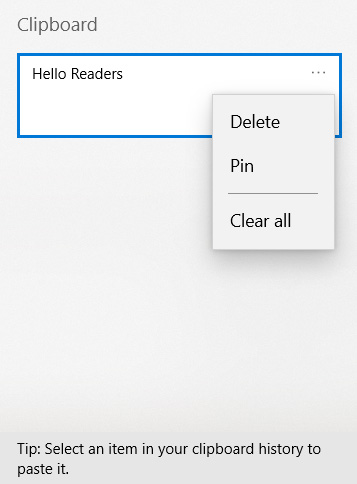
			<p style="text-align: justify;">t:&nbsp;Cách xóa clipboard trên Windows 10.</p>

<figure data-inimage-loaded="true">
<div style="text-align: justify;"><br />
<img alt="Xóa lịch sử clipboard" data-i="0" data-src="https://st.quantrimang.com/photos/image/2020/08/28/quan-ly-windows-clipboard-1.jpg" data-was-processed="true" height="484" src="https://st.quantrimang.com/photos/image/2020/08/28/quan-ly-windows-clipboard-1.jpg" width="357" /></div>

<figcaption>
<div style="text-align: justify;">Xóa lịch sử clipboard</div>
</figcaption>
</figure>

<h2 style="text-align: justify;">Các phương pháp khác</h2>

<p style="text-align: justify;">Giả sử bạn không muốn bật các tính năng mới. Có lẽ, vì lý do riêng tư, bạn không muốn ghi chép đầy đủ mọi thứ bạn đã sao chép. Bạn vẫn có thể thấy những gì hiện được sao chép vào clipboard? Và làm thế nào bạn có thể xóa mục đó để làm cho clipboard trống?</p>

<h3 style="text-align: justify;">Sử dụng thủ thuật Windows XP để xem clipboard</h3>

<p style="text-align: justify;">Trong Windows XP và Windows Vista, nhập lệnh&nbsp;<strong>clipbrd.exe</strong>&nbsp;trong hộp thoại&nbsp;<strong>Run</strong>&nbsp;sẽ hiển thị clipboard và nội dung của nó. Microsoft đã gỡ bỏ tính năng này trong Windows 7.</p>

<p style="text-align: justify;">Tuy nhiên, nếu bạn có thể truy cập vào XP hoặc Vista, phương pháp clipbrd.exe vẫn hoạt động; chỉ cần di chuyển file EXE sang Windows 10. Thật dễ dàng để làm việc này. Trên XP hoặc Vista, hãy chuyển đến thư mục&nbsp;<strong>%windir%ystem32</strong>, highlight file EXE, nhấn&nbsp;<strong>CTRL + C</strong>và di chuyển nó đến cùng một đường dẫn trong cài đặt Windows 10.</p>

<p style="text-align: justify;">Nếu không có bản sao của XP hoặc Vista, bạn có thể&nbsp;tải file xuống trực tiếp từ Windows Club.:<br />
<span style="color:rgb(192, 57, 43);"><strong>quantrimang.com/photos/file/2020/08/28/Clipboard-Viewer.zip</strong></span></p>

<p style="text-align: justify;">Nếu file đã tải xuống không hoạt động, hãy thử chạy nó ở chế độ Compatibility với Windows XP Service Pack 2. Để thực hiện thay đổi, nhấp chuột phải vào file EXE, đi tới&nbsp;<strong>Properties &gt; Compatibility</strong>, đánh dấu hộp kiểm bên cạnh&nbsp;<strong>Run this program in compatibility mode for</strong>và thực hiện lựa chọn.</p>

<h3 style="text-align: justify;">Xóa clipboard</h3>

<p style="text-align: justify;">Để nhanh chóng xóa sạch clipboard của bạn khỏi những con mắt tò mò, có 3 cách làm nhanh bạn có thể sử dụng.</p>

<ul>
	<li style="text-align: justify;">Tắt hoặc&nbsp;khởi động lại hệ thống.</li>
	<li style="text-align: justify;">Highlight một số plain text và nhấn&nbsp;<strong>CTRL + C</strong>&nbsp;để xóa mọi thứ bạn đã sao chép trước đó.</li>
	<li style="text-align: justify;">Nhấn phím&nbsp;<strong>Print Screen</strong>&nbsp;trong khi xem tài liệu trống hoặc cái gì đó tương tự.</li>
</ul>

<p style="text-align: justify;">Ngoài ra còn có một số thủ thuật nâng cao hơn mà bạn có thể thử.</p>

<p style="text-align: justify;"><strong>1. Tạo một shortcut chuyên dụng</strong></p>

<figure>
<div style="text-align: justify;"><img alt="Tạo một shortcut chuyên dụng để xóa clipboard" data-i="1" data-src="https://st.quantrimang.com/photos/image/2020/08/28/quan-ly-windows-clipboard-2.jpg" data-was-processed="true" height="396" src="https://st.quantrimang.com/photos/image/2020/08/28/quan-ly-windows-clipboard-2.jpg" width="650" /></div>

<figcaption>
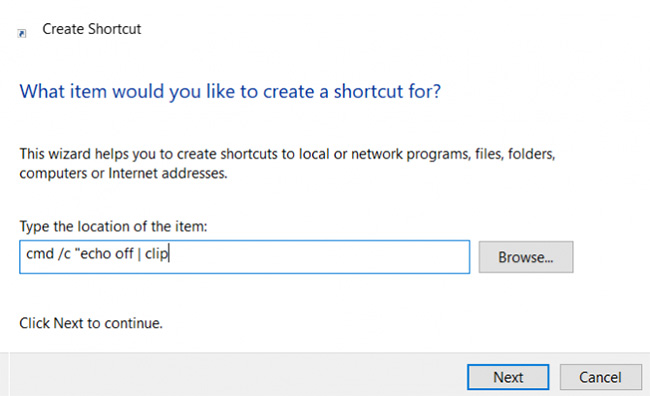
<div style="text-align: justify;">Tạo một shortcut chuyên dụng để xóa clipboard</div>
</figcaption>
</figure>

<p style="text-align: justify;">Đầu tiên, bạn có thể tạo một shortcut trên desktop, khi được nhấp vào, nó sẽ xóa sạch clipboard của bạn.</p>

<p style="text-align: justify;">Làm theo các bước sau để thiết lập shortcut chuyên dụng:</p>

<p style="text-align: justify;"><strong>B1:</strong>&nbsp;Nhấp chuột phải vào màn hình và chọn&nbsp;<strong>New &gt; Shortcut</strong>.</p>

<p style="text-align: justify;"><strong>B2:</strong>&nbsp;Trong hộp shortcut, nhập:</p>

<pre id="pre0">
<code>cmd /c &quot;echo off | clip</code></pre>

<p style="text-align: justify;"><strong>B3:</strong>&nbsp;Nhấp vào&nbsp;<strong>Next</strong>&nbsp;và đặt tên cho nó, chẳng hạn như&nbsp;<strong>&quot;Clear Clipboard&quot;.</strong></p>

<p style="text-align: justify;"><strong>B4:</strong>&nbsp;Nhấp vào&nbsp;<strong>Finish.</strong></p>

<p style="text-align: justify;">Nếu bạn nhấp chuột phải vào shortcut mới và chọn&nbsp;<strong>Properties</strong>, bạn cũng có thể đặt biểu tượng và phím tắt cho shortcut. Tuy nhiên, điều này không cần thiết lắm.</p>

<p style="text-align: justify;"><strong>2. Sử dụng thủ thuật registry&nbsp;</strong></p>

<figure>
<div style="text-align: justify;"><img alt="Sử dụng thủ thuật registry để xóa clipboard" data-i="2" data-src="https://st.quantrimang.com/photos/image/2020/08/28/quan-ly-windows-clipboard-3.jpg" data-was-processed="true" height="500" src="https://st.quantrimang.com/photos/image/2020/08/28/quan-ly-windows-clipboard-3.jpg" width="648" /></div>

<figcaption>
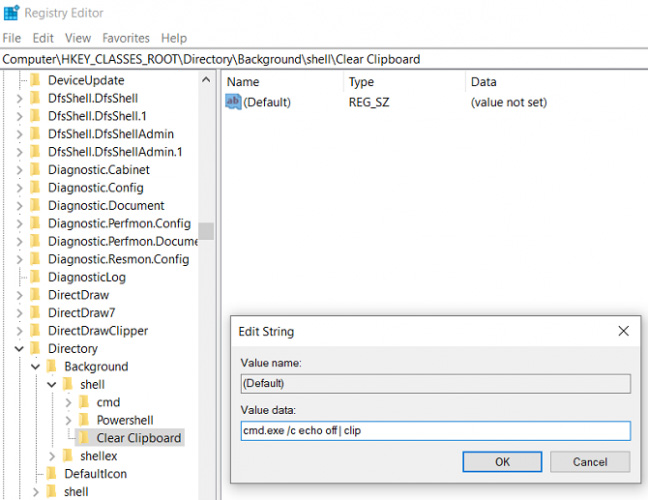
<div style="text-align: justify;">Sử dụng thủ thuật registry để xóa clipboard</div>
</figcaption>
</figure>

<p style="text-align: justify;">Tùy chọn thứ hai liên quan đến việc chỉnh sửa Windows registry. Hãy nhớ rằng, việc thay đổi các giá trị sai trong registry có thể khiến hệ thống của bạn bị đóng băng. Bạn nên&nbsp;sao lưu cài đặt registry&nbsp;trước khi tiếp tục.</p>

<p style="text-align: justify;">Nếu cảm thấy tự tin, bạn có thể thêm tùy chọn vào menu ngữ cảnh nhấp chuột phải trên desktop để xóa clipboard. Sử dụng các bước bên dưới để xem cách thực hiện:</p>

<p style="text-align: justify;"><strong>B1:</strong>&nbsp;Nhấn&nbsp;<strong>Win + R</strong>&nbsp;để mở công cụ&nbsp;<strong>Run.</strong></p>

<p style="text-align: justify;"><strong>B2:</strong>&nbsp;Nhập&nbsp;<strong>regedit</strong>&nbsp;và nhấn&nbsp;<strong>Enter.</strong></p>

<p style="text-align: justify;"><strong>B3:</strong>&nbsp;Điều hướng đến:</p>

<pre id="pre1">
<code>HKEY_CLASSES_ROOT\Directory\Background\</code></pre>

<p style="text-align: justify;"><strong>B4:</strong>&nbsp;Trong bảng điều khiển bên trái, nhấp chuột phải vào&nbsp;<strong>Shell</strong>&nbsp;và chọn&nbsp;<strong>New &gt; Key</strong>.</p>

<p style="text-align: justify;"><strong>B5:</strong>&nbsp;Đặt tên cho mục menu mới, chẳng hạn như&nbsp;<strong>Clear Clipboard.</strong></p>

<p style="text-align: justify;"><strong>B6:</strong>&nbsp;Nhấp chuột phải vào mục&nbsp;<strong>Clear Clipboard</strong>&nbsp;mới, đi tới&nbsp;<strong>New &gt; Key</strong>&nbsp;và đặt tên là&nbsp;<strong>Command.</strong></p>

<p style="text-align: justify;"><strong>B7:</strong>&nbsp;Trong bảng điều khiển bên phải, nhấp đúp vào&nbsp;<strong>Default</strong>&nbsp;và chọn&nbsp;<strong>Modify.</strong></p>

<p style="text-align: justify;"><strong>B8:</strong>&nbsp;Trong hộp&nbsp;<strong>Value Data</strong>, gõ:</p>

<pre id="pre2">
<code>cmd.exe /c echo off | clip</code></pre>

<p style="text-align: justify;"><strong>B9:</strong>&nbsp;Bấm&nbsp;<strong>OK.</strong></p>

<p style="text-align: justify;"><strong>B10:</strong>&nbsp;Nhấn&nbsp;<strong>F5</strong>&nbsp;để refresh registry và tắt.</p>

<p style="text-align: justify;">Bây giờ, bạn sẽ thấy mục nhập Clear Clipboard trong menu ngữ cảnh desktop. Một lần nữa, bạn có thể phải khởi động lại hệ thống để nó hoạt động lần đầu tiên.</p>

<p style="text-align: justify;">Ngoài ra, bạn đọc có thể tham khảo qua&nbsp;một số trình quản lý clipboard&nbsp;để giúp mọi thứ thuận tiện hơn.&nbsp;</p>
		</div>
				<div id="author">
						<p>
				<strong>Nguồn tin:</strong>
				Quantrimang.com
			</p>
		</div>
	</div>
	<div id="footer" class="clearfix">
		<div id="url">
			<strong>URL của bản tin này: </strong><a href="https://www.nguoicodonvn2008.info/vi/news/savefile/kien-thuc-may-tinh/cach-quan-ly-windows-clipboard-mot-cach-chuyen-nghiep-2617.html" title="Cách quản lý Windows Clipboard một cách chuyên nghiệp">https://www.nguoicodonvn2008.info/vi/news/savefile/kien-thuc-may-tinh/cach-quan-ly-windows-clipboard-mot-cach-chuyen-nghiep-2617.html</a>

		</div>
		<div class="clear"></div>
		<div class="copyright">
			&copy; .&#x3A; Nguoicodonvn2008.info - Cõi lòng người cô đơn &#x3A;.
		</div>
		<div id="contact">
			<a href="mailto:admin@nguoicodonvn2008.info">admin@nguoicodonvn2008.info</a>
		</div>
	</div>
</div>
        <div id="timeoutsess" class="chromeframe">
            Bạn đã không sử dụng Site, <a onclick="timeoutsesscancel();" href="https://nguoicodonvn2008.info/#">Bấm vào đây để duy trì trạng thái đăng nhập</a>. Thời gian chờ: <span id="secField"> 60 </span> giây
        </div>
        <div id="openidResult" class="nv-alert" style="display:none"></div>
        <div id="openidBt" data-result="" data-redirect=""></div>
		</script>
		<div class="car-top">
  <span><img src="https://nguoicodonvn2008.info/themes/default/images/car.png" alt=""></span>
</div>
<script src="https://nguoicodonvn2008.info/assets/js/jquery/jquery.min.js"></script>
<script>var nv_base_siteurl="/",nv_lang_data="vi",nv_lang_interface="vi",nv_name_variable="nv",nv_fc_variable="op",nv_lang_variable="language",nv_module_name="news",nv_func_name="savefile",nv_is_user=0, nv_my_ofs=-4,nv_my_abbr="EDT",nv_cookie_prefix="nv4c_e856T",nv_check_pass_mstime=1738000,nv_area_admin=0,nv_safemode=0,theme_responsive=0,nv_recaptcha_ver=2,nv_recaptcha_sitekey="",nv_recaptcha_type="image",XSSsanitize=1;</script>
<script src="https://nguoicodonvn2008.info/assets/js/language/vi.js"></script>
<script src="https://nguoicodonvn2008.info/assets/js/DOMPurify/purify3.js"></script>
<script src="https://nguoicodonvn2008.info/assets/js/global.js"></script>
<script src="https://nguoicodonvn2008.info/assets/js/site.js"></script>
<script src="https://nguoicodonvn2008.info/themes/default/js/news.js"></script>
<script src="https://nguoicodonvn2008.info/themes/default/js/main.js"></script>
<script src="https://nguoicodonvn2008.info/themes/default/js/custom.js"></script>
<script type="application/ld+json">
        {
            "@context": "https://schema.org",
            "@type": "Organization",
            "url": "https://nguoicodonvn2008.info",
            "logo": "https://nguoicodonvn2008.info/uploads/angel.gif"
        }
        </script>
<script src="https://nguoicodonvn2008.info/themes/default/js/bootstrap.min.js"></script>
<script type="text/javascript">
var $scrolltop = $('.car-top');
$scrolltop.on('click', function () {
    $('html,body').animate({
        scrollTop: 0
    }, 800);
    $(this).addClass("car-run");
    setTimeout(function(){ $scrolltop.removeClass('car-run');}, 1000);
    return false;
});
$(window).on('scroll', function ()
{ 
    if($(window).scrollTop() >= 200)
    {
        $scrolltop.addClass("show");
        $scrolltop.addClass("car-down");
    }
    else
    {
       $scrolltop.removeClass("show");
       setTimeout(function(){ $scrolltop.removeClass('car-down');}, 300);
    }
});
</script>
</body>
</html>