<!DOCTYPE html>
    <html lang="vi" xmlns="http://www.w3.org/1999/xhtml" prefix="og: http://ogp.me/ns#">
    <head>
<title>Cách phát âm thanh qua nhiều loa và tai nghe trên máy Mac</title>
<meta name="description" content="Cách phát âm thanh qua nhiều loa và tai nghe trên máy Mac - Savefile - Tin Tức -...">
<meta name="author" content=".: Nguoicodonvn2008.info - Cõi lòng người cô đơn :.">
<meta name="copyright" content=".: Nguoicodonvn2008.info - Cõi lòng người cô đơn :. [admin@nguoicodonvn2008.info]">
<meta name="robots" content="index, archive, follow, noodp">
<meta name="googlebot" content="index,archive,follow,noodp">
<meta name="msnbot" content="all,index,follow">
<meta name="generator" content="NukeViet v4.5">
<meta http-equiv="Content-Type" content="text/html; charset=utf-8">
<meta property="og:title" content="Cách phát âm thanh qua nhiều loa và tai nghe trên máy Mac">
<meta property="og:type" content="website">
<meta property="og:description" content="Savefile - Tin Tức - https&#x3A;&#x002F;&#x002F;www.nguoicodonvn2008.info&#x002F;vi&#x002F;news&#x002F;savefile&#x002F;kien-thuc-may-tinh&#x002F;cach-phat-am-thanh-qua-nhieu-loa-va-tai-nghe-tren-may-mac-9071.html">
<meta property="og:site_name" content=".&#x3A; Nguoicodonvn2008.info - Cõi lòng người cô đơn &#x3A;.">
<meta property="og:url" content="https://www.nguoicodonvn2008.info/vi/news/savefile/kien-thuc-may-tinh/cach-phat-am-thanh-qua-nhieu-loa-va-tai-nghe-tren-may-mac-9071.html">
<link rel="shortcut icon" href="https://nguoicodonvn2008.info/favicon.ico">
<link rel="canonical" href="https://www.nguoicodonvn2008.info/vi/news/savefile/kien-thuc-may-tinh/cach-phat-am-thanh-qua-nhieu-loa-va-tai-nghe-tren-may-mac-9071.html">
<link rel="alternate" href="https://nguoicodonvn2008.info/vi/news/rss/" title="Tin Tức" type="application/rss+xml">
<link rel="alternate" href="https://nguoicodonvn2008.info/vi/news/rss/karaoke-dual/" title="Tin Tức - Karaoke Dual" type="application/rss+xml">
<link rel="alternate" href="https://nguoicodonvn2008.info/vi/news/rss/nhac-tre/" title="Tin Tức - Nhạc trẻ" type="application/rss+xml">
<link rel="alternate" href="https://nguoicodonvn2008.info/vi/news/rss/tru-tinh/" title="Tin Tức - Trữ tình" type="application/rss+xml">
<link rel="alternate" href="https://nguoicodonvn2008.info/vi/news/rss/nuoc-ngoai/" title="Tin Tức - Nước ngoài" type="application/rss+xml">
<link rel="alternate" href="https://nguoicodonvn2008.info/vi/news/rss/remix/" title="Tin Tức - Remix" type="application/rss+xml">
<link rel="alternate" href="https://nguoicodonvn2008.info/vi/news/rss/tam-su-tinh-yeu/" title="Tin Tức - Tâm sự tình yêu" type="application/rss+xml">
<link rel="alternate" href="https://nguoicodonvn2008.info/vi/news/rss/tho-suu-tam/" title="Tin Tức - Thơ sưu tầm" type="application/rss+xml">
<link rel="alternate" href="https://nguoicodonvn2008.info/vi/news/rss/cuoc-song/" title="Tin Tức - Cuộc sống" type="application/rss+xml">
<link rel="alternate" href="https://nguoicodonvn2008.info/vi/news/rss/phan-mem/" title="Tin Tức - Phần mềm" type="application/rss+xml">
<link rel="alternate" href="https://nguoicodonvn2008.info/vi/news/rss/kien-thuc-may-tinh/" title="Tin Tức - Kiến thức máy tính" type="application/rss+xml">
<link rel="alternate" href="https://nguoicodonvn2008.info/vi/news/rss/hoc-tap/" title="Tin Tức - Học tập" type="application/rss+xml">
<link rel="alternate" href="https://nguoicodonvn2008.info/vi/news/rss/tai-lieu/" title="Tin Tức - Tài liệu" type="application/rss+xml">
<link rel="alternate" href="https://nguoicodonvn2008.info/vi/news/rss/de-thi/" title="Tin Tức - Đề thi" type="application/rss+xml">
<link rel="preload" as="style" href="https://nguoicodonvn2008.info/assets/css/font-awesome.min.css" type="text/css">
<link rel="preload" as="style" href="https://nguoicodonvn2008.info/themes/default/css/bootstrap.non-responsive.css" type="text/css">
<link rel="preload" as="style" href="https://nguoicodonvn2008.info/themes/default/css/style.css" type="text/css">
<link rel="preload" as="style" href="https://nguoicodonvn2008.info/themes/default/css/style.non-responsive.css" type="text/css">
<link rel="preload" as="style" href="https://nguoicodonvn2008.info/themes/default/css/news.css" type="text/css">
<link rel="preload" as="style" href="https://nguoicodonvn2008.info/themes/default/css/custom.css" type="text/css">
<link rel="preload" as="script" href="https://nguoicodonvn2008.info/assets/js/jquery/jquery.min.js" type="text/javascript">
<link rel="preload" as="script" href="https://nguoicodonvn2008.info/assets/js/language/vi.js" type="text/javascript">
<link rel="preload" as="script" href="https://nguoicodonvn2008.info/assets/js/DOMPurify/purify3.js" type="text/javascript">
<link rel="preload" as="script" href="https://nguoicodonvn2008.info/assets/js/global.js" type="text/javascript">
<link rel="preload" as="script" href="https://nguoicodonvn2008.info/assets/js/site.js" type="text/javascript">
<link rel="preload" as="script" href="https://nguoicodonvn2008.info/themes/default/js/news.js" type="text/javascript">
<link rel="preload" as="script" href="https://nguoicodonvn2008.info/themes/default/js/main.js" type="text/javascript">
<link rel="preload" as="script" href="https://nguoicodonvn2008.info/themes/default/js/custom.js" type="text/javascript">
<link rel="preload" as="script" href="https://nguoicodonvn2008.info/themes/default/js/bootstrap.min.js" type="text/javascript">
<link rel="stylesheet" href="https://nguoicodonvn2008.info/assets/css/font-awesome.min.css">
<link rel="stylesheet" href="https://nguoicodonvn2008.info/themes/default/css/bootstrap.non-responsive.css">
<link rel="stylesheet" href="https://nguoicodonvn2008.info/themes/default/css/style.css">
<link rel="stylesheet" href="https://nguoicodonvn2008.info/themes/default/css/style.non-responsive.css">
<link rel="StyleSheet" href="https://nguoicodonvn2008.info/themes/default/css/news.css">
<link rel="stylesheet" href="https://nguoicodonvn2008.info/themes/default/css/custom.css">
<style type="text/css">
	body{background: #fff;}
</style>
    </head>
    <body>
<div id="print">
	<div id="hd_print">
		<h2 class="pull-left">.&#x3A; Nguoicodonvn2008.info - Cõi lòng người cô đơn &#x3A;.</h2>
		<p class="pull-right"><a title=".&#x3A; Nguoicodonvn2008.info - Cõi lòng người cô đơn &#x3A;." href="https://nguoicodonvn2008.info/">https://nguoicodonvn2008.info</a></p>
	</div>
	<div class="clear"></div>
	<hr />
	<div id="content">
		<h1>Cách phát âm thanh qua nhiều loa và tai nghe trên máy Mac</h1>
		<ul class="list-inline">
			<li>Thứ năm - 26/09/2024 23:45</li>
			<li class="hidden-print txtrequired"><em class="fa fa-print">&nbsp;</em><a title="In ra" href="javascript:;" onclick="window.print()">In ra</a></li>
			<li class="hidden-print txtrequired"><em class="fa fa-power-off">&nbsp;</em><a title="Đóng cửa sổ này" href="javascript:;" onclick="window.close()">Đóng cửa sổ này</a></li>
		</ul>
		<div class="clear"></div>
		<div id="hometext">
		</div>
				<div class="imghome">
			<img alt="Cách phát âm thanh qua nhiều loa và tai nghe trên máy Mac" src="https://st.quantrimang.com/photos/image/2024/09/26/phat-am-thanh-qua-nhieu-loa-tai-nghe-tren-mac-1.jpg" width="460" class="img-thumbnail" />
		</div>
		<div class="clear"></div>
		<div id="bodytext" class="clearfix">
			<p style="text-align: justify;">Chia sẻ tai nghe là một cách để xem nội dung hoặc nghe nhạc với ai đó trên máy Mac. Tuy nhiên, nếu muốn có trải nghiệm không bị ảnh hưởng, bạn phải truyền âm thanh qua các bộ tai nghe riêng biệt. Bài viết sẽ chỉ cho bạn cách thực hiện bên dưới!</p>

<h2 style="text-align: justify;">Tạo thiết bị âm thanh đa đầu ra trên máy Mac</h2>

<p style="text-align: justify;">Apple cho phép bạn gửi âm thanh đến nhiều AirPods, tai nghe của bên thứ ba hoặc loa trên macOS cùng một lúc bằng cách tạo thiết bị đa đầu ra trong ứng dụng Audio MIDI Setup. Việc này khá đơn giản và điều tuyệt vời nhất là nó hoạt động bất kể bạn đang sử dụng kết nối có dây, kết nối không dây hay kết hợp cả hai.</p>

<p style="text-align: justify;">1. Kết nối các thiết bị mà bạn muốn phát âm thanh với máy Mac của mình.</p>

<p style="text-align: justify;">2. Sử dụng tìm kiếm Spotlight (<strong>Command + Space</strong>) để khởi chạy ứng dụng&nbsp;<strong>Audio MIDI Setup</strong>.</p>

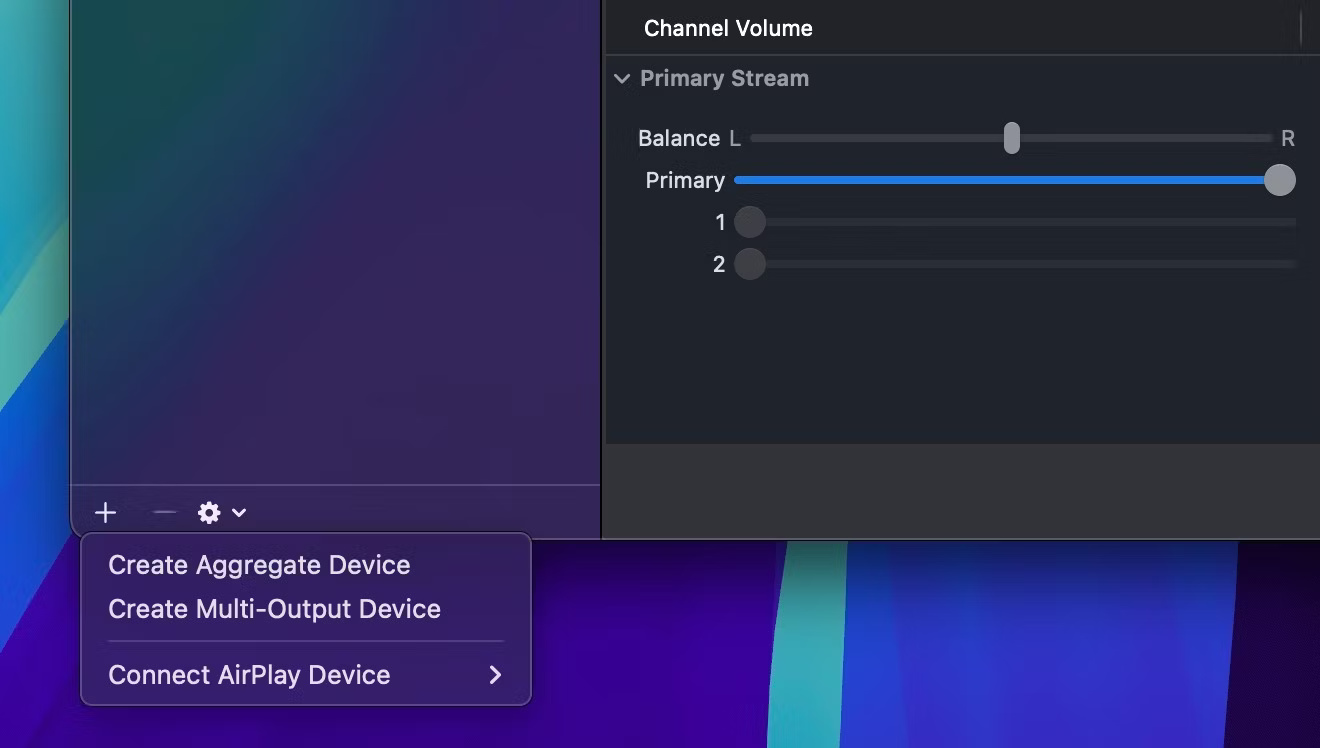
<p style="text-align: justify;">3. Nhấp vào biểu tượng dấu cộng (<strong>+</strong>) ở góc dưới bên trái của cửa sổ và chọn&nbsp;<strong>Create Multi-Output Device</strong>.</p>

<figure>
<div style="text-align: justify;"><img alt="Tạo thiết bị đa đầu ra trong Audio MIDI" data-i="0" data-src="https://st.quantrimang.com/photos/image/2024/09/26/phat-am-thanh-qua-nhieu-loa-tai-nghe-tren-mac-1.jpg" data-was-processed="true" height="748" src="https://st.quantrimang.com/photos/image/2024/09/26/phat-am-thanh-qua-nhieu-loa-tai-nghe-tren-mac-1.jpg" width="1320" /></div>

<figcaption>
<div style="text-align: justify;">Tạo thiết bị đa đầu ra trong Audio MIDI</div>
</figcaption>
</figure>

<div style="text-align: justify;">&nbsp;</div>

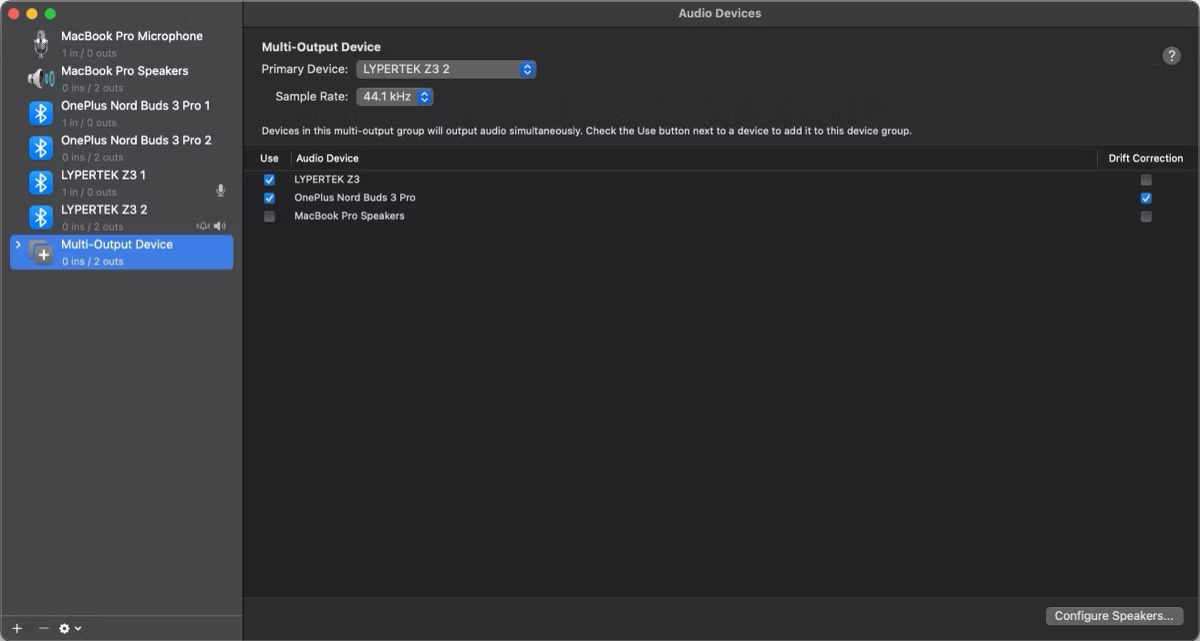
<p style="text-align: justify;">4. Nhấp vào&nbsp;<strong>Multi-Output Device</strong>&nbsp;ở thanh bên trái. Sau đó, hãy đánh dấu vào các hộp bên cạnh các thiết bị bạn muốn thêm vào thiết lập.</p>

<figure>
<div style="text-align: justify;"><img alt="Chọn tất cả các thiết bị để thêm vào thiết bị đầu ra đa năng trong ứng dụng Audio MIDI Setup." data-adbro-processed="true" data-i="1" data-src="https://st.quantrimang.com/photos/image/2024/09/26/phat-am-thanh-qua-nhieu-loa-tai-nghe-tren-mac-2.jpg" data-was-processed="true" height="641" src="https://st.quantrimang.com/photos/image/2024/09/26/phat-am-thanh-qua-nhieu-loa-tai-nghe-tren-mac-2.jpg" width="1200" /></div>

<figcaption>
<div style="text-align: justify;">Chọn tất cả các thiết bị để thêm vào thiết bị đầu ra đa năng trong ứng dụng Audio MIDI Setup.</div>
</figcaption>
</figure>

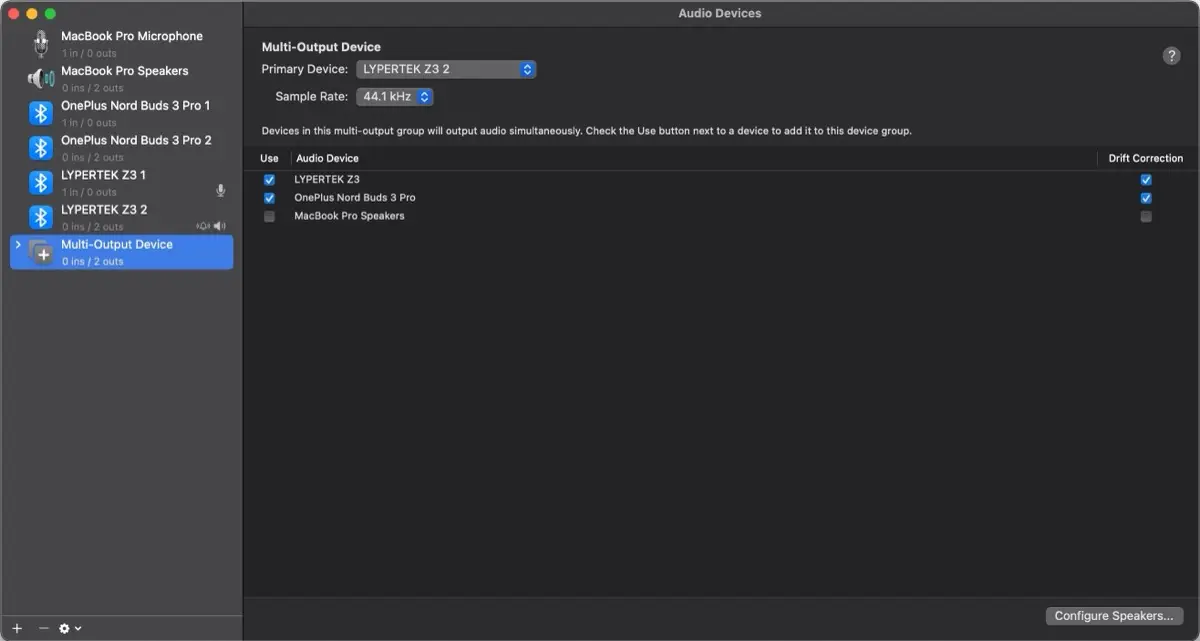
<p style="text-align: justify;">5. Cuối cùng, hãy đánh dấu vào các hộp bên dưới&nbsp;<strong>Drift Connection</strong>&nbsp;để đảm bảo quá trình phát lại vẫn được đồng bộ giữa tất cả các thiết bị.</p>

<figure>
<div style="text-align: justify;"><img alt="Bật tùy chọn Drift Detection cho các thiết bị trong thiết bị đầu ra đa năng trong ứng dụng Audio MIDI Setup." data-i="2" data-src="https://st.quantrimang.com/photos/image/2024/09/26/phat-am-thanh-qua-nhieu-loa-tai-nghe-tren-mac-3.jpg" data-was-processed="true" height="641" src="https://st.quantrimang.com/photos/image/2024/09/26/phat-am-thanh-qua-nhieu-loa-tai-nghe-tren-mac-3.jpg" width="1200" /></div>

<figcaption>
<div style="text-align: justify;">Bật tùy chọn Drift Detection cho các thiết bị trong thiết bị đầu ra đa năng trong ứng dụng Audio MIDI Setup.</div>
</figcaption>
</figure>

<div style="text-align: justify;">&nbsp;</div>

<p style="text-align: justify;">Bạn cũng có thể đổi tên thiết bị đầu ra đa năng của mình để dễ nhận biết hơn. Chỉ cần nhấp đúp vào tên hiện tại trong thanh bên và nhập tên mô tả rõ hơn.</p>

<p style="text-align: justify;">Tại bất kỳ thời điểm nào, nếu bạn muốn xóa thiết bị đầu ra đa năng, hãy chọn thiết bị đó và nhấp vào nút trừ (<strong>-</strong>) ở góc dưới bên trái của cửa sổ.</p>

<h2 style="text-align: justify;">Sử dụng thiết bị đầu ra đa năng trên máy Mac</h2>

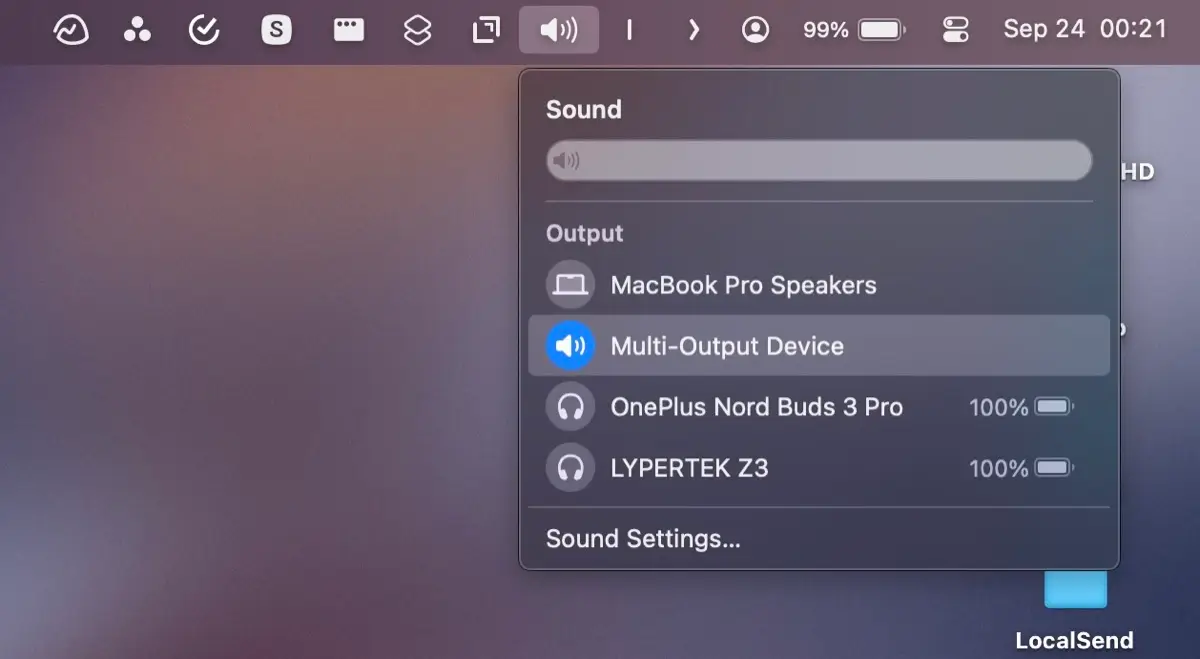
<p style="text-align: justify;">Khi thiết bị đầu ra đa năng đã sẵn sàng, bước tiếp theo là bật thiết bị đó. Cách dễ nhất để thực hiện là nhấp vào biểu tượng âm lượng trên thanh menu và chọn thiết bị đầu ra đa năng trong mục&nbsp;<strong>Output</strong>.</p>

<figure>
<div style="text-align: justify;"><img alt="Bật tùy chọn đầu ra đa năng từ biểu tượng âm lượng trong thanh menu macOS." data-i="3" data-src="https://st.quantrimang.com/photos/image/2024/09/26/phat-am-thanh-qua-nhieu-loa-tai-nghe-tren-mac-4.jpg" data-was-processed="true" height="659" src="https://st.quantrimang.com/photos/image/2024/09/26/phat-am-thanh-qua-nhieu-loa-tai-nghe-tren-mac-4.jpg" width="1200" /></div>

<figcaption>
<div style="text-align: justify;">Bật tùy chọn đầu ra đa năng từ biểu tượng âm lượng trong thanh menu macOS.</div>
</figcaption>
</figure>

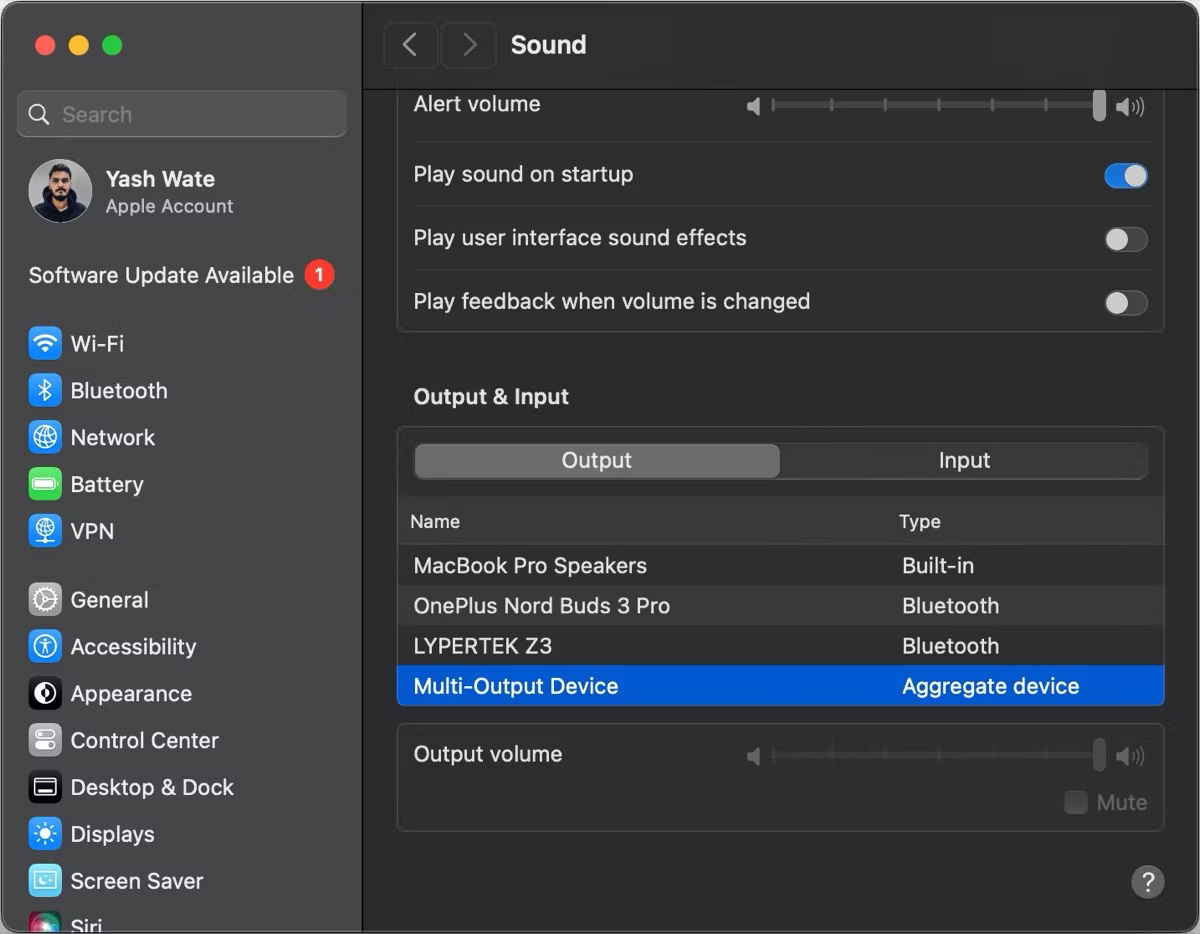
<p style="text-align: justify;">Tuy nhiên, nếu bạn không thấy biểu tượng âm lượng trên thanh menu, bạn có thể nhấp vào biểu tượng&nbsp;<strong>Control Center</strong>&nbsp;rồi nhấp vào&nbsp;<strong>Sound</strong>&nbsp;để truy cập các tùy chọn tương tự. Bạn cũng có thể vào&nbsp;<strong>System Settings &gt; Sound</strong>&nbsp;và chọn&nbsp;<strong>Multi-Output Device</strong>&nbsp;trong phần&nbsp;<strong>Output &amp; Input</strong>.</p>

<figure>
<div style="text-align: justify;"><img alt="Bật đầu ra đa thiết bị trên máy Mac từ System Settings" data-i="4" data-src="https://st.quantrimang.com/photos/image/2024/09/26/phat-am-thanh-qua-nhieu-loa-tai-nghe-tren-mac-5.jpg" data-was-processed="true" height="934" src="https://st.quantrimang.com/photos/image/2024/09/26/phat-am-thanh-qua-nhieu-loa-tai-nghe-tren-mac-5.jpg" width="1200" /></div>

<figcaption>
<div style="text-align: justify;">Bật đầu ra đa thiết bị trên máy Mac từ System Settings</div>
</figcaption>
</figure>

<div style="text-align: justify;"><iframe allow="autoplay" allowtransparency="true" aria-label="Advertisement" data-google-container-id="a!4" data-google-query-id="CP3siPSa4ogDFWuH6QUdHPUA3w" data-load-complete="true" frameborder="0" height="0" hspace="0" id="aswift_3" marginheight="0" marginwidth="0" name="aswift_3" sandbox="allow-scripts allow-same-origin allow-forms allow-presentation allow-popups" scrolling="no" tabindex="0" title="Advertisement" vspace="0" width="694"></iframe></div>

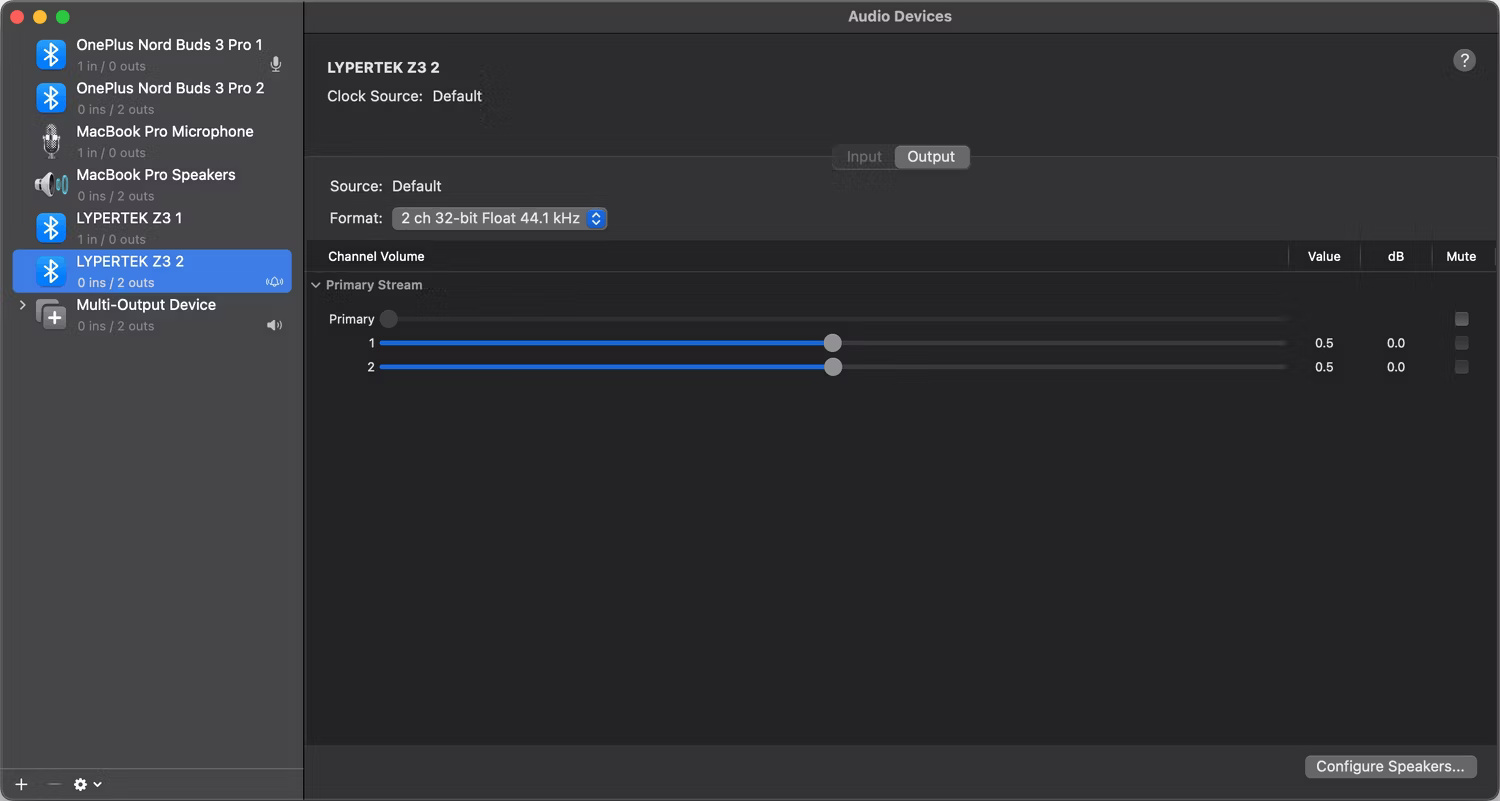
<p style="text-align: justify;">Lưu ý rằng khi bật thiết bị đầu ra đa năng, bạn sẽ không thể thay đổi âm lượng bằng các nút vật lý hoặc những điều khiển hệ điều hành tiêu chuẩn nữa. Bạn sẽ phải sử dụng thanh trượt có tên là&nbsp;<strong>Primary</strong>, xuất hiện khi bạn chọn một thiết bị trong Audio MIDI Setup để điều chỉnh âm lượng riêng lẻ.</p>

<figure>
<div style="text-align: justify;"><img alt="Thay đổi âm lượng trong thiết lập thiết bị đầu ra đa năng trong ứng dụng Audio MIDI Setup trên máy Mac." data-i="5" data-src="https://st.quantrimang.com/photos/image/2024/09/26/phat-am-thanh-qua-nhieu-loa-tai-nghe-tren-mac-6.jpg" data-was-processed="true" height="801" src="https://st.quantrimang.com/photos/image/2024/09/26/phat-am-thanh-qua-nhieu-loa-tai-nghe-tren-mac-6.jpg" width="1500" /></div>

<figcaption>
<div style="text-align: justify;">Thay đổi âm lượng trong thiết lập thiết bị đầu ra đa năng trong ứng dụng Audio MIDI Setup trên máy Mac.</div>
</figcaption>
</figure>

<p style="text-align: justify;">Ngoài ra, bạn có thể sử dụng các điều khiển âm lượng trên những thiết bị được kết nối nếu có.</p>

<p style="text-align: justify;">Khi bạn không muốn chia sẻ âm thanh của máy Mac với nhiều thiết bị nữa, hãy đảm bảo chuyển lại thiết bị đầu ra mặc định trong cài đặt&nbsp;<strong>Sound</strong>.</p>

<p style="text-align: justify;">Cho dù là cùng nhau xem nội dung khi bạn đang đi du lịch hay phát nhạc qua nhiều loa để có trải nghiệm đắm chìm, có nhiều tình huống khác nhau mà bạn có thể muốn chia sẻ âm thanh của máy Mac với nhiều thiết bị âm thanh.</p>

<p style="text-align: justify;">Biết cách thiết lập thiết bị nhiều đầu ra trong Audio MIDI Setup có thể giúp cuộc sống của bạn dễ dàng hơn trong những thời điểm như vậy. Nhưng đó không phải là tất cả; Audio MIDI Setup là một anh hùng thầm lặng cũng có thể hữu ích khi bạn muốn khắc phục sự cố âm thanh cứng đầu với máy Mac của mình.</p>
		</div>
				<div id="author">
						<p>
				<strong>Nguồn tin:</strong>
				Quantrimang.com::
			</p>
		</div>
	</div>
	<div id="footer" class="clearfix">
		<div id="url">
			<strong>URL của bản tin này: </strong><a href="https://www.nguoicodonvn2008.info/vi/news/savefile/kien-thuc-may-tinh/cach-phat-am-thanh-qua-nhieu-loa-va-tai-nghe-tren-may-mac-9071.html" title="Cách phát âm thanh qua nhiều loa và tai nghe trên máy Mac">https://www.nguoicodonvn2008.info/vi/news/savefile/kien-thuc-may-tinh/cach-phat-am-thanh-qua-nhieu-loa-va-tai-nghe-tren-may-mac-9071.html</a>

		</div>
		<div class="clear"></div>
		<div class="copyright">
			&copy; .&#x3A; Nguoicodonvn2008.info - Cõi lòng người cô đơn &#x3A;.
		</div>
		<div id="contact">
			<a href="mailto:admin@nguoicodonvn2008.info">admin@nguoicodonvn2008.info</a>
		</div>
	</div>
</div>
        <div id="timeoutsess" class="chromeframe">
            Bạn đã không sử dụng Site, <a onclick="timeoutsesscancel();" href="https://nguoicodonvn2008.info/#">Bấm vào đây để duy trì trạng thái đăng nhập</a>. Thời gian chờ: <span id="secField"> 60 </span> giây
        </div>
        <div id="openidResult" class="nv-alert" style="display:none"></div>
        <div id="openidBt" data-result="" data-redirect=""></div>
		</script>
		<div class="car-top">
  <span><img src="https://nguoicodonvn2008.info/themes/default/images/car.png" alt=""></span>
</div>
<div id="run_cronjobs" style="visibility:hidden;display:none;"><img alt="cron" src="/index.php?second=cronjobs&amp;p=k8O74aY6" width="1" height="1" /></div>
<script src="https://nguoicodonvn2008.info/assets/js/jquery/jquery.min.js"></script>
<script>var nv_base_siteurl="/",nv_lang_data="vi",nv_lang_interface="vi",nv_name_variable="nv",nv_fc_variable="op",nv_lang_variable="language",nv_module_name="news",nv_func_name="savefile",nv_is_user=0, nv_my_ofs=-4,nv_my_abbr="EDT",nv_cookie_prefix="nv4c_e856T",nv_check_pass_mstime=1738000,nv_area_admin=0,nv_safemode=0,theme_responsive=0,nv_recaptcha_ver=2,nv_recaptcha_sitekey="",nv_recaptcha_type="image",XSSsanitize=1;</script>
<script src="https://nguoicodonvn2008.info/assets/js/language/vi.js"></script>
<script src="https://nguoicodonvn2008.info/assets/js/DOMPurify/purify3.js"></script>
<script src="https://nguoicodonvn2008.info/assets/js/global.js"></script>
<script src="https://nguoicodonvn2008.info/assets/js/site.js"></script>
<script src="https://nguoicodonvn2008.info/themes/default/js/news.js"></script>
<script src="https://nguoicodonvn2008.info/themes/default/js/main.js"></script>
<script src="https://nguoicodonvn2008.info/themes/default/js/custom.js"></script>
<script type="application/ld+json">
        {
            "@context": "https://schema.org",
            "@type": "Organization",
            "url": "https://nguoicodonvn2008.info",
            "logo": "https://nguoicodonvn2008.info/uploads/angel.gif"
        }
        </script>
<script src="https://nguoicodonvn2008.info/themes/default/js/bootstrap.min.js"></script>
<script type="text/javascript">
var $scrolltop = $('.car-top');
$scrolltop.on('click', function () {
    $('html,body').animate({
        scrollTop: 0
    }, 800);
    $(this).addClass("car-run");
    setTimeout(function(){ $scrolltop.removeClass('car-run');}, 1000);
    return false;
});
$(window).on('scroll', function ()
{ 
    if($(window).scrollTop() >= 200)
    {
        $scrolltop.addClass("show");
        $scrolltop.addClass("car-down");
    }
    else
    {
       $scrolltop.removeClass("show");
       setTimeout(function(){ $scrolltop.removeClass('car-down');}, 300);
    }
});
</script>
</body>
</html>