<!DOCTYPE html>
    <html lang="vi" xmlns="http://www.w3.org/1999/xhtml" prefix="og: http://ogp.me/ns#">
    <head>
<title>Cách ngăn không cho Windows 10 mở lại các ứng dụng khi khởi động máy tính</title>
<meta name="description" content="Cách ngăn không cho Windows 10 mở lại các ứng dụng khi khởi động máy tính - Savefile - Tin Tức -...">
<meta name="author" content=".: Nguoicodonvn2008.info - Cõi lòng người cô đơn :.">
<meta name="copyright" content=".: Nguoicodonvn2008.info - Cõi lòng người cô đơn :. [admin@nguoicodonvn2008.info]">
<meta name="robots" content="index, archive, follow, noodp">
<meta name="googlebot" content="index,archive,follow,noodp">
<meta name="msnbot" content="all,index,follow">
<meta name="generator" content="NukeViet v4.5">
<meta http-equiv="Content-Type" content="text/html; charset=utf-8">
<meta property="og:title" content="Cách ngăn không cho Windows 10 mở lại các ứng dụng khi khởi động máy tính">
<meta property="og:type" content="website">
<meta property="og:description" content="Savefile - Tin Tức -...">
<meta property="og:site_name" content=".&#x3A; Nguoicodonvn2008.info - Cõi lòng người cô đơn &#x3A;.">
<meta property="og:url" content="https://www.nguoicodonvn2008.info/vi/news/savefile/kien-thuc-may-tinh/cach-ngan-khong-cho-windows-10-mo-lai-cac-ung-dung-khi-khoi-dong-may-tinh-2028.html">
<link rel="shortcut icon" href="https://nguoicodonvn2008.info/favicon.ico">
<link rel="canonical" href="https://www.nguoicodonvn2008.info/vi/news/savefile/kien-thuc-may-tinh/cach-ngan-khong-cho-windows-10-mo-lai-cac-ung-dung-khi-khoi-dong-may-tinh-2028.html">
<link rel="alternate" href="https://nguoicodonvn2008.info/vi/news/rss/" title="Tin Tức" type="application/rss+xml">
<link rel="alternate" href="https://nguoicodonvn2008.info/vi/news/rss/karaoke-dual/" title="Tin Tức - Karaoke Dual" type="application/rss+xml">
<link rel="alternate" href="https://nguoicodonvn2008.info/vi/news/rss/nhac-tre/" title="Tin Tức - Nhạc trẻ" type="application/rss+xml">
<link rel="alternate" href="https://nguoicodonvn2008.info/vi/news/rss/tru-tinh/" title="Tin Tức - Trữ tình" type="application/rss+xml">
<link rel="alternate" href="https://nguoicodonvn2008.info/vi/news/rss/nuoc-ngoai/" title="Tin Tức - Nước ngoài" type="application/rss+xml">
<link rel="alternate" href="https://nguoicodonvn2008.info/vi/news/rss/remix/" title="Tin Tức - Remix" type="application/rss+xml">
<link rel="alternate" href="https://nguoicodonvn2008.info/vi/news/rss/tam-su-tinh-yeu/" title="Tin Tức - Tâm sự tình yêu" type="application/rss+xml">
<link rel="alternate" href="https://nguoicodonvn2008.info/vi/news/rss/tho-suu-tam/" title="Tin Tức - Thơ sưu tầm" type="application/rss+xml">
<link rel="alternate" href="https://nguoicodonvn2008.info/vi/news/rss/cuoc-song/" title="Tin Tức - Cuộc sống" type="application/rss+xml">
<link rel="alternate" href="https://nguoicodonvn2008.info/vi/news/rss/phan-mem/" title="Tin Tức - Phần mềm" type="application/rss+xml">
<link rel="alternate" href="https://nguoicodonvn2008.info/vi/news/rss/kien-thuc-may-tinh/" title="Tin Tức - Kiến thức máy tính" type="application/rss+xml">
<link rel="alternate" href="https://nguoicodonvn2008.info/vi/news/rss/hoc-tap/" title="Tin Tức - Học tập" type="application/rss+xml">
<link rel="alternate" href="https://nguoicodonvn2008.info/vi/news/rss/tai-lieu/" title="Tin Tức - Tài liệu" type="application/rss+xml">
<link rel="alternate" href="https://nguoicodonvn2008.info/vi/news/rss/de-thi/" title="Tin Tức - Đề thi" type="application/rss+xml">
<link rel="preload" as="style" href="https://nguoicodonvn2008.info/assets/css/font-awesome.min.css" type="text/css">
<link rel="preload" as="style" href="https://nguoicodonvn2008.info/themes/default/css/bootstrap.non-responsive.css" type="text/css">
<link rel="preload" as="style" href="https://nguoicodonvn2008.info/themes/default/css/style.css" type="text/css">
<link rel="preload" as="style" href="https://nguoicodonvn2008.info/themes/default/css/style.non-responsive.css" type="text/css">
<link rel="preload" as="style" href="https://nguoicodonvn2008.info/themes/default/css/news.css" type="text/css">
<link rel="preload" as="style" href="https://nguoicodonvn2008.info/themes/default/css/custom.css" type="text/css">
<link rel="preload" as="script" href="https://nguoicodonvn2008.info/assets/js/jquery/jquery.min.js" type="text/javascript">
<link rel="preload" as="script" href="https://nguoicodonvn2008.info/assets/js/language/vi.js" type="text/javascript">
<link rel="preload" as="script" href="https://nguoicodonvn2008.info/assets/js/DOMPurify/purify3.js" type="text/javascript">
<link rel="preload" as="script" href="https://nguoicodonvn2008.info/assets/js/global.js" type="text/javascript">
<link rel="preload" as="script" href="https://nguoicodonvn2008.info/assets/js/site.js" type="text/javascript">
<link rel="preload" as="script" href="https://nguoicodonvn2008.info/themes/default/js/news.js" type="text/javascript">
<link rel="preload" as="script" href="https://nguoicodonvn2008.info/themes/default/js/main.js" type="text/javascript">
<link rel="preload" as="script" href="https://nguoicodonvn2008.info/themes/default/js/custom.js" type="text/javascript">
<link rel="preload" as="script" href="https://nguoicodonvn2008.info/themes/default/js/bootstrap.min.js" type="text/javascript">
<link rel="stylesheet" href="https://nguoicodonvn2008.info/assets/css/font-awesome.min.css">
<link rel="stylesheet" href="https://nguoicodonvn2008.info/themes/default/css/bootstrap.non-responsive.css">
<link rel="stylesheet" href="https://nguoicodonvn2008.info/themes/default/css/style.css">
<link rel="stylesheet" href="https://nguoicodonvn2008.info/themes/default/css/style.non-responsive.css">
<link rel="StyleSheet" href="https://nguoicodonvn2008.info/themes/default/css/news.css">
<link rel="stylesheet" href="https://nguoicodonvn2008.info/themes/default/css/custom.css">
<style type="text/css">
	body{background: #fff;}
</style>
    </head>
    <body>
<div id="print">
	<div id="hd_print">
		<h2 class="pull-left">.&#x3A; Nguoicodonvn2008.info - Cõi lòng người cô đơn &#x3A;.</h2>
		<p class="pull-right"><a title=".&#x3A; Nguoicodonvn2008.info - Cõi lòng người cô đơn &#x3A;." href="https://nguoicodonvn2008.info/">https://nguoicodonvn2008.info</a></p>
	</div>
	<div class="clear"></div>
	<hr />
	<div id="content">
		<h1>Cách ngăn không cho Windows 10 mở lại các ứng dụng khi khởi động máy tính</h1>
		<ul class="list-inline">
			<li>Thứ năm - 14/05/2020 01:04</li>
			<li class="hidden-print txtrequired"><em class="fa fa-print">&nbsp;</em><a title="In ra" href="javascript:;" onclick="window.print()">In ra</a></li>
			<li class="hidden-print txtrequired"><em class="fa fa-power-off">&nbsp;</em><a title="Đóng cửa sổ này" href="javascript:;" onclick="window.close()">Đóng cửa sổ này</a></li>
		</ul>
		<div class="clear"></div>
		<div id="hometext">
		</div>
				<div class="imghome">
			<img alt="Cách ngăn không cho Windows 10 mở lại các ứng dụng khi khởi động máy tính" src="https://st.quantrimang.com/photos/image/2020/05/12/Window-tat-thu-dong-mo-thu-muc-1.jpg" width="460" class="img-thumbnail" />
		</div>
		<div class="clear"></div>
		<div id="bodytext" class="clearfix">
			<p style="text-align: justify;">Việc Windows 10 (kể từ phiên bản Fall Creator Update), cho phép tự động mở lại các ứng dụng (bao gồm trình duyệt và các thẻ trên chúng) đang chạy ở thời điểm tắt máy trước đó khiến cho nhiều người dùng cảm thấy khó chịu.</p>

<p style="text-align: justify;">Nguyên nhân bởi đa số người dùng thường mở rất nhiều ứng dụng và thẻ trình duyệt cùng một lúc và khi không dùng nữa họ thường tắt máy luôn.</p>

<p style="text-align: justify;">Để ngăn chặn tình trạng hàng loạt ứng dụng và thẻ trình duyệt cũ hiện ra khi máy tính mới khởi động lại, người dùng có thể thực hiện theo một trong các cách sau:</p>

<h2 style="text-align: justify;"><strong>1. Cách đóng nhanh các ứng dụng và trình duyệt trên Windows 10</strong></h2>

<ul>
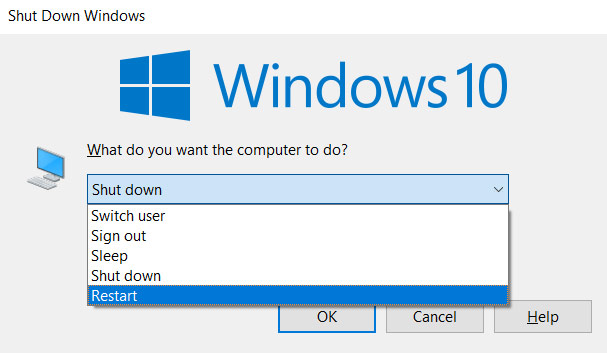
	<li style="text-align: justify;">Nhấn&nbsp;<strong>Windows + D</strong>&nbsp;để thu nhỏ tất cả các cửa sổ đang mở và hiển thị màn hình desktop.</li>
	<li style="text-align: justify;">Nhấn&nbsp;<strong>Alt + F4</strong>&nbsp;để mở hộp thoại Shut Down Windows.</li>
	<li style="text-align: justify;">Chọn&nbsp;<strong>Shutdown</strong>&nbsp;hoặc&nbsp;<strong>Restart</strong>&nbsp;-&gt; nhấn nút<strong>&nbsp;OK</strong>&nbsp;(hoặc nhấn phím&nbsp;<strong>Enter</strong>).</li>
</ul>

<p style="text-align: justify;"><img alt="Cách đóng nhanh các ứng dụng và trình duyệt trên Windows 10" data-i="0" data-src="https://st.quantrimang.com/photos/image/2018/02/22/khomg-mo-lai-ung-dung-khi-khoi-dong-windows10-1.jpg" data-was-processed="true" height="353" src="https://st.quantrimang.com/photos/image/2018/02/22/khomg-mo-lai-ung-dung-khi-khoi-dong-windows10-1.jpg" width="607" /></p>

<p style="text-align: justify;">Khi máy tính khởi động ở lần tiếp theo, nó sẽ hoàn toàn không tự động mở bất kỳ một ứng dụng nào.</p>

<p style="text-align: justify;"><strong>Cách tắt hoàn toàn chức năng tự động mở ứng dụng của Windows 10:</strong></p>

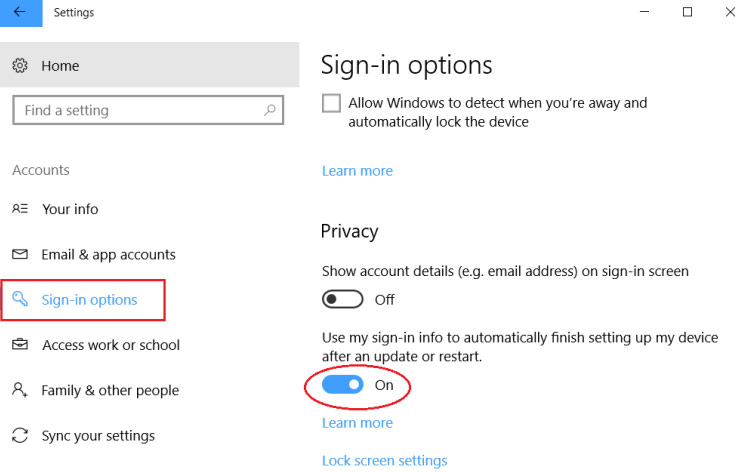
<p style="text-align: justify;">Nhấn nút&nbsp;<strong>Start</strong>&nbsp;-&gt; chọn<strong>&nbsp;Settings&nbsp;</strong>-&gt;&nbsp;nhập từ khóa&nbsp;<strong>sign-in options</strong>&nbsp;vào ô tìm kiếm Find a setting.</p>

<p style="text-align: justify;">Dưới mục&nbsp;<strong>Privacy</strong>, chuyển công tắt ở mục&nbsp;<strong>Use my sign-in info to automatically finish setting up my device after an update or restart</strong>&nbsp;sang Off.</p>

<p style="text-align: justify;"><img alt="Cách tắt hoàn toàn chức năng tự động mở ứng dụng của Windows 10" data-i="1" data-src="https://st.quantrimang.com/photos/image/2018/02/22/khomg-mo-lai-ung-dung-khi-khoi-dong-windows10-2.jpg" data-was-processed="true" height="472" src="https://st.quantrimang.com/photos/image/2018/02/22/khomg-mo-lai-ung-dung-khi-khoi-dong-windows10-2.jpg" width="745" /></p>

<div style="text-align: justify;">&nbsp;</div>

<h2 style="text-align: justify;">2. Cách ngăn Windows mở lại thư mục</h2>

<p style="text-align: justify;">Không chỉ ứng dụng có thể mở lại trên Windows mà với thư mục cũng có thể tự khởi động lại khi chúng ta mở Windows. Các thư mục tự khởi động lại như thư mục Documents hay thư mục Downloads. Để tắt chế độ tự động mở lại thư mục bạn thực hiện theo hướng dẫn dưới đây.</p>

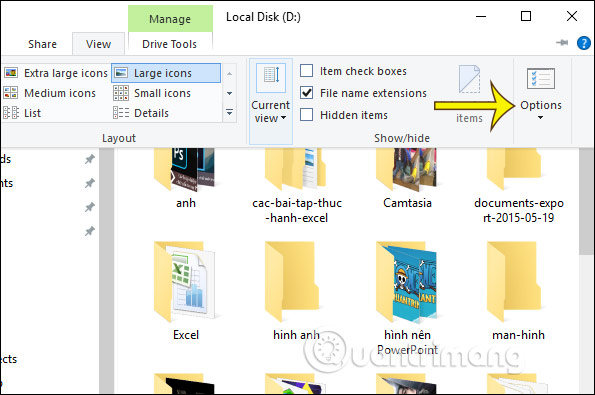
<p style="text-align: justify;">Tại giao diện File Explorer, chúng ta nhấn vào<strong>&nbsp;mục View</strong>&nbsp;rồi nhấn tiếp vào&nbsp;<strong>Options</strong>&nbsp;ở bên dưới để thay đổi thiết lập trên Windows.</p>

<p style="text-align: justify;"><img alt="Nhấn Options " data-i="2" data-src="https://st.quantrimang.com/photos/image/2020/05/12/Window-tat-thu-dong-mo-thu-muc-1.jpg" data-was-processed="true" height="395" src="https://st.quantrimang.com/photos/image/2020/05/12/Window-tat-thu-dong-mo-thu-muc-1.jpg" width="595" /></p>

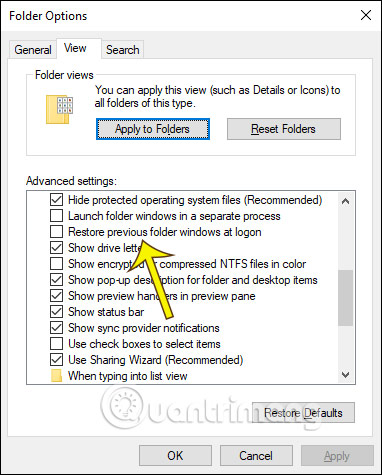
<p style="text-align: justify;">Hiển thị giao diện mới, chúng ta nhấn vào&nbsp;<strong>tab View</strong>. Sau đó nhìn xuống mục<strong>&nbsp;Advanced settings</strong>&nbsp;rồi tìm tới tùy chọn&nbsp;<strong>Restore previous folder windows at logon rồi bỏ tích tùy chọn</strong>&nbsp;này để không mở lại thư mục trước đó khi mở Windows. Cuối cùng nhấn OK ở bên dưới để lưu lại. Các bước thiết lập này này cũng được thực hiện tương tự trên Windows 7 và Windows 8.</p>

<p style="text-align: justify;"><img alt="Tắt tự khởi động thư mục" data-i="3" data-src="https://st.quantrimang.com/photos/image/2020/05/12/Window-tat-thu-dong-mo-thu-muc-2.jpg" data-was-processed="true" height="475" src="https://st.quantrimang.com/photos/image/2020/05/12/Window-tat-thu-dong-mo-thu-muc-2.jpg" width="382" /></p>

<h2 style="text-align: justify;">3. Cách vô hiệu hóa ứng dụng tự khởi động</h2>

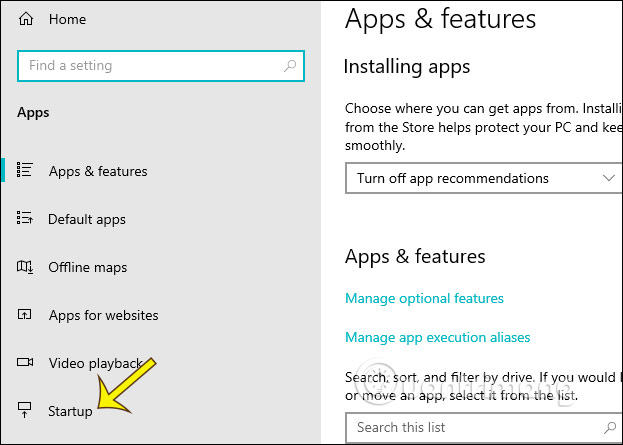
<p style="text-align: justify;">Trên Windows 10 có sẵn một mục thiết lập riêng để tùy chỉnh lại các ứng dụng được phép khởi động cùng với Windows hay không. Bạn nhấn<strong>&nbsp;tổ hợp phím Windows + I</strong>&nbsp;để mở Windows Settings trên máy tính. Sau đó nhấn vào&nbsp;<strong>mục App</strong>&nbsp;rồi chọn<strong>&nbsp;Startup</strong>&nbsp;trong danh sách bên trái màn hình.</p>

<p style="text-align: justify;"><img alt="Startup " data-i="4" data-src="https://st.quantrimang.com/photos/image/2020/05/12/Window-tat-thu-dong-mo-thu-muc-3.jpg" data-was-processed="true" height="393" src="https://st.quantrimang.com/photos/image/2020/05/12/Window-tat-thu-dong-mo-thu-muc-3.jpg" width="550" /></p>

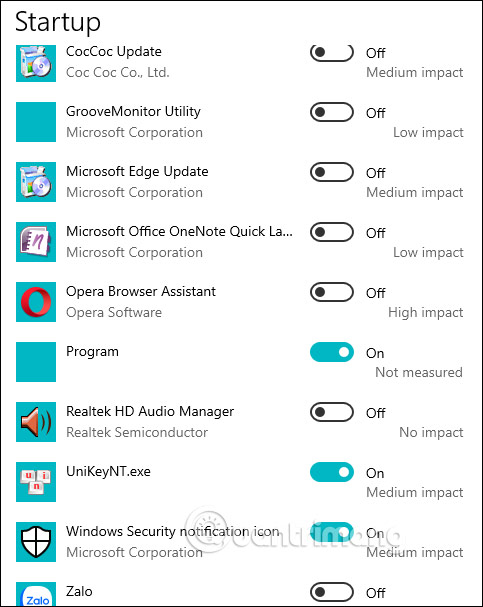
<p style="text-align: justify;">Nhìn sang bên phải sẽ thấy toàn bộ các ứng dụng được tự động khởi chạy cùng với Windows. Để tắt bạn chỉ cần&nbsp;<strong>chuyển về chế độ Off</strong>. Lưu ý một vài ứng dụng cần khởi động cùng Windows để thực hiện tác vụ trên hệ thống. Chẳng hạn với ứng dụng Dropbox cần tự khởi động cùng Windows để đồng bộ dữ liệu trên máy tính.</p>

<p style="text-align: justify;"><img alt="Tắt ứng dụng tự khởi động " data-i="5" data-src="https://st.quantrimang.com/photos/image/2020/05/12/Window-tat-thu-dong-mo-thu-muc-4.jpg" data-was-processed="true" height="607" src="https://st.quantrimang.com/photos/image/2020/05/12/Window-tat-thu-dong-mo-thu-muc-4.jpg" width="483" /></p>

<p style="text-align: justify;">&nbsp;</p>
		</div>
				<div id="author">
						<p>
				<strong>Nguồn tin:</strong>
				Quantrimang.com
			</p>
		</div>
	</div>
	<div id="footer" class="clearfix">
		<div id="url">
			<strong>URL của bản tin này: </strong><a href="https://www.nguoicodonvn2008.info/vi/news/savefile/kien-thuc-may-tinh/cach-ngan-khong-cho-windows-10-mo-lai-cac-ung-dung-khi-khoi-dong-may-tinh-2028.html" title="Cách ngăn không cho Windows 10 mở lại các ứng dụng khi khởi động máy tính">https://www.nguoicodonvn2008.info/vi/news/savefile/kien-thuc-may-tinh/cach-ngan-khong-cho-windows-10-mo-lai-cac-ung-dung-khi-khoi-dong-may-tinh-2028.html</a>

		</div>
		<div class="clear"></div>
		<div class="copyright">
			&copy; .&#x3A; Nguoicodonvn2008.info - Cõi lòng người cô đơn &#x3A;.
		</div>
		<div id="contact">
			<a href="mailto:admin@nguoicodonvn2008.info">admin@nguoicodonvn2008.info</a>
		</div>
	</div>
</div>
        <div id="timeoutsess" class="chromeframe">
            Bạn đã không sử dụng Site, <a onclick="timeoutsesscancel();" href="https://nguoicodonvn2008.info/#">Bấm vào đây để duy trì trạng thái đăng nhập</a>. Thời gian chờ: <span id="secField"> 60 </span> giây
        </div>
        <div id="openidResult" class="nv-alert" style="display:none"></div>
        <div id="openidBt" data-result="" data-redirect=""></div>
		</script>
		<div class="car-top">
  <span><img src="https://nguoicodonvn2008.info/themes/default/images/car.png" alt=""></span>
</div>
<script src="https://nguoicodonvn2008.info/assets/js/jquery/jquery.min.js"></script>
<script>var nv_base_siteurl="/",nv_lang_data="vi",nv_lang_interface="vi",nv_name_variable="nv",nv_fc_variable="op",nv_lang_variable="language",nv_module_name="news",nv_func_name="savefile",nv_is_user=0, nv_my_ofs=-4,nv_my_abbr="EDT",nv_cookie_prefix="nv4c_e856T",nv_check_pass_mstime=1738000,nv_area_admin=0,nv_safemode=0,theme_responsive=0,nv_recaptcha_ver=2,nv_recaptcha_sitekey="",nv_recaptcha_type="image",XSSsanitize=1;</script>
<script src="https://nguoicodonvn2008.info/assets/js/language/vi.js"></script>
<script src="https://nguoicodonvn2008.info/assets/js/DOMPurify/purify3.js"></script>
<script src="https://nguoicodonvn2008.info/assets/js/global.js"></script>
<script src="https://nguoicodonvn2008.info/assets/js/site.js"></script>
<script src="https://nguoicodonvn2008.info/themes/default/js/news.js"></script>
<script src="https://nguoicodonvn2008.info/themes/default/js/main.js"></script>
<script src="https://nguoicodonvn2008.info/themes/default/js/custom.js"></script>
<script type="application/ld+json">
        {
            "@context": "https://schema.org",
            "@type": "Organization",
            "url": "https://nguoicodonvn2008.info",
            "logo": "https://nguoicodonvn2008.info/uploads/angel.gif"
        }
        </script>
<script src="https://nguoicodonvn2008.info/themes/default/js/bootstrap.min.js"></script>
<script type="text/javascript">
var $scrolltop = $('.car-top');
$scrolltop.on('click', function () {
    $('html,body').animate({
        scrollTop: 0
    }, 800);
    $(this).addClass("car-run");
    setTimeout(function(){ $scrolltop.removeClass('car-run');}, 1000);
    return false;
});
$(window).on('scroll', function ()
{ 
    if($(window).scrollTop() >= 200)
    {
        $scrolltop.addClass("show");
        $scrolltop.addClass("car-down");
    }
    else
    {
       $scrolltop.removeClass("show");
       setTimeout(function(){ $scrolltop.removeClass('car-down');}, 300);
    }
});
</script>
</body>
</html>