<!DOCTYPE html>
    <html lang="vi" xmlns="http://www.w3.org/1999/xhtml" prefix="og: http://ogp.me/ns#">
    <head>
<title>Cách ngăn Google Chrome kiểm tra khả năng tương thích của PC với Windows 11</title>
<meta name="description" content="Cách ngăn Google Chrome kiểm tra khả năng tương thích của PC với Windows 11 - Savefile - Tin Tức -...">
<meta name="author" content=".: Nguoicodonvn2008.info - Cõi lòng người cô đơn :.">
<meta name="copyright" content=".: Nguoicodonvn2008.info - Cõi lòng người cô đơn :. [admin@nguoicodonvn2008.info]">
<meta name="robots" content="index, archive, follow, noodp">
<meta name="googlebot" content="index,archive,follow,noodp">
<meta name="msnbot" content="all,index,follow">
<meta name="generator" content="NukeViet v4.5">
<meta http-equiv="Content-Type" content="text/html; charset=utf-8">
<meta property="og:title" content="Cách ngăn Google Chrome kiểm tra khả năng tương thích của PC với Windows 11">
<meta property="og:type" content="website">
<meta property="og:description" content="Savefile - Tin Tức -...">
<meta property="og:site_name" content=".&#x3A; Nguoicodonvn2008.info - Cõi lòng người cô đơn &#x3A;.">
<meta property="og:url" content="https://www.nguoicodonvn2008.info/vi/news/savefile/kien-thuc-may-tinh/cach-ngan-google-chrome-kiem-tra-kha-nang-tuong-thich-cua-pc-voi-windows-11-10758.html">
<link rel="shortcut icon" href="https://nguoicodonvn2008.info/favicon.ico">
<link rel="canonical" href="https://www.nguoicodonvn2008.info/vi/news/savefile/kien-thuc-may-tinh/cach-ngan-google-chrome-kiem-tra-kha-nang-tuong-thich-cua-pc-voi-windows-11-10758.html">
<link rel="alternate" href="https://nguoicodonvn2008.info/vi/news/rss/" title="Tin Tức" type="application/rss+xml">
<link rel="alternate" href="https://nguoicodonvn2008.info/vi/news/rss/karaoke-dual/" title="Tin Tức - Karaoke Dual" type="application/rss+xml">
<link rel="alternate" href="https://nguoicodonvn2008.info/vi/news/rss/nhac-tre/" title="Tin Tức - Nhạc trẻ" type="application/rss+xml">
<link rel="alternate" href="https://nguoicodonvn2008.info/vi/news/rss/tru-tinh/" title="Tin Tức - Trữ tình" type="application/rss+xml">
<link rel="alternate" href="https://nguoicodonvn2008.info/vi/news/rss/nuoc-ngoai/" title="Tin Tức - Nước ngoài" type="application/rss+xml">
<link rel="alternate" href="https://nguoicodonvn2008.info/vi/news/rss/remix/" title="Tin Tức - Remix" type="application/rss+xml">
<link rel="alternate" href="https://nguoicodonvn2008.info/vi/news/rss/tam-su-tinh-yeu/" title="Tin Tức - Tâm sự tình yêu" type="application/rss+xml">
<link rel="alternate" href="https://nguoicodonvn2008.info/vi/news/rss/tho-suu-tam/" title="Tin Tức - Thơ sưu tầm" type="application/rss+xml">
<link rel="alternate" href="https://nguoicodonvn2008.info/vi/news/rss/cuoc-song/" title="Tin Tức - Cuộc sống" type="application/rss+xml">
<link rel="alternate" href="https://nguoicodonvn2008.info/vi/news/rss/phan-mem/" title="Tin Tức - Phần mềm" type="application/rss+xml">
<link rel="alternate" href="https://nguoicodonvn2008.info/vi/news/rss/kien-thuc-may-tinh/" title="Tin Tức - Kiến thức máy tính" type="application/rss+xml">
<link rel="alternate" href="https://nguoicodonvn2008.info/vi/news/rss/hoc-tap/" title="Tin Tức - Học tập" type="application/rss+xml">
<link rel="alternate" href="https://nguoicodonvn2008.info/vi/news/rss/tai-lieu/" title="Tin Tức - Tài liệu" type="application/rss+xml">
<link rel="alternate" href="https://nguoicodonvn2008.info/vi/news/rss/de-thi/" title="Tin Tức - Đề thi" type="application/rss+xml">
<link rel="preload" as="style" href="https://nguoicodonvn2008.info/assets/css/font-awesome.min.css" type="text/css">
<link rel="preload" as="style" href="https://nguoicodonvn2008.info/themes/default/css/bootstrap.non-responsive.css" type="text/css">
<link rel="preload" as="style" href="https://nguoicodonvn2008.info/themes/default/css/style.css" type="text/css">
<link rel="preload" as="style" href="https://nguoicodonvn2008.info/themes/default/css/style.non-responsive.css" type="text/css">
<link rel="preload" as="style" href="https://nguoicodonvn2008.info/themes/default/css/news.css" type="text/css">
<link rel="preload" as="style" href="https://nguoicodonvn2008.info/themes/default/css/custom.css" type="text/css">
<link rel="preload" as="script" href="https://nguoicodonvn2008.info/assets/js/jquery/jquery.min.js" type="text/javascript">
<link rel="preload" as="script" href="https://nguoicodonvn2008.info/assets/js/language/vi.js" type="text/javascript">
<link rel="preload" as="script" href="https://nguoicodonvn2008.info/assets/js/DOMPurify/purify3.js" type="text/javascript">
<link rel="preload" as="script" href="https://nguoicodonvn2008.info/assets/js/global.js" type="text/javascript">
<link rel="preload" as="script" href="https://nguoicodonvn2008.info/assets/js/site.js" type="text/javascript">
<link rel="preload" as="script" href="https://nguoicodonvn2008.info/themes/default/js/news.js" type="text/javascript">
<link rel="preload" as="script" href="https://nguoicodonvn2008.info/themes/default/js/main.js" type="text/javascript">
<link rel="preload" as="script" href="https://nguoicodonvn2008.info/themes/default/js/custom.js" type="text/javascript">
<link rel="preload" as="script" href="https://nguoicodonvn2008.info/themes/default/js/bootstrap.min.js" type="text/javascript">
<link rel="stylesheet" href="https://nguoicodonvn2008.info/assets/css/font-awesome.min.css">
<link rel="stylesheet" href="https://nguoicodonvn2008.info/themes/default/css/bootstrap.non-responsive.css">
<link rel="stylesheet" href="https://nguoicodonvn2008.info/themes/default/css/style.css">
<link rel="stylesheet" href="https://nguoicodonvn2008.info/themes/default/css/style.non-responsive.css">
<link rel="StyleSheet" href="https://nguoicodonvn2008.info/themes/default/css/news.css">
<link rel="stylesheet" href="https://nguoicodonvn2008.info/themes/default/css/custom.css">
<style type="text/css">
	body{background: #fff;}
</style>
    </head>
    <body>
<div id="print">
	<div id="hd_print">
		<h2 class="pull-left">.&#x3A; Nguoicodonvn2008.info - Cõi lòng người cô đơn &#x3A;.</h2>
		<p class="pull-right"><a title=".&#x3A; Nguoicodonvn2008.info - Cõi lòng người cô đơn &#x3A;." href="https://nguoicodonvn2008.info/">https://nguoicodonvn2008.info</a></p>
	</div>
	<div class="clear"></div>
	<hr />
	<div id="content">
		<h1>Cách ngăn Google Chrome kiểm tra khả năng tương thích của PC với Windows 11</h1>
		<ul class="list-inline">
			<li>Thứ sáu - 11/07/2025 05:12</li>
			<li class="hidden-print txtrequired"><em class="fa fa-print">&nbsp;</em><a title="In ra" href="javascript:;" onclick="window.print()">In ra</a></li>
			<li class="hidden-print txtrequired"><em class="fa fa-power-off">&nbsp;</em><a title="Đóng cửa sổ này" href="javascript:;" onclick="window.close()">Đóng cửa sổ này</a></li>
		</ul>
		<div class="clear"></div>
		<div id="hometext">
		</div>
				<div class="imghome">
			<img alt="Cách ngăn Google Chrome kiểm tra khả năng tương thích của PC với Windows 11" src="https://st.quantrimang.com/photos/image/2025/07/10/ngan-chrome-kiem-tra-kha-nang-tuong-thich-pc-voi-windows-11-1.jpg" width="460" class="img-thumbnail" />
		</div>
		<div class="clear"></div>
		<div id="bodytext" class="clearfix">
			<p style="text-align: justify;">Do hỗ trợ&nbsp;&nbsp;Windows&nbsp;10 sắp kết thúc, Google Chrome đã bắt đầu kiểm tra khả năng tương thích với Windows 11 trên&nbsp;<a data-google-interstitial="false" data-google-vignette="false" href="https://quantrimang.com/cong-nghe/ngan-chrome-kiem-tra-kha-nang-tuong-thich-pc-voi-windows-11-209966#">&nbsp;PC</a>&nbsp;của người dùng. Đây là một động thái nghiên cứu, không phải là một lời nhắc nhở nâng cấp, nhưng nó sẽ bổ sung vào bộ sưu tập dữ liệu tổng thể của Chrome. Nếu muốn Chrome tránh xa các thông số kỹ thuật sâu hơn của hệ thống, bạn có thể chặn các lần kiểm tra này. Hướng dẫn này liệt kê hai phương pháp để ngăn Chrome thăm dò phần cứng của bạn.</p>

<div style="text-align: justify;">&nbsp;</div>

<h2 style="text-align: justify;">Cách Google Chrome kiểm tra khả năng tương thích với Windows 11</h2>

<p style="text-align: justify;">Bắt đầu từ ngày 4 tháng 7, khi bạn khởi chạy Chrome lần đầu trên PC chạy Windows 10, trình duyệt sẽ khởi chạy một bài kiểm tra trong nền để theo dõi các yêu cầu phần cứng cho&nbsp;Windows 11. Việc này chỉ diễn ra một lần và đánh dấu PC của bạn có đủ điều kiện hay không. Thông tin này sau đó được gửi đến&nbsp;Google&nbsp;cùng với các dữ liệu telemetry khác mà Chrome thu thập.</p>

<p style="text-align: justify;">Thông tin mà Chrome kiểm tra bao gồm các yêu cầu chính thức do Microsoft đặt ra. Do đó, hãy lưu ý những thông tin sau sẽ được chia sẻ với Google:</p>

<ul>
	<li style="text-align: justify;">Nhà cung cấp và model CPU, bao gồm cả thế hệ.</li>
	<li style="text-align: justify;">Dung lượng RAM và dung lượng ổ đĩa trống khả dụng.</li>
	<li style="text-align: justify;">Tính năng Secure Boot được bật hoặc tắt.</li>
	<li style="text-align: justify;">Hỗ trợ Trusted Platform Module (TPM) phiên bản 2.0.</li>
</ul>

<p style="text-align: justify;">Nếu PC Windows 10 của bạn đáp ứng tất cả các yêu cầu, nó sẽ tạo một flag nội bộ với tên &quot;IsWin11UpgradeEligible&quot; và các giá trị yes/no (0, 1). Nếu muốn ngăn Chrome biết thông tin này, bạn sẽ phải thực hiện trên một bản cài đặt Chrome mới hoặc trên PC chưa mở Chrome kể từ ngày 4 tháng 7 năm 2025.</p>

<h2 style="text-align: justify;">Chỉnh sửa Chrome shortcut để tắt kiểm tra này</h2>

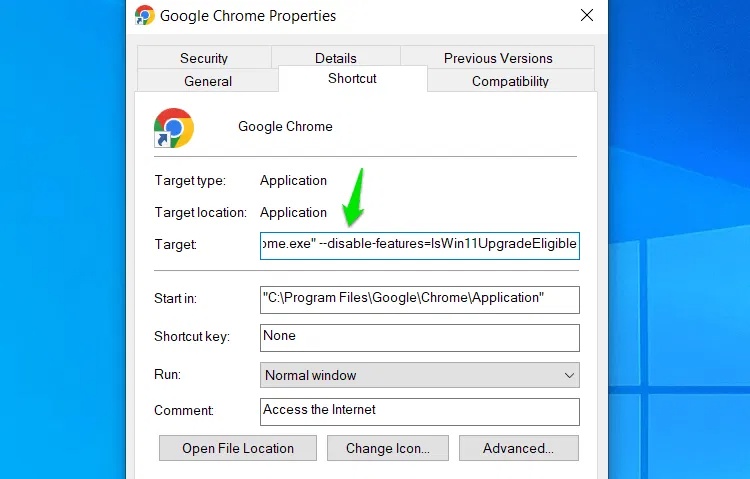
<p style="text-align: justify;">Nếu muốn ngăn chặn việc kiểm tra này xảy ra, bạn có thể thực hiện bằng cách sử dụng các switch dòng lệnh tích hợp của Chrome. Vì tính năng này được thêm vào dưới dạng flag nội bộ, bạn có thể tắt nó bằng cách sửa đổi shortcut khởi chạy Chrome để tắt flag. Kiểm tra khả năng tương thích của Windows sẽ không chạy miễn là bạn mở Chrome thông qua shortcut đó. Sau đây là những gì bạn cần làm:</p>

<p style="text-align: justify;">Nhấp chuột phải vào Chrome shortcut trên desktop và chọn&nbsp;<strong>Properties</strong>. Thao tác này sẽ không hoạt động với các shortcut được ghim, chỉ hoạt động với các shortcut trên desktop hoặc file thực thi trong File Explorer.</p>

<p style="text-align: justify;">Tại đây, trong trường&nbsp;<strong>Target</strong>, bạn cần thêm dòng sau vào cuối \chrome.exe”.</p>

<pre id="pre0">
<code>--disable-features=IsWin11UpgradeEligible</code></pre>

<figure>
<div style="text-align: justify;"><img alt="Thuộc tính Chrome với trường target được thêm vào" data-i="0" data-src="https://st.quantrimang.com/photos/image/2025/07/10/ngan-chrome-kiem-tra-kha-nang-tuong-thich-pc-voi-windows-11-1.jpg" data-was-processed="true" height="479" src="https://st.quantrimang.com/photos/image/2025/07/10/ngan-chrome-kiem-tra-kha-nang-tuong-thich-pc-voi-windows-11-1.jpg" width="750" /></div>

<figcaption>
<div style="text-align: justify;">Thuộc tính Chrome với trường target được thêm vào</div>
</figcaption>
</figure>

<p style="text-align: justify;">Hãy đảm bảo có một khoảng trắng giữa văn bản gốc và văn bản được thêm vào. Sau đó, nhấp vào&nbsp;<strong>Apply</strong>&nbsp;và khởi chạy Chrome. Chrome sẽ không kiểm tra tính tương thích với Windows 11 và sẽ không có dữ liệu nào được gửi đến Google.</p>

<h2 style="text-align: justify;">Tắt tính năng telemetry ẩn danh của Chrome</h2>

<p style="text-align: justify;">Theo mặc định, Chrome sẽ gửi dữ liệu ẩn danh về thiết bị và thói quen sử dụng của bạn đến Google để cải thiện sản phẩm, chẳng hạn như tùy chọn cài đặt, thông tin hệ thống, báo cáo sự cố, v.v. ..Thông tin từ tính năng kiểm tra khả năng tương thích với Windows 11 cũng là thông tin ẩn danh được chia sẻ với Google bằng chức năng này.</p>

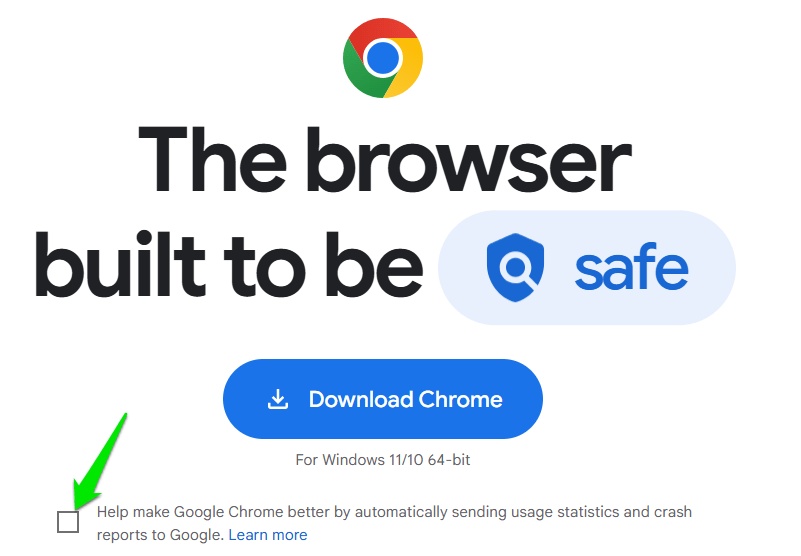
<p style="text-align: justify;">Nếu bạn tắt chức năng này, Google sẽ không thể tìm hiểu về khả năng tương thích với Windows 11 của máy bạn, ngay cả khi Chrome kiểm tra và ghi lại. Khi cài đặt mới, bạn chỉ cần bỏ chọn tùy chọn&nbsp;<strong>Help make Google Chrome Better</strong>&nbsp;bên dưới nút&nbsp;<strong>Download Chrome</strong>&nbsp;trên trang tải xuống. Thao tác này sẽ cài đặt Chrome với tính năng telemetry ẩn danh bị tắt.</p>

<figure>
<div style="text-align: justify;"><br />
<img alt="Trang tải xuống Chrome có tính năng telemetry đã tắt" data-adbro-processed="true" data-i="1" data-src="https://st.quantrimang.com/photos/image/2025/07/10/ngan-chrome-kiem-tra-kha-nang-tuong-thich-pc-voi-windows-11-2.jpg" data-was-processed="true" height="556" src="https://st.quantrimang.com/photos/image/2025/07/10/ngan-chrome-kiem-tra-kha-nang-tuong-thich-pc-voi-windows-11-2.jpg" width="801" /><br />
&nbsp;&nbsp;&nbsp;&nbsp;&nbsp;&nbsp;&nbsp;&nbsp;&nbsp;</div>

<figcaption>
<div style="text-align: justify;">Trang tải xuống Chrome có tính năng telemetry đã tắt</div>
</figcaption>
</figure>

<p style="text-align: justify;">Nếu Chrome đã được cài đặt, việc tắt nó từ bên trong Chrome khá rủi ro, vì Chrome có thể chia sẻ dữ liệu telemetry trong khi chạy. Vì vậy, để an toàn, hãy thực hiện từ bên ngoài bằng&nbsp;<a data-google-interstitial="false" data-google-vignette="false" href="https://quantrimang.com/cong-nghe/ngan-chrome-kiem-tra-kha-nang-tuong-thich-pc-voi-windows-11-209966#">&nbsp;Windows</a>&nbsp;Registry. Cách thực hiện như sau:</p>

<p style="text-align: justify;">Tìm kiếm &quot;registry&quot; trong Windows Search và&nbsp;mở Registry Editor.</p>

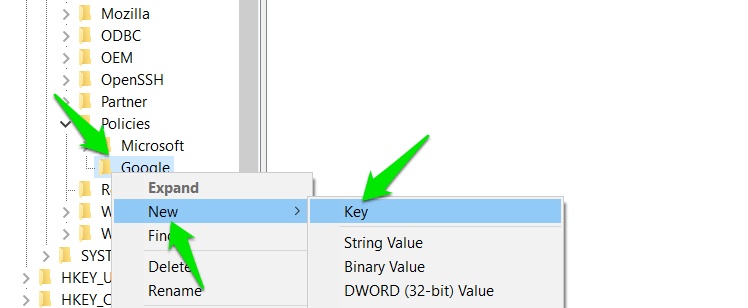
<p style="text-align: justify;">Tại đây, di chuyển đến vị trí sau:</p>

<pre id="pre1">
<code>HKEY_LOCAL_MACHINE\SOFTWARE\Policies</code></pre>

<p style="text-align: justify;">Bây giờ, nhấp chuột phải vào&nbsp;<strong>Policies</strong>, chọn&nbsp;<strong>New -&gt; Key</strong>&nbsp;và đặt tên là&nbsp;<strong>Google</strong>. Sau đó, nhấp chuột phải vào&nbsp;<strong>Google</strong>, chọn&nbsp;<strong>New -&gt; Key&nbsp;</strong>và đặt tên là&nbsp;<strong>Chrome.</strong></p>

<figure>
<div style="text-align: justify;"><img alt="Tạo key mới trong Windows Registry" data-i="2" data-src="https://st.quantrimang.com/photos/image/2025/07/10/ngan-chrome-kiem-tra-kha-nang-tuong-thich-pc-voi-windows-11-3.jpg" data-was-processed="true" height="308" src="https://st.quantrimang.com/photos/image/2025/07/10/ngan-chrome-kiem-tra-kha-nang-tuong-thich-pc-voi-windows-11-3.jpg" width="748" /></div>

<figcaption>
<div style="text-align: justify;">Tạo key mới trong Windows Registry</div>
</figcaption>
</figure>

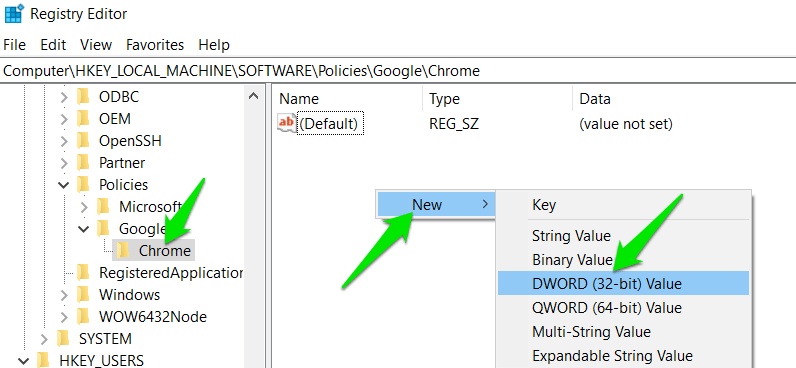
<p style="text-align: justify;">Trong khi key Chrome được chọn, nhấp chuột phải vào bảng bên phải và chọn&nbsp;<strong>New -&gt; DWORD (32-bit) Value</strong>.</p>

<figure>
<div style="text-align: justify;"><img alt="Tạo giá trị DWORD mới trong Windows Registry" data-i="3" data-src="https://st.quantrimang.com/photos/image/2025/07/10/ngan-chrome-kiem-tra-kha-nang-tuong-thich-pc-voi-windows-11-4.jpg" data-was-processed="true" height="368" src="https://st.quantrimang.com/photos/image/2025/07/10/ngan-chrome-kiem-tra-kha-nang-tuong-thich-pc-voi-windows-11-4.jpg" width="796" /></div>

<figcaption>
<div style="text-align: justify;">Tạo giá trị DWORD mới trong Windows Registry</div>
</figcaption>
</figure>

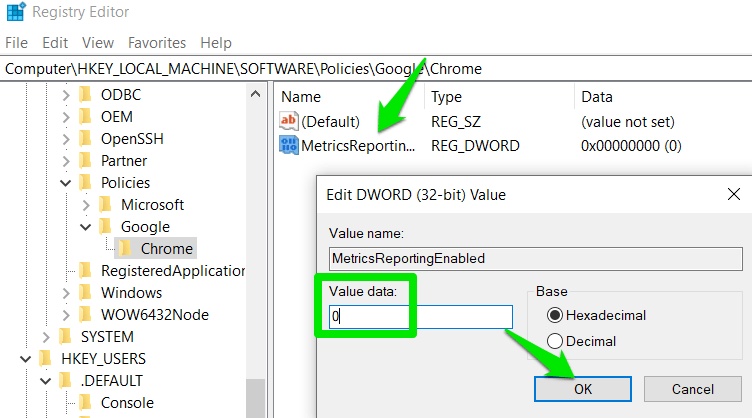
<p style="text-align: justify;">Đặt tên giá trị này là&nbsp;<strong>MetricsReportingEnabled</strong>, sau đó nhấp đúp vào giá trị đó và đặt giá trị thành&nbsp;<strong>0</strong>.</p>

<figure>
<div style="text-align: justify;"><img alt="Nhập giá trị DWORD là 0" data-i="4" data-src="https://st.quantrimang.com/photos/image/2025/07/10/ngan-chrome-kiem-tra-kha-nang-tuong-thich-pc-voi-windows-11-5.jpg" data-was-processed="true" height="418" src="https://st.quantrimang.com/photos/image/2025/07/10/ngan-chrome-kiem-tra-kha-nang-tuong-thich-pc-voi-windows-11-5.jpg" width="752" /></div>

<figcaption>
<div style="text-align: justify;">Nhập giá trị DWORD là 0</div>
</figcaption>
</figure>

<p style="text-align: justify;">Giờ đây, bạn có thể khởi chạy Chrome một cách an toàn và nó sẽ không chia sẻ quyền sử dụng Windows 11 với Google. Tuy nhiên, vẫn sẽ ghi lại thông tin đó và có thể bị chia sẻ nếu bạn bật tính năng telemetry sau này.</p>

<p style="text-align: justify;">Điều thú vị là bạn cũng có thể cung cấp thông tin không chính xác cho Chrome bằng cách sử dụng thủ thuật hack để vượt qua các kiểm tra Secure Boot và TPM 2.0. Tất nhiên, nâng cấp lên Windows 11 là cách tốt nhất để loại bỏ các kiểm tra này, ngay cả khi bạn&nbsp;cài đặt Windows 11 trên PC không được hỗ trợ.</p>

<div style="text-align: justify;">&nbsp;</div>
		</div>
				<div id="author">
						<p>
				<strong>Nguồn tin:</strong>
				Quantrimang.com
			</p>
		</div>
	</div>
	<div id="footer" class="clearfix">
		<div id="url">
			<strong>URL của bản tin này: </strong><a href="https://www.nguoicodonvn2008.info/vi/news/savefile/kien-thuc-may-tinh/cach-ngan-google-chrome-kiem-tra-kha-nang-tuong-thich-cua-pc-voi-windows-11-10758.html" title="Cách ngăn Google Chrome kiểm tra khả năng tương thích của PC với Windows 11">https://www.nguoicodonvn2008.info/vi/news/savefile/kien-thuc-may-tinh/cach-ngan-google-chrome-kiem-tra-kha-nang-tuong-thich-cua-pc-voi-windows-11-10758.html</a>

		</div>
		<div class="clear"></div>
		<div class="copyright">
			&copy; .&#x3A; Nguoicodonvn2008.info - Cõi lòng người cô đơn &#x3A;.
		</div>
		<div id="contact">
			<a href="mailto:admin@nguoicodonvn2008.info">admin@nguoicodonvn2008.info</a>
		</div>
	</div>
</div>
        <div id="timeoutsess" class="chromeframe">
            Bạn đã không sử dụng Site, <a onclick="timeoutsesscancel();" href="https://nguoicodonvn2008.info/#">Bấm vào đây để duy trì trạng thái đăng nhập</a>. Thời gian chờ: <span id="secField"> 60 </span> giây
        </div>
        <div id="openidResult" class="nv-alert" style="display:none"></div>
        <div id="openidBt" data-result="" data-redirect=""></div>
		</script>
		<div class="car-top">
  <span><img src="https://nguoicodonvn2008.info/themes/default/images/car.png" alt=""></span>
</div>
<script src="https://nguoicodonvn2008.info/assets/js/jquery/jquery.min.js"></script>
<script>var nv_base_siteurl="/",nv_lang_data="vi",nv_lang_interface="vi",nv_name_variable="nv",nv_fc_variable="op",nv_lang_variable="language",nv_module_name="news",nv_func_name="savefile",nv_is_user=0, nv_my_ofs=-4,nv_my_abbr="EDT",nv_cookie_prefix="nv4c_e856T",nv_check_pass_mstime=1738000,nv_area_admin=0,nv_safemode=0,theme_responsive=0,nv_recaptcha_ver=2,nv_recaptcha_sitekey="",nv_recaptcha_type="image",XSSsanitize=1;</script>
<script src="https://nguoicodonvn2008.info/assets/js/language/vi.js"></script>
<script src="https://nguoicodonvn2008.info/assets/js/DOMPurify/purify3.js"></script>
<script src="https://nguoicodonvn2008.info/assets/js/global.js"></script>
<script src="https://nguoicodonvn2008.info/assets/js/site.js"></script>
<script src="https://nguoicodonvn2008.info/themes/default/js/news.js"></script>
<script src="https://nguoicodonvn2008.info/themes/default/js/main.js"></script>
<script src="https://nguoicodonvn2008.info/themes/default/js/custom.js"></script>
<script type="application/ld+json">
        {
            "@context": "https://schema.org",
            "@type": "Organization",
            "url": "https://nguoicodonvn2008.info",
            "logo": "https://nguoicodonvn2008.info/uploads/angel.gif"
        }
        </script>
<script src="https://nguoicodonvn2008.info/themes/default/js/bootstrap.min.js"></script>
<script type="text/javascript">
var $scrolltop = $('.car-top');
$scrolltop.on('click', function () {
    $('html,body').animate({
        scrollTop: 0
    }, 800);
    $(this).addClass("car-run");
    setTimeout(function(){ $scrolltop.removeClass('car-run');}, 1000);
    return false;
});
$(window).on('scroll', function ()
{ 
    if($(window).scrollTop() >= 200)
    {
        $scrolltop.addClass("show");
        $scrolltop.addClass("car-down");
    }
    else
    {
       $scrolltop.removeClass("show");
       setTimeout(function(){ $scrolltop.removeClass('car-down');}, 300);
    }
});
</script>
</body>
</html>