<!DOCTYPE html>
    <html lang="vi" xmlns="http://www.w3.org/1999/xhtml" prefix="og: http://ogp.me/ns#">
    <head>
<title>Cách mount&#x002F;unmount thủ công thiết bị USB trên Ubuntu</title>
<meta name="description" content="Cách mount&#x002F;unmount thủ công thiết bị USB trên Ubuntu - Savefile - Tin Tức -...">
<meta name="author" content=".: Nguoicodonvn2008.info - Cõi lòng người cô đơn :.">
<meta name="copyright" content=".: Nguoicodonvn2008.info - Cõi lòng người cô đơn :. [admin@nguoicodonvn2008.info]">
<meta name="robots" content="index, archive, follow, noodp">
<meta name="googlebot" content="index,archive,follow,noodp">
<meta name="msnbot" content="all,index,follow">
<meta name="generator" content="NukeViet v4.5">
<meta http-equiv="Content-Type" content="text/html; charset=utf-8">
<meta property="og:title" content="Cách mount&#x002F;unmount thủ công thiết bị USB trên Ubuntu">
<meta property="og:type" content="website">
<meta property="og:description" content="Savefile - Tin Tức - https&#x3A;&#x002F;&#x002F;www.nguoicodonvn2008.info&#x002F;vi&#x002F;news&#x002F;savefile&#x002F;kien-thuc-may-tinh&#x002F;cach-mount-unmount-thu-cong-thiet-bi-usb-tren-ubuntu-9868.html">
<meta property="og:site_name" content=".&#x3A; Nguoicodonvn2008.info - Cõi lòng người cô đơn &#x3A;.">
<meta property="og:url" content="https://www.nguoicodonvn2008.info/vi/news/savefile/kien-thuc-may-tinh/cach-mount-unmount-thu-cong-thiet-bi-usb-tren-ubuntu-9868.html">
<link rel="shortcut icon" href="https://nguoicodonvn2008.info/favicon.ico">
<link rel="canonical" href="https://www.nguoicodonvn2008.info/vi/news/savefile/kien-thuc-may-tinh/cach-mount-unmount-thu-cong-thiet-bi-usb-tren-ubuntu-9868.html">
<link rel="alternate" href="https://nguoicodonvn2008.info/vi/news/rss/" title="Tin Tức" type="application/rss+xml">
<link rel="alternate" href="https://nguoicodonvn2008.info/vi/news/rss/karaoke-dual/" title="Tin Tức - Karaoke Dual" type="application/rss+xml">
<link rel="alternate" href="https://nguoicodonvn2008.info/vi/news/rss/nhac-tre/" title="Tin Tức - Nhạc trẻ" type="application/rss+xml">
<link rel="alternate" href="https://nguoicodonvn2008.info/vi/news/rss/tru-tinh/" title="Tin Tức - Trữ tình" type="application/rss+xml">
<link rel="alternate" href="https://nguoicodonvn2008.info/vi/news/rss/nuoc-ngoai/" title="Tin Tức - Nước ngoài" type="application/rss+xml">
<link rel="alternate" href="https://nguoicodonvn2008.info/vi/news/rss/remix/" title="Tin Tức - Remix" type="application/rss+xml">
<link rel="alternate" href="https://nguoicodonvn2008.info/vi/news/rss/tam-su-tinh-yeu/" title="Tin Tức - Tâm sự tình yêu" type="application/rss+xml">
<link rel="alternate" href="https://nguoicodonvn2008.info/vi/news/rss/tho-suu-tam/" title="Tin Tức - Thơ sưu tầm" type="application/rss+xml">
<link rel="alternate" href="https://nguoicodonvn2008.info/vi/news/rss/cuoc-song/" title="Tin Tức - Cuộc sống" type="application/rss+xml">
<link rel="alternate" href="https://nguoicodonvn2008.info/vi/news/rss/phan-mem/" title="Tin Tức - Phần mềm" type="application/rss+xml">
<link rel="alternate" href="https://nguoicodonvn2008.info/vi/news/rss/kien-thuc-may-tinh/" title="Tin Tức - Kiến thức máy tính" type="application/rss+xml">
<link rel="alternate" href="https://nguoicodonvn2008.info/vi/news/rss/hoc-tap/" title="Tin Tức - Học tập" type="application/rss+xml">
<link rel="alternate" href="https://nguoicodonvn2008.info/vi/news/rss/tai-lieu/" title="Tin Tức - Tài liệu" type="application/rss+xml">
<link rel="alternate" href="https://nguoicodonvn2008.info/vi/news/rss/de-thi/" title="Tin Tức - Đề thi" type="application/rss+xml">
<link rel="preload" as="style" href="https://nguoicodonvn2008.info/assets/css/font-awesome.min.css" type="text/css">
<link rel="preload" as="style" href="https://nguoicodonvn2008.info/themes/default/css/bootstrap.non-responsive.css" type="text/css">
<link rel="preload" as="style" href="https://nguoicodonvn2008.info/themes/default/css/style.css" type="text/css">
<link rel="preload" as="style" href="https://nguoicodonvn2008.info/themes/default/css/style.non-responsive.css" type="text/css">
<link rel="preload" as="style" href="https://nguoicodonvn2008.info/themes/default/css/news.css" type="text/css">
<link rel="preload" as="style" href="https://nguoicodonvn2008.info/themes/default/css/custom.css" type="text/css">
<link rel="preload" as="script" href="https://nguoicodonvn2008.info/assets/js/jquery/jquery.min.js" type="text/javascript">
<link rel="preload" as="script" href="https://nguoicodonvn2008.info/assets/js/language/vi.js" type="text/javascript">
<link rel="preload" as="script" href="https://nguoicodonvn2008.info/assets/js/DOMPurify/purify3.js" type="text/javascript">
<link rel="preload" as="script" href="https://nguoicodonvn2008.info/assets/js/global.js" type="text/javascript">
<link rel="preload" as="script" href="https://nguoicodonvn2008.info/assets/js/site.js" type="text/javascript">
<link rel="preload" as="script" href="https://nguoicodonvn2008.info/themes/default/js/news.js" type="text/javascript">
<link rel="preload" as="script" href="https://nguoicodonvn2008.info/themes/default/js/main.js" type="text/javascript">
<link rel="preload" as="script" href="https://nguoicodonvn2008.info/themes/default/js/custom.js" type="text/javascript">
<link rel="preload" as="script" href="https://nguoicodonvn2008.info/themes/default/js/bootstrap.min.js" type="text/javascript">
<link rel="stylesheet" href="https://nguoicodonvn2008.info/assets/css/font-awesome.min.css">
<link rel="stylesheet" href="https://nguoicodonvn2008.info/themes/default/css/bootstrap.non-responsive.css">
<link rel="stylesheet" href="https://nguoicodonvn2008.info/themes/default/css/style.css">
<link rel="stylesheet" href="https://nguoicodonvn2008.info/themes/default/css/style.non-responsive.css">
<link rel="StyleSheet" href="https://nguoicodonvn2008.info/themes/default/css/news.css">
<link rel="stylesheet" href="https://nguoicodonvn2008.info/themes/default/css/custom.css">
<style type="text/css">
	body{background: #fff;}
</style>
    </head>
    <body>
<div id="print">
	<div id="hd_print">
		<h2 class="pull-left">.&#x3A; Nguoicodonvn2008.info - Cõi lòng người cô đơn &#x3A;.</h2>
		<p class="pull-right"><a title=".&#x3A; Nguoicodonvn2008.info - Cõi lòng người cô đơn &#x3A;." href="https://nguoicodonvn2008.info/">https://nguoicodonvn2008.info</a></p>
	</div>
	<div class="clear"></div>
	<hr />
	<div id="content">
		<h1>Cách mount&#x002F;unmount thủ công thiết bị USB trên Ubuntu</h1>
		<ul class="list-inline">
			<li>Chủ nhật - 23/02/2025 21:45</li>
			<li class="hidden-print txtrequired"><em class="fa fa-print">&nbsp;</em><a title="In ra" href="javascript:;" onclick="window.print()">In ra</a></li>
			<li class="hidden-print txtrequired"><em class="fa fa-power-off">&nbsp;</em><a title="Đóng cửa sổ này" href="javascript:;" onclick="window.close()">Đóng cửa sổ này</a></li>
		</ul>
		<div class="clear"></div>
		<div id="hometext">
		</div>
				<div class="imghome">
			<img alt="Cách mount&#x002F;unmount thủ công thiết bị USB trên Ubuntu" src="https://st.quantrimang.com/photos/image/2025/02/19/mount-unmount-thu-cong-usb-tren-ubuntu-1.png" width="460" class="img-thumbnail" />
		</div>
		<div class="clear"></div>
		<div id="bodytext" class="clearfix">
			<p style="text-align: justify;">Khi bạn kết nối USB với hệ thống, ổ này thường được mount tự động và một thư mục có tên người dùng của bạn được tạo trong thư mục media. Bạn cũng có thể truy cập ổ này thông qua trình quản lý file của hệ thống. Thật không may, điều này không phải lúc nào cũng xảy ra; đôi khi, bạn cần phải mount USB theo cách thủ công vào hệ thống để truy cập ổ.</p>

<p style="text-align: justify;">Hướng dẫn này sẽ giải thích cách mount và unmount USB theo cách thủ công vào hệ thống của bạn. Các lệnh và bước được mô tả trong bài viết này sẽ hoạt động trên mọi phiên bản Ubuntu gần đây bao gồm&nbsp;Ubuntu 24.04&nbsp;và&nbsp;Ubuntu 22.04.</p>

<h2 style="text-align: justify;">Cách mount USB trên Ubuntu</h2>

<p style="text-align: justify;">Hãy làm theo các bước sau để mount USB theo cách thủ công vào hệ thống của bạn:</p>

<p style="text-align: justify;"><strong>Bước 1</strong>: Cắm USB vào cổng khả dụng.</p>

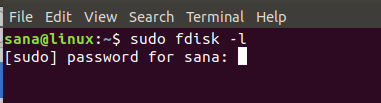
<p style="text-align: justify;"><strong>Bước 2</strong>: Chạy lệnh sau dưới dạng sudo trong ứng dụng Terminal để kiểm tra các thiết bị lưu trữ khả dụng trên hệ thống và hệ thống file mà chúng đang sử dụng:</p>

<pre id="pre0">
<code>$ sudo fdisk -l</code></pre>

<figure>
<div style="text-align: justify;"><img alt="Liệt kê các thiết bị bằng fdisk" data-i="0" data-src="https://st.quantrimang.com/photos/image/2025/02/19/mount-unmount-thu-cong-usb-tren-ubuntu-1.png" data-was-processed="true" height="103" src="https://st.quantrimang.com/photos/image/2025/02/19/mount-unmount-thu-cong-usb-tren-ubuntu-1.png" width="381" /></div>

<figcaption>
<div style="text-align: justify;">Liệt kê các thiết bị bằng fdisk</div>
</figcaption>
</figure>

<p style="text-align: justify;">Thiết bị USB của bạn thường sẽ được liệt kê ở cuối đầu ra, chủ yếu là&nbsp;<strong>sdb-(số)</strong>. Trong trường hợp ví dụ, nó được liệt kê là&nbsp;<strong>sdb1</strong>, chạy hệ thống file&nbsp;<strong>FAT32</strong>.</p>

<figure>
<div style="text-align: justify;"><img alt="Tên thiết bị USB được hiển thị" data-i="1" data-src="https://st.quantrimang.com/photos/image/2025/02/19/mount-unmount-thu-cong-usb-tren-ubuntu-2.jpg" data-was-processed="true" height="65" src="https://st.quantrimang.com/photos/image/2025/02/19/mount-unmount-thu-cong-usb-tren-ubuntu-2.jpg" width="629" /></div>

<figcaption>
<div style="text-align: justify;">Tên thiết bị USB được hiển thị</div>
</figcaption>
</figure>

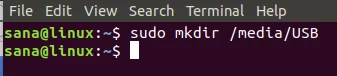
<p style="text-align: justify;"><strong>Bước 3</strong>: Tạo điểm mount cho thiết bị USB của bạn thông qua lệnh sau:</p>

<p style="text-align: justify;">Cú pháp:</p>

<pre id="pre1">
<code>$ sudo mkdir /media/&#91;mountPointName&#93;</code></pre>

<p style="text-align: justify;"><strong>Lưu ý</strong>: Tên điểm mount của bạn không được bao gồm khoảng trắng; bạn có thể phân tách các từ bằng dấu gạch dưới ‘_’.</p>

<p style="text-align: justify;">Ví dụ:</p>

<pre id="pre2">
<code>$ sudo mkdir /media/USB</code></pre>

<figure>
<div style="text-align: justify;"><img alt="Tạo điểm mount cho thiết bị USB" data-i="2" data-src="https://st.quantrimang.com/photos/image/2025/02/19/mount-unmount-thu-cong-usb-tren-ubuntu-3.jpg" data-was-processed="true" height="76" src="https://st.quantrimang.com/photos/image/2025/02/19/mount-unmount-thu-cong-usb-tren-ubuntu-3.jpg" width="337" /></div>

<figcaption>
<div style="text-align: justify;">Tạo điểm mount cho thiết bị USB</div>
</figcaption>
</figure>

<p style="text-align: justify;">Điểm mount sẽ được tạo ngay bây giờ.</p>

<p style="text-align: justify;"><strong>Bước 4</strong>: Bây giờ, chúng ta sẽ mount thiết bị lưu trữ USB vào điểm mount đã tạo. Chúng ta sẽ sử dụng lệnh sau để mount thiết bị FAT32:</p>

<pre id="pre3">
<code>$ sudo mount -t vfat /dev/sdb1 /media/USB -o &#91;securityoption&#93;</code></pre>

<p style="text-align: justify;">Tùy chọn bảo mật là bắt buộc và cho phép bạn cấp/nhận quyền truy cập vào USB bằng cách chỉ định một trong các giá trị sau để cấp quyền:</p>

<ul>
	<li style="text-align: justify;">uid=1000</li>
	<li style="text-align: justify;">gid=1000</li>
	<li style="text-align: justify;">Utf8</li>
	<li style="text-align: justify;">dmask=027</li>
	<li style="text-align: justify;">fmask=137</li>
</ul>

<p style="text-align: justify;">Ví dụ này cấp quyền kiểm soát truy cập cho người dùng (user hiện tại) bằng cách chỉ định id người dùng:</p>

<figure>
<div style="text-align: justify;"><img alt="Đặt UID để truy cập thiết bị" data-i="3" data-src="https://st.quantrimang.com/photos/image/2025/02/19/mount-unmount-thu-cong-usb-tren-ubuntu-4.jpg" data-was-processed="true" height="50" src="https://st.quantrimang.com/photos/image/2025/02/19/mount-unmount-thu-cong-usb-tren-ubuntu-4.jpg" width="644" /></div>

<figcaption>
<div style="text-align: justify;">Đặt UID để truy cập thiết bị</div>
</figcaption>
</figure>

<p style="text-align: justify;">Đối với NTFS, hãy sử dụng lệnh sau:</p>

<pre id="pre4">
<code>$ sudo mount -t ntfs-3g /dev/sdb1 /media/USB</code></pre>

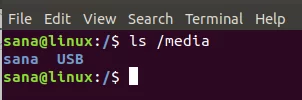
<p style="text-align: justify;"><strong>Bước 5</strong>: USB hiện đã được mount. Bạn có thể truy cập nó thông qua thư mục media của mình.</p>

<figure>
<div style="text-align: justify;"><img alt="Truy cập thiết bị USB" data-i="4" data-src="https://st.quantrimang.com/photos/image/2025/02/19/mount-unmount-thu-cong-usb-tren-ubuntu-5.jpg" data-was-processed="true" height="100" src="https://st.quantrimang.com/photos/image/2025/02/19/mount-unmount-thu-cong-usb-tren-ubuntu-5.jpg" width="302" /></div>

<figcaption>
<div style="text-align: justify;">Truy cập thiết bị USB</div>
</figcaption>
</figure>

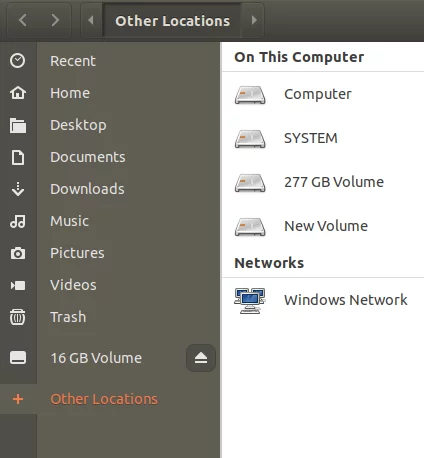
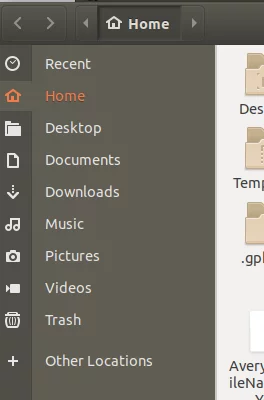
<p style="text-align: justify;">Bạn cũng có thể truy cập USB thông qua trình quản lý file. Trong hình ảnh sau, Volume 16 GB được liệt kê ngay phía trên Other Locations là thiết bị lưu trữ USB được mount.</p>

<figure>
<div style="text-align: justify;"><img alt="Sử dụng trình quản lý file để truy cập thiết bị USB" data-adbro-processed="true" data-i="5" data-src="https://st.quantrimang.com/photos/image/2025/02/19/mount-unmount-thu-cong-usb-tren-ubuntu-6.jpg" data-was-processed="true" height="458" src="https://st.quantrimang.com/photos/image/2025/02/19/mount-unmount-thu-cong-usb-tren-ubuntu-6.jpg" width="424" /></div>

<figcaption>
<div style="text-align: justify;">Sử dụng trình quản lý file để truy cập thiết bị USB</div>
</figcaption>
</figure>

<h2 style="text-align: justify;">Cách unmount USB trên Ubuntu</h2>

<p style="text-align: justify;">Nếu đã mount USB theo cách thủ công, tốt nhất là bạn cũng nên unmount thủ công.</p>

<p style="text-align: justify;"><strong>Bước 1</strong>: Sử dụng lệnh sau để unmount USB:</p>

<pre id="pre5">
<code>$ sudo umount /dev/sdb1</code></pre>

<p style="text-align: justify;">Hoặc:</p>

<pre id="pre6">
<code>$ sudo umount /media/USB</code></pre>

<p style="text-align: justify;">Trong lệnh trên, hãy chỉ định điểm mount nếu nó khác với điểm mount ‘USB’ đã sử dụng.</p>

<p style="text-align: justify;">USB sẽ được unmount khỏi hệ thống của bạn:</p>

<figure>
<div style="text-align: justify;"><img alt="USB được unmount thành công" data-i="6" data-src="https://st.quantrimang.com/photos/image/2025/02/19/mount-unmount-thu-cong-usb-tren-ubuntu-7.jpg" data-was-processed="true" height="400" src="https://st.quantrimang.com/photos/image/2025/02/19/mount-unmount-thu-cong-usb-tren-ubuntu-7.jpg" width="264" /></div>

<figcaption>
<div style="text-align: justify;">USB được unmount thành công</div>
</figcaption>
</figure>

<p style="text-align: justify;"><strong>Bước 2</strong>: Bạn sẽ cần phải xóa thủ công thư mục điểm mount USB như sau nếu không có kế hoạch sử dụng lại trong tương lai:</p>

<figure>
<div style="text-align: justify;"><img alt="Xóa thư mục điểm mount " data-i="7" data-src="https://st.quantrimang.com/photos/image/2025/02/19/mount-unmount-thu-cong-usb-tren-ubuntu-8.jpg" data-was-processed="true" height="56" src="https://st.quantrimang.com/photos/image/2025/02/19/mount-unmount-thu-cong-usb-tren-ubuntu-8.jpg" width="339" /></div>

<figcaption>
<div style="text-align: justify;">Xóa thư mục điểm mount</div>
</figcaption>
</figure>

<p style="text-align: justify;"><strong>Bước 3</strong>: Rút USB khỏi hệ thống.</p>

<p style="text-align: justify;">Sau khi làm theo các bước được mô tả trong bài viết này, bạn sẽ có thể mount và unmount thành công thiết bị lưu trữ USB vào và ra khỏi hệ thống của mình. Điều này sẽ giúp ích nếu hệ thống của bạn không tự động cho phép truy cập và sử dụng USB.</p>
		</div>
				<div id="author">
						<p>
				<strong>Nguồn tin:</strong>
				Quantrimang.com:
			</p>
		</div>
	</div>
	<div id="footer" class="clearfix">
		<div id="url">
			<strong>URL của bản tin này: </strong><a href="https://www.nguoicodonvn2008.info/vi/news/savefile/kien-thuc-may-tinh/cach-mount-unmount-thu-cong-thiet-bi-usb-tren-ubuntu-9868.html" title="Cách mount&#x002F;unmount thủ công thiết bị USB trên Ubuntu">https://www.nguoicodonvn2008.info/vi/news/savefile/kien-thuc-may-tinh/cach-mount-unmount-thu-cong-thiet-bi-usb-tren-ubuntu-9868.html</a>

		</div>
		<div class="clear"></div>
		<div class="copyright">
			&copy; .&#x3A; Nguoicodonvn2008.info - Cõi lòng người cô đơn &#x3A;.
		</div>
		<div id="contact">
			<a href="mailto:admin@nguoicodonvn2008.info">admin@nguoicodonvn2008.info</a>
		</div>
	</div>
</div>
        <div id="timeoutsess" class="chromeframe">
            Bạn đã không sử dụng Site, <a onclick="timeoutsesscancel();" href="https://nguoicodonvn2008.info/#">Bấm vào đây để duy trì trạng thái đăng nhập</a>. Thời gian chờ: <span id="secField"> 60 </span> giây
        </div>
        <div id="openidResult" class="nv-alert" style="display:none"></div>
        <div id="openidBt" data-result="" data-redirect=""></div>
		</script>
		<div class="car-top">
  <span><img src="https://nguoicodonvn2008.info/themes/default/images/car.png" alt=""></span>
</div>
<div id="run_cronjobs" style="visibility:hidden;display:none;"><img alt="cron" src="/index.php?second=cronjobs&amp;p=u1D46y5f" width="1" height="1" /></div>
<script src="https://nguoicodonvn2008.info/assets/js/jquery/jquery.min.js"></script>
<script>var nv_base_siteurl="/",nv_lang_data="vi",nv_lang_interface="vi",nv_name_variable="nv",nv_fc_variable="op",nv_lang_variable="language",nv_module_name="news",nv_func_name="savefile",nv_is_user=0, nv_my_ofs=-4,nv_my_abbr="EDT",nv_cookie_prefix="nv4c_e856T",nv_check_pass_mstime=1738000,nv_area_admin=0,nv_safemode=0,theme_responsive=0,nv_recaptcha_ver=2,nv_recaptcha_sitekey="",nv_recaptcha_type="image",XSSsanitize=1;</script>
<script src="https://nguoicodonvn2008.info/assets/js/language/vi.js"></script>
<script src="https://nguoicodonvn2008.info/assets/js/DOMPurify/purify3.js"></script>
<script src="https://nguoicodonvn2008.info/assets/js/global.js"></script>
<script src="https://nguoicodonvn2008.info/assets/js/site.js"></script>
<script src="https://nguoicodonvn2008.info/themes/default/js/news.js"></script>
<script src="https://nguoicodonvn2008.info/themes/default/js/main.js"></script>
<script src="https://nguoicodonvn2008.info/themes/default/js/custom.js"></script>
<script type="application/ld+json">
        {
            "@context": "https://schema.org",
            "@type": "Organization",
            "url": "https://nguoicodonvn2008.info",
            "logo": "https://nguoicodonvn2008.info/uploads/angel.gif"
        }
        </script>
<script src="https://nguoicodonvn2008.info/themes/default/js/bootstrap.min.js"></script>
<script type="text/javascript">
var $scrolltop = $('.car-top');
$scrolltop.on('click', function () {
    $('html,body').animate({
        scrollTop: 0
    }, 800);
    $(this).addClass("car-run");
    setTimeout(function(){ $scrolltop.removeClass('car-run');}, 1000);
    return false;
});
$(window).on('scroll', function ()
{ 
    if($(window).scrollTop() >= 200)
    {
        $scrolltop.addClass("show");
        $scrolltop.addClass("car-down");
    }
    else
    {
       $scrolltop.removeClass("show");
       setTimeout(function(){ $scrolltop.removeClass('car-down');}, 300);
    }
});
</script>
</body>
</html>