<!DOCTYPE html>
    <html lang="vi" xmlns="http://www.w3.org/1999/xhtml" prefix="og: http://ogp.me/ns#">
    <head>
<title>Cách mở Control Panel trên Windows 11</title>
<meta name="description" content="Cách mở Control Panel trên Windows 11 - Savefile - Tin Tức -...">
<meta name="author" content=".: Nguoicodonvn2008.info - Cõi lòng người cô đơn :.">
<meta name="copyright" content=".: Nguoicodonvn2008.info - Cõi lòng người cô đơn :. [admin@nguoicodonvn2008.info]">
<meta name="robots" content="index, archive, follow, noodp">
<meta name="googlebot" content="index,archive,follow,noodp">
<meta name="msnbot" content="all,index,follow">
<meta name="generator" content="NukeViet v4.5">
<meta http-equiv="Content-Type" content="text/html; charset=utf-8">
<meta property="og:title" content="Cách mở Control Panel trên Windows 11">
<meta property="og:type" content="website">
<meta property="og:description" content="Savefile - Tin Tức - https&#x3A;&#x002F;&#x002F;www.nguoicodonvn2008.info&#x002F;vi&#x002F;news&#x002F;savefile&#x002F;kien-thuc-may-tinh&#x002F;cach-mo-control-panel-tren-windows-11-4643.html">
<meta property="og:site_name" content=".&#x3A; Nguoicodonvn2008.info - Cõi lòng người cô đơn &#x3A;.">
<meta property="og:url" content="https://www.nguoicodonvn2008.info/vi/news/savefile/kien-thuc-may-tinh/cach-mo-control-panel-tren-windows-11-4643.html">
<link rel="shortcut icon" href="https://nguoicodonvn2008.info/favicon.ico">
<link rel="canonical" href="https://www.nguoicodonvn2008.info/vi/news/savefile/kien-thuc-may-tinh/cach-mo-control-panel-tren-windows-11-4643.html">
<link rel="alternate" href="https://nguoicodonvn2008.info/vi/news/rss/" title="Tin Tức" type="application/rss+xml">
<link rel="alternate" href="https://nguoicodonvn2008.info/vi/news/rss/karaoke-dual/" title="Tin Tức - Karaoke Dual" type="application/rss+xml">
<link rel="alternate" href="https://nguoicodonvn2008.info/vi/news/rss/nhac-tre/" title="Tin Tức - Nhạc trẻ" type="application/rss+xml">
<link rel="alternate" href="https://nguoicodonvn2008.info/vi/news/rss/tru-tinh/" title="Tin Tức - Trữ tình" type="application/rss+xml">
<link rel="alternate" href="https://nguoicodonvn2008.info/vi/news/rss/nuoc-ngoai/" title="Tin Tức - Nước ngoài" type="application/rss+xml">
<link rel="alternate" href="https://nguoicodonvn2008.info/vi/news/rss/remix/" title="Tin Tức - Remix" type="application/rss+xml">
<link rel="alternate" href="https://nguoicodonvn2008.info/vi/news/rss/tam-su-tinh-yeu/" title="Tin Tức - Tâm sự tình yêu" type="application/rss+xml">
<link rel="alternate" href="https://nguoicodonvn2008.info/vi/news/rss/tho-suu-tam/" title="Tin Tức - Thơ sưu tầm" type="application/rss+xml">
<link rel="alternate" href="https://nguoicodonvn2008.info/vi/news/rss/cuoc-song/" title="Tin Tức - Cuộc sống" type="application/rss+xml">
<link rel="alternate" href="https://nguoicodonvn2008.info/vi/news/rss/phan-mem/" title="Tin Tức - Phần mềm" type="application/rss+xml">
<link rel="alternate" href="https://nguoicodonvn2008.info/vi/news/rss/kien-thuc-may-tinh/" title="Tin Tức - Kiến thức máy tính" type="application/rss+xml">
<link rel="alternate" href="https://nguoicodonvn2008.info/vi/news/rss/hoc-tap/" title="Tin Tức - Học tập" type="application/rss+xml">
<link rel="alternate" href="https://nguoicodonvn2008.info/vi/news/rss/tai-lieu/" title="Tin Tức - Tài liệu" type="application/rss+xml">
<link rel="alternate" href="https://nguoicodonvn2008.info/vi/news/rss/de-thi/" title="Tin Tức - Đề thi" type="application/rss+xml">
<link rel="preload" as="style" href="https://nguoicodonvn2008.info/assets/css/font-awesome.min.css" type="text/css">
<link rel="preload" as="style" href="https://nguoicodonvn2008.info/themes/default/css/bootstrap.non-responsive.css" type="text/css">
<link rel="preload" as="style" href="https://nguoicodonvn2008.info/themes/default/css/style.css" type="text/css">
<link rel="preload" as="style" href="https://nguoicodonvn2008.info/themes/default/css/style.non-responsive.css" type="text/css">
<link rel="preload" as="style" href="https://nguoicodonvn2008.info/themes/default/css/news.css" type="text/css">
<link rel="preload" as="style" href="https://nguoicodonvn2008.info/themes/default/css/custom.css" type="text/css">
<link rel="preload" as="script" href="https://nguoicodonvn2008.info/assets/js/jquery/jquery.min.js" type="text/javascript">
<link rel="preload" as="script" href="https://nguoicodonvn2008.info/assets/js/language/vi.js" type="text/javascript">
<link rel="preload" as="script" href="https://nguoicodonvn2008.info/assets/js/DOMPurify/purify3.js" type="text/javascript">
<link rel="preload" as="script" href="https://nguoicodonvn2008.info/assets/js/global.js" type="text/javascript">
<link rel="preload" as="script" href="https://nguoicodonvn2008.info/assets/js/site.js" type="text/javascript">
<link rel="preload" as="script" href="https://nguoicodonvn2008.info/themes/default/js/news.js" type="text/javascript">
<link rel="preload" as="script" href="https://nguoicodonvn2008.info/themes/default/js/main.js" type="text/javascript">
<link rel="preload" as="script" href="https://nguoicodonvn2008.info/themes/default/js/custom.js" type="text/javascript">
<link rel="preload" as="script" href="https://nguoicodonvn2008.info/themes/default/js/bootstrap.min.js" type="text/javascript">
<link rel="stylesheet" href="https://nguoicodonvn2008.info/assets/css/font-awesome.min.css">
<link rel="stylesheet" href="https://nguoicodonvn2008.info/themes/default/css/bootstrap.non-responsive.css">
<link rel="stylesheet" href="https://nguoicodonvn2008.info/themes/default/css/style.css">
<link rel="stylesheet" href="https://nguoicodonvn2008.info/themes/default/css/style.non-responsive.css">
<link rel="StyleSheet" href="https://nguoicodonvn2008.info/themes/default/css/news.css">
<link rel="stylesheet" href="https://nguoicodonvn2008.info/themes/default/css/custom.css">
<style type="text/css">
	body{background: #fff;}
</style>
    </head>
    <body>
<div id="print">
	<div id="hd_print">
		<h2 class="pull-left">.&#x3A; Nguoicodonvn2008.info - Cõi lòng người cô đơn &#x3A;.</h2>
		<p class="pull-right"><a title=".&#x3A; Nguoicodonvn2008.info - Cõi lòng người cô đơn &#x3A;." href="https://nguoicodonvn2008.info/">https://nguoicodonvn2008.info</a></p>
	</div>
	<div class="clear"></div>
	<hr />
	<div id="content">
		<h1>Cách mở Control Panel trên Windows 11</h1>
		<ul class="list-inline">
			<li>Thứ ba - 26/10/2021 00:44</li>
			<li class="hidden-print txtrequired"><em class="fa fa-print">&nbsp;</em><a title="In ra" href="javascript:;" onclick="window.print()">In ra</a></li>
			<li class="hidden-print txtrequired"><em class="fa fa-power-off">&nbsp;</em><a title="Đóng cửa sổ này" href="javascript:;" onclick="window.close()">Đóng cửa sổ này</a></li>
		</ul>
		<div class="clear"></div>
		<div id="hometext">
		</div>
				<div class="imghome">
			<img alt="Cách mở Control Panel trên Windows 11" src="https://st.quantrimang.com/photos/image/2021/10/16/mo-control-panel-windows-111.jpg" width="460" class="img-thumbnail" />
		</div>
		<div class="clear"></div>
		<div id="bodytext" class="clearfix">
			<p style="text-align: justify;">Khi muốn thay đổi các thiết lập cài đặt trong Windows 11, nơi mà đa số mọi người thường nghĩ tới đầu tiên là ứng dụng Settings. Tuy nhiên, Control Panel vẫn đóng một vai trò cực kỳ quan trọng trong nhiều tác vụ cấu hình mà bạn cần trên hệ điều hành mới.</p>

<p style="text-align: justify;">Dưới đây là một số cách khác nhau để bạn truy cập Control Panel trên Windows 11.</p>

<h2 style="text-align: justify;">Sử dụng menu Start</h2>

<p style="text-align: justify;"><img alt="Sử dụng menu Start" data-i="0" data-src="https://st.quantrimang.com/photos/image/2021/10/16/mo-control-panel-windows-111.jpg" data-was-processed="true" height="291" src="https://st.quantrimang.com/photos/image/2021/10/16/mo-control-panel-windows-111.jpg" width="650" /></p>

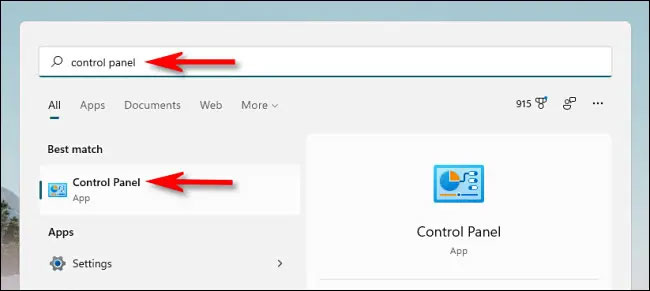
<p style="text-align: justify;">Một trong những cách đơn giản nhất để khởi chạy Control Panel là sử dụng menu Start.</p>

<p style="text-align: justify;">Trước tiên, bạn nhấp vào nút Start trên thanh tác vụ. Menu Start sẽ lập tức mở ra. Tại đây, nhập từ khóa “control panel” trong thanh tìm kiếm.</p>

<p style="text-align: justify;">Biểu tượng Control Panel sẽ xuất hiện trong kết quả tìm kiếm trả về. Bạn nhấp chuột vào biểu tượng này và giao diện Control Panel sẽ lập tức mở ra.</p>

<h2 style="text-align: justify;">Sử dụng menu Run hoặc Command Prompt</h2>

<p style="text-align: justify;"><img alt="Sử dụng menu Run" data-i="1" data-src="https://st.quantrimang.com/photos/image/2021/10/16/mo-control-panel-windows-112.jpg" data-was-processed="true" height="299" src="https://st.quantrimang.com/photos/image/2021/10/16/mo-control-panel-windows-112.jpg" width="650" /></p>

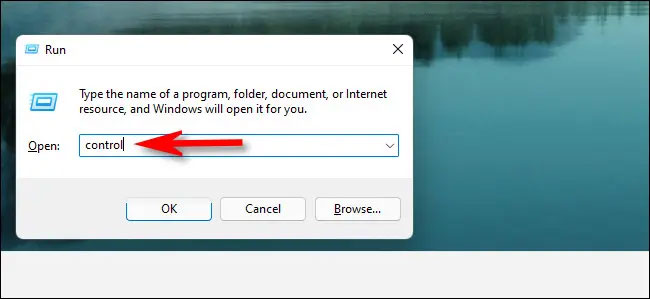
<p style="text-align: justify;">Bạn cũng có thể khởi chạy Control Panel từ menu Run. Thực hiện điều này bằng cách nhấn tổ hợp phím Windows + R để mở cửa sổ Run. Trong trường tìm kiếm, bạn nhập từ khóa “control”, sau đó nhấp vào “OK” hoặc nhấn Enter. Giao diện Control Panel sẽ ngay lập tức xuất hiện trên màn hình.</p>

<p style="text-align: justify;">Tương tự, bạn có thể mở Control Panel từ Command Prompt hoặc Windows Terminal bằng cách truy cập các công cụ dòng lệnh này, sau đó gõ “control” và nhấn Enter.</p>

<h2 style="text-align: justify;">Ghim Control Panel trên taskbar</h2>

<p style="text-align: justify;"><img alt="Ghim Control Panel trên taskbar" data-i="2" data-src="https://st.quantrimang.com/photos/image/2021/10/16/mo-control-panel-windows-113.jpg" data-was-processed="true" height="196" src="https://st.quantrimang.com/photos/image/2021/10/16/mo-control-panel-windows-113.jpg" width="650" /></p>

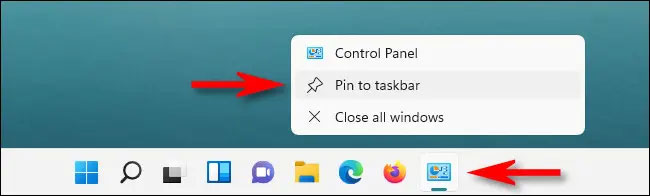
<p style="text-align: justify;">Khi đã mở được Control Panel bằng bất kỳ phương pháp nào được mô tả ở trên, bạn cũng sẽ thấy biểu tượng của nó xuất hiện trên thanh tác vụ dưới đáy màn hình. Nếu thường xuyên phải sử dụng Control Panel, bạn có thể ghim logo trực tiếp trên thanh tác vụ để truy cập nhanh chỉ bằng một cú nhấp chuột khi cần.</p>

<p style="text-align: justify;">Thực hiện việc này bằng cách nhấp chuột phải vào biểu tượng Control Panel khi nó đang được mở, sau đó chọn tùy chọn “Pin to Taskbar”. Lần tới khi bạn muốn khởi chạy Control Panel, chỉ cần nhấp chuột trái một lần vào biểu tượng tương ứng trên thanh tác vụ.</p>

<h2 style="text-align: justify;">Thêm biểu tượng Control Panel trên màn hình desktop</h2>

<p style="text-align: justify;"><img alt="Thêm biểu tượng Control Panel trên màn hình desktop" data-i="3" data-src="https://st.quantrimang.com/photos/image/2021/10/16/mo-control-panel-windows-114.jpg" data-was-processed="true" height="274" src="https://st.quantrimang.com/photos/image/2021/10/16/mo-control-panel-windows-114.jpg" width="650" /></p>

<p style="text-align: justify;">Tương tự, bạn cũng có thể thêm biểu tượng Control Panel trên màn hình desktop để truy cập nhanh bằng cách nhấp đúp chuột khi cần.</p>
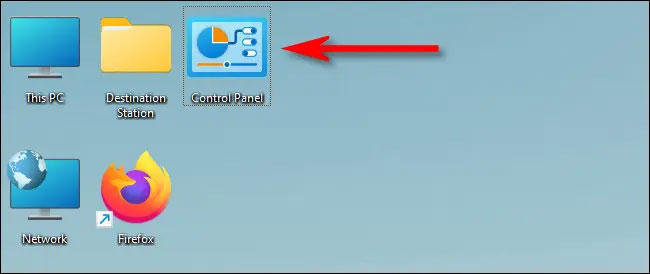
<p style="text-align: justify;">Trước tiên, hãy nhấn Windows + i để mở ứng dụng Settings, sau đó điều hướng đến mục ersonalization &gt; Themes, và nhấp vào “Desktop Icon Settings”. Trong cửa sổ cài đặt biểu tượng trên màn hình mở ra, hãy tích vào ô vuông bên cạnh “Control Panel”, sau đó nhấp vào “OK”. Biểu tượng Control Panel sẽ lập tức xuất hiện trên màn hình desktop. Để khởi chạy, bạn chỉ cần nhấp đúp vào biểu tượng này bất kỳ lúc nào.</p>
		</div>
				<div id="author">
						<p>
				<strong>Nguồn tin:</strong>
				Quantrimang.com
			</p>
		</div>
	</div>
	<div id="footer" class="clearfix">
		<div id="url">
			<strong>URL của bản tin này: </strong><a href="https://www.nguoicodonvn2008.info/vi/news/savefile/kien-thuc-may-tinh/cach-mo-control-panel-tren-windows-11-4643.html" title="Cách mở Control Panel trên Windows 11">https://www.nguoicodonvn2008.info/vi/news/savefile/kien-thuc-may-tinh/cach-mo-control-panel-tren-windows-11-4643.html</a>

		</div>
		<div class="clear"></div>
		<div class="copyright">
			&copy; .&#x3A; Nguoicodonvn2008.info - Cõi lòng người cô đơn &#x3A;.
		</div>
		<div id="contact">
			<a href="mailto:admin@nguoicodonvn2008.info">admin@nguoicodonvn2008.info</a>
		</div>
	</div>
</div>
        <div id="timeoutsess" class="chromeframe">
            Bạn đã không sử dụng Site, <a onclick="timeoutsesscancel();" href="https://nguoicodonvn2008.info/#">Bấm vào đây để duy trì trạng thái đăng nhập</a>. Thời gian chờ: <span id="secField"> 60 </span> giây
        </div>
        <div id="openidResult" class="nv-alert" style="display:none"></div>
        <div id="openidBt" data-result="" data-redirect=""></div>
		</script>
		<div class="car-top">
  <span><img src="https://nguoicodonvn2008.info/themes/default/images/car.png" alt=""></span>
</div>
<script src="https://nguoicodonvn2008.info/assets/js/jquery/jquery.min.js"></script>
<script>var nv_base_siteurl="/",nv_lang_data="vi",nv_lang_interface="vi",nv_name_variable="nv",nv_fc_variable="op",nv_lang_variable="language",nv_module_name="news",nv_func_name="savefile",nv_is_user=0, nv_my_ofs=-4,nv_my_abbr="EDT",nv_cookie_prefix="nv4c_e856T",nv_check_pass_mstime=1738000,nv_area_admin=0,nv_safemode=0,theme_responsive=0,nv_recaptcha_ver=2,nv_recaptcha_sitekey="",nv_recaptcha_type="image",XSSsanitize=1;</script>
<script src="https://nguoicodonvn2008.info/assets/js/language/vi.js"></script>
<script src="https://nguoicodonvn2008.info/assets/js/DOMPurify/purify3.js"></script>
<script src="https://nguoicodonvn2008.info/assets/js/global.js"></script>
<script src="https://nguoicodonvn2008.info/assets/js/site.js"></script>
<script src="https://nguoicodonvn2008.info/themes/default/js/news.js"></script>
<script src="https://nguoicodonvn2008.info/themes/default/js/main.js"></script>
<script src="https://nguoicodonvn2008.info/themes/default/js/custom.js"></script>
<script type="application/ld+json">
        {
            "@context": "https://schema.org",
            "@type": "Organization",
            "url": "https://nguoicodonvn2008.info",
            "logo": "https://nguoicodonvn2008.info/uploads/angel.gif"
        }
        </script>
<script src="https://nguoicodonvn2008.info/themes/default/js/bootstrap.min.js"></script>
<script type="text/javascript">
var $scrolltop = $('.car-top');
$scrolltop.on('click', function () {
    $('html,body').animate({
        scrollTop: 0
    }, 800);
    $(this).addClass("car-run");
    setTimeout(function(){ $scrolltop.removeClass('car-run');}, 1000);
    return false;
});
$(window).on('scroll', function ()
{ 
    if($(window).scrollTop() >= 200)
    {
        $scrolltop.addClass("show");
        $scrolltop.addClass("car-down");
    }
    else
    {
       $scrolltop.removeClass("show");
       setTimeout(function(){ $scrolltop.removeClass('car-down');}, 300);
    }
});
</script>
</body>
</html>