<!DOCTYPE html>
    <html lang="vi" xmlns="http://www.w3.org/1999/xhtml" prefix="og: http://ogp.me/ns#">
    <head>
<title>Cách mở Control Panel trên Windows 11</title>
<meta name="description" content="Cách mở Control Panel trên Windows 11 - Savefile - Tin Tức -...">
<meta name="author" content=".: Nguoicodonvn2008.info - Cõi lòng người cô đơn :.">
<meta name="copyright" content=".: Nguoicodonvn2008.info - Cõi lòng người cô đơn :. [admin@nguoicodonvn2008.info]">
<meta name="robots" content="index, archive, follow, noodp">
<meta name="googlebot" content="index,archive,follow,noodp">
<meta name="msnbot" content="all,index,follow">
<meta name="generator" content="NukeViet v4.5">
<meta http-equiv="Content-Type" content="text/html; charset=utf-8">
<meta property="og:title" content="Cách mở Control Panel trên Windows 11">
<meta property="og:type" content="website">
<meta property="og:description" content="Savefile - Tin Tức - https&#x3A;&#x002F;&#x002F;www.nguoicodonvn2008.info&#x002F;vi&#x002F;news&#x002F;savefile&#x002F;kien-thuc-may-tinh&#x002F;cach-mo-control-panel-tren-windows-11-11491.html">
<meta property="og:site_name" content=".&#x3A; Nguoicodonvn2008.info - Cõi lòng người cô đơn &#x3A;.">
<meta property="og:url" content="https://www.nguoicodonvn2008.info/vi/news/savefile/kien-thuc-may-tinh/cach-mo-control-panel-tren-windows-11-11491.html">
<link rel="shortcut icon" href="https://nguoicodonvn2008.info/favicon.ico">
<link rel="canonical" href="https://www.nguoicodonvn2008.info/vi/news/savefile/kien-thuc-may-tinh/cach-mo-control-panel-tren-windows-11-11491.html">
<link rel="alternate" href="https://nguoicodonvn2008.info/vi/news/rss/" title="Tin Tức" type="application/rss+xml">
<link rel="alternate" href="https://nguoicodonvn2008.info/vi/news/rss/karaoke-dual/" title="Tin Tức - Karaoke Dual" type="application/rss+xml">
<link rel="alternate" href="https://nguoicodonvn2008.info/vi/news/rss/nhac-tre/" title="Tin Tức - Nhạc trẻ" type="application/rss+xml">
<link rel="alternate" href="https://nguoicodonvn2008.info/vi/news/rss/tru-tinh/" title="Tin Tức - Trữ tình" type="application/rss+xml">
<link rel="alternate" href="https://nguoicodonvn2008.info/vi/news/rss/nuoc-ngoai/" title="Tin Tức - Nước ngoài" type="application/rss+xml">
<link rel="alternate" href="https://nguoicodonvn2008.info/vi/news/rss/remix/" title="Tin Tức - Remix" type="application/rss+xml">
<link rel="alternate" href="https://nguoicodonvn2008.info/vi/news/rss/tam-su-tinh-yeu/" title="Tin Tức - Tâm sự tình yêu" type="application/rss+xml">
<link rel="alternate" href="https://nguoicodonvn2008.info/vi/news/rss/tho-suu-tam/" title="Tin Tức - Thơ sưu tầm" type="application/rss+xml">
<link rel="alternate" href="https://nguoicodonvn2008.info/vi/news/rss/cuoc-song/" title="Tin Tức - Cuộc sống" type="application/rss+xml">
<link rel="alternate" href="https://nguoicodonvn2008.info/vi/news/rss/phan-mem/" title="Tin Tức - Phần mềm" type="application/rss+xml">
<link rel="alternate" href="https://nguoicodonvn2008.info/vi/news/rss/kien-thuc-may-tinh/" title="Tin Tức - Kiến thức máy tính" type="application/rss+xml">
<link rel="alternate" href="https://nguoicodonvn2008.info/vi/news/rss/hoc-tap/" title="Tin Tức - Học tập" type="application/rss+xml">
<link rel="alternate" href="https://nguoicodonvn2008.info/vi/news/rss/tai-lieu/" title="Tin Tức - Tài liệu" type="application/rss+xml">
<link rel="alternate" href="https://nguoicodonvn2008.info/vi/news/rss/de-thi/" title="Tin Tức - Đề thi" type="application/rss+xml">
<link rel="preload" as="style" href="https://nguoicodonvn2008.info/assets/css/font-awesome.min.css" type="text/css">
<link rel="preload" as="style" href="https://nguoicodonvn2008.info/themes/default/css/bootstrap.non-responsive.css" type="text/css">
<link rel="preload" as="style" href="https://nguoicodonvn2008.info/themes/default/css/style.css" type="text/css">
<link rel="preload" as="style" href="https://nguoicodonvn2008.info/themes/default/css/style.non-responsive.css" type="text/css">
<link rel="preload" as="style" href="https://nguoicodonvn2008.info/themes/default/css/news.css" type="text/css">
<link rel="preload" as="style" href="https://nguoicodonvn2008.info/themes/default/css/custom.css" type="text/css">
<link rel="preload" as="script" href="https://nguoicodonvn2008.info/assets/js/jquery/jquery.min.js" type="text/javascript">
<link rel="preload" as="script" href="https://nguoicodonvn2008.info/assets/js/language/vi.js" type="text/javascript">
<link rel="preload" as="script" href="https://nguoicodonvn2008.info/assets/js/DOMPurify/purify3.js" type="text/javascript">
<link rel="preload" as="script" href="https://nguoicodonvn2008.info/assets/js/global.js" type="text/javascript">
<link rel="preload" as="script" href="https://nguoicodonvn2008.info/assets/js/site.js" type="text/javascript">
<link rel="preload" as="script" href="https://nguoicodonvn2008.info/themes/default/js/news.js" type="text/javascript">
<link rel="preload" as="script" href="https://nguoicodonvn2008.info/themes/default/js/main.js" type="text/javascript">
<link rel="preload" as="script" href="https://nguoicodonvn2008.info/themes/default/js/custom.js" type="text/javascript">
<link rel="preload" as="script" href="https://nguoicodonvn2008.info/themes/default/js/bootstrap.min.js" type="text/javascript">
<link rel="stylesheet" href="https://nguoicodonvn2008.info/assets/css/font-awesome.min.css">
<link rel="stylesheet" href="https://nguoicodonvn2008.info/themes/default/css/bootstrap.non-responsive.css">
<link rel="stylesheet" href="https://nguoicodonvn2008.info/themes/default/css/style.css">
<link rel="stylesheet" href="https://nguoicodonvn2008.info/themes/default/css/style.non-responsive.css">
<link rel="StyleSheet" href="https://nguoicodonvn2008.info/themes/default/css/news.css">
<link rel="stylesheet" href="https://nguoicodonvn2008.info/themes/default/css/custom.css">
<style type="text/css">
	body{background: #fff;}
</style>
    </head>
    <body>
<div id="print">
	<div id="hd_print">
		<h2 class="pull-left">.&#x3A; Nguoicodonvn2008.info - Cõi lòng người cô đơn &#x3A;.</h2>
		<p class="pull-right"><a title=".&#x3A; Nguoicodonvn2008.info - Cõi lòng người cô đơn &#x3A;." href="https://nguoicodonvn2008.info/">https://nguoicodonvn2008.info</a></p>
	</div>
	<div class="clear"></div>
	<hr />
	<div id="content">
		<h1>Cách mở Control Panel trên Windows 11</h1>
		<ul class="list-inline">
			<li>Thứ tư - 29/10/2025 23:04</li>
			<li class="hidden-print txtrequired"><em class="fa fa-print">&nbsp;</em><a title="In ra" href="javascript:;" onclick="window.print()">In ra</a></li>
			<li class="hidden-print txtrequired"><em class="fa fa-power-off">&nbsp;</em><a title="Đóng cửa sổ này" href="javascript:;" onclick="window.close()">Đóng cửa sổ này</a></li>
		</ul>
		<div class="clear"></div>
		<div id="hometext">
		</div>
				<div class="imghome">
			<img alt="Cách mở Control Panel trên Windows 11" src="https://st.quantrimang.com/photos/image/2025/07/31/Mo-Control-Panel-Windows-8.png" width="460" class="img-thumbnail" />
		</div>
		<div class="clear"></div>
		<div id="bodytext" class="clearfix">
			<p style="text-align: justify;">Control Panel thường được sử dụng trong nhiều phiên bản&nbsp;Windows, bao gồm cả&nbsp;Windows 11. Đơn giản nhất là khi gỡ ứng dụng trên máy tính, bạn sẽ cần đến Control Panel. Chúng tôi sẽ hướng dẫn các bạn một vài cách mở Control Panel trên Windows 11.</p>

<div style="text-align: justify;">&nbsp;</div>

<h2 id="mcetoc_1im768l28a5" style="text-align: justify;">Mở Control Panel trong thanh tìm kiếm</h2>

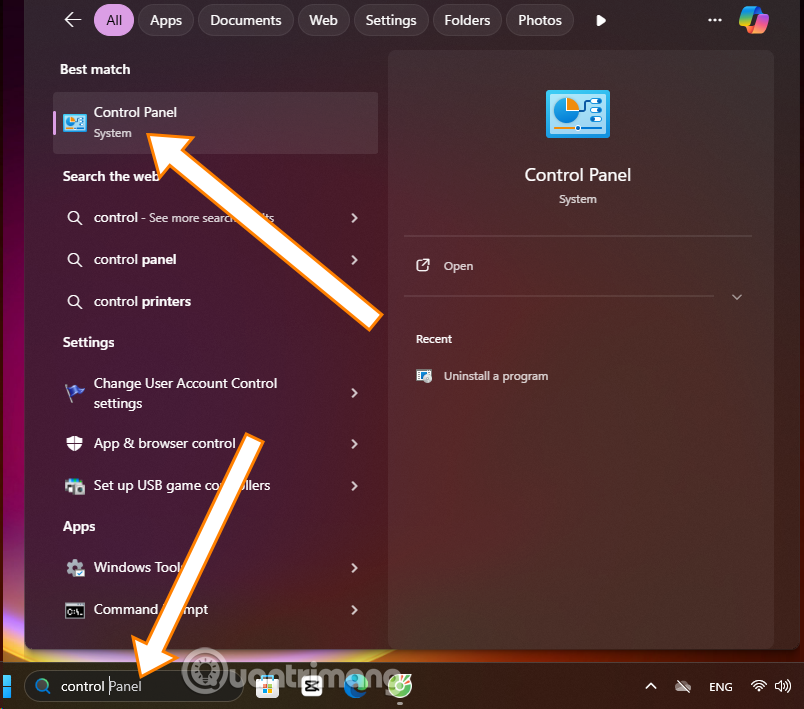
<p style="text-align: justify;">Đơn giản nhất là bạn chỉ cần mở Menu Start trên Windows 11 lên và chọn thanh tìm kiếm nội dung trong Windows. Gõ từ khóa&nbsp;<strong>Control Panel</strong>&nbsp;và chọn biểu tượng Control Panel hiển thị trong danh sách.</p>

<p style="text-align: justify;"><img alt="Sử dụng menu Start" data-adbro-processed="true" data-i="0" data-src="https://st.quantrimang.com/photos/image/2025/07/31/Mo-Control-Panel-Windows-1.png" data-was-processed="true" height="564" src="https://st.quantrimang.com/photos/image/2025/07/31/Mo-Control-Panel-Windows-1.png" width="640" /></p>

<h2 style="text-align: justify;">Sử dụng Run</h2>

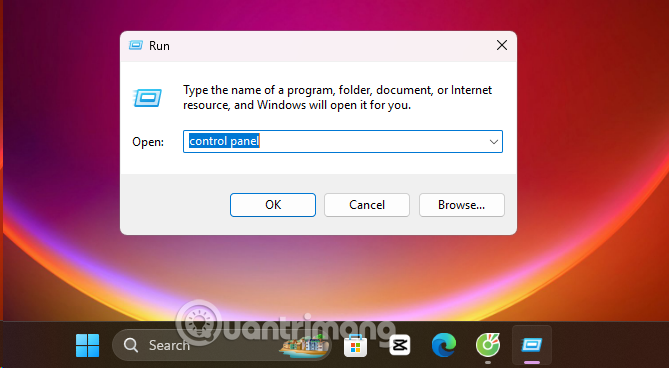
<p style="text-align: justify;">Một cách khác nhanh và đơn giản, bạn hãy sử dụng phím tắt&nbsp;<strong>Windows + R</strong>&nbsp;và cửa sổ Run sẽ hiển thị như ở dưới. Sau đó nhập&nbsp;<strong>control/control panel</strong>&nbsp;và chọn&nbsp;<strong>OK</strong>.</p>

<figure>
<div style="text-align: justify;"><img alt="cách mở Control Panel win 11" data-i="1" data-src="https://st.quantrimang.com/photos/image/2025/07/31/Mo-Control-Panel-Windows-3.png" data-was-processed="true" height="368" src="https://st.quantrimang.com/photos/image/2025/07/31/Mo-Control-Panel-Windows-3.png" width="669" /></div>
</figure>

<h2 style="text-align: justify;">Sử dụng CMD (Command Prompt)</h2>

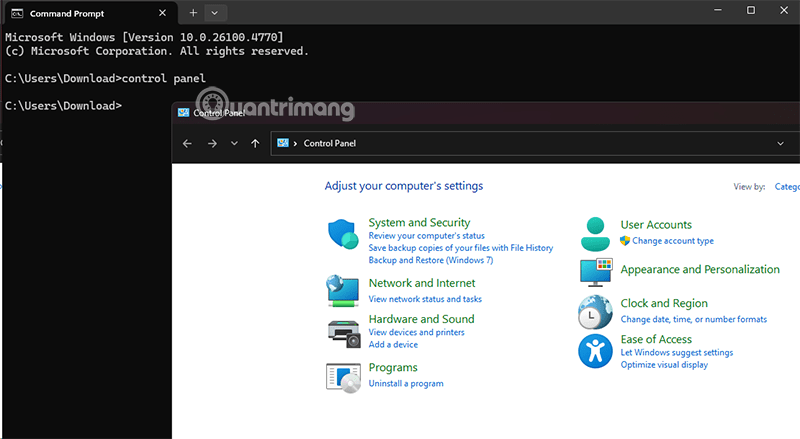
<p style="text-align: justify;">Để mở Control Panel bằng CMD (Command Prompt), bạn có thể sử dụng một trong các lệnh sau, tùy thuộc vào phiên bản Windows của bạn và cách bạn muốn Control Panel hiển thị:</p>

<p style="text-align: justify;">Bạn có thể đơn giản gõ lệnh control vào CMD. Đây là cách phổ biến và hoạt động trên hầu hết các phiên bản Windows, bằng cách:</p>

<ol>
	<li style="text-align: justify;">Nhấn tổ hợp phím&nbsp;<strong>Windows + R&nbsp;</strong>để mở hộp thoại Run.</li>
	<li style="text-align: justify;">Gõ&nbsp;<strong>cmd</strong>&nbsp;và nhấn&nbsp;<strong>Enter</strong>&nbsp;để mở&nbsp;<strong>Command Prompt.</strong></li>
	<li style="text-align: justify;">Tại cửa sổ CMD, gõ lệnh Control Panel rồi nhấn Enter, cửa sổ Control Panel sẽ hiển thị ở dưới.</li>
</ol>

<figure>
<div style="text-align: justify;"><img alt="Control Panel win11" data-i="2" data-src="https://st.quantrimang.com/photos/image/2025/07/31/Mo-Control-Panel-Windows-2.png" data-was-processed="true" height="439" src="https://st.quantrimang.com/photos/image/2025/07/31/Mo-Control-Panel-Windows-2.png" width="800" /></div>
</figure>

<h2 style="text-align: justify;">Mở nhanh Control Panel bằng Shortcut</h2>

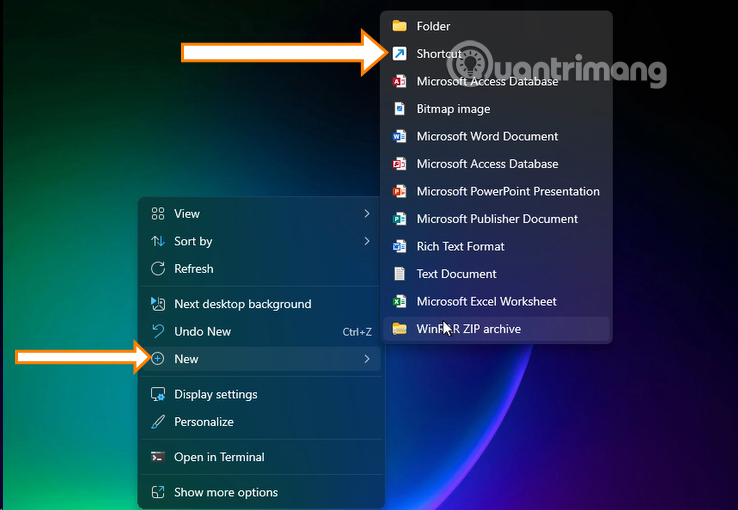
<p style="text-align: justify;"><strong>Bước 1:&nbsp;</strong>Ở ngoài màn hình Desktop, bạn hãy nhấp chuột phải trên màn hình chính và chọn&nbsp;<strong>New &gt; Shortcut</strong>.</p>

<figure>
<div style="text-align: justify;"><img alt="cách mở control panel trên windows 11" data-i="3" data-src="https://st.quantrimang.com/photos/image/2025/07/31/Mo-Control-Panel-Windows-4.png" data-was-processed="true" height="510" src="https://st.quantrimang.com/photos/image/2025/07/31/Mo-Control-Panel-Windows-4.png" width="738" /></div>
</figure>

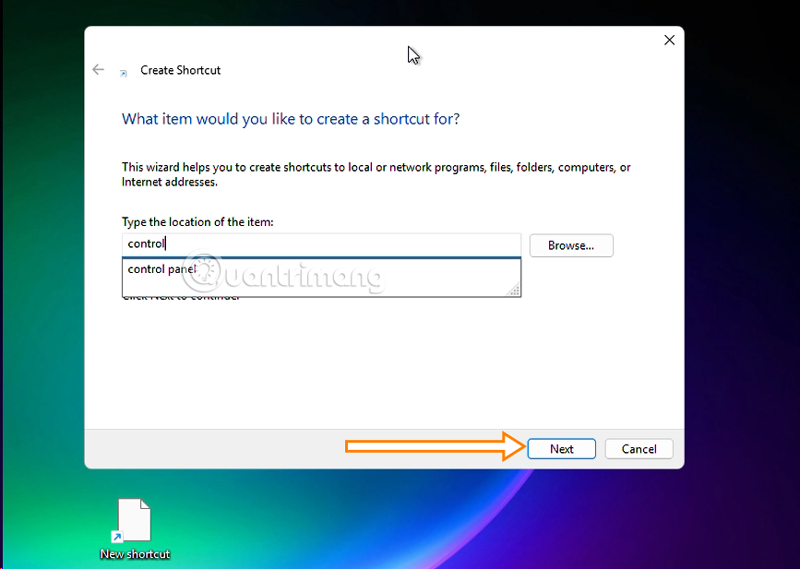
<p style="text-align: justify;"><strong>Bước 2:&nbsp;</strong>Trên phần Type the location of the item, hãy điền Control Panel vào và chọn Next.</p>

<figure>
<div style="text-align: justify;"><img alt="cách mở control panel trên win 11" data-i="4" data-src="https://st.quantrimang.com/photos/image/2025/07/31/Mo-Control-Panel-Windows-5.png" data-was-processed="true" height="569" src="https://st.quantrimang.com/photos/image/2025/07/31/Mo-Control-Panel-Windows-5.png" width="800" /></div>
</figure>

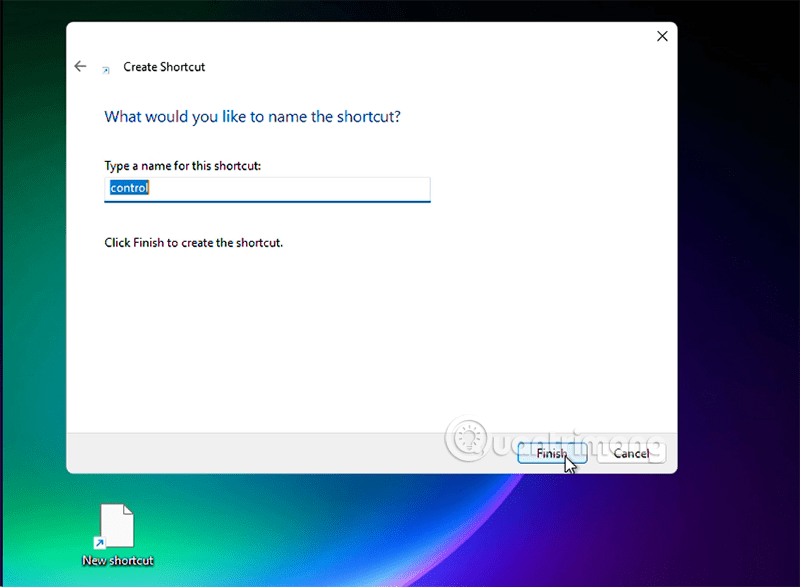
<p style="text-align: justify;"><strong>Bước 3:&nbsp;</strong>Điền tên của&nbsp;<strong>Shortcut</strong>&nbsp;vào trường thông tin bên trên vào và chọn&nbsp;<strong>Finish</strong>&nbsp;để hoàn tất.</p>

<figure>
<div style="text-align: justify;"><img alt="mở control panel trên win 11 như thế nào" data-i="5" data-src="https://st.quantrimang.com/photos/image/2025/07/31/Mo-Control-Panel-Windows-6.png" data-was-processed="true" height="587" src="https://st.quantrimang.com/photos/image/2025/07/31/Mo-Control-Panel-Windows-6.png" width="800" /></div>
</figure>

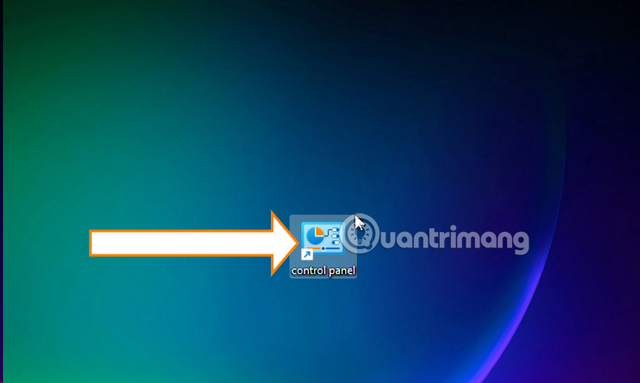
<p style="text-align: justify;"><strong>Bước 4:&nbsp;</strong>Và đây, phím tắt của bạn khi hoàn thành sẽ hiển thị như ở dưới đây, giờ bạn chỉ cần chọn phím tắt này là mở được Control Panel.</p>

<figure>
<div style="text-align: justify;"><img alt="mở control panel trên win 11 như thế nào" data-i="6" data-src="https://st.quantrimang.com/photos/image/2025/07/31/Mo-Control-Panel-Windows-7.png" data-was-processed="true" height="383" src="https://st.quantrimang.com/photos/image/2025/07/31/Mo-Control-Panel-Windows-7.png" width="640" /></div>
</figure>

<h2 id="mcetoc_1im768l28a9" style="text-align: justify;">Truy cập Control Panel thông qua thanh địa chỉ File Explorer</h2>

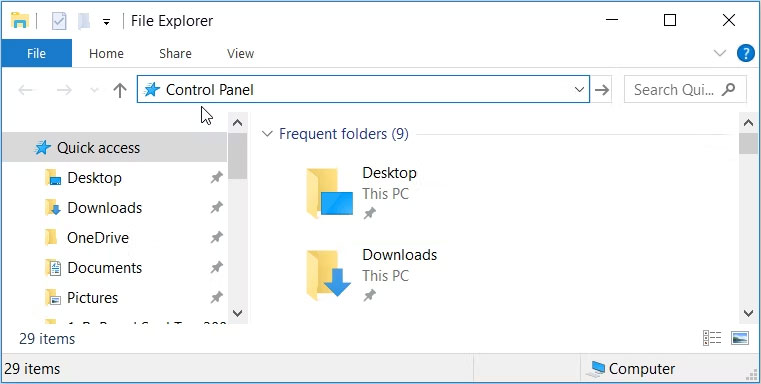
<p style="text-align: justify;">Thanh địa chỉ của File Explorer giúp bạn dễ dàng truy cập các chương trình phần mềm trên thiết bị của mình. Đây là quá trình sử dụng công cụ này để truy cập Control Panel:</p>

<ol>
	<li style="text-align: justify;">Nhấn&nbsp;<strong>Win + E</strong>&nbsp;để&nbsp;mở File Explorer.</li>
	<li style="text-align: justify;">Điều hướng đến thanh địa chỉ của File Explorer, nhập&nbsp;<strong>Control Panel</strong>, rồi nhấn&nbsp;<strong>Enter.</strong></li>
</ol>

<figure>
<div style="text-align: justify;"><img alt="Mở Control Panel thông qua thanh địa chỉ của File Explorer" data-i="7" data-src="https://st.quantrimang.com/photos/image/2023/10/17/mo-control-panel-windows-3.jpg" data-was-processed="true" height="384" src="https://st.quantrimang.com/photos/image/2023/10/17/mo-control-panel-windows-3.jpg" width="761" /></div>

<figcaption>
<div style="text-align: justify;">Mở Control Panel thông qua thanh địa chỉ của File Explorer</div>
</figcaption>
</figure>

<p style="text-align: justify;">Ngoài ra, hãy nhập&nbsp;<strong>C:\Windows\System32</strong>&nbsp;vào thanh địa chỉ File Explorer và nhấp vào&nbsp;<strong>control.exe</strong>&nbsp;hoặc&nbsp;<strong>control</strong>&nbsp;trong cửa sổ tiếp theo.</p>

<h2 id="mcetoc_1im768l28aa" style="text-align: justify;">Truy cập Control Panel thông qua Task Manager</h2>

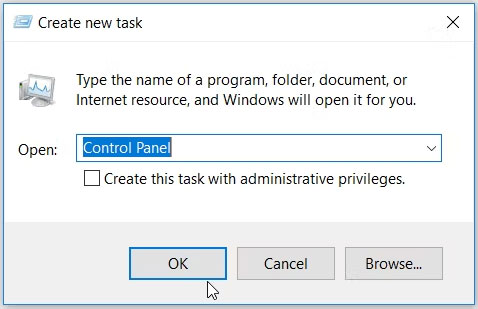
<p style="text-align: justify;">Task Manager&nbsp;cũng cung cấp một cách dễ dàng để truy cập Control Panel. Đây là cách bạn có thể sử dụng nó:</p>

<ol>
	<li style="text-align: justify;">Nhấn&nbsp;<strong>Ctrl + Shift + Esc&nbsp;</strong>để&nbsp;mở Task Manager.</li>
	<li style="text-align: justify;">Điều hướng đến&nbsp;<strong>File &gt; Run new task</strong>.</li>
	<li style="text-align: justify;">Nhập&nbsp;<strong>Control Panel</strong>&nbsp;vào hộp tìm kiếm và nhấn&nbsp;<strong>Enter.</strong></li>
</ol>

<figure>
<div style="text-align: justify;"><img alt="Mở Control Panel thông qua Task Manager" data-i="8" data-src="https://st.quantrimang.com/photos/image/2023/10/17/mo-control-panel-windows-4.jpg" data-was-processed="true" height="309" src="https://st.quantrimang.com/photos/image/2023/10/17/mo-control-panel-windows-4.jpg" width="478" /></div>

<figcaption>
<div style="text-align: justify;">Mở Control Panel thông qua Task Manager</div>
</figcaption>
</figure>

<h2 id="mcetoc_1im768l28ab" style="text-align: justify;">Truy cập Control Panel thông qua Windows Setting</h2>

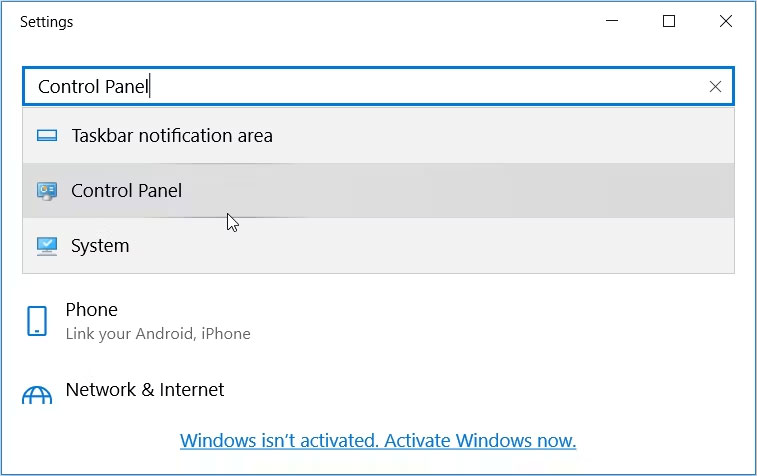
<p style="text-align: justify;">Bạn có biết rằng bạn cũng có thể truy cập Control Panel thông qua Windows Settings không? Đây là cách thực hiện:</p>

<ol>
	<li style="text-align: justify;">Nhấn&nbsp;<strong>Win + I</strong>&nbsp;để mở cửa sổ Settings.</li>
	<li style="text-align: justify;">Nhập&nbsp;<strong>Control Panel</strong>&nbsp;vào trường tìm kiếm và nhấp vào tùy chọn liên quan từ kết quả tìm kiếm.</li>
</ol>

<figure>
<div style="text-align: justify;"><img alt="Mở Control Panel thông qua cài đặt hệ thống" data-i="9" data-src="https://st.quantrimang.com/photos/image/2023/10/17/mo-control-panel-windows-5.jpg" data-was-processed="true" height="476" src="https://st.quantrimang.com/photos/image/2023/10/17/mo-control-panel-windows-5.jpg" width="757" /></div>

<figcaption>
<div style="text-align: justify;">Mở Control Panel thông qua cài đặt hệ thống</div>
</figcaption>
</figure>

<h2 id="mcetoc_1im768l28ac" style="text-align: justify;">Truy cập Control Panel thông qua thư mục System32</h2>

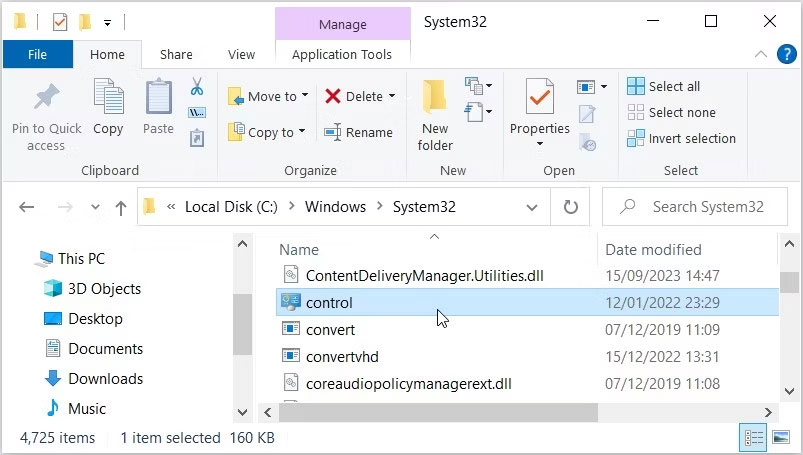
<p style="text-align: justify;">Bạn có biết rằng bạn có thể truy cập hầu hết các ứng dụng Windows của mình bằng các file thực thi (.exe) trong thư mục System32 không?</p>

<p style="text-align: justify;">Đây là cách mở Control Panel thông qua thư mục System32:</p>

<ol>
	<li style="text-align: justify;">Nhấp vào biểu tượng File Explorer trên thanh tác vụ hoặc nhấn&nbsp;<strong>Win + E&nbsp;</strong>để mở File Explorer.</li>
	<li style="text-align: justify;">Chọn&nbsp;<strong>This PC</strong>&nbsp;ở phía bên trái và sau đó nhấp vào&nbsp;<strong>Local Disk (C:)</strong>&nbsp;ở phía bên phải.</li>
	<li style="text-align: justify;">Điều hướng đến&nbsp;<strong>Windows &gt; System32</strong>.</li>
	<li style="text-align: justify;">Cuộn xuống và chọn&nbsp;<strong>control</strong>&nbsp;để mở Control Panel.</li>
</ol>

<figure>
<div style="text-align: justify;"><img alt="Nhấp vào tùy chọn control trong thư mục System32" data-i="10" data-src="https://st.quantrimang.com/photos/image/2023/10/17/mo-control-panel-windows-6.jpg" data-was-processed="true" height="455" src="https://st.quantrimang.com/photos/image/2023/10/17/mo-control-panel-windows-6.jpg" width="803" /></div>

<figcaption>
<div style="text-align: justify;">Nhấp vào tùy chọn control trong thư mục System32</div>
</figcaption>
</figure>

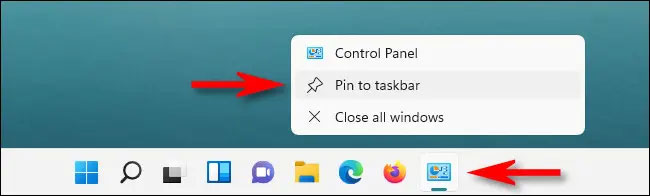
<h2 id="mcetoc_1im768l28ad" style="text-align: justify;">Ghim Control Panel trên taskbar</h2>

<p style="text-align: justify;"><img alt="Ghim Control Panel trên taskbar" data-i="11" data-src="https://st.quantrimang.com/photos/image/2021/10/16/mo-control-panel-windows-113.jpg" data-was-processed="true" height="196" src="https://st.quantrimang.com/photos/image/2021/10/16/mo-control-panel-windows-113.jpg" width="650" /></p>

<p style="text-align: justify;">Khi đã mở được Control Panel bằng bất kỳ phương pháp nào được mô tả ở trên, bạn cũng sẽ thấy biểu tượng của nó xuất hiện trên thanh tác vụ dưới đáy màn hình. Nếu thường xuyên phải sử dụng Control Panel, bạn có thể ghim logo trực tiếp trên thanh tác vụ để Quick Access chỉ bằng một cú nhấp chuột khi cần.</p>

<p style="text-align: justify;">Thực hiện việc này bằng cách nhấp chuột phải vào biểu tượng Control Panel khi nó đang được mở, sau đó chọn tùy chọn “Pin to Taskbar”. Lần tới khi bạn muốn khởi chạy Control Panel, chỉ cần nhấp chuột trái một lần vào biểu tượng tương ứng trên thanh tác vụ.</p>

<h2 id="mcetoc_1im768l28ae" style="text-align: justify;">Thêm biểu tượng Control Panel trên màn hình desktop</h2>

<p style="text-align: justify;"><img alt="Thêm biểu tượng Control Panel trên màn hình desktop" data-i="12" data-src="https://st.quantrimang.com/photos/image/2021/10/16/mo-control-panel-windows-114.jpg" data-was-processed="true" height="274" src="https://st.quantrimang.com/photos/image/2021/10/16/mo-control-panel-windows-114.jpg" width="650" /></p>

<p style="text-align: justify;">Tương tự, bạn cũng có thể thêm biểu tượng Control Panel trên màn hình desktop để Quick Access bằng cách nhấp đúp chuột khi cần.</p>
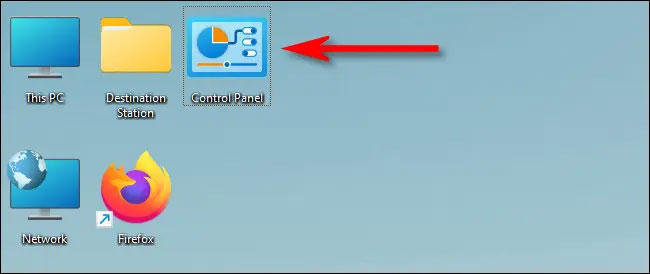
<p style="text-align: justify;">Trước tiên, hãy nhấn Windows + i để mở ứng dụng Settings, sau đó điều hướng đến mục&nbsp;<strong>Personalization &gt; Themes</strong>, và nhấp vào&nbsp;<strong>“Desktop Icon Settings”</strong>. Trong cửa sổ cài đặt biểu tượng trên màn hình mở ra, hãy tích vào ô vuông bên cạnh&nbsp;<strong>“Control Panel”</strong>, sau đó nhấp vào&nbsp;<strong>“OK”.</strong>&nbsp;Biểu tượng Control Panel sẽ lập tức xuất hiện trên màn hình desktop. Để khởi chạy, bạn chỉ cần nhấp đúp vào biểu tượng này bất kỳ lúc nào.</p>

<h2 id="mcetoc_1im768l28af" style="text-align: justify;">Một số câu hỏi thường gặp về Control Panel</h2>

<h3 style="text-align: justify;">Control Panel làm được những gì?</h3>

<p style="text-align: justify;">Control Panel tổng hợp nhiều công cụ hoặc &quot;applet&quot; nhỏ để quản lý các khía cạnh khác nhau của hệ thống:</p>

<p style="text-align: justify;"><strong>Quản lý Phần cứng và Âm thanh:</strong></p>

<ul>
	<li style="text-align: justify;"><strong>Thêm hoặc gỡ bỏ thiết bị:</strong>&nbsp;Bạn có thể cài đặt máy in, máy quét, webcam, chuột, bàn phím, v.v.</li>
	<li style="text-align: justify;"><strong>Điều chỉnh âm thanh:</strong>&nbsp;Tùy chỉnh âm lượng, chọn thiết bị phát/ghi âm và cài đặt âm thanh hệ thống.</li>
	<li style="text-align: justify;"><strong>Tùy chọn nguồn điện:</strong>&nbsp;Cài đặt chế độ tiết kiệm pin, thời gian tắt màn hình và chế độ ngủ của máy.</li>
	<li style="text-align: justify;"><strong>Quản lý thiết bị:</strong>&nbsp;Xem danh sách các thiết bị đang kết nối và cập nhật driver (trình điều khiển) của chúng.</li>
</ul>

<p style="text-align: justify;"><strong>Quản lý Chương trình:</strong></p>

<ul>
	<li style="text-align: justify;"><strong>Gỡ cài đặt chương trình:</strong>&nbsp;Loại bỏ các phần mềm không cần thiết khỏi máy tính.</li>
	<li style="text-align: justify;"><strong>Thay đổi hoặc sửa chữa chương trình:</strong>&nbsp;Điều chỉnh cài đặt hoặc khắc phục lỗi các ứng dụng đã cài đặt.</li>
	<li style="text-align: justify;"><strong>Tính năng Windows:</strong>&nbsp;Bật hoặc tắt các chức năng tích hợp sẵn của Windows (ví dụ: Internet Information Services, Hyper-V).</li>
</ul>

<p style="text-align: justify;"><strong>Quản lý Tài khoản người dùng:</strong></p>

<ul>
	<li style="text-align: justify;"><strong>Tạo/xóa tài khoản:</strong>&nbsp;Thêm hoặc xóa các tài khoản người dùng trên máy tính.</li>
	<li style="text-align: justify;"><strong>Thay đổi loại tài khoản:</strong>&nbsp;Cấp quyền quản trị viên (Administrator) hoặc đặt làm người dùng tiêu chuẩn.</li>
	<li style="text-align: justify;"><strong>Thay đổi mật khẩu:</strong>&nbsp;Đặt lại hoặc cập nhật mật khẩu cho các tài khoản.</li>
	<li style="text-align: justify;"><strong>Kiểm soát Tài khoản người dùng (UAC):</strong>&nbsp;Điều chỉnh mức độ cảnh báo khi các chương trình cố gắng thực hiện thay đổi hệ thống.</li>
</ul>

<figure>
<div style="text-align: justify;"><img alt="" data-i="13" data-src="https://st.quantrimang.com/photos/image/2025/02/17/mo-control-panel-windows-11.png" data-was-processed="true" height="422" src="https://st.quantrimang.com/photos/image/2025/02/17/mo-control-panel-windows-11.png" width="750" /></div>
</figure>

<p style="text-align: justify;"><strong>Mạng và Internet:</strong></p>

<ul>
	<li style="text-align: justify;"><strong>Kiểm tra trạng thái mạng:</strong>&nbsp;Xem kết nối mạng hiện tại của bạn (Wi-Fi, Ethernet).</li>
	<li style="text-align: justify;"><strong>Thiết lập kết nối mới:</strong>&nbsp;Cấu hình mạng Wi-Fi, mạng dây hoặc VPN.</li>
	<li style="text-align: justify;"><strong>Chia sẻ tài nguyên:</strong>&nbsp;Thiết lập chia sẻ tệp, thư mục hoặc máy in qua mạng.</li>
	<li style="text-align: justify;"><strong>Khắc phục sự cố mạng:</strong>&nbsp;Sử dụng các công cụ để chẩn đoán và sửa lỗi kết nối.</li>
</ul>

<p style="text-align: justify;"><strong>Giao diện và Cá nhân hóa:</strong></p>

<ul>
	<li style="text-align: justify;"><strong>Thay đổi hình nền, chủ đề:</strong>&nbsp;Tùy chỉnh giao diện màn hình nền theo ý muốn.</li>
	<li style="text-align: justify;"><strong>Điều chỉnh độ phân giải màn hình:</strong>&nbsp;Thay đổi kích thước hiển thị của màn hình.</li>
	<li style="text-align: justify;"><strong>Tùy chỉnh Taskbar và Start Menu:</strong>&nbsp;Sắp xếp các biểu tượng và thay đổi hành vi của thanh tác vụ.</li>
	<li style="text-align: justify;"><strong>Phông chữ:</strong>&nbsp;Cài đặt hoặc quản lý các phông chữ có trên hệ thống.</li>
</ul>

<p style="text-align: justify;"><strong>Hệ thống và Bảo mật:</strong></p>

<ul>
	<li style="text-align: justify;"><strong>Trung tâm Bảo mật và Bảo trì:</strong>&nbsp;Kiểm tra tình trạng bảo mật tổng thể của máy tính (tường lửa, phần mềm chống virus).</li>
	<li style="text-align: justify;"><strong>Windows Update:</strong>&nbsp;Quản lý và kiểm tra các bản cập nhật hệ thống.</li>
	<li style="text-align: justify;"><strong>Tường lửa Windows Defender:</strong>&nbsp;Cấu hình các quy tắc tường lửa để bảo vệ máy tính của bạn.</li>
	<li style="text-align: justify;"><strong>Thông tin hệ thống:</strong>&nbsp;Xem chi tiết về CPU, RAM, phiên bản Windows, v.v.</li>
	<li style="text-align: justify;"><strong>Sao lưu và Khôi phục:</strong>&nbsp;Tạo bản sao lưu dữ liệu và khôi phục lại hệ thống khi cần.</li>
</ul>

<p style="text-align: justify;"><strong>Đồng hồ, Ngôn ngữ và Vùng:</strong></p>

<ul>
	<li style="text-align: justify;"><strong>Đặt ngày giờ:</strong>&nbsp;Điều chỉnh ngày, giờ và múi giờ.</li>
	<li style="text-align: justify;"><strong>Cài đặt ngôn ngữ:</strong>&nbsp;Thêm hoặc thay đổi ngôn ngữ hiển thị và bàn phím.</li>
	<li style="text-align: justify;"><strong>Định dạng khu vực:</strong>&nbsp;Tùy chỉnh định dạng số, tiền tệ, ngày tháng theo vùng địa lý.</li>
</ul>

<p style="text-align: justify;"><strong>Trợ năng (Ease of Access):</strong></p>

<ul>
	<li style="text-align: justify;">Cung cấp các tùy chọn hỗ trợ đặc biệt cho người dùng có nhu cầu riêng (ví dụ: phóng to màn hình, bàn phím ảo, đọc văn bản).</li>
</ul>

<h3 style="text-align: justify;">Control Panel khác gì so với Settings trong Windows 10/11?</h3>

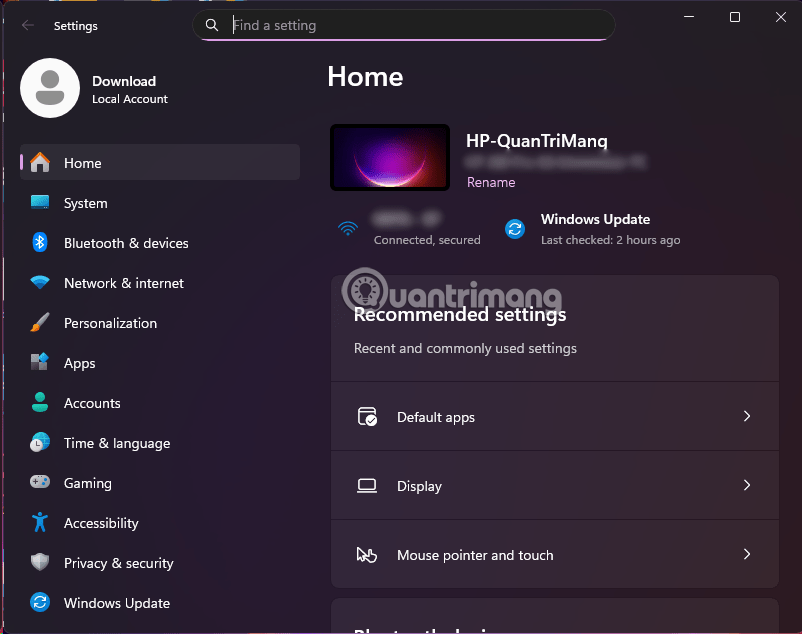
<p style="text-align: justify;"><img alt="control panel win 11" data-i="14" data-src="https://st.quantrimang.com/photos/image/2025/07/31/Mo-Control-Panel-Windows-8.png" data-was-processed="true" height="506" src="https://st.quantrimang.com/photos/image/2025/07/31/Mo-Control-Panel-Windows-8.png" width="640" /></p>

<ul>
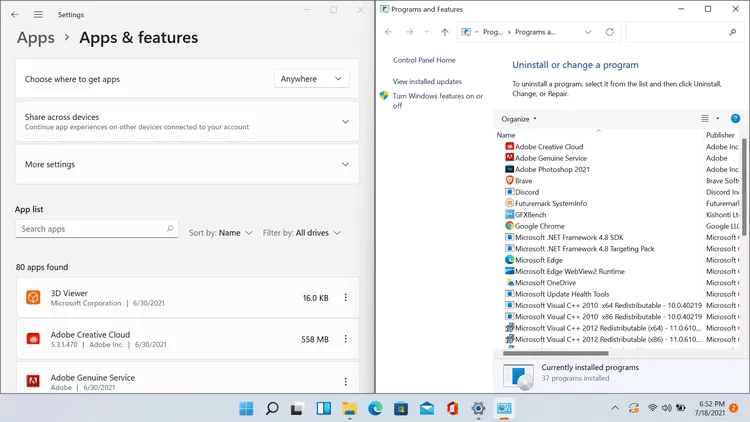
	<li style="text-align: justify;"><strong>Control Panel</strong>&nbsp;là công cụ truyền thống đã có từ rất lâu trong Windows, cung cấp quyền truy cập sâu hơn vào các cài đặt hệ thống và quản lý phần cứng/phần mềm chi tiết. Giao diện của nó có thể hơi cũ kỹ và ít trực quan hơn.</li>
	<li style="text-align: justify;"><strong>Settings (Cài đặt)</strong>&nbsp;là ứng dụng hiện đại hơn, được giới thiệu từ Windows 8 và phát triển mạnh mẽ trên Windows 10/11. Nó có giao diện thân thiện, dễ sử dụng hơn, tập trung vào các cài đặt phổ biến và cá nhân hóa. Mặc dù nhiều chức năng đã được chuyển sang Settings, Control Panel vẫn chứa một số tùy chọn nâng cao mà bạn không tìm thấy ở Settings.</li>
</ul>

<div style="text-align: justify;">&nbsp;</div>
		</div>
				<div id="author">
						<p>
				<strong>Nguồn tin:</strong>
				Quantrimang.com:
			</p>
		</div>
	</div>
	<div id="footer" class="clearfix">
		<div id="url">
			<strong>URL của bản tin này: </strong><a href="https://www.nguoicodonvn2008.info/vi/news/savefile/kien-thuc-may-tinh/cach-mo-control-panel-tren-windows-11-11491.html" title="Cách mở Control Panel trên Windows 11">https://www.nguoicodonvn2008.info/vi/news/savefile/kien-thuc-may-tinh/cach-mo-control-panel-tren-windows-11-11491.html</a>

		</div>
		<div class="clear"></div>
		<div class="copyright">
			&copy; .&#x3A; Nguoicodonvn2008.info - Cõi lòng người cô đơn &#x3A;.
		</div>
		<div id="contact">
			<a href="mailto:admin@nguoicodonvn2008.info">admin@nguoicodonvn2008.info</a>
		</div>
	</div>
</div>
        <div id="timeoutsess" class="chromeframe">
            Bạn đã không sử dụng Site, <a onclick="timeoutsesscancel();" href="https://nguoicodonvn2008.info/#">Bấm vào đây để duy trì trạng thái đăng nhập</a>. Thời gian chờ: <span id="secField"> 60 </span> giây
        </div>
        <div id="openidResult" class="nv-alert" style="display:none"></div>
        <div id="openidBt" data-result="" data-redirect=""></div>
		</script>
		<div class="car-top">
  <span><img src="https://nguoicodonvn2008.info/themes/default/images/car.png" alt=""></span>
</div>
<script src="https://nguoicodonvn2008.info/assets/js/jquery/jquery.min.js"></script>
<script>var nv_base_siteurl="/",nv_lang_data="vi",nv_lang_interface="vi",nv_name_variable="nv",nv_fc_variable="op",nv_lang_variable="language",nv_module_name="news",nv_func_name="savefile",nv_is_user=0, nv_my_ofs=-4,nv_my_abbr="EDT",nv_cookie_prefix="nv4c_e856T",nv_check_pass_mstime=1738000,nv_area_admin=0,nv_safemode=0,theme_responsive=0,nv_recaptcha_ver=2,nv_recaptcha_sitekey="",nv_recaptcha_type="image",XSSsanitize=1;</script>
<script src="https://nguoicodonvn2008.info/assets/js/language/vi.js"></script>
<script src="https://nguoicodonvn2008.info/assets/js/DOMPurify/purify3.js"></script>
<script src="https://nguoicodonvn2008.info/assets/js/global.js"></script>
<script src="https://nguoicodonvn2008.info/assets/js/site.js"></script>
<script src="https://nguoicodonvn2008.info/themes/default/js/news.js"></script>
<script src="https://nguoicodonvn2008.info/themes/default/js/main.js"></script>
<script src="https://nguoicodonvn2008.info/themes/default/js/custom.js"></script>
<script type="application/ld+json">
        {
            "@context": "https://schema.org",
            "@type": "Organization",
            "url": "https://nguoicodonvn2008.info",
            "logo": "https://nguoicodonvn2008.info/uploads/angel.gif"
        }
        </script>
<script src="https://nguoicodonvn2008.info/themes/default/js/bootstrap.min.js"></script>
<script type="text/javascript">
var $scrolltop = $('.car-top');
$scrolltop.on('click', function () {
    $('html,body').animate({
        scrollTop: 0
    }, 800);
    $(this).addClass("car-run");
    setTimeout(function(){ $scrolltop.removeClass('car-run');}, 1000);
    return false;
});
$(window).on('scroll', function ()
{ 
    if($(window).scrollTop() >= 200)
    {
        $scrolltop.addClass("show");
        $scrolltop.addClass("car-down");
    }
    else
    {
       $scrolltop.removeClass("show");
       setTimeout(function(){ $scrolltop.removeClass('car-down');}, 300);
    }
});
</script>
</body>
</html>