<!DOCTYPE html>
    <html lang="vi" xmlns="http://www.w3.org/1999/xhtml" prefix="og: http://ogp.me/ns#">
    <head>
<title>Cách lưu file LibreOffice ở định dạng Microsoft Office</title>
<meta name="description" content="Cách lưu file LibreOffice ở định dạng Microsoft Office - Savefile - Tin Tức -...">
<meta name="author" content=".: Nguoicodonvn2008.info - Cõi lòng người cô đơn :.">
<meta name="copyright" content=".: Nguoicodonvn2008.info - Cõi lòng người cô đơn :. [admin@nguoicodonvn2008.info]">
<meta name="robots" content="index, archive, follow, noodp">
<meta name="googlebot" content="index,archive,follow,noodp">
<meta name="msnbot" content="all,index,follow">
<meta name="generator" content="NukeViet v4.5">
<meta http-equiv="Content-Type" content="text/html; charset=utf-8">
<meta property="og:title" content="Cách lưu file LibreOffice ở định dạng Microsoft Office">
<meta property="og:type" content="website">
<meta property="og:description" content="Savefile - Tin Tức - https&#x3A;&#x002F;&#x002F;www.nguoicodonvn2008.info&#x002F;vi&#x002F;news&#x002F;savefile&#x002F;kien-thuc-may-tinh&#x002F;cach-luu-file-libreoffice-o-dinh-dang-microsoft-office-4923.html">
<meta property="og:site_name" content=".&#x3A; Nguoicodonvn2008.info - Cõi lòng người cô đơn &#x3A;.">
<meta property="og:url" content="https://www.nguoicodonvn2008.info/vi/news/savefile/kien-thuc-may-tinh/cach-luu-file-libreoffice-o-dinh-dang-microsoft-office-4923.html">
<link rel="shortcut icon" href="https://nguoicodonvn2008.info/favicon.ico">
<link rel="canonical" href="https://www.nguoicodonvn2008.info/vi/news/savefile/kien-thuc-may-tinh/cach-luu-file-libreoffice-o-dinh-dang-microsoft-office-4923.html">
<link rel="alternate" href="https://nguoicodonvn2008.info/vi/news/rss/" title="Tin Tức" type="application/rss+xml">
<link rel="alternate" href="https://nguoicodonvn2008.info/vi/news/rss/karaoke-dual/" title="Tin Tức - Karaoke Dual" type="application/rss+xml">
<link rel="alternate" href="https://nguoicodonvn2008.info/vi/news/rss/nhac-tre/" title="Tin Tức - Nhạc trẻ" type="application/rss+xml">
<link rel="alternate" href="https://nguoicodonvn2008.info/vi/news/rss/tru-tinh/" title="Tin Tức - Trữ tình" type="application/rss+xml">
<link rel="alternate" href="https://nguoicodonvn2008.info/vi/news/rss/nuoc-ngoai/" title="Tin Tức - Nước ngoài" type="application/rss+xml">
<link rel="alternate" href="https://nguoicodonvn2008.info/vi/news/rss/remix/" title="Tin Tức - Remix" type="application/rss+xml">
<link rel="alternate" href="https://nguoicodonvn2008.info/vi/news/rss/tam-su-tinh-yeu/" title="Tin Tức - Tâm sự tình yêu" type="application/rss+xml">
<link rel="alternate" href="https://nguoicodonvn2008.info/vi/news/rss/tho-suu-tam/" title="Tin Tức - Thơ sưu tầm" type="application/rss+xml">
<link rel="alternate" href="https://nguoicodonvn2008.info/vi/news/rss/cuoc-song/" title="Tin Tức - Cuộc sống" type="application/rss+xml">
<link rel="alternate" href="https://nguoicodonvn2008.info/vi/news/rss/phan-mem/" title="Tin Tức - Phần mềm" type="application/rss+xml">
<link rel="alternate" href="https://nguoicodonvn2008.info/vi/news/rss/kien-thuc-may-tinh/" title="Tin Tức - Kiến thức máy tính" type="application/rss+xml">
<link rel="alternate" href="https://nguoicodonvn2008.info/vi/news/rss/hoc-tap/" title="Tin Tức - Học tập" type="application/rss+xml">
<link rel="alternate" href="https://nguoicodonvn2008.info/vi/news/rss/tai-lieu/" title="Tin Tức - Tài liệu" type="application/rss+xml">
<link rel="alternate" href="https://nguoicodonvn2008.info/vi/news/rss/de-thi/" title="Tin Tức - Đề thi" type="application/rss+xml">
<link rel="preload" as="style" href="https://nguoicodonvn2008.info/assets/css/font-awesome.min.css" type="text/css">
<link rel="preload" as="style" href="https://nguoicodonvn2008.info/themes/default/css/bootstrap.non-responsive.css" type="text/css">
<link rel="preload" as="style" href="https://nguoicodonvn2008.info/themes/default/css/style.css" type="text/css">
<link rel="preload" as="style" href="https://nguoicodonvn2008.info/themes/default/css/style.non-responsive.css" type="text/css">
<link rel="preload" as="style" href="https://nguoicodonvn2008.info/themes/default/css/news.css" type="text/css">
<link rel="preload" as="style" href="https://nguoicodonvn2008.info/themes/default/css/custom.css" type="text/css">
<link rel="preload" as="script" href="https://nguoicodonvn2008.info/assets/js/jquery/jquery.min.js" type="text/javascript">
<link rel="preload" as="script" href="https://nguoicodonvn2008.info/assets/js/language/vi.js" type="text/javascript">
<link rel="preload" as="script" href="https://nguoicodonvn2008.info/assets/js/DOMPurify/purify3.js" type="text/javascript">
<link rel="preload" as="script" href="https://nguoicodonvn2008.info/assets/js/global.js" type="text/javascript">
<link rel="preload" as="script" href="https://nguoicodonvn2008.info/assets/js/site.js" type="text/javascript">
<link rel="preload" as="script" href="https://nguoicodonvn2008.info/themes/default/js/news.js" type="text/javascript">
<link rel="preload" as="script" href="https://nguoicodonvn2008.info/themes/default/js/main.js" type="text/javascript">
<link rel="preload" as="script" href="https://nguoicodonvn2008.info/themes/default/js/custom.js" type="text/javascript">
<link rel="preload" as="script" href="https://nguoicodonvn2008.info/themes/default/js/bootstrap.min.js" type="text/javascript">
<link rel="stylesheet" href="https://nguoicodonvn2008.info/assets/css/font-awesome.min.css">
<link rel="stylesheet" href="https://nguoicodonvn2008.info/themes/default/css/bootstrap.non-responsive.css">
<link rel="stylesheet" href="https://nguoicodonvn2008.info/themes/default/css/style.css">
<link rel="stylesheet" href="https://nguoicodonvn2008.info/themes/default/css/style.non-responsive.css">
<link rel="StyleSheet" href="https://nguoicodonvn2008.info/themes/default/css/news.css">
<link rel="stylesheet" href="https://nguoicodonvn2008.info/themes/default/css/custom.css">
<style type="text/css">
	body{background: #fff;}
</style>
    </head>
    <body>
<div id="print">
	<div id="hd_print">
		<h2 class="pull-left">.&#x3A; Nguoicodonvn2008.info - Cõi lòng người cô đơn &#x3A;.</h2>
		<p class="pull-right"><a title=".&#x3A; Nguoicodonvn2008.info - Cõi lòng người cô đơn &#x3A;." href="https://nguoicodonvn2008.info/">https://nguoicodonvn2008.info</a></p>
	</div>
	<div class="clear"></div>
	<hr />
	<div id="content">
		<h1>Cách lưu file LibreOffice ở định dạng Microsoft Office</h1>
		<ul class="list-inline">
			<li>Thứ năm - 23/12/2021 23:44</li>
			<li class="hidden-print txtrequired"><em class="fa fa-print">&nbsp;</em><a title="In ra" href="javascript:;" onclick="window.print()">In ra</a></li>
			<li class="hidden-print txtrequired"><em class="fa fa-power-off">&nbsp;</em><a title="Đóng cửa sổ này" href="javascript:;" onclick="window.close()">Đóng cửa sổ này</a></li>
		</ul>
		<div class="clear"></div>
		<div id="hometext">
		</div>
				<div class="imghome">
			<img alt="Cách lưu file LibreOffice ở định dạng Microsoft Office" src="https://fs.quantrimang.com/photos/image/2021/12/23/luu-file-libreoffice-o-dinh-dang-microsoft-office-1.jpg" width="460" class="img-thumbnail" />
		</div>
		<div class="clear"></div>
		<div id="bodytext" class="clearfix">
			<p style="text-align: justify;">Bạn có thể cấu hình LibreOffice để khi bạn lưu một tài liệu trong LibreOffice, nó sẽ tự động lưu ở định dạng MS Office. Tin vui là quá trình cấu hình này khá dễ dàng.</p>

<p style="text-align: justify;">Hướng dẫn này sử dụng phiên bản LibreOffice 6.2.2. Tuy nhiên, quá trình này không thay đổi nhiều theo thời gian, vì vậy nó sẽ hoạt động với bất kỳ phiên bản nào của bộ công cụ Office này. Sự khác biệt lớn nhất sẽ là cách bạn truy cập cửa sổ&nbsp;<strong>Options.</strong></p>

<h2 style="text-align: justify;">Cấu hình các định dạng file LibreOffice</h2>

<p style="text-align: justify;">Toàn bộ quá trình cấu hình này được xử lý ở một vị trí duy nhất và có thể được truy cập từ bất kỳ công cụ nào của&nbsp;LibreOffice&nbsp;(Writer, Calc, Impress, Draw, Base hoặc Math). Để chuyển LibreOffice từ lưu dưới dạng định dạng mở mặc định sang định dạng mặc định MS Office được chấp nhận rộng rãi hơn, hãy làm theo các bước sau:</p>

<p style="text-align: justify;">1. Mở&nbsp;<strong>LibreOffice Writer.</strong></p>

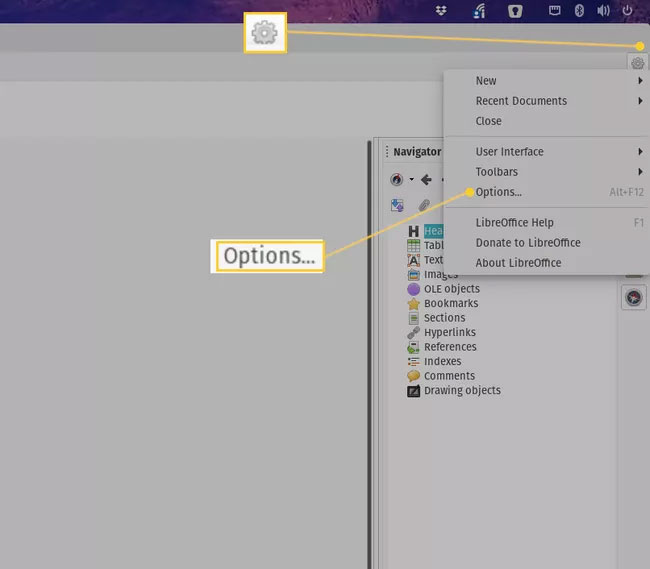
<p style="text-align: justify;">2. Nhấp vào biểu tượng bánh răng ở góc trên bên phải và nhấp vào&nbsp;<strong>Options.</strong></p>

<figure>
<div style="text-align: justify;"><img alt="Mở cửa sổ Options trong LibreOffice" data-i="0" data-src="https://fs.quantrimang.com/photos/image/2021/12/23/luu-file-libreoffice-o-dinh-dang-microsoft-office-1.jpg" data-was-processed="true" height="569" src="https://fs.quantrimang.com/photos/image/2021/12/23/luu-file-libreoffice-o-dinh-dang-microsoft-office-1.jpg" width="650" /></div>

<figcaption>
<div style="text-align: justify;">Mở cửa sổ Options trong LibreOffice</div>
</figcaption>
</figure>

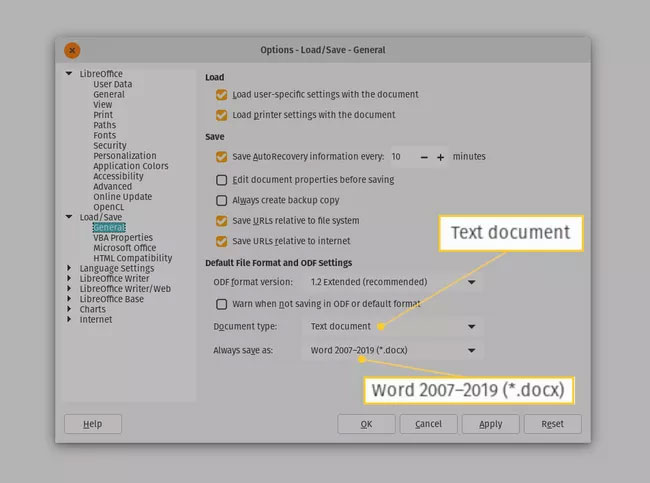
<p style="text-align: justify;">3. Trong cửa sổ hiện ra, nhấp đúp vào&nbsp;<strong>Load/Save</strong>&nbsp;rồi bấm&nbsp;<strong>General.</strong></p>

<figure>
<div style="text-align: justify;"><img alt="Cửa sổ Options trong LibreOffice" data-i="1" data-src="https://fs.quantrimang.com/photos/image/2021/12/23/luu-file-libreoffice-o-dinh-dang-microsoft-office-2.jpg" data-was-processed="true" height="483" src="https://fs.quantrimang.com/photos/image/2021/12/23/luu-file-libreoffice-o-dinh-dang-microsoft-office-2.jpg" width="650" /></div>

<figcaption>
<div style="text-align: justify;">Cửa sổ Options trong LibreOffice</div>
</figcaption>
</figure>

<p style="text-align: justify;">4. Chọn&nbsp;<strong>Text Document</strong>&nbsp;từ menu drop-down&nbsp;<strong>Document Type</strong>&nbsp;và chọn&nbsp;<strong>Word 2007-2019 (*.docx)</strong>&nbsp;từ menu drop-down&nbsp;<strong>Always save as</strong>.</p>

<figure>
<div style="text-align: justify;"><img alt="Thiết lập mặc định của LibreOffice Writer" data-i="2" data-src="https://fs.quantrimang.com/photos/image/2021/12/23/luu-file-libreoffice-o-dinh-dang-microsoft-office-3.jpg" data-was-processed="true" height="483" src="https://fs.quantrimang.com/photos/image/2021/12/23/luu-file-libreoffice-o-dinh-dang-microsoft-office-3.jpg" width="650" /></div>

<figcaption>
<div style="text-align: justify;">Thiết lập mặc định của LibreOffice Writer</div>
</figcaption>
</figure>

<p style="text-align: justify;">5. Chọn&nbsp;<strong>Spreadsheet</strong>&nbsp;từ menu drop-down&nbsp;<strong>Document Type</strong>&nbsp;và chọn&nbsp;<strong>Excel 2007-2019 (*.xlsx)</strong>&nbsp;từ menu drop-down&nbsp;<strong>Always save as</strong>.</p>

<figure>
<div style="text-align: justify;"><img alt="Thiết lập mặc định LibreOffice Calc" data-i="3" data-src="https://fs.quantrimang.com/photos/image/2021/12/23/luu-file-libreoffice-o-dinh-dang-microsoft-office-4.jpg" data-was-processed="true" height="490" src="https://fs.quantrimang.com/photos/image/2021/12/23/luu-file-libreoffice-o-dinh-dang-microsoft-office-4.jpg" width="650" /></div>

<figcaption>
<div style="text-align: justify;">Thiết lập mặc định LibreOffice Calc</div>
</figcaption>
</figure>

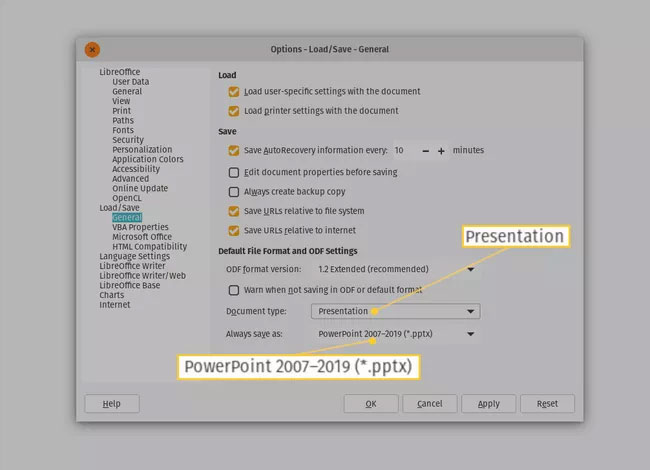
<p style="text-align: justify;">6. Chọn&nbsp;<strong>Presentation</strong>&nbsp;từ menu drop-down&nbsp;<strong>Document Type</strong>&nbsp;và chọn&nbsp;<strong>PowerPoint 2007-1019 (*.pptx)</strong>&nbsp;từ menu drop-down&nbsp;<strong>Always save as</strong>.</p>

<figure>
<div style="text-align: justify;"><img alt="Cài đặt mặc định của LibreOffice Impress" data-i="4" data-src="https://fs.quantrimang.com/photos/image/2021/12/23/luu-file-libreoffice-o-dinh-dang-microsoft-office-5.jpg" data-was-processed="true" height="470" src="https://fs.quantrimang.com/photos/image/2021/12/23/luu-file-libreoffice-o-dinh-dang-microsoft-office-5.jpg" width="650" /></div>

<figcaption>
<div style="text-align: justify;">Cài đặt mặc định của LibreOffice Impress</div>
</figcaption>
</figure>

<p style="text-align: justify;">7. Nhấp vào&nbsp;<strong>Apply.</strong></p>

<p style="text-align: justify;">8. Bấm&nbsp;<strong>OK.</strong></p>

<p style="text-align: justify;"><strong>Lưu ý</strong>: Nếu bạn đang sử dụng phiên bản LibreOffice cũ, để đến cửa sổ&nbsp;<strong>Options</strong>, hãy nhấp vào&nbsp;<strong>Tools &gt; Options</strong>.</p>

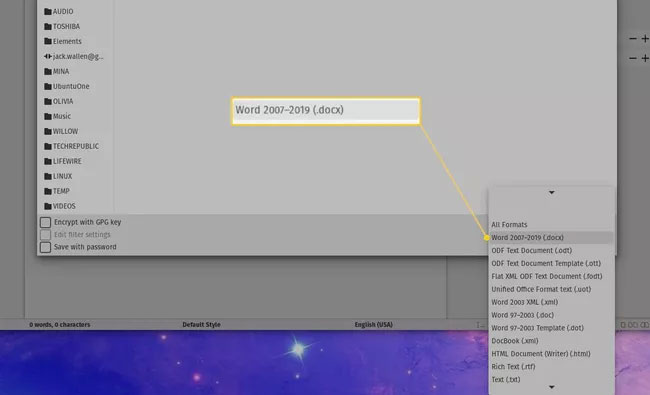
<p style="text-align: justify;">Sau khi bạn nhấn&nbsp;<strong>OK</strong>, cửa sổ&nbsp;<strong>Options</strong>&nbsp;sẽ bị loại bỏ và mọi thao tác cấu hình đã hoàn tất. Khi bạn lưu một tài liệu LibreOffice mới, bạn sẽ thấy rằng định dạng MS Office hiện là định dạng mặc định.</p>

<figure>
<div style="text-align: justify;"><img alt="Định dạng Word 2007-2019 (.docx) trong LibreOffice" data-i="5" data-src="https://fs.quantrimang.com/photos/image/2021/12/23/luu-file-libreoffice-o-dinh-dang-microsoft-office-6.jpg" data-was-processed="true" height="395" src="https://fs.quantrimang.com/photos/image/2021/12/23/luu-file-libreoffice-o-dinh-dang-microsoft-office-6.jpg" width="650" /></div>

<figcaption>
<div style="text-align: justify;">Định dạng Word 2007-2019 (.docx) trong LibreOffice</div>
</figcaption>
</figure>

<p style="text-align: justify;">Bạn không cần bận tâm đến việc sử dụng chức năng&nbsp;<strong>Save As</strong>&nbsp;trong LibreOffice, vì tài liệu của bạn sẽ tự động lưu ở các định dạng MS Office.</p>

<h2 style="text-align: justify;">LibreOffice là gì?</h2>

<p style="text-align: justify;">LibreOffice là một trong những bộ công cụ Office mã nguồn mở phổ biến nhất trên thị trường. LibreOffice thân thiện với người dùng như bất kỳ đối thủ nào, miễn phí và cung cấp tất cả các tính năng mà bạn đã quen với Microsoft Office.</p>

<p style="text-align: justify;">Một lưu ý khi sử dụng LibreOffice là theo mặc định, nó lưu ở các định dạng file đang mở. Trong khi Microsoft Office lưu dưới&nbsp;dạng .docx&nbsp;(cho tài liệu),&nbsp;.xlsx&nbsp;(cho bảng tính) và&nbsp;.pptx&nbsp;(cho bài thuyết trình), thì LibreOffice lưu dưới dạng .odt (cho tài liệu), .ods (cho bảng tính) và .odp (cho bài thuyết trình). Mặc dù nhiều bộ ứng dụng Office có thể hoạt động với các file của bộ công cụ khác, nhưng một số tùy chọn có thể không hoạt động với định dạng mở. Hoặc, thậm chí quan trọng hơn, bạn có thể cần phải gửi tài liệu cho một doanh nghiệp (hoặc trường học) chỉ chấp nhận các định dạng MS Office.</p>
		</div>
				<div id="author">
						<p>
				<strong>Nguồn tin:</strong>
				Quantrimang.com
			</p>
		</div>
	</div>
	<div id="footer" class="clearfix">
		<div id="url">
			<strong>URL của bản tin này: </strong><a href="https://www.nguoicodonvn2008.info/vi/news/savefile/kien-thuc-may-tinh/cach-luu-file-libreoffice-o-dinh-dang-microsoft-office-4923.html" title="Cách lưu file LibreOffice ở định dạng Microsoft Office">https://www.nguoicodonvn2008.info/vi/news/savefile/kien-thuc-may-tinh/cach-luu-file-libreoffice-o-dinh-dang-microsoft-office-4923.html</a>

		</div>
		<div class="clear"></div>
		<div class="copyright">
			&copy; .&#x3A; Nguoicodonvn2008.info - Cõi lòng người cô đơn &#x3A;.
		</div>
		<div id="contact">
			<a href="mailto:admin@nguoicodonvn2008.info">admin@nguoicodonvn2008.info</a>
		</div>
	</div>
</div>
        <div id="timeoutsess" class="chromeframe">
            Bạn đã không sử dụng Site, <a onclick="timeoutsesscancel();" href="https://nguoicodonvn2008.info/#">Bấm vào đây để duy trì trạng thái đăng nhập</a>. Thời gian chờ: <span id="secField"> 60 </span> giây
        </div>
        <div id="openidResult" class="nv-alert" style="display:none"></div>
        <div id="openidBt" data-result="" data-redirect=""></div>
		</script>
		<div class="car-top">
  <span><img src="https://nguoicodonvn2008.info/themes/default/images/car.png" alt=""></span>
</div>
<script src="https://nguoicodonvn2008.info/assets/js/jquery/jquery.min.js"></script>
<script>var nv_base_siteurl="/",nv_lang_data="vi",nv_lang_interface="vi",nv_name_variable="nv",nv_fc_variable="op",nv_lang_variable="language",nv_module_name="news",nv_func_name="savefile",nv_is_user=0, nv_my_ofs=-4,nv_my_abbr="EDT",nv_cookie_prefix="nv4c_e856T",nv_check_pass_mstime=1738000,nv_area_admin=0,nv_safemode=0,theme_responsive=0,nv_recaptcha_ver=2,nv_recaptcha_sitekey="",nv_recaptcha_type="image",XSSsanitize=1;</script>
<script src="https://nguoicodonvn2008.info/assets/js/language/vi.js"></script>
<script src="https://nguoicodonvn2008.info/assets/js/DOMPurify/purify3.js"></script>
<script src="https://nguoicodonvn2008.info/assets/js/global.js"></script>
<script src="https://nguoicodonvn2008.info/assets/js/site.js"></script>
<script src="https://nguoicodonvn2008.info/themes/default/js/news.js"></script>
<script src="https://nguoicodonvn2008.info/themes/default/js/main.js"></script>
<script src="https://nguoicodonvn2008.info/themes/default/js/custom.js"></script>
<script type="application/ld+json">
        {
            "@context": "https://schema.org",
            "@type": "Organization",
            "url": "https://nguoicodonvn2008.info",
            "logo": "https://nguoicodonvn2008.info/uploads/angel.gif"
        }
        </script>
<script src="https://nguoicodonvn2008.info/themes/default/js/bootstrap.min.js"></script>
<script type="text/javascript">
var $scrolltop = $('.car-top');
$scrolltop.on('click', function () {
    $('html,body').animate({
        scrollTop: 0
    }, 800);
    $(this).addClass("car-run");
    setTimeout(function(){ $scrolltop.removeClass('car-run');}, 1000);
    return false;
});
$(window).on('scroll', function ()
{ 
    if($(window).scrollTop() >= 200)
    {
        $scrolltop.addClass("show");
        $scrolltop.addClass("car-down");
    }
    else
    {
       $scrolltop.removeClass("show");
       setTimeout(function(){ $scrolltop.removeClass('car-down');}, 300);
    }
});
</script>
</body>
</html>