<!DOCTYPE html>
    <html lang="vi" xmlns="http://www.w3.org/1999/xhtml" prefix="og: http://ogp.me/ns#">
    <head>
<title>Cách lọc dữ liệu trong Excel</title>
<meta name="description" content="Cách lọc dữ liệu trong Excel - Savefile - Tin Tức - https&#x3A;&#x002F;&#x002F;www.nguoicodonvn2008.info&#x002F;vi&#x002F;news&#x002F;savefile&#x002F;kien-thuc-may-tinh&#x002F;cach-loc-du-lieu-trong-excel-9060.html">
<meta name="author" content=".: Nguoicodonvn2008.info - Cõi lòng người cô đơn :.">
<meta name="copyright" content=".: Nguoicodonvn2008.info - Cõi lòng người cô đơn :. [admin@nguoicodonvn2008.info]">
<meta name="robots" content="index, archive, follow, noodp">
<meta name="googlebot" content="index,archive,follow,noodp">
<meta name="msnbot" content="all,index,follow">
<meta name="generator" content="NukeViet v4.5">
<meta http-equiv="Content-Type" content="text/html; charset=utf-8">
<meta property="og:title" content="Cách lọc dữ liệu trong Excel">
<meta property="og:type" content="website">
<meta property="og:description" content="Savefile - Tin Tức - https&#x3A;&#x002F;&#x002F;www.nguoicodonvn2008.info&#x002F;vi&#x002F;news&#x002F;savefile&#x002F;kien-thuc-may-tinh&#x002F;cach-loc-du-lieu-trong-excel-9060.html">
<meta property="og:site_name" content=".&#x3A; Nguoicodonvn2008.info - Cõi lòng người cô đơn &#x3A;.">
<meta property="og:url" content="https://www.nguoicodonvn2008.info/vi/news/savefile/kien-thuc-may-tinh/cach-loc-du-lieu-trong-excel-9060.html">
<link rel="shortcut icon" href="https://nguoicodonvn2008.info/favicon.ico">
<link rel="canonical" href="https://www.nguoicodonvn2008.info/vi/news/savefile/kien-thuc-may-tinh/cach-loc-du-lieu-trong-excel-9060.html">
<link rel="alternate" href="https://nguoicodonvn2008.info/vi/news/rss/" title="Tin Tức" type="application/rss+xml">
<link rel="alternate" href="https://nguoicodonvn2008.info/vi/news/rss/karaoke-dual/" title="Tin Tức - Karaoke Dual" type="application/rss+xml">
<link rel="alternate" href="https://nguoicodonvn2008.info/vi/news/rss/nhac-tre/" title="Tin Tức - Nhạc trẻ" type="application/rss+xml">
<link rel="alternate" href="https://nguoicodonvn2008.info/vi/news/rss/tru-tinh/" title="Tin Tức - Trữ tình" type="application/rss+xml">
<link rel="alternate" href="https://nguoicodonvn2008.info/vi/news/rss/nuoc-ngoai/" title="Tin Tức - Nước ngoài" type="application/rss+xml">
<link rel="alternate" href="https://nguoicodonvn2008.info/vi/news/rss/remix/" title="Tin Tức - Remix" type="application/rss+xml">
<link rel="alternate" href="https://nguoicodonvn2008.info/vi/news/rss/tam-su-tinh-yeu/" title="Tin Tức - Tâm sự tình yêu" type="application/rss+xml">
<link rel="alternate" href="https://nguoicodonvn2008.info/vi/news/rss/tho-suu-tam/" title="Tin Tức - Thơ sưu tầm" type="application/rss+xml">
<link rel="alternate" href="https://nguoicodonvn2008.info/vi/news/rss/cuoc-song/" title="Tin Tức - Cuộc sống" type="application/rss+xml">
<link rel="alternate" href="https://nguoicodonvn2008.info/vi/news/rss/phan-mem/" title="Tin Tức - Phần mềm" type="application/rss+xml">
<link rel="alternate" href="https://nguoicodonvn2008.info/vi/news/rss/kien-thuc-may-tinh/" title="Tin Tức - Kiến thức máy tính" type="application/rss+xml">
<link rel="alternate" href="https://nguoicodonvn2008.info/vi/news/rss/hoc-tap/" title="Tin Tức - Học tập" type="application/rss+xml">
<link rel="alternate" href="https://nguoicodonvn2008.info/vi/news/rss/tai-lieu/" title="Tin Tức - Tài liệu" type="application/rss+xml">
<link rel="alternate" href="https://nguoicodonvn2008.info/vi/news/rss/de-thi/" title="Tin Tức - Đề thi" type="application/rss+xml">
<link rel="preload" as="style" href="https://nguoicodonvn2008.info/assets/css/font-awesome.min.css" type="text/css">
<link rel="preload" as="style" href="https://nguoicodonvn2008.info/themes/default/css/bootstrap.non-responsive.css" type="text/css">
<link rel="preload" as="style" href="https://nguoicodonvn2008.info/themes/default/css/style.css" type="text/css">
<link rel="preload" as="style" href="https://nguoicodonvn2008.info/themes/default/css/style.non-responsive.css" type="text/css">
<link rel="preload" as="style" href="https://nguoicodonvn2008.info/themes/default/css/news.css" type="text/css">
<link rel="preload" as="style" href="https://nguoicodonvn2008.info/themes/default/css/custom.css" type="text/css">
<link rel="preload" as="script" href="https://nguoicodonvn2008.info/assets/js/jquery/jquery.min.js" type="text/javascript">
<link rel="preload" as="script" href="https://nguoicodonvn2008.info/assets/js/language/vi.js" type="text/javascript">
<link rel="preload" as="script" href="https://nguoicodonvn2008.info/assets/js/DOMPurify/purify3.js" type="text/javascript">
<link rel="preload" as="script" href="https://nguoicodonvn2008.info/assets/js/global.js" type="text/javascript">
<link rel="preload" as="script" href="https://nguoicodonvn2008.info/assets/js/site.js" type="text/javascript">
<link rel="preload" as="script" href="https://nguoicodonvn2008.info/themes/default/js/news.js" type="text/javascript">
<link rel="preload" as="script" href="https://nguoicodonvn2008.info/themes/default/js/main.js" type="text/javascript">
<link rel="preload" as="script" href="https://nguoicodonvn2008.info/themes/default/js/custom.js" type="text/javascript">
<link rel="preload" as="script" href="https://nguoicodonvn2008.info/themes/default/js/bootstrap.min.js" type="text/javascript">
<link rel="stylesheet" href="https://nguoicodonvn2008.info/assets/css/font-awesome.min.css">
<link rel="stylesheet" href="https://nguoicodonvn2008.info/themes/default/css/bootstrap.non-responsive.css">
<link rel="stylesheet" href="https://nguoicodonvn2008.info/themes/default/css/style.css">
<link rel="stylesheet" href="https://nguoicodonvn2008.info/themes/default/css/style.non-responsive.css">
<link rel="StyleSheet" href="https://nguoicodonvn2008.info/themes/default/css/news.css">
<link rel="stylesheet" href="https://nguoicodonvn2008.info/themes/default/css/custom.css">
<style type="text/css">
	body{background: #fff;}
</style>
    </head>
    <body>
<div id="print">
	<div id="hd_print">
		<h2 class="pull-left">.&#x3A; Nguoicodonvn2008.info - Cõi lòng người cô đơn &#x3A;.</h2>
		<p class="pull-right"><a title=".&#x3A; Nguoicodonvn2008.info - Cõi lòng người cô đơn &#x3A;." href="https://nguoicodonvn2008.info/">https://nguoicodonvn2008.info</a></p>
	</div>
	<div class="clear"></div>
	<hr />
	<div id="content">
		<h1>Cách lọc dữ liệu trong Excel</h1>
		<ul class="list-inline">
			<li>Thứ tư - 25/09/2024 23:08</li>
			<li class="hidden-print txtrequired"><em class="fa fa-print">&nbsp;</em><a title="In ra" href="javascript:;" onclick="window.print()">In ra</a></li>
			<li class="hidden-print txtrequired"><em class="fa fa-power-off">&nbsp;</em><a title="Đóng cửa sổ này" href="javascript:;" onclick="window.close()">Đóng cửa sổ này</a></li>
		</ul>
		<div class="clear"></div>
		<div id="hometext">
		</div>
				<div class="imghome">
			<img alt="Cách lọc dữ liệu trong Excel" src="https://st.quantrimang.com/photos/image/2024/09/25/loc-du-lieu-excel-10.jpg" width="460" class="img-thumbnail" />
		</div>
		<div class="clear"></div>
		<div id="bodytext" class="clearfix">
			<p style="text-align: justify;">Bộ lọc Excel sẽ chọn lọc các hàng đáp ứng những tiêu chí cụ thể, giúp phân tích các tập dữ liệu lớn dễ dàng hơn. Bài viết sẽ chỉ cho bạn cách dễ dàng để thực hiện việc đó, cũng như cách sử dụng bộ lọc nâng cao và Slicers.</p>

<h2 style="text-align: justify;">Cách lọc dữ liệu trong một phạm vi</h2>

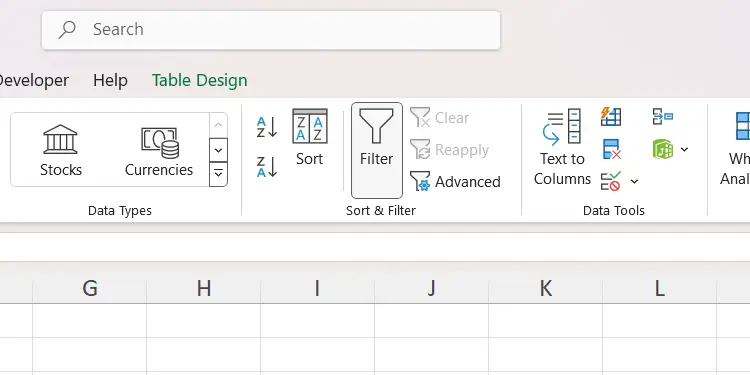
<p style="text-align: justify;">Hãy bắt đầu bằng cách xem xét việc lọc dữ liệu trong một phạm vi (một nhóm các ô lân cận). Trước tiên, hãy highlight tiêu đề của các cột mà bạn muốn lọc trong phạm vi. Sau đó, chọn tab&nbsp;<strong>Data</strong>&nbsp;và nhấp vào&nbsp;<strong>Filter</strong>&nbsp;trong nhóm&nbsp;<strong>Sort &amp; Filter</strong>&nbsp;để tạo bộ lọc tùy chỉnh.</p>

<figure>
<div style="text-align: justify;"><img alt="Phần Sort &amp; Filter của tab Data trong Excel." data-i="0" data-src="https://st.quantrimang.com/photos/image/2024/09/25/loc-du-lieu-excel-1.jpg" data-was-processed="true" height="375" src="https://st.quantrimang.com/photos/image/2024/09/25/loc-du-lieu-excel-1.jpg" width="750" /></div>

<figcaption>
<div style="text-align: justify;">Phần Sort &amp; Filter của tab Data trong Excel.</div>
</figcaption>
</figure>

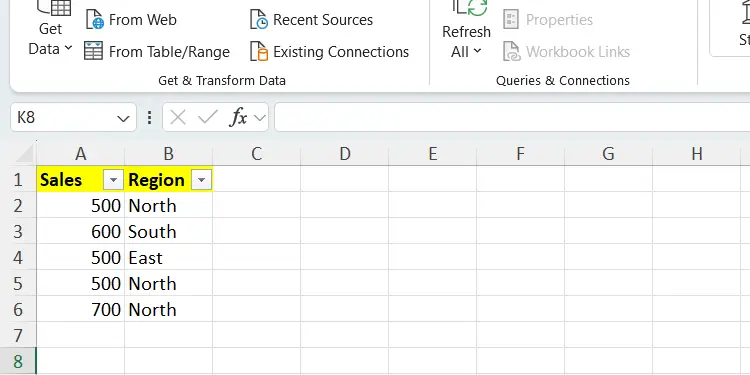
<p style="text-align: justify;">Một nút mũi tên xuống sẽ xuất hiện trong tiêu đề. Sau đó, bạn có thể lọc dữ liệu dựa trên các tiêu chí như văn bản, số và ngày, tùy thuộc vào định dạng của dữ liệu trong cột.</p>

<figure>
<div style="text-align: justify;"><br />
<br />
<img alt="Phạm vi dữ liệu bán hàng và khu vực trong Excel." data-adbro-processed="true" data-i="1" data-src="https://st.quantrimang.com/photos/image/2024/09/25/loc-du-lieu-excel-2.jpg" data-was-processed="true" height="375" src="https://st.quantrimang.com/photos/image/2024/09/25/loc-du-lieu-excel-2.jpg" width="750" /></div>

<figcaption>
<div style="text-align: justify;">Phạm vi dữ liệu bán hàng và khu vực trong Excel.</div>
</figcaption>
</figure>

<div style="text-align: justify;"><iframe allow="autoplay" allowtransparency="true" aria-label="Advertisement" data-google-container-id="a!2" data-google-query-id="CNLo6OHQ34gDFVxYDwIdKSAIyA" data-load-complete="true" frameborder="0" height="0" hspace="0" id="aswift_1" marginheight="0" marginwidth="0" name="aswift_1" sandbox="allow-scripts allow-same-origin allow-forms allow-presentation allow-popups" scrolling="no" tabindex="0" title="Advertisement" vspace="0" width="694"></iframe></div>

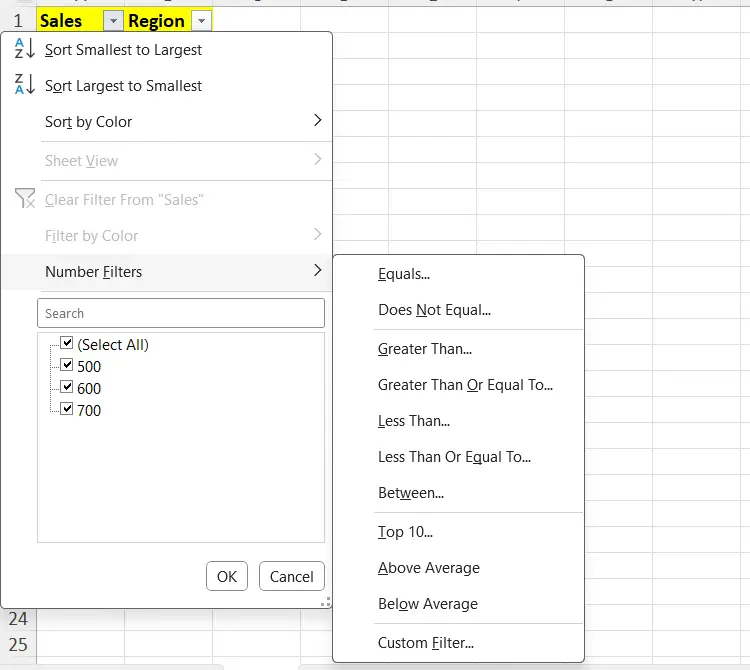
<p style="text-align: justify;">Ví dụ, để lọc dựa trên số (cột A trong ảnh chụp màn hình), hãy nhấp vào nút mũi tên xuống trong tiêu đề của cột mà bạn muốn sử dụng làm bộ lọc (A1 trong ví dụ) và chọn&nbsp;<strong>Number Filter</strong>&nbsp;trong menu. Sau đó, chọn một trong các phép so sánh trong menu. Ví dụ sẽ sử dụng phép so sánh&nbsp;<strong>Greater Than Or Equal To</strong>.</p>

<figure>
<div style="text-align: justify;"><img alt="" data-i="2" data-src="https://st.quantrimang.com/photos/image/2024/09/25/loc-du-lieu-excel-3.jpg" data-was-processed="true" height="670" src="https://st.quantrimang.com/photos/image/2024/09/25/loc-du-lieu-excel-3.jpg" width="750" /></div>
</figure>

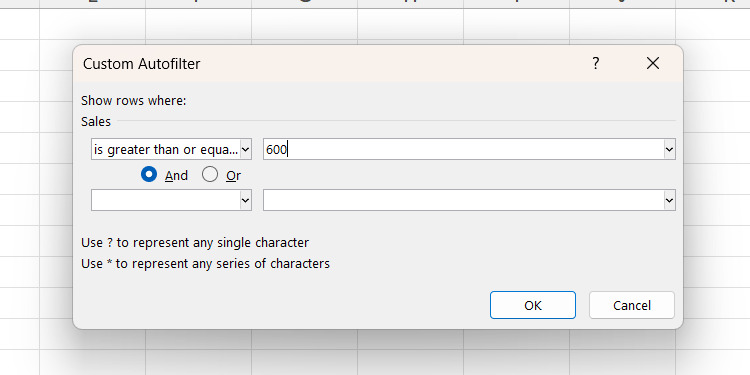
<p style="text-align: justify;">Một hộp thoại sẽ xuất hiện, yêu cầu bạn nhập tiêu chí cụ thể để lọc dữ liệu. Sau khi nhập, hãy nhấp vào&nbsp;<strong>OK</strong>&nbsp;để áp dụng bộ lọc tùy chỉnh.</p>

<figure>
<div style="text-align: justify;"><img alt="Đặt tiêu chí cho bộ lọc tùy chỉnh &#039;lớn hơn hoặc bằng&#039; trong Excel." data-i="3" data-src="https://st.quantrimang.com/photos/image/2024/09/25/loc-du-lieu-excel-4.jpg" data-was-processed="true" height="375" src="https://st.quantrimang.com/photos/image/2024/09/25/loc-du-lieu-excel-4.jpg" width="750" /></div>

<figcaption>
<div style="text-align: justify;">Đặt tiêu chí cho bộ lọc tùy chỉnh &quot;lớn hơn hoặc bằng&quot; trong Excel.</div>
</figcaption>
</figure>

<div style="text-align: justify;"><iframe allow="autoplay" allowtransparency="true" aria-label="Advertisement" data-google-container-id="a!3" data-google-query-id="CKfl6eHQ34gDFSBgDwIdv9cTBg" data-load-complete="true" frameborder="0" height="0" hspace="0" id="aswift_2" marginheight="0" marginwidth="0" name="aswift_2" sandbox="allow-scripts allow-same-origin allow-forms allow-presentation allow-popups" scrolling="no" tabindex="0" title="Advertisement" vspace="0" width="694"></iframe></div>

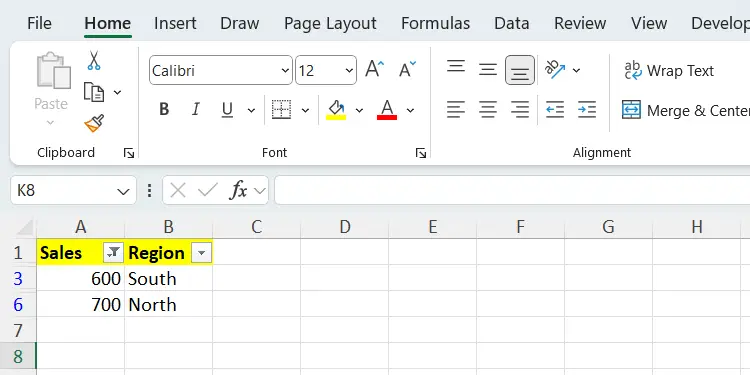
<p style="text-align: justify;">Dựa trên bộ lọc bạn đã chọn và các tiêu chí bạn đặt, phạm vi sẽ được lọc để hiển thị các hàng đáp ứng các điều kiện bạn đã chỉ định.</p>

<figure>
<div style="text-align: justify;"><img alt="Phạm vi dữ liệu bán hàng và khu vực đã lọc trong Excel." data-i="4" data-src="https://st.quantrimang.com/photos/image/2024/09/25/loc-du-lieu-excel-5.jpg" data-was-processed="true" height="375" src="https://st.quantrimang.com/photos/image/2024/09/25/loc-du-lieu-excel-5.jpg" width="750" /></div>

<figcaption>
<div style="text-align: justify;">Phạm vi dữ liệu bán hàng và khu vực đã lọc trong Excel.</div>
</figcaption>
</figure>

<h2 style="text-align: justify;">Cách lọc dữ liệu trong bảng</h2>

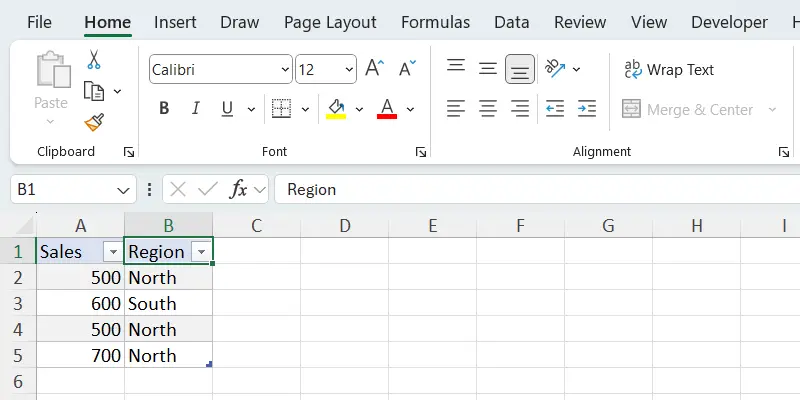
<p style="text-align: justify;">Khi bạn tạo bảng trong Excel, các tiêu đề sẽ có bộ lọc được thêm vào, giúp mọi thứ dễ dàng hơn một chút. Nếu không, quy trình này giống hệt như lọc dữ liệu trong các phạm vi. Ví dụ, hãy lọc dữ liệu dựa trên văn bản (cột B).</p>

<figure>
<div style="text-align: justify;"><img alt="Bảng bán hàng và khu vực trong Excel." data-i="5" data-src="https://st.quantrimang.com/photos/image/2024/09/25/loc-du-lieu-excel-6.jpg" data-was-processed="true" height="400" src="https://st.quantrimang.com/photos/image/2024/09/25/loc-du-lieu-excel-6.jpg" width="800" /></div>

<figcaption>
<div style="text-align: justify;">Bảng bán hàng và khu vực trong Excel.</div>
</figcaption>
</figure>

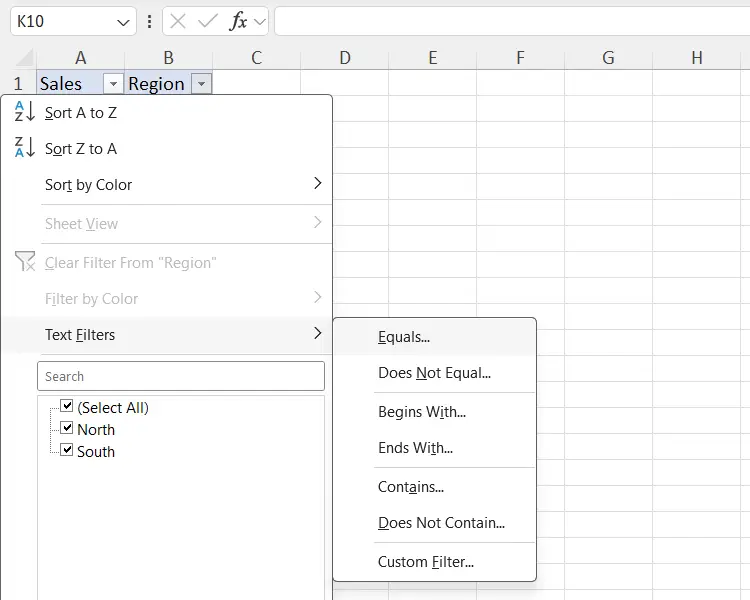
<p style="text-align: justify;">Để thực hiện việc đó, hãy nhấp vào nút mũi tên xuống trong tiêu đề của cột bạn muốn sử dụng làm bộ lọc. Sau đó, chọn&nbsp;<strong>Filter</strong>&nbsp;và chọn phép so sánh. Bài viết sẽ sử dụng phép so sánh Equals trong ví dụ của mình.</p>

<figure>
<div style="text-align: justify;"><img alt="Tạo bộ lọc văn bản trong Excel." data-i="6" data-src="https://st.quantrimang.com/photos/image/2024/09/25/loc-du-lieu-excel-7.jpg" data-was-processed="true" height="600" src="https://st.quantrimang.com/photos/image/2024/09/25/loc-du-lieu-excel-7.jpg" width="750" /></div>

<figcaption>
<div style="text-align: justify;">Tạo bộ lọc văn bản trong Excel.</div>
</figcaption>
</figure>

<div style="text-align: justify;"><iframe allow="autoplay" allowtransparency="true" aria-label="Advertisement" data-google-container-id="a!4" data-google-query-id="CKX3p-nQ34gDFc5UDwIdkvkeUQ" data-load-complete="true" frameborder="0" height="0" hspace="0" id="aswift_3" marginheight="0" marginwidth="0" name="aswift_3" sandbox="allow-scripts allow-same-origin allow-forms allow-presentation allow-popups" scrolling="no" tabindex="0" title="Advertisement" vspace="0" width="694"></iframe></div>

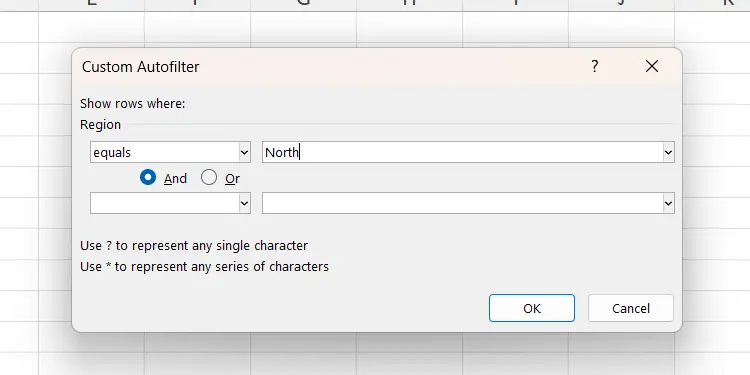
<p style="text-align: justify;">Chỉ định tiêu chí để so sánh trong hộp thoại, sau đó nhấp vào nút&nbsp;<strong>OK</strong>&nbsp;để lọc bảng.</p>

<figure>
<div style="text-align: justify;"><img alt="Đặt tiêu chí cho bộ lọc tùy chỉnh &#039;Equals&#039; trong Excel." data-i="7" data-src="https://st.quantrimang.com/photos/image/2024/09/25/loc-du-lieu-excel-8.jpg" data-was-processed="true" height="375" src="https://st.quantrimang.com/photos/image/2024/09/25/loc-du-lieu-excel-8.jpg" width="750" /></div>

<figcaption>
<div style="text-align: justify;">Đặt tiêu chí cho bộ lọc tùy chỉnh &quot;Equals&quot; trong Excel.</div>
</figcaption>
</figure>

<h2 style="text-align: justify;">Sử dụng tính năng lọc nâng cao</h2>

<p style="text-align: justify;">Excel có bộ lọc nâng cao mà bạn có thể sử dụng để tạo bộ lọc phức tạp kết hợp nhiều tiêu chí. Bộ lọc này hữu ích trong các trường hợp bạn cần lọc dữ liệu dựa trên nhiều điều kiện.</p>

<p style="text-align: justify;">Nếu bạn muốn kết hợp các tiêu chí, bạn có thể sử dụng những toán tử logic của Excel như các toán tử trong bảng bên dưới:</p>

<table align="" border="1" summary="">
		<tr>
			<th>
			<p style="text-align: justify;">Toán tử</p>
			</th>
			<th>
			<p style="text-align: justify;">Loại</p>
			</th>
			<th>
			<p style="text-align: justify;">Mô tả</p>
			</th>
		</tr>
	<tbody>
		<tr>
			<td>
			<p style="text-align: justify;">=</p>
			</td>
			<td>
			<p style="text-align: justify;">So sánh</p>
			</td>
			<td>
			<p style="text-align: justify;">Bằng</p>
			</td>
		</tr>
		<tr>
			<td>
			<p style="text-align: justify;">&lt;&gt;</p>
			</td>
			<td>
			<p style="text-align: justify;">So sánh</p>
			</td>
			<td>
			<p style="text-align: justify;">Không bằng</p>
			</td>
		</tr>
		<tr>
			<td>
			<p style="text-align: justify;">&gt;</p>
			</td>
			<td>
			<p style="text-align: justify;">So sánh</p>
			</td>
			<td>
			<p style="text-align: justify;">Lớn hơn</p>
			</td>
		</tr>
		<tr>
			<td>
			<p style="text-align: justify;">&lt;</p>
			</td>
			<td>
			<p style="text-align: justify;">So sánh</p>
			</td>
			<td>
			<p style="text-align: justify;">Nhỏ hơn</p>
			</td>
		</tr>
		<tr>
			<td>
			<p style="text-align: justify;">AND</p>
			</td>
			<td>
			<p style="text-align: justify;">Logic</p>
			</td>
			<td>
			<p style="text-align: justify;">Tất cả các điều kiện phải đúng (phải nằm trong cùng một hàng)</p>
			</td>
		</tr>
		<tr>
			<td>
			<p style="text-align: justify;">OR</p>
			</td>
			<td>
			<p style="text-align: justify;">Logic</p>
			</td>
			<td>
			<p style="text-align: justify;">Ít nhất một điều kiện phải đúng (nó phải nằm ở các hàng khác nhau)</p>
			</td>
		</tr>
	</tbody>
</table>

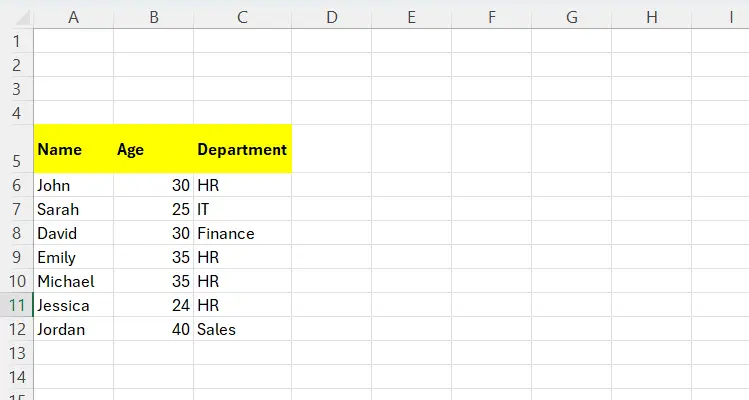
<p style="text-align: justify;">Hãy thực hành bằng cách lọc phạm vi bên dưới để chỉ hiển thị những người trên 30 tuổi và làm việc trong phòng nhân sự. Bạn có thể sao chép và dán phạm vi vào ô&nbsp;<strong>A5</strong>&nbsp;để theo dõi:</p>
<table align="" border="1" summary="">
		<tr>
			<th>
			<p style="text-align: justify;"><strong>Tên</strong></p>
			</th>
			<th>
			<p style="text-align: justify;"><strong>Tuổi</strong></p>
			</th>
			<th>
			<p style="text-align: justify;"><strong>Phòng ban</strong></p>
			</th>
		</tr>
	<tbody>
		<tr>
			<td>
			<p style="text-align: justify;">John</p>
			</td>
			<td>
			<p style="text-align: justify;">30</p>
			</td>
			<td>
			<p style="text-align: justify;">HR</p>
			</td>
		</tr>
		<tr>
			<td>
			<p style="text-align: justify;">Sarah</p>
			</td>
			<td>
			<p style="text-align: justify;">25</p>
			</td>
			<td>
			<p style="text-align: justify;">IT</p>
			</td>
		</tr>
		<tr>
			<td>
			<p style="text-align: justify;">David</p>
			</td>
			<td>
			<p style="text-align: justify;">30</p>
			</td>
			<td>
			<p style="text-align: justify;">Tài chính</p>
			</td>
		</tr>
		<tr>
			<td>
			<p style="text-align: justify;">Emily</p>
			</td>
			<td>
			<p style="text-align: justify;">35</p>
			</td>
			<td>
			<p style="text-align: justify;">HR</p>
			</td>
		</tr>
		<tr>
			<td>
			<p style="text-align: justify;">Michael</p>
			</td>
			<td>
			<p style="text-align: justify;">35</p>
			</td>
			<td>
			<p style="text-align: justify;">HR</p>
			</td>
		</tr>
		<tr>
			<td>
			<p style="text-align: justify;">Jessica</p>
			</td>
			<td>
			<p style="text-align: justify;">24</p>
			</td>
			<td>
			<p style="text-align: justify;">HR</p>
			</td>
		</tr>
		<tr>
			<td>
			<p style="text-align: justify;">Jordan</p>
			</td>
			<td>
			<p style="text-align: justify;">40</p>
			</td>
			<td>
			<p style="text-align: justify;">Bán hàng</p>
			</td>
		</tr>
	</tbody>
</table>

<figure>
<div style="text-align: justify;"><img alt="Phạm vi dữ liệu hiển thị tên, tuổi và phòng ban của nhân viên trong Excel." data-i="8" data-src="https://st.quantrimang.com/photos/image/2024/09/25/loc-du-lieu-excel-9.jpg" data-was-processed="true" height="400" src="https://st.quantrimang.com/photos/image/2024/09/25/loc-du-lieu-excel-9.jpg" width="749" /></div>

<figcaption>
<div style="text-align: justify;">Phạm vi dữ liệu hiển thị tên, tuổi và phòng ban của nhân viên trong Excel.</div>
</figcaption>
</figure>

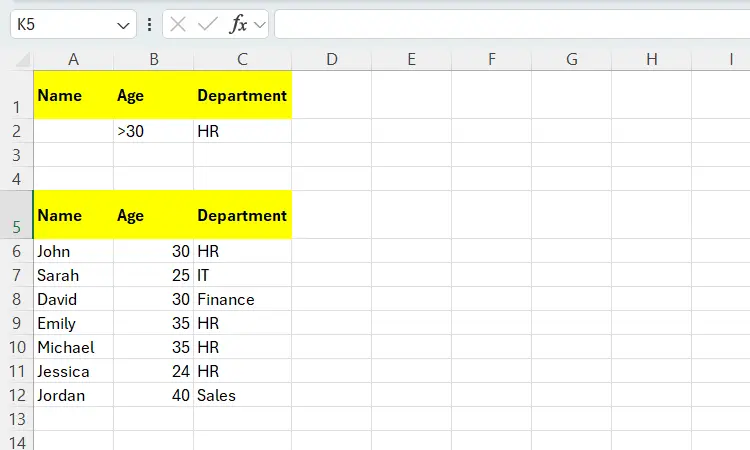
<p style="text-align: justify;">Để sử dụng bộ lọc nâng cao, trước tiên bạn cần tạo phạm vi tiêu chí trên một phần khác của trang tính, đảm bảo rằng phạm vi này có cùng tiêu đề với phạm vi có dữ liệu. Bài viết sẽ đặt tiêu chí phía trên phạm vi ban đầu của mình, như trong ảnh chụp màn hình bên dưới.</p>

<figure>
<div style="text-align: justify;"><img alt="Phạm vi tiêu chí được thêm phía trên phạm vi dữ liệu hiển thị tên, tuổi và phòng ban của nhân viên trong Excel." data-i="9" data-src="https://st.quantrimang.com/photos/image/2024/09/25/loc-du-lieu-excel-10.jpg" data-was-processed="true" height="450" src="https://st.quantrimang.com/photos/image/2024/09/25/loc-du-lieu-excel-10.jpg" width="750" /></div>

<figcaption>
<div style="text-align: justify;">Phạm vi tiêu chí được thêm phía trên phạm vi dữ liệu hiển thị tên, tuổi và phòng ban của nhân viên trong Excel.</div>
</figcaption>
</figure>

<div style="text-align: justify;"><iframe allow="autoplay" allowtransparency="true" aria-label="Advertisement" data-google-container-id="a!5" data-google-query-id="CI6z_OnQ34gDFYxfDwIdYE4QPw" data-load-complete="true" frameborder="0" height="0" hspace="0" id="aswift_4" marginheight="0" marginwidth="0" name="aswift_4" sandbox="allow-scripts allow-same-origin allow-forms allow-presentation allow-popups" scrolling="no" tabindex="0" title="Advertisement" vspace="0" width="694"></iframe></div>

<p style="text-align: justify;">Bạn có thể sao chép và dán phạm vi tiêu chí bên dưới vào ô&nbsp;<strong>A1</strong>&nbsp;để theo dõi:</p>

<table align="" border="1" summary="">
		<tr>
			<th>
			<p style="text-align: justify;"><strong>Tên</strong></p>
			</th>
			<th>
			<p style="text-align: justify;"><strong>Tuổi</strong></p>
			</th>
			<th>
			<p style="text-align: justify;"><strong>Phòng ban</strong></p>
			</th>
		</tr>
	<tbody>
		<tr>
			<td style="text-align: justify;">&nbsp;</td>
			<td>
			<p style="text-align: justify;">&gt;30</p>
			</td>
			<td>
			<p style="text-align: justify;">=”HR&quot;</p>
			</td>
		</tr>
	</tbody>
</table>

<p style="text-align: justify;"><strong>Lưu ý</strong>: Đặt tiêu chí vào cùng một hàng sẽ thỏa mãn điều kiện AND. Nếu ở một hàng riêng, tiêu chí sẽ thỏa mãn điều kiện OR.</p>

<p style="text-align: justify;">Tiếp theo, hãy làm theo các bước bên dưới:</p>

<ol>
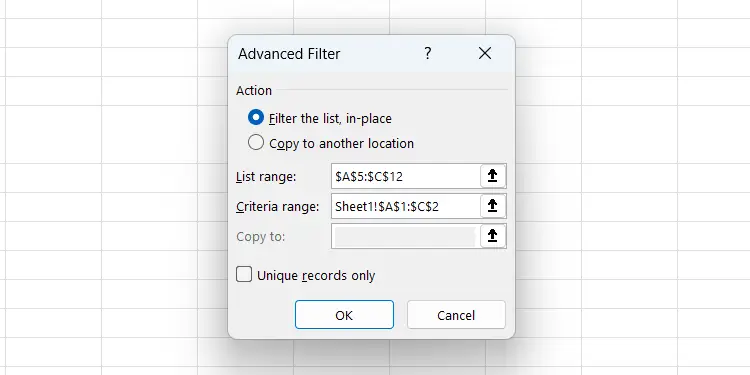
	<li style="text-align: justify;">Trong tab&nbsp;<strong>Data</strong>, nhấp vào&nbsp;<strong>Advanced</strong>&nbsp;trong nhóm&nbsp;<strong>Sort &amp; Filter</strong>&nbsp;của ribbon.</li>
	<li style="text-align: justify;">Nhấp vào bên trong hộp văn bản&nbsp;<strong>List range</strong>&nbsp;và chọn phạm vi có dữ liệu (<strong>A5:C12</strong>).</li>
	<li style="text-align: justify;">Nhấp vào hộp văn bản&nbsp;<strong>Criteria range</strong>&nbsp;và chọn phạm vi tiêu chí (<strong>A1:C2</strong>).</li>
	<li style="text-align: justify;">Nhấp vào&nbsp;<strong>OK</strong>&nbsp;để áp dụng bộ lọc.</li>
</ol>

<figure>
<div style="text-align: justify;"><img alt="Đặt tiêu chí cho bộ lọc nâng cao trong Excel." data-i="10" data-src="https://st.quantrimang.com/photos/image/2024/09/25/loc-du-lieu-excel-11.jpg" data-was-processed="true" height="375" src="https://st.quantrimang.com/photos/image/2024/09/25/loc-du-lieu-excel-11.jpg" width="750" /></div>

<figcaption>
<div style="text-align: justify;">Đặt tiêu chí cho bộ lọc nâng cao trong Excel.</div>
</figcaption>
</figure>

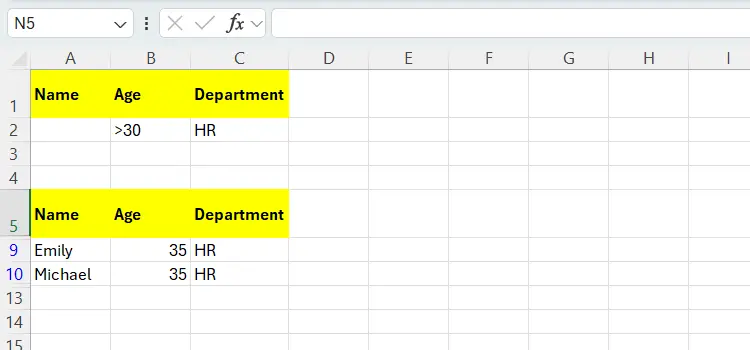
<p style="text-align: justify;">Sau khi bộ lọc được áp dụng, chỉ có hai hàng được hiển thị; đây sẽ là những người trên 30 tuổi và làm việc trong phòng nhân sự.</p>

<figure>
<div style="text-align: justify;"><img alt="Phạm vi dữ liệu hiển thị độ tuổi, tên và phòng ban của nhân viên được lọc bằng bộ lọc nâng cao trong Excel." data-i="11" data-src="https://st.quantrimang.com/photos/image/2024/09/25/loc-du-lieu-excel-12.jpg" data-was-processed="true" height="350" src="https://st.quantrimang.com/photos/image/2024/09/25/loc-du-lieu-excel-12.jpg" width="750" /></div>

<figcaption>
<div style="text-align: justify;">Phạm vi dữ liệu hiển thị độ tuổi, tên và phòng ban của nhân viên được lọc bằng bộ lọc nâng cao trong Excel.</div>
</figcaption>
</figure>

<div style="text-align: justify;">&nbsp;</div>
		</div>
				<div id="author">
						<p>
				<strong>Nguồn tin:</strong>
				Quantrimang.com:
			</p>
		</div>
	</div>
	<div id="footer" class="clearfix">
		<div id="url">
			<strong>URL của bản tin này: </strong><a href="https://www.nguoicodonvn2008.info/vi/news/savefile/kien-thuc-may-tinh/cach-loc-du-lieu-trong-excel-9060.html" title="Cách lọc dữ liệu trong Excel">https://www.nguoicodonvn2008.info/vi/news/savefile/kien-thuc-may-tinh/cach-loc-du-lieu-trong-excel-9060.html</a>

		</div>
		<div class="clear"></div>
		<div class="copyright">
			&copy; .&#x3A; Nguoicodonvn2008.info - Cõi lòng người cô đơn &#x3A;.
		</div>
		<div id="contact">
			<a href="mailto:admin@nguoicodonvn2008.info">admin@nguoicodonvn2008.info</a>
		</div>
	</div>
</div>
        <div id="timeoutsess" class="chromeframe">
            Bạn đã không sử dụng Site, <a onclick="timeoutsesscancel();" href="https://nguoicodonvn2008.info/#">Bấm vào đây để duy trì trạng thái đăng nhập</a>. Thời gian chờ: <span id="secField"> 60 </span> giây
        </div>
        <div id="openidResult" class="nv-alert" style="display:none"></div>
        <div id="openidBt" data-result="" data-redirect=""></div>
		</script>
		<div class="car-top">
  <span><img src="https://nguoicodonvn2008.info/themes/default/images/car.png" alt=""></span>
</div>
<script src="https://nguoicodonvn2008.info/assets/js/jquery/jquery.min.js"></script>
<script>var nv_base_siteurl="/",nv_lang_data="vi",nv_lang_interface="vi",nv_name_variable="nv",nv_fc_variable="op",nv_lang_variable="language",nv_module_name="news",nv_func_name="savefile",nv_is_user=0, nv_my_ofs=-4,nv_my_abbr="EDT",nv_cookie_prefix="nv4c_e856T",nv_check_pass_mstime=1738000,nv_area_admin=0,nv_safemode=0,theme_responsive=0,nv_recaptcha_ver=2,nv_recaptcha_sitekey="",nv_recaptcha_type="image",XSSsanitize=1;</script>
<script src="https://nguoicodonvn2008.info/assets/js/language/vi.js"></script>
<script src="https://nguoicodonvn2008.info/assets/js/DOMPurify/purify3.js"></script>
<script src="https://nguoicodonvn2008.info/assets/js/global.js"></script>
<script src="https://nguoicodonvn2008.info/assets/js/site.js"></script>
<script src="https://nguoicodonvn2008.info/themes/default/js/news.js"></script>
<script src="https://nguoicodonvn2008.info/themes/default/js/main.js"></script>
<script src="https://nguoicodonvn2008.info/themes/default/js/custom.js"></script>
<script type="application/ld+json">
        {
            "@context": "https://schema.org",
            "@type": "Organization",
            "url": "https://nguoicodonvn2008.info",
            "logo": "https://nguoicodonvn2008.info/uploads/angel.gif"
        }
        </script>
<script src="https://nguoicodonvn2008.info/themes/default/js/bootstrap.min.js"></script>
<script type="text/javascript">
var $scrolltop = $('.car-top');
$scrolltop.on('click', function () {
    $('html,body').animate({
        scrollTop: 0
    }, 800);
    $(this).addClass("car-run");
    setTimeout(function(){ $scrolltop.removeClass('car-run');}, 1000);
    return false;
});
$(window).on('scroll', function ()
{ 
    if($(window).scrollTop() >= 200)
    {
        $scrolltop.addClass("show");
        $scrolltop.addClass("car-down");
    }
    else
    {
       $scrolltop.removeClass("show");
       setTimeout(function(){ $scrolltop.removeClass('car-down');}, 300);
    }
});
</script>
</body>
</html>